using IronPdf;

// Disable local disk access or cross-origin requests
Installation.EnableWebSecurity = true;

// Instantiate Renderer
var renderer = new ChromePdfRenderer();

// Create a PDF from a HTML string using C#
var pdf = renderer.RenderHtmlAsPdf("<h1>Hello World</h1>");

// Export to a file or Stream
pdf.SaveAs("output.pdf");

// Advanced Example with HTML Assets
// Load external html assets: Images, CSS and JavaScript.
// An optional BasePath 'C:\site\assets\' is set as the file location to load assets from
var myAdvancedPdf = renderer.RenderHtmlAsPdf("<img src='icons/iron.png'>", @"C:\site\assets\");
myAdvancedPdf.SaveAs("html-with-assets.pdf");
using IronPdf;// Disable local disk access or cross-origin requestsInstallation.EnableWebSecurity = true;// Instantiate Renderervar renderer = new ChromePdfRenderer();// Create a PDF from a HTML string using C#var pdf = renderer.RenderHtmlAsPdf("<h1>Hello World</h1>");// Export to a file or Streampdf.SaveAs("output.pdf");// Advanced Example with HTML Assets// Load external html assets: Images, CSS and JavaScript.// An optional BasePath 'C:\site\assets\' is set as the file location to load assets fromvar myAdvancedPdf = renderer.RenderHtmlAsPdf("<img src='icons/iron.png'>", @"C:\site\assets\");myAdvancedPdf.SaveAs("html-with-assets.pdf");
Converting web pages to PDF in ASP.NET is straightforward with IronPDF's ChromePdfRenderer class, which transforms HTML strings, URLs, and ASPX pages into high-quality PDF documents using just a few lines of C# code.
When you need to generate downloadable reports, invoices, or archival documents in an ASP.NET application, converting web content to PDF is one of the most common requirements. IronPDF gives you a direct path to convert a webpage to PDF in ASP.NET, handling everything from simple HTML strings to fully rendered dynamic web pages -- without requiring any third-party browser installations or complex configuration.
This guide walks through the primary conversion methods available in IronPDF, from basic HTML string rendering to URL-based page capture and ASP.NET Web Forms integration. By the end, you'll have working C# code for each scenario and a clear understanding of when to use each approach.
How Do You Install and Set Up IronPDF?
Before converting any content, install IronPDF into your ASP.NET project. The library is distributed via NuGet and works with .NET 6, .NET 8, .NET 10, and .NET Framework:
PM > Install-Package IronPdf
Install-Package IronPdf
After installation, add the namespace at the top of your C# file:
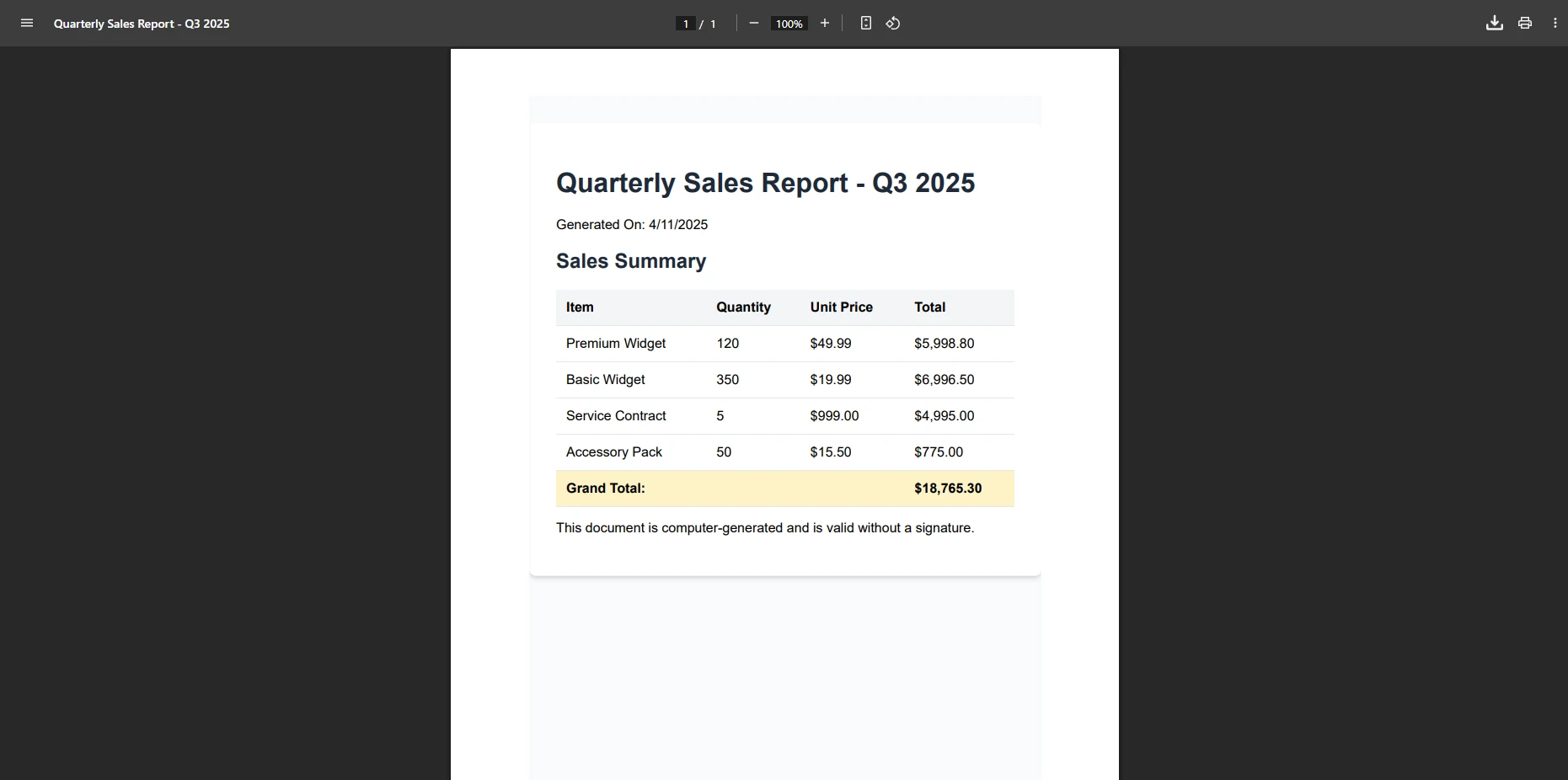
The ChromePdfRenderer class is the main entry point for PDF generation in IronPDF. When you have HTML content as a string -- whether generated dynamically or loaded from a template -- the RenderHtmlAsPdf method converts it directly to a PDF document.
This approach is ideal for generating reports, invoices, and receipts where you construct the HTML programmatically from database records or application data. The renderer processes the HTML using the same Chromium-based engine that powers modern browsers, so CSS layouts, web fonts, and standard HTML5 elements all render correctly.
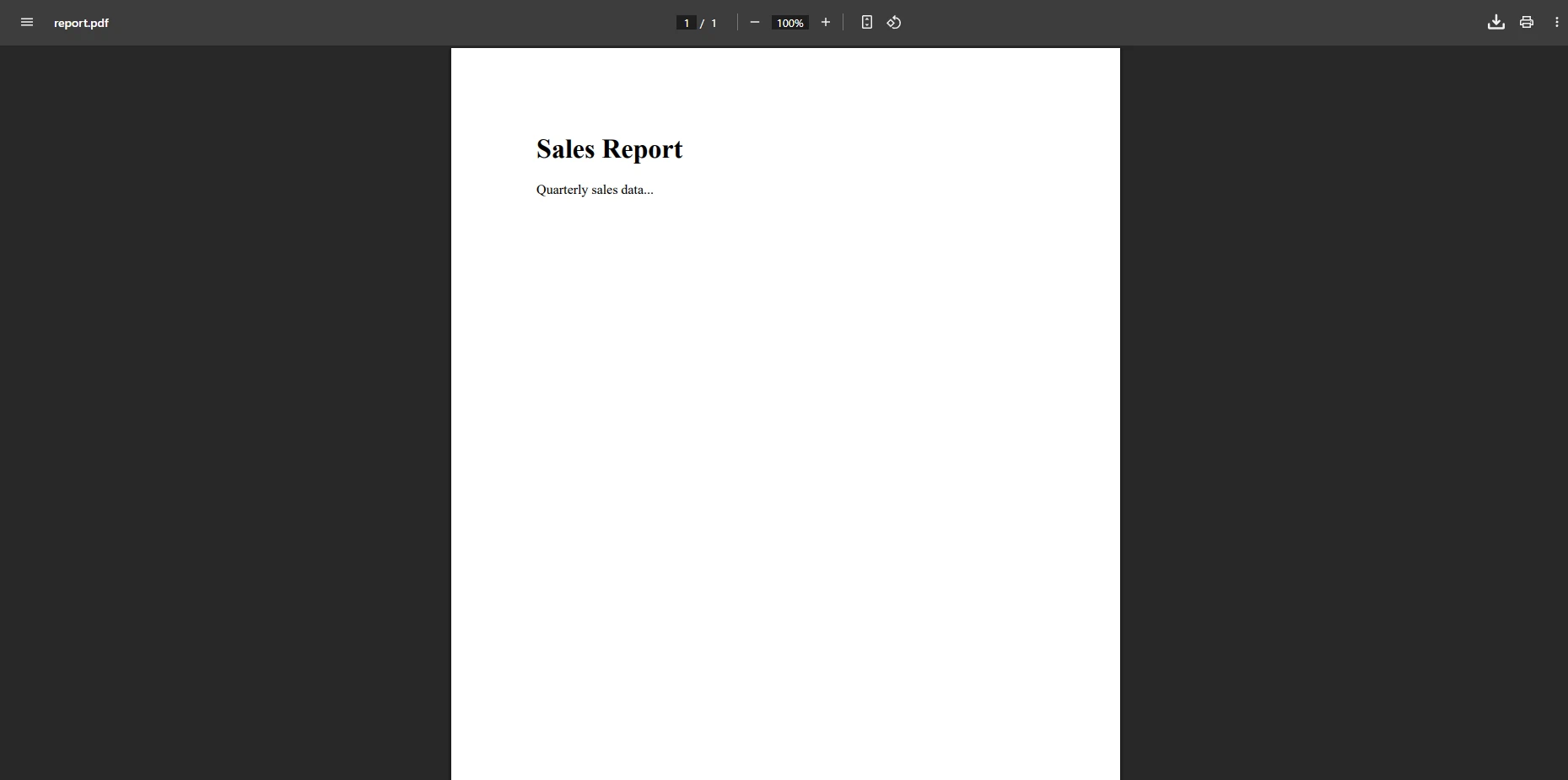
using IronPdf;var renderer = new ChromePdfRenderer();string htmlContent = @" <h1>Quarterly Sales Report</h1> <p>Q3 2025 -- Summary of key revenue metrics and product performance.</p> <table> <thead><tr><th>Product</th><th>Units</th><th>Revenue</th></tr></thead> <tbody> <tr><td>Widget A</td><td>320</td><td>$8,960</td></tr> <tr><td>Widget B</td><td>150</td><td>$6,750</td></tr> <tr><td>Widget C</td><td>210</td><td>$3,055.30</td></tr> </tbody> </table>";var pdf = renderer.RenderHtmlAsPdf(htmlContent);pdf.SaveAs("quarterly-report.pdf");
using IronPdf;

var renderer = new ChromePdfRenderer();

string htmlContent = @"
    <h1>Quarterly Sales Report</h1>
    <p>Q3 2025 -- Summary of key revenue metrics and product performance.</p>
    <table>
        <thead><tr><th>Product</th><th>Units</th><th>Revenue</th></tr></thead>
        <tbody>
            <tr><td>Widget A</td><td>320</td><td>$8,960</td></tr>
            <tr><td>Widget B</td><td>150</td><td>$6,750</td></tr>
            <tr><td>Widget C</td><td>210</td><td>$3,055.30</td></tr>
        </tbody>
    </table>";

var pdf = renderer.RenderHtmlAsPdf(htmlContent);
pdf.SaveAs("quarterly-report.pdf");
ImportsIronPdfDim renderer As New ChromePdfRenderer()Dim htmlContent AsString = " <h1>Quarterly Sales Report</h1> <p>Q3 2025 -- Summary of key revenue metrics and product performance.</p> <table> <thead><tr><th>Product</th><th>Units</th><th>Revenue</th></tr></thead> <tbody> <tr><td>Widget A</td><td>320</td><td>$8,960</td></tr> <tr><td>Widget B</td><td>150</td><td>$6,750</td></tr> <tr><td>Widget C</td><td>210</td><td>$3,055.30</td></tr> </tbody> </table>"Dim pdf = renderer.RenderHtmlAsPdf(htmlContent)pdf.SaveAs("quarterly-report.pdf")
Imports IronPdf

Dim renderer As New ChromePdfRenderer()

Dim htmlContent As String = "
    <h1>Quarterly Sales Report</h1>
    <p>Q3 2025 -- Summary of key revenue metrics and product performance.</p>
    <table>
        <thead><tr><th>Product</th><th>Units</th><th>Revenue</th></tr></thead>
        <tbody>
            <tr><td>Widget A</td><td>320</td><td>$8,960</td></tr>
            <tr><td>Widget B</td><td>150</td><td>$6,750</td></tr>
            <tr><td>Widget C</td><td>210</td><td>$3,055.30</td></tr>
        </tbody>
    </table>"

Dim pdf = renderer.RenderHtmlAsPdf(htmlContent)
pdf.SaveAs("quarterly-report.pdf")
If your HTML references external stylesheets or images using relative paths, provide the base directory as a second argument. This tells IronPDF where to resolve those references:
using IronPdf;var renderer = new ChromePdfRenderer();string html = @" <link rel='stylesheet' href='styles.css'> <h1>Company Report</h1> <div>Annual Summary</div>";// Provide the base path so the renderer can locate relative resourcesvar pdf = renderer.RenderHtmlAsPdf(html, @"C:\Reports\Assets\");pdf.SaveAs("annual-report.pdf");
using IronPdf;

var renderer = new ChromePdfRenderer();

string html = @"
    <link rel='stylesheet' href='styles.css'>
    <h1>Company Report</h1>
    <div>Annual Summary</div>";

// Provide the base path so the renderer can locate relative resources
var pdf = renderer.RenderHtmlAsPdf(html, @"C:\Reports\Assets\");
pdf.SaveAs("annual-report.pdf");
ImportsIronPdfDim renderer As New ChromePdfRenderer()Dim html AsString = " <link rel='stylesheet' href='styles.css'> <h1>Company Report</h1> <div>Annual Summary</div>"' Provide the base path so the renderer can locate relative resourcesDim pdf = renderer.RenderHtmlAsPdf(html, "C:\Reports\Assets\")pdf.SaveAs("annual-report.pdf")
Imports IronPdf

Dim renderer As New ChromePdfRenderer()

Dim html As String = "
    <link rel='stylesheet' href='styles.css'>
    <h1>Company Report</h1>
    <div>Annual Summary</div>"

' Provide the base path so the renderer can locate relative resources
Dim pdf = renderer.RenderHtmlAsPdf(html, "C:\Reports\Assets\")
pdf.SaveAs("annual-report.pdf")
When you need to capture an existing web page -- whether an internal application route or a public URL -- IronPDF's RenderUrlAsPdf method fetches the full page content and converts it to PDF. The output preserves styles, images, and layout exactly as rendered in a browser.
Rendering a Static Web Page
For pages that serve mostly static content, a basic call to RenderUrlAsPdf is sufficient. The method handles SSL certificates, redirects, and content encoding automatically:
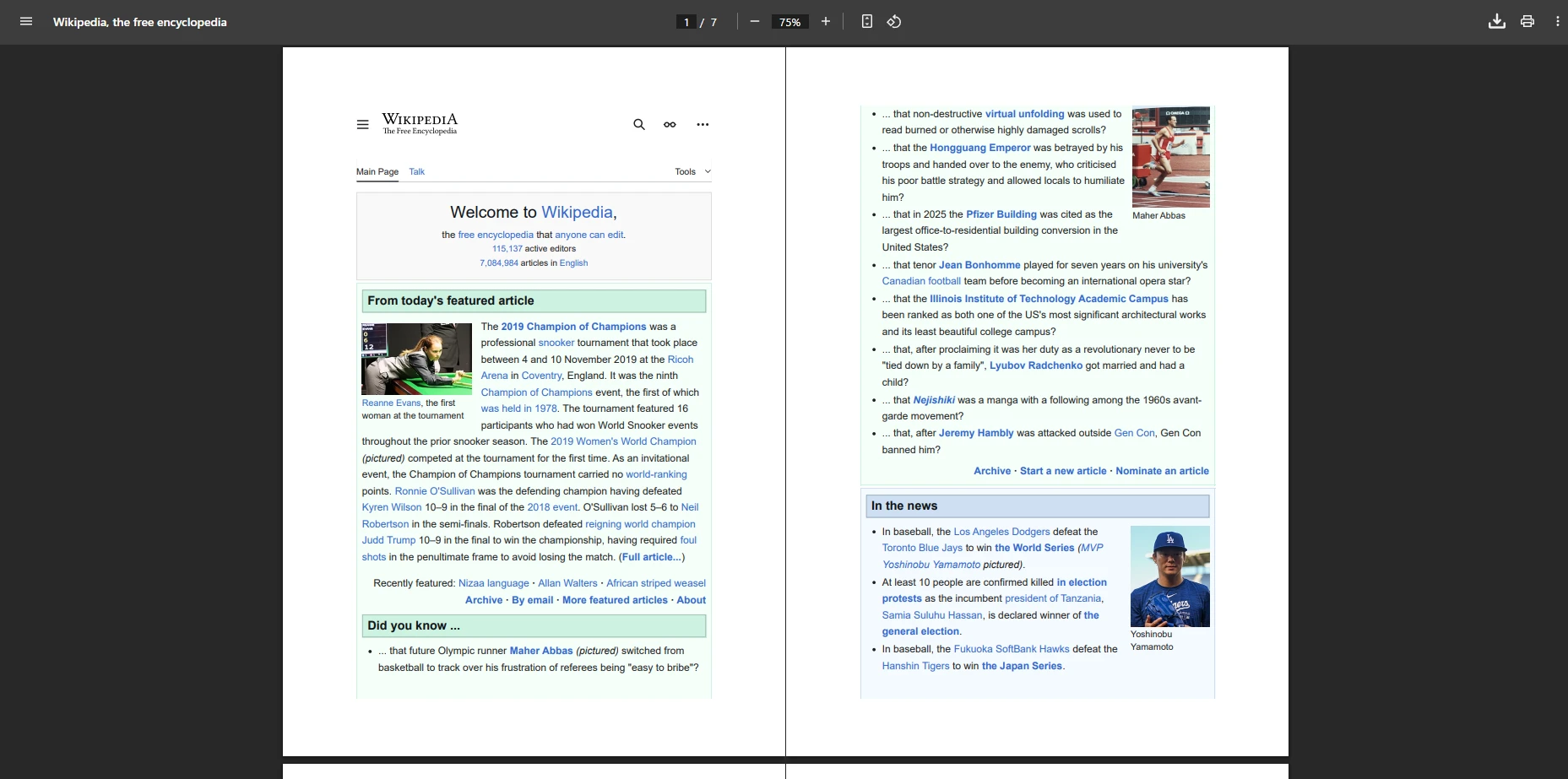
using IronPdf;var renderer = new ChromePdfRenderer();// Optional: wait a short time for the page to finish loadingrenderer.RenderingOptions.WaitFor.RenderDelay(500);var pdf = renderer.RenderUrlAsPdf("https://en.wikipedia.org/wiki/PDF");pdf.SaveAs("wikipedia-pdf-article.pdf");
using IronPdf;

var renderer = new ChromePdfRenderer();

// Optional: wait a short time for the page to finish loading
renderer.RenderingOptions.WaitFor.RenderDelay(500);

var pdf = renderer.RenderUrlAsPdf("https://en.wikipedia.org/wiki/PDF");
pdf.SaveAs("wikipedia-pdf-article.pdf");
ImportsIronPdfDim renderer = New ChromePdfRenderer()' Optional: wait a short time for the page to finish loadingrenderer.RenderingOptions.WaitFor.RenderDelay(500)Dim pdf = renderer.RenderUrlAsPdf("https://en.wikipedia.org/wiki/PDF")pdf.SaveAs("wikipedia-pdf-article.pdf")
Imports IronPdf

Dim renderer = New ChromePdfRenderer()

' Optional: wait a short time for the page to finish loading
renderer.RenderingOptions.WaitFor.RenderDelay(500)

Dim pdf = renderer.RenderUrlAsPdf("https://en.wikipedia.org/wiki/PDF")
pdf.SaveAs("wikipedia-pdf-article.pdf")
Rendering Pages with JavaScript or Authentication
For pages that require authentication or use JavaScript to load data dynamically, configure the renderer with the appropriate credentials and wait strategy:
using IronPdf;var renderer = new ChromePdfRenderer();// Enable JavaScript for pages that load content after the initial HTML responserenderer.RenderingOptions.EnableJavaScript = true;renderer.RenderingOptions.WaitFor.NetworkIdle(500);// Provide credentials for authenticated internal pagesrenderer.LoginCredentials = new ChromeHttpLoginCredentials(){NetworkUsername = "service-account",NetworkPassword = "secure-password"};var pdf = renderer.RenderUrlAsPdf("https://app.internal/reports/monthly");pdf.SaveAs("monthly-report.pdf");
using IronPdf;

var renderer = new ChromePdfRenderer();

// Enable JavaScript for pages that load content after the initial HTML response
renderer.RenderingOptions.EnableJavaScript = true;
renderer.RenderingOptions.WaitFor.NetworkIdle(500);

// Provide credentials for authenticated internal pages
renderer.LoginCredentials = new ChromeHttpLoginCredentials()
{
    NetworkUsername = "service-account",
    NetworkPassword = "secure-password"
};

var pdf = renderer.RenderUrlAsPdf("https://app.internal/reports/monthly");
pdf.SaveAs("monthly-report.pdf");
ImportsIronPdfDim renderer As New ChromePdfRenderer()' Enable JavaScript for pages that load content after the initial HTML responserenderer.RenderingOptions.EnableJavaScript = Truerenderer.RenderingOptions.WaitFor.NetworkIdle(500)' Provide credentials for authenticated internal pagesrenderer.LoginCredentials = New ChromeHttpLoginCredentials() With { .NetworkUsername = "service-account", .NetworkPassword = "secure-password"}Dim pdf = renderer.RenderUrlAsPdf("https://app.internal/reports/monthly")pdf.SaveAs("monthly-report.pdf")
Imports IronPdf

Dim renderer As New ChromePdfRenderer()

' Enable JavaScript for pages that load content after the initial HTML response
renderer.RenderingOptions.EnableJavaScript = True
renderer.RenderingOptions.WaitFor.NetworkIdle(500)

' Provide credentials for authenticated internal pages
renderer.LoginCredentials = New ChromeHttpLoginCredentials() With {
    .NetworkUsername = "service-account",
    .NetworkPassword = "secure-password"
}

Dim pdf = renderer.RenderUrlAsPdf("https://app.internal/reports/monthly")
pdf.SaveAs("monthly-report.pdf")
For sites that use session cookies or Windows authentication, review the guide on TLS and system logins. See the complete URL to PDF documentation for a full list of configuration options including cookie handling and custom HTTP headers.
How Do You Convert an ASPX Page to PDF in ASP.NET Web Forms?
For ASP.NET Web Forms applications, IronPDF provides the AspxToPdf class that converts the currently rendered ASPX page directly to a PDF -- without requiring a separate HTTP request or re-rendering the page content.
Basic One-Line ASPX Conversion
Call RenderThisPageAsPdf() inside a page event handler, and IronPDF intercepts the response and replaces it with a PDF download:
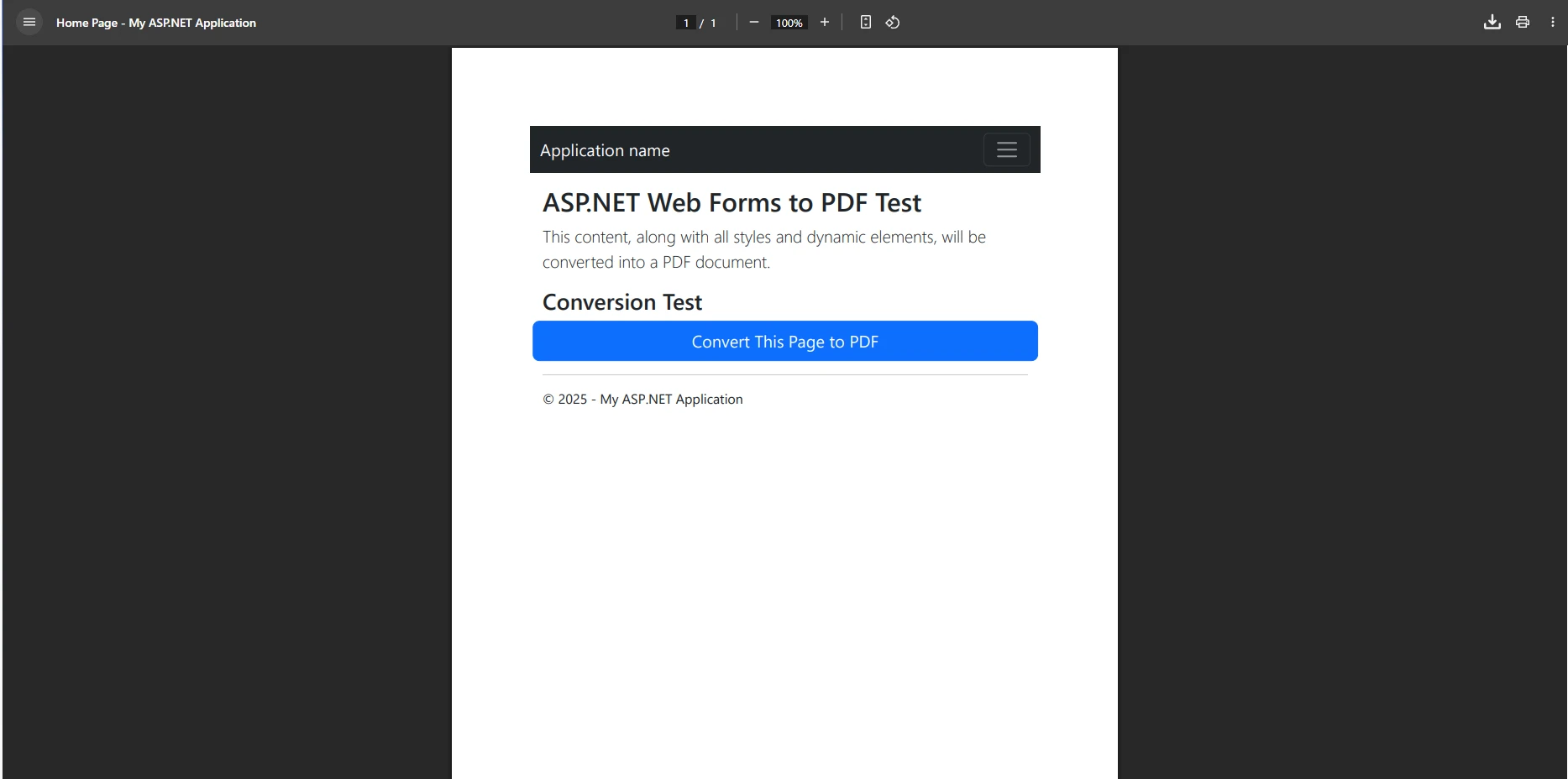
using IronPdf;protected voidPage_Load(object sender, EventArgs e){ // Configure paper settings before renderingIronPdf.AspxToPdf.RenderingOptions.PaperSize = IronPdf.Rendering.PdfPaperSize.Letter;IronPdf.AspxToPdf.RenderingOptions.MarginTop = 20;IronPdf.AspxToPdf.RenderingOptions.MarginBottom = 20; // Convert the current ASPX page to PDF and send it to the browserIronPdf.AspxToPdf.RenderThisPageAsPdf(IronPdf.AspxToPdf.FileBehavior.InBrowser, "invoice-" + DateTime.UtcNow.ToString("yyyy-MM-dd") + ".pdf" );}
using IronPdf;

protected void Page_Load(object sender, EventArgs e)
{
    // Configure paper settings before rendering
    IronPdf.AspxToPdf.RenderingOptions.PaperSize = IronPdf.Rendering.PdfPaperSize.Letter;
    IronPdf.AspxToPdf.RenderingOptions.MarginTop = 20;
    IronPdf.AspxToPdf.RenderingOptions.MarginBottom = 20;

    // Convert the current ASPX page to PDF and send it to the browser
    IronPdf.AspxToPdf.RenderThisPageAsPdf(
        IronPdf.AspxToPdf.FileBehavior.InBrowser,
        "invoice-" + DateTime.UtcNow.ToString("yyyy-MM-dd") + ".pdf"
    );
}
ImportsIronPdfProtected Sub Page_Load(sender AsObject, e AsEventArgs) ' Configure paper settings before renderingIronPdf.AspxToPdf.RenderingOptions.PaperSize = IronPdf.Rendering.PdfPaperSize.LetterIronPdf.AspxToPdf.RenderingOptions.MarginTop = 20IronPdf.AspxToPdf.RenderingOptions.MarginBottom = 20 ' Convert the current ASPX page to PDF and send it to the browserIronPdf.AspxToPdf.RenderThisPageAsPdf(IronPdf.AspxToPdf.FileBehavior.InBrowser, "invoice-" & DateTime.UtcNow.ToString("yyyy-MM-dd") & ".pdf" )End Sub
Imports IronPdf

Protected Sub Page_Load(sender As Object, e As EventArgs)
    ' Configure paper settings before rendering
    IronPdf.AspxToPdf.RenderingOptions.PaperSize = IronPdf.Rendering.PdfPaperSize.Letter
    IronPdf.AspxToPdf.RenderingOptions.MarginTop = 20
    IronPdf.AspxToPdf.RenderingOptions.MarginBottom = 20

    ' Convert the current ASPX page to PDF and send it to the browser
    IronPdf.AspxToPdf.RenderThisPageAsPdf(
        IronPdf.AspxToPdf.FileBehavior.InBrowser,
        "invoice-" & DateTime.UtcNow.ToString("yyyy-MM-dd") & ".pdf"
    )
End Sub
This method captures all HTML structure, styles, and dynamic content generated during the page lifecycle. For a full list of ASPX conversion options, see the ASPX to PDF guide and the advanced settings examples.
How Do You Add Headers and Footers to PDF Documents?
Headers and footers are standard for professional reports and invoices. IronPDF supports both text-based and HTML-based headers and footers, with built-in placeholders for dynamic values like page numbers and the current date.
Text and HTML Headers
The TextHeaderFooter class lets you define simple text on the left, center, and right of each page. Placeholders like {page}, {total-pages}, and {date} are populated automatically during rendering. When you need branded headers with logos and custom layouts, use HtmlHeaderFooter instead -- its HTML fragment is processed by the same rendering engine as the document body:
How Do You Configure PDF Page Layout and Rendering Options?
IronPDF gives you full control over the page layout, margins, DPI, and CSS rendering behavior through the RenderingOptions property. This is where you configure paper size, print vs. screen CSS, and interactive form generation.
Key Rendering Options
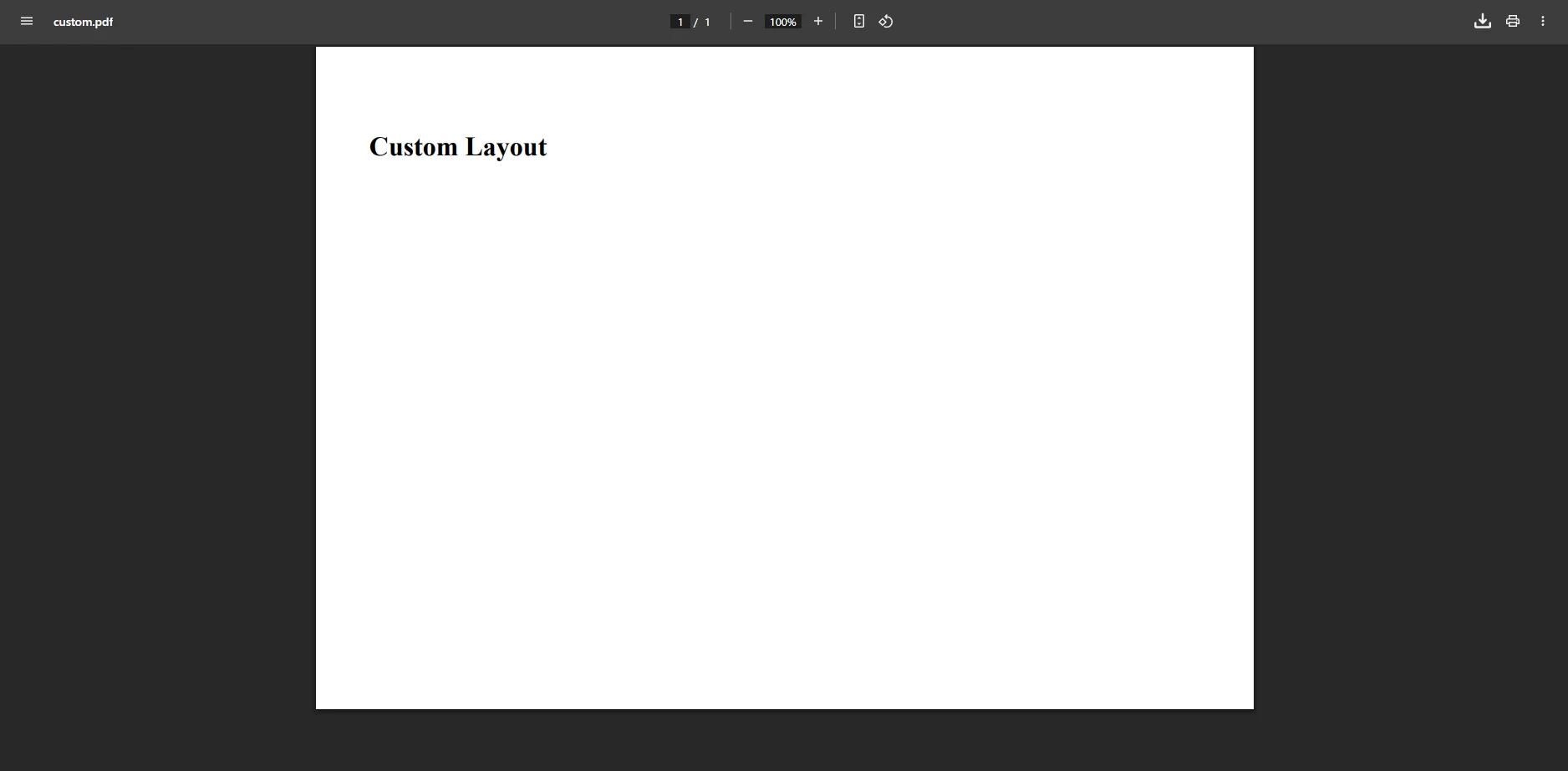
using IronPdf;var renderer = new ChromePdfRenderer();// Set paper dimensions and orientationrenderer.RenderingOptions.PaperSize = IronPdf.Rendering.PdfPaperSize.Letter;renderer.RenderingOptions.PaperOrientation = IronPdf.Rendering.PdfPaperOrientation.Portrait;// Define margins (values in millimeters)renderer.RenderingOptions.MarginTop = 25;renderer.RenderingOptions.MarginBottom = 25;renderer.RenderingOptions.MarginLeft = 19;renderer.RenderingOptions.MarginRight = 19;// Use print-specific CSS rules and set output DPIrenderer.RenderingOptions.CssMediaType = IronPdf.Rendering.PdfCssMediaType.Print;renderer.RenderingOptions.DPI = 300;// Preserve HTML form elements as interactive PDF form fieldsrenderer.RenderingOptions.CreatePdfFormsFromHtml = true;var pdf = renderer.RenderHtmlAsPdf("<h1>Custom Layout Document</h1><p>Content with configured layout.</p>");pdf.SaveAs("configured-output.pdf");
using IronPdf;

var renderer = new ChromePdfRenderer();

// Set paper dimensions and orientation
renderer.RenderingOptions.PaperSize = IronPdf.Rendering.PdfPaperSize.Letter;
renderer.RenderingOptions.PaperOrientation = IronPdf.Rendering.PdfPaperOrientation.Portrait;

// Define margins (values in millimeters)
renderer.RenderingOptions.MarginTop = 25;
renderer.RenderingOptions.MarginBottom = 25;
renderer.RenderingOptions.MarginLeft = 19;
renderer.RenderingOptions.MarginRight = 19;

// Use print-specific CSS rules and set output DPI
renderer.RenderingOptions.CssMediaType = IronPdf.Rendering.PdfCssMediaType.Print;
renderer.RenderingOptions.DPI = 300;

// Preserve HTML form elements as interactive PDF form fields
renderer.RenderingOptions.CreatePdfFormsFromHtml = true;

var pdf = renderer.RenderHtmlAsPdf("<h1>Custom Layout Document</h1><p>Content with configured layout.</p>");
pdf.SaveAs("configured-output.pdf");
ImportsIronPdfDim renderer As New ChromePdfRenderer()' Set paper dimensions and orientationrenderer.RenderingOptions.PaperSize = IronPdf.Rendering.PdfPaperSize.Letterrenderer.RenderingOptions.PaperOrientation = IronPdf.Rendering.PdfPaperOrientation.Portrait' Define margins (values in millimeters)renderer.RenderingOptions.MarginTop = 25renderer.RenderingOptions.MarginBottom = 25renderer.RenderingOptions.MarginLeft = 19renderer.RenderingOptions.MarginRight = 19' Use print-specific CSS rules and set output DPIrenderer.RenderingOptions.CssMediaType = IronPdf.Rendering.PdfCssMediaType.Printrenderer.RenderingOptions.DPI = 300' Preserve HTML form elements as interactive PDF form fieldsrenderer.RenderingOptions.CreatePdfFormsFromHtml = TrueDim pdf = renderer.RenderHtmlAsPdf("<h1>Custom Layout Document</h1><p>Content with configured layout.</p>")pdf.SaveAs("configured-output.pdf")
Imports IronPdf

Dim renderer As New ChromePdfRenderer()

' Set paper dimensions and orientation
renderer.RenderingOptions.PaperSize = IronPdf.Rendering.PdfPaperSize.Letter
renderer.RenderingOptions.PaperOrientation = IronPdf.Rendering.PdfPaperOrientation.Portrait

' Define margins (values in millimeters)
renderer.RenderingOptions.MarginTop = 25
renderer.RenderingOptions.MarginBottom = 25
renderer.RenderingOptions.MarginLeft = 19
renderer.RenderingOptions.MarginRight = 19

' Use print-specific CSS rules and set output DPI
renderer.RenderingOptions.CssMediaType = IronPdf.Rendering.PdfCssMediaType.Print
renderer.RenderingOptions.DPI = 300

' Preserve HTML form elements as interactive PDF form fields
renderer.RenderingOptions.CreatePdfFormsFromHtml = True

Dim pdf = renderer.RenderHtmlAsPdf("<h1>Custom Layout Document</h1><p>Content with configured layout.</p>")
pdf.SaveAs("configured-output.pdf")
The table below summarizes key rendering options and their effect on the output:
Common IronPDF Rendering Options
Option
Purpose
Example Value
PaperSize
Sets paper dimensions (Letter, A4, Legal, etc.)
PdfPaperSize.A4
MarginTop / MarginBottom
Sets page margins in millimeters
25
DPI
Output resolution -- higher values for print quality
300
CssMediaType
Chooses between Screen and Print CSS rules
PdfCssMediaType.Print
EnableJavaScript
Enables or disables JavaScript execution during render
true
CreatePdfFormsFromHtml
Converts HTML form elements to interactive PDF forms
true
WaitFor.RenderDelay
Adds a delay before capturing to allow JS execution
In ASP.NET Core MVC, you return a PDF directly from a controller action using File(). The pattern is to render an internal URL or HTML string to a PdfDocument object, then return its binary data with the application/pdf MIME type.
Returning a PDF from a Controller Action
The following example renders an internal report URL and returns the result as a file download. The Microsoft ASP.NET Core MVC documentation covers the base Controller class and File() return type in detail:
using IronPdf;using Microsoft.AspNetCore.Mvc;public class ReportsController : Controller{ public IActionResultGeneratePdf() { var renderer = new ChromePdfRenderer(); renderer.RenderingOptions.PaperSize = IronPdf.Rendering.PdfPaperSize.Letter; renderer.RenderingOptions.MarginTop = 20; renderer.RenderingOptions.MarginBottom = 20; // Add a text footer with page numbers renderer.RenderingOptions.TextFooter = new TextHeaderFooter() {CenterText = "Page {page} of {total-pages}",FontSize = 9 }; // Build the URL to the internal report page and render it string reportUrl = $"{Request.Scheme}://{Request.Host}/reports/quarterly"; var pdf = renderer.RenderUrlAsPdf(reportUrl); returnFile(pdf.BinaryData, "application/pdf", "quarterly-report.pdf"); }}
using IronPdf;
using Microsoft.AspNetCore.Mvc;

public class ReportsController : Controller
{
    public IActionResult GeneratePdf()
    {
        var renderer = new ChromePdfRenderer();

        renderer.RenderingOptions.PaperSize = IronPdf.Rendering.PdfPaperSize.Letter;
        renderer.RenderingOptions.MarginTop = 20;
        renderer.RenderingOptions.MarginBottom = 20;

        // Add a text footer with page numbers
        renderer.RenderingOptions.TextFooter = new TextHeaderFooter()
        {
            CenterText = "Page {page} of {total-pages}",
            FontSize = 9
        };

        // Build the URL to the internal report page and render it
        string reportUrl = $"{Request.Scheme}://{Request.Host}/reports/quarterly";
        var pdf = renderer.RenderUrlAsPdf(reportUrl);

        return File(pdf.BinaryData, "application/pdf", "quarterly-report.pdf");
    }
}
ImportsIronPdfImportsMicrosoft.AspNetCore.MvcPublic Class ReportsControllerInheritsController Public Function GeneratePdf() AsIActionResult Dim renderer = New ChromePdfRenderer() renderer.RenderingOptions.PaperSize = IronPdf.Rendering.PdfPaperSize.Letter renderer.RenderingOptions.MarginTop = 20 renderer.RenderingOptions.MarginBottom = 20 ' Add a text footer with page numbers renderer.RenderingOptions.TextFooter = New TextHeaderFooter() With { .CenterText = "Page {page} of {total-pages}", .FontSize = 9 } ' Build the URL to the internal report page and render it Dim reportUrl AsString = $"{Request.Scheme}://{Request.Host}/reports/quarterly" Dim pdf = renderer.RenderUrlAsPdf(reportUrl) ReturnFile(pdf.BinaryData, "application/pdf", "quarterly-report.pdf") End FunctionEnd Class
Imports IronPdf
Imports Microsoft.AspNetCore.Mvc

Public Class ReportsController
    Inherits Controller

    Public Function GeneratePdf() As IActionResult
        Dim renderer = New ChromePdfRenderer()

        renderer.RenderingOptions.PaperSize = IronPdf.Rendering.PdfPaperSize.Letter
        renderer.RenderingOptions.MarginTop = 20
        renderer.RenderingOptions.MarginBottom = 20

        ' Add a text footer with page numbers
        renderer.RenderingOptions.TextFooter = New TextHeaderFooter() With {
            .CenterText = "Page {page} of {total-pages}",
            .FontSize = 9
        }

        ' Build the URL to the internal report page and render it
        Dim reportUrl As String = $"{Request.Scheme}://{Request.Host}/reports/quarterly"
        Dim pdf = renderer.RenderUrlAsPdf(reportUrl)

        Return File(pdf.BinaryData, "application/pdf", "quarterly-report.pdf")
    End Function
End Class
What Security and Compliance Features Does IronPDF Support?
Beyond basic PDF generation, IronPDF includes a set of features for organizations that require document security, long-term archiving, or accessibility compliance. These are particularly relevant for finance, healthcare, legal, and government applications where documents must meet defined regulatory standards.
Document Security
Password protection and permissions give you control over who can open, print, edit, or copy content from your PDFs. See the permissions and passwords guide for configuration details.
For long-term document archiving in regulated industries, IronPDF can convert standard PDFs to PDF/A format -- the ISO standard for archival-grade documents.
To meet Section 508 and WCAG accessibility requirements, IronPDF supports generating tagged, accessible PDFs conforming to the PDF/UA standard.
Content Redaction and Metadata
Sensitive information can be permanently removed using the redaction features, which eliminates content without leaving recoverable traces. For audit trails and document classification, you can set author, creation date, keywords, and custom metadata fields through the metadata guide.
How Do You Get Started with a Free Trial?
IronPDF is available with a free trial license that includes all features covered in this guide -- PDF generation, security controls, headers and footers, and compliance features. No credit card is required to begin testing.
To explore additional capabilities, review the complete API reference and the code examples library for working implementations covering the most common PDF scenarios. The quickstart guide provides a focused starting point if this is your first project with IronPDF.
For production deployments, explore PDF compression to reduce file sizes, PDF merging and splitting for document management, and OCR capabilities through IronOCR for extracting text from scanned documents. All Iron Software products share compatible licensing and can be used together in the same application.
Curtis Chau holds a Bachelor’s degree in Computer Science (Carleton University) and specializes in front-end development with expertise in Node.js, TypeScript, JavaScript, and React. Passionate about crafting intuitive and aesthetically pleasing user interfaces, Curtis enjoys working with modern frameworks and creating well-structured, visually appealing manuals.