푸터 콘텐츠로 바로가기
IRONPDF 사용

Discover the Key Features of the PDF .NET SDK Using IronPDF

IronPDF offers a complete PDF .NET SDK that automates PDF processing through features like HTML-to-PDF conversion, document manipulation, security encryption, and batch processing capabilities for .NET developers.

Manual PDF processing costs businesses thousands of hours annually. A PDF .NET SDK (Software Development Kit) eliminates these inefficiencies by providing tools to programmatically create, manipulate, and manage PDF documents within your .NET projects. This automation turns error-prone manual processes into reliable, flexible solutions that deliver immediate ROI when handling multiple PDF files.

IronPDF stands out as a complete PDF .NET SDK and class library that transforms these challenges into competitive advantages. Built specifically for .NET developers using Visual Studio, it provides an intuitive API that simplifies complex PDF processing functions into straightforward method calls. Whether you're building a web application for document generation that creates thousands of customer reports or an enterprise system requiring bulletproof document security, IronPDF delivers the features and reliability that professional developers demand. The .NET PDF library handles everything from creating new PDF documents to editing existing PDF files.

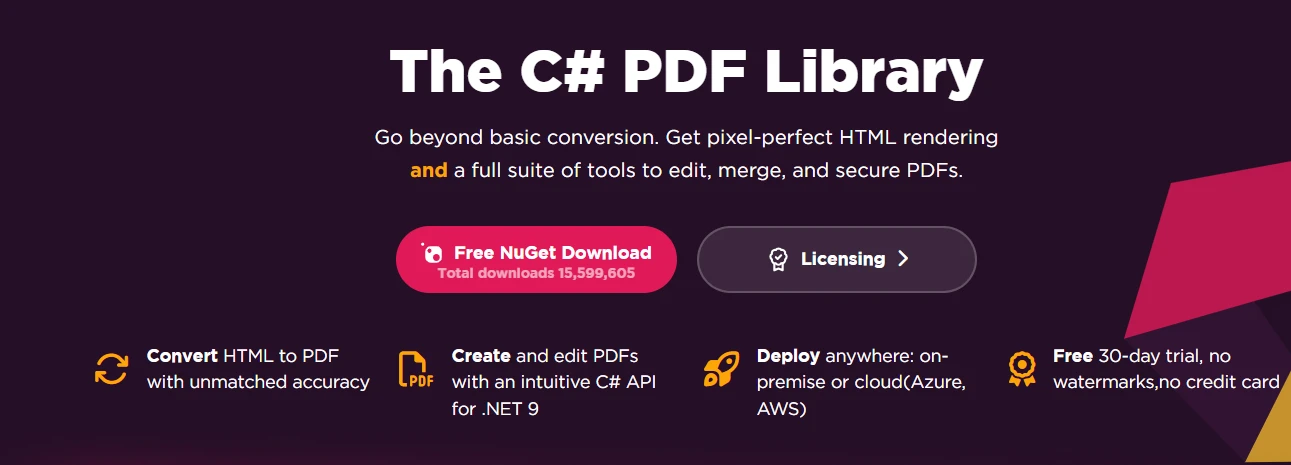
IronPDF C# PDF Library homepage banner demonstrate HTML to PDF conversion, PDF editing capabilities, deployment options, and free trial offer

How Does IronPDF Simplify PDF Document Workflows?

IronPDF's architecture prioritizes developer productivity and application performance when handling PDF files. Its design philosophy centers on simplicity without sacrificing capability, enabling you to implement PDF SDK functionality and PDF processing functions quickly while maintaining full control over the output PDF document. The library supports async operations and multi-threading to improve performance in production environments.

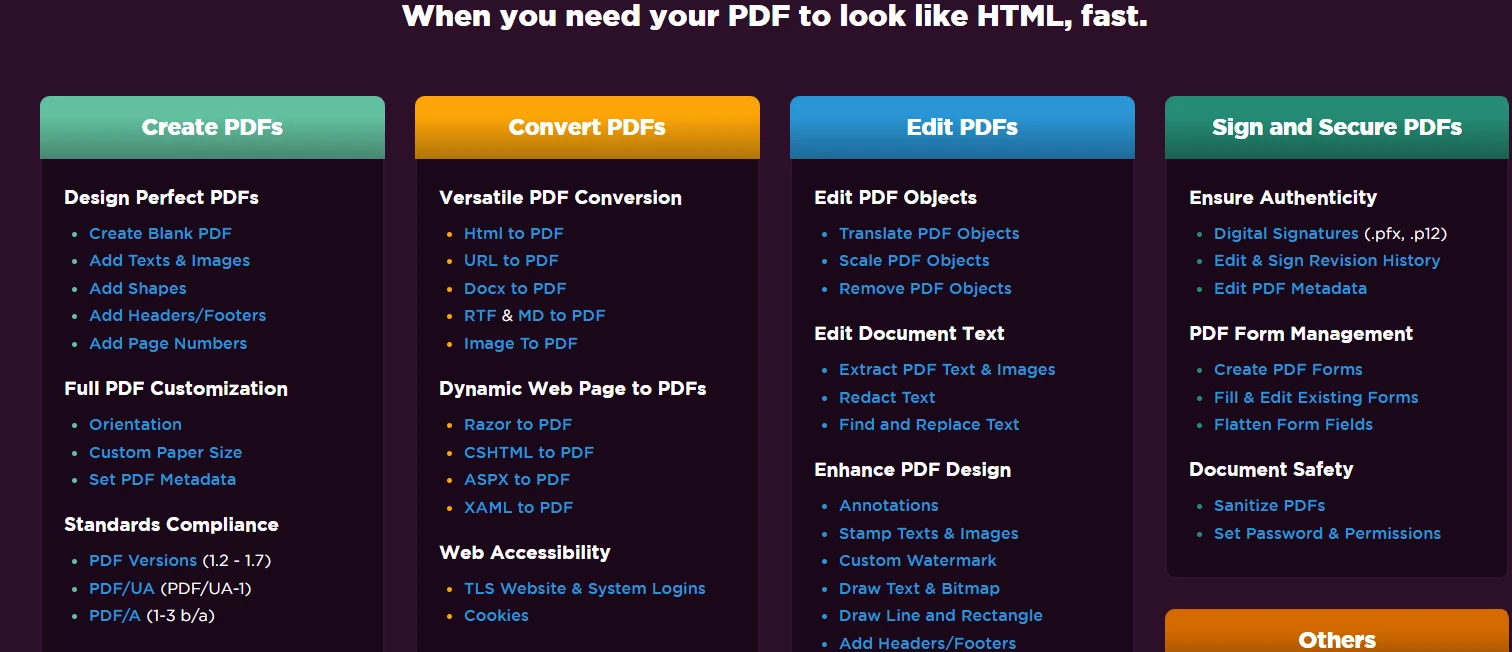
IronPDF features overview showing four main categories: Create PDFs, Convert PDFs, Edit PDFs, and Sign and Secure PDFs with detailed functionality lists under each category.

The integration process requires minimal setup in your project. With just a NuGet package installation using the .NET Core CLI or Visual Studio, you gain access to full PDF capabilities. IronPDF works smoothly with .NET 9, 8, 7, 6, .NET Core, .NET Standard, and .NET Framework, ensuring compatibility with both modern and legacy applications. This class library-based solution extends to deployment environments as well, supporting Windows (including legacy Windows XP with proper framework), Linux, macOS, Docker containers, and cloud platforms like Azure and AWS. The build tool integration ensures smooth deployment across environments.

How Do I Get Started with IronPDF's PDF API?

IronPDF simplifies PDF file generation in .NET applications through its intuitive PDF document API design and straightforward installation process. To begin using IronPDF in your .NET projects, install the PDF library via the NuGet Package Manager in Visual Studio:

Install-Package IronPdf
SHELL

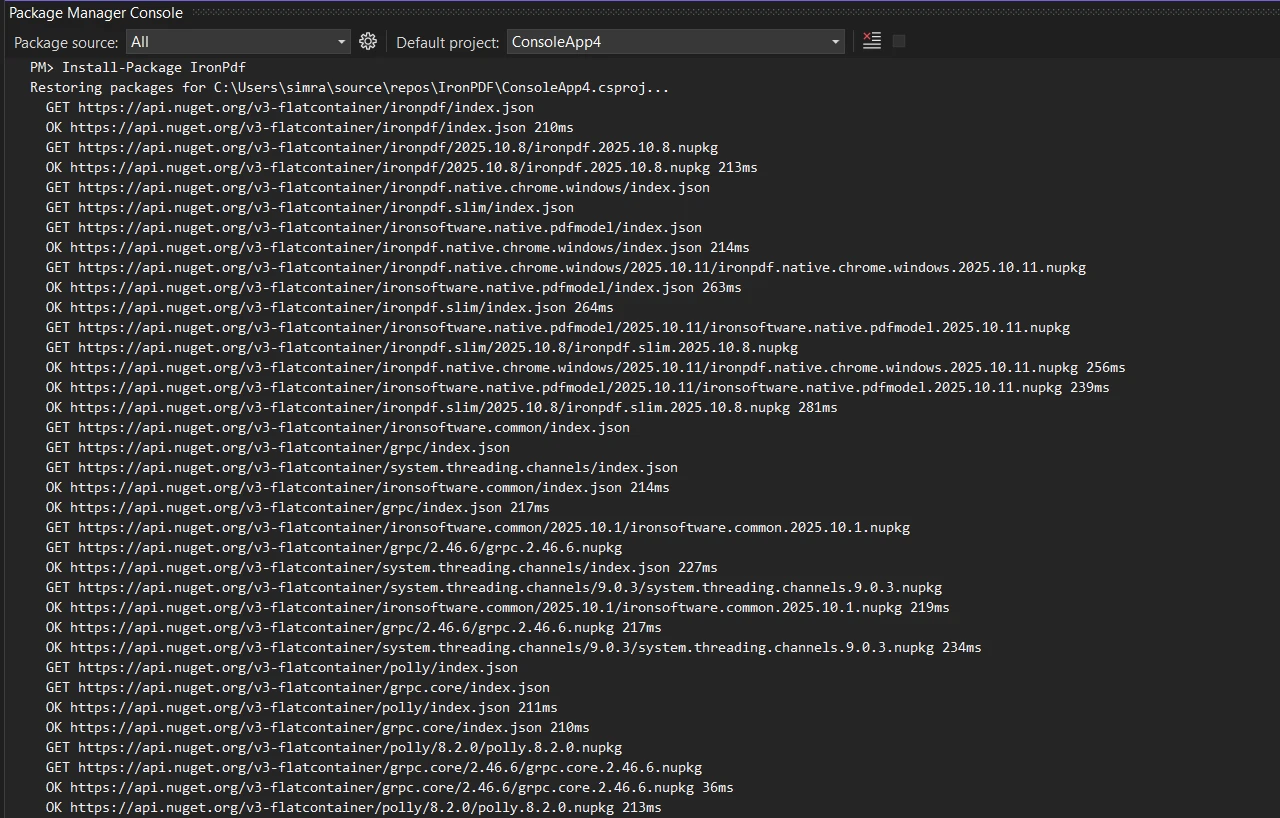
Package Manager Console showing the installation process of IronPDF NuGet package with multiple dependency downloads

Performance optimization is central to IronPDF's document manipulation design. The library uses a Chrome-based rendering engine, ensuring pixel-perfect accuracy when converting HTML to PDF. This approach eliminates the common frustrations of inconsistent formatting across different systems when working with PDFs. Multi-threading and async support enable efficient batch processing, crucial for applications handling high document volumes and extracting data from source files.

using IronPdf;

// Initialize the PDF renderer for document management
var renderer = new ChromePdfRenderer();

// Create a simple PDF file from HTML using the .NET SDK
var doc = renderer.RenderHtmlAsPdf("<h1>Document Management Report</h1><p>Efficiency metrics for Q4 2024</p>");

// Save the output PDF document
doc.SaveAs("management_report.pdf");
using IronPdf;

// Initialize the PDF renderer for document management
var renderer = new ChromePdfRenderer();

// Create a simple PDF file from HTML using the .NET SDK
var doc = renderer.RenderHtmlAsPdf("<h1>Document Management Report</h1><p>Efficiency metrics for Q4 2024</p>");

// Save the output PDF document
doc.SaveAs("management_report.pdf");
$vbLabelText   $csharpLabel

The following code example demonstrates IronPDF's straightforward approach to PDF creation. The ChromePdfRenderer class handles all the complexity of converting HTML to PDF while maintaining formatting consistency. The resulting PDF document preserves fonts, layouts, and styling exactly as specified in the HTML, eliminating the guesswork often associated with PDF generation in .NET projects. The PDFDocument class provides complete control over the file output and manipulation.

What Does the Generated PDF Look Like?

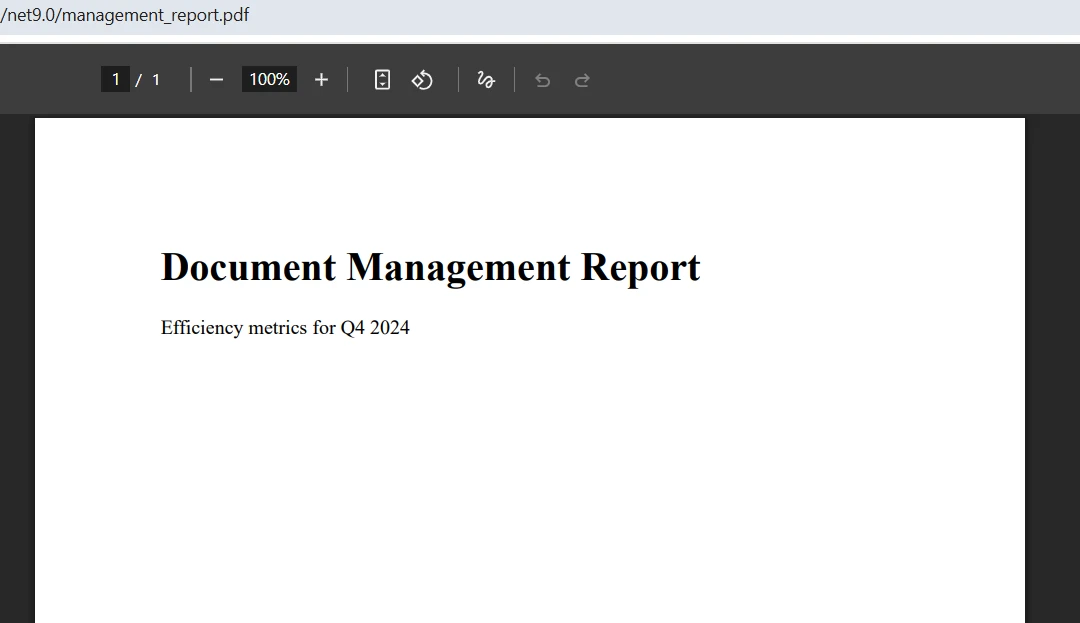
PDF viewer showing a Document Management Report for Q4 2024 efficiency metrics with navigation controls at the top

What Essential PDF File Management Features Does IronPDF Provide?

IronPDF's feature set covers the entire document management lifecycle. From creation to archival, the PDF .NET SDK provides tools that address real-world business requirements when working with PDF files. The library includes full PDF processing functions for every scenario, including form creation, digital signatures, and metadata management.

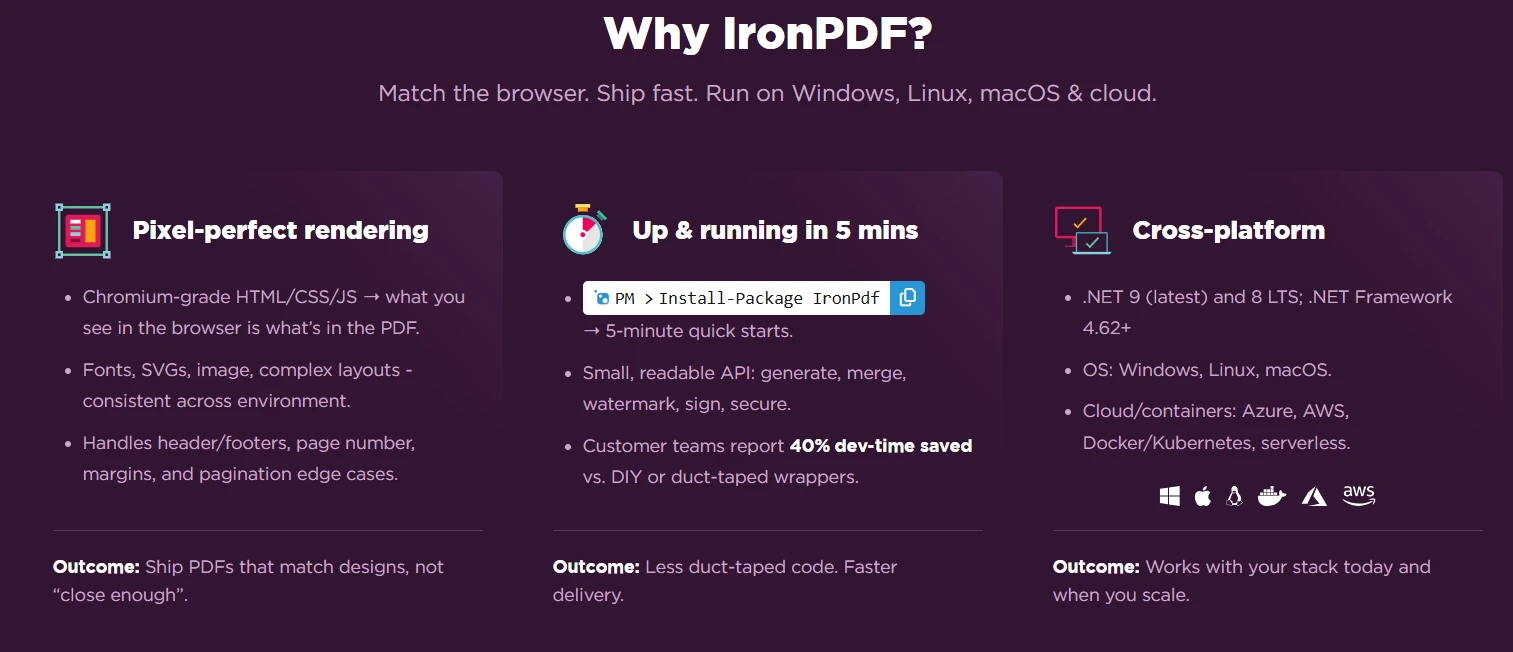
IronPDF feature comparison showing pixel-perfect rendering, 5-minute setup, and cross-platform support with benefits highlighted in three columns

HTML to PDF conversion is one of IronPDF's most effective capabilities for document generation. Unlike basic conversion tools, IronPDF fully supports modern web standards, including HTML5, CSS3, and JavaScript. This means your existing web content, reports, and templates can be converted to PDF without modification. The rendering engine handles complex layouts, responsive designs, and even dynamic content generated by JavaScript, ensuring accurate output PDF document creation.

Document manipulation features enable sophisticated PDF workflows. You can merge multiple PDFs to combine multiple PDF files into complete reports, split large documents for easier distribution, or extract specific pages for targeted sharing. These operations maintain document integrity, preserving formatting, bookmarks, and metadata throughout the process. You can load PDF document instances, manipulate individual pages, and save the results.

Form handling capabilities transform static PDFs into interactive business documents. IronPDF can create fillable forms with text fields, checkboxes, dropdowns, and radio buttons. It also reads and processes submitted form data, enabling automated workflows for applications, registrations, and surveys. The ability to flatten forms after completion ensures data permanence for archival purposes.

Text extraction functionality, with the extract text feature, reveals the content within existing PDF document files. Whether parsing invoices for data entry or indexing documents for search, IronPDF provides precise text extraction capabilities that maintain formatting context. This feature proves invaluable for document digitization projects and automated content processing systems. The library can handle additional space characters and new line characters appropriately during extraction. For improved accuracy, consider using OCR capabilities from Iron Software's suite.

using IronPdf;
using System.Collections.Generic;
var renderer = new ChromePdfRenderer();
// Configure rendering options for professional PDF output with specific parameters
renderer.RenderingOptions.PaperSize = PdfPaperSize.A4;
renderer.RenderingOptions.MarginTop = 20;
renderer.RenderingOptions.MarginBottom = 20;
// Generate PDF from existing web page using the .NET SDK function
var websitePdf = renderer.RenderUrlAsPdf("___PROTECTED_URL_120___");
// Merge with other documents for complete document management
var coverPage = renderer.RenderHtmlAsPdf("<h1>Annual Report 2024</h1>");
var mergedPdf = PdfDocument.Merge(new List<PdfDocument> { coverPage, websitePdf });
// Save the final output PDF document to directory
mergedPdf.SaveAs("complete_report.pdf");
using IronPdf;
using System.Collections.Generic;
var renderer = new ChromePdfRenderer();
// Configure rendering options for professional PDF output with specific parameters
renderer.RenderingOptions.PaperSize = PdfPaperSize.A4;
renderer.RenderingOptions.MarginTop = 20;
renderer.RenderingOptions.MarginBottom = 20;
// Generate PDF from existing web page using the .NET SDK function
var websitePdf = renderer.RenderUrlAsPdf("___PROTECTED_URL_120___");
// Merge with other documents for complete document management
var coverPage = renderer.RenderHtmlAsPdf("<h1>Annual Report 2024</h1>");
var mergedPdf = PdfDocument.Merge(new List<PdfDocument> { coverPage, websitePdf });
// Save the final output PDF document to directory
mergedPdf.SaveAs("complete_report.pdf");
$vbLabelText   $csharpLabel

This code demonstrates the document manipulation capabilities of the PDF library. The RenderingOptions property allows fine-tuning of output characteristics like page size and margins, ensuring a professional appearance. The Merge method combines multiple PDF files smoothly, perfect for creating complete documents from various sources. This approach enables modular document generation where different sections can be generated independently and combined as needed using the PDF .NET SDK. When you load existing PDFs, you can manipulate each PDF page individually before merging.

How Can Security Features Improve Your Multiple PDF Files Management?

Security remains critical in document management, particularly for industries handling sensitive information in their PDF files. IronPDF provides full security features that protect documents throughout their lifecycle when editing PDF files. The library supports encryption, digital signatures, and advanced document sanitization capabilities.

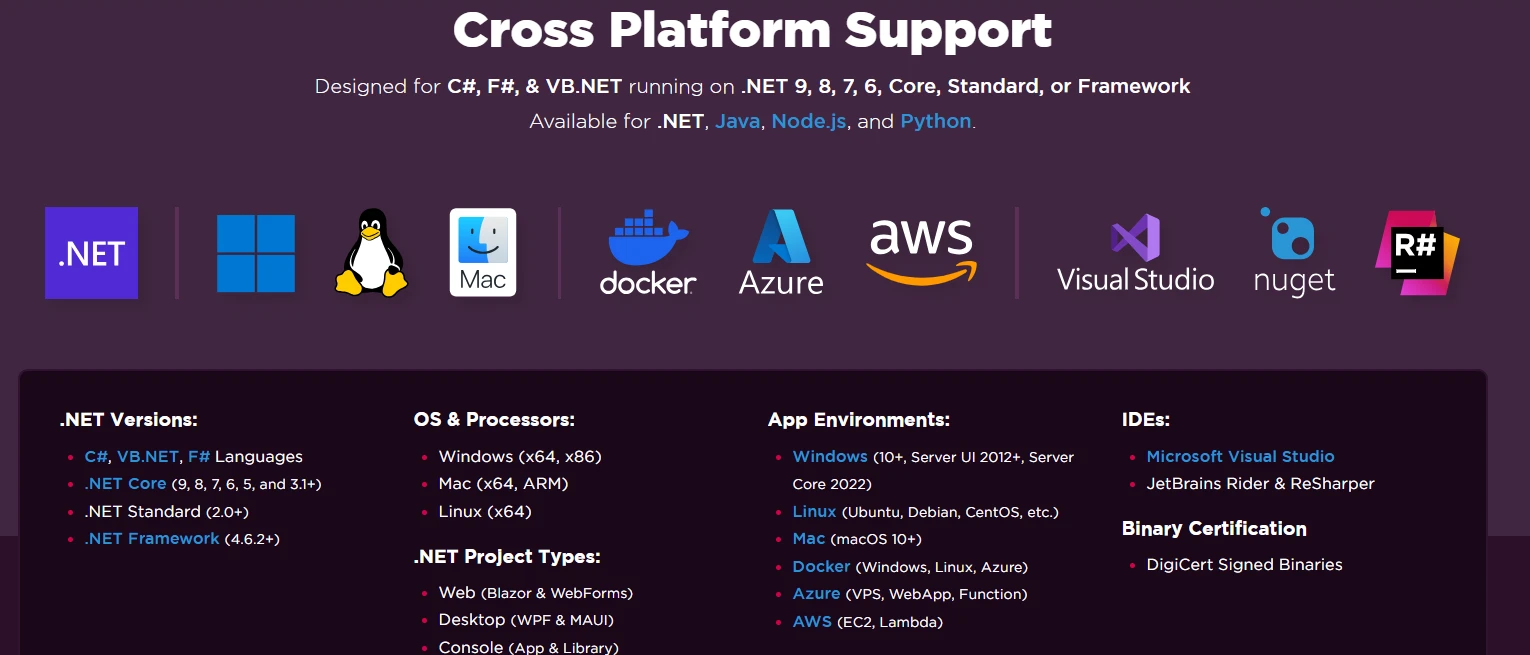
IronPDF cross-platform support diagram showing compatibility with .NET versions (Core, Framework), multiple operating systems (Windows, Linux, Mac), cloud platforms (Azure, AWS), and development IDEs.

Why Do Encryption Capabilities Matter for Document Protection?

Encryption capabilities safeguard document content using industry-standard algorithms. IronPDF supports both AES 128-bit and 256-bit encryption, meeting compliance requirements for various industries. Password protection adds an additional security layer, with separate user and owner passwords enabling granular access control. Organizations can restrict printing, copying, or editing while still allowing viewing, ensuring PDF documents are used only as intended by default. For improved document security, consider integrating with IronSecureDoc for additional protection layers.

How Do Digital Signatures Authenticate Documents?

Digital signatures authenticate documents and verify integrity. IronPDF supports X.509 certificates for creating legally binding electronic signatures. This functionality proves essential for contracts, agreements, and official documentation requiring proof of authenticity. The signature process embeds certificate information directly into the PDF document, making tampering immediately detectable in the file. For complex signing scenarios, IronPDF also supports signing with Hardware Security Modules (HSM).

When Should I Use Document Sanitization?

Document sanitization removes potentially harmful elements from PDFs. This includes JavaScript, embedded files, zip file attachments, and metadata that might contain sensitive information. For organizations concerned about data leakage, sanitization ensures clean documents suitable for external distribution. According to Microsoft's security best practices, document sanitization is a critical component of enterprise security when handling existing PDF document files. The redaction feature provides additional security by permanently removing sensitive text and regions.

using IronPdf;
using IronPdf.Security;
using System.Security.Cryptography.X509Certificates;
// Create PDF using the .NET SDK and PDFDocument class
var doc = new ChromePdfRenderer().RenderHtmlAsPdf("<h1>Confidential Report</h1>");
// Apply security settings for document management with parameters
doc.SecuritySettings.UserPassword = "user_pass";
doc.SecuritySettings.OwnerPassword = "owner_pass";
// Set permissions for PDF protection - note the default settings
doc.SecuritySettings.AllowUserPrinting = IronPdf.Security.PdfPrintSecurity.FullPrintRights;
doc.SecuritySettings.AllowUserCopyPasteContent = false;
doc.SecuritySettings.AllowUserAnnotations = false;
doc.SecuritySettings.AllowUserFormData = false;
// Add digital signature to the PDF document file
var cert = X509CertificateLoader.LoadPkcs12FromFile(
    "certificate.pfx",
    "password",
    X509KeyStorageFlags.Exportable | 
    X509KeyStorageFlags.MachineKeySet | 
    X509KeyStorageFlags.EphemeralKeySet
);
var signature = new PdfSignature(cert)
{
 ContactInformation = "you@example.com",
 SigningLocation = "Office",
 SigningReason = "Approval"
};
// Add a visible image box for the signature
signature.SignatureImage = new PdfSignatureImage(
               "signatureImage.png",
               pageIndex: 0,
               new IronSoftware.Drawing.Rectangle(x: 0, y: 600, width: 100, height: 100));
doc.Sign(signature);
// Save the secured output PDF document
doc.SaveAs("secured_document.pdf");
using IronPdf;
using IronPdf.Security;
using System.Security.Cryptography.X509Certificates;
// Create PDF using the .NET SDK and PDFDocument class
var doc = new ChromePdfRenderer().RenderHtmlAsPdf("<h1>Confidential Report</h1>");
// Apply security settings for document management with parameters
doc.SecuritySettings.UserPassword = "user_pass";
doc.SecuritySettings.OwnerPassword = "owner_pass";
// Set permissions for PDF protection - note the default settings
doc.SecuritySettings.AllowUserPrinting = IronPdf.Security.PdfPrintSecurity.FullPrintRights;
doc.SecuritySettings.AllowUserCopyPasteContent = false;
doc.SecuritySettings.AllowUserAnnotations = false;
doc.SecuritySettings.AllowUserFormData = false;
// Add digital signature to the PDF document file
var cert = X509CertificateLoader.LoadPkcs12FromFile(
    "certificate.pfx",
    "password",
    X509KeyStorageFlags.Exportable | 
    X509KeyStorageFlags.MachineKeySet | 
    X509KeyStorageFlags.EphemeralKeySet
);
var signature = new PdfSignature(cert)
{
 ContactInformation = "you@example.com",
 SigningLocation = "Office",
 SigningReason = "Approval"
};
// Add a visible image box for the signature
signature.SignatureImage = new PdfSignatureImage(
               "signatureImage.png",
               pageIndex: 0,
               new IronSoftware.Drawing.Rectangle(x: 0, y: 600, width: 100, height: 100));
doc.Sign(signature);
// Save the secured output PDF document
doc.SaveAs("secured_document.pdf");
$vbLabelText   $csharpLabel

The security implementation shown here creates a multi-layered protection scheme. User and owner passwords provide different access levels, while permission settings prevent unauthorized actions. The digital signature adds authenticity verification. These security measures work together to create documents that meet regulatory compliance requirements while maintaining usability for authorized users in your document management system. The library manages the complexity for you by default. For tracking document changes, consider using the revision history feature.

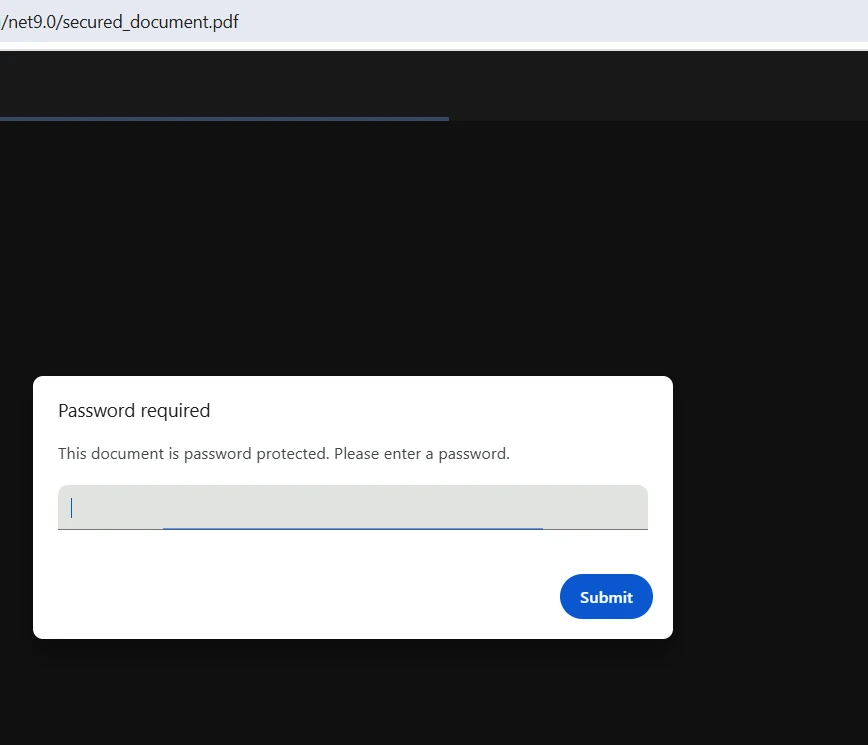
What Does a Secured PDF Document Look Like?

Password protection dialog box for a secured PDF document showing a password input field and submit button

What Advanced Capabilities Improve Efficiency?

Beyond core PDF operations, IronPDF offers advanced features that significantly improve document processing efficiency. These capabilities convert time-consuming manual tasks into automated workflows when working with PDF files and images. The library supports advanced rendering options, custom logging, and performance improvement techniques.

How Does Batch Processing Handle Multiple Documents?

Batch processing capabilities allow handling multiple PDF files simultaneously. Whether generating thousands of invoices or converting an entire document library, IronPDF's multi-threading support ensures optimal performance. Memory management features prevent resource exhaustion even when processing large document sets from byte arrays or source files, maintaining application stability under heavy load. For cloud deployments, the library offers specific optimizations for AWS Lambda and Azure Functions.

Why Does Metadata Management Matter?

Metadata management provides programmatic control over document properties using specific parameters. You can set author information, creation dates, keywords, and custom properties that improve document organization and searchability. This metadata is invaluable for document management systems, enabling sophisticated categorization and retrieval mechanisms. Environment variables can configure default metadata values. The library also supports PDF/A compliance and PDF/UA accessibility standards.

When Should I Use Annotations and Watermarks?

Annotation and watermarking features add visual elements to existing PDFs. Watermarks protect intellectual property and indicate document status (draft, confidential, approved). Annotations enable collaborative workflows where reviewers can add comments, highlights, and notes without altering the original content. The library also supports optical character recognition for scanned images and documents. These features integrate smoothly with existing business processes, improve communication and document tracking. For complex watermarking needs, use the stamping functionality.

How Do Automated Workflows Improve Productivity?

Automated workflows use IronPDF's complete PDF .NET SDK API to create self-managing document systems. Template-based generation, scheduled report creation, and event-driven document processing become straightforward to implement using the class library. The SDK's intelligent rendering capabilities even handle complex scenarios like waiting for JavaScript execution or managing authentication for secured web pages. The extract text function can process content with proper handling of line characters. Recent discussions on Stack Overflow highlight how developers are using these features to build sophisticated automation solutions in their .NET projects.

using IronPdf;
using System;
using IronPdf.Editing;
using System.Threading.Tasks;
using System.Collections.Generic;

public async Task ProcessDocumentBatchAsync(List<string> htmlTemplates)
{
    var renderer = new ChromePdfRenderer();
    var tasks = new List<Task>();
    // Process each template with proper parameters
    foreach (var template in htmlTemplates)
    {
        tasks.Add(Task.Run(() =>
        {
            // Generate PDF using the .NET SDK library
            var page = renderer.RenderHtmlAsPdf(template);
            // Add watermark for document management - specify int width and int height
            page.ApplyWatermark(
                "<h2 style='color:gray;'>DRAFT</h2>",
                rotation: 45,
                opacity: 50,
                verticalAlignment: VerticalAlignment.Middle,
                horizontalAlignment: HorizontalAlignment.Center
            );
            // Set metadata for PDF organization with proper details
            page.MetaData.Author = "Document Management System";
            page.MetaData.CreationDate = DateTime.Now;
            // Convert to byte array if needed for further processing
            // var byteArray = page.BinaryData;
            page.SaveAs($"processed_{Guid.NewGuid()}.pdf");
        }));
    }
    await Task.WhenAll(tasks);
}

// Example method for text extraction
public void ExtractText(string pdfPath)
{
    // Load PDF document from file
    var doc = PdfDocument.FromFile(pdfPath);
    // Extract text from all pages
    string extractedText = doc.ExtractAllText();
    // Process extracted text, handling line characters
    Console.WriteLine(extractedText);
}
using IronPdf;
using System;
using IronPdf.Editing;
using System.Threading.Tasks;
using System.Collections.Generic;

public async Task ProcessDocumentBatchAsync(List<string> htmlTemplates)
{
    var renderer = new ChromePdfRenderer();
    var tasks = new List<Task>();
    // Process each template with proper parameters
    foreach (var template in htmlTemplates)
    {
        tasks.Add(Task.Run(() =>
        {
            // Generate PDF using the .NET SDK library
            var page = renderer.RenderHtmlAsPdf(template);
            // Add watermark for document management - specify int width and int height
            page.ApplyWatermark(
                "<h2 style='color:gray;'>DRAFT</h2>",
                rotation: 45,
                opacity: 50,
                verticalAlignment: VerticalAlignment.Middle,
                horizontalAlignment: HorizontalAlignment.Center
            );
            // Set metadata for PDF organization with proper details
            page.MetaData.Author = "Document Management System";
            page.MetaData.CreationDate = DateTime.Now;
            // Convert to byte array if needed for further processing
            // var byteArray = page.BinaryData;
            page.SaveAs($"processed_{Guid.NewGuid()}.pdf");
        }));
    }
    await Task.WhenAll(tasks);
}

// Example method for text extraction
public void ExtractText(string pdfPath)
{
    // Load PDF document from file
    var doc = PdfDocument.FromFile(pdfPath);
    // Extract text from all pages
    string extractedText = doc.ExtractAllText();
    // Process extracted text, handling line characters
    Console.WriteLine(extractedText);
}
$vbLabelText   $csharpLabel

This batch processing example demonstrates efficient parallel document generation. The asynchronous approach processes multiple PDF files concurrently, significantly reducing total processing time. Each document receives consistent watermarking and metadata, ensuring uniformity across the batch. This pattern scales effectively from dozens to thousands of documents, demonstrating the PDF .NET SDK's ability to improve document management efficiency. The PDFDocument class provides methods to convert content to byte array format when needed for streaming or data processing. The public void ExtractText method shows how to extract text from PDF files.

Common Troubleshooting Tip: When processing large batches, monitor memory usage and implement pagination for extremely large sets. Consider processing in chunks of 50-100 documents to maintain optimal performance and prevent memory issues. Set environment variables appropriately for your production system. The IronPDF documentation provides additional guidance on improving batch operations when working with specific pages.

// Additional example: Creating PDF reports with charts and dynamic content
using IronPdf;
using System.Text;

public void GenerateDynamicReport()
{
    var renderer = new ChromePdfRenderer();

    // Configure advanced rendering options
    renderer.RenderingOptions.WaitFor.RenderDelay(500); // Wait for JavaScript charts
    renderer.RenderingOptions.CssMediaType = IronPdf.PdfCssMediaType.Print;
    renderer.RenderingOptions.ViewPortWidth = 1280;

    // HTML template with dynamic content
    var htmlTemplate = new StringBuilder();
    htmlTemplate.Append(@"
        <html>
        <head>
            <link href='___PROTECTED_URL_121___ rel='stylesheet'>
            <style>
                body { font-family: 'Roboto', sans-serif; }
                .chart-container { width: 100%; height: 400px; }
            </style>
        </head>
        <body>
            <h1>Sales Performance Dashboard</h1>
            <div class='chart-container'>

            </div>
        </body>
        </html>
    ");

    // Render with advanced options
    var pdf = renderer.RenderHtmlAsPdf(htmlTemplate.ToString());

    // Add page numbers
    pdf.AddHtmlHeaders(new HtmlHeaderFooter()
    {
        MaxHeight = 15,
        HtmlFragment = "<div style='text-align: center'>{page} of {total-pages}</div>"
    });

    pdf.SaveAs("dynamic_report.pdf");
}
// Additional example: Creating PDF reports with charts and dynamic content
using IronPdf;
using System.Text;

public void GenerateDynamicReport()
{
    var renderer = new ChromePdfRenderer();

    // Configure advanced rendering options
    renderer.RenderingOptions.WaitFor.RenderDelay(500); // Wait for JavaScript charts
    renderer.RenderingOptions.CssMediaType = IronPdf.PdfCssMediaType.Print;
    renderer.RenderingOptions.ViewPortWidth = 1280;

    // HTML template with dynamic content
    var htmlTemplate = new StringBuilder();
    htmlTemplate.Append(@"
        <html>
        <head>
            <link href='___PROTECTED_URL_121___ rel='stylesheet'>
            <style>
                body { font-family: 'Roboto', sans-serif; }
                .chart-container { width: 100%; height: 400px; }
            </style>
        </head>
        <body>
            <h1>Sales Performance Dashboard</h1>
            <div class='chart-container'>

            </div>
        </body>
        </html>
    ");

    // Render with advanced options
    var pdf = renderer.RenderHtmlAsPdf(htmlTemplate.ToString());

    // Add page numbers
    pdf.AddHtmlHeaders(new HtmlHeaderFooter()
    {
        MaxHeight = 15,
        HtmlFragment = "<div style='text-align: center'>{page} of {total-pages}</div>"
    });

    pdf.SaveAs("dynamic_report.pdf");
}
$vbLabelText   $csharpLabel

How Do I Implement IronPDF Following Best Practices?

Successful IronPDF implementation begins with proper setup and configuration in Visual Studio or your preferred IDE. Understanding best practices ensures optimal performance and maintainable code when using this PDF .NET SDK and class library-based solution. Consider implementing custom logging for production deployments and following performance improvement guidelines.

Installation via NuGet provides the simplest integration path into your project. The command Install-Package IronPDF adds all necessary dependencies automatically. You can also use the .NET Core CLI for installation. For containerized deployments, IronPDF includes Docker support with no additional configuration required. The library automatically detects the runtime environment and adjusts accordingly. When working with source files in your directory, ensure proper paths are configured. The getting started guide provides detailed setup instructions for various environments. For specialized deployments, consider using IronPdf.Slim for reduced package size.

Where Can I Find Implementation Resources?

Getting started resources accelerate your development. IronPDF provides extensive documentation, code examples, and API references. The support team offers direct engineering assistance, helping resolve complex implementation challenges. Regular updates ensure compatibility with the latest .NET versions and security standards. Community discussions on GitHub provide additional insights and solutions for .NET projects. The tutorial section offers complete guides for specific use cases.

How Do I Troubleshoot Common Setup Issues?

Common Setup Troubleshooting: If you encounter rendering issues on Linux deployments, ensure required dependencies are installed: apt-get install -y libgdiplus libc6-dev. For Docker containers, use the official IronPDF base images that include all necessary components pre-configured. When dealing with zip file outputs or specific fonts, check the troubleshooting guide for platform-specific solutions. Note that some legacy systems may require additional configuration. For AWS deployments, specific considerations apply for Lambda functions.

Why Choose IronPDF for Your PDF Processing Needs?

IronPDF's PDF .NET SDK transforms document management from a development challenge into a competitive advantage. Its complete feature set addresses every aspect of PDF handling, from simple generation to complex security requirements for PDF files. The intuitive API design means you spend less time wrestling with PDF specifications and more time delivering business value when editing PDF files or creating a new PDF document. The library's performance benchmarks demonstrate superior efficiency compared to alternatives.

Getting started with IronPDF requires minimal investment. The free trial provides full access to all features, enabling thorough evaluation before commitment. With complete documentation in your preferred language, responsive support from actual engineers, and continuous updates, IronPDF represents a long-term solution for your PDF document management needs. Transform your document workflows today and discover why thousands of developers trust IronPDF for their PDF processing functions. Consider comparing IronPDF with other solutions to understand its competitive advantages.

IronPDF licensing page showing three subscription tiers (Team, Monthly, Enterprise) and four perpetual license options (Lite, Plus, Professional, Unlimited) with pricing and feature details.

Ready to improve your document management capabilities? Purchase a license and join the growing community of developers who have transformed their PDF workflows with IronPDF's effective PDF .NET SDK. Need help choosing the right license? Chat with our team for personalized recommendations. Present your requirements and we'll guide you to the perfect solution for extracting data, creating forms, or managing pages in your PDFs.

자주 묻는 질문

PDF .NET SDK란 무엇인가요?

PDF .NET SDK는 개발자가 .NET 프로젝트 내에서 PDF 문서를 프로그래밍 방식으로 생성, 조작 및 관리할 수 있는 소프트웨어 개발 키트입니다.

PDF .NET SDK는 비즈니스에 어떤 이점을 제공하나요?

PDF .NET SDK는 PDF 파일 처리를 자동화하여 수작업의 비효율성을 없애고 오류를 줄이며 여러 PDF 문서를 관리할 때 즉각적인 ROI를 제공함으로써 비즈니스에 도움이 됩니다.

IronPDF는 PDF .NET SDK에서 어떤 기능을 제공하나요?

IronPDF는 PDF 문서 생성, 편집, 병합, 보안 등의 기능을 제공하여 문서 관리의 효율성을 높여줍니다.

IronPDF는 한 번에 여러 PDF 파일을 처리할 수 있나요?

예, IronPDF는 한 번에 여러 PDF 파일을 처리할 수 있어 대량 문서 처리를 위한 확장 가능한 솔루션을 제공합니다.

IronPDF가 PDF 관리를 위한 신뢰할 수 있는 도구인 이유는 무엇인가요?

IronPDF는 오류가 발생하기 쉬운 프로세스를 자동화하여 정확하고 효율적인 문서 처리를 보장하므로 PDF 관리를 위한 신뢰할 수 있는 도구입니다.

IronPDF에서 문서 보안이 지원되나요?

예, IronPDF는 문서 보안 기능을 지원하므로 개발자가 비밀번호와 권한으로 PDF 파일을 보호할 수 있습니다.

IronPDF는 PDF 편집 기능을 제공하나요?

IronPDF는 포괄적인 PDF 편집 기능을 제공하여 개발자가 PDF 문서 내의 텍스트, 이미지 및 기타 요소를 수정할 수 있도록 지원합니다.

기업에서 IronPDF를 사용하면 어떤 유형의 ROI를 기대할 수 있나요?

기업들은 PDF 처리를 자동화하고 간소화하여 인건비를 절감하고 오류를 최소화하는 IronPDF의 기능으로 인해 즉각적인 ROI를 기대할 수 있습니다.

IronPDF는 대규모 PDF 문서 관리에 적합하나요?

예, IronPDF는 대규모 PDF 문서 관리에 적합하며 광범위한 PDF 작업을 효율적으로 처리할 수 있는 강력한 도구를 제공합니다.

커티스 차우
기술 문서 작성자

커티스 차우는 칼턴 대학교에서 컴퓨터 과학 학사 학위를 취득했으며, Node.js, TypeScript, JavaScript, React를 전문으로 하는 프론트엔드 개발자입니다. 직관적이고 미적으로 뛰어난 사용자 인터페이스를 만드는 데 열정을 가진 그는 최신 프레임워크를 활용하고, 잘 구성되고 시각적으로 매력적인 매뉴얼을 제작하는 것을 즐깁니다.


커티스는 개발 분야 외에도 사물 인터넷(IoT)에 깊은 관심을 가지고 있으며, 하드웨어와 소프트웨어를 통합하는 혁신적인 방법을 연구합니다. 여가 시간에는 게임을 즐기거나 디스코드 봇을 만들면서 기술에 대한 애정과 창의성을 결합합니다.