
如何在Azure Function上運行和部署IronPDF .NET


是。 IronPDF可以用來在Azure上生成、操控和讀取PDF文件。 IronPDF已在多個Azure平台上徹底測試,包括MVC網站、Azure Functions等。
如何在Azure Function中將HTML轉換為PDF
- 安裝C#程式庫來在Azure Function中將HTML轉換為PDF
- 選擇Azure Basic B1主機層或更高
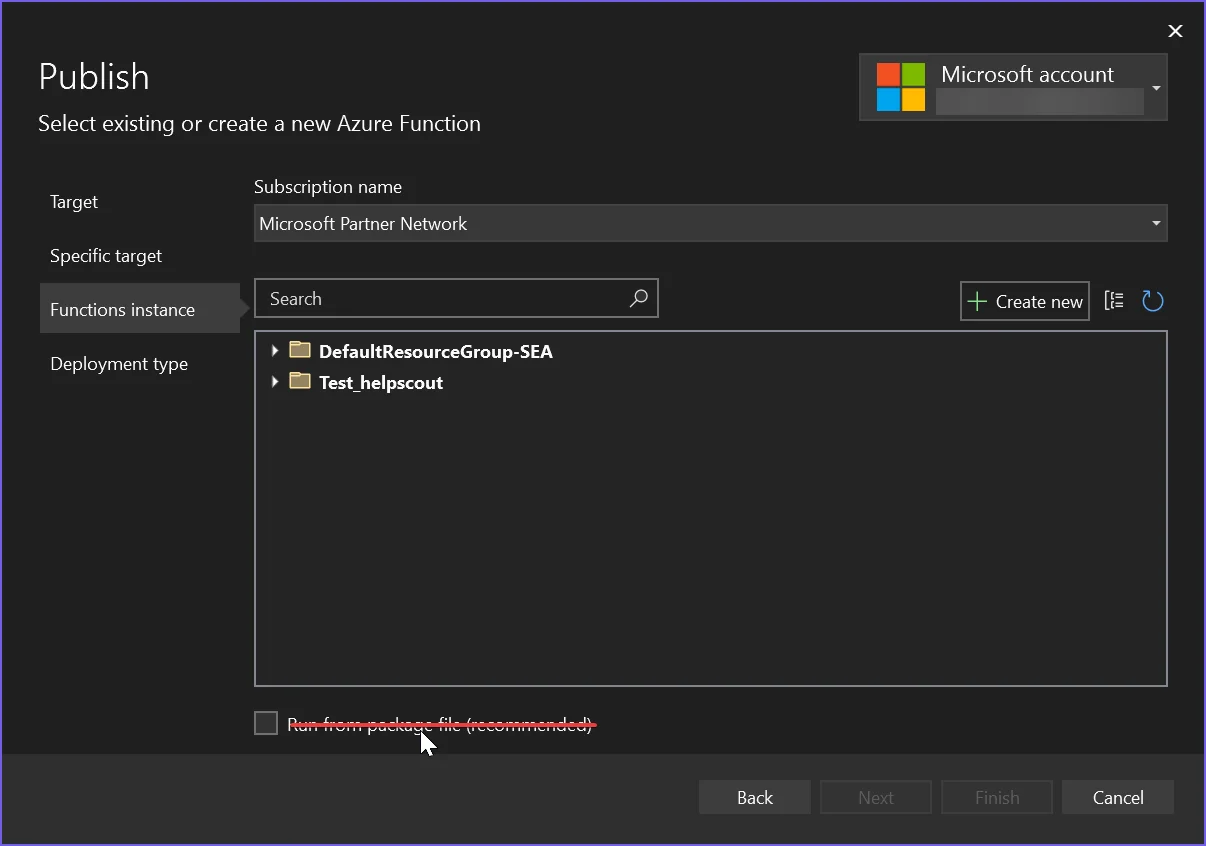
- 發佈時取消選中
從包文件運行選項 - 遵循推薦的配置說明
- 使用程式碼範例來建立使用Azure的PDF生成器
如何教程
安裝IronPDF包
Azure Function Apps有三個不同的環境:Linux、Windows和Container。 本文解釋如何在這三個環境中設置IronPDF。 在這些中,建議使用Azure Function App Container,因為它提供了一個隔離的環境。 首先,讓我們選擇要安裝的合適包。
Azure Function App Container
Azure Function App Container涉及的麻煩最少,使其成為部署IronPDF的推薦方式。
- IronPdf.Linux package
Install-Package IronPdf.Linux
配置Docker文件
根據您使用的Linux發行版配置Docker文件。 請參閱本文以獲取詳細說明。
Azure Function App (Windows)
要使用標準的IronPDF包,確保沒有選中從包文件運行選項。 啟用此選項會設置專案為ZIP文件部署,這會干擾IronPDF的文件配置。 如果您傾向於啟用從包文件運行選項,請改為安裝IronPdf.Slim包。
- IronPDF package
Azure Function App (Linux)
對於Azure Function App (Linux),專案預設以ZIP文件形式部署,無法停用此行為。 這與在Azure Function App (Windows)上啟用從包文件運行選項類似。
- IronPdf.Slim package
Install-Package IronPdf.Slim
選擇正確的Azure選項
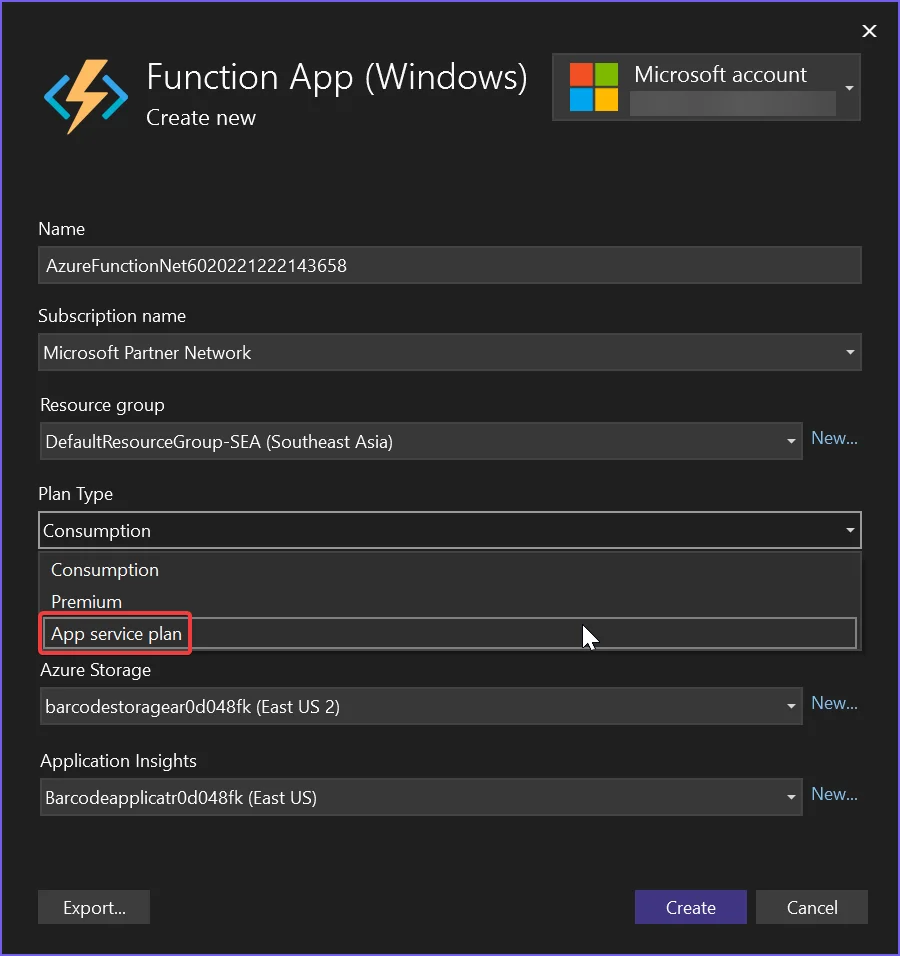
選擇正確的主機級別
Azure Basic B1是我們終端使用者渲染需求所需的最低主機級別。 如果您正在建立高吞吐量系統,可能需要升級。
.NET 6的配置
Microsoft最近從.NET 6+移除了成像庫,破壞了許多傳統API。因此,需配置專案以允許這些傳統API調用。
- 在Linux上,設置
libgdiplus - 將以下內容新增到.NET 6專案的.csproj文件中:
<GenerateRuntimeConfigurationFiles>true</GenerateRuntimeConfigurationFiles>- 在專案中建立一個名為
runtimeconfig.template.json的文件,並填入以下內容:
{
  "configProperties": {
    "System.Drawing.EnableUnixSupport": true
  }
}- 最後,在程式的開頭新增以下行:
System.AppContext.SetSwitch("System.Drawing.EnableUnixSupport", true);System.AppContext.SetSwitch("System.Drawing.EnableUnixSupport", True)Azure Function程式碼範例
這個範例將HTML轉換為PDF,並自動輸出日誌條目到內建Azure日誌記錄器(見ILogger log)。
[FunctionName("PrintPdf")]
public static async Task<IActionResult> Run(
    [HttpTrigger(AuthorizationLevel.Anonymous, "get", "post", Route = null)] HttpRequest req,
    ILogger log, ExecutionContext context)
{
    log.LogInformation("Entered PrintPdf API function...");

    // Apply license key
    IronPdf.License.LicenseKey = "IRONPDF-MYLICENSE-KEY-1EF01";

    // Enable logging
    IronPdf.Logging.Logger.LoggingMode = IronPdf.Logging.Logger.LoggingModes.Custom;
    IronPdf.Logging.Logger.CustomLogger = log;

    // Configure IronPdf settings
    IronPdf.Installation.LinuxAndDockerDependenciesAutoConfig = true;
    IronPdf.Installation.AutomaticallyDownloadNativeBinaries = true;
    IronPdf.Installation.ChromeGpuMode = IronPdf.Engines.Chrome.ChromeGpuModes.Disabled;
    IronPdf.Installation.CustomDeploymentDirectory = "/tmp";

    try
    {
        log.LogInformation("About to render PDF...");
        ChromePdfRenderer renderer = new ChromePdfRenderer();
        // Render PDF from a URL
        var pdf = renderer.RenderUrlAsPdf("https://www.google.com/");
        log.LogInformation("Finished rendering PDF...");
        return new FileContentResult(pdf.BinaryData, "application/pdf") { FileDownloadName = "google.pdf" };
    }
    catch (Exception e)
    {
        log.LogError(e, "Error while rendering PDF");
        return new OkObjectResult($"Error while rendering PDF: {e}");
    }
}<FunctionName("PrintPdf")>
Public Shared Async Function Run(
<HttpTrigger(AuthorizationLevel.Anonymous, "get", "post", Route:=Nothing)> req As HttpRequest,
log As ILogger, context As ExecutionContext) As Task(Of IActionResult)
log.LogInformation("Entered PrintPdf API function...")
' Apply license key
IronPdf.License.LicenseKey = "IRONPDF-MYLICENSE-KEY-1EF01"
' Enable logging
IronPdf.Logging.Logger.LoggingMode = IronPdf.Logging.Logger.LoggingModes.Custom
IronPdf.Logging.Logger.CustomLogger = log
' Configure IronPdf settings
IronPdf.Installation.LinuxAndDockerDependenciesAutoConfig = True
IronPdf.Installation.AutomaticallyDownloadNativeBinaries = True
IronPdf.Installation.ChromeGpuMode = IronPdf.Engines.Chrome.ChromeGpuModes.Disabled
IronPdf.Installation.CustomDeploymentDirectory = "/tmp"
Try
log.LogInformation("About to render PDF...")
Dim renderer As New ChromePdfRenderer()
' Render PDF from a URL
Dim pdf = renderer.RenderUrlAsPdf("https://www.google.com/")
log.LogInformation("Finished rendering PDF...")
Return New FileContentResult(pdf.BinaryData, "application/pdf") With {.FileDownloadName = "google.pdf"}
Catch e As Exception
log.LogError(e, "Error while rendering PDF")
Return New OkObjectResult($"Error while rendering PDF: {e}")
End Try
End Function使用Visual Studio中的Azure Function模板建立專案可能會導致程式碼略有不同。 由於這些差異,即使安裝了相同的包,一個專案可能能運行而另一個不能。 如果發生這種情況,請設置自定義部署目錄屬性為"/tmp"。
理解每個安裝的配置
- LinuxAndDockerDependenciesAutoConfig:此設置檢查並嘗試下載Chrome引擎所需的所有依賴項。在使用非GUI系統(如Linux)時需要它。 在容器系統中,依賴項通常列在Dockerfile中;因此,您可以將其設為false。
- 自動下載原生二進制文件:此選項在運行時下載本機Chrome二進制文件。使用IronPdf.Slim包時需要它。
- 自定義部署目錄:對於寫入存取受限的系統,此設置是必需的。
已知問題
共享主機計劃上不支持SVG字體的渲染
我們發現的一個限制是Azure主機平台在他們較便宜的共享web-app層中不支持載入SVG字體(如Google Fonts)的伺服器。 這是因為這些共享主機平台出於安全原因不允許存取Windows GDI+圖形物件。
我們建議使用Windows或Linux Docker容器,或者在Azure上使用一個可能的VPS來解決需要最佳字體渲染的問題。
Azure免費層主機速度慢
Azure的免費和共享層以及消耗計劃不適合PDF渲染。 我們建議使用我們自己使用的Azure B1主機/高級計劃。 HTML to PDF的過程對任何計算機來說都是重要的'工作'——類似於在您自己的機器上打開和渲染一個網頁。使用的是實際的瀏覽器引擎,因此我們需要相應地提供並預期類似於相同功率桌面機器的渲染時間。
建立工程支持請求工單
要建立請求工單,請參考"如何為IronPDF建立工程支持請求"指南
常見問題
我可以如何在Azure上託管PDF生成庫?
您可以通過設置Azure Function或MVC網站來在Azure上託管IronPDF等PDF生成庫。確保您已從NuGet安裝所需的套件並根據庫的要求配置您的環境。
哪些Azure環境與PDF庫相容?
IronPDF相容多個Azure環境,包括MVC網站和Azure Functions。它旨在在Azure提供的不同平台上無縫運作。
在Azure上託管PDF庫的要求是什麼?
為了在Azure上使用IronPDF獲得最佳效能,建議至少使用Azure基本B1託管層。這確保有足夠的資源來高效渲染PDF。
如何為Linux上的Azure Function App設置PDF庫?
要在Linux上的Azure Function App中設置IronPDF,請安裝IronPdf.Slim套件。以ZIP文件形式部署您的專案並確保所有配置在Linux環境中正確設置。
使用.NET 6在Azure上使用PDF庫需要什麼配置?
當您在Azure上使用.NET 6與IronPDF時,更新專案設定以允許傳統API呼叫。設置Installation.LinuxAndDockerDependenciesAutoConfig=true,並在您的專案文件中包含必要的配置。
為什麼推薦在Azure上以Docker容器渲染PDF?
推薦在Azure上以Docker容器渲染PDF因為它提供了一個更為受控的環境,支持更好的字體渲染,並避免共享託管方案的限制。
什麼原因會導致在Azure免費層上PDF渲染速度慢?
在Azure免費層上PDF渲染速度慢是由於計算資源有限。這一過程需要顯著的計算能力,類似於渲染網頁,因此像B1或Premium這樣的高層方案更為適合。
如何對無法運行的Azure Function專案中的PDF庫進行故障排除?
如果您的Azure Function專案與IronPDF無法運行,檢查CustomDeploymentDirectory屬性已設置為'/tmp',並確保所有必要的套件和配置均已正確安裝和設置。
有哪些支援選項可用於在Azure上部署PDF庫?
為了獲得在Azure上部署IronPDF的支援,請查閱IronPDF網站上的「如何提出IronPDF工程技術支援請求」指南以獲得詳細協助。
What logging options are available for IronPDF on Azure?
IronPDF allows logging through Azure's built-in logger by enabling custom logging modes and setting CustomLogger to the desired log.

Curtis Chau擁有Carleton大學的電腦科學學士學位,專精於前端開發,擁有Node.js、TypeScript、JavaScript和React的專業知識。Curtis熱衷於建立直觀且美觀的使用者介面,喜愛使用現代框架並建立結構良好、視覺吸引力的手冊。



