IronPDF는 Chrome V8 엔진의 정밀도와 직관적인 API를 갖춘 HTML-to-PDF 변환에서 탁월하며, ExpertPDF는 .NET 생산 시스템의 복잡한 구성 요구사항으로 기본 PDF 기능을 제공합니다.
C# 개발자는 PDF를 다룰 때 읽기, 쓰기, 생성 또는 형식 간 변환과 관련하여 종종 어려움을 겪습니다. 이러한 필요를 충족하기 위해 부드러운 통합을 제공하는 여러 라이브러리가 등장했습니다. C# PDF 리포트를 개발할 때, 적절한 라이브러리를 선택하면 개발 시간과 출력 품질에 큰 영향을 미칩니다. C#에서의 PDF 생성을 완전히 이해하기 위해서는 라이브러리의 기능을 이해하는 것이 필수적입니다.
이 기사는 .NET 개발자를 위한 두 개의 PDF 라이브러리를 비교합니다:
두 라이브러리는 .NET 환경에서 PDF를 생성, 변환, 편집하는 메서드를 제공합니다. 핵심 고려사항은 특정 프로젝트 요구사항에 가장 적합한 라이브러리를 결정하는 것입니다. 이 분석은 의사 결정에 도움이 되는 필수 기능을 강조합니다. HTML to PDF 변환을 구현하든, PDF 편집 기능을 구현하든, 문서 구성 기능을 구현하든 적절한 라이브러리를 선택하는 것이 중요합니다.
IronPDF 라이브러리가 무엇인가요?
IronPDF는 .NET PDF 솔루션을 제공하여 특히 C# 개발자에게 유익합니다. 이 라이브러리는 C# 애플리케이션 내 모든 필요한 PDF 기능을 구현할 수 있게 해 줍니다. Azure 배포와 AWS Lambda를 지원하여 클라우드 네이티브 아키텍처에 적합합니다. 개발자는 뛰어난 Windows 지원, Linux 배포 및 macOS 호환성을 통해 혜택을 받을 수 있습니다. 설치 개요는 완전한 설정 지침을 제공합니다.
IronPDF는 HTML 콘텐츠를 PDF로 렌더링하는 .NET Chromium 엔진을 포함하여 복잡한 API 없이 문서 디자인을 용이하게 합니다. HTML to PDF 변환기는 HTML5, CSS, JavaScript 및 이미지를 사용하여 문서를 생성합니다. 또한 개발자는 PDF를 편집하고, 헤더와 푸터를 추가하고, 이미지를 추출할 수 있습니다. 이 라이브러리는 신뢰할 수 있는 텍스트 추출 기능을 통해 텍스트 읽기를 간소화합니다. 실제 환경에서는, Chrome 렌더링 엔진이 정확한 렌더링을 보장합니다.
IronPDF 의 주요 기능은 무엇인가요?
HTML에서 PDF 파일을 어떻게 생성하나요?
Adobe Acrobat Reader 없이 PDF를 어떻게 편집할 수 있습니까?
PDF 문서를 어떻게 조작할 수 있습니까?
어떤 파일 형식을 PDF로 변환할 수 있습니까?
PDF를 어떻게 저장하고 인쇄할 수 있습니까?
ExpertPDF란 무엇입니까?
ExpertPDF의 공식 사이트 방문하여 .NET 라이브러리를 통해 HTML을 PDF로 변환하는 기능을 탐색하세요. 이 라이브러리는 복잡한 보고 소프트웨어 없이도 PDF 보고서 생성을 가능하게 합니다. 개발자가 완전한 문서와 API 참조를 찾고 있다면, 훨씬 많은 리소스를 제공하는 IronPDF를 사용해 보세요.
ExpertPDF는 간단한 PDF 편집 기능을 제공합니다. HTML을 PDF로 변환하는 기능이 .NET 응용 프로그램에 빠르게 통합됩니다. .NET Framework, .NET Core, .NET 5, .NET 6, .NET 7, 및 .NET 8과 호환되지만 Linux 배포와 macOS 지원이 부족합니다. 컨테이너화된 배포를 위해서는 IronPDF가 Docker 지원을 제공하지만 ExpertPDF는 그렇지 않습니다. IronPDF는 또한 원격 컨테이너 배포 및 네이티브 대 원격 엔진 옵션을 지원합니다.
이 라이브러리는 .NET 응용 프로그램에서 웹 페이지 URL 또는 원시 HTML 마크업에서 PDF를 생성합니다. WebGL 사이트 렌더링 또는 JavaScript 집약적 응용 프로그램과 같은 고급 시나리오에 대해 IronPDF는 뛰어난 렌더링 기능을 제공합니다. 빠른 시작 가이드는 개발자가 빠르게 시작할 수 있도록 돕습니다.
ExpertPDF의 주요 기능은 무엇입니까?
주요 기능에는 다음이 포함됩니다:
- URL 웹페이지를 PDF로 변환
- HTML 문자열을 PDF로 변환
- 다양한 출력 파일 옵션
- 페이지 여백 및 크기 설정
- 헤더 및 풋터 설정
- 자동 및 사용자 지정 페이지 나누기 추가
- 특정 웹 페이지 부분을 PDF로 변환
- 변환 중 요소 숨기기
- 여러 웹페이지를 단일 PDF로 병합
- 인증된 웹페이지를 PDF로 변환
CSS 미디어 유형을 선택하여 렌더링
북마크 지원
디지털 서명 지원
PDF에서 HTML 요소 위치 가져오기
HTML5/CSS3 지원
웹 글꼴 지원
파일 형식 변환:
- PDF를 텍스트로 변환
- HTML을 PDF로 변환
- HTML을 이미지로 변환
- PDF를 이미지로 변환
- RTF를 PDF로 변환
다음 섹션에는 다음 내용이 포함됩니다:
- 콘솔 프로젝트 생성
- IronPDF 설치
- ExpertPDF 설치
- URL에서 PDF 생성
- HTML 입력 문자열에서 PDF 생성
- 여러 PDF를 하나의 PDF로 병합
- 이미지를 PDF로 변환
- 라이선싱 및 가격
- 결론
콘솔 프로젝트를 어떻게 생성하나요?
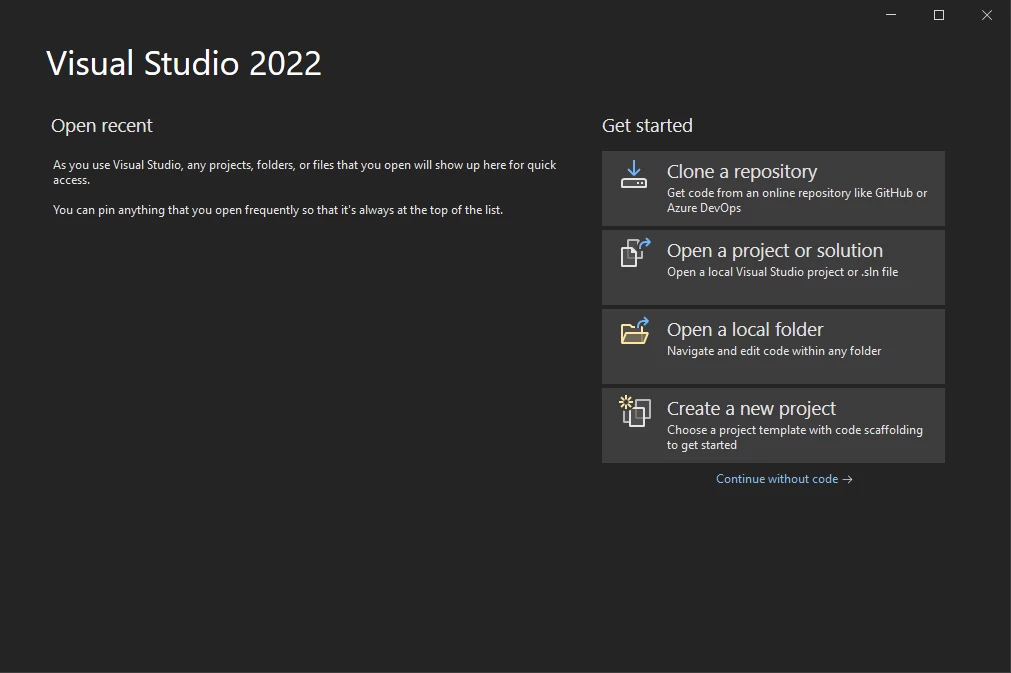
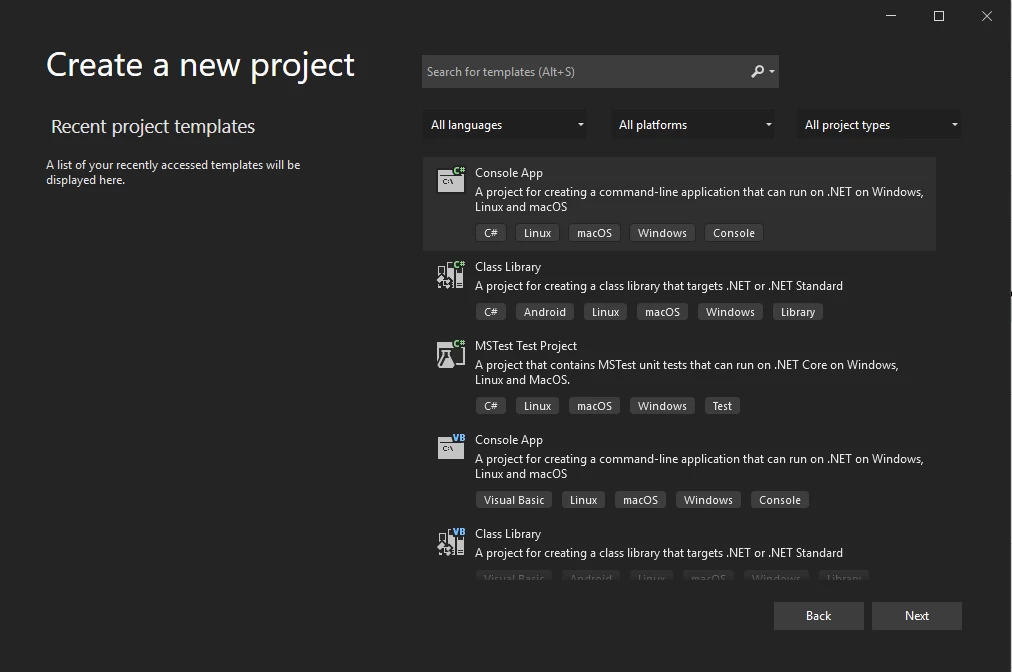
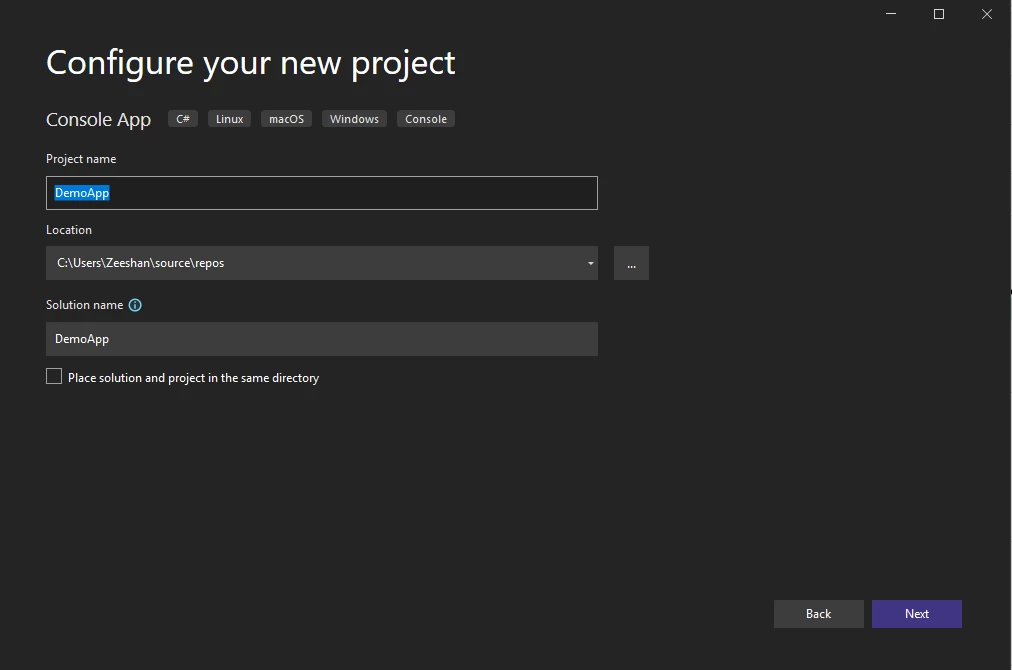
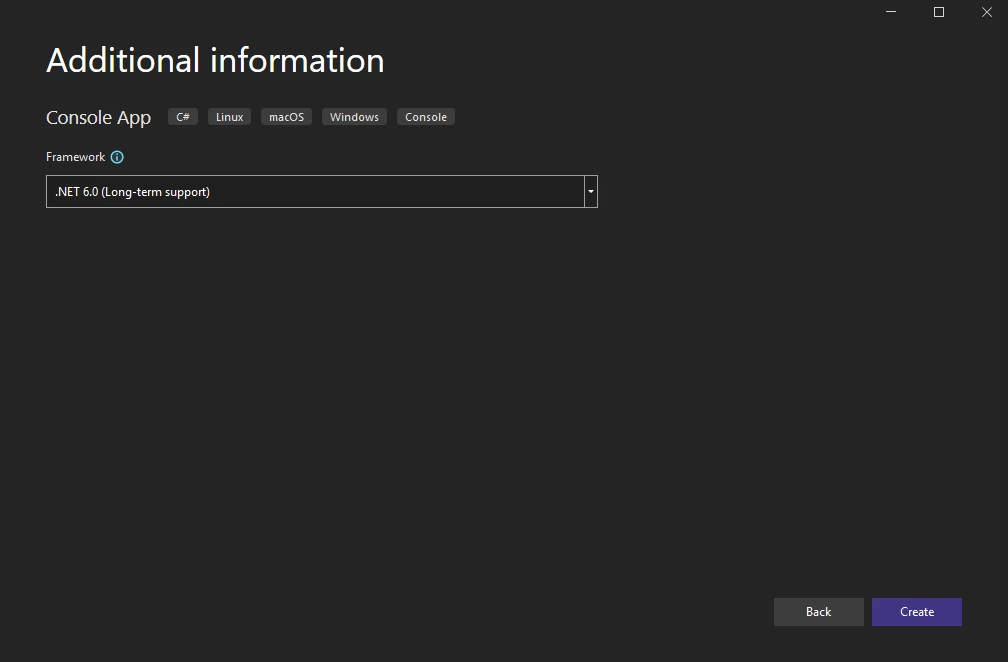
Visual Studio 2022를 사용하여 콘솔 응용 프로그램을 생성하려면 다음 단계를 따르세요:
콘솔 프로젝트가 생성되어 라이브러리 테스트를 준비합니다. 두 라이브러리 모두 사용하기 전에 설치가 필요합니다. 빠른 시작 가이드에서 자세한 내용을 참조하세요. 개요 문서는 완전한 정보를 제공합니다.
IronPDF 어떻게 설치하나요?
여러 설치 방법을 사용할 수 있습니다:
- Visual Studio를 사용하여
- NuGet 패키지를 직접 다운로드하기
- IronPDF .DLL 라이브러리 다운로드
설치 개요에서 자세한 내용을 참조하세요. 라이브러리는 시스템 전체 배포를 위한 Windows 설치 프로그램을 지원합니다. 고급 옵션에는 NuGet 설치 및 라이선스 키 사용이 포함됩니다.
Visual Studio를 사용하여 설치하는 방법은?
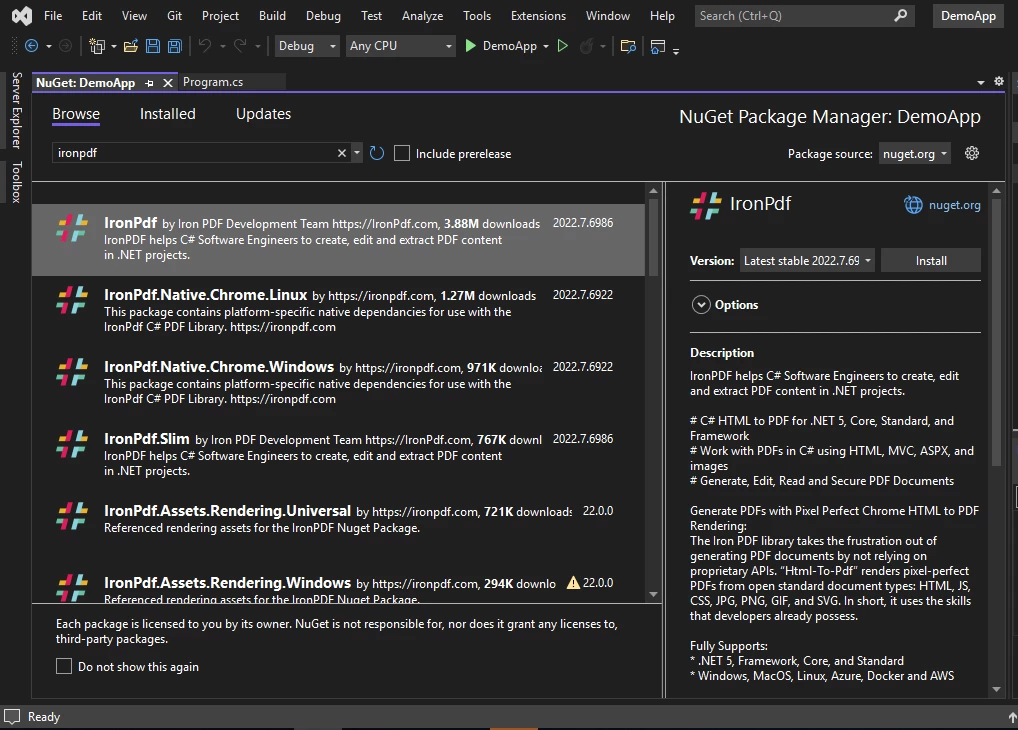
Visual Studio는 Install-Package를 위한 NuGet 패키지 관리자를 제공합니다:
IronPDF NuGet 패키지를 찾아 설치합니다. NuGet 설치 가이드에서 자세한 내용을 참조하세요. 플랫폼별 가이드에는 안드로이드 통합, F# 개발, 및 VB.NET 사용이 포함됩니다. 배포 문제 해결을 위해, NuGet 패키지 배포 실패 가이드를 참조하세요.
NuGet 패키지를 직접 다운로드하는 방법은?
NuGet 웹사이트에서 IronPDF 다운로드:
- NuGet IronPDF 패키지를 방문하세요
- "패키지 다운로드"를 선택하세요
- 다운로드한 패키지를 더블 클릭하십시오
- 패키지가 자동으로 설치됩니다
- Visual Studio를 다시 로드하세요
IronPDF DLL을 다운로드 및 설치하는 방법은?
IronPDF 웹사이트에서 IronPDF .DLL을 직접 다운로드하세요. IronPDF DLL 다운로드를 클릭하세요.
프로젝트에서 IronPDF를 참조하세요:
- 솔루션 탐색기에서 솔루션을 우클릭하세요
- "참조 추가"를 선택하세요
- IronPDF.dll 라이브러리를 찾아보세요
- 확인 버튼을 클릭하세요
IronPDF 설치가 완료되었습니다. 추가 옵션에는 Docker 배포 및 원격 엔진 설정이 포함됩니다. 자세한 내용은 설치 개요를 참조하세요. 문제 해결을 위해, 빠른 문제 해결 가이드를 참조하거나, 초기 렌더링 성능 및 GPU 프로세스 최적화를 확인하세요. 런타임 폴더 가이드는 종속성 관리를 돕습니다.
ExpertPDF를 설치하는 방법은?
두 가지 설치 방법이 있습니다:
- Visual Studio NuGet 패키지 관리자 사용
- 어셈블리 다운로드 (이전 .NET 버전)
최신 .NET Framework에 대해 NuGet 패키지 관리자를 사용하여 ExpertPDF를 설치하세요. 고급 설치 방법 및 패키지 크기 최적화로 인해 ExpertPDF 대신 IronPDF를 고려하세요.
Visual Studio NuGet 패키지 관리자를 사용하여 설치하는 방법은?
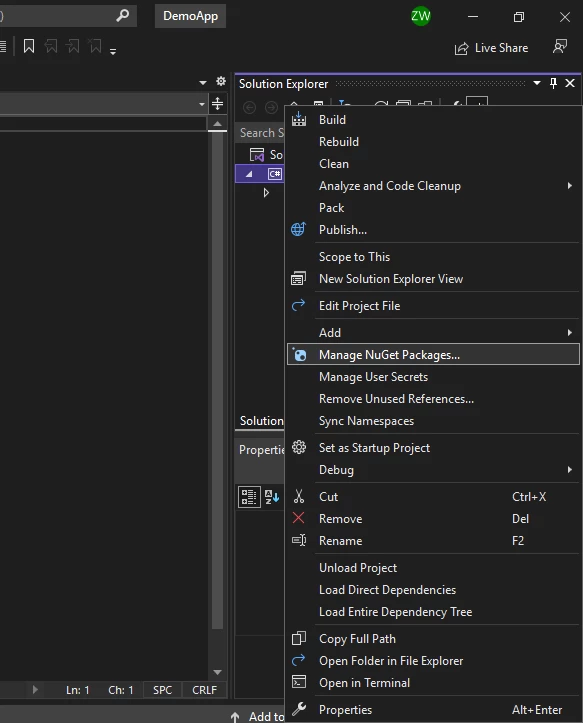
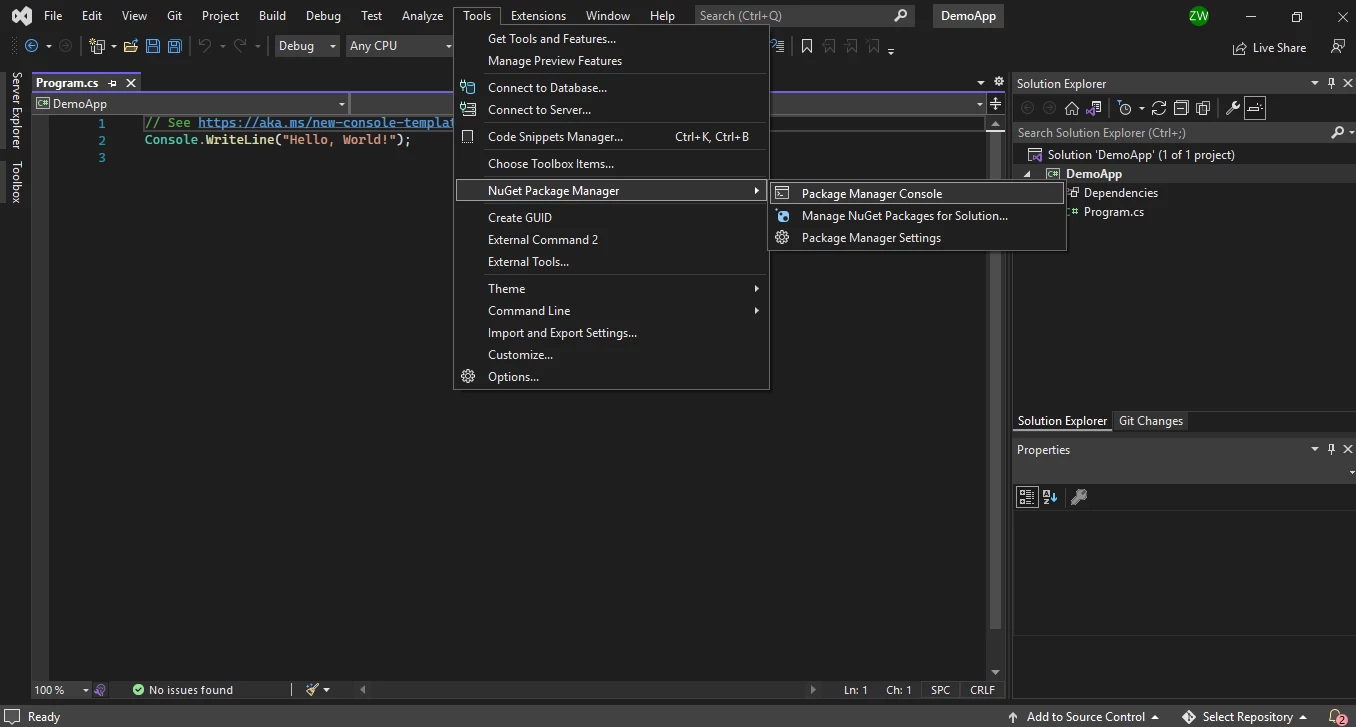
NuGet 패키지 관리자에 액세스하세요:
-
프로젝트 메뉴 도구
-
솔루션 탐색기에서 프로젝트를 우클릭하세요
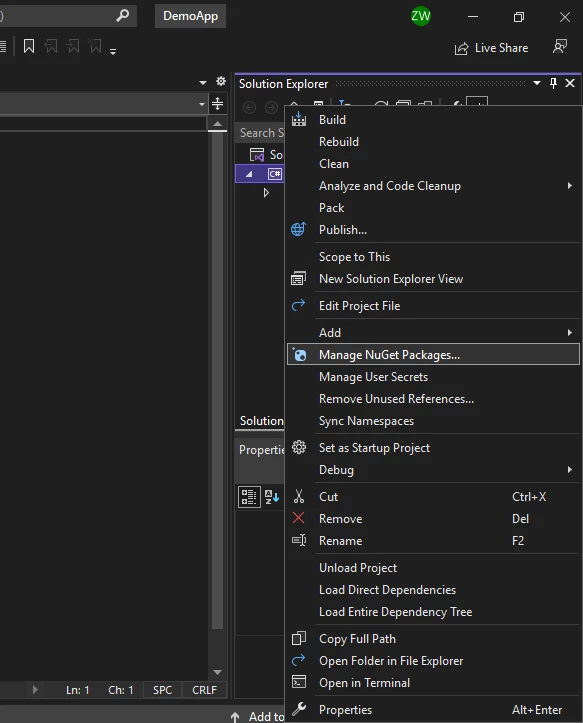
ExpertPDF NuGet 패키지를 찾아 설치하세요. 개선된 설정을 위해, IronPDF의 using 선언 가이드를 고려해 보세요.
참고: IronPDF는 Windows, Linux, 그리고 macOS를 지원하며, ExpertPDF보다 더 넓은 플랫폼 커버리지를 제공합니다. ExpertPDF는 Linux나 macOS 지원에 대한 문서가 없습니다. 클라우드 배포의 경우, IronPDF는 Azure 통합 및 AWS Lambda 지원을 제공합니다. IronPDF는 전체적인 성능 최적화 및 메모리 관리 지침을 제공합니다. 특정 플랫폼의 경우, Red Hat Enterprise Linux 지원 및 AWS Lambda on Amazon Linux 2를 참조하세요.
URL에서 PDF 생성 방법은?
두 라이브러리 모두 HTML을 PDF로 변환합니다. 자세한 내용은 URL-to-PDF 가이드를 참조하세요. 복잡한 웹사이트는 사용자 정의 렌더링 지연 또는 JavaScript 실행 처리가 필요할 수 있습니다. 인증된 사이트의 경우 TLS 웹사이트 및 시스템 로그인 가이드를 참조하세요. IronPDF는 픽셀 딱 맞는 HTML을 PDF로 변환, Chrome 렌더링을 통해 뛰어납니다.
IronPDF는 URL을 어떻게 PDF로 변환합니까?
IronPDF는 URL에서 HTML을 PDF로 효율적으로 렌더링합니다. 이 라이브러리는 CSS, JavaScript, 이미지, 양식에 대한 고급 지원을 제공합니다. Chrome 렌더링 엔진을 사용하면 픽셀 딱 맞는 HTML을 PDF로 변환할 수 있습니다. 렌더링 문제의 경우 픽셀 딱 맞는 HTML 형식 가이드를 참조하세요. 고급 렌더링 옵션에는 사용자 정의 용지 크기 및 뷰포트 구성이 포함됩니다. JavaScript 메시지 수신기는 동적 콘텐츠 처리를 가능하게 합니다.
이 코드 예제는 IronPDF가 개발자가 웹사이트 URL에서 PDF를 생성할 수 있도록 하는 방법을 보여줍니다:
// Import the IronPdf library
using IronPdf;

// Initialize a new renderer
ChromePdfRenderer renderer = new ChromePdfRenderer();
// Render the specified URL as a PDF
var pdf = renderer.RenderUrlAsPdf("___PROTECTED_URL_190___");
// Save the rendered PDF to a file
pdf.SaveAs("url.pdf");
// Import the IronPdf library
using IronPdf;

// Initialize a new renderer
ChromePdfRenderer renderer = new ChromePdfRenderer();
// Render the specified URL as a PDF
var pdf = renderer.RenderUrlAsPdf("___PROTECTED_URL_190___");
// Save the rendered PDF to a file
pdf.SaveAs("url.pdf");
' Import the IronPdf library
Imports IronPdf
' Initialize a new renderer
Dim renderer As New ChromePdfRenderer()
' Render the specified URL as a PDF
Dim pdf = renderer.RenderUrlAsPdf("___PROTECTED_URL_190___")
' Save the rendered PDF to a file
pdf.SaveAs("url.pdf")
' Import the IronPdf library
Imports IronPdf

' Initialize a new renderer
Dim renderer As New ChromePdfRenderer()
' Render the specified URL as a PDF
Dim pdf = renderer.RenderUrlAsPdf("___PROTECTED_URL_190___")
' Save the rendered PDF to a file
pdf.SaveAs("url.pdf")
인증된 URL에 대해서는 TLS 웹사이트 및 시스템 로그인 가이드를 참조하십시오. 쿠키 및 인증된 요청을 위한 맞춤 HTTP 헤더를 구성하십시오. 보안 사이트는 Kerberos 인증이 필요할 수 있습니다. 디버깅의 경우, Chrome 디버깅 가이드를 사용하십시오. 추가 예제는 URL을 PDF로 변환하는 방법을 보여줍니다.
ExpertPDF는 URL을 PDF로 어떻게 변환하나요?
ExpertPDF는 페이지 서식을 유지하는 savePdfFromUrlToFile 방법을 사용하여 URL을 변환합니다:
// Import the ExpertPdf.HtmlToPdf namespace
using ExpertPdf.HtmlToPdf;

// Initialize a new PdfConverter
PdfConverter pdfConverter = new PdfConverter();
// Use PdfConverter to save a webpage URL directly to a PDF file
pdfConverter.SavePdfFromUrlToFile("___PROTECTED_URL_191___", "output.pdf");
// Import the ExpertPdf.HtmlToPdf namespace
using ExpertPdf.HtmlToPdf;

// Initialize a new PdfConverter
PdfConverter pdfConverter = new PdfConverter();
// Use PdfConverter to save a webpage URL directly to a PDF file
pdfConverter.SavePdfFromUrlToFile("___PROTECTED_URL_191___", "output.pdf");
' Import the ExpertPdf.HtmlToPdf namespace
Imports ExpertPdf.HtmlToPdf
' Initialize a new PdfConverter
Dim pdfConverter As New PdfConverter()
' Use PdfConverter to save a webpage URL directly to a PDF file
pdfConverter.SavePdfFromUrlToFile("___PROTECTED_URL_191___", "output.pdf")
' Import the ExpertPdf.HtmlToPdf namespace
Imports ExpertPdf.HtmlToPdf

' Initialize a new PdfConverter
Dim pdfConverter As New PdfConverter()
' Use PdfConverter to save a webpage URL directly to a PDF file
pdfConverter.SavePdfFromUrlToFile("___PROTECTED_URL_191___", "output.pdf")
막후에서 IronPDF는 Chrome 렌더링 엔진을 사용하여 더 나은 HTML5 및 CSS3 지원을 제공합니다.
HTML 입력 문자열에서 PDF를 어떻게 생성합니까?
두 라이브러리는 HTML 문자열에서 PDF를 생성합니다. 자세한 내용은 HTML 문자열을 PDF로 변환하는 가이드를 참조하십시오. 화면 및 인쇄를 위한 CSS를 사용하고 웹 폰트 및 아이콘 폰트를 포함하십시오. IronPDF는 우수한 Bootstrap 및 Flexbox CSS 지원을 제공합니다. HTML을 사용하여 PDF를 생성하는 예제는 실제 구현을 보여줍니다.
IronPDF는 HTML 문자열을 PDF로 어떻게 변환하나요?
이 코드 예제는 IronPDF가 개발자가 HTML 문자열에서 PDF 문서를 생성할 수 있도록 하는 방법을 보여줍니다:
// Import the IronPdf library
using IronPdf;

// Initialize a new renderer
ChromePdfRenderer renderer = new ChromePdfRenderer();
// Render a PDF from HTML string and save it
var pdfDoc1 = renderer.RenderHtmlAsPdf("<h1>Html with CSS and Images</h1>");
pdfDoc1.SaveAs("pixel-perfect.pdf");

// Render HTML with external assets and save it
var pdfDoc2 = renderer.RenderHtmlAsPdf("<img src='icons/iron.png'>", @"C:\site\assets\");
pdfDoc2.SaveAs("html-with-assets.pdf");
// Import the IronPdf library
using IronPdf;

// Initialize a new renderer
ChromePdfRenderer renderer = new ChromePdfRenderer();
// Render a PDF from HTML string and save it
var pdfDoc1 = renderer.RenderHtmlAsPdf("<h1>Html with CSS and Images</h1>");
pdfDoc1.SaveAs("pixel-perfect.pdf");

// Render HTML with external assets and save it
var pdfDoc2 = renderer.RenderHtmlAsPdf("<img src='icons/iron.png'>", @"C:\site\assets\");
pdfDoc2.SaveAs("html-with-assets.pdf");
' Import the IronPdf library
Imports IronPdf
' Initialize a new renderer
Private renderer As New ChromePdfRenderer()
' Render a PDF from HTML string and save it
Private pdfDoc1 = renderer.RenderHtmlAsPdf("<h1>Html with CSS and Images</h1>")
pdfDoc1.SaveAs("pixel-perfect.pdf")
' Render HTML with external assets and save it
Dim pdfDoc2 = renderer.RenderHtmlAsPdf("<img src='icons/iron.png'>", "C:\site\assets\")
pdfDoc2.SaveAs("html-with-assets.pdf")
' Import the IronPdf library
Imports IronPdf

' Initialize a new renderer
Private renderer As New ChromePdfRenderer()
' Render a PDF from HTML string and save it
Private pdfDoc1 = renderer.RenderHtmlAsPdf("<h1>Html with CSS and Images</h1>")
pdfDoc1.SaveAs("pixel-perfect.pdf")

' Render HTML with external assets and save it
Dim pdfDoc2 = renderer.RenderHtmlAsPdf("<img src='icons/iron.png'>", "C:\site\assets\")
pdfDoc2.SaveAs("html-with-assets.pdf")
IronPDF는 상대 경로의 기본 URL과 이미지를 포함하기 위한 DataURI를 지원합니다. 복잡한 HTML에 대해서는 HTML 파일을 PDF로 변환하는 가이드를 참조하십시오. 특정 뷰포트의 경우, 뷰포트 및 확대/축소 설정 가이드를 참조하십시오. 라이브러리는 국제 언어 및 UTF-8을 매끄럽게 처리합니다. 고급 기능에는 HTML 렌더링 설정 및 반응형 HTML을 PDF로 변환이 포함됩니다.
ExpertPDF는 HTML 문자열을 PDF로 어떻게 변환하나요?
ExpertPDF HTML To PDF 변환기는 HTML 문자열 변환을 지원합니다:
// Import the ExpertPdf.HtmlToPdf namespace
using ExpertPdf.HtmlToPdf;

// Initialize a new PdfConverter
PdfConverter pdfConverter = new PdfConverter();
// Use PdfConverter to save an HTML string to a PDF file
pdfConverter.SavePdfFromHtmlStringToFile("<h1>PDF using Expert PDF</h1>", "html-to-pdf.pdf");
// Import the ExpertPdf.HtmlToPdf namespace
using ExpertPdf.HtmlToPdf;

// Initialize a new PdfConverter
PdfConverter pdfConverter = new PdfConverter();
// Use PdfConverter to save an HTML string to a PDF file
pdfConverter.SavePdfFromHtmlStringToFile("<h1>PDF using Expert PDF</h1>", "html-to-pdf.pdf");
' Import the ExpertPdf.HtmlToPdf namespace
Imports ExpertPdf.HtmlToPdf
' Initialize a new PdfConverter
Private pdfConverter As New PdfConverter()
' Use PdfConverter to save an HTML string to a PDF file
pdfConverter.SavePdfFromHtmlStringToFile("<h1>PDF using Expert PDF</h1>", "html-to-pdf.pdf")
' Import the ExpertPdf.HtmlToPdf namespace
Imports ExpertPdf.HtmlToPdf

' Initialize a new PdfConverter
Private pdfConverter As New PdfConverter()
' Use PdfConverter to save an HTML string to a PDF file
pdfConverter.SavePdfFromHtmlStringToFile("<h1>PDF using Expert PDF</h1>", "html-to-pdf.pdf")
첫 번째 인자는 HTML 문자열을 지정하고 두 번째 인자는 출력 파일 이름을 지정합니다. 보다 뛰어난 국제 언어 지원을 위해 기본 HTML 렌더링 대신 IronPDF의 Unicode 및 UTF-8 지원을 고려하십시오.
기술 문서용 PDF를 어떻게 생성합니까?
기술 문서는 코드 예제가 포함된 구조화된 레이아웃을 통해 혜택을 받습니다. 이 Bootstrap 5 데모는 IronPDF의 문서 구문 강조 및 경고 렌더링 기능을 보여줍니다. 자세한 내용은 Bootstrap 및 Flexbox CSS 지원 가이드를 참조하십시오. IronPDF는 전문적인 타이포그래피를 위한 폰트 관리 및 폰트 커닝을 지원합니다. 개선된 결과를 위해, 폰트 문제 해결 가이드와 국제 언어 지원을 확인하세요.
using IronPdf;

var renderer = new ChromePdfRenderer();

string technicalDocs = @"
<!DOCTYPE html>
<html>
<head>
    <meta charset='utf-8'>
    <link href='___PROTECTED_URL_192___ rel='stylesheet'>
    <style>
        .code-block { background: #f8f9fa; border-left: 3px solid #0d6efd; padding: 15px; border-radius: 4px; }
        .api-method { font-family: 'Courier New', monospace; color: #0d6efd; }
        @media print { .card, .alert { page-break-inside: avoid; } }
    </style>
</head>
<body class='bg-light'>
    <div class='container py-4'>
        <div class='card shadow-sm mb-4'>
            <div class='card-header bg-dark text-white'>
                <h2 class='mb-0'>API Reference - HTML to PDF Conversion</h2>
            </div>
            <div class='card-body'>
                <h4>RenderHtmlAsPdf() Method</h4>
                <p class='lead'>Converts HTML content to PDF with full CSS3 and JavaScript support.</p>

                <div class='code-block mb-3'>
                    <code class='api-method'>PdfDocument RenderHtmlAsPdf(string htmlContent)</code>
                </div>

                <div class='row mt-4'>
                    <div class='col-md-6'>
                        <h5 class='text-primary'>Parameters</h5>
                        <table class='table table-sm table-bordered'>
                            <tr>
                                <td><code>htmlContent</code></td>
                                <td>String containing HTML to convert</td>
                            </tr>
                        </table>
                    </div>
                    <div class='col-md-6'>
                        <h5 class='text-success'>Returns</h5>
                        <table class='table table-sm table-bordered'>
                            <tr>
                                <td><code>PdfDocument</code></td>
                                <td>Generated PDF document object</td>
                            </tr>
                        </table>
                    </div>
                </div>
            </div>
        </div>

        <div class='row g-3 mb-4'>
            <div class='col-md-4'>
                <div class='alert alert-success mb-0'>
                    <h6 class='alert-heading'>✓ Supported Features</h6>
                    <ul class='mb-0 small'>
                        <li>HTML5 semantic tags</li>
                        <li>CSS3 with Flexbox/Grid</li>
                        <li>JavaScript execution</li>
                        <li>External stylesheets</li>
                    </ul>
                </div>
            </div>
            <div class='col-md-4'>
                <div class='alert alert-info mb-0'>
                    <h6 class='alert-heading'>ⓘ Rendering Engine</h6>
                    <ul class='mb-0 small'>
                        <li>Chrome V8 Engine</li>
                        <li>High-fidelity rendering</li>
                        <li>Fast HTML-to-PDF conversion</li>
                        <li>Async/await support</li>
                    </ul>
                </div>
            </div>
            <div class='col-md-4'>
                <div class='alert alert-warning mb-0'>
                    <h6 class='alert-heading'>ⓘ IronPDF Advantages</h6>
                    <ul class='mb-0 small'>
                        <li>Intuitive API design</li>
                        <li>Full CSS3 and JS support</li>
                        <li>Cross-platform deployment</li>
                        <li>Minimal configuration needed</li>
                    </ul>
                </div>
            </div>
        </div>

        <div class='card shadow-sm'>
            <div class='card-header bg-primary text-white'>
                <h5 class='mb-0'>Code Example Comparison</h5>
            </div>
            <div class='card-body'>
                <div class='row'>
                    <div class='col-md-6'>
                        <h6 class='text-primary'>IronPDF (Simple)</h6>
                        <div class='code-block'>
                            <pre class='mb-0'><code>var renderer = new ChromePdfRenderer();
var pdf = renderer.RenderHtmlAsPdf(html);
pdf.SaveAs("output.pdf");</code></pre>
                        </div>
                        <div class='badge bg-success mt-2'>3 Lines</div>
                    </div>
                    <div class='col-md-6'>
                        <h6 class='text-warning'>ExpertPDF (Complex)</h6>
                        <div class='code-block'>
                            <pre class='mb-0'><code>var converter = new HtmlToPdfConverter();
converter.PdfDocumentOptions.PdfPageSize = PdfPageSize.A4;
converter.NavigationTimeout = 60;
byte[] result = converter.GetPdfBytesFromHtmlString(html);
File.WriteAllBytes("output.pdf", result);</code></pre>
                        </div>
                        <div class='badge bg-warning text-dark mt-2'>5+ Lines</div>
                    </div>
                </div>
            </div>
            <div class='card-footer text-muted'>
                <small><strong>Comparison:</strong> IronPDF provides a more intuitive API with less configuration overhead for common use cases.</small>
            </div>
        </div>
    </div>
</body>
</html>";

var pdf = renderer.RenderHtmlAsPdf(technicalDocs);
pdf.SaveAs("technical-documentation.pdf");
using IronPdf;

var renderer = new ChromePdfRenderer();

string technicalDocs = @"
<!DOCTYPE html>
<html>
<head>
    <meta charset='utf-8'>
    <link href='___PROTECTED_URL_192___ rel='stylesheet'>
    <style>
        .code-block { background: #f8f9fa; border-left: 3px solid #0d6efd; padding: 15px; border-radius: 4px; }
        .api-method { font-family: 'Courier New', monospace; color: #0d6efd; }
        @media print { .card, .alert { page-break-inside: avoid; } }
    </style>
</head>
<body class='bg-light'>
    <div class='container py-4'>
        <div class='card shadow-sm mb-4'>
            <div class='card-header bg-dark text-white'>
                <h2 class='mb-0'>API Reference - HTML to PDF Conversion</h2>
            </div>
            <div class='card-body'>
                <h4>RenderHtmlAsPdf() Method</h4>
                <p class='lead'>Converts HTML content to PDF with full CSS3 and JavaScript support.</p>

                <div class='code-block mb-3'>
                    <code class='api-method'>PdfDocument RenderHtmlAsPdf(string htmlContent)</code>
                </div>

                <div class='row mt-4'>
                    <div class='col-md-6'>
                        <h5 class='text-primary'>Parameters</h5>
                        <table class='table table-sm table-bordered'>
                            <tr>
                                <td><code>htmlContent</code></td>
                                <td>String containing HTML to convert</td>
                            </tr>
                        </table>
                    </div>
                    <div class='col-md-6'>
                        <h5 class='text-success'>Returns</h5>
                        <table class='table table-sm table-bordered'>
                            <tr>
                                <td><code>PdfDocument</code></td>
                                <td>Generated PDF document object</td>
                            </tr>
                        </table>
                    </div>
                </div>
            </div>
        </div>

        <div class='row g-3 mb-4'>
            <div class='col-md-4'>
                <div class='alert alert-success mb-0'>
                    <h6 class='alert-heading'>✓ Supported Features</h6>
                    <ul class='mb-0 small'>
                        <li>HTML5 semantic tags</li>
                        <li>CSS3 with Flexbox/Grid</li>
                        <li>JavaScript execution</li>
                        <li>External stylesheets</li>
                    </ul>
                </div>
            </div>
            <div class='col-md-4'>
                <div class='alert alert-info mb-0'>
                    <h6 class='alert-heading'>ⓘ Rendering Engine</h6>
                    <ul class='mb-0 small'>
                        <li>Chrome V8 Engine</li>
                        <li>High-fidelity rendering</li>
                        <li>Fast HTML-to-PDF conversion</li>
                        <li>Async/await support</li>
                    </ul>
                </div>
            </div>
            <div class='col-md-4'>
                <div class='alert alert-warning mb-0'>
                    <h6 class='alert-heading'>ⓘ IronPDF Advantages</h6>
                    <ul class='mb-0 small'>
                        <li>Intuitive API design</li>
                        <li>Full CSS3 and JS support</li>
                        <li>Cross-platform deployment</li>
                        <li>Minimal configuration needed</li>
                    </ul>
                </div>
            </div>
        </div>

        <div class='card shadow-sm'>
            <div class='card-header bg-primary text-white'>
                <h5 class='mb-0'>Code Example Comparison</h5>
            </div>
            <div class='card-body'>
                <div class='row'>
                    <div class='col-md-6'>
                        <h6 class='text-primary'>IronPDF (Simple)</h6>
                        <div class='code-block'>
                            <pre class='mb-0'><code>var renderer = new ChromePdfRenderer();
var pdf = renderer.RenderHtmlAsPdf(html);
pdf.SaveAs("output.pdf");</code></pre>
                        </div>
                        <div class='badge bg-success mt-2'>3 Lines</div>
                    </div>
                    <div class='col-md-6'>
                        <h6 class='text-warning'>ExpertPDF (Complex)</h6>
                        <div class='code-block'>
                            <pre class='mb-0'><code>var converter = new HtmlToPdfConverter();
converter.PdfDocumentOptions.PdfPageSize = PdfPageSize.A4;
converter.NavigationTimeout = 60;
byte[] result = converter.GetPdfBytesFromHtmlString(html);
File.WriteAllBytes("output.pdf", result);</code></pre>
                        </div>
                        <div class='badge bg-warning text-dark mt-2'>5+ Lines</div>
                    </div>
                </div>
            </div>
            <div class='card-footer text-muted'>
                <small><strong>Comparison:</strong> IronPDF provides a more intuitive API with less configuration overhead for common use cases.</small>
            </div>
        </div>
    </div>
</body>
</html>";

var pdf = renderer.RenderHtmlAsPdf(technicalDocs);
pdf.SaveAs("technical-documentation.pdf");
Imports IronPdf
Dim renderer As New ChromePdfRenderer()
Dim technicalDocs As String = "
<!DOCTYPE html>
<html>
<head>
<meta charset='utf-8'>
<link href='___PROTECTED_URL_192___ rel='stylesheet'>
<style>
.code-block { background: #f8f9fa; border-left: 3px solid #0d6efd; padding: 15px; border-radius: 4px; }
.api-method { font-family: 'Courier New', monospace; color: #0d6efd; }
@media print { .card, .alert { page-break-inside: avoid; } }
</style>
</head>
<body class='bg-light'>
<div class='container py-4'>
<div class='card shadow-sm mb-4'>
<div class='card-header bg-dark text-white'>
<h2 class='mb-0'>API Reference - HTML to PDF Conversion</h2>
</div>
<div class='card-body'>
<h4>RenderHtmlAsPdf() Method</h4>
<p class='lead'>Converts HTML content to PDF with full CSS3 and JavaScript support.</p>
<div class='code-block mb-3'>
<code class='api-method'>PdfDocument RenderHtmlAsPdf(string htmlContent)</code>
</div>
<div class='row mt-4'>
<div class='col-md-6'>
<h5 class='text-primary'>Parameters</h5>
<table class='table table-sm table-bordered'>
<tr>
<td><code>htmlContent</code></td>
<td>String containing HTML to convert</td>
</tr>
</table>
</div>
<div class='col-md-6'>
<h5 class='text-success'>Returns</h5>
<table class='table table-sm table-bordered'>
<tr>
<td><code>PdfDocument</code></td>
<td>Generated PDF document object</td>
</tr>
</table>
</div>
</div>
</div>
</div>
<div class='row g-3 mb-4'>
<div class='col-md-4'>
<div class='alert alert-success mb-0'>
<h6 class='alert-heading'>✓ Supported Features</h6>
<ul class='mb-0 small'>
<li>HTML5 semantic tags</li>
<li>CSS3 with Flexbox/Grid</li>
<li>JavaScript execution</li>
<li>External stylesheets</li>
</ul>
</div>
</div>
<div class='col-md-4'>
<div class='alert alert-info mb-0'>
<h6 class='alert-heading'>ⓘ Rendering Engine</h6>
<ul class='mb-0 small'>
<li>Chrome V8 Engine</li>
<li>High-fidelity rendering</li>
<li>Fast HTML-to-PDF conversion</li>
<li>Async/await support</li>
</ul>
</div>
</div>
<div class='col-md-4'>
<div class='alert alert-warning mb-0'>
<h6 class='alert-heading'>ⓘ IronPDF Advantages</h6>
<ul class='mb-0 small'>
<li>Intuitive API design</li>
<li>Full CSS3 and JS support</li>
<li>Cross-platform deployment</li>
<li>Minimal configuration needed</li>
</ul>
</div>
</div>
</div>
<div class='card shadow-sm'>
<div class='card-header bg-primary text-white'>
<h5 class='mb-0'>Code Example Comparison</h5>
</div>
<div class='card-body'>
<div class='row'>
<div class='col-md-6'>
<h6 class='text-primary'>IronPDF (Simple)</h6>
<div class='code-block'>
<pre class='mb-0'><code>var renderer = new ChromePdfRenderer();
var pdf = renderer.RenderHtmlAsPdf(html);
pdf.SaveAs(""output.pdf"");</code></pre>
</div>
<div class='badge bg-success mt-2'>3 Lines</div>
</div>
<div class='col-md-6'>
<h6 class='text-warning'>ExpertPDF (Complex)</h6>
<div class='code-block'>
<pre class='mb-0'><code>var converter = new HtmlToPdfConverter();
converter.PdfDocumentOptions.PdfPageSize = PdfPageSize.A4;
converter.NavigationTimeout = 60;
byte[] result = converter.GetPdfBytesFromHtmlString(html);
File.WriteAllBytes(""output.pdf"", result);</code></pre>
</div>
<div class='badge bg-warning text-dark mt-2'>5+ Lines</div>
</div>
</div>
</div>
<div class='card-footer text-muted'>
<small><strong>Comparison:</strong> IronPDF provides a more intuitive API with less configuration overhead for common use cases.</small>
</div>
</div>
</div>
</body>
</html>"
Dim pdf = renderer.RenderHtmlAsPdf(technicalDocs)
pdf.SaveAs("technical-documentation.pdf")
Imports IronPdf

Dim renderer As New ChromePdfRenderer()

Dim technicalDocs As String = "
<!DOCTYPE html>
<html>
<head>
    <meta charset='utf-8'>
    <link href='___PROTECTED_URL_192___ rel='stylesheet'>
    <style>
        .code-block { background: #f8f9fa; border-left: 3px solid #0d6efd; padding: 15px; border-radius: 4px; }
        .api-method { font-family: 'Courier New', monospace; color: #0d6efd; }
        @media print { .card, .alert { page-break-inside: avoid; } }
    </style>
</head>
<body class='bg-light'>
    <div class='container py-4'>
        <div class='card shadow-sm mb-4'>
            <div class='card-header bg-dark text-white'>
                <h2 class='mb-0'>API Reference - HTML to PDF Conversion</h2>
            </div>
            <div class='card-body'>
                <h4>RenderHtmlAsPdf() Method</h4>
                <p class='lead'>Converts HTML content to PDF with full CSS3 and JavaScript support.</p>

                <div class='code-block mb-3'>
                    <code class='api-method'>PdfDocument RenderHtmlAsPdf(string htmlContent)</code>
                </div>

                <div class='row mt-4'>
                    <div class='col-md-6'>
                        <h5 class='text-primary'>Parameters</h5>
                        <table class='table table-sm table-bordered'>
                            <tr>
                                <td><code>htmlContent</code></td>
                                <td>String containing HTML to convert</td>
                            </tr>
                        </table>
                    </div>
                    <div class='col-md-6'>
                        <h5 class='text-success'>Returns</h5>
                        <table class='table table-sm table-bordered'>
                            <tr>
                                <td><code>PdfDocument</code></td>
                                <td>Generated PDF document object</td>
                            </tr>
                        </table>
                    </div>
                </div>
            </div>
        </div>

        <div class='row g-3 mb-4'>
            <div class='col-md-4'>
                <div class='alert alert-success mb-0'>
                    <h6 class='alert-heading'>✓ Supported Features</h6>
                    <ul class='mb-0 small'>
                        <li>HTML5 semantic tags</li>
                        <li>CSS3 with Flexbox/Grid</li>
                        <li>JavaScript execution</li>
                        <li>External stylesheets</li>
                    </ul>
                </div>
            </div>
            <div class='col-md-4'>
                <div class='alert alert-info mb-0'>
                    <h6 class='alert-heading'>ⓘ Rendering Engine</h6>
                    <ul class='mb-0 small'>
                        <li>Chrome V8 Engine</li>
                        <li>High-fidelity rendering</li>
                        <li>Fast HTML-to-PDF conversion</li>
                        <li>Async/await support</li>
                    </ul>
                </div>
            </div>
            <div class='col-md-4'>
                <div class='alert alert-warning mb-0'>
                    <h6 class='alert-heading'>ⓘ IronPDF Advantages</h6>
                    <ul class='mb-0 small'>
                        <li>Intuitive API design</li>
                        <li>Full CSS3 and JS support</li>
                        <li>Cross-platform deployment</li>
                        <li>Minimal configuration needed</li>
                    </ul>
                </div>
            </div>
        </div>

        <div class='card shadow-sm'>
            <div class='card-header bg-primary text-white'>
                <h5 class='mb-0'>Code Example Comparison</h5>
            </div>
            <div class='card-body'>
                <div class='row'>
                    <div class='col-md-6'>
                        <h6 class='text-primary'>IronPDF (Simple)</h6>
                        <div class='code-block'>
                            <pre class='mb-0'><code>var renderer = new ChromePdfRenderer();
var pdf = renderer.RenderHtmlAsPdf(html);
pdf.SaveAs(""output.pdf"");</code></pre>
                        </div>
                        <div class='badge bg-success mt-2'>3 Lines</div>
                    </div>
                    <div class='col-md-6'>
                        <h6 class='text-warning'>ExpertPDF (Complex)</h6>
                        <div class='code-block'>
                            <pre class='mb-0'><code>var converter = new HtmlToPdfConverter();
converter.PdfDocumentOptions.PdfPageSize = PdfPageSize.A4;
converter.NavigationTimeout = 60;
byte[] result = converter.GetPdfBytesFromHtmlString(html);
File.WriteAllBytes(""output.pdf"", result);</code></pre>
                        </div>
                        <div class='badge bg-warning text-dark mt-2'>5+ Lines</div>
                    </div>
                </div>
            </div>
            <div class='card-footer text-muted'>
                <small><strong>Comparison:</strong> IronPDF provides a more intuitive API with less configuration overhead for common use cases.</small>
            </div>
        </div>
    </div>
</body>
</html>"

Dim pdf = renderer.RenderHtmlAsPdf(technicalDocs)
pdf.SaveAs("technical-documentation.pdf")
출력: Bootstrap 5 카드, 경고, 테이블 및 코드 블록이 포함된 전문 기술 문서 PDF. IronPDF는 모든 타이포그래피, 간격 유틸리티 및 그리드 레이아웃을 정확히 렌더링하여 뛰어난 문서 생성 기능을 보여줍니다.
복잡한 레이아웃의 금융 보고서를 어떻게 생성합니까?
재무 보고서는 정확한 테이블 형식과 계산이 필요합니다. 이 예제는 CSS Grid 및 동적 JavaScript를 사용한 IronPDF의 복잡한 재무 레이아웃 렌더링을 보여줍니다. PDF의 JavaScript 가이드를 참조하십시오, 맞춤 JavaScript 실행을 포함하여 자세한 내용을 확인하십시오. 재무 문서는 파일 최적화를 위한 PDF 압축 및 준수를 위한 메타데이터 관리가 필요할 수 있습니다. PDF의 차트 렌더링 가이드는 데이터 시각화에 도움이 됩니다.
using IronPdf;

var renderer = new ChromePdfRenderer();
// Enable JavaScript for dynamic calculations
renderer.RenderingOptions.EnableJavaScript = true;
renderer.RenderingOptions.RenderDelay = 500; // Allow JS to execute

string financialReport = @"
<!DOCTYPE html>
<html>
<head>
    <meta charset='utf-8'>
    <style>
        @page { size: A4; margin: 20mm; }
        body { font-family: Arial, sans-serif; line-height: 1.6; }
        .header { text-align: center; margin-bottom: 30px; }
        .financial-grid { display: grid; grid-template-columns: 2fr 1fr 1fr; gap: 10px; margin-bottom: 20px; }
        .grid-header { background: #2c3e50; color: white; padding: 10px; font-weight: bold; }
        .grid-row { padding: 10px; border-bottom: 1px solid #ddd; }
        .grid-row:hover { background: #f9f9f9; }
        .amount { text-align: right; font-family: 'Courier New', monospace; }
        .positive { color: #27ae60; }
        .negative { color: #e74c3c; }
        .total-row { background: #ecf0f1; font-weight: bold; margin-top: 10px; }
        .footer-note { font-size: 0.8em; color: #666; margin-top: 30px; text-align: center; }
        @media print {
            .grid-row:hover { background: transparent; }
            .financial-grid { page-break-inside: avoid; }
        }
    </style>
</head>
<body>
    <div class='header'>
        <h1>Quarterly Financial Report</h1>
        <p>Q4 2023 - Consolidated Statement</p>
    </div>

    <div class='financial-grid'>
        <div class='grid-header'>Revenue Stream</div>
        <div class='grid-header amount'>Q3 2023</div>
        <div class='grid-header amount'>Q4 2023</div>

        <div class='grid-row'>Software Licenses</div>
        <div class='grid-row amount'>$2,150,000</div>
        <div class='grid-row amount positive'>$2,875,000</div>

        <div class='grid-row'>Support Services</div>
        <div class='grid-row amount'>$850,000</div>
        <div class='grid-row amount positive'>$975,000</div>

        <div class='grid-row'>Consulting</div>
        <div class='grid-row amount'>$425,000</div>
        <div class='grid-row amount negative'>$380,000</div>

        <div class='grid-row total-row'>Total Revenue</div>
        <div class='grid-row total-row amount'>$3,425,000</div>
        <div class='grid-row total-row amount positive' id='total'>$4,230,000</div>
    </div>

    <div class='financial-grid'>
        <div class='grid-header'>Operating Expenses</div>
        <div class='grid-header amount'>Q3 2023</div>
        <div class='grid-header amount'>Q4 2023</div>

        <div class='grid-row'>R&D</div>
        <div class='grid-row amount'>$1,200,000</div>
        <div class='grid-row amount'>$1,350,000</div>

        <div class='grid-row'>Sales & Marketing</div>
        <div class='grid-row amount'>$800,000</div>
        <div class='grid-row amount'>$950,000</div>

        <div class='grid-row'>General & Admin</div>
        <div class='grid-row amount'>$400,000</div>
        <div class='grid-row amount'>$425,000</div>

        <div class='grid-row total-row'>Total Expenses</div>
        <div class='grid-row total-row amount'>$2,400,000</div>
        <div class='grid-row total-row amount'>$2,725,000</div>
    </div>

    <script>
        // Calculate growth percentage
        const q3Total = 3425000;
        const q4Total = 4230000;
        const growth = ((q4Total - q3Total) / q3Total * 100).toFixed(1);

        // Add growth indicator
        const totalEl = document.getElementById('total');
        totalEl.innerHTML += ` <small>(+${growth}%)</small>`;
    </script>

    <div class='footer-note'>
        <p>This report was generated using IronPDF's advanced rendering engine.<br>
        All financial figures are in USD. Report generated on: <span id='date'></span></p>
    </div>

    <script>
        document.getElementById('date').textContent = new Date().toLocaleDateString();
    </script>
</body>
</html>";

var pdf = renderer.RenderHtmlAsPdf(financialReport);
pdf.SaveAs("financial-report.pdf");
using IronPdf;

var renderer = new ChromePdfRenderer();
// Enable JavaScript for dynamic calculations
renderer.RenderingOptions.EnableJavaScript = true;
renderer.RenderingOptions.RenderDelay = 500; // Allow JS to execute

string financialReport = @"
<!DOCTYPE html>
<html>
<head>
    <meta charset='utf-8'>
    <style>
        @page { size: A4; margin: 20mm; }
        body { font-family: Arial, sans-serif; line-height: 1.6; }
        .header { text-align: center; margin-bottom: 30px; }
        .financial-grid { display: grid; grid-template-columns: 2fr 1fr 1fr; gap: 10px; margin-bottom: 20px; }
        .grid-header { background: #2c3e50; color: white; padding: 10px; font-weight: bold; }
        .grid-row { padding: 10px; border-bottom: 1px solid #ddd; }
        .grid-row:hover { background: #f9f9f9; }
        .amount { text-align: right; font-family: 'Courier New', monospace; }
        .positive { color: #27ae60; }
        .negative { color: #e74c3c; }
        .total-row { background: #ecf0f1; font-weight: bold; margin-top: 10px; }
        .footer-note { font-size: 0.8em; color: #666; margin-top: 30px; text-align: center; }
        @media print {
            .grid-row:hover { background: transparent; }
            .financial-grid { page-break-inside: avoid; }
        }
    </style>
</head>
<body>
    <div class='header'>
        <h1>Quarterly Financial Report</h1>
        <p>Q4 2023 - Consolidated Statement</p>
    </div>

    <div class='financial-grid'>
        <div class='grid-header'>Revenue Stream</div>
        <div class='grid-header amount'>Q3 2023</div>
        <div class='grid-header amount'>Q4 2023</div>

        <div class='grid-row'>Software Licenses</div>
        <div class='grid-row amount'>$2,150,000</div>
        <div class='grid-row amount positive'>$2,875,000</div>

        <div class='grid-row'>Support Services</div>
        <div class='grid-row amount'>$850,000</div>
        <div class='grid-row amount positive'>$975,000</div>

        <div class='grid-row'>Consulting</div>
        <div class='grid-row amount'>$425,000</div>
        <div class='grid-row amount negative'>$380,000</div>

        <div class='grid-row total-row'>Total Revenue</div>
        <div class='grid-row total-row amount'>$3,425,000</div>
        <div class='grid-row total-row amount positive' id='total'>$4,230,000</div>
    </div>

    <div class='financial-grid'>
        <div class='grid-header'>Operating Expenses</div>
        <div class='grid-header amount'>Q3 2023</div>
        <div class='grid-header amount'>Q4 2023</div>

        <div class='grid-row'>R&D</div>
        <div class='grid-row amount'>$1,200,000</div>
        <div class='grid-row amount'>$1,350,000</div>

        <div class='grid-row'>Sales & Marketing</div>
        <div class='grid-row amount'>$800,000</div>
        <div class='grid-row amount'>$950,000</div>

        <div class='grid-row'>General & Admin</div>
        <div class='grid-row amount'>$400,000</div>
        <div class='grid-row amount'>$425,000</div>

        <div class='grid-row total-row'>Total Expenses</div>
        <div class='grid-row total-row amount'>$2,400,000</div>
        <div class='grid-row total-row amount'>$2,725,000</div>
    </div>

    <script>
        // Calculate growth percentage
        const q3Total = 3425000;
        const q4Total = 4230000;
        const growth = ((q4Total - q3Total) / q3Total * 100).toFixed(1);

        // Add growth indicator
        const totalEl = document.getElementById('total');
        totalEl.innerHTML += ` <small>(+${growth}%)</small>`;
    </script>

    <div class='footer-note'>
        <p>This report was generated using IronPDF's advanced rendering engine.<br>
        All financial figures are in USD. Report generated on: <span id='date'></span></p>
    </div>

    <script>
        document.getElementById('date').textContent = new Date().toLocaleDateString();
    </script>
</body>
</html>";

var pdf = renderer.RenderHtmlAsPdf(financialReport);
pdf.SaveAs("financial-report.pdf");
Imports IronPdf
Dim renderer = New ChromePdfRenderer()
' Enable JavaScript for dynamic calculations
renderer.RenderingOptions.EnableJavaScript = True
renderer.RenderingOptions.RenderDelay = 500 ' Allow JS to execute
Dim financialReport As String = "
<!DOCTYPE html>
<html>
<head>
<meta charset='utf-8'>
<style>
@page { size: A4; margin: 20mm; }
body { font-family: Arial, sans-serif; line-height: 1.6; }
.header { text-align: center; margin-bottom: 30px; }
.financial-grid { display: grid; grid-template-columns: 2fr 1fr 1fr; gap: 10px; margin-bottom: 20px; }
.grid-header { background: #2c3e50; color: white; padding: 10px; font-weight: bold; }
.grid-row { padding: 10px; border-bottom: 1px solid #ddd; }
.grid-row:hover { background: #f9f9f9; }
.amount { text-align: right; font-family: 'Courier New', monospace; }
.positive { color: #27ae60; }
.negative { color: #e74c3c; }
.total-row { background: #ecf0f1; font-weight: bold; margin-top: 10px; }
.footer-note { font-size: 0.8em; color: #666; margin-top: 30px; text-align: center; }
@media print {
.grid-row:hover { background: transparent; }
.financial-grid { page-break-inside: avoid; }
}
</style>
</head>
<body>
<div class='header'>
<h1>Quarterly Financial Report</h1>
<p>Q4 2023 - Consolidated Statement</p>
</div>
<div class='financial-grid'>
<div class='grid-header'>Revenue Stream</div>
<div class='grid-header amount'>Q3 2023</div>
<div class='grid-header amount'>Q4 2023</div>
<div class='grid-row'>Software Licenses</div>
<div class='grid-row amount'>$2,150,000</div>
<div class='grid-row amount positive'>$2,875,000</div>
<div class='grid-row'>Support Services</div>
<div class='grid-row amount'>$850,000</div>
<div class='grid-row amount positive'>$975,000</div>
<div class='grid-row'>Consulting</div>
<div class='grid-row amount'>$425,000</div>
<div class='grid-row amount negative'>$380,000</div>
<div class='grid-row total-row'>Total Revenue</div>
<div class='grid-row total-row amount'>$3,425,000</div>
<div class='grid-row total-row amount positive' id='total'>$4,230,000</div>
</div>
<div class='financial-grid'>
<div class='grid-header'>Operating Expenses</div>
<div class='grid-header amount'>Q3 2023</div>
<div class='grid-header amount'>Q4 2023</div>
<div class='grid-row'>R&D</div>
<div class='grid-row amount'>$1,200,000</div>
<div class='grid-row amount'>$1,350,000</div>
<div class='grid-row'>Sales & Marketing</div>
<div class='grid-row amount'>$800,000</div>
<div class='grid-row amount'>$950,000</div>
<div class='grid-row'>General & Admin</div>
<div class='grid-row amount'>$400,000</div>
<div class='grid-row amount'>$425,000</div>
<div class='grid-row total-row'>Total Expenses</div>
<div class='grid-row total-row amount'>$2,400,000</div>
<div class='grid-row total-row amount'>$2,725,000</div>
</div>
<script>
// Calculate growth percentage
const q3Total = 3425000;
const q4Total = 4230000;
const growth = ((q4Total - q3Total) / q3Total * 100).toFixed(1);
// Add growth indicator
const totalEl = document.getElementById('total');
totalEl.innerHTML += ` <small>(+${growth}%)</small>`;
</script>
<div class='footer-note'>
<p>This report was generated using IronPDF's advanced rendering engine.<br>
All financial figures are in USD. Report generated on: <span id='date'></span></p>
</div>
<script>
document.getElementById('date').textContent = new Date().toLocaleDateString();
</script>
</body>
</html>"
Dim pdf = renderer.RenderHtmlAsPdf(financialReport)
pdf.SaveAs("financial-report.pdf")
Imports IronPdf

Dim renderer = New ChromePdfRenderer()
' Enable JavaScript for dynamic calculations
renderer.RenderingOptions.EnableJavaScript = True
renderer.RenderingOptions.RenderDelay = 500 ' Allow JS to execute

Dim financialReport As String = "
<!DOCTYPE html>
<html>
<head>
    <meta charset='utf-8'>
    <style>
        @page { size: A4; margin: 20mm; }
        body { font-family: Arial, sans-serif; line-height: 1.6; }
        .header { text-align: center; margin-bottom: 30px; }
        .financial-grid { display: grid; grid-template-columns: 2fr 1fr 1fr; gap: 10px; margin-bottom: 20px; }
        .grid-header { background: #2c3e50; color: white; padding: 10px; font-weight: bold; }
        .grid-row { padding: 10px; border-bottom: 1px solid #ddd; }
        .grid-row:hover { background: #f9f9f9; }
        .amount { text-align: right; font-family: 'Courier New', monospace; }
        .positive { color: #27ae60; }
        .negative { color: #e74c3c; }
        .total-row { background: #ecf0f1; font-weight: bold; margin-top: 10px; }
        .footer-note { font-size: 0.8em; color: #666; margin-top: 30px; text-align: center; }
        @media print {
            .grid-row:hover { background: transparent; }
            .financial-grid { page-break-inside: avoid; }
        }
    </style>
</head>
<body>
    <div class='header'>
        <h1>Quarterly Financial Report</h1>
        <p>Q4 2023 - Consolidated Statement</p>
    </div>

    <div class='financial-grid'>
        <div class='grid-header'>Revenue Stream</div>
        <div class='grid-header amount'>Q3 2023</div>
        <div class='grid-header amount'>Q4 2023</div>

        <div class='grid-row'>Software Licenses</div>
        <div class='grid-row amount'>$2,150,000</div>
        <div class='grid-row amount positive'>$2,875,000</div>

        <div class='grid-row'>Support Services</div>
        <div class='grid-row amount'>$850,000</div>
        <div class='grid-row amount positive'>$975,000</div>

        <div class='grid-row'>Consulting</div>
        <div class='grid-row amount'>$425,000</div>
        <div class='grid-row amount negative'>$380,000</div>

        <div class='grid-row total-row'>Total Revenue</div>
        <div class='grid-row total-row amount'>$3,425,000</div>
        <div class='grid-row total-row amount positive' id='total'>$4,230,000</div>
    </div>

    <div class='financial-grid'>
        <div class='grid-header'>Operating Expenses</div>
        <div class='grid-header amount'>Q3 2023</div>
        <div class='grid-header amount'>Q4 2023</div>

        <div class='grid-row'>R&D</div>
        <div class='grid-row amount'>$1,200,000</div>
        <div class='grid-row amount'>$1,350,000</div>

        <div class='grid-row'>Sales & Marketing</div>
        <div class='grid-row amount'>$800,000</div>
        <div class='grid-row amount'>$950,000</div>

        <div class='grid-row'>General & Admin</div>
        <div class='grid-row amount'>$400,000</div>
        <div class='grid-row amount'>$425,000</div>

        <div class='grid-row total-row'>Total Expenses</div>
        <div class='grid-row total-row amount'>$2,400,000</div>
        <div class='grid-row total-row amount'>$2,725,000</div>
    </div>

    <script>
        // Calculate growth percentage
        const q3Total = 3425000;
        const q4Total = 4230000;
        const growth = ((q4Total - q3Total) / q3Total * 100).toFixed(1);

        // Add growth indicator
        const totalEl = document.getElementById('total');
        totalEl.innerHTML += ` <small>(+${growth}%)</small>`;
    </script>

    <div class='footer-note'>
        <p>This report was generated using IronPDF's advanced rendering engine.<br>
        All financial figures are in USD. Report generated on: <span id='date'></span></p>
    </div>

    <script>
        document.getElementById('date').textContent = new Date().toLocaleDateString();
    </script>
</body>
</html>"

Dim pdf = renderer.RenderHtmlAsPdf(financialReport)
pdf.SaveAs("financial-report.pdf")
이 코드 예제는 개발자가 CSS Grid 레이아웃, JavaScript 실행, 및 인쇄 전용 CSS를 사용하는 방법을 보여줍니다. 보고서에 맞춤 헤더 및 바닥글을 추가하고, 브랜딩을 위한 배경 및 전경, 보안을 위한 워터마크, 인증을 위한 디지털 서명을 적용하십시오. 자세한 내용을 위해 PDF 보고서 생성 가이드를 참조하십시오.
여러 PDF 파일을 단일 PDF로 어떻게 병합합니까?
두 라이브러리는 여러 PDF를 단일 문서로 병합하여 데이터를 효율적으로 전송합니다. 자세한 내용을 위해 PDF 병합 및 분할 가이드를 참조하십시오. 다중 페이지 문서는 페이지 관리 또는 다중 페이지 PDF 분할이 필요할 수 있습니다. 대용량 파일 성능을 위해 비동기 PDF 생성 또는 병렬 처리를 고려하십시오. 두 개 이상의 PDF를 병합하는 예제는 실제 구현을 제공합니다. PDF를 조직화하기 위해, IronPDF는 완전한 도구를 제공합니다.
IronPDF는 PDF 파일을 어떻게 병합합니까?
이 코드 예제는 IronPDF가 개발자가 HTML 문자열에서 두 개의 PDF를 렌더링하고 이를 병합할 수 있도록 하는 방법을 보여줍니다. 직관적인 접근 방식은 추가 설정 옵션을 제공합니다. 페이지 번호 및 페이지 나누기에 관한 자료는 각각의 가이드를 참조하세요. 또한 PDF 간 페이지 복사하기는 세밀한 제어를 제공합니다. 폼에 대해서는 폼 관리 및 폼 편집 문서를 참조하세요. 페이지 번호 및 페이지 나누기 예제는 결합 구현을 보여줍니다.
// Import the IronPdf library
using IronPdf;

// Define HTML strings to convert to PDF
var htmlA = @"<p> [PDF_A] </p>
        <p> [PDF_A] 1st Page </p>
        <div style='page-break-after: always;'></div>
        <p> [PDF_A] 2nd Page</p>";

var htmlB = @"<p> [PDF_B] </p>
        <p> [PDF_B] 1st Page </p>
        <div style='page-break-after: always;'></div>
        <p> [PDF_B] 2nd Page</p>";

// Initialize a new renderer
var renderer = new ChromePdfRenderer();

// Render HTML strings as PDFs
var pdfDocA = renderer.RenderHtmlAsPdf(htmlA);
var pdfDocB = renderer.RenderHtmlAsPdf(htmlB);

// Merge the PDF documents
var mergedPdf = PdfDocument.Merge(pdfDocA, pdfDocB);

// Save the merged PDF
mergedPdf.SaveAs("Merged.pdf");
// Import the IronPdf library
using IronPdf;

// Define HTML strings to convert to PDF
var htmlA = @"<p> [PDF_A] </p>
        <p> [PDF_A] 1st Page </p>
        <div style='page-break-after: always;'></div>
        <p> [PDF_A] 2nd Page</p>";

var htmlB = @"<p> [PDF_B] </p>
        <p> [PDF_B] 1st Page </p>
        <div style='page-break-after: always;'></div>
        <p> [PDF_B] 2nd Page</p>";

// Initialize a new renderer
var renderer = new ChromePdfRenderer();

// Render HTML strings as PDFs
var pdfDocA = renderer.RenderHtmlAsPdf(htmlA);
var pdfDocB = renderer.RenderHtmlAsPdf(htmlB);

// Merge the PDF documents
var mergedPdf = PdfDocument.Merge(pdfDocA, pdfDocB);

// Save the merged PDF
mergedPdf.SaveAs("Merged.pdf");
' Import the IronPdf library
Imports IronPdf
' Define HTML strings to convert to PDF
Private htmlA = "<p> [PDF_A] </p>
<p> [PDF_A] 1st Page </p>
<div style='page-break-after: always;'></div>
<p> [PDF_A] 2nd Page</p>"
Private htmlB = "<p> [PDF_B] </p>
<p> [PDF_B] 1st Page </p>
<div style='page-break-after: always;'></div>
<p> [PDF_B] 2nd Page</p>"
' Initialize a new renderer
Private renderer = New ChromePdfRenderer()
' Render HTML strings as PDFs
Private pdfDocA = renderer.RenderHtmlAsPdf(htmlA)
Private pdfDocB = renderer.RenderHtmlAsPdf(htmlB)
' Merge the PDF documents
Private mergedPdf = PdfDocument.Merge(pdfDocA, pdfDocB)
' Save the merged PDF
mergedPdf.SaveAs("Merged.pdf")
' Import the IronPdf library
Imports IronPdf

' Define HTML strings to convert to PDF
Private htmlA = "<p> [PDF_A] </p>
        <p> [PDF_A] 1st Page </p>
        <div style='page-break-after: always;'></div>
        <p> [PDF_A] 2nd Page</p>"

Private htmlB = "<p> [PDF_B] </p>
        <p> [PDF_B] 1st Page </p>
        <div style='page-break-after: always;'></div>
        <p> [PDF_B] 2nd Page</p>"

' Initialize a new renderer
Private renderer = New ChromePdfRenderer()

' Render HTML strings as PDFs
Private pdfDocA = renderer.RenderHtmlAsPdf(htmlA)
Private pdfDocB = renderer.RenderHtmlAsPdf(htmlB)

' Merge the PDF documents
Private mergedPdf = PdfDocument.Merge(pdfDocA, pdfDocB)

' Save the merged PDF
mergedPdf.SaveAs("Merged.pdf")
Merge 방법은 다수의 문서를 Enumerable 객체로 받습니다. PDF 병합에 대한 IronPDF 코드 예제를 참조하세요. 표지 페이지 추가하기나 목차 만들기를 위한 전문 가이드를 참조하세요. 또한 새 콘텐츠 추가 또는 첨부 파일 추가하기를 수행하세요. PDF 나누기 및 페이지 추출 예제는 역작업을 보여줍니다.
병합된 PDF가 편집 가능한 폼을 포함할 경우, 폼 필드 이름에 인덱스 번호가 추가됩니다. 자세한 내용은 폼 데이터 처리 가이드를 참조하세요.
ExpertPDF는 PDF 파일을 어떻게 병합하나요?
ExpertPDF는 별도의 설치가 필요한 PDF 병합 컴포넌트를 사용합니다. AppendPDFFile 방법은 PDFMerge 객체에 파일을 추가합니다:
// Import the ExpertPdf.MergePdf namespace
using ExpertPdf.MergePdf;

// Initialize a new PDFMerge object
PDFMerge pdfMerge = new PDFMerge();
// Append PDF files to the merge object
pdfMerge.AppendPDFFile("output.pdf");
pdfMerge.AppendPDFFile("html-to-pdf.pdf");
// Save the merged PDF to a file
pdfMerge.SaveMergedPDFToFile("merged.pdf");
// Import the ExpertPdf.MergePdf namespace
using ExpertPdf.MergePdf;

// Initialize a new PDFMerge object
PDFMerge pdfMerge = new PDFMerge();
// Append PDF files to the merge object
pdfMerge.AppendPDFFile("output.pdf");
pdfMerge.AppendPDFFile("html-to-pdf.pdf");
// Save the merged PDF to a file
pdfMerge.SaveMergedPDFToFile("merged.pdf");
' Import the ExpertPdf.MergePdf namespace
Imports ExpertPdf.MergePdf
' Initialize a new PDFMerge object
Private pdfMerge As New PDFMerge()
' Append PDF files to the merge object
pdfMerge.AppendPDFFile("output.pdf")
pdfMerge.AppendPDFFile("html-to-pdf.pdf")
' Save the merged PDF to a file
pdfMerge.SaveMergedPDFToFile("merged.pdf")
' Import the ExpertPdf.MergePdf namespace
Imports ExpertPdf.MergePdf

' Initialize a new PDFMerge object
Private pdfMerge As New PDFMerge()
' Append PDF files to the merge object
pdfMerge.AppendPDFFile("output.pdf")
pdfMerge.AppendPDFFile("html-to-pdf.pdf")
' Save the merged PDF to a file
pdfMerge.SaveMergedPDFToFile("merged.pdf")
막후에서 IronPDF는 보다 효율적인 병합 알고리즘을 사용합니다. IronPDF의 비동기 PDF 생성 및 멀티스레드 생성을 고려해 보세요, 이를 통해 동기 작업보다 훨씬 더 높은 성능을 제공할 수 있습니다.
문서 조직과 함께 고급 PDF 병합을 구현하는 방법은?
Enterprise 응용 프로그램은 북마크, 페이지 조직, 메타데이터 보존과 같은 고급 기능을 필요로 합니다. 이 예제는 북마크 관리, 메타데이터 처리, 문서 조직을 보여줍니다. 적합성을 위해 수정 이력, PDF/A 변환, PDF/UA 접근성을 구현하세요. 개요 및 북마크 예제는 추가 구현 세부 정보를 제공합니다. 자세한 내용은 메타데이터 설정 및 편집 가이드와 메타데이터 가시성 문제 해결을 참조하세요.
using IronPdf;
using System.Collections.Generic;
using System.Linq;

public class AdvancedPdfMerger
{
    public static void MergeDocumentsWithBookmarks()
    {
        var renderer = new ChromePdfRenderer();
        var documentsToMerge = new List<PdfDocument>();

        // Create chapter PDFs with proper structure
        string[] chapters = { "Introduction", "Technical Overview", "Implementation", "Conclusion" };

        foreach (var chapter in chapters)
        {
            string html = $@"
                <html>
                <head>
                    <style>
                        body {{font-family: Georgia, serif; margin: 40px;}}
                        h1 {{color: #2c3e50; border-bottom: 2px solid #3498db; padding-bottom: 10px;}}
                        .chapter-number {{color: #7f8c8d; font-size: 0.8em;}}
                    </style>
                </head>
                <body>
                    <h1><span class='chapter-number'>Chapter {Array.IndexOf(chapters, chapter) + 1}</span><br>{chapter}</h1>
                    <p>This is the content for the {chapter} chapter. In a real document, this would contain
                    extensive content, diagrams, and detailed explanations.</p>
                    <p>Lorem ipsum dolor sit amet, consectetur adipiscing elit. Sed do eiusmod tempor
                    incididunt ut labore et dolore magna aliqua.</p>
                </body>
                </html>";

            var pdf = renderer.RenderHtmlAsPdf(html);

            // Add metadata to each chapter
            pdf.MetaData.Title = $"Chapter: {chapter}";
            pdf.MetaData.Author = "Technical Documentation Team";
            pdf.MetaData.Subject = "Enterprise PDF Generation";

            documentsToMerge.Add(pdf);
        }

        // Create a table of contents
        string tocHtml = @"
            <html>
            <head>
                <style>
                    body { font-family: Georgia, serif; margin: 40px; }
                    h1 { text-align: center; color: #2c3e50; margin-bottom: 40px; }
                    .toc-entry { margin: 15px 0; font-size: 1.1em; }
                    .toc-entry a { text-decoration: none; color: #3498db; }
                    .page-number { float: right; color: #7f8c8d; }
                </style>
            </head>
            <body>
                <h1>Table of Contents</h1>";

        int pageNumber = 2; // Starting after TOC page
        foreach (var chapter in chapters)
        {
            tocHtml += $@"
                <div class='toc-entry'>
                    <a href='#'>Chapter {Array.IndexOf(chapters, chapter) + 1}: {chapter}</a>
                    <span class='page-number'>{pageNumber}</span>
                </div>";
            pageNumber += 2; // Assuming each chapter is 2 pages
        }

        tocHtml += @"
            </body>
            </html>";

        var tocPdf = renderer.RenderHtmlAsPdf(tocHtml);

        // Merge all documents with TOC first
        var allDocuments = new List<PdfDocument> { tocPdf };
        allDocuments.AddRange(documentsToMerge);

        var finalPdf = PdfDocument.Merge(allDocuments);

        // Add bookmarks for navigation
        finalPdf.BookMarks.AddBookMarkAtStart("Table of Contents", 0);
        int currentPage = 1; // After TOC
        foreach (var chapter in chapters)
        {
            finalPdf.BookMarks.AddBookMarkAtStart($"Chapter {Array.IndexOf(chapters, chapter) + 1}: {chapter}", currentPage);
            currentPage += 2;
        }

        // Set document properties
        finalPdf.MetaData.Title = "Complete Technical Documentation";
        finalPdf.MetaData.Keywords = "IronPDF, Documentation, Enterprise, .NET";
        finalPdf.MetaData.CreationDate = System.DateTime.Now;

        // Add page numbers to footer
        finalPdf.AddTextFooters("Page {page} of {total-pages}",
            new ChromePdfRenderer.ChromePdfRenderOptions()
            {
                MarginBottom = 20,
                MarginLeft = 50,
                MarginRight = 50
            });

        finalPdf.SaveAs("advanced-merged-document.pdf");
    }
}
using IronPdf;
using System.Collections.Generic;
using System.Linq;

public class AdvancedPdfMerger
{
    public static void MergeDocumentsWithBookmarks()
    {
        var renderer = new ChromePdfRenderer();
        var documentsToMerge = new List<PdfDocument>();

        // Create chapter PDFs with proper structure
        string[] chapters = { "Introduction", "Technical Overview", "Implementation", "Conclusion" };

        foreach (var chapter in chapters)
        {
            string html = $@"
                <html>
                <head>
                    <style>
                        body {{font-family: Georgia, serif; margin: 40px;}}
                        h1 {{color: #2c3e50; border-bottom: 2px solid #3498db; padding-bottom: 10px;}}
                        .chapter-number {{color: #7f8c8d; font-size: 0.8em;}}
                    </style>
                </head>
                <body>
                    <h1><span class='chapter-number'>Chapter {Array.IndexOf(chapters, chapter) + 1}</span><br>{chapter}</h1>
                    <p>This is the content for the {chapter} chapter. In a real document, this would contain
                    extensive content, diagrams, and detailed explanations.</p>
                    <p>Lorem ipsum dolor sit amet, consectetur adipiscing elit. Sed do eiusmod tempor
                    incididunt ut labore et dolore magna aliqua.</p>
                </body>
                </html>";

            var pdf = renderer.RenderHtmlAsPdf(html);

            // Add metadata to each chapter
            pdf.MetaData.Title = $"Chapter: {chapter}";
            pdf.MetaData.Author = "Technical Documentation Team";
            pdf.MetaData.Subject = "Enterprise PDF Generation";

            documentsToMerge.Add(pdf);
        }

        // Create a table of contents
        string tocHtml = @"
            <html>
            <head>
                <style>
                    body { font-family: Georgia, serif; margin: 40px; }
                    h1 { text-align: center; color: #2c3e50; margin-bottom: 40px; }
                    .toc-entry { margin: 15px 0; font-size: 1.1em; }
                    .toc-entry a { text-decoration: none; color: #3498db; }
                    .page-number { float: right; color: #7f8c8d; }
                </style>
            </head>
            <body>
                <h1>Table of Contents</h1>";

        int pageNumber = 2; // Starting after TOC page
        foreach (var chapter in chapters)
        {
            tocHtml += $@"
                <div class='toc-entry'>
                    <a href='#'>Chapter {Array.IndexOf(chapters, chapter) + 1}: {chapter}</a>
                    <span class='page-number'>{pageNumber}</span>
                </div>";
            pageNumber += 2; // Assuming each chapter is 2 pages
        }

        tocHtml += @"
            </body>
            </html>";

        var tocPdf = renderer.RenderHtmlAsPdf(tocHtml);

        // Merge all documents with TOC first
        var allDocuments = new List<PdfDocument> { tocPdf };
        allDocuments.AddRange(documentsToMerge);

        var finalPdf = PdfDocument.Merge(allDocuments);

        // Add bookmarks for navigation
        finalPdf.BookMarks.AddBookMarkAtStart("Table of Contents", 0);
        int currentPage = 1; // After TOC
        foreach (var chapter in chapters)
        {
            finalPdf.BookMarks.AddBookMarkAtStart($"Chapter {Array.IndexOf(chapters, chapter) + 1}: {chapter}", currentPage);
            currentPage += 2;
        }

        // Set document properties
        finalPdf.MetaData.Title = "Complete Technical Documentation";
        finalPdf.MetaData.Keywords = "IronPDF, Documentation, Enterprise, .NET";
        finalPdf.MetaData.CreationDate = System.DateTime.Now;

        // Add page numbers to footer
        finalPdf.AddTextFooters("Page {page} of {total-pages}",
            new ChromePdfRenderer.ChromePdfRenderOptions()
            {
                MarginBottom = 20,
                MarginLeft = 50,
                MarginRight = 50
            });

        finalPdf.SaveAs("advanced-merged-document.pdf");
    }
}
Imports IronPdf
Imports System.Collections.Generic
Imports System.Linq
Public Class AdvancedPdfMerger
Public Shared Sub MergeDocumentsWithBookmarks()
Dim renderer = New ChromePdfRenderer()
Dim documentsToMerge = New List(Of PdfDocument)()
' Create chapter PDFs with proper structure
Dim chapters As String() = {"Introduction", "Technical Overview", "Implementation", "Conclusion"}
For Each chapter In chapters
Dim html As String = $"
<html>
<head>
<style>
body {{font-family: Georgia, serif; margin: 40px;}}
h1 {{color: #2c3e50; border-bottom: 2px solid #3498db; padding-bottom: 10px;}}
.chapter-number {{color: #7f8c8d; font-size: 0.8em;}}
</style>
</head>
<body>
<h1><span class='chapter-number'>Chapter {Array.IndexOf(chapters, chapter) + 1}</span><br>{chapter}</h1>
<p>This is the content for the {chapter} chapter. In a real document, this would contain
extensive content, diagrams, and detailed explanations.</p>
<p>Lorem ipsum dolor sit amet, consectetur adipiscing elit. Sed do eiusmod tempor
incididunt ut labore et dolore magna aliqua.</p>
</body>
</html>"
Dim pdf = renderer.RenderHtmlAsPdf(html)
' Add metadata to each chapter
pdf.MetaData.Title = $"Chapter: {chapter}"
pdf.MetaData.Author = "Technical Documentation Team"
pdf.MetaData.Subject = "Enterprise PDF Generation"
documentsToMerge.Add(pdf)
Next
' Create a table of contents
Dim tocHtml As String = "
<html>
<head>
<style>
body { font-family: Georgia, serif; margin: 40px; }
h1 { text-align: center; color: #2c3e50; margin-bottom: 40px; }
.toc-entry { margin: 15px 0; font-size: 1.1em; }
.toc-entry a { text-decoration: none; color: #3498db; }
.page-number { float: right; color: #7f8c8d; }
</style>
</head>
<body>
<h1>Table of Contents</h1>"
Dim pageNumber As Integer = 2 ' Starting after TOC page
For Each chapter In chapters
tocHtml += $"
<div class='toc-entry'>
<a href='#'>Chapter {Array.IndexOf(chapters, chapter) + 1}: {chapter}</a>
<span class='page-number'>{pageNumber}</span>
</div>"
pageNumber += 2 ' Assuming each chapter is 2 pages
Next
tocHtml += "
</body>
</html>"
Dim tocPdf = renderer.RenderHtmlAsPdf(tocHtml)
' Merge all documents with TOC first
Dim allDocuments = New List(Of PdfDocument) From {tocPdf}
allDocuments.AddRange(documentsToMerge)
Dim finalPdf = PdfDocument.Merge(allDocuments)
' Add bookmarks for navigation
finalPdf.BookMarks.AddBookMarkAtStart("Table of Contents", 0)
Dim currentPage As Integer = 1 ' After TOC
For Each chapter In chapters
finalPdf.BookMarks.AddBookMarkAtStart($"Chapter {Array.IndexOf(chapters, chapter) + 1}: {chapter}", currentPage)
currentPage += 2
Next
' Set document properties
finalPdf.MetaData.Title = "Complete Technical Documentation"
finalPdf.MetaData.Keywords = "IronPDF, Documentation, Enterprise, .NET"
finalPdf.MetaData.CreationDate = System.DateTime.Now
' Add page numbers to footer
finalPdf.AddTextFooters("Page {page} of {total-pages}",
New ChromePdfRenderer.ChromePdfRenderOptions() With {
.MarginBottom = 20,
.MarginLeft = 50,
.MarginRight = 50
})
finalPdf.SaveAs("advanced-merged-document.pdf")
End Sub
End Class
Imports IronPdf
Imports System.Collections.Generic
Imports System.Linq

Public Class AdvancedPdfMerger
    Public Shared Sub MergeDocumentsWithBookmarks()
        Dim renderer = New ChromePdfRenderer()
        Dim documentsToMerge = New List(Of PdfDocument)()

        ' Create chapter PDFs with proper structure
        Dim chapters As String() = {"Introduction", "Technical Overview", "Implementation", "Conclusion"}

        For Each chapter In chapters
            Dim html As String = $"
                <html>
                <head>
                    <style>
                        body {{font-family: Georgia, serif; margin: 40px;}}
                        h1 {{color: #2c3e50; border-bottom: 2px solid #3498db; padding-bottom: 10px;}}
                        .chapter-number {{color: #7f8c8d; font-size: 0.8em;}}
                    </style>
                </head>
                <body>
                    <h1><span class='chapter-number'>Chapter {Array.IndexOf(chapters, chapter) + 1}</span><br>{chapter}</h1>
                    <p>This is the content for the {chapter} chapter. In a real document, this would contain
                    extensive content, diagrams, and detailed explanations.</p>
                    <p>Lorem ipsum dolor sit amet, consectetur adipiscing elit. Sed do eiusmod tempor
                    incididunt ut labore et dolore magna aliqua.</p>
                </body>
                </html>"

            Dim pdf = renderer.RenderHtmlAsPdf(html)

            ' Add metadata to each chapter
            pdf.MetaData.Title = $"Chapter: {chapter}"
            pdf.MetaData.Author = "Technical Documentation Team"
            pdf.MetaData.Subject = "Enterprise PDF Generation"

            documentsToMerge.Add(pdf)
        Next

        ' Create a table of contents
        Dim tocHtml As String = "
            <html>
            <head>
                <style>
                    body { font-family: Georgia, serif; margin: 40px; }
                    h1 { text-align: center; color: #2c3e50; margin-bottom: 40px; }
                    .toc-entry { margin: 15px 0; font-size: 1.1em; }
                    .toc-entry a { text-decoration: none; color: #3498db; }
                    .page-number { float: right; color: #7f8c8d; }
                </style>
            </head>
            <body>
                <h1>Table of Contents</h1>"

        Dim pageNumber As Integer = 2 ' Starting after TOC page
        For Each chapter In chapters
            tocHtml += $"
                <div class='toc-entry'>
                    <a href='#'>Chapter {Array.IndexOf(chapters, chapter) + 1}: {chapter}</a>
                    <span class='page-number'>{pageNumber}</span>
                </div>"
            pageNumber += 2 ' Assuming each chapter is 2 pages
        Next

        tocHtml += "
            </body>
            </html>"

        Dim tocPdf = renderer.RenderHtmlAsPdf(tocHtml)

        ' Merge all documents with TOC first
        Dim allDocuments = New List(Of PdfDocument) From {tocPdf}
        allDocuments.AddRange(documentsToMerge)

        Dim finalPdf = PdfDocument.Merge(allDocuments)

        ' Add bookmarks for navigation
        finalPdf.BookMarks.AddBookMarkAtStart("Table of Contents", 0)
        Dim currentPage As Integer = 1 ' After TOC
        For Each chapter In chapters
            finalPdf.BookMarks.AddBookMarkAtStart($"Chapter {Array.IndexOf(chapters, chapter) + 1}: {chapter}", currentPage)
            currentPage += 2
        Next

        ' Set document properties
        finalPdf.MetaData.Title = "Complete Technical Documentation"
        finalPdf.MetaData.Keywords = "IronPDF, Documentation, Enterprise, .NET"
        finalPdf.MetaData.CreationDate = System.DateTime.Now

        ' Add page numbers to footer
        finalPdf.AddTextFooters("Page {page} of {total-pages}",
            New ChromePdfRenderer.ChromePdfRenderOptions() With {
                .MarginBottom = 20,
                .MarginLeft = 50,
                .MarginRight = 50
            })

        finalPdf.SaveAs("advanced-merged-document.pdf")
    End Sub
End Class
이 고급 구현은 북마크 관리, 메타데이터 처리, 페이지 번호 매기기를 보여줍니다. PDF 조직 튜토리얼을 참조하세요. 병합 후 PDF 압축 기술을 탐색하세요. 보안을 위해 비밀번호 보호 및 암호화를 구현하세요. 클래식 텍스트 헤더 및 바닥글 추가 예제는 포맷팅 옵션을 제공합니다. 추가 기능을 위해 페이지 번호 추가 및 목차 추가를 탐색하세요. 비밀번호, 보안 및 메타데이터 예제는 통합 구현을 보여줍니다.
이미지를 PDF로 어떻게 변환하나요?
IronPDF는 다양한 이미지를 PDF로 변환합니다. 이 기능은 ExpertPDF에서는 사용할 수 없습니다. 그러나 ExpertPDF는 PDF에서 이미지를 추출하고, PDF를 이미지로 변환하며, IronPDF도 이 기능을 제공합니다. 이미지를 PDF로 변환하는 가이드를 참조하세요. IronPDF는 PDF를 이미지로 래스터화하고 텍스트 및 이미지 추출을 지원합니다. 고급 시나리오에서는 텍스트와 비트맵 그리기 또는 선과 사각형 그리기를 사용할 수 있습니다. 이미지를 PDF로 변환하는 예제는 실제 구현을 보여줍니다. 이미지 품질을 위해서는 품질 손실 없이 C# PDF를 이미지로 변환하는 예제를 참조하세요.
IronPDF는 이미지를 PDF로 어떻게 변환합니까?
이미지에서 PDF를 생성하는 것은 ImageToPdfConverter 클래스를 사용합니다. 이미지는 다양한 포맷을 지원하며, 여러 페이지의 TIFF 파일을 포함하여 어느 폴더에서든지 로드됩니다. 또한 기존 PDF에 이미지 추가 또는 SVG 그래픽 작업을 수행하세요. 메모리 효율성을 위해 MemoryStream을 사용한 이미지로의 래스터화를 사용하세요. 맞춤형 PDF 크기 예제는 레이아웃 제어에 도움을 줍니다.
// Import the IronPdf namespace
using IronPdf;

// Specify the folder containing the image files
var imageFiles = System.IO.Directory.EnumerateFiles(@"C:\project\assets")
                  .Where(file => file.EndsWith(".jpg") || file.EndsWith(".jpeg"));

// Convert the images to a PDF document
var pdfDocument = ImageToPdfConverter.ImageToPdf(imageFiles);
// Save the PDF document
pdfDocument.SaveAs(@"C:\project\composite.pdf");
// Import the IronPdf namespace
using IronPdf;

// Specify the folder containing the image files
var imageFiles = System.IO.Directory.EnumerateFiles(@"C:\project\assets")
                  .Where(file => file.EndsWith(".jpg") || file.EndsWith(".jpeg"));

// Convert the images to a PDF document
var pdfDocument = ImageToPdfConverter.ImageToPdf(imageFiles);
// Save the PDF document
pdfDocument.SaveAs(@"C:\project\composite.pdf");
' Import the IronPdf namespace
Imports IronPdf
' Specify the folder containing the image files
Private imageFiles = System.IO.Directory.EnumerateFiles("C:\project\assets").Where(Function(file) file.EndsWith(".jpg") OrElse file.EndsWith(".jpeg"))
' Convert the images to a PDF document
Private pdfDocument = ImageToPdfConverter.ImageToPdf(imageFiles)
' Save the PDF document
pdfDocument.SaveAs("C:\project\composite.pdf")
' Import the IronPdf namespace
Imports IronPdf

' Specify the folder containing the image files
Private imageFiles = System.IO.Directory.EnumerateFiles("C:\project\assets").Where(Function(file) file.EndsWith(".jpg") OrElse file.EndsWith(".jpeg"))

' Convert the images to a PDF document
Private pdfDocument = ImageToPdfConverter.ImageToPdf(imageFiles)
' Save the PDF document
pdfDocument.SaveAs("C:\project\composite.pdf")
이미지를 PDF로 변환하는 것 외에도 IronPDF는 래스터화를 통해 스캔 문서 및 비즈니스 문서를 이미지로 변환합니다. 이 라이브러리는 또한 다양한 파일 유형에서 이미지를 추출합니다. 메모리 작업에 대한 자세한 내용은 MemoryStream을 사용한 이미지로의 래스터화 가이드를 참조하세요. 큰 이미지를 위해서는 ImageToPDF 파일 크기 최적화를 고려하세요. 세로 및 가로 방향 예제는 페이지 설정에 도움이 됩니다. 고급 이미지 처리를 위해서는 비트맵 및 이미지 삽입 예제를 참조하세요.
레이아웃 제어와 함께 고급 이미지에서 PDF로 변환을 어떻게 만들 수 있나요?
이미지 배치와 전문적인 레이아웃을 제어하기 위해, 이 사진 앨범 예제는 이미지 삽입과 레이아웃 생성을 보여줍니다. 클라우드 저장소에 대해서는 Azure Blob Storage 이미지 가이드를 참조하세요. 회색조 설정 예제는 이미지 처리 옵션을 보여줍니다:
using IronPdf;
using System.IO;

public class PhotoAlbumCreator
{
    public static void CreatePhotoAlbum(string imagesFolder, string outputPath)
    {
        var renderer = new ChromePdfRenderer();
        renderer.RenderingOptions.PaperSize = IronPdf.Rendering.PdfPaperSize.A4;
        renderer.RenderingOptions.MarginTop = 20;
        renderer.RenderingOptions.MarginBottom = 20;
        renderer.RenderingOptions.MarginLeft = 20;
        renderer.RenderingOptions.MarginRight = 20;

        string htmlContent = @"
            <!DOCTYPE html>
            <html>
            <head>
                <style>
                    body { font-family: Arial, sans-serif; }
                    .album-title { text-align: center; font-size: 2em; margin-bottom: 30px; color: #2c3e50; }
                    .photo-container { margin-bottom: 30px; text-align: center; page-break-inside: avoid; }
                    .photo { max-width: 100%; max-height: 500px; box-shadow: 0 4px 6px rgba(0,0,0,0.1); }
                    .caption { margin-top: 10px; font-style: italic; color: #666; }
                    .page-break { page-break-after: always; }
                </style>
            </head>
            <body>
                <h1 class='album-title'>My Photo Album</h1>";

        var imageFiles = Directory.GetFiles(imagesFolder, "*.*")
            .Where(file => new[] { ".jpg", ".jpeg", ".png", ".gif" }
            .Contains(Path.GetExtension(file).ToLower()))
            .ToList();

        for (int i = 0; i < imageFiles.Count; i++)
        {
            string base64Image = Convert.ToBase64String(File.ReadAllBytes(imageFiles[i]));
            string fileName = Path.GetFileNameWithoutExtension(imageFiles[i]);

            htmlContent += $@"
                <div class='photo-container'>
                    <img class='photo' src='data:image/jpeg;base64,{base64Image}' alt='{fileName}'>
                    <div class='caption'>Photo {i + 1}: {fileName}</div>
                </div>";

            // Add page break every 2 photos
            if ((i + 1) % 2 == 0 && i < imageFiles.Count - 1)
            {
                htmlContent += "<div class='page-break'></div>";
            }
        }

        htmlContent += @"
                <div style='text-align: center; margin-top: 40px; color: #999;'>
                    <small>Created with IronPDF - Total Photos: " + imageFiles.Count + @"</small>
                </div>
            </body>
            </html>";

        var pdf = renderer.RenderHtmlAsPdf(htmlContent);
        pdf.SaveAs(outputPath);
    }
}

// Usage
PhotoAlbumCreator.CreatePhotoAlbum(@"C:\MyPhotos", @"C:\MyPhotoAlbum.pdf");
using IronPdf;
using System.IO;

public class PhotoAlbumCreator
{
    public static void CreatePhotoAlbum(string imagesFolder, string outputPath)
    {
        var renderer = new ChromePdfRenderer();
        renderer.RenderingOptions.PaperSize = IronPdf.Rendering.PdfPaperSize.A4;
        renderer.RenderingOptions.MarginTop = 20;
        renderer.RenderingOptions.MarginBottom = 20;
        renderer.RenderingOptions.MarginLeft = 20;
        renderer.RenderingOptions.MarginRight = 20;

        string htmlContent = @"
            <!DOCTYPE html>
            <html>
            <head>
                <style>
                    body { font-family: Arial, sans-serif; }
                    .album-title { text-align: center; font-size: 2em; margin-bottom: 30px; color: #2c3e50; }
                    .photo-container { margin-bottom: 30px; text-align: center; page-break-inside: avoid; }
                    .photo { max-width: 100%; max-height: 500px; box-shadow: 0 4px 6px rgba(0,0,0,0.1); }
                    .caption { margin-top: 10px; font-style: italic; color: #666; }
                    .page-break { page-break-after: always; }
                </style>
            </head>
            <body>
                <h1 class='album-title'>My Photo Album</h1>";

        var imageFiles = Directory.GetFiles(imagesFolder, "*.*")
            .Where(file => new[] { ".jpg", ".jpeg", ".png", ".gif" }
            .Contains(Path.GetExtension(file).ToLower()))
            .ToList();

        for (int i = 0; i < imageFiles.Count; i++)
        {
            string base64Image = Convert.ToBase64String(File.ReadAllBytes(imageFiles[i]));
            string fileName = Path.GetFileNameWithoutExtension(imageFiles[i]);

            htmlContent += $@"
                <div class='photo-container'>
                    <img class='photo' src='data:image/jpeg;base64,{base64Image}' alt='{fileName}'>
                    <div class='caption'>Photo {i + 1}: {fileName}</div>
                </div>";

            // Add page break every 2 photos
            if ((i + 1) % 2 == 0 && i < imageFiles.Count - 1)
            {
                htmlContent += "<div class='page-break'></div>";
            }
        }

        htmlContent += @"
                <div style='text-align: center; margin-top: 40px; color: #999;'>
                    <small>Created with IronPDF - Total Photos: " + imageFiles.Count + @"</small>
                </div>
            </body>
            </html>";

        var pdf = renderer.RenderHtmlAsPdf(htmlContent);
        pdf.SaveAs(outputPath);
    }
}

// Usage
PhotoAlbumCreator.CreatePhotoAlbum(@"C:\MyPhotos", @"C:\MyPhotoAlbum.pdf");
Imports IronPdf
Imports System.IO
Imports System.Linq
Public Class PhotoAlbumCreator
Public Shared Sub CreatePhotoAlbum(imagesFolder As String, outputPath As String)
Dim renderer = New ChromePdfRenderer()
renderer.RenderingOptions.PaperSize = IronPdf.Rendering.PdfPaperSize.A4
renderer.RenderingOptions.MarginTop = 20
renderer.RenderingOptions.MarginBottom = 20
renderer.RenderingOptions.MarginLeft = 20
renderer.RenderingOptions.MarginRight = 20
Dim htmlContent As String = "
<!DOCTYPE html>
<html>
<head>
<style>
body { font-family: Arial, sans-serif; }
.album-title { text-align: center; font-size: 2em; margin-bottom: 30px; color: #2c3e50; }
.photo-container { margin-bottom: 30px; text-align: center; page-break-inside: avoid; }
.photo { max-width: 100%; max-height: 500px; box-shadow: 0 4px 6px rgba(0,0,0,0.1); }
.caption { margin-top: 10px; font-style: italic; color: #666; }
.page-break { page-break-after: always; }
</style>
</head>
<body>
<h1 class='album-title'>My Photo Album</h1>"
Dim imageFiles = Directory.GetFiles(imagesFolder, "*.*").Where(Function(file) {".jpg", ".jpeg", ".png", ".gif"}.Contains(Path.GetExtension(file).ToLower())).ToList()
For i As Integer = 0 To imageFiles.Count - 1
Dim base64Image As String = Convert.ToBase64String(File.ReadAllBytes(imageFiles(i)))
Dim fileName As String = Path.GetFileNameWithoutExtension(imageFiles(i))
htmlContent += $"
<div class='photo-container'>
<img class='photo' src='data:image/jpeg;base64,{base64Image}' alt='{fileName}'>
<div class='caption'>Photo {i + 1}: {fileName}</div>
</div>"
' Add page break every 2 photos
If (i + 1) Mod 2 = 0 AndAlso i < imageFiles.Count - 1 Then
htmlContent += "<div class='page-break'></div>"
End If
Next
htmlContent += "
<div style='text-align: center; margin-top: 40px; color: #999;'>
<small>Created with IronPDF - Total Photos: " & imageFiles.Count & "</small>
</div>
</body>
</html>"
Dim pdf = renderer.RenderHtmlAsPdf(htmlContent)
pdf.SaveAs(outputPath)
End Sub
End Class
' Usage
PhotoAlbumCreator.CreatePhotoAlbum("C:\MyPhotos", "C:\MyPhotoAlbum.pdf")
Imports IronPdf
Imports System.IO
Imports System.Linq

Public Class PhotoAlbumCreator
    Public Shared Sub CreatePhotoAlbum(imagesFolder As String, outputPath As String)
        Dim renderer = New ChromePdfRenderer()
        renderer.RenderingOptions.PaperSize = IronPdf.Rendering.PdfPaperSize.A4
        renderer.RenderingOptions.MarginTop = 20
        renderer.RenderingOptions.MarginBottom = 20
        renderer.RenderingOptions.MarginLeft = 20
        renderer.RenderingOptions.MarginRight = 20

        Dim htmlContent As String = "
            <!DOCTYPE html>
            <html>
            <head>
                <style>
                    body { font-family: Arial, sans-serif; }
                    .album-title { text-align: center; font-size: 2em; margin-bottom: 30px; color: #2c3e50; }
                    .photo-container { margin-bottom: 30px; text-align: center; page-break-inside: avoid; }
                    .photo { max-width: 100%; max-height: 500px; box-shadow: 0 4px 6px rgba(0,0,0,0.1); }
                    .caption { margin-top: 10px; font-style: italic; color: #666; }
                    .page-break { page-break-after: always; }
                </style>
            </head>
            <body>
                <h1 class='album-title'>My Photo Album</h1>"

        Dim imageFiles = Directory.GetFiles(imagesFolder, "*.*").Where(Function(file) {".jpg", ".jpeg", ".png", ".gif"}.Contains(Path.GetExtension(file).ToLower())).ToList()

        For i As Integer = 0 To imageFiles.Count - 1
            Dim base64Image As String = Convert.ToBase64String(File.ReadAllBytes(imageFiles(i)))
            Dim fileName As String = Path.GetFileNameWithoutExtension(imageFiles(i))

            htmlContent += $"
                <div class='photo-container'>
                    <img class='photo' src='data:image/jpeg;base64,{base64Image}' alt='{fileName}'>
                    <div class='caption'>Photo {i + 1}: {fileName}</div>
                </div>"

            ' Add page break every 2 photos
            If (i + 1) Mod 2 = 0 AndAlso i < imageFiles.Count - 1 Then
                htmlContent += "<div class='page-break'></div>"
            End If
        Next

        htmlContent += "
                <div style='text-align: center; margin-top: 40px; color: #999;'>
                    <small>Created with IronPDF - Total Photos: " & imageFiles.Count & "</small>
                </div>
            </body>
            </html>"

        Dim pdf = renderer.RenderHtmlAsPdf(htmlContent)
        pdf.SaveAs(outputPath)
    End Sub
End Class

' Usage
PhotoAlbumCreator.CreatePhotoAlbum("C:\MyPhotos", "C:\MyPhotoAlbum.pdf")
이 코드 예제는 IronPDF가 DataURIs로 이미지를 임베딩, 페이지 분할 관리, 그리고 전문적인 레이아웃을 생성할 수 있게 하는 방법을 보여줍니다. 클라우드 이미지를 위해서는 Azure Blob Storage 이미지 가이드를 참조하십시오. ImageToPDF 파일 크기 최적화를 고려하십시오. PDF 객체 크기를 조정하고 PDF 객체를 변환하여 정확한 위치를 설정합니다. 메모리로 PDF 내보내기 예제는 메모리 효율적인 워크플로에 도움이 됩니다. 일괄 처리에는 HTML 콘텐츠를 효율적으로 추가하는 방법 가이드를 참조하십시오.
라이선스 및 가격 옵션은 무엇입니까?
IronPDF는 IronPDF 웹사이트에서 제공되는 상업용 C# PDF 라이브러리입니다. 개인 개발용으로 무료이며, 상업적 사용을 위해서는 라이선스가 필요합니다. 단일 프로젝트, 개발자, 에이전시, 기업을 위한 다양한 라이선스가 제공됩니다. SaaS 및 OEM 재배포를 지원합니다. 구현 세부사항은 라이선스 키 가이드를 참조하십시오. 배포할 때는 올바르게 라이선스 키를 적용합니다. 웹 애플리케이션의 경우 Web.config에 라이선스 키 설정을 합니다. 라이선스 서버 연결 문제에 대해서는 문제 해결 가이드를 참조하십시오. 라이선스 키 사용 가이드는 완전한 구현 세부사항을 제공합니다.
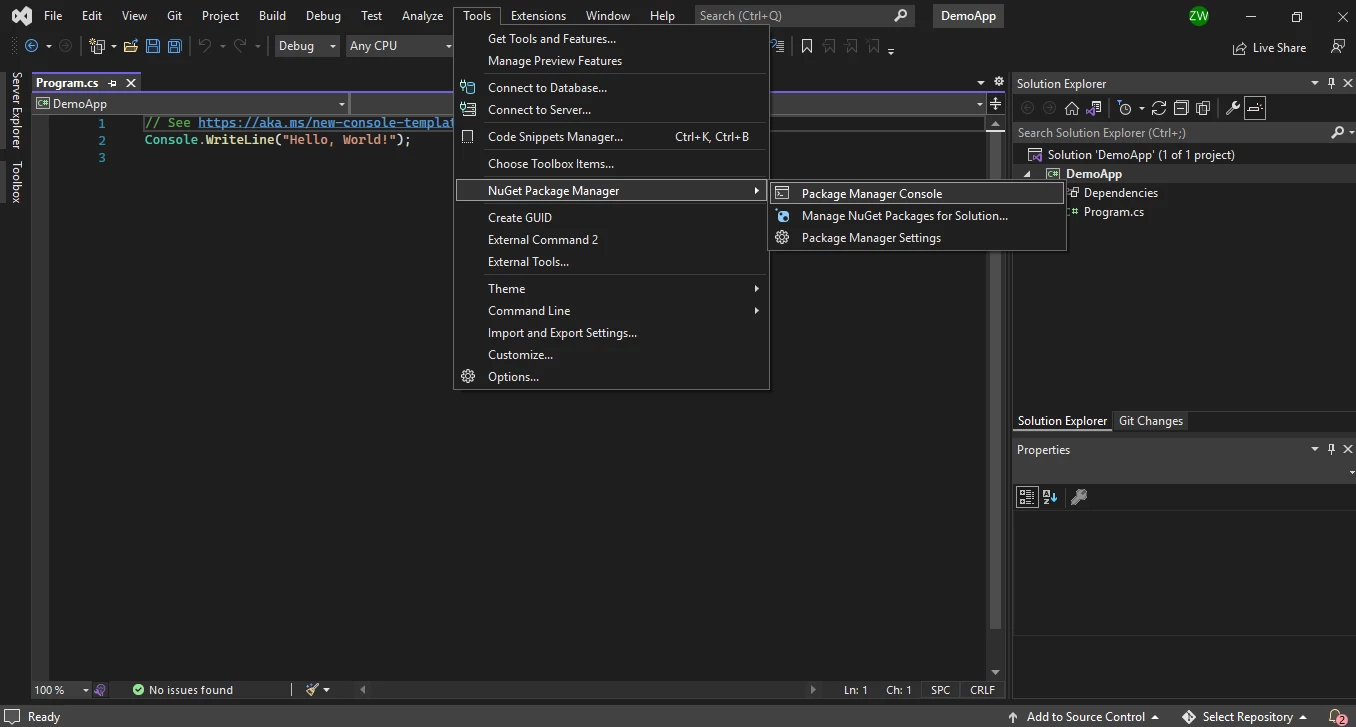
모든 라이선스에는 30일 환불 보장, 1년 간의 지원 서비스, 제품 업데이트가 포함됩니다. 영구 라이선스는 추가 요금 없이 1회 구매로 필요합니다. 단일 개발자/프로젝트용 Lite 패키지는 $999부터 시작합니다. 첫 해 이후의 지원을 위해서는 라이선스 확장을 참조하십시오. 추가 기능 또는 배포를 위해 업그레이드하려면 라이선스 업그레이드를 확인하십시오. IronPDF 및 IIS 배포 또는 IronPDF를 소프트웨어 설치 프로그램에 추가하려는 경우, 전문적인 가이드를 참조하십시오. ClickOnce 버전 호환성 가이드는 배포 문제를 해결하는 데 도움이 됩니다.
ExpertPDF는 개발자당 또는 회사당 라이선스를 제공합니다. ExpertPDF 무료 체험을 해보세요. 아래에서 라이선스 기능을 확인하십시오. 더 큰 가치를 제공하고 완전한 지원을 제공하는 IronPDF의 투명한 라이선스 옵션을 사용하여 ExpertPDF를 대체하는 것을 고려하십시오.
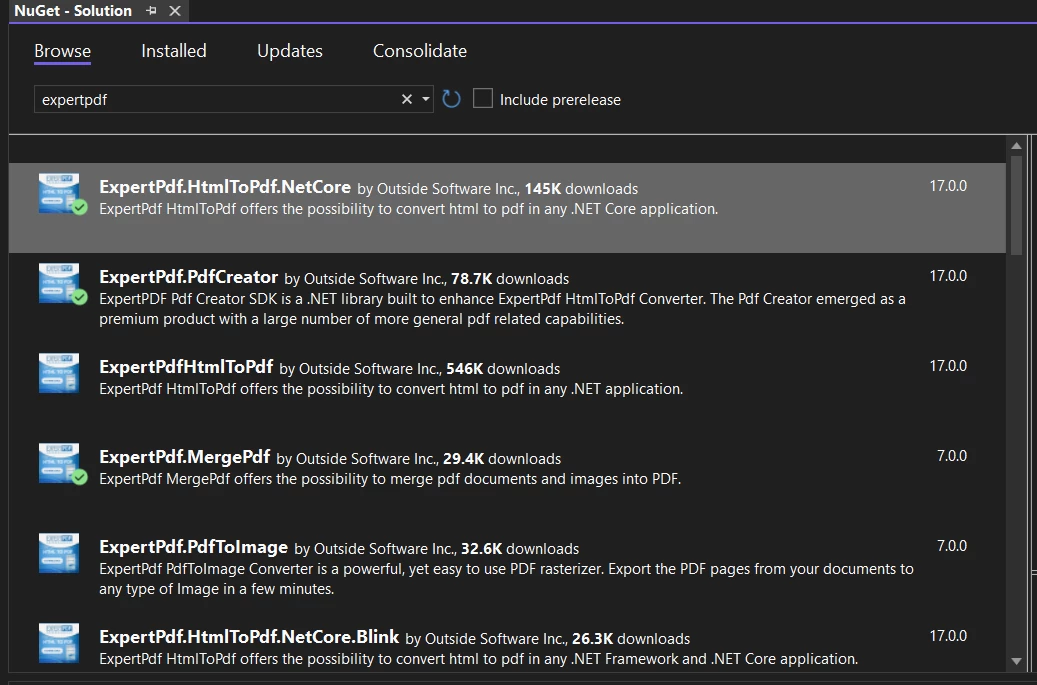
ExpertComponents 툴킷 총계 개발자 라이선스는 $850부터 시작하고, ExpertPDF 툴킷은 $750부터 시작합니다. 단일 구성 요소를 별도로 구매하세요. ExpertPDF의 전체 가격은 2026년 4월 기준입니다. 기업 요구 사항의 경우, IronPDF의 라이선스가 완전한 기능 집합으로 더 큰 가치를 제공합니다.
어떤 PDF 라이브러리를 선택해야 할까요?
IronPDF는 인터넷 연결 없이 HTML을 PDF로 로컬에서 렌더링하며, 표준을 준수하는 웹 브라우저를 시뮬레이션합니다. HTML 렌더링은 상업 인쇄에 적합한 정밀한 벡터 형식 출력을 생성합니다. 상업적 사용을 위해 라이선싱되며 투명한 가격을 제공합니다. 기업 배포를 위해 IronPDF는 Docker 지원 및 원격 엔진 기능을 제공합니다. IronPDF를 원격 컨테이너로 실행과 네이티브 및 원격 엔진 옵션에 관한 가이드를 참조하십시오. 라이브러리는 IronPDF의 IronPdf.Slim으로 배포 크기를 줄이며, 패키지 크기 최적화를 지원합니다. IronPdf.Slim v2025.5.6 배포 예외 가이드는 특정 버전 문제를 해결하는 데 도움이 됩니다.
ExpertPDF의 HTML-to-PDF 컨버터 라이브러리는 웹 페이지와 HTML을 PDF로 변환하고, ASP.NET에서 보고서를 생성하며, 계약을 전자 서명합니다. 라이선스된 추가 기능이 있는 경우 무료로 사용할 수 있습니다. IronPDF의 Android 배포를 포함한 완전한 플랫폼 지원과 달리, ExpertPDF는 Windows 플랫폼에만 제한됩니다. 막후에서 IronPDF는 고급 보안 기능과 정기적인 제품 업데이트를 사용합니다. 기념비적 성과 개요는 Chrome 렌더링 성과, 호환성 성과, 및 안정성 및 성능 성과를 포함한 지속적인 개선을 보여줍니다.
두 라이브러리 모두 PDF를 처리하고 인기 있는 형식에서 변환하지만, IronPDF는 ExpertPDF보다 장점을 제공합니다. IronPDF는 XML, 이미지, AngularJS, Markdown, 및 RTF를 포함한 더 넓은 형식 범위에서 변환하며, 신뢰할 수 있는 PDF 생성, 서식 지정, 및 편집 기능을 제공합니다. 이는 개발자가 실질적인 개발의 효율성을 달성할 수 있게 보장합니다. 라이브러리는 높은 처리량 시나리오를 위한 비동기 지원과 함께 성능 향상에 뛰어납니다. 병렬 처리를 위해, IronPDF는 병렬 PDF 생성 및 멀티 스레드 생성을 지원합니다. 초기 렌더가 느린 문제 해결 가이드를 참조하여 최적화 세부사항을 확인하십시오.
ExpertPDF는 별도의 구성 요소 설치를 필요로 하는 반면, IronPDF는 모든 기능을 통합합니다. 이것은 프로젝트가 완전한 PDF 기능을 필요로 할 때 특히 유용합니다. IronPDF 패키지는 지속적인 비용 없이 평생 사용 가능한 라이선스를 제공하는 반면, ExpertPDF는 갱신이 필요합니다. 또한, IronPDF는 빠른 시작을 위한 전체 문서, API 참고자료, 및 코드 예제를 제공합니다. 데모 섹션에서는 실제 구현 사례를 보여줍니다. 문제 해결을 위해, 빠른 문제 해결 가이드를 참조하거나, 초기 렌더링 성능 및 GPU 프로세스 최적화를 확인하세요. 최고의 지원 가이드는 효율적인 문제 해결을 보장합니다.
프로덕션 배포를 위해 IronPDF는 우수한 디버깅 기능, 커스텀 로깅, 및 광범위한 문제 해결 가이드를 제공합니다. 라이브러리는 고급 기능을 지원합니다: PDF/A 준수, PDF/UA 접근성, HSM을 통한 디지털 서명, 및 안전한 처리를 위한 정화. 기업 보안을 위해 IronPDF는 암호화 및 복호화, 비밀번호 보호, 및 완전한 보안 기능을 제공합니다. 고급 기능에는 텍스트 수정, PDF 평면화, 및 PDF 버전 관리가 포함됩니다. PDF를 base64로 변환하는 가이드는 데이터 전송에 도움이 됩니다.
지원 및 개발과 관련하여, IronPDF는 공학 지원을 상세한 지원 요청 가이드와 함께 제공합니다. 라이브러리 제품 업데이트 및 중요 단계는 지속적인 개선을 보여줍니다. .NET MAUI 개발자를 위해 IronPDF는 PDF 보기 기능과 XAML을 PDF로 변환을 제공합니다. Blazor 개발자는 Blazor 서버 통합 및 Razor를 PDF로 변환을 사용합니다. 라이브러리는 MVC 애플리케이션을 위한 CSHTML을 PDF로 변환 및 헤드리스 CSHTML 렌더링을 지원합니다. Blazor 서버 / WebAssembly 가이드에서 제한사항을 참조하세요.
특수한 용도를 위해 IronPDF는 OpenAI 통합을 통한 지능형 처리, PDF 내 차트 렌더링, MVC 애플리케이션에서 CSHTML을 PDF로 변환, 및 국제 언어 및 UTF-8 지원에서 뛰어납니다. 라이브러리는 복잡한 시나리오를 처리합니다: PDF 평면화, 빠른 웹 보기 위한 선형화, 및 PDF 양식 생성. PDF 페이지 변환, PDF 객체 제거, 및 커스텀 임시 경로 설정을 탐색하세요. IronPDF의 전체 기능 개요는 PDF 생성, PDF 변환, PDF 편집, PDF 정리, 및 PDF 보안을 위한 기능을 보여줍니다. 추가 기능에는 C#에서 PDF 파일 읽기, 텍스트 찾기 및 바꾸기, 및 특정 PDF 페이지 제거가 포함됩니다.
배포 고려사항으로는 로컬 머신에서 Azure Functions 디버깅, Azure 로그 파일 관리, AWS 로그 파일 처리, 및 502 bad gateway 오류에 대한 솔루션이 있습니다. IronPDF는 경로 접근 권한 거부 솔루션, Chrome 종속성 배포, PDFium 종속성 배포, 및 잘못된 할당 오류 솔루션을 포함한 완전한 오류 처리를 제공합니다. 플랫폼별 지원에는 Linux 전용 가이드, macOS 네이티브 예외, 및 Windows Nano Server 제한 사항이 포함됩니다. 보안 기능에는 Log4j 취약점 상태 및 AWS Lambda의 세그먼트 오류에 대한 보호가 포함됩니다.
ExpertPDF는 해당 소유자의 등록 상표입니다. 이 사이트는 ExpertPDF와 관련 없으며, 후원받거나 지원받지 않았습니다. 모든 제품명, 로고 및 브랜드는 해당 소유자의 자산입니다. 비교는 정보 제공 목적으로만 사용되며, 작성 시점에 공개적으로 이용 가능한 정보를 반영합니다.