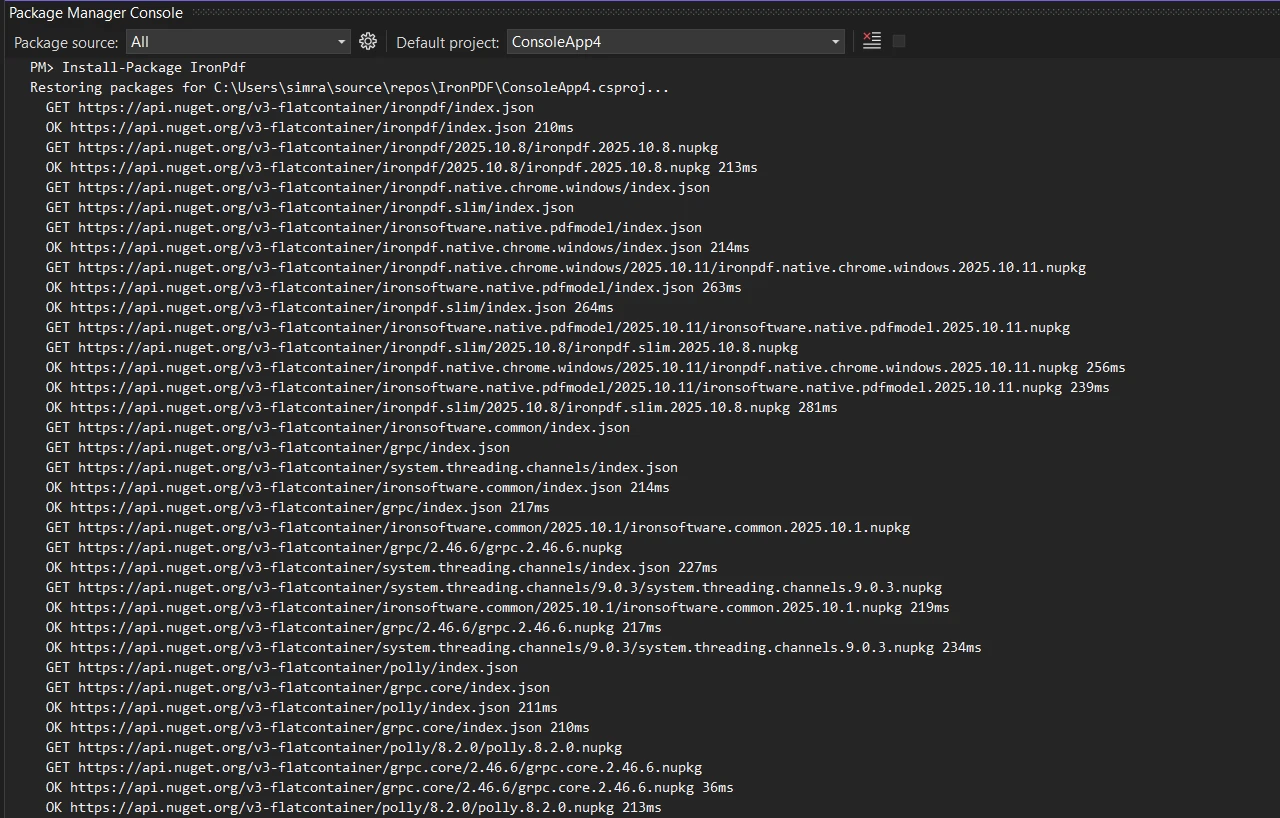
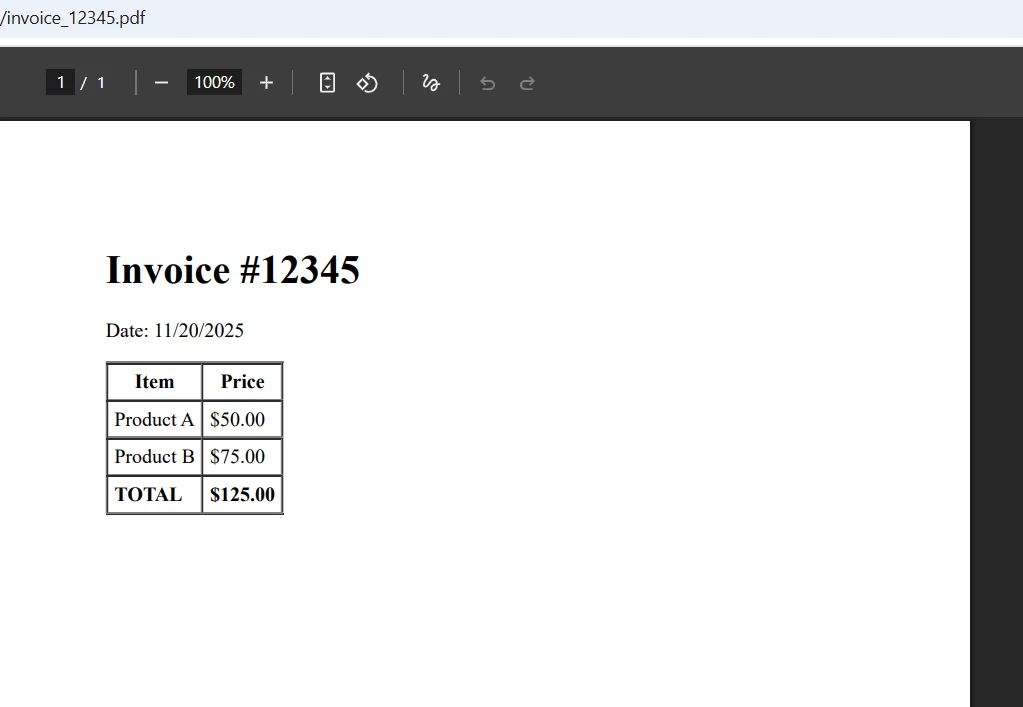
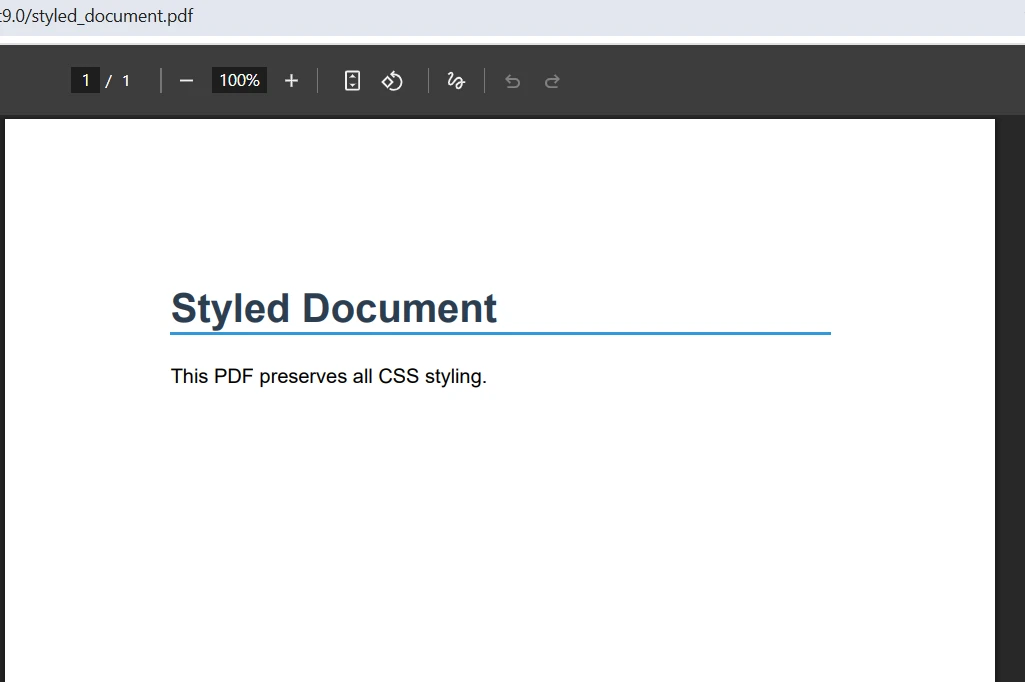
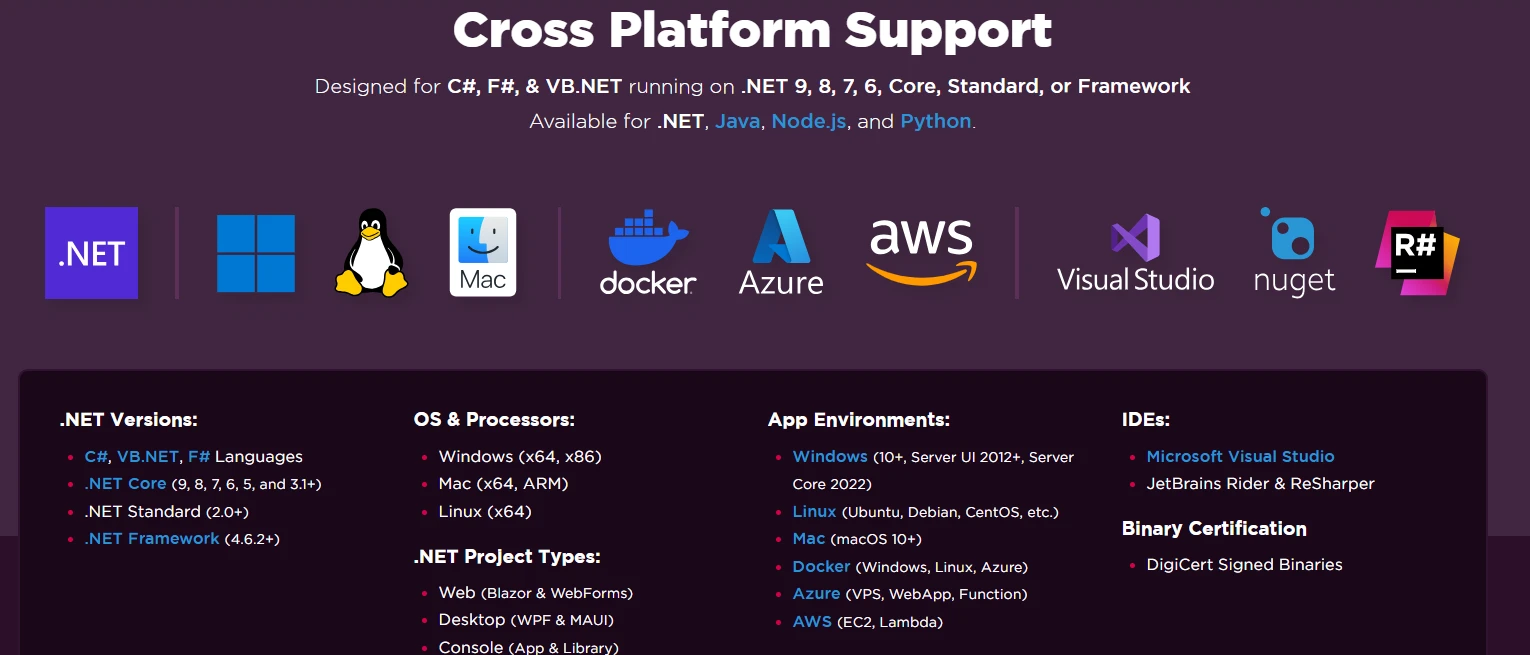
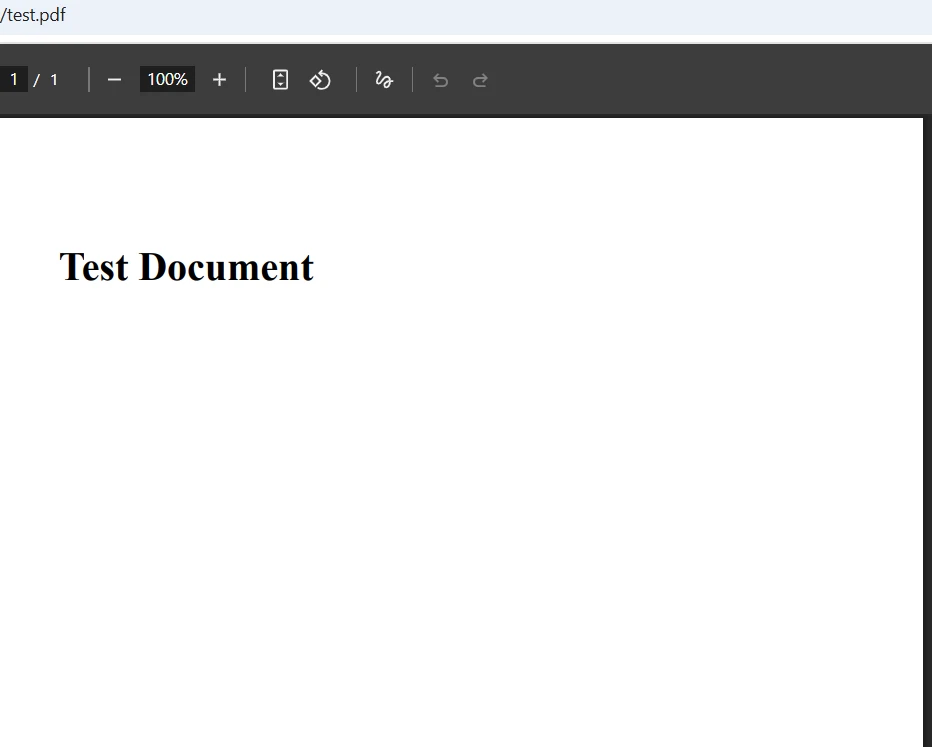
IRONPDF 사용 Classic ASP Generate PDF from HTML 커티스 차우 업데이트됨:1월 21, 2026 다운로드 IronPDF NuGet 다운로드 DLL 다운로드 윈도우 설치 프로그램 무료 체험 시작하기 LLM용 사본 LLM용 사본 LLM용 마크다운 형식으로 페이지를 복사하세요 ChatGPT에서 열기 ChatGPT에 이 페이지에 대해 문의하세요 제미니에서 열기 제미니에게 이 페이지에 대해 문의하세요 Grok에서 열기 Grok에게 이 페이지에 대해 문의하세요 혼란 속에서 열기 Perplexity에게 이 페이지에 대해 문의하세요 공유하다 페이스북에 공유하기 트위터에 공유하기 LinkedIn에 공유하기 URL 복사 이메일로 기사 보내기 IronPDF allows Classic ASP applications to create PDF files from HTML content using COM interop. It provides modern Chromium-based rendering that accurately converts HTML5, CSS3, and JavaScript into professional PDF documents without requiring application rewrites or complex .NET integration. Generating PDF files from HTML content is essential for many Classic ASP applications still in use. While legacy systems often struggle with modern PDF document generation needs, IronPDF offers an effective solution that bridges the gap between Classic ASP and modern PDF rendering capabilities. This tutorial demonstrates how to convert HTML files and generate PDF documents using IronPDF's advanced HTML-to-PDF conversion features directly from your Classic ASP site using COM interop. The library supports various input formats including HTML strings, files, and URLs, making it versatile for different PDF generation scenarios. With complete documentation and API references, IronPDF provides enterprise-ready solutions for creating PDFs, editing documents, and implementing security features. How Does IronPDF Work with Classic ASP? IronPDF operates as a .NET library that exposes its functionality through COM interop, making it accessible to Classic ASP sites running VBScript. Unlike traditional Classic ASP PDF solutions that rely on outdated rendering engines or limited HTML page support, IronPDF uses a Chromium-based engine that accurately renders modern HTML5, CSS styles, and JavaScript content when converting HTML to PDF directly. The rendering engine ensures pixel-perfect accuracy comparable to modern browsers. This modern approach supports async processing, multithreading, and performance optimization for high-volume PDF generation tasks. Why Is COM Interop the Best Approach? The COM interop approach means your Classic ASP application calls IronPDF through the Windows COM interface. The .NET Framework handles the heavy lifting of HTML document rendering and PDF file generation, while your VBScript code maintains simple, straightforward syntax. This architecture provides Classic ASP applications with professional PDF conversion capabilities, eliminating the need for complete application rewrites or complex .NET project integration. The native vs remote engine options give you flexibility in deployment, whether running on Windows servers or in cloud environments. The library supports custom paper sizes, page orientation, headers and footers, and advanced rendering options for professional document generation. What Makes IronPDF Different from Legacy Solutions? How to Set Up IronPDF for Classic ASP? Setting up IronPDF for Classic ASP requires installing the library and registering it for COM interop. The process involves a few straightforward steps that prepare your server environment for PDF generation. For detailed installation guidance, IronPDF provides complete documentation covering various deployment scenarios including Windows, Linux, and macOS environments. The setup process is compatible with Docker containers, AWS deployments, and Azure Functions for cloud-native applications. What Prerequisites Do You Need? Before installation, ensure your server has: Windows Server with IIS installed and Classic ASP enabled .NET Framework 4.6.2 or newer Administrative access for COM registration IIS properly configured (IIS configuration guide) Note: Adobe PDF tools are not required For production deployments, review the performance optimization guide to ensure optimal PDF generation speed. The system requirements documentation provides detailed compatibility information for different Windows Server versions. Consider implementing custom logging for production environments and reviewing memory management best practices for high-traffic applications. The library also supports linearization for fast web viewing and compression for improved file sizes. How Do You Install IronPDF on Your Server? First, download and install the latest version of IronPDF on your server. You can obtain the library from the official IronPDF website or through NuGet if you have Visual Studio installed on the server. Download the package using the following code snippet: :: Download IronPDF using NuGet CLI NuGet install IronPDF -OutputDirectory C:\IronPDF :: Download IronPDF using NuGet CLI NuGet install IronPDF -OutputDirectory C:\IronPDF SHELL Or run this command in your Package Manager Console: Install-Package IronPdf For advanced installation scenarios, including Docker deployments or AWS Lambda installations, refer to the specialized guides. The IronPdf.Slim package offers a lightweight alternative for environments with size constraints. The Windows installer provides an alternative installation method, while Linux users can use package managers for deployment. For Android development, specialized packages are available through NuGet packages. How Do You Register IronPDF for COM? After installation, register IronPDF for COM interop using the RegAsm.exe tool. This process follows Microsoft's COM interop guidelines for exposing .NET components to Classic ASP. Run the following command as an administrator: :: For 32-bit applications C:\Windows\Microsoft.NET\Framework\v4.0.30319\RegAsm.exe "C:\IronPDF\IronPdf.dll" /codebase :: For 64-bit applications C:\Windows\Microsoft.NET\Framework64\v4.0.30319\RegAsm.exe "C:\IronPDF\IronPdf.dll" /codebase :: For 32-bit applications C:\Windows\Microsoft.NET\Framework\v4.0.30319\RegAsm.exe "C:\IronPDF\IronPdf.dll" /codebase :: For 64-bit applications C:\Windows\Microsoft.NET\Framework64\v4.0.30319\RegAsm.exe "C:\IronPDF\IronPdf.dll" /codebase SHELL The /codebase parameter ensures the assembly location is registered in the registry, allowing Classic ASP to locate the DLL. After successful registration, you'll see a confirmation message indicating that the types were registered successfully. If you encounter registration issues, the troubleshooting guide provides solutions for common problems. For deployment to production servers, consider automating the registration process. The license key configuration should be completed after registration for production use. What IIS Settings Need Configuration? Configure your IIS application pool to enable 32-bit applications if you registered the 32-bit version: Open IIS Manager Select your application pool Click "Advanced Settings" Set "Enable 32-Bit Applications" to True Restart the application pool Your Classic ASP application can now access IronPDF through COM interop. For Azure App Service deployments, additional configuration may be required. The IIS troubleshooting guide covers common configuration issues and their solutions. Consider reviewing network service configurations and registry support issues for specific server environments. The deployment guide for Azure provides cloud-specific configurations. How to Generate PDF Files from HTML String? Creating PDF files from HTML content in Classic ASP with IronPDF requires just a few lines of VBScript code. This code snippet demonstrates the PDF conversion process to convert an HTML string to a PDF document. The library supports advanced rendering options including custom margins, paper sizes, and page orientation. You can also implement viewport control, grayscale conversion, and custom watermarks for specialized requirements: <% ' Create IronPDF COM object Dim renderer Set renderer = Server.CreateObject("IronPdf.ChromePdfRenderer") ' Define HTML content Dim htmlContent htmlContent = "<h1>Invoice #12345</h1>" & _ "<p>Date: " & Date() & "</p>" & _ "<table border='1'>" & _ "<tr><th>Item</th><th>Price</th></tr>" & _ "<tr><td>Product A</td><td>$50.00</td></tr>" & _ "<tr><td>Product B</td><td>$75.00</td></tr>" & _ "<tr><td><strong>Total</strong></td><td><strong>$125.00</strong></td></tr>" & _ "</table>" ' Convert HTML to PDF Dim PDF Set PDF = renderer.RenderHtmlAsPdf(htmlContent) ' Save PDF to server Dim filePath filePath = Server.MapPath("/pdfs/invoice_" & Year(Date()) & Month(Date()) & Day(Date()) & ".pdf") pdf.SaveAs(filePath) ' Clean up objects Set PDF = Nothing Set renderer = Nothing Response.Write "PDF generated successfully at: " & filePath %> Why Use ChromePdfRenderer Object? The code creates a ChromePdfRenderer COM object, which serves as the main interface for HTML to PDF conversion in Classic ASP. The RenderHtmlAsPdf method accepts an HTML string and returns a PDF document object. The HTML content can include standard properties, inline CSS styles, and basic formatting that you'd typically use in web pages to generate PDF output. For more complex scenarios, you can use JavaScript execution and custom render delays to ensure dynamic content renders properly. The renderer supports JavaScript charts, Angular applications, and responsive CSS for modern web technologies. How to Save and Clean Up Resources? The SaveAs method writes the PDF file to disk at the specified location. Using Server.MapPath ensures the file saves to the correct physical path on the server. After saving, always release COM objects by setting them to Nothing to prevent memory leaks in your Classic ASP site. For high-traffic applications, consider implementing async PDF generation patterns or using memory streams instead of disk-based storage. The export and save options provide flexibility for various storage scenarios. You can also implement parallel processing for bulk operations or use multithreading for improved performance. What Does the Output Look Like? For more complex scenarios involving HTML pages with images, hyperlinks, and advanced formatting, explore the IronPDF API documentation, which details all available methods for Classic ASP to generate PDF documents directly from HTML content. The complete tutorials cover everything from creating PDFs to editing existing documents. Advanced features include PDF forms, annotations, bookmarks, and digital signatures.## How to Convert an HTML File to a PDF Document? Real-world applications often require converting existing HTML files or complex HTML content with external resources like images and CSS styles. IronPDF efficiently handles these scenarios, allowing you to load HTML documents and convert them directly to PDF files. The library supports Base URLs for proper asset resolution and can manage ZIP files containing HTML for more complex projects. Additionally, it can process Markdown files, XML documents, and even DOCX files for complete document conversion needs. How to Convert Existing HTML Files? To convert an existing HTML file instead of an HTML string, use the following code example: <% ' Create renderer Dim renderer Set renderer = Server.CreateObject("IronPdf.ChromePdfRenderer") ' Convert HTML file to PDF Dim htmlPath, pdfPath htmlPath = Server.MapPath("/templates/report_template.html") pdfPath = Server.MapPath("/pdfs/report_output.pdf") ' Render the HTML file Dim PDF Set PDF = renderer.RenderHtmlFileAsPdf(htmlPath) pdf.SaveAs(pdfPath) ' Clean up Set PDF = Nothing Set renderer = Nothing Response.Write "PDF created from HTML file" %> The RenderHtmlFileAsPdf method reads the HTML file from disk and converts it to PDF. This approach works well for template-based PDF generation where you have pre-designed HTML pages stored as files. The converted PDF document preserves all formatting, background color, and standard properties from the original HTML file. This solution is ideal for Classic ASP sites that need to process existing HTML templates and create PDF output for download or email. For dynamic content generation, consider using Razor templates or MVC views. The library also supports CSHTML conversion and Blazor components for modern .NET applications. How Does CSS Styling Work in PDFs? IronPDF fully supports CSS styles, including external stylesheets. This capability enables you to generate PDF files from HTML pages with rich formatting. The rendering process preserves all CSS styles when converting HTML content to PDF documents. Advanced CSS features like Bootstrap, responsive design, and custom web fonts are fully supported. The library handles Google Fonts, UTF-8 encoding, and international languages for global applications: <% Dim renderer, PDF Set renderer = Server.CreateObject("IronPdf.ChromePdfRenderer") ' HTML with CSS styling Dim styledHtml styledHtml = "<!DOCTYPE html>" & _ "<html><head>" & _ "<style>" & _ "body { font-family: Arial, sans-serif; margin: 40px; }" & _ ".header { color: #2c3e50; border-bottom: 2px solid #3498db; }" & _ ".content { margin-top: 20px; line-height: 1.6; }" & _ "</style></head>" & _ "<body>" & _ "<h1 class='header'>Styled Document</h1>" & _ "<div class='content'>This PDF preserves all CSS styling.</div>" & _ "</body></html>" Set PDF = renderer.RenderHtmlAsPdf(styledHtml) pdf.SaveAs(Server.MapPath("/pdfs/styled_document.pdf")) Set PDF = Nothing Set renderer = Nothing %> The CSS styles are preserved in the PDF output exactly as they appear in a web browser. IronPDF's Chromium engine ensures accurate rendering of modern CSS properties, including flexbox, grid layouts, and CSS3 effects. This makes it the ideal solution for converting HTML pages with complex formatting into professional PDF documents. The generated PDF files maintain the same visual fidelity as the original HTML document viewed in Chrome. For print-specific styling, use CSS media types to improve PDF output. The library also supports page breaks, custom margins, and paper printing configurations. What Does Formatted Output Look Like? How to Include Images in PDF Generation? Embedding images in your PDF files requires specifying the base path for resource resolution. This is a common challenge discussed in Classic ASP forums on Stack Overflow where developers seek solutions to convert HTML pages with images. The following code shows how to handle images when converting HTML content to PDF documents. IronPDF supports various image formats including JPEG, PNG, SVG, and GIF. You can also embed images using Base64 encoding for self-contained PDFs. The library handles image extraction, image to PDF conversion, and multi-frame TIFF support: <% Dim renderer, PDF Set renderer = Server.CreateObject("IronPdf.ChromePdfRenderer") ' Set the base path for images renderer.RenderingOptions.BaseUrl = "http://" & Request.ServerVariables("SERVER_NAME") ' HTML with image reference Dim htmlWithImage htmlWithImage = "<html><body>" & _ "<h1>Product Catalog</h1>" & _ "<img src='/images/product1.jpg' width='200' />" & _ "<p>Premium Product Description</p>" & _ "</body></html>" Set PDF = renderer.RenderHtmlAsPdf(htmlWithImage) pdf.SaveAs(Server.MapPath("/pdfs/catalog.pdf")) Set PDF = Nothing Set renderer = Nothing %> Setting the BaseUrl property tells IronPDF where to find relative image paths and load resources via HTTP or HTTPS. This ensures images load correctly whether they're stored locally on your web server or on a CDN. The renderer handles various image formats, including JPEG, PNG, GIF, and SVG when converting HTML to PDF. The created PDF file will contain all images embedded directly in the document, making it a complete, self-contained file that users can download and save. For images stored in Azure Blob Storage, IronPDF provides specialized handling methods. You can also draw bitmaps directly or stamp images onto existing PDFs. What About Error Handling and Best Practices for PDF Generation? Reliable error handling ensures your Classic ASP PDF generation process doesn't crash your website or application. When converting HTML to PDF documents, proper error management is essential. The engineering support guide provides detailed troubleshooting steps. For production environments, implement custom logging to track PDF generation issues. Common issues include GPU process errors, deployment exceptions, and memory allocation problems. Here's how to implement error handling for HTML to PDF conversion in VBScript: <% On Error Resume Next Dim renderer, pdf, errorMessage Set renderer = Server.CreateObject("IronPdf.ChromePdfRenderer") If Err.Number <> 0 Then errorMessage = "Failed to create PDF renderer: " & Err.Description Response.Write errorMessage Err.Clear Else ' Proceed with PDF generation Set PDF = renderer.RenderHtmlAsPdf("<h1>Test Document</h1>") If Err.Number <> 0 Then errorMessage = "PDF generation failed: " & Err.Description Response.Write errorMessage Err.Clear Else pdf.SaveAs(Server.MapPath("/pdfs/test.pdf")) Response.Write "PDF generated successfully" End If ' Always clean up objects If Not PDF Is Nothing Then Set PDF = Nothing End If End If If Not renderer Is Nothing Then Set renderer = Nothing End If On Error GoTo 0 %> What Happens During Error Handling? How to Manage Memory Efficiently? COM objects must be properly released to prevent memory leaks when generating PDF files. Always set objects to Nothing after use, especially in loops or high-traffic Classic ASP sites. Consider implementing a wrapper function for PDF generation that handles object lifecycle automatically. This approach ensures your PDF conversion process remains stable even when processing multiple HTML documents or when users download many PDF files simultaneously. The performance assistance guide provides optimization tips for high-volume scenarios. For multi-threaded generation, use proper synchronization techniques. Monitor for segmentation faults in cloud environments and implement garbage collection strategies for optimal performance. How to Process Form Data and Generate PDFs? Here's a practical example showing how to process form data and create a PDF document in Classic ASP. This pattern is useful for generating PDF reports, invoices, or confirmations. You can improve forms with fillable PDF fields or add digital signatures for authentication. The library supports form editing, text field manipulation, and checkbox handling for interactive documents: <% ' Process form data from POST request Dim customerName, orderNumber customerName = Request.Form("customer") orderNumber = Request.Form("order") ' Create renderer and set default properties Dim renderer, PDF Set renderer = Server.CreateObject("IronPdf.ChromePdfRenderer") ' Build HTML string with form data Dim htmlContent htmlContent = "<!DOCTYPE html>" & _ "<html><head>" & _ "<style>body { font-family: Arial; } " & _ ".header { background-color: #f0f0f0; padding: 20px; }</style>" & _ "</head><body>" & _ "<div class='header'><h1>Order Confirmation</h1></div>" & _ "<p>Customer: " & customerName & "</p>" & _ "<p>Order #: " & orderNumber & "</p>" & _ "<p>Date: " & Date() & "</p>" & _ "</body></html>" ' Convert HTML string to PDF document Set PDF = renderer.RenderHtmlAsPdf(htmlContent) ' Save the generated PDF file Dim outputPath outputPath = Server.MapPath("/pdfs/order_" & orderNumber & ".pdf") pdf.SaveAs(outputPath) ' Clean up Set PDF = Nothing Set renderer = Nothing ' Redirect user to download link Response.Redirect "/pdfs/order_" & orderNumber & ".pdf" %> This code snippet demonstrates a complete workflow for converting HTML form submissions into PDF files. The process includes handling POST data, building dynamic HTML content with CSS styles, converting the HTML string to a PDF document, and providing a download link for the user. This approach is commonly used in Classic ASP sites for generating invoices, reports, and other documents that users can download and save. For improved security, consider adding password protection or encryption to sensitive documents. You can also implement watermarks for branding purposes. Advanced features include barcode generation, QR codes, and table of contents for complex documents. What Are the Key Takeaways? IronPDF brings modern PDF generation capabilities to Classic ASP sites through smooth COM interop integration. Its Chromium-based rendering engine ensures accurate HTML to PDF conversion while maintaining the simplicity Classic ASP developers expect. Whether you're maintaining legacy systems or building new features for existing applications, IronPDF provides the tools needed to generate PDF files professionally from HTML documents, HTML strings, and HTML pages in Classic ASP. The library offers complete documentation and API references to support your development process. With support for PDF/A compliance, PDF/UA accessibility, and various PDF versions, IronPDF meets enterprise compliance requirements. The combination of Classic ASP's familiar VBScript syntax and IronPDF's effective rendering engine offers an ideal solution for organizations maintaining legacy systems while meeting modern document generation requirements. With support for CSS styles, JavaScript rendering, images, hyperlinks, and cross-platform deployment options, IronPDF future-proofs your Classic ASP investment. The library handles complex HTML content, preserves formatting, and creates professional PDF output that users can easily download and save. Advanced features like PDF/A compliance, PDF compression, and batch processing enable professional document management. Additional capabilities include PDF sanitization, revision history, and metadata management. Unlike solutions requiring Adobe products or outdated components, IronPDF uses the newest version of Chromium to ensure your converted PDF documents render exactly as they would in a modern browser. This makes it the perfect solution for developers who need to convert HTML files to PDF format in their .NET projects while supporting Classic ASP through COM interop. The library's extensive feature set includes PDF editing, form filling, page manipulation, and metadata management capabilities that extend far beyond simple HTML conversion. You can also use OCR functionality, text extraction, redaction features, and PDF comparison tools for complete document processing. Start your free trial today and transform your Classic ASP application's document generation capabilities. For production deployments, explore our flexible licensing options designed for enterprise needs. Need help getting started? Check our complete tutorials for step-by-step guidance. The quickstart guide provides immediate hands-on experience, while our code examples demonstrate real-world implementations. For technical questions, our engineering support team is ready to assist. Compare IronPDF with other solutions to see why developers choose IronPDF for reliable PDF generation. Explore demos, milestones, and changelog to stay updated with the latest features. 자주 묻는 질문 클래식 ASP에서 HTML로 PDF를 생성하는 가장 좋은 방법은 무엇인가요? 클래식 ASP에서 HTML로 PDF를 생성하는 가장 좋은 방법은 IronPDF를 사용하는 것입니다. 이 도구는 COM 상호 운용을 통해 클래식 ASP 애플리케이션과 원활하게 작동하는 고급 HTML-PDF 변환 기능을 제공합니다. 클래식 ASP에서 PDF를 생성할 때 IronPDF를 사용해야 하는 이유는 무엇인가요? IronPDF는 클래식 시스템과 최신 PDF 렌더링 기능 간의 격차를 해소하여 효율적이고 안정적인 PDF 문서 생성을 가능하게 하므로 클래식 ASP에서 PDF를 생성하는 데 이상적입니다. IronPDF는 PDF 생성에서 레거시 시스템을 어떻게 지원하나요? IronPDF는 최신 PDF 렌더링 기능을 클래식 ASP와 통합하는 강력한 솔루션을 제공하여 기존 애플리케이션을 위한 원활한 HTML에서 PDF로의 변환을 보장함으로써 레거시 시스템을 지원합니다. IronPDF는 PDF 생성 시 복잡한 HTML 콘텐츠를 처리할 수 있나요? 예, IronPDF는 정교한 HTML-PDF 변환 기술 덕분에 PDF를 생성할 때 복잡한 HTML 콘텐츠를 효과적으로 처리할 수 있습니다. IronPDF를 클래식 ASP와 통합하는 것이 어렵나요? IronPDF와 클래식 ASP를 통합하는 것은 간단합니다. 제공된 단계별 가이드는 개발자가 COM 인터롭을 사용하여 IronPDF의 기능을 쉽게 구현할 수 있도록 도와줍니다. 클래식 ASP에서 IronPDF와 COM 인터롭을 사용하면 어떤 이점이 있나요? 클래식 ASP에서 IronPDF와 COM 상호 운용을 사용하면 개발자는 기존 애플리케이션을 다시 작성할 필요 없이 IronPDF의 고급 기능을 활용할 수 있으므로 원활한 통합과 향상된 기능을 촉진할 수 있습니다. IronPDF는 클래식 ASP용 최신 PDF 기능을 지원하나요? IronPDF는 고급 렌더링, 스타일링 및 서식 지정과 같은 최신 PDF 기능을 지원하므로 최신 PDF 문서 기능이 필요한 클래식 ASP 애플리케이션에 적합합니다. 커티스 차우 지금 바로 엔지니어링 팀과 채팅하세요 기술 문서 작성자 커티스 차우는 칼턴 대학교에서 컴퓨터 과학 학사 학위를 취득했으며, Node.js, TypeScript, JavaScript, React를 전문으로 하는 프론트엔드 개발자입니다. 직관적이고 미적으로 뛰어난 사용자 인터페이스를 만드는 데 열정을 가진 그는 최신 프레임워크를 활용하고, 잘 구성되고 시각적으로 매력적인 매뉴얼을 제작하는 것을 즐깁니다. 커티스는 개발 분야 외에도 사물 인터넷(IoT)에 깊은 관심을 가지고 있으며, 하드웨어와 소프트웨어를 통합하는 혁신적인 방법을 연구합니다. 여가 시간에는 게임을 즐기거나 디스코드 봇을 만들면서 기술에 대한 애정과 창의성을 결합합니다. 관련 기사 업데이트됨 1월 22, 2026 How to Create PDF Documents in .NET with IronPDF: Complete Guide Discover effective methods to create PDF files in C# for developers. Enhance your coding skills and streamline your projects. Read the article now! 더 읽어보기 업데이트됨 1월 21, 2026 How to Merge PDF Files in VB.NET: Complete Tutorial Merge PDF VB NET with IronPDF. Learn to combine multiple PDF files into one document using simple VB.NET code. Step-by-step examples included. 더 읽어보기 업데이트됨 1월 21, 2026 C# PDFWriter Tutorial: Create PDF Documents in .NET Learn to create PDFs efficiently using C# PDFWriter with this step-by-step guide for developers. Read the article to enhance your skills today! 더 읽어보기 How to Upload and Download PDF Files in ASP .NET C# with IronPDFASP.NET Display PDF in Panel Using ...

업데이트됨 1월 22, 2026 How to Create PDF Documents in .NET with IronPDF: Complete Guide Discover effective methods to create PDF files in C# for developers. Enhance your coding skills and streamline your projects. Read the article now! 더 읽어보기
업데이트됨 1월 21, 2026 How to Merge PDF Files in VB.NET: Complete Tutorial Merge PDF VB NET with IronPDF. Learn to combine multiple PDF files into one document using simple VB.NET code. Step-by-step examples included. 더 읽어보기
업데이트됨 1월 21, 2026 C# PDFWriter Tutorial: Create PDF Documents in .NET Learn to create PDFs efficiently using C# PDFWriter with this step-by-step guide for developers. Read the article to enhance your skills today! 더 읽어보기