IronPDF wyróżnia się swoją opartą na Chromium HTML rendering engine, oferującą pełne wsparcie dla CSS3 i JavaScript oraz wbudowaną konwersję do DOCX. W przeciwieństwie do tego, iTextPdf zapewnia zaawansowane funkcje korporacyjne z licencjonowaniem AGPL lub komercyjnym, ale wymaga zewnętrznych zależności dla nowoczesnych standardów internetowych i konwersji dokumentów.
Dla programistów pracujących z PDF, posiadanie niezawodnej biblioteki do generowania i manipulacji PDF jest niezbędne. W ekosystemie .NET, dwie popularne biblioteki PDF wyróżniają się - IronPDF i iTextPdf - każda oferuje skuteczne narzędzia do tworzenia, edytowania i zarządzania dokumentami PDF. Ten artykuł zapewnia szczegółowe porównanie tych bibliotek w oparciu o możliwości funkcji, jakość dokumentacji i polityki cenowe.
Czym są IronPDF i iTextPdf?
Jak IronPDF upraszcza rozwój PDF?
IronPDF to niezawodna biblioteka .NET do zarządzania PDF, kompatybilna z różnymi środowiskami .NET (Core 8, 7, 6, Framework i więcej). Oferuje kompletny zestaw funkcji, w tym konwersję HTML do PDF, łączenie PDF, szyfrowanie, i podpisy cyfrowe. Dokumentacja IronPDF jest łatwa do zrozumienia, a użytkownicy mają dostęp do niezawodnego wsparcia technicznego. Programiści często znajdują rozwiązania dla typowych problemów przez dyskusje na Stack Overflow i inne platformy dzielenia się kodem źródłowym. Biblioteka zapewnia odniesienia do API dla szczegółowych wskazówek dotyczących wdrażania i wspiera zaawansowane metody instalacji przez pakiety NuGet. Dla szybkiego wdrażania, zapoznaj się z przewodnikiem szybkiego startu i ogólnym przeglądem instalacji, aby szybko rozpocząć.
Dlaczego iTextPdf nadaje się do zastosowań korporacyjnych?
iTextPdf to zaawansowana biblioteka PDF dla Java i .NET (C#), koncentrująca się na przetwarzaniu dokumentów na poziomie korporacyjnym. Dostępna zarówno na licencji AGPL, jak i komercyjnej, zapewnia elastyczność dla różnych wymagań projektowych. iTextPdf jest wysoce konfigurowalny, co czyni go idealnym do złożonych zadań PDF, takich jak szyfrowanie dokumentów, cyfrowe podpisywanie i tworzenie formularzy. Biblioteka była kluczowym elementem w środowiskach korporacyjnych wymagających rozbudowanych możliwości manipulacji PDF i zgodności z standardami PDF/A do celów archiwalnych. Organizacje wymagające zgodności z dostępnością sekcji 508 często wybierają rozwiązania klasy korporacyjnej, wspierające uniwersalne standardy dostępności.
Jakie platformy obsługują IronPDF i iTextPdf?
Zarówno IronPDF, jak i iTextPdf wspierają funkcjonalność między platformami, dzięki czemu są wszechstronne dla różnych potrzeb aplikacji w ramach .NET. Oto rozbicie kompatybilności każdej biblioteki.
-
.NET Versions: Compatible with .NET Core (8, 7, 6, 5, 3.1+), .NET Standard (2.0+), and .NET Framework (4.6.2+).
-
Środowiska aplikacji: Działa bezproblemowo na Windows, Linux, Mac, Docker, Azure i AWS.
-
Obsługiwane IDE: Świetnie współpracuje z Microsoft Visual Studio i JetBrains Rider & ReSharper.
-
Systemy operacyjne i procesory: Obsługuje Windows, Mac, Linux, x64, x86, ARM.
-
.NET Versions: Compatible with .NET Core 8, 7, 6, 5, 3.1+, .NET Standard 2.0+, .NET Framework 4.6.2+
-
Środowiska aplikacji: Działa na Windows, Linux, Mac, Docker, Azure i AWS
-
Obsługiwane IDE: Microsoft Visual Studio i JetBrains Rider & ReSharper
-
Systemy operacyjne i procesory: Windows, Mac, Linux, x64, x86, ARM
-
Platformy mobilne: Wsparcie dla Android przez MAUI
-
Wsparcie dla kontenerów: Zdalne wdrożenie kontenera dla skalowalnych architektur
-
Wersje .NET: Obsługuje .NET Core (2.x, 3.x), .NET Framework (4.6.1+), i .NET 5+.
-
Środowiska aplikacji: Kompatybilne z Windows, macOS, Linux i Docker.
Gdzie można wdrożyć iTextPdf?
- Wersje .NET: Obsługuje .NET Core 2.x, 3.x, .NET Framework 4.6.1+, .NET 5+
- Środowiska aplikacji: Kompatybilne z Windows, macOS, Linux, Docker
- Wdrożenia Enterprise: Zoptymalizowane pod kątem środowisk serwerowych z licencjami AGPL lub komercyjnymi
Jakie są kluczowe cechy IronPDF w porównaniu z iTextPdf?
Poniżej znajduje się szczegółowe porównanie kluczowych funkcji oferowanych przez każdą bibliotekę.
Jakie możliwości oferuje IronPDF?
- Konwersja HTML do PDF: Wspiera HTML, CSS, JavaScript i obrazy.
- Obsługa plików PDF: dzielenie, łączenie i edycja dokumentów PDF.
- Bezpieczeństwo: funkcje szyfrowania i deszyfrowania plików PDF.
- Edycja: Umożliwia dodawanie adnotacji, zakładek i konspektów.
- Szablony: Stosowanie nagłówków, stopek i numeracji stron.
- Znak wodny: Obsługuje znaki wodne tekstowe i graficzne przy użyciu HTML/CSS do sterowania.
- Stemplowanie plików PDF: Dodawanie obrazów i tekstowych stempli do plików PDF.
Aby uzyskać więcej informacji na temat funkcji IronPDF, odwiedź stronę funkcji IronPDF. Biblioteka obsługuje również tworzenie plików PDF z różnych źródeł, konwersję plików PDF między formatami oraz organizowanie plików PDF za pomocą profesjonalnych narzędzi.
Jakie funkcje dla Enterprise oferuje iTextPdf?
- Tworzenie PDF: Obsługuje tworzenie dokumentów PDF od podstaw.
- Formularze: Umożliwia tworzenie i edycję formularzy PDF.
- Podpisy cyfrowe: Podpisuj dokumenty PDF.
- Kompresja: Optymalizuje rozmiary plików PDF.
- Wyodrębnianie treści: Wyodrębnia tekst i obrazy z plików PDF.
- Możliwości dostosowania: Duże możliwości dostosowania do złożonych projektów.
W jaki sposób obie biblioteki obsługują konwersję HTML do PDF?
Obie biblioteki obsługują konwersję HTML do PDF, choć różnią się podejściem i łatwością użytkowania. IronPDF wykorzystuje silnik renderujący Chromium, zapewniający idealną dokładność pikselową, podczas gdy iTextPdf korzysta z dodatku pdfHTML o bardziej ograniczonej obsłudze CSS. IronPDF obsługuje pliki HTML, ciągi znaków HTML i adresy URL jako źródła danych wejściowych, w tym pełne renderowanie JavaScript. W przypadku złożonych układów IronPDF obsługuje typy mediów ekranowych i drukarskich CSS oraz umożliwia precyzyjną kontrolę dzięki obsłudze niestandardowych marginesów.
IronPDF
using IronPdf;

// Instantiate the renderer
var renderer = new ChromePdfRenderer();

// Create a PDF from an HTML string
var pdf = renderer.RenderHtmlAsPdf("<h1>Hello World</h1>");
pdf.SaveAs("output.pdf");

// Advanced example with external assets
var myAdvancedPdf = renderer.RenderHtmlAsPdf("<img src='icons/iron.png'>", @"C:\site\assets\");
myAdvancedPdf.SaveAs("html-with-assets.pdf");

// Render with custom options
renderer.RenderingOptions.MarginTop = 50;
renderer.RenderingOptions.MarginBottom = 50;
renderer.RenderingOptions.CssMediaType = IronPdf.Rendering.PdfCssMediaType.Print;
var customPdf = renderer.RenderHtmlAsPdf("<h1>Custom Settings</h1>");
customPdf.SaveAs("custom-settings.pdf");
using IronPdf;

// Instantiate the renderer
var renderer = new ChromePdfRenderer();

// Create a PDF from an HTML string
var pdf = renderer.RenderHtmlAsPdf("<h1>Hello World</h1>");
pdf.SaveAs("output.pdf");

// Advanced example with external assets
var myAdvancedPdf = renderer.RenderHtmlAsPdf("<img src='icons/iron.png'>", @"C:\site\assets\");
myAdvancedPdf.SaveAs("html-with-assets.pdf");

// Render with custom options
renderer.RenderingOptions.MarginTop = 50;
renderer.RenderingOptions.MarginBottom = 50;
renderer.RenderingOptions.CssMediaType = IronPdf.Rendering.PdfCssMediaType.Print;
var customPdf = renderer.RenderHtmlAsPdf("<h1>Custom Settings</h1>");
customPdf.SaveAs("custom-settings.pdf");
Imports IronPdf
' Instantiate the renderer
Dim renderer As New ChromePdfRenderer()
' Create a PDF from an HTML string
Dim pdf = renderer.RenderHtmlAsPdf("<h1>Hello World</h1>")
pdf.SaveAs("output.pdf")
' Advanced example with external assets
Dim myAdvancedPdf = renderer.RenderHtmlAsPdf("<img src='icons/iron.png'>", "C:\site\assets\")
myAdvancedPdf.SaveAs("html-with-assets.pdf")
' Render with custom options
renderer.RenderingOptions.MarginTop = 50
renderer.RenderingOptions.MarginBottom = 50
renderer.RenderingOptions.CssMediaType = IronPdf.Rendering.PdfCssMediaType.Print
Dim customPdf = renderer.RenderHtmlAsPdf("<h1>Custom Settings</h1>")
customPdf.SaveAs("custom-settings.pdf")
Imports IronPdf

' Instantiate the renderer
Dim renderer As New ChromePdfRenderer()

' Create a PDF from an HTML string
Dim pdf = renderer.RenderHtmlAsPdf("<h1>Hello World</h1>")
pdf.SaveAs("output.pdf")

' Advanced example with external assets
Dim myAdvancedPdf = renderer.RenderHtmlAsPdf("<img src='icons/iron.png'>", "C:\site\assets\")
myAdvancedPdf.SaveAs("html-with-assets.pdf")

' Render with custom options
renderer.RenderingOptions.MarginTop = 50
renderer.RenderingOptions.MarginBottom = 50
renderer.RenderingOptions.CssMediaType = IronPdf.Rendering.PdfCssMediaType.Print
Dim customPdf = renderer.RenderHtmlAsPdf("<h1>Custom Settings</h1>")
customPdf.SaveAs("custom-settings.pdf")
iTextPdf
using iText.Html2pdf;
using System.IO;

public class HtmlToPdf
{
    public static void ConvertHtmlToPdf()
    {
        using (FileStream htmlSource = File.Open("input.html", FileMode.Open))
        using (FileStream pdfDest = File.Open("output.pdf", FileMode.Create))
        {
            ConverterProperties converterProperties = new ConverterProperties();
            HtmlConverter.ConvertToPdf(htmlSource, pdfDest, converterProperties);
        }
    }
}
using iText.Html2pdf;
using System.IO;

public class HtmlToPdf
{
    public static void ConvertHtmlToPdf()
    {
        using (FileStream htmlSource = File.Open("input.html", FileMode.Open))
        using (FileStream pdfDest = File.Open("output.pdf", FileMode.Create))
        {
            ConverterProperties converterProperties = new ConverterProperties();
            HtmlConverter.ConvertToPdf(htmlSource, pdfDest, converterProperties);
        }
    }
}
Imports iText.Html2pdf
Imports System.IO
Public Class HtmlToPdf
Public Shared Sub ConvertHtmlToPdf()
Using htmlSource As FileStream = File.Open("input.html", FileMode.Open)
Using pdfDest As FileStream = File.Open("output.pdf", FileMode.Create)
Dim converterProperties As New ConverterProperties()
HtmlConverter.ConvertToPdf(htmlSource, pdfDest, converterProperties)
End Using
End Using
End Sub
End Class
Imports iText.Html2pdf
Imports System.IO

Public Class HtmlToPdf
	Public Shared Sub ConvertHtmlToPdf()
		Using htmlSource As FileStream = File.Open("input.html", FileMode.Open)
		Using pdfDest As FileStream = File.Open("output.pdf", FileMode.Create)
			Dim converterProperties As New ConverterProperties()
			HtmlConverter.ConvertToPdf(htmlSource, pdfDest, converterProperties)
		End Using
		End Using
	End Sub
End Class
IronPDF zapewnia proste podejście do konwersji HTML na PDF, obsługując HTML, CSS i JavaScript. Konwertuje bezpośrednio z ciągów znaków HTML lub zawiera zasoby z opcjonalną ścieżką bazową. Biblioteka obsługuje również pliki ZIP w formacie HTML dla złożonych projektów oraz responsywny CSS dla lepszego renderowania. W przypadku treści dynamicznych IronPDF oferuje opcje wykonywania kodu JavaScript i opóźnienia renderowania, aby zapewnić pełne załadowanie strony. Dodatkowe funkcje renderowania obejmują kontrolę okna wyświetlania oraz niestandardowe rozmiary papieru. iTextPdf wymaga więcej konfiguracji, skupiając się głównie na konwersji plików z ograniczoną obsługą nowoczesnych standardów internetowych.
Która biblioteka oferuje lepsze szyfrowanie plików PDF?
Szyfrowanie jest niezbędne, gdy bezpieczeństwo ma nadrzędne znaczenie. Oto, jak każda z bibliotek sobie z tym radzi. IronPDF zapewnia kompletne funkcje bezpieczeństwa, w tym szyfrowanie AES i zarządzanie uprawnieniami. Biblioteka obsługuje zarządzanie metadanymi oraz ich oczyszczanie w celu usuwania potencjalnie szkodliwych treści.
IronPDF
using IronPdf;

// Load an encrypted PDF or create a new one
var pdf = PdfDocument.FromFile("encrypted.pdf", "password");

// Set document security settings
pdf.SecuritySettings.MakePdfDocumentReadOnly("secret-key");
pdf.SecuritySettings.AllowUserCopyPasteContent = false;
pdf.SecuritySettings.AllowUserAnnotations = false;
pdf.SecuritySettings.AllowUserPrinting = IronPdf.Security.PdfPrintSecurity.NoPrint;
pdf.SecuritySettings.AllowUserFormData = false;
pdf.Password = "my-password";

// Set owner password for administrative access
pdf.SecuritySettings.OwnerPassword = "owner-password";

// Save with encryption
pdf.SaveAs("secured.pdf");
using IronPdf;

// Load an encrypted PDF or create a new one
var pdf = PdfDocument.FromFile("encrypted.pdf", "password");

// Set document security settings
pdf.SecuritySettings.MakePdfDocumentReadOnly("secret-key");
pdf.SecuritySettings.AllowUserCopyPasteContent = false;
pdf.SecuritySettings.AllowUserAnnotations = false;
pdf.SecuritySettings.AllowUserPrinting = IronPdf.Security.PdfPrintSecurity.NoPrint;
pdf.SecuritySettings.AllowUserFormData = false;
pdf.Password = "my-password";

// Set owner password for administrative access
pdf.SecuritySettings.OwnerPassword = "owner-password";

// Save with encryption
pdf.SaveAs("secured.pdf");
Imports IronPdf
' Load an encrypted PDF or create a new one
Dim pdf = PdfDocument.FromFile("encrypted.pdf", "password")
' Set document security settings
pdf.SecuritySettings.MakePdfDocumentReadOnly("secret-key")
pdf.SecuritySettings.AllowUserCopyPasteContent = False
pdf.SecuritySettings.AllowUserAnnotations = False
pdf.SecuritySettings.AllowUserPrinting = IronPdf.Security.PdfPrintSecurity.NoPrint
pdf.SecuritySettings.AllowUserFormData = False
pdf.Password = "my-password"
' Set owner password for administrative access
pdf.SecuritySettings.OwnerPassword = "owner-password"
' Save with encryption
pdf.SaveAs("secured.pdf")
Imports IronPdf

' Load an encrypted PDF or create a new one
Dim pdf = PdfDocument.FromFile("encrypted.pdf", "password")

' Set document security settings
pdf.SecuritySettings.MakePdfDocumentReadOnly("secret-key")
pdf.SecuritySettings.AllowUserCopyPasteContent = False
pdf.SecuritySettings.AllowUserAnnotations = False
pdf.SecuritySettings.AllowUserPrinting = IronPdf.Security.PdfPrintSecurity.NoPrint
pdf.SecuritySettings.AllowUserFormData = False
pdf.Password = "my-password"

' Set owner password for administrative access
pdf.SecuritySettings.OwnerPassword = "owner-password"

' Save with encryption
pdf.SaveAs("secured.pdf")
iTextPdf
using iText.Kernel.Pdf;
using System.Text;

public class EncryptPdf
{
    public static readonly string DEST = "encrypt_pdf.pdf";
    public static readonly string OWNER_PASSWORD = "World";
    public static readonly string USER_PASSWORD = "Hello";

    protected void ManipulatePdf(string dest)
    {
        PdfDocument document = new PdfDocument(new PdfReader("input.pdf"), new PdfWriter(dest,
            new WriterProperties().SetStandardEncryption(
                Encoding.UTF8.GetBytes(USER_PASSWORD),
                Encoding.UTF8.GetBytes(OWNER_PASSWORD),
                EncryptionConstants.ALLOW_PRINTING,
                EncryptionConstants.ENCRYPTION_AES_128)));
        document.Close();
    }
}
using iText.Kernel.Pdf;
using System.Text;

public class EncryptPdf
{
    public static readonly string DEST = "encrypt_pdf.pdf";
    public static readonly string OWNER_PASSWORD = "World";
    public static readonly string USER_PASSWORD = "Hello";

    protected void ManipulatePdf(string dest)
    {
        PdfDocument document = new PdfDocument(new PdfReader("input.pdf"), new PdfWriter(dest,
            new WriterProperties().SetStandardEncryption(
                Encoding.UTF8.GetBytes(USER_PASSWORD),
                Encoding.UTF8.GetBytes(OWNER_PASSWORD),
                EncryptionConstants.ALLOW_PRINTING,
                EncryptionConstants.ENCRYPTION_AES_128)));
        document.Close();
    }
}
Imports iText.Kernel.Pdf
Imports System.Text
Public Class EncryptPdf
Public Shared ReadOnly DEST As String = "encrypt_pdf.pdf"
Public Shared ReadOnly OWNER_PASSWORD As String = "World"
Public Shared ReadOnly USER_PASSWORD As String = "Hello"
Protected Sub ManipulatePdf(ByVal dest As String)
Dim document As New PdfDocument(New PdfReader("input.pdf"), New PdfWriter(dest, (New WriterProperties()).SetStandardEncryption(Encoding.UTF8.GetBytes(USER_PASSWORD), Encoding.UTF8.GetBytes(OWNER_PASSWORD), EncryptionConstants.ALLOW_PRINTING, EncryptionConstants.ENCRYPTION_AES_128)))
document.Close()
End Sub
End Class
Imports iText.Kernel.Pdf
Imports System.Text

Public Class EncryptPdf
	Public Shared ReadOnly DEST As String = "encrypt_pdf.pdf"
	Public Shared ReadOnly OWNER_PASSWORD As String = "World"
	Public Shared ReadOnly USER_PASSWORD As String = "Hello"

	Protected Sub ManipulatePdf(ByVal dest As String)
		Dim document As New PdfDocument(New PdfReader("input.pdf"), New PdfWriter(dest, (New WriterProperties()).SetStandardEncryption(Encoding.UTF8.GetBytes(USER_PASSWORD), Encoding.UTF8.GetBytes(OWNER_PASSWORD), EncryptionConstants.ALLOW_PRINTING, EncryptionConstants.ENCRYPTION_AES_128)))
		document.Close()
	End Sub
End Class
IronPDF zapewnia proste szyfrowanie i kontrolę nad uprawnieniami do dokumentów. Biblioteka obsługuje niestandardowe logowanie na potrzeby audytu bezpieczeństwa oraz Zarządzanie kluczami licencyjnymi w przypadku wdrożeń Enterprise. Aby zwiększyć bezpieczeństwo, IronPDF oferuje kontrolę wersji plików PDF oraz opcje konfiguracji rejestru. iTextPdf wymaga szczegółowej konfiguracji, ze szczególnym uwzględnieniem standardów szyfrowania. W przypadku zaawansowanych potrzeb w zakresie bezpieczeństwa IronPDF obsługuje również podpisy cyfrowe z modułem HSM dla wymagań Enterprise oraz uwierzytelnianie Kerberos dla bezpiecznych środowisk.
W jaki sposób IronPDF i iTextPdf radzą sobie z redagowaniem treści?
Redagowanie informacji w plikach PDF ma zasadnicze znaczenie dla prywatności i bezpieczeństwa. Oto, w jaki sposób każda biblioteka obsługuje tę funkcję. IronPDF oferuje pełne możliwości redagowania oraz czyszczenia plików PDF w celu usuwania potencjalnie szkodliwych treści. Biblioteka umożliwia również spłaszczanie plików PDF w celu konwersji formularzy i adnotacji na treść statyczną.
IronPDF
using IronPdf;

PdfDocument pdf = PdfDocument.FromFile("novel.pdf");

// Redact 'are' from all pages
pdf.RedactTextOnAllPages("are");

// Redact specific text on specific pages
pdf.RedactTextOnPage(0, "confidential");

// Use regular expressions for pattern matching
pdf.RedactTextOnAllPages(@"\b\d{3}-\d{2}-\d{4}\b"); // Redact SSN pattern

pdf.SaveAs("redacted.pdf");
using IronPdf;

PdfDocument pdf = PdfDocument.FromFile("novel.pdf");

// Redact 'are' from all pages
pdf.RedactTextOnAllPages("are");

// Redact specific text on specific pages
pdf.RedactTextOnPage(0, "confidential");

// Use regular expressions for pattern matching
pdf.RedactTextOnAllPages(@"\b\d{3}-\d{2}-\d{4}\b"); // Redact SSN pattern

pdf.SaveAs("redacted.pdf");
Imports IronPdf
Dim pdf As PdfDocument = PdfDocument.FromFile("novel.pdf")
' Redact 'are' from all pages
pdf.RedactTextOnAllPages("are")
' Redact specific text on specific pages
pdf.RedactTextOnPage(0, "confidential")
' Use regular expressions for pattern matching
pdf.RedactTextOnAllPages("\b\d{3}-\d{2}-\d{4}\b") ' Redact SSN pattern
pdf.SaveAs("redacted.pdf")
Imports IronPdf

Dim pdf As PdfDocument = PdfDocument.FromFile("novel.pdf")

' Redact 'are' from all pages
pdf.RedactTextOnAllPages("are")

' Redact specific text on specific pages
pdf.RedactTextOnPage(0, "confidential")

' Use regular expressions for pattern matching
pdf.RedactTextOnAllPages("\b\d{3}-\d{2}-\d{4}\b") ' Redact SSN pattern

pdf.SaveAs("redacted.pdf")
iTextPdf
using iText.Kernel.Pdf;
using iText.Kernel.Colors;

// Define areas to redact on each page
Rectangle[] rectanglesToRedact = { new Rectangle(100, 100, 200, 50) };

// Draw black rectangles to cover sensitive areas
using (PdfDocument pdfDoc = new PdfDocument(new PdfReader("input.pdf"), new PdfWriter("output_redacted.pdf")))
{
    for (int pageNum = 1; pageNum <= pdfDoc.GetNumberOfPages(); pageNum++)
    {
        PdfPage page = pdfDoc.GetPage(pageNum);
        PdfCanvas canvas = new PdfCanvas(page);
        foreach (Rectangle rect in rectanglesToRedact)
        {
            canvas.SetFillColor(ColorConstants.BLACK)
                  .Rectangle(rect.GetX(), rect.GetY(), rect.GetWidth(), rect.GetHeight())
                  .Fill();
        }
    }
}
using iText.Kernel.Pdf;
using iText.Kernel.Colors;

// Define areas to redact on each page
Rectangle[] rectanglesToRedact = { new Rectangle(100, 100, 200, 50) };

// Draw black rectangles to cover sensitive areas
using (PdfDocument pdfDoc = new PdfDocument(new PdfReader("input.pdf"), new PdfWriter("output_redacted.pdf")))
{
    for (int pageNum = 1; pageNum <= pdfDoc.GetNumberOfPages(); pageNum++)
    {
        PdfPage page = pdfDoc.GetPage(pageNum);
        PdfCanvas canvas = new PdfCanvas(page);
        foreach (Rectangle rect in rectanglesToRedact)
        {
            canvas.SetFillColor(ColorConstants.BLACK)
                  .Rectangle(rect.GetX(), rect.GetY(), rect.GetWidth(), rect.GetHeight())
                  .Fill();
        }
    }
}
Imports iText.Kernel.Pdf
Imports iText.Kernel.Colors
' Define areas to redact on each page
Private rectanglesToRedact() As Rectangle = { New Rectangle(100, 100, 200, 50) }
' Draw black rectangles to cover sensitive areas
Using pdfDoc As New PdfDocument(New PdfReader("input.pdf"), New PdfWriter("output_redacted.pdf"))
Dim pageNum As Integer = 1
Do While pageNum <= pdfDoc.GetNumberOfPages()
Dim page As PdfPage = pdfDoc.GetPage(pageNum)
Dim canvas As New PdfCanvas(page)
For Each rect As Rectangle In rectanglesToRedact
canvas.SetFillColor(ColorConstants.BLACK).Rectangle(rect.GetX(), rect.GetY(), rect.GetWidth(), rect.GetHeight()).Fill()
Next rect
pageNum += 1
Loop
End Using
Imports iText.Kernel.Pdf
Imports iText.Kernel.Colors

' Define areas to redact on each page
Private rectanglesToRedact() As Rectangle = { New Rectangle(100, 100, 200, 50) }

' Draw black rectangles to cover sensitive areas
Using pdfDoc As New PdfDocument(New PdfReader("input.pdf"), New PdfWriter("output_redacted.pdf"))
	Dim pageNum As Integer = 1
	Do While pageNum <= pdfDoc.GetNumberOfPages()
		Dim page As PdfPage = pdfDoc.GetPage(pageNum)
		Dim canvas As New PdfCanvas(page)
		For Each rect As Rectangle In rectanglesToRedact
			canvas.SetFillColor(ColorConstants.BLACK).Rectangle(rect.GetX(), rect.GetY(), rect.GetWidth(), rect.GetHeight()).Fill()
		Next rect
		pageNum += 1
	Loop
End Using
IronPDF oferuje wygodne narzędzie do redagowania, które z łatwością ukrywa poufny tekst na wszystkich stronach. Biblioteka oferuje również funkcje zamiany tekstu do aktualizacji treści dokumentów oraz dostęp do DOM plików PDF w celu szczegółowej manipulacji treścią. Aby wyodrębnić treść przed redakcją, należy użyć funkcji wyodrębniania tekstu i obrazów lub programowo przeanalizować pliki PDF. iTextPdf wymaga ręcznego zdefiniowania i zastosowania czarnych prostokątów w celu zakrycia wrażliwych obszarów. W celu pełnej oczyszczania dokumentów IronPDF oferuje również funkcje oczyszczania plików PDF w celu usunięcia potencjalnie złośliwych treści oraz spłaszczania plików PDF w celu przekształcenia elementów interaktywnych w treści statyczne.
Która biblioteka ułatwia tworzenie podpisów cyfrowych?
Automatyzacja podpisywania dokumentów PDF pozwala zaoszczędzić sporo czasu. Oto porównanie sposobu obsługi podpisów cyfrowych przez IronPDF i iTextPdf. IronPDF obsługuje różne metody podpisywania, w tym podpisy oparte na certyfikatach oraz integrację z modułem HSM. Biblioteka przechowuje również historię zmian, umożliwiającą śledzenie modyfikacji dokumentów oraz sprawdzanie ważności podpisów.
IronPDF
using IronPdf;
using IronPdf.Signing;
using System.Security.Cryptography.X509Certificates;

// Create X509Certificate2 object with X509KeyStorageFlags set to Exportable
X509Certificate2 cert = new X509Certificate2("IronSoftware.pfx", "123456", X509KeyStorageFlags.Exportable);

// Create PdfSignature object
var sig = new PdfSignature(cert)
{
    SigningContact = "support@ironsoftware.com",
    SigningLocation = "Chicago, USA",
    SigningReason = "Document Approval"
};

// Sign PDF document
PdfDocument pdf = PdfDocument.FromFile("document.pdf");
pdf.Sign(sig);

// Apply timestamp
var timestampedSig = new PdfSignature(cert)
{
    TimestampHashAlgorithm = TimestampHashAlgorithm.SHA256,
    TimeStampUrl = "___PROTECTED_URL_245___"
};

pdf.SaveAs("signed.pdf");
using IronPdf;
using IronPdf.Signing;
using System.Security.Cryptography.X509Certificates;

// Create X509Certificate2 object with X509KeyStorageFlags set to Exportable
X509Certificate2 cert = new X509Certificate2("IronSoftware.pfx", "123456", X509KeyStorageFlags.Exportable);

// Create PdfSignature object
var sig = new PdfSignature(cert)
{
    SigningContact = "support@ironsoftware.com",
    SigningLocation = "Chicago, USA",
    SigningReason = "Document Approval"
};

// Sign PDF document
PdfDocument pdf = PdfDocument.FromFile("document.pdf");
pdf.Sign(sig);

// Apply timestamp
var timestampedSig = new PdfSignature(cert)
{
    TimestampHashAlgorithm = TimestampHashAlgorithm.SHA256,
    TimeStampUrl = "___PROTECTED_URL_245___"
};

pdf.SaveAs("signed.pdf");
Imports IronPdf
Imports IronPdf.Signing
Imports System.Security.Cryptography.X509Certificates
' Create X509Certificate2 object with X509KeyStorageFlags set to Exportable
Dim cert As New X509Certificate2("IronSoftware.pfx", "123456", X509KeyStorageFlags.Exportable)
' Create PdfSignature object
Dim sig As New PdfSignature(cert) With {
.SigningContact = "support@ironsoftware.com",
.SigningLocation = "Chicago, USA",
.SigningReason = "Document Approval"
}
' Sign PDF document
Dim pdf As PdfDocument = PdfDocument.FromFile("document.pdf")
pdf.Sign(sig)
' Apply timestamp
Dim timestampedSig As New PdfSignature(cert) With {
.TimestampHashAlgorithm = TimestampHashAlgorithm.SHA256,
.TimeStampUrl = "___PROTECTED_URL_245___"
}
pdf.SaveAs("signed.pdf")
Imports IronPdf
Imports IronPdf.Signing
Imports System.Security.Cryptography.X509Certificates

' Create X509Certificate2 object with X509KeyStorageFlags set to Exportable
Dim cert As New X509Certificate2("IronSoftware.pfx", "123456", X509KeyStorageFlags.Exportable)

' Create PdfSignature object
Dim sig As New PdfSignature(cert) With {
    .SigningContact = "support@ironsoftware.com",
    .SigningLocation = "Chicago, USA",
    .SigningReason = "Document Approval"
}

' Sign PDF document
Dim pdf As PdfDocument = PdfDocument.FromFile("document.pdf")
pdf.Sign(sig)

' Apply timestamp
Dim timestampedSig As New PdfSignature(cert) With {
    .TimestampHashAlgorithm = TimestampHashAlgorithm.SHA256,
    .TimeStampUrl = "___PROTECTED_URL_245___"
}

pdf.SaveAs("signed.pdf")
iTextPdf
using System;
using System.IO;
using iText.Kernel.Pdf;
using iText.Signatures;
using Org.BouncyCastle.Crypto;
using Org.BouncyCastle.Pkcs;
using Org.BouncyCastle.X509;

class Program
{
    static void Main(string[] args)
    {
        string src = "input.pdf";
        string dest = "output_signed.pdf";
        string pfxFile = "your_certificate.pfx";
        string pfxPassword = "your_password";

        try
        {
            // Load your certificate
            Pkcs12Store ks = new Pkcs12Store(new FileStream(pfxFile, FileMode.Open), pfxPassword.ToCharArray());
            string alias = null;
            foreach (string al in ks.Aliases)
            {
                if (ks.IsKeyEntry(al))
                {
                    alias = al;
                    break;
                }
            }
            ICipherParameters pk = ks.GetKey(alias).Key;
            X509CertificateEntry[] chain = ks.GetCertificateChain(alias);
            X509Certificate2 cert = new X509Certificate2(chain[0].Certificate.GetEncoded());

            // Create output PDF with signed content
            using (PdfReader reader = new PdfReader(src))
            {
                using (PdfWriter writer = new PdfWriter(dest))
                {
                    using (PdfDocument pdfDoc = new PdfDocument(reader, writer))
                    {
                        // Create the signer
                        PdfSigner signer = new PdfSigner(pdfDoc, writer, new StampingProperties().UseAppendMode());

                        // Configure signature appearance
                        PdfSignatureAppearance appearance = signer.GetSignatureAppearance();
                        appearance.SetReason("Digital Signature");
                        appearance.SetLocation("Your Location");
                        appearance.SetContact("Your Contact");

                        // Create signature
                        IExternalSignature pks = new PrivateKeySignature(pk, "SHA-256");
                        signer.SignDetached(pks, chain, null, null, null, 0, PdfSigner.CryptoStandard.CMS);
                    }
                }
            }
            Console.WriteLine($"PDF digitally signed successfully: {dest}");
        }
        catch (Exception ex)
        {
            Console.WriteLine($"Error signing PDF: {ex.Message}");
        }
    }
}
using System;
using System.IO;
using iText.Kernel.Pdf;
using iText.Signatures;
using Org.BouncyCastle.Crypto;
using Org.BouncyCastle.Pkcs;
using Org.BouncyCastle.X509;

class Program
{
    static void Main(string[] args)
    {
        string src = "input.pdf";
        string dest = "output_signed.pdf";
        string pfxFile = "your_certificate.pfx";
        string pfxPassword = "your_password";

        try
        {
            // Load your certificate
            Pkcs12Store ks = new Pkcs12Store(new FileStream(pfxFile, FileMode.Open), pfxPassword.ToCharArray());
            string alias = null;
            foreach (string al in ks.Aliases)
            {
                if (ks.IsKeyEntry(al))
                {
                    alias = al;
                    break;
                }
            }
            ICipherParameters pk = ks.GetKey(alias).Key;
            X509CertificateEntry[] chain = ks.GetCertificateChain(alias);
            X509Certificate2 cert = new X509Certificate2(chain[0].Certificate.GetEncoded());

            // Create output PDF with signed content
            using (PdfReader reader = new PdfReader(src))
            {
                using (PdfWriter writer = new PdfWriter(dest))
                {
                    using (PdfDocument pdfDoc = new PdfDocument(reader, writer))
                    {
                        // Create the signer
                        PdfSigner signer = new PdfSigner(pdfDoc, writer, new StampingProperties().UseAppendMode());

                        // Configure signature appearance
                        PdfSignatureAppearance appearance = signer.GetSignatureAppearance();
                        appearance.SetReason("Digital Signature");
                        appearance.SetLocation("Your Location");
                        appearance.SetContact("Your Contact");

                        // Create signature
                        IExternalSignature pks = new PrivateKeySignature(pk, "SHA-256");
                        signer.SignDetached(pks, chain, null, null, null, 0, PdfSigner.CryptoStandard.CMS);
                    }
                }
            }
            Console.WriteLine($"PDF digitally signed successfully: {dest}");
        }
        catch (Exception ex)
        {
            Console.WriteLine($"Error signing PDF: {ex.Message}");
        }
    }
}
Imports System
Imports System.IO
Imports iText.Kernel.Pdf
Imports iText.Signatures
Imports Org.BouncyCastle.Crypto
Imports Org.BouncyCastle.Pkcs
Imports Org.BouncyCastle.X509
Friend Class Program
Shared Sub Main(ByVal args() As String)
Dim src As String = "input.pdf"
Dim dest As String = "output_signed.pdf"
Dim pfxFile As String = "your_certificate.pfx"
Dim pfxPassword As String = "your_password"
Try
' Load your certificate
Dim ks As New Pkcs12Store(New FileStream(pfxFile, FileMode.Open), pfxPassword.ToCharArray())
Dim [alias] As String = Nothing
For Each al As String In ks.Aliases
If ks.IsKeyEntry(al) Then
[alias] = al
Exit For
End If
Next al
Dim pk As ICipherParameters = ks.GetKey([alias]).Key
Dim chain() As X509CertificateEntry = ks.GetCertificateChain([alias])
Dim cert As New X509Certificate2(chain(0).Certificate.GetEncoded())
' Create output PDF with signed content
Using reader As New PdfReader(src)
Using writer As New PdfWriter(dest)
Using pdfDoc As New PdfDocument(reader, writer)
' Create the signer
Dim signer As New PdfSigner(pdfDoc, writer, (New StampingProperties()).UseAppendMode())
' Configure signature appearance
Dim appearance As PdfSignatureAppearance = signer.GetSignatureAppearance()
appearance.SetReason("Digital Signature")
appearance.SetLocation("Your Location")
appearance.SetContact("Your Contact")
' Create signature
Dim pks As IExternalSignature = New PrivateKeySignature(pk, "SHA-256")
signer.SignDetached(pks, chain, Nothing, Nothing, Nothing, 0, PdfSigner.CryptoStandard.CMS)
End Using
End Using
End Using
Console.WriteLine($"PDF digitally signed successfully: {dest}")
Catch ex As Exception
Console.WriteLine($"Error signing PDF: {ex.Message}")
End Try
End Sub
End Class
Imports System
Imports System.IO
Imports iText.Kernel.Pdf
Imports iText.Signatures
Imports Org.BouncyCastle.Crypto
Imports Org.BouncyCastle.Pkcs
Imports Org.BouncyCastle.X509

Friend Class Program
	Shared Sub Main(ByVal args() As String)
		Dim src As String = "input.pdf"
		Dim dest As String = "output_signed.pdf"
		Dim pfxFile As String = "your_certificate.pfx"
		Dim pfxPassword As String = "your_password"

		Try
			' Load your certificate
			Dim ks As New Pkcs12Store(New FileStream(pfxFile, FileMode.Open), pfxPassword.ToCharArray())
			Dim [alias] As String = Nothing
			For Each al As String In ks.Aliases
				If ks.IsKeyEntry(al) Then
					[alias] = al
					Exit For
				End If
			Next al
			Dim pk As ICipherParameters = ks.GetKey([alias]).Key
			Dim chain() As X509CertificateEntry = ks.GetCertificateChain([alias])
			Dim cert As New X509Certificate2(chain(0).Certificate.GetEncoded())

			' Create output PDF with signed content
			Using reader As New PdfReader(src)
				Using writer As New PdfWriter(dest)
					Using pdfDoc As New PdfDocument(reader, writer)
						' Create the signer
						Dim signer As New PdfSigner(pdfDoc, writer, (New StampingProperties()).UseAppendMode())

						' Configure signature appearance
						Dim appearance As PdfSignatureAppearance = signer.GetSignatureAppearance()
						appearance.SetReason("Digital Signature")
						appearance.SetLocation("Your Location")
						appearance.SetContact("Your Contact")

						' Create signature
						Dim pks As IExternalSignature = New PrivateKeySignature(pk, "SHA-256")
						signer.SignDetached(pks, chain, Nothing, Nothing, Nothing, 0, PdfSigner.CryptoStandard.CMS)
					End Using
				End Using
			End Using
			Console.WriteLine($"PDF digitally signed successfully: {dest}")
		Catch ex As Exception
			Console.WriteLine($"Error signing PDF: {ex.Message}")
		End Try
	End Sub
End Class
Podczas stosowania podpisów cyfrowych w plikach PDF, IronPDF zapewnia proste i wydajne podejście z wykorzystaniem certyfikatów X509. Jego API upraszcza integrację bez utraty kontroli nad bezpieczeństwem. IronPDF obsługuje również śledzenie historii zmian w celu zachowania integralności dokumentów oraz wiele typów podpisów, w tym podpisy wizualne. Biblioteka integruje się z urządzeniami HSM w celu zwiększenia bezpieczeństwa i obsługuje weryfikację certyfikatów. Aby zapewnić bezpieczny obieg dokumentów, zapoznaj się z funkcjami podpisywania i zabezpieczania plików PDF. Proces podpisywania w iTextPdf oferuje więcej opcji dostosowywania, ale wymaga skomplikowanej konfiguracji. Programiści zyskują szczegółową kontrolę, ale muszą zmierzyć się z trudniejszym procesem nauki obsługi certyfikatów i konfiguracji podpisów.
W jaki sposób obie biblioteki nakładają znaki wodne na pliki PDF?
Znakowanie plików PDF znakiem wodnym jest niezbędne dla budowania marki, zachowania poufności i ochrony praw autorskich. Oto jak IronPDF i iTextPdf nakładają znaki wodne na dokumenty PDF. IronPDF oferuje elastyczne opcje znakowania wodnego z obsługą HTML/CSS. Biblioteka umożliwia również tworzenie warstw tła i pierwszego planu dla złożonych nakładek.
IronPDF
using IronPdf;

// Stamps a Watermark onto a new or existing PDF
var renderer = new ChromePdfRenderer();

var pdf = renderer.RenderUrlAsPdf("___PROTECTED_URL_246___");

// Add text watermark
pdf.ApplyWatermark("<h2 style='color:red'>SAMPLE</h2>", 30, IronPdf.Editing.VerticalAlignment.Middle, IronPdf.Editing.HorizontalAlignment.Center);

// Add image watermark
pdf.ApplyWatermark("<img src='logo.png' style='width:200px'>", 45, IronPdf.Editing.VerticalAlignment.Bottom, IronPdf.Editing.HorizontalAlignment.Right);

// Add complex HTML watermark with transparency
string watermarkHtml = @"
<div style='font-size:80px; color:rgba(255,0,0,0.3); font-family:Arial; transform:rotate(-45deg);'>
    CONFIDENTIAL
</div>";
pdf.ApplyWatermark(watermarkHtml, 0, IronPdf.Editing.VerticalAlignment.Middle, IronPdf.Editing.HorizontalAlignment.Center);

pdf.SaveAs(@"C:\Path\To\Watermarked.pdf");
using IronPdf;

// Stamps a Watermark onto a new or existing PDF
var renderer = new ChromePdfRenderer();

var pdf = renderer.RenderUrlAsPdf("___PROTECTED_URL_246___");

// Add text watermark
pdf.ApplyWatermark("<h2 style='color:red'>SAMPLE</h2>", 30, IronPdf.Editing.VerticalAlignment.Middle, IronPdf.Editing.HorizontalAlignment.Center);

// Add image watermark
pdf.ApplyWatermark("<img src='logo.png' style='width:200px'>", 45, IronPdf.Editing.VerticalAlignment.Bottom, IronPdf.Editing.HorizontalAlignment.Right);

// Add complex HTML watermark with transparency
string watermarkHtml = @"
<div style='font-size:80px; color:rgba(255,0,0,0.3); font-family:Arial; transform:rotate(-45deg);'>
    CONFIDENTIAL
</div>";
pdf.ApplyWatermark(watermarkHtml, 0, IronPdf.Editing.VerticalAlignment.Middle, IronPdf.Editing.HorizontalAlignment.Center);

pdf.SaveAs(@"C:\Path\To\Watermarked.pdf");
Imports IronPdf
' Stamps a Watermark onto a new or existing PDF
Dim renderer As New ChromePdfRenderer()
Dim pdf = renderer.RenderUrlAsPdf("___PROTECTED_URL_246___")
' Add text watermark
pdf.ApplyWatermark("<h2 style='color:red'>SAMPLE</h2>", 30, IronPdf.Editing.VerticalAlignment.Middle, IronPdf.Editing.HorizontalAlignment.Center)
' Add image watermark
pdf.ApplyWatermark("<img src='logo.png' style='width:200px'>", 45, IronPdf.Editing.VerticalAlignment.Bottom, IronPdf.Editing.HorizontalAlignment.Right)
' Add complex HTML watermark with transparency
Dim watermarkHtml As String = "
<div style='font-size:80px; color:rgba(255,0,0,0.3); font-family:Arial; transform:rotate(-45deg);'>
CONFIDENTIAL
</div>"
pdf.ApplyWatermark(watermarkHtml, 0, IronPdf.Editing.VerticalAlignment.Middle, IronPdf.Editing.HorizontalAlignment.Center)
pdf.SaveAs("C:\Path\To\Watermarked.pdf")
Imports IronPdf

' Stamps a Watermark onto a new or existing PDF
Dim renderer As New ChromePdfRenderer()

Dim pdf = renderer.RenderUrlAsPdf("___PROTECTED_URL_246___")

' Add text watermark
pdf.ApplyWatermark("<h2 style='color:red'>SAMPLE</h2>", 30, IronPdf.Editing.VerticalAlignment.Middle, IronPdf.Editing.HorizontalAlignment.Center)

' Add image watermark
pdf.ApplyWatermark("<img src='logo.png' style='width:200px'>", 45, IronPdf.Editing.VerticalAlignment.Bottom, IronPdf.Editing.HorizontalAlignment.Right)

' Add complex HTML watermark with transparency
Dim watermarkHtml As String = "
<div style='font-size:80px; color:rgba(255,0,0,0.3); font-family:Arial; transform:rotate(-45deg);'>
    CONFIDENTIAL
</div>"
pdf.ApplyWatermark(watermarkHtml, 0, IronPdf.Editing.VerticalAlignment.Middle, IronPdf.Editing.HorizontalAlignment.Center)

pdf.SaveAs("C:\Path\To\Watermarked.pdf")
iTextPdf
using iText.IO.Font;
using iText.IO.Font.Constants;
using iText.Kernel.Colors;
using iText.Kernel.Font;
using iText.Kernel.Pdf;
using iText.Kernel.Pdf.Canvas;
using iText.Kernel.Pdf.Extgstate;
using iText.Layout;
using iText.Layout.Element;
using iText.Layout.Properties;

public class TransparentWatermark
{
    public static readonly string DEST = "results/sandbox/stamper/transparent_watermark.pdf";
    public static readonly string SRC = "../../../resources/pdfs/hero.pdf";

    public static void Main(string[] args)
    {
        FileInfo file = new FileInfo(DEST);
        file.Directory.Create();

        new TransparentWatermark().ManipulatePdf(DEST);
    }

    protected void ManipulatePdf(string dest)
    {
        PdfDocument pdfDoc = new PdfDocument(new PdfReader(SRC), new PdfWriter(dest));
        PdfCanvas under = new PdfCanvas(pdfDoc.GetFirstPage().NewContentStreamBefore(), new PdfResources(), pdfDoc);
        PdfFont font = PdfFontFactory.CreateFont(FontProgramFactory.CreateFont(StandardFonts.HELVETICA));
        Paragraph paragraph = new Paragraph("This watermark is added UNDER the existing content")
                .SetFont(font)
                .SetFontSize(15);

        Canvas canvasWatermark1 = new Canvas(under, pdfDoc.GetDefaultPageSize())
                .ShowTextAligned(paragraph, 297, 550, 1, TextAlignment.CENTER, VerticalAlignment.TOP, 0);
        canvasWatermark1.Close();
        PdfCanvas over = new PdfCanvas(pdfDoc.GetFirstPage());
        over.SetFillColor(ColorConstants.BLACK);
        paragraph = new Paragraph("This watermark is added ON TOP OF the existing content")
                .SetFont(font)
                .SetFontSize(15);

        Canvas canvasWatermark2 = new Canvas(over, pdfDoc.GetDefaultPageSize())
                .ShowTextAligned(paragraph, 297, 500, 1, TextAlignment.CENTER, VerticalAlignment.TOP, 0);
        canvasWatermark2.Close();
        paragraph = new Paragraph("This TRANSPARENT watermark is added ON TOP OF the existing content")
                .SetFont(font)
                .SetFontSize(15);
        over.SaveState();

        PdfExtGState gs1 = new PdfExtGState();
        gs1.SetFillOpacity(0.5f);
        over.SetExtGState(gs1);
        Canvas canvasWatermark3 = new Canvas(over, pdfDoc.GetDefaultPageSize())
                .ShowTextAligned(paragraph, 297, 450, 1, TextAlignment.CENTER, VerticalAlignment.TOP, 0);
        canvasWatermark3.Close();
        over.RestoreState();

        pdfDoc.Close();
    }
}
using iText.IO.Font;
using iText.IO.Font.Constants;
using iText.Kernel.Colors;
using iText.Kernel.Font;
using iText.Kernel.Pdf;
using iText.Kernel.Pdf.Canvas;
using iText.Kernel.Pdf.Extgstate;
using iText.Layout;
using iText.Layout.Element;
using iText.Layout.Properties;

public class TransparentWatermark
{
    public static readonly string DEST = "results/sandbox/stamper/transparent_watermark.pdf";
    public static readonly string SRC = "../../../resources/pdfs/hero.pdf";

    public static void Main(string[] args)
    {
        FileInfo file = new FileInfo(DEST);
        file.Directory.Create();

        new TransparentWatermark().ManipulatePdf(DEST);
    }

    protected void ManipulatePdf(string dest)
    {
        PdfDocument pdfDoc = new PdfDocument(new PdfReader(SRC), new PdfWriter(dest));
        PdfCanvas under = new PdfCanvas(pdfDoc.GetFirstPage().NewContentStreamBefore(), new PdfResources(), pdfDoc);
        PdfFont font = PdfFontFactory.CreateFont(FontProgramFactory.CreateFont(StandardFonts.HELVETICA));
        Paragraph paragraph = new Paragraph("This watermark is added UNDER the existing content")
                .SetFont(font)
                .SetFontSize(15);

        Canvas canvasWatermark1 = new Canvas(under, pdfDoc.GetDefaultPageSize())
                .ShowTextAligned(paragraph, 297, 550, 1, TextAlignment.CENTER, VerticalAlignment.TOP, 0);
        canvasWatermark1.Close();
        PdfCanvas over = new PdfCanvas(pdfDoc.GetFirstPage());
        over.SetFillColor(ColorConstants.BLACK);
        paragraph = new Paragraph("This watermark is added ON TOP OF the existing content")
                .SetFont(font)
                .SetFontSize(15);

        Canvas canvasWatermark2 = new Canvas(over, pdfDoc.GetDefaultPageSize())
                .ShowTextAligned(paragraph, 297, 500, 1, TextAlignment.CENTER, VerticalAlignment.TOP, 0);
        canvasWatermark2.Close();
        paragraph = new Paragraph("This TRANSPARENT watermark is added ON TOP OF the existing content")
                .SetFont(font)
                .SetFontSize(15);
        over.SaveState();

        PdfExtGState gs1 = new PdfExtGState();
        gs1.SetFillOpacity(0.5f);
        over.SetExtGState(gs1);
        Canvas canvasWatermark3 = new Canvas(over, pdfDoc.GetDefaultPageSize())
                .ShowTextAligned(paragraph, 297, 450, 1, TextAlignment.CENTER, VerticalAlignment.TOP, 0);
        canvasWatermark3.Close();
        over.RestoreState();

        pdfDoc.Close();
    }
}
Imports iText.IO.Font
Imports iText.IO.Font.Constants
Imports iText.Kernel.Colors
Imports iText.Kernel.Font
Imports iText.Kernel.Pdf
Imports iText.Kernel.Pdf.Canvas
Imports iText.Kernel.Pdf.Extgstate
Imports iText.Layout
Imports iText.Layout.Element
Imports iText.Layout.Properties
Public Class TransparentWatermark
Public Shared ReadOnly DEST As String = "results/sandbox/stamper/transparent_watermark.pdf"
Public Shared ReadOnly SRC As String = "../../../resources/pdfs/hero.pdf"
Public Shared Sub Main(args As String())
Dim file As New FileInfo(DEST)
file.Directory.Create()
Dim watermark As New TransparentWatermark()
watermark.ManipulatePdf(DEST)
End Sub
Protected Sub ManipulatePdf(dest As String)
Dim pdfDoc As New PdfDocument(New PdfReader(SRC), New PdfWriter(dest))
Dim under As New PdfCanvas(pdfDoc.GetFirstPage().NewContentStreamBefore(), New PdfResources(), pdfDoc)
Dim font As PdfFont = PdfFontFactory.CreateFont(FontProgramFactory.CreateFont(StandardFonts.HELVETICA))
Dim paragraph As New Paragraph("This watermark is added UNDER the existing content") _
.SetFont(font) _
.SetFontSize(15)
Dim canvasWatermark1 As New Canvas(under, pdfDoc.GetDefaultPageSize()) _
.ShowTextAligned(paragraph, 297, 550, 1, TextAlignment.CENTER, VerticalAlignment.TOP, 0)
canvasWatermark1.Close()
Dim over As New PdfCanvas(pdfDoc.GetFirstPage())
over.SetFillColor(ColorConstants.BLACK)
paragraph = New Paragraph("This watermark is added ON TOP OF the existing content") _
.SetFont(font) _
.SetFontSize(15)
Dim canvasWatermark2 As New Canvas(over, pdfDoc.GetDefaultPageSize()) _
.ShowTextAligned(paragraph, 297, 500, 1, TextAlignment.CENTER, VerticalAlignment.TOP, 0)
canvasWatermark2.Close()
paragraph = New Paragraph("This TRANSPARENT watermark is added ON TOP OF the existing content") _
.SetFont(font) _
.SetFontSize(15)
over.SaveState()
Dim gs1 As New PdfExtGState()
gs1.SetFillOpacity(0.5F)
over.SetExtGState(gs1)
Dim canvasWatermark3 As New Canvas(over, pdfDoc.GetDefaultPageSize()) _
.ShowTextAligned(paragraph, 297, 450, 1, TextAlignment.CENTER, VerticalAlignment.TOP, 0)
canvasWatermark3.Close()
over.RestoreState()
pdfDoc.Close()
End Sub
End Class
Imports iText.IO.Font
Imports iText.IO.Font.Constants
Imports iText.Kernel.Colors
Imports iText.Kernel.Font
Imports iText.Kernel.Pdf
Imports iText.Kernel.Pdf.Canvas
Imports iText.Kernel.Pdf.Extgstate
Imports iText.Layout
Imports iText.Layout.Element
Imports iText.Layout.Properties

Public Class TransparentWatermark
    Public Shared ReadOnly DEST As String = "results/sandbox/stamper/transparent_watermark.pdf"
    Public Shared ReadOnly SRC As String = "../../../resources/pdfs/hero.pdf"

    Public Shared Sub Main(args As String())
        Dim file As New FileInfo(DEST)
        file.Directory.Create()

        Dim watermark As New TransparentWatermark()
        watermark.ManipulatePdf(DEST)
    End Sub

    Protected Sub ManipulatePdf(dest As String)
        Dim pdfDoc As New PdfDocument(New PdfReader(SRC), New PdfWriter(dest))
        Dim under As New PdfCanvas(pdfDoc.GetFirstPage().NewContentStreamBefore(), New PdfResources(), pdfDoc)
        Dim font As PdfFont = PdfFontFactory.CreateFont(FontProgramFactory.CreateFont(StandardFonts.HELVETICA))
        Dim paragraph As New Paragraph("This watermark is added UNDER the existing content") _
            .SetFont(font) _
            .SetFontSize(15)

        Dim canvasWatermark1 As New Canvas(under, pdfDoc.GetDefaultPageSize()) _
            .ShowTextAligned(paragraph, 297, 550, 1, TextAlignment.CENTER, VerticalAlignment.TOP, 0)
        canvasWatermark1.Close()
        Dim over As New PdfCanvas(pdfDoc.GetFirstPage())
        over.SetFillColor(ColorConstants.BLACK)
        paragraph = New Paragraph("This watermark is added ON TOP OF the existing content") _
            .SetFont(font) _
            .SetFontSize(15)

        Dim canvasWatermark2 As New Canvas(over, pdfDoc.GetDefaultPageSize()) _
            .ShowTextAligned(paragraph, 297, 500, 1, TextAlignment.CENTER, VerticalAlignment.TOP, 0)
        canvasWatermark2.Close()
        paragraph = New Paragraph("This TRANSPARENT watermark is added ON TOP OF the existing content") _
            .SetFont(font) _
            .SetFontSize(15)
        over.SaveState()

        Dim gs1 As New PdfExtGState()
        gs1.SetFillOpacity(0.5F)
        over.SetExtGState(gs1)
        Dim canvasWatermark3 As New Canvas(over, pdfDoc.GetDefaultPageSize()) _
            .ShowTextAligned(paragraph, 297, 450, 1, TextAlignment.CENTER, VerticalAlignment.TOP, 0)
        canvasWatermark3.Close()
        over.RestoreState()

        pdfDoc.Close()
    End Sub
End Class
API IronPDF umożliwia szybkie nakładanie znaków wodnych z elastycznością dostosowywania HTML i CSS. Takie podejście pozwala tworzyć wizualnie wyróżniające się znaki wodne bez konieczności skomplikowanej konfiguracji. Aby zapewnić większą kontrolę, IronPDF obsługuje warstwy tła i pierwszego planu, umożliwiając nakładanie złożonych elementów na dokument, stosowanie wielu znaków wodnych oraz niestandardowe pozycjonowanie. Biblioteka oferuje również integrację BARCODE do celów śledzenia oraz obsługę grafiki SVG dla skalowalnych znaków wodnych. W przypadku zaawansowanych potrzeb zapoznaj się z funkcjami przekształcania stron PDF oraz rysowania linii i prostokątów. iTextPdf umożliwia wysoce konfigurowalne umieszczanie znaków wodnych dzięki szczegółowym opcjom konfiguracyjnym, choć wymaga to większego nakładu pracy programistycznej.### Która biblioteka oferuje lepsze możliwości umieszczania znaków wodnych na obrazach i tekście?
Umieszczanie treści w plikach PDF przypomina stosowanie znaków wodnych, ale skupia się na dodawaniu konkretnych elementów, takich jak obrazy lub tekst, w celach identyfikacyjnych lub brandingowych. Oto, jak IronPDF i iTextPdf wykonują to zadanie. IronPDF oferuje rozbudowane funkcje stemplowania z elastycznymi opcjami pozycjonowania. Biblioteka obsługuje również rysowanie tekstu i map bitowych bezpośrednio na stronach PDF.
IronPDF
using IronPdf;
using IronPdf.Editing;

ChromePdfRenderer renderer = new ChromePdfRenderer();

PdfDocument pdf = renderer.RenderHtmlAsPdf("<h1>Example HTML Document!</h1>");

// Create text stamper
TextStamper textStamper = new TextStamper()
{
    Text = "Text Stamper!",
    FontFamily = "Bungee Spice",
    UseGoogleFont = true,
    FontSize = 30,
    IsBold = true,
    IsItalic = true,
    VerticalAlignment = VerticalAlignment.Top,
    HorizontalAlignment = HorizontalAlignment.Center,
    Opacity = 50,
    Rotation = -45
};

// Stamp the text stamper on all pages
pdf.ApplyStamp(textStamper);

// Create HTML stamper for complex layouts
HtmlStamper htmlStamper = new HtmlStamper()
{
    Html = @"<div style='border:2px solid red; padding:10px;'>
             <h3>APPROVED</h3>
             <p>Date: " + DateTime.Now.ToShortDateString() + @"</p>
             </div>",
    VerticalAlignment = VerticalAlignment.Bottom,
    HorizontalAlignment = HorizontalAlignment.Right,
    Width = 200,
    Height = 100
};

pdf.ApplyStamp(htmlStamper);

// Create image stamper
ImageStamper imageStamper = new ImageStamper(new Uri("___PROTECTED_URL_247___"))
{
    VerticalAlignment = VerticalAlignment.Top,
    HorizontalAlignment = HorizontalAlignment.Left,
    MaxWidth = new Length(150),
    MaxHeight = new Length(150)
};

// Stamp the image stamper on specific pages
pdf.ApplyStamp(imageStamper, new[] { 0, 2, 4 });

pdf.SaveAs("stamped.pdf");
using IronPdf;
using IronPdf.Editing;

ChromePdfRenderer renderer = new ChromePdfRenderer();

PdfDocument pdf = renderer.RenderHtmlAsPdf("<h1>Example HTML Document!</h1>");

// Create text stamper
TextStamper textStamper = new TextStamper()
{
    Text = "Text Stamper!",
    FontFamily = "Bungee Spice",
    UseGoogleFont = true,
    FontSize = 30,
    IsBold = true,
    IsItalic = true,
    VerticalAlignment = VerticalAlignment.Top,
    HorizontalAlignment = HorizontalAlignment.Center,
    Opacity = 50,
    Rotation = -45
};

// Stamp the text stamper on all pages
pdf.ApplyStamp(textStamper);

// Create HTML stamper for complex layouts
HtmlStamper htmlStamper = new HtmlStamper()
{
    Html = @"<div style='border:2px solid red; padding:10px;'>
             <h3>APPROVED</h3>
             <p>Date: " + DateTime.Now.ToShortDateString() + @"</p>
             </div>",
    VerticalAlignment = VerticalAlignment.Bottom,
    HorizontalAlignment = HorizontalAlignment.Right,
    Width = 200,
    Height = 100
};

pdf.ApplyStamp(htmlStamper);

// Create image stamper
ImageStamper imageStamper = new ImageStamper(new Uri("___PROTECTED_URL_247___"))
{
    VerticalAlignment = VerticalAlignment.Top,
    HorizontalAlignment = HorizontalAlignment.Left,
    MaxWidth = new Length(150),
    MaxHeight = new Length(150)
};

// Stamp the image stamper on specific pages
pdf.ApplyStamp(imageStamper, new[] { 0, 2, 4 });

pdf.SaveAs("stamped.pdf");
Imports IronPdf
Imports IronPdf.Editing
Dim renderer As New ChromePdfRenderer()
Dim pdf As PdfDocument = renderer.RenderHtmlAsPdf("<h1>Example HTML Document!</h1>")
' Create text stamper
Dim textStamper As New TextStamper() With {
.Text = "Text Stamper!",
.FontFamily = "Bungee Spice",
.UseGoogleFont = True,
.FontSize = 30,
.IsBold = True,
.IsItalic = True,
.VerticalAlignment = VerticalAlignment.Top,
.HorizontalAlignment = HorizontalAlignment.Center,
.Opacity = 50,
.Rotation = -45
}
' Stamp the text stamper on all pages
pdf.ApplyStamp(textStamper)
' Create HTML stamper for complex layouts
Dim htmlStamper As New HtmlStamper() With {
.Html = "<div style='border:2px solid red; padding:10px;'>" &
"<h3>APPROVED</h3>" &
"<p>Date: " & DateTime.Now.ToShortDateString() & "</p>" &
"</div>",
.VerticalAlignment = VerticalAlignment.Bottom,
.HorizontalAlignment = HorizontalAlignment.Right,
.Width = 200,
.Height = 100
}
pdf.ApplyStamp(htmlStamper)
' Create image stamper
Dim imageStamper As New ImageStamper(New Uri("___PROTECTED_URL_247___")) With {
.VerticalAlignment = VerticalAlignment.Top,
.HorizontalAlignment = HorizontalAlignment.Left,
.MaxWidth = New Length(150),
.MaxHeight = New Length(150)
}
' Stamp the image stamper on specific pages
pdf.ApplyStamp(imageStamper, {0, 2, 4})
pdf.SaveAs("stamped.pdf")
Imports IronPdf
Imports IronPdf.Editing

Dim renderer As New ChromePdfRenderer()

Dim pdf As PdfDocument = renderer.RenderHtmlAsPdf("<h1>Example HTML Document!</h1>")

' Create text stamper
Dim textStamper As New TextStamper() With {
    .Text = "Text Stamper!",
    .FontFamily = "Bungee Spice",
    .UseGoogleFont = True,
    .FontSize = 30,
    .IsBold = True,
    .IsItalic = True,
    .VerticalAlignment = VerticalAlignment.Top,
    .HorizontalAlignment = HorizontalAlignment.Center,
    .Opacity = 50,
    .Rotation = -45
}

' Stamp the text stamper on all pages
pdf.ApplyStamp(textStamper)

' Create HTML stamper for complex layouts
Dim htmlStamper As New HtmlStamper() With {
    .Html = "<div style='border:2px solid red; padding:10px;'>" &
            "<h3>APPROVED</h3>" &
            "<p>Date: " & DateTime.Now.ToShortDateString() & "</p>" &
            "</div>",
    .VerticalAlignment = VerticalAlignment.Bottom,
    .HorizontalAlignment = HorizontalAlignment.Right,
    .Width = 200,
    .Height = 100
}

pdf.ApplyStamp(htmlStamper)

' Create image stamper
Dim imageStamper As New ImageStamper(New Uri("___PROTECTED_URL_247___")) With {
    .VerticalAlignment = VerticalAlignment.Top,
    .HorizontalAlignment = HorizontalAlignment.Left,
    .MaxWidth = New Length(150),
    .MaxHeight = New Length(150)
}

' Stamp the image stamper on specific pages
pdf.ApplyStamp(imageStamper, {0, 2, 4})

pdf.SaveAs("stamped.pdf")
iTextPdf
using iText.Kernel.Pdf;
using iText.Layout;
using iText.Layout.Element;

public void StampPDF(string inputPdfPath, string outputPdfPath, string stampText)
{
    PdfDocument pdfDoc = new PdfDocument(new PdfReader(inputPdfPath), new PdfWriter(outputPdfPath));

    Document doc = new Document(pdfDoc);

    // Add stamp (text) to each page
    int numPages = pdfDoc.GetNumberOfPages();
    for (int i = 1; i <= numPages; i++)
    {
        doc.ShowTextAligned(new Paragraph(stampText),
                            36, 36, i, iText.Layout.Properties.TextAlignment.LEFT,
                            iText.Layout.Properties.VerticalAlignment.TOP, 0);
    }

    doc.Close();
}
using iText.Kernel.Pdf;
using iText.Layout;
using iText.Layout.Element;

public void StampPDF(string inputPdfPath, string outputPdfPath, string stampText)
{
    PdfDocument pdfDoc = new PdfDocument(new PdfReader(inputPdfPath), new PdfWriter(outputPdfPath));

    Document doc = new Document(pdfDoc);

    // Add stamp (text) to each page
    int numPages = pdfDoc.GetNumberOfPages();
    for (int i = 1; i <= numPages; i++)
    {
        doc.ShowTextAligned(new Paragraph(stampText),
                            36, 36, i, iText.Layout.Properties.TextAlignment.LEFT,
                            iText.Layout.Properties.VerticalAlignment.TOP, 0);
    }

    doc.Close();
}
Imports iText.Kernel.Pdf
Imports iText.Layout
Imports iText.Layout.Element
Public Sub StampPDF(ByVal inputPdfPath As String, ByVal outputPdfPath As String, ByVal stampText As String)
Dim pdfDoc As New PdfDocument(New PdfReader(inputPdfPath), New PdfWriter(outputPdfPath))
Dim doc As New Document(pdfDoc)
' Add stamp (text) to each page
Dim numPages As Integer = pdfDoc.GetNumberOfPages()
For i As Integer = 1 To numPages
doc.ShowTextAligned(New Paragraph(stampText), 36, 36, i, iText.Layout.Properties.TextAlignment.LEFT, iText.Layout.Properties.VerticalAlignment.TOP, 0)
Next i
doc.Close()
End Sub
Imports iText.Kernel.Pdf
Imports iText.Layout
Imports iText.Layout.Element

Public Sub StampPDF(ByVal inputPdfPath As String, ByVal outputPdfPath As String, ByVal stampText As String)
	Dim pdfDoc As New PdfDocument(New PdfReader(inputPdfPath), New PdfWriter(outputPdfPath))

	Dim doc As New Document(pdfDoc)

	' Add stamp (text) to each page
	Dim numPages As Integer = pdfDoc.GetNumberOfPages()
	For i As Integer = 1 To numPages
		doc.ShowTextAligned(New Paragraph(stampText), 36, 36, i, iText.Layout.Properties.TextAlignment.LEFT, iText.Layout.Properties.VerticalAlignment.TOP, 0)
	Next i

	doc.Close()
End Sub
Metody umieszczania obrazów i tekstu w plikach PDF oferowane przez IronPDF są proste i wszechstronne, umożliwiając łatwe dodawanie treści związanych z marką lub etykiet do stron PDF. API wykorzystuje znane elementy stylizacji HTML/CSS, co ułatwia dostosowywanie. W przypadku złożonych potrzeb związanych z pieczątkami IronPDF efektywnie obsługuje wiele pieczątek, integrację z Google Fonts oraz czcionki internetowe. Biblioteka umożliwia również rysowanie tekstu i map bitowych bezpośrednio na plikach PDF oraz obsługuje nanoszenie kodów BarCode w celu śledzenia zapasów. Aby uzyskać precyzyjną kontrolę, zapoznaj się z funkcjami tłumaczenia obiektów PDF i skalowania obiektów PDF. iTextPdf oferuje również funkcje umieszczania obrazów i tekstu, choć konfiguracja wymaga więcej ręcznej pracy i znajomości struktury układu plików PDF. Możliwość bezpośredniej edycji treści na stronach PDF zapewnia niezawodne narzędzia do stemplowania, choć konfiguracja iTextPdf wymaga większego nakładu pracy.
W niektórych projektach konieczna jest konwersja plików DOCX do formatu PDF. Poniżej znajduje się porównanie sposobu, w jaki IronPDF i iTextPdf radzą sobie z tym zadaniem, z podkreśleniem różnic między nimi. IronPDF oferuje natywną konwersję plików DOCX do formatu PDF oraz obsługę innych formatów, w tym dokumentów RTF.
IronPDF
using IronPdf;

// Instantiate Renderer
DocxToPdfRenderer renderer = new DocxToPdfRenderer();

// Render from DOCX file
PdfDocument pdf = renderer.RenderDocxAsPdf("Modern-chronological-resume.docx");

// Advanced rendering with options
renderer.RenderingOptions.MarginTop = 50;
renderer.RenderingOptions.MarginBottom = 50;

// Handle mail merge
var mergeFields = new Dictionary<string, string>
{
    ["Name"] = "John Doe",
    ["Date"] = DateTime.Now.ToShortDateString()
};
PdfDocument mergedPdf = renderer.RenderDocxAsPdf("template.docx", mergeFields);

// Save the PDF
pdf.SaveAs("pdfFromDocx.pdf");
using IronPdf;

// Instantiate Renderer
DocxToPdfRenderer renderer = new DocxToPdfRenderer();

// Render from DOCX file
PdfDocument pdf = renderer.RenderDocxAsPdf("Modern-chronological-resume.docx");

// Advanced rendering with options
renderer.RenderingOptions.MarginTop = 50;
renderer.RenderingOptions.MarginBottom = 50;

// Handle mail merge
var mergeFields = new Dictionary<string, string>
{
    ["Name"] = "John Doe",
    ["Date"] = DateTime.Now.ToShortDateString()
};
PdfDocument mergedPdf = renderer.RenderDocxAsPdf("template.docx", mergeFields);

// Save the PDF
pdf.SaveAs("pdfFromDocx.pdf");
Imports IronPdf
' Instantiate Renderer
Dim renderer As New DocxToPdfRenderer()
' Render from DOCX file
Dim pdf As PdfDocument = renderer.RenderDocxAsPdf("Modern-chronological-resume.docx")
' Advanced rendering with options
renderer.RenderingOptions.MarginTop = 50
renderer.RenderingOptions.MarginBottom = 50
' Handle mail merge
Dim mergeFields As New Dictionary(Of String, String) From {
{"Name", "John Doe"},
{"Date", DateTime.Now.ToShortDateString()}
}
Dim mergedPdf As PdfDocument = renderer.RenderDocxAsPdf("template.docx", mergeFields)
' Save the PDF
pdf.SaveAs("pdfFromDocx.pdf")
Imports IronPdf

' Instantiate Renderer
Dim renderer As New DocxToPdfRenderer()

' Render from DOCX file
Dim pdf As PdfDocument = renderer.RenderDocxAsPdf("Modern-chronological-resume.docx")

' Advanced rendering with options
renderer.RenderingOptions.MarginTop = 50
renderer.RenderingOptions.MarginBottom = 50

' Handle mail merge
Dim mergeFields As New Dictionary(Of String, String) From {
    {"Name", "John Doe"},
    {"Date", DateTime.Now.ToShortDateString()}
}
Dim mergedPdf As PdfDocument = renderer.RenderDocxAsPdf("template.docx", mergeFields)

' Save the PDF
pdf.SaveAs("pdfFromDocx.pdf")
iTextPdf
W przeciwieństwie do IronPDF, iTextPdf nie posiada wbudowanej obsługi konwersji plików DOCX do formatu PDF. Aby wykonać tę konwersję, programiści muszą skorzystać z bibliotek innych firm, takich jak DocX lub Aspose.Words, aby najpierw przekonwertować plik DOCX do formatu zgodnego z PDF, a następnie przetworzyć lub zmodyfikować go za pomocą iTextPdf.
IronPDF zapewnia proste, wbudowane rozwiązanie do konwersji plików DOCX na PDF, eliminując potrzebę korzystania z dodatkowych bibliotek. Dzięki temu doskonale nadaje się dla programistów potrzebujących szybkiej, zintegrowanej konwersji. IronPDF obsługuje również konwersję RTF do PDF dla starszych formatów dokumentów, Markdown do PDF dla procesów dokumentacyjnych, XML do PDF dla danych strukturalnych oraz konwersję obrazów do PDF, w tym obsługę wielo-ramkowych plików TIFF. Aby usprawnić przetwarzanie dokumentów, zapoznaj się z funkcjami korespondencji seryjnej i generowania spisu treści. Natomiast iTextPdf opiera się na zewnętrznych bibliotekach do konwersji plików DOCX, co wymaga dodatkowej konfiguracji i zależności, co zwiększa złożoność projektu.
W jakim stopniu IronPDF i iTextPdf obsługują Bootstrap i nowoczesny CSS?
Podczas generowania plików PDF z aplikacji internetowych w stylu Bootstrap pełna obsługa frameworka zapewnia spójność projektu bez konieczności stosowania równoległych plików CSS lub modyfikacji układu. Zrozumienie podziałów stron w plikach HTML i PDF oraz kwestii związanych z responsywnym projektowaniem ma kluczowe znaczenie dla uzyskania profesjonalnego efektu końcowego. Aby uzyskać lepsze wyniki, należy używać typów mediów CSS i niestandardowych opóźnień renderowania.
Czy IronPDF obsługuje nowoczesne frameworki CSS?
Silnik Chromium IronPDF zapewnia pelna obsluge dla:
- Bootstrap 5: Pelne układy flexbox, CSS Grid, klasy uzytkowe, wszystkie komponenty
- Bootstrap 4: Kompletny system kart, nawigacja, narzedzia flex, projektowanie responsywne
- Tailwind CSS: Wszystkie klasy użyteczne z dokładnym renderowaniem przeglądarkowym
- Foundation: Kompletny system siatki i biblioteka komponentów
- Nowoczesne CSS3: Flexbox, CSS Grid, właściwości niestandardowe, animacje, przejścia
Weryfikacja w praktyce: IronPDF renderuje stronę główną Bootstrap oraz wszystkie oficjalne przykłady z pikselową dokładnością, wykorzystując swoje responsywne możliwości CSS. Biblioteka obsługuje również niestandardowe rozmiary papieru i kontrolę okna wyświetlania w celu poprawy renderowania układu. W przypadku złożonych układów należy skorzystać z opcji renderowania i ustawień orientacji strony. Biblioteka obsługuje języki międzynarodowe i kodowanie UTF-8 dla aplikacji globalnych.
Jakie są ograniczenia CSS w iTextPdf?
iTextPDF używa pdfHTML z selektywnym wsparciem CSS3:
- Ograniczone wsparcie flexbox: Dodane w wersji 7.1.15, ale niekompletne
- Brak CSS Grid: Układy oparte na siatce Bootstrap nie są wspierane
- Ograniczenia Bootstrap 3: Nowoczesne komponenty Bootstrap 4/5 wymagają obejść
- Ręczna konwersja układu: Złożone układy często wymagają kodu specyficznego dla PDF
Dokumentacja iTextPdf wyraźnie stwierdza, że zaawansowane funkcje CSS mogą nie zostać renderowane zgodnie z oczekiwaniami, co wymaga od programistów przetestowania każdego komponentu Bootstrap i często tworzenia uproszczonych układów.
Wpływ na rozwój: Zespoły muszą utrzymywać oddzielny kod układu do generowania PDF lub szeroko testować i modyfikować komponenty Bootstrap, zwiększając czas opracowywania i redukując spójność projektowania.
Dla pełnego przewodnika po frameworku Bootstrap i możliwościach renderowania CSS3, zobacz Przewodnik po Bootstrap & Flexbox CSS. Dodatkowe zasoby obejmują wskazówki dotyczące pikselowo-doskonale formatowania, zarządzanie czcionkami i rozwiązywanie problemów z kerningiem czcionek dla spójnej typografii. Dla aplikacji webowych, odkryj konwersję ASPX do PDF i możliwości generowania PDF w Angular.js.
Co mówią przykłady kodu o IronPDF vs. iTextPdf?
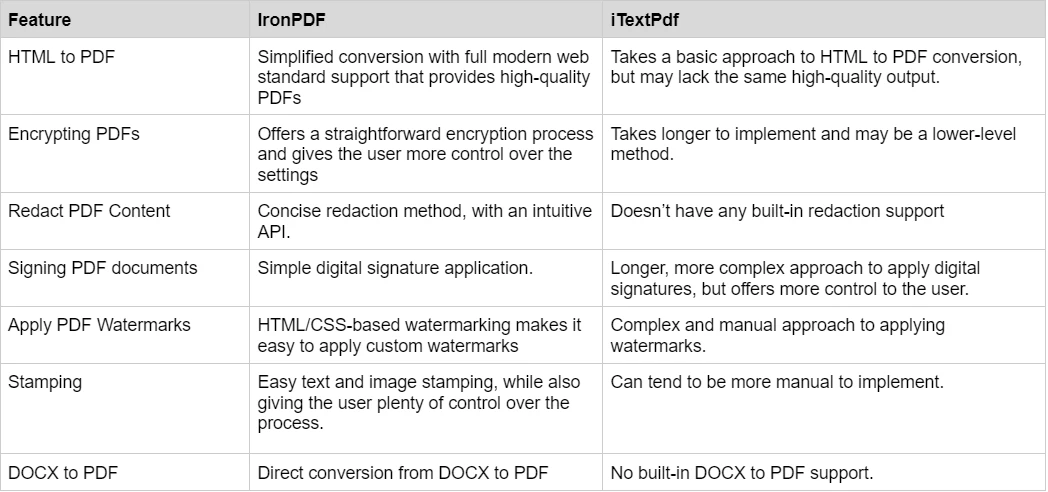
Dla bardziej szczegółowych przykładów, odwiedź Przykłady IronPDF lub sprawdź bibliotekę przykładowych kodów. Sekcja dema oferuje interaktywne przykłady możliwości IronPDF. Dodatkowe zasoby obejmują generowanie PDF równolegle, przetwarzanie wielowątkowe i przykłady asynchroniczne dla aplikacji o wysokiej wydajności.
Jak IronPDF i iTextPdf wypadają pod względem cen i licencji?
Jakie są opcje cenowe IronPDF?
IronPDF oferuje różne poziomy i dodatkowe funkcje zakupu licencji. Programiści mogą również nabyć Iron Suite, który daje dostęp do wszystkich produktów Iron Software za cenę dwóch. Jeśli nie jesteś gotowy kupić licencję, IronPDF oferuje bezpłatną wersję próbną z pełnymi funkcjami do oceny. Strona licencjonowania zawiera pełne szczegóły dostępnych opcji. Dla wdrożeń korporacyjnych, zbadaj zarządzanie kluczami licencyjnymi i ustawianie kluczy licencyjnych programowo.
- Licencje wieczyste: Oferuje szeroką gamę licencji wieczystych w zależności od wielkości zespołu, potrzeb projektu i liczby lokalizacji. Każdy typ licencji zawiera wsparcie e-mailowe.
- Licencja Lite: Ta licencja kosztuje $999 i wspiera jednego programistę, jedno miejsce i jeden projekt.
- Licencja Plus: Wspierająca trzech programistów, trzy lokalizacje i trzy projekty, jest kolejnym krokiem od licencji lite i kosztuje $1,499. Licencja Plus oferuje wsparcie na czacie i wsparcie telefoniczne oprócz podstawowego wsparcia e-mailowego.
- Licencja Professional: Ta licencja jest odpowiednia dla większych zespołów, wspierając dziesięciu programistów, dziesięć lokalizacji i dziesięć projektów za $2,399. Oferuje te same kanały wsparcia, co poprzednie poziomy, ale również oferuje wsparcie przy udostępnianiu ekranu.
- Redystrybucja bez opłat: Licencjonowanie IronPDF oferuje również możliwość redystrybucji bez opłat za dodatkowe $2,399.
- Nieprzerwane wsparcie produktu: IronPDF oferuje dostęp do bieżących aktualizacji produktu, aktualizacji funkcji zabezpieczeń i wsparcia ze strony zespołu inżynieryjnego za $999/rok lub jednorazowy zakup $1,999 za 5-letnie pokrycie.
- Iron Suite: Za $2,998, otrzymujesz dostęp do wszystkich produktów Iron Software, w tym IronPDF, IronOCR, IronWord, IronXL, IronBarcode, IronQR, IronZIP, IronPrint, i IronWebScraper.
Jak iTextPdf radzi sobie z licencjonowaniem?
- Licencja AGPL: Biblioteka iTextPDF Core jest open source na licencji AGPL, która jest darmowa do użytku pod warunkami. Programiści muszą ujawnić wszelkie modyfikacje pod tą samą licencją.
- Licencja komercyjna: Dla programistów nie spełniających warunków AGPL, iTextPDF oferuje licencjonowanie komercyjne poprzez model wyceny.
Dla aktualizacji licencji i przejść, odwiedź aktualizacje licencji IronPDF. Przewodnik zastosowania klucza licencyjnego pomaga z implementacją, a konfiguracja klucza licencyjnego zapewnia opcje wdrożenia. Dla rozwiązywania problemów z licencjonowaniem, zobacz nie można połączyć się z serwerem licencyjnym i rozszerzenia licencyjne.
Jakiego rodzaju dokumentację i wsparcie oferują IronPDF i iTextPdf?
-
Dokumentacja kompleksowa: Rozległa i przyjazna dla użytkownika dokumentacja obejmująca wszystkie dostępne funkcje.
-
Wsparcie 24/5: Aktywne wsparcie inżyniera jest dostępne.
-
Samouczki wideo: Krok po kroku przewodniki wideo dostępne na YouTube.
-
Forum społecznościowe: Zaangażowana społeczność do dodatkowego wsparcia.
-
Regularne aktualizacje: Miesięczne aktualizacje produktów zapewniające najnowsze funkcje i poprawki bezpieczeństwa.
-
Pełna dokumentacja: Rozległa, przyjazna dla użytkownika dokumentacja obejmująca wszystkie funkcje
-
Wsparcie 24/5: Aktywne wsparcie inżynieryjne dostępne
-
Samouczki wideo: Przewodniki wideo krok po kroku na YouTube
-
Forum społeczności: Zaangażowana społeczność dla dodatkowego wsparcia przez Stack Overflow i GitHub
-
Regularne aktualizacje: Miesięczne aktualizacje produktu zapewniają najnowsze funkcje i poprawki bezpieczeństwa
-
Przykłady kodu: Rozległa biblioteka przykładów kodu z praktycznymi implementacjami
-
Przewodniki rozwiązywania problemów: Szczegółowe przewodniki do szybkiego rozwiązywania problemów i problemów specyficznych dla platformy
Dla szczegółowego rozwiązywania problemów, IronPDF zapewnia przewodniki dla typowych problemów takich jak wdrożenie AWS, konfiguracja Azure, zarządzanie pamięcią, integracja z Dockerem, ustawienia IIS, i optymalizacja wydajności. Przewodniki specyficzne dla platformy obejmują wdrażanie Windows, konfiguracja Linux, i wsparcie macOS. Dodatkowe zasoby obejmują inżynieryjne wytyczne zgłoszeń, zarządzanie dziennikami Azure, dzienniki AWS, i informacje o bezpieczeństwie CVE.
- Dokumentacja: Dokumentacja iText PDF dokładnie obejmuje dostępne funkcje.
- Przykłady i samouczki: Przykłady kodu i samouczki pomagają programistom rozpocząć pracę.
- Społeczność GitHub: Programiści mogą zgłaszać problemy, składać zapytania pull i współpracować z zespołem iTextPDF.
- Regularne aktualizacje: iTextPDF zapewnia częste aktualizacje i ulepszenia.
Szczegóły dotyczące dokumentacji i wsparcia IronPDF można znaleźć na Dokumentacji IronPDF i kanale YouTube Iron Software. Odkryj przewodniki how-to dla określonych funkcji, odniesienie API do szczegółowej implementacji oraz samouczki dla pełnego uczenia się. Samouczek PDF dla VB.NET i przewodnik po bibliotece PDF dla F# dostarczają zasoby specyficzne dla języka. Dla nowoczesnych frameworków aplikacji, odkryj samouczek Blazor, przeglądanie PDF w MAUI i konwersję XAML do PDF.## Którą bibliotekę PDF powinni wybrać starsi programiści .NET?
W dziedzinie narzędzi do manipulacji PDF dla .NET, zarówno IronPDF, jak i iTextPdf oferują wartościowe rozwiązania dla programistów. IronPDF jest godny uwagi ze względu na swoją prostą integrację w całych platformach .NET i przyjazne dla użytkownika funkcje, takie jak konwersja DOCX do PDF bez zewnętrznych zależności. Dla zaawansowanych potrzeb renderowania, IronPDF wspiera wykonywanie JavaScript, wsparcie WebGL i niestandardowe opóźnienia renderowania dla dynamicznych treści. Biblioteka zawiera również słuchaczy wiadomości JavaScript oraz wykonywanie niestandardowego JavaScript dla interaktywnych PDF. Dla obsługi skomplikowanych scenariuszy renderowania, odkryj oczekiwanie na bezczynność sieci, konfigurację opóźnienia i optymalizację początkowego renderowania. W przeciwieństwie do tego, iTextPdf jest znany ze swojej wszechstronności i bogatych funkcji, pozostając skuteczny, zwłaszcza gdy jest łączony z innymi narzędziami, chociaż wymaga dodatkowych zależności dla konwersji DOCX.
Dla poprawy wydajności, IronPDF oferuje przetwarzanie asynchroniczne, równoległe generowanie i wsparcie dla wielowątkowości do efektywnego zarządzania operacjami PDF o dużej objętości. Biblioteka zapewnia również zaawansowane funkcje jak kompresja PDF, linearizacja dla szybkiego przeglądania w sieci i zgodność z PDF/A dla wymagań archiwalnych. Dodatkowe funkcje korporacyjne obejmują PDF/A-3 ze wsparciem ZUGFeRD dla e-fakturowania, zgodność z PDF/UA dla dostępności i kontrolę wersji PDF. Dla wdrożeń w chmurze, IronPDF oferuje opcje zdalne dla silników, wsparcie dla kontenerów Docker i porównanie silników lokalnych i zdalnych.
Ostatecznie, wybór między IronPDF a iTextPdf zależy od specyficznych potrzeb projektu, preferencji licencyjnych i wymaganego poziomu wsparcia. Obie biblioteki dostarczają niezawodnych sposobów na uproszczenie przepływów pracy z PDF w aplikacjach .NET. Dla programistów priorytetyzujących nowoczesne standardy webowe i łatwość użytkowania, IronPDF z renderowaniem opartym na Chrome i kompletnym API czyni go doskonałym wyborem. Biblioteka tworzenie PDF, konwersja PDF, i organizowanie PDF oferują pełne wskazówki. Dla specjalistycznego przetwarzania dokumentów, odkryj generowanie raportów PDF, czytanie tekstu PDF, i konwersję PDF do HTML. Dodatkowe możliwości obejmują drukowanie papierowe, wsparcie drukarki sieciowej, rasteryzację do obrazów, i konwersję do Base64. Ci, którzy wymagają licencjonowania AGPL lub rozległej niskopoziomowej manipulacji PDF, mogą uznać iTextPdf za bardziej odpowiedni.
Dla dalszego porównania z innymi bibliotekami PDF, odkryj Aspose vs IronPDF, Apryse vs IronPDF, QuestPDF vs IronPDF i Syncfusion vs IronPDF, aby podjąć świadomą decyzję w swoich potrzebach rozwoju PDF. Dla wskazówek dotyczących wdrożenia, sprawdź opcje instalatora IronPDF, integrację z instalatorem oprogramowania, i najlepsze praktyki wdrożeniowe. Kamienie milowe biblioteki podkreślają ciągłe ulepszenia, w tym ulepszenia renderowania Chrome, aktualizacje zgodności, aktualizacje PDFium DOM, i udoskonalenia stabilności.
iTextPdf jest zarejestrowanym znakiem towarowym swojego właściciela. Ta strona nie jest powiązana, wspierana ani sponsorowana przez iTextPdf. Wszystkie nazwy produktów, logo i marki są własnością ich odpowiednich właścicieli. Porównania mają charakter wyłącznie informacyjny i odzwierciedlają informacje dostępne publicznie w momencie pisania.













