


IronPDF vs GroupDocs:工程團隊應該選擇哪個 PDF 程式庫?

IronPDF在簡單實施下,HTML轉PDF的轉換效能卓越,只需2-3天即可完成,而GroupDocs以滿足多格式需求。
IronPDF專精於從HTML/CSS生成PDF,簡便整合於.NET,同時GroupDocs提供180多種格式的完整文件處理。 專注於PDF特定工作流程的團隊可以從IronPDF的快捷實施中受益。 GroupDocs適合需求多格式文件處理能力的組織。
GroupDocs和IronPDF是跨平台應用,為開發者提供文件自動化工具,能夠建立、編輯、格式化和列印PDF文件—當今最廣泛使用的文件格式之一。 在.NET和.NET Core中開發專案時,團隊必須選擇與其具體需求相符的工具。
開發者需要完整的關於可用程式庫和工具的資訊,特別是關於PDF處理。 每個程式庫提供不同的優勢和限制,開發團隊必須選擇滿足商業需求和技術限制的工具。
本文對比了.NET和.NET Core開發中的兩個主要PDF程式庫:GroupDocs和IronPDF。 了解GroupDocs文件檢視/轉換SDK與IronPDFPDF生成程式庫的基本差異,能讓工程經理在最佳化團隊生產力的同時有效管理成本地做出明智決定。 對於評估多種解決方案的團隊,與Aspose、iText和Syncfusion的對比提供了更多見解。
什麼是IronPDF?
IronPDF是一個商業PDF生成程式庫,基於.NET平台使用C#構建。 它能從HTML、CSS、圖片和JavaScript生成PDF,為Web應用、安全內聯網、控制台應用、WPF應用和MVC模式網站提供靈活性。 此程式庫支持所有.NET Framework和.NET Core自第4版起的專案。更多資訊請造訪IronPDF官方網站。
此程式庫使用Chrome渲染引擎,以確保從HTML內容生成的像素完美的PDF。 這種方法為開發團隊提供了一條從基於網路的內容到專業PDF文件的直接途徑,而無需複雜的格式化挑戰。 渲染引擎支持現代網路標準,包括HTML5、CSS3和WebGL內容。
為什麼IronPDF對工程團隊很重要?
工程團隊從IronPDF中發現了若干生產力優勢。 此程式庫的簡單API減少了新開發者上手的時間,通常使得團隊只需數小時而非數天即可生成初步的PDF。 HTML到PDF的方法允許開發者使用現有的網頁開發技能,消除了對專業PDF格式化知識的需求。
團隊報導基礎PDF生成功能的平均實施時間為2-3天,相比之下使用低階PDF程式庫則需1-2週。 這種效率轉化為在初始實施上的顯著時間節省。 該程式庫的性能優化確保了資源的高效使用,而非同步支持能在高吞吐量場景中發揮作用。
什麼時候應該選擇IronPDF而非替代方案?
當團隊需要高效且可靠地將HTML轉換為PDF時,IronPDF表現卓越。 考慮使用IronPDF的情境包括:
- 從HTML模板生成發票、報告或文件
- 將網頁或URL轉換為PDF以進行歸檔
- 使用自定義紙張尺寸建立複雜格式PDF
- 需要JavaScript支持以支持動態內容和圖表
- 實施數位簽名或PDF安全功能
- 支持PDF/A合規以進行長期存檔
- 新增水印和背景
該程式庫的PDF特定專注確保團隊不為未使用的功能支付費用。 與多格式解決方案不同,IronPDF的授權成本與PDF生成需求直接相關。 團隊還可以使用IronSecureDoc滿足其他文件安全需求,以及使用IronWord進行Word文件處理。
部署要求是什麼?
IronPDF支持多平台的部署,並對每個環境有具體的考量。 Windows部署可直接運行,無需其他依賴,只需.NET運行時。Linux部署需要Chrome瀏覽器依賴,但包含完整的Docker整合文件。 macOS部署支持Intel和Apple Silicon架構。
雲端部署得到強烈支持,提供針對Azure和AWS Lambda的具體指南。 該程式庫的記憶體管理已為雲端環境進行優化,標準PDF生成任務的典型記憶體使用量為150-300MB。 對於容器化部署,IronPdfEngine Docker允許將渲染引擎作為遠程服務運行。團隊可以根據架構需求選擇本地和遠程引擎部署。
什麼是GroupDocs程式庫?
GroupDocs.Editor API是一個跨平台.NET程式庫,使開發者能建立與流行HTML編輯器無縫介面的應用,進行文件的轉換、編輯及多種文件格式的操控。 其他功能詳見此處。
GroupDocs提供了一種與IronPDF根本不同的方法,作為一個完整的文件處理套件,而非PDF專屬解決方案。 該平台包括分開的檢視、轉換、註釋和跨180多種格式(包括Microsoft Office、OpenDocument、圖片和CAD文件)的操控API。 儘管IronPDF專注於HTML到PDF的轉換卓越性,GroupDocs在文件型別上提供了廣度。
為什麼多格式支持對開發團隊很重要?
處理多樣文件工作流程的工程團隊從GroupDocs的廣泛格式支持中獲益,消除對多個專門程式庫的需求。 典型企業需處理來自法律部門的Word文件、財務部門的Excel文件以及各種來源的PDF。 為每種格式使用單獨的程式庫會增加維護負擔和授權成本。
考慮一家每月處理10,000個文件的中型市場公司,涉及5種不同格式。 單個程式庫將需管理5個供應商關係、5套API和可能5個支持合約。 GroupDocs將這些統合為單個供應商關係,顯著減少行政負擔。 然而,專注於PDF建立和PDF操控的團隊可能會覺得這種整合是不必要的。
價值在於複雜的工作流程中出現。 將PowerPoint演示轉換為PDF,同時保留動畫作為靜態圖片,然後新增註釋,將需要多種工具和替代解決方案。 GroupDocs在單個API中處理整個工作流程。 IronPDF使用者通過將圖片轉換與註釋功能結合使用以實現PDF專屬工作流程。
何時GroupDocs是正確的架構選擇?
當架構需要超出PDF生成的文件檢視能力時,GroupDocs變得重要。 關鍵指標包括:
- 在無插件的網路應用中顯示50多種文件格式
- 跨文件型別的文件比較要求
- 需要協作功能的複雜註釋工作流程
- 非PDF格式之間的轉換(DOCX到HTML、XLSX到圖片)
- CAD文件檢視或轉換需求
檢視元件特別適用于SaaS應用,當使用者上傳各類文件型別時。與其強迫使用者在上傳前轉換文件,GroupDocs允許以原生方式檢視幾乎任何商業文件格式。 對於PDF專屬的檢視需求,IronPDF的檢視元件為MAUI應用提供了一個專注的替代方案。
企業使用的授權影響是什麼?
GroupDocs採用模組化授權模式,組織購買特定的API元件(檢視器、轉換、註釋)。 截至2026年4月,小企業站點授權(最多10名開發者,10個地點)每個產品費用為$$5,995。 需要同時檢視器和轉換的團隊將每個產品支付$$5,995永久授權,包括一年更新。 完整套件存取($2,999。
模組化方法提供靈活性。 團隊可以從基本模組開始,隨需求擴展。 按需計費授權提供基於使用的定價,對於具有可變文件處理負載的應用有益。
IronPDF的授權結構保持簡單,單一產品授權起價$999,適合個人開發者。 團隊授權按比例擴展,簡化PDF特定需求的預算規劃。 授權金鑰管理支持多種部署情境,包括Web.Config整合。 對於成長中的團隊,授權擴展和升級提供靈活的擴展選項。
兩個程式庫如何處理PDF註釋?
GroupDocs.Annotation如何支持協作工作流程?
GroupDocs.Annotation for .NET使開發者能使用C#、ASP.NET和其他.NET技術建立能執行文件註釋功能的應用,包括繪製形狀,新增文字和圖片,突出顯示文字。 註釋可以操控並保存在原文件型別中。
註釋系統支持協作工作流程,包括相關的評論、使用者許可權和版本跟蹤。 此功能適合文件審核過程,多方利益相關者提供反饋。 需要類似功能的PDF專門團隊可以實現IronPDF的註釋功能和自定義日志以跟蹤變更。
using System;
using System.Collections.Generic;
using System.Drawing;
using System.IO;
using GroupDocs.Annotation;
using GroupDocs.Annotation.Models;
using GroupDocs.Annotation.Models.AnnotationModels;

// Initialize list of AnnotationInfo
List<AnnotationInfo> annotations = new List<AnnotationInfo>();

// Initialize text annotation with review context
AnnotationInfo textAnnotation = new AnnotationInfo
{
    Box = new Rectangle((float)265.44, (float)153.86, 206, 36),
    Type = AnnotationType.Text,
    PageNumber = 1,
    AnnotationPosition = new Point(265.44, 153.86),
    FieldText = "Review required by legal team - contract clause 3.2",
    CreatorName = "Jordan Smith",
    CreatedOn = DateTime.Now,
    // Additional collaborative properties
    Replies = new List<AnnotationReplyInfo>()
    {
        new AnnotationReplyInfo
        {
            Message = "Legal review scheduled for next sprint",
            RepliedOn = DateTime.Now.AddHours(2),
            UserName = "Alex Johnson"
        }
    }
};

// Add annotation to list
annotations.Add(textAnnotation);

// Get input file stream
using Stream inputFile = new FileStream("D:/contract_draft.pdf", FileMode.Open, FileAccess.ReadWrite);

// Export annotation and save the output file
CommonUtilities.SaveOutputDocument(inputFile, annotations, DocumentType.Pdf);
using System;
using System.Collections.Generic;
using System.Drawing;
using System.IO;
using GroupDocs.Annotation;
using GroupDocs.Annotation.Models;
using GroupDocs.Annotation.Models.AnnotationModels;
// Initialize list of AnnotationInfo
List<AnnotationInfo> annotations = new List<AnnotationInfo>();
// Initialize text annotation with review context
AnnotationInfo textAnnotation = new AnnotationInfo
{
Box = new Rectangle((float)265.44, (float)153.86, 206, 36),
Type = AnnotationType.Text,
PageNumber = 1,
AnnotationPosition = new Point(265.44, 153.86),
FieldText = "Review required by legal team - contract clause 3.2",
CreatorName = "Jordan Smith",
CreatedOn = DateTime.Now,
// Additional collaborative properties
Replies = new List<AnnotationReplyInfo>()
{
new AnnotationReplyInfo
{
Message = "Legal review scheduled for next sprint",
RepliedOn = DateTime.Now.AddHours(2),
UserName = "Alex Johnson"
}
}
};
// Add annotation to list
annotations.Add(textAnnotation);
// Get input file stream
using Stream inputFile = new FileStream("D:/contract_draft.pdf", FileMode.Open, FileAccess.ReadWrite);
// Export annotation and save the output file
CommonUtilities.SaveOutputDocument(inputFile, annotations, DocumentType.Pdf);Imports System
Imports System.Collections.Generic
Imports System.Drawing
Imports System.IO
Imports GroupDocs.Annotation
Imports GroupDocs.Annotation.Models
Imports GroupDocs.Annotation.Models.AnnotationModels
' Initialize list of AnnotationInfo
Dim annotations As New List(Of AnnotationInfo)()
' Initialize text annotation with review context
Dim textAnnotation As New AnnotationInfo With {
.Box = New Rectangle(265.44F, 153.86F, 206, 36),
.Type = AnnotationType.Text,
.PageNumber = 1,
.AnnotationPosition = New Point(265.44, 153.86),
.FieldText = "Review required by legal team - contract clause 3.2",
.CreatorName = "Jordan Smith",
.CreatedOn = DateTime.Now,
.Replies = New List(Of AnnotationReplyInfo)() From {
New AnnotationReplyInfo With {
.Message = "Legal review scheduled for next sprint",
.RepliedOn = DateTime.Now.AddHours(2),
.UserName = "Alex Johnson"
}
}
}
' Add annotation to list
annotations.Add(textAnnotation)
' Get input file stream
Using inputFile As Stream = New FileStream("D:/contract_draft.pdf", FileMode.Open, FileAccess.ReadWrite)
' Export annotation and save the output file
CommonUtilities.SaveOutputDocument(inputFile, annotations, DocumentType.Pdf)
End UsingIronPDF如何處理程式化註釋?
IronPDF通過如IronPdf.PdfDocument.AddTextAnnotation的方法進行PDF文件註釋的程式化處理。 該程式庫專注於程式化註釋而非協作特性。 對於需要文字提取和內容替換的團隊,IronPDF提供輔助功能。
using System;
using IronPdf;
using IronPdf.Annotations;

class Program
{
    static void Main()
    {
        // Load existing PDF for annotation
        PdfDocument pdf = PdfDocument.FromFile("existing.pdf");

        // Create a complete annotation with all properties
        var annotation = new TextAnnotation()
        {
            Title = "Technical Review Required",
            Subject = "Architecture validation needed",
            Contents = "This section requires review from the architecture team to ensure compliance with our microservices patterns. Pay special attention to the API gateway configuration.",
            Icon = TextAnnotation.AnnotationIcon.Help,
            Opacity = 0.9,
            Printable = false,
            Hidden = false,
            OpenByDefault = true,
            ReadOnly = false,
            Rotateable = true,
            // Position annotation precisely
            X = 150,
            Y = 250,
            Width = 200,
            Height = 50,
            // Set annotation color
            ColorString = "#FF6B6B"
        };

        // Add the annotation to page 1
        pdf.AddTextAnnotation(annotation, 1);

        // Add a second annotation for approval workflow
        var approvalAnnotation = new TextAnnotation()
        {
            Title = "Approval Status",
            Contents = "Pending technical lead approval",
            Icon = TextAnnotation.AnnotationIcon.Check,
            X = 450,
            Y = 100,
            ColorString = "#51CF66"
        };

        pdf.AddTextAnnotation(approvalAnnotation, 1);

        // Save with annotations embedded
        pdf.SaveAs("annotated_document.pdf");

        // Optional: Apply compression to reduce file size
        pdf.CompressImages(90);
        pdf.SaveAs("annotated_compressed.pdf");
    }
}
using System;
using IronPdf;
using IronPdf.Annotations;
class Program
{
static void Main()
{
// Load existing PDF for annotation
PdfDocument pdf = PdfDocument.FromFile("existing.pdf");
// Create a complete annotation with all properties
var annotation = new TextAnnotation()
{
Title = "Technical Review Required",
Subject = "Architecture validation needed",
Contents = "This section requires review from the architecture team to ensure compliance with our microservices patterns. Pay special attention to the API gateway configuration.",
Icon = TextAnnotation.AnnotationIcon.Help,
Opacity = 0.9,
Printable = false,
Hidden = false,
OpenByDefault = true,
ReadOnly = false,
Rotateable = true,
// Position annotation precisely
X = 150,
Y = 250,
Width = 200,
Height = 50,
// Set annotation color
ColorString = "#FF6B6B"
};
// Add the annotation to page 1
pdf.AddTextAnnotation(annotation, 1);
// Add a second annotation for approval workflow
var approvalAnnotation = new TextAnnotation()
{
Title = "Approval Status",
Contents = "Pending technical lead approval",
Icon = TextAnnotation.AnnotationIcon.Check,
X = 450,
Y = 100,
ColorString = "#51CF66"
};
pdf.AddTextAnnotation(approvalAnnotation, 1);
// Save with annotations embedded
pdf.SaveAs("annotated_document.pdf");
// Optional: Apply compression to reduce file size
pdf.CompressImages(90);
pdf.SaveAs("annotated_compressed.pdf");
}
}Imports System
Imports IronPdf
Imports IronPdf.Annotations
Class Program
Shared Sub Main()
' Load existing PDF for annotation
Dim pdf As PdfDocument = PdfDocument.FromFile("existing.pdf")
' Create a complete annotation with all properties
Dim annotation As New TextAnnotation() With {
.Title = "Technical Review Required",
.Subject = "Architecture validation needed",
.Contents = "This section requires review from the architecture team to ensure compliance with our microservices patterns. Pay special attention to the API gateway configuration.",
.Icon = TextAnnotation.AnnotationIcon.Help,
.Opacity = 0.9,
.Printable = False,
.Hidden = False,
.OpenByDefault = True,
.ReadOnly = False,
.Rotateable = True,
' Position annotation precisely
.X = 150,
.Y = 250,
.Width = 200,
.Height = 50,
' Set annotation color
.ColorString = "#FF6B6B"
}
' Add the annotation to page 1
pdf.AddTextAnnotation(annotation, 1)
' Add a second annotation for approval workflow
Dim approvalAnnotation As New TextAnnotation() With {
.Title = "Approval Status",
.Contents = "Pending technical lead approval",
.Icon = TextAnnotation.AnnotationIcon.Check,
.X = 450,
.Y = 100,
.ColorString = "#51CF66"
}
pdf.AddTextAnnotation(approvalAnnotation, 1)
' Save with annotations embedded
pdf.SaveAs("annotated_document.pdf")
' Optional: Apply compression to reduce file size
pdf.CompressImages(90)
pdf.SaveAs("annotated_compressed.pdf")
End Sub
End ClassIronPDF的註釋功能包括顏色選擇、元素調整大小、不透明度設置和文字編輯。 該程式庫還支持新增郵票和水印以進行文件品牌化。 對於基於表單的註釋,團隊可以使用PDF表單建立和表單編輯功能。
哪種註釋方法所需的開發者時間較少?
使用IronPDF實施基本註釋功能通常只需2-4小時的開發者時間。其簡潔的API使初級開發者能在無需廣泛培訓的情況下實現註釋功能。 單個開發者通常能在一個衝刺中完成概念證明實施。 快速入門指南加速最初的開發。
GroupDocs.Annotation由於其完整的功能集需要更多的設置時間(8-16小時)。 然而,這種投資對於複雜的註釋工作流程是有益的。 包括註釋執行緒、使用者許可權和協作審核在內的功能如果從頭開始實現需要幾周時間,但在GroupDocs中內建。 IronPDF使用者可以通過將註釋與修訂歷史記錄跟蹤相結合,實現類似的效果。
考慮一個50人團隊的文件審核系統。 使用IronPDF構建協作功能需要超過200小時的自定義開發。 GroupDocs提供這些功能為開箱即用,使其在協作場景中具成本效益,儘管授權成本更高。 對於自動化註釋工作流程,IronPDF的非同步處理和並行生成提供性能優勢。
註釋功能如何影響文件工作流程?
IronPDF的註釋功能適合自動化文件處理,在其中以程式化方式新增註釋。 常見的用例包括:
GroupDocs在需要交互的人性化工作流程中表現出色:
- 含多個評論者意見的法律文件審核
- 含測量註釋的工程圖紙標記
- 含隱私控製的醫療記錄註釋
- 含講師反饋的教育內容
對於需要同時使用這兩種方法的團隊,結合IronPDF的自動化功能與自定義JavaScript可在保持程式化控制的同時實現互動元素。
常見註釋疑難問題是什麼?
兩個程式庫都遇到類似的註釋挑戰。 當自定義字體缺少適當的嵌入時會出現字體渲染問題。 IronPDF提供字體疑難排解指南快速解決問題。 UTF-8支持可以確保註釋中顯示國際字元。
性能下降會影響大量註釋的文件在兩個解決方案中。 包含100多個註釋的文件可能會出現渲染速度慢。 IronPDF通過壓縮選項在保持註釋質量的同時減小文件大小。 線性化可以提高大型註釋文件的載入速度。
GroupDocs 註釋衝突可能在同時使用者註釋期間發生。 實施適當的版本控製和註釋合併策略可以防止資料丟失。 兩個程式庫都支持PDF/A合規以長期保留註釋。 對於可存取性要求,PDF/UA格式確保註釋對螢幕閱讀器仍然可存取。
文件型別轉換如何比較?
文件處理需要將各種文件格式轉換為PDF。 以下是GroupDocs和IronPDF的轉換表現:
GroupDocs如何處理多格式轉換?
GroupDocs Conversion API允許將包括MS Word和Excel的文件型別轉換為PDF,而無需生產力套件。 該程式庫支持超過180種文件格式,為多樣化的轉換需求提供完整解決方案。 對於專注於PDF轉換的團隊,這種廣度可能超出需求。
Convert XLSB to PDF in C
using System;
using GroupDocs.Conversion.Options.Convert;

namespace ConvertXlsbToPdfInCSharp
{
    class Program
    {
        public static void Main(string[] args)
        {
            // Load license
            string licensePath = "GroupDocs.Conversion.lic";
            GroupDocs.Conversion.License lic = new GroupDocs.Conversion.License();
            lic.SetLicense(licensePath);

            // Load source XLSB for conversion
            var converter = new GroupDocs.Conversion.Converter("sample.xlsb");

            // Conversion options with formatting preservation
            var convertOptions = new PdfConvertOptions()
            {
                PageSize = PageSize.A4,
                MarginTop = 10,
                MarginBottom = 10,
                MarginLeft = 10,
                MarginRight = 10,
                PdfOptions = new PdfOptions()
                {
                    OptimizationOptions = new PdfOptimizationOptions()
                    {
                        CompressImages = true,
                        ImageQuality = 75,
                        // Additional optimization settings
                        LinkDuplicateStreams = true,
                        RemoveUnusedObjects = true,
                        RemoveUnusedStreams = true,
                        CompressFonts = true
                    },
                    // Set PDF compliance level
                    PdfFormat = PdfFormats.PdfA_2b
                }
            };

            // Convert XLSB to PDF
            converter.Convert("converted.pdf", convertOptions);
            Console.WriteLine("Conversion complete.");

            // Optional: Add metadata
            var loadOptions = new PdfLoadOptions();
            using (var pdfConverter = new GroupDocs.Conversion.Converter("converted.pdf", () => loadOptions))
            {
                var editOptions = new PdfEditOptions();
                editOptions.DocumentInfo.Title = "Converted Excel Report";
                editOptions.DocumentInfo.Subject = "Financial Data";
                editOptions.DocumentInfo.Keywords = "excel, conversion, finance";
            }
        }
    }
}
using System;
using GroupDocs.Conversion.Options.Convert;
namespace ConvertXlsbToPdfInCSharp
{
class Program
{
public static void Main(string[] args)
{
// Load license
string licensePath = "GroupDocs.Conversion.lic";
GroupDocs.Conversion.License lic = new GroupDocs.Conversion.License();
lic.SetLicense(licensePath);
// Load source XLSB for conversion
var converter = new GroupDocs.Conversion.Converter("sample.xlsb");
// Conversion options with formatting preservation
var convertOptions = new PdfConvertOptions()
{
PageSize = PageSize.A4,
MarginTop = 10,
MarginBottom = 10,
MarginLeft = 10,
MarginRight = 10,
PdfOptions = new PdfOptions()
{
OptimizationOptions = new PdfOptimizationOptions()
{
CompressImages = true,
ImageQuality = 75,
// Additional optimization settings
LinkDuplicateStreams = true,
RemoveUnusedObjects = true,
RemoveUnusedStreams = true,
CompressFonts = true
},
// Set PDF compliance level
PdfFormat = PdfFormats.PdfA_2b
}
};
// Convert XLSB to PDF
converter.Convert("converted.pdf", convertOptions);
Console.WriteLine("Conversion complete.");
// Optional: Add metadata
var loadOptions = new PdfLoadOptions();
using (var pdfConverter = new GroupDocs.Conversion.Converter("converted.pdf", () => loadOptions))
{
var editOptions = new PdfEditOptions();
editOptions.DocumentInfo.Title = "Converted Excel Report";
editOptions.DocumentInfo.Subject = "Financial Data";
editOptions.DocumentInfo.Keywords = "excel, conversion, finance";
}
}
}
}Imports System
Imports GroupDocs.Conversion.Options.Convert
Namespace ConvertXlsbToPdfInCSharp
Class Program
Public Shared Sub Main(ByVal args As String())
' Load license
Dim licensePath As String = "GroupDocs.Conversion.lic"
Dim lic As New GroupDocs.Conversion.License()
lic.SetLicense(licensePath)
' Load source XLSB for conversion
Dim converter = New GroupDocs.Conversion.Converter("sample.xlsb")
' Conversion options with formatting preservation
Dim convertOptions = New PdfConvertOptions() With {
.PageSize = PageSize.A4,
.MarginTop = 10,
.MarginBottom = 10,
.MarginLeft = 10,
.MarginRight = 10,
.PdfOptions = New PdfOptions() With {
.OptimizationOptions = New PdfOptimizationOptions() With {
.CompressImages = True,
.ImageQuality = 75,
' Additional optimization settings
.LinkDuplicateStreams = True,
.RemoveUnusedObjects = True,
.RemoveUnusedStreams = True,
.CompressFonts = True
},
' Set PDF compliance level
.PdfFormat = PdfFormats.PdfA_2b
}
}
' Convert XLSB to PDF
converter.Convert("converted.pdf", convertOptions)
Console.WriteLine("Conversion complete.")
' Optional: Add metadata
Dim loadOptions = New PdfLoadOptions()
Using pdfConverter = New GroupDocs.Conversion.Converter("converted.pdf", Function() loadOptions)
Dim editOptions = New PdfEditOptions()
editOptions.DocumentInfo.Title = "Converted Excel Report"
editOptions.DocumentInfo.Subject = "Financial Data"
editOptions.DocumentInfo.Keywords = "excel, conversion, finance"
End Using
End Sub
End Class
End Namespace將HTML轉換為PDF
GroupDocs將HTML文件轉換成PDF格式,將網路內容轉化為可列印的檔案。 完整教程可在此處找到。 對於專門的HTML轉換需求,IronPDF的HTML文件轉PDF提供優化的渲染。
using System;
using GroupDocs.Conversion.Options.Convert;

namespace ConvertHtmlToPdfInCSharp
{
    class Program
    {
        public static void Main(string[] args)
        {
            // Use license
            string licensePath = "GroupDocs.Conversion.lic";
            GroupDocs.Conversion.License lic = new GroupDocs.Conversion.License();
            lic.SetLicense(licensePath);

            // Load HTML document with resources
            var converterSettings = new ConverterSettings();
            converterSettings.TempFolder = "C:\\Temp";

            var converter = new GroupDocs.Conversion.Converter("sample.html", () => new HtmlLoadOptions()
            {
                // Configure HTML loading
                BaseUri = "___PROTECTED_URL_166___",
                Encoding = System.Text.Encoding.UTF8
            }, converterSettings);

            // PDF options with web optimization
            var convertOptions = new PdfConvertOptions()
            {
                // Page setup
                PageSize = PageSize.A4,
                PageOrientation = PageOrientation.Portrait,

                // Margins in points
                MarginTop = 72,     // 1 inch
                MarginBottom = 72,
                MarginLeft = 54,    // 0.75 inch
                MarginRight = 54,

                // PDF specific options
                PdfOptions = new PdfOptions()
                {
                    OptimizationOptions = new PdfOptimizationOptions()
                    {
                        LinkDuplicateStreams = true,
                        RemoveUnusedObjects = true,
                        RemoveUnusedStreams = true,
                        CompressImages = true,
                        ImageQuality = 85,
                        ResizeImages = true,
                        MaxResolution = 150
                    },
                    // Enable fast web view
                    Linearize = true
                }
            };

            // Convert HTML to PDF
            converter.Convert("converted.pdf", convertOptions);
            Console.WriteLine("Conversion complete.");
        }
    }
}
using System;
using GroupDocs.Conversion.Options.Convert;
namespace ConvertHtmlToPdfInCSharp
{
class Program
{
public static void Main(string[] args)
{
// Use license
string licensePath = "GroupDocs.Conversion.lic";
GroupDocs.Conversion.License lic = new GroupDocs.Conversion.License();
lic.SetLicense(licensePath);
// Load HTML document with resources
var converterSettings = new ConverterSettings();
converterSettings.TempFolder = "C:\\Temp";
var converter = new GroupDocs.Conversion.Converter("sample.html", () => new HtmlLoadOptions()
{
// Configure HTML loading
BaseUri = "___PROTECTED_URL_166___",
Encoding = System.Text.Encoding.UTF8
}, converterSettings);
// PDF options with web optimization
var convertOptions = new PdfConvertOptions()
{
// Page setup
PageSize = PageSize.A4,
PageOrientation = PageOrientation.Portrait,
// Margins in points
MarginTop = 72, // 1 inch
MarginBottom = 72,
MarginLeft = 54, // 0.75 inch
MarginRight = 54,
// PDF specific options
PdfOptions = new PdfOptions()
{
OptimizationOptions = new PdfOptimizationOptions()
{
LinkDuplicateStreams = true,
RemoveUnusedObjects = true,
RemoveUnusedStreams = true,
CompressImages = true,
ImageQuality = 85,
ResizeImages = true,
MaxResolution = 150
},
// Enable fast web view
Linearize = true
}
};
// Convert HTML to PDF
converter.Convert("converted.pdf", convertOptions);
Console.WriteLine("Conversion complete.");
}
}
}Imports System
Imports GroupDocs.Conversion.Options.Convert
Namespace ConvertHtmlToPdfInCSharp
Class Program
Public Shared Sub Main(ByVal args As String())
' Use license
Dim licensePath As String = "GroupDocs.Conversion.lic"
Dim lic As New GroupDocs.Conversion.License()
lic.SetLicense(licensePath)
' Load HTML document with resources
Dim converterSettings As New ConverterSettings()
converterSettings.TempFolder = "C:\Temp"
Dim converter As New GroupDocs.Conversion.Converter("sample.html", Function() New HtmlLoadOptions() With {
.BaseUri = "___PROTECTED_URL_166___",
.Encoding = System.Text.Encoding.UTF8
}, converterSettings)
' PDF options with web optimization
Dim convertOptions As New PdfConvertOptions() With {
.PageSize = PageSize.A4,
.PageOrientation = PageOrientation.Portrait,
.MarginTop = 72,
.MarginBottom = 72,
.MarginLeft = 54,
.MarginRight = 54,
.PdfOptions = New PdfOptions() With {
.OptimizationOptions = New PdfOptimizationOptions() With {
.LinkDuplicateStreams = True,
.RemoveUnusedObjects = True,
.RemoveUnusedStreams = True,
.CompressImages = True,
.ImageQuality = 85,
.ResizeImages = True,
.MaxResolution = 150
},
.Linearize = True
}
}
' Convert HTML to PDF
converter.Convert("converted.pdf", convertOptions)
Console.WriteLine("Conversion complete.")
End Sub
End Class
End NamespaceIronPDF如何優化網頁到PDF轉換?
IronPDF使用Chromium引擎進行準確的HTML到PDF轉換,提供高保真的網路內容渲染質量。 該程式庫在轉換過程中保持CSS樣式和JavaScript功能。 響應式CSS處理確保頁面尺寸的合理佈局。
HTML到PDF
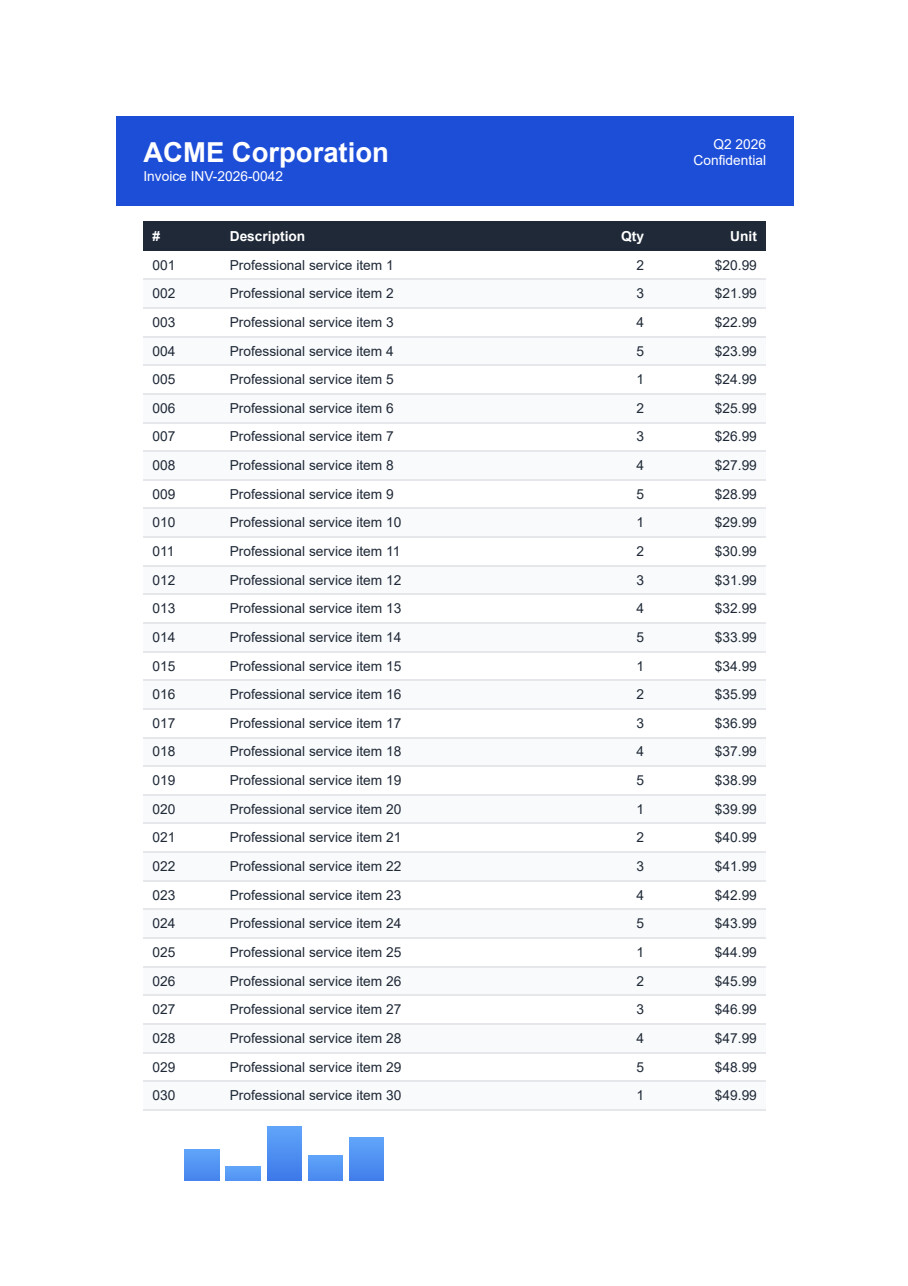
IronPDF直接將HTML內容轉換為PDF,實施簡單。 該程式庫支持響應式CSS和自定義紙張尺寸。 高階功能包括頁面斷控制和視窗管理。
using IronPdf;

// Initialize renderer with custom options
var renderer = new IronPdf.ChromePdfRenderer();

// Configure rendering options for professional output
renderer.RenderingOptions.CssMediaType = PdfCssMediaType.Print;
renderer.RenderingOptions.PrintHtmlBackgrounds = true;
renderer.RenderingOptions.CreatePdfFormsFromHtml = true;
renderer.RenderingOptions.MarginTop = 25;
renderer.RenderingOptions.MarginBottom = 25;
renderer.RenderingOptions.MarginLeft = 20;
renderer.RenderingOptions.MarginRight = 20;

// Enable JavaScript execution for dynamic content
renderer.RenderingOptions.EnableJavaScript = true;
renderer.RenderingOptions.RenderDelay = 500; // milliseconds

// Set custom paper size
renderer.RenderingOptions.PaperSize = PdfPaperSize.A4;
renderer.RenderingOptions.PaperOrientation = PdfPaperOrientation.Portrait;

// Add headers and footers with merge fields
renderer.RenderingOptions.HtmlHeader = new HtmlHeaderFooter()
{
    Height = 20,
    HtmlFragment = @"<div style='text-align: center; font-size: 12px; font-family: Arial;'>
                    <span>Professional Report - Page {page} of {total-pages}</span>
                    </div>",
    DrawDividerLine = true
};

renderer.RenderingOptions.HtmlFooter = new HtmlHeaderFooter()
{
    Height = 25,
    HtmlFragment = @"<div style='font-size: 10px; font-family: Arial;'>
                    <div style='float: left;'>© 2024 Company Name</div>
                    <div style='float: right;'>{date}</div>
                    </div>",
    DrawDividerLine = true
};

// Handle web fonts and external resources
renderer.RenderingOptions.WaitFor.AllFontsLoaded();
renderer.RenderingOptions.WaitFor.NetworkIdle(500);

// Render HTML with embedded styles and scripts
string htmlContent = @"
<!DOCTYPE html>
<html>
<head>
    <style>
        @import url('___PROTECTED_URL_167___
        body { font-family: 'Roboto', sans-serif; line-height: 1.6; }
        .report-header { color: #2c3e50; border-bottom: 2px solid #3498db; }
        .data-table { width: 100%; border-collapse: collapse; }
        .data-table th, .data-table td { border: 1px solid #ddd; padding: 8px; }
    </style>
</head>
<body>
    <h1 class='report-header'>Professional Report</h1>
    <p>Html with CSS, Images, and Web Fonts</p>
    <table class='data-table'>
        <thead>
            <tr><th>Item</th><th>Value</th><th>Status</th></tr>
        </thead>
        <tbody>
            <tr><td>Revenue</td><td>$125,000</td><td>✓ On Track</td></tr>
            <tr><td>Expenses</td><td>$45,000</td><td>✓ Under Budget</td></tr>
        </tbody>
    </table>
</body>
</html>";

using var pdf = renderer.RenderHtmlAsPdf(htmlContent);

// Apply post-processing optimizations
pdf.CompressImages(90);

// Add metadata
pdf.MetaData.Author = "Engineering Team";
pdf.MetaData.Keywords = "report, quarterly, financial";
pdf.MetaData.ModifiedDate = DateTime.Now;

pdf.SaveAs("professional-report.pdf");
using IronPdf;
// Initialize renderer with custom options
var renderer = new IronPdf.ChromePdfRenderer();
// Configure rendering options for professional output
renderer.RenderingOptions.CssMediaType = PdfCssMediaType.Print;
renderer.RenderingOptions.PrintHtmlBackgrounds = true;
renderer.RenderingOptions.CreatePdfFormsFromHtml = true;
renderer.RenderingOptions.MarginTop = 25;
renderer.RenderingOptions.MarginBottom = 25;
renderer.RenderingOptions.MarginLeft = 20;
renderer.RenderingOptions.MarginRight = 20;
// Enable JavaScript execution for dynamic content
renderer.RenderingOptions.EnableJavaScript = true;
renderer.RenderingOptions.RenderDelay = 500; // milliseconds
// Set custom paper size
renderer.RenderingOptions.PaperSize = PdfPaperSize.A4;
renderer.RenderingOptions.PaperOrientation = PdfPaperOrientation.Portrait;
// Add headers and footers with merge fields
renderer.RenderingOptions.HtmlHeader = new HtmlHeaderFooter()
{
Height = 20,
HtmlFragment = @"<div style='text-align: center; font-size: 12px; font-family: Arial;'>
<span>Professional Report - Page {page} of {total-pages}</span>
</div>",
DrawDividerLine = true
};
renderer.RenderingOptions.HtmlFooter = new HtmlHeaderFooter()
{
Height = 25,
HtmlFragment = @"<div style='font-size: 10px; font-family: Arial;'>
<div style='float: left;'>© 2024 Company Name</div>
<div style='float: right;'>{date}</div>
</div>",
DrawDividerLine = true
};
// Handle web fonts and external resources
renderer.RenderingOptions.WaitFor.AllFontsLoaded();
renderer.RenderingOptions.WaitFor.NetworkIdle(500);
// Render HTML with embedded styles and scripts
string htmlContent = @"
<!DOCTYPE html>
<html>
<head>
<style>
@import url('___PROTECTED_URL_167___
body { font-family: 'Roboto', sans-serif; line-height: 1.6; }
.report-header { color: #2c3e50; border-bottom: 2px solid #3498db; }
.data-table { width: 100%; border-collapse: collapse; }
.data-table th, .data-table td { border: 1px solid #ddd; padding: 8px; }
</style>
</head>
<body>
<h1 class='report-header'>Professional Report</h1>
<p>Html with CSS, Images, and Web Fonts</p>
<table class='data-table'>
<thead>
<tr><th>Item</th><th>Value</th><th>Status</th></tr>
</thead>
<tbody>
<tr><td>Revenue</td><td>$125,000</td><td>✓ On Track</td></tr>
<tr><td>Expenses</td><td>$45,000</td><td>✓ Under Budget</td></tr>
</tbody>
</table>
</body>
</html>";
using var pdf = renderer.RenderHtmlAsPdf(htmlContent);
// Apply post-processing optimizations
pdf.CompressImages(90);
// Add metadata
pdf.MetaData.Author = "Engineering Team";
pdf.MetaData.Keywords = "report, quarterly, financial";
pdf.MetaData.ModifiedDate = DateTime.Now;
pdf.SaveAs("professional-report.pdf");Imports IronPdf
' Initialize renderer with custom options
Dim renderer As New IronPdf.ChromePdfRenderer()
' Configure rendering options for professional output
renderer.RenderingOptions.CssMediaType = PdfCssMediaType.Print
renderer.RenderingOptions.PrintHtmlBackgrounds = True
renderer.RenderingOptions.CreatePdfFormsFromHtml = True
renderer.RenderingOptions.MarginTop = 25
renderer.RenderingOptions.MarginBottom = 25
renderer.RenderingOptions.MarginLeft = 20
renderer.RenderingOptions.MarginRight = 20
' Enable JavaScript execution for dynamic content
renderer.RenderingOptions.EnableJavaScript = True
renderer.RenderingOptions.RenderDelay = 500 ' milliseconds
' Set custom paper size
renderer.RenderingOptions.PaperSize = PdfPaperSize.A4
renderer.RenderingOptions.PaperOrientation = PdfPaperOrientation.Portrait
' Add headers and footers with merge fields
renderer.RenderingOptions.HtmlHeader = New HtmlHeaderFooter() With {
.Height = 20,
.HtmlFragment = "<div style='text-align: center; font-size: 12px; font-family: Arial;'>" &
"<span>Professional Report - Page {page} of {total-pages}</span>" &
"</div>",
.DrawDividerLine = True
}
renderer.RenderingOptions.HtmlFooter = New HtmlHeaderFooter() With {
.Height = 25,
.HtmlFragment = "<div style='font-size: 10px; font-family: Arial;'>" &
"<div style='float: left;'>© 2024 Company Name</div>" &
"<div style='float: right;'>{date}</div>" &
"</div>",
.DrawDividerLine = True
}
' Handle web fonts and external resources
renderer.RenderingOptions.WaitFor.AllFontsLoaded()
renderer.RenderingOptions.WaitFor.NetworkIdle(500)
' Render HTML with embedded styles and scripts
Dim htmlContent As String = "
<!DOCTYPE html>
<html>
<head>
<style>
@import url('___PROTECTED_URL_167___
body { font-family: 'Roboto', sans-serif; line-height: 1.6; }
.report-header { color: #2c3e50; border-bottom: 2px solid #3498db; }
.data-table { width: 100%; border-collapse: collapse; }
.data-table th, .data-table td { border: 1px solid #ddd; padding: 8px; }
</style>
</head>
<body>
<h1 class='report-header'>Professional Report</h1>
<p>Html with CSS, Images, and Web Fonts</p>
<table class='data-table'>
<thead>
<tr><th>Item</th><th>Value</th><th>Status</th></tr>
</thead>
<tbody>
<tr><td>Revenue</td><td>$125,000</td><td>✓ On Track</td></tr>
<tr><td>Expenses</td><td>$45,000</td><td>✓ Under Budget</td></tr>
</tbody>
</table>
</body>
</html>"
Using pdf = renderer.RenderHtmlAsPdf(htmlContent)
' Apply post-processing optimizations
pdf.CompressImages(90)
' Add metadata
pdf.MetaData.Author = "Engineering Team"
pdf.MetaData.Keywords = "report, quarterly, financial"
pdf.MetaData.ModifiedDate = DateTime.Now
pdf.SaveAs("professional-report.pdf")
End Using更多變換功能的詳情可見IronPDF HTML到PDF轉換器文件。 團隊也可以使用HTML ZIP文件轉換以獲取綑綁內容,並使用基底URL配置進行資源載入。
URL到PDF
使用IronPDF的自定義瀏覽器引擎將網頁URL轉換為PDF格式是很簡單的。該程式庫處理JavaScript渲染和自定義延遲以支持動態內容。 Cookie管理和HTTP標頭允許進行身份驗證頁面捕獲。
using IronPdf;

// Create renderer with advanced options
IronPdf.ChromePdfRenderer renderer = new IronPdf.ChromePdfRenderer();

// Configure for improve web page capture
renderer.RenderingOptions.ViewPortWidth = 1920;
renderer.RenderingOptions.ViewPortHeight = 1080;
renderer.RenderingOptions.EnableJavaScript = true;
renderer.RenderingOptions.RenderDelay = 500; // Wait for dynamic content

// Set user agent for responsive design
renderer.RenderingOptions.UserAgent = "Mozilla/5.0 (Windows NT 10.0; Win64; x64) IronPDF";

// Handle authentication if needed
renderer.RenderingOptions.HttpLoginCredentials = new IronPdf.ChromeHttpLoginCredentials()
{
    NetworkUsername = "user",
    NetworkPassword = "pass"
};

// Add custom HTTP headers
renderer.RenderingOptions.HttpRequestHeaders.Add("Authorization", "Bearer token123");
renderer.RenderingOptions.HttpRequestHeaders.Add("X-Custom-Header", "CustomValue");

// Enable cookies for session handling
renderer.RenderingOptions.EnableCookies = true;
renderer.RenderingOptions.CustomCookies = new Dictionary<string, string>()
{
    {"SessionId", "ABC123"},
    {"UserPref", "PrintLayout"}
};

// Advanced wait conditions
renderer.RenderingOptions.WaitFor.JavaScript(1000);
renderer.RenderingOptions.WaitFor.HtmlElement("div.dynamic-content");
renderer.RenderingOptions.WaitFor.AllFontsLoaded();

// Render with error handling
try
{
    using var pdf = renderer.RenderUrlAsPdf("___PROTECTED_URL_58___");

    // Apply post-processing
    pdf.CompressImages(90);

    // Add security
    pdf.Password = "secure123";
    pdf.OwnerPassword = "owner123";
    pdf.PermissionsFlags = PdfSecurityPermissions.NoPrint |
                          PdfSecurityPermissions.NoModification;

    pdf.SaveAs("optimized-webpage.pdf");
}
catch (Exception ex)
{
    Console.WriteLine($"Conversion failed: {ex.Message}");
    // Log error for debugging
}
using IronPdf;
// Create renderer with advanced options
IronPdf.ChromePdfRenderer renderer = new IronPdf.ChromePdfRenderer();
// Configure for improve web page capture
renderer.RenderingOptions.ViewPortWidth = 1920;
renderer.RenderingOptions.ViewPortHeight = 1080;
renderer.RenderingOptions.EnableJavaScript = true;
renderer.RenderingOptions.RenderDelay = 500; // Wait for dynamic content
// Set user agent for responsive design
renderer.RenderingOptions.UserAgent = "Mozilla/5.0 (Windows NT 10.0; Win64; x64) IronPDF";
// Handle authentication if needed
renderer.RenderingOptions.HttpLoginCredentials = new IronPdf.ChromeHttpLoginCredentials()
{
NetworkUsername = "user",
NetworkPassword = "pass"
};
// Add custom HTTP headers
renderer.RenderingOptions.HttpRequestHeaders.Add("Authorization", "Bearer token123");
renderer.RenderingOptions.HttpRequestHeaders.Add("X-Custom-Header", "CustomValue");
// Enable cookies for session handling
renderer.RenderingOptions.EnableCookies = true;
renderer.RenderingOptions.CustomCookies = new Dictionary<string, string>()
{
{"SessionId", "ABC123"},
{"UserPref", "PrintLayout"}
};
// Advanced wait conditions
renderer.RenderingOptions.WaitFor.JavaScript(1000);
renderer.RenderingOptions.WaitFor.HtmlElement("div.dynamic-content");
renderer.RenderingOptions.WaitFor.AllFontsLoaded();
// Render with error handling
try
{
using var pdf = renderer.RenderUrlAsPdf("___PROTECTED_URL_58___");
// Apply post-processing
pdf.CompressImages(90);
// Add security
pdf.Password = "secure123";
pdf.OwnerPassword = "owner123";
pdf.PermissionsFlags = PdfSecurityPermissions.NoPrint |
PdfSecurityPermissions.NoModification;
pdf.SaveAs("optimized-webpage.pdf");
}
catch (Exception ex)
{
Console.WriteLine($"Conversion failed: {ex.Message}");
// Log error for debugging
}Imports IronPdf
' Create renderer with advanced options
Dim renderer As New IronPdf.ChromePdfRenderer()
' Configure for improved web page capture
renderer.RenderingOptions.ViewPortWidth = 1920
renderer.RenderingOptions.ViewPortHeight = 1080
renderer.RenderingOptions.EnableJavaScript = True
renderer.RenderingOptions.RenderDelay = 500 ' Wait for dynamic content
' Set user agent for responsive design
renderer.RenderingOptions.UserAgent = "Mozilla/5.0 (Windows NT 10.0; Win64; x64) IronPDF"
' Handle authentication if needed
renderer.RenderingOptions.HttpLoginCredentials = New IronPdf.ChromeHttpLoginCredentials() With {
.NetworkUsername = "user",
.NetworkPassword = "pass"
}
' Add custom HTTP headers
renderer.RenderingOptions.HttpRequestHeaders.Add("Authorization", "Bearer token123")
renderer.RenderingOptions.HttpRequestHeaders.Add("X-Custom-Header", "CustomValue")
' Enable cookies for session handling
renderer.RenderingOptions.EnableCookies = True
renderer.RenderingOptions.CustomCookies = New Dictionary(Of String, String) From {
{"SessionId", "ABC123"},
{"UserPref", "PrintLayout"}
}
' Advanced wait conditions
renderer.RenderingOptions.WaitFor.JavaScript(1000)
renderer.RenderingOptions.WaitFor.HtmlElement("div.dynamic-content")
renderer.RenderingOptions.WaitFor.AllFontsLoaded()
' Render with error handling
Try
Using pdf = renderer.RenderUrlAsPdf("___PROTECTED_URL_58___")
' Apply post-processing
pdf.CompressImages(90)
' Add security
pdf.Password = "secure123"
pdf.OwnerPassword = "owner123"
pdf.PermissionsFlags = PdfSecurityPermissions.NoPrint Or PdfSecurityPermissions.NoModification
pdf.SaveAs("optimized-webpage.pdf")
End Using
Catch ex As Exception
Console.WriteLine($"Conversion failed: {ex.Message}")
' Log error for debugging
End Try更多關於使用IronPDF進行URL到PDF轉換的資訊可以在官方API指南中找到。 對於複雜的情境,團隊可以實施自定義日誌和性能監控。
哪種轉換方法對企業工作負載擴展更好?
IronPDF的轉換架構對於高容量PDF生成具有高效擴展性。 該程式庫支持異步操作和多執行緒,允許並行處理轉換請求。 團隊能夠成功地每天處理10,000+個PDF,只需要適當的資源配置。 並行PDF生成的範例展示了處理模式。
HTML到PDF轉換受益於IronPDF的Chrome引擎在各種環境中的一致性。 Docker部署允許在容器化環境中進行水平擴展,每個容器根據文件的複雜性處理50-100個併發轉換。 AWS Lambda部署支持無伺服器的擴展模式。
GroupDocs有效地縮放以進行多格式轉換,但由於其通用文件模型,每次轉換需要更多的記憶體。 對於複雜的Office文件,預期每個轉換工作者需要500MB-1GB RAM。 該程式庫的強項在於批量轉換不同的格式—單一API處理Word、Excel、PowerPoint和許多其他格式。 IronPDF的記憶體優化專注於提高PDF生成效率。
格式限制何時變成瓶頸?
IronPDF專注於HTML、圖像和現有PDF在需要原生Office格式處理時會變得有限制。 雖然IronPDF可以轉換DOCX文件,但它需要GroupDocs的格式保留更有限。 團隊也可以轉換RTF到PDF和Markdown到PDF以支持文字格式。
GroupDocs的廣泛格式支持可能造成複雜度瓶頸。 支持超過180種格式導致更大的部署大小(500MB+對比IronPDF的150MB)和更長的初始化時間。 只需PDF生成的團隊會因這種開銷而減少效率。 IronPDF的精簡部署選項進一步減小包大小,適合受限環境。
考慮每月從HTML模板生成50,000張發票的金融服務團隊。 IronPDF專門的HTML-to-PDF方法針對此工作負載進行了優化,而GroupDocs的通用文件模型則對於非HTML格式有開銷。 然而,如果同一團隊需要將電子郵件附件歸檔為各種格式,GroupDocs的通用轉換消除了對多個程式庫的需求。 對於以圖像為主的工作流程而言,IronPDF的TIFF到PDF和光柵化功能提供最佳處理。
轉換質料指標如何比較?
IronPDF的基於Chrome的渲染提供了網路內容轉換的高保真度。 這個引擎可以正確處理:
- 包含Flexbox和網格的複雜CSS布局
- 網頁字體和圖標與正確的嵌入體
- SVG圖形與向量保留
- JavaScript生成的內容包括圖表
- WebGL 3D內容與GPU加速
- 國際語言和右到左文字
GroupDocs在Office文件中保留了格式,但在處理複雜的網路內容時可能會遇到挑戰。 HTML轉換使用不同於IronPDF的引擎,有時會造成與現代CSS不一致的結果。 然而,GroupDocs在保留Office文件功能上表現卓越,包括跟蹤的變更、評論和嵌入物件。 對於像素完美的要求,IronPDF的渲染選項提供細粒度控制。
對於特定格式轉換,IronPDF提供專門的處理器,如使用XSLT支持XML到PDF。
哪種解決方案適合您的團隊需求?
IronPDF和GroupDocs在PDF文件處理方面各有優勢。 IronPDF在簡單性和實施的便捷性方面表現出色,所需的設置最少並且可以有效呈現HTML。 GroupDocs 提供了對比PDF更廣泛的文件型別範圍的完整覆蓋,對於多樣的轉換需求非常有價值。 IronPDF的授權保持透明,可以在IronPDF定價頁面上找到選擇,為不同專案尺寸和需求提供替代方案。
根本的選擇取決於文件處理的範圍。 IronPDF為主要從事PDF生成和網站內容的團隊提供了專注且高效的解決方案。 其簡單易懂的API和豐富的文件減少了實施時間,同時提供專業的結果。 實時演示展示了其實際能力。
GroupDocs 服務於需要在多種格式中進行完整文件處理的團隊。 當工作流程涉及各種文件型別或需要高階功能(包括文件比較或協作註釋)時,更高的複雜性和成本是合理的。 若有特殊需求,QuestPDF比較 和 Apryse替代方案提供額外的背景資訊。
隨著對PDF簽名和文件處理能力需求的增加,了解這些程式庫的優勢有助於開發者選擇合適的工具。 點擊這裡探索Iron Software的不斷創新和功能的更多資訊。 團隊可以使用完整的教程和範例進行快速開發。
對團隊來說,總成本影響如何?
對於典型的10人開發團隊,成本分解如下(截至2026年4月):
IronPDF:
- Professional授權(最多10名開發者):$2,399
- Enterprise支持:可加購
- 請參見IronPDF定價頁面瞭解當前的費率
GroupDocs (查看+轉換):
- 查看API - 小型企業站點(10名開發者):$5,995 (永久 + 1年更新)
- 轉換API - 小型企業站點(10名開發者):$5,995 (永久 + 1年更新)
- 請參見GroupDocs定價瞭解當前的費率
對於僅限PDF的工作流程來說,成本差異顯著。 需要多格式支持的團隊可能會發現GroupDocs 整合的API相比維護多個專用程式庫而言成本效益更高。 GroupDocs 對於複雜的文件工作流程具有成本效益。 IronPDF使用者可以探索F# 開發和VB.NET結合以獲得額外的語言支持。
針對PDF的具體需求,IronPDF專注的授權提供較低的入門成本。授權升級在團隊成長過程中提供靈活性。
在生產環境中,支持SLA如何比較?
IronPDF提供24/5技術支持,響應時間為:
- 嚴重問題:4-8小時
- 重大問題:1個工作日
- 次要問題:2-3個工作日
支持團隊包括審核程式碼並提供實施指導的工程師。 詳細的疑難排解指南解決常見場景。 具體指南包括Azure部署、AWS問題和IIS配置。
GroupDocs 提供分層支持:
- 社區:基於論壇,2-5天響應
- 付費優先:24-48小時響應
- 企業:對於嚴重問題4小時響應
兩個廠商為企業客戶提供部署協助和架構評估。 IronPDF專注的產品線使支持工程師具備更深的產品專業知識。GroupDocs 更廣的產品組合可能導致特定產品問題的解決時間更長。 工程支持請求遵循有結構化的流程以實現高效解決。
哪個廠商提供更好的長期穩定性?
IronPDF成立於2016年,保持專注的產品策略並穩定更新。 產品變更日誌顯示每月的版本發布,以應對客戶需求和平台更新。 公司在PDF技術上的專注降低了產品放棄的風險。 安全措施確保企業級的可靠性。
最近的里程碑更新包括:
- Chrome渲染引擎升級符合現代網頁標準
- 提高Linux的相容性遍及各種發行版
- PDF/A-3合規性支持ZUGFeRD
- PDFium DOM整合提高解析能力
- 穩定性和性能優化
GroupDocs 自2007年以來運營,展示了其長壽性,儘管管理著複雜的產品組合。 更廣泛的範圍意味著單個產品可能獲得的更新頻率較低。 然而,成熟的市場存在和多元的收益來源提供了財務穩定性。 團隊可以檢視PDF版本支持和清理功能以滿足安全需求。
兩個廠商為企業客戶提供源程式碼寄存 選項,免受廠商失敗的影響。 IronPDF更簡單的程式碼基礎使得團隊維護變得更加容易。 GroupDocs的複雜性可能需要專門資源進行維護。 對於跨平台需求來說,IronPDF支持Android部署和macOS開發。
GroupDocs 是其相關所有者的注冊商標。 本網站與GroupDocs 無關,也未得到其認可或贊助。 所有產品名稱、徽標和品牌均為其各自所有者的財產。 比較僅供資訊參考,並反映了撰寫時的公開可用資訊。常見問題
如何使用 .NET 程式庫將 HTML 轉換為 PDF?
您可以使用 IronPDF 的 RenderHtmlAsPdf 方法將 HTML 字串轉換為 PDF。若要轉換 HTML 檔案,還有 RenderHtmlFileAsPdf 方法可用。
IronPDF 提供哪些 PDF 註釋功能?
IronPDF 提供強大的註釋功能,允許使用者新增文字註釋、自訂顏色、調整元素大小、設置透明度,以及以程式化方式編輯 PDF 中的文字。
哪個 .NET 程式庫支持更廣泛的文件格式轉換?
GroupDocs 支持更廣泛的文件格式,能夠將 MS Word、Excel 和其他文件型別轉換為 PDF,非常適合各種文件轉換需求。
IronPDF 如何處理 Web URL 的 PDF 轉換?
IronPDF 可以使用其自訂瀏覽器引擎將整個 Web URL 轉換為 PDF 格式,簡化從線上內容生成 PDF 的過程。
using IronPDF 進行 PDF 文件自動化有哪些優勢?
IronPDF 提供簡便的使用和最低限度的安裝,效果良好的 HTML 渲染,以及功能強大的註釋功能,非常適合 Web 應用程式和 MVC 模式網站。
如何使用 GroupDocs 新增文件註釋?
GroupDocs 允許為文件新增各種註釋,包括形狀、文字和圖像,提供跨多種格式的文件操作全面工具。
開發者在選擇 PDF 程式庫時應考慮什麼?
開發者應評估其具體專案要求,並比較 IronPDF 和 GroupDocs 等程式庫的優勢,以選擇最適合其需求的程式庫。
IronPDF 可以用於 Web 應用程式中的安全文件建立嗎?
是的,IronPDF 適合在 Web 應用程式中生成安全的 PDF 文件,利用其準確渲染 HTML、CSS 和 JavaScript 的能力。







 免費開始
免費開始 免費開始
免費開始 預訂免費直播演示
















