


IronPDF対GroupDocs: エンジニアリングチームが選ぶべきPDFライブラリはどれか?

IronPDFは、シンプルな実装で2〜3日でHTMLからPDFへの変換に優れており、GroupDocsを選択します。
IronPDFは、簡単な.NET統合でのHTML/CSSからのPDF生成に特化していますが、GroupDocsは180を超える形式にわたる完全なドキュメント操作を提供します。 PDF 固有のワークフローに重点を置くチームは、IronPDF の迅速な実装の恩恵を受けます。 GroupDocsは、マルチフォーマットドキュメント処理機能が必要な組織に適しています。
GroupDocsとIronPDFは、PDFドキュメントの作成、編集、フォーマット、および印刷を可能にするドキュメント自動化ツールを開発者に提供するクロスプラットフォームアプリケーションです。これにより、今日最も広く使用されているドキュメント形式の1つであるPDFドキュメントが使用可能になります。 .NETおよび.NET Coreを使用してプロジェクトを開発する場合、チームは特定の要件に合ったツールを選択する必要があります。
開発者は、特にPDF 処理に関して、利用可能なライブラリとツールに関する完全な情報を必要とします。 各ライブラリにはそれぞれ異なる長所と制限があるため、開発チームはビジネス要件と技術的制約の両方を満たすツールを選択することが不可欠です。
この記事は、.NETおよび.NET Core開発における2つの主要なPDFライブラリであるGroupDocsとIronPDFを比較します。 GroupDocsのドキュメント表示/変換SDKとIronPDFのPDF生成ライブラリの基本的な違いを理解することで、エンジニアリングマネージャーはチームの生産性を最適化しつつ、コストを効果的に管理するための情報に基づいた意思決定が可能になります。 複数のソリューションを評価するチームにとって、 Aspose 、 iText 、 Syncfusionとの比較は追加の洞察をもたらします。
IronPDFとは何ですか?
IronPDF は、C# を使用して.NETプラットフォーム用に構築された商用 PDF 作成ライブラリです。 HTML 、 CSS 、画像、 JavaScriptから PDF を生成し、Web アプリケーション、安全なイントラネット、コンソール アプリケーション、 WPF アプリケーション、MVC パターンの Web サイトに汎用性を提供します。 このライブラリは、バージョン 4 以降のすべての.NET Frameworkおよび.NET Coreプロジェクトをサポートしています。追加情報は、 IronPDFの公式 Web サイトで入手できます。
ライブラリは、Chromeレンダリングエンジンを使用してHTMLコンテンツからピクセルパーフェクトなPDF生成を保証します。 このアプローチにより、開発チームは複雑な書式設定の課題なしに、Web ベースのコンテンツからプロフェッショナルな PDF ドキュメントへの直接的なパスを得ることができます。 レンダリング エンジンは、HTML5、CSS3 、 WebGL コンテンツなどの最新の Web 標準をサポートしています。
エンジニアリング チームにとってIronPDF が重要なのはなぜですか?
エンジニアリング チームはIronPDF を使用することで、生産性に関するさまざまな利点を実感しています。 ライブラリのシンプルな API により、新しい開発者のオンボーディング時間が短縮され、通常、チームは数日ではなく数時間以内に最初の PDF を生成できるようになります。 HTML から PDF へのアプローチにより、開発者は既存の Web 開発スキルを使用できるため、専門的な PDF フォーマットの知識が不要になります。
チームは、基本的なPDF 生成機能の平均実装時間は 2 ~ 3 日であるのに対し、低レベルの PDF ライブラリの場合は 1 ~ 2 週間であると報告しています。 この効率性は、初期実装時に大きな時間節約をもたらします。 ライブラリのパフォーマンス最適化により効率的なリソース使用が保証され、非同期サポートにより高いスループットのシナリオが可能になります。
チームが他の選択肢よりもIronPDFを選択すべきなのはどのような場合ですか?
IronPDF は、チームがHTML を PDF に効率的かつ確実に変換する必要がある場合に最適です。 次のような要件がある場合は、 IronPDF を検討してください。
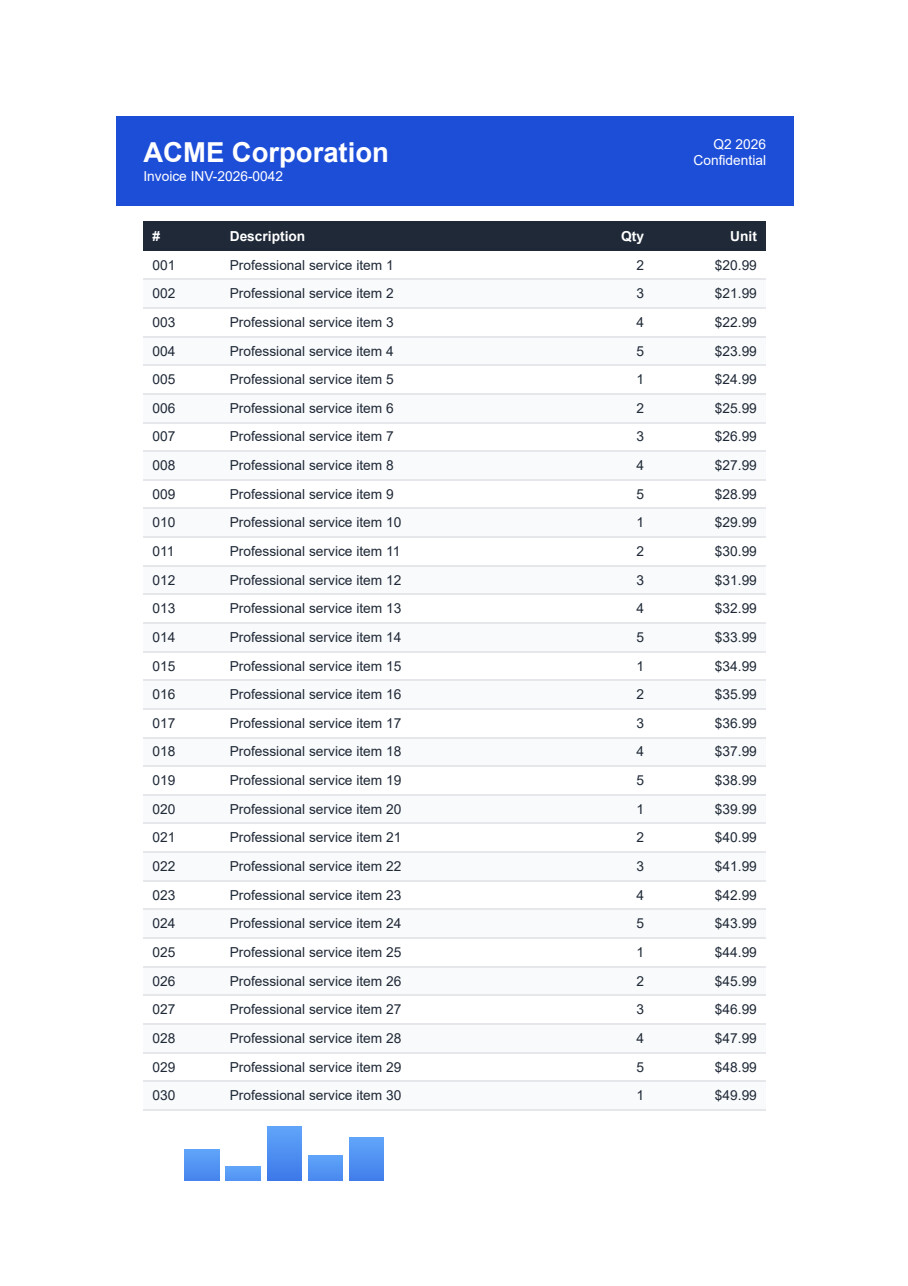
- HTML テンプレートから請求書、レポート、またはドキュメントを生成する
- WebページまたはURLをアーカイブ用にPDFに変換する -カスタム用紙サイズを使用して複雑なレイアウトの PDF を作成する
- 動的なコンテンツとグラフにはJavaScriptのサポートが必要 -デジタル署名またはPDFセキュリティ機能の実装
- 長期保存のためのPDF/A準拠をサポート -透かしや背景の追加
ライブラリは PDF に特化しているため、チームは未使用の機能に対して料金を支払う必要がありません。 マルチフォーマット ソリューションとは異なり、IronPDF のライセンス コストはPDF 生成要件と直接相関します。 チームは、追加のドキュメント セキュリティ ニーズにはIronSecureDoc を使用し、Word ドキュメント処理にはIronWord を使用することもできます。
展開要件は何ですか?
IronPDF は、各環境に固有の考慮事項を備え、複数のプラットフォームにわたる展開をサポートします。 Windows でのデプロイメントは、 .NETランタイム以外の追加の依存関係なしにネイティブに実行されます。Linuxでのデプロイメントには Chrome ブラウザの依存関係が必要ですが、完全なDocker 統合ドキュメントが含まれています。 macOS の展開では、 Intel と Apple Silicon の両方のアーキテクチャがサポートされます。
クラウドの導入は、 AzureおよびAWS Lambdaに関する特定のガイドによって強力にサポートされます。 ライブラリのメモリ管理はクラウド環境向けに最適化されており、標準的な PDF 生成タスクでは通常 150 ~ 300 MB のメモリが使用されます。 コンテナ化されたデプロイメントでは、 IronPDFEngine Docker を使用することで、レンダリングエンジンをリモートサービスとして実行できます。チームは、アーキテクチャ要件に基づいて、ネイティブエンジンとリモートエンジンのデプロイメントを選択できます。
GroupDocsライブラリとは何ですか?
GroupDocs.Editor APIは、開発者が人気のHTMLエディタとシームレスにインターフェースして、さまざまなファイル形式でドキュメントを変換、編集、操作するアプリケーションを作成できるクロスプラットフォーム for .NETライブラリです。 追加機能の詳細については、こちらをご覧ください。
GroupDocsはIronPDFとは根本的に異なるアプローチを提供しており、PDF特有のソリューションというよりは完全なドキュメント処理スイートとして機能します。 プラットフォームには、Microsoft Office、OpenDocument、画像、CADファイルを含む180を超えるドキュメント形式にわたる表示、変換、注釈、および操作用の独立したAPIが含まれています。 IronPDFがHTMLからのPDF変換の卓越性に重点を置く一方で、GroupDocsはドキュメント形式全体にわたる広範囲をカバーしています。
開発チームにとってマルチフォーマットのサポートが重要なのはなぜですか?
多様なドキュメントワークフローを処理するエンジニアリングチームは、特定の専門ライブラリの要件を排除するGroupDocs の幅広い形式サポートの恩恵を受けます。 一般的な企業では、法務部門からの Word 文書、財務部門からの Excel ファイル、さまざまなソースからの PDF を処理します。 形式ごとに個別のライブラリを使用すると、メンテナンスのオーバーヘッドとライセンス コストが増加します。
5 つの異なる形式で毎月 10,000 件のドキュメントを処理する中規模企業を考えてみましょう。 個々のライブラリでは、5 つのベンダー関係、5 つの API セット、および場合によっては 5 つのサポート契約を管理する必要があります。 GroupDocsはこれらを一つのベンダー関係に統合し、管理上の負担を大幅に軽減します。 ただし、 PDF の作成と操作のみに重点を置いているチームにとっては、この統合は不要である可能性があります。
価値は複雑なワークフローの中に生まれます。 PowerPointプレゼンテーションをPDFに変換し、アニメーションを静的画像として保存し、次に注釈を追加するには、代替ソリューションで複数のツールが必要となるでしょう。 GroupDocsは、単一API内でこの全体のワークフローを処理します。 IronPDFユーザーは、画像変換と PDF 固有のワークフローの注釈機能を組み合わせることで、同様の結果を実現できます。
GroupDocsが適切なアーキテクチャ選択となるのはいつか?
アーキテクチャでPDF生成を超えたドキュメント表示機能が必要な場合、GroupDocsは重要になります。 主な指標は次のとおりです。
- プラグインなしでWebアプリケーションで50以上のドキュメント形式を表示
- ファイルタイプ間のドキュメント比較の要件
- コラボレーション機能を必要とする複雑な注釈ワークフロー
- PDF以外の形式間の変換(DOCXからHTML、XLSXから画像)
- CADファイルの表示または変換要件
ビューアコンポーネントは、ユーザーがさまざまなドキュメントタイプをアップロードするSaaSアプリケーションに特に有利です。ユーザーにファイルをアップロードする前に変換を強制するのではなく、GroupDocsにより、ほとんどのビジネスドキュメント形式をネイティブに表示できます。 PDF 固有の表示ニーズに対して、 IronPDF の表示コンポーネントは、 MAUI アプリケーションに重点を置いた代替手段を提供します。
企業での使用におけるライセンスの影響は何ですか?
GroupDocsは、組織が特定のAPIコンポーネント(Viewer, Conversion, Annotation)を購入するモジュール式ライセンスモデルを採用しています。 2026年4月現在、サイト小規模ビジネスライセンス(最大10名の開発者、10か所)は、製品当たり$$5,995です。 ViewerとConversionの両方を要するチームは、製品当たり$$5,995を支払い、永続ライセンスには1年間の更新が含まれています。 フルスイートアクセス($2,999から始まります。
モジュール式のアプローチにより柔軟性が高まります。 チームは必須モジュールから始めて、必要に応じて拡張することができます。 従量制ライセンスは使用量ベースの価格設定を提供し、ドキュメント処理負荷が変動するアプリケーションに役立ちます。
IronPDFのライセンス構造は単純明快で、個々の開発者向けの単一製品ライセンスは$999から始まります。 チーム ライセンスは予測どおりに拡張できるため、PDF 固有のニーズに合わせた予算計画が簡素化されます。 ライセンス キー管理は、 Web.Config統合を含むさまざまな展開シナリオをサポートします。 成長を続けるチームには、ライセンスの拡張とアップグレードにより柔軟なスケーリング オプションが提供されます。
両方のライブラリは PDF 注釈をどのように処理しますか?
GroupDocs.Annotationが共同作業のワークフローにどのように機能するか?
GroupDocs.Annotation for .NETは、C#、ASP.NET、およびその他 for .NET技術を使用して図形の描画、テキストと画像の追加、テキストのハイライトなどのドキュメント注釈機能を実行するアプリケーションを開発者が作成することを可能にします。 注釈は、元のファイル形式で操作および保存できます。
注釈システムは、スレッド化されたコメント、ユーザー権限、バージョン追跡などの機能を使用して共同ワークフローをサポートします。 この機能は、複数の関係者がフィードバックを提供するドキュメントレビュープロセスに適しています。 PDF に同様の機能を必要とするチームは、変更を追跡するためのカスタム ログ機能を備えたIronPDF の注釈機能を実装できます。
using System;
using System.Collections.Generic;
using System.Drawing;
using System.IO;
using GroupDocs.Annotation;
using GroupDocs.Annotation.Models;
using GroupDocs.Annotation.Models.AnnotationModels;

// Initialize list of AnnotationInfo
List<AnnotationInfo> annotations = new List<AnnotationInfo>();

// Initialize text annotation with review context
AnnotationInfo textAnnotation = new AnnotationInfo
{
    Box = new Rectangle((float)265.44, (float)153.86, 206, 36),
    Type = AnnotationType.Text,
    PageNumber = 1,
    AnnotationPosition = new Point(265.44, 153.86),
    FieldText = "Review required by legal team - contract clause 3.2",
    CreatorName = "Jordan Smith",
    CreatedOn = DateTime.Now,
    // Additional collaborative properties
    Replies = new List<AnnotationReplyInfo>()
    {
        new AnnotationReplyInfo
        {
            Message = "Legal review scheduled for next sprint",
            RepliedOn = DateTime.Now.AddHours(2),
            UserName = "Alex Johnson"
        }
    }
};

// Add annotation to list
annotations.Add(textAnnotation);

// Get input file stream
using Stream inputFile = new FileStream("D:/contract_draft.pdf", FileMode.Open, FileAccess.ReadWrite);

// Export annotation and save the output file
CommonUtilities.SaveOutputDocument(inputFile, annotations, DocumentType.Pdf);
using System;
using System.Collections.Generic;
using System.Drawing;
using System.IO;
using GroupDocs.Annotation;
using GroupDocs.Annotation.Models;
using GroupDocs.Annotation.Models.AnnotationModels;
// Initialize list of AnnotationInfo
List<AnnotationInfo> annotations = new List<AnnotationInfo>();
// Initialize text annotation with review context
AnnotationInfo textAnnotation = new AnnotationInfo
{
Box = new Rectangle((float)265.44, (float)153.86, 206, 36),
Type = AnnotationType.Text,
PageNumber = 1,
AnnotationPosition = new Point(265.44, 153.86),
FieldText = "Review required by legal team - contract clause 3.2",
CreatorName = "Jordan Smith",
CreatedOn = DateTime.Now,
// Additional collaborative properties
Replies = new List<AnnotationReplyInfo>()
{
new AnnotationReplyInfo
{
Message = "Legal review scheduled for next sprint",
RepliedOn = DateTime.Now.AddHours(2),
UserName = "Alex Johnson"
}
}
};
// Add annotation to list
annotations.Add(textAnnotation);
// Get input file stream
using Stream inputFile = new FileStream("D:/contract_draft.pdf", FileMode.Open, FileAccess.ReadWrite);
// Export annotation and save the output file
CommonUtilities.SaveOutputDocument(inputFile, annotations, DocumentType.Pdf);Imports System
Imports System.Collections.Generic
Imports System.Drawing
Imports System.IO
Imports GroupDocs.Annotation
Imports GroupDocs.Annotation.Models
Imports GroupDocs.Annotation.Models.AnnotationModels
' Initialize list of AnnotationInfo
Dim annotations As New List(Of AnnotationInfo)()
' Initialize text annotation with review context
Dim textAnnotation As New AnnotationInfo With {
.Box = New Rectangle(265.44F, 153.86F, 206, 36),
.Type = AnnotationType.Text,
.PageNumber = 1,
.AnnotationPosition = New Point(265.44, 153.86),
.FieldText = "Review required by legal team - contract clause 3.2",
.CreatorName = "Jordan Smith",
.CreatedOn = DateTime.Now,
.Replies = New List(Of AnnotationReplyInfo)() From {
New AnnotationReplyInfo With {
.Message = "Legal review scheduled for next sprint",
.RepliedOn = DateTime.Now.AddHours(2),
.UserName = "Alex Johnson"
}
}
}
' Add annotation to list
annotations.Add(textAnnotation)
' Get input file stream
Using inputFile As Stream = New FileStream("D:/contract_draft.pdf", FileMode.Open, FileAccess.ReadWrite)
' Export annotation and save the output file
CommonUtilities.SaveOutputDocument(inputFile, annotations, DocumentType.Pdf)
End UsingIronPDF はプログラムによる注釈をどのように処理しますか?
IronPDFはIronPdf.PdfDocument.AddTextAnnotationなどのメソッドを通じてプログラム的にPDFドキュメント注釈を可能にします。 このライブラリは、共同作業機能ではなくプログラムによる注釈に重点を置いています。 テキスト抽出とコンテンツの置換を必要とするチームのために、 IronPDF は補完的な機能を提供します。
using System;
using IronPdf;
using IronPdf.Annotations;

class Program
{
    static void Main()
    {
        // Load existing PDF for annotation
        PdfDocument pdf = PdfDocument.FromFile("existing.pdf");

        // Create a complete annotation with all properties
        var annotation = new TextAnnotation()
        {
            Title = "Technical Review Required",
            Subject = "Architecture validation needed",
            Contents = "This section requires review from the architecture team to ensure compliance with our microservices patterns. Pay special attention to the API gateway configuration.",
            Icon = TextAnnotation.AnnotationIcon.Help,
            Opacity = 0.9,
            Printable = false,
            Hidden = false,
            OpenByDefault = true,
            ReadOnly = false,
            Rotateable = true,
            // Position annotation precisely
            X = 150,
            Y = 250,
            Width = 200,
            Height = 50,
            // Set annotation color
            ColorString = "#FF6B6B"
        };

        // Add the annotation to page 1
        pdf.AddTextAnnotation(annotation, 1);

        // Add a second annotation for approval workflow
        var approvalAnnotation = new TextAnnotation()
        {
            Title = "Approval Status",
            Contents = "Pending technical lead approval",
            Icon = TextAnnotation.AnnotationIcon.Check,
            X = 450,
            Y = 100,
            ColorString = "#51CF66"
        };

        pdf.AddTextAnnotation(approvalAnnotation, 1);

        // Save with annotations embedded
        pdf.SaveAs("annotated_document.pdf");

        // Optional: Apply compression to reduce file size
        pdf.CompressImages(90);
        pdf.SaveAs("annotated_compressed.pdf");
    }
}
using System;
using IronPdf;
using IronPdf.Annotations;
class Program
{
static void Main()
{
// Load existing PDF for annotation
PdfDocument pdf = PdfDocument.FromFile("existing.pdf");
// Create a complete annotation with all properties
var annotation = new TextAnnotation()
{
Title = "Technical Review Required",
Subject = "Architecture validation needed",
Contents = "This section requires review from the architecture team to ensure compliance with our microservices patterns. Pay special attention to the API gateway configuration.",
Icon = TextAnnotation.AnnotationIcon.Help,
Opacity = 0.9,
Printable = false,
Hidden = false,
OpenByDefault = true,
ReadOnly = false,
Rotateable = true,
// Position annotation precisely
X = 150,
Y = 250,
Width = 200,
Height = 50,
// Set annotation color
ColorString = "#FF6B6B"
};
// Add the annotation to page 1
pdf.AddTextAnnotation(annotation, 1);
// Add a second annotation for approval workflow
var approvalAnnotation = new TextAnnotation()
{
Title = "Approval Status",
Contents = "Pending technical lead approval",
Icon = TextAnnotation.AnnotationIcon.Check,
X = 450,
Y = 100,
ColorString = "#51CF66"
};
pdf.AddTextAnnotation(approvalAnnotation, 1);
// Save with annotations embedded
pdf.SaveAs("annotated_document.pdf");
// Optional: Apply compression to reduce file size
pdf.CompressImages(90);
pdf.SaveAs("annotated_compressed.pdf");
}
}Imports System
Imports IronPdf
Imports IronPdf.Annotations
Class Program
Shared Sub Main()
' Load existing PDF for annotation
Dim pdf As PdfDocument = PdfDocument.FromFile("existing.pdf")
' Create a complete annotation with all properties
Dim annotation As New TextAnnotation() With {
.Title = "Technical Review Required",
.Subject = "Architecture validation needed",
.Contents = "This section requires review from the architecture team to ensure compliance with our microservices patterns. Pay special attention to the API gateway configuration.",
.Icon = TextAnnotation.AnnotationIcon.Help,
.Opacity = 0.9,
.Printable = False,
.Hidden = False,
.OpenByDefault = True,
.ReadOnly = False,
.Rotateable = True,
' Position annotation precisely
.X = 150,
.Y = 250,
.Width = 200,
.Height = 50,
' Set annotation color
.ColorString = "#FF6B6B"
}
' Add the annotation to page 1
pdf.AddTextAnnotation(annotation, 1)
' Add a second annotation for approval workflow
Dim approvalAnnotation As New TextAnnotation() With {
.Title = "Approval Status",
.Contents = "Pending technical lead approval",
.Icon = TextAnnotation.AnnotationIcon.Check,
.X = 450,
.Y = 100,
.ColorString = "#51CF66"
}
pdf.AddTextAnnotation(approvalAnnotation, 1)
' Save with annotations embedded
pdf.SaveAs("annotated_document.pdf")
' Optional: Apply compression to reduce file size
pdf.CompressImages(90)
pdf.SaveAs("annotated_compressed.pdf")
End Sub
End ClassIronPDF の注釈機能には、色の選択、要素のサイズ変更、不透明度の設定、テキスト編集が含まれます。 ライブラリは、ドキュメントのブランド化のためにスタンプや透かしを追加することもサポートしています。 フォームベースの注釈の場合、チームはPDF フォームの作成機能とフォーム編集機能を使用できます。
どの注釈アプローチの方が開発者の時間が少なくて済みますか?
IronPDFの基本的な注釈機能は通常、開発者にとって2~4時間かかります。分かりやすいAPIにより、初心者の開発者でも特別なトレーニングを受けることなく注釈機能を実装できます。 通常、1 人の開発者は 1 回のスプリント内で概念実証の実装を完了します。 クイックスタート ガイドにより初期開発が加速されます。
GroupDocs.Annotationはその完全な機能セットのために追加のセットアップ時間(8〜16時間)が必要です。 ただし、この投資は複雑な注釈ワークフローにメリットをもたらします。 注釈スレッディング、ユーザー権限、および共同レビューを含む機能は、ゼロから開始すると数週間を要しますが、GroupDocsには組み込まれています。 IronPDFユーザーは、注釈と変更履歴の追跡を組み合わせることで同様の結果を得ることができます。
50 人のチーム向けのドキュメントレビュー システムを検討します。 IronPDFを使用して共同作業機能を構築するには、200 時間以上のカスタム開発が必要になります。 GroupDocsはこれらの機能を即時に提供し、ライセンスコストが高いにもかかわらず、共同シナリオに対して費用対効果が高いです。 自動化された注釈ワークフローでは、IronPDF の非同期処理と並列生成によりパフォーマンス上の利点が得られます。
注釈機能はドキュメントのワークフローにどのような影響を与えますか?
IronPDF の注釈は、注釈がプログラムによって追加される自動ドキュメント処理に適しています。 一般的な使用例には次のようなものがあります:
-カスタムスタンプを使用して承認スタンプを追加する
GroupDocsは、対話性を要求する人間中心のワークフローで優れています。
- 複数のレビュー担当者のコメントによる法的文書のレビュー
- 計測注釈付きのエンジニアリング図面マークアップ
- プライバシー制御を備えた医療記録の注釈
- インストラクターからのフィードバック付きの教育コンテンツ
両方のアプローチを必要とするチームの場合、IronPDF の自動化機能とカスタムJavaScriptを組み合わせることで、プログラムによる制御を維持しながらインタラクティブな要素を実現できます。
注釈に関する一般的なトラブルシューティングの問題は何ですか?
どちらのライブラリも同様の注釈付けの課題に直面しています。 カスタム フォントが適切に埋め込まれていない場合、フォント レンダリングの問題が発生します。 IronPDF は、迅速な解決のためにフォントのトラブルシューティング ガイドを提供します。 UTF-8 のサポートにより、注釈での国際文字の表示が保証されます。
どちらのソリューションでも、注釈が大量に付けられたドキュメントにはパフォーマンスの低下が影響します。 100 個を超える注釈を含むドキュメントでは、レンダリングが遅くなる可能性があります。 IronPDFは、注釈の品質を維持しながらファイルサイズを小さくするための圧縮オプションを提供しています。 線形化により、大規模な注釈付きドキュメントの読み込み時間が改善されます。
GroupDocs注釈の競合は同時ユーザー注釈中に発生する可能性があります。 適切なバージョン管理と注釈のマージ戦略を実装すると、データの損失を防ぐことができます。 どちらのライブラリも、長期的な注釈の保存のためにPDF/A 準拠をサポートしています。 アクセシビリティ要件については、 PDF/UA 形式では注釈がスクリーン リーダーでアクセス可能のままになります。
ファイルタイプの変換を比較するとどうなりますか?
ドキュメント処理では、さまざまなファイル形式を PDF に変換する必要があります。 GroupDocsとIronPDFがどのように変換を実施するかを以下に示します。
GroupDocsはマルチフォーマット変換をどのように処理しますか?
GroupDocs Conversion APIは、MS WordやExcelを含むドキュメントタイプをPDFに変換し、生産性スイートを必要としません。 このライブラリは、180を超えるファイル形式に対応しており、多様な変換ニーズに対して完全なソリューションを提供します。 PDF 変換に重点を置くチームの場合、この幅は要件を超える可能性があります。
Convert XLSB to PDF in C
using System;
using GroupDocs.Conversion.Options.Convert;

namespace ConvertXlsbToPdfInCSharp
{
    class Program
    {
        public static void Main(string[] args)
        {
            // Load license
            string licensePath = "GroupDocs.Conversion.lic";
            GroupDocs.Conversion.License lic = new GroupDocs.Conversion.License();
            lic.SetLicense(licensePath);

            // Load source XLSB for conversion
            var converter = new GroupDocs.Conversion.Converter("sample.xlsb");

            // Conversion options with formatting preservation
            var convertOptions = new PdfConvertOptions()
            {
                PageSize = PageSize.A4,
                MarginTop = 10,
                MarginBottom = 10,
                MarginLeft = 10,
                MarginRight = 10,
                PdfOptions = new PdfOptions()
                {
                    OptimizationOptions = new PdfOptimizationOptions()
                    {
                        CompressImages = true,
                        ImageQuality = 75,
                        // Additional optimization settings
                        LinkDuplicateStreams = true,
                        RemoveUnusedObjects = true,
                        RemoveUnusedStreams = true,
                        CompressFonts = true
                    },
                    // Set PDF compliance level
                    PdfFormat = PdfFormats.PdfA_2b
                }
            };

            // Convert XLSB to PDF
            converter.Convert("converted.pdf", convertOptions);
            Console.WriteLine("Conversion complete.");

            // Optional: Add metadata
            var loadOptions = new PdfLoadOptions();
            using (var pdfConverter = new GroupDocs.Conversion.Converter("converted.pdf", () => loadOptions))
            {
                var editOptions = new PdfEditOptions();
                editOptions.DocumentInfo.Title = "Converted Excel Report";
                editOptions.DocumentInfo.Subject = "Financial Data";
                editOptions.DocumentInfo.Keywords = "excel, conversion, finance";
            }
        }
    }
}
using System;
using GroupDocs.Conversion.Options.Convert;
namespace ConvertXlsbToPdfInCSharp
{
class Program
{
public static void Main(string[] args)
{
// Load license
string licensePath = "GroupDocs.Conversion.lic";
GroupDocs.Conversion.License lic = new GroupDocs.Conversion.License();
lic.SetLicense(licensePath);
// Load source XLSB for conversion
var converter = new GroupDocs.Conversion.Converter("sample.xlsb");
// Conversion options with formatting preservation
var convertOptions = new PdfConvertOptions()
{
PageSize = PageSize.A4,
MarginTop = 10,
MarginBottom = 10,
MarginLeft = 10,
MarginRight = 10,
PdfOptions = new PdfOptions()
{
OptimizationOptions = new PdfOptimizationOptions()
{
CompressImages = true,
ImageQuality = 75,
// Additional optimization settings
LinkDuplicateStreams = true,
RemoveUnusedObjects = true,
RemoveUnusedStreams = true,
CompressFonts = true
},
// Set PDF compliance level
PdfFormat = PdfFormats.PdfA_2b
}
};
// Convert XLSB to PDF
converter.Convert("converted.pdf", convertOptions);
Console.WriteLine("Conversion complete.");
// Optional: Add metadata
var loadOptions = new PdfLoadOptions();
using (var pdfConverter = new GroupDocs.Conversion.Converter("converted.pdf", () => loadOptions))
{
var editOptions = new PdfEditOptions();
editOptions.DocumentInfo.Title = "Converted Excel Report";
editOptions.DocumentInfo.Subject = "Financial Data";
editOptions.DocumentInfo.Keywords = "excel, conversion, finance";
}
}
}
}Imports System
Imports GroupDocs.Conversion.Options.Convert
Namespace ConvertXlsbToPdfInCSharp
Class Program
Public Shared Sub Main(ByVal args As String())
' Load license
Dim licensePath As String = "GroupDocs.Conversion.lic"
Dim lic As New GroupDocs.Conversion.License()
lic.SetLicense(licensePath)
' Load source XLSB for conversion
Dim converter = New GroupDocs.Conversion.Converter("sample.xlsb")
' Conversion options with formatting preservation
Dim convertOptions = New PdfConvertOptions() With {
.PageSize = PageSize.A4,
.MarginTop = 10,
.MarginBottom = 10,
.MarginLeft = 10,
.MarginRight = 10,
.PdfOptions = New PdfOptions() With {
.OptimizationOptions = New PdfOptimizationOptions() With {
.CompressImages = True,
.ImageQuality = 75,
' Additional optimization settings
.LinkDuplicateStreams = True,
.RemoveUnusedObjects = True,
.RemoveUnusedStreams = True,
.CompressFonts = True
},
' Set PDF compliance level
.PdfFormat = PdfFormats.PdfA_2b
}
}
' Convert XLSB to PDF
converter.Convert("converted.pdf", convertOptions)
Console.WriteLine("Conversion complete.")
' Optional: Add metadata
Dim loadOptions = New PdfLoadOptions()
Using pdfConverter = New GroupDocs.Conversion.Converter("converted.pdf", Function() loadOptions)
Dim editOptions = New PdfEditOptions()
editOptions.DocumentInfo.Title = "Converted Excel Report"
editOptions.DocumentInfo.Subject = "Financial Data"
editOptions.DocumentInfo.Keywords = "excel, conversion, finance"
End Using
End Sub
End Class
End NamespaceHTMLをPDFに変換
GroupDocsはHTMLドキュメントをPDF形式に変換し、Webコンテンツを印刷可能なアーカイブに変換します。 完全なチュートリアルはここからご覧いただけます。 特殊な HTML 変換のニーズに対して、IronPDF のHTML ファイルから PDF への変換は最適化されたレンダリングを提供します。
using System;
using GroupDocs.Conversion.Options.Convert;

namespace ConvertHtmlToPdfInCSharp
{
    class Program
    {
        public static void Main(string[] args)
        {
            // Use license
            string licensePath = "GroupDocs.Conversion.lic";
            GroupDocs.Conversion.License lic = new GroupDocs.Conversion.License();
            lic.SetLicense(licensePath);

            // Load HTML document with resources
            var converterSettings = new ConverterSettings();
            converterSettings.TempFolder = "C:\\Temp";

            var converter = new GroupDocs.Conversion.Converter("sample.html", () => new HtmlLoadOptions()
            {
                // Configure HTML loading
                BaseUri = "___PROTECTED_URL_166___",
                Encoding = System.Text.Encoding.UTF8
            }, converterSettings);

            // PDF options with web optimization
            var convertOptions = new PdfConvertOptions()
            {
                // Page setup
                PageSize = PageSize.A4,
                PageOrientation = PageOrientation.Portrait,

                // Margins in points
                MarginTop = 72,     // 1 inch
                MarginBottom = 72,
                MarginLeft = 54,    // 0.75 inch
                MarginRight = 54,

                // PDF specific options
                PdfOptions = new PdfOptions()
                {
                    OptimizationOptions = new PdfOptimizationOptions()
                    {
                        LinkDuplicateStreams = true,
                        RemoveUnusedObjects = true,
                        RemoveUnusedStreams = true,
                        CompressImages = true,
                        ImageQuality = 85,
                        ResizeImages = true,
                        MaxResolution = 150
                    },
                    // Enable fast web view
                    Linearize = true
                }
            };

            // Convert HTML to PDF
            converter.Convert("converted.pdf", convertOptions);
            Console.WriteLine("Conversion complete.");
        }
    }
}
using System;
using GroupDocs.Conversion.Options.Convert;
namespace ConvertHtmlToPdfInCSharp
{
class Program
{
public static void Main(string[] args)
{
// Use license
string licensePath = "GroupDocs.Conversion.lic";
GroupDocs.Conversion.License lic = new GroupDocs.Conversion.License();
lic.SetLicense(licensePath);
// Load HTML document with resources
var converterSettings = new ConverterSettings();
converterSettings.TempFolder = "C:\\Temp";
var converter = new GroupDocs.Conversion.Converter("sample.html", () => new HtmlLoadOptions()
{
// Configure HTML loading
BaseUri = "___PROTECTED_URL_166___",
Encoding = System.Text.Encoding.UTF8
}, converterSettings);
// PDF options with web optimization
var convertOptions = new PdfConvertOptions()
{
// Page setup
PageSize = PageSize.A4,
PageOrientation = PageOrientation.Portrait,
// Margins in points
MarginTop = 72, // 1 inch
MarginBottom = 72,
MarginLeft = 54, // 0.75 inch
MarginRight = 54,
// PDF specific options
PdfOptions = new PdfOptions()
{
OptimizationOptions = new PdfOptimizationOptions()
{
LinkDuplicateStreams = true,
RemoveUnusedObjects = true,
RemoveUnusedStreams = true,
CompressImages = true,
ImageQuality = 85,
ResizeImages = true,
MaxResolution = 150
},
// Enable fast web view
Linearize = true
}
};
// Convert HTML to PDF
converter.Convert("converted.pdf", convertOptions);
Console.WriteLine("Conversion complete.");
}
}
}Imports System
Imports GroupDocs.Conversion.Options.Convert
Namespace ConvertHtmlToPdfInCSharp
Class Program
Public Shared Sub Main(ByVal args As String())
' Use license
Dim licensePath As String = "GroupDocs.Conversion.lic"
Dim lic As New GroupDocs.Conversion.License()
lic.SetLicense(licensePath)
' Load HTML document with resources
Dim converterSettings As New ConverterSettings()
converterSettings.TempFolder = "C:\Temp"
Dim converter As New GroupDocs.Conversion.Converter("sample.html", Function() New HtmlLoadOptions() With {
.BaseUri = "___PROTECTED_URL_166___",
.Encoding = System.Text.Encoding.UTF8
}, converterSettings)
' PDF options with web optimization
Dim convertOptions As New PdfConvertOptions() With {
.PageSize = PageSize.A4,
.PageOrientation = PageOrientation.Portrait,
.MarginTop = 72,
.MarginBottom = 72,
.MarginLeft = 54,
.MarginRight = 54,
.PdfOptions = New PdfOptions() With {
.OptimizationOptions = New PdfOptimizationOptions() With {
.LinkDuplicateStreams = True,
.RemoveUnusedObjects = True,
.RemoveUnusedStreams = True,
.CompressImages = True,
.ImageQuality = 85,
.ResizeImages = True,
.MaxResolution = 150
},
.Linearize = True
}
}
' Convert HTML to PDF
converter.Convert("converted.pdf", convertOptions)
Console.WriteLine("Conversion complete.")
End Sub
End Class
End NamespaceIronPDF はWeb から PDF への変換をどのように最適化しますか?
IronPDFはChromiumエンジンを使用して正確なHTMLからPDFへの変換を行い、Webベースのコンテンツに対する高忠実なレンダリング品質を提供します。 ライブラリは、変換中に CSS スタイルとJavaScript機能を維持します。 レスポンシブ CSS 処理により、さまざまなページ サイズにわたって適切なレイアウトが保証されます。
HTMLからPDF
IronPDF は、簡単な実装でHTML コンテンツを直接 PDF に変換します。 ライブラリは、レスポンシブ CSSとカスタム用紙サイズをサポートしています。 高度な機能には、ページ区切りの制御やビューポートの管理が含まれます。
using IronPdf;

// Initialize renderer with custom options
var renderer = new IronPdf.ChromePdfRenderer();

// Configure rendering options for professional output
renderer.RenderingOptions.CssMediaType = PdfCssMediaType.Print;
renderer.RenderingOptions.PrintHtmlBackgrounds = true;
renderer.RenderingOptions.CreatePdfFormsFromHtml = true;
renderer.RenderingOptions.MarginTop = 25;
renderer.RenderingOptions.MarginBottom = 25;
renderer.RenderingOptions.MarginLeft = 20;
renderer.RenderingOptions.MarginRight = 20;

// Enable JavaScript execution for dynamic content
renderer.RenderingOptions.EnableJavaScript = true;
renderer.RenderingOptions.RenderDelay = 500; // milliseconds

// Set custom paper size
renderer.RenderingOptions.PaperSize = PdfPaperSize.A4;
renderer.RenderingOptions.PaperOrientation = PdfPaperOrientation.Portrait;

// Add headers and footers with merge fields
renderer.RenderingOptions.HtmlHeader = new HtmlHeaderFooter()
{
    Height = 20,
    HtmlFragment = @"<div style='text-align: center; font-size: 12px; font-family: Arial;'>
                    <span>Professional Report - Page {page} of {total-pages}</span>
                    </div>",
    DrawDividerLine = true
};

renderer.RenderingOptions.HtmlFooter = new HtmlHeaderFooter()
{
    Height = 25,
    HtmlFragment = @"<div style='font-size: 10px; font-family: Arial;'>
                    <div style='float: left;'>© 2024 Company Name</div>
                    <div style='float: right;'>{date}</div>
                    </div>",
    DrawDividerLine = true
};

// Handle web fonts and external resources
renderer.RenderingOptions.WaitFor.AllFontsLoaded();
renderer.RenderingOptions.WaitFor.NetworkIdle(500);

// Render HTML with embedded styles and scripts
string htmlContent = @"
<!DOCTYPE html>
<html>
<head>
    <style>
        @import url('___PROTECTED_URL_167___
        body { font-family: 'Roboto', sans-serif; line-height: 1.6; }
        .report-header { color: #2c3e50; border-bottom: 2px solid #3498db; }
        .data-table { width: 100%; border-collapse: collapse; }
        .data-table th, .data-table td { border: 1px solid #ddd; padding: 8px; }
    </style>
</head>
<body>
    <h1 class='report-header'>Professional Report</h1>
    <p>Html with CSS, Images, and Web Fonts</p>
    <table class='data-table'>
        <thead>
            <tr><th>Item</th><th>Value</th><th>Status</th></tr>
        </thead>
        <tbody>
            <tr><td>Revenue</td><td>$125,000</td><td>✓ On Track</td></tr>
            <tr><td>Expenses</td><td>$45,000</td><td>✓ Under Budget</td></tr>
        </tbody>
    </table>
</body>
</html>";

using var pdf = renderer.RenderHtmlAsPdf(htmlContent);

// Apply post-processing optimizations
pdf.CompressImages(90);

// Add metadata
pdf.MetaData.Author = "Engineering Team";
pdf.MetaData.Keywords = "report, quarterly, financial";
pdf.MetaData.ModifiedDate = DateTime.Now;

pdf.SaveAs("professional-report.pdf");
using IronPdf;
// Initialize renderer with custom options
var renderer = new IronPdf.ChromePdfRenderer();
// Configure rendering options for professional output
renderer.RenderingOptions.CssMediaType = PdfCssMediaType.Print;
renderer.RenderingOptions.PrintHtmlBackgrounds = true;
renderer.RenderingOptions.CreatePdfFormsFromHtml = true;
renderer.RenderingOptions.MarginTop = 25;
renderer.RenderingOptions.MarginBottom = 25;
renderer.RenderingOptions.MarginLeft = 20;
renderer.RenderingOptions.MarginRight = 20;
// Enable JavaScript execution for dynamic content
renderer.RenderingOptions.EnableJavaScript = true;
renderer.RenderingOptions.RenderDelay = 500; // milliseconds
// Set custom paper size
renderer.RenderingOptions.PaperSize = PdfPaperSize.A4;
renderer.RenderingOptions.PaperOrientation = PdfPaperOrientation.Portrait;
// Add headers and footers with merge fields
renderer.RenderingOptions.HtmlHeader = new HtmlHeaderFooter()
{
Height = 20,
HtmlFragment = @"<div style='text-align: center; font-size: 12px; font-family: Arial;'>
<span>Professional Report - Page {page} of {total-pages}</span>
</div>",
DrawDividerLine = true
};
renderer.RenderingOptions.HtmlFooter = new HtmlHeaderFooter()
{
Height = 25,
HtmlFragment = @"<div style='font-size: 10px; font-family: Arial;'>
<div style='float: left;'>© 2024 Company Name</div>
<div style='float: right;'>{date}</div>
</div>",
DrawDividerLine = true
};
// Handle web fonts and external resources
renderer.RenderingOptions.WaitFor.AllFontsLoaded();
renderer.RenderingOptions.WaitFor.NetworkIdle(500);
// Render HTML with embedded styles and scripts
string htmlContent = @"
<!DOCTYPE html>
<html>
<head>
<style>
@import url('___PROTECTED_URL_167___
body { font-family: 'Roboto', sans-serif; line-height: 1.6; }
.report-header { color: #2c3e50; border-bottom: 2px solid #3498db; }
.data-table { width: 100%; border-collapse: collapse; }
.data-table th, .data-table td { border: 1px solid #ddd; padding: 8px; }
</style>
</head>
<body>
<h1 class='report-header'>Professional Report</h1>
<p>Html with CSS, Images, and Web Fonts</p>
<table class='data-table'>
<thead>
<tr><th>Item</th><th>Value</th><th>Status</th></tr>
</thead>
<tbody>
<tr><td>Revenue</td><td>$125,000</td><td>✓ On Track</td></tr>
<tr><td>Expenses</td><td>$45,000</td><td>✓ Under Budget</td></tr>
</tbody>
</table>
</body>
</html>";
using var pdf = renderer.RenderHtmlAsPdf(htmlContent);
// Apply post-processing optimizations
pdf.CompressImages(90);
// Add metadata
pdf.MetaData.Author = "Engineering Team";
pdf.MetaData.Keywords = "report, quarterly, financial";
pdf.MetaData.ModifiedDate = DateTime.Now;
pdf.SaveAs("professional-report.pdf");Imports IronPdf
' Initialize renderer with custom options
Dim renderer As New IronPdf.ChromePdfRenderer()
' Configure rendering options for professional output
renderer.RenderingOptions.CssMediaType = PdfCssMediaType.Print
renderer.RenderingOptions.PrintHtmlBackgrounds = True
renderer.RenderingOptions.CreatePdfFormsFromHtml = True
renderer.RenderingOptions.MarginTop = 25
renderer.RenderingOptions.MarginBottom = 25
renderer.RenderingOptions.MarginLeft = 20
renderer.RenderingOptions.MarginRight = 20
' Enable JavaScript execution for dynamic content
renderer.RenderingOptions.EnableJavaScript = True
renderer.RenderingOptions.RenderDelay = 500 ' milliseconds
' Set custom paper size
renderer.RenderingOptions.PaperSize = PdfPaperSize.A4
renderer.RenderingOptions.PaperOrientation = PdfPaperOrientation.Portrait
' Add headers and footers with merge fields
renderer.RenderingOptions.HtmlHeader = New HtmlHeaderFooter() With {
.Height = 20,
.HtmlFragment = "<div style='text-align: center; font-size: 12px; font-family: Arial;'>" &
"<span>Professional Report - Page {page} of {total-pages}</span>" &
"</div>",
.DrawDividerLine = True
}
renderer.RenderingOptions.HtmlFooter = New HtmlHeaderFooter() With {
.Height = 25,
.HtmlFragment = "<div style='font-size: 10px; font-family: Arial;'>" &
"<div style='float: left;'>© 2024 Company Name</div>" &
"<div style='float: right;'>{date}</div>" &
"</div>",
.DrawDividerLine = True
}
' Handle web fonts and external resources
renderer.RenderingOptions.WaitFor.AllFontsLoaded()
renderer.RenderingOptions.WaitFor.NetworkIdle(500)
' Render HTML with embedded styles and scripts
Dim htmlContent As String = "
<!DOCTYPE html>
<html>
<head>
<style>
@import url('___PROTECTED_URL_167___
body { font-family: 'Roboto', sans-serif; line-height: 1.6; }
.report-header { color: #2c3e50; border-bottom: 2px solid #3498db; }
.data-table { width: 100%; border-collapse: collapse; }
.data-table th, .data-table td { border: 1px solid #ddd; padding: 8px; }
</style>
</head>
<body>
<h1 class='report-header'>Professional Report</h1>
<p>Html with CSS, Images, and Web Fonts</p>
<table class='data-table'>
<thead>
<tr><th>Item</th><th>Value</th><th>Status</th></tr>
</thead>
<tbody>
<tr><td>Revenue</td><td>$125,000</td><td>✓ On Track</td></tr>
<tr><td>Expenses</td><td>$45,000</td><td>✓ Under Budget</td></tr>
</tbody>
</table>
</body>
</html>"
Using pdf = renderer.RenderHtmlAsPdf(htmlContent)
' Apply post-processing optimizations
pdf.CompressImages(90)
' Add metadata
pdf.MetaData.Author = "Engineering Team"
pdf.MetaData.Keywords = "report, quarterly, financial"
pdf.MetaData.ModifiedDate = DateTime.Now
pdf.SaveAs("professional-report.pdf")
End Using追加の変換機能については、 HTML から PDF へのコンバーターに関するIronPDF のドキュメントで詳しく説明されています。 チームは、バンドルされたコンテンツにHTML ZIP ファイル変換を使用し、アセットの読み込みにベース URL 構成を使用することもできます。
URLからPDFへ
IronPDFのカスタムブラウザエンジンを使えば、Web URLをPDF形式に変換するのは簡単です。ライブラリはJavaScriptレンダリングと動的コンテンツのカスタム遅延を処理します。 Cookie 管理とHTTP ヘッダーにより、認証されたページのキャプチャが可能になります。
using IronPdf;

// Create renderer with advanced options
IronPdf.ChromePdfRenderer renderer = new IronPdf.ChromePdfRenderer();

// Configure for improve web page capture
renderer.RenderingOptions.ViewPortWidth = 1920;
renderer.RenderingOptions.ViewPortHeight = 1080;
renderer.RenderingOptions.EnableJavaScript = true;
renderer.RenderingOptions.RenderDelay = 500; // Wait for dynamic content

// Set user agent for responsive design
renderer.RenderingOptions.UserAgent = "Mozilla/5.0 (Windows NT 10.0; Win64; x64) IronPDF";

// Handle authentication if needed
renderer.RenderingOptions.HttpLoginCredentials = new IronPdf.ChromeHttpLoginCredentials()
{
    NetworkUsername = "user",
    NetworkPassword = "pass"
};

// Add custom HTTP headers
renderer.RenderingOptions.HttpRequestHeaders.Add("Authorization", "Bearer token123");
renderer.RenderingOptions.HttpRequestHeaders.Add("X-Custom-Header", "CustomValue");

// Enable cookies for session handling
renderer.RenderingOptions.EnableCookies = true;
renderer.RenderingOptions.CustomCookies = new Dictionary<string, string>()
{
    {"SessionId", "ABC123"},
    {"UserPref", "PrintLayout"}
};

// Advanced wait conditions
renderer.RenderingOptions.WaitFor.JavaScript(1000);
renderer.RenderingOptions.WaitFor.HtmlElement("div.dynamic-content");
renderer.RenderingOptions.WaitFor.AllFontsLoaded();

// Render with error handling
try
{
    using var pdf = renderer.RenderUrlAsPdf("___PROTECTED_URL_58___");

    // Apply post-processing
    pdf.CompressImages(90);

    // Add security
    pdf.Password = "secure123";
    pdf.OwnerPassword = "owner123";
    pdf.PermissionsFlags = PdfSecurityPermissions.NoPrint |
                          PdfSecurityPermissions.NoModification;

    pdf.SaveAs("optimized-webpage.pdf");
}
catch (Exception ex)
{
    Console.WriteLine($"Conversion failed: {ex.Message}");
    // Log error for debugging
}
using IronPdf;
// Create renderer with advanced options
IronPdf.ChromePdfRenderer renderer = new IronPdf.ChromePdfRenderer();
// Configure for improve web page capture
renderer.RenderingOptions.ViewPortWidth = 1920;
renderer.RenderingOptions.ViewPortHeight = 1080;
renderer.RenderingOptions.EnableJavaScript = true;
renderer.RenderingOptions.RenderDelay = 500; // Wait for dynamic content
// Set user agent for responsive design
renderer.RenderingOptions.UserAgent = "Mozilla/5.0 (Windows NT 10.0; Win64; x64) IronPDF";
// Handle authentication if needed
renderer.RenderingOptions.HttpLoginCredentials = new IronPdf.ChromeHttpLoginCredentials()
{
NetworkUsername = "user",
NetworkPassword = "pass"
};
// Add custom HTTP headers
renderer.RenderingOptions.HttpRequestHeaders.Add("Authorization", "Bearer token123");
renderer.RenderingOptions.HttpRequestHeaders.Add("X-Custom-Header", "CustomValue");
// Enable cookies for session handling
renderer.RenderingOptions.EnableCookies = true;
renderer.RenderingOptions.CustomCookies = new Dictionary<string, string>()
{
{"SessionId", "ABC123"},
{"UserPref", "PrintLayout"}
};
// Advanced wait conditions
renderer.RenderingOptions.WaitFor.JavaScript(1000);
renderer.RenderingOptions.WaitFor.HtmlElement("div.dynamic-content");
renderer.RenderingOptions.WaitFor.AllFontsLoaded();
// Render with error handling
try
{
using var pdf = renderer.RenderUrlAsPdf("___PROTECTED_URL_58___");
// Apply post-processing
pdf.CompressImages(90);
// Add security
pdf.Password = "secure123";
pdf.OwnerPassword = "owner123";
pdf.PermissionsFlags = PdfSecurityPermissions.NoPrint |
PdfSecurityPermissions.NoModification;
pdf.SaveAs("optimized-webpage.pdf");
}
catch (Exception ex)
{
Console.WriteLine($"Conversion failed: {ex.Message}");
// Log error for debugging
}Imports IronPdf
' Create renderer with advanced options
Dim renderer As New IronPdf.ChromePdfRenderer()
' Configure for improved web page capture
renderer.RenderingOptions.ViewPortWidth = 1920
renderer.RenderingOptions.ViewPortHeight = 1080
renderer.RenderingOptions.EnableJavaScript = True
renderer.RenderingOptions.RenderDelay = 500 ' Wait for dynamic content
' Set user agent for responsive design
renderer.RenderingOptions.UserAgent = "Mozilla/5.0 (Windows NT 10.0; Win64; x64) IronPDF"
' Handle authentication if needed
renderer.RenderingOptions.HttpLoginCredentials = New IronPdf.ChromeHttpLoginCredentials() With {
.NetworkUsername = "user",
.NetworkPassword = "pass"
}
' Add custom HTTP headers
renderer.RenderingOptions.HttpRequestHeaders.Add("Authorization", "Bearer token123")
renderer.RenderingOptions.HttpRequestHeaders.Add("X-Custom-Header", "CustomValue")
' Enable cookies for session handling
renderer.RenderingOptions.EnableCookies = True
renderer.RenderingOptions.CustomCookies = New Dictionary(Of String, String) From {
{"SessionId", "ABC123"},
{"UserPref", "PrintLayout"}
}
' Advanced wait conditions
renderer.RenderingOptions.WaitFor.JavaScript(1000)
renderer.RenderingOptions.WaitFor.HtmlElement("div.dynamic-content")
renderer.RenderingOptions.WaitFor.AllFontsLoaded()
' Render with error handling
Try
Using pdf = renderer.RenderUrlAsPdf("___PROTECTED_URL_58___")
' Apply post-processing
pdf.CompressImages(90)
' Add security
pdf.Password = "secure123"
pdf.OwnerPassword = "owner123"
pdf.PermissionsFlags = PdfSecurityPermissions.NoPrint Or PdfSecurityPermissions.NoModification
pdf.SaveAs("optimized-webpage.pdf")
End Using
Catch ex As Exception
Console.WriteLine($"Conversion failed: {ex.Message}")
' Log error for debugging
End TryIronPDFを使用した URL から PDF への変換に関する追加情報は、公式 API ガイドで入手できます。 複雑なシナリオの場合、チームはカスタム ログ記録とパフォーマンス監視を実装できます。
エンタープライズ ワークロードに適した変換アプローチはどれですか?
IronPDF の変換アーキテクチャは、大量の PDF 生成に効率的に拡張できます。 ライブラリは非同期操作とマルチスレッドをサポートしており、変換要求の並列処理を可能にします。 チームは適切なリソース割り当てにより、毎日 10,000 件以上の PDF を正常に処理します。 並列 PDF 生成の例は、処理パターンを示しています。
HTML から PDF への変換では、環境間での IronPDF の Chrome エンジンの一貫性の恩恵を受けます。 Docker デプロイメントにより、コンテナ化された環境での水平スケーリングが可能になり、ドキュメントの複雑さに応じて各コンテナが 50 ~ 100 件の同時変換を処理できるようになります。 AWS Lambda デプロイメントは、サーバーレス スケーリング パターンをサポートします。
GroupDocsは多様な形式変換に効果的にスケールしますが、その普遍的なドキュメントモデルのために変換ごとに追加のメモリが必要です。 複雑な Office ドキュメントの場合、変換ワーカーごとに 500 MB ~ 1 GB の RAM が必要になります。 このライブラリの強みは、Word、Excel、PowerPoint、および他の多くの形式を単一のAPIでバッチ変換することにあります。 IronPDF のメモリ最適化は、特に PDF 生成の効率に重点を置いています。
フォーマットの制限がボトルネックになるのはどのような場合ですか?
IronPDF はHTML 、画像、既存の PDF に重点を置いていますが、チームがネイティブの Office 形式の処理を必要とする場合には制限が生じます。 IronPDFはDOCXファイルを変換することができますが、GroupDocsに比べてフォーマットの保持が限られています。 チームは、テキストベースの形式でRTF を PDF に、 Markdown を PDF に変換することもできます。
GroupDocsの幅広いフォーマットサポートは複雑性のボトルネックを生む可能性があります。 180以上のフォーマットをサポートすることは、より大きな展開サイズ(IronPDFの150MBに対して500MB以上)およびより長い初期化時間をもたらします。 PDF 生成のみを必要とするチームでは、このオーバーヘッドにより効率が低下します。 IronPDF のスリム デプロイメントオプションにより、制約のある環境のパッケージ サイズがさらに削減されます。
金融サービス チームが HTML テンプレートから毎月 50,000 件の請求書を作成しているとします。 IronPDFの特化したHTMLからPDFへのアプローチは、このワークロードに最適化されており、GroupDocsの普遍的なドキュメントモデルは非HTML形式に対するオーバーヘッドを引き起こします。 ただし、同じチームがさまざまな形式のメール添付ファイルをアーカイブする必要がある場合、GroupDocsの普遍的な変換により、複数のライブラリの要件が排除されます。 画像の多いワークフローでは、IronPDF のTIFF から PDF への変換およびラスタライズ機能により、最適化された処理が提供されます。
コンバージョン品質メトリックはどのように比較しますか?
IronPDFのChromeベースのレンダリングは、Webコンテンツの変換に対する高い忠実度を提供します。 エンジンは以下を適切に処理します:
-フレックスボックスやグリッドを含む複雑なCSSレイアウト
- 適切に埋め込まれたWebフォントとアイコン
- ベクター保存型SVGグラフィック -チャートを含むJavaScript生成コンテンツ
- GPUアクセラレーションによるWebGL 3Dコンテンツ -国際言語と右から左へのテキスト
GroupDocsはOffice文書のフォーマットを維持できますが、Webコンテンツの複雑なシナリオでは困難に直面することがあります。 HTML 変換ではIronPDFとは異なるエンジンが使用されるため、最新の CSS と一致しない結果が生成されることがあります。 しかし、GroupDocs は、変更履歴、コメント、埋め込みオブジェクトを含めたOfficeドキュメントの機能の保存において優れています。 ピクセルパーフェクトな要件の場合、 IronPDF のレンダリング オプションによりきめ細かな制御が可能になります。
特定の形式の変換については、 IronPDF は、XSLT サポート付きのXML から PDF への変換などの特殊なハンドラーを提供します。
どのソリューションがチームの要件に適合しますか?
IronPDF と GroupDocs は、PDFドキュメント処理において独自の利点を提供します。 IronPDF は、最小限のセットアップと効果的な HTML レンダリングにより、シンプルさと実装の容易さに優れています。 PDFを超えた幅広いドキュメントタイプに対応するGroupDocs は、多様な変換ニーズに価値があります。 IronPDF のライセンスは、 IronPDF の価格設定ページで利用可能なオプションによって透明性が保たれ、さまざまなプロジェクト サイズと要件に応じた選択肢が提供されます。
基本的な選択は、ドキュメント処理の範囲によって異なります。 IronPDF は、主に Web コンテンツからの PDF 生成に取り組んでいるチームに、集中的かつ効率的なソリューションを提供します。 わかりやすい APIと充実したドキュメントにより、実装時間が短縮され、プロフェッショナルな結果が得られます。 ライブデモでは実際の機能を紹介しています。
GroupDocs は、複数形式にわたる完全なドキュメント処理を必要とするチームに役立ちます。 ワークフローにさまざまなファイル タイプが関係する場合や、ドキュメントの比較や共同注釈などの高度な機能が必要な場合、複雑さとコストが増しても正当化されます。 特殊なニーズについては、 QuestPDF の比較とApryse の代替品が追加のコンテキストを提供します。
PDF 署名とドキュメント処理機能の需要が高まるにつれて、これらのライブラリの強みを理解することで、開発者は適切なツールを選択できるようになります。 Iron Software の継続的なイノベーションと機能に関する追加情報については、こちらをご覧ください。 チームは完全なチュートリアルと例を使用して迅速な開発を行うことができます。
チーム全体のコストへの影響はどの程度でしょうか?
通常の10人の開発者チームの場合、コストは次のように分解されます(2026年4月現在):
IronPDF:
- プロフェッショナルライセンス(最大10人の開発者):$2,399
- エンタープライズサポート:追加オプションとして利用可能
- ご覧ください IronPDFの価格情報ページで現在の料金を確認してください
GroupDocs(ビューイング+変換):
- ビューアAPI — 小規模ビジネスサイト(10人の開発者):$5,995(永続的 + 1年間の更新)
- 変換API — 小規模ビジネスサイト(10人の開発者):$5,995(永続的 + 1年間の更新)
- 現在の料金については、GroupDocsの価格情報を確認してください
PDF専用ワークフローにおいて、費用の差異が大きく見えます。 複数形式のサポートが必要なチームは、複数の専門ライブラリを維持するよりも、GroupDocs の統合APIが費用対効果に優れているかもしれません。 複雑なドキュメントワークフローにおいてGroupDocs は費用対効果が十分です。 IronPDFユーザーは、追加の言語サポートとしてF# 開発とVB .NET統合を検討できます。
PDF専用の要件に対して、IronPDFの特化したライセンスは低い導入コストを提供します。ライセンスアップグレードは、チームの成長に応じて柔軟性を提供します。
サポート SLA は実稼働環境ではどのように比較されますか?
IronPDF は、 24 時間 365 日のテクニカル サポートを提供しており、応答時間は次のとおりです。
- 重大な問題: 4~8時間
- 重大な問題:1営業日
- 軽微な問題: 2~3営業日
サポート チームには、コードをレビューし、実装ガイダンスを提供するエンジニアが含まれます。 詳細なトラブルシューティングガイドは、一般的なシナリオに対応します。 具体的なガイドでは、Azure の展開、 AWS の問題、 IIS の構成について説明しています。
GroupDocs は、階層化されたサポートを提供します。
- コミュニティ: フォーラムベース、2~5日以内の対応
- 有料優先:24~48時間以内に対応
- エンタープライズ: 重大な問題に対して4時間以内に対応
どちらのベンダーも、エンタープライズ顧客向けに導入支援とアーキテクチャレビューを提供しています。 IronPDFの特化した製品ラインは、サポートエンジニアにより深い製品の専門知識を提供します。製品固有の問題に対して、GroupDocs の広範なポートフォリオは解決時間を長引かせることがあります。 エンジニアリング サポート リクエストは、効率的な解決のために構造化されたプロセスに従います。
長期的な安定性に優れたベンダーはどれですか?
2016 年に設立されたIronPDF は、一貫したアップデートにより、重点的な製品戦略を維持しています。 製品の変更ログには、顧客のニーズに対応する月次リリースとプラットフォームの更新が表示されます。 同社は PDF 技術に焦点を絞ることで、製品が放棄されるリスクを軽減しています。 セキュリティ対策により、エンタープライズ レベルの信頼性が保証されます。
最近のマイルストーンの更新は次のとおりです:
- 最新のウェブ標準に対応したChrome レンダリング エンジンのアップグレード
- ディストリビューション間のLinux 互換性を向上
- ZUGFeRDサポートによるPDF/A-3準拠
- PDFium DOM統合により解析性能が向上 -安定性とパフォーマンスの最適化
2007年以来の運営を誇るGroupDocs は、複雑な製品ポートフォリオを管理する中での持続性を示しています。 範囲が広くなると、個々の製品の更新頻度が低くなる可能性があります。 しかし、確立された市場プレゼンスと多様な収益源により、財務の安定性が確保されます。 チームは、セキュリティ要件に合わせてPDF バージョンのサポートとサニタイズ機能を確認できます。
両ベンダーとも、企業顧客向けにソースコードエスクローオプションを提供しており、ベンダーの障害から顧客を保護します。 IronPDF のよりシンプルなコードベースにより、必要に応じてチームがメンテナンスしやすくなります。 GroupDocs の複雑さは、メンテナンスに専用のリソースを必要とするかもしれません。 クロスプラットフォームのニーズに対応するため、 IronPDF はAndroid 展開とmacOS 開発をサポートしています。
@
GroupDocs は各所有者の登録商標です。 このサイトはGroupDocs と提携しておらず、承認されておらず、スポンサー提供されてもいません。 すべての製品名、ロゴ、およびブランドは各所有者の所有物です。 比較は情報提供のみを目的としており、執筆時点で公開されている情報を反映しています。よくある質問
どのようにして.NETライブラリを使用してHTMLをPDFに変換できますか?
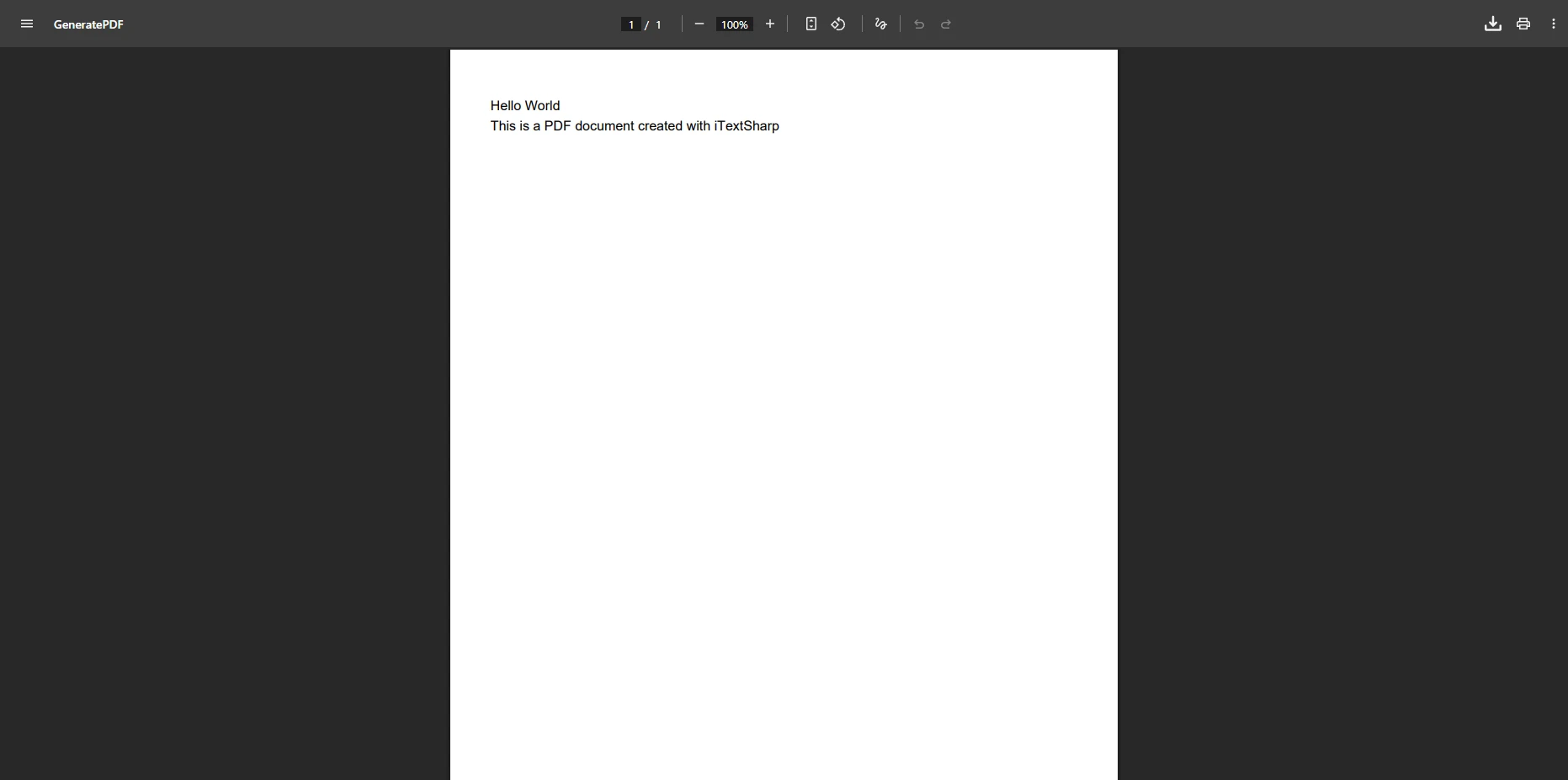
IronPDF の RenderHtmlAsPdf メソッドを使用して、HTML 文字列を PDF に変換できます。HTML ファイルを変換するには、RenderHtmlFileAsPdf メソッドが利用可能です。
IronPDF は PDF 注釈にどのような機能を提供していますか?
IronPDF は強力な注釈機能を提供しており、テキスト注釈の追加、色のカスタマイズ、要素のサイズ変更、透明度の設定、プログラムによる PDF 内のテキスト編集を可能にします。
.NET ライブラリのうち、より広範なドキュメント形式での変換をサポートしているのはどれですか?
GroupDocs はより広範なドキュメント形式をサポートしており、MS Word、Excel などのファイルを PDF に変換できるため、多様なドキュメント変換ニーズに最適です。
IronPDF はウェブ URL の PDF 変換をどのように処理しますか?
IronPDF は独自のブラウザエンジンを使用してウェブ URL 全体を PDF 形式に変換できるため、オンライン コンテンツから PDF を生成するプロセスを簡素化します。
PDF ドキュメント自動化に IronPDF を使用する利点は何ですか?
IronPDF は、最小限のセットアップでのシンプルさと使いやすさ、効果的な HTML レンダリング、強力な注釈機能を提供し、ウェブ アプリケーションおよび MVC パターン化されたウェブサイトに適しています。
GroupDocs を使用してドキュメントに注釈を追加するにはどうすればよいですか?
GroupDocs は、図形、テキスト、画像を含むさまざまな注釈をドキュメントに追加できるようにし、複数フォーマットにわたるドキュメント操作のための包括的なツールを提供します。
PDF ライブラリを選ぶ際に開発者は何を考慮すべきですか?
開発者は独自のプロジェクト要件を評価し、IronPDF および GroupDocs のようなライブラリの強みを比較して、最もニーズに合ったものを選ぶべきです。
IronPDF はウェブ アプリケーション内での安全なドキュメント作成に使用できますか?
はい、IronPDF はウェブ アプリケーション内で安全な PDF ドキュメントを生成するのに適しており、HTML、CSS、JavaScript を正確にレンダリングする機能を活用します。







 無料で始めましょう
 無料で始めましょう
 無料ライブデモを予約
















