using IronPdf;

// Disable local disk access or cross-origin requests
Installation.EnableWebSecurity = true;

// Instantiate Renderer
var renderer = new ChromePdfRenderer();

// Create a PDF from a HTML string using C#
var pdf = renderer.RenderHtmlAsPdf("<h1>Hello World</h1>");

// Export to a file or Stream
pdf.SaveAs("output.pdf");

// Advanced Example with HTML Assets
// Load external html assets: Images, CSS and JavaScript.
// An optional BasePath 'C:\site\assets\' is set as the file location to load assets from
var myAdvancedPdf = renderer.RenderHtmlAsPdf("<img src='icons/iron.png'>", @"C:\site\assets\");
myAdvancedPdf.SaveAs("html-with-assets.pdf");
using IronPdf;// Disable local disk access or cross-origin requestsInstallation.EnableWebSecurity = true;// Instantiate Renderervar renderer = new ChromePdfRenderer();// Create a PDF from a HTML string using C#var pdf = renderer.RenderHtmlAsPdf("<h1>Hello World</h1>");// Export to a file or Streampdf.SaveAs("output.pdf");// Advanced Example with HTML Assets// Load external html assets: Images, CSS and JavaScript.// An optional BasePath 'C:\site\assets\' is set as the file location to load assets fromvar myAdvancedPdf = renderer.RenderHtmlAsPdf("<img src='icons/iron.png'>", @"C:\site\assets\");myAdvancedPdf.SaveAs("html-with-assets.pdf");
PM >Install-Package IronPdf
Install-Package IronPdf
PDF TOOLS
How to Separate Pages in PDF: 5 Simple Methods for Any Device
Separating the pages of a pdf file is faster than most people expect, and you can do it on almost any device without installing heavy software. Whether you want to pull out a single page, save a chapter, or break one long report into several smaller documents, the goal is the same: turn one pdf document into the exact pages you need. The quickest route for most people is a free pdf online splitter, where you upload your file, choose the specific pages or ranges you want, and download the results in seconds.
If you prefer to stay offline, your computer already has a built-in option. Both Windows and mac machines can split a pdf using the Print to PDF feature inside a browser like Microsoft Edge or Chrome, and dedicated editors give you even more control over how the pages are divided. Each approach has a place depending on how many multiple files you need to create and how much you want to customize the output options.
This guide walks through five reliable ways to separate pdf pages: free online tools, the browser Print to PDF trick, Adobe Acrobat, manual thumbnail selection, and a programmatic method for developers. Tools for splitting PDFs include dedicated editors, free online tools, and browser print functions, so there is a fit for every situation. For teams who need to split pdfs automatically inside their own applications, we also cover [IronPDF](/), a .NET library that handles the same work in code.
## Method 1: Use a Free PDF Splitter Online
The easiest way to separate pdf files is with a free web tool. These online tools run inside your browser, so there is nothing to download and nothing to set up on your desktop. You can split pdf files in a few clicks: simply navigate to the site, drop files into the upload area, and let the tool process the document for you.
Most splitters follow the same flow. Drag your pdf file onto the page, or click the upload button to browse for it. Once the file appears, you decide how to divide it. Many splitters let you split pdf pages by page range, by every single page, or by a fixed interval. After you choose, you click split, and the tool prepares your multiple pdfs for download. Some services let you save everything into one folder as a zip so you do not have to grab each file one at a time. This way of dividing a long file is popular because it needs no software at all.
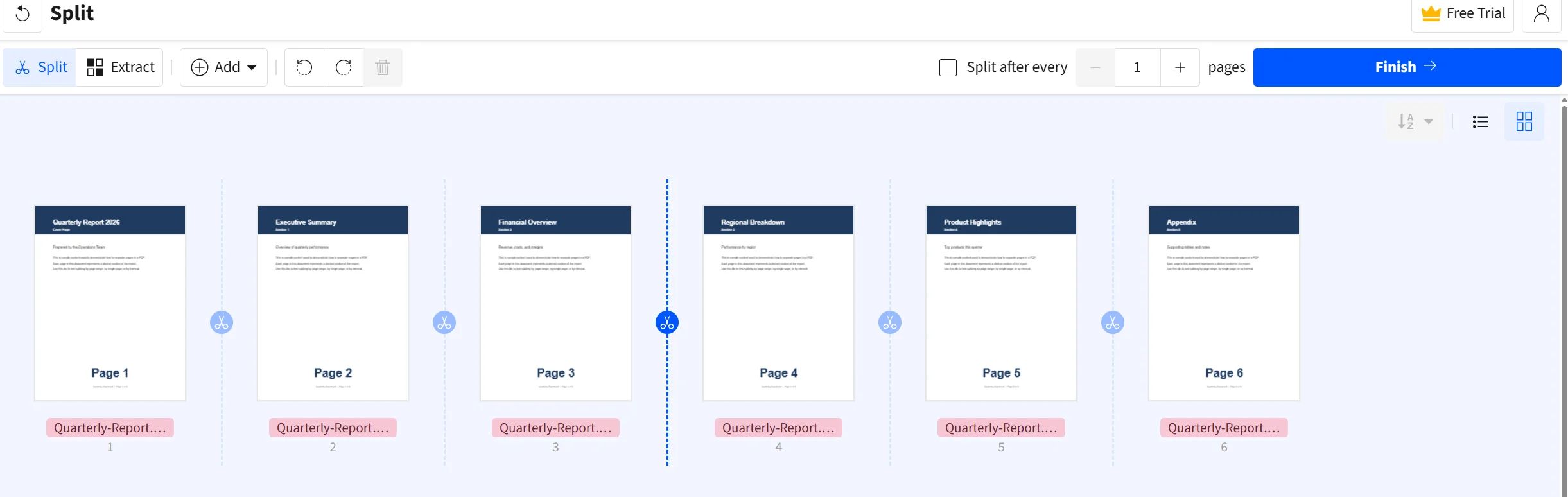
A useful detail to know: many PDF splitters allow users to create multiple separate files from a single pdf document, with some tools enabling the creation of up to 20 split files at once. That makes online splitters a strong choice when you need to break a long manual or contract into clearly labelled ranges.
> Look for a splitter that lets you split PDFs without any payment or sign ups. Many PDF splitters require subscriptions or fees based on usage, but some tools allow users to split PDFs without any payment or sign-ups, which is ideal for a quick one-off job.
## Method 2: Split a PDF With Print to PDF in Your Browser
If you would rather not upload anything, the Print to PDF function is built into Windows and mac, and it works straight from your browser. This method is handy when you only need a few selected pages and want to avoid online tools entirely.
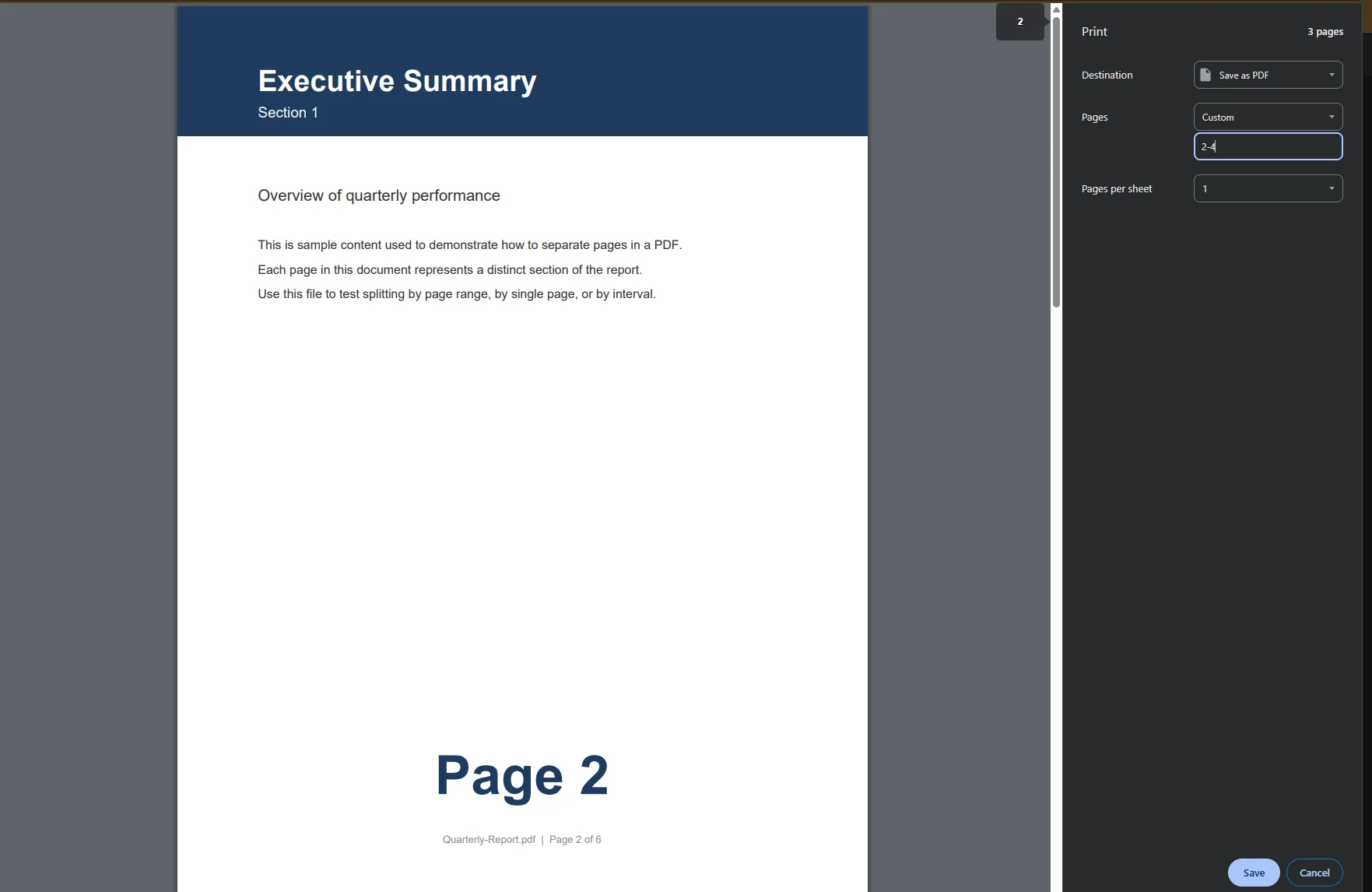
Open your pdf document in Microsoft Edge or Chrome. Press the print shortcut or open the print menu, then change the printer to Microsoft Print to PDF on Windows or Save as PDF on a mac. In the Pages field, type the page numbers or ranges you want, such as 1 to 3, then save the result. The Print to PDF function allows users to save a subset of a pdf document by selecting specific pages, so you end up with a clean new file containing only what you chose.
This trick is one of the simplest ways to convert a long file into a shorter one. Users can open PDFs in browsers like Microsoft Edge or Chrome and use the print function to save individual pages or small groups of them without any extra software. The same steps work on both windows and mac, which makes it a reliable fallback when you are on a machine without a dedicated editor installed.
One thing to keep in mind: the browser route is best for pulling out one set of selected pages at a time. If you need to break a report into many multiple files at once, an online splitter or a desktop editor will be faster, since you only run the process once instead of repeating the print step for every section.
## Method 3: Separate Pages in Adobe Acrobat
For people who already own adobe software, Adobe Acrobat offers a dedicated Split tool with more output options than the browser approach. This is a solid pick when you regularly work with large pdfs and want repeatable instructions for your posts and reports.
Open the pdf file in adobe acrobat, then choose the Organize Pages tool and select Split. From there you can divide the document in several ways. PDF documents can be split by number of pages, page range, top-level bookmarks, or file size. If you set the split by file size, Acrobat breaks the file into chunks small enough to share by email, which helps when large files are too big to send.
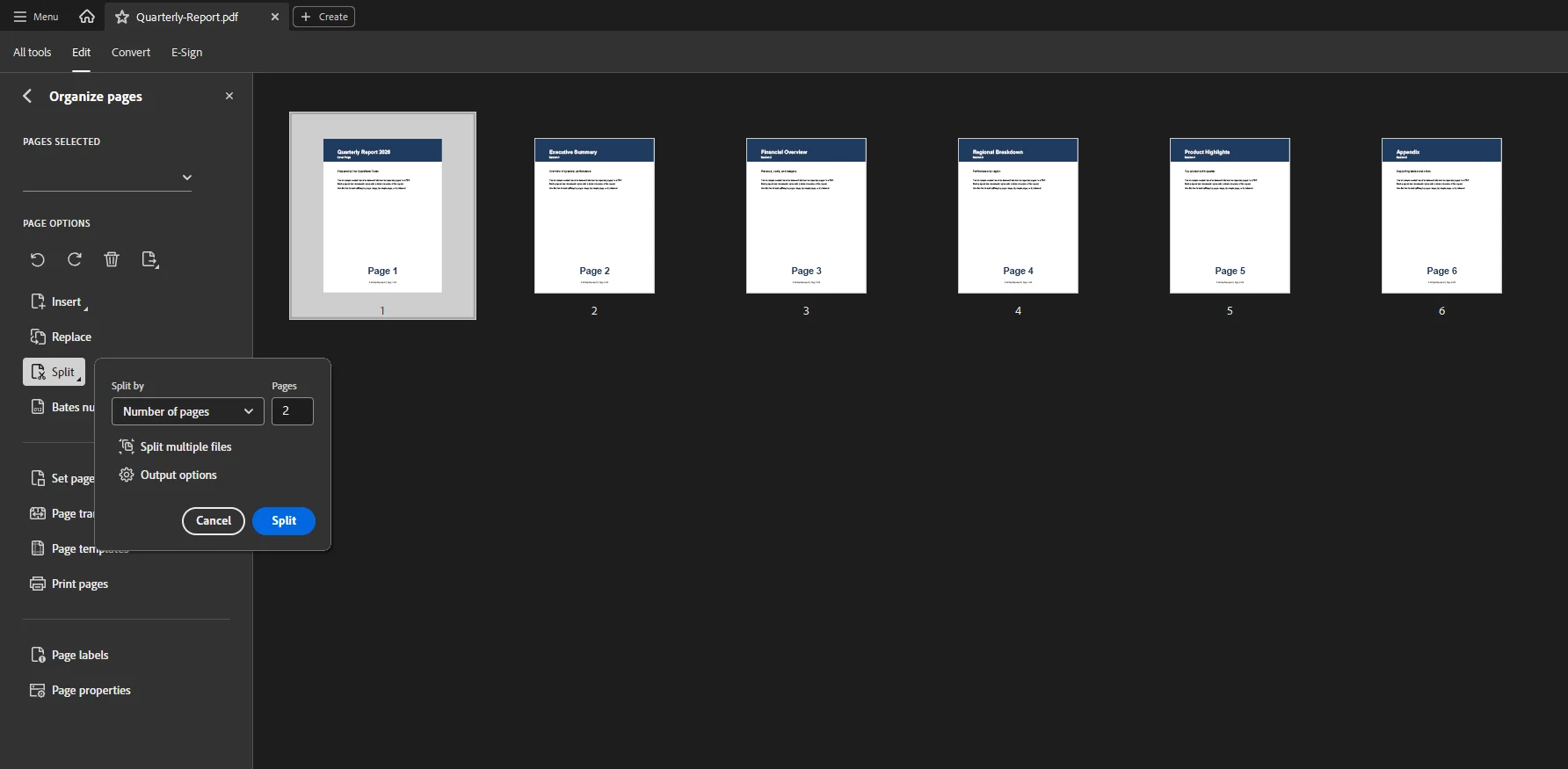
Acrobat also lets you choose where your new files land. After splitting a PDF, the newly created files are typically saved in the same location as the original document, making it easy to locate them after the process is complete. You can also point the output options at a different folder if you want to keep your originals separate. This level of control is why many professionals reach for adobe when they handle sensitive contracts or long manuals every day, since the instructions stay the same from one file to the next.
> Separating PDF pages can be done by splitting by specific page ranges, separating every single page, splitting at top-level bookmarks, or setting a page count interval such as creating a new file every 2 pages.
## Method 4: Manually Separate Pages Using Thumbnails
Sometimes you do not want fixed ranges; you want to hand-pick exact pdf pages. Most modern editors show a scissor tool icon or a page thumbnail panel that lets you do this by eye. Users can manually separate pages using thumbnails or set specific intervals to split a pdf into multiple parts, depending on the tool used.
To work this way, open the thumbnail view, then click the scissor tool icon between two pages to mark a split point, or drag pages out into their own group. This visual approach is great for messy scans where the data does not follow a neat pattern, because you can see each page before you decide. You stay in full control of which individual pages go into each separate pdf.
When you need the opposite of splitting, the same editors usually let you merge files back together or delete pages you no longer want. Removing a page can shrink the overall file size before you even split the rest, and you can edit the order at the same time.
## Method 5: A Note on Mobile and Tablet Users
Splitting is not limited to a laptop or desktop. PDF splitting tools can be accessed from various devices, including desktops, laptops, and mobile phones, making it convenient for users to split PDFs on the go. If you are away from your computer, you can still separate files from an ipad or iphone using the same pdf online services or a mobile app.
The mobile flow mirrors the desktop one. You upload or share the pdf into multiple pieces, pick your ranges, and the app saves them to your device or cloud folder. This is useful when a single pdf lands in your inbox and you need to forward only one example section to a colleague before your next meeting.
## Common Issues and Troubleshooting
Even simple splitting can hit a few snags. Here are the most common ones and how to fix them.
**Large files refuse to upload.**
Some online tools cap the file size you can drop in. If your pdf file is too big, try a desktop editor, or first compress the document, then split it. Compress then split keeps the upload small and the process fast.
**Pages come out in the wrong order.**
If your split groups look scrambled, recheck the ranges you typed. A range like 5-2 will not behave as expected, so always enter the lower number first.
**You hit a paywall or login screen.**
Many splitters push you toward sign ups or a paid account before you can download. If you only need a one-off split, look for a service that finishes without payment or an account. Some require you to sign in only to remove watermarks, so the free path may still work for plain splitting.
**The new files vanished.**
Remember that, in most editors, your split files save to the same folder as the original. If you cannot find them, sort that folder by date and look for files created at the time you ran the split.
**You need to undo a split.**
Splitting never changes your original, so you always keep a clean master copy. If a split goes wrong, simply re-run it, or merge the pieces back into one document. Keeping that original on hand means you can experiment freely with different ranges until the result is exactly what you need.
**The files are larger than you expected.**
Splitting one single pdf into many smaller ones can sometimes inflate the total file size, because each new file carries its own structure. If storage is tight, compress the selected pages after you split them, or split only the specific pages you actually need rather than separating the whole document.
## Quick Reference: Comparing the Methods
| Method | Best for | Internet needed | Cost | Output |
| --- | --- | --- | --- | --- |
| Free PDF online splitter | Quick one-off jobs, splitting into multiple pdfs | Yes | Free, sometimes with sign ups | Up to 20 split files |
| Browser Print to PDF | Saving a few selected pages | No | Free | Single PDF of chosen range |
| Adobe Acrobat | Large PDFs, split by file size or bookmarks | No | Paid (adobe) | Multiple files in a folder |
| Manual thumbnails | Hand-picking individual pages | Depends on tool | Varies | Custom separate PDFs |
| IronPDF (code) | Automating splits across many files | No | Free trial available | Fully customizable |
## For Developers: Separating PDF Pages With IronPDF
For .NET developers who need to separate pdf files automatically, [IronPDF](/how-to/split-multipage-pdf/) turns the whole job into a few lines of C#. Instead of clicking through a UI for every file, you can split a pdf document by page, by range, or by a set interval inside your own application, which scales to millions of documents.
The core method is CopyPages(), which extracts the pages you ask for into a brand new PdfDocument object. The example below loads a report, saves the first page on its own, then saves a range of pages as a second file.
```csharp
using IronPdf;

// Load the source PDF document from disk
PdfDocument pdf = PdfDocument.FromFile("Quarterly-Report.pdf");

// Separate a single page (page 1, zero-based index 0)
PdfDocument firstPage = pdf.CopyPage(0);
firstPage.SaveAs("Page-1.pdf");

// Separate a specific range of pages (pages 2 to 4)
PdfDocument section = pdf.CopyPages(1, 3);
section.SaveAs("Section.pdf");
```
To split every single page into its own file, a common method involves looping over the page count and saving each one in turn. This mirrors a split feature set to break the document every 1 page.
```csharp
using IronPdf;
PdfDocument pdf = PdfDocument.FromFile("Quarterly-Report.pdf");
// Create one separate PDF for each page in the document
for (int i = 0; i < pdf.PageCount; i++)
{
PdfDocument singlePage = pdf.CopyPage(i);
singlePage.SaveAs($"Page-{i + 1}.pdf");
}
```
Since the split files are written wherever you point them, you can drop them all into a single output folder and pick them up later in your pipeline. The approach handles large pdfs comfortably and keeps the original formatting intact, so the data and layout of each page survive the split exactly as they were.
To get started, install the library from the NuGet package manager:
```shell
:ProductInstall
```
You can explore the full splitting walkthrough in the [IronPDF split documentation](/how-to/merge-or-split-pdfs/), grab a [free trial](/start-free/trial/) to test it on your own files, and read the official [getting started guide](/docs/) for setup details.
**Further Reading:**
- [Split a Multi-Page PDF into Single Pages](/how-to/split-multipage-pdf/)
- [Merge and Split PDFs in C#](/how-to/merge-or-split-pdfs/)
- [Organize PDF Files in C#](/tutorials/organize-pdfs-complete-tutorial/)
## Wrapping Up
Choosing how to separate pdf pages really comes down to how often you do it. For a quick, one-time job, a free pdf online splitter or the built-in Print to PDF tool in your browser will have you done in under a minute, no account required. When you need finer control over file size, bookmarks, or output options, Adobe Acrobat and thumbnail-based editors give you room to customize and even delete pages or merge sections as you go.
For anyone who needs to split files at scale, moving the work into code is the smart play. [IronPDF](/) lets .NET teams split a pdf, convert pages, and reorganise multiple files programmatically, and you can try it with a [free trial](/start-free/trial/) before committing. However you split, your original always stays safe, so feel free to experiment.
Separating the pages of a pdf file is faster than most people expect, and you can do it on almost any device without installing heavy software. Whether you want to pull out a single page, save a chapter, or break one long report into several smaller documents, the goal is the same: turn one pdf document into the exact pages you need. The quickest route for most people is a free pdf online splitter, where you upload your file, choose the specific pages or ranges you want, and download the results in seconds.
If you prefer to stay offline, your computer already has a built-in option. Both Windows and mac machines can split a pdf using the Print to PDF feature inside a browser like Microsoft Edge or Chrome, and dedicated editors give you even more control over how the pages are divided. Each approach has a place depending on how many multiple files you need to create and how much you want to customize the output options.
This guide walks through five reliable ways to separate pdf pages: free online tools, the browser Print to PDF trick, Adobe Acrobat, manual thumbnail selection, and a programmatic method for developers. Tools for splitting PDFs include dedicated editors, free online tools, and browser print functions, so there is a fit for every situation. For teams who need to split pdfs automatically inside their own applications, we also cover IronPDF, a .NET library that handles the same work in code.
Method 1: Use a Free PDF Splitter Online
The easiest way to separate pdf files is with a free web tool. These online tools run inside your browser, so there is nothing to download and nothing to set up on your desktop. You can split pdf files in a few clicks: simply navigate to the site, drop files into the upload area, and let the tool process the document for you.
Most splitters follow the same flow. Drag your pdf file onto the page, or click the upload button to browse for it. Once the file appears, you decide how to divide it. Many splitters let you split pdf pages by page range, by every single page, or by a fixed interval. After you choose, you click split, and the tool prepares your multiple pdfs for download. Some services let you save everything into one folder as a zip so you do not have to grab each file one at a time. This way of dividing a long file is popular because it needs no software at all.
A useful detail to know: many PDF splitters allow users to create multiple separate files from a single pdf document, with some tools enabling the creation of up to 20 split files at once. That makes online splitters a strong choice when you need to break a long manual or contract into clearly labelled ranges.
Look for a splitter that lets you split PDFs without any payment or sign ups. Many PDF splitters require subscriptions or fees based on usage, but some tools allow users to split PDFs without any payment or sign-ups, which is ideal for a quick one-off job.
Method 2: Split a PDF With Print to PDF in Your Browser
If you would rather not upload anything, the Print to PDF function is built into Windows and mac, and it works straight from your browser. This method is handy when you only need a few selected pages and want to avoid online tools entirely.
Open your pdf document in Microsoft Edge or Chrome. Press the print shortcut or open the print menu, then change the printer to Microsoft Print to PDF on Windows or Save as PDF on a mac. In the Pages field, type the page numbers or ranges you want, such as 1 to 3, then save the result. The Print to PDF function allows users to save a subset of a pdf document by selecting specific pages, so you end up with a clean new file containing only what you chose.
This trick is one of the simplest ways to convert a long file into a shorter one. Users can open PDFs in browsers like Microsoft Edge or Chrome and use the print function to save individual pages or small groups of them without any extra software. The same steps work on both windows and mac, which makes it a reliable fallback when you are on a machine without a dedicated editor installed.
One thing to keep in mind: the browser route is best for pulling out one set of selected pages at a time. If you need to break a report into many multiple files at once, an online splitter or a desktop editor will be faster, since you only run the process once instead of repeating the print step for every section.
Method 3: Separate Pages in Adobe Acrobat
For people who already own adobe software, Adobe Acrobat offers a dedicated Split tool with more output options than the browser approach. This is a solid pick when you regularly work with large pdfs and want repeatable instructions for your posts and reports.
Open the pdf file in adobe acrobat, then choose the Organize Pages tool and select Split. From there you can divide the document in several ways. PDF documents can be split by number of pages, page range, top-level bookmarks, or file size. If you set the split by file size, Acrobat breaks the file into chunks small enough to share by email, which helps when large files are too big to send.
Acrobat also lets you choose where your new files land. After splitting a PDF, the newly created files are typically saved in the same location as the original document, making it easy to locate them after the process is complete. You can also point the output options at a different folder if you want to keep your originals separate. This level of control is why many professionals reach for adobe when they handle sensitive contracts or long manuals every day, since the instructions stay the same from one file to the next.
Separating PDF pages can be done by splitting by specific page ranges, separating every single page, splitting at top-level bookmarks, or setting a page count interval such as creating a new file every 2 pages.
Method 4: Manually Separate Pages Using Thumbnails
Sometimes you do not want fixed ranges; you want to hand-pick exact pdf pages. Most modern editors show a scissor tool icon or a page thumbnail panel that lets you do this by eye. Users can manually separate pages using thumbnails or set specific intervals to split a pdf into multiple parts, depending on the tool used.
To work this way, open the thumbnail view, then click the scissor tool icon between two pages to mark a split point, or drag pages out into their own group. This visual approach is great for messy scans where the data does not follow a neat pattern, because you can see each page before you decide. You stay in full control of which individual pages go into each separate pdf.
When you need the opposite of splitting, the same editors usually let you merge files back together or delete pages you no longer want. Removing a page can shrink the overall file size before you even split the rest, and you can edit the order at the same time.
Method 5: A Note on Mobile and Tablet Users
Splitting is not limited to a laptop or desktop. PDF splitting tools can be accessed from various devices, including desktops, laptops, and mobile phones, making it convenient for users to split PDFs on the go. If you are away from your computer, you can still separate files from an ipad or iphone using the same pdf online services or a mobile app.
The mobile flow mirrors the desktop one. You upload or share the pdf into multiple pieces, pick your ranges, and the app saves them to your device or cloud folder. This is useful when a single pdf lands in your inbox and you need to forward only one example section to a colleague before your next meeting.
Common Issues and Troubleshooting
Even simple splitting can hit a few snags. Here are the most common ones and how to fix them.
Large files refuse to upload.
Some online tools cap the file size you can drop in. If your pdf file is too big, try a desktop editor, or first compress the document, then split it. Compress then split keeps the upload small and the process fast.
Pages come out in the wrong order.
If your split groups look scrambled, recheck the ranges you typed. A range like 5-2 will not behave as expected, so always enter the lower number first.
You hit a paywall or login screen.
Many splitters push you toward sign ups or a paid account before you can download. If you only need a one-off split, look for a service that finishes without payment or an account. Some require you to sign in only to remove watermarks, so the free path may still work for plain splitting.
The new files vanished.
Remember that, in most editors, your split files save to the same folder as the original. If you cannot find them, sort that folder by date and look for files created at the time you ran the split.
You need to undo a split.
Splitting never changes your original, so you always keep a clean master copy. If a split goes wrong, simply re-run it, or merge the pieces back into one document. Keeping that original on hand means you can experiment freely with different ranges until the result is exactly what you need.
The files are larger than you expected.
Splitting one single pdf into many smaller ones can sometimes inflate the total file size, because each new file carries its own structure. If storage is tight, compress the selected pages after you split them, or split only the specific pages you actually need rather than separating the whole document.
Quick Reference: Comparing the Methods
Method
Best for
Internet needed
Cost
Output
Free PDF online splitter
Quick one-off jobs, splitting into multiple pdfs
Yes
Free, sometimes with sign ups
Up to 20 split files
Browser Print to PDF
Saving a few selected pages
No
Free
Single PDF of chosen range
Adobe Acrobat
Large PDFs, split by file size or bookmarks
No
Paid (adobe)
Multiple files in a folder
Manual thumbnails
Hand-picking individual pages
Depends on tool
Varies
Custom separate PDFs
IronPDF (code)
Automating splits across many files
No
Free trial available
Fully customizable
For Developers: Separating PDF Pages With IronPDF
For .NET developers who need to separate pdf files automatically, IronPDF turns the whole job into a few lines of C#. Instead of clicking through a UI for every file, you can split a pdf document by page, by range, or by a set interval inside your own application, which scales to millions of documents.
The core method is CopyPages(), which extracts the pages you ask for into a brand new PdfDocument object. The example below loads a report, saves the first page on its own, then saves a range of pages as a second file.
using IronPdf;// Load the source PDF document from diskPdfDocument pdf = PdfDocument.FromFile("Quarterly-Report.pdf");// Separate a single page (page 1, zero-based index 0)PdfDocument firstPage = pdf.CopyPage(0);firstPage.SaveAs("Page-1.pdf");// Separate a specific range of pages (pages 2 to 4)PdfDocument section = pdf.CopyPages(1, 3);section.SaveAs("Section.pdf");
using IronPdf;

// Load the source PDF document from disk
PdfDocument pdf = PdfDocument.FromFile("Quarterly-Report.pdf");

// Separate a single page (page 1, zero-based index 0)
PdfDocument firstPage = pdf.CopyPage(0);
firstPage.SaveAs("Page-1.pdf");

// Separate a specific range of pages (pages 2 to 4)
PdfDocument section = pdf.CopyPages(1, 3);
section.SaveAs("Section.pdf");
C#
To split every single page into its own file, a common method involves looping over the page count and saving each one in turn. This mirrors a split feature set to break the document every 1 page.
using IronPdf;PdfDocument pdf = PdfDocument.FromFile("Quarterly-Report.pdf");// Create one separate PDF for each page in the documentfor (int i = 0; i < pdf.PageCount; i++){ PdfDocument singlePage = pdf.CopyPage(i); singlePage.SaveAs($"Page-{i + 1}.pdf");}
using IronPdf;

PdfDocument pdf = PdfDocument.FromFile("Quarterly-Report.pdf");

// Create one separate PDF for each page in the document
for (int i = 0; i < pdf.PageCount; i++)
{
    PdfDocument singlePage = pdf.CopyPage(i);
    singlePage.SaveAs($"Page-{i + 1}.pdf");
}
C#
Since the split files are written wherever you point them, you can drop them all into a single output folder and pick them up later in your pipeline. The approach handles large pdfs comfortably and keeps the original formatting intact, so the data and layout of each page survive the split exactly as they were.
To get started, install the library from the NuGet package manager:
Choosing how to separate pdf pages really comes down to how often you do it. For a quick, one-time job, a free pdf online splitter or the built-in Print to PDF tool in your browser will have you done in under a minute, no account required. When you need finer control over file size, bookmarks, or output options, Adobe Acrobat and thumbnail-based editors give you room to customize and even delete pages or merge sections as you go.
For anyone who needs to split files at scale, moving the work into code is the smart play. IronPDF lets .NET teams split a pdf, convert pages, and reorganise multiple files programmatically, and you can try it with a free trial before committing. However you split, your original always stays safe, so feel free to experiment.
Curtis Chau holds a Bachelor’s degree in Computer Science (Carleton University) and specializes in front-end development with expertise in Node.js, TypeScript, JavaScript, and React. Passionate about crafting intuitive and aesthetically pleasing user interfaces, Curtis enjoys working with modern frameworks and creating well-structured, visually appealing manuals.





 A useful detail to know: many PDF splitters allow users to create multiple separate files from a single pdf document, with some tools enabling the creation of up to 20 split files at once. That makes online splitters a strong choice when you need to break a long manual or contract into clearly labelled ranges.
 One thing to keep in mind: the browser route is best for pulling out one set of selected pages at a time. If you need to break a report into many multiple files at once, an online splitter or a desktop editor will be faster, since you only run the process once instead of repeating the print step for every section.
 Acrobat also lets you choose where your new files land. After splitting a PDF, the newly created files are typically saved in the same location as the original document, making it easy to locate them after the process is complete. You can also point the output options at a different folder if you want to keep your originals separate. This level of control is why many professionals reach for adobe when they handle sensitive contracts or long manuals every day, since the instructions stay the same from one file to the next.