using IronPdf;

// Disable local disk access or cross-origin requests
Installation.EnableWebSecurity = true;

// Instantiate Renderer
var renderer = new ChromePdfRenderer();

// Create a PDF from a HTML string using C#
var pdf = renderer.RenderHtmlAsPdf("<h1>Hello World</h1>");

// Export to a file or Stream
pdf.SaveAs("output.pdf");

// Advanced Example with HTML Assets
// Load external html assets: Images, CSS and JavaScript.
// An optional BasePath 'C:\site\assets\' is set as the file location to load assets from
var myAdvancedPdf = renderer.RenderHtmlAsPdf("<img src='icons/iron.png'>", @"C:\site\assets\");
myAdvancedPdf.SaveAs("html-with-assets.pdf");
using IronPdf;// Disable local disk access or cross-origin requestsInstallation.EnableWebSecurity = true;// Instantiate Renderervar renderer = new ChromePdfRenderer();// Create a PDF from a HTML string using C#var pdf = renderer.RenderHtmlAsPdf("<h1>Hello World</h1>");// Export to a file or Streampdf.SaveAs("output.pdf");// Advanced Example with HTML Assets// Load external html assets: Images, CSS and JavaScript.// An optional BasePath 'C:\site\assets\' is set as the file location to load assets fromvar myAdvancedPdf = renderer.RenderHtmlAsPdf("<img src='icons/iron.png'>", @"C:\site\assets\");myAdvancedPdf.SaveAs("html-with-assets.pdf");
PM >Install-Package IronPdf
Install-Package IronPdf
PDF TOOLS
How to Lower the Size of a PDF (Step-by-Step Guide)
You can reduce pdf size by compressing its images, removing unnecessary elements, optimising embedded fonts, or re-exporting the file through a smarter encoder. The result is a smaller file that takes up less storage space, passes through email size limits, and loads faster on any device. Reducing a pdf file size can involve using built-in software export features, optimisation tools, or image compression, and the right approach depends on what is making your pdf file large in the first place.
PDFs often become large due to the inclusion of multiple fonts and high-resolution images, which can significantly increase the overall file size. Using many different fonts or including high-resolution, full-colour images can quickly increase the overall file size of a PDF. A report packed with png charts, tiff scans, or jpg photographs will almost always be several times larger than a text-only document. Fonts embedded in a document can significantly increase pdf size as well, particularly when a document uses a different same font family for headings, body, captions, and footnotes.
In this guide you will find six practical methods to compress a pdf and lower quality trade-offs to watch for: using an online tool, using adobe acrobat, saving from word document or other applications, removing unused pages and media, adjusting image resolution, and reducing embedded fonts. Developers will find a dedicated section at the end showing how [IronPDF](/) handles pdf compression programmatically in .NET. Web-based tools can be used for quickly compressing PDF documents, and desktop software options offer full control over every setting.
## Method 1: Use a Free Online PDF Compressor
The fastest way to shrink a pdf file size for most people is a free pdf compressor tool in the browser. There is nothing to install on your computer, and the whole process takes just a few clicks. PDF compression tools can reduce file sizes significantly, allowing for easier sharing and storage of documents.
The [Adobe Acrobat Online Compressor](https://www.adobe.com/acrobat/online/compress-pdf.html) is one of the most widely used options. The Adobe Acrobat Online Compressor allows file uploads for compression at various levels. Many online PDF compression tools allow users to choose between different compression levels, such as Basic and Strong, to balance file size reduction and quality preservation.
**Steps:**
1. Open your browser on windows, mac, or linux and go to the online tool.
2. Simply drag your large pdf into the upload area, or click to upload from your desktop or device.
3. Choose a compression level. Most tools offer options ranging from low to high, such as Basic and Strong.
4. Click compress and wait for the process to finish.
5. Download the compressed pdf to your computer.
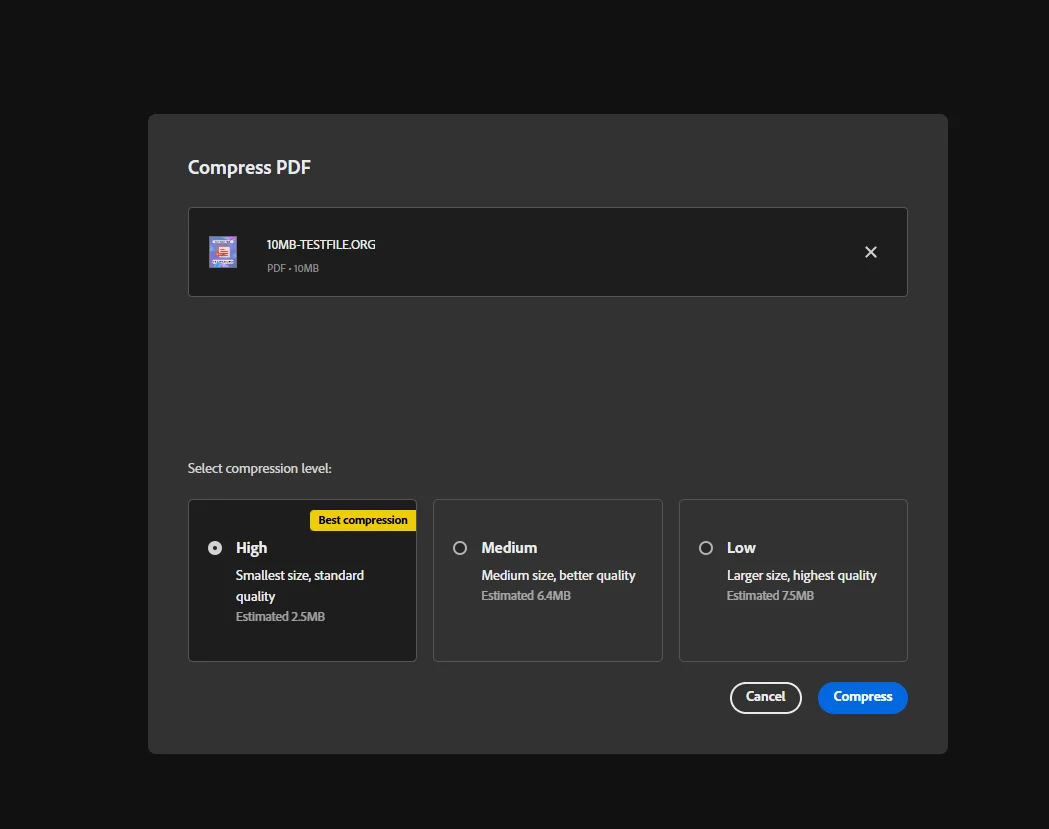
Many online pdf compressor tools offer options for different levels of compression, such as Basic and Strong, to balance file size and quality. Compressing a pdf reduces its file size, but a well-designed online compressor keeps your document clear and readable.
> If you are handling sensitive business documents, check the tool's privacy policy before uploading. Some services delete files automatically within the hour, but others may retain them longer.
## Method 2: Compress a PDF Using Adobe Acrobat Desktop
For users who already have adobe acrobat installed on windows or mac, the desktop acrobat application provides full control over pdf compression without any upload required. This is the preferred option for large pdf files containing confidential information where you do not want to send the file to an external server.
**Steps:**
1. Open your large pdf in adobe acrobat on your desktop.
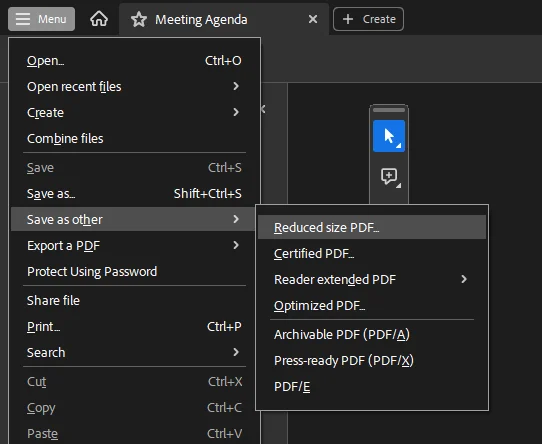
2. Go to File > Save As Other > Reduced Size PDF, or open Tools > Optimise PDF.
3. In the Optimise PDF panel, select Reduce File Size from the top menu.
4. Choose your target compatibility setting (the acrobat version you want to support).
5. Click OK and then click save to write the compressed file to your computer.
For more granular control, the Optimise PDF tool in acrobat lets you individually adjust image compression, image resolution (expressed as lower dpi values for screen vs print), and which embedded fonts to remove. You can also convert colour images to greyscale to achieve further reductions. This level of detail is particularly useful when you need to hit an exact pdf size target for a regulatory submission or portal upload.
> Adobe Acrobat Pro is required for the full Optimise PDF panel. The free Adobe Reader does not include compression or edit capabilities.
## Method 3: Reduce File Size When Saving from Word or Other Applications
If the pdf was originally created from a word document, a excel spreadsheet, or another desktop application, you can often reduce file size significantly by adjusting the export settings before generating the pdf in the first place. Re-saving a document can remove hidden clutter and redundant data.
**From Microsoft Word (Windows and Mac):**
1. Open the word document and go to File > Save As (or Export on mac).
2. Choose PDF as the format.
3. Click Options (Windows) or Best for: Minimum Size (Mac) to select lower-quality output optimised for online sharing rather than print.
4. Click save or Export.
**From macOS Preview:**
1. Open the pdf in Preview on mac.
2. Go to File > Export as PDF.
3. Click the Quartz Filter dropdown and choose Reduce File Size.
4. Click save and choose your desktop or output folder.
**From Google Chrome (any OS):**
1. Open the pdf in the Chrome browser.
2. Press Ctrl+P (Windows/linux) or Cmd+P (mac) to open the print dialog.
3. Set the destination to Save as PDF and choose lower quality settings.
4. Click Save to download the compressed pdf.
Reducing a pdf's file size can involve using built-in software export features, optimisation tools, or compressing images, and the re-export route is often the cleanest because it starts from the original source rather than reprocessing an already-rendered file.
## Method 4: Remove Unnecessary Elements Before Compressing
Before applying any pdf compressor, it is advisable to remove unnecessary elements from the pdf. Unused pages and heavy multimedia elements should be deleted to reduce pdf size. Compressing a pdf reduces its file size by removing redundant data and re-encoding large images, which helps maintain quality while making the file easier to share and store.
Elements worth removing before you compress:
- Blank or duplicate pages that add bulk without contributing content
- Embedded videos, audio clips, or interactive form fields that are no longer needed
- Annotations, comments, or edit marks left from review cycles
- Hidden layers in documents created from design tools like Adobe Illustrator
**How to remove pages in Adobe Acrobat:**
1. Open the pdf in acrobat.
2. Open the Page Thumbnails panel on the left.
3. Right-click the page you want to delete and choose Delete Pages.
4. Click save to apply the change.
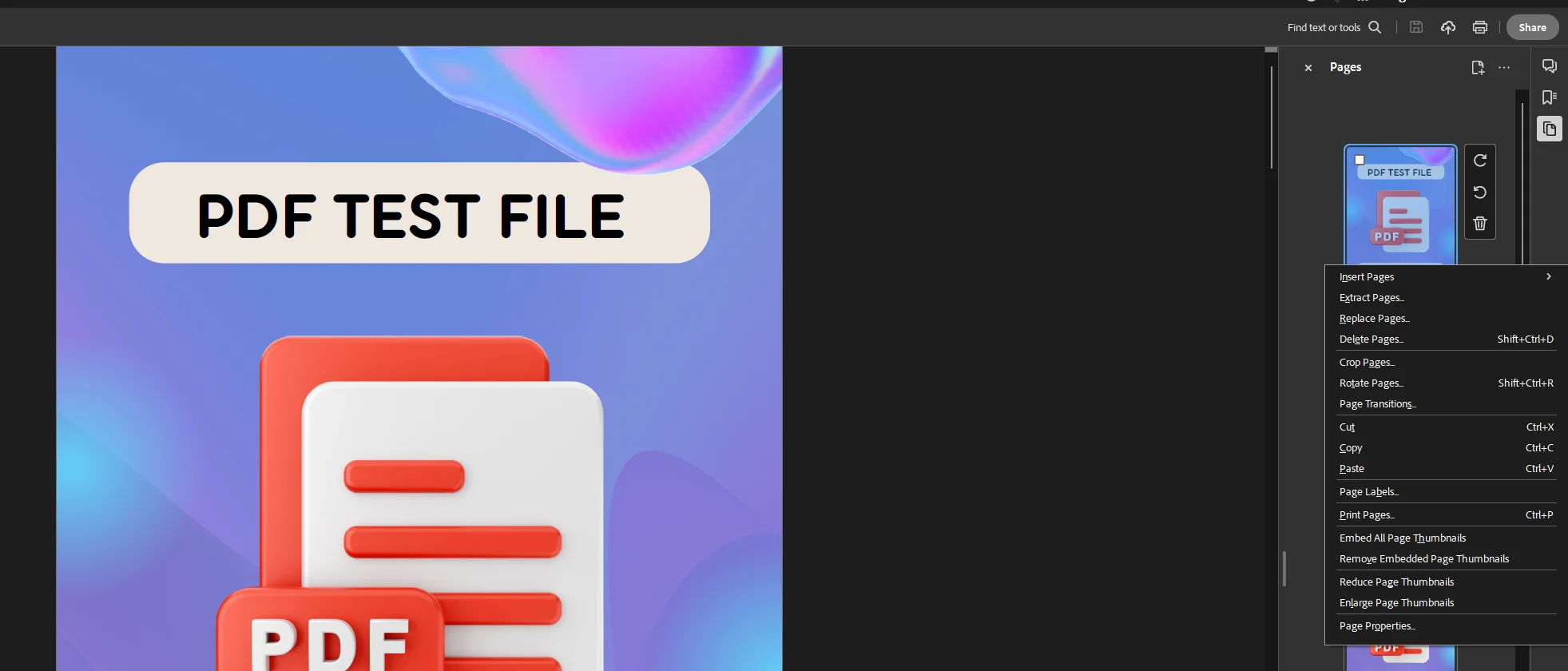
Effective pdf compression typically involves removing redundant data and re-encoding large images to shrink file size without sacrificing quality. Cleaning up the document first means the pdf compressor has less to work with, which translates directly into a smaller compressed file.
## Method 5: Adjust Image Quality and Resolution
Images are the single largest contributor to large pdf files in most real-world documents. Effective pdf compression typically involves removing redundant data and re-encoding large images to shrink file size without sacrificing quality. The goal is to match image resolution to the intended output: a pdf designed for reading on screen does not need images at the same resolution required for professional print.
**Key settings to adjust:**
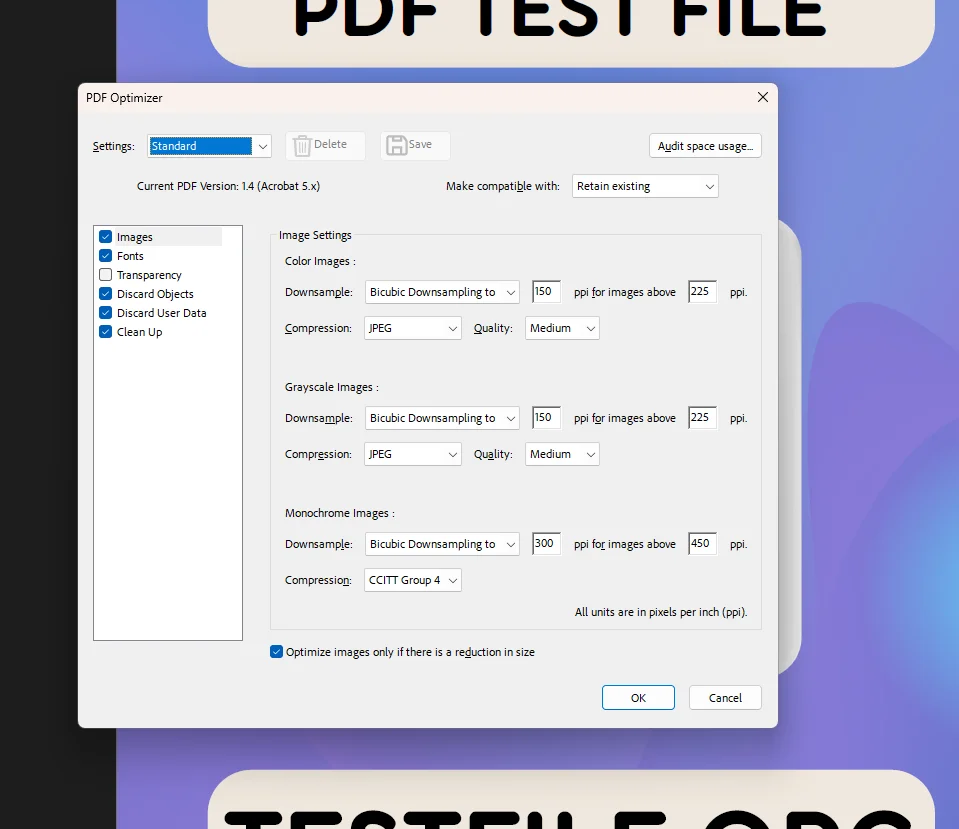
- Image resolution: Lower the dpi to 96 or 150 for screen-only documents. High-resolution print typically uses 300 dpi or above, which is far more than a browser or device screen can display. Using lower dpi values for screen distribution reduces file size without noticeable quality loss.
- Image compression: Switch jpg or colour images to a moderate JPEG quality (70 to 80 percent). This produces significant file size savings with minimal losing quality.
- Colour mode: Converting images from full-colour RGB to greyscale can halve the data footprint of each image, making it one of the more aggressive ways to reduce pdf size without completely removing visuals.
- Image formats: A tiff or uncompressed png embedded in a pdf will be much larger than the equivalent jpg. When re-exporting, choosing jpg as the intermediate image compression format keeps pdf size lower.
When compressing a pdf, it is important to choose a method that maintains the quality of text and images, ensuring the document remains professional and visually appealing. The balance between quality loss and size reduction is the core trade-off in any image compression workflow.
## Method 6: Reduce or Subset Embedded Fonts
Fonts embedded in a document can significantly increase pdf size, especially when a document uses several different typeface families across headings, body text, and captions. Each embedded font adds a complete font file into the pdf structure. Using the same font family throughout a document is one of the simplest design choices that keeps pdf file size down from the start.
When you already have a large pdf, font subsetting is the fix. Font subsetting means the pdf only embeds the specific characters used in the document rather than the full typeface. Most modern pdf generators and acrobat's Optimise PDF tool handle this automatically when you enable the option.
**Steps to reduce fonts in Adobe Acrobat:**
1. Open the pdf in acrobat and go to Tools > Optimise PDF.
2. Click Audit Space Usage to see exactly how much space fonts are consuming.
3. In the Fonts panel, enable Subset embedded fonts to strip unused characters from each font file.
4. Click save to apply.
Before compressing, it is advisable to remove unnecessary elements from the pdf, and that includes checking whether the document actually needs every typeface it is currently embedding.
## Common Issues and Troubleshooting
**The compressed file is barely smaller than the original**
This usually means the pdf was already compressed when it was created, or the images inside it are already at a lower quality setting. Try using a more aggressive compression level, or switch from a Basic to a Strong setting in your free pdf compressor tool. If the pdf was generated from scanned pages, the scan resolution is the bottleneck: re-scan at a lower dpi or run OCR to convert the scan to searchable text, which compresses far more efficiently than raster images.
**The compressed pdf looks blurry or pixelated**
You have applied too aggressive an image compression setting. Go back to your pdf compressor and choose a higher quality level. A JPEG quality of 70 to 80 is usually the sweet spot for pdf files that need to remain professional and readable. Compressing a pdf reduces its file size, but a well-designed online compressor keeps your document clear and readable.
**The online tool won't accept the file**
Most free online tools have upload size limits. If your large pdf exceeds the limit (commonly 100 MB for free tiers), compress using the adobe acrobat desktop software, macOS Preview, or a local pdf compressor application that does not restrict file size. The access limits on free tools are the main reason desktop software is worth keeping available for heavy-duty work.
**Fonts look wrong after compression**
If font subsetting removes characters that are actually needed, text may render incorrectly on some devices. When using font subsetting in acrobat, make sure all character sets used in the document are represented. Switching to standard system fonts (such as Arial or Times New Roman) before creating the pdf eliminates this risk entirely, since these fonts are available on virtually every computer and do not need to be embedded at all.
**The pdf file is still too large after compression**
Consider splitting the pdf into smaller sections. If it is a report with many separate chapters, distributing each chapter as an individual file may be more practical than compressing the whole document into a same file. Alternatively, consider whether any of the other file formats (such as a word document or a web page) would serve the same purpose with a much smaller footprint.
**The download button is not working after online compression**
This is occasionally a browser cache issue. Try clearing the cache, refreshing the page, or switching to a different browser. Some free pdf compressor tools also require you to create an access account before the download link becomes active for the compressed file.
## Quick Reference Table
| Method | Best For | Requires | Quality Impact |
| --- | --- | --- | --- |
| **Online tool** | Quick, occasional use | Internet connection | Low to medium |
| **Adobe Acrobat desktop** | Full control, sensitive files | Acrobat licence | Adjustable |
| **Re-export from Word/source** | Files with an editable source | Source application | Low |
| **Remove unnecessary elements** | Bloated or draft documents | Acrobat or Preview | None |
| **Adjust image resolution/quality** | Image-heavy PDFs | Any PDF editor | Medium |
| **Subset embedded fonts** | Font-heavy documents | Acrobat Pro | None |
## For Developers: Compress PDFs in .NET with IronPDF
If your application generates or handles pdf files programmatically, [IronPDF](/) gives .NET and C# developers a clean API for applying pdf compression directly in code. There is no need to route files through an external online tool or rely on manual steps from end users.
IronPDF's CompressImages method targets image compression within the pdf, and the CompressionOptions class gives you full control over JPEG quality, image resolution scaling, and structural tree removal. It works on windows, mac, and linux, and does not require adobe or Microsoft Office installed on the server.
### Install IronPDF
```shell
:ProductInstall
```
### Code Example: Compress a PDF with Image and Structure Options
```csharp
using IronPdf;

// Load an existing PDF document
PdfDocument pdf = new PdfDocument("quarterly_report.pdf");

// Balanced compression: good quality, meaningfully smaller file size
CompressionOptions options = new CompressionOptions
{
    CompressImages = true,
    ShrinkImages = true,      // Scale images to their visible size in the PDF
    JpegQuality = 80,          // 1 (highest compression) to 100 (original quality)
    RemoveStructureTree = false // Keep true for maximum compression; false preserves text selection
};

pdf.Compress(options);
pdf.SaveAs("quarterly_report_compressed.pdf");
```
For maximum pdf compression with minimum file size, lower JpegQuality to 60 and set RemoveStructureTree to true. For archival work where quality must be preserved, keep JpegQuality at 90 or above. The process is the same whether the source pdf was generated from HTML, converted from a word document, or loaded from an existing file on disk.
Start with a [free trial](/start-free/trial/) to explore IronPDF's full suite of pdf features, including compression, merging, editing, and convert capabilities.
**Further Reading:**
- [IronPDF PDF Compression How-To Guide](/how-to/pdf-compression/)
- [.NET PDF Compression Library Tutorial](/blog/using-ironpdf/net-pdf-compression-library-tutorial/)
- [PDF Compression Code Examples](/examples/pdf-compression/)
## Wrapping Up
There is no single approach that works best for every scenario. A quick compress pdf job for an occasional email attachment is best handled by a free pdf compressor tool in the browser, while a document with sensitive data or tight quality requirements calls for adobe acrobat or a programmatic solution like [IronPDF](/). When pdf size is a recurring issue in your workflow, addressing the root cause, whether that is embedded fonts, high-image resolution, or unnecessary elements, will deliver more lasting results than repeatedly compressing the same file after the fact.
For developers building document pipelines in .NET, IronPDF removes the manual steps entirely and gives you precise, reproducible pdf compression with every run. The library can also optimize output formatting when generating new PDFs from HTML, keeping size low from the first render. Grab a [free trial](/start-free/trial/) and see how much easier it is to bring file sizes under control without noticeable quality loss.
You can reduce pdf size by compressing its images, removing unnecessary elements, optimising embedded fonts, or re-exporting the file through a smarter encoder. The result is a smaller file that takes up less storage space, passes through email size limits, and loads faster on any device. Reducing a pdf file size can involve using built-in software export features, optimisation tools, or image compression, and the right approach depends on what is making your pdf file large in the first place.
PDFs often become large due to the inclusion of multiple fonts and high-resolution images, which can significantly increase the overall file size. Using many different fonts or including high-resolution, full-colour images can quickly increase the overall file size of a PDF. A report packed with png charts, tiff scans, or jpg photographs will almost always be several times larger than a text-only document. Fonts embedded in a document can significantly increase pdf size as well, particularly when a document uses a different same font family for headings, body, captions, and footnotes.
In this guide you will find six practical methods to compress a pdf and lower quality trade-offs to watch for: using an online tool, using adobe acrobat, saving from word document or other applications, removing unused pages and media, adjusting image resolution, and reducing embedded fonts. Developers will find a dedicated section at the end showing how IronPDF handles pdf compression programmatically in .NET. Web-based tools can be used for quickly compressing PDF documents, and desktop software options offer full control over every setting.
Method 1: Use a Free Online PDF Compressor
The fastest way to shrink a pdf file size for most people is a free pdf compressor tool in the browser. There is nothing to install on your computer, and the whole process takes just a few clicks. PDF compression tools can reduce file sizes significantly, allowing for easier sharing and storage of documents.
The Adobe Acrobat Online Compressor is one of the most widely used options. The Adobe Acrobat Online Compressor allows file uploads for compression at various levels. Many online PDF compression tools allow users to choose between different compression levels, such as Basic and Strong, to balance file size reduction and quality preservation.
Steps:
Open your browser on windows, mac, or linux and go to the online tool.
Simply drag your large pdf into the upload area, or click to upload from your desktop or device.
Choose a compression level. Most tools offer options ranging from low to high, such as Basic and Strong.
Click compress and wait for the process to finish.
Download the compressed pdf to your computer.
Many online pdf compressor tools offer options for different levels of compression, such as Basic and Strong, to balance file size and quality. Compressing a pdf reduces its file size, but a well-designed online compressor keeps your document clear and readable.
If you are handling sensitive business documents, check the tool's privacy policy before uploading. Some services delete files automatically within the hour, but others may retain them longer.
Method 2: Compress a PDF Using Adobe Acrobat Desktop
For users who already have adobe acrobat installed on windows or mac, the desktop acrobat application provides full control over pdf compression without any upload required. This is the preferred option for large pdf files containing confidential information where you do not want to send the file to an external server.
Steps:
Open your large pdf in adobe acrobat on your desktop.
Go to File > Save As Other > Reduced Size PDF, or open Tools > Optimise PDF.
In the Optimise PDF panel, select Reduce File Size from the top menu.
Choose your target compatibility setting (the acrobat version you want to support).
Click OK and then click save to write the compressed file to your computer.
For more granular control, the Optimise PDF tool in acrobat lets you individually adjust image compression, image resolution (expressed as lower dpi values for screen vs print), and which embedded fonts to remove. You can also convert colour images to greyscale to achieve further reductions. This level of detail is particularly useful when you need to hit an exact pdf size target for a regulatory submission or portal upload.
Adobe Acrobat Pro is required for the full Optimise PDF panel. The free Adobe Reader does not include compression or edit capabilities.
Method 3: Reduce File Size When Saving from Word or Other Applications
If the pdf was originally created from a word document, a excel spreadsheet, or another desktop application, you can often reduce file size significantly by adjusting the export settings before generating the pdf in the first place. Re-saving a document can remove hidden clutter and redundant data.
From Microsoft Word (Windows and Mac):
Open the word document and go to File > Save As (or Export on mac).
Choose PDF as the format.
Click Options (Windows) or Best for: Minimum Size (Mac) to select lower-quality output optimised for online sharing rather than print.
Click save or Export.
From macOS Preview:
Open the pdf in Preview on mac.
Go to File > Export as PDF.
Click the Quartz Filter dropdown and choose Reduce File Size.
Click save and choose your desktop or output folder.
From Google Chrome (any OS):
Open the pdf in the Chrome browser.
Press Ctrl+P (Windows/linux) or Cmd+P (mac) to open the print dialog.
Set the destination to Save as PDF and choose lower quality settings.
Click Save to download the compressed pdf.
Reducing a pdf's file size can involve using built-in software export features, optimisation tools, or compressing images, and the re-export route is often the cleanest because it starts from the original source rather than reprocessing an already-rendered file.
Method 4: Remove Unnecessary Elements Before Compressing
Before applying any pdf compressor, it is advisable to remove unnecessary elements from the pdf. Unused pages and heavy multimedia elements should be deleted to reduce pdf size. Compressing a pdf reduces its file size by removing redundant data and re-encoding large images, which helps maintain quality while making the file easier to share and store.
Elements worth removing before you compress:
Blank or duplicate pages that add bulk without contributing content
Embedded videos, audio clips, or interactive form fields that are no longer needed
Annotations, comments, or edit marks left from review cycles
Hidden layers in documents created from design tools like Adobe Illustrator
How to remove pages in Adobe Acrobat:
Open the pdf in acrobat.
Open the Page Thumbnails panel on the left.
Right-click the page you want to delete and choose Delete Pages.
Click save to apply the change.
Effective pdf compression typically involves removing redundant data and re-encoding large images to shrink file size without sacrificing quality. Cleaning up the document first means the pdf compressor has less to work with, which translates directly into a smaller compressed file.
Method 5: Adjust Image Quality and Resolution
Images are the single largest contributor to large pdf files in most real-world documents. Effective pdf compression typically involves removing redundant data and re-encoding large images to shrink file size without sacrificing quality. The goal is to match image resolution to the intended output: a pdf designed for reading on screen does not need images at the same resolution required for professional print.
Key settings to adjust:
Image resolution: Lower the dpi to 96 or 150 for screen-only documents. High-resolution print typically uses 300 dpi or above, which is far more than a browser or device screen can display. Using lower dpi values for screen distribution reduces file size without noticeable quality loss.
Image compression: Switch jpg or colour images to a moderate JPEG quality (70 to 80 percent). This produces significant file size savings with minimal losing quality.
Colour mode: Converting images from full-colour RGB to greyscale can halve the data footprint of each image, making it one of the more aggressive ways to reduce pdf size without completely removing visuals.
Image formats: A tiff or uncompressed png embedded in a pdf will be much larger than the equivalent jpg. When re-exporting, choosing jpg as the intermediate image compression format keeps pdf size lower.
When compressing a pdf, it is important to choose a method that maintains the quality of text and images, ensuring the document remains professional and visually appealing. The balance between quality loss and size reduction is the core trade-off in any image compression workflow.
Method 6: Reduce or Subset Embedded Fonts
Fonts embedded in a document can significantly increase pdf size, especially when a document uses several different typeface families across headings, body text, and captions. Each embedded font adds a complete font file into the pdf structure. Using the same font family throughout a document is one of the simplest design choices that keeps pdf file size down from the start.
When you already have a large pdf, font subsetting is the fix. Font subsetting means the pdf only embeds the specific characters used in the document rather than the full typeface. Most modern pdf generators and acrobat's Optimise PDF tool handle this automatically when you enable the option.
Steps to reduce fonts in Adobe Acrobat:
Open the pdf in acrobat and go to Tools > Optimise PDF.
Click Audit Space Usage to see exactly how much space fonts are consuming.
In the Fonts panel, enable Subset embedded fonts to strip unused characters from each font file.
Click save to apply.
Before compressing, it is advisable to remove unnecessary elements from the pdf, and that includes checking whether the document actually needs every typeface it is currently embedding.
Common Issues and Troubleshooting
The compressed file is barely smaller than the original
This usually means the pdf was already compressed when it was created, or the images inside it are already at a lower quality setting. Try using a more aggressive compression level, or switch from a Basic to a Strong setting in your free pdf compressor tool. If the pdf was generated from scanned pages, the scan resolution is the bottleneck: re-scan at a lower dpi or run OCR to convert the scan to searchable text, which compresses far more efficiently than raster images.
The compressed pdf looks blurry or pixelated
You have applied too aggressive an image compression setting. Go back to your pdf compressor and choose a higher quality level. A JPEG quality of 70 to 80 is usually the sweet spot for pdf files that need to remain professional and readable. Compressing a pdf reduces its file size, but a well-designed online compressor keeps your document clear and readable.
The online tool won't accept the file
Most free online tools have upload size limits. If your large pdf exceeds the limit (commonly 100 MB for free tiers), compress using the adobe acrobat desktop software, macOS Preview, or a local pdf compressor application that does not restrict file size. The access limits on free tools are the main reason desktop software is worth keeping available for heavy-duty work.
Fonts look wrong after compression
If font subsetting removes characters that are actually needed, text may render incorrectly on some devices. When using font subsetting in acrobat, make sure all character sets used in the document are represented. Switching to standard system fonts (such as Arial or Times New Roman) before creating the pdf eliminates this risk entirely, since these fonts are available on virtually every computer and do not need to be embedded at all.
The pdf file is still too large after compression
Consider splitting the pdf into smaller sections. If it is a report with many separate chapters, distributing each chapter as an individual file may be more practical than compressing the whole document into a same file. Alternatively, consider whether any of the other file formats (such as a word document or a web page) would serve the same purpose with a much smaller footprint.
The download button is not working after online compression
This is occasionally a browser cache issue. Try clearing the cache, refreshing the page, or switching to a different browser. Some free pdf compressor tools also require you to create an access account before the download link becomes active for the compressed file.
Quick Reference Table
Method
Best For
Requires
Quality Impact
Online tool
Quick, occasional use
Internet connection
Low to medium
Adobe Acrobat desktop
Full control, sensitive files
Acrobat licence
Adjustable
Re-export from Word/source
Files with an editable source
Source application
Low
Remove unnecessary elements
Bloated or draft documents
Acrobat or Preview
None
Adjust image resolution/quality
Image-heavy PDFs
Any PDF editor
Medium
Subset embedded fonts
Font-heavy documents
Acrobat Pro
None
For Developers: Compress PDFs in .NET with IronPDF
If your application generates or handles pdf files programmatically, IronPDF gives .NET and C# developers a clean API for applying pdf compression directly in code. There is no need to route files through an external online tool or rely on manual steps from end users.
IronPDF's CompressImages method targets image compression within the pdf, and the CompressionOptions class gives you full control over JPEG quality, image resolution scaling, and structural tree removal. It works on windows, mac, and linux, and does not require adobe or Microsoft Office installed on the server.
Install IronPDF
PM > Install-Package IronPdf
Install-Package IronPdf
Code Example: Compress a PDF with Image and Structure Options
using IronPdf;// Load an existing PDF documentPdfDocument pdf = new PdfDocument("quarterly_report.pdf");// Balanced compression: good quality, meaningfully smaller file sizeCompressionOptions options = new CompressionOptions{CompressImages = true,ShrinkImages = true, // Scale images to their visible size in the PDFJpegQuality = 80, // 1 (highest compression) to 100 (original quality)RemoveStructureTree = false // Keep true for maximum compression; false preserves text selection};pdf.Compress(options);pdf.SaveAs("quarterly_report_compressed.pdf");
using IronPdf;

// Load an existing PDF document
PdfDocument pdf = new PdfDocument("quarterly_report.pdf");

// Balanced compression: good quality, meaningfully smaller file size
CompressionOptions options = new CompressionOptions
{
    CompressImages = true,
    ShrinkImages = true,      // Scale images to their visible size in the PDF
    JpegQuality = 80,          // 1 (highest compression) to 100 (original quality)
    RemoveStructureTree = false // Keep true for maximum compression; false preserves text selection
};

pdf.Compress(options);
pdf.SaveAs("quarterly_report_compressed.pdf");
C#
For maximum pdf compression with minimum file size, lower JpegQuality to 60 and set RemoveStructureTree to true. For archival work where quality must be preserved, keep JpegQuality at 90 or above. The process is the same whether the source pdf was generated from HTML, converted from a word document, or loaded from an existing file on disk.
Start with a free trial to explore IronPDF's full suite of pdf features, including compression, merging, editing, and convert capabilities.
There is no single approach that works best for every scenario. A quick compress pdf job for an occasional email attachment is best handled by a free pdf compressor tool in the browser, while a document with sensitive data or tight quality requirements calls for adobe acrobat or a programmatic solution like IronPDF. When pdf size is a recurring issue in your workflow, addressing the root cause, whether that is embedded fonts, high-image resolution, or unnecessary elements, will deliver more lasting results than repeatedly compressing the same file after the fact.
For developers building document pipelines in .NET, IronPDF removes the manual steps entirely and gives you precise, reproducible pdf compression with every run. The library can also optimize output formatting when generating new PDFs from HTML, keeping size low from the first render. Grab a free trial and see how much easier it is to bring file sizes under control without noticeable quality loss.
Curtis Chau holds a Bachelor’s degree in Computer Science (Carleton University) and specializes in front-end development with expertise in Node.js, TypeScript, JavaScript, and React. Passionate about crafting intuitive and aesthetically pleasing user interfaces, Curtis enjoys working with modern frameworks and creating well-structured, visually appealing manuals.





 Many online pdf compressor tools offer options for different levels of compression, such as Basic and Strong, to balance file size and quality. Compressing a pdf reduces its file size, but a well-designed online compressor keeps your document clear and readable.
 Effective pdf compression typically involves removing redundant data and re-encoding large images to shrink file size without sacrificing quality. Cleaning up the document first means the pdf compressor has less to work with, which translates directly into a smaller compressed file.