


How to Turn PDF Into Google Doc: Made Easy

Knowing how to turn pdf into google doc format is one of those skills that saves real time the moment you need it. Open a pdf file in google docs and it becomes an editable document you can rewrite, comment on, share, and collaborate on without installing anything extra. The conversion process relies on optical character recognition, which reads the text layer of the pdf and re-creates it as editable text inside a new doc. The result is not always perfect, but for most text-heavy reports, letters, and forms, it works well enough to be useful.
The challenge people run into most often is losing formatting. When you convert pdf content into a google doc, fonts may revert to defaults, tables can turn into broken tables, and paragraphs may shift out of place. Formatting issues are common when converting PDFs to Google Docs, often resulting in fonts reverting to defaults, misaligned tables, and inconsistent paragraph spacing. Understanding why this happens helps you choose the right method for your specific file, and know when to reach for a dedicated tool instead.
This guide covers four methods to get the job done: uploading directly to google drive for a quick in-browser conversion, using a pdf link to open a file shared online, using free conversion tools available on the web, and converting through a word document as an intermediate step. For developers who need to handle this task at scale across many files, IronPDF is a .NET library that can extract text and content from any pdf file programmatically.
Method 1: Upload to Google Drive and Open as Google Doc
This is the most direct route and works entirely inside your browser. Google Drive can convert a pdf file into an editable google doc using its built-in Optical Character Recognition (OCR) software, one of the most useful built-in features the platform offers. You do not need any third-party app or converter tool.
Here is the process in simple steps:
- Open Google Drive and sign in to your google account.
- Click New and then File upload, or drag and drop the pdf directly into the Drive window.
- Wait for the file upload to complete. The original pdf stays in your Drive as-is.
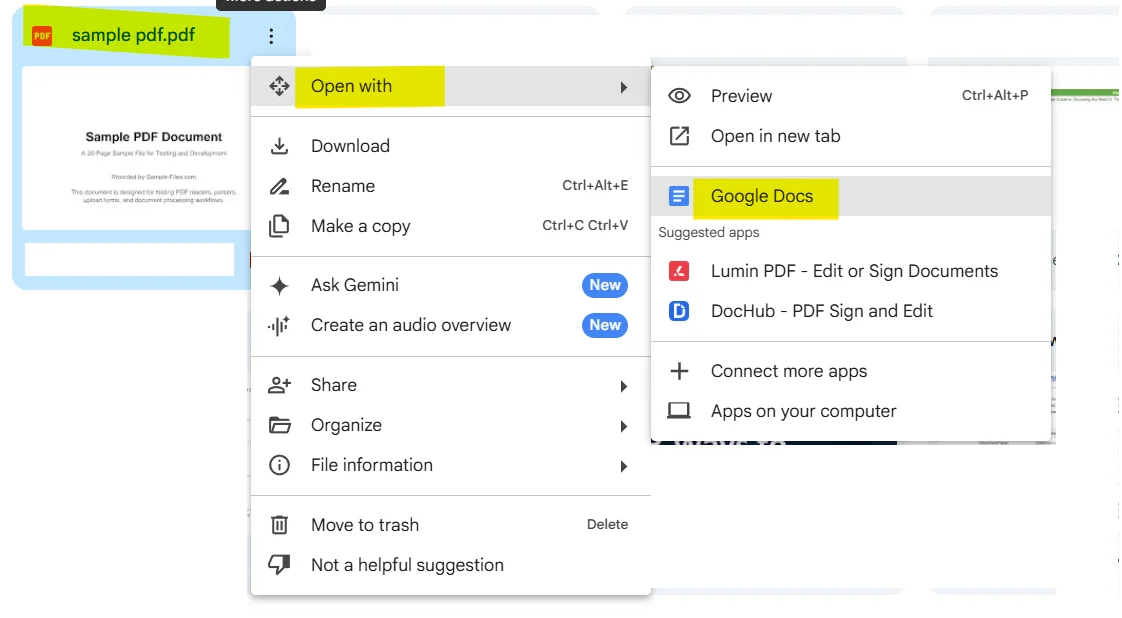
- Once uploaded, right click the file in Drive and select Open with > Google Docs.
- Google Drive will create a new google doc copy while leaving the original PDF intact after conversion, which means your source file is safe. Professionals around the world rely on this behaviour to keep master copies untouched.
- The converted google doc opens in a new tab and is ready to edit.
The pdf file must be 2 MB or smaller for the conversion to work in Google Drive. If your file exceeds this limit, consider splitting it or compressing it before uploading.
Text-heavy PDFs convert with high accuracy, while complex graphics may lose original formatting during conversion. Images are preserved during conversion but may shift to different pages or sections, so review the output carefully before making edits.
You can convert a pdf to a google doc entirely within Drive this way, and it is a good option for basic text PDFs such as letters, reports, and simple forms.
Method 2: Open a PDF from a Shared Link
If someone has sent you a pdf link rather than a file attachment, you can still bring it into google docs without downloading the file to your device first.
Follow these steps:
- Open the PDF in your browser using the shared link.
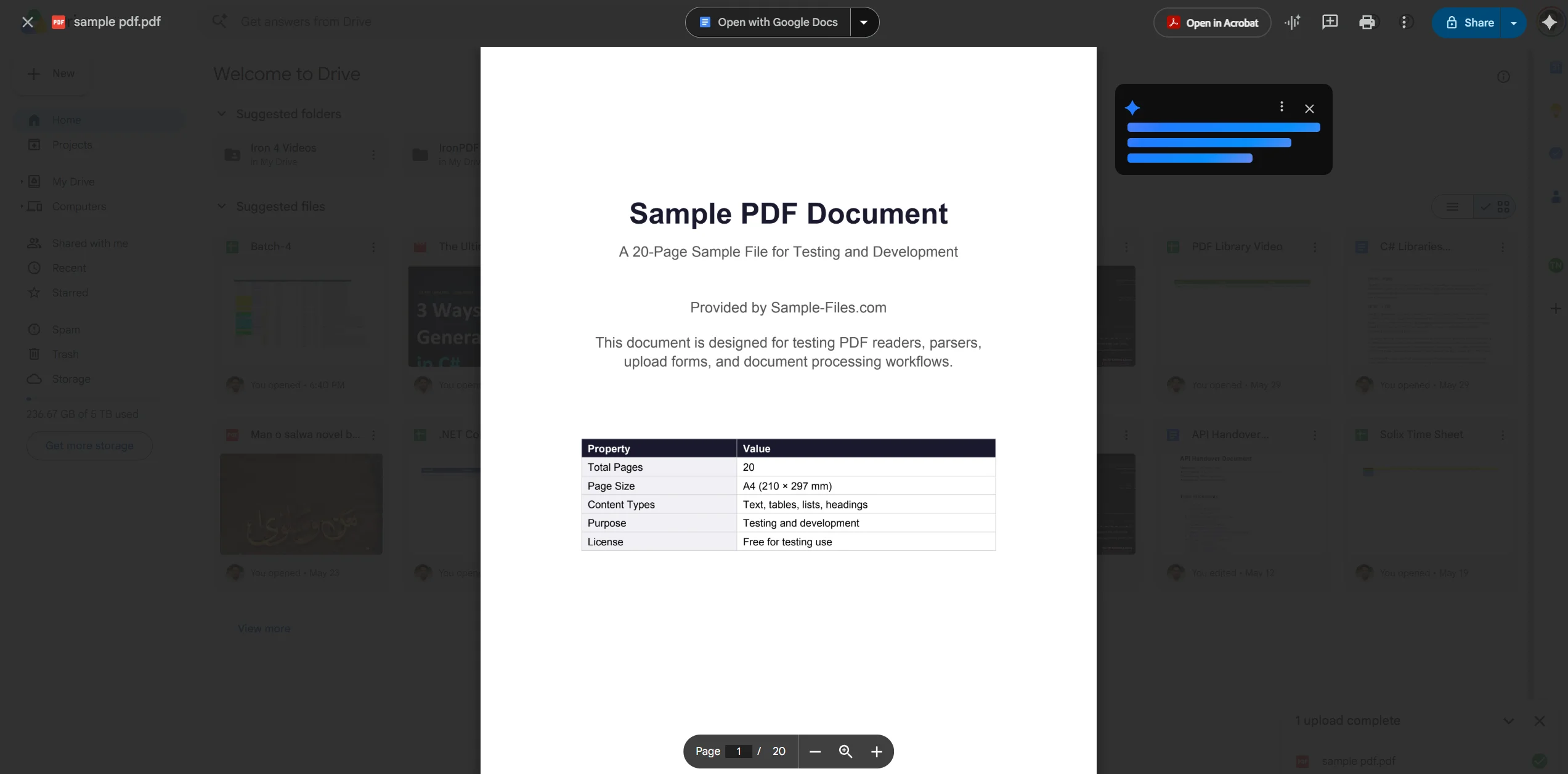
- If it opens inside Google Drive's PDF viewer, look for the Open with Google Docs button at the top of the page.
- Click it and the conversion process begins automatically.
- If the link opens the file inside Adobe Acrobat's viewer or another browser plugin, download the file to your device first, then follow Method 1 to upload it to Drive and open it as a doc.
- You can also go to File > Save to Google Drive from the browser's PDF viewer to send the file directly to your Drive, skipping a manual download step.
- Once it lands in Drive, right click the file, choose Open with > Google Docs, and press the convert button to proceed.
To improve conversion results, the PDF should contain high-contrast text and clean formatting before uploading. If the shared file is a scanned image rather than a text-based PDF, the OCR engine will need to work harder and accuracy may be lower.
Method 3: Use Free Conversion Tools Online
When google drive does not produce a clean enough result, other apps and online converters often do a better job, especially for files with tables, images, and custom fonts. There are several free pdf converter websites that handle pdf to google docs conversions with additional control over the output.
Popular free conversion tools include Smallpdf, ILovePDF, and PDF2Doc. The general process works like this:
- Open the converter website of your choice.
- Upload your pdf file using the upload button, or drag and drop it onto the drop zone on the page.
- Some tools let you link directly to a pdf using a URL instead of uploading from your device.
- The tool converts the file to a word document (.docx) or directly to a Google Doc format.
- Download the converted file when the tool finishes.
- If you received a .docx file, open Google Drive, upload the converted word file, and then right click to open it as a Google Doc.
- From there you can save the file in doc format within your Drive.
Be mindful of security when using third-party tools. Sensitive files should not be uploaded to external servers. For confidential documents, Method 1 or the developer approach described later in this guide are more secure options.
These tools generally do a solid job of preserving paragraphs, elements, and overall layout on clean documents. To minimize formatting issues during conversion, it is recommended to start with a clean, well-structured PDF and avoid complex designs or multi-column layouts.
Method 4: Convert Through a Word Document
This is a useful workaround when you have access to Microsoft Word, or when you need a converted word file as an intermediate step before bringing content into Google Docs. It can sometimes produce cleaner results than a direct pdf to a google doc conversion for files with complex layouts.
- Open your pdf in adobe Acrobat Reader or Microsoft Word directly. Word 2013 and later can open PDF files and convert them automatically.
- Word will convert the pdf into an editable word document. Review the output and fix any obvious formatting problems at this stage.
- Save the file as a .docx on your device or to dropbox for easy access later.
- Open google drive and upload the .docx file.
- Right click the uploaded file and choose Open with > Google Docs. Drive converts the word file to a Google Doc automatically.
- You now have a fully editable converted google doc ready to share and collaborate on.
Using a dedicated PDF editor instead of converting to Google Docs can help avoid formatting problems, as it allows for direct editing without altering the layout. However, if your goal is specifically to get the content into Google Docs for real-time collaboration, this two-step method via Word often yields a cleaner result than going straight from PDF.
Common Issues and Troubleshooting
Fonts look wrong after conversion. This is expected behavior. The conversion engine maps PDF fonts to the closest available google docs equivalent, which is rarely identical. After opening the converted google doc, select all text (Ctrl+A) and apply a consistent font from the toolbar to restore a uniform look.
Tables are broken or misaligned. Broken tables are the most common complaint in pdf to google docs conversions. If the table was created with lines rather than actual table structure, the OCR engine may read it as plain text. After conversion, delete the broken layout and recreate the table using the Insert menu in Google Docs, then paste the text values back in. You can modify column widths and cell styles freely once the table structure is in place.
Images are missing or in the wrong position. Images are preserved during conversion but may shift to different pages or sections. Check each page of the converted google doc and drag images back to their intended position. For a jpg or other embedded image that disappears entirely, return to the original pdf and extract the image manually, then re-insert it into the doc using Insert > Image.
The file is too large to upload. The pdf file must be 2 MB or smaller for the conversion to work in Google Drive. To bring a larger file under this limit, use a PDF compression tool such as Smallpdf or Adobe's online compressor before attempting the file upload again.
OCR is returning garbled text. If the output looks like random characters, the original pdf may be a scanned image rather than a text-based file. In that case, optical character recognition is doing all the work and the quality depends entirely on scan resolution. To get a better result, try uploading a higher-resolution version of the scan, or use a dedicated OCR app like Adobe Acrobat which has a more powerful ocr engine than Google Drive.
The conversion takes a long time. For large files, the process can take a few hours if Drive is under load or if the file is image-heavy. If it has not completed after a few hours, try downloading and re-uploading or try one of the online free conversion tools as an alternative solution.
You only need to edit in a secure environment. If your document contains sensitive data, uploading it to third-party servers raises security concerns. In that case, use a local tool such as Microsoft Word or a .NET library that processes files entirely on your own infrastructure. Using a dedicated PDF editor can be faster and more accurate than converting a PDF to a Google Doc, as it avoids layout issues that often arise during conversion.
Quick Reference: PDF to Google Doc Methods Compared
| Method | Best For | Preserves Formatting | Speed | Cost |
|---|---|---|---|---|
| Google Drive upload | Simple text PDFs | Moderate | Fast | Free |
| Open from PDF link | Shared files, no download | Moderate | Fast | Free |
| Online converter tools | Complex layouts, tables | Better | Medium | Free / Paid |
| Via Word document | Complex formatting, Office users | Best | Slower | Requires Word |
For Developers: Extracting PDF Content Programmatically with IronPDF
Converting a pdf to a google doc through a browser is fine for a one-off task, but if your workflow involves processing hundreds of files automatically, a manual conversion process is not practical. IronPDF is a C# .NET library that gives developers full programmatic control over pdf content, with no browser or manual steps required.
With IronPDF you can extract all editable text from a pdf file in just a few lines of code. The library reads the text layer of any PDF directly, making it ideal for feeding content into downstream document pipelines, databases, or APIs. For scanned PDFs, pairing IronPDF with IronOCR adds full optical character recognition support, handling image-based files with the same ease.
The example below loads a PDF report, extracts all text from the whole document, and also extracts text page by page for cases where per-page processing is needed:
using IronPdf;

// Load the PDF file
PdfDocument pdf = PdfDocument.FromFile("sample_report.pdf");

// Extract all text from the entire document
string allText = pdf.ExtractAllText();
Console.WriteLine("Full document text:");
Console.WriteLine(allText);

// Extract text page by page for granular processing
for (int i = 0; i < pdf.PageCount; i++)
{
    string pageText = pdf.ExtractTextFromPage(i);
    Console.WriteLine($"--- Page {i + 1} ---");
    Console.WriteLine(pageText);
}

// Extract all images from the PDF
var images = pdf.ExtractAllImages();
Console.WriteLine($"Images found: {images.Count()}");
using IronPdf;

// Load the PDF file
PdfDocument pdf = PdfDocument.FromFile("sample_report.pdf");

// Extract all text from the entire document
string allText = pdf.ExtractAllText();
Console.WriteLine("Full document text:");
Console.WriteLine(allText);

// Extract text page by page for granular processing
for (int i = 0; i < pdf.PageCount; i++)
{
    string pageText = pdf.ExtractTextFromPage(i);
    Console.WriteLine($"--- Page {i + 1} ---");
    Console.WriteLine(pageText);
}

// Extract all images from the PDF
var images = pdf.ExtractAllImages();
Console.WriteLine($"Images found: {images.Count()}");
Imports IronPdf

' Load the PDF file
Dim pdf As PdfDocument = PdfDocument.FromFile("sample_report.pdf")

' Extract all text from the entire document
Dim allText As String = pdf.ExtractAllText()
Console.WriteLine("Full document text:")
Console.WriteLine(allText)

' Extract text page by page for granular processing
For i As Integer = 0 To pdf.PageCount - 1
    Dim pageText As String = pdf.ExtractTextFromPage(i)
    Console.WriteLine($"--- Page {i + 1} ---")
    Console.WriteLine(pageText)
Next

' Extract all images from the PDF
Dim images = pdf.ExtractAllImages()
Console.WriteLine($"Images found: {images.Count()}")Install IronPDF via NuGet in Visual Studio:
PM> Install-Package IronPdf
PM> Install-Package IronPdf
Start with a free trial to explore the full feature set in your own project. No credit card required.
Further Reading:
Wrapping Up
Choosing the right method comes down to what your pdf contains and what you plan to do with it. The methods in this guide cover the most common scenarios you will encounter in everyday work, from a quick browser upload to a multi-step route via a word document that gives you more control over the output. For a quick convert of a simple report or letter, the Google Drive file upload route gets you to an editable document in under a minute. For files with complex tables, images, or unusual fonts, routing through a word document or using an online converter tool tends to produce cleaner output. Keep the 2 MB limit in mind, start with a clean, well-structured file to avoid formatting problems, and always review the converted google doc before sharing it with others.
When the task goes beyond a single file, or when you need to post processed content to an application rather than just edit it in a browser, IronPDF gives .NET developers a fast and reliable way to extract and work with pdf content programmatically. Grab a free trial and see how much of the manual conversion process you can automate.







 Get started for FREE
 Get started for FREE
 Book Free Live Demo
















