


How to Electronically Sign a PDF (Step-by-Step Guide)

Learning how to electronically sign a pdf is one of the most practical skills for anyone who regularly handles contracts, agreements, or forms in digital form. An electronic signature is any mark, symbol, or process attached to a pdf document to show intent to sign, and it carries full legal weight in most business contexts. Electronically signing a pdf document can be done using various tools and methods including software and online services, from adobe Acrobat to browser-based platforms like DocuSign, all without touching a printer.
The legal standing of e signature technology is well established. Electronic signatures are legally recognized in the United States and many other countries, ensuring their validity and enforceability in business transactions. An electronic signature cannot be denied legal effect, validity, or enforceability solely because it is in electronic form, according to U.S. law. Signing PDFs online is legally binding under several laws, including the ESIGN Act and the UETA Act, which govern electronic signatures in the United States. Many electronic signature solutions also comply with international and industry-specific eSignature laws, ensuring security and legal validity for users.
This guide covers five practical methods to sign a pdf: using pdf online tools like Adobe Acrobat, using DocuSign to sign pdf online and send documents to recipients, signing in a browser with no additional software, using microsoft edge's built-in annotation tools, and signing via the print and scanning workflow. At the end, developers will find a section on how IronPDF handles digital signatures in .NET applications. Consider the type of signature needed, whether that is a quick visual signature versus a secure, legally binding digital signature, when choosing a method.
Method 1: Sign a PDF Online with Adobe Acrobat
The Adobe Acrobat online sign tool is the most widely used platform for sign pdf online workflows. It is free to use for basic signing and requires only a browser and an internet connection, with no additional software to install. You can create an electronic signature for free and place it anywhere in a pdf document by typing, drawing, or uploading an image of your signature. Many online platforms allow users to sign PDFs quickly, often completing the signing process in under 60 seconds.
Steps:
- Go to adobe.com/acrobat/online/sign-pdf.html in your browser.
- Click Select a file or use drag and drop to upload your pdf document into the drop zone.
- Sign in to your adobe account (a free account is sufficient for basic signing).
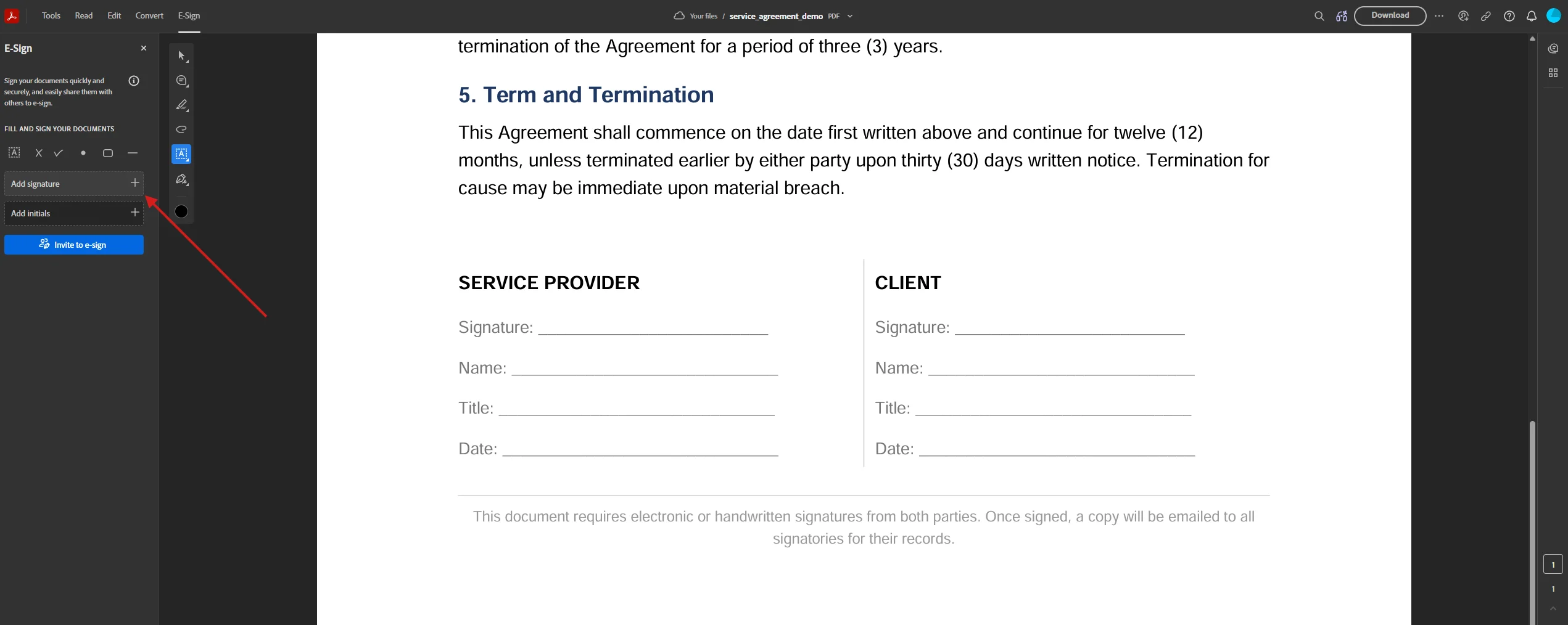
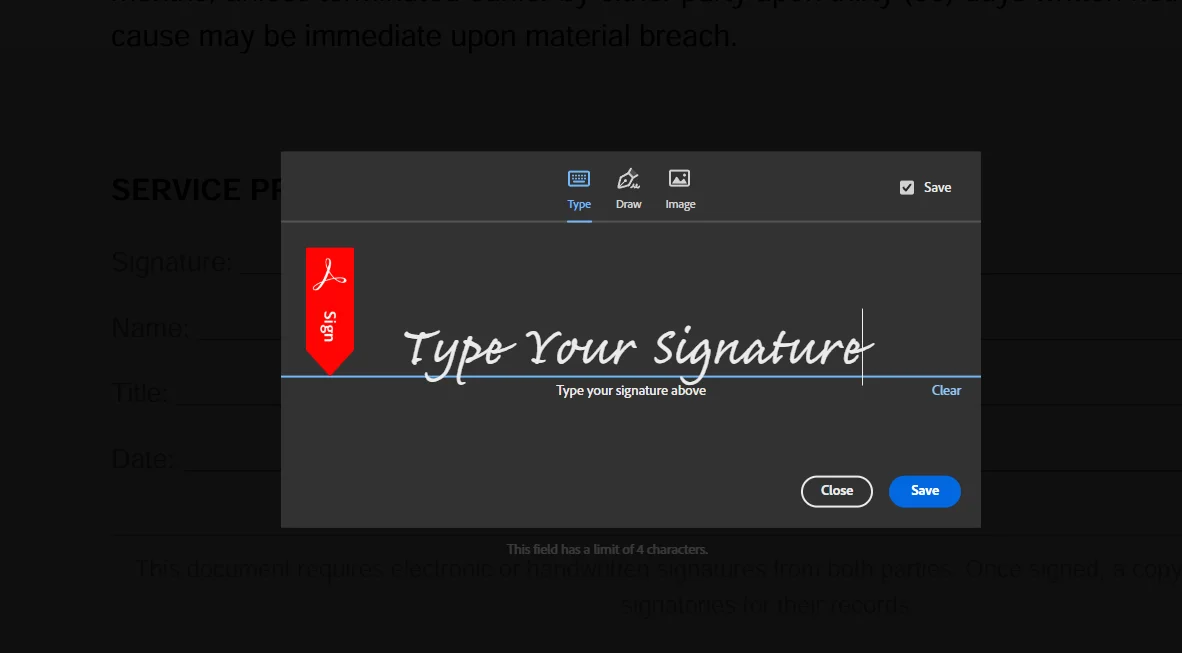
- In the Sign panel, click Add signature. You can write your name by typing it in the name field, draw your signature using the mouse, or upload a jpg or png image of a handwritten signature.
- Drag the signature to the correct signature field or anywhere on the page and click to insert it.
- Fill in any text fields, dates, or initials required by the form.
- Click Next, then download the signed pdf or copy a link to share it.
Adobe Acrobat also lets you request signatures from others. Use the Send for Signature feature to email a link to recipients, collect signatures, and track the signing process from your account dashboard.
Method 2: Sign PDF Online and Send to Recipients with DocuSign
DocuSign is the leading platform for workflows that require collect signatures from multiple recipients, automated reminders, and a legal audit trail. Official eSign workflows can track documents, verify signer identity, and generate a tamper-evident audit trail. Many eSignature platforms offer features such as real-time tracking of document status and automated reminders to ensure timely signing.
Steps to sign a PDF and send it for others to sign:
- Visit docusign.com/sign-pdf and create a free account or start a trial that includes unlimited documents.
- Click New > Send an Envelope and upload your pdf from your computer, google drive, or another cloud source.
- Add recipients by entering their email addresses. Assign the signer role to each person who needs to sign.
- Use the drag and drop interface to place form fields on the document: signature field, initials, dates, text fields, and checkboxes.
- Click Send. DocuSign emails a link to each of the recipients so they can access the document and complete the signing process without downloading additional software.
- Track the status in your dashboard. Once all recipients have signed, you receive the signed pdf with a full audit trail attached.
You can upload a pdf document to a signing platform and drag and drop fields such as signature or date to complete the signing process. Most eSignature services support multiple file formats, including PDFs, word documents, and images, allowing for versatile document handling.
Method 3: Sign a PDF in Your Browser (No Account Needed)
Modern browsers and built-in OS viewers often have annotation and signature-drawing tools for signing PDFs. This method requires no account, no additional software, and works completely offline after the file is opened. Many eSignature tools allow users to sign PDFs online without needing to print them out, streamlining the signing process.
Using a PDF viewer in Chrome or Firefox:
- Open your pdf in the browser by dragging the file into a new tab, or right-clicking and choosing Open with > Browser.
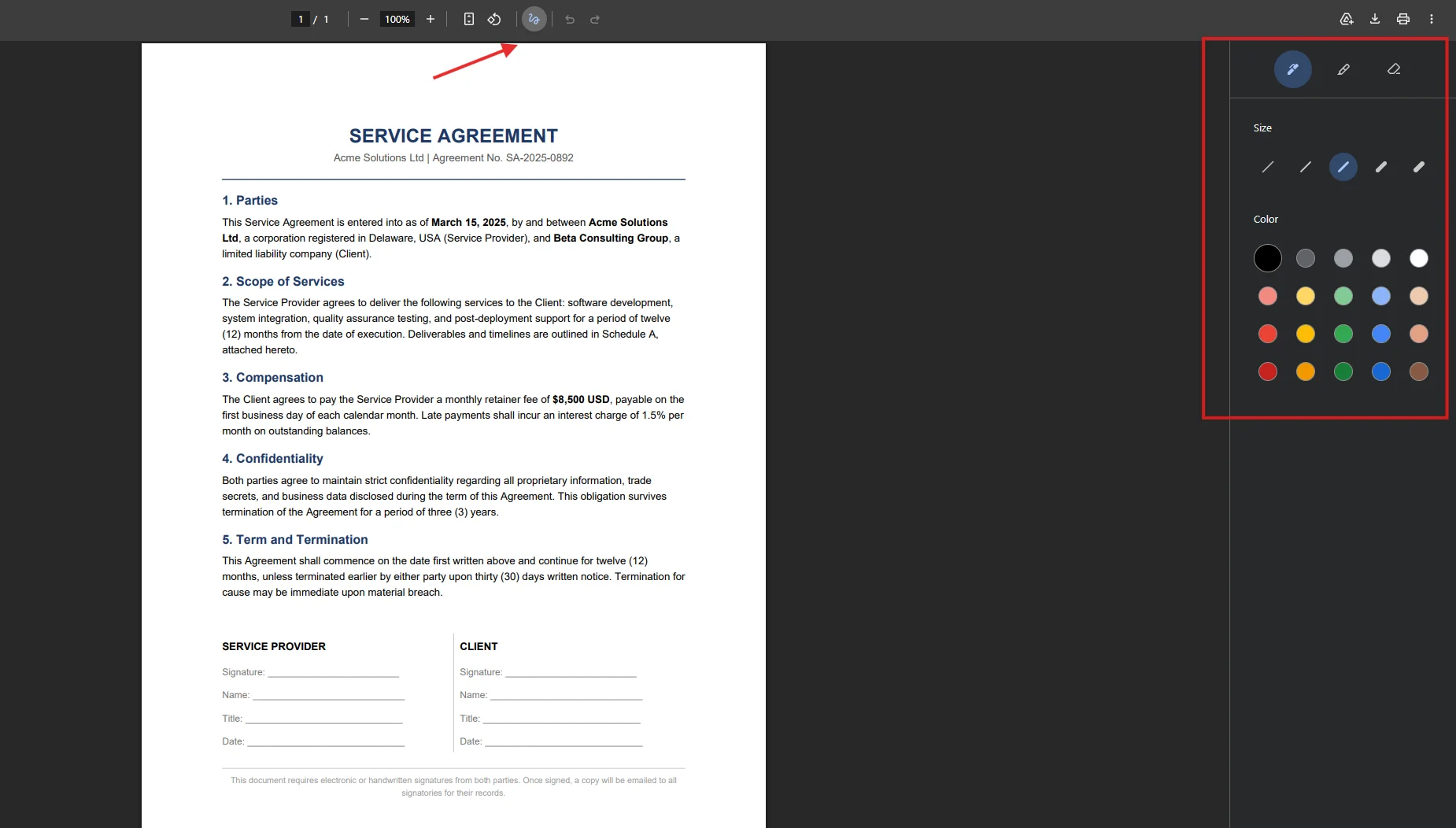
- Look for the annotation toolbar (pencil icon or draw tool). In Chrome pdf viewer, click the draw icon to activate freehand drawing mode.
- Draw your signature using your mouse or trackpad directly on the signature field of the document.
- Click Save or print to file to download the annotated document as a signed pdf.
 Using Preview on macOS:
- Open the pdf in Preview and click the Markup toolbar icon.
- Click the signature icon (looks like a cursive letter), then choose Create Signature.
- Use the trackpad or mouse to draw your signature, or hold a signed paper up to the camera. You can also customize the pen thickness and colour before drawing.
- Click Done, then click the signature entry in the tools panel to place it on the document.
- Save the file. Many professionals at a company level use this method for internal approvals where no formal audit trail is required.
For further resources on built-in signing tools across operating systems, your operating system's support pages are a reliable starting point.
Method 4: Sign a PDF in Microsoft Edge
Microsoft edge has a built-in pdf reader with annotation tools that makes it easy to sign a pdf directly on your computer without visiting a website or creating an account. This method works entirely offline and requires no internet connection.
Steps:
- Open the pdf in microsoft edge by dragging it into the browser window or right-clicking and choosing Open with > Microsoft Edge.
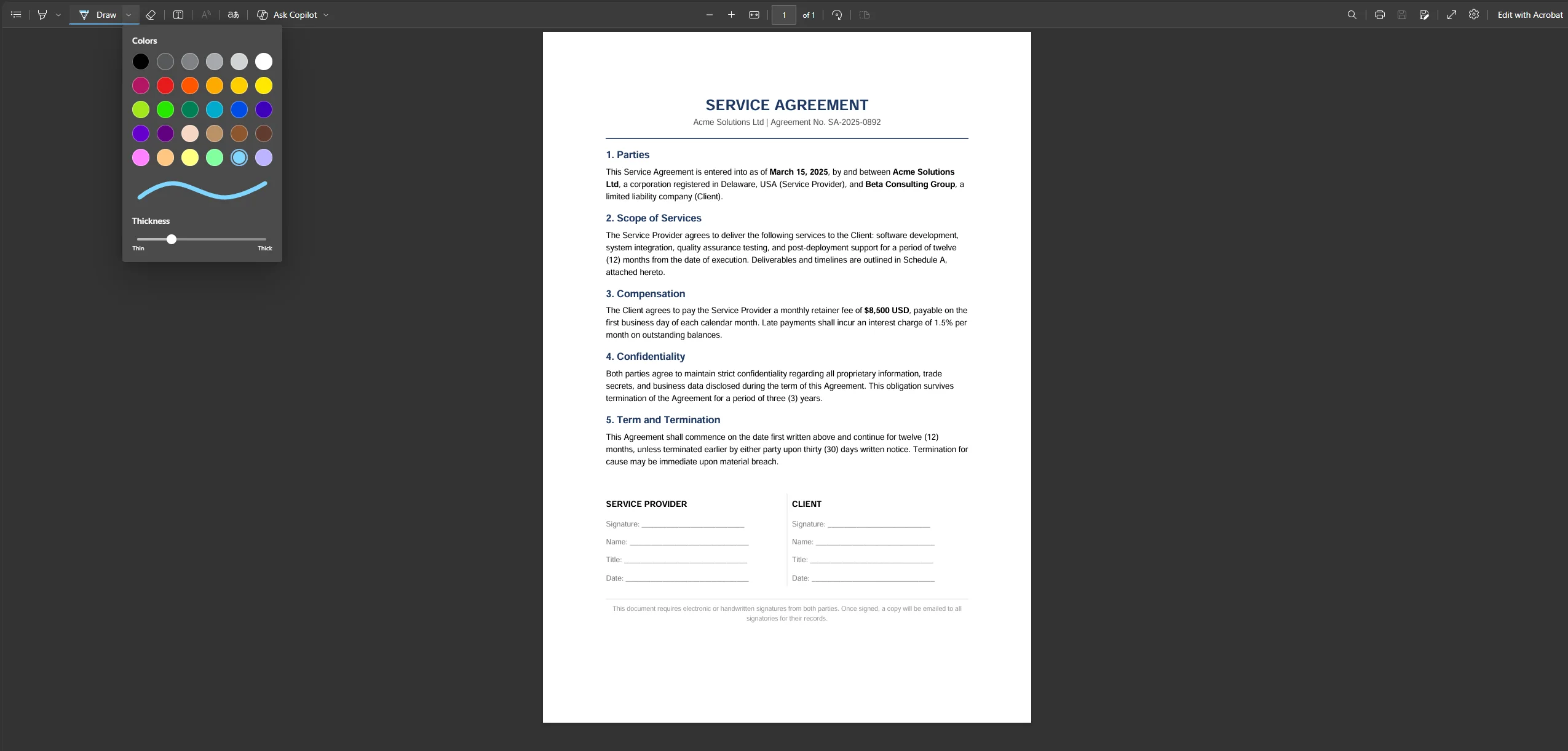
- Click the Draw tool (pencil icon) in the microsoft edge pdf toolbar at the top.
- Adjust the pen colour and thickness as needed. Use your mouse to draw your signature in the signature field on the document.
- Optionally, use the text tool to insert your name, initials, or dates into any text fields or form fields on the document.
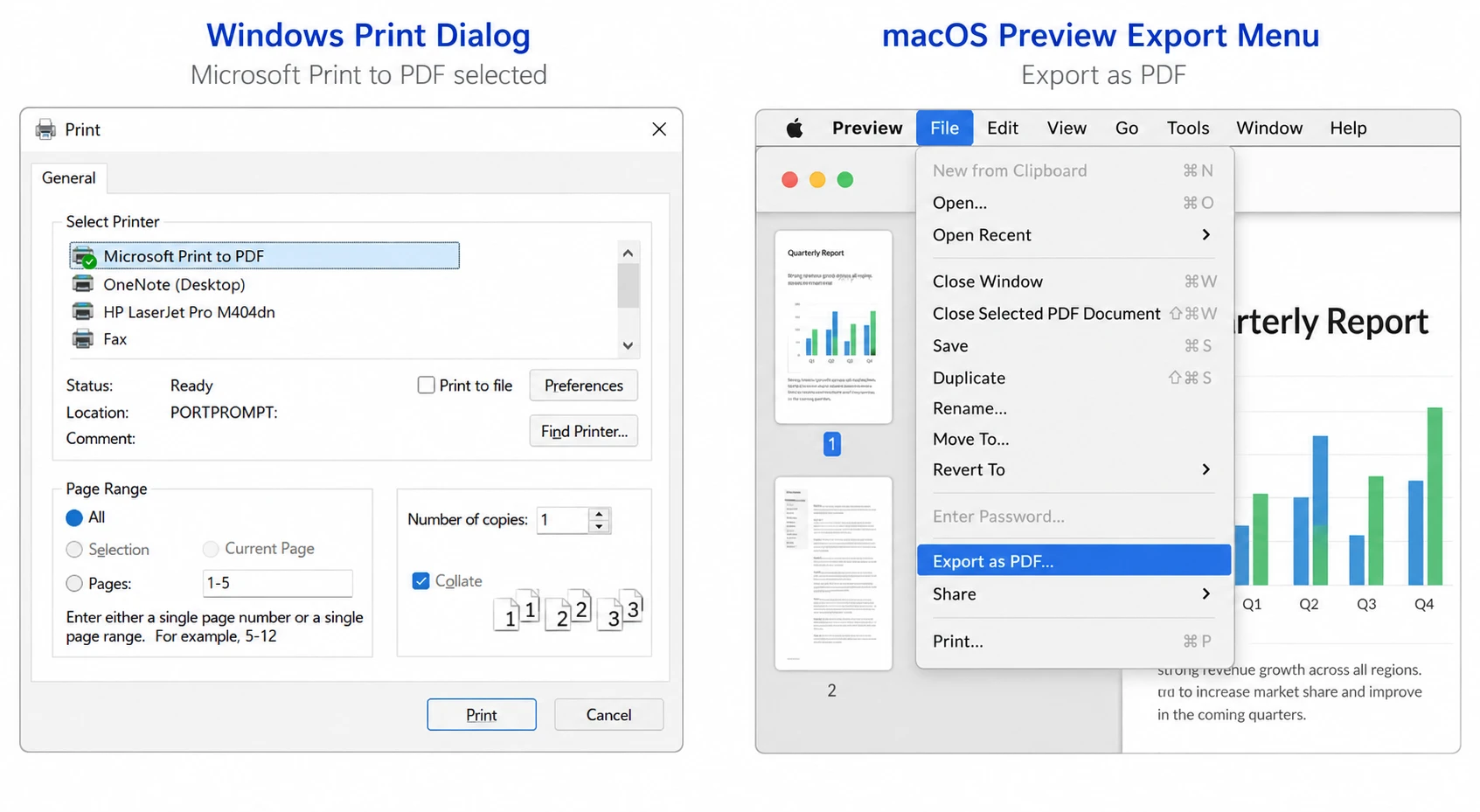
- Click Save (Ctrl + S) to overwrite the original, or print to pdf to save a separate signed pdf.
The Microsoft Edge drawing tool produces a visual annotation only, not a cryptographic digital signature. For legally verifiable signing with an audit trail and encryption, use Method 1 or Method 2.
Method 5: Print, Sign by Hand, and Scan Back to PDF
For situations where a physical signature is preferred, required by policy, or where digital tools are unavailable, the print and scanning approach converts a pdf to paper, signs it, and brings it back into pdf format. Electronic signatures can be added to pdf documents without the need to print them out, but this method remains a valid fallback when a wet-ink signature is specifically required.
Steps:
- Open the pdf and print it from any application using Ctrl + P (Windows) or Cmd + P (Mac).
- Write your signature and fill in any required form fields by hand.
- Use a scanner or a scanning app on your phone (such as Apple Notes, Microsoft Lens, or Adobe Scan) to scan the signed paper back as a pdf.
- Save the file and share as needed. If sending via google drive or email, upload the scan to your cloud storage first.
Common Issues and Troubleshooting
The signature field is not clickable
Some pdf documents have form fields that are locked or flattened. If clicking on the signature field does nothing, the document may be password protected or have restrictions on editing. Check whether the pdf has a security password by going to File > Properties > Security in adobe Reader. If it does, you will need the owner password to unlock it before you can sign.
Signed PDF looks pixelated or blurry
This usually happens when the signature was created as a low-resolution jpg or png image. When uploading an image of a handwritten signature, scan or photograph it at 300 DPI or higher against a white background for crisp results. You can also draw the signature in the signing tool directly, which scales cleanly at any zoom level.
Cannot verify the digital signature after signing
Digital signatures may require the use of a digital ID, which often secures and locks the document to make it read-only. If a recipient cannot validate or verify the signature, the issue is usually a missing trusted certificate in their software. The signer needs to use a certificate from a trusted Certificate Authority, and the recipient's pdf viewer needs to trust that authority. Adobe Reader can check the validity automatically when connected to the internet.
The document was sent but recipients cannot access it
Check that the email addresses entered for recipients are correct and not filtered by spam security. Some corporate email systems block automated sign documents emails from DocuSign or adobe. Ask the recipients to check their spam folder or request that IT whitelist the sending domain. Alternatively, download the signed pdf and share it directly via google drive with a shared link.
The online tool requires an account but I need a free option
Many pdf online tools offer free signing for a limited number of documents without an account. Adobe Acrobat's online tool allows basic signing without paying. For unlimited documents without a subscription, signing in your browser using macOS Preview or microsoft edge (Methods 3 and 4) requires no account and no internet connection after the file is open.
The signed PDF won't open after saving
If the signed pdf will not open, the file may have become corrupted during the save step. Always use Save As rather than overwriting the original pdf, and keep the original file as a backup. Re-sign from the original if needed.
Quick Reference Table
| Method | Free | Needs Internet | Audit Trail | Collects Signatures |
|---|---|---|---|---|
| Adobe Acrobat Online | Yes (basic) | Yes | Yes | Yes (trial) |
| DocuSign | Free trial | Yes | Yes | Yes |
| Browser / Preview | Yes | No | No | No |
| Microsoft Edge | Yes | No | No | No |
| Print and Scan | Yes | No | No | No |
For Developers: Digitally Sign PDFs in .NET with IronPDF
If your application generates contracts, agreements, or reports and needs to apply a cryptographic digital signature programmatically, IronPDF provides a PdfSignature class that handles certificate-based signing in C# with full audit trail metadata, visual signature placement, and encryption support.
Digital signatures applied through IronPDF use .pfx or .p12 certificate files and embed cryptographic proof of the signer identity, signing time, and document integrity directly into the pdf. Recipients can validate the signature in any major pdf viewer, including Adobe Reader, which checks the certificate chain and confirms validity automatically.
Install IronPDF
:ProductInstall
:ProductInstall
Code Example: Apply a Digital Signature with Visual Image and Audit Metadata
using IronPdf;
using IronPdf.Signing;
using IronSoftware.Drawing;

// Load the PDF document to be signed
PdfDocument pdf = PdfDocument.FromFile("service_agreement.pdf");

// Create the signature from a .pfx certificate file and password
var signature = new PdfSignature("certificate.pfx", "your-password")
{
    SigningReason   = "Contractual Agreement",
    SigningContact  = "legal@acmesolutions.com",
    SigningLocation = "New York, USA",
    SignatureDate   = DateTime.Now
};

// Optionally attach a visual PNG or JPG image of the signature
// This places a visible image at the defined position on page 0
var signatureArea = new Rectangle(150, 100, 200, 50);
signature.LoadSignatureImageFromFile("signature-image.png", 0, signatureArea);

// Apply the cryptographic signature and save
pdf.Sign(signature);
pdf.SaveAs("service_agreement_signed.pdf");
using IronPdf;
using IronPdf.Signing;
using IronSoftware.Drawing;

// Load the PDF document to be signed
PdfDocument pdf = PdfDocument.FromFile("service_agreement.pdf");

// Create the signature from a .pfx certificate file and password
var signature = new PdfSignature("certificate.pfx", "your-password")
{
    SigningReason   = "Contractual Agreement",
    SigningContact  = "legal@acmesolutions.com",
    SigningLocation = "New York, USA",
    SignatureDate   = DateTime.Now
};

// Optionally attach a visual PNG or JPG image of the signature
// This places a visible image at the defined position on page 0
var signatureArea = new Rectangle(150, 100, 200, 50);
signature.LoadSignatureImageFromFile("signature-image.png", 0, signatureArea);

// Apply the cryptographic signature and save
pdf.Sign(signature);
pdf.SaveAs("service_agreement_signed.pdf");
Imports IronPdf
Imports IronPdf.Signing
Imports IronSoftware.Drawing

' Load the PDF document to be signed
Dim pdf As PdfDocument = PdfDocument.FromFile("service_agreement.pdf")

' Create the signature from a .pfx certificate file and password
Dim signature As New PdfSignature("certificate.pfx", "your-password") With {
    .SigningReason = "Contractual Agreement",
    .SigningContact = "legal@acmesolutions.com",
    .SigningLocation = "New York, USA",
    .SignatureDate = DateTime.Now
}

' Optionally attach a visual PNG or JPG image of the signature
' This places a visible image at the defined position on page 0
Dim signatureArea As New Rectangle(150, 100, 200, 50)
signature.LoadSignatureImageFromFile("signature-image.png", 0, signatureArea)

' Apply the cryptographic signature and save
pdf.Sign(signature)
pdf.SaveAs("service_agreement_signed.pdf")The resulting signed pdf contains both a visual signature on the page and a cryptographic certificate embedded in the document structure. Anyone opening the file in Adobe Reader will see the validity status in the Signatures panel. The SignPdfFile method also supports batch signing across directories, making it suitable for high-volume workflows.
IronPDF's signing features are designed to meet requirements for security, data integrity, and audit trail compliance in regulated industries. Start with a free trial to explore the full signing API and the broader suite of pdf tools.
Further Reading:
Wrapping Up
Putting your name on a pdf has never required a printer. Whether you reach for the adobe Acrobat online tool for a polished, tracked workflow, use microsoft edge or macOS Preview for a quick offline sign, or send a contract through DocuSign to collect signatures from multiple recipients, every approach covered here produces a signed pdf that is legally enforceable under the ESIGN Act and UETA. The signing process itself takes under a minute in most cases once the pdf is ready.
For development teams building document workflows, IronPDF brings the same legal-grade digital signatures and audit trail capabilities into .NET code, so every contract, agreement, or report your application produces can be cryptographically signed at the moment of generation. Start a free trial and see how few lines of code it takes to digitally sign and secure a pdf programmatically.
Have a preferred tool for signing agreements that is not covered here? Share it in the comments and help others find the right fit for their signing process.







 Get started for FREE
 Get started for FREE
 Book Free Live Demo
















