using IronPdf;

// Disable local disk access or cross-origin requests
Installation.EnableWebSecurity = true;

// Instantiate Renderer
var renderer = new ChromePdfRenderer();

// Create a PDF from a HTML string using C#
var pdf = renderer.RenderHtmlAsPdf("<h1>Hello World</h1>");

// Export to a file or Stream
pdf.SaveAs("output.pdf");

// Advanced Example with HTML Assets
// Load external html assets: Images, CSS and JavaScript.
// An optional BasePath 'C:\site\assets\' is set as the file location to load assets from
var myAdvancedPdf = renderer.RenderHtmlAsPdf("<img src='icons/iron.png'>", @"C:\site\assets\");
myAdvancedPdf.SaveAs("html-with-assets.pdf");
using IronPdf;// Disable local disk access or cross-origin requestsInstallation.EnableWebSecurity = true;// Instantiate Renderervar renderer = new ChromePdfRenderer();// Create a PDF from a HTML string using C#var pdf = renderer.RenderHtmlAsPdf("<h1>Hello World</h1>");// Export to a file or Streampdf.SaveAs("output.pdf");// Advanced Example with HTML Assets// Load external html assets: Images, CSS and JavaScript.// An optional BasePath 'C:\site\assets\' is set as the file location to load assets fromvar myAdvancedPdf = renderer.RenderHtmlAsPdf("<img src='icons/iron.png'>", @"C:\site\assets\");myAdvancedPdf.SaveAs("html-with-assets.pdf");
PM >Install-Package IronPdf
Install-Package IronPdf
PDF TOOLS
How to Convert Picture to PDF on iPhone (Four Methods)
You can convert a picture to pdf format on any iPhone using built-in apps alone ; no third-party pdf converter is required. PDFs retain their image quality, formatting, and properties, making them ideal for sharing high-quality images across various devices and platforms. Whether you need to send a receipt, archive a signed form, or combine multiple photos into a single shareable pdf document, the iPhone handles every case natively.
You can convert images to pdf files on your iPhone using built-in apps like Files, Photos, and Books, or through third-party apps. The Apple Pages app can also be used to open and export photos as PDFs when you need a quick desktop-style layout. Converting images to pdf format allows for easy sharing and access, ensuring that recipients can open and view the files regardless of their device or operating system. You can convert images across all common image formats on an iPhone, including heic files, jpg, png, and TIFF, and the converted pdf will look consistent on every screen. PDFs are portable and can be shared without losing the original quality of the images, making them suitable for archiving important files like receipts or signed forms.
This guide covers four methods to convert images to pdf files on iPhone: using the photos app Print trick, the files app method, combining multiple images via the files app, and using a pdf online tool when offline options fall short. Developers who need to automate image to pdf conversion in .NET will find a dedicated section at the end powered by [IronPDF](/).
## Method 1: Photos App Print Preview (Any Image Format)
The fastest way to convert a picture to PDF on iPhone uses the print option hidden inside the photos app. The Print function in the photos app allows for the conversion of any photo format to PDF without needing to download additional apps. This works for heic photos, jpg, and png and covers every format stored in your photo library.
**Steps:**
1. Open the photos app and find the image you want to convert. Select photos by tapping the thumbnail to open it full screen.
2. Tap the share icon (the box with an upward arrow) at the bottom left of the screen.
3. Scroll down the share sheet and tap choose print from the list of options.
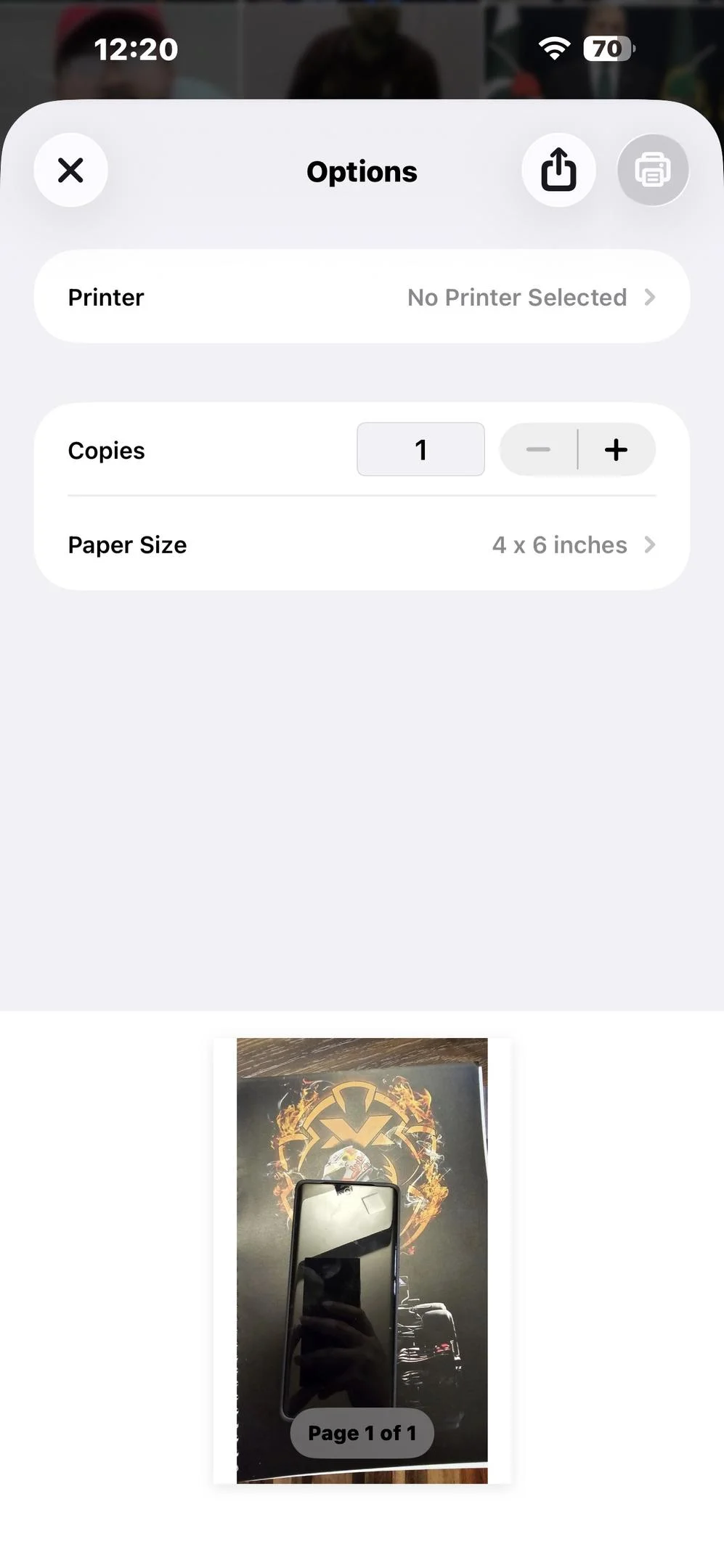
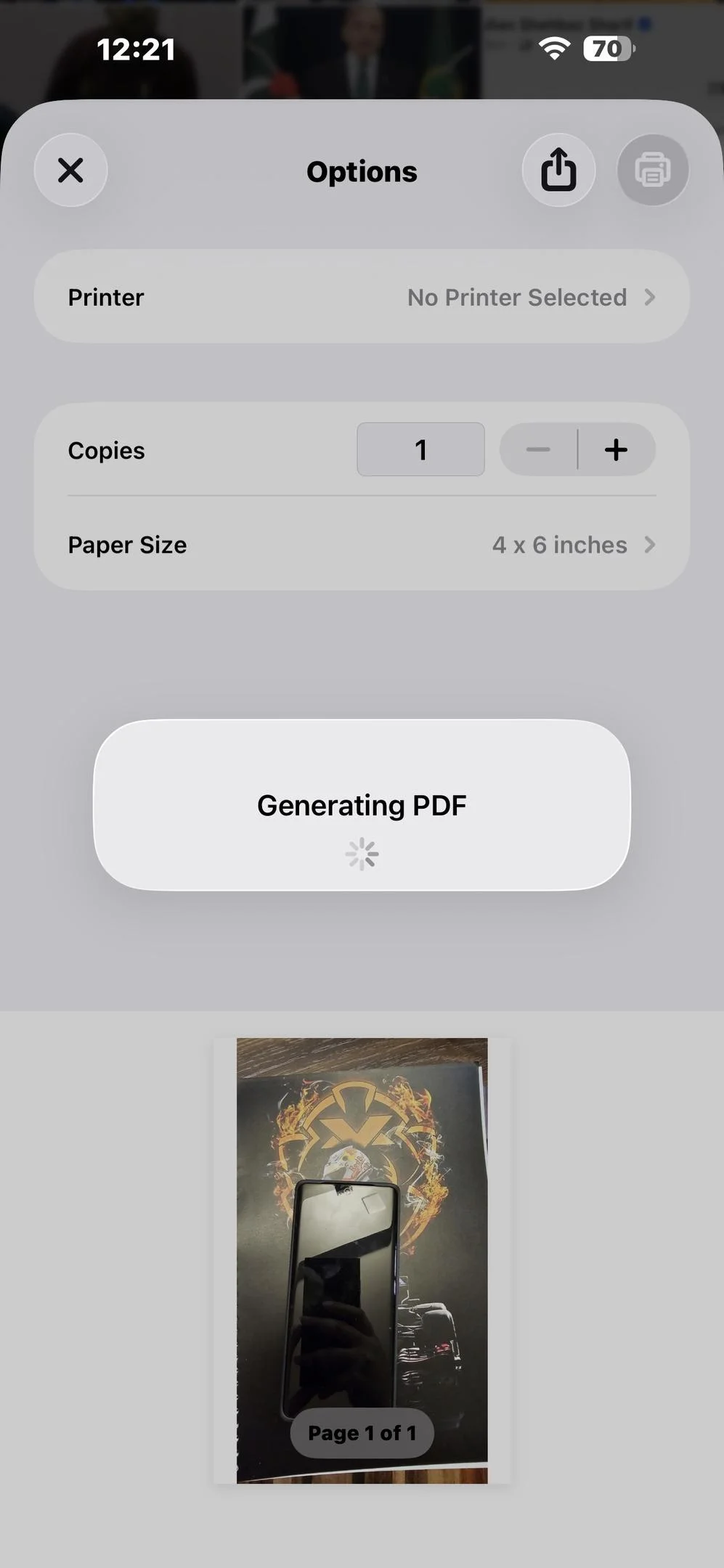
4. On the print preview screen, place two fingers on the preview thumbnail and pinch outwards. The preview will expand and open as a full pdf document ; that is the conversion step.
5. Tap the share icon again (top right of the preview screen) and choose save to files from the sheet.
6. Navigate to your preferred cloud storage folder or same folder in the files app, then tap tap save to write the new pdf file to your device.
To convert a picture to PDF using the photos app, select the photo, tap share, choose print, and then pinch outwards on the preview to create a PDF.
> This pinch-to-expand trick works on any iPhone model running iOS 13 or later. The resulting file is a true PDF, not just a renamed image.
## Method 2: Files App Method (JPEG Images)
The files app method is the most direct route for converting photos stored as standard JPEG files. The files app allows you to create pdf from images by selecting the image, using Quick Actions, and choosing create pdf, but it only works with JPEG images. The files app on iPhone can only convert JPEG images to PDF, meaning that heic files must be converted to JPEG first to use this method.
**Steps:**
1. Open the files app on your iPhone and navigate to the folder containing the image. If your photos are in your photo library, first save a copy to the files app via the photos app share sheet and save to files.
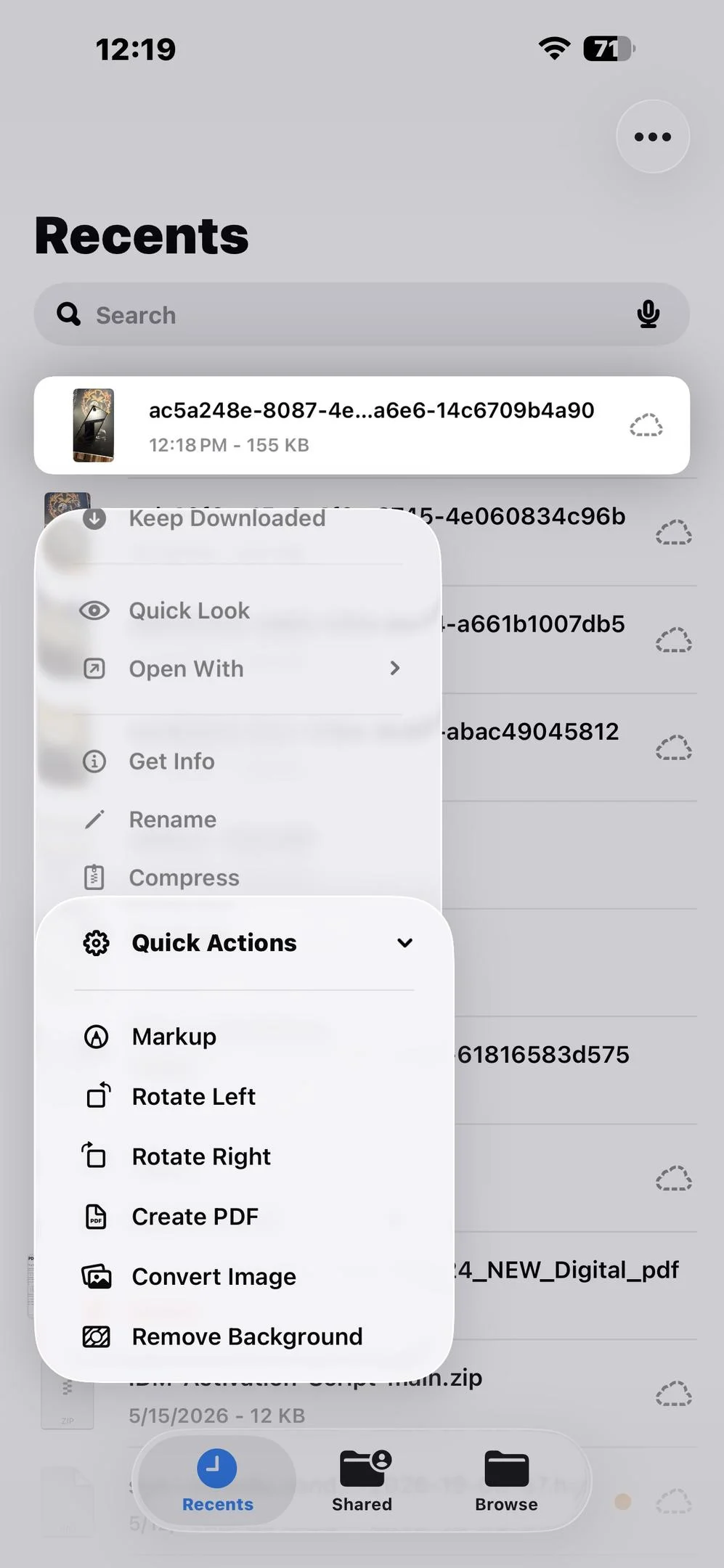
2. Locate the JPEG file. Long press on the image thumbnail to open the context menu.
3. In the context menu that appears, tap select create pdf (shown as Choose Create PDF in some iOS versions). The new pdf document is created instantly in the same folder as the original file.
4. The converted pdf appears beside the original images with the same name but a .pdf extension. Tap it to verify, then move it to cloud storage or share it as needed.
> If you long press a HEIC image in the Files app, the Create PDF option will not appear. Use Method 1 (the Photos app Print trick) or convert the HEIC to JPG first via Settings > Camera > Formats > Most Compatible.
## Method 3: Combine Multiple Images into One PDF (Files App)
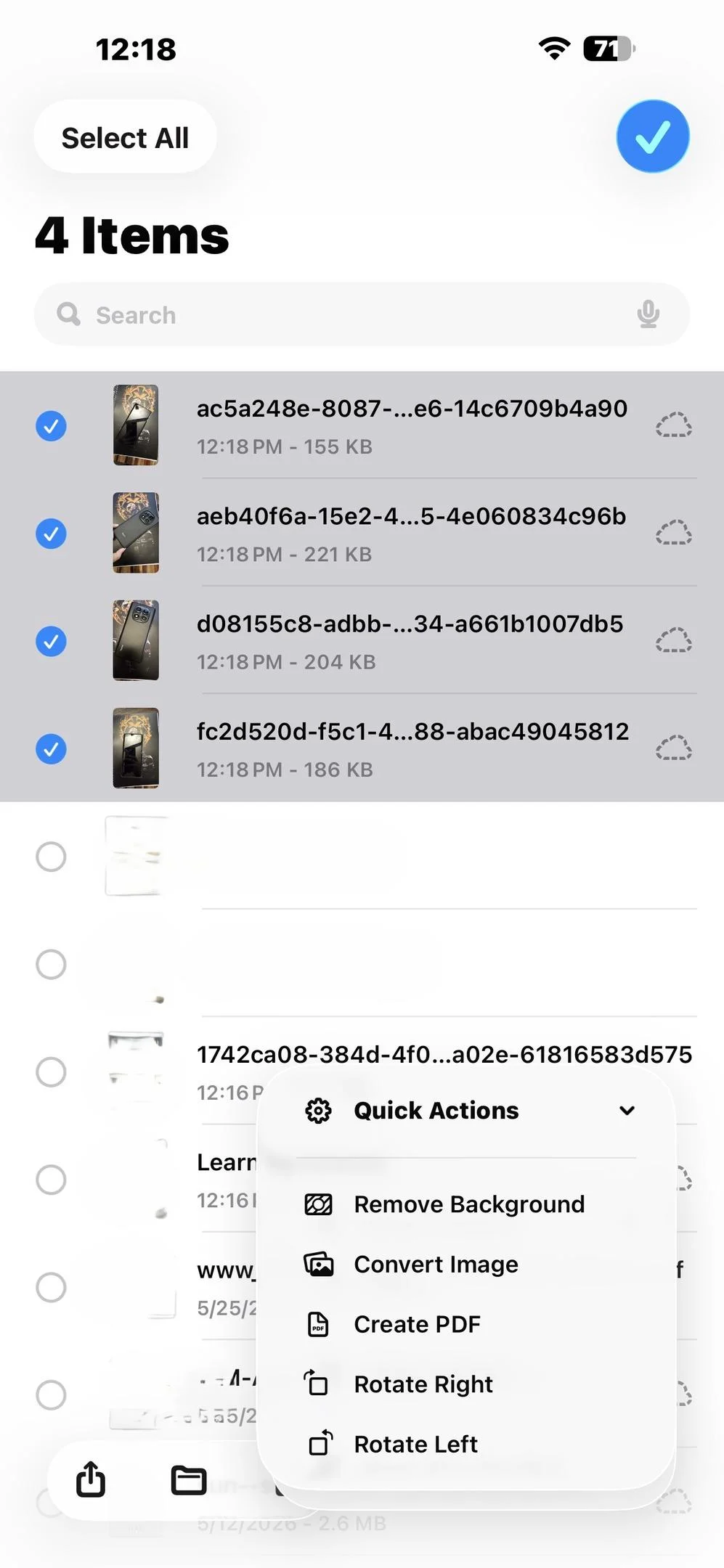
When you need to merge several images into one pdf, the files app can combine multiple images into a single pdf in a few taps. This is especially useful for iphone photos taken across photo albums, such as a series of receipt scans or a multi-page document photographed page by page.
**Steps:**
1. Open the files app and navigate to a folder where all the images are stored. If they are spread across different locations, move them into the same folder first.
2. Tap the three dots icon at the top right and choose Select.
3. Tap multiple photos to select each image in the order you want them to appear in the final PDF. The order you tap multiple photos determines the page sequence.
4. Once the selected images are all checked, tap the three dots at the bottom and choose Create PDF from the pop up options.
5. The new pdf document is saved to the same folder. Use the share sheet to move it to cloud storage or other apps.
You can combine multiple images quickly this way, and the files app arranges them into the pdf document in the tapped sequence.
## Method 4: Use a PDF Online Tool
When the built-in methods are not available; for example, when the heic photos conversion workaround is inconvenient, or when you need advanced features like pdf sign or unlimited access to merging tools, a pdf online converter is a practical alternative. These tools run in the device browser and require only an internet connection.
Popular options include Adobe Acrobat Online, Smallpdf, and iLovePDF. Each offers a to pdf converter that accepts image files including heic files, png, and jpg.
**General steps for any PDF online tool:**
1. Open Safari or your preferred browser on your iPhone and navigate to the **pdf online** tool.
2. Tap open files or the upload button, then choose select photos from your photo library or drop files if the tool supports drag-and-drop on iPadOS.
3. Upload single image or multiple images depending on whether you want a single pdf or a merged pdf document.
4. The tool converts the image files and presents a download link. Tap select save or the share icon to send the converted pdf to the files app or cloud storage.
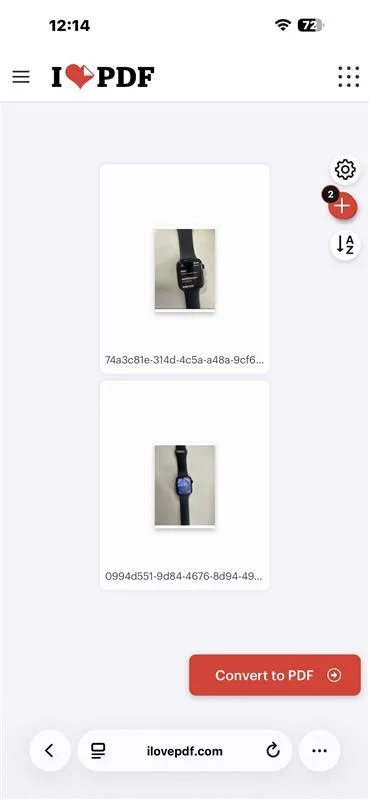
Common pdf tools in browsers also let you access pdf sign, rearrange page order, and adjust image quality before finalising, giving you more control than the built-in options.
> If you use iCloud Drive, saving the converted PDF directly into your iCloud folder means it is available on all your Apple devices instantly without a separate transfer step.
## Common Issues and Troubleshooting
**The converted PDF file size is very large**
Common issues when converting images to PDF on iPhone include large file sizes, which can be reduced by using compression tools after conversion. After saving, open the converted pdf in the files app and send it to an online compression tool or a pdf tools app before sharing.
**The PDF looks blurry**
Users often find that the image quality of the converted pdf appears blurry, which can be due to starting with a low-quality photo or repeated compressions. Always start from the original images rather than a compressed copy, and avoid passing the same image through compression more than once.
**Cannot find the converted PDF**
A common issue is not being able to find the converted pdf file, which can usually be resolved by checking the files app or searching for the file name in the Search bar. The new pdf document is saved in the same folder as the original file when using the files app method.
**HEIC images cannot use the Files app Create PDF option**
The files app on iPhone can only convert JPEG images to PDF. If your iphone photos are stored as heic files, use the photos app Print method (Method 1) instead.
**The Print option is not visible in the share sheet**
On some older iphone models, scroll down past the first row of apps icons to find the print option in the Actions list. Ensure AirPrint is not disabled under any MDM profile on a managed device.
## Quick Reference Table
| Method | Image Formats | Combines Multiple | Requires Internet |
| --- | --- | --- | --- |
| **Photos app Print trick** | All (HEIC, JPG, PNG) | No | No |
| **Files app Create PDF** | JPEG only | No | No |
| **Files app multi-select** | JPEG only | Yes | No |
| **PDF online tool** | All formats | Yes | Yes |
## For Developers: Convert Images to PDF with IronPDF in .NET
If you are building a .NET application that needs to automate image to pdf conversion, [IronPDF](/) provides a clean API for converting a single image or multiple images across all common image formats into a pdf document without depending on Apple's mobile stack.
IronPDF's ImageToPdfConverter.ImageToPdf() method accepts jpg, png, TIFF, and other common image files, and produces a properly structured pdf document in just a few lines of code.
### Install IronPDF
```shell
:ProductInstall
```
### Code Example: Convert a Single Image and Combine Multiple Images into One PDF
```csharp
using IronPdf;
using IronPdf.Imaging;

// Convert a single image to PDF
PdfDocument singlePdf = ImageToPdfConverter.ImageToPdf("invoice_photo_1.jpg");
singlePdf.SaveAs("invoice_photo_1.pdf");

// Combine multiple images into one PDF document (one image per page)
string[] imagePaths = { "invoice_photo_1.jpg", "invoice_photo_2.jpg", "invoice_photo_3.jpg" };
PdfDocument combinedPdf = ImageToPdfConverter.ImageToPdf(imagePaths, ImageBehavior.CropPage);
combinedPdf.SaveAs("invoices_combined.pdf");
```
ImageBehavior.CropPage sizes each page to match its source image exactly, preserving the **original images** without padding. The library supports batch jobs across entire directories using Directory.EnumerateFiles().
Start with a [free trial](/start-free/trial/) to explore IronPDF's image conversion, PDF merging, compression, and editing features.
**Further Reading:**
- [Convert Image to PDF in C# with IronPDF](/how-to/image-to-pdf/)
- [Image to PDF Code Examples](/examples/image-to-pdf/)
- [Convert JPG to PDF in C#](/blog/using-ironpdf/how-to-convert-image-to-pdf-csharp/)
## Wrapping Up
Every iPhone carries everything you need to convert images to pdf files without installing a single extra app. The photos app Print trick handles any format in seconds, the files app method is the cleanest option for a quick JPEG conversion, and the multi-select approach brings multiple photos together into one pdf effortlessly. When advanced features or an internet connection is available, a pdf online tool fills the gap.
For teams building document workflows in .NET, [IronPDF](/) automates the photos to pdf pipeline server-side across all common image formats. Grab a [free trial](/start-free/trial/) and see how fast your image to pdf pipeline can run.
You can convert a picture to pdf format on any iPhone using built-in apps alone ; no third-party pdf converter is required. PDFs retain their image quality, formatting, and properties, making them ideal for sharing high-quality images across various devices and platforms. Whether you need to send a receipt, archive a signed form, or combine multiple photos into a single shareable pdf document, the iPhone handles every case natively.
You can convert images to pdf files on your iPhone using built-in apps like Files, Photos, and Books, or through third-party apps. The Apple Pages app can also be used to open and export photos as PDFs when you need a quick desktop-style layout. Converting images to pdf format allows for easy sharing and access, ensuring that recipients can open and view the files regardless of their device or operating system. You can convert images across all common image formats on an iPhone, including heic files, jpg, png, and TIFF, and the converted pdf will look consistent on every screen. PDFs are portable and can be shared without losing the original quality of the images, making them suitable for archiving important files like receipts or signed forms.
This guide covers four methods to convert images to pdf files on iPhone: using the photos app Print trick, the files app method, combining multiple images via the files app, and using a pdf online tool when offline options fall short. Developers who need to automate image to pdf conversion in .NET will find a dedicated section at the end powered by IronPDF.
The fastest way to convert a picture to PDF on iPhone uses the print option hidden inside the photos app. The Print function in the photos app allows for the conversion of any photo format to PDF without needing to download additional apps. This works for heic photos, jpg, and png and covers every format stored in your photo library.
Steps:
Open the photos app and find the image you want to convert. Select photos by tapping the thumbnail to open it full screen.
Tap the share icon (the box with an upward arrow) at the bottom left of the screen.
Scroll down the share sheet and tap choose print from the list of options.
On the print preview screen, place two fingers on the preview thumbnail and pinch outwards. The preview will expand and open as a full pdf document ; that is the conversion step.
Tap the share icon again (top right of the preview screen) and choose save to files from the sheet.
Navigate to your preferred cloud storage folder or same folder in the files app, then tap tap save to write the new pdf file to your device.
To convert a picture to PDF using the photos app, select the photo, tap share, choose print, and then pinch outwards on the preview to create a PDF.
This pinch-to-expand trick works on any iPhone model running iOS 13 or later. The resulting file is a true PDF, not just a renamed image.
Method 2: Files App Method (JPEG Images)
The files app method is the most direct route for converting photos stored as standard JPEG files. The files app allows you to create pdf from images by selecting the image, using Quick Actions, and choosing create pdf, but it only works with JPEG images. The files app on iPhone can only convert JPEG images to PDF, meaning that heic files must be converted to JPEG first to use this method.
Steps:
Open the files app on your iPhone and navigate to the folder containing the image. If your photos are in your photo library, first save a copy to the files app via the photos app share sheet and save to files.
Locate the JPEG file. Long press on the image thumbnail to open the context menu.
In the context menu that appears, tap select create pdf (shown as Choose Create PDF in some iOS versions). The new pdf document is created instantly in the same folder as the original file.
The converted pdf appears beside the original images with the same name but a .pdf extension. Tap it to verify, then move it to cloud storage or share it as needed.
If you long press a HEIC image in the Files app, the Create PDF option will not appear. Use Method 1 (the Photos app Print trick) or convert the HEIC to JPG first via Settings > Camera > Formats > Most Compatible.
Method 3: Combine Multiple Images into One PDF (Files App)
When you need to merge several images into one pdf, the files app can combine multiple images into a single pdf in a few taps. This is especially useful for iphone photos taken across photo albums, such as a series of receipt scans or a multi-page document photographed page by page.
Steps:
Open the files app and navigate to a folder where all the images are stored. If they are spread across different locations, move them into the same folder first.
Tap the three dots icon at the top right and choose Select.
Tap multiple photos to select each image in the order you want them to appear in the final PDF. The order you tap multiple photos determines the page sequence.
Once the selected images are all checked, tap the three dots at the bottom and choose Create PDF from the pop up options.
The new pdf document is saved to the same folder. Use the share sheet to move it to cloud storage or other apps.
You can combine multiple images quickly this way, and the files app arranges them into the pdf document in the tapped sequence.
Method 4: Use a PDF Online Tool
When the built-in methods are not available; for example, when the heic photos conversion workaround is inconvenient, or when you need advanced features like pdf sign or unlimited access to merging tools, a pdf online converter is a practical alternative. These tools run in the device browser and require only an internet connection.
Popular options include Adobe Acrobat Online, Smallpdf, and iLovePDF. Each offers a to pdf converter that accepts image files including heic files, png, and jpg.
General steps for any PDF online tool:
Open Safari or your preferred browser on your iPhone and navigate to the pdf online tool.
Tap open files or the upload button, then choose select photos from your photo library or drop files if the tool supports drag-and-drop on iPadOS.
Upload single image or multiple images depending on whether you want a single pdf or a merged pdf document.
The tool converts the image files and presents a download link. Tap select save or the share icon to send the converted pdf to the files app or cloud storage.
Common pdf tools in browsers also let you access pdf sign, rearrange page order, and adjust image quality before finalising, giving you more control than the built-in options.
If you use iCloud Drive, saving the converted PDF directly into your iCloud folder means it is available on all your Apple devices instantly without a separate transfer step.
Common Issues and Troubleshooting
The converted PDF file size is very large
Common issues when converting images to PDF on iPhone include large file sizes, which can be reduced by using compression tools after conversion. After saving, open the converted pdf in the files app and send it to an online compression tool or a pdf tools app before sharing.
The PDF looks blurry
Users often find that the image quality of the converted pdf appears blurry, which can be due to starting with a low-quality photo or repeated compressions. Always start from the original images rather than a compressed copy, and avoid passing the same image through compression more than once.
Cannot find the converted PDF
A common issue is not being able to find the converted pdf file, which can usually be resolved by checking the files app or searching for the file name in the Search bar. The new pdf document is saved in the same folder as the original file when using the files app method.
HEIC images cannot use the Files app Create PDF option
The files app on iPhone can only convert JPEG images to PDF. If your iphone photos are stored as heic files, use the photos app Print method (Method 1) instead.
The Print option is not visible in the share sheet
On some older iphone models, scroll down past the first row of apps icons to find the print option in the Actions list. Ensure AirPrint is not disabled under any MDM profile on a managed device.
Quick Reference Table
Method
Image Formats
Combines Multiple
Requires Internet
Photos app Print trick
All (HEIC, JPG, PNG)
No
No
Files app Create PDF
JPEG only
No
No
Files app multi-select
JPEG only
Yes
No
PDF online tool
All formats
Yes
Yes
For Developers: Convert Images to PDF with IronPDF in .NET
If you are building a .NET application that needs to automate image to pdf conversion, IronPDF provides a clean API for converting a single image or multiple images across all common image formats into a pdf document without depending on Apple's mobile stack.
IronPDF's ImageToPdfConverter.ImageToPdf() method accepts jpg, png, TIFF, and other common image files, and produces a properly structured pdf document in just a few lines of code.
Install IronPDF
PM > Install-Package IronPdf
Install-Package IronPdf
Code Example: Convert a Single Image and Combine Multiple Images into One PDF
using IronPdf;using IronPdf.Imaging;// Convert a single image to PDFPdfDocument singlePdf = ImageToPdfConverter.ImageToPdf("invoice_photo_1.jpg");singlePdf.SaveAs("invoice_photo_1.pdf");// Combine multiple images into one PDF document (one image per page)string[] imagePaths = { "invoice_photo_1.jpg", "invoice_photo_2.jpg", "invoice_photo_3.jpg" };PdfDocument combinedPdf = ImageToPdfConverter.ImageToPdf(imagePaths, ImageBehavior.CropPage);combinedPdf.SaveAs("invoices_combined.pdf");
using IronPdf;
using IronPdf.Imaging;

// Convert a single image to PDF
PdfDocument singlePdf = ImageToPdfConverter.ImageToPdf("invoice_photo_1.jpg");
singlePdf.SaveAs("invoice_photo_1.pdf");

// Combine multiple images into one PDF document (one image per page)
string[] imagePaths = { "invoice_photo_1.jpg", "invoice_photo_2.jpg", "invoice_photo_3.jpg" };
PdfDocument combinedPdf = ImageToPdfConverter.ImageToPdf(imagePaths, ImageBehavior.CropPage);
combinedPdf.SaveAs("invoices_combined.pdf");
C#
ImageBehavior.CropPage sizes each page to match its source image exactly, preserving the original images without padding. The library supports batch jobs across entire directories using Directory.EnumerateFiles().
Start with a free trial to explore IronPDF's image conversion, PDF merging, compression, and editing features.
Every iPhone carries everything you need to convert images to pdf files without installing a single extra app. The photos app Print trick handles any format in seconds, the files app method is the cleanest option for a quick JPEG conversion, and the multi-select approach brings multiple photos together into one pdf effortlessly. When advanced features or an internet connection is available, a pdf online tool fills the gap.
For teams building document workflows in .NET, IronPDF automates the photos to pdf pipeline server-side across all common image formats. Grab a free trial and see how fast your image to pdf pipeline can run.
Curtis Chau holds a Bachelor’s degree in Computer Science (Carleton University) and specializes in front-end development with expertise in Node.js, TypeScript, JavaScript, and React. Passionate about crafting intuitive and aesthetically pleasing user interfaces, Curtis enjoys working with modern frameworks and creating well-structured, visually appealing manuals.









 Common pdf tools in browsers also let you access pdf sign, rearrange page order, and adjust image quality before finalising, giving you more control than the built-in options.