using IronPdf;

// Disable local disk access or cross-origin requests
Installation.EnableWebSecurity = true;

// Instantiate Renderer
var renderer = new ChromePdfRenderer();

// Create a PDF from a HTML string using C#
var pdf = renderer.RenderHtmlAsPdf("<h1>Hello World</h1>");

// Export to a file or Stream
pdf.SaveAs("output.pdf");

// Advanced Example with HTML Assets
// Load external html assets: Images, CSS and JavaScript.
// An optional BasePath 'C:\site\assets\' is set as the file location to load assets from
var myAdvancedPdf = renderer.RenderHtmlAsPdf("<img src='icons/iron.png'>", @"C:\site\assets\");
myAdvancedPdf.SaveAs("html-with-assets.pdf");
using IronPdf;// Disable local disk access or cross-origin requestsInstallation.EnableWebSecurity = true;// Instantiate Renderervar renderer = new ChromePdfRenderer();// Create a PDF from a HTML string using C#var pdf = renderer.RenderHtmlAsPdf("<h1>Hello World</h1>");// Export to a file or Streampdf.SaveAs("output.pdf");// Advanced Example with HTML Assets// Load external html assets: Images, CSS and JavaScript.// An optional BasePath 'C:\site\assets\' is set as the file location to load assets fromvar myAdvancedPdf = renderer.RenderHtmlAsPdf("<img src='icons/iron.png'>", @"C:\site\assets\");myAdvancedPdf.SaveAs("html-with-assets.pdf");
[Converting JPG to PDF](https://ironpdf.com/how-to/image-to-pdf/) in .NET applications is a common requirement for developers working on [enterprise document management systems](https://ironpdf.com/how-to/metadata/) or compliance-driven workflows. Building document archival tools, photo repositories, or automated reporting systems for [regulated industries](https://ironpdf.com/how-to/pdfa/) all introduce this need regularly. Free JPG to PDF online services exist for quick conversions -- you can upload images and download the converted PDF in seconds. But for serious enterprise automation with audit trail requirements, those browser-based solutions lack the programmatic control, security, and compliance guarantees that software engineers need.
[IronPDF](https://ironpdf.com) provides a powerful JPG to PDF converter that transforms image files into professional PDF documents with just a few lines of C# code, complete with [digital signature capabilities](https://ironpdf.com/how-to/signing/) and [encryption options](https://ironpdf.com/how-to/pdf-permissions-passwords/). Unlike those online tools that may expose uploaded files to data risks, IronPDF runs entirely within your application infrastructure -- a secure, self-hosted solution that keeps sensitive data safely on your own Azure or on-premise servers.
```csharp
// Convert JPG to PDF in one line!
IronPdf.ImageToPdfConverter.ImageToPdf("photo.jpg").SaveAs("output.pdf");
```
!!!--LIBRARY_NUGET_INSTALL_BLOCK--!!!
## How Do You Convert a JPG File to a PDF Document in C#?
Converting a single JPG file to a PDF document requires just one method call with IronPDF's `ImageToPdfConverter` class. This image to PDF converter handles the entire conversion process automatically, preserving image quality while generating a properly formatted PDF file that meets [PDF/A compliance standards](https://ironpdf.com/how-to/pdfa/) for long-term archival.
```csharp
using IronPdf;
// Convert a single JPG image to PDF
PdfDocument pdf = ImageToPdfConverter.ImageToPdf("inputImage.jpg");
// Add metadata for compliance tracking
pdf.MetaData.Author = "Enterprise System";
pdf.MetaData.CreationDate = DateTime.Now;
pdf.MetaData.Keywords = "JPG-Conversion,Compliance-Ready";
// Apply security settings for sensitive documents
pdf.SecuritySettings.AllowUserPrinting = IronPdf.Security.PdfPrintSecurity.FullPrintRights;
pdf.SecuritySettings.AllowUserEdits = IronPdf.Security.PdfEditSecurity.NoEdit;
pdf.SecuritySettings.AllowUserCopyPasteContent = false;
// Save the converted PDF to disk
pdf.SaveAs("output.pdf");
```
The converter integrates with your existing [logging infrastructure](https://ironpdf.com/how-to/custom-logging/), enabling detailed audit trails for compliance reporting. For enterprise deployments requiring [high availability](https://ironpdf.com/how-to/async/), consider implementing asynchronous conversion patterns to handle concurrent requests efficiently.
### What Does the Converted PDF Output Look Like?

The `ImageToPdf` method accepts a file path to your JPG or JPEG image and returns a `PdfDocument` object that supports [advanced manipulation features](https://ironpdf.com/how-to/merge-or-split-pdfs/). This PDF converter supports images stored on disk, network locations, or Azure Blob Storage for cloud-native architectures. The resulting PDF file maintains the original resolution and color fidelity, ensuring photos, scanned documents, and compliance records look exactly as intended.
IronPDF's converter supports [Windows](https://ironpdf.com/how-to/windows/), [Mac](https://ironpdf.com/how-to/macos/), and [Linux](https://ironpdf.com/get-started/linux/) operating systems, including containerized deployments in [Docker](https://ironpdf.com/get-started/ironpdf-docker/) and [AWS Lambda](https://ironpdf.com/get-started/aws/), so you can deploy your image to PDF solution across any enterprise environment without additional software dependencies.
## How Do You Convert Multiple JPG Images Into One PDF File?
Combining multiple JPG files into a single PDF document is essential for creating consolidated reports, archiving batches of scanned documents, or assembling multi-page compliance packages. The JPG to PDF converter accepts an array of file paths, merging all images into a single PDF with each image on its own page while maintaining [proper page numbering](https://ironpdf.com/how-to/page-numbers/).
```csharp
using IronPdf;
// Define multiple JPG images to convert
string[] jpgImages = { "page1.jpg", "page2.jpeg", "page3.jpg" };
// Validate all files exist before processing
foreach (var imagePath in jpgImages)
{
if (!File.Exists(imagePath))
{
throw new FileNotFoundException($"Required image not found: {imagePath}");
}
}
// Convert all images into a single PDF document
PdfDocument pdf = ImageToPdfConverter.ImageToPdf(jpgImages);
// Add headers for document identification
pdf.AddHtmlHeaders(new HtmlHeaderFooter()
{
HtmlFragment = "<div style='text-align:center'>Confidential - {date}</div>",
Height = 25
});
// Apply compression for optimal file size
pdf.CompressImages(70);
// Save the combined PDF
pdf.SaveAs("combined-document.pdf");
```
This approach lets you convert multiple JPG images in the desired order -- simply arrange the file paths in your array accordingly. The PDF converter works efficiently even with large batches of JPG pictures, processing hundreds of images in seconds on modern hardware.
For enterprise scenarios such as invoice processing, medical record digitization, or legal document archival, you can enumerate image files in a directory and pass them directly to the converter. This enables automated workflows that convert JPG to PDF without manual intervention, supporting [HIPAA-compliant workflows](https://www.hhs.gov/hipaa/for-professionals/security/index.html) with appropriate security controls such as [encryption and permission restrictions](https://ironpdf.com/how-to/pdf-permissions-passwords/).
## What Image Formats Does the JPG to PDF Converter Support?
IronPDF's image to PDF tool supports multiple image formats beyond JPG and JPEG, providing flexibility for diverse enterprise requirements. You can convert PNG, BMP, GIF, and TIFF files using the same straightforward API, ensuring your application can handle whatever image formats your business processes require.
The following table summarizes the supported image formats and their typical use cases:
<table class="content__data-table" data-content-table>
<caption>Image Formats Supported by IronPDF's ImageToPdfConverter</caption>
<thead>
<tr>
<th>Format</th>
<th>Extension(s)</th>
<th>Typical Use Case</th>
<th>Notes</th>
</tr>
</thead>
<tbody>
<tr>
<td>JPEG</td>
<td>.jpg, .jpeg</td>
<td>Photos, scanned documents</td>
<td>Lossy compression; ideal for photographs</td>
</tr>
<tr>
<td>PNG</td>
<td>.png</td>
<td>Screenshots, graphics with transparency</td>
<td>Lossless; preserves transparent backgrounds</td>
</tr>
<tr>
<td>TIFF</td>
<td>.tif, .tiff</td>
<td>Medical imaging, archival scans</td>
<td>Supports multi-page TIFF files</td>
</tr>
<tr>
<td>BMP</td>
<td>.bmp</td>
<td>Legacy scanning systems</td>
<td>Uncompressed; large file sizes</td>
</tr>
<tr>
<td>GIF</td>
<td>.gif</td>
<td>Simple graphics, icons</td>
<td>Limited color palette (256 colors)</td>
</tr>
</tbody>
</table>
```csharp
using IronPdf;
// Convert any supported image format using the same API
string imagePath = "document.tiff";
PdfDocument pdf = ImageToPdfConverter.ImageToPdf(imagePath);
// Apply enterprise metadata standards
pdf.MetaData.Producer = "Enterprise Document System v2.0";
pdf.SaveAs("output.pdf");
```
### How Does PNG to PDF Conversion Quality Compare?
The converter automatically detects the image format and applies appropriate processing, maintaining [color accuracy](https://ironpdf.com/how-to/color-grayscale/) crucial for medical imaging or design documents. Whether working with compressed JPEG photos from mobile devices, high-fidelity PNG graphics with transparency, or legacy BMP files from scanning systems, the PDF conversion produces consistent, high-quality results.
This same converter architecture can also process [DOCX files](https://ironpdf.com/how-to/docx-to-pdf/) and other document types, making IronPDF a versatile document processing solution for your entire enterprise content management stack.
## How Do You Preserve Image Quality in the Converted PDF?
Maintaining image quality during PDF conversion is critical for professional documents, especially in industries with strict visual fidelity requirements like healthcare imaging or engineering drawings. IronPDF preserves the original resolution of JPG images by default, ensuring no degradation occurs during the conversion process. You can also apply [lossless compression options](https://ironpdf.com/how-to/pdf-compression/) to manage file size without sacrificing visual fidelity.
```csharp
using IronPdf;
// Convert image maintaining original quality
PdfDocument pdf = ImageToPdfConverter.ImageToPdf("high-res-scan.jpg");
// Apply linearization for fast web viewing (archival quality)
pdf.SaveAsLinearized("output-linearized.pdf");
// Alternatively, apply controlled compression when file size matters
pdf.CompressImages(90); // 90 = near-lossless
pdf.SaveAs("output-compressed.pdf");
```
For scenarios where you need to balance file size against image quality for cloud storage optimization, IronPDF provides granular compression controls that let you reduce the converted PDF size while controlling quality trade-offs. You can also [rotate PDF pages](https://ironpdf.com/how-to/rotating-text/) when source images have incorrect orientation from scanning processes.
The PDF converter works with high-resolution photos and scanned documents without imposing arbitrary limits, unlike free service alternatives that may compress or add watermarks to the output. This ensures digitally signed documents maintain their legal validity and archival records remain court-admissible. For background on JPEG compression and image quality trade-offs, refer to the [JPEG standard overview on Wikipedia](https://en.wikipedia.org/wiki/JPEG).
## How Do You Customize Page Size and Orientation?
Controlling the output PDF format gives you flexibility for different enterprise use cases, from standard letter-size reports to custom forms. IronPDF allows you to specify page dimensions and orientation when creating a new PDF document from images, supporting both [standard paper sizes](https://ironpdf.com/how-to/custom-paper-size/) and custom dimensions.
```csharp
using IronPdf;
// Create renderer with custom page settings
ChromePdfRenderer renderer = new ChromePdfRenderer();
// Configure for standard business documents
renderer.RenderingOptions.PaperSize = IronPdf.Rendering.PdfPaperSize.A4;
renderer.RenderingOptions.PaperOrientation = IronPdf.Rendering.PdfPaperOrientation.Portrait;
renderer.RenderingOptions.MarginTop = 25;
renderer.RenderingOptions.MarginBottom = 25;
renderer.RenderingOptions.MarginLeft = 20;
renderer.RenderingOptions.MarginRight = 20;
// Apply a corporate logo header
renderer.RenderingOptions.HtmlHeader = new HtmlHeaderFooter()
{
HtmlFragment = "<img src='corporate-logo.png' style='height:30px'/>",
Height = 40
};
// Wrap the image in HTML to control layout precisely
string imageHtml = @"
<html>
<body style='margin:0'>
<img src='wide-photo.jpg' style='width:100%; max-width:100%'/>
</body>
</html>";
PdfDocument pdf = renderer.RenderHtmlAsPdf(imageHtml);
// Add page numbers for multi-page documents
pdf.AddTextFooters("{page} of {total-pages}", IronPdf.Font.FontFamily.Arial, 10);
pdf.SaveAs("formatted-document.pdf");
```
### What Customization Options Are Available for PDF Output?
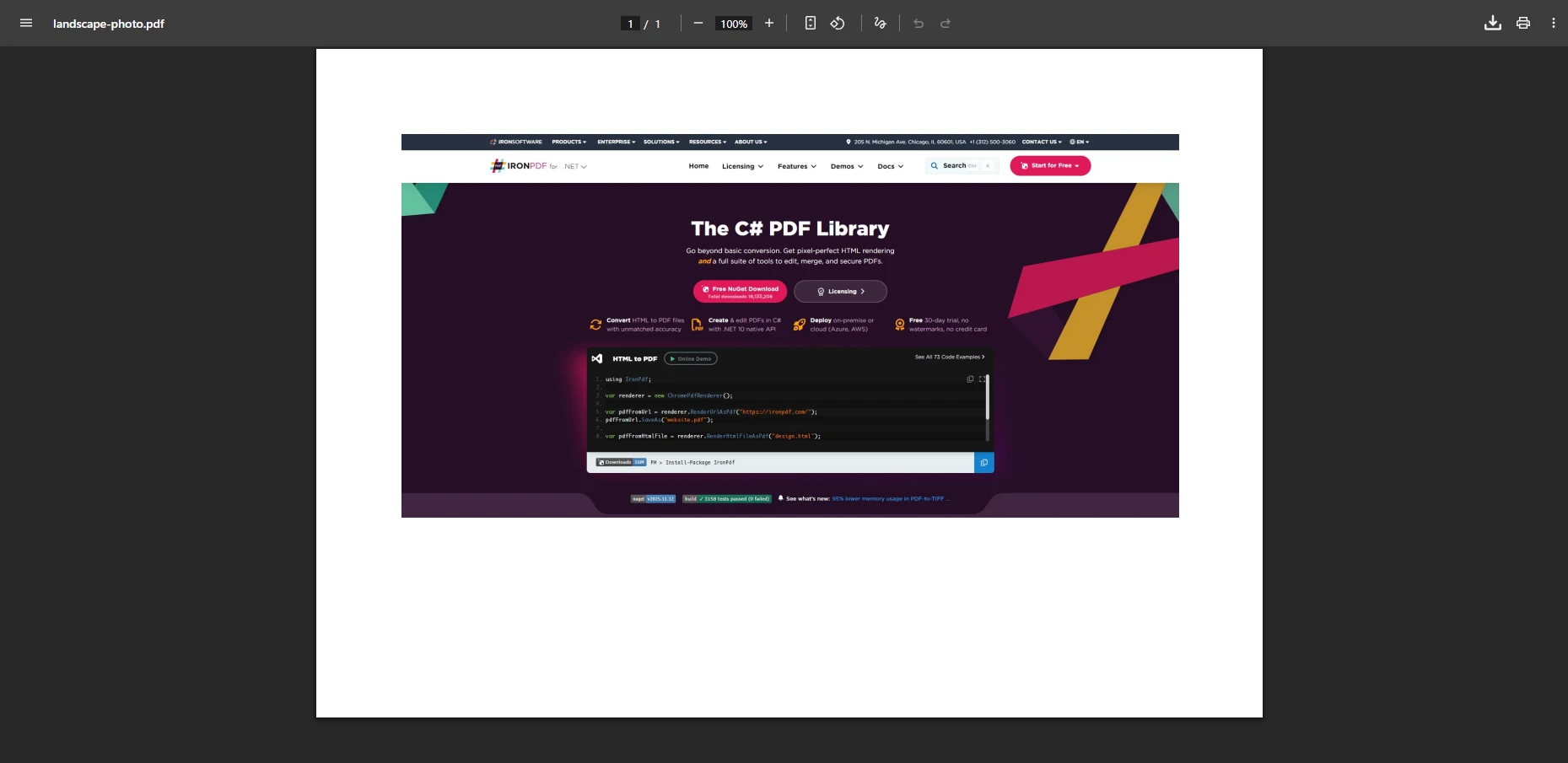
This technique wraps the image in HTML, giving you precise control over how JPG images appear on PDF pages while maintaining [CSS styling consistency](https://ironpdf.com/how-to/html-to-pdf-responsive-css/). You can set margins, apply scaling, add [watermarks](https://ironpdf.com/how-to/custom-watermark/), and position images exactly where needed in the single PDF file, supporting complex layout requirements for regulatory documents.
For advanced rendering customization including viewport control and JavaScript rendering delays, explore IronPDF's [rendering options documentation](https://ironpdf.com/how-to/rendering-options/).
## How Do You Add Headers, Footers, and Watermarks to Converted PDFs?
Adding headers, footers, and watermarks to converted PDFs is straightforward with IronPDF. These elements are essential for compliance workflows, branding consistency, and document identification in enterprise systems. Headers and footers can include dynamic content such as the current date, page numbers, and custom HTML. Watermarks -- both text and image-based -- can be stamped onto every page using the [custom watermark API](https://ironpdf.com/how-to/custom-watermark/).
```csharp
using IronPdf;
// Convert JPG to PDF
PdfDocument pdf = ImageToPdfConverter.ImageToPdf("invoice-scan.jpg");
// Add a text watermark for draft documents
pdf.ApplyWatermark("<h1 style='color:red;opacity:0.3'>DRAFT</h1>", rotation: 45, opacity: 80);
// Add a footer with the page number and date
pdf.AddHtmlFooters(new HtmlHeaderFooter()
{
HtmlFragment = "<div style='text-align:right;font-size:10px'>Page {page} of {total-pages} -- {date}</div>",
Height = 20
});
pdf.SaveAs("watermarked-invoice.pdf");
```
This pattern is particularly useful for regulated industries where every distributed document must carry a classification marking or a draft indicator until final approval. Combined with [digital signatures](https://ironpdf.com/how-to/signing/), watermarks provide a complete chain-of-custody record for audit trail systems.
## How Do You Secure PDF Documents After Converting from JPG?
Security is non-negotiable for documents containing sensitive imagery -- medical scans, financial records, and legal exhibits all require access controls. After converting JPG images to PDF, IronPDF lets you apply [password protection and permission restrictions](https://ironpdf.com/how-to/pdf-permissions-passwords/) in the same workflow.
```csharp
using IronPdf;
using IronPdf.Security;
// Convert the image
PdfDocument pdf = ImageToPdfConverter.ImageToPdf("medical-scan.jpg");
// Set an owner password (admin) and a user password (read-only access)
pdf.SecuritySettings.OwnerPassword = "admin-secret";
pdf.SecuritySettings.UserPassword = "readonly-access";
// Restrict editing and copying, but allow printing
pdf.SecuritySettings.AllowUserPrinting = PdfPrintSecurity.FullPrintRights;
pdf.SecuritySettings.AllowUserEdits = PdfEditSecurity.NoEdit;
pdf.SecuritySettings.AllowUserCopyPasteContent = false;
pdf.SecuritySettings.AllowUserAnnotations = false;
// Encrypt with AES-256
pdf.SecuritySettings.EncryptionType = PdfEncryptionType.Aes_256;
pdf.SaveAs("secured-medical-scan.pdf");
```
For deployments targeting [PDF/A-3](https://ironpdf.com/how-to/pdfa/) for long-term archival, IronPDF can convert and validate against the [ISO 19005 standard](https://www.iso.org/standard/75839.html) in a single pass. This is particularly relevant for healthcare and legal verticals where document retention policies mandate archival-safe formats.
IronPDF supports Windows, Mac, and Linux deployments with the same security API surface, so security policies are portable across environments. Learn more about platform-specific setup in the [IronPDF Linux guide](https://ironpdf.com/get-started/linux/).
## What Are Your Next Steps?
IronPDF transforms JPG to PDF .NET development from a multi-step task into a reliable, single-method operation with enterprise-grade security and compliance features. The library handles single images, multiple JPG files, and a range of image formats with consistent, high-quality results -- without relying on external online services that could compromise data sovereignty.
Unlike PDF converter drag-and-drop websites, IronPDF gives you programmatic control for automated document workflows, batch processing, and enterprise integration with full [API documentation](https://ironpdf.com/object-reference/api/). The converter processes images efficiently while maintaining quality and audit trails, making it suitable for applications ranging from healthcare document management to financial compliance systems.
Key enterprise benefits include:
- On-premise deployment for complete data control
- Support for [PDF/A archival and PDF/UA accessibility](https://ironpdf.com/how-to/pdfa/)
- Granular [security settings and AES-256 encryption](https://ironpdf.com/how-to/pdf-permissions-passwords/)
- Cross-platform support: Windows, macOS, Linux, Docker, and AWS
- Support for multiple image formats: JPG, PNG, TIFF, BMP, and GIF
[Start your free trial](trial-license) to experience how IronPDF simplifies image to PDF conversion in your .NET projects with enterprise-grade security, or explore the [full licensing options](https://ironpdf.com/licensing/) for production deployment.
Converting JPG to PDF in .NET applications is a common requirement for developers working on enterprise document management systems or compliance-driven workflows. Building document archival tools, photo repositories, or automated reporting systems for regulated industries all introduce this need regularly. Free JPG to PDF online services exist for quick conversions -- you can upload images and download the converted PDF in seconds. But for serious enterprise automation with audit trail requirements, those browser-based solutions lack the programmatic control, security, and compliance guarantees that software engineers need.
IronPDF provides a powerful JPG to PDF converter that transforms image files into professional PDF documents with just a few lines of C# code, complete with digital signature capabilities and encryption options. Unlike those online tools that may expose uploaded files to data risks, IronPDF runs entirely within your application infrastructure -- a secure, self-hosted solution that keeps sensitive data safely on your own Azure or on-premise servers.
// Convert JPG to PDF in one line!IronPdf.ImageToPdfConverter.ImageToPdf("photo.jpg").SaveAs("output.pdf");
// Convert JPG to PDF in one line!
IronPdf.ImageToPdfConverter.ImageToPdf("photo.jpg").SaveAs("output.pdf");
' Convert JPG to PDF in one line!IronPdf.ImageToPdfConverter.ImageToPdf("photo.jpg").SaveAs("output.pdf")
' Convert JPG to PDF in one line!
IronPdf.ImageToPdfConverter.ImageToPdf("photo.jpg").SaveAs("output.pdf")
Install with NuGet
PM > Install-Package IronPdf
Install-Package IronPdf
Install IronPDF by running the command above in the NuGet Package Manager Console, or search for the package in the NuGet Package Manager.
How Do You Convert a JPG File to a PDF Document in C#?
Converting a single JPG file to a PDF document requires just one method call with IronPDF's ImageToPdfConverter class. This image to PDF converter handles the entire conversion process automatically, preserving image quality while generating a properly formatted PDF file that meets PDF/A compliance standards for long-term archival.
using IronPdf;// Convert a single JPG image to PDFPdfDocument pdf = ImageToPdfConverter.ImageToPdf("inputImage.jpg");// Add metadata for compliance trackingpdf.MetaData.Author = "Enterprise System";pdf.MetaData.CreationDate = DateTime.Now;pdf.MetaData.Keywords = "JPG-Conversion,Compliance-Ready";// Apply security settings for sensitive documentspdf.SecuritySettings.AllowUserPrinting = IronPdf.Security.PdfPrintSecurity.FullPrintRights;pdf.SecuritySettings.AllowUserEdits = IronPdf.Security.PdfEditSecurity.NoEdit;pdf.SecuritySettings.AllowUserCopyPasteContent = false;// Save the converted PDF to diskpdf.SaveAs("output.pdf");
using IronPdf;

// Convert a single JPG image to PDF
PdfDocument pdf = ImageToPdfConverter.ImageToPdf("inputImage.jpg");

// Add metadata for compliance tracking
pdf.MetaData.Author = "Enterprise System";
pdf.MetaData.CreationDate = DateTime.Now;
pdf.MetaData.Keywords = "JPG-Conversion,Compliance-Ready";

// Apply security settings for sensitive documents
pdf.SecuritySettings.AllowUserPrinting = IronPdf.Security.PdfPrintSecurity.FullPrintRights;
pdf.SecuritySettings.AllowUserEdits = IronPdf.Security.PdfEditSecurity.NoEdit;
pdf.SecuritySettings.AllowUserCopyPasteContent = false;

// Save the converted PDF to disk
pdf.SaveAs("output.pdf");
C#
The converter integrates with your existing logging infrastructure, enabling detailed audit trails for compliance reporting. For enterprise deployments requiring high availability, consider implementing asynchronous conversion patterns to handle concurrent requests efficiently.
What Does the Converted PDF Output Look Like?
The ImageToPdf method accepts a file path to your JPG or JPEG image and returns a PdfDocument object that supports advanced manipulation features. This PDF converter supports images stored on disk, network locations, or Azure Blob Storage for cloud-native architectures. The resulting PDF file maintains the original resolution and color fidelity, ensuring photos, scanned documents, and compliance records look exactly as intended.
IronPDF's converter supports Windows, Mac, and Linux operating systems, including containerized deployments in Docker and AWS Lambda, so you can deploy your image to PDF solution across any enterprise environment without additional software dependencies.
How Do You Convert Multiple JPG Images Into One PDF File?
Combining multiple JPG files into a single PDF document is essential for creating consolidated reports, archiving batches of scanned documents, or assembling multi-page compliance packages. The JPG to PDF converter accepts an array of file paths, merging all images into a single PDF with each image on its own page while maintaining proper page numbering.
using IronPdf;// Define multiple JPG images to convertstring[] jpgImages = { "page1.jpg", "page2.jpeg", "page3.jpg" };// Validate all files exist before processingforeach (var imagePath in jpgImages){ if (!File.Exists(imagePath)) { throw new FileNotFoundException($"Required image not found: {imagePath}"); }}// Convert all images into a single PDF documentPdfDocument pdf = ImageToPdfConverter.ImageToPdf(jpgImages);// Add headers for document identificationpdf.AddHtmlHeaders(new HtmlHeaderFooter(){HtmlFragment = "<div style='text-align:center'>Confidential - {date}</div>",Height = 25});// Apply compression for optimal file sizepdf.CompressImages(70);// Save the combined PDFpdf.SaveAs("combined-document.pdf");
using IronPdf;

// Define multiple JPG images to convert
string[] jpgImages = { "page1.jpg", "page2.jpeg", "page3.jpg" };

// Validate all files exist before processing
foreach (var imagePath in jpgImages)
{
    if (!File.Exists(imagePath))
    {
        throw new FileNotFoundException($"Required image not found: {imagePath}");
    }
}

// Convert all images into a single PDF document
PdfDocument pdf = ImageToPdfConverter.ImageToPdf(jpgImages);

// Add headers for document identification
pdf.AddHtmlHeaders(new HtmlHeaderFooter()
{
    HtmlFragment = "<div style='text-align:center'>Confidential - {date}</div>",
    Height = 25
});

// Apply compression for optimal file size
pdf.CompressImages(70);

// Save the combined PDF
pdf.SaveAs("combined-document.pdf");
ImportsIronPdf' Define multiple JPG images to convertDim jpgImages AsString() = {"page1.jpg", "page2.jpeg", "page3.jpg"}' Validate all files exist before processingFor Each imagePath In jpgImages IfNotFile.Exists(imagePath) ThenThrow New FileNotFoundException($"Required image not found: {imagePath}") End IfNext' Convert all images into a single PDF documentDim pdf AsPdfDocument = ImageToPdfConverter.ImageToPdf(jpgImages)' Add headers for document identificationpdf.AddHtmlHeaders(New HtmlHeaderFooter() With { .HtmlFragment = "<div style='text-align:center'>Confidential - {date}</div>", .Height = 25})' Apply compression for optimal file sizepdf.CompressImages(70)' Save the combined PDFpdf.SaveAs("combined-document.pdf")
Imports IronPdf

' Define multiple JPG images to convert
Dim jpgImages As String() = {"page1.jpg", "page2.jpeg", "page3.jpg"}

' Validate all files exist before processing
For Each imagePath In jpgImages
    If Not File.Exists(imagePath) Then
        Throw New FileNotFoundException($"Required image not found: {imagePath}")
    End If
Next

' Convert all images into a single PDF document
Dim pdf As PdfDocument = ImageToPdfConverter.ImageToPdf(jpgImages)

' Add headers for document identification
pdf.AddHtmlHeaders(New HtmlHeaderFooter() With {
    .HtmlFragment = "<div style='text-align:center'>Confidential - {date}</div>",
    .Height = 25
})

' Apply compression for optimal file size
pdf.CompressImages(70)

' Save the combined PDF
pdf.SaveAs("combined-document.pdf")
This approach lets you convert multiple JPG images in the desired order -- simply arrange the file paths in your array accordingly. The PDF converter works efficiently even with large batches of JPG pictures, processing hundreds of images in seconds on modern hardware.
For enterprise scenarios such as invoice processing, medical record digitization, or legal document archival, you can enumerate image files in a directory and pass them directly to the converter. This enables automated workflows that convert JPG to PDF without manual intervention, supporting HIPAA-compliant workflows with appropriate security controls such as encryption and permission restrictions.
What Image Formats Does the JPG to PDF Converter Support?
IronPDF's image to PDF tool supports multiple image formats beyond JPG and JPEG, providing flexibility for diverse enterprise requirements. You can convert PNG, BMP, GIF, and TIFF files using the same straightforward API, ensuring your application can handle whatever image formats your business processes require.
The following table summarizes the supported image formats and their typical use cases:
Image Formats Supported by IronPDF's ImageToPdfConverter
Format
Extension(s)
Typical Use Case
Notes
JPEG
.jpg, .jpeg
Photos, scanned documents
Lossy compression; ideal for photographs
PNG
.png
Screenshots, graphics with transparency
Lossless; preserves transparent backgrounds
TIFF
.tif, .tiff
Medical imaging, archival scans
Supports multi-page TIFF files
BMP
.bmp
Legacy scanning systems
Uncompressed; large file sizes
GIF
.gif
Simple graphics, icons
Limited color palette (256 colors)
using IronPdf;// Convert any supported image format using the same APIstring imagePath = "document.tiff";PdfDocument pdf = ImageToPdfConverter.ImageToPdf(imagePath);// Apply enterprise metadata standardspdf.MetaData.Producer = "Enterprise Document System v2.0";pdf.SaveAs("output.pdf");
using IronPdf;

// Convert any supported image format using the same API
string imagePath = "document.tiff";

PdfDocument pdf = ImageToPdfConverter.ImageToPdf(imagePath);

// Apply enterprise metadata standards
pdf.MetaData.Producer = "Enterprise Document System v2.0";

pdf.SaveAs("output.pdf");
ImportsIronPdf' Convert any supported image format using the same APIDim imagePath AsString = "document.tiff"Dim pdf AsPdfDocument = ImageToPdfConverter.ImageToPdf(imagePath)' Apply enterprise metadata standardspdf.MetaData.Producer = "Enterprise Document System v2.0"pdf.SaveAs("output.pdf")
Imports IronPdf

' Convert any supported image format using the same API
Dim imagePath As String = "document.tiff"

Dim pdf As PdfDocument = ImageToPdfConverter.ImageToPdf(imagePath)

' Apply enterprise metadata standards
pdf.MetaData.Producer = "Enterprise Document System v2.0"

pdf.SaveAs("output.pdf")
How Does PNG to PDF Conversion Quality Compare?
The converter automatically detects the image format and applies appropriate processing, maintaining color accuracy crucial for medical imaging or design documents. Whether working with compressed JPEG photos from mobile devices, high-fidelity PNG graphics with transparency, or legacy BMP files from scanning systems, the PDF conversion produces consistent, high-quality results.
This same converter architecture can also process DOCX files and other document types, making IronPDF a versatile document processing solution for your entire enterprise content management stack.
How Do You Preserve Image Quality in the Converted PDF?
Maintaining image quality during PDF conversion is critical for professional documents, especially in industries with strict visual fidelity requirements like healthcare imaging or engineering drawings. IronPDF preserves the original resolution of JPG images by default, ensuring no degradation occurs during the conversion process. You can also apply lossless compression options to manage file size without sacrificing visual fidelity.
using IronPdf;// Convert image maintaining original qualityPdfDocument pdf = ImageToPdfConverter.ImageToPdf("high-res-scan.jpg");// Apply linearization for fast web viewing (archival quality)pdf.SaveAsLinearized("output-linearized.pdf");// Alternatively, apply controlled compression when file size matterspdf.CompressImages(90); // 90 = near-losslesspdf.SaveAs("output-compressed.pdf");
using IronPdf;

// Convert image maintaining original quality
PdfDocument pdf = ImageToPdfConverter.ImageToPdf("high-res-scan.jpg");

// Apply linearization for fast web viewing (archival quality)
pdf.SaveAsLinearized("output-linearized.pdf");

// Alternatively, apply controlled compression when file size matters
pdf.CompressImages(90); // 90 = near-lossless
pdf.SaveAs("output-compressed.pdf");
ImportsIronPdf' Convert image maintaining original qualityDim pdf AsPdfDocument = ImageToPdfConverter.ImageToPdf("high-res-scan.jpg")' Apply linearization for fast web viewing (archival quality)pdf.SaveAsLinearized("output-linearized.pdf")' Alternatively, apply controlled compression when file size matterspdf.CompressImages(90) ' 90 = near-losslesspdf.SaveAs("output-compressed.pdf")
Imports IronPdf

' Convert image maintaining original quality
Dim pdf As PdfDocument = ImageToPdfConverter.ImageToPdf("high-res-scan.jpg")

' Apply linearization for fast web viewing (archival quality)
pdf.SaveAsLinearized("output-linearized.pdf")

' Alternatively, apply controlled compression when file size matters
pdf.CompressImages(90) ' 90 = near-lossless
pdf.SaveAs("output-compressed.pdf")
For scenarios where you need to balance file size against image quality for cloud storage optimization, IronPDF provides granular compression controls that let you reduce the converted PDF size while controlling quality trade-offs. You can also rotate PDF pages when source images have incorrect orientation from scanning processes.
The PDF converter works with high-resolution photos and scanned documents without imposing arbitrary limits, unlike free service alternatives that may compress or add watermarks to the output. This ensures digitally signed documents maintain their legal validity and archival records remain court-admissible. For background on JPEG compression and image quality trade-offs, refer to the JPEG standard overview on Wikipedia.
How Do You Customize Page Size and Orientation?
Controlling the output PDF format gives you flexibility for different enterprise use cases, from standard letter-size reports to custom forms. IronPDF allows you to specify page dimensions and orientation when creating a new PDF document from images, supporting both standard paper sizes and custom dimensions.
using IronPdf;// Create renderer with custom page settingsChromePdfRenderer renderer = new ChromePdfRenderer();// Configure for standard business documentsrenderer.RenderingOptions.PaperSize = IronPdf.Rendering.PdfPaperSize.A4;renderer.RenderingOptions.PaperOrientation = IronPdf.Rendering.PdfPaperOrientation.Portrait;renderer.RenderingOptions.MarginTop = 25;renderer.RenderingOptions.MarginBottom = 25;renderer.RenderingOptions.MarginLeft = 20;renderer.RenderingOptions.MarginRight = 20;// Apply a corporate logo headerrenderer.RenderingOptions.HtmlHeader = new HtmlHeaderFooter(){HtmlFragment = "<img src='corporate-logo.png' style='height:30px'/>",Height = 40};// Wrap the image in HTML to control layout preciselystring imageHtml = @" <html> <body style='margin:0'> <img src='wide-photo.jpg' style='width:100%; max-width:100%'/> </body> </html>";PdfDocument pdf = renderer.RenderHtmlAsPdf(imageHtml);// Add page numbers for multi-page documentspdf.AddTextFooters("{page} of {total-pages}", IronPdf.Font.FontFamily.Arial, 10);pdf.SaveAs("formatted-document.pdf");
using IronPdf;

// Create renderer with custom page settings
ChromePdfRenderer renderer = new ChromePdfRenderer();

// Configure for standard business documents
renderer.RenderingOptions.PaperSize = IronPdf.Rendering.PdfPaperSize.A4;
renderer.RenderingOptions.PaperOrientation = IronPdf.Rendering.PdfPaperOrientation.Portrait;
renderer.RenderingOptions.MarginTop = 25;
renderer.RenderingOptions.MarginBottom = 25;
renderer.RenderingOptions.MarginLeft = 20;
renderer.RenderingOptions.MarginRight = 20;

// Apply a corporate logo header
renderer.RenderingOptions.HtmlHeader = new HtmlHeaderFooter()
{
    HtmlFragment = "<img src='corporate-logo.png' style='height:30px'/>",
    Height = 40
};

// Wrap the image in HTML to control layout precisely
string imageHtml = @"
    <html>
    <body style='margin:0'>
        <img src='wide-photo.jpg' style='width:100%; max-width:100%'/>
    </body>
    </html>";

PdfDocument pdf = renderer.RenderHtmlAsPdf(imageHtml);

// Add page numbers for multi-page documents
pdf.AddTextFooters("{page} of {total-pages}", IronPdf.Font.FontFamily.Arial, 10);

pdf.SaveAs("formatted-document.pdf");
ImportsIronPdf' Create renderer with custom page settingsDim renderer As New ChromePdfRenderer()' Configure for standard business documentsrenderer.RenderingOptions.PaperSize = IronPdf.Rendering.PdfPaperSize.A4renderer.RenderingOptions.PaperOrientation = IronPdf.Rendering.PdfPaperOrientation.Portraitrenderer.RenderingOptions.MarginTop = 25renderer.RenderingOptions.MarginBottom = 25renderer.RenderingOptions.MarginLeft = 20renderer.RenderingOptions.MarginRight = 20' Apply a corporate logo headerrenderer.RenderingOptions.HtmlHeader = New HtmlHeaderFooter() With { .HtmlFragment = "<img src='corporate-logo.png' style='height:30px'/>", .Height = 40}' Wrap the image in HTML to control layout preciselyDim imageHtml AsString = " <html> <body style='margin:0'> <img src='wide-photo.jpg' style='width:100%; max-width:100%'/> </body> </html>"Dim pdf AsPdfDocument = renderer.RenderHtmlAsPdf(imageHtml)' Add page numbers for multi-page documentspdf.AddTextFooters("{page} of {total-pages}", IronPdf.Font.FontFamily.Arial, 10)pdf.SaveAs("formatted-document.pdf")
Imports IronPdf

' Create renderer with custom page settings
Dim renderer As New ChromePdfRenderer()

' Configure for standard business documents
renderer.RenderingOptions.PaperSize = IronPdf.Rendering.PdfPaperSize.A4
renderer.RenderingOptions.PaperOrientation = IronPdf.Rendering.PdfPaperOrientation.Portrait
renderer.RenderingOptions.MarginTop = 25
renderer.RenderingOptions.MarginBottom = 25
renderer.RenderingOptions.MarginLeft = 20
renderer.RenderingOptions.MarginRight = 20

' Apply a corporate logo header
renderer.RenderingOptions.HtmlHeader = New HtmlHeaderFooter() With {
    .HtmlFragment = "<img src='corporate-logo.png' style='height:30px'/>",
    .Height = 40
}

' Wrap the image in HTML to control layout precisely
Dim imageHtml As String = "
    <html>
    <body style='margin:0'>
        <img src='wide-photo.jpg' style='width:100%; max-width:100%'/>
    </body>
    </html>"

Dim pdf As PdfDocument = renderer.RenderHtmlAsPdf(imageHtml)

' Add page numbers for multi-page documents
pdf.AddTextFooters("{page} of {total-pages}", IronPdf.Font.FontFamily.Arial, 10)

pdf.SaveAs("formatted-document.pdf")
What Customization Options Are Available for PDF Output?
This technique wraps the image in HTML, giving you precise control over how JPG images appear on PDF pages while maintaining CSS styling consistency. You can set margins, apply scaling, add watermarks, and position images exactly where needed in the single PDF file, supporting complex layout requirements for regulatory documents.
For advanced rendering customization including viewport control and JavaScript rendering delays, explore IronPDF's rendering options documentation.
How Do You Add Headers, Footers, and Watermarks to Converted PDFs?
Adding headers, footers, and watermarks to converted PDFs is straightforward with IronPDF. These elements are essential for compliance workflows, branding consistency, and document identification in enterprise systems. Headers and footers can include dynamic content such as the current date, page numbers, and custom HTML. Watermarks -- both text and image-based -- can be stamped onto every page using the custom watermark API.
using IronPdf;// Convert JPG to PDFPdfDocument pdf = ImageToPdfConverter.ImageToPdf("invoice-scan.jpg");// Add a text watermark for draft documentspdf.ApplyWatermark("<h1 style='color:red;opacity:0.3'>DRAFT</h1>", rotation: 45, opacity: 80);// Add a footer with the page number and datepdf.AddHtmlFooters(new HtmlHeaderFooter(){HtmlFragment = "<div style='text-align:right;font-size:10px'>Page {page} of {total-pages} -- {date}</div>",Height = 20});pdf.SaveAs("watermarked-invoice.pdf");
using IronPdf;

// Convert JPG to PDF
PdfDocument pdf = ImageToPdfConverter.ImageToPdf("invoice-scan.jpg");

// Add a text watermark for draft documents
pdf.ApplyWatermark("<h1 style='color:red;opacity:0.3'>DRAFT</h1>", rotation: 45, opacity: 80);

// Add a footer with the page number and date
pdf.AddHtmlFooters(new HtmlHeaderFooter()
{
    HtmlFragment = "<div style='text-align:right;font-size:10px'>Page {page} of {total-pages} -- {date}</div>",
    Height = 20
});

pdf.SaveAs("watermarked-invoice.pdf");
ImportsIronPdf' Convert JPG to PDFDim pdf AsPdfDocument = ImageToPdfConverter.ImageToPdf("invoice-scan.jpg")' Add a text watermark for draft documentspdf.ApplyWatermark("<h1 style='color:red;opacity:0.3'>DRAFT</h1>", rotation:=45, opacity:=80)' Add a footer with the page number and datepdf.AddHtmlFooters(New HtmlHeaderFooter() With { .HtmlFragment = "<div style='text-align:right;font-size:10px'>Page {page} of {total-pages} -- {date}</div>", .Height = 20})pdf.SaveAs("watermarked-invoice.pdf")
Imports IronPdf

' Convert JPG to PDF
Dim pdf As PdfDocument = ImageToPdfConverter.ImageToPdf("invoice-scan.jpg")

' Add a text watermark for draft documents
pdf.ApplyWatermark("<h1 style='color:red;opacity:0.3'>DRAFT</h1>", rotation:=45, opacity:=80)

' Add a footer with the page number and date
pdf.AddHtmlFooters(New HtmlHeaderFooter() With {
    .HtmlFragment = "<div style='text-align:right;font-size:10px'>Page {page} of {total-pages} -- {date}</div>",
    .Height = 20
})

pdf.SaveAs("watermarked-invoice.pdf")
This pattern is particularly useful for regulated industries where every distributed document must carry a classification marking or a draft indicator until final approval. Combined with digital signatures, watermarks provide a complete chain-of-custody record for audit trail systems.
How Do You Secure PDF Documents After Converting from JPG?
Security is non-negotiable for documents containing sensitive imagery -- medical scans, financial records, and legal exhibits all require access controls. After converting JPG images to PDF, IronPDF lets you apply password protection and permission restrictions in the same workflow.
using IronPdf;using IronPdf.Security;// Convert the imagePdfDocument pdf = ImageToPdfConverter.ImageToPdf("medical-scan.jpg");// Set an owner password (admin) and a user password (read-only access)pdf.SecuritySettings.OwnerPassword = "admin-secret";pdf.SecuritySettings.UserPassword = "readonly-access";// Restrict editing and copying, but allow printingpdf.SecuritySettings.AllowUserPrinting = PdfPrintSecurity.FullPrintRights;pdf.SecuritySettings.AllowUserEdits = PdfEditSecurity.NoEdit;pdf.SecuritySettings.AllowUserCopyPasteContent = false;pdf.SecuritySettings.AllowUserAnnotations = false;// Encrypt with AES-256pdf.SecuritySettings.EncryptionType = PdfEncryptionType.Aes_256;pdf.SaveAs("secured-medical-scan.pdf");
using IronPdf;
using IronPdf.Security;

// Convert the image
PdfDocument pdf = ImageToPdfConverter.ImageToPdf("medical-scan.jpg");

// Set an owner password (admin) and a user password (read-only access)
pdf.SecuritySettings.OwnerPassword = "admin-secret";
pdf.SecuritySettings.UserPassword = "readonly-access";

// Restrict editing and copying, but allow printing
pdf.SecuritySettings.AllowUserPrinting = PdfPrintSecurity.FullPrintRights;
pdf.SecuritySettings.AllowUserEdits = PdfEditSecurity.NoEdit;
pdf.SecuritySettings.AllowUserCopyPasteContent = false;
pdf.SecuritySettings.AllowUserAnnotations = false;

// Encrypt with AES-256
pdf.SecuritySettings.EncryptionType = PdfEncryptionType.Aes_256;

pdf.SaveAs("secured-medical-scan.pdf");
C#
For deployments targeting PDF/A-3 for long-term archival, IronPDF can convert and validate against the ISO 19005 standard in a single pass. This is particularly relevant for healthcare and legal verticals where document retention policies mandate archival-safe formats.
IronPDF supports Windows, Mac, and Linux deployments with the same security API surface, so security policies are portable across environments. Learn more about platform-specific setup in the IronPDF Linux guide.
What Are Your Next Steps?
IronPDF transforms JPG to PDF .NET development from a multi-step task into a reliable, single-method operation with enterprise-grade security and compliance features. The library handles single images, multiple JPG files, and a range of image formats with consistent, high-quality results -- without relying on external online services that could compromise data sovereignty.
Unlike PDF converter drag-and-drop websites, IronPDF gives you programmatic control for automated document workflows, batch processing, and enterprise integration with full API documentation. The converter processes images efficiently while maintaining quality and audit trails, making it suitable for applications ranging from healthcare document management to financial compliance systems.
Cross-platform support: Windows, macOS, Linux, Docker, and AWS
Support for multiple image formats: JPG, PNG, TIFF, BMP, and GIF
Start your free trial to experience how IronPDF simplifies image to PDF conversion in your .NET projects with enterprise-grade security, or explore the full licensing options for production deployment.
Curtis Chau holds a Bachelor’s degree in Computer Science (Carleton University) and specializes in front-end development with expertise in Node.js, TypeScript, JavaScript, and React. Passionate about crafting intuitive and aesthetically pleasing user interfaces, Curtis enjoys working with modern frameworks and creating well-structured, visually appealing manuals.





 Install with NuGet




















