There is nothing more frustrating than finishing a document, going to attach it to an email, and finding the pdf file size is three times the upload limit. Whether it is a report packed with charts, a presentation exported from PowerPoint, a spreadsheet printed from Excel, or a scanned contract, large pdf files cause real delays. PDF compression tools can reduce file sizes significantly, allowing for easier sharing and storage without losing quality in the process. In many cases, you can compress a pdf and get it down to a fraction of its original size in just a few clicks, using tools already on your computer or free options in your browser.
PDFs often become large due to the inclusion of multiple fonts and high-resolution images, which can significantly increase the overall file size. Common techniques for reducing pdf size involve removing unused annotations and fonts, resizing images, and optimizing structure. A reliable pdf compressor helps maintain the quality of text and images while reducing the file size, allowing for easier sharing and storage. When you need a free pdf compressor tool, the options in 2026 range from browser-based services to built-in system features that cost nothing to use.
This guide covers every practical method to make a pdf smaller: using Adobe Acrobat's built-in optimizer, the Save As trick that works on any computer, free online pdf compressor tools that run in your browser, the mac Preview approach, compressing through Microsoft Word, and targeted image and font techniques. Developers building .NET applications who need to automate this process will find a dedicated section at the end showing how IronPDF handles pdf compression programmatically with full control over quality settings.
How to Check the Size of a PDF Before You Start
Before compressing anything, knowing the actual size of a pdf document helps you decide how aggressive to be with compression settings.
On Windows: Navigate to the file in File Explorer, then right clicking on it opens the context menu. Select Properties to view the size in both MB and KB. Note that 1 megabyte (MB) is equal to 1,000 kilobytes (KB), so a 14.7 MB file is 14,700 KB, which helps when comparing sizes across tools that report in different units.
In Adobe Acrobat: Open the pdf document, click File from the top menu, then select Properties. The Document Properties dialog box displays the file size in the Description tab.
On Mac: Open Finder, locate the pdf file, right-click it, and select Get Info. The file size appears under the General section.
Method 1: Adobe Acrobat, Reduce File Size and Optimize PDF
Best for: Complete control over compression, professional documents, image-heavy files.
Advanced settings in professional tools like Adobe Acrobat Pro provide better results for pdf size reduction than any other method. Adobe Acrobat offers two routes depending on how much control you want.
Quick Route: Reduce File Size
- Open your large pdf in Adobe Acrobat.
- Go to File > Save As Other > Reduce File Size.
- Choose a compatibility setting from the dropdown. Checking pdf version compatibility can lead to better compression algorithms being applied, so choose the most recent version your recipients are likely to support.
- Click OK, then click save. Acrobat rebuilds the file with compression applied in just a few clicks.
Full Control Route: PDF Optimizer
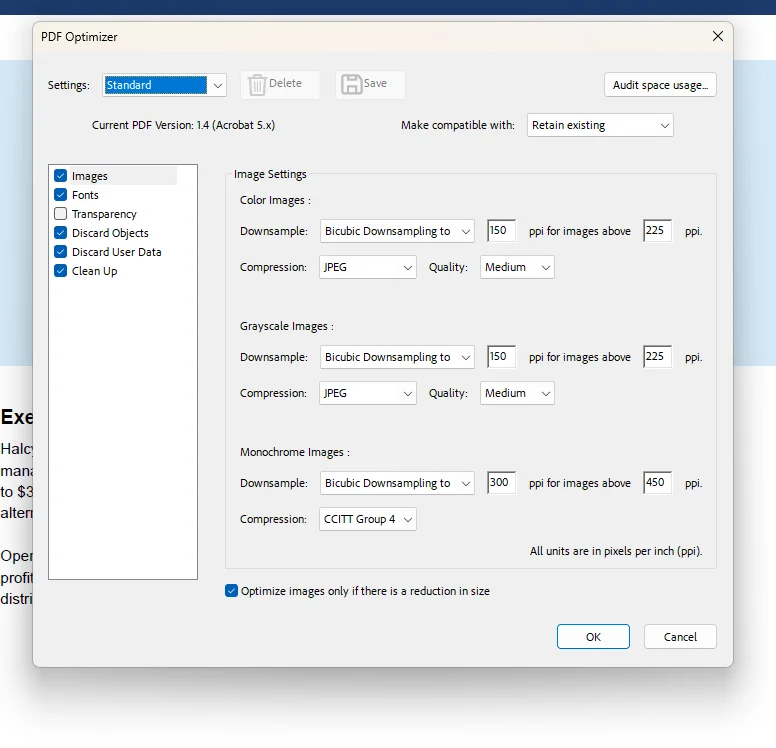
Using a pdf optimizer tool allows for more control over which elements of a pdf are reduced in quality or removed, helping to effectively manage file size. PDF Optimizer allows granular control including downsampling images, unembedding fonts, and discarding unnecessary objects.
- Go to File > Save As Other > Optimized PDF (or Tools > Optimize PDF).
- The PDF Optimizer dialog box opens. Click Audit Space Usage to see which elements are consuming the most space.
- In the Images tab: downsample colour and greyscale images to 150 DPI for screen sharing. Image downsampling can be used to lower DPI for images in a PDF, with 72 or 96 DPI appropriate for web-only viewing purposes.
- In the Fonts tab: unembed or subset fonts to include only characters used in the document.
- In the Discard Objects tab: remove bookmarks, form fields, and JavaScript actions. Removal of unnecessary bookmarks, form fields, and JavaScript can help in reducing pdf file size.
- In the Discard User Data tab: strip metadata, comments, and document information. Hidden data, including excessive font information and metadata, should be removed to effectively compress a pdf without losing visible quality.
- Click OK and click save.
Using high-level compression settings can potentially make images look pixelated. Start with JPEG quality 70 to 80% and compare the output before going lower. Always keep a copy of the original file before compressing.
Method 2: Save As to Rebuild the File Structure (Free, Any Computer)
Best for: Documents that have been edited repeatedly in Acrobat, or any file where a quick free reduction is needed.
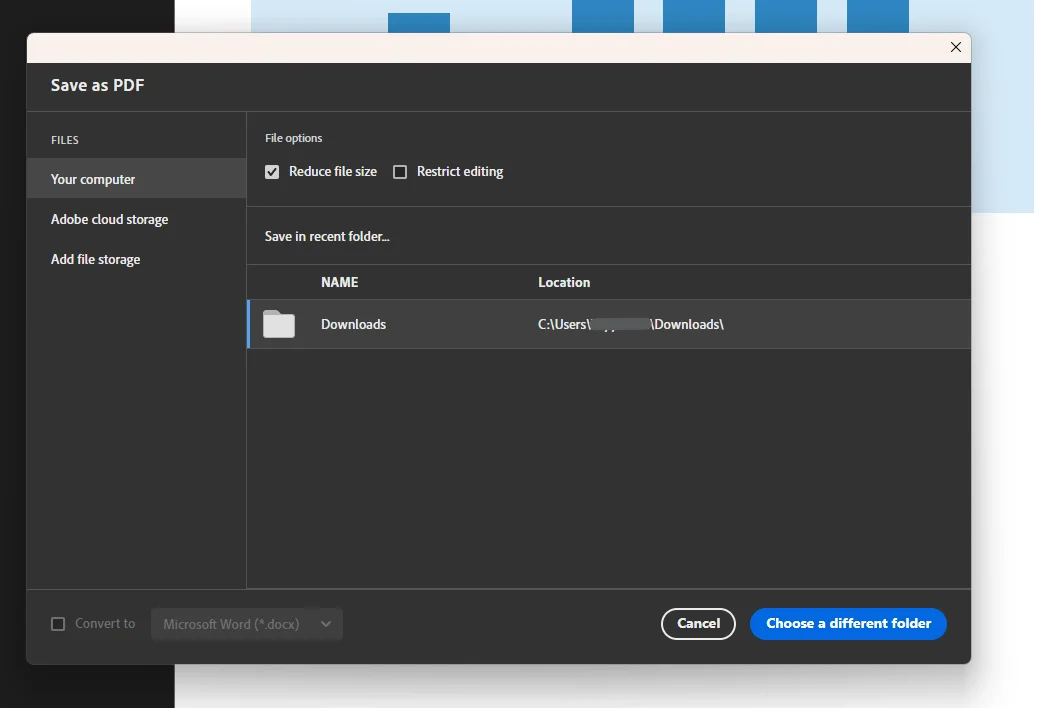
Using the Save As function can rebuild file structure and remove redundant incremental data from PDFs. Every time you save edits in Acrobat, changes are appended to the end of the file rather than rewriting it cleanly, building up invisible redundant data that inflates the pdf file size. The process of optimizing a pdf includes actions such as shrinking, reducing, flattening, and distilling the internal structure, and Save As triggers several of these automatically.
- Open the pdf document in Adobe Acrobat.
- Go to File > Save As rather than File > Save.
- Choose a new file name and select your folder.
- Click save.
Acrobat rewrites the entire internal structure from scratch, stripping accumulated redundant data. This alone reduces many frequently-edited pdfs by 10 to 30 percent with no change to visible quality or formatting.
The Save As method is worth trying before using any other compression method. It is free, takes under ten seconds, and has zero impact on document quality.
Method 3: Print to PDF to Strip Hidden Layers (Free, Windows and Mac)
Best for: Any computer, no specialist software required, files with hidden layers or edit history.
Re-printing or exporting a pdf can create a smaller version by stripping out editing history and hidden layers. Using a virtual pdf printer creates a new, often smaller version of a file by re-printing it through the print driver, discarding form data, revision history, annotations, and structural metadata.
On Windows:
- Open your pdf file in Adobe Acrobat Reader, Microsoft Edge, or Google Chrome.
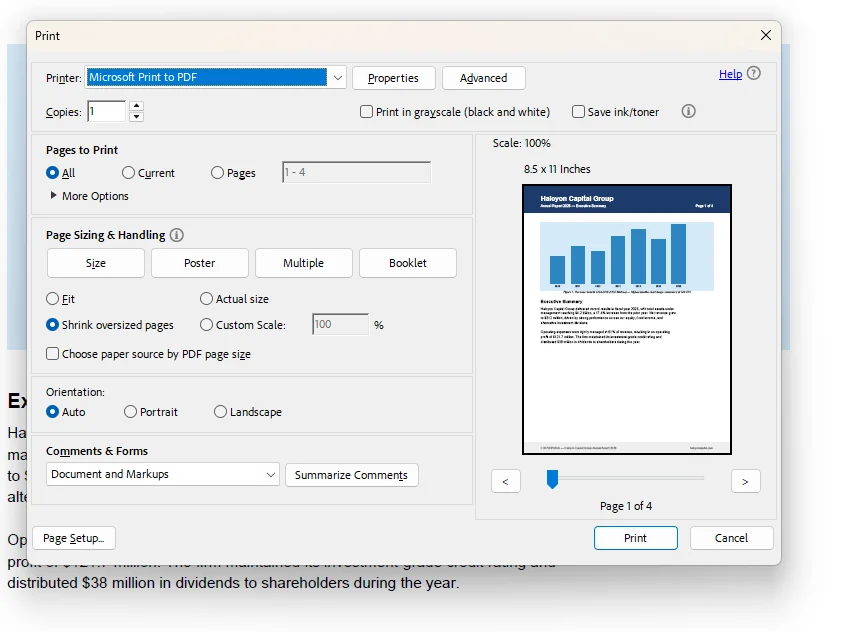
- Press Ctrl + P to open the print dialog.
- Select Microsoft Print to PDF as the printer device.
- Click Print, choose a save location, and click save.
On Mac:
- Open the pdf in Preview or any browser.
- Press Cmd + P to open print settings.
- Click the PDF dropdown at the bottom left of the dialog.
- Choose Save as PDF, select a folder, and click save.
Best for: One-off tasks, any device with a browser, documents without sensitive data.
Many online pdf compression tools allow users to compress files directly in their browser without the need for installations or complex software. Simply drag and drop your pdf file into the upload area, choose a compression level, and download the smaller file. Using online compressors for quick reductions does not require software installation and often offers tiered compression levels.
Smallpdf (smallpdf.com): Compression levels can vary, with options typically including basic and strong compression, allowing users to balance file size and document quality. Upload, choose a level, and click download.
ILovePDF (ilovepdf.com): Choose Recommended compression for a balance of size and quality, or Extreme Compression for the smallest possible output.
PDF24 (pdf24.org): One of the more capable free online tools, with a desktop application available for users who prefer not to upload files to a remote server.
IronPDF free online tool: IronPDF provides a free tool that lets you compress a pdf online, processes files securely, and is particularly useful for testing compression output before implementing it in code.
For documents containing sensitive data such as legal agreements, financial records, or personal information, use a desktop method instead so the file never leaves your computer.
Method 5: Compress PDF Through Microsoft Word (Free for Word Users)
Best for: Documents originally created as a word document where the source file is still available.
If the original document was built in Microsoft Word, re-exporting it with compression applied at the source produces better results than compressing the pdf afterwards, because you can control image quality before it enters the pdf format.
- Open the original word document and click any image in the document.
- Go to the Picture Format tab and click Compress Pictures.
- Select Web (150 PPI) for a balance of quality and size, or Email (96 PPI) for the smallest output.
- Tick Delete cropped areas of pictures to remove hidden image data from crops.
- Click OK, then go to File > Save As and select PDF as the file format.
- Click More Options and under Optimise for select Minimum size (publishing online).
- Click save to export the optimised pdf.
This produces smaller pdfs because Word applies additional jpeg compression to images and removes print-specific metadata from the output.
Method 6: Mac Preview Built-In Compression (Free, macOS Only)
Best for: Mac users who want a completely free, offline option with no additional software.
MacOS includes a built-in pdf compression filter through the Preview application, requiring nothing beyond what every mac already has installed.
- Open your pdf file in Preview.
- Go to File > Export as PDF from the top menu.
- In the export dialog box, click the Quartz Filter dropdown.
- Select Reduce File Size from the list.
- Choose a folder and click save.
Preview's filter compresses images within the pdf. Files with large embedded jpg or png images see the most reduction. Text-only documents see minimal change.
Preview's filter can be aggressive with image quality on some documents. If quality loss is too noticeable, switch to an online tool where you can control the compression level manually.
Targeted Techniques: Images, Fonts, and Scans
These approaches address the root causes of a bloated pdf directly and work best alongside any of the above methods.
Optimise images before they enter the PDF. Compressing images within a pdf is a key technique for reducing file size, as high-resolution images can significantly increase the overall size of the document. Save photographs as jpg at 70 to 80 percent quality before importing. Use jpg for photographs and png for logos and diagrams only. Downsampling images can set resolution to 72 or 96 DPI for web viewing purposes when the document will never be printed.
Avoid scanning when you can. To reduce pdf size, avoid scanning documents whenever possible, as electronically converted files are generally much smaller than scanned ones. A scanned page is stored as a large image. A pdf created electronically from a word document stores text as actual text data, which compresses to a fraction of the size. One effective technique is to save the file as a Reduced Size PDF using your pdf software, which can significantly decrease the file size while maintaining quality.
Remove metadata and hidden objects. Compressing a pdf reduces its file size by removing redundant data and re-encoding large images, which helps maintain quality while making the document easier to share and store. In Acrobat, the Discard User Data section of PDF Optimizer handles author names, revision history, comments, and application metadata in one step.
Common Issues and Troubleshooting
The file is barely smaller after compression. This usually means the pdf is mostly text. The remaining size is driven by embedded fonts. In Acrobat PDF Optimizer, use the Fonts tab to unembed or subset fonts. For standard system fonts such as Arial or Helvetica, removing the embed option strips all font data from the file.
Image quality is unacceptably low after compression. The compression level was set too aggressively. Using high-level compression settings can potentially make images look pixelated. Return to the original file and rerun at a higher quality setting. The best method for reducing pdf file size depends on the need to preserve high image quality or to achieve a small file size for sharing, and finding that balance requires testing on your specific document.
The compressed pdf is still too large to share electronically. Some email providers limit attachments to as little as 10 MB. If the file still exceeds the size limits, upload it to Google Drive or another cloud storage service and share a link instead. Alternatively, if the recipient does not specifically need a PDF, saving the content in other file formats such as .docx or .txt can bring the size down considerably. This frees up storage space on your computer and makes the document accessible from any device.
Save As did not reduce the size at all. Save As is most effective on documents edited many times in Acrobat. On files exported directly from Word or another application without subsequent edits in Acrobat, there is little accumulated redundant data to remove. In these cases, move to image downsampling or font optimisation instead.
Choosing the Right Method: Quick Reference
For Developers: Make PDF Smaller Programmatically with IronPDF
If your application generates or processes pdf documents and file size affects storage costs or delivery performance, manual compression does not scale. IronPDF is a .NET library that gives C# developers complete control over pdf compression, covering image quality, resolution scaling, and structural optimisation without requiring adobe or any desktop software on the server.
IronPDF's CompressImages() method accepts a quality value from 1 to 100. Values of 90 and above preserve near-original quality with minimal visible change. The range 70 to 80 produces low quality output that is often acceptable for business documents, while values below 70 can significantly lower the file size but may result in visibly lower image quality.
using IronPdf;

// Load the large PDF document
PdfDocument pdf = PdfDocument.FromFile("annual-report-large.pdf");

// Compress images to 75% quality - good balance for business documents
pdf.CompressImages(75);
pdf.SaveAs("annual-report-compressed-75.pdf");

// Apply stronger compression with resolution scaling
PdfDocument pdf2 = PdfDocument.FromFile("annual-report-large.pdf");

// ShrinkImage: true scales each image down to its visible size in the PDF
// This can cause minor distortion on some configurations - test before deploying
pdf2.CompressImages(50, true);
pdf2.SaveAs("annual-report-compressed-50-scaled.pdf");
using IronPdf;

// Load the large PDF document
PdfDocument pdf = PdfDocument.FromFile("annual-report-large.pdf");

// Compress images to 75% quality - good balance for business documents
pdf.CompressImages(75);
pdf.SaveAs("annual-report-compressed-75.pdf");

// Apply stronger compression with resolution scaling
PdfDocument pdf2 = PdfDocument.FromFile("annual-report-large.pdf");

// ShrinkImage: true scales each image down to its visible size in the PDF
// This can cause minor distortion on some configurations - test before deploying
pdf2.CompressImages(50, true);
pdf2.SaveAs("annual-report-compressed-50-scaled.pdf");
C#
For applications that need to compress and save in a single call, CompressAndSaveAs() combines both steps and optionally strips the PDF structure tree for additional reduction on table-heavy documents:
using IronPdf;

// Compress and save in one call with 40% JPEG quality
PdfDocument.FromFile("input.pdf").CompressAndSaveAs("output-compressed.pdf", 40);

// Remove structure tree for further reduction on table-heavy PDFs
// Note: this may affect text selection and extraction in the output file
PdfDocument.FromFile("input.pdf").CompressAndSaveAs(
    "output-compressed.pdf", 40, removeStructureTree: true);
using IronPdf;

// Compress and save in one call with 40% JPEG quality
PdfDocument.FromFile("input.pdf").CompressAndSaveAs("output-compressed.pdf", 40);

// Remove structure tree for further reduction on table-heavy PDFs
// Note: this may affect text selection and extraction in the output file
PdfDocument.FromFile("input.pdf").CompressAndSaveAs(
    "output-compressed.pdf", 40, removeStructureTree: true);
C#
IronPDF runs on .NET 6 and later, compatible with Windows, Linux, macOS, Docker, Azure, and AWS.
Getting started: Install via NuGet with Install-Package IronPdf. A free trial is available with 30 days of full functionality and no credit card required.
Further reading:
Wrapping Up
Picking the right approach comes down to what is actually making the file large. For most everyday documents, the free options cover everything: Save As cleans up edit history in seconds, Print to PDF strips hidden layers with no quality trade-off, and online compressors like Smallpdf and ILovePDF handle standard files in the browser without installing anything. For Mac users, Preview's built-in export filter requires no additional software. For documents that started as a word document, compressing images in Word before exporting produces cleaner results than working on the pdf afterwards.
When full control matters, Adobe Acrobat's PDF Optimizer gives access to every compression parameter from a single dialog box. In every case, keeping a copy of the original before editing is worth the few seconds it takes.
Developers building .NET applications where pdf compression is part of an automated workflow should explore IronPDF, which provides CompressImages() and CompressAndSaveAs() for building efficient, scalable pdf compression directly into server-side code. Start with a free trial to test it in your own environment with no commitment required.
Got a specific compression scenario that this guide did not cover? Leave a comment below, or visit the Iron Software blog for more guides on pdf optimisation, editing, and document automation.