


Build a PDF Generator in .NET Core with IronPDF

What Makes a Reliable .NET Core PDF Generator?
A reliable .NET Core PDF generator should offer Chrome-based rendering for precise HTML-to-PDF conversion, support cross-platform deployment without native dependencies, and provide a complete API for creating, editing, and manipulating PDF documents in containerized environments.
IronPDF provides a Chrome-based .NET Core PDF library that converts HTML to PDF with zero native dependencies, enabling smooth Docker deployment and cross-platform compatibility for engineers building containerized applications.
Building PDF documents in .NET Core applications requires a PDF library that handles HTML content, maintains formatting, and supports cross-platform deployment. Whether you are developing ASP.NET Core web APIs or console applications, a reliable .NET Core PDF generator simplifies the process of creating documents from various sources.
Start a free trial and discover why developers choose IronPDF for mission-critical PDF generation in production environments.
IronPDF stands out as a complete .NET Core PDF library. It uses a Chrome rendering engine to create PDF documents with pixel-perfect accuracy. This approach means you can use existing HTML and CSS skills to generate PDF files without learning complex PDF layout APIs. The library's extensive documentation and code examples make implementation straightforward.
Why is Chrome-Based Rendering Important for PDF Generation?
Chrome-based rendering ensures that every CSS rule, font, and layout directive is evaluated the same way a modern browser would evaluate it. That means flexbox grids, media queries, and web fonts all behave predictably in the output PDF -- no surprises from a legacy rendering engine that misreads modern CSS.
What Cross-Platform Deployment Options Are Supported?
IronPDF runs on Windows, Linux, Azure, AWS, and Docker without changing a single line of application code. The NuGet package bundles all required native binaries, so you do not install system packages or manage platform-specific paths.
Most alternatives fall into two camps: low-level PDF drawing APIs that require you to manually position every element, or report designers that lock content into rigid templates. IronPDF sits between those extremes -- it accepts standard HTML and CSS, renders it with a full browser engine, and saves the result as a standards-compliant PDF file.
| Feature | IronPDF | PdfSharp | iTextSharp | SelectPdf |
|---|---|---|---|---|
| HTML + CSS rendering | Chrome engine | None | Limited (iText 7) | WebKit |
| JavaScript execution | Yes | No | No | Partial |
| Linux / Docker support | Yes | Yes | Yes | Limited |
| License model | Commercial | MIT | AGPL / Commercial | Commercial |
| Interactive PDF forms | Yes | No | Yes | No |
How Does IronPDF Simplify Generating PDF Documents in .NET Core?
IronPDF transforms the traditionally complex task of PDF generation into straightforward code that any .NET developer can implement. The library uses the ChromePdfRenderer class to convert HTML strings, files, or URLs directly into PDF format. This fluent API approach provides extensive customization options while maintaining high performance across different platforms.
The real power lies in how IronPDF handles converting HTML content into professional PDF files. Instead of manually positioning or drawing elements, you write standard HTML with CSS styling, and the library handles the conversion. The resulting PDF files are fully-featured documents where users can select and search for text -- not just images of a page.
Beyond basic PDF generation, IronPDF's advanced editing tools let you merge documents, add watermarks, insert annotations, and more.
The primary pattern is: create a ChromePdfRenderer, configure its RenderingOptions, call one of the three render methods (RenderHtmlAsPdf, RenderHtmlFileAsPdf, or RenderUrlAsPdf), and save the resulting PdfDocument. All three methods return the same object type, so post-processing code is reusable regardless of the source.
Why Choose HTML to PDF Conversion Over Traditional PDF APIs?
Traditional PDF APIs force you to think in coordinates -- "place this text at x=72, y=144". HTML lets you think in content and structure. When the requirement changes (a new column, a different font size, a company logo), you update an HTML template rather than recalculate dozens of coordinate values.
How Do You Handle Complex Document Layouts and Styling?
Pass a complete HTML document -- including a <style> block or an external stylesheet reference -- to RenderHtmlAsPdf. IronPDF's Chrome engine applies every CSS rule before rasterizing the page. You can use responsive CSS, Google Fonts, SVG graphics, and CSS Grid without restrictions.
How Do You Install IronPDF via the NuGet Package Manager?
Getting started with IronPDF in Visual Studio requires just one NuGet package installation. Open the NuGet Package Manager Console and run:
Install-Package IronPdfInstall-Package IronPdfOr, using the .NET CLI:
dotnet add package IronPdfdotnet add package IronPdfThis single package provides all the functionality needed to create, edit, and generate PDF files in .NET Core applications. Installation automatically configures the project for PDF generation across Windows, Linux, and Docker environments. Supported runtimes include .NET Framework 4.6.2+, .NET Core 3.1+, .NET 5 through .NET 10, and .NET Standard 2.0+.
What Are the System Requirements for IronPDF?
On Windows the package is self-contained. On Linux, the Chrome rendering engine needs a handful of shared libraries (libgdiplus, libc6, and a few font packages) that the Linux setup guide lists in full. Docker deployments should start from the official IronPDF base image to avoid missing dependencies.
To verify the installation, add using IronPdf; to a class file. If the project builds without errors and IntelliSense resolves ChromePdfRenderer, the package is installed correctly. As a smoke test, render a one-line HTML string and confirm a non-zero byte PDF is written to disk.
What Additional Dependencies Might Be Required?
In containerized environments, include the libgdiplus and libx11-dev packages in your Dockerfile. Cloud functions with strict size budgets can switch to IronPdf.Slim, which separates the rendering engine into a sidecar container. The IronPdf NuGet package page lists all available versions and release notes.
How Can You Create Your First PDF Document from HTML?
The example below builds a dynamic invoice document from an HTML string -- a pattern that transfers directly to any document type that combines a fixed template with runtime data:
using IronPdf;
using System.Text;

// Configure the Chrome renderer
var renderer = new ChromePdfRenderer();
renderer.RenderingOptions.MarginTop = 25;
renderer.RenderingOptions.MarginBottom = 25;
renderer.RenderingOptions.PaperSize = IronPdf.Rendering.PdfPaperSize.A4;

// Build HTML content with embedded CSS and dynamic data
var htmlBuilder = new StringBuilder();
htmlBuilder.Append(@"
    <html>
    <head>
        <style>
            body { font-family: Arial, sans-serif; font-size: 14px; }
            .invoice-header { background: #f0f0f0; padding: 20px; }
            table { width: 100%; border-collapse: collapse; }
            th, td { padding: 10px; text-align: left; border-bottom: 1px solid #ddd; }
        </style>
    </head>
    <body>
        <div class='invoice-header'>
            <h1>Invoice #INV-2024-001</h1>
            <p>Date: " + DateTime.Now.ToString("MM/dd/yyyy") + @"</p>
        </div>
        <table>
            <tr><th>Item</th><th>Quantity</th><th>Price</th></tr>");

for (int i = 0; i < 3; i++)
{
    htmlBuilder.Append($"<tr><td>Product #{i + 1}</td><td>{i + 1}</td><td>$25.00</td></tr>");
}

htmlBuilder.Append(@"
        </table>
        <p><strong>Total: $75.00</strong></p>
    </body>
    </html>");

// Convert HTML string to a PDF document and save
PdfDocument pdfDoc = renderer.RenderHtmlAsPdf(htmlBuilder.ToString());
pdfDoc.SaveAs("invoice.pdf");
using IronPdf;
using System.Text;
// Configure the Chrome renderer
var renderer = new ChromePdfRenderer();
renderer.RenderingOptions.MarginTop = 25;
renderer.RenderingOptions.MarginBottom = 25;
renderer.RenderingOptions.PaperSize = IronPdf.Rendering.PdfPaperSize.A4;
// Build HTML content with embedded CSS and dynamic data
var htmlBuilder = new StringBuilder();
htmlBuilder.Append(@"
<html>
<head>
<style>
body { font-family: Arial, sans-serif; font-size: 14px; }
.invoice-header { background: #f0f0f0; padding: 20px; }
table { width: 100%; border-collapse: collapse; }
th, td { padding: 10px; text-align: left; border-bottom: 1px solid #ddd; }
</style>
</head>
<body>
<div class='invoice-header'>
<h1>Invoice #INV-2024-001</h1>
<p>Date: " + DateTime.Now.ToString("MM/dd/yyyy") + @"</p>
</div>
<table>
<tr><th>Item</th><th>Quantity</th><th>Price</th></tr>");
for (int i = 0; i < 3; i++)
{
htmlBuilder.Append($"<tr><td>Product #{i + 1}</td><td>{i + 1}</td><td>$25.00</td></tr>");
}
htmlBuilder.Append(@"
</table>
<p><strong>Total: $75.00</strong></p>
</body>
</html>");
// Convert HTML string to a PDF document and save
PdfDocument pdfDoc = renderer.RenderHtmlAsPdf(htmlBuilder.ToString());
pdfDoc.SaveAs("invoice.pdf");Imports IronPdf
Imports System.Text
' Configure the Chrome renderer
Dim renderer As New ChromePdfRenderer()
renderer.RenderingOptions.MarginTop = 25
renderer.RenderingOptions.MarginBottom = 25
renderer.RenderingOptions.PaperSize = IronPdf.Rendering.PdfPaperSize.A4
' Build HTML content with embedded CSS and dynamic data
Dim htmlBuilder As New StringBuilder()
htmlBuilder.Append("
<html>
<head>
<style>
body { font-family: Arial, sans-serif; font-size: 14px; }
.invoice-header { background: #f0f0f0; padding: 20px; }
table { width: 100%; border-collapse: collapse; }
th, td { padding: 10px; text-align: left; border-bottom: 1px solid #ddd; }
</style>
</head>
<body>
<div class='invoice-header'>
<h1>Invoice #INV-2024-001</h1>
<p>Date: " & DateTime.Now.ToString("MM/dd/yyyy") & "</p>
</div>
<table>
<tr><th>Item</th><th>Quantity</th><th>Price</th></tr>")
For i As Integer = 0 To 2
htmlBuilder.Append($"<tr><td>Product #{i + 1}</td><td>{i + 1}</td><td>$25.00</td></tr>")
Next
htmlBuilder.Append("
</table>
<p><strong>Total: $75.00</strong></p>
</body>
</html>")
' Convert HTML string to a PDF document and save
Dim pdfDoc As PdfDocument = renderer.RenderHtmlAsPdf(htmlBuilder.ToString())
pdfDoc.SaveAs("invoice.pdf")Note how the CSS lives inside the <style> block and is applied automatically during rendering. The RenderHtmlAsPdf method returns a PdfDocument object, giving full control over the generated file. For more advanced scenarios, explore custom margins and paper sizes. Both options let you tailor the output to match exact print specifications or brand guidelines without changing the underlying HTML template.
What Does the Generated PDF Look Like?
The screenshot below shows the example invoice perfectly rendered into a PDF document.

How Do You Handle Dynamic Data and Templates?
For data-driven documents, populate an HTML template string with values from a database or API before passing it to the renderer. Libraries like Scriban or Handlebars.Net provide templating syntax that keeps HTML clean and avoids fragile string concatenation in production code.
What Are Common Rendering Options You Should Configure?
The most impactful options are PaperSize, MarginTop/MarginBottom/MarginLeft/MarginRight, PrintHtmlBackgrounds, and CssMediaType. Setting CssMediaType to Print applies your @media print CSS rules, which is the correct choice for documents intended for printing or saving as PDF files.
When debugging HTML rendering issues, render the same HTML in a browser first. If it looks correct there, IronPDF will reproduce it faithfully. For layout drift, check that no element uses viewport-relative units (vw, vh) without a fallback -- these units behave differently when there is no scrollable viewport.
How Do You Generate PDF Files from URLs and Web Pages?
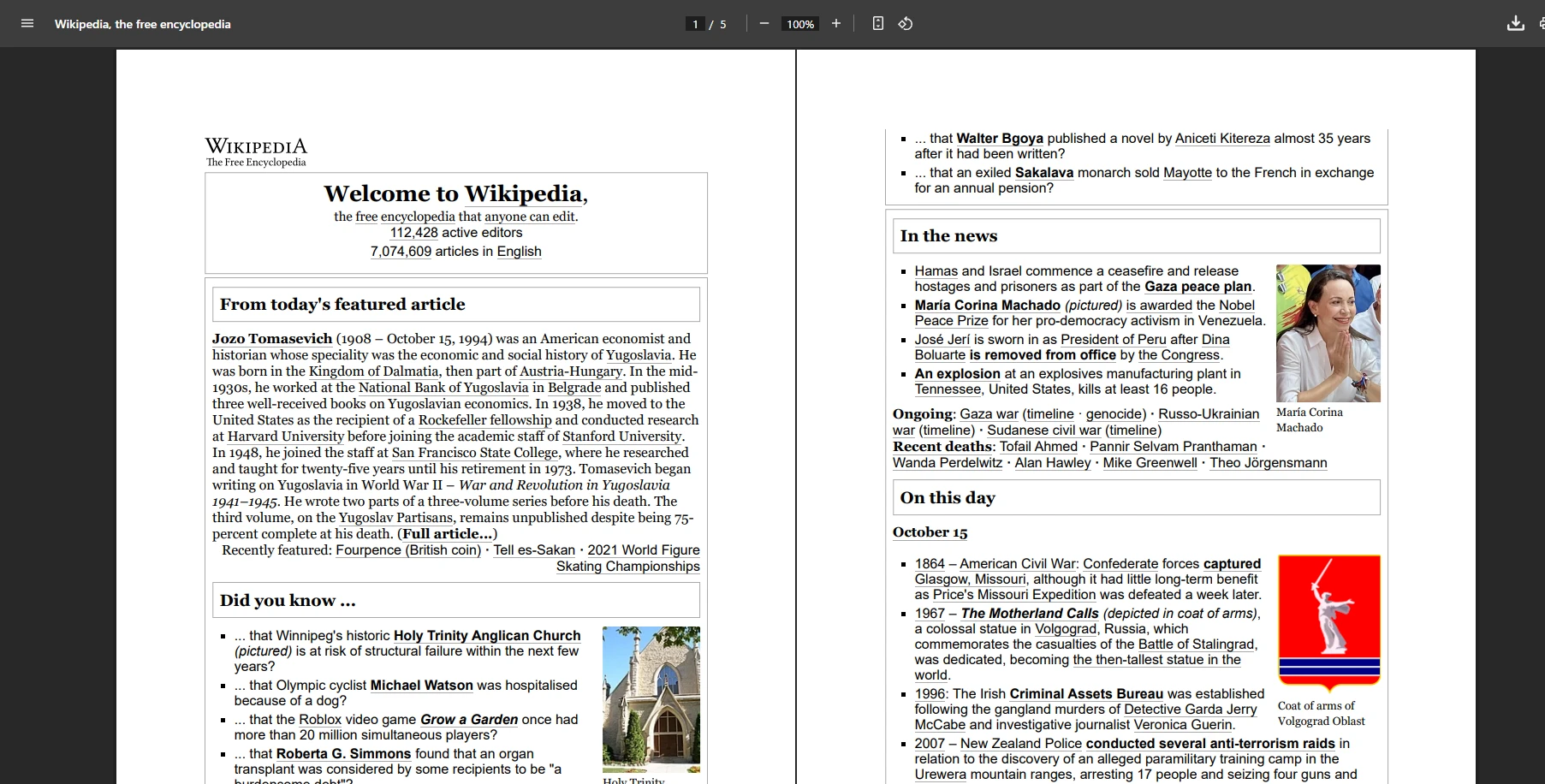
IronPDF excels at converting existing web pages into PDF files. This capability is valuable when generating PDF documents from reporting dashboards or web-based forms:
var renderer = new ChromePdfRenderer();
renderer.RenderingOptions.PaperSize = IronPdf.Rendering.PdfPaperSize.A4;
renderer.RenderingOptions.PrintHtmlBackgrounds = true;
renderer.RenderingOptions.EnableJavaScript = true;
renderer.RenderingOptions.CssMediaType = IronPdf.Rendering.PdfCssMediaType.Print;

// Wait for all assets to finish loading before capturing
renderer.RenderingOptions.WaitFor.RenderDelay(1000);

PdfDocument pdfDocument = renderer.RenderUrlAsPdf("https://en.wikipedia.org/wiki/Main_Page");

string filePath = Path.Combine(Directory.GetCurrentDirectory(), "webpage.pdf");
pdfDocument.SaveAs(filePath);
var renderer = new ChromePdfRenderer();
renderer.RenderingOptions.PaperSize = IronPdf.Rendering.PdfPaperSize.A4;
renderer.RenderingOptions.PrintHtmlBackgrounds = true;
renderer.RenderingOptions.EnableJavaScript = true;
renderer.RenderingOptions.CssMediaType = IronPdf.Rendering.PdfCssMediaType.Print;
// Wait for all assets to finish loading before capturing
renderer.RenderingOptions.WaitFor.RenderDelay(1000);
PdfDocument pdfDocument = renderer.RenderUrlAsPdf("https://en.wikipedia.org/wiki/Main_Page");
string filePath = Path.Combine(Directory.GetCurrentDirectory(), "webpage.pdf");
pdfDocument.SaveAs(filePath);Imports IronPdf
Imports System.IO
Dim renderer As New ChromePdfRenderer()
renderer.RenderingOptions.PaperSize = IronPdf.Rendering.PdfPaperSize.A4
renderer.RenderingOptions.PrintHtmlBackgrounds = True
renderer.RenderingOptions.EnableJavaScript = True
renderer.RenderingOptions.CssMediaType = IronPdf.Rendering.PdfCssMediaType.Print
' Wait for all assets to finish loading before capturing
renderer.RenderingOptions.WaitFor.RenderDelay(1000)
Dim pdfDocument As PdfDocument = renderer.RenderUrlAsPdf("https://en.wikipedia.org/wiki/Main_Page")
Dim filePath As String = Path.Combine(Directory.GetCurrentDirectory(), "webpage.pdf")
pdfDocument.SaveAs(filePath)The library handles JavaScript execution, loads external images and stylesheets, and maintains the responsive layout during conversion. Learn more about converting URLs to PDF in the URL to PDF guide. You can also configure HTTP request headers for authentication and handle cookies for session-based content.
How Do You Handle Authentication for Protected URLs?
Pass custom HTTP headers or cookies to the renderer before calling RenderUrlAsPdf. For OAuth-protected dashboards, retrieve a bearer token in your application code and add it as an Authorization header. IronPDF forwards those headers to the Chrome engine exactly as a browser would send them.
What JavaScript Rendering Options Should You Consider?
Enable EnableJavaScript and add a WaitFor.RenderDelay when the page populates charts or tables via JavaScript after page load. For single-page applications, WaitFor.NetworkIdle() is a more reliable trigger than a fixed delay because it waits until all pending network requests complete.
When Should You Use URL Conversion vs HTML String Conversion?
Use URL conversion when the page already exists and is accessible from the server running IronPDF -- reports, dashboards, and admin views are good candidates. Use HTML string conversion when building documents from templates at runtime, because that approach avoids a network round-trip and keeps all data server-side.
What Advanced PDF Features Are Available for Complex Reports?
Professional PDF documents often require headers, footers, and interactive form fields beyond basic content. IronPDF provides methods to add headers and footers and watermarks. The headers and footers API provides complete control over document presentation:
var renderer = new ChromePdfRenderer();

// Company header on every page
renderer.RenderingOptions.HtmlHeader = new HtmlHeaderFooter
{
    MaxHeight = 25,
    HtmlFragment = "<div style='text-align:center;font-weight:bold;'>Company Report</div>"
};

// Automatic page numbering in footer
renderer.RenderingOptions.HtmlFooter = new HtmlHeaderFooter
{
    MaxHeight = 25,
    HtmlFragment = "<div style='text-align:right;'>Page {page} of {total-pages}</div>"
};

// Render an HTML form as a fillable PDF form
renderer.RenderingOptions.CreatePdfFormsFromHtml = true;

string formHtml = @"
    <form>
        <label>Name:</label>
        <input type='text' name='name' placeholder='Enter your name'/>
        <label>Email:</label>
        <input type='email' name='email' placeholder='email@example.com'/>
        <button type='submit'>Submit</button>
    </form>";

PdfDocument formDocument = renderer.RenderHtmlAsPdf(formHtml);
formDocument.SaveAs("form.pdf");
var renderer = new ChromePdfRenderer();
// Company header on every page
renderer.RenderingOptions.HtmlHeader = new HtmlHeaderFooter
{
MaxHeight = 25,
HtmlFragment = "<div style='text-align:center;font-weight:bold;'>Company Report</div>"
};
// Automatic page numbering in footer
renderer.RenderingOptions.HtmlFooter = new HtmlHeaderFooter
{
MaxHeight = 25,
HtmlFragment = "<div style='text-align:right;'>Page {page} of {total-pages}</div>"
};
// Render an HTML form as a fillable PDF form
renderer.RenderingOptions.CreatePdfFormsFromHtml = true;
string formHtml = @"
<form>
<label>Name:</label>
<input type='text' name='name' placeholder='Enter your name'/>
<label>Email:</label>
<input type='email' name='email' placeholder='email@example.com'/>
<button type='submit'>Submit</button>
</form>";
PdfDocument formDocument = renderer.RenderHtmlAsPdf(formHtml);
formDocument.SaveAs("form.pdf");Imports IronPdf
Dim renderer As New ChromePdfRenderer()
' Company header on every page
renderer.RenderingOptions.HtmlHeader = New HtmlHeaderFooter With {
.MaxHeight = 25,
.HtmlFragment = "<div style='text-align:center;font-weight:bold;'>Company Report</div>"
}
' Automatic page numbering in footer
renderer.RenderingOptions.HtmlFooter = New HtmlHeaderFooter With {
.MaxHeight = 25,
.HtmlFragment = "<div style='text-align:right;'>Page {page} of {total-pages}</div>"
}
' Render an HTML form as a fillable PDF form
renderer.RenderingOptions.CreatePdfFormsFromHtml = True
Dim formHtml As String = "
<form>
<label>Name:</label>
<input type='text' name='name' placeholder='Enter your name'/>
<label>Email:</label>
<input type='email' name='email' placeholder='email@example.com'/>
<button type='submit'>Submit</button>
</form>"
Dim formDocument As PdfDocument = renderer.RenderHtmlAsPdf(formHtml)
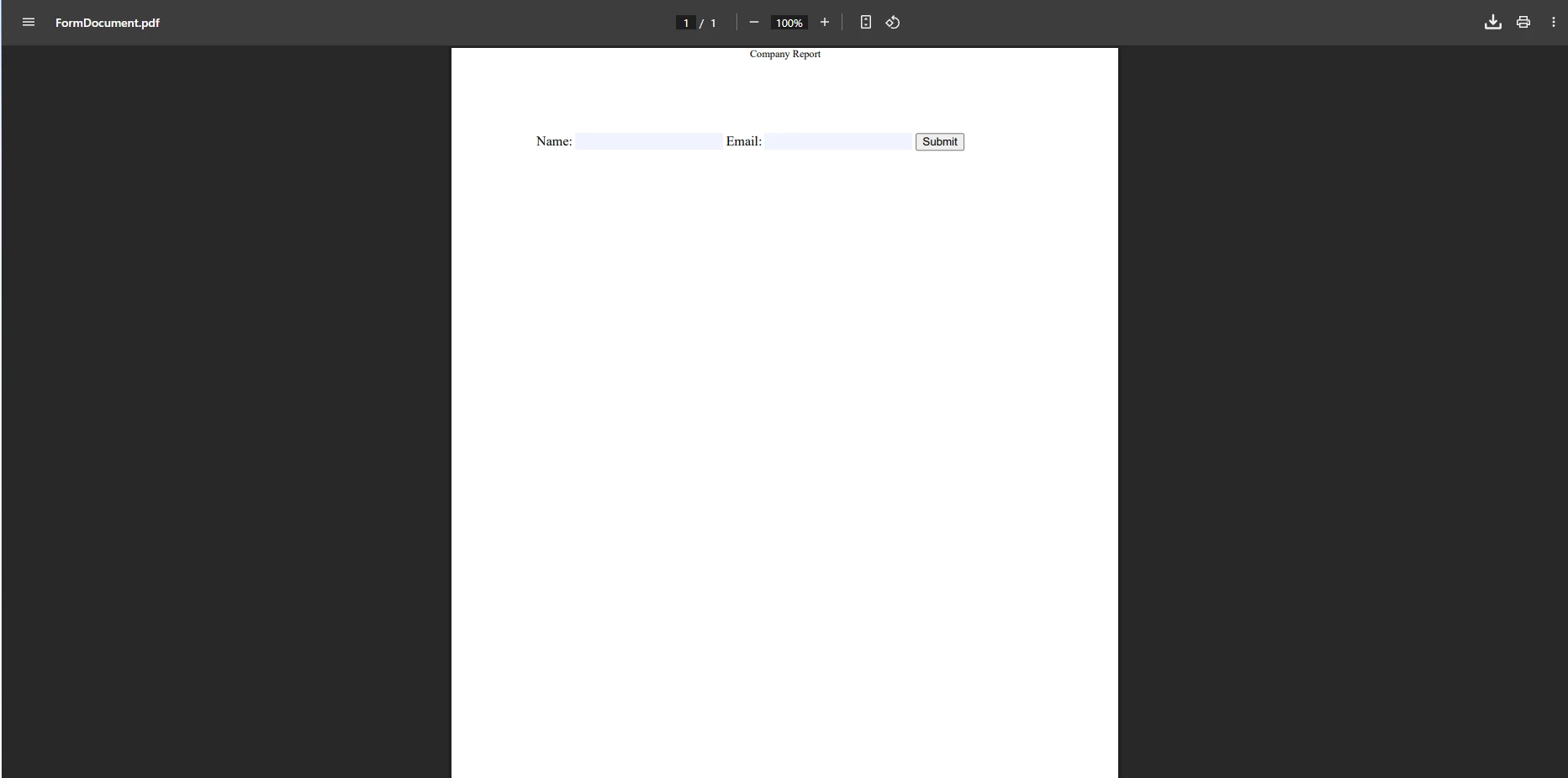
formDocument.SaveAs("form.pdf")This example demonstrates how to apply consistent headers across all pages and create interactive form fields within the PDF document. The engine automatically handles page numbering and form field rendering. For complex reports, implement table of contents, bookmarks, and custom page breaks.
How Do You Create Multi-Page Reports with Consistent Headers?
Configure HtmlHeader and HtmlFooter on the renderer before calling any render method. The header and footer HTML are rendered separately from the body and stamped onto every page automatically. Use the {page} and {total-pages} tokens anywhere in the footer fragment to add dynamic numbering.
What Interactive Elements Can You Add to PDFs?
With CreatePdfFormsFromHtml enabled, standard HTML form controls -- text inputs, checkboxes, radio buttons, dropdowns, and buttons -- become interactive PDF form fields. Recipients can fill them in Adobe Acrobat Reader or any standards-compliant PDF viewer without requiring special software.
How Do You Implement Page Breaks and Section Management?
Insert <div style='page-break-after: always;'></div> between HTML sections that should start on a new page. IronPDF respects the CSS page-break-after, page-break-before, and page-break-inside properties, giving the same control as a print stylesheet.
How Can You Improve Performance with Async Operations in ASP.NET Core?
For web applications handling multiple PDF generation requests, async operations improve responsiveness by freeing up threads while the Chrome engine renders:
using IronPdf;
using Microsoft.AspNetCore.Mvc;

// Reusable async PDF generation helper
async Task<byte[]> GeneratePdfAsync(string htmlContent)
{
    var renderer = new ChromePdfRenderer();
    renderer.RenderingOptions.CssMediaType = IronPdf.Rendering.PdfCssMediaType.Print;
    PdfDocument pdf = await renderer.RenderHtmlAsPdfAsync(htmlContent);
    return pdf.BinaryData;
}

// ASP.NET Core minimal API endpoint
app.MapPost("/invoices", async ([FromBody] InvoiceData data) =>
{
    string html = BuildInvoiceHtml(data);
    byte[] pdfBytes = await GeneratePdfAsync(html);
    return Results.File(pdfBytes, "application/pdf", "invoice.pdf");
});
using IronPdf;
using Microsoft.AspNetCore.Mvc;
// Reusable async PDF generation helper
async Task<byte[]> GeneratePdfAsync(string htmlContent)
{
var renderer = new ChromePdfRenderer();
renderer.RenderingOptions.CssMediaType = IronPdf.Rendering.PdfCssMediaType.Print;
PdfDocument pdf = await renderer.RenderHtmlAsPdfAsync(htmlContent);
return pdf.BinaryData;
}
// ASP.NET Core minimal API endpoint
app.MapPost("/invoices", async ([FromBody] InvoiceData data) =>
{
string html = BuildInvoiceHtml(data);
byte[] pdfBytes = await GeneratePdfAsync(html);
return Results.File(pdfBytes, "application/pdf", "invoice.pdf");
});Imports IronPdf
Imports Microsoft.AspNetCore.Mvc
' Reusable async PDF generation helper
Async Function GeneratePdfAsync(htmlContent As String) As Task(Of Byte())
Dim renderer As New ChromePdfRenderer()
renderer.RenderingOptions.CssMediaType = IronPdf.Rendering.PdfCssMediaType.Print
Dim pdf As PdfDocument = Await renderer.RenderHtmlAsPdfAsync(htmlContent)
Return pdf.BinaryData
End Function
' ASP.NET Core minimal API endpoint
app.MapPost("/invoices", Async Function(<FromBody> data As InvoiceData) As Task(Of IResult)
Dim html As String = BuildInvoiceHtml(data)
Dim pdfBytes As Byte() = Await GeneratePdfAsync(html)
Return Results.File(pdfBytes, "application/pdf", "invoice.pdf")
End Function)This pattern allows ASP.NET Core applications to generate PDF files without blocking the thread pool. The byte array output works for API endpoints that return files directly to clients. For batch operations, consider parallel processing to render multiple documents concurrently and memory streams to reduce disk read/write overhead.
The Results.File() method sets the correct application/pdf content type so browsers prompt for download or display the file inline. For more on async patterns in ASP.NET Core, see Microsoft's official documentation.
What Are Best Practices for Handling Concurrent PDF Generation?
Each ChromePdfRenderer instance is not thread-safe, so create a new instance per request rather than sharing one across threads. For high-throughput scenarios, pool instances or use a dedicated IronPDF Engine sidecar container to offload rendering from the main application process.
How Do You Implement Proper Error Handling in Async Operations?
Wrap the render call in a try/catch block. IronPDF throws IronPdfNativeException for engine-level errors (missing fonts, invalid HTML, timeout) and standard .NET exceptions for file read/write problems. Log the exception details and return an appropriate HTTP error response rather than letting the exception propagate to the client.
Return PdfDocument.BinaryData directly to the HTTP response when the PDF is consumed immediately. Write to a file path with SaveAs only when the PDF needs to persist -- for example, to an object-storage bucket or a file share. Avoiding unnecessary disk writes reduces latency for high-frequency PDF endpoints.
What Are the Key Deployment Considerations?
IronPDF supports deployment across various environments. For Docker containers, include the necessary dependencies in a Dockerfile as outlined in the Docker deployment guide. The library works on Windows Server, Linux distributions, and cloud platforms like Azure and AWS. Each environment may require specific configuration for fonts and rendering, but the core API remains consistent.
For containerized deployments, consider using IronPDF as a remote container to separate PDF generation from the main application. This approach improves scalability and allows for better resource management. The Microsoft documentation on .NET Core deployment covers additional best practices for production environments.
How Do You Configure IronPDF for Docker Deployments?
Start from the official IronPDF Linux base image or add the required apt packages to an existing Debian or Ubuntu image. Set Installation.ChromeGpuMode = IronPdf.Engines.Chrome.ChromeGpuMode.Disabled in application startup code to avoid GPU initialization errors in headless server environments.
What Linux-Specific Dependencies Should You Include?
The minimum set is libgdiplus, libc6, libx11-6, libxext6, and libxcomposite1. For CJK (Chinese, Japanese, Korean) font support, add fonts-noto-cjk. The Linux setup guide provides distribution-specific package lists for Debian, Ubuntu, CentOS, and Alpine.
For production observability, wrap RenderHtmlAsPdfAsync calls with stopwatch timing and emit metrics to Application Insights, Prometheus, or any OpenTelemetry-compatible backend. Track p50/p95/p99 latency percentiles and error rates separately from the rest of the application to identify rendering bottlenecks early.
What Security Considerations Apply to PDF Generation Services?
When rendering URLs or user-supplied HTML, sanitize content to prevent server-side request forgery (SSRF). Restrict which hosts RenderUrlAsPdf can reach using an allowlist, and run the rendering engine in a sandboxed process or isolated container. For documents containing sensitive data, apply PDF encryption and digital signatures to meet compliance requirements.
Are You Ready to Start Building Your .NET Core PDF Generator?
IronPDF transforms PDF generation in .NET Core from a complex challenge into a straightforward implementation. With support for HTML content, a rich feature set, and consistent cross-platform behavior, it suits developers who need to generate PDF documents reliably. The library's security features, including encryption and digital signatures, ensure documents meet compliance requirements.
Start with a free trial to explore all features without limitations. The documentation provides extensive examples and guides to help create professional PDF files that meet exact requirements. Whether building invoice systems, generating reports, or converting existing web content, IronPDF provides the tools to deliver pixel-perfect results.
For production deployments, explore licensing options that fit the project scale. A quality PDF library pays dividends through reduced development time and consistent, professional output across all .NET applications. IronPDF's support team and troubleshooting guides ensure you are never stuck when implementing PDF functionality.
Frequently Asked Questions
What is the primary function of IronPDF in .NET Core?
IronPDF is primarily used to convert HTML to PDF in .NET Core applications, enabling developers to create invoices, reports, and other documents with pixel-perfect rendering.
How does IronPDF ensure pixel-perfect rendering?
IronPDF ensures pixel-perfect rendering by using advanced rendering techniques that accurately convert HTML, CSS, and JavaScript into high-quality PDF documents.
Can IronPDF be used to generate reports in .NET Core?
Yes, IronPDF is capable of generating detailed reports in .NET Core by converting HTML-based report templates into professional-grade PDF documents.
Is it possible to convert web pages to PDF using IronPDF?
Absolutely, IronPDF can convert entire web pages to PDF, preserving the layout and style specified in the original HTML and CSS.
What are some common use cases for IronPDF?
Common use cases for IronPDF include generating invoices, creating business reports, converting HTML forms to PDF, and archiving web content.
Does IronPDF support .NET Core applications?
Yes, IronPDF fully supports .NET Core applications, making it a versatile choice for developers working across different .NET platforms.
How does IronPDF handle CSS and JavaScript in HTML to PDF conversion?
IronPDF processes CSS and JavaScript during the conversion process to ensure that the visual layout and dynamic content of the HTML are accurately represented in the PDF.
Can IronPDF generate PDFs from HTML strings?
Yes, IronPDF can generate PDFs from HTML strings, allowing developers to dynamically create PDF documents from HTML content generated within their applications.
Is it possible to customize the appearance of PDFs with IronPDF?
IronPDF provides extensive customization options, allowing developers to control the appearance of PDFs by specifying custom headers, footers, and styles using HTML and CSS.
What advantages does IronPDF offer over other .NET PDF libraries?
IronPDF offers several advantages, including ease of integration with .NET Core, high-quality rendering, support for complex document layouts, and robust handling of HTML, CSS, and JavaScript.










 Get started for FREE
 Get started for FREE
 Book Free Live Demo





 No credit card or account creation required










