푸터 콘텐츠로 바로가기
IRONPDF 사용

How to Display a PDF in Blazor

To display PDFs in Blazor applications, use IronPDF's PDF viewer component which integrates seamlessly with Blazor Server apps, providing high-performance PDF rendering with features like form filling, annotations, and mobile support without third-party browser tools.

Why Do I Need a PDF Viewer Component in Blazor?

Displaying PDFs in modern web applications requires a reliable viewer component that goes beyond basic browser capabilities. For .NET developers building Blazor applications, IronPDF provides a effective PDF viewer solution that seamlessly integrates with your Blazor Server app. This enables you to display PDF documents with high performance and rich functionality without relying on third-party browser tools.

In this tutorial, we'll explore how to implement a Blazor PDF viewer using IronPDF, creating a PDF viewer component that can open PDF files, handle PDF content, and provide users with an intuitive interface for displaying PDFs on both desktop and mobile devices. The Chrome rendering engine ensures consistent display across platforms.

The need for a dedicated PDF viewer component becomes evident when you consider browser limitations. Native browser PDF support varies significantly across different browsers and platforms, leading to inconsistent user experiences. By implementing a custom PDF viewer in your Blazor application, you gain complete control over the viewing experience, ensuring consistent functionality across all platforms. This is particularly important for applications requiring compliance standards and security features.

How Do I Get Started Displaying PDFs with IronPDF?

Before implementing your Blazor PDF viewer, you'll need to install IronPDF. Add it to your Blazor Server app through NuGet:

Install-Package IronPdf

Next, create a new Blazor application and ensure you have the latest version of .NET Core installed. Store your PDF files in the wwwroot folder for easy access, or prepare to load them from other sources like byte arrays or URLs. The installation overview provides detailed guidance for various deployment scenarios.

What Prerequisites Do I Need?

To successfully implement a Blazor PDF viewer, ensure you have:

  • .NET 6.0 or higher installed on your development machine
  • Visual Studio 2022 or Visual Studio Code with C# extensions
  • IronPDF license key (you can start with a free trial)
  • Basic understanding of Blazor component structure
  • A sample PDF file for testing (place it in the wwwroot folder)

For Windows deployment, ensure you have the appropriate Visual C++ runtime. Linux users should install required dependencies, while macOS developers need to consider Intel vs Apple Silicon compatibility.

Where Should I Store My PDF Files?

PDF file storage location significantly impacts your application's performance and security. For Blazor applications, consider these options:

  • wwwroot folder: Ideal for static PDFs without sensitive information
  • Azure Blob Storage: Perfect for cloud applications requiring flexible storage
  • Database as byte arrays: Suitable for smaller PDFs requiring access control
  • Protected server directories: Best for sensitive documents with security requirements
  • Memory streams: Optimal for dynamically generated PDFs using HTML to PDF

For Docker deployments, consider containerized storage solutions. AWS Lambda users should implement appropriate memory management.

How Do I Create My First Blazor PDF Viewer Component?

Let's build a basic Blazor PDF viewer component that can display PDF documents. First, create a new Razor component:

@page "/pdfviewer"
@rendermode InteractiveServer
@using IronPdf
@inject IJSRuntime JSRuntime
@inject Microsoft.AspNetCore.Hosting.IWebHostEnvironment WebHostEnvironment
<h3>PDF Viewer Component</h3>
<div>
    <button @onclick="LoadPdfDocument">Open File</button>
    <div id="pdfContainer">
        @if (!string.IsNullOrEmpty(pdfUrl))
        {
            <iframe src="@pdfUrl" style="width:100%; height:600px;"></iframe>
        }
    </div>
</div>
@code {
    private string pdfUrl = "";
    private byte[] pdfData;
    private async Task LoadPdfDocument()
    {
        // Load PDF from file
        var pdfDocument = PdfDocument.FromFile("wwwroot/sample.pdf");
        pdfData = pdfDocument.BinaryData;
        // Create object URL for display
        pdfUrl = await CreateObjectUrl(pdfData);
    }
    private async Task<string> CreateObjectUrl(byte[] data)
    {
        var base64 = Convert.ToBase64String(data);
        return $"data:application/pdf;base64,{base64}";
    }
}
@page "/pdfviewer"
@rendermode InteractiveServer
@using IronPdf
@inject IJSRuntime JSRuntime
@inject Microsoft.AspNetCore.Hosting.IWebHostEnvironment WebHostEnvironment
<h3>PDF Viewer Component</h3>
<div>
    <button @onclick="LoadPdfDocument">Open File</button>
    <div id="pdfContainer">
        @if (!string.IsNullOrEmpty(pdfUrl))
        {
            <iframe src="@pdfUrl" style="width:100%; height:600px;"></iframe>
        }
    </div>
</div>
@code {
    private string pdfUrl = "";
    private byte[] pdfData;
    private async Task LoadPdfDocument()
    {
        // Load PDF from file
        var pdfDocument = PdfDocument.FromFile("wwwroot/sample.pdf");
        pdfData = pdfDocument.BinaryData;
        // Create object URL for display
        pdfUrl = await CreateObjectUrl(pdfData);
    }
    private async Task<string> CreateObjectUrl(byte[] data)
    {
        var base64 = Convert.ToBase64String(data);
        return $"data:application/pdf;base64,{base64}";
    }
}
$vbLabelText   $csharpLabel

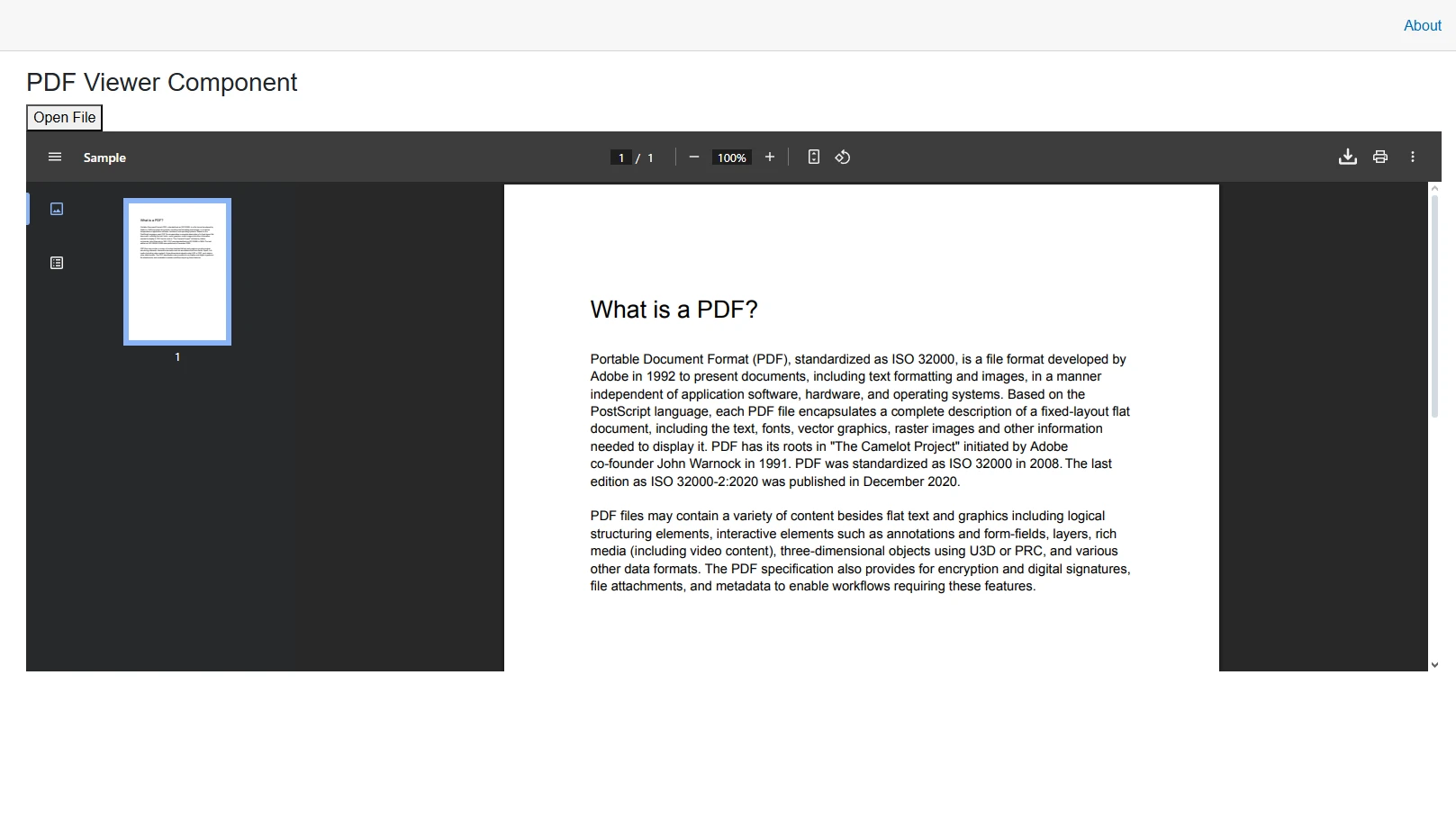
This code creates a simple PDF viewer component that loads a PDF document and displays it using an iframe. The LoadPdfDocument method reads PDF files from the wwwroot folder and converts them to a byte array. The CreateObjectUrl method then transforms this byte array into a data URL that the iframe can display, allowing users to view the loaded PDF document. This approach works well with various PDF versions and supports UTF-8 encoding.

How Does the Component Load PDF Files?

The component use IronPDF's document loading capabilities to read PDF files efficiently. When a user clicks the "Open File" button, the LoadPdfDocument method:

  1. Loads the PDF file using PdfDocument.FromFile
  2. Extracts binary data from the loaded PDF document
  3. Converts to Base64 format for browser compatibility
  4. Creates a data URL that browsers can render directly

This approach ensures compatibility across different browsers while maintaining high performance for PDF display. The component can handle various paper sizes and page orientations.

What Are Common Issues When Displaying PDFs?

When implementing PDF viewers in Blazor, developers often encounter these challenges:

For troubleshooting specific issues, consult the quick troubleshooting guide or engineering support.

Output

Screenshot of a Blazor PDF viewer component displaying a sample PDF with 'What is a PDF?' content, showing navigation controls, zoom options, and an Open File button.

How Do I Implement JavaScript Interop for Improve Display?

For better control over PDF content display, we can use JavaScript functions to handle the PDF viewer functionality:

@page "/pdf-jsinterop"
@rendermode InteractiveServer
@using IronPdf
@inject IJSRuntime JSRuntime
@inject Microsoft.AspNetCore.Hosting.IWebHostEnvironment WebHostEnvironment
<h3>IronPDF JavaScript Interop Viewer</h3>
<p>Displays PDF using JavaScript's Blob/ObjectURL capabilities.</p>
@if (!string.IsNullOrEmpty(ErrorMessage))
{
    <div class="alert alert-danger">Error: @ErrorMessage</div>
}
<div id="@documentId" style="border: 1px solid #ccc; width: 100%; min-height: 600px;">
    Loading PDF...
</div>
@code {
    private string documentId = Guid.NewGuid().ToString();
    private string ErrorMessage = string.Empty;
    private bool pdfLoaded = false;
    // Hold the reference to the loaded JavaScript module
    private IJSObjectReference? jsModule;
    protected override async Task OnAfterRenderAsync(bool firstRender)
    {
        if (firstRender && !pdfLoaded)
        {
            try
            {
                // 1. Asynchronously load the JavaScript file as a module
                // This guarantees the script is loaded before the next line executes.
                jsModule = await JSRuntime.InvokeAsync<IJSObjectReference>("import",
                    "./pdfViewerInterop.js");
                await LoadPdfWithJavaScript();
                pdfLoaded = true;
            }
            catch (Exception ex)
            {
                ErrorMessage = $"Failed to load JS module or execute: {ex.Message}";
            }
            finally
            {
                StateHasChanged();
            }
        }
    }
    private async Task LoadPdfWithJavaScript()
    {
        if (jsModule is null) return; // Should never happen if the module loads successfully
        try
        {
            var pdfPath = Path.Combine(WebHostEnvironment.WebRootPath, "sample.pdf");
            if (!File.Exists(pdfPath))
            {
                ErrorMessage = $"File not found: {pdfPath}";
                return;
            }
            var pdf = PdfDocument.FromFile(pdfPath);
            var stream = new MemoryStream(pdf.BinaryData);
            // 2. Invoke the function using the module reference
            // Note: We only pass the function name here.
            await jsModule.InvokeVoidAsync("displayPdf",
                documentId, stream.ToArray());
        }
        catch (Exception ex)
        {
            ErrorMessage = $"Failed to load PDF or invoke JS: {ex.Message}";
        }
    }
    // IMPORTANT: Dispose of the module when the component is removed
    public async ValueTask DisposeAsync()
    {
        if (jsModule is not null)
        {
            await jsModule.DisposeAsync();
        }
    }
}
@page "/pdf-jsinterop"
@rendermode InteractiveServer
@using IronPdf
@inject IJSRuntime JSRuntime
@inject Microsoft.AspNetCore.Hosting.IWebHostEnvironment WebHostEnvironment
<h3>IronPDF JavaScript Interop Viewer</h3>
<p>Displays PDF using JavaScript's Blob/ObjectURL capabilities.</p>
@if (!string.IsNullOrEmpty(ErrorMessage))
{
    <div class="alert alert-danger">Error: @ErrorMessage</div>
}
<div id="@documentId" style="border: 1px solid #ccc; width: 100%; min-height: 600px;">
    Loading PDF...
</div>
@code {
    private string documentId = Guid.NewGuid().ToString();
    private string ErrorMessage = string.Empty;
    private bool pdfLoaded = false;
    // Hold the reference to the loaded JavaScript module
    private IJSObjectReference? jsModule;
    protected override async Task OnAfterRenderAsync(bool firstRender)
    {
        if (firstRender && !pdfLoaded)
        {
            try
            {
                // 1. Asynchronously load the JavaScript file as a module
                // This guarantees the script is loaded before the next line executes.
                jsModule = await JSRuntime.InvokeAsync<IJSObjectReference>("import",
                    "./pdfViewerInterop.js");
                await LoadPdfWithJavaScript();
                pdfLoaded = true;
            }
            catch (Exception ex)
            {
                ErrorMessage = $"Failed to load JS module or execute: {ex.Message}";
            }
            finally
            {
                StateHasChanged();
            }
        }
    }
    private async Task LoadPdfWithJavaScript()
    {
        if (jsModule is null) return; // Should never happen if the module loads successfully
        try
        {
            var pdfPath = Path.Combine(WebHostEnvironment.WebRootPath, "sample.pdf");
            if (!File.Exists(pdfPath))
            {
                ErrorMessage = $"File not found: {pdfPath}";
                return;
            }
            var pdf = PdfDocument.FromFile(pdfPath);
            var stream = new MemoryStream(pdf.BinaryData);
            // 2. Invoke the function using the module reference
            // Note: We only pass the function name here.
            await jsModule.InvokeVoidAsync("displayPdf",
                documentId, stream.ToArray());
        }
        catch (Exception ex)
        {
            ErrorMessage = $"Failed to load PDF or invoke JS: {ex.Message}";
        }
    }
    // IMPORTANT: Dispose of the module when the component is removed
    public async ValueTask DisposeAsync()
    {
        if (jsModule is not null)
        {
            await jsModule.DisposeAsync();
        }
    }
}
$vbLabelText   $csharpLabel

Add this JavaScript function to your JavaScript file in the wwwroot folder:

export function displayPdf(elementId, data) {
    // 1. Create a Blob from the byte array data
    const blob = new Blob([new Uint8Array(data)],
        { type: 'application/pdf' });
    // 2. Create a temporary URL for the Blob
    const url = URL.createObjectURL(blob);
    // 3. Find the container element
    const container = document.getElementById(elementId);
    if (!container) return;
    // 4. Clear any previous content
    container.innerHTML = '';
    // 5. Create and configure the iframe
    const iframe = document.createElement('iframe');
    iframe.src = url;
    iframe.style.width = '100%';
    iframe.style.height = '600px';
    iframe.style.border = 'none';
    // 6. Append the iframe to the container
    container.appendChild(iframe);
}
export function displayPdf(elementId, data) {
    // 1. Create a Blob from the byte array data
    const blob = new Blob([new Uint8Array(data)],
        { type: 'application/pdf' });
    // 2. Create a temporary URL for the Blob
    const url = URL.createObjectURL(blob);
    // 3. Find the container element
    const container = document.getElementById(elementId);
    if (!container) return;
    // 4. Clear any previous content
    container.innerHTML = '';
    // 5. Create and configure the iframe
    const iframe = document.createElement('iframe');
    iframe.src = url;
    iframe.style.width = '100%';
    iframe.style.height = '600px';
    iframe.style.border = 'none';
    // 6. Append the iframe to the container
    container.appendChild(iframe);
}
$vbLabelText   $csharpLabel

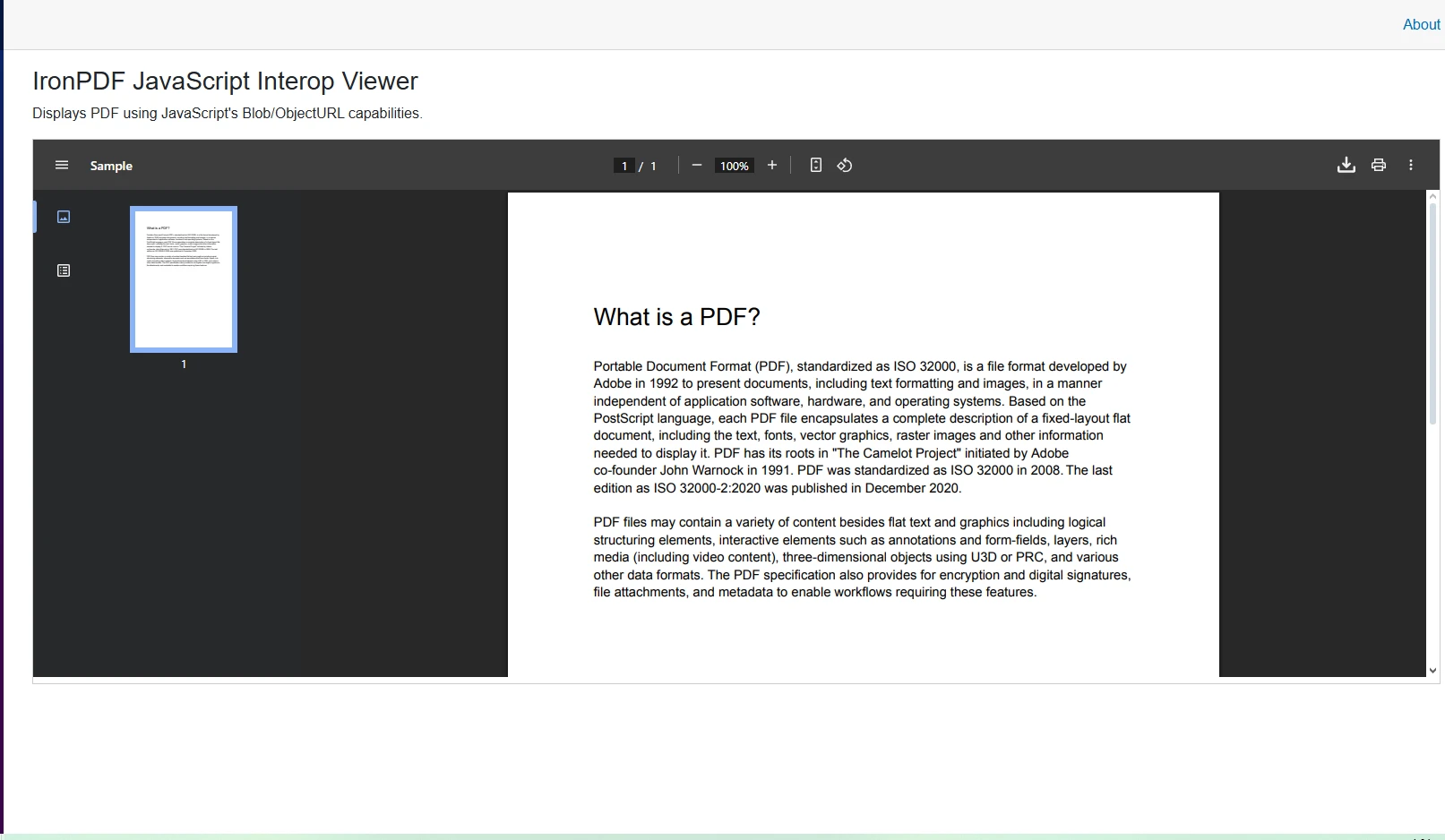
This JavaScript function creates a blob from the PDF data and generates an object URL. It then creates an iframe element dynamically and appends it to the container. This approach gives you more control over how PDF pages are displayed and allows for better handling of the PDF viewer component's lifecycle. The technique supports JavaScript rendering and custom render delays for complex documents.

Why Should I Use JavaScript Interop Instead of Direct Display?

JavaScript interop provides several advantages for PDF rendering in Blazor:

  • Improve control over the rendering process and display options
  • Better memory management for large PDF files
  • Support for advanced features like annotations and form filling
  • Improved error handling with detailed feedback
  • Custom UI integration with your application's design system

The interop approach also enables custom JavaScript execution and message listeners for advanced scenarios.

When Does JavaScript Interop Improve Performance?

JavaScript interop significantly improve performance in these scenarios:

Consider parallel processing for batch operations and multithreading for concurrent PDF generation.

How Do I Handle JavaScript Errors?

Proper error handling ensures a reliable PDF viewing experience. Implement these strategies:

try {
    // Check if the browser supports required features
    if (!window.Blob || !window.URL) {
        throw new Error("Browser doesn't support required PDF viewing features");
    }
    // Validate PDF data before processing
    if (!data || data.length === 0) {
        throw new Error("Invalid PDF data received");
    }
    // Monitor memory usage for large files
    if (data.length > 50 * 1024 * 1024) { // 50MB threshold
        console.warn("Large PDF detected, performance may be affected");
    }
} catch (error) {
    console.error("PDF viewing error:", error);
    // Fallback to server-side rendering
}
try {
    // Check if the browser supports required features
    if (!window.Blob || !window.URL) {
        throw new Error("Browser doesn't support required PDF viewing features");
    }
    // Validate PDF data before processing
    if (!data || data.length === 0) {
        throw new Error("Invalid PDF data received");
    }
    // Monitor memory usage for large files
    if (data.length > 50 * 1024 * 1024) { // 50MB threshold
        console.warn("Large PDF detected, performance may be affected");
    }
} catch (error) {
    console.error("PDF viewing error:", error);
    // Fallback to server-side rendering
}
$vbLabelText   $csharpLabel

For complete error tracking, implement custom logging and monitor render timeouts.

Output

IronPDF JavaScript Interop Viewer interface showing a PDF document with 'What is a PDF?' content displayed, demonstrating JavaScript Blob/ObjectURL PDF rendering capabilities

How Can I Load PDF Files from Different Sources?

Your Blazor PDF viewer can retrieve and display PDF documents from various sources:

private async Task LoadFromUrl()
{
    var client = new HttpClient();
    var response = await client.GetAsync("___PROTECTED_URL_116___");
    var stream = await response.Content.ReadAsStreamAsync();
    var pdfDocument = new PdfDocument(stream);
    await DisplayPdfContent(pdfDocument);
}
private async Task LoadFromHtmlContent()
{
    var renderer = new ChromePdfRenderer();
    var htmlContent = "<h1>Generated PDF</h1>";
    var pdfDocument = renderer.RenderHtmlAsPdf(htmlContent);
    await DisplayPdfContent(pdfDocument);
}
private async Task DisplayPdfContent(PdfDocument document)
{
    var data = document.BinaryData;
    pdfUrl = $"data:application/pdf;base64,{Convert.ToBase64String(data)}";
}
private async Task LoadFromUrl()
{
    var client = new HttpClient();
    var response = await client.GetAsync("___PROTECTED_URL_116___");
    var stream = await response.Content.ReadAsStreamAsync();
    var pdfDocument = new PdfDocument(stream);
    await DisplayPdfContent(pdfDocument);
}
private async Task LoadFromHtmlContent()
{
    var renderer = new ChromePdfRenderer();
    var htmlContent = "<h1>Generated PDF</h1>";
    var pdfDocument = renderer.RenderHtmlAsPdf(htmlContent);
    await DisplayPdfContent(pdfDocument);
}
private async Task DisplayPdfContent(PdfDocument document)
{
    var data = document.BinaryData;
    pdfUrl = $"data:application/pdf;base64,{Convert.ToBase64String(data)}";
}
$vbLabelText   $csharpLabel

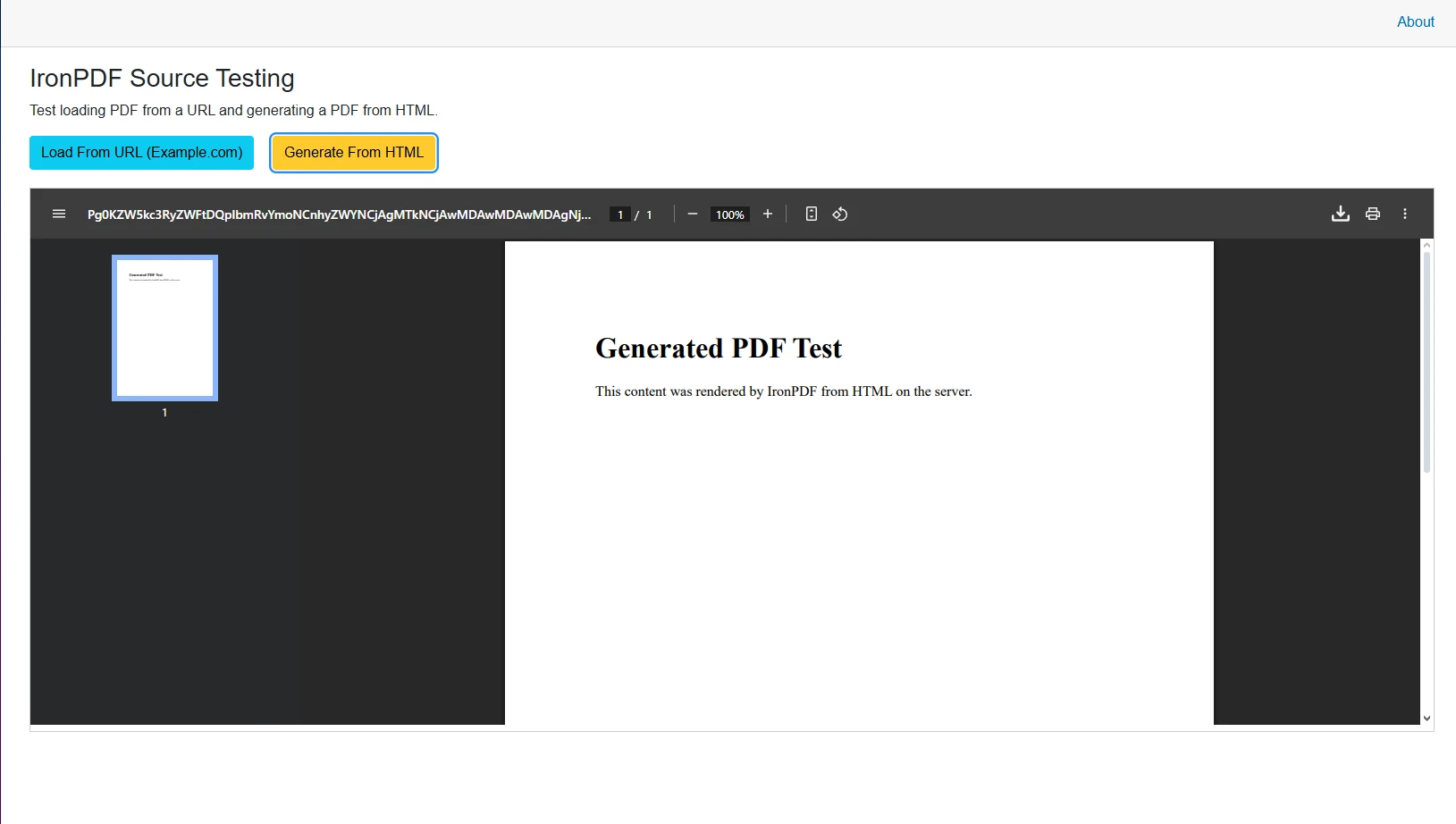
These methods demonstrate loading PDF files from URLs using HTTPS, converting HTML content to PDF, and displaying the resulting PDF content. The LoadFromUrl method retrieves PDF documents from remote locations, while LoadFromHtmlContent shows how to convert HTML to PDF on the fly, providing flexibility in how your Blazor PDF viewer component sources its content. The Chrome rendering engine ensures accurate conversion.

Additional source options include:

Consider DOCX to PDF conversion for Microsoft Word documents and image to PDF for photo archives.

Which Source Method Should I Choose?

Select your PDF source based on these considerations:

Source Type Best For Performance Security
Local Files Static content Excellent Low
URLs External documents Good Medium
HTML Conversion Dynamic reports Variable High
Blob Storage Enterprise apps Excellent High
Memory Streams Temporary PDFs Excellent High

For HTML file conversion, consider using base URLs for proper asset loading. ZIP file sources offer bundled content options.

How Do I Handle Network Errors When Loading from URLs?

Implement reliable error handling for URL-based PDF loading:

private async Task<PdfDocument> LoadFromUrlWithRetry(string url, int maxRetries = 3)
{
    for (int i = 0; i < maxRetries; i++)
    {
        try
        {
            using var client = new HttpClient();
            client.Timeout = TimeSpan.FromSeconds(30);

            var response = await client.GetAsync(url);
            response.EnsureSuccessStatusCode();

            var stream = await response.Content.ReadAsStreamAsync();
            return new PdfDocument(stream);
        }
        catch (HttpRequestException ex) when (i < maxRetries - 1)
        {
            await Task.Delay(TimeSpan.FromSeconds(Math.Pow(2, i))); // Exponential backoff
        }
    }
    throw new Exception($"Failed to load PDF from {url} after {maxRetries} attempts");
}
private async Task<PdfDocument> LoadFromUrlWithRetry(string url, int maxRetries = 3)
{
    for (int i = 0; i < maxRetries; i++)
    {
        try
        {
            using var client = new HttpClient();
            client.Timeout = TimeSpan.FromSeconds(30);

            var response = await client.GetAsync(url);
            response.EnsureSuccessStatusCode();

            var stream = await response.Content.ReadAsStreamAsync();
            return new PdfDocument(stream);
        }
        catch (HttpRequestException ex) when (i < maxRetries - 1)
        {
            await Task.Delay(TimeSpan.FromSeconds(Math.Pow(2, i))); // Exponential backoff
        }
    }
    throw new Exception($"Failed to load PDF from {url} after {maxRetries} attempts");
}
$vbLabelText   $csharpLabel

For authenticated sources, implement HTTP request headers and handle TLS logins. Consider cookie management for session-based access.

When Is HTML to PDF Conversion Most Useful?

HTML to PDF conversion excels in these scenarios:

Use CSS support for responsive designs and web fonts for consistent typography.

Output using HTML Content

IronPDF testing interface demonstrates successful PDF generation from HTML content, with options to load from URL or generate from HTML visible at the top.

How Do I Add Interactive Features to My PDF Viewer?

Improve your PDF viewer with interactive functionality:

@code {
    private int currentPage = 1;
    private int totalPages;
    private string rotationClass = "";
    private async Task NavigateToPage(int page)
    {
        currentPage = page;
        await JSRuntime.InvokeVoidAsync("navigateTo", page);
    }
    private void RotateCounterclockwise()
    {
        // Counterclockwise switch orientation
        rotationClass = "rotate-270";
    }
    private async Task PrintPdf()
    {
        await JSRuntime.InvokeVoidAsync("printDocument", documentId);
    }
    private async Task DownloadPdf()
    {
        var fileName = "document.pdf";
        await JSRuntime.InvokeVoidAsync("downloadFile", 
           pdfData, fileName);
    }
}
@code {
    private int currentPage = 1;
    private int totalPages;
    private string rotationClass = "";
    private async Task NavigateToPage(int page)
    {
        currentPage = page;
        await JSRuntime.InvokeVoidAsync("navigateTo", page);
    }
    private void RotateCounterclockwise()
    {
        // Counterclockwise switch orientation
        rotationClass = "rotate-270";
    }
    private async Task PrintPdf()
    {
        await JSRuntime.InvokeVoidAsync("printDocument", documentId);
    }
    private async Task DownloadPdf()
    {
        var fileName = "document.pdf";
        await JSRuntime.InvokeVoidAsync("downloadFile", 
           pdfData, fileName);
    }
}
$vbLabelText   $csharpLabel

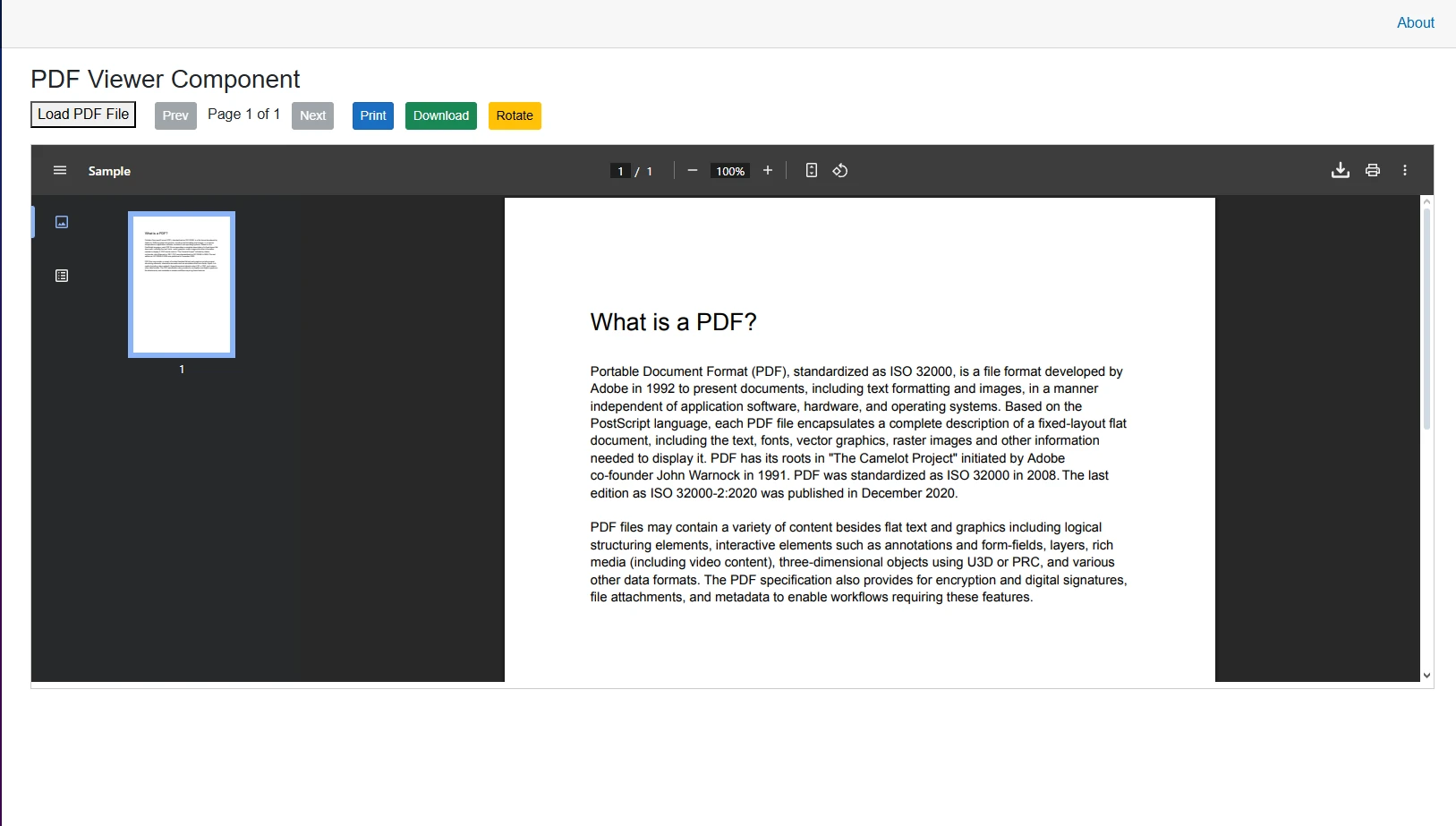
This code adds navigation between PDF pages, rotation functionality (including counterclockwise rotation), and the ability to print PDFs. The download functionality allows users to save PDF files locally. These features transform your basic PDF viewer into a effective viewer with a built-in toolbar that provides essential functionality for users working with PDF documents. Consider adding page numbers and bookmarks for navigation.

Which Features Do Users Expect Most?

Modern PDF viewers should include these essential features:

Advanced features might include text extraction, image extraction, and PDF to HTML conversion.

How Do I Implement Page Navigation Efficiently?

Efficient page navigation requires improve rendering:

private async Task<string> RenderSpecificPage(int pageNumber)
{
    var pdfDocument = PdfDocument.FromFile("document.pdf");
    // Extract single page for faster rendering
    var singlePagePdf = pdfDocument.CopyPage(pageNumber - 1);

    // Convert to image for preview
    var imageData = singlePagePdf.RasterizeToImageFiles("preview_*.png", 150);

    return Convert.ToBase64String(imageData[0]);
}
private async Task<string> RenderSpecificPage(int pageNumber)
{
    var pdfDocument = PdfDocument.FromFile("document.pdf");
    // Extract single page for faster rendering
    var singlePagePdf = pdfDocument.CopyPage(pageNumber - 1);

    // Convert to image for preview
    var imageData = singlePagePdf.RasterizeToImageFiles("preview_*.png", 150);

    return Convert.ToBase64String(imageData[0]);
}
$vbLabelText   $csharpLabel

For large documents, implement page breaks and consider splitting PDFs for performance. Use thumbnails for visual navigation.

What Are Best Practices for Download Functionality?

Implement secure and user-friendly download features:

  • Sanitize filenames to prevent security issues
  • Add metadata for better organization
  • Implement compression for large files
  • Track downloads for analytics
  • Apply watermarks if needed
  • Set appropriate permissions

Consider PDF/A compliance for archival needs and PDF/UA for accessibility.

Output

A fully-featured PDF viewer component built with Blazor, displaying document navigation controls, zoom functionality set to 100%, and custom action buttons including Load PDF File, Print, Download, and Rotate options

How Do I Handle PDF Form Filling and Annotations?

For PDF documents with form fields and annotations, IronPDF provides reliable support:

private async Task ProcessFormFields(
{
    var pdfDocument = PdfDocument.FromFile("form.pdf");
    foreach (var field in pdfDocument.Form.Fields)
    {
        if (field.Type == PdfFormFieldType.Text)
        {
            field.Value = "User Input";
        }
    }
    // Enable form filling in viewer
    var modifiedPdf = pdfDocument.BinaryData;
    await DisplayPdfContent(pdfDocument);
}
private async Task ProcessFormFields(
{
    var pdfDocument = PdfDocument.FromFile("form.pdf");
    foreach (var field in pdfDocument.Form.Fields)
    {
        if (field.Type == PdfFormFieldType.Text)
        {
            field.Value = "User Input";
        }
    }
    // Enable form filling in viewer
    var modifiedPdf = pdfDocument.BinaryData;
    await DisplayPdfContent(pdfDocument);
}
$vbLabelText   $csharpLabel

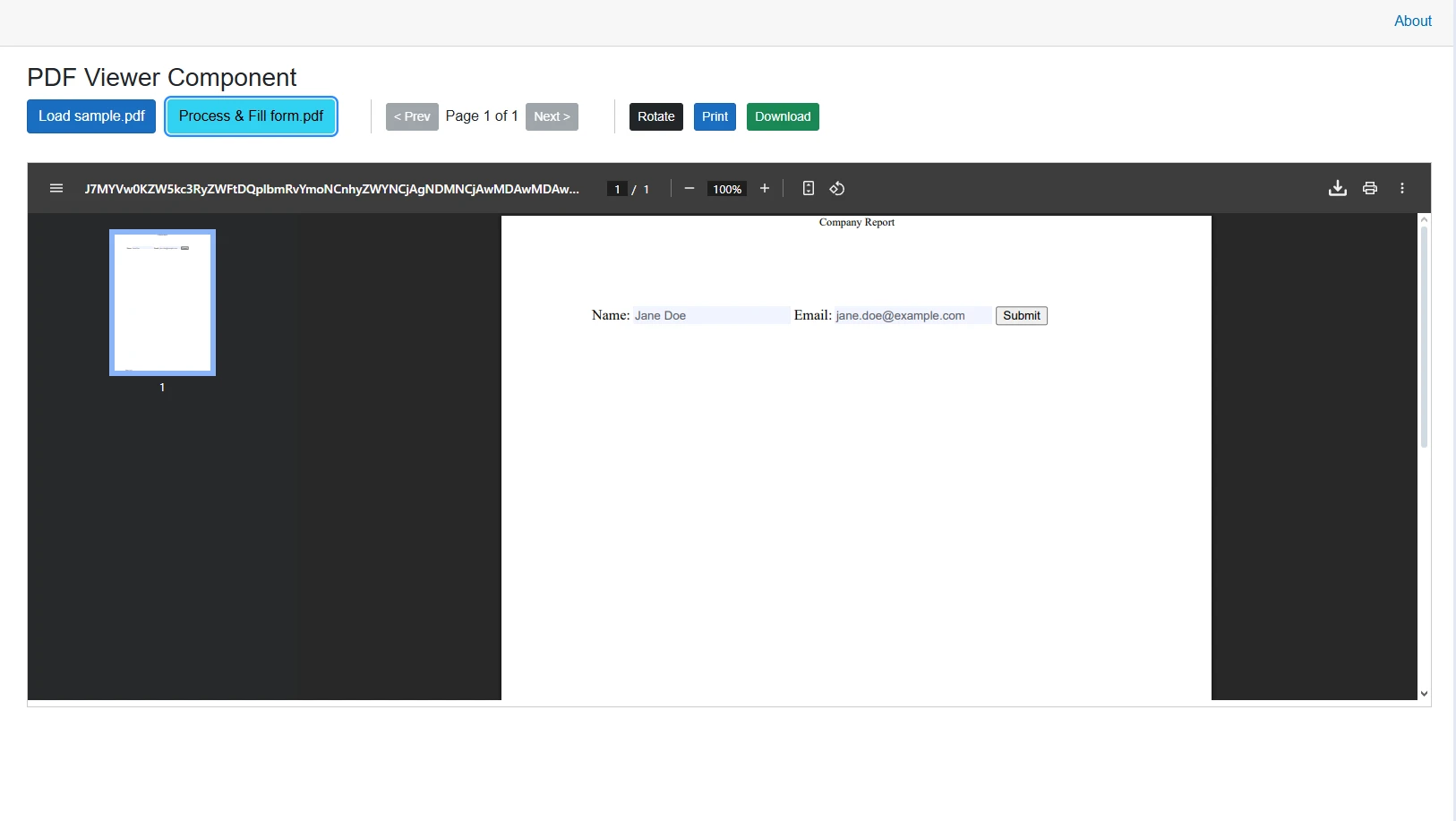
This enables form filling capabilities within your Blazor PDF viewer component, allowing users to interact with form fields directly in the browser. The code iterates through form fields in the PDF document and can programmatically set values, making it ideal for applications requiring dynamic form filling. Support includes digital signatures and text annotations.

What Types of Form Fields Can I Support?

IronPDF supports complete form field types:

  • Text fields for user input and data entry
  • Checkboxes for boolean selections
  • Radio buttons for mutually exclusive choices
  • Dropdown lists for predefined options
  • Digital signature fields for authentication
  • Multi-line text areas for comments
  • Date pickers for temporal data

Advanced features include HSM signing for enterprise security and revision history tracking.

How Do I Save User-Entered Form Data?

Implement reliable form data persistence:

private async Task SaveFormData()
{
    var pdfWithFormData = PdfDocument.FromFile("filled-form.pdf");

    // Extract form data
    var formData = new Dictionary<string, string>();
    foreach (var field in pdfWithFormData.Form.Fields)
    {
        formData[field.Name] = field.Value;
    }

    // Save to database or JSON
    var json = System.Text.Json.JsonSerializer.Serialize(formData);
    await File.WriteAllTextAsync("form-data.json", json);

    // Flatten form to prevent further editing
    pdfWithFormData.Form.Flatten();
    pdfWithFormData.SaveAs("form-submission.pdf");
}
private async Task SaveFormData()
{
    var pdfWithFormData = PdfDocument.FromFile("filled-form.pdf");

    // Extract form data
    var formData = new Dictionary<string, string>();
    foreach (var field in pdfWithFormData.Form.Fields)
    {
        formData[field.Name] = field.Value;
    }

    // Save to database or JSON
    var json = System.Text.Json.JsonSerializer.Serialize(formData);
    await File.WriteAllTextAsync("form-data.json", json);

    // Flatten form to prevent further editing
    pdfWithFormData.Form.Flatten();
    pdfWithFormData.SaveAs("form-submission.pdf");
}
$vbLabelText   $csharpLabel

Consider form validation and field management for professional forms.

When Should I Use Programmatic vs Interactive Form Filling?

Choose your approach based on use case:

Approach Use When Benefits
Programmatic Pre-filling known data Faster, consistent, automated
Interactive User input required Flexible, immediate validation
Hybrid Partial data available Best of both approaches

Consider flattening forms after submission to prevent tampering. Use PDF sanitization for security.

Output

Example of the PDF viewer component's form-filling functionality, showing how users can interact with PDF forms directly in the browser

How Can I Improve Performance for Large PDFs?

To ensure high performance when displaying PDFs, especially for large PDF files:

private async Task LoadLargePdf()
{
    const int chunkSize = 1024 * 1024; // 1MB chunks
    var pdfPath = "largefile.pdf";
    using (var fileStream = File.OpenRead(pdfPath))
    {
        var buffer = new byte[chunkSize];
        var chunks = new List<byte[]>();
        int bytesRead;
        while ((bytesRead = await fileStream.ReadAsync(buffer)) > 0)
        {
            var chunk = new byte[bytesRead];
            Array.Copy(buffer, chunk, bytesRead);
            chunks.Add(chunk);
        }
        // Process chunks for display
        await ProcessPdfChunks(chunks);
    }
}
private async Task LoadLargePdf()
{
    const int chunkSize = 1024 * 1024; // 1MB chunks
    var pdfPath = "largefile.pdf";
    using (var fileStream = File.OpenRead(pdfPath))
    {
        var buffer = new byte[chunkSize];
        var chunks = new List<byte[]>();
        int bytesRead;
        while ((bytesRead = await fileStream.ReadAsync(buffer)) > 0)
        {
            var chunk = new byte[bytesRead];
            Array.Copy(buffer, chunk, bytesRead);
            chunks.Add(chunk);
        }
        // Process chunks for display
        await ProcessPdfChunks(chunks);
    }
}
$vbLabelText   $csharpLabel

This approach loads large PDF files in chunks, preventing memory issues and ensuring smooth performance even with substantial PDF documents. It's particularly useful when dealing with PDF files on mobile devices or systems with limited resources. Consider implementing memory leak prevention strategies.

Additional optimization strategies include:

For Docker environments, improve container configuration. In AWS Lambda, manage memory allocation carefully.

What File Size Requires Chunked Loading?

Consider chunked loading based on these thresholds:

File Size Loading Strategy Memory Impact
< 5MB Direct loading Minimal
5-20MB Optional chunking Moderate
20-50MB Recommended chunking Significant
> 50MB Required chunking Critical

For large output files, implement appropriate compression strategies.

How Do I Monitor Memory Usage?

Implement memory monitoring for optimal performance:

private async Task<bool> CheckMemoryBeforeLoad(long fileSize)
{
    var memoryInfo = GC.GetTotalMemory(false);
    var availableMemory = GC.GetTotalMemory(true);

    // Conservative estimate: file size * 3 for processing overhead
    var requiredMemory = fileSize * 3;

    if (requiredMemory > availableMemory * 0.8) // 80% threshold
    {
        // Trigger garbage collection
        GC.Collect();
        GC.WaitForPendingFinalizers();
        GC.Collect();

        // Re-check after cleanup
        availableMemory = GC.GetTotalMemory(true);
        return requiredMemory <= availableMemory * 0.8;
    }

    return true;
}
private async Task<bool> CheckMemoryBeforeLoad(long fileSize)
{
    var memoryInfo = GC.GetTotalMemory(false);
    var availableMemory = GC.GetTotalMemory(true);

    // Conservative estimate: file size * 3 for processing overhead
    var requiredMemory = fileSize * 3;

    if (requiredMemory > availableMemory * 0.8) // 80% threshold
    {
        // Trigger garbage collection
        GC.Collect();
        GC.WaitForPendingFinalizers();
        GC.Collect();

        // Re-check after cleanup
        availableMemory = GC.GetTotalMemory(true);
        return requiredMemory <= availableMemory * 0.8;
    }

    return true;
}
$vbLabelText   $csharpLabel

Monitor initial render performance and implement performance troubleshooting as needed.

When Should I Consider Server-Side Rendering?

Server-side rendering becomes beneficial when:

For IIS deployments, configure appropriate application pools. Azure Functions require specific deployment settings.

How Do I Implement Security for Password-Protected PDFs?

When working with password-protected PDF files:

private async Task LoadSecurePdf(string password)
{
    var pdfDocument = PdfDocument.FromFile("secure.pdf", password);
    if (pdfDocument != null)
    {
       var headers = new Dictionary<string, string>
        {
            {"X-Frame-Options", "SAMEORIGIN"},
            {"Content-Security-Policy", "default-src 'self'"}
        };
        await DisplayPdfContent(pdfDocument);
    }
}
private async Task LoadSecurePdf(string password)
{
    var pdfDocument = PdfDocument.FromFile("secure.pdf", password);
    if (pdfDocument != null)
    {
       var headers = new Dictionary<string, string>
        {
            {"X-Frame-Options", "SAMEORIGIN"},
            {"Content-Security-Policy", "default-src 'self'"}
        };
        await DisplayPdfContent(pdfDocument);
    }
}
$vbLabelText   $csharpLabel

This code demonstrates loading password-protected PDF documents while maintaining security through proper headers configuration. Consider digital signatures for improve authentication.

How Do I Securely Handle PDF Passwords?

Implement secure password handling with these best practices:

  • Never store passwords in plain text or client-side code
  • Use secure input methods with proper validation
  • Implement session timeouts for sensitive documents
  • Apply encryption for password transmission
  • Log access attempts for security auditing
  • Clear passwords from memory after use

Consider Kerberos authentication for enterprise environments and security CVE compliance.

What Additional Security Headers Should I Consider?

Improve PDF viewer security with complete headers:

private void ConfigureSecurityHeaders(HttpResponse response)
{
    response.Headers.Add("X-Content-Type-Options", "nosniff");
    response.Headers.Add("X-Frame-Options", "DENY");
    response.Headers.Add("Content-Security-Policy", 
        "default-src 'self'; script-src 'self' 'unsafe-inline'; object-src 'none'");
    response.Headers.Add("Referrer-Policy", "no-referrer");
    response.Headers.Add("Permissions-Policy", "camera=(), microphone=(), geolocation=()");
}
private void ConfigureSecurityHeaders(HttpResponse response)
{
    response.Headers.Add("X-Content-Type-Options", "nosniff");
    response.Headers.Add("X-Frame-Options", "DENY");
    response.Headers.Add("Content-Security-Policy", 
        "default-src 'self'; script-src 'self' 'unsafe-inline'; object-src 'none'");
    response.Headers.Add("Referrer-Policy", "no-referrer");
    response.Headers.Add("Permissions-Policy", "camera=(), microphone=(), geolocation=()");
}
$vbLabelText   $csharpLabel

Implement PDF sanitization to remove potentially malicious content and redact sensitive information.

When Is Client-Side vs Server-Side Decryption Appropriate?

Choose your decryption approach based on security requirements:

Decryption Type Use Case Security Level
Client-side Public documents Low
Server-side Sensitive data High
Hybrid Mixed content Medium

For maximum security, always perform decryption server-side and stream the decrypted content securely to the client. Implement PDF/A compliance for long-term archival needs.

What Are the Key Takeaways for Blazor PDF Display?

Implementing a Blazor PDF viewer with IronPDF provides developers with a complete solution for displaying PDFs in web applications. From basic display to advanced features like form filling and annotations, IronPDF's PDF viewer component offers the functionality needed for professional applications.

The examples shown demonstrate how to create a reliable Blazor PDF viewer that can handle various PDF sources, provide interactive features, and maintain high performance. Whether you're building a simple document viewer or a complex document management system, IronPDF's integration with Blazor Server apps makes it easy to implement professional PDF viewing capabilities. The Chrome rendering engine ensures consistent results across platforms.

Key benefits of using IronPDF for Blazor PDF display include:

For specific deployment scenarios, IronPDF supports Azure, AWS, Docker, and traditional Windows environments. The library also integrates with F# and VB.NET applications.

Ready to implement your own PDF viewer? Start your free trial of IronPDF today and access complete documentation, demo applications, and developer support to create effective PDF viewing experiences in your Blazor applications. The quickstart guide helps you begin immediately, while code examples demonstrate practical implementations.

자주 묻는 질문

IronPDF를 사용하여 Blazor 애플리케이션에서 PDF를 표시하려면 어떻게 해야 하나요?

IronPDF는 Blazor 애플리케이션 내에서 PDF를 렌더링하고 표시할 수 있는 포괄적인 API를 제공합니다. IronPDF를 통합하면 강력한 PDF 뷰어 구성 요소를 쉽게 구현할 수 있습니다.

Blazor PDF 보기에 IronPDF를 사용하면 어떤 이점이 있나요?

Blazor PDF 보기에 IronPDF를 사용하면 양식 필드 처리, 대화형 뷰어 생성, 애플리케이션 내에서 고품질 PDF를 원활하게 렌더링하는 등의 이점을 얻을 수 있습니다.

Blazor에서 IronPDF를 사용하여 PDF의 양식 필드를 처리할 수 있나요?

예, IronPDF를 사용하면 Blazor 애플리케이션에서 PDF 문서 내의 양식 필드를 처리하고 조작할 수 있어 향상된 상호 작용과 사용자 참여를 제공합니다.

IronPDF를 사용하여 Blazor에서 대화형 PDF 뷰어를 만들 수 있나요?

물론입니다. IronPDF는 Blazor에서 대화형 PDF 뷰어를 만들 수 있는 도구를 제공하여 양식 처리 및 동적 콘텐츠 표시와 같은 기능을 지원합니다.

Blazor에서 PDF 조작을 위해 IronPDF는 어떤 기능을 제공하나요?

IronPDF는 PDF 렌더링, 양식 필드 처리, 텍스트 추출 및 페이지 조작과 같은 기능을 제공하여 Blazor에서 PDF 작업을 위한 다목적 선택이 될 수 있습니다.

IronPDF는 Blazor 애플리케이션에서 PDF 보기 환경을 어떻게 개선하나요?

IronPDF는 부드러운 렌더링, 대화형 기능, 강력한 PDF 문서 처리 기능을 제공하여 Blazor 애플리케이션에서 PDF 보기 경험을 향상시킵니다.

커티스 차우
기술 문서 작성자

커티스 차우는 칼턴 대학교에서 컴퓨터 과학 학사 학위를 취득했으며, Node.js, TypeScript, JavaScript, React를 전문으로 하는 프론트엔드 개발자입니다. 직관적이고 미적으로 뛰어난 사용자 인터페이스를 만드는 데 열정을 가진 그는 최신 프레임워크를 활용하고, 잘 구성되고 시각적으로 매력적인 매뉴얼을 제작하는 것을 즐깁니다.


커티스는 개발 분야 외에도 사물 인터넷(IoT)에 깊은 관심을 가지고 있으며, 하드웨어와 소프트웨어를 통합하는 혁신적인 방법을 연구합니다. 여가 시간에는 게임을 즐기거나 디스코드 봇을 만들면서 기술에 대한 애정과 창의성을 결합합니다.