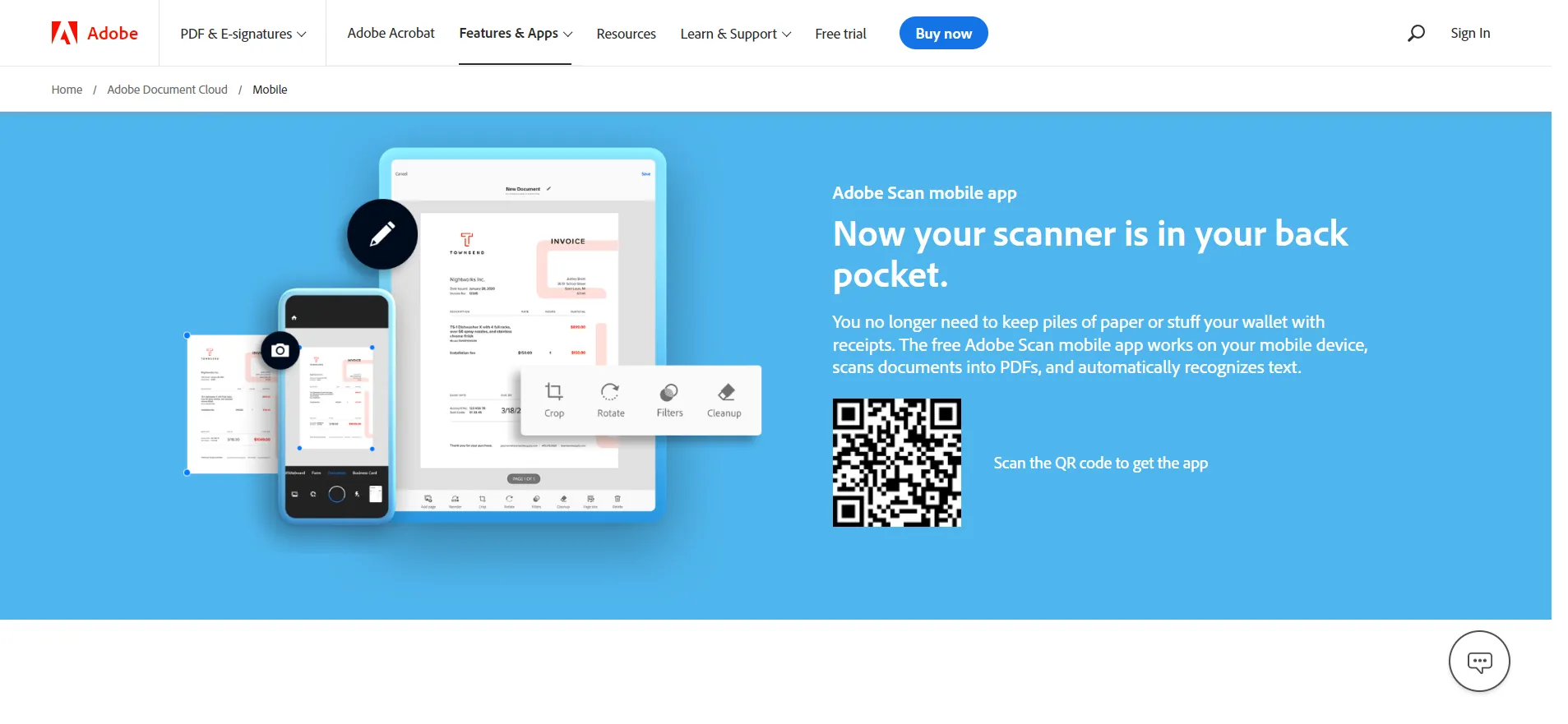
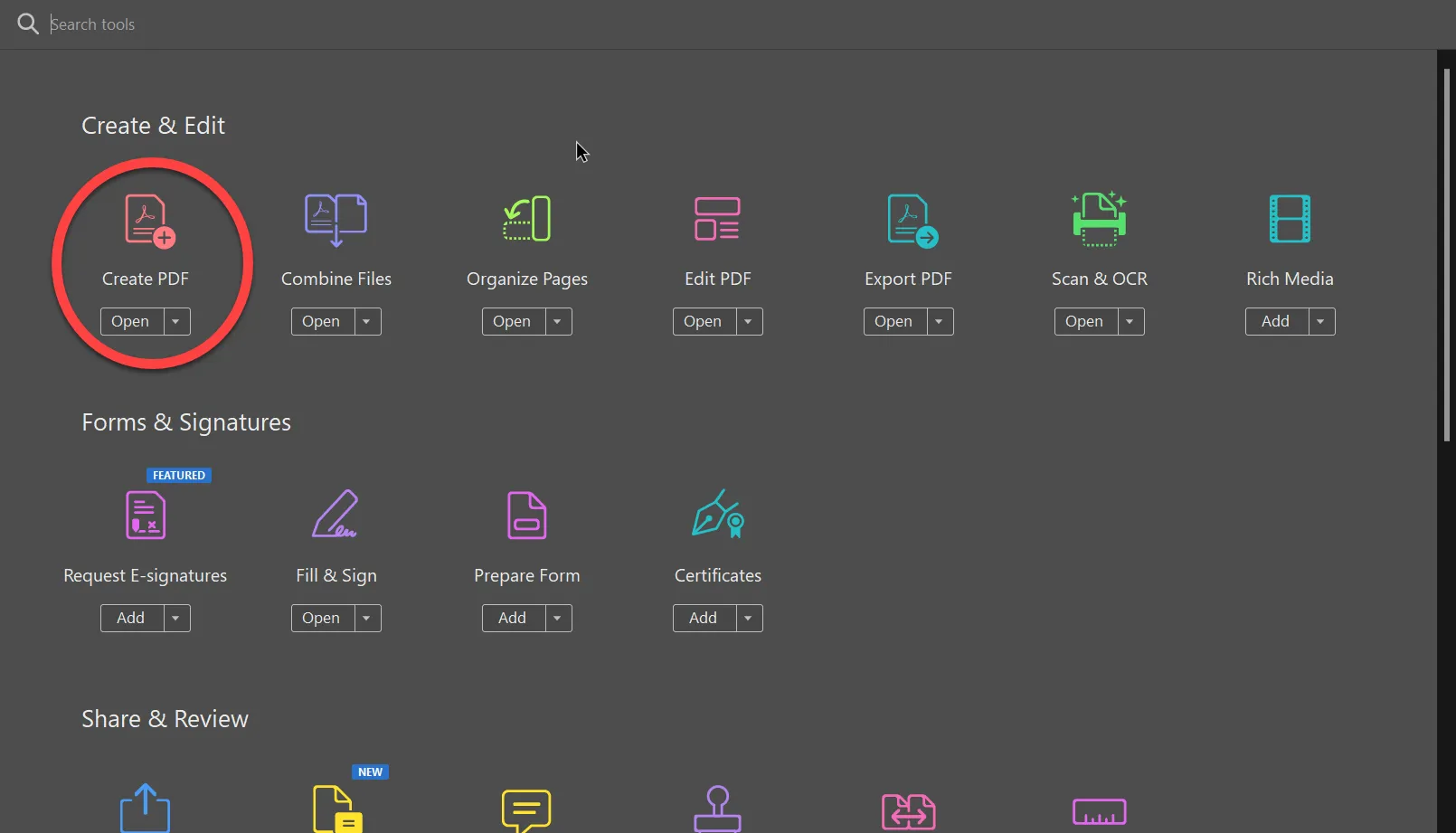
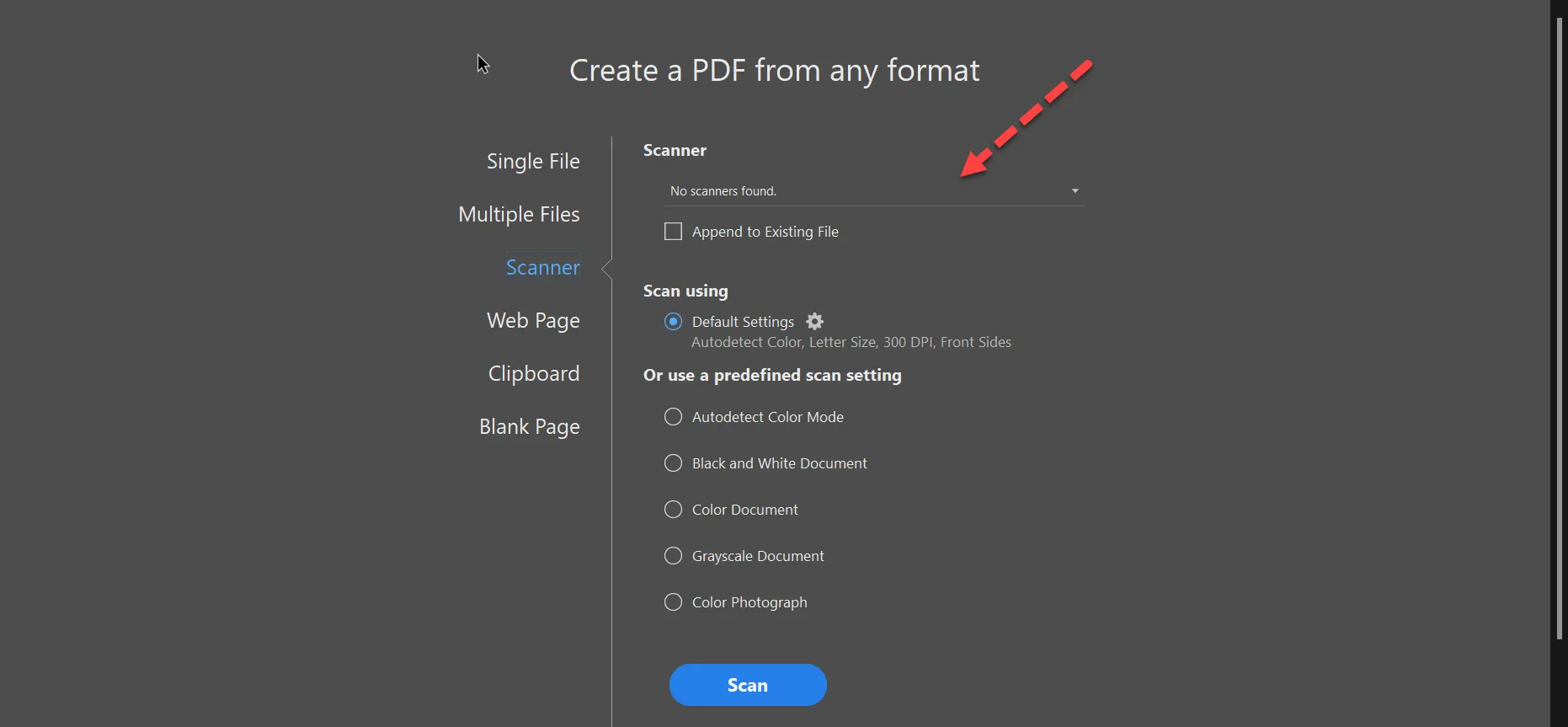
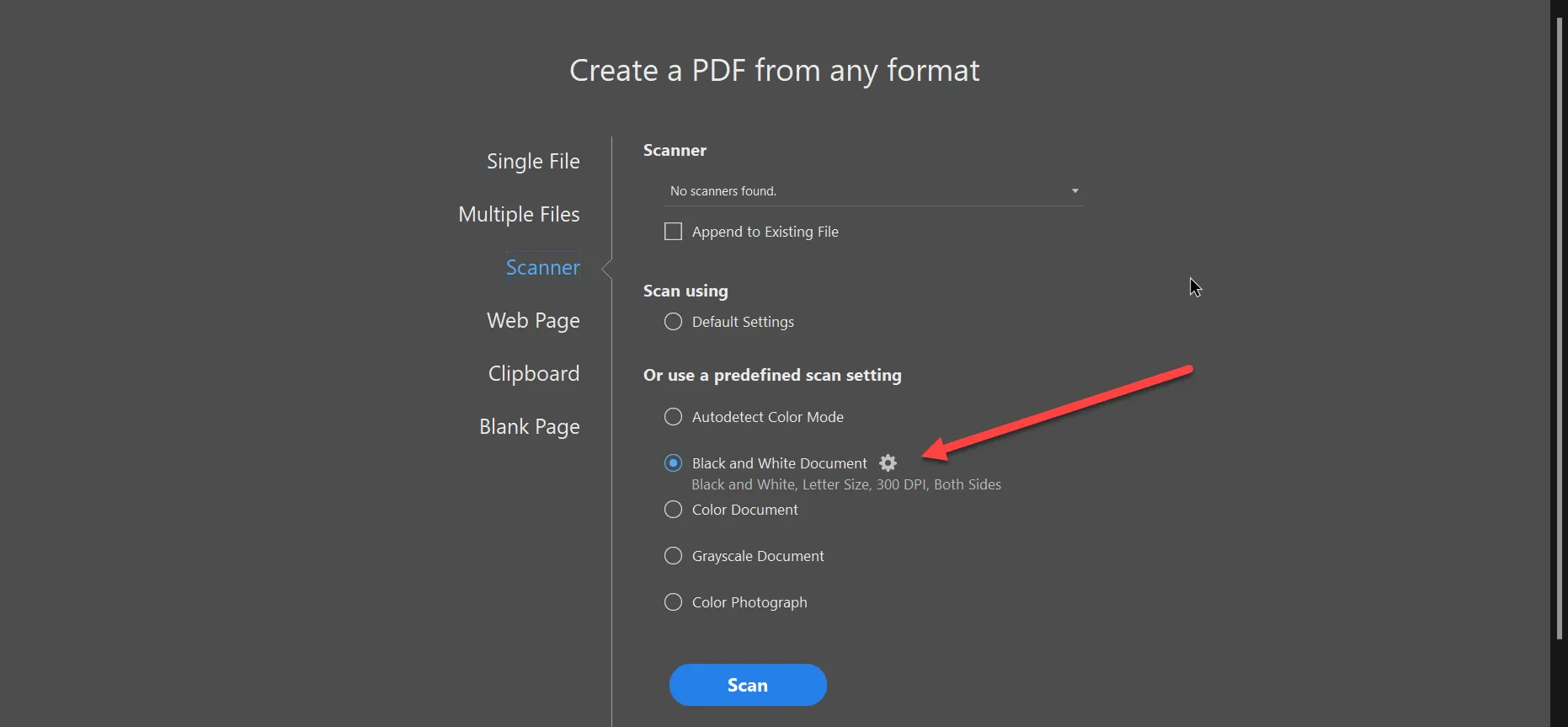
IRONPDF 사용 How to Scan Multiple Pages into One PDF File 커티스 차우 업데이트됨:7월 28, 2025 다운로드 IronPDF NuGet 다운로드 DLL 다운로드 윈도우 설치 프로그램 무료 체험 시작하기 LLM용 사본 LLM용 사본 LLM용 마크다운 형식으로 페이지를 복사하세요 ChatGPT에서 열기 ChatGPT에 이 페이지에 대해 문의하세요 제미니에서 열기 제미니에게 이 페이지에 대해 문의하세요 Grok에서 열기 Grok에게 이 페이지에 대해 문의하세요 혼란 속에서 열기 Perplexity에게 이 페이지에 대해 문의하세요 공유하다 페이스북에 공유하기 트위터에 공유하기 LinkedIn에 공유하기 URL 복사 이메일로 기사 보내기 How to Scan Multiple Pages into One PDF File You can scan multiple pages into one PDF using mobile apps like Adobe Scan, desktop software like Adobe Acrobat Pro, or programmatically with C# libraries like IronPDF for automated document processing workflows. PDF files work seamlessly across devices, and this article explores multiple methods for scanning multiple pages into one PDF file. Whether you're digitizing paper documents for archival, creating searchable documents from physical materials, or building automated scanning workflows, understanding these approaches helps you choose the right solution. The PDF format offers excellent compression capabilities and maintains document fidelity across platforms, making it ideal for document management systems. How Do I Use the Adobe Scan Mobile App? Let's start with a mobile solution for scanning multiple pages into one PDF. The Adobe Scan mobile app works great for this. You can download it from the Play Store for Android phones or the App Store for iPhones. You can also get it from the Adobe Acrobat website. The app leverages your smartphone's camera to capture documents, making it perfect for quick document digitization when you're away from traditional scanners. Download the Adobe Scan app from the official website You can capture multiple pages of documents, PDFs, or scanned images and combine them into a single PDF file. Everything appears in the scan preview window. The app uses advanced image processing to automatically detect document edges, enhance text clarity, and remove shadows or distortions. You can upload documents to the cloud, making it easy to access your files from any device. It detects borders and content areas, then creates a shareable, editable PDF file. The scanning process is similar to how IronPDF handles image conversions, providing clean, professional results. The Adobe Scan app includes OCR (Optical Character Recognition), which converts scanned text into searchable content. This feature helps when you need to extract text from PDF documents later or make your scanned documents accessible for search engines and screen readers. OCR technology is essential for creating accessible PDFs that comply with Section 508 standards. The app also supports UTF-8 encoding for international documents and can handle various languages. How Do I Scan Pages Using Adobe Acrobat? Adobe Acrobat is a desktop application for creating, editing, signing, and printing PDF files. It converts any electronic document into a PDF file. With this program, you can edit and annotate your PDFs. You can also access all features on mobile devices through Adobe's cloud sync. The desktop version offers more robust features compared to mobile apps, including batch processing, form creation, and advanced security options. Adobe Acrobat offers extensive features. It can merge PDF documents, convert images to PDFs, create fillable forms, and more. The software can edit scanned copies and JPEG files. It also supports advanced features like digital signatures, PDF compression, and password protection. You can also add watermarks, manage fonts, and create bookmarks for better navigation. Let's walk through creating a PDF by scanning multiple pages using Adobe Acrobat: Where Do I Find the Create PDF Tools? Open Adobe Acrobat Pro on your desktop. The interface may vary by version, but core functionality stays consistent across releases. The software supports various PDF versions and can export different formats. Adobe Acrobat follows the PDF specification standards established by the International Organization for Standardization (ISO). Go to the tools section. Navigate to the tools in the Adobe Acrobat Pro Click on the Create option. This opens a submenu with various PDF creation options, including scanning from physical documents, creating from HTML files, or converting from other formats. Adobe Acrobat also supports RTF to PDF conversion and can handle XML files through XSLT transformations. Create PDF function in the Adobe Acrobat Pro Which Scanner Should I Select? Click on the Scanner option to begin scanning. Adobe Acrobat automatically detects scanners connected to your computer, whether through USB, network, or wireless connection. The software works with various printer configurations, including network printers and supports different paper sizes. Select any available scanner from the dropdown list. If no scanners appear, ensure your scanner is properly connected with updated drivers. Some scanners require specific software or drivers to work with Adobe Acrobat. The software can also handle multi-frame TIFF files and other image formats. Select an available scanner in Adobe Acrobat Pro If you're having scanner detection issues, check your system's scanner settings or consult your scanner's documentation. Modern all-in-one printers may require you to select the scanning function before Adobe Acrobat detects them. For troubleshooting, you might need to check driver compatibility or system requirements. Some environments require specific runtime dependencies. What Settings Should I Configure Before Scanning? Select predefined scan settings based on your needs. Adobe Acrobat offers several preset configurations that optimize for different document types and use cases. Understanding rendering options helps achieve better results: Color Document: Best for color images or graphics, maintains full color depth Black and White Document: Ideal for text-only documents, reduces file size with grayscale Grayscale Document: Preserves tonal information with smaller file sizes Photograph: Uses higher DPI (600+) for detailed image reproduction Configure your PDF file You can customize advanced settings by clicking the gear icon: Resolution (DPI): Higher DPI means better quality but larger files Paper Size: Choose standard sizes or custom dimensions Scanning Sides: Single-sided or double-sided scanning File Format: PDF, JPEG, or other supported formats Compression: Balance file size and quality effectively Click the Scan button to begin. For multiple pages, Adobe Acrobat prompts after each page whether to scan more pages or complete the process. This workflow is similar to batch processing PDFs programmatically. What Happens After I Complete the Scanning Process? Following these steps, you'll scan all pages and convert them into one PDF file. After scanning, Adobe Acrobat provides several post-processing options that enhance your documents: Enhance Scans: Automatically improves text clarity and removes backgrounds Recognize Text (OCR): Makes scanned text searchable and selectable Organize Pages: Add, delete, or reorder pages as needed Rotate Pages: Correct pages scanned in wrong orientation Scanning multiple pages creates comprehensive PDFs with more data. The combined PDF can be optimized for different purposes, whether for web distribution, archival storage, or printing. You can also add metadata for better document organization, apply security settings, or create PDF/A compliant files for long-term preservation. How Can I Programmatically Convert Multiple Images to PDF with IronPDF? IronPDF is a C# PDF library for creating and editing PDFs on Windows, Linux, and macOS. Created by .NET developers who wanted Adobe Acrobat functionality in a simplified way that integrates seamlessly with .NET applications. IronPDF is an easy-to-use, lightweight library with features supporting both beginners and experts programmatically. The library provides comprehensive documentation and numerous examples for common scenarios: Supports converting images, text, and graphics to PDF Edit pages with text and shapes Convert between PDF/A and PDF/UA formats Create password-protected or watermarked documents Generate PDFs from HTML with CSS and JavaScript Merge and split PDF documents programmatically Extract text and images from existing PDFs Add headers and footers with dynamic content IronPDF gives developers easy tools for creating, editing, encrypting, and signing PDF documents from .NET applications. The library supports .NET 6+, .NET Framework 4.6.2+, and .NET Standard 2.0+, making it compatible with many projects. It works seamlessly with ASP.NET Core, Blazor, MAUI, and other modern frameworks. Written entirely in C#, IronPDF provides an easy way for .NET developers to write PDF documents. The library's goal is providing simple API calls for creating PDFs, applying digital signatures, and encrypting information. It uses a Chrome-based rendering engine for accurate web content reproduction in PDFs. The engine supports JavaScript execution, CSS3 styling, and WebGL rendering. How Do I Set Up IronPDF in My Project? IronPDF helps developers write efficiently with fewer lines of code. Let's see how to scan multiple pages or images into one PDF using IronPDF: 지금 바로 NuGet을 사용하여 PDF 만들기를 시작하세요. NuGet 패키지 관리자를 사용하여 IronPDF를 설치하세요. PM > Install-Package IronPdf 다음 코드 조각을 복사하여 실행하세요. // Import the necessary IronPdf namespaces using IronPdf; using System.IO; using System.Linq; // Select all JPEG images in a specific 'assets' folder. var ImageFiles = Directory.EnumerateFiles("assets") .Where(f => f.EndsWith(".jpg") || f.EndsWith(".jpeg")); // Converts the images to a PDF and saves the document as "composite.pdf". ImageToPdfConverter.ImageToPdf(ImageFiles).SaveAs("composite.pdf"); 실제 운영 환경에서 테스트할 수 있도록 배포하세요. 지금 바로 무료 체험판을 통해 프로젝트에서 IronPDF를 사용해 보세요. 30일 무료 체험 In this code, IronPDF's ImageToPdf function converts a collection of images into a PDF file. The Directory.EnumerateFiles method loops through files in the "assets" folder to select JPEG images. This approach works well when you have scanned documents saved as individual image files needing combination into a single PDF. The library handles various image formats including PNG, BMP, and TIFF files. What Advanced Options Can I Use for Image Conversion? For advanced scenarios, IronPDF offers additional options that give you fine control over the PDF generation process: // Convert images with custom settings using IronPdf; using IronPdf.Imaging; using System.IO; using System.Linq; // Configure image to PDF conversion settings var imageFiles = Directory.GetFiles("scanned-documents", "*.png"); var pdf = ImageToPdfConverter.ImageToPdf(imageFiles); // Apply PDF/A compliance for archival pdf.SaveAsPdfA("archived-scans.pdf", PdfAVersions.PdfA3); // Or add metadata for better organization pdf.MetaData.Title = "Scanned Documents - " + DateTime.Now.ToString("yyyy-MM-dd"); pdf.MetaData.Author = "Document Scanner Application"; pdf.SaveAs("organized-scans.pdf"); // Convert images with custom settings using IronPdf; using IronPdf.Imaging; using System.IO; using System.Linq; // Configure image to PDF conversion settings var imageFiles = Directory.GetFiles("scanned-documents", "*.png"); var pdf = ImageToPdfConverter.ImageToPdf(imageFiles); // Apply PDF/A compliance for archival pdf.SaveAsPdfA("archived-scans.pdf", PdfAVersions.PdfA3); // Or add metadata for better organization pdf.MetaData.Title = "Scanned Documents - " + DateTime.Now.ToString("yyyy-MM-dd"); pdf.MetaData.Author = "Document Scanner Application"; pdf.SaveAs("organized-scans.pdf"); $vbLabelText $csharpLabel IronPDF supports batch processing for handling large volumes of scanned documents efficiently. You can integrate it with scanning hardware APIs or use it in automated document management workflows. The library offers memory-efficient operations for processing large files and supports parallel processing for improved performance. Visit the example page for more details on converting images to PDF. For production environments, IronPDF provides deployment options for various platforms including Docker containers, Azure Functions, AWS Lambda, and Linux servers. The library includes logging capabilities for debugging and monitoring. What Licensing Options Are Available for IronPDF? This tutorial shows how to easily scan images and convert them into a single PDF using the IronPDF C# library. IronPDF provides valuable tools for .NET developers who need a PDF API to manipulate files in their software. The library offers comprehensive documentation, code examples, and 24/5 technical support to help developers start quickly. The API reference provides detailed information about all available methods and properties. IronPDF is free for development. You can use its free trial key for production tests. The trial includes all features without watermarks, letting you fully evaluate the library before purchasing. IronPDF offers pricing plans for different needs: Lite License: For individual developers on single projects Professional License: For small teams with multiple developers Unlimited License: For larger organizations with unlimited developers/projects Whether you're an individual developer or represent a large company, you can purchase a matching package. All licenses include one year of product updates and support. The library follows security best practices and receives regular updates. IronPDF pricing Iron Software currently offers the opportunity to buy five amazing software products for the price of two. This includes IronPDF, IronOCR for text recognition, IronXL for Excel manipulation, IronBarcode for barcode generation, and IronWebscraper for data extraction. Visit the IronPDF licensing information for more about licensing options and volume discounts. 자주 묻는 질문 C# 라이브러리를 사용하여 여러 페이지를 하나의 PDF로 스캔하려면 어떻게 해야 하나요? IronPDF의 ImageToPdf 메서드를 사용하여 일련의 이미지를 단일 PDF로 변환할 수 있습니다. 이 방식을 사용하면 개발자가 이미지 파일을 반복하여 일관된 PDF 문서로 컴파일하여 변환을 자동화할 수 있습니다. C#에서 PDF 변환을 위해 IronPDF를 사용하면 어떤 이점이 있나요? IronPDF는 .NET 애플리케이션과의 원활한 통합, 편집, 암호화, 서명과 같은 다양한 PDF 조작 지원, 이미지에서 PDF로의 변환을 손쉽게 처리하는 기능 등 C#에서 PDF 변환을 위한 강력한 기능을 제공합니다. IronPDF를 사용하여 이미지를 병합한 후 PDF를 편집할 수 있나요? 예, IronPDF를 사용하면 이미지를 병합한 후 PDF를 편집할 수 있습니다. IronPDF의 포괄적인 편집 기능을 사용하여 텍스트를 추가하고, 그래픽을 수정하고, 디지털 서명을 적용할 수 있습니다. C#에서 IronPDF를 사용하여 이미지를 PDF로 변환하는 과정은 무엇인가요? IronPDF를 사용하여 이미지를 PDF로 변환하려면 먼저 이미지를 애플리케이션에 로드한 다음 ImageToPdf 함수를 사용하여 PDF를 만듭니다. 이 함수는 이미지를 하나의 문서로 결합한 다음 저장하거나 추가 처리할 수 있습니다. 개발자를 위한 IronPDF 평가판이 있나요? 예, IronPDF는 개발자가 테스트 및 개발 목적으로 사용할 수 있는 무료 평가판을 제공합니다. 이를 통해 구매를 결정하기 전에 기능을 살펴볼 수 있습니다. IronPDF는 PDF 문서의 보안을 어떻게 보장하나요? IronPDF는 PDF 문서를 암호화하고 디지털 서명을 적용하는 기능을 비롯한 여러 가지 보안 기능을 제공합니다. 이러한 기능은 민감한 정보를 보호하고 문서 무결성을 보장하는 데 도움이 됩니다. IronPDF를 사용하여 이미지를 PDF로 변환하는 동안 문제가 발생하면 어떻게 해야 하나요? IronPDF를 사용하는 동안 문제가 발생하면 문서에서 문제 해결 팁을 확인하고, 코드 설정이 제공된 예제와 일치하는지 확인하고, 변환하기 전에 모든 이미지 파일에 액세스할 수 있고 형식이 올바른지 확인하세요. 여러 페이지를 하나의 PDF 파일로 스캔하면 어떤 이점이 있나요? 여러 페이지를 하나의 PDF 파일로 스캔하면 저장, 공유, 편집이 용이한 통합 파일을 만들어 문서 관리가 간소화됩니다. 이 접근 방식은 혼란을 줄이고 접근성을 향상시킵니다. IronPDF는 이미지를 단일 PDF로 병합하기 위해 .NET 10을 지원하나요? 예. IronPDF는 .NET 10을 지원하므로 여러 스캔 페이지를 하나의 PDF 파일로 병합하는 것과 같은 이미지-PDF 작업을 포함하여 해결 방법 없이도 완벽한 호환성을 제공합니다. 커티스 차우 지금 바로 엔지니어링 팀과 채팅하세요 기술 문서 작성자 커티스 차우는 칼턴 대학교에서 컴퓨터 과학 학사 학위를 취득했으며, Node.js, TypeScript, JavaScript, React를 전문으로 하는 프론트엔드 개발자입니다. 직관적이고 미적으로 뛰어난 사용자 인터페이스를 만드는 데 열정을 가진 그는 최신 프레임워크를 활용하고, 잘 구성되고 시각적으로 매력적인 매뉴얼을 제작하는 것을 즐깁니다. 커티스는 개발 분야 외에도 사물 인터넷(IoT)에 깊은 관심을 가지고 있으며, 하드웨어와 소프트웨어를 통합하는 혁신적인 방법을 연구합니다. 여가 시간에는 게임을 즐기거나 디스코드 봇을 만들면서 기술에 대한 애정과 창의성을 결합합니다. 관련 기사 업데이트됨 1월 22, 2026 How to Create PDF Documents in .NET with IronPDF: Complete Guide Discover effective methods to create PDF files in C# for developers. Enhance your coding skills and streamline your projects. Read the article now! 더 읽어보기 업데이트됨 1월 21, 2026 How to Merge PDF Files in VB.NET: Complete Tutorial Merge PDF VB NET with IronPDF. Learn to combine multiple PDF files into one document using simple VB.NET code. Step-by-step examples included. 더 읽어보기 업데이트됨 1월 21, 2026 C# PDFWriter Tutorial: Create PDF Documents in .NET Learn to create PDFs efficiently using C# PDFWriter with this step-by-step guide for developers. Read the article to enhance your skills today! 더 읽어보기 C# Convert PDF to Text (Code Example)Programmatically Fill PDF Forms in ...

업데이트됨 1월 22, 2026 How to Create PDF Documents in .NET with IronPDF: Complete Guide Discover effective methods to create PDF files in C# for developers. Enhance your coding skills and streamline your projects. Read the article now! 더 읽어보기
업데이트됨 1월 21, 2026 How to Merge PDF Files in VB.NET: Complete Tutorial Merge PDF VB NET with IronPDF. Learn to combine multiple PDF files into one document using simple VB.NET code. Step-by-step examples included. 더 읽어보기
업데이트됨 1월 21, 2026 C# PDFWriter Tutorial: Create PDF Documents in .NET Learn to create PDFs efficiently using C# PDFWriter with this step-by-step guide for developers. Read the article to enhance your skills today! 더 읽어보기