GroupDocs.Conversion oferuje wieloformatową konwersję dokumentów z podstawowym wsparciem HTML, podczas gdy IronPDF zapewnia doskonałe renderowanie HTML-to-PDF za pomocą silnika Chromium z pełnym wsparciem dla CSS3, JavaScript oraz frameworku Bootstrap dla konwersji webowej idealnej w pikselach.
Konwersja dokumentów z jednego formatu na inny jest powszechnym wymaganiem w nowoczesnych aplikacjach. Często pojawia się potrzeba konwersji plików HTML do formatu PDF, szczególnie w celu generowania raportów, faktur lub dokumentów do druku na podstawie treści internetowych. Podczas oceny rozwiązań do konwersji HTML na PDF zrozumienie możliwości silnika renderującego i optymalizacji wydajności staje się kluczowe dla wdrożeń produkcyjnych. Nowoczesne generowanie plików PDF wymaga niezawodnych funkcji renderowania HTML, aby uzyskać dokładne wyniki.
GroupDocs oferuje interfejs API do konwersji dokumentów .NET, zaprojektowany do przekształcania HTML na PDF w aplikacjach C#, ASP.NET, VB.NET i .NET Core. Zachowuje formatowanie i układ podczas konwersji, minimalizując jednocześnie wymagania dotyczące kodowania. Dla deweloperów potrzebujących możliwości konwersji wieloformatowej, GroupDocs zapewnia kompletne rozwiązanie wychodzące poza generowanie PDF. Biblioteka obsługuje różne formaty dokumentów, w tym dokumenty biurowe i obrazy.
IronPDF to biblioteka .NET zaprojektowana specjalnie do generowania i edycji plików PDF w aplikacjach napisanych w języku C#. Ułatwia konwersję treści HTML do formatu PDF, oferując szerokie możliwości dostosowania i niezawodną wydajność. Silnik renderujący biblioteki oparty na przeglądarce Chrome zapewnia zgodność z nowoczesnymi standardami internetowymi. W niniejszym artykułe omówiono obie biblioteki i porównano ich możliwości. Dla programistów poszukujących pełnego zestawu funkcji związanych z plikami PDF,IronPDF oferuje narzędzia do edycji, zabezpieczeń i organizacji.
Jak przekonwertowac HTML na PDF za pomoca GroupDocs i IronPDF?
- Utwórz nowy projekt konwersji HTML do PDF.
- Zainstaluj
GroupDocs do swojego projektu.
- Konwertuj HTML na PDF za pomoca
GroupDocs.Conversion.
- Zainstaluj IronPDF w swoim projekcie.
- Konwersja HTML do PDF za pomocą IronPDF.
Czym jest GroupDocs.Conversion .NET Library?

GroupDocs.Conversion udostępnia narzędzie online do konwersji plików HTML do formatu PDF z dowolnego urządzenia z dostępem do Internetu. To narzedzie obsluguje platformy Windows, macOS, Linux, Android i iOS. W przypadkach wdrozen korporacyjnych wazne jest zrozumienie opcji wdrozen Azure oraz konfiguracji AWS Lambda. API obsluguje rowniez kontenery Docker i zdalne wdrozenia silnika dla elastycznych architektur.
API zapewnia niezawodna konwersje HTML do PDF, zaprojektowana z mysla o prostocie i elastycznosci. Dla programistow szukajacych kompletnej dokumentacji, dokumentacja API oferuje szczegolowe wskazowki dotyczace implementacji. Biblioteka zawiera poradniki rozwiazywania problemow i wsparcie inzynieryjne dla zlozonych sytuacji.
Jakie sa kluczowe cechy GroupDocs?
- Dokumenty: Konwersja PDF, DOCX, PPTX, XLSX i więcej. Podobne mozliwosci sa dostepne dzieki IronWord dla przetwarzania dokumentow Word.
- Obrazy: Obsluguje BMP, JPEG, PNG, GIF i TIFF. Konwersja obrazu do PDF zapewnia ulepszone przeplywy robocze z obsluga wieloklatkowego TIFF.
- CAD & GIS: Konwertuj pliki DWG, DXF, SHP i KML.
- Audio i wideo: Konwertuj pliki MP3, WAV, MP4 i AVI.
- Inne: Obejmuje eBooki (EPUB, MOBI), formaty web (HTML, MHTML) i archiwa (ZIP, TAR).
Jak dostosowac opcje konwersji?
- Czesciowa konwersja: Konwertuj okreslone strony za pomoca funkcji zarzadzania stronami. Funkcjonalnosc podzialu PDF umozliwia selektywne wydobywanie.
- Dodawanie znakow wodnych: Dodaj znaki wodne podczas konwersji za pomoca niestandardowych opcji znakow wodnych. Zastosuj znaki tekstowe i graficzne dla brandingu.
- Dostosowywanie wygladu: Ustaw rozdzielczosc i format wyjsciowy. Configure custom paper sizes and page orientation.
Jakie opcje wczytywania sa dostepne?
- Lokalne i zdalne wczytywanie: Zaladuj z dysku, strumieni, URL-i lub chmury. Integracja z Azure Blob Storage upraszcza przeplywy robocze. Operacje strumienia pamieci umozliwiaja przetwarzanie w pamieci.
- Dokumenty chronione haslem: Zaladuj chronione dokumenty za pomoca funkcji bezpieczenstwa PDF. Zaimplementuj podpisy cyfrowe dla uwierzytelniania.
- Systemy operacyjne: Windows, Linux i macOS. Zobacz wdrozenie Windows, konfiguracje Linux i konfiguracje macOS. Red Hat Enterprise Linux requires additional configuration.
- Srodowiska programistyczne: C#, F# i VB.NET. Deweloperzy F# i programisci VB.NET maja dedykowane zasoby. Wsparcie dla Blazor umozliwia tworzenie aplikacji webowych.
Czy GroupDocs wymaga zewnetrznych zaleznosci?
- Brak zewnetrznych zaleznosci: Samodzielne rozwiazanie bez wymogow Microsoft Word lub
OpenOffice.
Czym jestIronPdf.NET Library?
IronPDF to biblioteka .NET zaprojektowana do generowania i manipulacji PDF w aplikacjach C#. Upraszcza konwersje HTML na PDF, oferujac rozlegle opcje personalizacji i niezawodne dzialanie. Async capabilities biblioteki async capabilities umozliwiaja przetwarzanie wsadowe o wysokiej wydajnosci dla aplikacji webowych, oprogramowania desktopowego i uslug backend. Przetwarzanie rownolegle znacznie skraca czasy konwersji.
Jakie są kluczowe cechy IronPDF?
W jaki sposób IronPDF obsługuje konwersję HTML do PDF?
- Pliki HTML: Konwertuj HTML z CSS, JavaScript, i obrazami za pomoca konwersji opartej na plikach. Przetwarzaj archiwa HTML ZIP dla zawartosci w pakiecie.
- Napisy HTML: Renderuj HTML bezposrednio za pomoca renderowania opartego na napisach. Osadz obrazy Base64 dla samodzielnych PDF.
- URL: Konwertuj strony internetowe za pomoca metod konwersji URL. Obsluz uwierzytelnianie i ciasteczka dla bezpiecznych witryn.
Jakie mozliwosci generowania i edycji PDF oferuje IronPDF?
- Tworzenie PDF: Generuj od podstaw lub z istniejacych dokumentow za pomoca metod tworzenia. Utworz puste strony programistycznie.
- Edycja PDF: Modifikuj tekst, obrazy i elementy za pomoca mozliwosci edycji. Replace text and draw shapes.
- Merge i Split: Polacz lub podziel PDF za pomoca funkcjonalnosci merge/split. Kopiuj strony miedzy dokumentami.
- Naglowki i stopki: Dodaj numery stron i daty za pomoca metod naglowkow/stopek. Utworz naglowki HTML dla bogatego formatowania.
- Znak wodny: Zastosuj znaki wodne za pomoca funkcji znakow wodnych. Skonfiguruj warstwy tla i pierwszego planu.
- Ustawienia strony: Dostosuj rozmiar, orientacje, marginesy za pomoca niestandardowej konfiguracji strony. Set custom margins and page breaks.
Jak IronPDF radzi sobie z bezpieczenstwem i zgodnoscia?
- Systemy operacyjne: Kompatybilne z Windows, Linux i macOS.
- Srodowiska rozwojowe: Pracuje z .NET Framework, .NET Core, .NET 5, 6, 7 i 8.
- Systemy operacyjne: Windows, Linux i macOS. Wdrozenie Docker umozliwia aplikacje konteneryzowane. Wsparcie Android dostepne dla rozwoju mobilnego.
- Srodowiska rozwojowe: .NET Framework, .NET Core, .NET 5, 6, 7 i 8. Przewodniki instalacyjne obejmuja wszystkie srodowiska. Integracja MAUI wspiera aplikacje krzyzowe platformy.
Jak Bootstrap i nowoczesne struktury CSS wspolpracuja z kazda biblioteka?
Konwersja nowoczesnych aplikacji webowych do PDF wymaga odpowiedniego wsparcia dla Bootstrap i CSS framework, aby dokladnie zachowac projekty. Zrozumienie obslugi responsywnego CSS jest kluczowe dla konwersji webowych. Typy mediow CSS okreslaja renderowanie na wydruku vs ekran.
Jak IronPDF wspiera Bootstrap i nowoczesne CSS?
Silnik Chromium IronPDF zapewnia pelna obsluge dla:
- Bootstrap 5: Pelne układy flexbox, CSS Grid, klasy uzytkowe, wszystkie komponenty
- Bootstrap 4: Kompletny system kart, nawigacja, narzedzia flex, projektowanie responsywne
- Tailwind CSS: Wszystkie klasy użyteczne z dokładnym renderowaniem przeglądarkowym
- Foundation: Kompletny system siatki i wsparcie dla komponentów
- Nowoczesne CSS3: Flexbox, CSS Grid, właściwości niestandardowe, animacje, przejścia
IronPDF renderuje strone glowna Bootstrap oraz oficjalne przyklady z pikselowa dokladnoscia. Wsparcie dla fontow webowych zapewnia spojnosc typografii. Grafika SVG jest renderowana poprawnie.
// Example: Rendering Bootstrap 5 with IronPDF
var renderer = new ChromePdfRenderer();
renderer.RenderingOptions.CssMediaType = IronPdf.Rendering.PdfCssMediaType.Screen;
renderer.RenderingOptions.EnableJavaScript = true;
renderer.RenderingOptions.WaitFor.RenderDelay(500); // Wait for Bootstrap JS

GroupDocs.Conversion focuses on document format conversion rather than web content rendering:
- **Basic HTML support:** Ograniczone CSS3 compatibility compared to browser rendering
- **No flexbox/CSS Grid:** Modern Bootstrap layouts may not render correctly
- **Framework limitations:** Bootstrap 4/5 components require extensive testing
- **Conversion-focused:** Designed for Office documents, not modern web applications

**Development impact:** Teams using GroupDocs.Conversion for HTML-to-PDF must create simplified layouts or use alternative tools for Bootstrap content, reducing design consistency.

For detailed Bootstrap framework compatibility and CSS3 rendering capabilities, see the [Bootstrap & Flexbox CSS Guide](/troubleshooting/bootstrap-flex-css/). [Font management](https://ironpdf.com/how-to/manage-fonts/) ensures consistent typography.

## How Do Rendering Engines Compare for JavaScript Support?

### What JavaScript Capabilities Does Each Library Offer?

1. **Visual Studio:** Ensure you have Visual Studio installed to create and manage your C# project.
2. **.NET Zainstalujed:** Ensure the latest .NET version 8 is installed on the machine.

```C#
// Advanced JavaScript handling with IronPDF
var renderer = new ChromePdfRenderer();
renderer.RenderingOptions.EnableJavaScript = true;

// Wait for AJAX content
renderer.RenderingOptions.WaitFor.NetworkIdle(NetworkIdleOptions.TwoRequests);

// Or wait for custom JavaScript
renderer.RenderingOptions.WaitFor.JavaScript("window.readyForPdfCapture");

// Custom viewport for responsive apps
renderer.RenderingOptions.ViewPortWidth = 1920;
renderer.RenderingOptions.ViewPortHeight = 1080;
// Example: Rendering Bootstrap 5 with IronPDF
var renderer = new ChromePdfRenderer();
renderer.RenderingOptions.CssMediaType = IronPdf.Rendering.PdfCssMediaType.Screen;
renderer.RenderingOptions.EnableJavaScript = true;
renderer.RenderingOptions.WaitFor.RenderDelay(500); // Wait for Bootstrap JS

GroupDocs.Conversion focuses on document format conversion rather than web content rendering:
- **Basic HTML support:** Ograniczone CSS3 compatibility compared to browser rendering
- **No flexbox/CSS Grid:** Modern Bootstrap layouts may not render correctly
- **Framework limitations:** Bootstrap 4/5 components require extensive testing
- **Conversion-focused:** Designed for Office documents, not modern web applications

**Development impact:** Teams using GroupDocs.Conversion for HTML-to-PDF must create simplified layouts or use alternative tools for Bootstrap content, reducing design consistency.

For detailed Bootstrap framework compatibility and CSS3 rendering capabilities, see the [Bootstrap & Flexbox CSS Guide](/troubleshooting/bootstrap-flex-css/). [Font management](https://ironpdf.com/how-to/manage-fonts/) ensures consistent typography.

## How Do Rendering Engines Compare for JavaScript Support?

### What JavaScript Capabilities Does Each Library Offer?

1. **Visual Studio:** Ensure you have Visual Studio installed to create and manage your C# project.
2. **.NET Zainstalujed:** Ensure the latest .NET version 8 is installed on the machine.

```C#
// Advanced JavaScript handling with IronPDF
var renderer = new ChromePdfRenderer();
renderer.RenderingOptions.EnableJavaScript = true;

// Wait for AJAX content
renderer.RenderingOptions.WaitFor.NetworkIdle(NetworkIdleOptions.TwoRequests);

// Or wait for custom JavaScript
renderer.RenderingOptions.WaitFor.JavaScript("window.readyForPdfCapture");

// Custom viewport for responsive apps
renderer.RenderingOptions.ViewPortWidth = 1920;
renderer.RenderingOptions.ViewPortHeight = 1080;
' Example: Rendering Bootstrap 5 with IronPDF
Dim renderer As New ChromePdfRenderer()
renderer.RenderingOptions.CssMediaType = IronPdf.Rendering.PdfCssMediaType.Screen
renderer.RenderingOptions.EnableJavaScript = True
renderer.RenderingOptions.WaitFor.RenderDelay(500) ' Wait for Bootstrap JS
' Advanced JavaScript handling with IronPDF
Dim renderer As New ChromePdfRenderer()
renderer.RenderingOptions.EnableJavaScript = True
' Wait for AJAX content
renderer.RenderingOptions.WaitFor.NetworkIdle(NetworkIdleOptions.TwoRequests)
' Or wait for custom JavaScript
renderer.RenderingOptions.WaitFor.JavaScript("window.readyForPdfCapture")
' Custom viewport for responsive apps
renderer.RenderingOptions.ViewPortWidth = 1920
renderer.RenderingOptions.ViewPortHeight = 1080
' Example: Rendering Bootstrap 5 with IronPDF
Dim renderer As New ChromePdfRenderer()
renderer.RenderingOptions.CssMediaType = IronPdf.Rendering.PdfCssMediaType.Screen
renderer.RenderingOptions.EnableJavaScript = True
renderer.RenderingOptions.WaitFor.RenderDelay(500) ' Wait for Bootstrap JS

' Advanced JavaScript handling with IronPDF
Dim renderer As New ChromePdfRenderer()
renderer.RenderingOptions.EnableJavaScript = True

' Wait for AJAX content
renderer.RenderingOptions.WaitFor.NetworkIdle(NetworkIdleOptions.TwoRequests)

' Or wait for custom JavaScript
renderer.RenderingOptions.WaitFor.JavaScript("window.readyForPdfCapture")

' Custom viewport for responsive apps
renderer.RenderingOptions.ViewPortWidth = 1920
renderer.RenderingOptions.ViewPortHeight = 1080
GroupDocs Ograniczenia JavaScript:
- Brak silnika wykonawczego JavaScript
- Tylko statyczny HTML - brak dynamicznej zawartosci
- Brak wsparcia dla AJAX
- Biblioteki wykresow wymagaja wstepnego renderowania
- Frameworki SPA sa niekompatybilne
Jak porownuja sie benchmarki wydajnosci?
Porownanie predkosci konwersji (1000 dokumentow):
*Układy Bootstrap moga niepoprawnie sie renderowac
Wzorce zuzycia pamieci:
Aby uzyskać informacje na temat optymalizacji wydajności, zapoznaj się z przewodnikiem dotyczącym pomocy w zakresie wydajności oraz optymalizacją wstępnego renderowania.
Jak zaimplementować konwersję HTML do PDF z przykładami kodu?
Jakie są wymagania wstępne?
- Visual Studio: Upewnij się, że masz zainstalowane Visual Studio do zarządzania projektami w języku C#.
- Zainstalowany .NET: Upewnij się, że zainstalowana jest wersja .NET 8. Zarządzanie pakietami NuGet upraszcza obsługę zależności. Sprawdź wymagania systemowe pod kątem zgodności.
Jak utworzyć nowy projekt konwersji HTML do PDF?
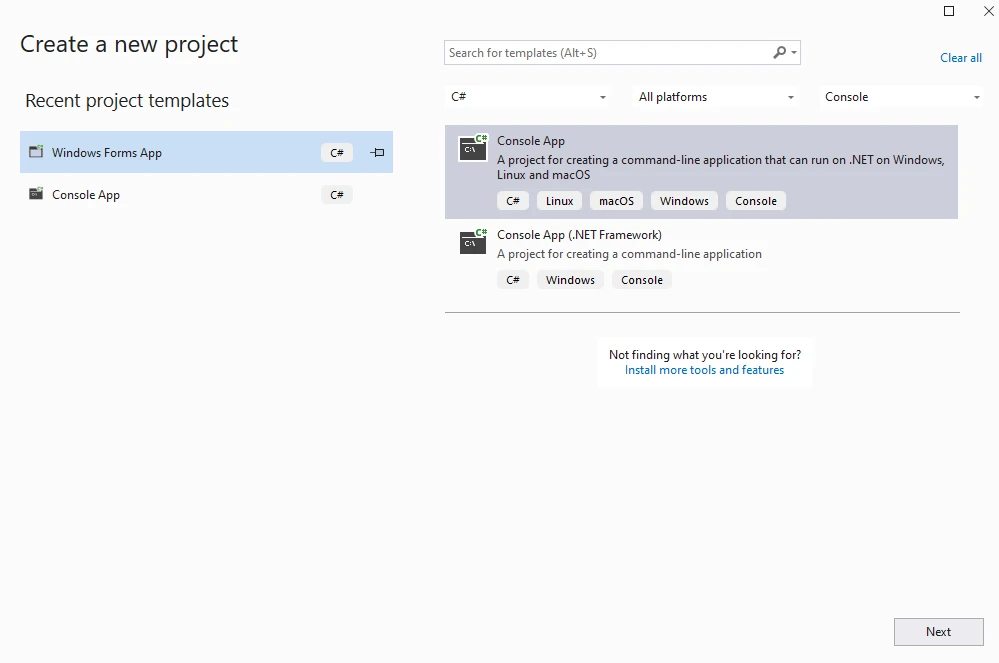
Utwórz nowy projekt w Visual Studio, wybierając opcję Console App. W przypadku aplikacji Blazor wybierz odpowiednie szablony. Projekty Razor Pages i MVC mają określone wymagania dotyczące konfiguracji.
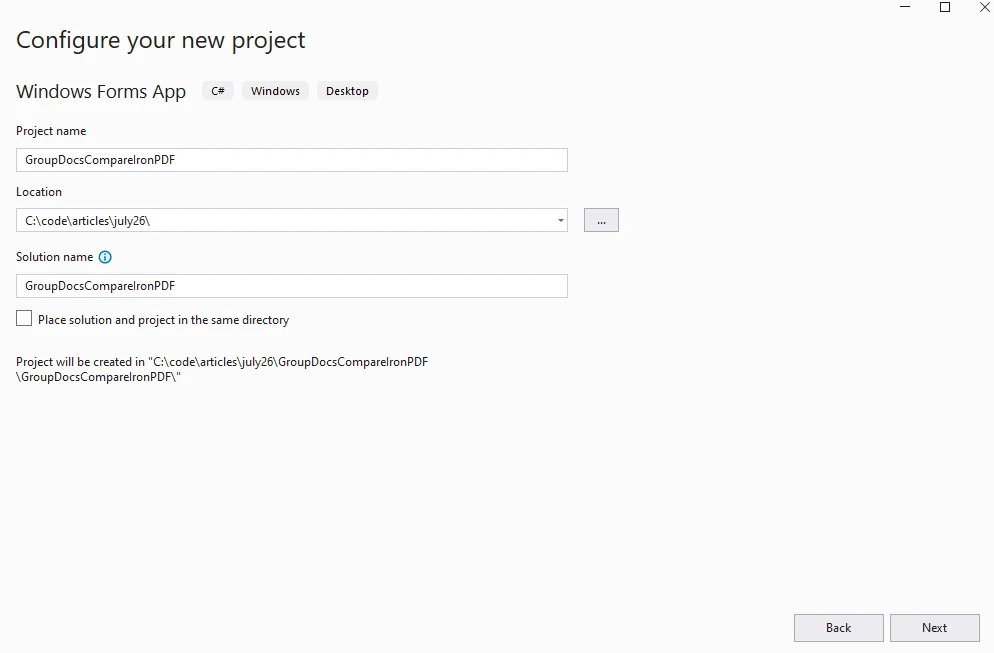
Wybierz nazwę projektu i lokalizację.
Wybierz wymaganą wersję .NET.
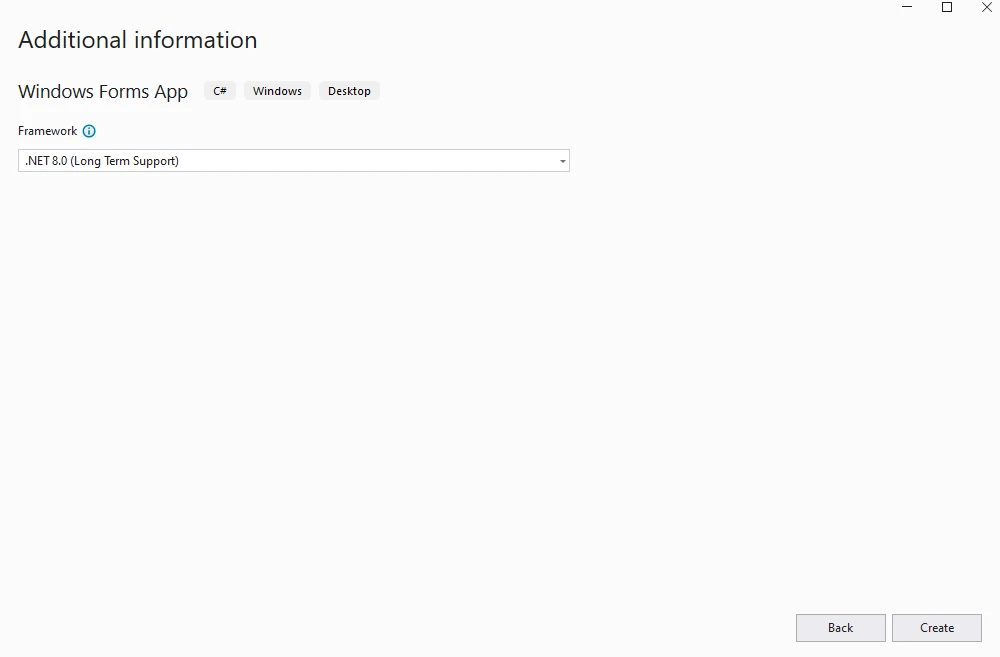
Projekt zostanie pomyślnie zrealizowany. Szablony projektów zapewniają opcje szybkiego startu. Obsługa Windows Forms umożliwia tworzenie aplikacji desktopowych.
Jak zainstalowac GroupDocs w projekcie?
Zainstaluj pakiet .NET NuGet GroupDocs.Conversion za pomoca menedzera pakietow w Visual Studio lub wiersza polecen. Zarzadzanie kluczem licencyjnym zapewnia poprawna aktywacje. Użycie deklaracji upraszcza importowanie przestrzeni nazw.
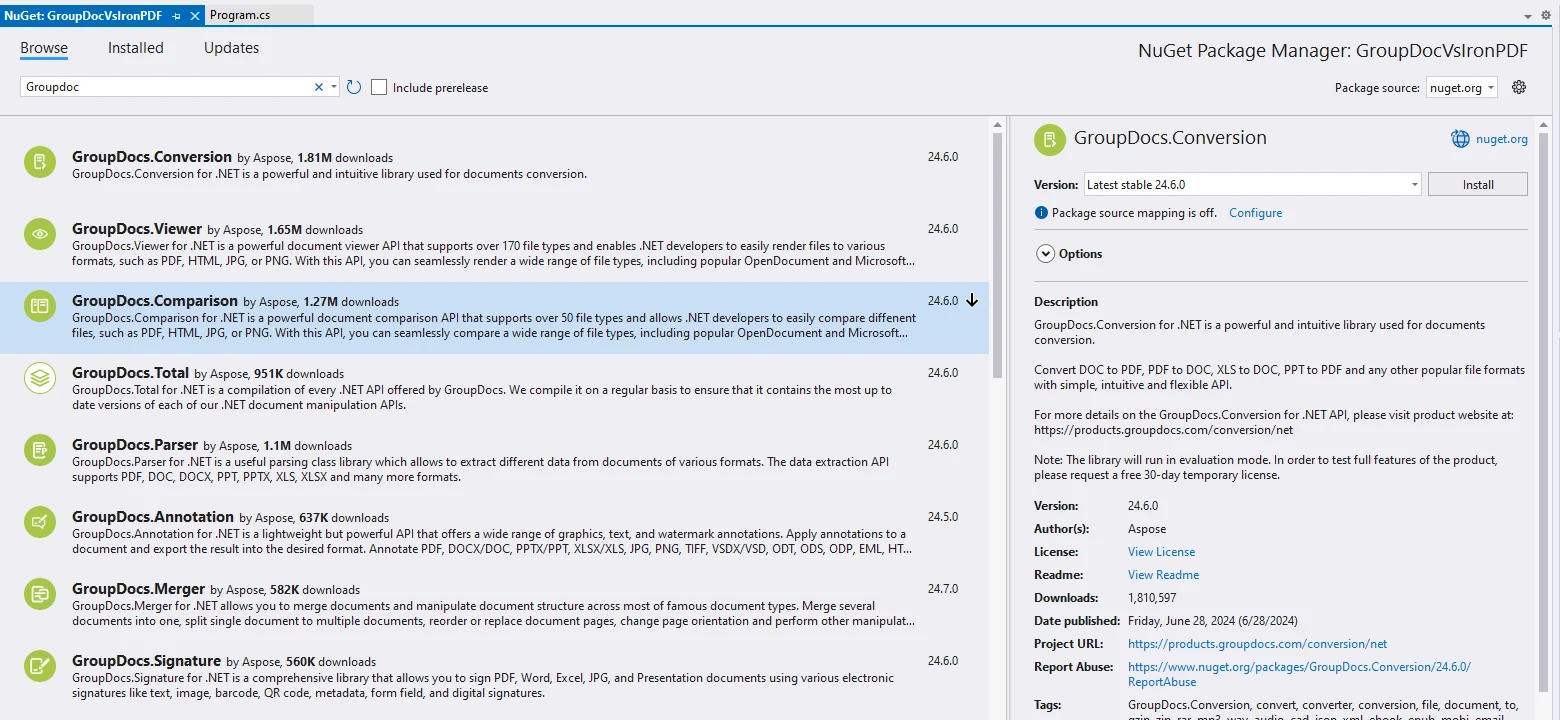
Z wiersza poleceń:
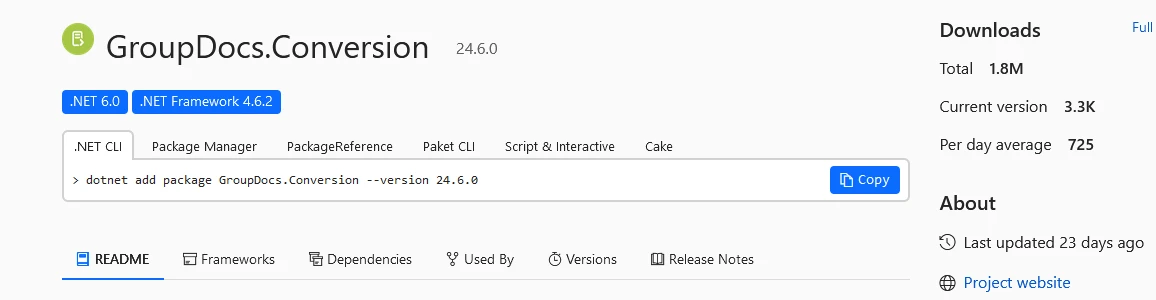
Po zainstalowaniu biblioteka jest gotowa do użycia.
Jak przekonwertowac HTML na PDF za pomoca GroupDocs.Conversion?
Nastepujacy kod konwertuje HTML na PDF za pomoca GroupDocs.Conversion. W przypadku wdrożeń produkcyjnych należy uwzględnić wzorce obsługi błędów i konfiguracje logowania. Wzorce asynchroniczne poprawiają wydajność.
using System;
using System.IO;
using GroupDocs.Conversion.Options.Convert;

namespace GroupDocVs IronPDF
{
public class Program
    {
        public static void ConvertHtmlToPdf()
        {
            string outputFolder = "C:\\code\\articles\\july26"; // Katalog wyjsciowy dla przekonwertowanego PDF
            string outputFile = Path.Combine(outputFolder, "convertedUsingGroupDoc.pdf"); // Sciezka do pliku wyjsciowego PDF
            string input = "C:\\code\\articles\\july26\\groupDocConversion.html"; // Sciezka do pliku wejsciowego HTML

// Zainicjalizuj konwerter z plikiem wejsciowym HTML
            using (var converter = new GroupDocs.Conversion.Converter(input))
            {
// Ustaw opcje konwersji na PDF
var options = new PdfConvertOptions();
// Przeprowadz konwersje i zapisz do okreslonego pliku wyjsciowego
converter.Convert(outputFile, options);
Console.WriteLine("\nKonwersja na PDF zakonczona sukcesem."); \nSprawdz wyjscie w {0}", outputFolder);
            }
        }
    }
}
using System;
using System.IO;
using GroupDocs.Conversion.Options.Convert;

namespace GroupDocVs IronPDF
{
public class Program
    {
        public static void ConvertHtmlToPdf()
        {
            string outputFolder = "C:\\code\\articles\\july26"; // Katalog wyjsciowy dla przekonwertowanego PDF
            string outputFile = Path.Combine(outputFolder, "convertedUsingGroupDoc.pdf"); // Sciezka do pliku wyjsciowego PDF
            string input = "C:\\code\\articles\\july26\\groupDocConversion.html"; // Sciezka do pliku wejsciowego HTML

// Zainicjalizuj konwerter z plikiem wejsciowym HTML
            using (var converter = new GroupDocs.Conversion.Converter(input))
            {
// Ustaw opcje konwersji na PDF
var options = new PdfConvertOptions();
// Przeprowadz konwersje i zapisz do okreslonego pliku wyjsciowego
converter.Convert(outputFile, options);
Console.WriteLine("\nKonwersja na PDF zakonczona sukcesem."); \nSprawdz wyjscie w {0}", outputFolder);
            }
        }
    }
}
Imports System
Imports System.IO
Imports GroupDocs.Conversion.Options.Convert
Namespace GroupDocVs_IronPDF
Public Class Program
Public Shared Sub ConvertHtmlToPdf()
Dim outputFolder As String = "C:\code\articles\july26" ' Katalog wyjsciowy dla przekonwertowanego PDF
Dim outputFile As String = Path.Combine(outputFolder, "convertedUsingGroupDoc.pdf") ' Sciezka do pliku wyjsciowego PDF
Dim input As String = "C:\code\articles\july26\groupDocConversion.html" ' Sciezka do pliku wejsciowego HTML
' Zainicjalizuj konwerter z plikiem wejsciowym HTML
Using converter = New GroupDocs.Conversion.Converter(input)
' Ustaw opcje konwersji na PDF
Dim options = New PdfConvertOptions()
' Przeprowadz konwersje i zapisz do okreslonego pliku wyjsciowego
converter.Convert(outputFile, options)
Console.WriteLine(vbCrLf & "Konwersja na PDF zakonczona sukcesem.") ' Sprawdz wyjscie w {0}
Console.WriteLine("Sprawdz wyjscie w {0}", outputFolder)
End Using
End Sub
End Class
End Namespace
Imports System
Imports System.IO
Imports GroupDocs.Conversion.Options.Convert

Namespace GroupDocVs_IronPDF
    Public Class Program
        Public Shared Sub ConvertHtmlToPdf()
            Dim outputFolder As String = "C:\code\articles\july26" ' Katalog wyjsciowy dla przekonwertowanego PDF
            Dim outputFile As String = Path.Combine(outputFolder, "convertedUsingGroupDoc.pdf") ' Sciezka do pliku wyjsciowego PDF
            Dim input As String = "C:\code\articles\july26\groupDocConversion.html" ' Sciezka do pliku wejsciowego HTML

            ' Zainicjalizuj konwerter z plikiem wejsciowym HTML
            Using converter = New GroupDocs.Conversion.Converter(input)
                ' Ustaw opcje konwersji na PDF
                Dim options = New PdfConvertOptions()
                ' Przeprowadz konwersje i zapisz do okreslonego pliku wyjsciowego
                converter.Convert(outputFile, options)
                Console.WriteLine(vbCrLf & "Konwersja na PDF zakonczona sukcesem.") ' Sprawdz wyjscie w {0}
                Console.WriteLine("Sprawdz wyjscie w {0}", outputFolder)
            End Using
        End Sub
    End Class
End Namespace
Wyjaśnienie kodu
Ten program konwertuje plik HTML (groupDocConversion.html) na PDF (convertedUsingGroupDoc.pdf) za pomoca GroupDocs.Conversion. W przypadku zaawansowanych scenariuszy warto zapoznać się z operacjami strumienia pamięci i niestandardowymi opcjami renderowania.
-
Przestrzenie nazw i importy: Program importuje niezbędne przestrzenie nazw. System i System.IO to standardowe przestrzenie nazw .NET. GroupDocs.Conversion.Options.Convert importuje opcje konwersji.
-
Klasa Program: Klasa Program jest zadeklarowana w przestrzeni nazw GroupDocVs IronPDF.
-
Metoda ConvertHtmlToPdf: Ta statyczna metoda przeprowadza konwersje HTML na PDF bez parametrow. W przypadku operacji asynchronicznych warto rozważyć metody oparte na zadaniach. Przetwarzanie wielowątkowe umożliwia równoległość.
-
Folder wyjściowy i ścieżki plików:
- outputFolder: Określa katalog, w którym zostanie zapisany przekonwertowany plik PDF.
- outputFile: Laczy
outputFolder z pozadana nazwa pliku wyjsciowego (convertedUsingGroupDoc.pdf), tworząc kompletną sciezkę do pliku wyjsciowego PDF.
- Input: Określa ścieżkę do pliku HTML wejściowego.
- Klauzula using z Konwerterem:
GroupDocs.Conversion.Converter inicjalizuje konwersje HTML na PDF i zapisuje jako convertedUsingGroupDoc.pdf.
Jak wygląda plik HTML źródłowy?
Jako przykład użyj tego pliku HTML. W przypadku złożonych układów należy wziąć pod uwagę ustawienia typu mediów CSS oraz konfigurację okna wyświetlania. Kontrola podziału stron zapewnia prawidłową paginację.
<!DOCTYPE html>
<html>
<body>
  # Prezentuj pakiet GroupDocs .NET do konwersji HTML na PDF
  <p style="color:gray;">GroupDocs udostepnia niezawodne API do konwersji HTML na PDF, zaprojektowane tak, aby bylo proste, ale wystarczajaco elastyczne, aby obslugiwac rozne scenariusze. Aby rozpoczac uzywanie konwertera GroupDocs HTML na PDF w swoich aplikacjach C#.</p>
  ## Zainstaluj
  <code style="color:blue;">.NET add package GroupDocs.Conversion --version 24.6.0</code>
  ## Importowanie przestrzeni nazw
  <code class="language-csharp" data-lang="csharp">
    <p style="color:blue;">using GroupDocs.Conversion.Options.Convert;</p>
    <p style="color:blue;">using System.IO;</p>
  </code>
  ## Zaladuj plik zrodlowy HTML
  <code style="color:blue;">using (var converter = new GroupDocs.Conversion.Converter("path to html file"))</code>
  ## Przeprowadz konwersje
  <code style="color:blue;">
    <p>var options = new PdfConvertOptions();</p>
    <p>converter.Convert(outputFile, options);</p>
  </code>
</body>
</html>
<!DOCTYPE html>
<html>
<body>
  # Prezentuj pakiet GroupDocs .NET do konwersji HTML na PDF
  <p style="color:gray;">GroupDocs udostepnia niezawodne API do konwersji HTML na PDF, zaprojektowane tak, aby bylo proste, ale wystarczajaco elastyczne, aby obslugiwac rozne scenariusze. Aby rozpoczac uzywanie konwertera GroupDocs HTML na PDF w swoich aplikacjach C#.</p>
  ## Zainstaluj
  <code style="color:blue;">.NET add package GroupDocs.Conversion --version 24.6.0</code>
  ## Importowanie przestrzeni nazw
  <code class="language-csharp" data-lang="csharp">
    <p style="color:blue;">using GroupDocs.Conversion.Options.Convert;</p>
    <p style="color:blue;">using System.IO;</p>
  </code>
  ## Zaladuj plik zrodlowy HTML
  <code style="color:blue;">using (var converter = new GroupDocs.Conversion.Converter("path to html file"))</code>
  ## Przeprowadz konwersje
  <code style="color:blue;">
    <p>var options = new PdfConvertOptions();</p>
    <p>converter.Convert(outputFile, options);</p>
  </code>
</body>
</html><!DOCTYPE html>
<html>
<body>
# Prezentuj pakiet GroupDocs .NET do konwersji HTML na PDF
<p style="color:gray;">GroupDocs udostepnia niezawodne API do konwersji HTML na PDF, zaprojektowane tak, aby bylo proste, ale wystarczajaco elastyczne, aby obslugiwac rozne scenariusze. Aby rozpoczac uzywanie konwertera GroupDocs HTML na PDF w swoich aplikacjach C#.</p>
## Zainstaluj
<code style="color:blue;">.NET add package GroupDocs.Conversion --version 24.6.0</code>
## Importowanie przestrzeni nazw
<code class="language-csharp" data-lang="csharp">
<p style="color:blue;">using GroupDocs.Conversion.Options.Convert;</p>
<p style="color:blue;">using System.IO;</p>
</code>
## Zaladuj plik zrodlowy HTML
<code style="color:blue;">using (var converter = new GroupDocs.Conversion.Converter("path to html file"))</code>
## Przeprowadz konwersje
<code style="color:blue;">
<p>var options = new PdfConvertOptions();</p>
<p>converter.Convert(outputFile, options);</p>
</code>
</body>
</html>
<!DOCTYPE html>
<html>
<body>
  # Prezentuj pakiet GroupDocs .NET do konwersji HTML na PDF
  <p style="color:gray;">GroupDocs udostepnia niezawodne API do konwersji HTML na PDF, zaprojektowane tak, aby bylo proste, ale wystarczajaco elastyczne, aby obslugiwac rozne scenariusze. Aby rozpoczac uzywanie konwertera GroupDocs HTML na PDF w swoich aplikacjach C#.</p>
  ## Zainstaluj
  <code style="color:blue;">.NET add package GroupDocs.Conversion --version 24.6.0</code>
  ## Importowanie przestrzeni nazw
  <code class="language-csharp" data-lang="csharp">
    <p style="color:blue;">using GroupDocs.Conversion.Options.Convert;</p>
    <p style="color:blue;">using System.IO;</p>
  </code>
  ## Zaladuj plik zrodlowy HTML
  <code style="color:blue;">using (var converter = new GroupDocs.Conversion.Converter("path to html file"))</code>
  ## Przeprowadz konwersje
  <code style="color:blue;">
    <p>var options = new PdfConvertOptions();</p>
    <p>converter.Convert(outputFile, options);</p>
  </code>
</body>
</html>
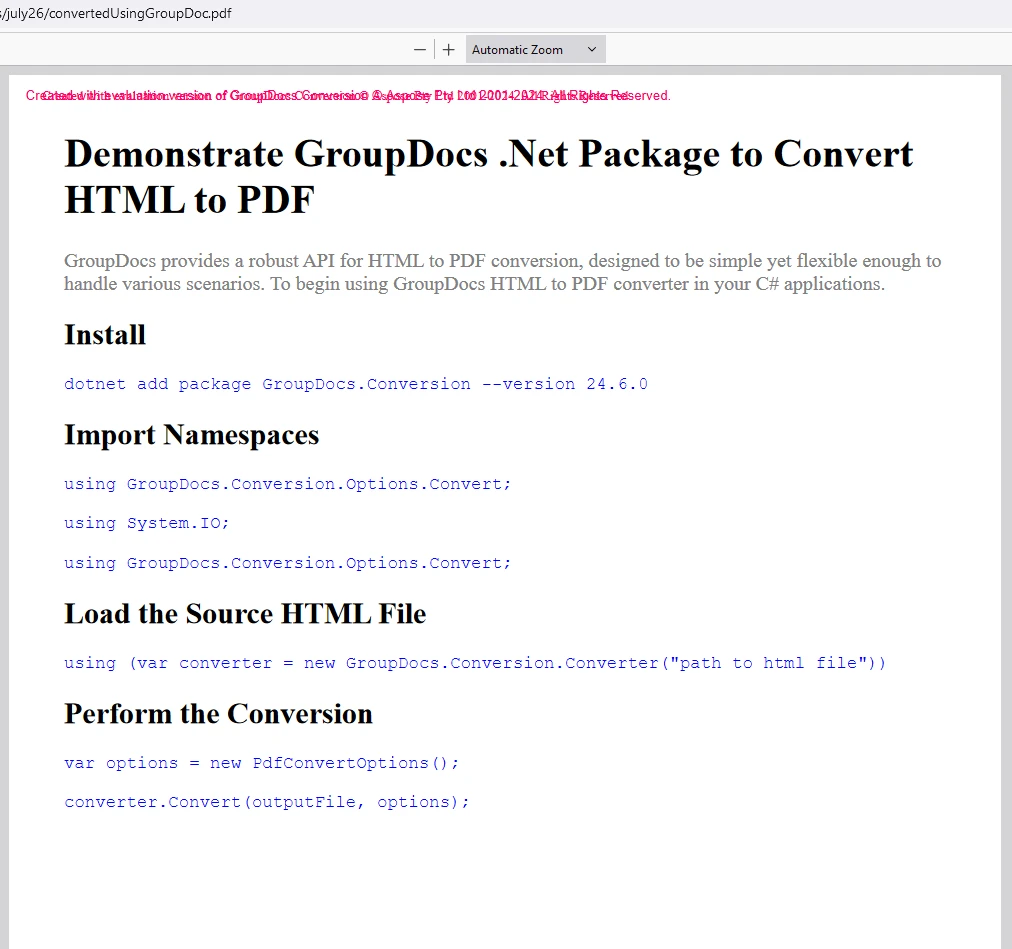
Wynik w formacie PDF
Jak zainstalowaćIronPDF w projekcie?
Zainstaluj pakiet IronPDF NuGet od IronsSoftware za pomocą Visual Studio lub menedżera pakietów NuGet. W przypadku wdrożeń kontenerowych zapoznaj się z przewodnikami dotyczącymi konfiguracji Docker oraz konfiguracji silnika zdalnego. IronPdf.Slim zmniejsza rozmiar pakietu.
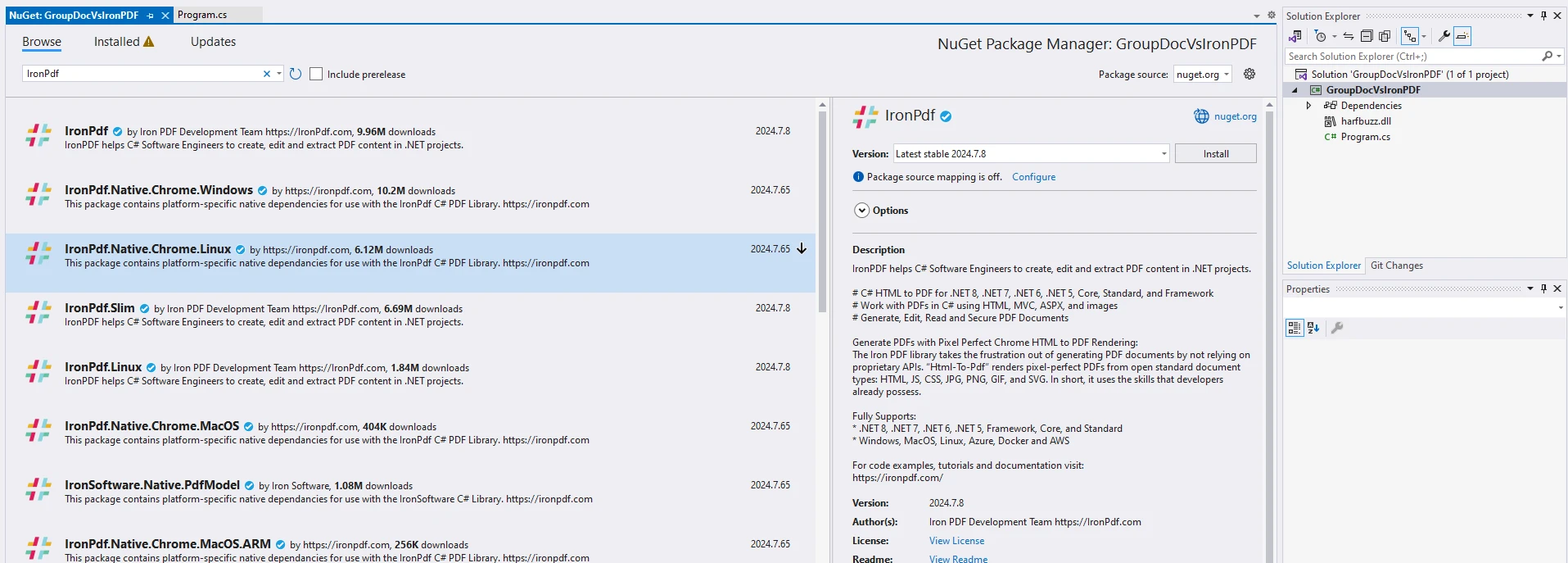
Z wiersza poleceń:
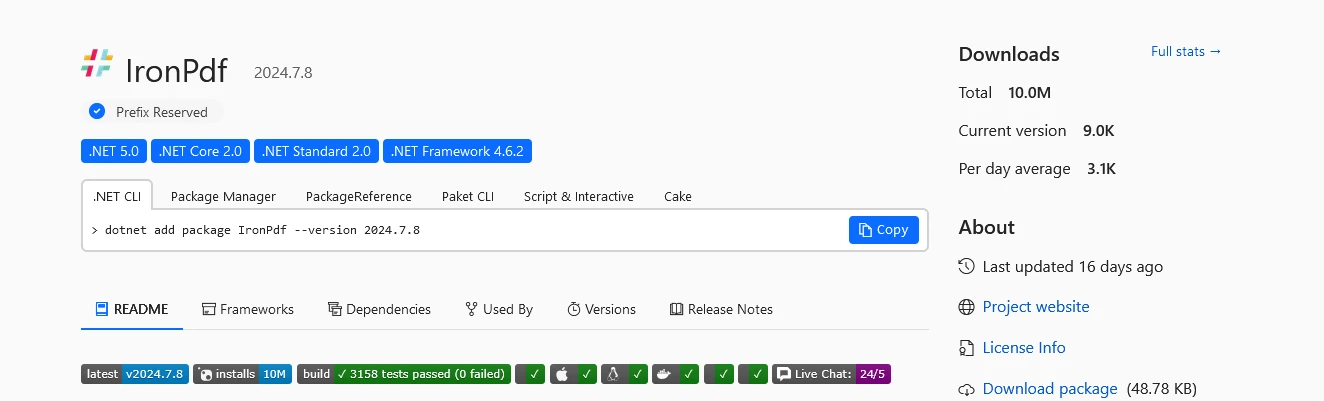
Po zainstalowaniu projekt jest gotowy do konwersji z HTML do PDF za pomocą IronPDF. Przewodniki szybkiego startu zawierają przykłady wdrożenia. Instalator Windows oferuje alternatywną konfigurację.
Jak przekonwertować HTML na PDF za pomocą IronPDF?
Poniższy kod konwertuje HTML na PDF przy użyciu IronPDF. W przypadku zaawansowanych scenariuszy warto zapoznać się z opóźnieniami renderowania, niestandardowym wykonywaniem kodu JavaScript oraz generowaniem wielowątkowym. Nagłówki HTTP umożliwiają uwierzytelnione konwersje.
using IronPDF;

namespace GroupDocVs IronPDF
{
internal class IronPDFDemo
    {
public static void Execute()
        {
// Ustawianie klucza licencyjnego dla IronPDF
IronPdf.License.LicenseKey = "twój klucz";

// Utworz renderer PDF
            var renderer = new ChromePdfRenderer();

// Konwertuj plik HTML na PDF
            var pdf = renderer.RenderHtmlFileAsPdf("C:\\code\\articles\\july26\\groupDocConversion.html");

// Zapisz wygenerowany PDF
            pdf.SaveAs("convertedUsing IronPDF.pdf");
        }
    }
}
using IronPDF;

namespace GroupDocVs IronPDF
{
internal class IronPDFDemo
    {
public static void Execute()
        {
// Ustawianie klucza licencyjnego dla IronPDF
IronPdf.License.LicenseKey = "twój klucz";

// Utworz renderer PDF
            var renderer = new ChromePdfRenderer();

// Konwertuj plik HTML na PDF
            var pdf = renderer.RenderHtmlFileAsPdf("C:\\code\\articles\\july26\\groupDocConversion.html");

// Zapisz wygenerowany PDF
            pdf.SaveAs("convertedUsing IronPDF.pdf");
        }
    }
}
Imports IronPdf
Namespace GroupDocVsIronPDF
Friend Class IronPDFDemo
Public Shared Sub Execute()
' Ustawianie klucza licencyjnego dla IronPDF
IronPdf.License.LicenseKey = "twój klucz"
' Utworz renderer PDF
Dim renderer = New ChromePdfRenderer()
' Konwertuj plik HTML na PDF
Dim pdf = renderer.RenderHtmlFileAsPdf("C:\code\articles\july26\groupDocConversion.html")
' Zapisz wygenerowany PDF
pdf.SaveAs("convertedUsing IronPDF.pdf")
End Sub
End Class
End Namespace
Imports IronPdf

Namespace GroupDocVsIronPDF
    Friend Class IronPDFDemo
        Public Shared Sub Execute()
            ' Ustawianie klucza licencyjnego dla IronPDF
            IronPdf.License.LicenseKey = "twój klucz"

            ' Utworz renderer PDF
            Dim renderer = New ChromePdfRenderer()

            ' Konwertuj plik HTML na PDF
            Dim pdf = renderer.RenderHtmlFileAsPdf("C:\code\articles\july26\groupDocConversion.html")

            ' Zapisz wygenerowany PDF
            pdf.SaveAs("convertedUsing IronPDF.pdf")
        End Sub
    End Class
End Namespace
W przypadku złożonego kodu HTML z JavaScriptem należy zaimplementować opóźnienia renderowania i warunki oczekiwania:
// Zaawansowane renderowanie z obsluga JavaScript
var renderer = new ChromePdfRenderer
{
    RenderingOptions = new ChromePdfRenderOptions
    {
EnableJavaScript = true,
RenderDelay = 500, // Poczekaj 500ms na JavaScript
        CssMediaType = IronPdf.Rendering.PdfCssMediaType.Print,
PrintHtmlBackgrounds = true,
CreatePdfFormsFromHtml = true
    }
};

// Dla aplikacji Angular/React
renderer.RenderingOptions.WaitFor.RenderDelay(2000);
// Lub poczekaj na bezczynne sieci
renderer.RenderingOptions.WaitFor.NetworkIdle();
// Zaawansowane renderowanie z obsluga JavaScript
var renderer = new ChromePdfRenderer
{
    RenderingOptions = new ChromePdfRenderOptions
    {
EnableJavaScript = true,
RenderDelay = 500, // Poczekaj 500ms na JavaScript
        CssMediaType = IronPdf.Rendering.PdfCssMediaType.Print,
PrintHtmlBackgrounds = true,
CreatePdfFormsFromHtml = true
    }
};

// Dla aplikacji Angular/React
renderer.RenderingOptions.WaitFor.RenderDelay(2000);
// Lub poczekaj na bezczynne sieci
renderer.RenderingOptions.WaitFor.NetworkIdle();
' Zaawansowane renderowanie z obsluga JavaScript
Dim renderer = New ChromePdfRenderer With {
.RenderingOptions = New ChromePdfRenderOptions With {
.EnableJavaScript = True,
.RenderDelay = 500, ' Poczekaj 500ms na JavaScript
.CssMediaType = IronPdf.Rendering.PdfCssMediaType.Print,
.PrintHtmlBackgrounds = True,
.CreatePdfFormsFromHtml = True
}
}
' Dla aplikacji Angular/React
renderer.RenderingOptions.WaitFor.RenderDelay(2000)
' Lub poczekaj na bezczynne sieci
renderer.RenderingOptions.WaitFor.NetworkIdle()
' Zaawansowane renderowanie z obsluga JavaScript
Dim renderer = New ChromePdfRenderer With {
    .RenderingOptions = New ChromePdfRenderOptions With {
        .EnableJavaScript = True,
        .RenderDelay = 500, ' Poczekaj 500ms na JavaScript
        .CssMediaType = IronPdf.Rendering.PdfCssMediaType.Print,
        .PrintHtmlBackgrounds = True,
        .CreatePdfFormsFromHtml = True
    }
}

' Dla aplikacji Angular/React
renderer.RenderingOptions.WaitFor.RenderDelay(2000)
' Lub poczekaj na bezczynne sieci
renderer.RenderingOptions.WaitFor.NetworkIdle()
Dodatkowe przykłady tłumaczeń:
// Konwersja napisu HTML z zasobami osadzonymi
var htmlString = @
<!DOCTYPE html>
<html>
<head>
    <link href='___PROTECTED_URL_209___ rel='stylesheet'>
</head>
<body>
    <div class='container'>
        <h1>Przyklad PDF Bootstrap</h1>
        <div class='alert alert-primary'>To renderuje sie perfekcyjnie!</div>
    </div>
</body>
</html>";

var pdf = renderer.RenderHtmlAsPdf(htmlString);

// Konwertuj URL z uwierzytelnianiem
renderer.RenderingOptions.CustomCssUrl = "___PROTECTED_URL_210___";
renderer.RenderingOptions.HttpLoginCredentials = new IronPdf.ChromeHttpLoginCredentials()
{
Username = "user",
Password = "pass"
};

var authenticatedPdf = renderer.RenderUrlAsPdf("___PROTECTED_URL_211___");
// Konwersja napisu HTML z zasobami osadzonymi
var htmlString = @
<!DOCTYPE html>
<html>
<head>
    <link href='___PROTECTED_URL_209___ rel='stylesheet'>
</head>
<body>
    <div class='container'>
        <h1>Przyklad PDF Bootstrap</h1>
        <div class='alert alert-primary'>To renderuje sie perfekcyjnie!</div>
    </div>
</body>
</html>";

var pdf = renderer.RenderHtmlAsPdf(htmlString);

// Konwertuj URL z uwierzytelnianiem
renderer.RenderingOptions.CustomCssUrl = "___PROTECTED_URL_210___";
renderer.RenderingOptions.HttpLoginCredentials = new IronPdf.ChromeHttpLoginCredentials()
{
Username = "user",
Password = "pass"
};

var authenticatedPdf = renderer.RenderUrlAsPdf("___PROTECTED_URL_211___");
' Konwersja napisu HTML z zasobami osadzonymi
Dim htmlString As String = "
<!DOCTYPE html>
<html>
<head>
<link href='___PROTECTED_URL_209___ rel='stylesheet'>
</head>
<body>
<div class='container'>
<h1>Przyklad PDF Bootstrap</h1>
<div class='alert alert-primary'>To renderuje sie perfekcyjnie!</div>
</div>
</body>
</html>"
Dim pdf = renderer.RenderHtmlAsPdf(htmlString)
' Konwertuj URL z uwierzytelnianiem
renderer.RenderingOptions.CustomCssUrl = "___PROTECTED_URL_210___"
renderer.RenderingOptions.HttpLoginCredentials = New IronPdf.ChromeHttpLoginCredentials() With {
.Username = "user",
.Password = "pass"
}
Dim authenticatedPdf = renderer.RenderUrlAsPdf("___PROTECTED_URL_211___")
' Konwersja napisu HTML z zasobami osadzonymi
Dim htmlString As String = "
<!DOCTYPE html>
<html>
<head>
    <link href='___PROTECTED_URL_209___ rel='stylesheet'>
</head>
<body>
    <div class='container'>
        <h1>Przyklad PDF Bootstrap</h1>
        <div class='alert alert-primary'>To renderuje sie perfekcyjnie!</div>
    </div>
</body>
</html>"

Dim pdf = renderer.RenderHtmlAsPdf(htmlString)

' Konwertuj URL z uwierzytelnianiem
renderer.RenderingOptions.CustomCssUrl = "___PROTECTED_URL_210___"
renderer.RenderingOptions.HttpLoginCredentials = New IronPdf.ChromeHttpLoginCredentials() With {
    .Username = "user",
    .Password = "pass"
}

Dim authenticatedPdf = renderer.RenderUrlAsPdf("___PROTECTED_URL_211___")
Wyjaśnienie kodu
Ten program C# demonstruje uzycie IronPDF do konwersji HTML (groupDocConversion.html) na PDF (convertedUsing IronPDF.pdf). W przypadku wdrożeń produkcyjnych należy wdrożyć obsługę błędów i monitorowanie wydajności. Generowanie plików dziennika ułatwia debugowanie.
-
Przestrzen nazw i klasa: Klasa IronPDFDemo jest zadeklarowana w przestrzeni nazw GroupDocVs IronPDF.
-
Metoda Execute: Metoda Execute() wykonuje konwersje PDF bez parametrow. Warto rozważyć wzorce asynchroniczne w celu zapewnienia skalowalności.
-
Ustawianie klucza licencyjnego: IronPdf.License.LicenseKey = "your key"; ustawia klucz licencyjny dla IronPDF. Dostępne są licencje Trial do oceny. Konfiguracja Web.config obsługuje pliki konfiguracyjne.
-
Tworzenie Renderera: var renderer = new ChromePdfRenderer(); inicjalizuje ChromePdfRenderer uzywajac silnika renderowania Chrome. Dokumentacja silnika Chrome wyjasnia dokladnosc renderowania.
-
Konwersja HTML na PDF: renderer.RenderHtmlFileAsPdf() konwertuje plik HTML na PDF. W przypadku adresów URL należy zastosować metody konwersji adresów URL. Razor to PDF umożliwia integrację z MVC.
-
Zapisywanie PDF: pdf.SaveAs() zapisuje przekonwertowany PDF. W przypadku przechowywania w chmurze warto zapoznać się z integracją z usługą Azure Blob. Eksport do pamięci obsługuje strumieniowanie.
Jak wygląda plik HTML źródłowy?
<!DOCTYPE html>
<html>
<body>
  # Prezentuj paket Iron .NET do konwersji HTML na PDF
  <p style="color:gray;">IronPDF upraszcza konwersje HTML na PDF w aplikacjach C# dzieki niezawodnym zestawom funkcji i intuicyjnemu API. Niezaleznie od tego, czy potrzebujesz generowac raporty, konwertowac strony webowe, czy tworzysz dokumenty do druku z zawartosci HTML,IronPDF dostarcza narzedzi potrzebnych do osiagniecia wysokiej jakosci wyjsc PDF. Poprzez zintegrowanie IronPDF do swoich projektow mozesz poprawic przeplywy robocze generowania dokumentow i dostarczac profesjonalnej jakosci dokumenty PDF dostosowane do wymagan aplikacji.</p>
  ## Zainstaluj
  <code style="color:blue;">.NET add package IronPDF--version 2024.7.8</code>
  ## Importowanie przestrzeni nazw
  <p style="color:blue;">using IronPDF;</p>
  ## Utwórz ChromePdfRenderer
  <code style="color:blue;">var renderer = new ChromePdfRenderer();</code>
  ## Utworz PDF z pliku HTML
  <code style="color:blue;">var pdf = renderer.RenderHtmlFileAsPdf("myHtmlFile.html");</code>
  ## Zapisz plik PDF
  <code style="color:blue;">pdf.SaveAs("output.pdf");</code>
</body>
</html>
<!DOCTYPE html>
<html>
<body>
  # Prezentuj paket Iron .NET do konwersji HTML na PDF
  <p style="color:gray;">IronPDF upraszcza konwersje HTML na PDF w aplikacjach C# dzieki niezawodnym zestawom funkcji i intuicyjnemu API. Niezaleznie od tego, czy potrzebujesz generowac raporty, konwertowac strony webowe, czy tworzysz dokumenty do druku z zawartosci HTML,IronPDF dostarcza narzedzi potrzebnych do osiagniecia wysokiej jakosci wyjsc PDF. Poprzez zintegrowanie IronPDF do swoich projektow mozesz poprawic przeplywy robocze generowania dokumentow i dostarczac profesjonalnej jakosci dokumenty PDF dostosowane do wymagan aplikacji.</p>
  ## Zainstaluj
  <code style="color:blue;">.NET add package IronPDF--version 2024.7.8</code>
  ## Importowanie przestrzeni nazw
  <p style="color:blue;">using IronPDF;</p>
  ## Utwórz ChromePdfRenderer
  <code style="color:blue;">var renderer = new ChromePdfRenderer();</code>
  ## Utworz PDF z pliku HTML
  <code style="color:blue;">var pdf = renderer.RenderHtmlFileAsPdf("myHtmlFile.html");</code>
  ## Zapisz plik PDF
  <code style="color:blue;">pdf.SaveAs("output.pdf");</code>
</body>
</html><!DOCTYPE html>
<html>
<body>
# Prezentuj paket Iron .NET do konwersji HTML na PDF
<p style="color:gray;">IronPDF upraszcza konwersje HTML na PDF w aplikacjach C# dzieki niezawodnym zestawom funkcji i intuicyjnemu API. Niezaleznie od tego, czy potrzebujesz generowac raporty, konwertowac strony webowe, czy tworzysz dokumenty do druku z zawartosci HTML,IronPDF dostarcza narzedzi potrzebnych do osiagniecia wysokiej jakosci wyjsc PDF. Poprzez zintegrowanie IronPDF do swoich projektow mozesz poprawic przeplywy robocze generowania dokumentow i dostarczac profesjonalnej jakosci dokumenty PDF dostosowane do wymagan aplikacji.</p>
## Zainstaluj
<code style="color:blue;">.NET add package IronPDF--version 2024.7.8</code>
## Importowanie przestrzeni nazw
<p style="color:blue;">using IronPDF;</p>
## Utwórz ChromePdfRenderer
<code style="color:blue;">var renderer = new ChromePdfRenderer();</code>
## Utworz PDF z pliku HTML
<code style="color:blue;">var pdf = renderer.RenderHtmlFileAsPdf("myHtmlFile.html");</code>
## Zapisz plik PDF
<code style="color:blue;">pdf.SaveAs("output.pdf");</code>
</body>
</html>
<!DOCTYPE html>
<html>
<body>
  # Prezentuj paket Iron .NET do konwersji HTML na PDF
  <p style="color:gray;">IronPDF upraszcza konwersje HTML na PDF w aplikacjach C# dzieki niezawodnym zestawom funkcji i intuicyjnemu API. Niezaleznie od tego, czy potrzebujesz generowac raporty, konwertowac strony webowe, czy tworzysz dokumenty do druku z zawartosci HTML,IronPDF dostarcza narzedzi potrzebnych do osiagniecia wysokiej jakosci wyjsc PDF. Poprzez zintegrowanie IronPDF do swoich projektow mozesz poprawic przeplywy robocze generowania dokumentow i dostarczac profesjonalnej jakosci dokumenty PDF dostosowane do wymagan aplikacji.</p>
  ## Zainstaluj
  <code style="color:blue;">.NET add package IronPDF--version 2024.7.8</code>
  ## Importowanie przestrzeni nazw
  <p style="color:blue;">using IronPDF;</p>
  ## Utwórz ChromePdfRenderer
  <code style="color:blue;">var renderer = new ChromePdfRenderer();</code>
  ## Utworz PDF z pliku HTML
  <code style="color:blue;">var pdf = renderer.RenderHtmlFileAsPdf("myHtmlFile.html");</code>
  ## Zapisz plik PDF
  <code style="color:blue;">pdf.SaveAs("output.pdf");</code>
</body>
</html>
Jak wygląda plik PDF z tłumaczeniem?
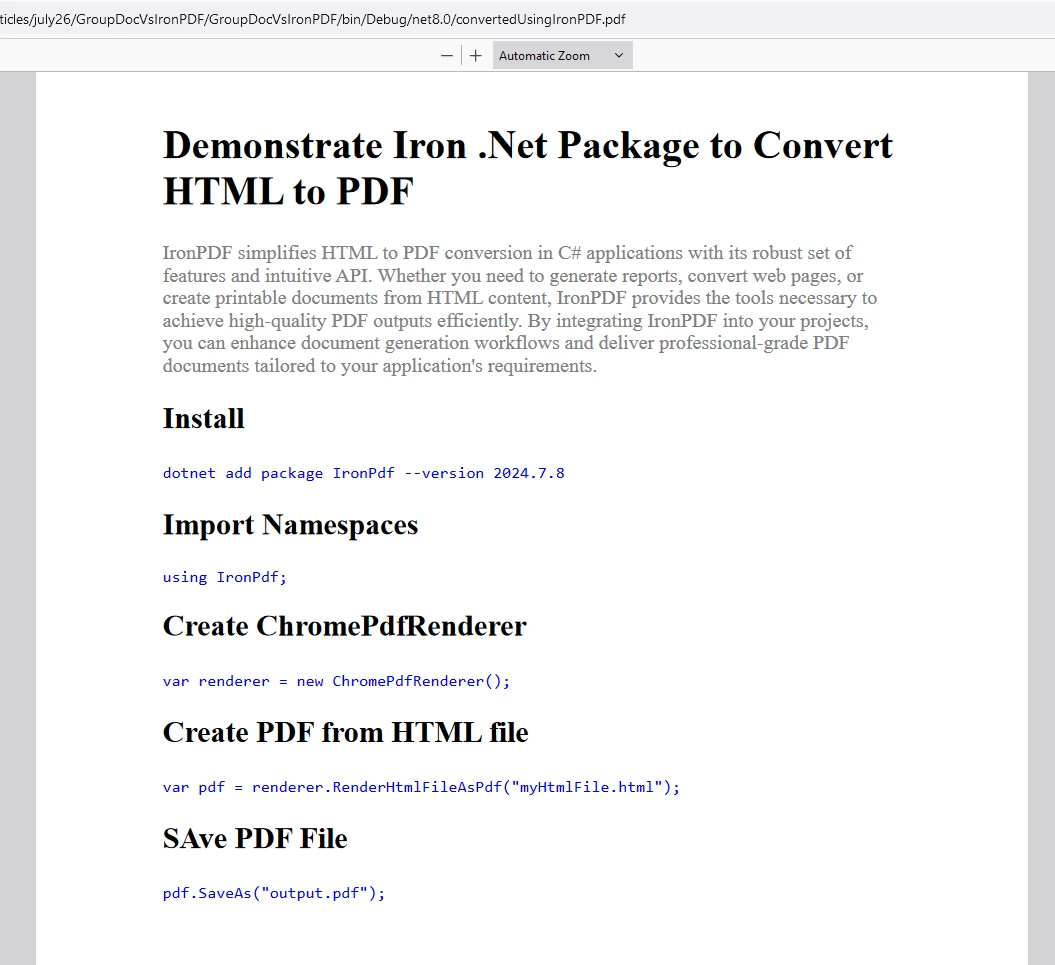
Jak wypadają opcje wdrożenia w porównaniu?
Jakie opcje chmurowe i lokalne są dostępne?
Elastyczność wdrożenia IronPDF:
GroupDocs Model wdrozenia:
- Główny nacisk na Cloud API
- Dostępne są opcje hostingu własnego
- Ograniczona obsługa kontenerów
- Brak obsługi platform mobilnych
- Wyższe opóźnienia w przetwarzaniu lokalnym
W środowiskach o wysokim poziomie bezpieczeństwa, wymagających zgodności z HIPAA lub systemach typu air-gapped, lokalne przetwarzanie IronPDF zapewnia pełną kontrolę nad danymi. Monitorowanie CVE zapewnia bezpieczeństwo.
Jak porównują się modele cenowe przy różnych wielkościach zamówień?
Jaka jest struktura kosztów dla każdego rozwiązania?
Porównanie cen w zależności od wielkości zamówienia:
Uwagi dotyczące ukrytych kosztów:
GroupDocs rozliczanie wedlug zuzycia szybko sie akumuluje na duza skale- Licencja jednorazowa IronPDF obejmuje bezpłatne aktualizacje przez okres jednego roku
- Brak opłat za konwersję w IronPDF
- Dostępne są licencje Enterprise dla obu
Kiedy należy zastosować podejście hybrydowe?
Jakie są optymalne zastosowania każdej z bibliotek?
Kiedy używać IronPDF:
Rozważ GroupDocs w przypadku:
- Konwersja wielu formatów dokumentów poza HTML/PDF
- Przetwarzanie wsadowe dokumentów Office
- Praca z rysunkami CAD/technicznymi
- Wdrażanie funkcji porównywania dokumentów
- Przetwarzanie plików RTF
Przykład architektury hybrydowej:
public interface IDocumentConverter
{
    Task<byte[]> ConvertToPdfAsync(string inputPath);
}

public class HybridConverter : IDocumentConverter
{
    private readonly IronPdfConverter _IronPDF;
    private readonly GroupDocsConverter _groupDocs;

    public async Task<byte[]> ConvertToPdfAsync(string inputPath)
    {
        var extension = Path.GetExtension(inputPath).ToLower();

        // Użyj IronPDF dla treści webowych
if (extension == ".html" ||extension == ".htm")
        {
            return await _ironPdf.ConvertHtmlToPdfAsync(inputPath);
        }

        // Użyj GroupDocs dla formatów Office
        if (IsOfficeFormat(extension))
        {
            return await _groupDocs.ConvertToPdfAsync(inputPath);
        }

        throw new NotSupportedException($"Format {extension} not supported");
    }
}
public interface IDocumentConverter
{
    Task<byte[]> ConvertToPdfAsync(string inputPath);
}

public class HybridConverter : IDocumentConverter
{
    private readonly IronPdfConverter _IronPDF;
    private readonly GroupDocsConverter _groupDocs;

    public async Task<byte[]> ConvertToPdfAsync(string inputPath)
    {
        var extension = Path.GetExtension(inputPath).ToLower();

        // Użyj IronPDF dla treści webowych
if (extension == ".html" ||extension == ".htm")
        {
            return await _ironPdf.ConvertHtmlToPdfAsync(inputPath);
        }

        // Użyj GroupDocs dla formatów Office
        if (IsOfficeFormat(extension))
        {
            return await _groupDocs.ConvertToPdfAsync(inputPath);
        }

        throw new NotSupportedException($"Format {extension} not supported");
    }
}
Public Interface IDocumentConverter
Function ConvertToPdfAsync(inputPath As String) As Task(Of Byte())
End Interface
Public Class HybridConverter
Implements IDocumentConverter
Private ReadOnly _IronPDF As IronPdfConverter
Private ReadOnly _groupDocs As GroupDocsConverter
Public Async Function ConvertToPdfAsync(inputPath As String) As Task(Of Byte()) Implements IDocumentConverter.ConvertToPdfAsync
Dim extension = Path.GetExtension(inputPath).ToLower()
' Użyj IronPDF dla treści webowych
If extension = ".html" OrElse extension = ".htm" Then
Return Await _ironPdf.ConvertHtmlToPdfAsync(inputPath)
End If
' Użyj GroupDocs dla formatów Office
If IsOfficeFormat(extension) Then
Return Await _groupDocs.ConvertToPdfAsync(inputPath)
End If
Throw New NotSupportedException($"Format {extension} not supported")
End Function
End Class
Public Interface IDocumentConverter
    Function ConvertToPdfAsync(inputPath As String) As Task(Of Byte())
End Interface

Public Class HybridConverter
    Implements IDocumentConverter

    Private ReadOnly _IronPDF As IronPdfConverter
    Private ReadOnly _groupDocs As GroupDocsConverter

    Public Async Function ConvertToPdfAsync(inputPath As String) As Task(Of Byte()) Implements IDocumentConverter.ConvertToPdfAsync
        Dim extension = Path.GetExtension(inputPath).ToLower()

        ' Użyj IronPDF dla treści webowych
        If extension = ".html" OrElse extension = ".htm" Then
            Return Await _ironPdf.ConvertHtmlToPdfAsync(inputPath)
        End If

        ' Użyj GroupDocs dla formatów Office
        If IsOfficeFormat(extension) Then
            Return Await _groupDocs.ConvertToPdfAsync(inputPath)
        End If

        Throw New NotSupportedException($"Format {extension} not supported")
    End Function
End Class
Dodatkowe scenariusze hybrydowe:
// Połącz renderowanie IronPDF z obsługą formatów GroupDocs
public class EnhancedPdfConverter
{
    private readonly ChromePdfRenderer _renderer;

    public async Task<PdfDocument> ConvertWithEnhancementsAsync(string docPath)
    {
        // Konwertuj dokument na HTML za pomocą GroupDocs
        var htmlContent = await ConvertDocumentToHtml(docPath);

        // Ulepsz za pomocą nowoczesnego CSS/JavaScript
        htmlContent = ApplyModernStyling(htmlContent);

        // Renderuj za pomocąIronPDF dla doskonałego wyniku
        var pdf = _renderer.RenderHtmlAsPdf(htmlContent);

        // Zastosuj zabezpieczenia i metadane
        pdf.SecuritySettings.SetPassword("user", "owner");
        pdf.MetaData.Title = "Improve Document";

return pdf;
    }
}
// Połącz renderowanie IronPDF z obsługą formatów GroupDocs
public class EnhancedPdfConverter
{
    private readonly ChromePdfRenderer _renderer;

    public async Task<PdfDocument> ConvertWithEnhancementsAsync(string docPath)
    {
        // Konwertuj dokument na HTML za pomocą GroupDocs
        var htmlContent = await ConvertDocumentToHtml(docPath);

        // Ulepsz za pomocą nowoczesnego CSS/JavaScript
        htmlContent = ApplyModernStyling(htmlContent);

        // Renderuj za pomocąIronPDF dla doskonałego wyniku
        var pdf = _renderer.RenderHtmlAsPdf(htmlContent);

        // Zastosuj zabezpieczenia i metadane
        pdf.SecuritySettings.SetPassword("user", "owner");
        pdf.MetaData.Title = "Improve Document";

return pdf;
    }
}
Public Class EnhancedPdfConverter
Private ReadOnly _renderer As ChromePdfRenderer
Public Async Function ConvertWithEnhancementsAsync(docPath As String) As Task(Of PdfDocument)
' Konwertuj dokument na HTML za pomocą GroupDocs
Dim htmlContent = Await ConvertDocumentToHtml(docPath)
' Ulepsz za pomocą nowoczesnego CSS/JavaScript
htmlContent = ApplyModernStyling(htmlContent)
' Renderuj za pomocą IronPDF dla doskonałego wyniku
Dim pdf = _renderer.RenderHtmlAsPdf(htmlContent)
' Zastosuj zabezpieczenia i metadane
pdf.SecuritySettings.SetPassword("user", "owner")
pdf.MetaData.Title = "Improve Document"
Return pdf
End Function
End Class
Public Class EnhancedPdfConverter
    Private ReadOnly _renderer As ChromePdfRenderer

    Public Async Function ConvertWithEnhancementsAsync(docPath As String) As Task(Of PdfDocument)
        ' Konwertuj dokument na HTML za pomocą GroupDocs
        Dim htmlContent = Await ConvertDocumentToHtml(docPath)

        ' Ulepsz za pomocą nowoczesnego CSS/JavaScript
        htmlContent = ApplyModernStyling(htmlContent)

        ' Renderuj za pomocą IronPDF dla doskonałego wyniku
        Dim pdf = _renderer.RenderHtmlAsPdf(htmlContent)

        ' Zastosuj zabezpieczenia i metadane
        pdf.SecuritySettings.SetPassword("user", "owner")
        pdf.MetaData.Title = "Improve Document"

        Return pdf
    End Function
End Class
Jak uzyskać licencję na IronPDF?
IronPDF umożliwia użytkownikom wypróbowanie swoich funkcji przed zakupem. Biblioteka oferuje licencje Trial umożliwiające pełne przetestowanie. Rozszerzenia licencji wspierają ciągły rozwój.
Umieść klucz licencyjny na początku skryptu przed użyciem pakietu IronPDF:
using IronPDF;

// Użyj swojego klucza licencyjnego
License.LicenseKey = "key";
using IronPDF;

// Użyj swojego klucza licencyjnego
License.LicenseKey = "key";
Imports IronPDF

' Użyj swojego klucza licencyjnego
License.LicenseKey = "key"
Imports IronPDF

' Użyj swojego klucza licencyjnego
License.LicenseKey = "key"
W przypadku wdrożeń produkcyjnych zapoznaj się z najlepszymi praktykami Zarządzania kluczami licencyjnymi oraz konfiguracją zmiennych środowiskowych.
Zaawansowane konfiguracje licencji:
// Zastosuj licencję z konfiguracji
IronPdf.License.LicenseKey = Configuration["IronPDF:LicenseKey"];

// Sprawdź, czy licencja jest ważna
if (!IronPdf.License.IsValidLicense("key"))
{
    throw new InvalidOperationException("Nieprawidłowa licencja IronPDF");
}

// Dla aplikacji rozproszonych
IronPdf.Zainstalujation.TempFolderPath = @"C:\Temp\IronPDF\";
IronPdf.Zainstalujation.LinuxAndDockerDependenciesAutoConfig = true;
// Zastosuj licencję z konfiguracji
IronPdf.License.LicenseKey = Configuration["IronPDF:LicenseKey"];

// Sprawdź, czy licencja jest ważna
if (!IronPdf.License.IsValidLicense("key"))
{
    throw new InvalidOperationException("Nieprawidłowa licencja IronPDF");
}

// Dla aplikacji rozproszonych
IronPdf.Zainstalujation.TempFolderPath = @"C:\Temp\IronPDF\";
IronPdf.Zainstalujation.LinuxAndDockerDependenciesAutoConfig = true;
' Zastosuj licencję z konfiguracji
IronPdf.License.LicenseKey = Configuration("IronPDF:LicenseKey")
' Sprawdź, czy licencja jest ważna
If Not IronPdf.License.IsValidLicense("key") Then
Throw New InvalidOperationException("Nieprawidłowa licencja IronPDF")
End If
' Dla aplikacji rozproszonych
IronPdf.Installation.TempFolderPath = "C:\Temp\IronPDF\"
IronPdf.Installation.LinuxAndDockerDependenciesAutoConfig = True
' Zastosuj licencję z konfiguracji
IronPdf.License.LicenseKey = Configuration("IronPDF:LicenseKey")

' Sprawdź, czy licencja jest ważna
If Not IronPdf.License.IsValidLicense("key") Then
    Throw New InvalidOperationException("Nieprawidłowa licencja IronPDF")
End If

' Dla aplikacji rozproszonych
IronPdf.Installation.TempFolderPath = "C:\Temp\IronPDF\"
IronPdf.Installation.LinuxAndDockerDependenciesAutoConfig = True
Jakie są zalety i wady GroupDocs.Conversion?
Zalety:
- Szeroki zakres formatów: Obsługuje różne formaty dokumentów, w tym Word, Excel,
PowerPoint, PDF, HTML. Obsługa wielu formatów zapewnia elastyczność. Konwersja XML do PDF rozszerza możliwości.
- Jakość konwersji: Ogólnie zapewnia dobrą jakość konwersji z opcjami dostosowania. Kompresja PDF poprawia wynik.
- Manipulacja dokumentami Zawiera również: Dodatkowe funkcje wykraczające poza konwersję za pomocą interfejsów API metadanych. Edytuj istniejące pliki PDF, aby uzyskać kompletne przepływy pracy.
- Elastyczność API: Zapewnia interfejsy API dla platform .NET i Java do projektów wielopłatformowych.
Wady:
- Koszt: Może być wysoki, zwłaszcza w przypadku zastosowań komercyjnych lub dużych nakładów. Porównaj z cennikiem IronPDF.
- Krzywa uczenia się: Integracja i konfiguracja mogą wiązać się z większym nakładem pracy związanym z nauką obsługi. Prezentacje IronPDF pokazują prostotę.
- Wydajność: Może nie być poprawiona dla bardzo dużych dokumentów lub skomplikowanych konwersji. Zobacz przewodniki dotyczące optymalizacji wydajności.
- Ograniczenia JavaScript: Brak możliwości wykonywania kodu JavaScript ogranicza konwersję nowoczesnych aplikacji internetowych
- Obsługa CSS: Ograniczone nowoczesne funkcje CSS3 wpływają na dokładność układu
Jakie są zalety i wady IronPDF?
Zalety:
- Generowanie plików PDF: Doskonałe rozwiązanie do generowania plików PDF z HTML, adresów URL lub innych formatów przy użyciu nowoczesnego renderowania. Obsługa Markdownu zapewnia większą elastyczność.
- Łatwość użytkowania: Prosta integracja i obsługa w zakresie podstawowego generowania plików PDF. Dokumentacja API zawiera jasne wytyczne. Samouczki VB.NET obsługują wiele języków.
- Dokumentacja i wsparcie: Dobra dokumentacja i wsparcie. Dostęp do pomocy technicznej 24/5. Funkcje są prezentowane w samouczkach wideo.
- Koszt: Bardziej opłacalne niż
GroupDocs.Conversion dla zadań generowania PDF.
- Obsługa nowoczesnych stron internetowych: Pełna obsługa JavaScript, CSS3 i frameworków dzięki silnikowi Chromium
- Funkcje zaawansowane: funkcje OCR, generowanie BarCode, tworzenie formularzy
- Wydajność: Poprawione renderowanie dzięki buforowaniu i przetwarzaniu równoległemu
Wady:
- Ograniczona obsługa formatów: skupia się na generowaniu plików PDF; zaprojektowany specjalnie dla formatu PDF. W przypadku plików WORD należy użyć konwersji do formatu DOCX.
- Dostosowanie: Chociaż nadaje się do podstawowego generowania PDF, opcje dostosowywania układu i zaawansowanych funkcji mogą być ograniczone w porównaniu do
GroupDocs.Conversion. Jednak zaawansowane opcje zapewniają szerokie możliwości kontroli.
Dzięki doskonałej obsłudze klienta oraz wsparciu ze strony wykwalifikowanych programistów i Iron Suite, IronPDF staje się najlepszą biblioteką oferującą nowoczesne, proste i zaawansowane możliwości konwersji plików PDF. Pełen zestaw funkcji spełnia większość wymagań Enterprise. Kamienie milowe produktu pokazują ciągłe ulepszenia.
Którą bibliotekę wybrać do konwersji HTML na PDF?
Konwerter HTML na PDF firmy GroupDocs zapewnia proste rozwiązanie do konwersji treści HTML na dokumenty PDF. Postępując zgodnie z instrukcjami i przykładami zawartymi w tym artykułe, możesz zintegrować konwersję HTML do PDF ze swoimi projektami w celu generowania raportów, archiwizacji treści internetowych lub innych potrzeb związanych z przetwarzaniem dokumentów. GroupDocs oferuje elastyczność i rozległe opcje dostosowywania dla programistów szukających poprawy aplikacji generacją PDF z zawartości HTML.
IronPDF upraszcza konwersję HTML do PDF dzięki niezawodnym funkcjom i intuicyjnemu API. Niezależnie od tego, czy chodzi o generowanie raportów, konwersję stron internetowych, czy tworzenie dokumentów do druku na podstawie treści HTML,IronPDF zapewnia narzędzia umożliwiające wydajne uzyskiwanie wysokiej jakości plików PDF. Integracja IronPDF poprawia przepływy pracy generacji dokumentów i dostarcza profesjonalnej jakości dokumenty PDF dostosowane do wymagań aplikacji. Ciągłe aktualizacje biblioteki zapewniają zgodność z ewoluującymi standardami internetowymi. Osiągnięte kamienie milowe świadczą o niezawodności.
Dzięki doskonałej obsłudze klienta, wsparciu wykwalifikowanych programistów oraz pakietowi Iron Suite, IronPDF staje się najlepszą biblioteką oferującą nowoczesne, proste i zaawansowane możliwości konwersji plików PDF. Dla zespołów potrzebujących zarówno doskonałości HTML-do-PDF, jak i okazjonalnej konwersji formatu dokumentów, rozważ wdrożenie hybrydowego podejścia wykorzystując mocne strony każdej biblioteki. IronSecureDoc dodaje funkcje zabezpieczeń dokumentów, uzupełniając Twoje rozwiązanie.
GroupDocs.Conversion jest zarejestrowanym znakiem towarowym swojego właściciela. Ta strona nie jest powiązana, wspierana ani sponsorowana przez GroupDocs.Conversion. Wszystkie nazwy produktów, logo i marki są własnością ich odpowiednich właścicieli. Porównania mają charakter wyłącznie informacyjny i odzwierciedlają informacje dostępne publicznie w momencie pisania.













