


GroupDocs vs IronPDF: HTML to PDF Conversion in C#

GroupDocs.Conversion offers multi-format document conversion with basic HTML support, while IronPDF provides superior HTML-to-PDF rendering using a Chromium engine with full CSS3, JavaScript, and Bootstrap framework support for pixel-perfect web content conversion.
Converting documents from one format to another is a common requirement in modern applications. One frequent need is converting HTML files to PDF, particularly for generating reports, invoices, or printable documents from web content. When evaluating HTML to PDF solutions, understanding rendering engine capabilities and performance optimization becomes crucial for production deployments. Modern PDF generation requires reliable HTML rendering capabilities for accurate results.
GroupDocs offers a .NET document conversion API designed for transforming HTML to PDF within C#, ASP.NET, VB.NET, and .NET Core applications. It preserves formatting and layout throughout conversion while minimizing coding requirements. For developers needing multi-format conversion capabilities, GroupDocs provides a complete solution beyond PDF generation. The library supports various document formats including office documents and images.
IronPDF is a .NET library designed specifically for PDF generation and manipulation within C# applications. It simplifies converting HTML content to PDF, offering extensive customization options and reliable performance. The library's Chrome rendering engine ensures modern web standards compliance. This article explores both libraries and compares their capabilities. For developers seeking complete PDF features, IronPDF provides editing, security, and organization tools.
How Do I Convert HTML to PDF Using GroupDocs and IronPDF?
- Create a new project for HTML to PDF conversion.
- Install
GroupDocsto your project. - Convert HTML to PDF using
GroupDocs.Conversion. - Install IronPDF to your project.
- Convert HTML to PDF using IronPDF.
What Is GroupDocs.Conversion .NET Library?

GroupDocs.Conversion provides an online tool for converting HTML files to PDF from any device with internet access. This tool supports Windows, macOS, Linux, Android, and iOS platforms. For enterprise deployments, understanding Azure deployment options and AWS Lambda configurations is essential. The API also supports Docker containers and remote engine deployment for flexible architectures.
The API provides reliable HTML to PDF conversion, designed for simplicity and flexibility. For developers seeking complete documentation, the API reference provides detailed implementation guidance. The library includes troubleshooting guides and engineering support for complex scenarios.
What Are the Key Features of GroupDocs?
What Document Formats Does GroupDocs Support?
- Documents: Convert PDF, DOCX, PPTX, XLSX, and more. Similar capabilities exist through IronWord for Word document processing.
- Images: Supports BMP, JPEG, PNG, GIF, and TIFF. Image to PDF conversion provides improved workflows with multi-frame TIFF support.
- CAD & GIS: Convert DWG, DXF, SHP, and KML files.
- Audio & Video: Convert MP3, WAV, MP4, and AVI files.
- Others: Includes eBooks (EPUB, MOBI), web formats (HTML, MHTML), and archives (ZIP, TAR).
How Can I Customize Conversion Options?
- Partial Conversion: Convert specific pages using page management features. Split PDF functionality enables selective extraction.
- Watermarking: Add watermarks during conversion with custom watermark options. Apply text and image stamps for branding.
- Appearance Customization: Set resolution and output format. Configure custom paper sizes and page orientation.
What Loading Options Are Available?
- Local and Remote Loading: Load from disk, streams, URLs, or cloud storage. Azure Blob Storage integration simplifies workflows. Memory stream operations enable in-memory processing.
- Password-Protected Documents: Load protected documents using PDF security features. Implement digital signatures for authentication.
Which Platforms Does GroupDocs Support?
- Operating Systems: Windows, Linux, and macOS. See Windows deployment, Linux setup, and macOS configuration. Red Hat Enterprise Linux requires additional configuration.
- Development Environments: C#, F#, and VB.NET. F# developers and VB.NET programmers have dedicated resources. Blazor support enables web application development.
Does GroupDocs Require Third-Party Dependencies?
- No Third-Party Dependencies: Standalone solution without Microsoft Word or
OpenOfficerequirements.
What Is IronPDF .NET Library?
IronPDF is a .NET library designed for PDF generation and manipulation within C# applications. It simplifies HTML to PDF conversion, offering extensive customization options and reliable performance. The library's async capabilities enable high-performance batch processing for web applications, desktop software, and backend services. Parallel processing reduces conversion times significantly.
What Are the Key Features of IronPDF?
How Does IronPDF Handle HTML to PDF Conversion?
- HTML Files: Convert HTML with CSS, JavaScript, and images using file-based conversion. Process HTML ZIP archives for bundled content.
- HTML Strings: Render HTML directly with string-based rendering. Embed Base64 images for self-contained PDFs.
- URLs: Convert web pages through URL conversion methods. Handle authentication and cookies for secure sites.
What PDF Generation and Editing Capabilities Does IronPDF Offer?
- Create PDFs: Generate from scratch or existing documents using creation methods. Create blank pages programmatically.
- Edit PDFs: Modify text, images, and elements through editing capabilities. Replace text and draw shapes.
- Merge and Split: Combine or divide PDFs with merge/split functionality. Copy pages between documents.
What Advanced Formatting Options Are Available?
- Headers and Footers: Add page numbers and dates using header/footer methods. Create HTML headers for rich formatting.
- Watermarks: Apply watermarks with watermarking features. Configure background and foreground layers.
- Page Settings: Customize size, orientation, margins through custom page configuration. Set custom margins and page breaks.
How Does IronPDF Handle Security and Compliance?
- Operating Systems: Compatible with Windows, Linux, and macOS.
- Development Environments: Works with .NET Framework, .NET Core, .NET 5, 6, 7, and 8.
Which Platforms Does IronPDF Support?
- Operating Systems: Windows, Linux, and macOS. Docker deployment enables containerized applications. Android support available for mobile development.
- Development Environments: .NET Framework, .NET Core, .NET 5, 6, 7, and 8. Installation guides cover all environments. MAUI integration supports cross-platform apps.
How Do Bootstrap and Modern CSS Frameworks Perform in Each Library?
Converting modern web applications to PDF requires proper Bootstrap and CSS framework support to preserve designs accurately. Understanding responsive CSS handling is crucial for web conversions. CSS media types determine print vs screen rendering.
How Does IronPDF Support Bootstrap and Modern CSS?
IronPDF's Chromium engine provides complete support for:
- Bootstrap 5: Full flexbox layouts, CSS Grid, utility classes, all components
- Bootstrap 4: Complete card systems, navigation, flex utilities, responsive design
- Tailwind CSS: All utility classes with browser-accurate rendering
- Foundation: Complete grid system and component support
- Modern CSS3: Flexbox, CSS Grid, custom properties, animations, transitions
IronPDF renders the Bootstrap homepage and official examples with pixel-perfect fidelity. Web font support ensures typography consistency. SVG graphics render correctly.
// Example: Rendering Bootstrap 5 with IronPDF
var renderer = new ChromePdfRenderer();
renderer.RenderingOptions.CssMediaType = IronPdf.Rendering.PdfCssMediaType.Screen;
renderer.RenderingOptions.EnableJavaScript = true;
renderer.RenderingOptions.WaitFor.RenderDelay(500); // Wait for Bootstrap JS
// Example: Rendering Bootstrap 5 with IronPDF
var renderer = new ChromePdfRenderer();
renderer.RenderingOptions.CssMediaType = IronPdf.Rendering.PdfCssMediaType.Screen;
renderer.RenderingOptions.EnableJavaScript = true;
renderer.RenderingOptions.WaitFor.RenderDelay(500); // Wait for Bootstrap JSImports IronPdf
' Example: Rendering Bootstrap 5 with IronPDF
Dim renderer As New ChromePdfRenderer()
renderer.RenderingOptions.CssMediaType = IronPdf.Rendering.PdfCssMediaType.Screen
renderer.RenderingOptions.EnableJavaScript = True
renderer.RenderingOptions.WaitFor.RenderDelay(500) ' Wait for Bootstrap JSGroupDocs.Conversion focuses on document format conversion rather than web content rendering:
- Basic HTML support: Limited CSS3 compatibility compared to browser rendering
- No flexbox/CSS Grid: Modern Bootstrap layouts may not render correctly
- Framework limitations: Bootstrap 4/5 components require extensive testing
- Conversion-focused: Designed for Office documents, not modern web applications
Development impact: Teams using GroupDocs.Conversion for HTML-to-PDF must create simplified layouts or use alternative tools for Bootstrap content, reducing design consistency.
For detailed Bootstrap framework compatibility and CSS3 rendering capabilities, see the Bootstrap & Flexbox CSS Guide. Font management ensures consistent typography.
How Do Rendering Engines Compare for JavaScript Support?
What JavaScript Capabilities Does Each Library Offer?
- Visual Studio: Ensure you have Visual Studio installed to create and manage your C# project.
- .NET Installed: Ensure the latest .NET version 8 is installed on the machine.
// Advanced JavaScript handling with IronPDF
var renderer = new ChromePdfRenderer();
renderer.RenderingOptions.EnableJavaScript = true;

// Wait for AJAX content
renderer.RenderingOptions.WaitFor.NetworkIdle(NetworkIdleOptions.TwoRequests);

// Or wait for custom JavaScript
renderer.RenderingOptions.WaitFor.JavaScript("window.readyForPdfCapture");

// Custom viewport for responsive apps
renderer.RenderingOptions.ViewPortWidth = 1920;
renderer.RenderingOptions.ViewPortHeight = 1080;
// Advanced JavaScript handling with IronPDF
var renderer = new ChromePdfRenderer();
renderer.RenderingOptions.EnableJavaScript = true;
// Wait for AJAX content
renderer.RenderingOptions.WaitFor.NetworkIdle(NetworkIdleOptions.TwoRequests);
// Or wait for custom JavaScript
renderer.RenderingOptions.WaitFor.JavaScript("window.readyForPdfCapture");
// Custom viewport for responsive apps
renderer.RenderingOptions.ViewPortWidth = 1920;
renderer.RenderingOptions.ViewPortHeight = 1080;Imports IronPdf
' Advanced JavaScript handling with IronPDF
Dim renderer As New ChromePdfRenderer()
renderer.RenderingOptions.EnableJavaScript = True
' Wait for AJAX content
renderer.RenderingOptions.WaitFor.NetworkIdle(NetworkIdleOptions.TwoRequests)
' Or wait for custom JavaScript
renderer.RenderingOptions.WaitFor.JavaScript("window.readyForPdfCapture")
' Custom viewport for responsive apps
renderer.RenderingOptions.ViewPortWidth = 1920
renderer.RenderingOptions.ViewPortHeight = 1080GroupDocs JavaScript Limitations:
- No JavaScript execution engine
- Static HTML only - no dynamic content
- No AJAX support
- Chart libraries require pre-rendering
- SPA frameworks incompatible
How Do Performance Benchmarks Compare?
Conversion Speed Comparison (1000 documents):
| Document Type | IronPDF | GroupDocs |
|---|---|---|
| Simple HTML (1 page) | 0.3s | 0.2s |
| Bootstrap Layout | 0.8s | 2.1s* |
| JavaScript Charts | 1.2s | Not supported |
| 50-page Report | 2.5s | 3.8s |
| Concurrent Processing | Native async | Limited |
*Bootstrap layouts may render incorrectly
Memory Usage Patterns:
- IronPDF: Efficient management with configurable settings
GroupDocs: Lower baseline, higher peak usage- Parallel processing reduces IronPDF batch times by 65%
For performance optimization, see performance assistance guide and initial render optimization.
How Do I Implement HTML to PDF Conversion with Code Examples?
What Are the Prerequisites?
- Visual Studio: Ensure Visual Studio is installed for C# project management.
- .NET Installed: Ensure .NET version 8 is installed. NuGet package management simplifies dependencies. Check system requirements for compatibility.
How Do I Create a New Project for HTML to PDF Conversion?
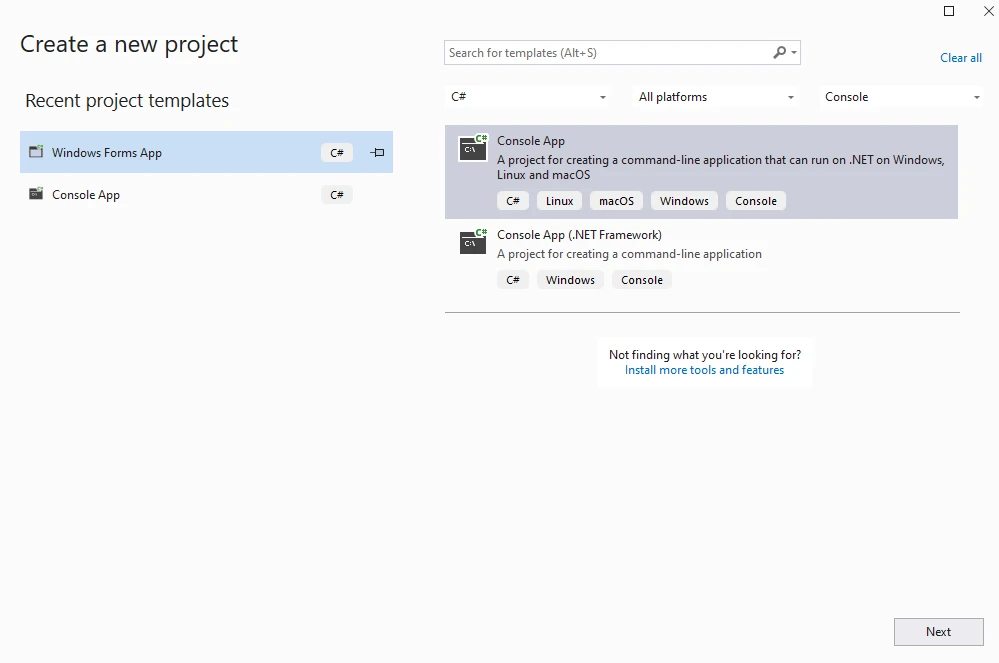
Create a new project in Visual Studio by selecting Console App. For Blazor applications, choose appropriate templates. Razor Pages and MVC projects have specific setup requirements.
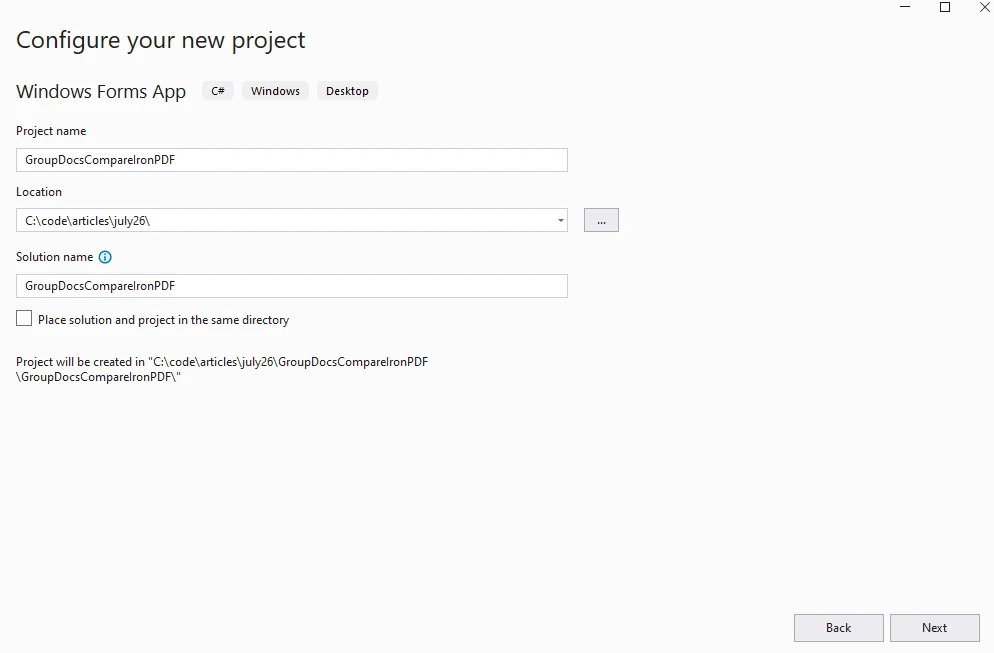
Choose a project name and location.
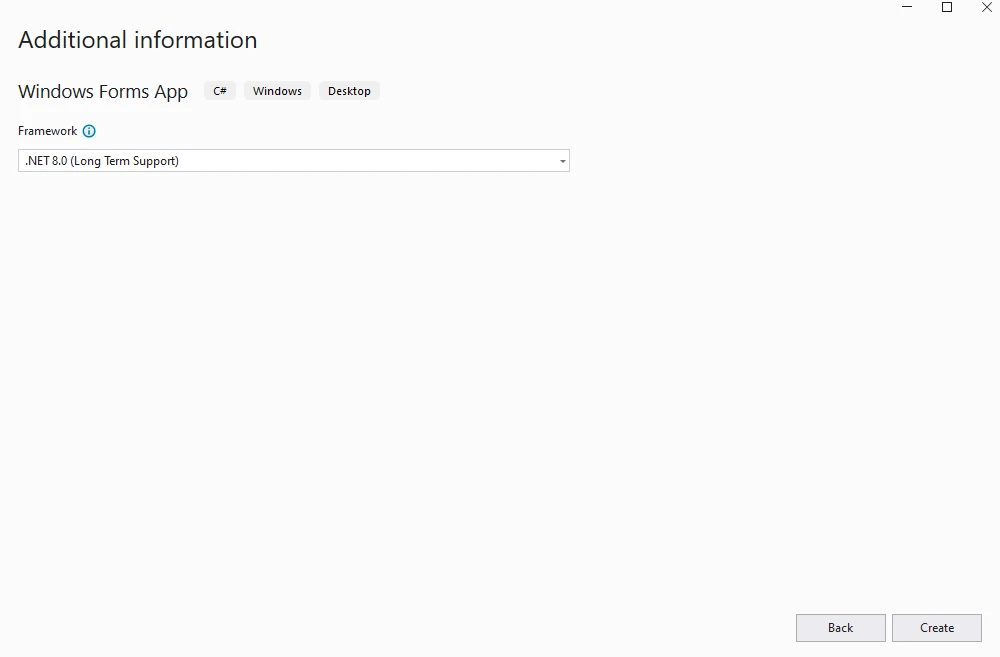
Select the required .NET version.
The project will be created successfully. Project templates provide quick-start options. Windows Forms support enables desktop applications.
How Do I Install GroupDocs in the Project?
Install GroupDocs.Conversion .NET NuGet package using Visual Studio package manager or command line. License key management ensures proper activation. Using declarations simplify namespace imports.
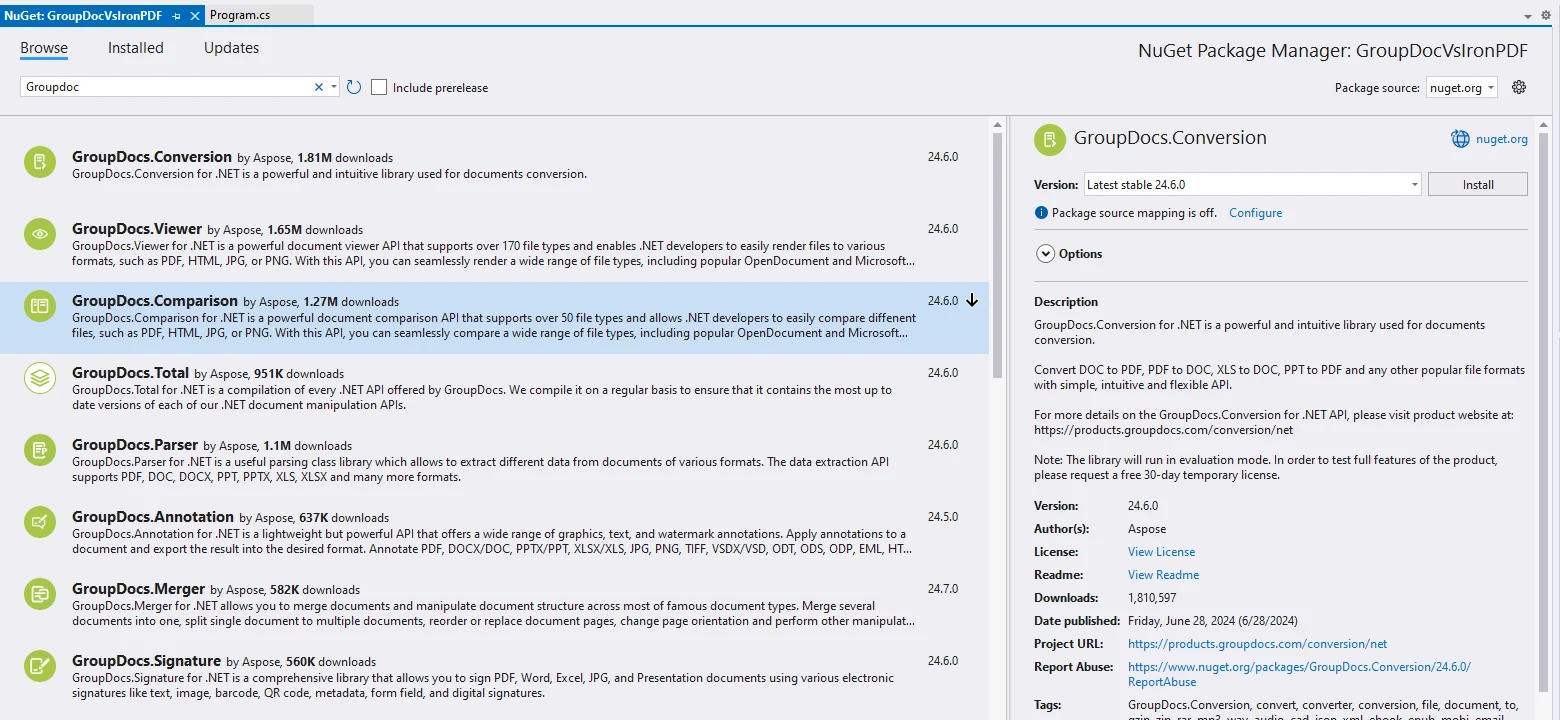
From command line:
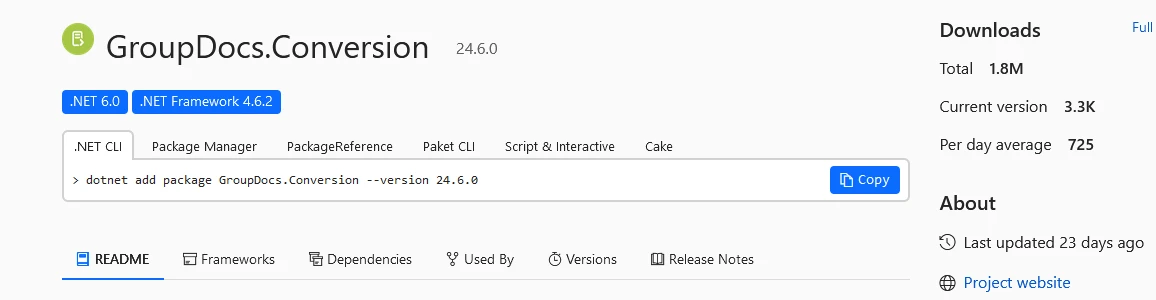
Once installed, the library is ready for use.
How Do I Convert HTML to PDF Using GroupDocs.Conversion?
The following code converts HTML to PDF using GroupDocs.Conversion. For production deployments, consider error handling patterns and logging configurations. Async patterns improve performance.
using System;
using System.IO;
using GroupDocs.Conversion.Options.Convert;

namespace GroupDocVsIronPDF
{
    public class Program
    {
        public static void ConvertHtmlToPdf()
        {
            string outputFolder = "C:\\code\\articles\\july26"; // Output directory for converted PDF
            string outputFile = Path.Combine(outputFolder, "convertedUsingGroupDoc.pdf"); // Path to output PDF file
            string input = "C:\\code\\articles\\july26\\groupDocConversion.html"; // Path to input HTML file

            // Initialize the converter with the input HTML file
            using (var converter = new GroupDocs.Conversion.Converter(input))
            {
                // Set the conversion options to PDF
                var options = new PdfConvertOptions();
                // Perform the conversion and save to the specified output file
                converter.Convert(outputFile, options);
                Console.WriteLine("\nConversion to PDF completed successfully. \nCheck output in {0}", outputFolder);
            }
        }
    }
}
using System;
using System.IO;
using GroupDocs.Conversion.Options.Convert;
namespace GroupDocVsIronPDF
{
public class Program
{
public static void ConvertHtmlToPdf()
{
string outputFolder = "C:\\code\\articles\\july26"; // Output directory for converted PDF
string outputFile = Path.Combine(outputFolder, "convertedUsingGroupDoc.pdf"); // Path to output PDF file
string input = "C:\\code\\articles\\july26\\groupDocConversion.html"; // Path to input HTML file
// Initialize the converter with the input HTML file
using (var converter = new GroupDocs.Conversion.Converter(input))
{
// Set the conversion options to PDF
var options = new PdfConvertOptions();
// Perform the conversion and save to the specified output file
converter.Convert(outputFile, options);
Console.WriteLine("\nConversion to PDF completed successfully. \nCheck output in {0}", outputFolder);
}
}
}
}Imports Microsoft.VisualBasic
Imports System
Imports System.IO
Imports GroupDocs.Conversion.Options.Convert
Namespace GroupDocVsIronPDF
Public Class Program
Public Shared Sub ConvertHtmlToPdf()
Dim outputFolder As String = "C:\code\articles\july26" ' Output directory for converted PDF
Dim outputFile As String = Path.Combine(outputFolder, "convertedUsingGroupDoc.pdf") ' Path to output PDF file
Dim input As String = "C:\code\articles\july26\groupDocConversion.html" ' Path to input HTML file
' Initialize the converter with the input HTML file
Using converter = New GroupDocs.Conversion.Converter(input)
' Set the conversion options to PDF
Dim options = New PdfConvertOptions()
' Perform the conversion and save to the specified output file
converter.Convert(outputFile, options)
Console.WriteLine(vbLf & "Conversion to PDF completed successfully. " & vbLf & "Check output in {0}", outputFolder)
End Using
End Sub
End Class
End NamespaceCode Explanation
This program converts an HTML file (groupDocConversion.html) to PDF (convertedUsingGroupDoc.pdf) using GroupDocs.Conversion. For advanced scenarios, explore memory stream operations and custom rendering options.
- Namespace and Imports: The program imports necessary namespaces.
SystemandSystem.IOare standard .NET namespaces.GroupDocs.Conversion.Options.Convertimports conversion options. - Program Class: The
Programclass is declared within theGroupDocVsIronPDFnamespace. ConvertHtmlToPdfMethod: This static method performs HTML to PDF conversion without parameters. For async operations, consider Task-based methods. Multi-threaded processing enables parallelization.- Output Folder and File Paths:
- outputFolder: Specifies the directory where the converted PDF file will be saved.
- outputFile: Combines
outputFolderwith the desired output file name (convertedUsingGroupDoc.pdf), forming the complete path to the output PDF file. - Input: Specifies the path to the input HTML file.
- Using Statement with Converter: The
GroupDocs.Conversion.Converterinitializes to convert HTML to PDF and save asconvertedUsingGroupDoc.pdf.
What Does the Input HTML File Look Like?
Use this HTML file as an example. For complex layouts, consider CSS media type settings and viewport configuration. Page break control ensures proper pagination.
<!DOCTYPE html>
<html>
<body>
  <h1 style="color:black;">Demonstrate GroupDocs .NET Package to Convert HTML to PDF</h1>
  <p style="color:gray;">GroupDocs provides a reliable API for HTML to PDF conversion, designed to be simple yet flexible enough to handle various scenarios. To begin using GroupDocs HTML to PDF converter in your C# applications.</p>
  <h2 style="color:black;">Install</h2>
  <code style="color:blue;">.NET add package GroupDocs.Conversion --version 24.6.0</code>
  <h2 style="color:black;">Import Namespaces</h2>
  <code class="language-csharp" data-lang="csharp">
    <p style="color:blue;">using GroupDocs.Conversion.Options.Convert;</p>
    <p style="color:blue;">using System.IO;</p>
  </code>
  <h2 style="color:black;">Load the Source HTML File</h2>
  <code style="color:blue;">using (var converter = new GroupDocs.Conversion.Converter("path to html file"))</code>
  <h2 style="color:black;">Perform the Conversion</h2>
  <code style="color:blue;">
    <p>var options = new PdfConvertOptions();</p>
    <p>converter.Convert(outputFile, options);</p>
  </code>
</body>
</html>
<!DOCTYPE html>
<html>
<body>
<h1 style="color:black;">Demonstrate GroupDocs .NET Package to Convert HTML to PDF</h1>
<p style="color:gray;">GroupDocs provides a reliable API for HTML to PDF conversion, designed to be simple yet flexible enough to handle various scenarios. To begin using GroupDocs HTML to PDF converter in your C# applications.</p>
<h2 style="color:black;">Install</h2>
<code style="color:blue;">.NET add package GroupDocs.Conversion --version 24.6.0</code>
<h2 style="color:black;">Import Namespaces</h2>
<code class="language-csharp" data-lang="csharp">
<p style="color:blue;">using GroupDocs.Conversion.Options.Convert;</p>
<p style="color:blue;">using System.IO;</p>
</code>
<h2 style="color:black;">Load the Source HTML File</h2>
<code style="color:blue;">using (var converter = new GroupDocs.Conversion.Converter("path to html file"))</code>
<h2 style="color:black;">Perform the Conversion</h2>
<code style="color:blue;">
<p>var options = new PdfConvertOptions();</p>
<p>converter.Convert(outputFile, options);</p>
</code>
</body>
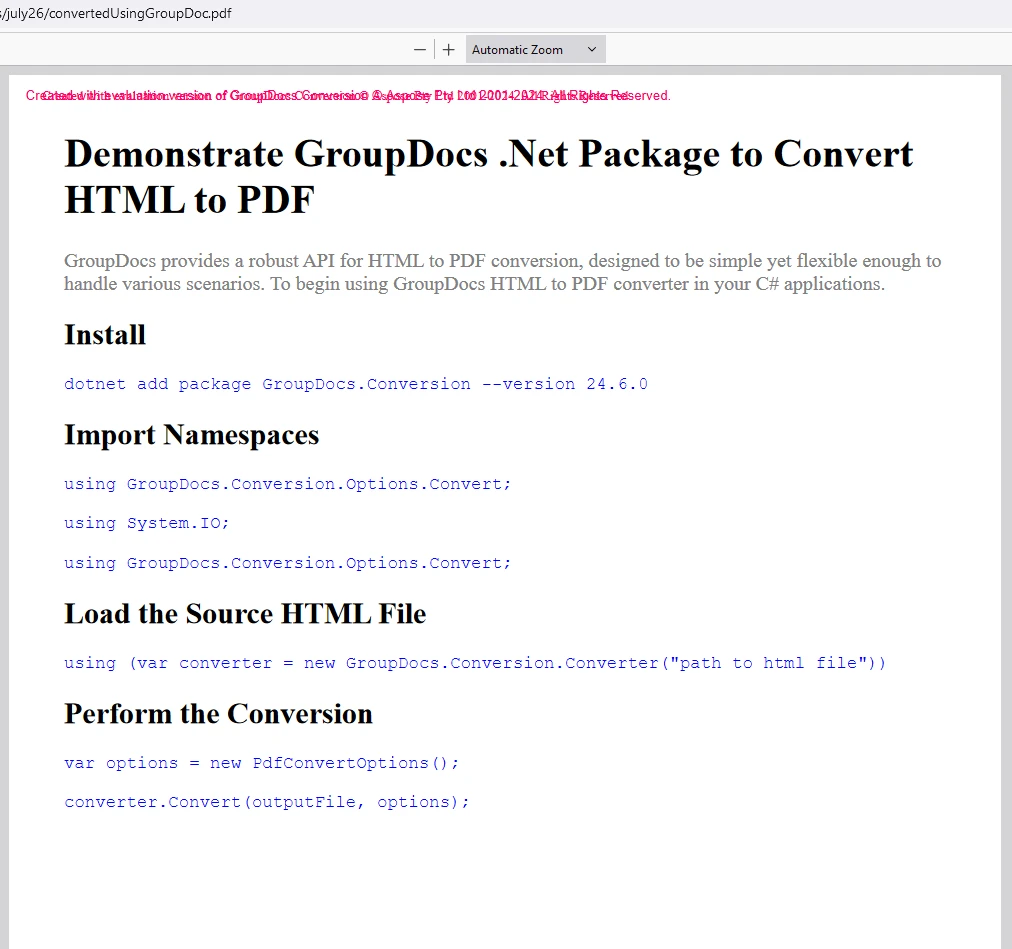
</html>Output PDF
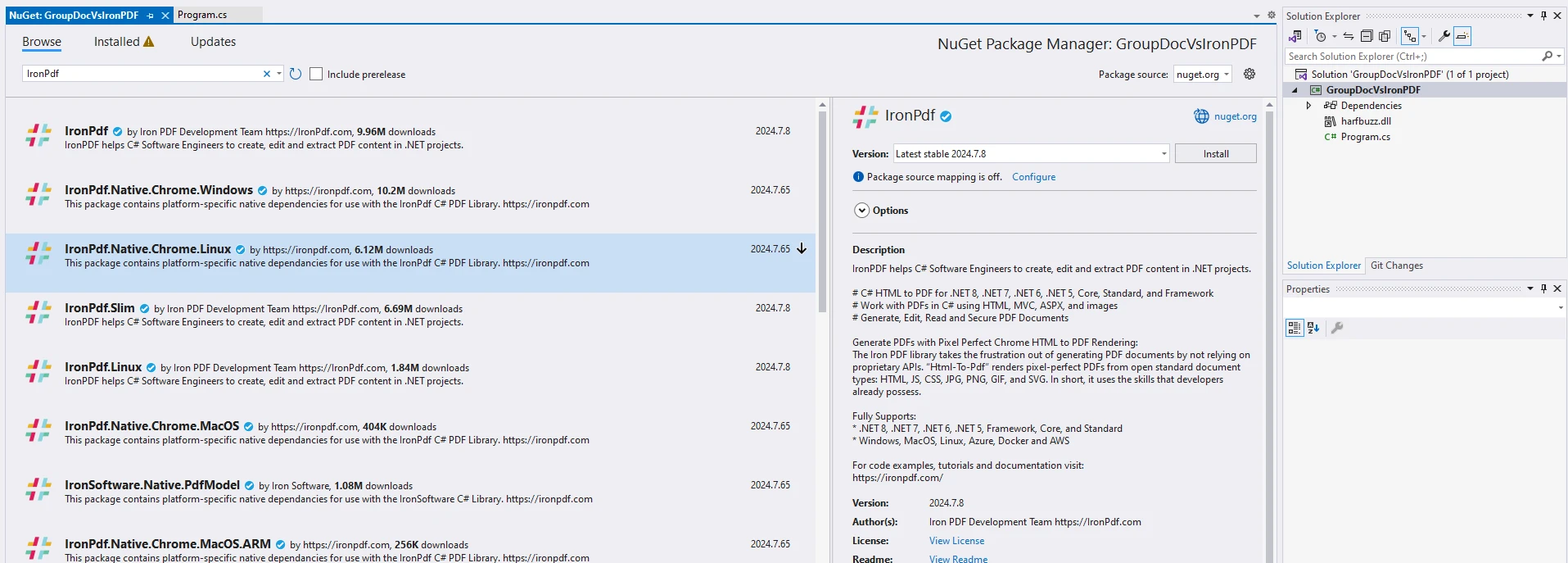
How Do I Install IronPDF in the Project?
Install IronPDF NuGet package from IronsSoftware using Visual Studio or NuGet package manager. For containerized deployments, see Docker setup guides and remote engine configuration. IronPDF.Slim reduces package size.
From command line:
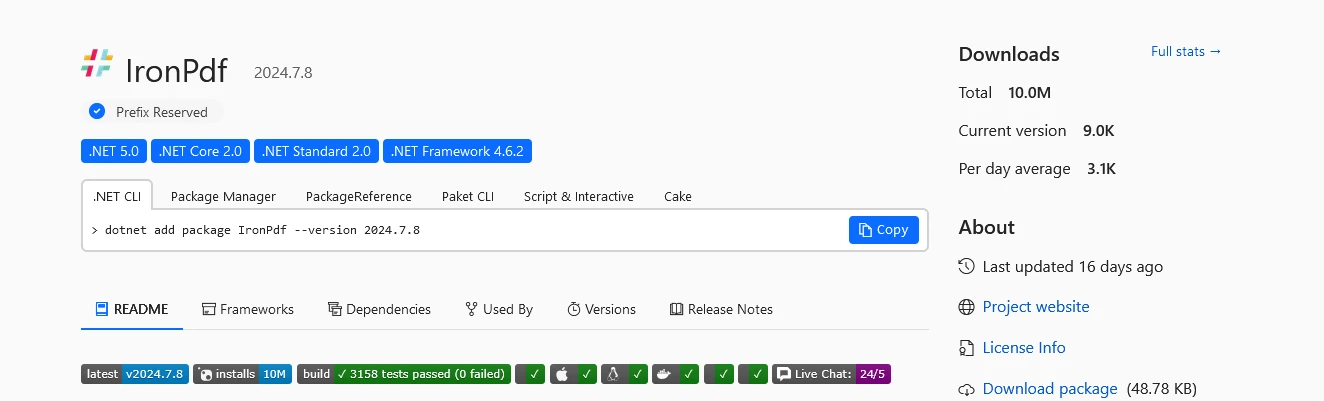
Once installed, your project is ready for HTML to PDF conversion with IronPDF. Quick start guides provide implementation examples. Windows installer offers alternative setup.
How Do I Convert HTML to PDF Using IronPDF?
The following code converts HTML to PDF using IronPDF. For advanced scenarios, explore rendering delays, custom JavaScript execution, and multi-threaded generation. HTTP headers enable authenticated conversions.
using IronPDF;

namespace GroupDocVsIronPDF
{
    internal class IronPDFDemo
    {
        public static void Execute()
        {
            // Setting the license key for IronPDF
            IronPdf.License.LicenseKey = "your key";

            // Create a PDF renderer
            var renderer = new ChromePdfRenderer();

            // Convert HTML file to PDF
            var pdf = renderer.RenderHtmlFileAsPdf("C:\\code\\articles\\july26\\groupDocConversion.html");

            // Save the generated PDF
            pdf.SaveAs("convertedUsingIronPDF.pdf");
        }
    }
}
using IronPDF;
namespace GroupDocVsIronPDF
{
internal class IronPDFDemo
{
public static void Execute()
{
// Setting the license key for IronPDF
IronPdf.License.LicenseKey = "your key";
// Create a PDF renderer
var renderer = new ChromePdfRenderer();
// Convert HTML file to PDF
var pdf = renderer.RenderHtmlFileAsPdf("C:\\code\\articles\\july26\\groupDocConversion.html");
// Save the generated PDF
pdf.SaveAs("convertedUsingIronPDF.pdf");
}
}
}Imports IronPDF
Namespace GroupDocVsIronPDF
Friend Class IronPDFDemo
Public Shared Sub Execute()
' Setting the license key for IronPDF
IronPdf.License.LicenseKey = "your key"
' Create a PDF renderer
Dim renderer = New ChromePdfRenderer()
' Convert HTML file to PDF
Dim pdf = renderer.RenderHtmlFileAsPdf("C:\code\articles\july26\groupDocConversion.html")
' Save the generated PDF
pdf.SaveAs("convertedUsingIronPDF.pdf")
End Sub
End Class
End NamespaceFor complex HTML with JavaScript, implement render delays and wait conditions:
// Advanced rendering with JavaScript support
var renderer = new ChromePdfRenderer
{
    RenderingOptions = new ChromePdfRenderOptions
    {
        EnableJavaScript = true,
        RenderDelay = 500, // Wait 500ms for JavaScript
        CssMediaType = IronPdf.Rendering.PdfCssMediaType.Print,
        PrintHtmlBackgrounds = true,
        CreatePdfFormsFromHtml = true
    }
};

// For Angular/React applications
renderer.RenderingOptions.WaitFor.RenderDelay(2000);
// Or wait for network idle
renderer.RenderingOptions.WaitFor.NetworkIdle();
// Advanced rendering with JavaScript support
var renderer = new ChromePdfRenderer
{
RenderingOptions = new ChromePdfRenderOptions
{
EnableJavaScript = true,
RenderDelay = 500, // Wait 500ms for JavaScript
CssMediaType = IronPdf.Rendering.PdfCssMediaType.Print,
PrintHtmlBackgrounds = true,
CreatePdfFormsFromHtml = true
}
};
// For Angular/React applications
renderer.RenderingOptions.WaitFor.RenderDelay(2000);
// Or wait for network idle
renderer.RenderingOptions.WaitFor.NetworkIdle();' Advanced rendering with JavaScript support
Dim renderer = New ChromePdfRenderer With {
.RenderingOptions = New ChromePdfRenderOptions With {
.EnableJavaScript = True,
.RenderDelay = 500, ' Wait 500ms for JavaScript
.CssMediaType = IronPdf.Rendering.PdfCssMediaType.Print,
.PrintHtmlBackgrounds = True,
.CreatePdfFormsFromHtml = True
}
}
' For Angular/React applications
renderer.RenderingOptions.WaitFor.RenderDelay(2000)
' Or wait for network idle
renderer.RenderingOptions.WaitFor.NetworkIdle()Additional rendering examples:
// Convert HTML string with embedded resources
var htmlString = @"
<!DOCTYPE html>
<html>
<head>
    <link href='https://cdn.jsdelivr.net/npm/bootstrap@5.3.0/dist/css/bootstrap.min.css' rel='stylesheet'>
</head>
<body>
    <div class='container'>
        <h1>Bootstrap PDF Example</h1>
        <div class='alert alert-primary'>This renders perfectly!</div>
    </div>
</body>
</html>";

var pdf = renderer.RenderHtmlAsPdf(htmlString);

// Convert URL with authentication
renderer.RenderingOptions.CustomCssUrl = "https://www.example.com/styles.css";
renderer.RenderingOptions.HttpLoginCredentials = new IronPdf.ChromeHttpLoginCredentials()
{
    Username = "user",
    Password = "pass"
};

var authenticatedPdf = renderer.RenderUrlAsPdf("https://www.example.com/secure-report");
// Convert HTML string with embedded resources
var htmlString = @"
<!DOCTYPE html>
<html>
<head>
<link href='https://cdn.jsdelivr.net/npm/bootstrap@5.3.0/dist/css/bootstrap.min.css' rel='stylesheet'>
</head>
<body>
<div class='container'>
<h1>Bootstrap PDF Example</h1>
<div class='alert alert-primary'>This renders perfectly!</div>
</div>
</body>
</html>";
var pdf = renderer.RenderHtmlAsPdf(htmlString);
// Convert URL with authentication
renderer.RenderingOptions.CustomCssUrl = "https://www.example.com/styles.css";
renderer.RenderingOptions.HttpLoginCredentials = new IronPdf.ChromeHttpLoginCredentials()
{
Username = "user",
Password = "pass"
};
var authenticatedPdf = renderer.RenderUrlAsPdf("https://www.example.com/secure-report");Dim htmlString As String = "
<!DOCTYPE html>
<html>
<head>
<link href='https://cdn.jsdelivr.net/npm/bootstrap@5.3.0/dist/css/bootstrap.min.css' rel='stylesheet'>
</head>
<body>
<div class='container'>
<h1>Bootstrap PDF Example</h1>
<div class='alert alert-primary'>This renders perfectly!</div>
</div>
</body>
</html>"
Dim pdf = renderer.RenderHtmlAsPdf(htmlString)
renderer.RenderingOptions.CustomCssUrl = "https://www.example.com/styles.css"
renderer.RenderingOptions.HttpLoginCredentials = New IronPdf.ChromeHttpLoginCredentials() With {
.Username = "user",
.Password = "pass"
}
Dim authenticatedPdf = renderer.RenderUrlAsPdf("https://www.example.com/secure-report")Code Explanation
This C# program demonstrates using IronPDF to convert HTML (groupDocConversion.html) to PDF (convertedUsingIronPDF.pdf). For production deployments, implement error handling and performance monitoring. Log file generation aids debugging.
- Namespace and Class: The
IronPDFDemoclass is declared within theGroupDocVsIronPDFnamespace. - Execute Method: The
Execute()method executes PDF conversion without parameters. Consider async patterns for scalability. - Setting License Key:
IronPdf.License.LicenseKey = "your key";sets the license key for IronPDF. Trial licenses are available for evaluation. Web.config setup supports configuration files. - Creating Renderer:
var renderer = new ChromePdfRenderer();initializesChromePdfRendererusing Chrome's rendering engine. The Chrome engine documentation explains rendering accuracy. - HTML to PDF Conversion:
renderer.RenderHtmlFileAsPdf()converts the HTML file to PDF. For URLs, use URL conversion methods. Razor to PDF enables MVC integration. - Saving the PDF:
pdf.SaveAs()saves the converted PDF. For cloud storage, explore Azure Blob integration. Export to memory supports streaming.
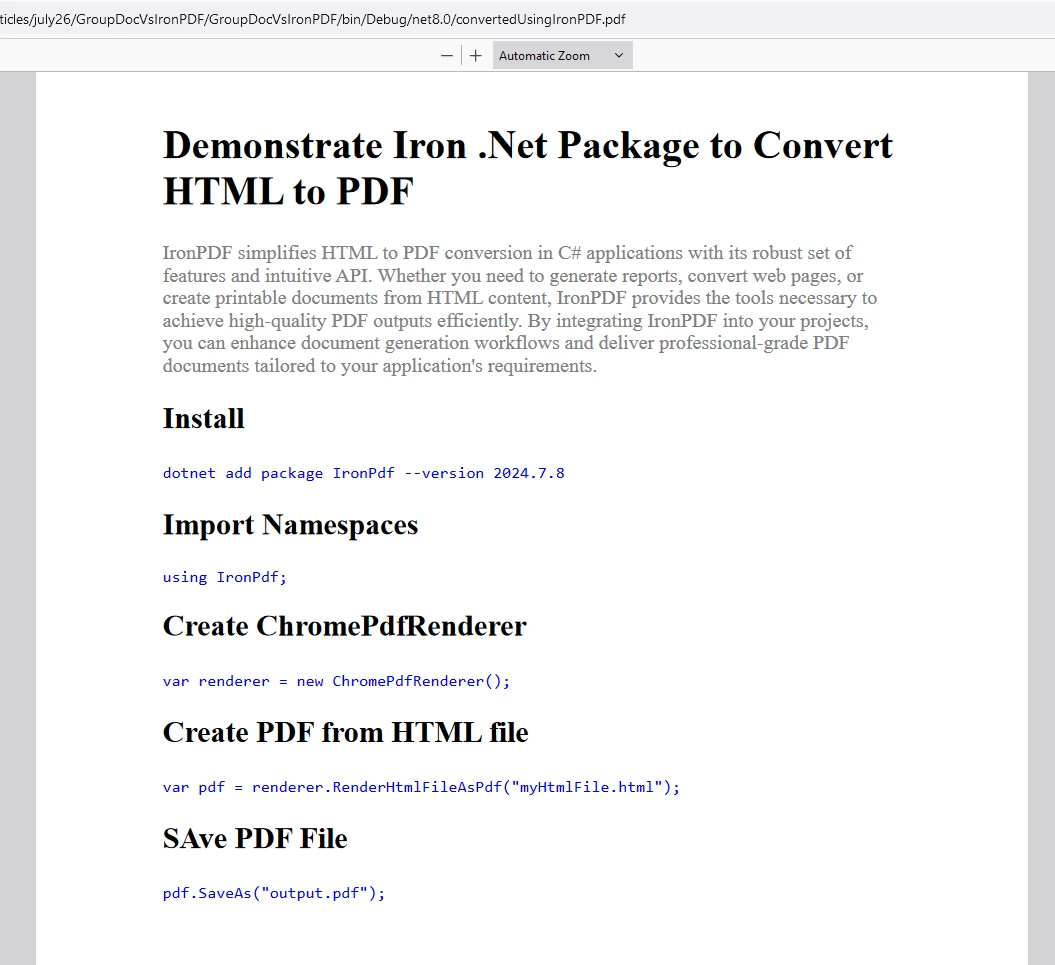
What Does the Input HTML File Look Like?
<!DOCTYPE html>
<html>
<body>
  <h1 style="color:black;">Demonstrate Iron .NET Package to Convert HTML to PDF</h1>
  <p style="color:gray;">IronPDF simplifies HTML to PDF conversion in C# applications with its reliable set of features and intuitive API. Whether you need to generate reports, convert web pages, or create printable documents from HTML content, IronPDF provides the tools necessary to achieve high-quality PDF outputs efficiently. By integrating IronPDF into your projects, you can improve document generation workflows and deliver professional-grade PDF documents tailored to your application's requirements.</p>
  <h2 style="color:black;">Install</h2>
  <code style="color:blue;">.NET add package IronPDF --version 2024.7.8</code>
  <h2 style="color:black;">Import Namespaces</h2>
  <p style="color:blue;">using IronPDF;</p>
  <h2 style="color:black;">Create ChromePdfRenderer</h2>
  <code style="color:blue;">var renderer = new ChromePdfRenderer();</code>
  <h2 style="color:black;">Create PDF from HTML file</h2>
  <code style="color:blue;">var pdf = renderer.RenderHtmlFileAsPdf("myHtmlFile.html");</code>
  <h2 style="color:black;">Save PDF File</h2>
  <code style="color:blue;">pdf.SaveAs("output.pdf");</code>
</body>
</html>
<!DOCTYPE html>
<html>
<body>
<h1 style="color:black;">Demonstrate Iron .NET Package to Convert HTML to PDF</h1>
<p style="color:gray;">IronPDF simplifies HTML to PDF conversion in C# applications with its reliable set of features and intuitive API. Whether you need to generate reports, convert web pages, or create printable documents from HTML content, IronPDF provides the tools necessary to achieve high-quality PDF outputs efficiently. By integrating IronPDF into your projects, you can improve document generation workflows and deliver professional-grade PDF documents tailored to your application's requirements.</p>
<h2 style="color:black;">Install</h2>
<code style="color:blue;">.NET add package IronPDF --version 2024.7.8</code>
<h2 style="color:black;">Import Namespaces</h2>
<p style="color:blue;">using IronPDF;</p>
<h2 style="color:black;">Create ChromePdfRenderer</h2>
<code style="color:blue;">var renderer = new ChromePdfRenderer();</code>
<h2 style="color:black;">Create PDF from HTML file</h2>
<code style="color:blue;">var pdf = renderer.RenderHtmlFileAsPdf("myHtmlFile.html");</code>
<h2 style="color:black;">Save PDF File</h2>
<code style="color:blue;">pdf.SaveAs("output.pdf");</code>
</body>
</html>What Does the Output PDF Look Like?
How Do Deployment Options Compare?
What Cloud and On-Premise Options Are Available?
IronPDF Deployment Flexibility:
- Local Processing: Offline capability with Windows, Linux, macOS support
- Cloud Native: Azure Functions, AWS Lambda ready. Azure debugging simplifies development.
- Containerized: Docker support with pre-built images. Kubernetes deployment enables scaling.
- Microservices: Remote engine deployment for scalability
- MAUI Support: Cross-platform mobile development with PDF viewing
- IIS Integration: IIS deployment guide for web applications
GroupDocs Deployment Model:
- Cloud API primary focus
- Self-hosted options available
- Limited container support
- No mobile platform support
- Higher latency for local processing
For high-security environments requiring HIPAA compliance or air-gapped systems, IronPDF's local processing provides complete data control. Security CVE monitoring ensures safety.
How Do Pricing Models Compare at Different Volumes?
What Are the Cost Structures for Each Solution?
Volume-Based Pricing Comparison:
| Monthly Volume | IronPDF Lite | IronPDF Professional | GroupDocs Metered |
GroupDocs Small Business |
|---|---|---|---|---|
| 1,000 PDFs | $999 (one-time) | $1,499 (one-time) | ~$50/month | $2,997 (one-time) |
| 10,000 PDFs | $999 (one-time) | $1,499 (one-time) | ~$500/month | $2,997 (one-time) |
| 100,000 PDFs | $999 (one-time) | $1,499 (one-time) | ~$5,000/month | Requires Enterprise |
| Deployment | Unlimited | Unlimited | Per-credit | Limited locations |
Hidden Cost Considerations:
GroupDocsmetered billing accumulates quickly at scale- IronPDF one-time licensing includes free updates for one year
- No per-conversion fees with IronPDF
- Enterprise licensing available for both
When Should I Use a Hybrid Approach?
What Are Optimal Use Cases for Each Library?
Use IronPDF When:
- Converting modern web content with JavaScript frameworks
- Requiring pixel-perfect Bootstrap/CSS rendering
- Building SaaS applications with volume
- Needing offline processing
- Implementing digital signatures
- Processing forms and annotations
Consider GroupDocs When:
- Converting multiple document formats beyond HTML/PDF
- Batch processing Office documents
- Working with CAD/technical drawings
- Implementing document comparison features
- Processing RTF files
Hybrid Architecture Example:
public interface IDocumentConverter
{
    Task<byte[]> ConvertToPdfAsync(string inputPath);
}

public class HybridConverter : IDocumentConverter
{
    private readonly IronPdfConverter _IronPDF;
    private readonly GroupDocsConverter _groupDocs;

    public async Task<byte[]> ConvertToPdfAsync(string inputPath)
    {
        var extension = Path.GetExtension(inputPath).ToLower();

        // Use IronPDF for web content
        if (extension == ".html" || extension == ".htm")
        {
            return await _ironPdf.ConvertHtmlToPdfAsync(inputPath);
        }

        // Use GroupDocs for Office formats
        if (IsOfficeFormat(extension))
        {
            return await _groupDocs.ConvertToPdfAsync(inputPath);
        }

        throw new NotSupportedException($"Format {extension} not supported");
    }
}
public interface IDocumentConverter
{
Task<byte[]> ConvertToPdfAsync(string inputPath);
}
public class HybridConverter : IDocumentConverter
{
private readonly IronPdfConverter _IronPDF;
private readonly GroupDocsConverter _groupDocs;
public async Task<byte[]> ConvertToPdfAsync(string inputPath)
{
var extension = Path.GetExtension(inputPath).ToLower();
// Use IronPDF for web content
if (extension == ".html" || extension == ".htm")
{
return await _ironPdf.ConvertHtmlToPdfAsync(inputPath);
}
// Use GroupDocs for Office formats
if (IsOfficeFormat(extension))
{
return await _groupDocs.ConvertToPdfAsync(inputPath);
}
throw new NotSupportedException($"Format {extension} not supported");
}
}Imports System.IO
Imports System.Threading.Tasks
Public Interface IDocumentConverter
Function ConvertToPdfAsync(inputPath As String) As Task(Of Byte())
End Interface
Public Class HybridConverter
Implements IDocumentConverter
Private ReadOnly _IronPDF As IronPdfConverter
Private ReadOnly _groupDocs As GroupDocsConverter
Public Async Function ConvertToPdfAsync(inputPath As String) As Task(Of Byte()) Implements IDocumentConverter.ConvertToPdfAsync
Dim extension = Path.GetExtension(inputPath).ToLower()
' Use IronPDF for web content
If extension = ".html" OrElse extension = ".htm" Then
Return Await _IronPDF.ConvertHtmlToPdfAsync(inputPath)
End If
' Use GroupDocs for Office formats
If IsOfficeFormat(extension) Then
Return Await _groupDocs.ConvertToPdfAsync(inputPath)
End If
Throw New NotSupportedException($"Format {extension} not supported")
End Function
Private Function IsOfficeFormat(extension As String) As Boolean
' Implementation for checking Office formats
Return False ' Placeholder implementation
End Function
End ClassAdditional hybrid scenarios:
// Combine IronPDF's rendering with GroupDocs' format support
public class EnhancedPdfConverter
{
    private readonly ChromePdfRenderer _renderer;

    public async Task<PdfDocument> ConvertWithEnhancementsAsync(string docPath)
    {
        // Convert document to HTML using GroupDocs
        var htmlContent = await ConvertDocumentToHtml(docPath);

        // Improve with modern CSS/JavaScript
        htmlContent = ApplyModernStyling(htmlContent);

        // Render using IronPDF for perfect output
        var pdf = _renderer.RenderHtmlAsPdf(htmlContent);

        // Apply security and metadata
        pdf.SecuritySettings.SetPassword("user", "owner");
        pdf.MetaData.Title = "Improve Document";

        return pdf;
    }
}
// Combine IronPDF's rendering with GroupDocs' format support
public class EnhancedPdfConverter
{
private readonly ChromePdfRenderer _renderer;
public async Task<PdfDocument> ConvertWithEnhancementsAsync(string docPath)
{
// Convert document to HTML using GroupDocs
var htmlContent = await ConvertDocumentToHtml(docPath);
// Improve with modern CSS/JavaScript
htmlContent = ApplyModernStyling(htmlContent);
// Render using IronPDF for perfect output
var pdf = _renderer.RenderHtmlAsPdf(htmlContent);
// Apply security and metadata
pdf.SecuritySettings.SetPassword("user", "owner");
pdf.MetaData.Title = "Improve Document";
return pdf;
}
}Imports System.Threading.Tasks
' Combine IronPDF's rendering with GroupDocs' format support
Public Class EnhancedPdfConverter
Private ReadOnly _renderer As ChromePdfRenderer
Public Async Function ConvertWithEnhancementsAsync(docPath As String) As Task(Of PdfDocument)
' Convert document to HTML using GroupDocs
Dim htmlContent As String = Await ConvertDocumentToHtml(docPath)
' Improve with modern CSS/JavaScript
htmlContent = ApplyModernStyling(htmlContent)
' Render using IronPDF for perfect output
Dim pdf As PdfDocument = _renderer.RenderHtmlAsPdf(htmlContent)
' Apply security and metadata
pdf.SecuritySettings.SetPassword("user", "owner")
pdf.MetaData.Title = "Improve Document"
Return pdf
End Function
End ClassHow Do I License IronPDF?
IronPDF allows users to evaluate its features before purchase. The library offers trial licenses for complete testing. License extensions support ongoing development.
Place the License Key at the start of your script before using the IronPDF package:
using IronPDF;

// Apply your license key
License.LicenseKey = "key";
using IronPDF;
// Apply your license key
License.LicenseKey = "key";Imports IronPDF
' Apply your license key
License.LicenseKey = "key"For production deployments, explore license key management best practices and environment variable configuration.
Advanced licensing configurations:
// Apply license from configuration
IronPdf.License.LicenseKey = Configuration["IronPDF:LicenseKey"];

// Verify license is valid
if (!IronPdf.License.IsValidLicense("key"))
{
    throw new InvalidOperationException("Invalid IronPDF license");
}

// For distributed applications
IronPdf.Installation.TempFolderPath = @"C:\Temp\IronPDF\";
IronPdf.Installation.LinuxAndDockerDependenciesAutoConfig = true;
// Apply license from configuration
IronPdf.License.LicenseKey = Configuration["IronPDF:LicenseKey"];
// Verify license is valid
if (!IronPdf.License.IsValidLicense("key"))
{
throw new InvalidOperationException("Invalid IronPDF license");
}
// For distributed applications
IronPdf.Installation.TempFolderPath = @"C:\Temp\IronPDF\";
IronPdf.Installation.LinuxAndDockerDependenciesAutoConfig = true;Imports System
' Apply license from configuration
IronPdf.License.LicenseKey = Configuration("IronPDF:LicenseKey")
' Verify license is valid
If Not IronPdf.License.IsValidLicense("key") Then
Throw New InvalidOperationException("Invalid IronPDF license")
End If
' For distributed applications
IronPdf.Installation.TempFolderPath = "C:\Temp\IronPDF\"
IronPdf.Installation.LinuxAndDockerDependenciesAutoConfig = TrueWhat Are the Pros and Cons of GroupDocs.Conversion?
Pros:
- Wide Range of Formats: Supports various document formats including Word, Excel,
PowerPoint, PDF, HTML. Multi-format support provides flexibility. XML to PDF extends capabilities. - Conversion Quality: Generally provides good quality conversions with customization options. PDF compression improves output.
- Document Manipulation Also included: Additional features beyond conversion through metadata APIs. Edit existing PDFs for complete workflows.
- API Flexibility: Provides APIs for .NET and Java for cross-platform projects.
Cons:
- Cost: Can be expensive, especially for commercial use or large volumes. Compare with IronPDF pricing.
- Learning Curve: Integrating and configuring may have a steeper learning curve. IronPDF demos show simplicity.
- Performance: May not be improved for very large documents or complex conversions. See performance optimization guides.
- JavaScript Limitations: No JavaScript execution limits modern web application conversion
- CSS Support: Limited modern CSS3 features affect layout accuracy
What Are the Pros and Cons of IronPDF?
Pros:
- PDF Generation: Excellent for generating PDFs from HTML, URLs, or other formats using modern rendering. Markdown support adds flexibility.
- Ease of Use: Straightforward to integrate and use for basic PDF generation. API documentation provides clear guidance. VB.NET tutorials support multiple languages.
- Documentation and Support: Good documentation and support. Access 24/5 support. Video tutorials demonstrate features.
- Cost: More cost-effective than
GroupDocs.Conversion for PDF generation tasks. - Modern Web Support: Full JavaScript, CSS3, and framework support through Chromium engine
- Advanced Features: OCR capabilities, barcode generation, form creation
- Performance: Improved rendering with caching and parallel processing
Cons:
- Limited Format Support: Focused on PDF generation; designed specifically for PDF format. Use DOCX conversion for Word files.
- Customization: While suitable for basic PDF generation, customization options for layout and advanced features might be limited compared to
GroupDocs.Conversion. However, advanced options provide extensive control.
With excellent customer support and backing from skilled developers and Iron Suite, IronPDF emerges as the superior library for modern, simple, and advanced PDF conversion capabilities. The complete feature set covers most enterprise requirements. Product milestones show continuous improvement.
Which Library Should I Choose for HTML to PDF Conversion?
GroupDocs HTML to PDF converter provides a straightforward solution for converting HTML content into PDF documents. By following the steps and examples in this article, you can integrate HTML to PDF conversion into your projects for generating reports, archiving web content, or other document processing needs. GroupDocs offers flexibility and extensive customization options for developers looking to improve applications with PDF generation from HTML content.
IronPDF simplifies HTML to PDF conversion with its reliable features and intuitive API. Whether generating reports, converting web pages, or creating printable documents from HTML content, IronPDF provides tools to achieve high-quality PDF outputs efficiently. Integrating IronPDF improves document generation workflows and delivers professional-grade PDF documents tailored to your application requirements. The library's continuous updates ensure compatibility with evolving web standards. Milestone achievements demonstrate reliability.
With excellent customer support, backing from skilled developers and Iron Suite, IronPDF emerges as the superior library for modern, simple, and advanced PDF conversion capabilities. For teams requiring both HTML-to-PDF excellence and occasional document format conversion, consider implementing a hybrid approach using each library's strengths. IronSecureDoc adds document security capabilities to complete your solution.
GroupDocs.Conversion is a registered trademark of its respective owner. This site is not affiliated with, endorsed by, or sponsored by GroupDocs.Conversion. All product names, logos, and brands are property of their respective owners. Comparisons are for informational purposes only and reflect publicly available information at the time of writing.Frequently Asked Questions
How can I convert HTML files to PDF using a .NET library?
You can use IronPDF to convert HTML files to PDF by utilizing its RenderHtmlFileAsPdf method. This method allows for seamless transformation of HTML content into high-quality PDF documents.
What are the advantages of using IronPDF for HTML to PDF conversion?
IronPDF offers ease of use, advanced formatting options such as headers, footers, and watermarks, and it supports HTML file, string, and URL conversions. It also provides robust security features including password protection and digital signatures.
How does IronPDF ensure security in PDF documents?
IronPDF ensures document security through features like password protection and digital signatures. It also complies with PDF/A and PDF/UA standards, which are essential for long-term archiving and accessibility.
What makes IronPDF a cost-effective solution for PDF generation?
IronPDF is considered cost-effective due to its specific focus on PDF generation, ease of use, comprehensive feature set, and the absence of third-party dependencies, making it a straightforward choice for developers focused on PDF tasks.
Can IronPDF be used across different operating systems?
Yes, IronPDF offers cross-platform support, making it compatible with various operating systems including Windows, Linux, and macOS.
What are the formatting capabilities of IronPDF when converting HTML to PDF?
IronPDF provides advanced formatting capabilities such as the inclusion of headers, footers, watermarks, and the ability to manipulate document layout to ensure that the final PDF meets specific design requirements.
Which .NET versions are supported by IronPDF?
IronPDF supports multiple .NET versions, including .NET Framework, .NET Core, and newer versions like .NET 5, 6, 7, and 8, ensuring compatibility with a wide range of development environments.
How does IronPDF handle complex HTML content during conversion?
IronPDF is designed to handle complex HTML content efficiently, ensuring that the formatting and layout are preserved accurately in the resulting PDF. It provides developers with tools to manage intricate design elements and styles.









 Get started for FREE
 Get started for FREE
 Book Free Live Demo
















