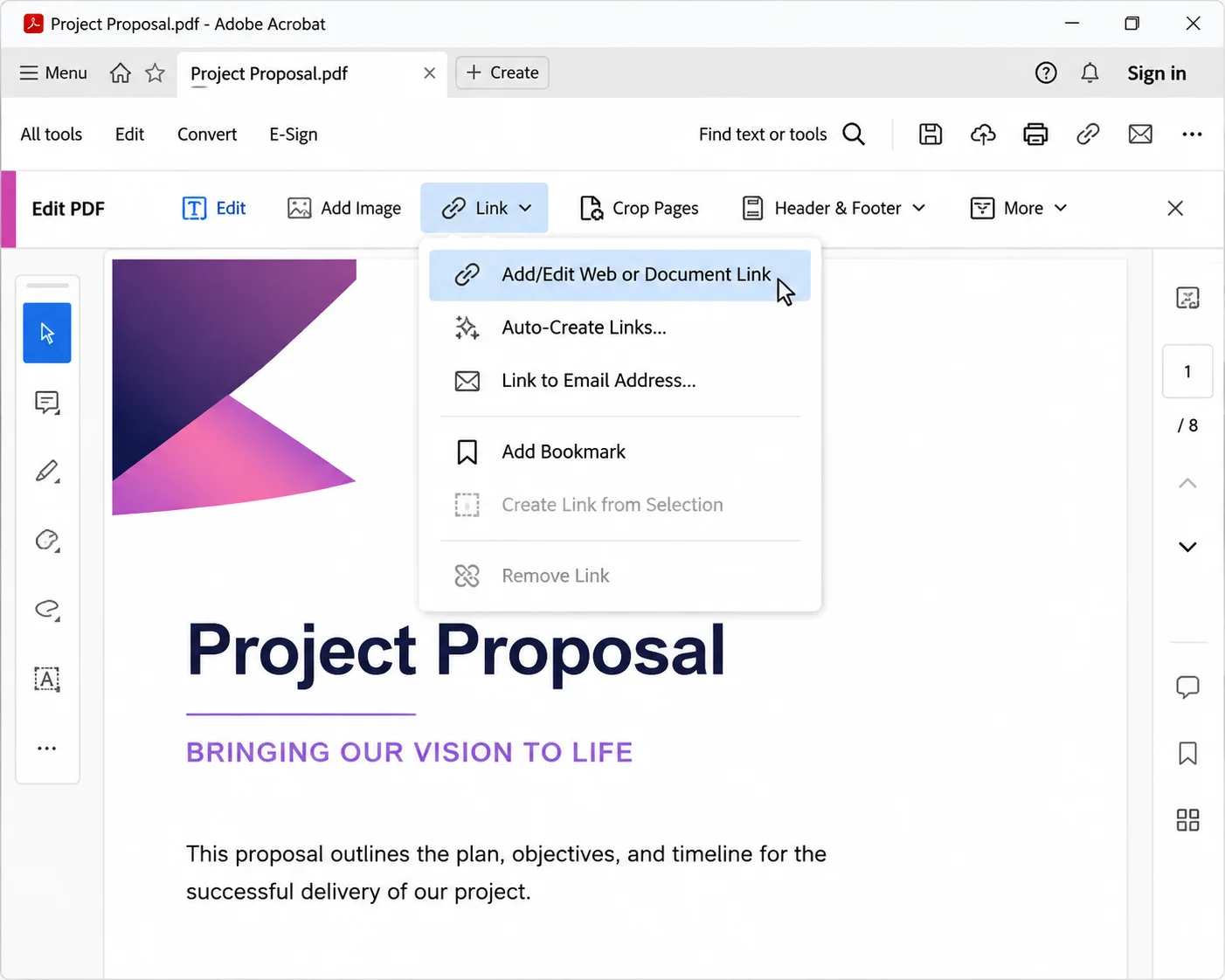
Swapping one word for another inside a PDF document sounds like a five-second job, and in the right PDF editor it is. If you searched for how to replace a word with another word in PDF, the quickest method is Adobe Acrobat Pro: open the file, go to Tools > Edit PDF, press Ctrl+F (Cmd+F on Mac), click the small arrow to expand the search box, tick Replace With, type the old word and the new word, then click Replace All.
That single sequence handles most cases for anyone editing PDFs, whether you are fixing one file without dedicated PDF software, updating contract language on a legal team, or working through batches of documents. The catch is that free Adobe Acrobat Reader only annotates and comments, so the replace feature stays greyed out. Anyone working with Reader alone will need one of the free online PDF options further down this article.
Every method below is covered in order of speed, starting with paid desktop software, then free desktop editors, then browser-based online tools that need no software installation. Similar workflows apply when you need to edit text in an existing PDF or search a PDF for specific text before deciding what to change, and the same rules about fonts and editable text apply to both. It also shows how to handle batch replacements, scanned PDFs that need OCR before text can be changed, common replace failures, and automation with IronPDF when the same edit has to run at scale.
A quick note before starting. PDF files were designed as a fixed layout format, closer to a printed page than a Word document. PDF text is stored as positioned characters rather than flowing paragraphs, which is why replacing a short word with a longer one can push a line out of alignment and create layout issues. That is exactly why this skill matters when accuracy counts: updating names, prices, clauses, or repeated terms in a PDF is less straightforward than in Word, but the right method saves time and prevents manual errors. Every tool listed here works around that limitation differently, and the troubleshooting section covers what to do when reflow, fonts, or scanned PDFs get in the way. Anyone who needs to apply the same replace operation across a whole folder should skip to the batch section or the automation section, and legal teams handling contract templates will find both sections more useful than manual editing.
Method 1: Adobe Acrobat Pro Find and Replace (Fastest)
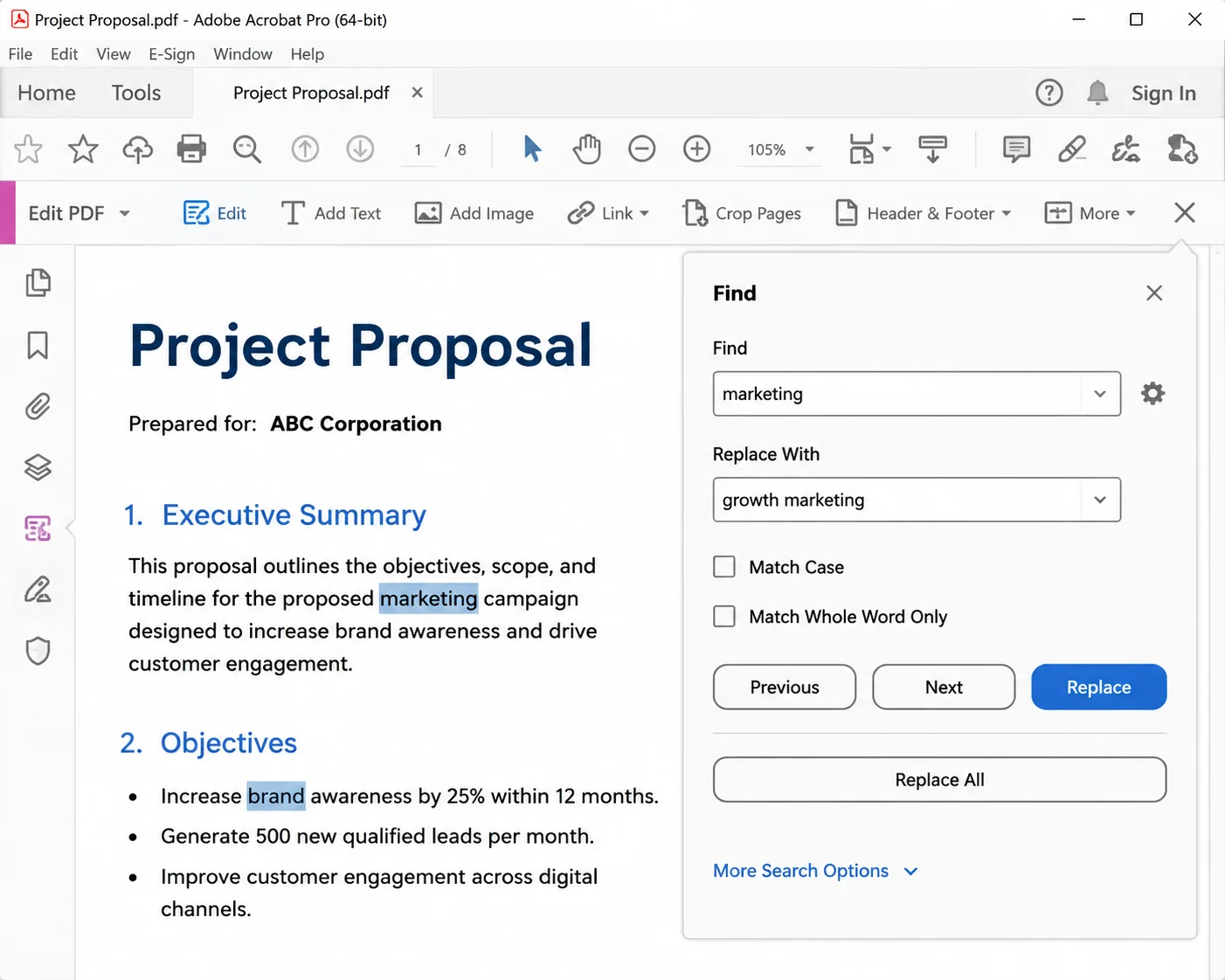
Acrobat Pro remains the most reliable way to replace text because it edits the original text objects rather than converting the file to another editable format and back.
- Open the PDF document in Acrobat Pro.
- Select Tools > Edit PDF (or All tools > Edit a PDF in the newer interface).
- Press Ctrl+F / Cmd+F.
- Click the chevron next to the search field to reveal the advanced PDF find options.
- Tick Replace With and enter both words.
- Click Replace to review each match, or click Replace All to change every instance at once.
- Save with Ctrl+S, or use File > Save As to keep the original document intact.
Use Whole Words Only when replacing something like "form" that would otherwise match inside "format" and "performance". Use Case Sensitive when the replacement text is a proper noun. Because Acrobat edits the PDF directly, layout and design remain intact in almost every case.
Method 2: Microsoft Word (Best Free Option Most People Already Own)
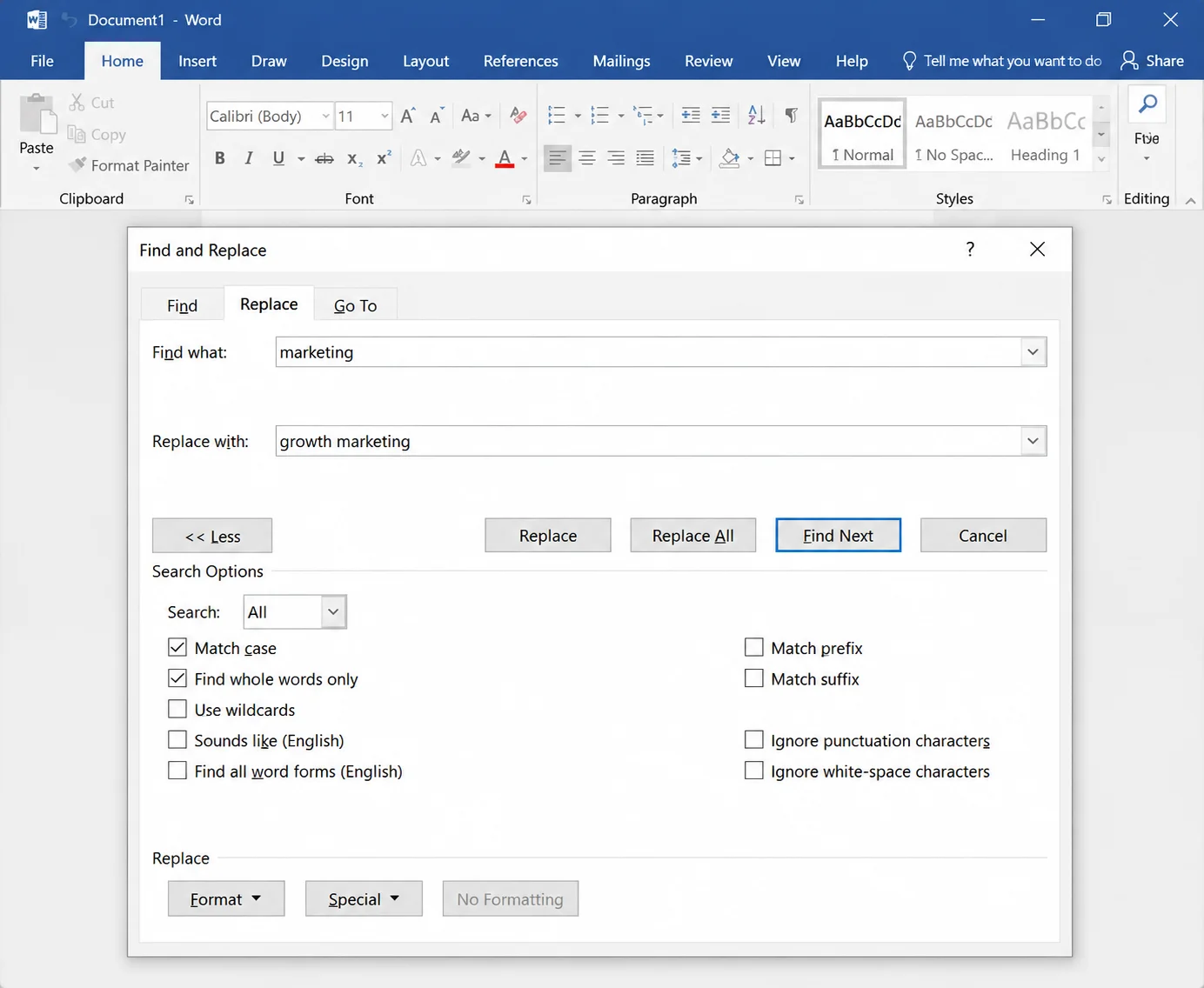
Word opens PDF files directly and gives access to a full find and replace engine that is more capable than the one in most PDF editors.
- Open Word, choose File > Open, and select the PDF.
- Accept the conversion prompt, which turns the file into an editable PDF equivalent.
- Press Ctrl+H to open Find and Replace.
- Enter the old word and the new text, then click Replace All.
- Choose File > Save As and pick PDF from the file type list to produce the updated PDF.
This method wins on flexibility. It supports wildcards, formatting-aware find and replace text rules, and the ability to target headers or footers only. It loses on fidelity, since complex layouts, multi-column pages, and unusual fonts often shift during convert steps. Check the updated file page by page before sending anything to a client.
Method 3: Google Docs (Edit a PDF Online With No Install)
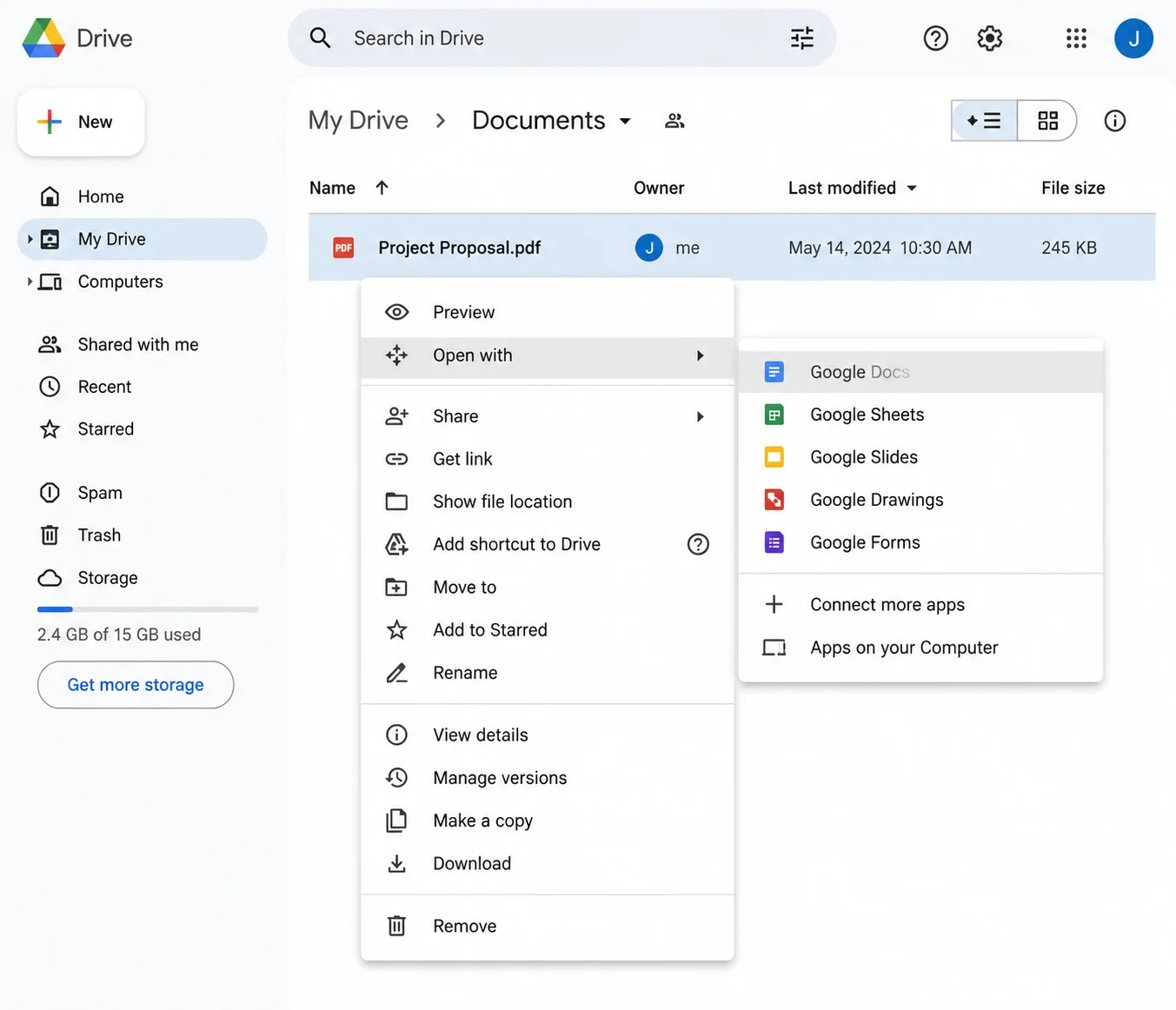
For anyone on a locked-down work machine, Google Docs handles the job in a browser and pulls straight from cloud storage.
- Upload the PDF to Google Drive, or choose files already saved there.
- Right-click the file and choose Open with > Google Docs.
- Press Ctrl+H, enter the old and new word.
- Click Replace all.
- Choose File > Download > PDF Document (.pdf).
Formatting takes a bigger hit here than in Word, so reserve this route for text-heavy PDF documents such as reports, transcripts, and letters rather than invoices or designed brochures where the original layout carries the message.
Method 4: LibreOffice Draw (Free Desktop Editing)
LibreOffice Draw opens PDF files as editable objects and holds the layout closer to the original than a Word round trip, which makes it a solid option for quick edits without losing formatting.
- Install LibreOffice and open the PDF with LibreOffice Draw.
- Press Ctrl+H to open Find and Replace.
- Enter both words and click Replace All.
- Choose File > Export As > Export as PDF.
Draw treats each text block as a separate frame, so text replacement happens inside those frames, and surrounding elements stay put. Longer replacement words can overflow a frame, which shows up as clipped text. Select text in the frame and widen it manually if that happens. You can also add text boxes where new content needs to sit alongside the existing text.
| --- |
A browser-based online PDF editor works well for a one-off change to a non-sensitive document, and needs nothing more than a stable internet connection.
- Sejda offers genuine editing with a free tier of three tasks per hour and a 200-page limit.
- PDF24 Tools provides a free online PDF editor with no account required.
- Smallpdf and iLovePDF both support editing directly on paid plans.
- PDFescape allows basic edits in its free browser version.
The workflow is consistent across these online tools. To start replacing text online, simply upload the document or drag and drop files into the browser window, wait for the PDF upload to finish, click into the text, edit, then download the result. Most services let you replace text directly on the page but lack a true replace text online field, which means each instance gets edited by hand. That makes them practical for one or two specific words and slow for twenty.
Avoid uploading contracts, medical records, financial statements, or anything covered by GDPR or HIPAA to a free online tool. Use a desktop method for those.
| --- |
Method 6: Batch Replace Across Many PDF Files at Once
Changing a company name across two hundred files calls for a different approach, and this is where document management workflows usually start.
Acrobat Pro Action Wizard: Choose Tools > Action Wizard > New Action, add the Execute JavaScript step, and paste a script that walks each page and replaces the target string. Save the action, then run it against a folder. Acrobat processes every file in sequence and writes each updated PDF to a destination folder of your choice.
Word macro (VBA): For PDF files that convert cleanly, a short macro opens each one, runs the replace operation, and exports back to PDF:
Sub ReplaceInPdfFolder()
    Dim sourceFolder As String, fileName As String, doc As Document
    sourceFolder = "C:\PDFs\"
    fileName = Dir(sourceFolder & "*.pdf")
    Do While fileName <> ""
        Set doc = Documents.Open(sourceFolder & fileName, ConfirmConversions:=False)
        With doc.Content.Find
            .Text = "Acme Corp"
            .Replacement.Text = "Acme Holdings Ltd"
            .Execute Replace:=wdReplaceAll
        End With
        doc.ExportAsFixedFormat sourceFolder & "updated_" & fileName, wdExportFormatPDF
        doc.Close SaveChanges:=False
        fileName = Dir
    Loop
End Sub
Sub ReplaceInPdfFolder()
    Dim sourceFolder As String, fileName As String, doc As Document
    sourceFolder = "C:\PDFs\"
    fileName = Dir(sourceFolder & "*.pdf")
    Do While fileName <> ""
        Set doc = Documents.Open(sourceFolder & fileName, ConfirmConversions:=False)
        With doc.Content.Find
            .Text = "Acme Corp"
            .Replacement.Text = "Acme Holdings Ltd"
            .Execute Replace:=wdReplaceAll
        End With
        doc.ExportAsFixedFormat sourceFolder & "updated_" & fileName, wdExportFormatPDF
        doc.Close SaveChanges:=False
        fileName = Dir
    Loop
End Sub
Text
Test this on copies first. Batch operations offer no undo.
| --- |
Method 7: Scanned PDFs Need OCR First
A scanned PDF contains an image of text, not editable text. Find and Replace returns zero results because there is nothing searchable inside the file.
Run optical character recognition first. Acrobat Pro does this through Tools > Scan & OCR > Recognize Text. Free alternatives include Google Drive's automatic handling on upload and the OCR feature built into most online tools. Once the page carries a PDF text layer, every method above becomes available and scanned documents behave like any other editable PDF.
Accuracy depends on scan quality. A 300 DPI scan of a clean page converts well. A phone photo of a crumpled invoice will need manual correction afterwards. Teams processing scanned PDFs at volume usually move to a dedicated engine such as IronOCR rather than repeating cleanup by hand.
| --- |
Common Issues and How to Fix Them
The Replace With field is greyed out. The file is open in Acrobat Reader rather than Acrobat Pro, or the PDF carries editing restrictions. Check File > Properties > Security to confirm.
The replaced word appears in a different font. The original font was subset into the file, meaning only the characters actually used were embedded. If the new word contains a letter that was never embedded, the editor substitutes a fallback. Install the original font locally, or replace the entire block so it renders at one consistent font size and typeface.
Text shifts or overlaps: Longer words push against fixed line boundaries. Shorten the replacement, reduce the font size fractionally, or edit the whole paragraph so text reflows inside its frame.
Nothing is found even though the word is visible: Three likely causes: the page is a scanned PDF (see Method 7), the text sits inside an embedded image, or the word is split across a line break with a hyphen. Search for a shorter fragment to work out which.
The PDF is password protected - Open restrictions require the password before anything can be edited. Permission restrictions can sometimes be lifted through File > Properties > Security if you own the document.
The word sits in a form field - Form field values live in a separate layer. Switch to Prepare Form mode in Acrobat and edit the field's default value there.
File size jumps after saving. Editing leaves orphaned font subsets and revision data behind. Run File > Save As Other > Optimized PDF, or follow a dedicated PDF compression workflow to bring the size back down.
Sensitive text needs to disappear, not change. Replacement swaps visible characters but may leave the original string recoverable inside the file structure. For confidential information, use a true redaction tool that removes the underlying content rather than covering it.
| --- |
Automating Text Replacement With IronPDF
Manual editing is fine for a handful of PDF documents. Once the same change runs on a schedule, feeds a document generation pipeline, or applies to hundreds of contracts a month, automation saves considerable time. This is the point where correcting errors, updating outdated terms, and clearing outdated information stop being a manual task.
IronPDF handles text in a PDF programmatically in .NET with a couple of lines:
using IronPdf;

// Load the existing document
PdfDocument pdf = PdfDocument.FromFile("contract.pdf");

// Replace specific text across every page
pdf.ReplaceTextOnAllPages("Acme Corp", "Acme Holdings Ltd");

// Or target a single page only
pdf.ReplaceTextOnPage(1, "DRAFT", "FINAL");

pdf.SaveAs("contract-updated.pdf");
using IronPdf;

// Load the existing document
PdfDocument pdf = PdfDocument.FromFile("contract.pdf");

// Replace specific text across every page
pdf.ReplaceTextOnAllPages("Acme Corp", "Acme Holdings Ltd");

// Or target a single page only
pdf.ReplaceTextOnPage(1, "DRAFT", "FINAL");

pdf.SaveAs("contract-updated.pdf");
C#
The same approach fits scheduled jobs, document assembly systems, and any workflow where a template needs personalising per recipient. Fonts, page structure, and metadata survive because the library edits the document object model directly, so the document's formatting stays where the designer put it.
| --- |
Choosing the Right Method
| --- |
Final Thoughts
Replacing a word in a PDF comes down to matching the tool to the job. Acrobat Pro gives the cleanest single file result, Word and Google Docs cover people without a dedicated editor, LibreOffice Draw offers a free desktop route that respects layout, and optical character recognition unlocks scanned documents that otherwise refuse to cooperate. Browser-based tools stay the most user-friendly choice for a single quick change, and batch methods take over once the file count climbs.
For more tips on working with PDF files beyond text replacement, the same principles extend to related tasks such as merging PDF files, adding watermarks and stamps, and filling PDF forms programmatically. Anyone whose replace text in PDF job has outgrown manual editing can start a free trial of IronPDF and move the whole process into code.