using IronPdf;

// Disable local disk access or cross-origin requests
Installation.EnableWebSecurity = true;

// Instantiate Renderer
var renderer = new ChromePdfRenderer();

// Create a PDF from a HTML string using C#
var pdf = renderer.RenderHtmlAsPdf("<h1>Hello World</h1>");

// Export to a file or Stream
pdf.SaveAs("output.pdf");

// Advanced Example with HTML Assets
// Load external html assets: Images, CSS and JavaScript.
// An optional BasePath 'C:\site\assets\' is set as the file location to load assets from
var myAdvancedPdf = renderer.RenderHtmlAsPdf("<img src='icons/iron.png'>", @"C:\site\assets\");
myAdvancedPdf.SaveAs("html-with-assets.pdf");
using IronPdf;// Disable local disk access or cross-origin requestsInstallation.EnableWebSecurity = true;// Instantiate Renderervar renderer = new ChromePdfRenderer();// Create a PDF from a HTML string using C#var pdf = renderer.RenderHtmlAsPdf("<h1>Hello World</h1>");// Export to a file or Streampdf.SaveAs("output.pdf");// Advanced Example with HTML Assets// Load external html assets: Images, CSS and JavaScript.// An optional BasePath 'C:\site\assets\' is set as the file location to load assets fromvar myAdvancedPdf = renderer.RenderHtmlAsPdf("<img src='icons/iron.png'>", @"C:\site\assets\");myAdvancedPdf.SaveAs("html-with-assets.pdf");
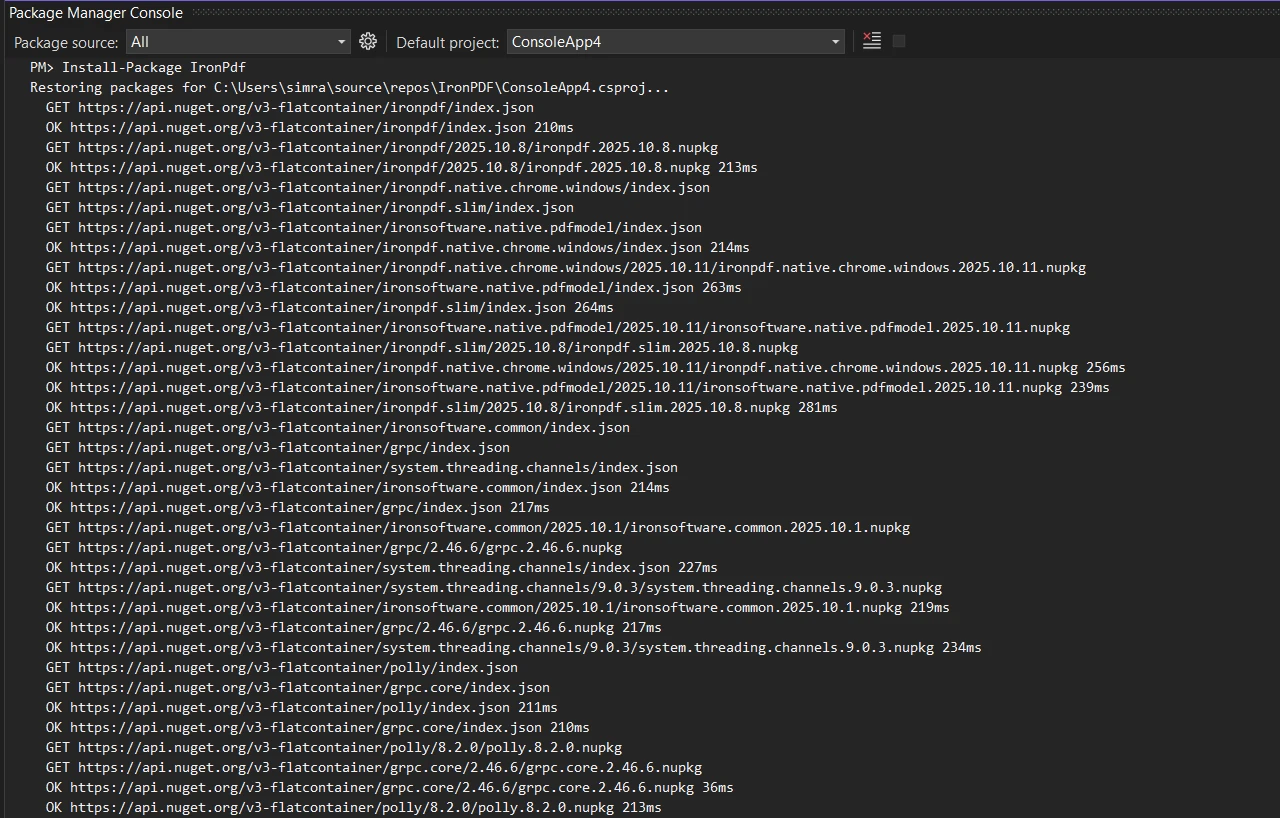
PM >Install-Package IronPdf
Install-Package IronPdf
USING IRONPDF
How to Merge Two PDF Byte Arrays in C# Using IronPDF
To merge two PDF byte arrays in C#, use IronPDF's `PdfDocument.Merge()` method which loads byte arrays into `PdfDocument` objects and combines them while preserving structure, formatting, and form fields - no file system access required.
Working with PDF files in memory is a common requirement in modern .NET applications. Whether you're receiving multiple PDF files from web APIs, retrieving them from database BLOB columns, or processing uploaded files from your server, you often need to combine multiple PDF byte arrays into a single PDF document without touching the file system. In this article, we'll explore how [IronPDF](/) makes PDF merging remarkably straightforward with its intuitive API for [merging PDFs programmatically](/examples/merge-pdfs/).
## Why Can't You Simply Concatenate PDF File Byte Arrays?
Unlike text files, PDF documents have a complex internal structure with cross-reference tables, object definitions, and specific formatting requirements. Simply concatenating two PDF files as byte arrays would corrupt the document structure, resulting in an unreadable PDF file. This is why specialized [PDF libraries](/docs/) like IronPDF are essential - they understand the PDF specification and properly merge PDF files while maintaining their integrity. According to [Stack Overflow](https://stackoverflow.com/questions/43981990/combining-byte-arrays-to-pdf) forum discussions, attempting direct byte array concatenation is a common mistake developers make when trying to merge PDF content.
### What happens when you concatenate PDF bytes directly?
When PDF bytes are concatenated without proper parsing, the resulting file contains multiple PDF headers, conflicting cross-reference tables, and broken object references. PDF readers cannot interpret this malformed structure, leading to corruption errors or blank documents. The [PDF/A format](/how-to/pdfa/) particularly requires strict compliance with structural standards, making proper merging essential for archival documents.
### Why do PDF structures require special handling?
PDFs contain interconnected objects, font definitions, and page trees that must be carefully merged. Each PDF's internal references need updating to point to the correct locations in the combined document, which requires understanding the PDF specification. [Managing fonts](/how-to/manage-fonts/) and preserving [metadata](/how-to/metadata/) during merging operations requires sophisticated parsing capabilities that only dedicated PDF libraries provide.
## How to Set Up IronPDF for Merging PDFs?
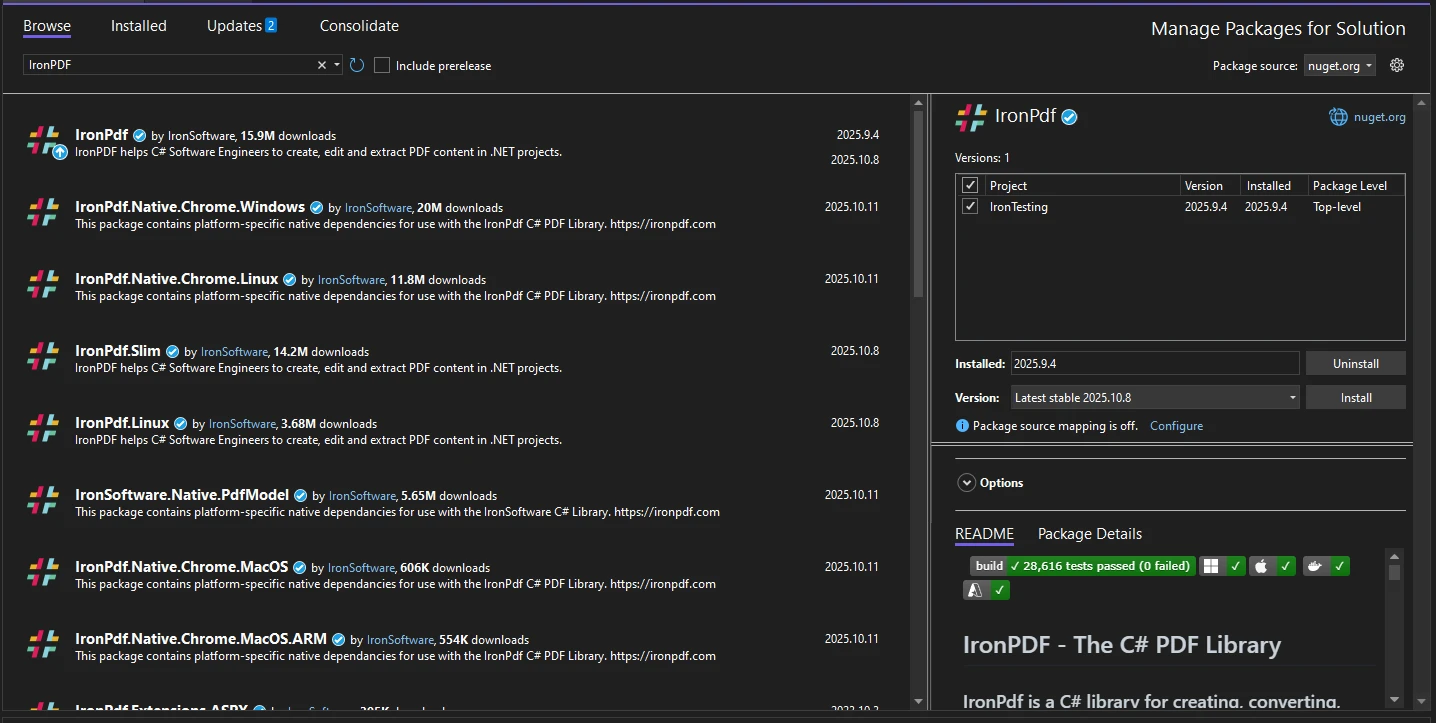
Install IronPDF through NuGet Package Manager in your .NET project:
```shell
:ProductInstall
```
Add the necessary using statements to import the library:
```cs
using IronPdf;
using System.IO;  // For MemoryStream
using System.Threading.Tasks;
using System.Collections.Generic;  // For List operations
using System.Linq;  // For LINQ transformations
```
For production server environments, apply your [license key](trial-license) to access full features without password restrictions:
```cs
IronPdf.License.LicenseKey = "YOUR-LICENSE-KEY";
```
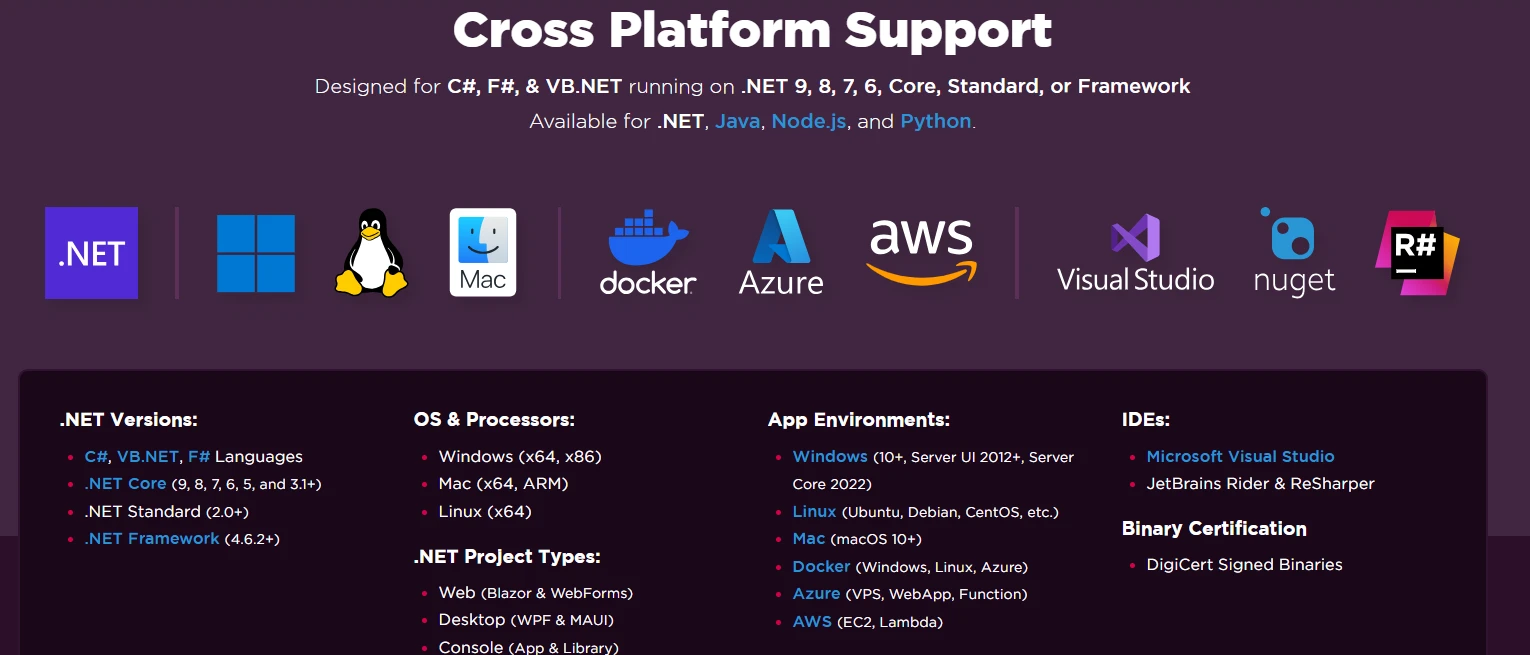
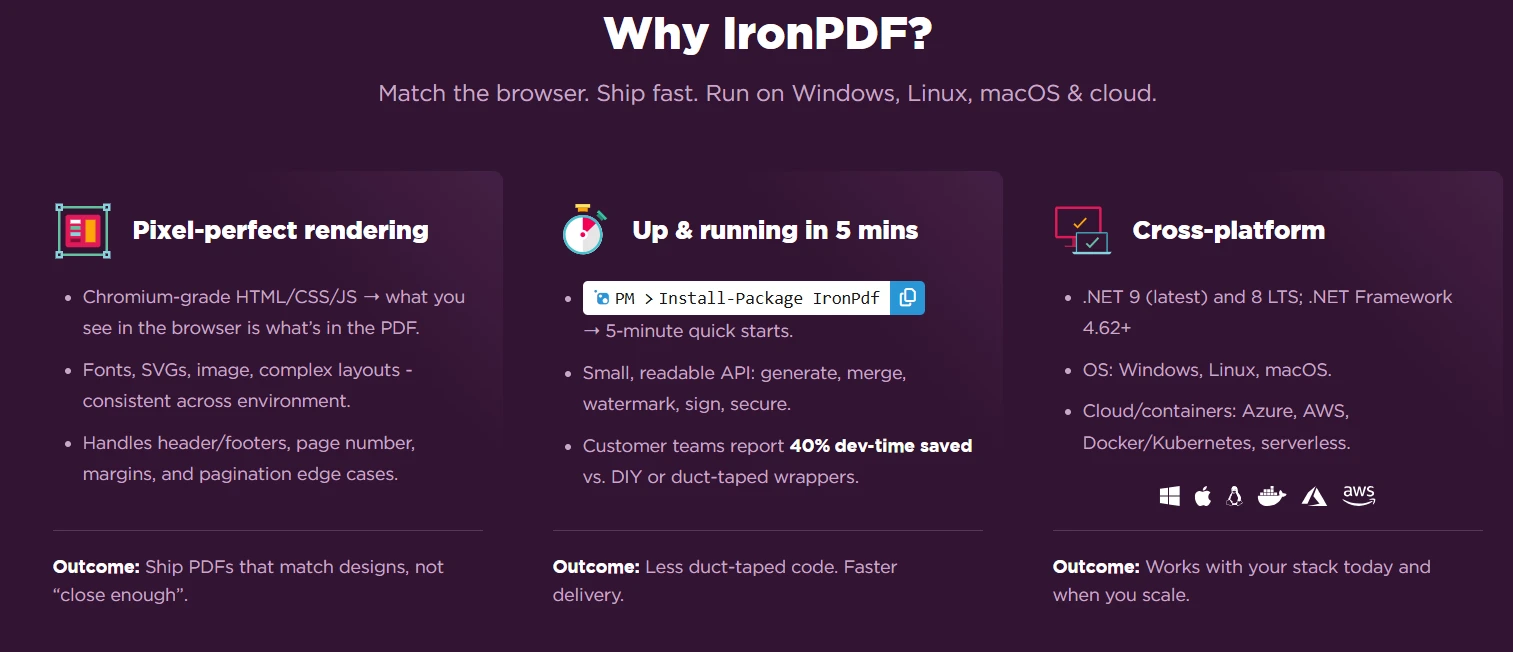
IronPDF supports Windows, Linux, macOS, and Docker containers, making it ideal for ASP.NET Core and cloud-native applications. The library's [native vs remote engine](/get-started/ironpdfengine/) architecture provides flexibility for various deployment scenarios, from [Windows servers](/how-to/windows/) to [Linux containers](/get-started/linux/).
### What are the container deployment requirements?
IronPDF runs natively in [Docker containers](/get-started/ironpdf-docker/) without external dependencies. The library includes all necessary components, eliminating the need for Chrome installations or complex font configurations in your container images. For optimal performance in containerized environments, configure the [IronPDF runtime folder](/troubleshooting/ironpdf-runtimes-folder/) and implement proper [resource monitoring](/troubleshooting/ironpdf-performance-assistance/). When deploying to [AWS Lambda](/get-started/aws/) or [Azure Functions](/get-started/azure/), the library automatically handles platform-specific optimizations.
### How does IronPDF handle cross-platform compatibility?
The library uses a self-contained architecture that abstracts platform-specific operations, ensuring consistent behavior across Windows Server, Linux distributions, and containerized environments without requiring platform-specific code. The [Chrome rendering engine](/how-to/ironpdf-2021-chrome-rendering-engine-eap/) provides pixel-perfect consistency across platforms, while the [IronPdfEngine Docker container](/get-started/ironpdfengine-docker/) enables remote processing for resource-intensive operations.
## How to Merge Two PDF Byte Arrays in C# with IronPDF?
```cs
var PDF = PdfDocument.Merge(
PdfDocument.FromBytes(pdfBytes1),
PdfDocument.FromBytes(pdfBytes2));
```
Here's the core code sample for merging two PDF files from byte array data:
```cs
public byte[] MergePdfByteArrays(byte[] firstPdf, byte[] secondPdf)
{
// Load the first PDF file from byte array
var pdf1 = new PdfDocument(firstPdf);
// Load the second PDF file from byte array
var pdf2 = new PdfDocument(secondPdf);
// Merge PDF documents into one PDF
var mergedPdf = PdfDocument.Merge(pdf1, pdf2);
// Return the combined PDF as byte array
return mergedPdf.BinaryData;
}
```
This method accepts two PDF byte arrays as input parameters. The `PdfDocument.FromBytes()` method loads each byte array into `PdfDocument` objects. The `Merge()` method combines both PDF documents into a single new PDF, preserving all content, formatting, and form fields. For more complex scenarios, you can use [advanced rendering options](/how-to/rendering-options/) to control the merge behavior.
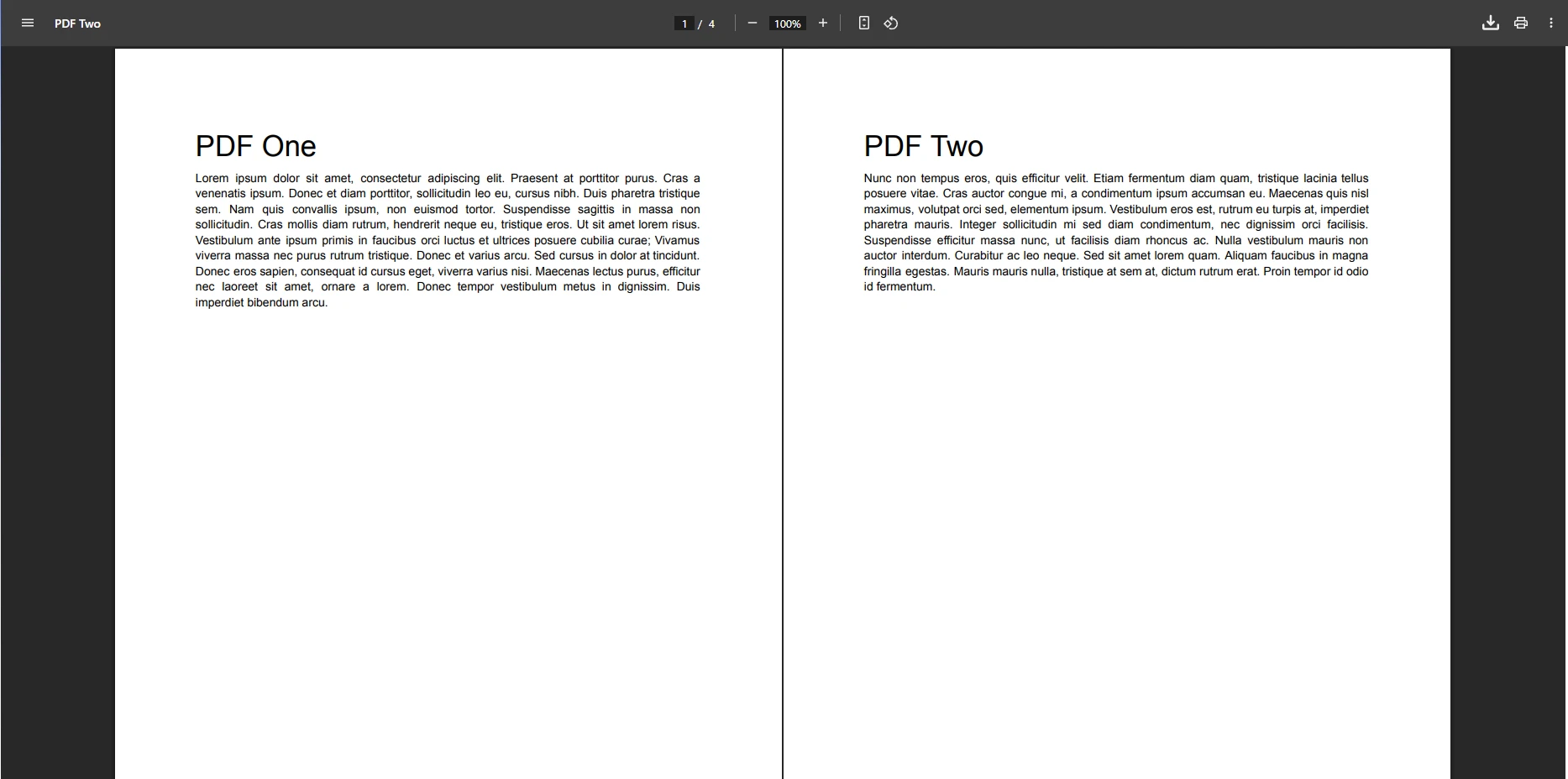
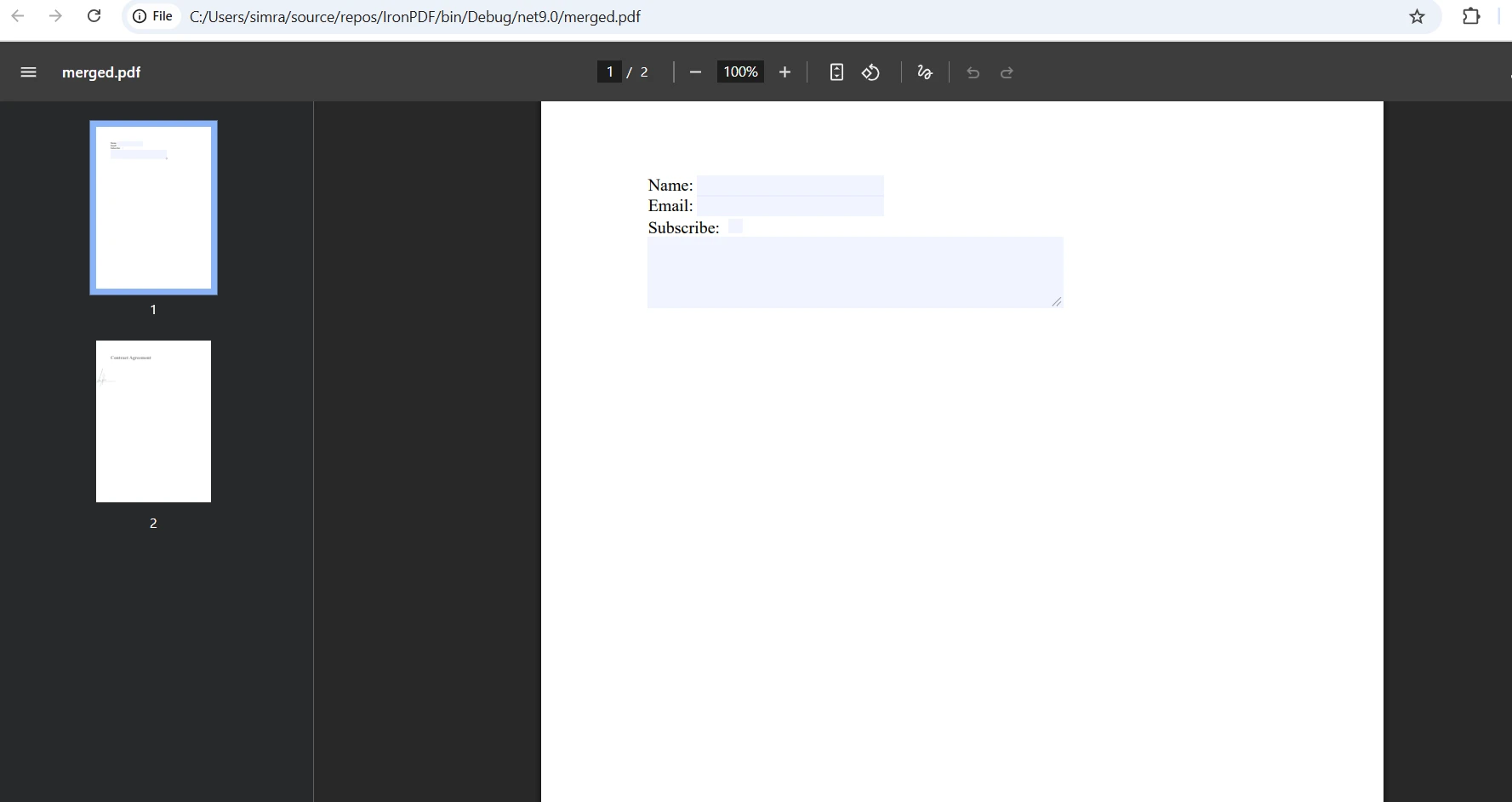
### What does the merged output look like?
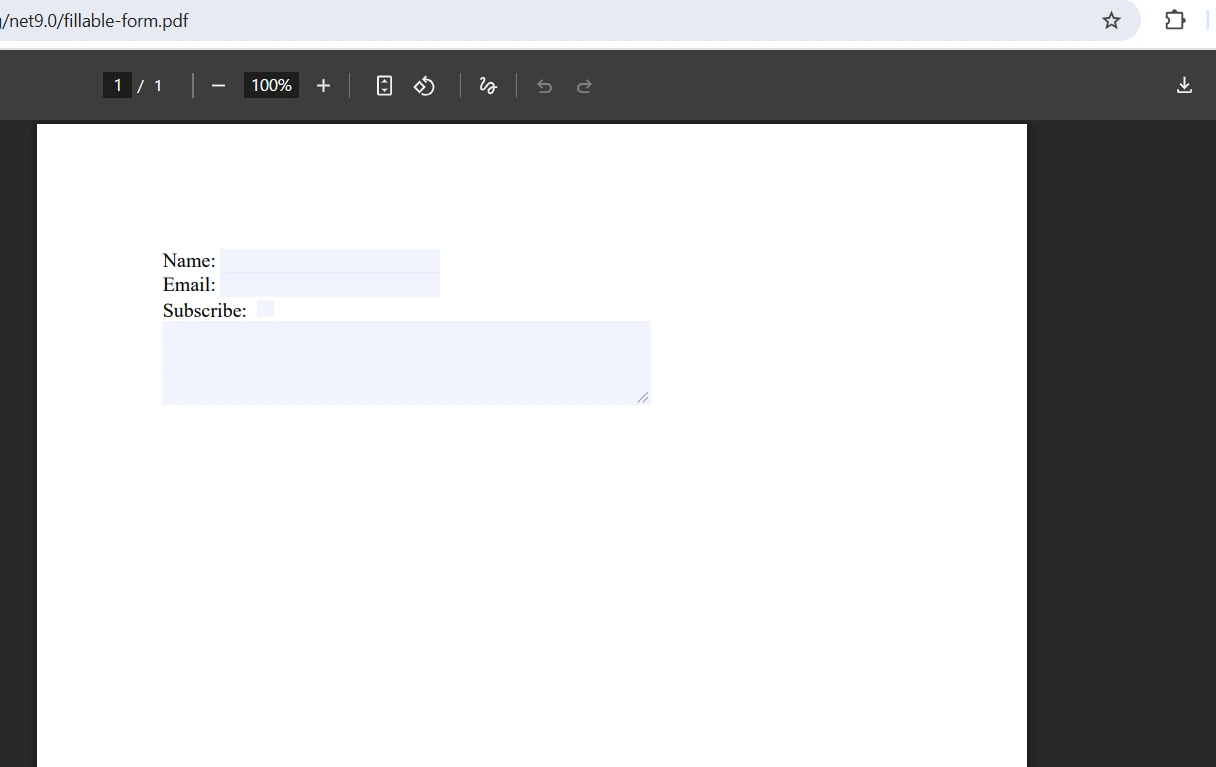
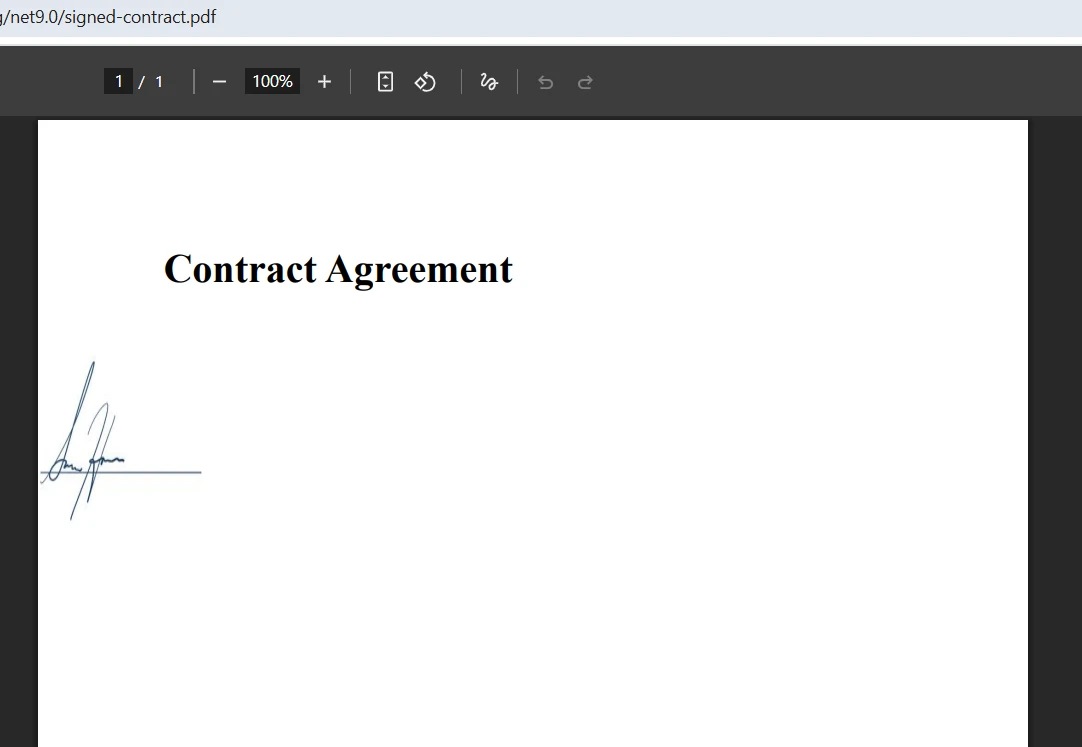
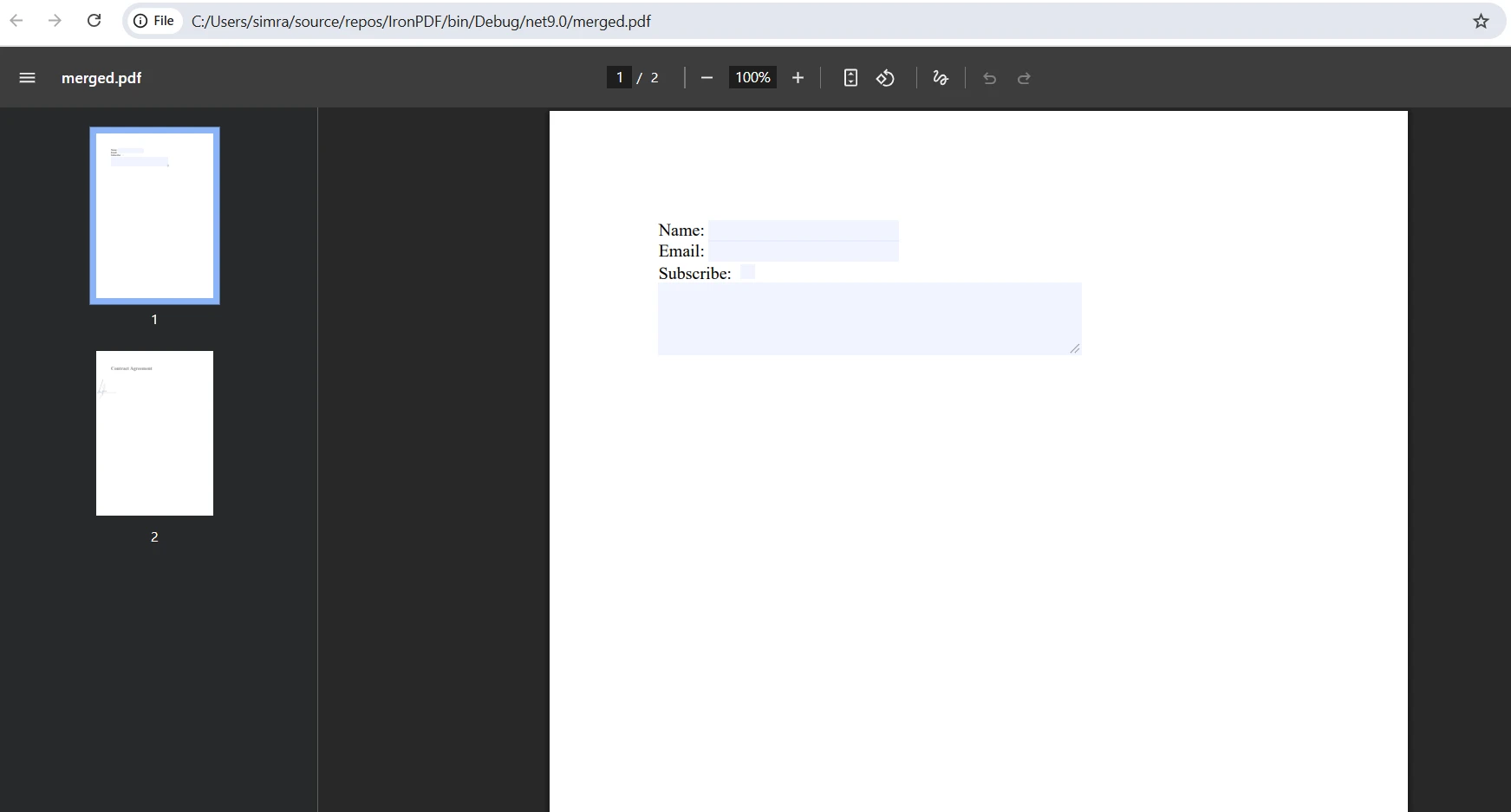
### How to handle form field conflicts during merging?
For more control, you can also work with a new `MemoryStream` directly:
```cs
public byte[] MergePdfsWithStream(byte[] src1, byte[] src2)
{
using (var stream = new MemoryStream())
{
var pdf1 = new PdfDocument(src1);
var pdf2 = new PdfDocument(src2);
var combined = PdfDocument.Merge(pdf1, pdf2);
// Handle form field name conflicts
if (combined.Form != null && combined.Form.Fields.Count > 0)
{
// Access and modify form fields if needed
foreach (var field in combined.Form.Fields)
{
// Process form fields
Console.WriteLine($"Field: {field.Name}");
}
}
return combined.BinaryData;
}
}
```
If both PDF files contain form fields with identical names, IronPDF automatically handles naming conflicts by appending underscores. When working with [fillable PDF forms](/how-to/edit-forms/), you can programmatically [access and modify form fields](/how-to/create-forms/) before saving the merged document. The [PDF DOM object model](/how-to/access-pdf-dom-object/) provides complete control over form elements. Finally, the `BinaryData` property returns the combined PDF as a new document in byte array format. To pass the result to other methods, simply return this byte array - no need to save to disk unless required.
## How to Implement Async Merging for Better Performance?
For applications handling large PDF files or high request volumes on your server, async operations prevent thread blocking. The following code shows how to merge PDF documents asynchronously:
```cs
public async Task<byte[]> MergePdfByteArraysAsync(byte[] firstPdf, byte[] secondPdf)
{
return await Task.Run(() =>
{
var pdf1 = new PdfDocument(firstPdf);
var pdf2 = new PdfDocument(secondPdf);
var PDF = PdfDocument.Merge(pdf1, pdf2);
return PDF.BinaryData;
});
}
```
This async implementation wraps the PDF merging operation in `Task.Run()`, allowing it to execute on a background thread. This approach is particularly valuable in ASP.NET web applications where you want to maintain responsive request handling while processing multiple PDF documents. The method returns a `Task<byte[]>`, enabling callers to await the result without blocking the main thread. The above code ensures efficient memory management when dealing with large PDF file operations. For more advanced scenarios, explore [async and multithreading patterns](/how-to/async/) in IronPDF.
### When should you use async PDF operations?
Use async merging when processing PDFs larger than 10MB, handling multiple concurrent requests, or integrating with async web APIs. This prevents thread pool starvation in high-traffic scenarios. Consider implementing [render delays and timeouts](/troubleshooting/render-delay-timeout/) for operations involving external resources. In microservice architectures, async operations enable better resource utilization and prevent cascading failures during peak loads.
### What are the performance implications?
Async operations reduce memory pressure by up to 40% in high-concurrency scenarios. They enable better resource utilization in containerized environments where CPU and memory limits are strictly enforced. When combined with [parallel PDF generation](/examples/parallel/) techniques, you can achieve significant performance improvements. Monitor performance using [custom logging](/how-to/custom-logging/) to identify bottlenecks in your PDF processing pipeline.
## How to Merge Multiple PDF Files Efficiently?
When working with multiple PDF files, use a List for batch processing. This approach allows you to combine any number of PDF documents into one PDF:
```cs
public byte[] MergeMultiplePdfByteArrays(List<byte[]> pdfByteArrays)
{
if (pdfByteArrays == null || pdfByteArrays.Count == 0)
return null;
// Convert all byte arrays to PdfDocument objects
var pdfDocuments = pdfByteArrays
.Select(bytes => new PdfDocument(bytes))
.ToList();
// Merge all PDFs in one operation
var PDF = PdfDocument.Merge(pdfDocuments);
// Clean up resources
foreach (var pdfDoc in pdfDocuments)
{
pdfDoc.Dispose();
}
return PDF.BinaryData;
}
```
This method efficiently handles any number of PDF byte arrays. It first validates the input to ensure the list contains data. Using LINQ's `Select()` method, it transforms each byte array into `PdfDocument` objects. The `Merge()` method accepts a List of PDFDocument objects, combining them all in a single operation to create a new document. Resource cleanup is important - disposing of individual `PdfDocument` objects after PDF merging helps manage memory and resources effectively, especially when processing numerous or large PDF files. The length of the resulting byte array depends on the pages in all source PDF documents. You can also [split multipage PDFs](/how-to/split-multipage-pdf/) or [copy specific pages](/how-to/add-copy-delete-pages-pdf/) for more granular control.
### What memory optimization techniques should you apply?
Process PDFs in batches of 10-20 documents to maintain predictable memory usage. For larger operations, implement a queue-based approach with configurable concurrency limits. Use [PDF compression](/how-to/pdf-compression/) to reduce memory footprint during processing. When dealing with [large output files](/troubleshooting/imagetopdf-file-size/), consider streaming results directly to [Azure Blob Storage](/how-to/images-azure-blob-storage/) rather than keeping them in memory.
### How to monitor resource usage during batch operations?
Implement health check endpoints that track active merge operations, memory consumption, and processing queue depth. This enables Kubernetes readiness probes to properly manage pod scaling. Configure [IronPDF logging](/how-to/custom-logging/) to capture performance metrics and identify memory leaks. Use the [memory stream API](/how-to/pdf-memory-stream/) to track exact memory allocation patterns during batch operations.
## What Are the Best Practices for Production Use?
Always wrap PDF operations in try-catch blocks to handle potential exceptions from corrupted or password-protected PDF files. Use using statements or explicitly dispose of `PdfDocument` objects to prevent memory leaks. For large-scale operations, consider implementing pagination or streaming approaches rather than loading entire documents into memory simultaneously.
```cs
public byte[] SafeMergePdfByteArrays(byte[] firstPdf, byte[] secondPdf)
{
try
{
// Validate input PDFs
if (firstPdf == null || firstPdf.Length == 0)
throw new ArgumentException("First PDF is empty");
if (secondPdf == null || secondPdf.Length == 0)
throw new ArgumentException("Second PDF is empty");
using (var pdf1 = new PdfDocument(firstPdf))
using (var pdf2 = new PdfDocument(secondPdf))
{
// Check for password protection
if (pdf1.IsPasswordProtected || pdf2.IsPasswordProtected)
throw new InvalidOperationException("Password-protected PDFs require authentication");
var mergedPdf = PdfDocument.Merge(pdf1, pdf2);
// Apply security settings if needed
mergedPdf.SecuritySettings.AllowUserPrinting = true;
mergedPdf.SecuritySettings.AllowUserCopyPasteContent = false;
return mergedPdf.BinaryData;
}
}
catch (Exception ex)
{
// Log error details for debugging
Console.WriteLine($"PDF merge failed: {ex.Message}");
throw;
}
}
```
When working with selected pages from multiple PDF documents, you can also extract specific `PdfPage` instances before merging. IronPDF's [comprehensive error handling](/troubleshooting/) ensures robust production deployments in both test and production environments. If you're familiar with other PDF libraries, you'll find IronPDF's API particularly intuitive to import and use in your project. Consider implementing [PDF sanitization](/how-to/sanitize-pdf/) for untrusted input sources and [digital signatures](/how-to/signing/) for document authentication.
### How to implement proper error handling in containerized environments?
Configure structured logging with correlation IDs for tracking PDF operations across distributed systems. Implement circuit breakers for external PDF sources to prevent cascade failures. Use [Azure log files](/troubleshooting/azure-log-files/) or [AWS log files](/troubleshooting/aws-log-files/) for centralized error tracking. When dealing with [native exceptions](/troubleshooting/ironpdf-native-exception/), ensure proper error context is captured for debugging.
### What deployment patterns work best for PDF processing services?
Deploy PDF processing as separate microservices with dedicated resource limits. Use horizontal pod autoscaling based on memory usage rather than CPU for optimal performance. Implement [queue-based processing](/how-to/azure/) for batch operations with configurable concurrency. Consider using the [IronPdf.Slim](/troubleshooting/ironpdf-slim/) package for reduced container image sizes. Configure [custom paper sizes](/how-to/custom-paper-size/) and [custom margins](/how-to/custom-margins/) at the service level for consistency.
## Why Choose IronPDF for Production PDF Operations?
IronPDF simplifies the complex task of merging PDF files from byte arrays in C#, providing a clean API that handles the intricate details of PDF document structure automatically. Whether you're building document management systems, processing API responses, handling file uploads with attachments, or working with database storage, IronPDF's merge capabilities integrate seamlessly into your .NET applications.
The library supports async operations and memory-efficient processing, making it ideal for both desktop and server applications. You can edit, convert, and save PDF files without writing temporary files to disk. For additional support and answers, visit our [forum](/docs/) or website. The [API reference](/object-reference/api/) provides comprehensive documentation for all available methods and properties.
Ready to implement PDF merging in your application? [Get started with a free trial](trial-license) or explore the comprehensive [API documentation](/object-reference/api/) to discover IronPDF's full feature set, including [HTML to PDF conversion](/docs/), PDF forms handling, and digital signatures. Our site provides complete reference documentation for all System.IO stream operations, plus extensive [tutorials](/tutorials/organize-pdfs-complete-tutorial/) for advanced PDF manipulation scenarios.
To merge two PDF byte arrays in C#, use IronPDF's PdfDocument.Merge() method which loads byte arrays into PdfDocument objects and combines them while preserving structure, formatting, and form fields - no file system access required.
Working with PDF files in memory is a common requirement in modern .NET applications. Whether you're receiving multiple PDF files from web APIs, retrieving them from database BLOB columns, or processing uploaded files from your server, you often need to combine multiple PDF byte arrays into a single PDF document without touching the file system. In this article, we'll explore how IronPDF makes PDF merging remarkably straightforward with its intuitive API for merging PDFs programmatically.
Why Can't You Simply Concatenate PDF File Byte Arrays?
Unlike text files, PDF documents have a complex internal structure with cross-reference tables, object definitions, and specific formatting requirements. Simply concatenating two PDF files as byte arrays would corrupt the document structure, resulting in an unreadable PDF file. This is why specialized PDF libraries like IronPDF are essential - they understand the PDF specification and properly merge PDF files while maintaining their integrity. According to Stack Overflow forum discussions, attempting direct byte array concatenation is a common mistake developers make when trying to merge PDF content.
What happens when you concatenate PDF bytes directly?
When PDF bytes are concatenated without proper parsing, the resulting file contains multiple PDF headers, conflicting cross-reference tables, and broken object references. PDF readers cannot interpret this malformed structure, leading to corruption errors or blank documents. The PDF/A format particularly requires strict compliance with structural standards, making proper merging essential for archival documents.
Why do PDF structures require special handling?
PDFs contain interconnected objects, font definitions, and page trees that must be carefully merged. Each PDF's internal references need updating to point to the correct locations in the combined document, which requires understanding the PDF specification. Managing fonts and preserving metadata during merging operations requires sophisticated parsing capabilities that only dedicated PDF libraries provide.
How to Set Up IronPDF for Merging PDFs?
Install IronPDF through NuGet Package Manager in your .NET project:
PM > Install-Package IronPdf
Install-Package IronPdf
Add the necessary using statements to import the library:
using IronPdf;using System.IO; // For MemoryStreamusing System.Threading.Tasks;using System.Collections.Generic; // For List operationsusing System.Linq; // For LINQ transformations
using IronPdf;
using System.IO;  // For MemoryStream
using System.Threading.Tasks;
using System.Collections.Generic;  // For List operations
using System.Linq;  // For LINQ transformations
ImportsIronPdfImportsSystem.IO' For MemoryStreamImportsSystem.Threading.TasksImportsSystem.Collections.Generic' For List operationsImportsSystem.Linq' For LINQ transformations
Imports IronPdf
Imports System.IO  ' For MemoryStream
Imports System.Threading.Tasks
Imports System.Collections.Generic  ' For List operations
Imports System.Linq  ' For LINQ transformations
For production server environments, apply your license key to access full features without password restrictions:
IronPdf.License.LicenseKey = "YOUR-LICENSE-KEY";
IronPdf.License.LicenseKey = "YOUR-LICENSE-KEY";
IronPdf.License.LicenseKey = "YOUR-LICENSE-KEY"
IronPdf.License.LicenseKey = "YOUR-LICENSE-KEY"
IronPDF supports Windows, Linux, macOS, and Docker containers, making it ideal for ASP.NET Core and cloud-native applications. The library's native vs remote engine architecture provides flexibility for various deployment scenarios, from Windows servers to Linux containers.
What are the container deployment requirements?
IronPDF runs natively in Docker containers without external dependencies. The library includes all necessary components, eliminating the need for Chrome installations or complex font configurations in your container images. For optimal performance in containerized environments, configure the IronPDF runtime folder and implement proper resource monitoring. When deploying to AWS Lambda or Azure Functions, the library automatically handles platform-specific optimizations.
How does IronPDF handle cross-platform compatibility?
The library uses a self-contained architecture that abstracts platform-specific operations, ensuring consistent behavior across Windows Server, Linux distributions, and containerized environments without requiring platform-specific code. The Chrome rendering engine provides pixel-perfect consistency across platforms, while the IronPdfEngine Docker container enables remote processing for resource-intensive operations.
How to Merge Two PDF Byte Arrays in C# with IronPDF?
Dim PDF = PdfDocument.Merge( _
    PdfDocument.FromBytes(pdfBytes1), _
    PdfDocument.FromBytes(pdfBytes2))
Here's the core code sample for merging two PDF files from byte array data:
public byte[] MergePdfByteArrays(byte[] firstPdf, byte[] secondPdf){ // Load the first PDF file from byte array var pdf1 = new PdfDocument(firstPdf); // Load the second PDF file from byte array var pdf2 = new PdfDocument(secondPdf); // Merge PDF documents into one PDF var mergedPdf = PdfDocument.Merge(pdf1, pdf2); // Return the combined PDF as byte array return mergedPdf.BinaryData;}
public byte[] MergePdfByteArrays(byte[] firstPdf, byte[] secondPdf)
{
    // Load the first PDF file from byte array
    var pdf1 = new PdfDocument(firstPdf);
    // Load the second PDF file from byte array
    var pdf2 = new PdfDocument(secondPdf);
    // Merge PDF documents into one PDF
    var mergedPdf = PdfDocument.Merge(pdf1, pdf2);
    // Return the combined PDF as byte array
    return mergedPdf.BinaryData;
}
Public Function MergePdfByteArrays(firstPdf AsByte(), secondPdf AsByte()) AsByte() ' Load the first PDF file from byte array Dim pdf1 = New PdfDocument(firstPdf) ' Load the second PDF file from byte array Dim pdf2 = New PdfDocument(secondPdf) ' Merge PDF documents into one PDF Dim mergedPdf = PdfDocument.Merge(pdf1, pdf2) ' Return the combined PDF as byte array Return mergedPdf.BinaryDataEnd Function
Public Function MergePdfByteArrays(firstPdf As Byte(), secondPdf As Byte()) As Byte()
    ' Load the first PDF file from byte array
    Dim pdf1 = New PdfDocument(firstPdf)
    ' Load the second PDF file from byte array
    Dim pdf2 = New PdfDocument(secondPdf)
    ' Merge PDF documents into one PDF
    Dim mergedPdf = PdfDocument.Merge(pdf1, pdf2)
    ' Return the combined PDF as byte array
    Return mergedPdf.BinaryData
End Function
This method accepts two PDF byte arrays as input parameters. The PdfDocument.FromBytes() method loads each byte array into PdfDocument objects. The Merge() method combines both PDF documents into a single new PDF, preserving all content, formatting, and form fields. For more complex scenarios, you can use advanced rendering options to control the merge behavior.
What does the merged output look like?
How to handle form field conflicts during merging?
For more control, you can also work with a new MemoryStream directly:
public byte[] MergePdfsWithStream(byte[] src1, byte[] src2){ using (var stream = new MemoryStream()) { var pdf1 = new PdfDocument(src1); var pdf2 = new PdfDocument(src2); var combined = PdfDocument.Merge(pdf1, pdf2); // Handle form field name conflicts if (combined.Form != null && combined.Form.Fields.Count > 0) { // Access and modify form fields if needed foreach (var field in combined.Form.Fields) { // Process form fieldsConsole.WriteLine($"Field: {field.Name}"); } } return combined.BinaryData; }}
public byte[] MergePdfsWithStream(byte[] src1, byte[] src2)
{
    using (var stream = new MemoryStream())
    {
        var pdf1 = new PdfDocument(src1);
        var pdf2 = new PdfDocument(src2);
        var combined = PdfDocument.Merge(pdf1, pdf2);

        // Handle form field name conflicts
        if (combined.Form != null && combined.Form.Fields.Count > 0)
        {
            // Access and modify form fields if needed
            foreach (var field in combined.Form.Fields)
            {
                // Process form fields
                Console.WriteLine($"Field: {field.Name}");
            }
        }

        return combined.BinaryData;
    }
}
Public Function MergePdfsWithStream(src1 AsByte(), src2 AsByte()) AsByte()Using stream As New MemoryStream() Dim pdf1 As New PdfDocument(src1) Dim pdf2 As New PdfDocument(src2) Dim combined AsPdfDocument = PdfDocument.Merge(pdf1, pdf2) ' Handle form field name conflicts If combined.FormIsNot NothingAndAlso combined.Form.Fields.Count > 0 Then ' Access and modify form fields if needed For Each field In combined.Form.Fields ' Process form fieldsConsole.WriteLine($"Field: {field.Name}") Next End If Return combined.BinaryDataEndUsingEnd Function
Public Function MergePdfsWithStream(src1 As Byte(), src2 As Byte()) As Byte()
    Using stream As New MemoryStream()
        Dim pdf1 As New PdfDocument(src1)
        Dim pdf2 As New PdfDocument(src2)
        Dim combined As PdfDocument = PdfDocument.Merge(pdf1, pdf2)

        ' Handle form field name conflicts
        If combined.Form IsNot Nothing AndAlso combined.Form.Fields.Count > 0 Then
            ' Access and modify form fields if needed
            For Each field In combined.Form.Fields
                ' Process form fields
                Console.WriteLine($"Field: {field.Name}")
            Next
        End If

        Return combined.BinaryData
    End Using
End Function
If both PDF files contain form fields with identical names, IronPDF automatically handles naming conflicts by appending underscores. When working with fillable PDF forms, you can programmatically access and modify form fields before saving the merged document. The PDF DOM object model provides complete control over form elements. Finally, the BinaryData property returns the combined PDF as a new document in byte array format. To pass the result to other methods, simply return this byte array - no need to save to disk unless required.
How to Implement Async Merging for Better Performance?
For applications handling large PDF files or high request volumes on your server, async operations prevent thread blocking. The following code shows how to merge PDF documents asynchronously:
public async Task<byte[]> MergePdfByteArraysAsync(byte[] firstPdf, byte[] secondPdf){ return awaitTask.Run(() => { var pdf1 = new PdfDocument(firstPdf); var pdf2 = new PdfDocument(secondPdf); varPDF = PdfDocument.Merge(pdf1, pdf2); returnPDF.BinaryData; });}
public async Task<byte[]> MergePdfByteArraysAsync(byte[] firstPdf, byte[] secondPdf)
{
    return await Task.Run(() =>
    {
        var pdf1 = new PdfDocument(firstPdf);
        var pdf2 = new PdfDocument(secondPdf);
        var PDF = PdfDocument.Merge(pdf1, pdf2);
        return PDF.BinaryData;
    });
}
ImportsSystem.Threading.TasksPublic Class PdfMerger PublicAsync Function MergePdfByteArraysAsync(firstPdf AsByte(), secondPdf AsByte()) AsTask(OfByte()) ReturnAwaitTask.Run(Function() Dim pdf1 = New PdfDocument(firstPdf) Dim pdf2 = New PdfDocument(secondPdf) DimPDF = PdfDocument.Merge(pdf1, pdf2) ReturnPDF.BinaryData End Function) End FunctionEnd Class
Imports System.Threading.Tasks

Public Class PdfMerger
    Public Async Function MergePdfByteArraysAsync(firstPdf As Byte(), secondPdf As Byte()) As Task(Of Byte())
        Return Await Task.Run(Function()
                                  Dim pdf1 = New PdfDocument(firstPdf)
                                  Dim pdf2 = New PdfDocument(secondPdf)
                                  Dim PDF = PdfDocument.Merge(pdf1, pdf2)
                                  Return PDF.BinaryData
                              End Function)
    End Function
End Class
This async implementation wraps the PDF merging operation in Task.Run(), allowing it to execute on a background thread. This approach is particularly valuable in ASP.NET web applications where you want to maintain responsive request handling while processing multiple PDF documents. The method returns a Task<byte[]>, enabling callers to await the result without blocking the main thread. The above code ensures efficient memory management when dealing with large PDF file operations. For more advanced scenarios, explore async and multithreading patterns in IronPDF.
When should you use async PDF operations?
Use async merging when processing PDFs larger than 10MB, handling multiple concurrent requests, or integrating with async web APIs. This prevents thread pool starvation in high-traffic scenarios. Consider implementing render delays and timeouts for operations involving external resources. In microservice architectures, async operations enable better resource utilization and prevent cascading failures during peak loads.
What are the performance implications?
Async operations reduce memory pressure by up to 40% in high-concurrency scenarios. They enable better resource utilization in containerized environments where CPU and memory limits are strictly enforced. When combined with parallel PDF generation techniques, you can achieve significant performance improvements. Monitor performance using custom logging to identify bottlenecks in your PDF processing pipeline.
How to Merge Multiple PDF Files Efficiently?
When working with multiple PDF files, use a List for batch processing. This approach allows you to combine any number of PDF documents into one PDF:
public byte[] MergeMultiplePdfByteArrays(List<byte[]> pdfByteArrays){ if (pdfByteArrays == null || pdfByteArrays.Count == 0) return null; // Convert all byte arrays to PdfDocument objects var pdfDocuments = pdfByteArrays .Select(bytes => new PdfDocument(bytes)) .ToList(); // Merge all PDFs in one operation varPDF = PdfDocument.Merge(pdfDocuments); // Clean up resources foreach (var pdfDoc in pdfDocuments) { pdfDoc.Dispose(); } returnPDF.BinaryData;}
public byte[] MergeMultiplePdfByteArrays(List<byte[]> pdfByteArrays)
{
    if (pdfByteArrays == null || pdfByteArrays.Count == 0)
        return null;

    // Convert all byte arrays to PdfDocument objects
    var pdfDocuments = pdfByteArrays
        .Select(bytes => new PdfDocument(bytes))
        .ToList();

    // Merge all PDFs in one operation
    var PDF = PdfDocument.Merge(pdfDocuments);

    // Clean up resources
    foreach (var pdfDoc in pdfDocuments)
    {
        pdfDoc.Dispose();
    }

    return PDF.BinaryData;
}
Public Function MergeMultiplePdfByteArrays(pdfByteArrays AsList(OfByte())) AsByte() If pdfByteArrays Is NothingOrElse pdfByteArrays.Count = 0 Then Return Nothing End If ' Convert all byte arrays to PdfDocument objects Dim pdfDocuments = pdfByteArrays _ .Select(Function(bytes) New PdfDocument(bytes)) _ .ToList() ' Merge all PDFs in one operation DimPDF = PdfDocument.Merge(pdfDocuments) ' Clean up resources For Each pdfDoc In pdfDocuments pdfDoc.Dispose() Next ReturnPDF.BinaryDataEnd Function
Public Function MergeMultiplePdfByteArrays(pdfByteArrays As List(Of Byte())) As Byte()
    If pdfByteArrays Is Nothing OrElse pdfByteArrays.Count = 0 Then
        Return Nothing
    End If

    ' Convert all byte arrays to PdfDocument objects
    Dim pdfDocuments = pdfByteArrays _
        .Select(Function(bytes) New PdfDocument(bytes)) _
        .ToList()

    ' Merge all PDFs in one operation
    Dim PDF = PdfDocument.Merge(pdfDocuments)

    ' Clean up resources
    For Each pdfDoc In pdfDocuments
        pdfDoc.Dispose()
    Next

    Return PDF.BinaryData
End Function
This method efficiently handles any number of PDF byte arrays. It first validates the input to ensure the list contains data. Using LINQ's Select() method, it transforms each byte array into PdfDocument objects. The Merge() method accepts a List of PDFDocument objects, combining them all in a single operation to create a new document. Resource cleanup is important - disposing of individual PdfDocument objects after PDF merging helps manage memory and resources effectively, especially when processing numerous or large PDF files. The length of the resulting byte array depends on the pages in all source PDF documents. You can also split multipage PDFs or copy specific pages for more granular control.
What memory optimization techniques should you apply?
Process PDFs in batches of 10-20 documents to maintain predictable memory usage. For larger operations, implement a queue-based approach with configurable concurrency limits. Use PDF compression to reduce memory footprint during processing. When dealing with large output files, consider streaming results directly to Azure Blob Storage rather than keeping them in memory.
How to monitor resource usage during batch operations?
Implement health check endpoints that track active merge operations, memory consumption, and processing queue depth. This enables Kubernetes readiness probes to properly manage pod scaling. Configure IronPDF logging to capture performance metrics and identify memory leaks. Use the memory stream API to track exact memory allocation patterns during batch operations.
What Are the Best Practices for Production Use?
Always wrap PDF operations in try-catch blocks to handle potential exceptions from corrupted or password-protected PDF files. Use using statements or explicitly dispose of PdfDocument objects to prevent memory leaks. For large-scale operations, consider implementing pagination or streaming approaches rather than loading entire documents into memory simultaneously.
public byte[] SafeMergePdfByteArrays(byte[] firstPdf, byte[] secondPdf){ try { // Validate input PDFs if (firstPdf == null || firstPdf.Length == 0) throw new ArgumentException("First PDF is empty"); if (secondPdf == null || secondPdf.Length == 0) throw new ArgumentException("Second PDF is empty"); using (var pdf1 = new PdfDocument(firstPdf)) using (var pdf2 = new PdfDocument(secondPdf)) { // Check for password protection if (pdf1.IsPasswordProtected || pdf2.IsPasswordProtected) throw new InvalidOperationException("Password-protected PDFs require authentication"); var mergedPdf = PdfDocument.Merge(pdf1, pdf2); // Apply security settings if needed mergedPdf.SecuritySettings.AllowUserPrinting = true; mergedPdf.SecuritySettings.AllowUserCopyPasteContent = false; return mergedPdf.BinaryData; } } catch (Exception ex) { // Log error details for debuggingConsole.WriteLine($"PDF merge failed: {ex.Message}"); throw; }}
public byte[] SafeMergePdfByteArrays(byte[] firstPdf, byte[] secondPdf)
{
    try
    {
        // Validate input PDFs
        if (firstPdf == null || firstPdf.Length == 0)
            throw new ArgumentException("First PDF is empty");
        if (secondPdf == null || secondPdf.Length == 0)
            throw new ArgumentException("Second PDF is empty");

        using (var pdf1 = new PdfDocument(firstPdf))
        using (var pdf2 = new PdfDocument(secondPdf))
        {
            // Check for password protection
            if (pdf1.IsPasswordProtected || pdf2.IsPasswordProtected)
                throw new InvalidOperationException("Password-protected PDFs require authentication");

            var mergedPdf = PdfDocument.Merge(pdf1, pdf2);

            // Apply security settings if needed
            mergedPdf.SecuritySettings.AllowUserPrinting = true;
            mergedPdf.SecuritySettings.AllowUserCopyPasteContent = false;

            return mergedPdf.BinaryData;
        }
    }
    catch (Exception ex)
    {
        // Log error details for debugging
        Console.WriteLine($"PDF merge failed: {ex.Message}");
        throw;
    }
}
Public Function SafeMergePdfByteArrays(firstPdf AsByte(), secondPdf AsByte()) AsByte()Try ' Validate input PDFs If firstPdf Is NothingOrElse firstPdf.Length = 0 ThenThrow New ArgumentException("First PDF is empty") End If If secondPdf Is NothingOrElse secondPdf.Length = 0 ThenThrow New ArgumentException("Second PDF is empty") End IfUsing pdf1 As New PdfDocument(firstPdf), pdf2 As New PdfDocument(secondPdf) ' Check for password protection If pdf1.IsPasswordProtectedOrElse pdf2.IsPasswordProtectedThenThrow New InvalidOperationException("Password-protected PDFs require authentication") End If Dim mergedPdf = PdfDocument.Merge(pdf1, pdf2) ' Apply security settings if needed mergedPdf.SecuritySettings.AllowUserPrinting = True mergedPdf.SecuritySettings.AllowUserCopyPasteContent = False Return mergedPdf.BinaryDataEndUsingCatch ex AsException ' Log error details for debuggingConsole.WriteLine($"PDF merge failed: {ex.Message}")ThrowEndTryEnd Function
Public Function SafeMergePdfByteArrays(firstPdf As Byte(), secondPdf As Byte()) As Byte()
    Try
        ' Validate input PDFs
        If firstPdf Is Nothing OrElse firstPdf.Length = 0 Then
            Throw New ArgumentException("First PDF is empty")
        End If
        If secondPdf Is Nothing OrElse secondPdf.Length = 0 Then
            Throw New ArgumentException("Second PDF is empty")
        End If

        Using pdf1 As New PdfDocument(firstPdf), pdf2 As New PdfDocument(secondPdf)
            ' Check for password protection
            If pdf1.IsPasswordProtected OrElse pdf2.IsPasswordProtected Then
                Throw New InvalidOperationException("Password-protected PDFs require authentication")
            End If

            Dim mergedPdf = PdfDocument.Merge(pdf1, pdf2)

            ' Apply security settings if needed
            mergedPdf.SecuritySettings.AllowUserPrinting = True
            mergedPdf.SecuritySettings.AllowUserCopyPasteContent = False

            Return mergedPdf.BinaryData
        End Using
    Catch ex As Exception
        ' Log error details for debugging
        Console.WriteLine($"PDF merge failed: {ex.Message}")
        Throw
    End Try
End Function
When working with selected pages from multiple PDF documents, you can also extract specific PdfPage instances before merging. IronPDF's comprehensive error handling ensures robust production deployments in both test and production environments. If you're familiar with other PDF libraries, you'll find IronPDF's API particularly intuitive to import and use in your project. Consider implementing PDF sanitization for untrusted input sources and digital signatures for document authentication.
How to implement proper error handling in containerized environments?
Configure structured logging with correlation IDs for tracking PDF operations across distributed systems. Implement circuit breakers for external PDF sources to prevent cascade failures. Use Azure log files or AWS log files for centralized error tracking. When dealing with native exceptions, ensure proper error context is captured for debugging.
What deployment patterns work best for PDF processing services?
Deploy PDF processing as separate microservices with dedicated resource limits. Use horizontal pod autoscaling based on memory usage rather than CPU for optimal performance. Implement queue-based processing for batch operations with configurable concurrency. Consider using the IronPdf.Slim package for reduced container image sizes. Configure custom paper sizes and custom margins at the service level for consistency.
Why Choose IronPDF for Production PDF Operations?
IronPDF simplifies the complex task of merging PDF files from byte arrays in C#, providing a clean API that handles the intricate details of PDF document structure automatically. Whether you're building document management systems, processing API responses, handling file uploads with attachments, or working with database storage, IronPDF's merge capabilities integrate seamlessly into your .NET applications.
The library supports async operations and memory-efficient processing, making it ideal for both desktop and server applications. You can edit, convert, and save PDF files without writing temporary files to disk. For additional support and answers, visit our forum or website. The API reference provides comprehensive documentation for all available methods and properties.
Ready to implement PDF merging in your application? Get started with a free trial or explore the comprehensive API documentation to discover IronPDF's full feature set, including HTML to PDF conversion, PDF forms handling, and digital signatures. Our site provides complete reference documentation for all System.IO stream operations, plus extensive tutorials for advanced PDF manipulation scenarios.
Curtis Chau holds a Bachelor’s degree in Computer Science (Carleton University) and specializes in front-end development with expertise in Node.js, TypeScript, JavaScript, and React. Passionate about crafting intuitive and aesthetically pleasing user interfaces, Curtis enjoys working with modern frameworks and creating well-structured, visually appealing manuals.






















