using IronPdf;

// Disable local disk access or cross-origin requests
Installation.EnableWebSecurity = true;

// Instantiate Renderer
var renderer = new ChromePdfRenderer();

// Create a PDF from a HTML string using C#
var pdf = renderer.RenderHtmlAsPdf("<h1>Hello World</h1>");

// Export to a file or Stream
pdf.SaveAs("output.pdf");

// Advanced Example with HTML Assets
// Load external html assets: Images, CSS and JavaScript.
// An optional BasePath 'C:\site\assets\' is set as the file location to load assets from
var myAdvancedPdf = renderer.RenderHtmlAsPdf("<img src='icons/iron.png'>", @"C:\site\assets\");
myAdvancedPdf.SaveAs("html-with-assets.pdf");
using IronPdf;// Disable local disk access or cross-origin requestsInstallation.EnableWebSecurity = true;// Instantiate Renderervar renderer = new ChromePdfRenderer();// Create a PDF from a HTML string using C#var pdf = renderer.RenderHtmlAsPdf("<h1>Hello World</h1>");// Export to a file or Streampdf.SaveAs("output.pdf");// Advanced Example with HTML Assets// Load external html assets: Images, CSS and JavaScript.// An optional BasePath 'C:\site\assets\' is set as the file location to load assets fromvar myAdvancedPdf = renderer.RenderHtmlAsPdf("<img src='icons/iron.png'>", @"C:\site\assets\");myAdvancedPdf.SaveAs("html-with-assets.pdf");
To display PDFs in Blazor applications, use IronPDF's PDF viewer component, which integrates with Blazor Server apps and provides high-performance PDF rendering with features like form filling, annotations, and mobile support -- all without relying on third-party browser tools.
## Why Does a Blazor Application Need a Dedicated PDF Viewer?
Displaying PDFs in modern web applications requires a reliable viewer component that goes beyond basic browser capabilities. For .NET developers building Blazor applications, [IronPDF](https://ironpdf.com) provides an effective PDF viewer solution that integrates with your [Blazor Server app](https://ironpdf.com/how-to/blazor-tutorial/). This enables high-performance PDF rendering and rich functionality without relying on third-party browser tools.
Native browser PDF support varies significantly across different browsers and platforms, leading to inconsistent user experiences. By implementing a custom PDF viewer in your Blazor application, you gain complete control over the viewing experience, ensuring consistent functionality across all platforms. This is particularly important for applications requiring compliance standards and advanced security features.
The Blazor framework -- built on [Microsoft's ASP.NET Core](https://learn.microsoft.com/en-us/aspnet/core/) -- allows component-based development that pairs naturally with PDF manipulation libraries. Rather than embedding a third-party viewer widget from an external CDN, you can build a component tailored to your application's exact requirements.
## How Do You Install IronPDF in a Blazor Project?
Before implementing your Blazor PDF viewer, install IronPDF. Add it to your Blazor Server app through NuGet using either the Package Manager Console or the .NET CLI:
```bash
:ProductInstall
```
```bash
:InstallCmd dotnet add package IronPdf
```
Next, create a new Blazor application and ensure you have the latest version of .NET installed. Store PDF files in the `wwwroot` folder for easy access, or load them from other sources like byte arrays or URLs. The [installation overview](https://ironpdf.com/get-started/installation-overview/) provides detailed guidance for various deployment scenarios.
### What Prerequisites Are Required?
To successfully implement a Blazor PDF viewer, ensure you have:
- **.NET 10** installed on your development machine
- **Visual Studio 2022** or Visual Studio Code with C# extensions
- **IronPDF license key** (available via a [free trial](trial-license))
- **Basic understanding** of Blazor component structure
- **A sample PDF file** for testing (place it in the `wwwroot` folder)
For [Windows deployment](https://ironpdf.com/get-started/windows/), ensure you have the appropriate Visual C++ runtime. Linux users should install required dependencies, while macOS developers need to consider Intel vs Apple Silicon compatibility.
### Where Should PDF Files Be Stored?
PDF file storage location significantly impacts your application's performance and security. For Blazor applications, consider these options:
- **wwwroot folder:** Ideal for static PDFs without sensitive information
- **Azure Blob Storage:** For cloud applications requiring flexible storage
- **Database as byte arrays:** Suitable for smaller PDFs requiring access control
- **Protected server directories:** Best for sensitive documents with security requirements
- **Memory streams:** Optimal for dynamically generated PDFs using [HTML to PDF](https://ironpdf.com/how-to/html-string-to-pdf/)
## How Do You Create a Blazor PDF Viewer Component?
Build a basic Blazor PDF viewer component that can display PDF documents. Create a new Razor component in your project:
```csharp
@page "/pdfviewer"
@rendermode InteractiveServer
@using IronPdf
@inject IJSRuntime JSRuntime
@inject Microsoft.AspNetCore.Hosting.IWebHostEnvironment WebHostEnvironment

<h3>PDF Viewer Component</h3>
<div>
    <button @onclick="LoadPdfDocument">Open File</button>
    <div id="pdfContainer">
        @if (!string.IsNullOrEmpty(pdfUrl))
        {
            <iframe src="@pdfUrl" style="width:100%; height:600px;"></iframe>
        }
    </div>
</div>

@code {
    private string pdfUrl = "";
    private byte[] pdfData = Array.Empty<byte>();

    private async Task LoadPdfDocument()
    {
        var pdfDocument = PdfDocument.FromFile("wwwroot/sample.pdf");
        pdfData = pdfDocument.BinaryData;
        var base64 = Convert.ToBase64String(pdfData);
        pdfUrl = $"data:application/pdf;base64,{base64}";
    }
}
```
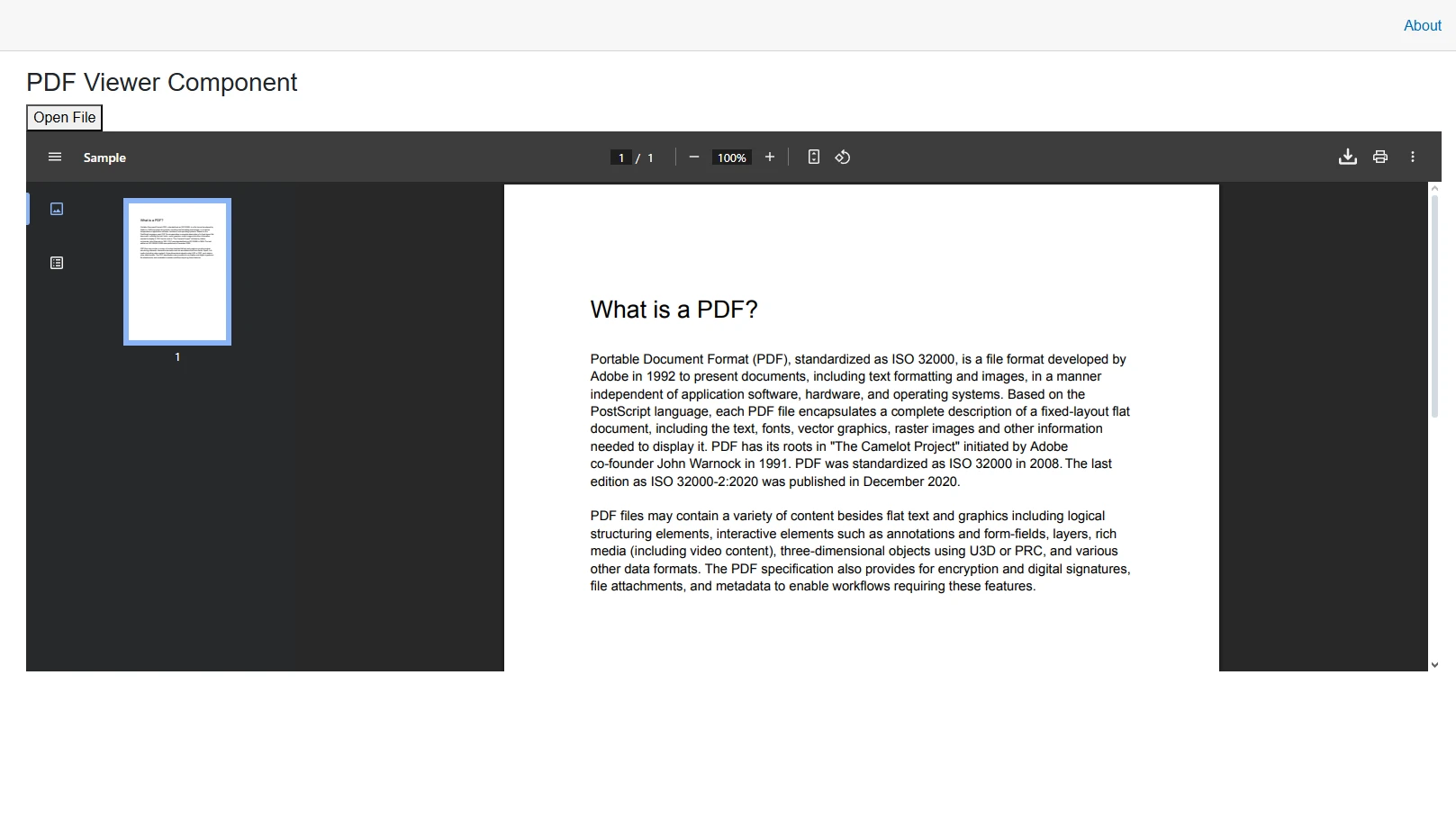
This code creates a PDF viewer component that loads a PDF document and displays it using an iframe. The `LoadPdfDocument` method reads a PDF from the `wwwroot` folder and converts it to a base64 data URL that the iframe renders directly. This approach works well with various PDF versions and supports UTF-8 encoding for international documents.
### How Does the Component Load PDF Files?
The component uses IronPDF's document loading capabilities to read PDF files efficiently. When a user clicks the "Open File" button, the method:
1. **Loads the PDF file** using `PdfDocument.FromFile`
2. **Extracts binary data** from the loaded PDF document
3. **Converts to Base64** format for browser compatibility
4. **Creates a data URL** that browsers can render directly
This approach ensures compatibility across different browsers while maintaining good performance for PDF display. The component can handle various paper sizes and [page orientations](https://ironpdf.com/how-to/page-orientation-rotation/).
### Output
## How Do You Use JavaScript Interop for Better PDF Display?
For better control over PDF content display, use JavaScript interop to handle the PDF viewer functionality. This pattern loads a JavaScript module asynchronously and delegates rendering to the browser's native blob/URL APIs -- a technique well-suited for Blazor's [component lifecycle](https://learn.microsoft.com/en-us/aspnet/core/blazor/components/lifecycle):
```csharp
@page "/pdf-jsinterop"
@rendermode InteractiveServer
@using IronPdf
@inject IJSRuntime JSRuntime
@inject Microsoft.AspNetCore.Hosting.IWebHostEnvironment WebHostEnvironment
@implements IAsyncDisposable
<h3>IronPDF JavaScript Interop Viewer</h3>
<p>Displays PDF using JavaScript Blob/ObjectURL capabilities.</p>
@if (!string.IsNullOrEmpty(ErrorMessage))
{
<div class="alert alert-danger">Error: @ErrorMessage</div>
}
<div id="@documentId" style="border: 1px solid #ccc; width: 100%; min-height: 600px;">
Loading PDF...
</div>
@code {
private string documentId = Guid.NewGuid().ToString();
private string ErrorMessage = string.Empty;
private bool pdfLoaded = false;
private IJSObjectReference? jsModule;
protected override async Task OnAfterRenderAsync(bool firstRender)
{
if (firstRender && !pdfLoaded)
{
try
{
jsModule = await JSRuntime.InvokeAsync<IJSObjectReference>(
"import", "./pdfViewerInterop.js");
await LoadPdfWithJavaScript();
pdfLoaded = true;
}
catch (Exception ex)
{
ErrorMessage = $"Failed to load JS module: {ex.Message}";
}
finally
{
StateHasChanged();
}
}
}
private async Task LoadPdfWithJavaScript()
{
if (jsModule is null) return;
var pdfPath = Path.Combine(WebHostEnvironment.WebRootPath, "sample.pdf");
if (!File.Exists(pdfPath))
{
ErrorMessage = $"File not found: {pdfPath}";
return;
}
var pdf = PdfDocument.FromFile(pdfPath);
await jsModule.InvokeVoidAsync("displayPdf", documentId, pdf.BinaryData);
}
public async ValueTask DisposeAsync()
{
if (jsModule is not null)
await jsModule.DisposeAsync();
}
}
```
Add the corresponding JavaScript function to your `wwwroot/pdfViewerInterop.js` file. Note that this file uses JavaScript (not C#), saved as a `.js` module:
```csharp
export function displayPdf(elementId, data) {
const blob = new Blob([new Uint8Array(data)], { type: 'application/pdf' });
const url = URL.createObjectURL(blob);
const container = document.getElementById(elementId);
if (!container) return;
container.innerHTML = '';
const iframe = document.createElement('iframe');
iframe.src = url;
iframe.style.width = '100%';
iframe.style.height = '600px';
iframe.style.border = 'none';
container.appendChild(iframe);
}
```
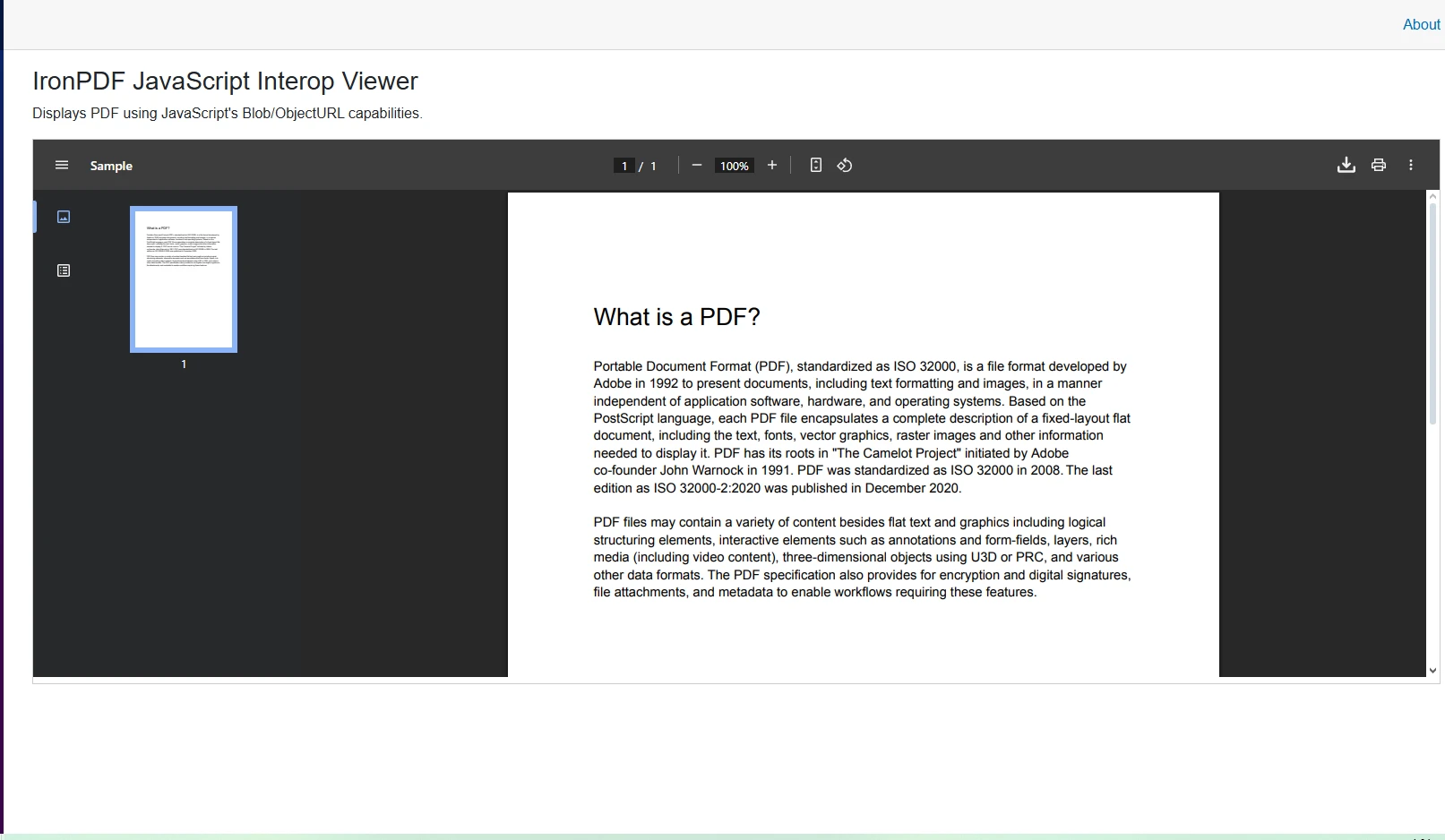
This JavaScript function creates a blob from the PDF data, generates an object URL, and appends an iframe to the container. The technique supports [JavaScript rendering](https://ironpdf.com/how-to/javascript-to-pdf/) and custom render delays for complex documents.
### Output
## How Do You Load PDFs from Multiple Sources?
Your Blazor PDF viewer can retrieve and display PDF documents from various sources. The example below shows loading from a URL and from HTML content:
```csharp
private async Task LoadFromUrl(string url)
{
using var client = new HttpClient();
client.Timeout = TimeSpan.FromSeconds(30);
var response = await client.GetAsync(url);
response.EnsureSuccessStatusCode();
var stream = await response.Content.ReadAsStreamAsync();
var pdfDocument = new PdfDocument(stream);
await DisplayPdfContent(pdfDocument);
}
private async Task LoadFromHtmlContent()
{
var renderer = new ChromePdfRenderer();
var htmlContent = "<h1>Generated PDF</h1><p>Dynamic content from Blazor.</p>";
var pdfDocument = renderer.RenderHtmlAsPdf(htmlContent);
await DisplayPdfContent(pdfDocument);
}
private Task DisplayPdfContent(PdfDocument document)
{
var data = document.BinaryData;
pdfUrl = $"data:application/pdf;base64,{Convert.ToBase64String(data)}";
return Task.CompletedTask;
}
```
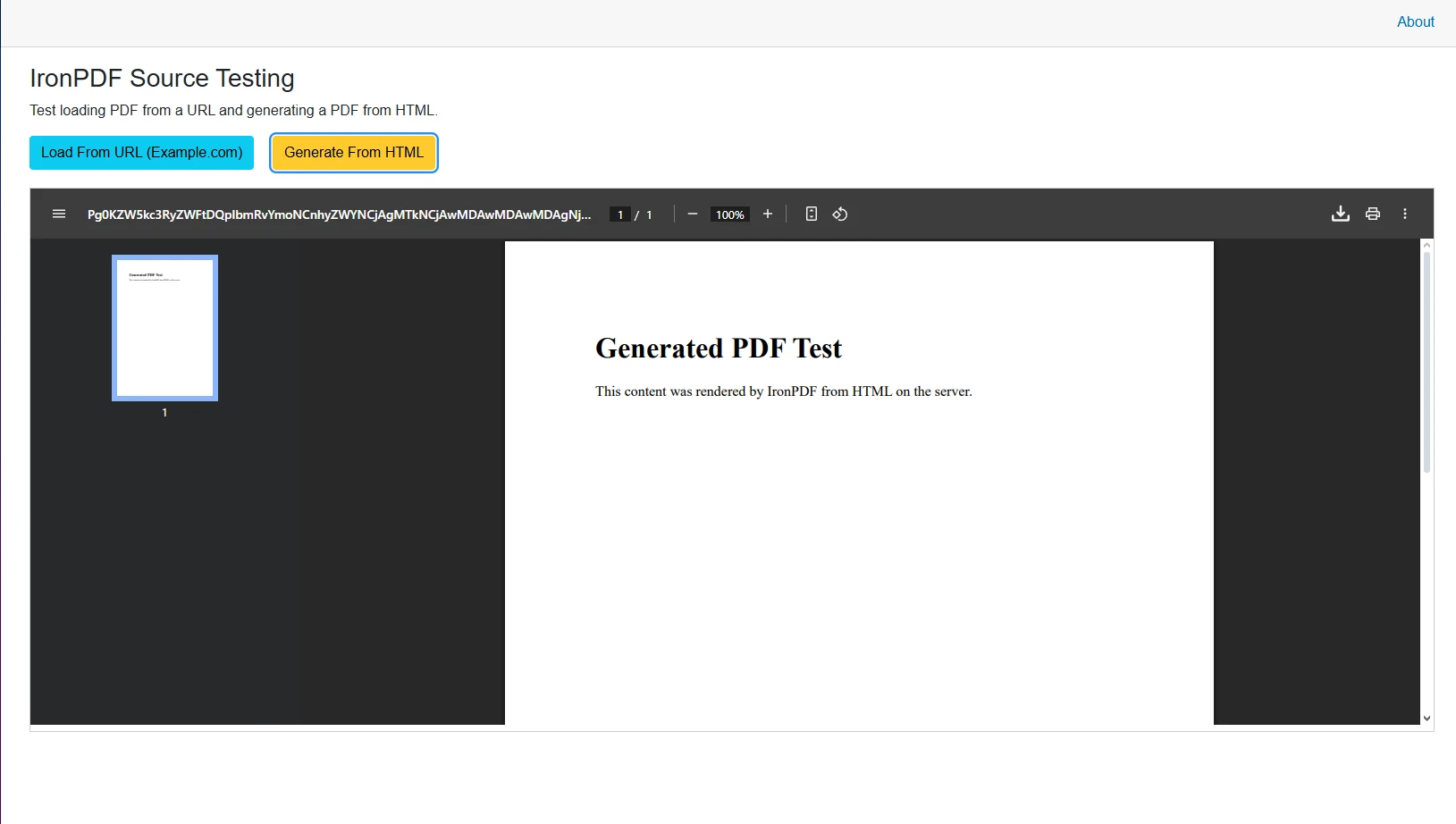
The `LoadFromUrl` method retrieves PDF documents from remote locations, while `LoadFromHtmlContent` shows how to [convert HTML to PDF](https://ironpdf.com/how-to/html-string-to-pdf/) on the fly. The Chrome rendering engine ensures accurate HTML conversion. Additional source options include Azure Blob Storage, [database memory streams](https://ironpdf.com/how-to/pdf-memory-stream/), and [DOCX documents](https://ironpdf.com/how-to/docx-to-pdf/).
### Which Source Method Is Right for Your Use Case?
<table class="content__data-table" data-content-table>
<caption>PDF Source Methods for Blazor Applications</caption>
<thead>
<tr>
<th>Source Type</th>
<th>Best For</th>
<th>Performance</th>
<th>Security</th>
</tr>
</thead>
<tbody>
<tr>
<td>Local Files</td>
<td>Static content</td>
<td>Excellent</td>
<td>Low</td>
</tr>
<tr>
<td>URLs</td>
<td>External documents</td>
<td>Good</td>
<td>Medium</td>
</tr>
<tr>
<td>HTML Conversion</td>
<td>Dynamic reports</td>
<td>Variable</td>
<td>High</td>
</tr>
<tr>
<td>Blob Storage</td>
<td>Enterprise apps</td>
<td>Excellent</td>
<td>High</td>
</tr>
<tr>
<td>Memory Streams</td>
<td>Temporary PDFs</td>
<td>Excellent</td>
<td>High</td>
</tr>
</tbody>
</table>
### Output using HTML Content
## How Do You Add Interactive Features to a PDF Viewer?
Extend the PDF viewer with page navigation, rotation, print, and download functionality:
```csharp
@code {
private int currentPage = 1;
private int totalPages;
private byte[] pdfData = Array.Empty<byte>();
private string pdfUrl = "";
private string rotationClass = "";
private string documentId = Guid.NewGuid().ToString();
private async Task NavigateToPage(int page)
{
currentPage = page;
await JSRuntime.InvokeVoidAsync("navigateTo", page);
}
private void RotateCounterclockwise()
{
rotationClass = "rotate-270";
}
private async Task PrintPdf()
{
await JSRuntime.InvokeVoidAsync("printDocument", documentId);
}
private async Task DownloadPdf()
{
await JSRuntime.InvokeVoidAsync("downloadFile", pdfData, "document.pdf");
}
}
```
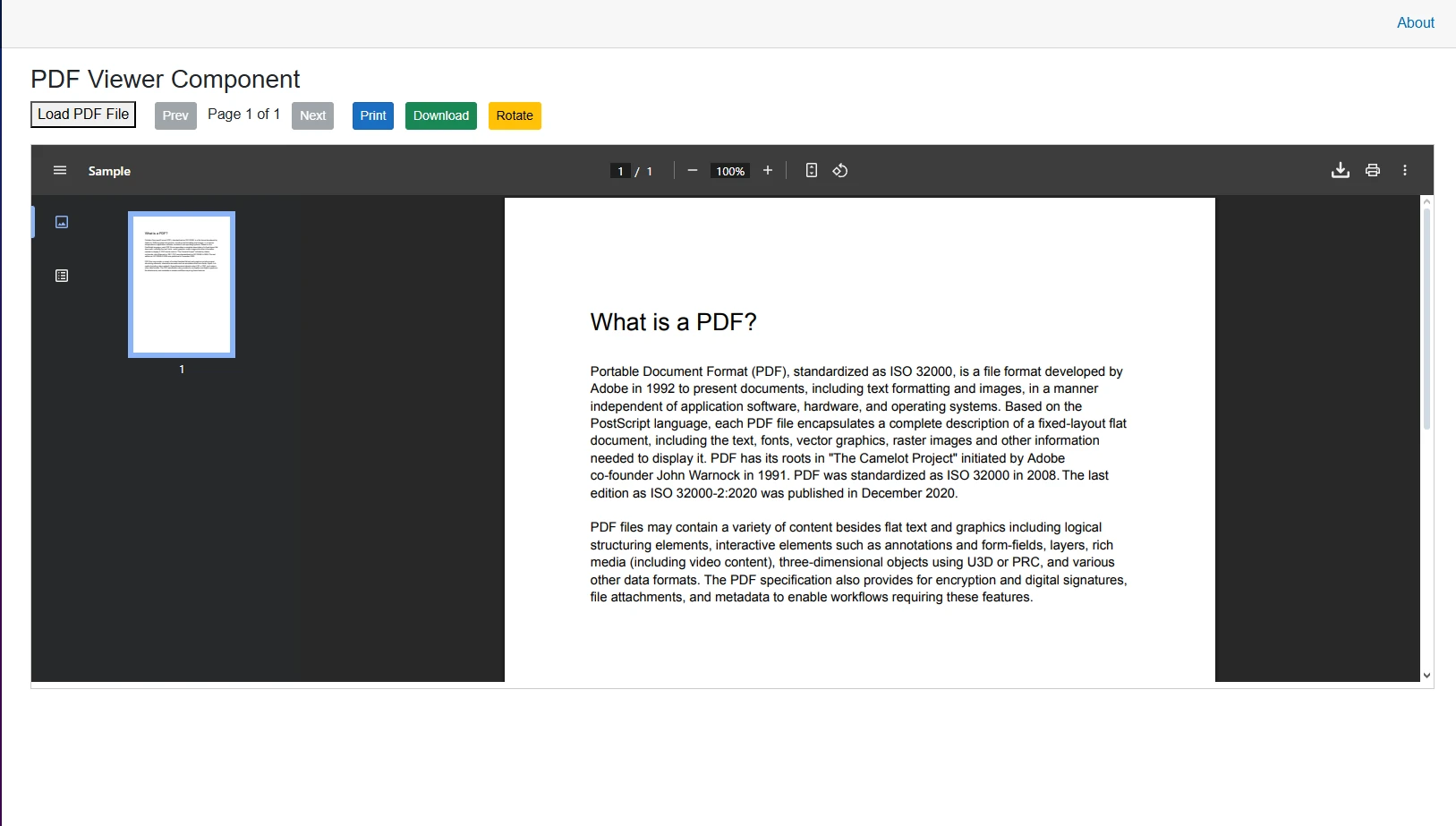
This code adds page navigation, [rotation](https://ironpdf.com/how-to/page-orientation-rotation/), [print](https://ironpdf.com/how-to/print-pdf/), and [download](https://ironpdf.com/how-to/export-save-pdf-csharp/) functionality. Consider adding page numbers and bookmarks for navigation-heavy documents. Advanced features might include [text extraction](https://ironpdf.com/how-to/csharp-parse-pdf/) and PDF to HTML conversion.
### Output
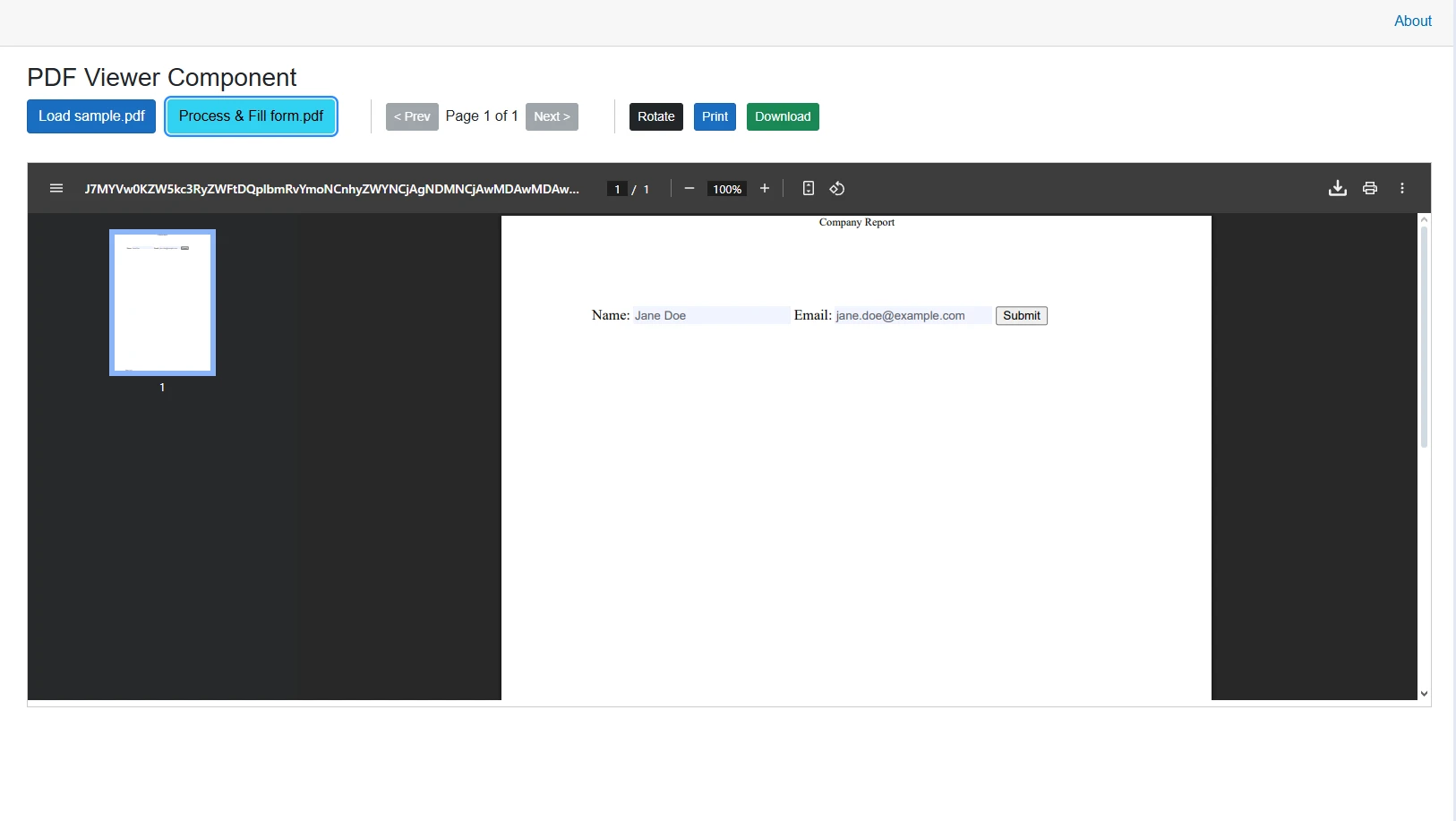
## How Do You Handle PDF Forms and Annotations?
For PDF documents with [form fields](https://ironpdf.com/how-to/create-forms/) and [annotations](https://ironpdf.com/how-to/annotations/), IronPDF provides solid support for reading and writing field values programmatically:
```csharp
private async Task ProcessFormFields()
{
var pdfDocument = PdfDocument.FromFile("form.pdf");
foreach (var field in pdfDocument.Form.Fields)
{
if (field.Type == PdfFormFieldType.Text)
{
field.Value = "User Input";
}
}
await DisplayPdfContent(pdfDocument);
}
private async Task SaveFormData()
{
var pdfWithFormData = PdfDocument.FromFile("filled-form.pdf");
var formData = pdfWithFormData.Form.Fields
.ToDictionary(f => f.Name, f => f.Value);
var json = System.Text.Json.JsonSerializer.Serialize(formData);
await File.WriteAllTextAsync("form-data.json", json);
pdfWithFormData.Form.Flatten();
pdfWithFormData.SaveAs("form-submission.pdf");
}
```
This enables [form filling capabilities](https://ironpdf.com/how-to/edit-forms/) within the Blazor PDF viewer, allowing users to interact with form fields directly in the browser. The code iterates through form fields and sets values programmatically, which is ideal for applications requiring dynamic pre-filling. IronPDF also supports digital signatures and text annotations.
Supported field types include text inputs, checkboxes, radio buttons, dropdown lists, digital signature fields, multi-line text areas, and date pickers.
### When Should You Use Programmatic vs Interactive Form Filling?
<table class="content__data-table" data-content-table>
<caption>Form Filling Approach Comparison</caption>
<thead>
<tr>
<th>Approach</th>
<th>Use When</th>
<th>Benefits</th>
</tr>
</thead>
<tbody>
<tr>
<td>Programmatic</td>
<td>Pre-filling known data</td>
<td>Faster, consistent, automated</td>
</tr>
<tr>
<td>Interactive</td>
<td>User input required</td>
<td>Flexible, immediate validation</td>
</tr>
<tr>
<td>Hybrid</td>
<td>Partial data available</td>
<td>Best of both approaches</td>
</tr>
</tbody>
</table>
Consider flattening forms after submission to prevent tampering. Use [PDF sanitization](https://ironpdf.com/how-to/sanitize-pdf/) for security.
### Output
## How Do You Optimize Performance for Large PDFs?
To ensure good performance when displaying PDFs, especially for large files, use chunked loading and memory management:
```csharp
private async Task LoadLargePdf()
{
const int chunkSize = 1024 * 1024; // 1MB chunks
var pdfPath = "largefile.pdf";
using var fileStream = File.OpenRead(pdfPath);
var buffer = new byte[chunkSize];
var chunks = new List<byte[]>();
int bytesRead;
while ((bytesRead = await fileStream.ReadAsync(buffer)) > 0)
{
var chunk = new byte[bytesRead];
Array.Copy(buffer, chunk, bytesRead);
chunks.Add(chunk);
}
await ProcessPdfChunks(chunks);
}
```
This approach loads large PDF files in chunks, preventing memory issues and ensuring smooth performance even with substantial documents. It is particularly useful when dealing with PDF files on mobile devices or systems with limited resources. See [IronPDF's performance guide](https://ironpdf.com/troubleshooting/ironpdf-performance-assistance/) for additional tuning options.
Additional optimization strategies include [linearization](https://ironpdf.com/how-to/linearize-pdf/) for fast web viewing, [compression](https://ironpdf.com/how-to/pdf-compression/) to reduce file sizes, and [async processing](https://ironpdf.com/how-to/async/) for handling multiple PDFs concurrently. According to [PDF Association best practices](https://pdfa.org/), linearized (web-optimized) PDFs can reduce initial load time by 30--60% for large documents.
### Which File Size Requires Chunked Loading?
<table class="content__data-table" data-content-table>
<caption>PDF File Size Loading Strategy Guide</caption>
<thead>
<tr>
<th>File Size</th>
<th>Loading Strategy</th>
<th>Memory Impact</th>
</tr>
</thead>
<tbody>
<tr>
<td>Under 5 MB</td>
<td>Direct loading</td>
<td>Minimal</td>
</tr>
<tr>
<td>5 -- 20 MB</td>
<td>Optional chunking</td>
<td>Moderate</td>
</tr>
<tr>
<td>20 -- 50 MB</td>
<td>Recommended chunking</td>
<td>Significant</td>
</tr>
<tr>
<td>Over 50 MB</td>
<td>Required chunking</td>
<td>Critical</td>
</tr>
</tbody>
</table>
[Server-side rendering](https://ironpdf.com/how-to/razor-to-pdf-blazor-server/) becomes beneficial when processing PDFs larger than 100 MB, implementing complex annotations, or supporting multiple simultaneous users.
## How Do You Secure a Blazor PDF Viewer for Password-Protected Files?
When working with [password-protected PDF files](https://ironpdf.com/how-to/pdf-permissions-passwords/), pass the password directly to `PdfDocument.FromFile` and configure appropriate HTTP security headers:
```csharp
private async Task LoadSecurePdf(string password)
{
var pdfDocument = PdfDocument.FromFile("secure.pdf", password);
var headers = new Dictionary<string, string>
{
{ "X-Frame-Options", "SAMEORIGIN" },
{ "Content-Security-Policy", "default-src 'self'" },
{ "X-Content-Type-Options", "nosniff" },
{ "Referrer-Policy", "no-referrer" }
};
await DisplayPdfContent(pdfDocument);
}
```
This code demonstrates loading [password-protected PDF documents](https://ironpdf.com/tutorials/csharp-pdf-security-complete-tutorial/) while maintaining security through proper header configuration. Consider digital signatures for improved authentication. Implement [PDF sanitization](https://ironpdf.com/how-to/sanitize-pdf/) to remove potentially malicious content and redact sensitive information.
When handling passwords, never store them in plain text or client-side code. Use secure input methods with proper validation, implement session timeouts for sensitive documents, and clear passwords from memory after use. Microsoft's [ASP.NET Core security guidance](https://learn.microsoft.com/en-us/aspnet/core/security/) recommends always validating and sanitizing any user-supplied credential before passing it to downstream APIs.
### Client-Side vs Server-Side Decryption
<table class="content__data-table" data-content-table>
<caption>PDF Decryption Approach Security Comparison</caption>
<thead>
<tr>
<th>Decryption Type</th>
<th>Use Case</th>
<th>Security Level</th>
</tr>
</thead>
<tbody>
<tr>
<td>Client-side</td>
<td>Public documents</td>
<td>Low</td>
</tr>
<tr>
<td>Server-side</td>
<td>Sensitive data</td>
<td>High</td>
</tr>
<tr>
<td>Hybrid</td>
<td>Mixed content</td>
<td>Medium</td>
</tr>
</tbody>
</table>
For maximum security, always perform decryption server-side and stream the decrypted content securely to the client. Implement [PDF/A compliance](https://ironpdf.com/how-to/pdfa/) for long-term archival needs.
## What Are the Key Takeaways for Displaying PDFs in Blazor?
Implementing a Blazor PDF viewer with IronPDF provides developers with a complete solution for displaying PDFs in web applications. From basic display to advanced features like form filling and annotations, IronPDF's [PDF viewer component](https://ironpdf.com/how-to/pdf-viewing/) offers the functionality needed for professional applications.
The examples shown demonstrate how to create a reliable Blazor PDF viewer that handles various PDF sources, provides interactive features, and maintains good performance. Whether building a simple document viewer or a complex document management system, IronPDF's integration with [Blazor Server apps](https://ironpdf.com/how-to/blazor-tutorial/) makes it straightforward to implement professional PDF viewing capabilities.
Key benefits include:
- **Cross-platform compatibility** with consistent rendering across all browsers
- **[Advanced security features](https://ironpdf.com/tutorials/csharp-pdf-security-complete-tutorial/)** for sensitive documents
- **Performance optimization** for large files via async and chunked loading
- **Complete form handling** capabilities including digital signatures
- **Smooth integration** with existing .NET applications
IronPDF supports Azure, AWS, Docker, and traditional Windows environments. Ready to build your own viewer? Start with a [free trial of IronPDF](trial-license) and consult the [complete documentation](https://ironpdf.com/docs/) and [code examples](https://ironpdf.com/examples/using-html-to-create-a-pdf/) to create effective PDF viewing experiences in your Blazor applications.
To display PDFs in Blazor applications, use IronPDF's PDF viewer component, which integrates with Blazor Server apps and provides high-performance PDF rendering with features like form filling, annotations, and mobile support -- all without relying on third-party browser tools.
Why Does a Blazor Application Need a Dedicated PDF Viewer?
Displaying PDFs in modern web applications requires a reliable viewer component that goes beyond basic browser capabilities. For .NET developers building Blazor applications, IronPDF provides an effective PDF viewer solution that integrates with your Blazor Server app. This enables high-performance PDF rendering and rich functionality without relying on third-party browser tools.
Native browser PDF support varies significantly across different browsers and platforms, leading to inconsistent user experiences. By implementing a custom PDF viewer in your Blazor application, you gain complete control over the viewing experience, ensuring consistent functionality across all platforms. This is particularly important for applications requiring compliance standards and advanced security features.
The Blazor framework -- built on Microsoft's ASP.NET Core -- allows component-based development that pairs naturally with PDF manipulation libraries. Rather than embedding a third-party viewer widget from an external CDN, you can build a component tailored to your application's exact requirements.
How Do You Install IronPDF in a Blazor Project?
Before implementing your Blazor PDF viewer, install IronPDF. Add it to your Blazor Server app through NuGet using either the Package Manager Console or the .NET CLI:
PM > Install-Package IronPdf
Install-Package IronPdf
> dotnet add package IronPdf
dotnet add package IronPdf
Next, create a new Blazor application and ensure you have the latest version of .NET installed. Store PDF files in the wwwroot folder for easy access, or load them from other sources like byte arrays or URLs. The installation overview provides detailed guidance for various deployment scenarios.
What Prerequisites Are Required?
To successfully implement a Blazor PDF viewer, ensure you have:
.NET 10 installed on your development machine
Visual Studio 2022 or Visual Studio Code with C# extensions
A sample PDF file for testing (place it in the wwwroot folder)
For Windows deployment, ensure you have the appropriate Visual C++ runtime. Linux users should install required dependencies, while macOS developers need to consider Intel vs Apple Silicon compatibility.
Where Should PDF Files Be Stored?
PDF file storage location significantly impacts your application's performance and security. For Blazor applications, consider these options:
wwwroot folder: Ideal for static PDFs without sensitive information
Azure Blob Storage: For cloud applications requiring flexible storage
Database as byte arrays: Suitable for smaller PDFs requiring access control
Protected server directories: Best for sensitive documents with security requirements
Memory streams: Optimal for dynamically generated PDFs using HTML to PDF
How Do You Create a Blazor PDF Viewer Component?
Build a basic Blazor PDF viewer component that can display PDF documents. Create a new Razor component in your project:
ImportsIronPdfImportsMicrosoft.AspNetCore.HostingImportsMicrosoft.AspNetCore.ComponentsImportsMicrosoft.JSInterop@page "/pdfviewer"@rendermode InteractiveServer<h3>PDFViewerComponent</h3><div> <button @onclick="LoadPdfDocument">OpenFile</button> <div id="pdfContainer"> @IfNotString.IsNullOrEmpty(pdfUrl) Then <iframe src="@pdfUrl" style="width:100%; height:600px;"></iframe> End If </div></div>@Code Private pdfUrl AsString = "" Private pdfData AsByte() = Array.Empty(OfByte)() PrivateAsync Function LoadPdfDocument() AsTask Dim pdfDocument = PdfDocument.FromFile("wwwroot/sample.pdf") pdfData = pdfDocument.BinaryData Dim base64 = Convert.ToBase64String(pdfData) pdfUrl = $"data:application/pdf;base64,{base64}" End FunctionEndCode
Imports IronPdf
Imports Microsoft.AspNetCore.Hosting
Imports Microsoft.AspNetCore.Components
Imports Microsoft.JSInterop

@page "/pdfviewer"
@rendermode InteractiveServer

<h3>PDF Viewer Component</h3>
<div>
    <button @onclick="LoadPdfDocument">Open File</button>
    <div id="pdfContainer">
        @If Not String.IsNullOrEmpty(pdfUrl) Then
            <iframe src="@pdfUrl" style="width:100%; height:600px;"></iframe>
        End If
    </div>
</div>

@Code
    Private pdfUrl As String = ""
    Private pdfData As Byte() = Array.Empty(Of Byte)()

    Private Async Function LoadPdfDocument() As Task
        Dim pdfDocument = PdfDocument.FromFile("wwwroot/sample.pdf")
        pdfData = pdfDocument.BinaryData
        Dim base64 = Convert.ToBase64String(pdfData)
        pdfUrl = $"data:application/pdf;base64,{base64}"
    End Function
End Code
This code creates a PDF viewer component that loads a PDF document and displays it using an iframe. The LoadPdfDocument method reads a PDF from the wwwroot folder and converts it to a base64 data URL that the iframe renders directly. This approach works well with various PDF versions and supports UTF-8 encoding for international documents.
How Does the Component Load PDF Files?
The component uses IronPDF's document loading capabilities to read PDF files efficiently. When a user clicks the "Open File" button, the method:
Loads the PDF file using PdfDocument.FromFile
Extracts binary data from the loaded PDF document
Converts to Base64 format for browser compatibility
Creates a data URL that browsers can render directly
This approach ensures compatibility across different browsers while maintaining good performance for PDF display. The component can handle various paper sizes and page orientations.
Output
How Do You Use JavaScript Interop for Better PDF Display?
For better control over PDF content display, use JavaScript interop to handle the PDF viewer functionality. This pattern loads a JavaScript module asynchronously and delegates rendering to the browser's native blob/URL APIs -- a technique well-suited for Blazor's component lifecycle:
@page "/pdf-jsinterop"@rendermode InteractiveServer@using IronPdf@inject IJSRuntimeJSRuntime@inject Microsoft.AspNetCore.Hosting.IWebHostEnvironmentWebHostEnvironment@implements IAsyncDisposable<h3>IronPDFJavaScriptInteropViewer</h3><p>DisplaysPDFusing JavaScript Blob/ObjectURL capabilities.</p>@if (!string.IsNullOrEmpty(ErrorMessage)){ <div class="alert alert-danger">Error: @ErrorMessage</div>}<div id="@documentId" style="border: 1px solid #ccc; width: 100%; min-height: 600px;">LoadingPDF...</div>@code { private string documentId = Guid.NewGuid().ToString(); private stringErrorMessage = string.Empty; private bool pdfLoaded = false; private IJSObjectReference? jsModule; protected override async TaskOnAfterRenderAsync(bool firstRender) { if (firstRender && !pdfLoaded) { try { jsModule = awaitJSRuntime.InvokeAsync<IJSObjectReference>( "import", "./pdfViewerInterop.js"); awaitLoadPdfWithJavaScript(); pdfLoaded = true; } catch (Exception ex) {ErrorMessage = $"Failed to load JS module: {ex.Message}"; } finally {StateHasChanged(); } } } private async TaskLoadPdfWithJavaScript() { if (jsModule is null) return; var pdfPath = Path.Combine(WebHostEnvironment.WebRootPath, "sample.pdf"); if (!File.Exists(pdfPath)) {ErrorMessage = $"File not found: {pdfPath}"; return; } var pdf = PdfDocument.FromFile(pdfPath); await jsModule.InvokeVoidAsync("displayPdf", documentId, pdf.BinaryData); } public async ValueTaskDisposeAsync() { if (jsModule is not null) await jsModule.DisposeAsync(); }}
ImportsSystemImportsSystem.IOImportsSystem.Threading.TasksImportsIronPdfImportsMicrosoft.AspNetCore.ComponentsImportsMicrosoft.AspNetCore.Components.WebImportsMicrosoft.JSInteropImportsMicrosoft.AspNetCore.Hosting@page "/pdf-jsinterop"@rendermode InteractiveServer@inject IJSRuntimeJSRuntime@inject IWebHostEnvironmentWebHostEnvironment@implements IAsyncDisposable<h3>IronPDFJavaScriptInteropViewer</h3><p>DisplaysPDF using JavaScriptBlob/ObjectURL capabilities.</p>@ifNotString.IsNullOrEmpty(ErrorMessage) Then <div class="alert alert-danger">Error: @ErrorMessage</div>End If<div id="@documentId" style="border: 1px solid #ccc; width: 100%; min-height: 600px;">LoadingPDF...</div>@code { Private documentId AsString = Guid.NewGuid().ToString() PrivateErrorMessageAsString = String.Empty Private pdfLoaded AsBoolean = False Private jsModule AsIJSObjectReferenceProtectedOverridesAsync Function OnAfterRenderAsync(firstRender AsBoolean) AsTask If firstRender AndAlsoNot pdfLoaded ThenTry jsModule = AwaitJSRuntime.InvokeAsync(OfIJSObjectReference)( "import", "./pdfViewerInterop.js")AwaitLoadPdfWithJavaScript() pdfLoaded = TrueCatch ex AsExceptionErrorMessage = $"Failed to load JS module: {ex.Message}"FinallyStateHasChanged()EndTry End If End Function PrivateAsync Function LoadPdfWithJavaScript() AsTask If jsModule Is Nothing Then Return Dim pdfPath = Path.Combine(WebHostEnvironment.WebRootPath, "sample.pdf") IfNotFile.Exists(pdfPath) ThenErrorMessage = $"File not found: {pdfPath}" Return End If Dim pdf = PdfDocument.FromFile(pdfPath)Await jsModule.InvokeVoidAsync("displayPdf", documentId, pdf.BinaryData) End Function PublicAsync Function DisposeAsync() AsValueTaskImplementsIAsyncDisposable.DisposeAsync If jsModule IsNot Nothing ThenAwait jsModule.DisposeAsync() End If End Function}
Imports System
Imports System.IO
Imports System.Threading.Tasks
Imports IronPdf
Imports Microsoft.AspNetCore.Components
Imports Microsoft.AspNetCore.Components.Web
Imports Microsoft.JSInterop
Imports Microsoft.AspNetCore.Hosting

@page "/pdf-jsinterop"
@rendermode InteractiveServer

@inject IJSRuntime JSRuntime
@inject IWebHostEnvironment WebHostEnvironment
@implements IAsyncDisposable

<h3>IronPDF JavaScript Interop Viewer</h3>
<p>Displays PDF using JavaScript Blob/ObjectURL capabilities.</p>

@if Not String.IsNullOrEmpty(ErrorMessage) Then
    <div class="alert alert-danger">Error: @ErrorMessage</div>
End If

<div id="@documentId" style="border: 1px solid #ccc; width: 100%; min-height: 600px;">
    Loading PDF...
</div>

@code {
    Private documentId As String = Guid.NewGuid().ToString()
    Private ErrorMessage As String = String.Empty
    Private pdfLoaded As Boolean = False
    Private jsModule As IJSObjectReference

    Protected Overrides Async Function OnAfterRenderAsync(firstRender As Boolean) As Task
        If firstRender AndAlso Not pdfLoaded Then
            Try
                jsModule = Await JSRuntime.InvokeAsync(Of IJSObjectReference)(
                    "import", "./pdfViewerInterop.js")
                Await LoadPdfWithJavaScript()
                pdfLoaded = True
            Catch ex As Exception
                ErrorMessage = $"Failed to load JS module: {ex.Message}"
            Finally
                StateHasChanged()
            End Try
        End If
    End Function

    Private Async Function LoadPdfWithJavaScript() As Task
        If jsModule Is Nothing Then Return
        Dim pdfPath = Path.Combine(WebHostEnvironment.WebRootPath, "sample.pdf")
        If Not File.Exists(pdfPath) Then
            ErrorMessage = $"File not found: {pdfPath}"
            Return
        End If
        Dim pdf = PdfDocument.FromFile(pdfPath)
        Await jsModule.InvokeVoidAsync("displayPdf", documentId, pdf.BinaryData)
    End Function

    Public Async Function DisposeAsync() As ValueTask Implements IAsyncDisposable.DisposeAsync
        If jsModule IsNot Nothing Then
            Await jsModule.DisposeAsync()
        End If
    End Function
}
Add the corresponding JavaScript function to your wwwroot/pdfViewerInterop.js file. Note that this file uses JavaScript (not C#), saved as a .js module:
The provided code is JavaScript, not C#. Therefore, it cannot be directly converted toVB.NET, as VB.NET is a server-side language and JavaScript is a client-side language. If you have C# code that you need converted toVB.NET, please provide that code for conversion.
The provided code is JavaScript, not C#. Therefore, it cannot be directly converted to VB.NET, as VB.NET is a server-side language and JavaScript is a client-side language. If you have C# code that you need converted to VB.NET, please provide that code for conversion.
This JavaScript function creates a blob from the PDF data, generates an object URL, and appends an iframe to the container. The technique supports JavaScript rendering and custom render delays for complex documents.
Output
How Do You Load PDFs from Multiple Sources?
Your Blazor PDF viewer can retrieve and display PDF documents from various sources. The example below shows loading from a URL and from HTML content:
private async TaskLoadFromUrl(string url){ using var client = new HttpClient(); client.Timeout = TimeSpan.FromSeconds(30); var response = await client.GetAsync(url); response.EnsureSuccessStatusCode(); var stream = await response.Content.ReadAsStreamAsync(); var pdfDocument = new PdfDocument(stream); awaitDisplayPdfContent(pdfDocument);}private async TaskLoadFromHtmlContent(){ var renderer = new ChromePdfRenderer(); var htmlContent = "<h1>Generated PDF</h1><p>Dynamic content from Blazor.</p>"; var pdfDocument = renderer.RenderHtmlAsPdf(htmlContent); awaitDisplayPdfContent(pdfDocument);}private TaskDisplayPdfContent(PdfDocument document){ var data = document.BinaryData; pdfUrl = $"data:application/pdf;base64,{Convert.ToBase64String(data)}"; returnTask.CompletedTask;}
private async Task LoadFromUrl(string url)
{
    using var client = new HttpClient();
    client.Timeout = TimeSpan.FromSeconds(30);
    var response = await client.GetAsync(url);
    response.EnsureSuccessStatusCode();
    var stream = await response.Content.ReadAsStreamAsync();
    var pdfDocument = new PdfDocument(stream);
    await DisplayPdfContent(pdfDocument);
}

private async Task LoadFromHtmlContent()
{
    var renderer = new ChromePdfRenderer();
    var htmlContent = "<h1>Generated PDF</h1><p>Dynamic content from Blazor.</p>";
    var pdfDocument = renderer.RenderHtmlAsPdf(htmlContent);
    await DisplayPdfContent(pdfDocument);
}

private Task DisplayPdfContent(PdfDocument document)
{
    var data = document.BinaryData;
    pdfUrl = $"data:application/pdf;base64,{Convert.ToBase64String(data)}";
    return Task.CompletedTask;
}
ImportsSystemImportsSystem.Net.HttpImportsSystem.Threading.TasksPrivateAsync Function LoadFromUrl(url AsString) AsTaskUsing client As New HttpClient() client.Timeout = TimeSpan.FromSeconds(30) Dim response = Await client.GetAsync(url) response.EnsureSuccessStatusCode() Dim stream = Awaitresponse.Content.ReadAsStreamAsync() Dim pdfDocument As New PdfDocument(stream)AwaitDisplayPdfContent(pdfDocument)EndUsingEnd FunctionPrivateAsync Function LoadFromHtmlContent() AsTask Dim renderer As New ChromePdfRenderer() Dim htmlContent AsString = "<h1>Generated PDF</h1><p>Dynamic content from Blazor.</p>" Dim pdfDocument = renderer.RenderHtmlAsPdf(htmlContent)AwaitDisplayPdfContent(pdfDocument)End FunctionPrivate Function DisplayPdfContent(document AsPdfDocument) AsTask Dim data = document.BinaryData pdfUrl = $"data:application/pdf;base64,{Convert.ToBase64String(data)}" ReturnTask.CompletedTaskEnd Function
Imports System
Imports System.Net.Http
Imports System.Threading.Tasks

Private Async Function LoadFromUrl(url As String) As Task
    Using client As New HttpClient()
        client.Timeout = TimeSpan.FromSeconds(30)
        Dim response = Await client.GetAsync(url)
        response.EnsureSuccessStatusCode()
        Dim stream = Await response.Content.ReadAsStreamAsync()
        Dim pdfDocument As New PdfDocument(stream)
        Await DisplayPdfContent(pdfDocument)
    End Using
End Function

Private Async Function LoadFromHtmlContent() As Task
    Dim renderer As New ChromePdfRenderer()
    Dim htmlContent As String = "<h1>Generated PDF</h1><p>Dynamic content from Blazor.</p>"
    Dim pdfDocument = renderer.RenderHtmlAsPdf(htmlContent)
    Await DisplayPdfContent(pdfDocument)
End Function

Private Function DisplayPdfContent(document As PdfDocument) As Task
    Dim data = document.BinaryData
    pdfUrl = $"data:application/pdf;base64,{Convert.ToBase64String(data)}"
    Return Task.CompletedTask
End Function
The LoadFromUrl method retrieves PDF documents from remote locations, while LoadFromHtmlContent shows how to convert HTML to PDF on the fly. The Chrome rendering engine ensures accurate HTML conversion. Additional source options include Azure Blob Storage, database memory streams, and DOCX documents.
Which Source Method Is Right for Your Use Case?
PDF Source Methods for Blazor Applications
Source Type
Best For
Performance
Security
Local Files
Static content
Excellent
Low
URLs
External documents
Good
Medium
HTML Conversion
Dynamic reports
Variable
High
Blob Storage
Enterprise apps
Excellent
High
Memory Streams
Temporary PDFs
Excellent
High
Output using HTML Content
How Do You Add Interactive Features to a PDF Viewer?
Extend the PDF viewer with page navigation, rotation, print, and download functionality:
ImportsSystemPublic Class CodeBehind Private currentPage AsInteger = 1 Private totalPages AsInteger Private pdfData AsByte() = Array.Empty(OfByte)() Private pdfUrl AsString = "" Private rotationClass AsString = "" Private documentId AsString = Guid.NewGuid().ToString() PrivateAsync Function NavigateToPage(page AsInteger) AsTask currentPage = pageAwaitJSRuntime.InvokeVoidAsync("navigateTo", page) End Function Private Sub RotateCounterclockwise() rotationClass = "rotate-270" End Sub PrivateAsync Function PrintPdf() AsTaskAwaitJSRuntime.InvokeVoidAsync("printDocument", documentId) End Function PrivateAsync Function DownloadPdf() AsTaskAwaitJSRuntime.InvokeVoidAsync("downloadFile", pdfData, "document.pdf") End FunctionEnd Class
Imports System

Public Class CodeBehind
    Private currentPage As Integer = 1
    Private totalPages As Integer
    Private pdfData As Byte() = Array.Empty(Of Byte)()
    Private pdfUrl As String = ""
    Private rotationClass As String = ""
    Private documentId As String = Guid.NewGuid().ToString()

    Private Async Function NavigateToPage(page As Integer) As Task
        currentPage = page
        Await JSRuntime.InvokeVoidAsync("navigateTo", page)
    End Function

    Private Sub RotateCounterclockwise()
        rotationClass = "rotate-270"
    End Sub

    Private Async Function PrintPdf() As Task
        Await JSRuntime.InvokeVoidAsync("printDocument", documentId)
    End Function

    Private Async Function DownloadPdf() As Task
        Await JSRuntime.InvokeVoidAsync("downloadFile", pdfData, "document.pdf")
    End Function
End Class
This code adds page navigation, rotation, print, and download functionality. Consider adding page numbers and bookmarks for navigation-heavy documents. Advanced features might include text extraction and PDF to HTML conversion.
Output
How Do You Handle PDF Forms and Annotations?
For PDF documents with form fields and annotations, IronPDF provides solid support for reading and writing field values programmatically:
private async TaskProcessFormFields(){ var pdfDocument = PdfDocument.FromFile("form.pdf"); foreach (var field in pdfDocument.Form.Fields) { if (field.Type == PdfFormFieldType.Text) { field.Value = "User Input"; } } awaitDisplayPdfContent(pdfDocument);}private async TaskSaveFormData(){ var pdfWithFormData = PdfDocument.FromFile("filled-form.pdf"); var formData = pdfWithFormData.Form.Fields .ToDictionary(f => f.Name, f => f.Value); var json = System.Text.Json.JsonSerializer.Serialize(formData); awaitFile.WriteAllTextAsync("form-data.json", json); pdfWithFormData.Form.Flatten(); pdfWithFormData.SaveAs("form-submission.pdf");}
private async Task ProcessFormFields()
{
    var pdfDocument = PdfDocument.FromFile("form.pdf");

    foreach (var field in pdfDocument.Form.Fields)
    {
        if (field.Type == PdfFormFieldType.Text)
        {
            field.Value = "User Input";
        }
    }

    await DisplayPdfContent(pdfDocument);
}

private async Task SaveFormData()
{
    var pdfWithFormData = PdfDocument.FromFile("filled-form.pdf");
    var formData = pdfWithFormData.Form.Fields
        .ToDictionary(f => f.Name, f => f.Value);

    var json = System.Text.Json.JsonSerializer.Serialize(formData);
    await File.WriteAllTextAsync("form-data.json", json);

    pdfWithFormData.Form.Flatten();
    pdfWithFormData.SaveAs("form-submission.pdf");
}
ImportsSystem.IOImportsSystem.Threading.TasksImportsSystem.Text.JsonPrivateAsync Function ProcessFormFields() AsTask Dim pdfDocument = PdfDocument.FromFile("form.pdf") For Each field In pdfDocument.Form.Fields If field.Type = PdfFormFieldType.TextThen field.Value = "User Input" End If NextAwaitDisplayPdfContent(pdfDocument)End FunctionPrivateAsync Function SaveFormData() AsTask Dim pdfWithFormData = PdfDocument.FromFile("filled-form.pdf") Dim formData = pdfWithFormData.Form.Fields.ToDictionary(Function(f) f.Name, Function(f) f.Value) Dim json = JsonSerializer.Serialize(formData)AwaitFile.WriteAllTextAsync("form-data.json", json) pdfWithFormData.Form.Flatten() pdfWithFormData.SaveAs("form-submission.pdf")End Function
Imports System.IO
Imports System.Threading.Tasks
Imports System.Text.Json

Private Async Function ProcessFormFields() As Task
    Dim pdfDocument = PdfDocument.FromFile("form.pdf")

    For Each field In pdfDocument.Form.Fields
        If field.Type = PdfFormFieldType.Text Then
            field.Value = "User Input"
        End If
    Next

    Await DisplayPdfContent(pdfDocument)
End Function

Private Async Function SaveFormData() As Task
    Dim pdfWithFormData = PdfDocument.FromFile("filled-form.pdf")
    Dim formData = pdfWithFormData.Form.Fields.ToDictionary(Function(f) f.Name, Function(f) f.Value)

    Dim json = JsonSerializer.Serialize(formData)
    Await File.WriteAllTextAsync("form-data.json", json)

    pdfWithFormData.Form.Flatten()
    pdfWithFormData.SaveAs("form-submission.pdf")
End Function
This enables form filling capabilities within the Blazor PDF viewer, allowing users to interact with form fields directly in the browser. The code iterates through form fields and sets values programmatically, which is ideal for applications requiring dynamic pre-filling. IronPDF also supports digital signatures and text annotations.
Supported field types include text inputs, checkboxes, radio buttons, dropdown lists, digital signature fields, multi-line text areas, and date pickers.
When Should You Use Programmatic vs Interactive Form Filling?
Form Filling Approach Comparison
Approach
Use When
Benefits
Programmatic
Pre-filling known data
Faster, consistent, automated
Interactive
User input required
Flexible, immediate validation
Hybrid
Partial data available
Best of both approaches
Consider flattening forms after submission to prevent tampering. Use PDF sanitization for security.
Output
How Do You Optimize Performance for Large PDFs?
To ensure good performance when displaying PDFs, especially for large files, use chunked loading and memory management:
private async TaskLoadLargePdf(){ const int chunkSize = 1024 * 1024; // 1MB chunks var pdfPath = "largefile.pdf"; using var fileStream = File.OpenRead(pdfPath); var buffer = new byte[chunkSize]; var chunks = new List<byte[]>(); int bytesRead; while ((bytesRead = await fileStream.ReadAsync(buffer)) > 0) { var chunk = new byte[bytesRead];Array.Copy(buffer, chunk, bytesRead); chunks.Add(chunk); } awaitProcessPdfChunks(chunks);}
private async Task LoadLargePdf()
{
    const int chunkSize = 1024 * 1024; // 1MB chunks
    var pdfPath = "largefile.pdf";

    using var fileStream = File.OpenRead(pdfPath);
    var buffer = new byte[chunkSize];
    var chunks = new List<byte[]>();
    int bytesRead;

    while ((bytesRead = await fileStream.ReadAsync(buffer)) > 0)
    {
        var chunk = new byte[bytesRead];
        Array.Copy(buffer, chunk, bytesRead);
        chunks.Add(chunk);
    }

    await ProcessPdfChunks(chunks);
}
ImportsSystem.IOImportsSystem.Threading.TasksPrivateAsync Function LoadLargePdf() AsTask Const chunkSize AsInteger = 1024 * 1024 ' 1MB chunks Dim pdfPath AsString = "largefile.pdf"Using fileStream AsFileStream = File.OpenRead(pdfPath) Dim buffer(chunkSize - 1) AsByte Dim chunks As New List(OfByte())() Dim bytesRead AsInteger Do bytesRead = Await fileStream.ReadAsync(buffer, 0, buffer.Length) If bytesRead > 0 Then Dim chunk(bytesRead - 1) AsByteArray.Copy(buffer, chunk, bytesRead) chunks.Add(chunk) End If Loop While bytesRead > 0EndUsingAwaitProcessPdfChunks(chunks)End Function
Imports System.IO
Imports System.Threading.Tasks

Private Async Function LoadLargePdf() As Task
    Const chunkSize As Integer = 1024 * 1024 ' 1MB chunks
    Dim pdfPath As String = "largefile.pdf"

    Using fileStream As FileStream = File.OpenRead(pdfPath)
        Dim buffer(chunkSize - 1) As Byte
        Dim chunks As New List(Of Byte())()
        Dim bytesRead As Integer

        Do
            bytesRead = Await fileStream.ReadAsync(buffer, 0, buffer.Length)
            If bytesRead > 0 Then
                Dim chunk(bytesRead - 1) As Byte
                Array.Copy(buffer, chunk, bytesRead)
                chunks.Add(chunk)
            End If
        Loop While bytesRead > 0
    End Using

    Await ProcessPdfChunks(chunks)
End Function
This approach loads large PDF files in chunks, preventing memory issues and ensuring smooth performance even with substantial documents. It is particularly useful when dealing with PDF files on mobile devices or systems with limited resources. See IronPDF's performance guide for additional tuning options.
Additional optimization strategies include linearization for fast web viewing, compression to reduce file sizes, and async processing for handling multiple PDFs concurrently. According to PDF Association best practices, linearized (web-optimized) PDFs can reduce initial load time by 30--60% for large documents.
Which File Size Requires Chunked Loading?
PDF File Size Loading Strategy Guide
File Size
Loading Strategy
Memory Impact
Under 5 MB
Direct loading
Minimal
5 -- 20 MB
Optional chunking
Moderate
20 -- 50 MB
Recommended chunking
Significant
Over 50 MB
Required chunking
Critical
Server-side rendering becomes beneficial when processing PDFs larger than 100 MB, implementing complex annotations, or supporting multiple simultaneous users.
How Do You Secure a Blazor PDF Viewer for Password-Protected Files?
When working with password-protected PDF files, pass the password directly to PdfDocument.FromFile and configure appropriate HTTP security headers:
PrivateAsync Function LoadSecurePdf(password AsString) AsTask Dim pdfDocument = PdfDocument.FromFile("secure.pdf", password) Dim headers = New Dictionary(OfString, String) From { {"X-Frame-Options", "SAMEORIGIN"}, {"Content-Security-Policy", "default-src 'self'"}, {"X-Content-Type-Options", "nosniff"}, {"Referrer-Policy", "no-referrer"} }AwaitDisplayPdfContent(pdfDocument)End Function
Private Async Function LoadSecurePdf(password As String) As Task
    Dim pdfDocument = PdfDocument.FromFile("secure.pdf", password)

    Dim headers = New Dictionary(Of String, String) From {
        {"X-Frame-Options", "SAMEORIGIN"},
        {"Content-Security-Policy", "default-src 'self'"},
        {"X-Content-Type-Options", "nosniff"},
        {"Referrer-Policy", "no-referrer"}
    }

    Await DisplayPdfContent(pdfDocument)
End Function
This code demonstrates loading password-protected PDF documents while maintaining security through proper header configuration. Consider digital signatures for improved authentication. Implement PDF sanitization to remove potentially malicious content and redact sensitive information.
When handling passwords, never store them in plain text or client-side code. Use secure input methods with proper validation, implement session timeouts for sensitive documents, and clear passwords from memory after use. Microsoft's ASP.NET Core security guidance recommends always validating and sanitizing any user-supplied credential before passing it to downstream APIs.
Client-Side vs Server-Side Decryption
PDF Decryption Approach Security Comparison
Decryption Type
Use Case
Security Level
Client-side
Public documents
Low
Server-side
Sensitive data
High
Hybrid
Mixed content
Medium
For maximum security, always perform decryption server-side and stream the decrypted content securely to the client. Implement PDF/A compliance for long-term archival needs.
What Are the Key Takeaways for Displaying PDFs in Blazor?
Implementing a Blazor PDF viewer with IronPDF provides developers with a complete solution for displaying PDFs in web applications. From basic display to advanced features like form filling and annotations, IronPDF's PDF viewer component offers the functionality needed for professional applications.
The examples shown demonstrate how to create a reliable Blazor PDF viewer that handles various PDF sources, provides interactive features, and maintains good performance. Whether building a simple document viewer or a complex document management system, IronPDF's integration with Blazor Server apps makes it straightforward to implement professional PDF viewing capabilities.
Key benefits include:
Cross-platform compatibility with consistent rendering across all browsers
Performance optimization for large files via async and chunked loading
Complete form handling capabilities including digital signatures
Smooth integration with existing .NET applications
IronPDF supports Azure, AWS, Docker, and traditional Windows environments. Ready to build your own viewer? Start with a free trial of IronPDF and consult the complete documentation and code examples to create effective PDF viewing experiences in your Blazor applications.
Curtis Chau holds a Bachelor’s degree in Computer Science (Carleton University) and specializes in front-end development with expertise in Node.js, TypeScript, JavaScript, and React. Passionate about crafting intuitive and aesthetically pleasing user interfaces, Curtis enjoys working with modern frameworks and creating well-structured, visually appealing manuals.




























