using IronPdf;

// Disable local disk access or cross-origin requests
Installation.EnableWebSecurity = true;

// Instantiate Renderer
var renderer = new ChromePdfRenderer();

// Create a PDF from a HTML string using C#
var pdf = renderer.RenderHtmlAsPdf("<h1>Hello World</h1>");

// Export to a file or Stream
pdf.SaveAs("output.pdf");

// Advanced Example with HTML Assets
// Load external html assets: Images, CSS and JavaScript.
// An optional BasePath 'C:\site\assets\' is set as the file location to load assets from
var myAdvancedPdf = renderer.RenderHtmlAsPdf("<img src='icons/iron.png'>", @"C:\site\assets\");
myAdvancedPdf.SaveAs("html-with-assets.pdf");
using IronPdf;// Disable local disk access or cross-origin requestsInstallation.EnableWebSecurity = true;// Instantiate Renderervar renderer = new ChromePdfRenderer();// Create a PDF from a HTML string using C#var pdf = renderer.RenderHtmlAsPdf("<h1>Hello World</h1>");// Export to a file or Streampdf.SaveAs("output.pdf");// Advanced Example with HTML Assets// Load external html assets: Images, CSS and JavaScript.// An optional BasePath 'C:\site\assets\' is set as the file location to load assets fromvar myAdvancedPdf = renderer.RenderHtmlAsPdf("<img src='icons/iron.png'>", @"C:\site\assets\");myAdvancedPdf.SaveAs("html-with-assets.pdf");
Converting JPEG images to PDF in C# takes just a few lines of code with IronPDF's `ImageToPdfConverter` class. The library handles single images, batch conversions, and multiple image formats while preserving quality in the output PDF document.
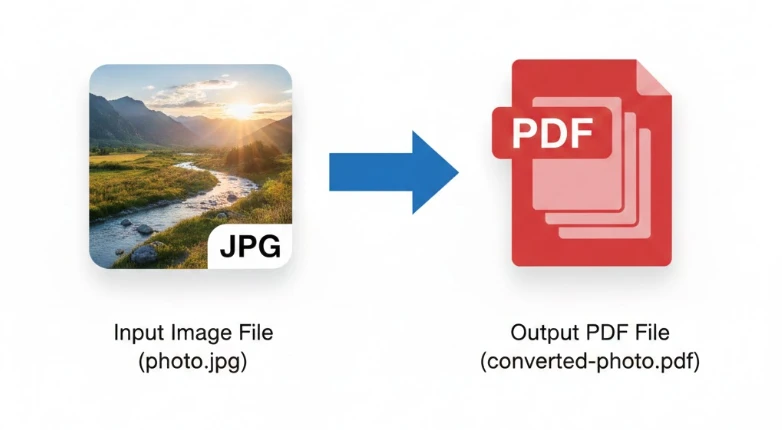
For developers building document management systems, archival tools, or automated workflows, converting JPG images to PDF is a recurring requirement. PDF is the universal document format -- it renders consistently across Windows, Mac, Linux, and mobile devices without requiring image viewers or additional plugins. When you convert JPEG files programmatically, you can automate the process, apply branding, merge multiple images, and control every aspect of the output.
This tutorial covers the full process of converting JPEG to PDF in .NET using C# and IronPDF. You will learn single-image conversion, batch processing, format support, image placement control, and post-conversion customization. Each section includes working C# code you can adapt to your own project.
```shell
:ProductInstall
```
## How Do You Install IronPDF for JPEG to PDF Conversion?
Before writing any conversion code, add IronPDF to your .NET project. The library is distributed through NuGet and installs in seconds.
Open the Package Manager Console in Visual Studio and run:
```bash
:ProductInstall
```
Or use the .NET CLI:
```bash
:InstallCmd dotnet add package IronPdf
```
IronPDF targets .NET 8, .NET 9, and .NET 10, as well as .NET Framework 4.6.2 and later. No additional runtime dependencies are required -- the package includes everything needed for image-to-PDF conversion on Windows, Linux, macOS, Docker, and Azure.
Once installed, add a single `using IronPdf;` statement at the top of your file and you are ready to start converting.
The [IronPDF NuGet package](https://ironpdf.com/get-started/advanced-installation-nuget/) bundles the rendering engine, so there is no separate installer for production servers. For cloud deployments, review the [Docker setup guide](https://ironpdf.com/get-started/ironpdf-docker/) to configure the correct base image.
## How Do You Convert a Single JPEG Image to PDF in C#?
The simplest path to JPEG-to-PDF conversion uses the `ImageToPdfConverter.ImageToPdf()` static method. Pass the image file path, receive a `PdfDocument` object, and save it wherever you need.
```csharp
using IronPdf;

// Convert a single JPG image to PDF
string imagePath = "photo.jpg";
PdfDocument pdf = ImageToPdfConverter.ImageToPdf(imagePath);

// Save the converted PDF file
pdf.SaveAs("converted-photo.pdf");
```
The `ImageToPdf` method accepts the file path to your JPEG file and returns a [PdfDocument](https://ironpdf.com/object-reference/api/) object that you can save, stream, or pass to other IronPDF operations. The conversion happens in memory, which makes it ideal for [web applications](https://ironpdf.com/how-to/pdf-memory-stream/) that need to serve the PDF directly without touching disk.
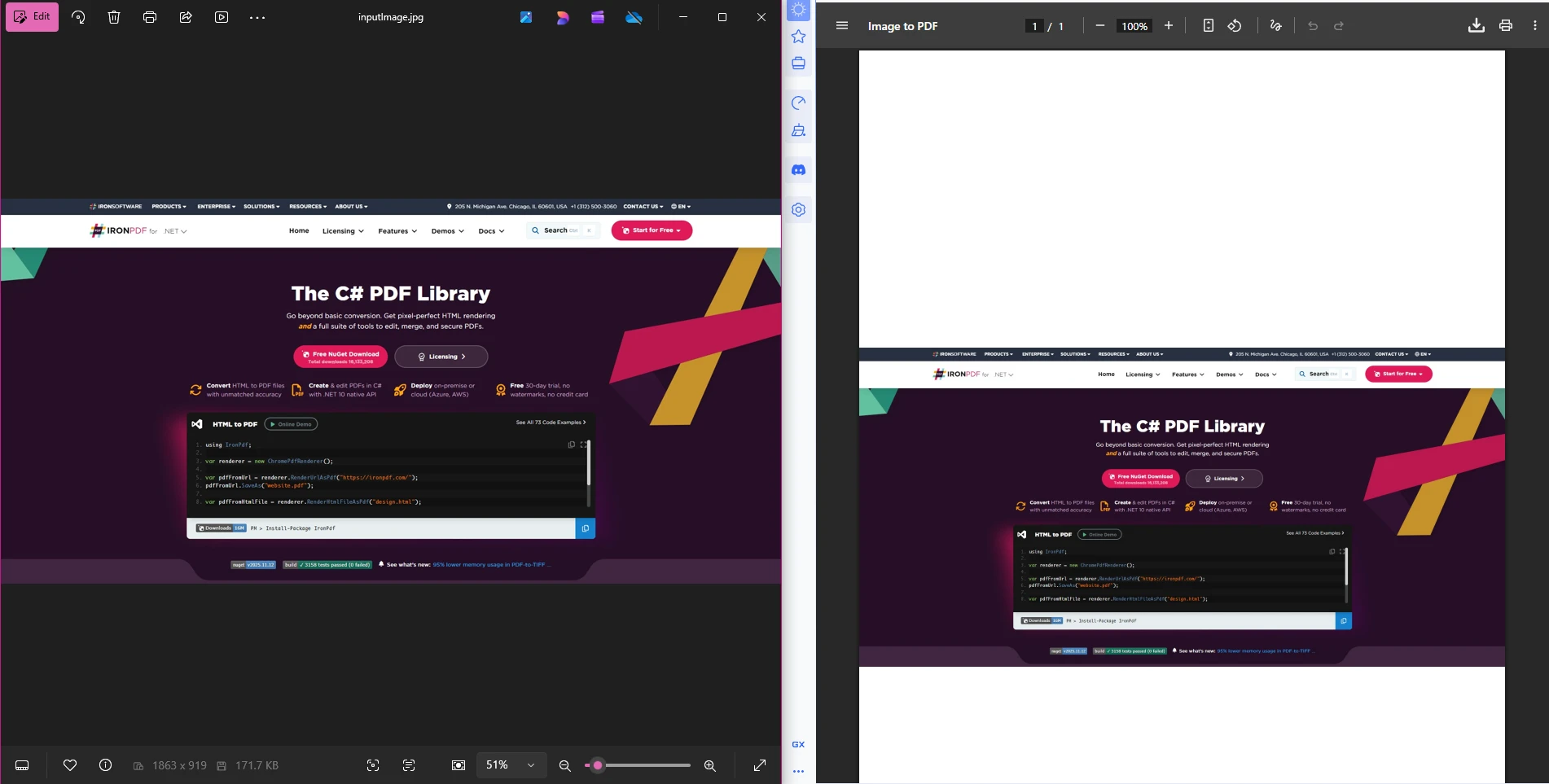
The output PDF maintains the original image quality while packaging it into a format that any PDF reader can open. Page sizing is handled automatically -- the PDF page dimensions match the image dimensions by default, giving you a clean output with no white borders unless you request them. If you need specific margins, use the [custom margins API](https://ironpdf.com/how-to/custom-margins/).
For developers already familiar with [HTML to PDF conversion](https://ironpdf.com/tutorials/html-to-pdf/), the image conversion API follows the same pattern: provide input, configure options if needed, and save the output.
### How Does the Output PDF Compare to the Original JPEG?
IronPDF does not re-compress the JPEG during conversion. The image data is embedded in the PDF at its original resolution, which means the visual quality of the output matches the source file. If your input JPEG is 300 DPI, the embedded image in the PDF is also 300 DPI.
The [ImageToPdf examples page](/examples/image-to-pdf/) shows several before-and-after comparisons across different image types. For precise dimension control, combine `ImageBehavior` options with [custom paper sizes](https://ironpdf.com/how-to/custom-paper-size/) and [page orientation settings](https://ironpdf.com/how-to/page-orientation-rotation/).
### How Do You Stream a Converted PDF Without Saving to Disk?
When building APIs or web applications, you often need to return the PDF as a byte stream rather than a file. The `PdfDocument` object supports this directly:
```csharp
using IronPdf;
string imagePath = "photo.jpg";
PdfDocument pdf = ImageToPdfConverter.ImageToPdf(imagePath);
// Get the PDF as a byte array for streaming
byte[] pdfBytes = pdf.BinaryData;
// In an ASP.NET Core controller:
// return File(pdfBytes, "application/pdf", "converted.pdf");
```
This pattern works across ASP.NET Core, [Blazor applications](https://ironpdf.com/how-to/blazor-tutorial/), and [MAUI projects](https://ironpdf.com/get-started/android/). The PDF bytes can also be written directly to [Azure Blob Storage](https://ironpdf.com/how-to/images-azure-blob-storage/) or any cloud storage provider.
## How Do You Convert Multiple JPEG Files into One PDF Document?
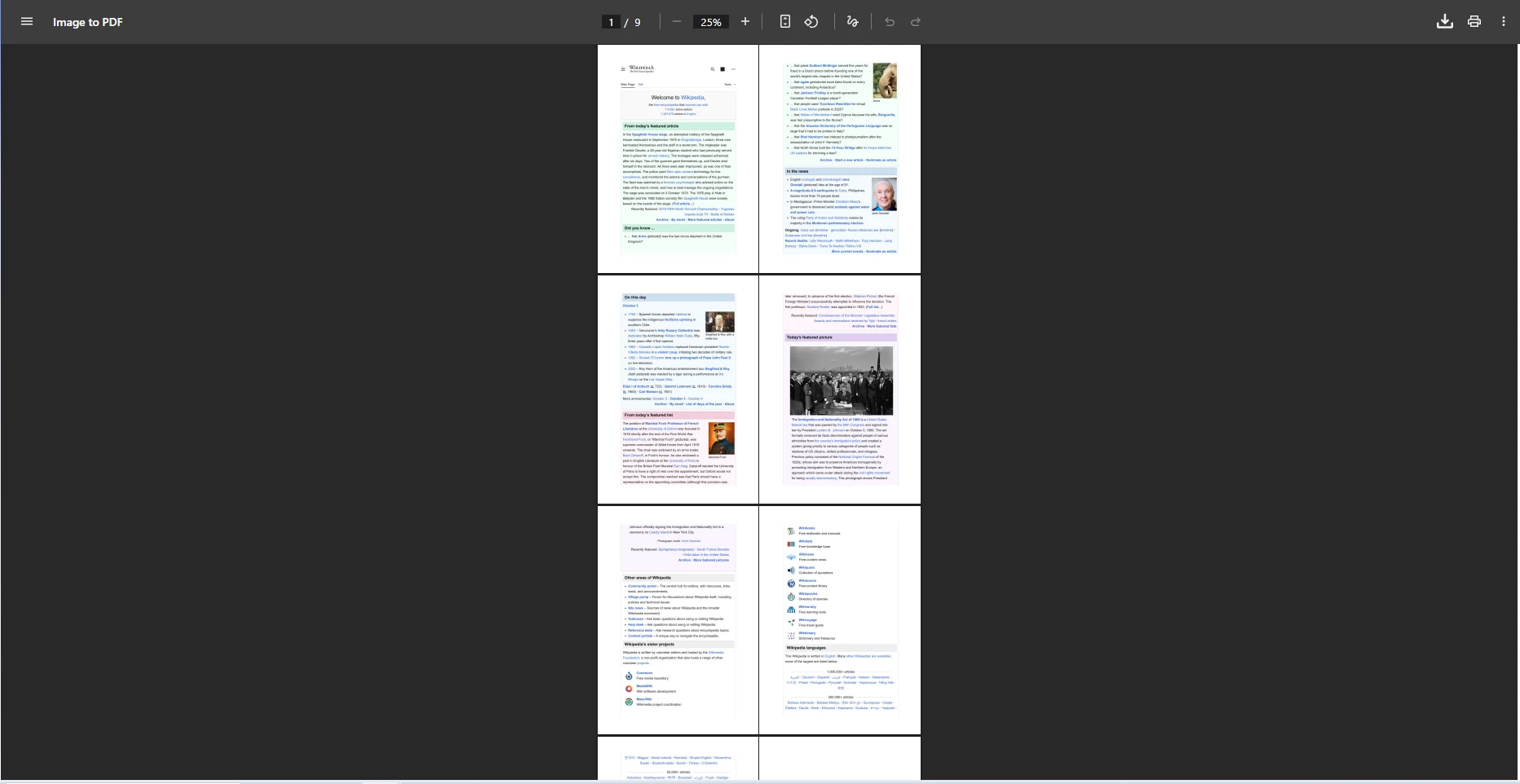
Batch conversion -- taking several JPEG images and combining them into a single PDF -- is equally straightforward. Pass an enumerable of file paths to `ImageToPdfConverter.ImageToPdf()` and the library places each image on its own page in the output.
```csharp
using IronPdf;
using System.IO;
using System.Linq;
// Gather all JPG files from a folder
var imagePaths = Directory.EnumerateFiles("photos")
.Where(f => f.EndsWith(".jpg", StringComparison.OrdinalIgnoreCase)
|| f.EndsWith(".jpeg", StringComparison.OrdinalIgnoreCase));
// Convert multiple JPEG images to a single PDF file
PdfDocument pdf = ImageToPdfConverter.ImageToPdf(imagePaths);
// Save the combined PDF
pdf.SaveAs("photo-collection.pdf");
```
The images appear in the PDF in the same order they appear in the enumerable. To control page order, sort the file paths before passing them to the converter -- for example, by filename, creation date, or any custom ordering that fits your workflow.

### How Do You Control Page Order in a Batch Conversion?
Page order in the output PDF follows the order of the input enumerable. Sort by filename for alphabetical order, by `File.GetCreationTime()` for chronological order, or apply any custom `IComparer` to get exactly the sequence you need. Once the paths are sorted, pass them to `ImageToPdfConverter.ImageToPdf()` and the resulting PDF reflects that order.
For more advanced batch workflows where each image needs different settings, convert images individually and then merge the results using `PdfDocument.Merge()`:
```csharp
using IronPdf;
using System.Collections.Generic;
using System.IO;
using System.Linq;
var imagePaths = Directory.EnumerateFiles("photos")
.Where(f => f.EndsWith(".jpg", StringComparison.OrdinalIgnoreCase));
var pdfDocuments = new List<PdfDocument>();
foreach (var imagePath in imagePaths)
{
var individualPdf = ImageToPdfConverter.ImageToPdf(
imagePath,
ImageBehavior.FitToPageAndMaintainAspectRatio
);
pdfDocuments.Add(individualPdf);
}
// Merge all individual PDFs into one document
PdfDocument combinedPdf = PdfDocument.Merge(pdfDocuments);
combinedPdf.SaveAs("custom-photo-collection.pdf");
```
The [merge and split API](https://ironpdf.com/how-to/merge-or-split-pdfs/) supports merging any number of `PdfDocument` objects. After merging, you can add [bookmarks](https://ironpdf.com/how-to/bookmarks/) to help readers navigate large photo collections, or apply [page numbers](https://ironpdf.com/how-to/headers-and-footers/) via headers and footers.
For secure sharing, the resulting PDF can be [password-protected](https://ironpdf.com/how-to/pdf-permissions-passwords/) or converted to [PDF/A format](https://ironpdf.com/how-to/pdfa/) for long-term archival compliance.
## What Image Formats Does This PDF Converter Support?
IronPDF's image-to-PDF converter handles a broad range of formats beyond JPEG. The same `ImageToPdfConverter` class processes PNG, BMP, GIF, TIFF, SVG, and WebP files using identical method calls -- you do not need separate code paths for different image types.
<table class="content__data-table" data-content-table>
<caption>Image formats supported by IronPDF's ImageToPdfConverter</caption>
<thead>
<tr>
<th>Format</th>
<th>Extensions</th>
<th>Best Use</th>
<th>Notable Feature</th>
</tr>
</thead>
<tbody>
<tr>
<td>JPEG</td>
<td>.jpg, .jpeg, .jfif</td>
<td>Photos, scanned documents</td>
<td>Excellent compression ratio</td>
</tr>
<tr>
<td>PNG</td>
<td>.png</td>
<td>Graphics with transparency</td>
<td>Lossless quality</td>
</tr>
<tr>
<td>BMP</td>
<td>.bmp</td>
<td>Uncompressed source images</td>
<td>Raw pixel data preserved</td>
</tr>
<tr>
<td>GIF</td>
<td>.gif</td>
<td>Simple graphics and diagrams</td>
<td>Small file size for flat graphics</td>
</tr>
<tr>
<td>TIFF</td>
<td>.tiff, .tif</td>
<td>High-quality scans</td>
<td>Multi-page support</td>
</tr>
<tr>
<td>SVG</td>
<td>.svg</td>
<td>Vector graphics and logos</td>
<td>Scalable at any resolution</td>
</tr>
<tr>
<td>WebP</td>
<td>.webp</td>
<td>Modern web images</td>
<td>Superior compression vs JPEG</td>
</tr>
</tbody>
</table>
For TIFF files specifically, IronPDF supports [multi-frame TIFF to PDF conversion](https://ironpdf.com/examples/multi-frame-tiff-to-pdf/), where each frame in the TIFF becomes a separate page in the output PDF. This is particularly useful for scanned multi-page documents that arrive as TIFF archives.
Beyond static raster images, IronPDF also processes [SVG vector graphics](https://ironpdf.com/how-to/SVGs/) at full resolution, making it a reliable tool for converting technical diagrams and icons without quality loss. The same engine that handles images also renders [HTML to PDF](https://ironpdf.com/tutorials/html-to-pdf/), so mixed content pipelines -- documents containing both images and HTML-formatted text -- are well supported.
Unlike browser-based or [online PDF converters](https://ironpdf.com/how-to/url-to-pdf/), IronPDF runs entirely within your .NET process. Files never leave your server, which matters for applications handling confidential documents, medical images, or financial records.
## How Do You Control Image Placement in the Converted PDF?
By default, IronPDF sizes the PDF page to match the image dimensions. If you need different behavior -- fitting images to a standard paper size, centering them with white margins, or cropping to fill the page -- use the `ImageBehavior` enum combined with `ImageToPdfRenderOptions`.
```csharp
using IronPdf;
var renderingOptions = new ImageToPdfRenderOptions
{
ImageBehavior = ImageBehavior.FitToPageAndMaintainAspectRatio,
PaperSize = PdfPaperSize.A4,
MarginTop = 25,
MarginBottom = 25,
MarginLeft = 25,
MarginRight = 25
};
string imagePath = "photo.jpg";
PdfDocument pdf = ImageToPdfConverter.ImageToPdf(imagePath, renderingOptions);
pdf.SaveAs("formatted-output.pdf");
```
The available `ImageBehavior` values cover the most common layout requirements:
- `FitToPageAndMaintainAspectRatio` -- scales the image to fill the page while preserving proportions
- `CenteredOnPage` -- places the image at its original size, centered horizontally and vertically
- `TopLeftCornerOfPage` -- anchors the image to the top-left without scaling
- `CropPage` -- trims the page size to match the image dimensions exactly
After conversion, you can apply additional transformations. Add a watermark using HTML markup, attach [headers and footers](https://ironpdf.com/how-to/headers-and-footers/) for document identification, or [rotate pages](https://ironpdf.com/how-to/page-orientation-rotation/) to match the desired orientation.
Further post-processing options include:
- [Stamping text or images](https://ironpdf.com/how-to/stamp-text-image/) for branding or approval marks
- [Applying background templates](https://ironpdf.com/how-to/background-foreground/) for letterhead effects
- [Compressing the output PDF](https://ironpdf.com/how-to/pdf-compression/) to reduce file size for email or upload
- [Drawing shapes and annotations](https://ironpdf.com/how-to/draw-line-and-rectangle/) for visual markup
## What Are the Most Common Use Cases for JPEG to PDF Conversion?
Programmatic JPEG-to-PDF conversion is a building block for many document workflows. Understanding the most frequent scenarios helps you design the right architecture for your application.
**Document archival and compliance** -- Organizations that scan paper records produce JPEG files from flatbed and document scanners. Converting these to PDF allows indexing, long-term storage in [PDF/A format](https://ironpdf.com/how-to/pdfa/), and access through standard document management platforms. PDF/A is an ISO standard specifically designed for archival, and IronPDF supports generating compliant files.
**Report and dashboard generation** -- Applications that generate charts, screenshots, or data visualizations often capture output as JPEG. Embedding these into PDF reports using `ImageToPdfConverter` produces consistent, printable documents that stakeholders can review without installing charting software.
**Photo portfolios and galleries** -- Creative professionals and real estate platforms use batch JPEG-to-PDF conversion to produce printable property sheets, portfolio books, and catalog PDFs. Combining dozens of photos into a single navigable PDF with [bookmarks](https://ironpdf.com/how-to/bookmarks/) creates a better presentation than a folder of image files.
**Automated upload workflows** -- Web applications that accept JPEG uploads from users -- profile photos, supporting documents, ID scans -- can normalize all uploads to PDF for consistent downstream processing. This simplifies storage, search, and rendering because the application deals with one format instead of many.
According to the [PDF Association's industry research](https://www.pdfa.org/), PDF remains the most widely used document format in enterprise environments, which is why converting images to PDF early in a workflow pays dividends in compatibility and long-term accessibility.
The Mozilla Developer Network documents the [PDF MIME type](https://developer.mozilla.org/en-US/docs/Web/HTTP/Guides/MIME_types/Common_types) as `application/pdf`, which is natively supported by all major browsers without plugins -- making PDF the safest format choice for documents that need to be viewed in a browser.
For enhanced security in any of these scenarios, IronPDF supports [PDF redaction](https://ironpdf.com/how-to/redact-text/) to permanently remove sensitive content, [PDF sanitization](https://ironpdf.com/how-to/sanitize-pdf/) to strip hidden metadata, and [digital signatures](https://ironpdf.com/how-to/signing/) for document authentication.
## How Do You Add Headers, Footers, and Metadata to Converted PDFs?
A converted JPEG-to-PDF is often just the starting point. Production applications typically need to add document metadata, page numbers, and organizational branding before delivering the final file.
```csharp
using IronPdf;
using IronPdf.Editing;
string imagePath = "photo.jpg";
PdfDocument pdf = ImageToPdfConverter.ImageToPdf(imagePath);
// Add a text footer with page numbers
var footer = new TextHeaderFooter
{
CenterText = "Page {page} of {total-pages}",
DrawDividerLine = true,
FontSize = 10
};
pdf.AddTextFooters(footer);
// Set document metadata
pdf.MetaData.Title = "Converted Photo Document";
pdf.MetaData.Author = "Document Processing System";
pdf.MetaData.CreationDate = System.DateTime.Now;
// Apply a confidentiality watermark if needed
pdf.ApplyWatermark(
"<h2 style='color:red;opacity:0.3'>CONFIDENTIAL</h2>",
30,
VerticalAlignment.Middle,
HorizontalAlignment.Center
);
pdf.SaveAs("final-document.pdf");
```
For batch conversions, you can apply the same footer and metadata to every page in a multi-image PDF before saving. The [async processing API](https://ironpdf.com/how-to/async/) allows high-throughput environments to process many images concurrently without blocking threads.
If your deployment is cloud-based, review the [Azure deployment guide](https://ironpdf.com/how-to/azure/) and [AWS setup documentation](https://ironpdf.com/get-started/aws/) for environment-specific configuration. The [custom logging API](https://ironpdf.com/how-to/custom-logging/) integrates with Serilog, NLog, and Microsoft.Extensions.Logging for operational monitoring.
The [IronPDF troubleshooting guide](https://ironpdf.com/troubleshooting/quick-ironpdf-troubleshooting/) covers the most common issues that arise in production, including font loading, permission errors on Linux, and rendering differences across .NET versions.
## What Are Your Next Steps?
IronPDF's `ImageToPdfConverter` class gives you a straightforward path from JPEG files to professional PDF documents in C#. The API handles single images and batch collections with the same method call, supports seven image formats without additional code, and integrates with the full range of IronPDF's PDF manipulation features.
Start by installing the package via NuGet:
```bash
:ProductInstall
```
Then adapt the code examples from this tutorial to your use case. Single-image conversion works with three lines of code. Batch processing needs a LINQ query and one method call. Layout customization uses the `ImageToPdfRenderOptions` class with the `ImageBehavior` enum.
The [IronPDF free trial](https://ironpdf.com/docs/) gives you full access to all features for evaluation. When you are ready for production, review the [licensing options](https://ironpdf.com/licensing/) for commercial applications, including the [licensing upgrade paths](https://ironpdf.com/licensing/upgrades/) for growing teams. The [IronPDF PDF converter features page](https://ironpdf.com/features/convert/) lists every supported conversion type if you need to handle more than just JPEG input.
For related image-to-document workflows, the [add images to PDFs guide](https://ironpdf.com/how-to/add-images-to-pdfs/) covers embedding images into existing PDF pages, and the [HTML to PDF tutorial](https://ironpdf.com/tutorials/html-to-pdf/) explains how to generate PDFs from HTML templates that combine text and images in a single document.
Converting JPEG images to PDF in C# takes just a few lines of code with IronPDF's ImageToPdfConverter class. The library handles single images, batch conversions, and multiple image formats while preserving quality in the output PDF document.
For developers building document management systems, archival tools, or automated workflows, converting JPG images to PDF is a recurring requirement. PDF is the universal document format -- it renders consistently across Windows, Mac, Linux, and mobile devices without requiring image viewers or additional plugins. When you convert JPEG files programmatically, you can automate the process, apply branding, merge multiple images, and control every aspect of the output.
This tutorial covers the full process of converting JPEG to PDF in .NET using C# and IronPDF. You will learn single-image conversion, batch processing, format support, image placement control, and post-conversion customization. Each section includes working C# code you can adapt to your own project.
PM > Install-Package IronPdf
Install-Package IronPdf
How Do You Install IronPDF for JPEG to PDF Conversion?
Before writing any conversion code, add IronPDF to your .NET project. The library is distributed through NuGet and installs in seconds.
Open the Package Manager Console in Visual Studio and run:
PM > Install-Package IronPdf
Install-Package IronPdf
Or use the .NET CLI:
> dotnet add package IronPdf
dotnet add package IronPdf
IronPDF targets .NET 8, .NET 9, and .NET 10, as well as .NET Framework 4.6.2 and later. No additional runtime dependencies are required -- the package includes everything needed for image-to-PDF conversion on Windows, Linux, macOS, Docker, and Azure.
Once installed, add a single using IronPdf; statement at the top of your file and you are ready to start converting.
The IronPDF NuGet package bundles the rendering engine, so there is no separate installer for production servers. For cloud deployments, review the Docker setup guide to configure the correct base image.
How Do You Convert a Single JPEG Image to PDF in C#?
The simplest path to JPEG-to-PDF conversion uses the ImageToPdfConverter.ImageToPdf() static method. Pass the image file path, receive a PdfDocument object, and save it wherever you need.
using IronPdf;// Convert a single JPG image to PDFstring imagePath = "photo.jpg";PdfDocument pdf = ImageToPdfConverter.ImageToPdf(imagePath);// Save the converted PDF filepdf.SaveAs("converted-photo.pdf");
using IronPdf;

// Convert a single JPG image to PDF
string imagePath = "photo.jpg";
PdfDocument pdf = ImageToPdfConverter.ImageToPdf(imagePath);

// Save the converted PDF file
pdf.SaveAs("converted-photo.pdf");
ImportsIronPdf' Convert a single JPG image to PDFDim imagePath AsString = "photo.jpg"Dim pdf AsPdfDocument = ImageToPdfConverter.ImageToPdf(imagePath)' Save the converted PDF filepdf.SaveAs("converted-photo.pdf")
Imports IronPdf

' Convert a single JPG image to PDF
Dim imagePath As String = "photo.jpg"
Dim pdf As PdfDocument = ImageToPdfConverter.ImageToPdf(imagePath)

' Save the converted PDF file
pdf.SaveAs("converted-photo.pdf")
The ImageToPdf method accepts the file path to your JPEG file and returns a PdfDocument object that you can save, stream, or pass to other IronPDF operations. The conversion happens in memory, which makes it ideal for web applications that need to serve the PDF directly without touching disk.
The output PDF maintains the original image quality while packaging it into a format that any PDF reader can open. Page sizing is handled automatically -- the PDF page dimensions match the image dimensions by default, giving you a clean output with no white borders unless you request them. If you need specific margins, use the custom margins API.
For developers already familiar with HTML to PDF conversion, the image conversion API follows the same pattern: provide input, configure options if needed, and save the output.
How Does the Output PDF Compare to the Original JPEG?
IronPDF does not re-compress the JPEG during conversion. The image data is embedded in the PDF at its original resolution, which means the visual quality of the output matches the source file. If your input JPEG is 300 DPI, the embedded image in the PDF is also 300 DPI.
How Do You Stream a Converted PDF Without Saving to Disk?
When building APIs or web applications, you often need to return the PDF as a byte stream rather than a file. The PdfDocument object supports this directly:
using IronPdf;string imagePath = "photo.jpg";PdfDocument pdf = ImageToPdfConverter.ImageToPdf(imagePath);// Get the PDF as a byte array for streamingbyte[] pdfBytes = pdf.BinaryData;// In an ASP.NET Core controller:// return File(pdfBytes, "application/pdf", "converted.pdf");
using IronPdf;

string imagePath = "photo.jpg";
PdfDocument pdf = ImageToPdfConverter.ImageToPdf(imagePath);

// Get the PDF as a byte array for streaming
byte[] pdfBytes = pdf.BinaryData;

// In an ASP.NET Core controller:
// return File(pdfBytes, "application/pdf", "converted.pdf");
ImportsIronPdfDim imagePath AsString = "photo.jpg"Dim pdf AsPdfDocument = ImageToPdfConverter.ImageToPdf(imagePath)' Get the PDF as a byte array for streamingDim pdfBytes AsByte() = pdf.BinaryData' In an ASP.NET Core controller:' Return File(pdfBytes, "application/pdf", "converted.pdf")
Imports IronPdf

Dim imagePath As String = "photo.jpg"
Dim pdf As PdfDocument = ImageToPdfConverter.ImageToPdf(imagePath)

' Get the PDF as a byte array for streaming
Dim pdfBytes As Byte() = pdf.BinaryData

' In an ASP.NET Core controller:
' Return File(pdfBytes, "application/pdf", "converted.pdf")
How Do You Convert Multiple JPEG Files into One PDF Document?
Batch conversion -- taking several JPEG images and combining them into a single PDF -- is equally straightforward. Pass an enumerable of file paths to ImageToPdfConverter.ImageToPdf() and the library places each image on its own page in the output.
using IronPdf;using System.IO;using System.Linq;// Gather all JPG files from a foldervar imagePaths = Directory.EnumerateFiles("photos") .Where(f => f.EndsWith(".jpg", StringComparison.OrdinalIgnoreCase) || f.EndsWith(".jpeg", StringComparison.OrdinalIgnoreCase));// Convert multiple JPEG images to a single PDF filePdfDocument pdf = ImageToPdfConverter.ImageToPdf(imagePaths);// Save the combined PDFpdf.SaveAs("photo-collection.pdf");
using IronPdf;
using System.IO;
using System.Linq;

// Gather all JPG files from a folder
var imagePaths = Directory.EnumerateFiles("photos")
    .Where(f => f.EndsWith(".jpg", StringComparison.OrdinalIgnoreCase)
             || f.EndsWith(".jpeg", StringComparison.OrdinalIgnoreCase));

// Convert multiple JPEG images to a single PDF file
PdfDocument pdf = ImageToPdfConverter.ImageToPdf(imagePaths);

// Save the combined PDF
pdf.SaveAs("photo-collection.pdf");
ImportsIronPdfImportsSystem.IOImportsSystem.Linq' Gather all JPG files from a folderDim imagePaths = Directory.EnumerateFiles("photos") _ .Where(Function(f) f.EndsWith(".jpg", StringComparison.OrdinalIgnoreCase) _OrElse f.EndsWith(".jpeg", StringComparison.OrdinalIgnoreCase))' Convert multiple JPEG images to a single PDF fileDim pdf AsPdfDocument = ImageToPdfConverter.ImageToPdf(imagePaths)' Save the combined PDFpdf.SaveAs("photo-collection.pdf")
Imports IronPdf
Imports System.IO
Imports System.Linq

' Gather all JPG files from a folder
Dim imagePaths = Directory.EnumerateFiles("photos") _
    .Where(Function(f) f.EndsWith(".jpg", StringComparison.OrdinalIgnoreCase) _
             OrElse f.EndsWith(".jpeg", StringComparison.OrdinalIgnoreCase))

' Convert multiple JPEG images to a single PDF file
Dim pdf As PdfDocument = ImageToPdfConverter.ImageToPdf(imagePaths)

' Save the combined PDF
pdf.SaveAs("photo-collection.pdf")
The images appear in the PDF in the same order they appear in the enumerable. To control page order, sort the file paths before passing them to the converter -- for example, by filename, creation date, or any custom ordering that fits your workflow.
How Do You Control Page Order in a Batch Conversion?
Page order in the output PDF follows the order of the input enumerable. Sort by filename for alphabetical order, by File.GetCreationTime() for chronological order, or apply any custom IComparer to get exactly the sequence you need. Once the paths are sorted, pass them to ImageToPdfConverter.ImageToPdf() and the resulting PDF reflects that order.
For more advanced batch workflows where each image needs different settings, convert images individually and then merge the results using PdfDocument.Merge():
using IronPdf;using System.Collections.Generic;using System.IO;using System.Linq;var imagePaths = Directory.EnumerateFiles("photos") .Where(f => f.EndsWith(".jpg", StringComparison.OrdinalIgnoreCase));var pdfDocuments = new List<PdfDocument>();foreach (var imagePath in imagePaths){ var individualPdf = ImageToPdfConverter.ImageToPdf( imagePath,ImageBehavior.FitToPageAndMaintainAspectRatio ); pdfDocuments.Add(individualPdf);}// Merge all individual PDFs into one documentPdfDocument combinedPdf = PdfDocument.Merge(pdfDocuments);combinedPdf.SaveAs("custom-photo-collection.pdf");
using IronPdf;
using System.Collections.Generic;
using System.IO;
using System.Linq;

var imagePaths = Directory.EnumerateFiles("photos")
    .Where(f => f.EndsWith(".jpg", StringComparison.OrdinalIgnoreCase));

var pdfDocuments = new List<PdfDocument>();

foreach (var imagePath in imagePaths)
{
    var individualPdf = ImageToPdfConverter.ImageToPdf(
        imagePath,
        ImageBehavior.FitToPageAndMaintainAspectRatio
    );
    pdfDocuments.Add(individualPdf);
}

// Merge all individual PDFs into one document
PdfDocument combinedPdf = PdfDocument.Merge(pdfDocuments);
combinedPdf.SaveAs("custom-photo-collection.pdf");
ImportsIronPdfImportsSystem.Collections.GenericImportsSystem.IOImportsSystem.LinqDim imagePaths = Directory.EnumerateFiles("photos") _ .Where(Function(f) f.EndsWith(".jpg", StringComparison.OrdinalIgnoreCase))Dim pdfDocuments As New List(OfPdfDocument)()For Each imagePath In imagePaths Dim individualPdf = ImageToPdfConverter.ImageToPdf( _ imagePath, _ImageBehavior.FitToPageAndMaintainAspectRatio _ ) pdfDocuments.Add(individualPdf)Next' Merge all individual PDFs into one documentDim combinedPdf AsPdfDocument = PdfDocument.Merge(pdfDocuments)combinedPdf.SaveAs("custom-photo-collection.pdf")
Imports IronPdf
Imports System.Collections.Generic
Imports System.IO
Imports System.Linq

Dim imagePaths = Directory.EnumerateFiles("photos") _
    .Where(Function(f) f.EndsWith(".jpg", StringComparison.OrdinalIgnoreCase))

Dim pdfDocuments As New List(Of PdfDocument)()

For Each imagePath In imagePaths
    Dim individualPdf = ImageToPdfConverter.ImageToPdf( _
        imagePath, _
        ImageBehavior.FitToPageAndMaintainAspectRatio _
    )
    pdfDocuments.Add(individualPdf)
Next

' Merge all individual PDFs into one document
Dim combinedPdf As PdfDocument = PdfDocument.Merge(pdfDocuments)
combinedPdf.SaveAs("custom-photo-collection.pdf")
The merge and split API supports merging any number of PdfDocument objects. After merging, you can add bookmarks to help readers navigate large photo collections, or apply page numbers via headers and footers.
For secure sharing, the resulting PDF can be password-protected or converted to PDF/A format for long-term archival compliance.
What Image Formats Does This PDF Converter Support?
IronPDF's image-to-PDF converter handles a broad range of formats beyond JPEG. The same ImageToPdfConverter class processes PNG, BMP, GIF, TIFF, SVG, and WebP files using identical method calls -- you do not need separate code paths for different image types.
Image formats supported by IronPDF's ImageToPdfConverter
Format
Extensions
Best Use
Notable Feature
JPEG
.jpg, .jpeg, .jfif
Photos, scanned documents
Excellent compression ratio
PNG
.png
Graphics with transparency
Lossless quality
BMP
.bmp
Uncompressed source images
Raw pixel data preserved
GIF
.gif
Simple graphics and diagrams
Small file size for flat graphics
TIFF
.tiff, .tif
High-quality scans
Multi-page support
SVG
.svg
Vector graphics and logos
Scalable at any resolution
WebP
.webp
Modern web images
Superior compression vs JPEG
For TIFF files specifically, IronPDF supports multi-frame TIFF to PDF conversion, where each frame in the TIFF becomes a separate page in the output PDF. This is particularly useful for scanned multi-page documents that arrive as TIFF archives.
Beyond static raster images, IronPDF also processes SVG vector graphics at full resolution, making it a reliable tool for converting technical diagrams and icons without quality loss. The same engine that handles images also renders HTML to PDF, so mixed content pipelines -- documents containing both images and HTML-formatted text -- are well supported.
Unlike browser-based or online PDF converters, IronPDF runs entirely within your .NET process. Files never leave your server, which matters for applications handling confidential documents, medical images, or financial records.
How Do You Control Image Placement in the Converted PDF?
By default, IronPDF sizes the PDF page to match the image dimensions. If you need different behavior -- fitting images to a standard paper size, centering them with white margins, or cropping to fill the page -- use the ImageBehavior enum combined with ImageToPdfRenderOptions.
using IronPdf;var renderingOptions = new ImageToPdfRenderOptions{ImageBehavior = ImageBehavior.FitToPageAndMaintainAspectRatio,PaperSize = PdfPaperSize.A4,MarginTop = 25,MarginBottom = 25,MarginLeft = 25,MarginRight = 25};string imagePath = "photo.jpg";PdfDocument pdf = ImageToPdfConverter.ImageToPdf(imagePath, renderingOptions);pdf.SaveAs("formatted-output.pdf");
using IronPdf;

var renderingOptions = new ImageToPdfRenderOptions
{
    ImageBehavior = ImageBehavior.FitToPageAndMaintainAspectRatio,
    PaperSize = PdfPaperSize.A4,
    MarginTop = 25,
    MarginBottom = 25,
    MarginLeft = 25,
    MarginRight = 25
};

string imagePath = "photo.jpg";
PdfDocument pdf = ImageToPdfConverter.ImageToPdf(imagePath, renderingOptions);
pdf.SaveAs("formatted-output.pdf");
Imports IronPdf

Dim renderingOptions As New ImageToPdfRenderOptions With {
    .ImageBehavior = ImageBehavior.FitToPageAndMaintainAspectRatio,
    .PaperSize = PdfPaperSize.A4,
    .MarginTop = 25,
    .MarginBottom = 25,
    .MarginLeft = 25,
    .MarginRight = 25
}

Dim imagePath As String = "photo.jpg"
Dim pdf As PdfDocument = ImageToPdfConverter.ImageToPdf(imagePath, renderingOptions)
pdf.SaveAs("formatted-output.pdf")
The available ImageBehavior values cover the most common layout requirements:
FitToPageAndMaintainAspectRatio -- scales the image to fill the page while preserving proportions
CenteredOnPage -- places the image at its original size, centered horizontally and vertically
TopLeftCornerOfPage -- anchors the image to the top-left without scaling
CropPage -- trims the page size to match the image dimensions exactly
After conversion, you can apply additional transformations. Add a watermark using HTML markup, attach headers and footers for document identification, or rotate pages to match the desired orientation.
What Are the Most Common Use Cases for JPEG to PDF Conversion?
Programmatic JPEG-to-PDF conversion is a building block for many document workflows. Understanding the most frequent scenarios helps you design the right architecture for your application.
Document archival and compliance -- Organizations that scan paper records produce JPEG files from flatbed and document scanners. Converting these to PDF allows indexing, long-term storage in PDF/A format, and access through standard document management platforms. PDF/A is an ISO standard specifically designed for archival, and IronPDF supports generating compliant files.
Report and dashboard generation -- Applications that generate charts, screenshots, or data visualizations often capture output as JPEG. Embedding these into PDF reports using ImageToPdfConverter produces consistent, printable documents that stakeholders can review without installing charting software.
Photo portfolios and galleries -- Creative professionals and real estate platforms use batch JPEG-to-PDF conversion to produce printable property sheets, portfolio books, and catalog PDFs. Combining dozens of photos into a single navigable PDF with bookmarks creates a better presentation than a folder of image files.
Automated upload workflows -- Web applications that accept JPEG uploads from users -- profile photos, supporting documents, ID scans -- can normalize all uploads to PDF for consistent downstream processing. This simplifies storage, search, and rendering because the application deals with one format instead of many.
According to the PDF Association's industry research, PDF remains the most widely used document format in enterprise environments, which is why converting images to PDF early in a workflow pays dividends in compatibility and long-term accessibility.
The Mozilla Developer Network documents the PDF MIME type as application/pdf, which is natively supported by all major browsers without plugins -- making PDF the safest format choice for documents that need to be viewed in a browser.
For enhanced security in any of these scenarios, IronPDF supports PDF redaction to permanently remove sensitive content, PDF sanitization to strip hidden metadata, and digital signatures for document authentication.
How Do You Add Headers, Footers, and Metadata to Converted PDFs?
A converted JPEG-to-PDF is often just the starting point. Production applications typically need to add document metadata, page numbers, and organizational branding before delivering the final file.
using IronPdf;using IronPdf.Editing;string imagePath = "photo.jpg";PdfDocument pdf = ImageToPdfConverter.ImageToPdf(imagePath);// Add a text footer with page numbersvar footer = new TextHeaderFooter{CenterText = "Page {page} of {total-pages}",DrawDividerLine = true,FontSize = 10};pdf.AddTextFooters(footer);// Set document metadatapdf.MetaData.Title = "Converted Photo Document";pdf.MetaData.Author = "Document Processing System";pdf.MetaData.CreationDate = System.DateTime.Now;// Apply a confidentiality watermark if neededpdf.ApplyWatermark( "<h2 style='color:red;opacity:0.3'>CONFIDENTIAL</h2>", 30,VerticalAlignment.Middle,HorizontalAlignment.Center);pdf.SaveAs("final-document.pdf");
using IronPdf;
using IronPdf.Editing;

string imagePath = "photo.jpg";
PdfDocument pdf = ImageToPdfConverter.ImageToPdf(imagePath);

// Add a text footer with page numbers
var footer = new TextHeaderFooter
{
    CenterText = "Page {page} of {total-pages}",
    DrawDividerLine = true,
    FontSize = 10
};
pdf.AddTextFooters(footer);

// Set document metadata
pdf.MetaData.Title = "Converted Photo Document";
pdf.MetaData.Author = "Document Processing System";
pdf.MetaData.CreationDate = System.DateTime.Now;

// Apply a confidentiality watermark if needed
pdf.ApplyWatermark(
    "<h2 style='color:red;opacity:0.3'>CONFIDENTIAL</h2>",
    30,
    VerticalAlignment.Middle,
    HorizontalAlignment.Center
);

pdf.SaveAs("final-document.pdf");
ImportsIronPdfImportsIronPdf.EditingDim imagePath AsString = "photo.jpg"Dim pdf AsPdfDocument = ImageToPdfConverter.ImageToPdf(imagePath)' Add a text footer with page numbersDim footer As New TextHeaderFooterWith { .CenterText = "Page {page} of {total-pages}", .DrawDividerLine = True, .FontSize = 10}pdf.AddTextFooters(footer)' Set document metadatapdf.MetaData.Title = "Converted Photo Document"pdf.MetaData.Author = "Document Processing System"pdf.MetaData.CreationDate = System.DateTime.Now' Apply a confidentiality watermark if neededpdf.ApplyWatermark( "<h2 style='color:red;opacity:0.3'>CONFIDENTIAL</h2>", 30,VerticalAlignment.Middle,HorizontalAlignment.Center)pdf.SaveAs("final-document.pdf")
Imports IronPdf
Imports IronPdf.Editing

Dim imagePath As String = "photo.jpg"
Dim pdf As PdfDocument = ImageToPdfConverter.ImageToPdf(imagePath)

' Add a text footer with page numbers
Dim footer As New TextHeaderFooter With {
    .CenterText = "Page {page} of {total-pages}",
    .DrawDividerLine = True,
    .FontSize = 10
}
pdf.AddTextFooters(footer)

' Set document metadata
pdf.MetaData.Title = "Converted Photo Document"
pdf.MetaData.Author = "Document Processing System"
pdf.MetaData.CreationDate = System.DateTime.Now

' Apply a confidentiality watermark if needed
pdf.ApplyWatermark(
    "<h2 style='color:red;opacity:0.3'>CONFIDENTIAL</h2>",
    30,
    VerticalAlignment.Middle,
    HorizontalAlignment.Center
)

pdf.SaveAs("final-document.pdf")
For batch conversions, you can apply the same footer and metadata to every page in a multi-image PDF before saving. The async processing API allows high-throughput environments to process many images concurrently without blocking threads.
The IronPDF troubleshooting guide covers the most common issues that arise in production, including font loading, permission errors on Linux, and rendering differences across .NET versions.
What Are Your Next Steps?
IronPDF's ImageToPdfConverter class gives you a straightforward path from JPEG files to professional PDF documents in C#. The API handles single images and batch collections with the same method call, supports seven image formats without additional code, and integrates with the full range of IronPDF's PDF manipulation features.
Start by installing the package via NuGet:
PM > Install-Package IronPdf
Install-Package IronPdf
Then adapt the code examples from this tutorial to your use case. Single-image conversion works with three lines of code. Batch processing needs a LINQ query and one method call. Layout customization uses the ImageToPdfRenderOptions class with the ImageBehavior enum.
For related image-to-document workflows, the add images to PDFs guide covers embedding images into existing PDF pages, and the HTML to PDF tutorial explains how to generate PDFs from HTML templates that combine text and images in a single document.
Curtis Chau holds a Bachelor’s degree in Computer Science (Carleton University) and specializes in front-end development with expertise in Node.js, TypeScript, JavaScript, and React. Passionate about crafting intuitive and aesthetically pleasing user interfaces, Curtis enjoys working with modern frameworks and creating well-structured, visually appealing manuals.



























