using IronPdf;

// Disable local disk access or cross-origin requests
Installation.EnableWebSecurity = true;

// Instantiate Renderer
var renderer = new ChromePdfRenderer();

// Create a PDF from a HTML string using C#
var pdf = renderer.RenderHtmlAsPdf("<h1>Hello World</h1>");

// Export to a file or Stream
pdf.SaveAs("output.pdf");

// Advanced Example with HTML Assets
// Load external html assets: Images, CSS and JavaScript.
// An optional BasePath 'C:\site\assets\' is set as the file location to load assets from
var myAdvancedPdf = renderer.RenderHtmlAsPdf("<img src='icons/iron.png'>", @"C:\site\assets\");
myAdvancedPdf.SaveAs("html-with-assets.pdf");
using IronPdf;// Disable local disk access or cross-origin requestsInstallation.EnableWebSecurity = true;// Instantiate Renderervar renderer = new ChromePdfRenderer();// Create a PDF from a HTML string using C#var pdf = renderer.RenderHtmlAsPdf("<h1>Hello World</h1>");// Export to a file or Streampdf.SaveAs("output.pdf");// Advanced Example with HTML Assets// Load external html assets: Images, CSS and JavaScript.// An optional BasePath 'C:\site\assets\' is set as the file location to load assets fromvar myAdvancedPdf = renderer.RenderHtmlAsPdf("<img src='icons/iron.png'>", @"C:\site\assets\");myAdvancedPdf.SaveAs("html-with-assets.pdf");
PM >
Install-Package IronPdf
USING IRONPDF
.NET Merge PDF: Combine Multiple Files with IronPDF
IronPDF allows .NET developers to merge multiple PDF files into a single document with just a few lines of code. It supports various sources, including existing PDFs, HTML content, and web URLs, for smooth document consolidation.
Combining multiple PDF files into one document is common in business applications. Whether you're consolidating reports, bundling invoices, or assembling documentation packages, the ability to merge PDF files programmatically saves time and reduces manual effort. IronPDF is a complete PDF library that simplifies this process in .NET applications with minimal code.
In this article, you'll learn how to merge PDF documents using IronPDF's API, from basic two-file combinations to handling several documents dynamically. The library provides a reliable way to combine PDF files efficiently while maintaining document integrity.
How Do You Install the Library?
Getting started requires a simple NuGet package installation. Open the Package Manager Console in Visual Studio and run:
PM > Install-Package IronPdf
Install-Package IronPdf
Or use the .NET CLI:
> dotnet add package IronPdf
dotnet add package IronPdf
IronPDF handles all the complex PDF manipulation behind the scenes, letting you focus on your application logic. This process is compatible with various operating systems, including Linux via .NET Core. For detailed installation guidance, visit the IronPDF installation documentation.
Why is the Installation So Simple?
IronPDF is designed as a single NuGet package with no external dependencies, making it a plug-and-play solution for .NET developers. The library automatically handles PDF rendering engines and compatibility across different .NET versions.
What Prerequisites Do You Need?
You'll need Visual Studio or any .NET-compatible IDE and .NET Framework 4.6.2+ or .NET Core 3.1+. The library works with both framework versions without additional configuration. It also supports deployment to Azure and AWS environments.
How Do You Merge Two PDF Documents?
The most basic merging scenario involves combining two existing PdfDocument objects. Here's how to accomplish this task:
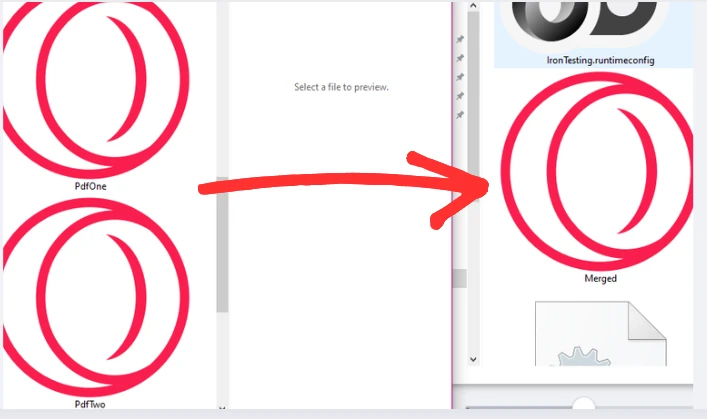
using IronPdf;// Load the PDF documentsvar pdf1 = PdfDocument.FromFile("Invoice1.pdf");var pdf2 = PdfDocument.FromFile("Invoice2.pdf");// Merge the documentsvar merged = PdfDocument.Merge(pdf1, pdf2);// Save the merged documentmerged.SaveAs("Merged.pdf");
using IronPdf;

// Load the PDF documents
var pdf1 = PdfDocument.FromFile("Invoice1.pdf");
var pdf2 = PdfDocument.FromFile("Invoice2.pdf");

// Merge the documents
var merged = PdfDocument.Merge(pdf1, pdf2);

// Save the merged document
merged.SaveAs("Merged.pdf");
ImportsIronPdf' Load the PDF documentsDim pdf1 = PdfDocument.FromFile("Invoice1.pdf")Dim pdf2 = PdfDocument.FromFile("Invoice2.pdf")' Merge the documentsDim merged = PdfDocument.Merge(pdf1, pdf2)' Save the merged documentmerged.SaveAs("Merged.pdf")
Imports IronPdf

' Load the PDF documents
Dim pdf1 = PdfDocument.FromFile("Invoice1.pdf")
Dim pdf2 = PdfDocument.FromFile("Invoice2.pdf")

' Merge the documents
Dim merged = PdfDocument.Merge(pdf1, pdf2)

' Save the merged document
merged.SaveAs("Merged.pdf")
This code demonstrates the simplicity of merging PDFs with IronPDF. The PdfDocument.FromFile() method loads existing PDF files into memory. These loaded documents become PdfDocument objects that can be manipulated programmatically.
The Merge() method takes two or more PdfDocument objects and combines them into a single PDF file. The pages from the second document are appended after the pages of the first document, maintaining the original order and formatting of each page.
Finally, SaveAs() writes the merged document to disk. The resulting PDF contains all pages from both source documents in sequence, ready for distribution or further processing.
What Order Are PDFs Merged In?
PDFs are merged in the exact order they appear in the Merge() method parameters. The first PDF's pages come first, followed by the second PDF's pages, maintaining the original page sequence within each document. You can control page order by adjusting the parameter sequence.
How Does Page Formatting Get Preserved?
IronPDF maintains all original formatting, including fonts, images, layouts, and interactive elements from each source PDF. The merge operation does not alter or recompress the content, ensuring document fidelity.
What File Size Can You Expect After Merging?
The merged PDF size typically equals the sum of individual file sizes plus minimal overhead for the combined document structure. For large files, consider applying compression after merging.
How Do You Merge Multiple PDF Files at Once?
Real-world applications often need to merge more than two documents. IronPDF handles this scenario using a List collection:
using IronPdf;using System.Collections.Generic;using System.IO;// Create a list to store PDF documentsvar files = new List<PdfDocument>();// Get all PDF files from a directorystring[] fileNames = Directory.GetFiles(@"C:\Reports\", "*.pdf");// Load each PDF fileforeach (var fileName in fileNames){ files.Add(PdfDocument.FromFile(fileName));}// Merge all PDFs into onevar merged = PdfDocument.Merge(files);// Save the combined documentmerged.SaveAs("CombinedReports.pdf");
using IronPdf;
using System.Collections.Generic;
using System.IO;

// Create a list to store PDF documents
var files = new List<PdfDocument>();

// Get all PDF files from a directory
string[] fileNames = Directory.GetFiles(@"C:\Reports\", "*.pdf");

// Load each PDF file
foreach (var fileName in fileNames)
{
    files.Add(PdfDocument.FromFile(fileName));
}

// Merge all PDFs into one
var merged = PdfDocument.Merge(files);

// Save the combined document
merged.SaveAs("CombinedReports.pdf");
ImportsIronPdfImportsSystem.Collections.GenericImportsSystem.IO' Create a list to store PDF documentsDim files As New List(OfPdfDocument)()' Get all PDF files from a directoryDim fileNames AsString() = Directory.GetFiles("C:\Reports\", "*.pdf")' Load each PDF fileFor Each fileName In fileNames files.Add(PdfDocument.FromFile(fileName))Next' Merge all PDFs into oneDim merged AsPdfDocument = PdfDocument.Merge(files)' Save the combined documentmerged.SaveAs("CombinedReports.pdf")
Imports IronPdf
Imports System.Collections.Generic
Imports System.IO

' Create a list to store PDF documents
Dim files As New List(Of PdfDocument)()

' Get all PDF files from a directory
Dim fileNames As String() = Directory.GetFiles("C:\Reports\", "*.pdf")

' Load each PDF file
For Each fileName In fileNames
    files.Add(PdfDocument.FromFile(fileName))
Next

' Merge all PDFs into one
Dim merged As PdfDocument = PdfDocument.Merge(files)

' Save the combined document
merged.SaveAs("CombinedReports.pdf")
The code uses Directory.GetFiles() to automatically discover all PDF files in a specified folder, eliminating the need to hardcode individual file names. According to Microsoft's documentation on file operations, this method efficiently retrieves file paths matching your criteria.
Each discovered PDF file is loaded as a PdfDocument and added to a List collection. This approach scales efficiently whether you're merging three files or three hundred. The Merge() method accepts the entire list, processing all source documents in a single operation to create one new document.
The foreach loop provides a clean way to iterate through multiple PDF files. You can add filtering logic here to select specific files based on naming patterns, dates, or other criteria. This pattern works well for batch processing scenarios like monthly report compilation or document archival.
How Many PDFs Can You Merge at Once?
IronPDF can handle hundreds of PDFs in a single merge operation, limited primarily by available system memory. For optimal performance with large batches, consider processing files in groups of 50-100. According to Microsoft's memory management guidance, releasing document objects promptly can help maintain throughput. You can implement async operations for even better performance.
What Is the Best Way to Handle Large File Collections?
For large collections, implement batch processing with progress tracking and consider using asynchronous operations. Pre-filter files based on size or date to improve the merge process.
How Do You Sort PDFs Before Merging?
Use LINQ or array sorting methods on your file list before loading PDFs. Common sorting approaches include alphabetical order, creation date, or custom naming conventions to control the final document sequence.
How Do You Merge PDF Files from Different Sources?
Sometimes you need to combine PDF files from various sources -- perhaps merging dynamically generated content with existing templates. Here is how IronPDF handles this pattern:
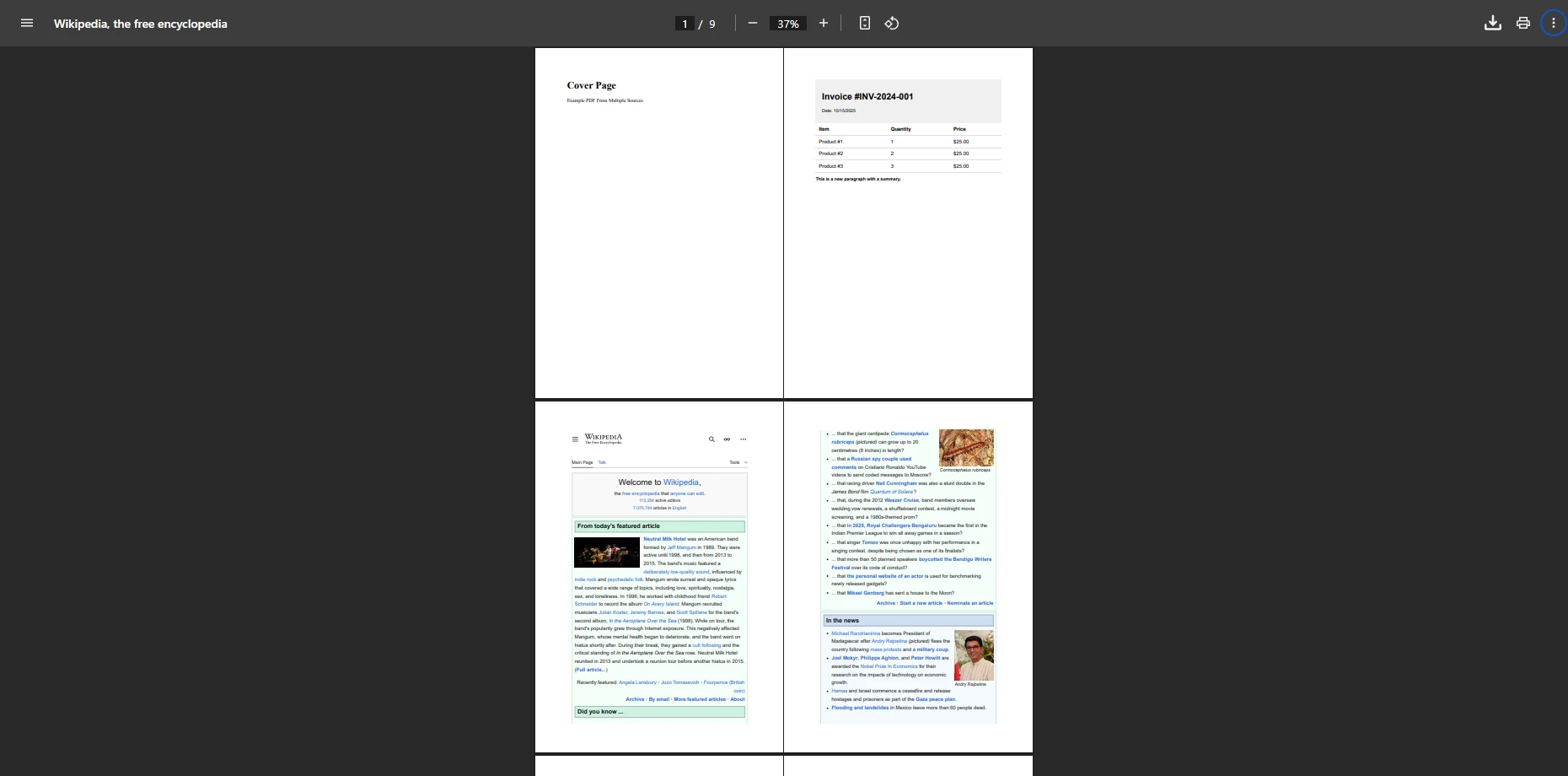
using IronPdf;var renderer = new ChromePdfRenderer();// Create a PDF from HTMLstring html = @"<h1>Cover Page</h1> <p>Example PDF From Multiple Sources</p> <div style='page-break-after: always;'></div>";var coverPage = renderer.RenderHtmlAsPdf(html);// Load an existing PDF reportvar pdf = PdfDocument.FromFile("invoice.pdf");// Create a summary from URLvar summary = renderer.RenderUrlAsPdf("https://en.wikipedia.org/wiki/PDF");// Merge all three sourcesvar finalDocument = PdfDocument.Merge(new[] { coverPage, pdf, summary });// Save the complete documentfinalDocument.SaveAs("MultipleSources.pdf");
using IronPdf;

var renderer = new ChromePdfRenderer();

// Create a PDF from HTML
string html = @"<h1>Cover Page</h1>
               <p>Example PDF From Multiple Sources</p>
               <div style='page-break-after: always;'></div>";
var coverPage = renderer.RenderHtmlAsPdf(html);

// Load an existing PDF report
var pdf = PdfDocument.FromFile("invoice.pdf");

// Create a summary from URL
var summary = renderer.RenderUrlAsPdf("https://en.wikipedia.org/wiki/PDF");

// Merge all three sources
var finalDocument = PdfDocument.Merge(new[] { coverPage, pdf, summary });

// Save the complete document
finalDocument.SaveAs("MultipleSources.pdf");
ImportsIronPdfDim renderer As New ChromePdfRenderer()' Create a PDF from HTMLDim html AsString = "<h1>Cover Page</h1> <p>Example PDF From Multiple Sources</p> <div style='page-break-after: always;'></div>"Dim coverPage AsPdfDocument = renderer.RenderHtmlAsPdf(html)' Load an existing PDF reportDim pdf AsPdfDocument = PdfDocument.FromFile("invoice.pdf")' Create a summary from URLDim summary AsPdfDocument = renderer.RenderUrlAsPdf("https://en.wikipedia.org/wiki/PDF")' Merge all three sourcesDim finalDocument AsPdfDocument = PdfDocument.Merge(New PdfDocument() {coverPage, pdf, summary})' Save the complete documentfinalDocument.SaveAs("MultipleSources.pdf")
Imports IronPdf

Dim renderer As New ChromePdfRenderer()

' Create a PDF from HTML
Dim html As String = "<h1>Cover Page</h1>
                      <p>Example PDF From Multiple Sources</p>
                      <div style='page-break-after: always;'></div>"
Dim coverPage As PdfDocument = renderer.RenderHtmlAsPdf(html)

' Load an existing PDF report
Dim pdf As PdfDocument = PdfDocument.FromFile("invoice.pdf")

' Create a summary from URL
Dim summary As PdfDocument = renderer.RenderUrlAsPdf("https://en.wikipedia.org/wiki/PDF")

' Merge all three sources
Dim finalDocument As PdfDocument = PdfDocument.Merge(New PdfDocument() {coverPage, pdf, summary})

' Save the complete document
finalDocument.SaveAs("MultipleSources.pdf")
This example demonstrates IronPDF's versatility in handling different PDF sources. The ChromePdfRenderer class enables HTML to PDF conversion, perfect for generating dynamic cover pages or formatted content from your application data. The renderer supports modern web standards as outlined in W3C specifications.
The RenderHtmlAsPdf() method converts HTML strings directly to PDF, supporting full CSS styling and JavaScript. The RenderUrlAsPdf() method fetches and converts web content, useful for incorporating live data or external resources. You can learn more in the HTML to PDF tutorial.
By combining these rendering methods with existing PDF documents, you can create sophisticated document workflows. This approach works well for scenarios like adding branded cover pages to reports, appending legal disclaimers to contracts, or combining user-generated content with templates.
Which Source Types Does IronPDF Support?
IronPDF supports merging PDFs from files, HTML strings, URLs, streams, and byte arrays. This flexibility allows combining content from databases, APIs, web services, and local storage in a single operation.
How Do You Handle Different Page Sizes?
IronPDF automatically handles PDFs with varying page sizes and orientations. Each page maintains its original dimensions in the merged document, ensuring proper display regardless of source differences.
Can You Add Headers or Footers During Merge?
Yes, you can apply headers and footers and watermarks to the merged document after combining. Use IronPDF's post-processing features to add consistent branding or page numbering across all merged content.
How Do You Compare PDF Merging Approaches?
Choosing the right merging strategy depends on your scenario. The table below summarizes the three main approaches:
PDF Merging Approaches in IronPDF
Approach
Best For
Key Method
Scalability
Two-file merge
Simple invoice or report consolidation
PdfDocument.Merge(pdf1, pdf2)
Up to a handful of files
List-based merge
Directory of reports processed in bulk
PdfDocument.Merge(fileList)
Hundreds of files
Multi-source merge
Combining HTML, URL, and file content
ChromePdfRenderer + Merge()
Dynamic content pipelines
Each approach shares the same Merge() method signature, so switching between strategies requires minimal code changes. The API reference documents every overload in detail.
How Do You Add Post-Merge Processing to Your PDF?
After merging, many workflows require additional document-level operations. IronPDF supports these through a clean, chainable API:
using IronPdf;using IronPdf.Editing;var pdf1 = PdfDocument.FromFile("Report-January.pdf");var pdf2 = PdfDocument.FromFile("Report-February.pdf");var merged = PdfDocument.Merge(pdf1, pdf2);// Add a text-based header across all pagesvar headerStamper = new HtmlHeaderFooter{HtmlFragment = "<div style='text-align:right;font-size:10px;'>Quarterly Report</div>"};merged.AddHtmlHeadersAndFooters(headerStamper);// Apply password protectionmerged.SecuritySettings.UserPassword = "YourPassword";merged.SecuritySettings.OwnerPassword = "OwnerSecret";// Save the final, protected documentmerged.SaveAs("QuarterlyReport_Protected.pdf");
using IronPdf;
using IronPdf.Editing;

var pdf1 = PdfDocument.FromFile("Report-January.pdf");
var pdf2 = PdfDocument.FromFile("Report-February.pdf");

var merged = PdfDocument.Merge(pdf1, pdf2);

// Add a text-based header across all pages
var headerStamper = new HtmlHeaderFooter
{
    HtmlFragment = "<div style='text-align:right;font-size:10px;'>Quarterly Report</div>"
};
merged.AddHtmlHeadersAndFooters(headerStamper);

// Apply password protection
merged.SecuritySettings.UserPassword = "YourPassword";
merged.SecuritySettings.OwnerPassword = "OwnerSecret";

// Save the final, protected document
merged.SaveAs("QuarterlyReport_Protected.pdf");
ImportsIronPdfImportsIronPdf.EditingDim pdf1 = PdfDocument.FromFile("Report-January.pdf")Dim pdf2 = PdfDocument.FromFile("Report-February.pdf")Dim merged = PdfDocument.Merge(pdf1, pdf2)' Add a text-based header across all pagesDim headerStamper As New HtmlHeaderFooterWith { .HtmlFragment = "<div style='text-align:right;font-size:10px;'>Quarterly Report</div>"}merged.AddHtmlHeadersAndFooters(headerStamper)' Apply password protectionmerged.SecuritySettings.UserPassword = "YourPassword"merged.SecuritySettings.OwnerPassword = "OwnerSecret"' Save the final, protected documentmerged.SaveAs("QuarterlyReport_Protected.pdf")
Imports IronPdf
Imports IronPdf.Editing

Dim pdf1 = PdfDocument.FromFile("Report-January.pdf")
Dim pdf2 = PdfDocument.FromFile("Report-February.pdf")

Dim merged = PdfDocument.Merge(pdf1, pdf2)

' Add a text-based header across all pages
Dim headerStamper As New HtmlHeaderFooter With {
    .HtmlFragment = "<div style='text-align:right;font-size:10px;'>Quarterly Report</div>"
}
merged.AddHtmlHeadersAndFooters(headerStamper)

' Apply password protection
merged.SecuritySettings.UserPassword = "YourPassword"
merged.SecuritySettings.OwnerPassword = "OwnerSecret"

' Save the final, protected document
merged.SaveAs("QuarterlyReport_Protected.pdf")
This pattern demonstrates how to layer post-processing steps on a single merged document object. The headers and footers API lets you apply consistent branding, while security settings protect sensitive documents from unauthorized access. You can also add digital signatures or apply PDF/A compliance in the same workflow.
How Do You Add a Watermark to a Merged PDF?
Use the watermark API after calling Merge(). Watermarks can be text-based or image-based and applied to selected pages or the entire document.
How Do You Split a Merged Document Back Apart?
IronPDF's split functionality lets you extract page ranges from any PdfDocument object. This is useful for creating per-recipient subsets of a larger merged document.
How Do You Track Merge Progress for Large Batches?
Wrap each PdfDocument.FromFile() call in a loop with a counter variable. For truly large batches, consider the async API to keep your application responsive while processing hundreds of files in the background.
What Are the Key Points for PDF Merging in .NET?
IronPDF transforms the task of merging PDF files in .NET into a process requiring minimal code. From simple two-file combinations to sophisticated multi-source document assembly, the library handles the technical complexity while providing an intuitive API. Whether you're working with a single file or processing large batches of documents, IronPDF maintains the integrity of the final document throughout the merge process.
The examples in this tutorial show how to integrate PDF merging capabilities into your .NET applications. Whether building document management systems, automating report generation, or processing user uploads, IronPDF provides the tools needed to combine PDF files efficiently from various input sources.
Ready to implement PDF merging in your project? Start with a free trial to explore IronPDF's full capabilities. For production deployments, explore the licensing options that best fit your needs. The complete documentation covers advanced features like adding watermarks, applying security, and splitting PDF documents.
Curtis Chau holds a Bachelor’s degree in Computer Science (Carleton University) and specializes in front-end development with expertise in Node.js, TypeScript, JavaScript, and React. Passionate about crafting intuitive and aesthetically pleasing user interfaces, Curtis enjoys working with modern frameworks and creating well-structured, visually appealing manuals.