using IronPdf;

// Disable local disk access or cross-origin requests
Installation.EnableWebSecurity = true;

// Instantiate Renderer
var renderer = new ChromePdfRenderer();

// Create a PDF from a HTML string using C#
var pdf = renderer.RenderHtmlAsPdf("<h1>Hello World</h1>");

// Export to a file or Stream
pdf.SaveAs("output.pdf");

// Advanced Example with HTML Assets
// Load external html assets: Images, CSS and JavaScript.
// An optional BasePath 'C:\site\assets\' is set as the file location to load assets from
var myAdvancedPdf = renderer.RenderHtmlAsPdf("<img src='icons/iron.png'>", @"C:\site\assets\");
myAdvancedPdf.SaveAs("html-with-assets.pdf");
using IronPdf;// Disable local disk access or cross-origin requestsInstallation.EnableWebSecurity = true;// Instantiate Renderervar renderer = new ChromePdfRenderer();// Create a PDF from a HTML string using C#var pdf = renderer.RenderHtmlAsPdf("<h1>Hello World</h1>");// Export to a file or Streampdf.SaveAs("output.pdf");// Advanced Example with HTML Assets// Load external html assets: Images, CSS and JavaScript.// An optional BasePath 'C:\site\assets\' is set as the file location to load assets fromvar myAdvancedPdf = renderer.RenderHtmlAsPdf("<img src='icons/iron.png'>", @"C:\site\assets\");myAdvancedPdf.SaveAs("html-with-assets.pdf");
Convert PDF files to JPG images in C# using IronPDF's RasterizeToImageFiles method with just 3 lines of code. This tutorial shows you how to extract single pages, batch process entire documents, and adjust quality settings for professional image output.
Converting PDF files to JPG images in C# becomes straightforward with IronPDF's rendering engine. Whether you're generating thumbnails, creating image previews, or converting entire pages for web display, this tutorial demonstrates how to produce high-quality JPEG images using clean, simple code. The process works whether you're building a desktop application or a modern .NET project.
VB.NET developers can apply the same IronPDF API with nearly identical patterns -- all examples in this guide use C# with .NET 10 top-level statements, but the underlying method calls translate directly to VB.NET syntax as well.
How Do You Convert PDF Files to JPG Images in Just 3 Lines of Code?
The most direct approach for PDF to JPG conversion in C# uses IronPDF's RasterizeToImageFiles method. This method handles the entire conversion process, transforming each page of your PDF into separate image files with customizable quality settings. Format options extend beyond JPG to include PNG, BMP, and TIFF for different use cases. The library's Chrome rendering engine ensures accurate visual reproduction.
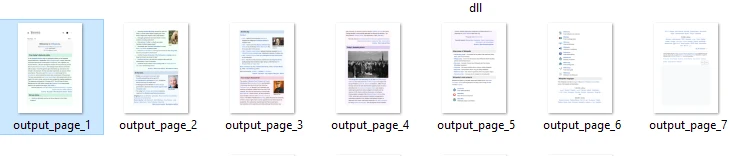
using IronPdf;// Load the PDF documentPdfDocument pdf = PdfDocument.FromFile("input.pdf");// Convert PDF to JPG images with default settingspdf.RasterizeToImageFiles("output_page_*.jpg");// The * wildcard creates numbered files for each pageConsole.WriteLine("PDF pages converted to JPG successfully!");
using IronPdf;

// Load the PDF document
PdfDocument pdf = PdfDocument.FromFile("input.pdf");

// Convert PDF to JPG images with default settings
pdf.RasterizeToImageFiles("output_page_*.jpg");

// The * wildcard creates numbered files for each page
Console.WriteLine("PDF pages converted to JPG successfully!");
ImportsIronPdf' Load the PDF documentDim pdf AsPdfDocument = PdfDocument.FromFile("input.pdf")' Convert PDF to JPG images with default settingspdf.RasterizeToImageFiles("output_page_*.jpg")' The * wildcard creates numbered files for each pageConsole.WriteLine("PDF pages converted to JPG successfully!")
Imports IronPdf

' Load the PDF document
Dim pdf As PdfDocument = PdfDocument.FromFile("input.pdf")

' Convert PDF to JPG images with default settings
pdf.RasterizeToImageFiles("output_page_*.jpg")

' The * wildcard creates numbered files for each page
Console.WriteLine("PDF pages converted to JPG successfully!")
This snippet demonstrates the basic conversion pattern. The FromFile method loads your PDF into memory, while RasterizeToImageFiles performs the conversion. The asterisk (*) in the output filename acts as a placeholder, automatically generating sequentially numbered JPG files for each page.
The system handles complex rendering internally, using IronPDF's Chromium-based engine to ensure pixel-perfect results. The engine preserves CSS styling and JavaScript rendering from source documents. For applications requiring async operations, IronPDF supports multithreaded generation patterns as well.
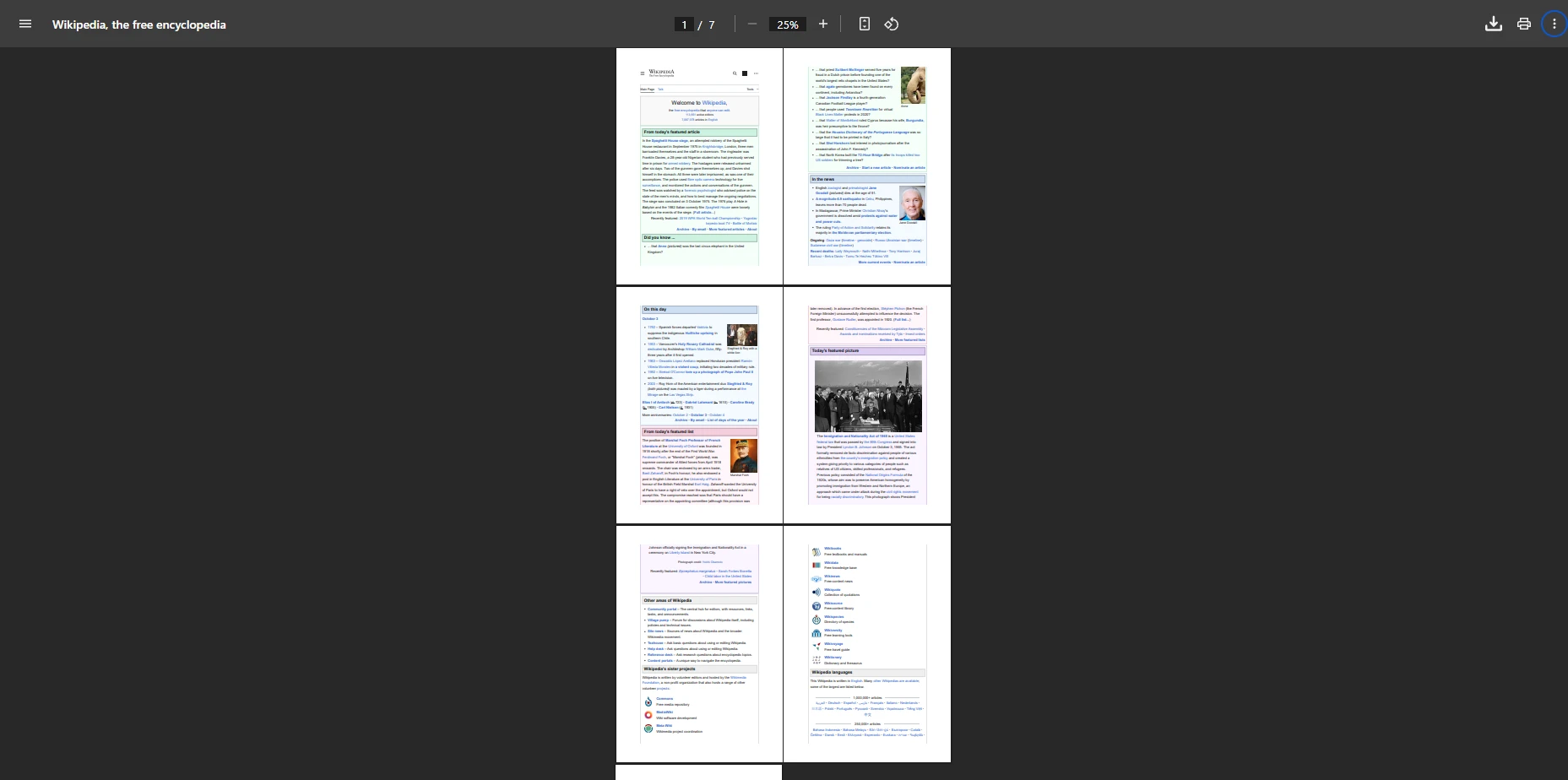
What Does the Input PDF Look Like?
How Are the Output JPG Files Named and Organized?
What Steps Are Required to Get the Library Installed?
Before implementing PDF to JPG conversion in your .NET projects, you'll need to install IronPDF through NuGet. The library integrates with both .NET Framework and modern .NET versions. It supports Windows, Linux, and macOS environments, and works with Docker containers as well.
Run one of the following commands to add IronPDF to your project:
PM > Install-Package IronPdf
Install-Package IronPdf
> dotnet add package IronPdf
dotnet add package IronPdf
Alternatively, use Visual Studio's Package Manager UI to search for "IronPDF" and install directly. Once installed, add the using IronPdf; statement to access all conversion features. The library automatically handles dependencies, including rendering engine components needed for image generation. This setup works with ASP.NET applications, desktop programs, and cloud deployments on Azure.
How Can You Convert Specific PDF Pages to Save Time and Storage?
Often you'll need to convert PDF pages selectively rather than processing the entire document. This proves useful when your application needs specific page images for uploads or previews. IronPDF provides flexible methods to handle single pages or custom ranges. The page manipulation features extend beyond simple conversion, supporting complex document workflows:
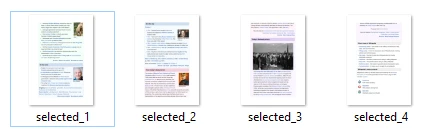
using IronPdf;PdfDocument pdf = PdfDocument.FromFile("input.pdf");// Convert only the first page to JPEGint[] pageIndexes = { 0 }; // Page indexes start at 0pdf.RasterizeToImageFiles("first_page_*.jpg", pageIndexes, IronPdf.Imaging.ImageType.Jpeg);// Convert specific page range (pages 2-5)int[] rangeIndexes = { 1, 2, 3, 4 };pdf.RasterizeToImageFiles("selected_*.jpg", rangeIndexes);
using IronPdf;

PdfDocument pdf = PdfDocument.FromFile("input.pdf");

// Convert only the first page to JPEG
int[] pageIndexes = { 0 }; // Page indexes start at 0
pdf.RasterizeToImageFiles("first_page_*.jpg", pageIndexes, IronPdf.Imaging.ImageType.Jpeg);

// Convert specific page range (pages 2-5)
int[] rangeIndexes = { 1, 2, 3, 4 };
pdf.RasterizeToImageFiles("selected_*.jpg", rangeIndexes);
ImportsIronPdfDim pdf AsPdfDocument = PdfDocument.FromFile("input.pdf")' Convert only the first page to JPEGDim pageIndexes AsInteger() = {0} ' Page indexes start at 0pdf.RasterizeToImageFiles("first_page_*.jpg", pageIndexes, IronPdf.Imaging.ImageType.Jpeg)' Convert specific page range (pages 2-5)Dim rangeIndexes AsInteger() = {1, 2, 3, 4}pdf.RasterizeToImageFiles("selected_*.jpg", rangeIndexes)
Imports IronPdf

Dim pdf As PdfDocument = PdfDocument.FromFile("input.pdf")

' Convert only the first page to JPEG
Dim pageIndexes As Integer() = {0} ' Page indexes start at 0
pdf.RasterizeToImageFiles("first_page_*.jpg", pageIndexes, IronPdf.Imaging.ImageType.Jpeg)

' Convert specific page range (pages 2-5)
Dim rangeIndexes As Integer() = {1, 2, 3, 4}
pdf.RasterizeToImageFiles("selected_*.jpg", rangeIndexes)
This sample shows how to extract the first page as a JPEG file, then demonstrates converting a specific range. Page indexing starts at zero, making it easy to select exactly which content to process. This approach proves invaluable when dealing with large PDF documents where only specific sections need conversion. The library also supports page rotation and transformation before conversion.
What Image Quality Options Deliver Professional Results?
Controlling output quality directly impacts both file size and visual clarity. IronPDF offers precise control over JPEG quality and resolution through configuration options. The library supports various image formats and provides compression settings for optimal results. Understanding DPI settings helps achieve the right balance between file size and visual fidelity:
using IronPdf;using IronSoftware.Drawing;PdfDocument pdf = PdfDocument.FromFile("document.pdf");// 1. Creating high-quality images for print at 300 DPIAnyBitmap[] images = pdf.ToBitmapHighQuality(300, false);int pageCount = 1;foreach (AnyBitmap image in images){ string outputPath = $"high_quality_{pageCount}.jpg"; image.SaveAs(outputPath); pageCount++;}// 2. For web thumbnails, use lower DPI settingspdf.RasterizeToImageFiles("thumbnail_*.jpg", IronPdf.Imaging.ImageType.Jpeg, 150, true);
using IronPdf;
using IronSoftware.Drawing;

PdfDocument pdf = PdfDocument.FromFile("document.pdf");

// 1. Creating high-quality images for print at 300 DPI
AnyBitmap[] images = pdf.ToBitmapHighQuality(300, false);

int pageCount = 1;
foreach (AnyBitmap image in images)
{
    string outputPath = $"high_quality_{pageCount}.jpg";
    image.SaveAs(outputPath);
    pageCount++;
}

// 2. For web thumbnails, use lower DPI settings
pdf.RasterizeToImageFiles("thumbnail_*.jpg", IronPdf.Imaging.ImageType.Jpeg, 150, true);
ImportsIronPdfImportsIronSoftware.DrawingDim pdf AsPdfDocument = PdfDocument.FromFile("document.pdf")' 1. Creating high-quality images for print at 300 DPIDim images AsAnyBitmap() = pdf.ToBitmapHighQuality(300, False)Dim pageCount AsInteger = 1For Each image AsAnyBitmapIn images Dim outputPath AsString = $"high_quality_{pageCount}.jpg" image.SaveAs(outputPath) pageCount += 1Next' 2. For web thumbnails, use lower DPI settingspdf.RasterizeToImageFiles("thumbnail_*.jpg", IronPdf.Imaging.ImageType.Jpeg, 150, True)
Imports IronPdf
Imports IronSoftware.Drawing

Dim pdf As PdfDocument = PdfDocument.FromFile("document.pdf")

' 1. Creating high-quality images for print at 300 DPI
Dim images As AnyBitmap() = pdf.ToBitmapHighQuality(300, False)

Dim pageCount As Integer = 1
For Each image As AnyBitmap In images
    Dim outputPath As String = $"high_quality_{pageCount}.jpg"
    image.SaveAs(outputPath)
    pageCount += 1
Next

' 2. For web thumbnails, use lower DPI settings
pdf.RasterizeToImageFiles("thumbnail_*.jpg", IronPdf.Imaging.ImageType.Jpeg, 150, True)
This code sample shows how to convert PDF pages into images using two quality settings. The first approach generates high-quality images for printing by calling pdf.ToBitmapHighQuality(300, false). This renders pages at 300 DPI and returns in-memory AnyBitmap objects, so a loop is required to save each image. The bitmap rendering maintains precise detail for professional printing needs.
In contrast, the second approach uses pdf.RasterizeToImageFiles() to quickly produce web thumbnails at 150 DPI. Lower DPI and quality yield better compression for photographic content. For grayscale conversion, additional optimization options are available.
How Do You Process Entire PDF Documents Efficiently?
When you need to convert entire PDF files, IronPDF handles multi-page documents automatically. The following example processes all pages while creating an organized output directory. For large documents, batch processing maintains system responsiveness:
using IronPdf;PdfDocument pdf = PdfDocument.FromFile("manual.pdf");// Create output directory if neededstring outputDir = "converted_images";if (!Directory.Exists(outputDir)){Directory.CreateDirectory(outputDir);}// Convert all pages with custom namingstring outputPath = Path.Combine(outputDir, "page_*.jpg");pdf.RasterizeToImageFiles(outputPath);Console.WriteLine($"Converted {pdf.PageCount} pages to JPG format");
using IronPdf;

PdfDocument pdf = PdfDocument.FromFile("manual.pdf");

// Create output directory if needed
string outputDir = "converted_images";
if (!Directory.Exists(outputDir))
{
    Directory.CreateDirectory(outputDir);
}

// Convert all pages with custom naming
string outputPath = Path.Combine(outputDir, "page_*.jpg");
pdf.RasterizeToImageFiles(outputPath);

Console.WriteLine($"Converted {pdf.PageCount} pages to JPG format");
ImportsIronPdfDim pdf AsPdfDocument = PdfDocument.FromFile("manual.pdf")' Create output directory if neededDim outputDir AsString = "converted_images"IfNotDirectory.Exists(outputDir) ThenDirectory.CreateDirectory(outputDir)End If' Convert all pages with custom namingDim outputPath AsString = Path.Combine(outputDir, "page_*.jpg")pdf.RasterizeToImageFiles(outputPath)Console.WriteLine($"Converted {pdf.PageCount} pages to JPG format")
Imports IronPdf

Dim pdf As PdfDocument = PdfDocument.FromFile("manual.pdf")

' Create output directory if needed
Dim outputDir As String = "converted_images"
If Not Directory.Exists(outputDir) Then
    Directory.CreateDirectory(outputDir)
End If

' Convert all pages with custom naming
Dim outputPath As String = Path.Combine(outputDir, "page_*.jpg")
pdf.RasterizeToImageFiles(outputPath)

Console.WriteLine($"Converted {pdf.PageCount} pages to JPG format")
This code handles document conversion automatically, creating an organized output directory for resulting JPEG images. The process scales whether you're converting a two-page memo or a hundred-page report. Each page becomes a separate JPG file, maintaining original layout through IronPDF's rendering. Viewport settings ensure proper scaling across different page sizes.
For documents containing multiple fonts, special characters, or international languages, the rendering engine preserves formatting accurately. The library handles embedded images and vector graphics during conversion. When processing password-protected PDFs, proper authentication enables conversion access.
What About Memory and Performance Optimization?
For better performance when processing large PDF documents, consider these memory management practices. IronPDF handles most optimization internally, but proper resource disposal ensures stable operation. The library supports async operations for improved responsiveness in UI applications:
using IronPdf;// Use using statement for automatic disposalusing (PdfDocument pdf = PdfDocument.FromFile("large_file.pdf")){ int batchSize = 10; int pageCount = pdf.PageCount; for (int i = 0; i < pageCount; i += batchSize) { int endIndex = Math.Min(i + batchSize - 1, pageCount - 1); var batchPages = new List<int>(); for (int j = i; j <= endIndex; j++) { batchPages.Add(j); } pdf.RasterizeToImageFiles($"batch_{i}_*.jpg", batchPages.ToArray()); }} // Automatically disposes resources
using IronPdf;

// Use using statement for automatic disposal
using (PdfDocument pdf = PdfDocument.FromFile("large_file.pdf"))
{
    int batchSize = 10;
    int pageCount = pdf.PageCount;

    for (int i = 0; i < pageCount; i += batchSize)
    {
        int endIndex = Math.Min(i + batchSize - 1, pageCount - 1);
        var batchPages = new List<int>();

        for (int j = i; j <= endIndex; j++)
        {
            batchPages.Add(j);
        }

        pdf.RasterizeToImageFiles($"batch_{i}_*.jpg", batchPages.ToArray());
    }
} // Automatically disposes resources
ImportsIronPdf' Use Using block for automatic disposalUsing pdf AsPdfDocument = PdfDocument.FromFile("large_file.pdf") Dim batchSize AsInteger = 10 Dim pageCount AsInteger = pdf.PageCount For i AsInteger = 0 To pageCount - 1Step batchSize Dim endIndex AsInteger = Math.Min(i + batchSize - 1, pageCount - 1) Dim batchPages As New List(OfInteger)() For j AsInteger = i To endIndex batchPages.Add(j) Next pdf.RasterizeToImageFiles($"batch_{i}_*.jpg", batchPages.ToArray()) NextEndUsing' Automatically disposes resources
Imports IronPdf

' Use Using block for automatic disposal
Using pdf As PdfDocument = PdfDocument.FromFile("large_file.pdf")
    Dim batchSize As Integer = 10
    Dim pageCount As Integer = pdf.PageCount

    For i As Integer = 0 To pageCount - 1 Step batchSize
        Dim endIndex As Integer = Math.Min(i + batchSize - 1, pageCount - 1)
        Dim batchPages As New List(Of Integer)()

        For j As Integer = i To endIndex
            batchPages.Add(j)
        Next

        pdf.RasterizeToImageFiles($"batch_{i}_*.jpg", batchPages.ToArray())
    Next
End Using ' Automatically disposes resources
This approach divides large conversions into manageable chunks, preventing excessive memory usage. The using statement ensures proper resource cleanup, while batch processing maintains performance with extensive documents. For PDFs with hundreds of pages, this method significantly improves system stability. The IronPDF performance guide covers additional techniques for demanding workloads.
When working with Azure Functions or AWS Lambda, specific configurations improve cloud performance. For Linux deployments, memory management becomes particularly important. Custom logging options help monitor conversion progress and identify bottlenecks in high-volume pipelines.
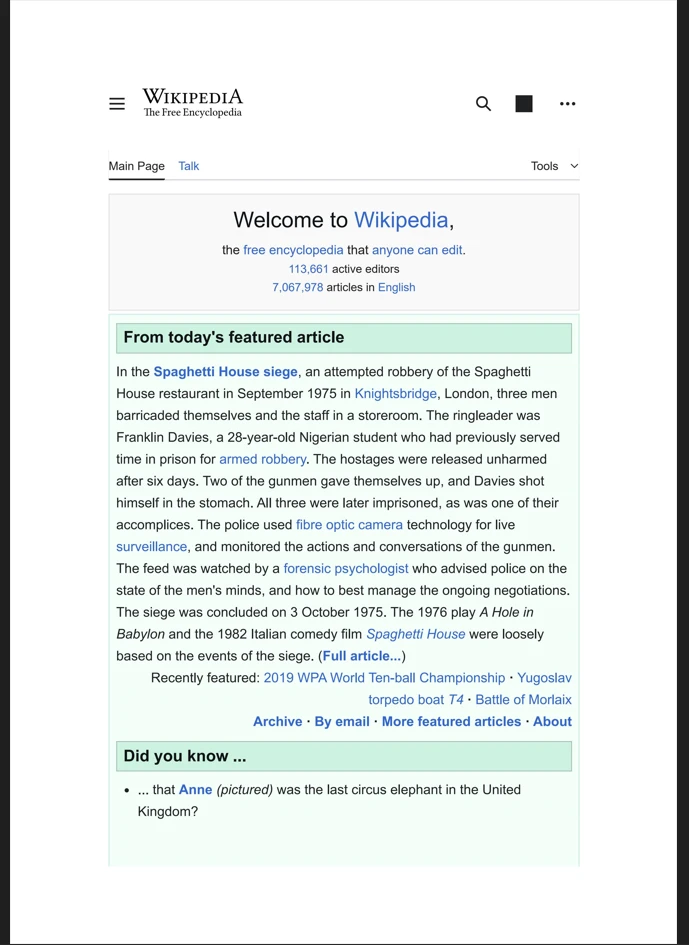
What Does High-Quality PDF to Image Conversion Look Like?
What Advanced Conversion Techniques Work Best for Production Systems?
For production environments requiring reliable error handling and monitoring, implement complete conversion pipelines. Enterprise applications demand reliability and detailed logging. The following pattern addresses common production challenges with per-page error recovery:
using IronPdf;using System.Drawing.Imaging;boolConvertWithErrorHandling(string pdfPath, string outputDir){ try { if (!File.Exists(pdfPath)) throw new FileNotFoundException("PDF file not found", pdfPath); var options = new ChromePdfRenderOptions {RenderDelay = 500 // Wait for JavaScript }; using (PdfDocument pdf = PdfDocument.FromFile(pdfPath)) {Console.WriteLine($"Processing {pdf.PageCount} pages from {Path.GetFileName(pdfPath)}"); for (int i = 0; i < pdf.PageCount; i++) { try { string pageOutput = Path.Combine(outputDir, $"page_{i + 1}.jpg"); pdf.RasterizeToImageFiles(pageOutput, new[] { i }); } catch (Exception ex) {Console.WriteLine($"Error converting page {i + 1}: {ex.Message}"); // Continue with other pages } } return true; } } catch (Exception ex) {Console.WriteLine($"Conversion failed: {ex.Message}"); return false; }}ConvertWithErrorHandling("input.pdf", "output_pages");
using IronPdf;
using System.Drawing.Imaging;

bool ConvertWithErrorHandling(string pdfPath, string outputDir)
{
    try
    {
        if (!File.Exists(pdfPath))
            throw new FileNotFoundException("PDF file not found", pdfPath);

        var options = new ChromePdfRenderOptions
        {
            RenderDelay = 500 // Wait for JavaScript
        };

        using (PdfDocument pdf = PdfDocument.FromFile(pdfPath))
        {
            Console.WriteLine($"Processing {pdf.PageCount} pages from {Path.GetFileName(pdfPath)}");

            for (int i = 0; i < pdf.PageCount; i++)
            {
                try
                {
                    string pageOutput = Path.Combine(outputDir, $"page_{i + 1}.jpg");
                    pdf.RasterizeToImageFiles(pageOutput, new[] { i });
                }
                catch (Exception ex)
                {
                    Console.WriteLine($"Error converting page {i + 1}: {ex.Message}");
                    // Continue with other pages
                }
            }

            return true;
        }
    }
    catch (Exception ex)
    {
        Console.WriteLine($"Conversion failed: {ex.Message}");
        return false;
    }
}

ConvertWithErrorHandling("input.pdf", "output_pages");
ImportsIronPdfImportsSystem.Drawing.ImagingImportsSystem.IOFunctionConvertWithErrorHandling(pdfPath AsString, outputDir AsString) AsBooleanTry IfNotFile.Exists(pdfPath) ThenThrow New FileNotFoundException("PDF file not found", pdfPath) End If Dim options As New ChromePdfRenderOptionsWith { .RenderDelay = 500 ' Wait for JavaScript }Using pdf AsPdfDocument = PdfDocument.FromFile(pdfPath)Console.WriteLine($"Processing {pdf.PageCount} pages from {Path.GetFileName(pdfPath)}") For i AsInteger = 0 To pdf.PageCount - 1Try Dim pageOutput AsString = Path.Combine(outputDir, $"page_{i + 1}.jpg") pdf.RasterizeToImageFiles(pageOutput, {i})Catch ex AsExceptionConsole.WriteLine($"Error converting page {i + 1}: {ex.Message}") ' Continue with other pagesEndTry Next Return TrueEndUsingCatch ex AsExceptionConsole.WriteLine($"Conversion failed: {ex.Message}") Return FalseEndTryEnd FunctionConvertWithErrorHandling("input.pdf", "output_pages")
Imports IronPdf
Imports System.Drawing.Imaging
Imports System.IO

Function ConvertWithErrorHandling(pdfPath As String, outputDir As String) As Boolean
    Try
        If Not File.Exists(pdfPath) Then
            Throw New FileNotFoundException("PDF file not found", pdfPath)
        End If

        Dim options As New ChromePdfRenderOptions With {
            .RenderDelay = 500 ' Wait for JavaScript
        }

        Using pdf As PdfDocument = PdfDocument.FromFile(pdfPath)
            Console.WriteLine($"Processing {pdf.PageCount} pages from {Path.GetFileName(pdfPath)}")

            For i As Integer = 0 To pdf.PageCount - 1
                Try
                    Dim pageOutput As String = Path.Combine(outputDir, $"page_{i + 1}.jpg")
                    pdf.RasterizeToImageFiles(pageOutput, {i})
                Catch ex As Exception
                    Console.WriteLine($"Error converting page {i + 1}: {ex.Message}")
                    ' Continue with other pages
                End Try
            Next

            Return True
        End Using
    Catch ex As Exception
        Console.WriteLine($"Conversion failed: {ex.Message}")
        Return False
    End Try
End Function

ConvertWithErrorHandling("input.pdf", "output_pages")
This production-ready code includes error handling, logging capabilities, and custom render settings. The implementation supports rendering delays for JavaScript-heavy content and provides detailed feedback during processing. For enterprise deployments, such reliable error handling proves essential. The security features ensure safe document processing in production environments.
How Do You Compare PDF-to-Image Conversion Methods?
Different conversion approaches suit different requirements. The table below compares the primary methods available in IronPDF's C# API:
| Method | Use Case | Output Type | DPI Control | Best For |
|--------|----------|-------------|-------------|----------|
| RasterizeToImageFiles | File-based batch conversion | JPG, PNG, BMP, TIFF | Yes | Bulk processing, disk output |
| ToBitmapHighQuality | In-memory high-res images | AnyBitmap array | Yes (300+ DPI) | Print-quality output |
| Page index overload | Selective page conversion | JPG, PNG | Yes | Single-page or range extraction |
| Batch loop with using | Large document processing | JPG | Yes | Memory-constrained environments |
What Are Your Next Steps for PDF to JPG Conversion?
IronPDF simplifies PDF-to-JPG conversion in C#, turning it from a complex challenge into a straightforward task. With full-size rendering capabilities, customizable compression options, and efficient handling of both single pages and entire documents, it provides all the tools needed for professional PDF image extraction. The library preserves white background elements and accurate text rendering, ensuring your converted images maintain their original appearance. For additional PDF manipulation capabilities, explore the complete API reference and feature overview.
The library's extensive feature set includes PDF creation, editing capabilities, document organization, and security options. Whether you need digital signatures, form handling, watermarking, or metadata management, IronPDF provides complete solutions. The rendering engine supports modern web standards including CSS3 and JavaScript frameworks. For accessibility compliance, explore PDF/A conversion and PDF/UA support.
Start with a free trial to explore IronPDF's complete feature set, or purchase a license for commercial deployment. The library supports additional image formats including PNG, TIFF, and BMP, making it a versatile solution for all your PDF-to-image conversion needs. Developers seeking community support can find valuable insights on Stack Overflow, the .NET GitHub repository, and the NuGet package page.
Professional support options ensure successful implementation, while complete documentation and code examples accelerate development. The library's cross-platform compatibility and cloud-ready architecture make it suitable for modern deployment scenarios. With regular updates and security patches, IronPDF remains a reliable choice for enterprise PDF processing needs.
Curtis Chau holds a Bachelor’s degree in Computer Science (Carleton University) and specializes in front-end development with expertise in Node.js, TypeScript, JavaScript, and React. Passionate about crafting intuitive and aesthetically pleasing user interfaces, Curtis enjoys working with modern frameworks and creating well-structured, visually appealing manuals.