IronPDF wyróżnia się w konwersji HTML do PDF dzięki precyzji silnika Chrome V8 i intuicyjnym interfejsom API, podczas gdy ExpertPDF oferuje podstawowe funkcje PDF z bardziej złożonymi wymaganiami konfiguracyjnymi dla systemów produkcyjnych .NET.
Programiści C# często napotykają trudności podczas pracy z plikami PDF, czy to przy odczytywaniu, zapisywaniu, tworzeniu, czy konwertowaniu między formatami. Powstało wiele bibliotek, które zaspokajają te potrzeby, oferując płynną integrację z aplikacjami C#. Podczas tworzenia raportów PDF w języku C# wybór odpowiedniej biblioteki ma znaczący wpływ na czas rozwoju i jakość wyników. Aby w pełni generować pliki PDF w języku C#, niezbędne jest zrozumienie możliwości bibliotek.
W tym artykułe porównano dwie biblioteki PDF dla programistów .NET:
Obie biblioteki udostępniają metody generowania, konwertowania i edycji plików PDF w środowiskach .NET. Kluczową kwestią jest określenie, która biblioteka najlepiej odpowiada konkretnym wymaganiom projektu. Niniejsza analiza podkreśla kluczowe cechy, które pomogą w podjęciu decyzji. Niezależnie od tego, czy chodzi o konwersję HTML do PDF, edycję plików PDF czy funkcje porządkowania dokumentów, kluczowe znaczenie ma wybór odpowiedniej biblioteki.
Czym jest biblioteka IronPDF?
IronPDF zapewnia kompletne rozwiązanie do obsługi plików PDF w środowisku .NET, szczególnie przydatne dla programistów C#. Biblioteka umożliwia implementację wszystkich niezbędnych funkcji PDF w aplikacjach napisanych w języku C#. Biblioteka obsługuje wdrażanie w Azure i AWS Lambda, dzięki czemu nadaje się do architektur natywnych dla chmury. Programiści korzystają z doskonałej obsługi systemu Windows, możliwości wdrażania w systemie Linux oraz kompatybilności z systemem macOS. Przegląd instalacji zawiera kompletne wskazówki dotyczące konfiguracji.
IronPDF zawiera silnik .NET Chromium, który renderuje zawartość HTML do formatu PDF, upraszczając projektowanie dokumentów bez skomplikowanych interfejsów API. Konwerter HTML na PDF tworzy dokumenty przy użyciu HTML5, CSS, JavaScript i obrazów. Ponadto programiści mogą edytować pliki PDF, dodawać nagłówki i stopki oraz wyodrębniać obrazy. Biblioteka ułatwia czytanie tekstu dzięki niezawodnym funkcjom wyodrębniania tekstu. W środowiskach produkcyjnych silnik renderujący Chrome zapewnia dokładne renderowanie.
Jakie są kluczowe funkcje IronPDF?
Jak utworzyć pliki PDF z HTML?
Jak edytować pliki PDF bez programu Adobe Acrobat Reader?
Jak edytować dokumenty PDF?
Jak zapisać i wydrukować pliki PDF?
Czym jest ExpertPDF?
Odwiedź oficjalną stronę ExpertPDF, aby zapoznać się z ich biblioteką .NET umożliwiającą konwersję HTML do PDF. Biblioteka umożliwia generowanie raportów w formacie PDF bez konieczności stosowania skomplikowanego oprogramowania do raportowania. Programiści poszukujący kompletnej dokumentacji i Dokumentacji API powinni rozważyć użycie IronPDF zamiast ExpertPDF, aby uzyskać znacznie większą dostępność zasobów.
ExpertPDF zapewnia proste funkcje edycji plików PDF. Konwerter HTML na PDF szybko integruje się z aplikacjami .NET. Kompatybilny z .NET Framework, .NET Core, .NET 5, .NET 6, .NET 7 i .NET 8, choć brakuje wsparcia dla wdrożenia na Linux i wsparcia dla macOS. W przypadku wdrożeń kontenerowych IronPDF oferuje obsługę Docker, podczas gdy ExpertPDF nie. IronPDF obsługuje również zdalne wdrażanie kontenerów oraz opcje silnika natywnego i zdalnego.
Ta biblioteka tworzy pliki PDF na podstawie adresów URL stron internetowych lub surowego kodu HTML w aplikacjach .NET. W przypadku zaawansowanych scenariuszy, takich jak renderowanie stron WebGL lub aplikacji intensywnie wykorzystujących JavaScript, IronPDF zapewnia doskonałe możliwości renderowania. Przewodnik szybkiego startu pomaga programistom szybko rozpocząć pracę.
Jakie są kluczowe funkcje ExpertPDF?
Do najważniejszych funkcji należą:
- Konwersja stron internetowych z adresów URL do formatu PDF
- Konwersja ciągów znaków HTML do formatu PDF
- Wiele opcji plików wyjściowych
- Ustaw marginesy i rozmiar strony
- Ustaw nagłówki i stopki
- Dodaj automatyczne i niestandardowe podziały stron
- Konwersja określonych części stron internetowych do formatu PDF
- Ukryj elementy podczas konwersji
- Łączenie wielu stron internetowych w pojedyncze pliki PDF
- Konwersja uwierzytelnionych stron internetowych do formatu PDF
- Wybierz typ mediów CSS do renderowania
- Obsługa zakładek
- Obsługa podpisów cyfrowych
- Pobieranie pozycji elementów HTML w pliku PDF
- Obsługa HTML5/CSS3
- Obsługa czcionek internetowych
- Konwersje typów plików:
- Konwerter plików PDF na tekst
- Konwerter HTML na PDF
- Konwerter HTML na obraz
- Konwerter plików PDF na obrazy
- Konwerter RTF na PDF
Poniższe sekcje obejmują:
- Utwórz projekt konsolowy
- Instalacja IronPDF
- Instalacja ExpertPDF
- Utwórz plik PDF z adresu URL
- Tworzenie pliku PDF na podstawie ciągu znaków HTML
- Łączenie wielu plików PDF w jeden plik PDF
- Konwersja obrazów do formatu PDF
- Licencjonowanie i ceny
- Podsumowanie
Jak utworzyć projekt konsolowy?
Wykonaj poniższe kroki, aby utworzyć aplikację konsolową przy użyciu programu Visual Studio 2022:
-
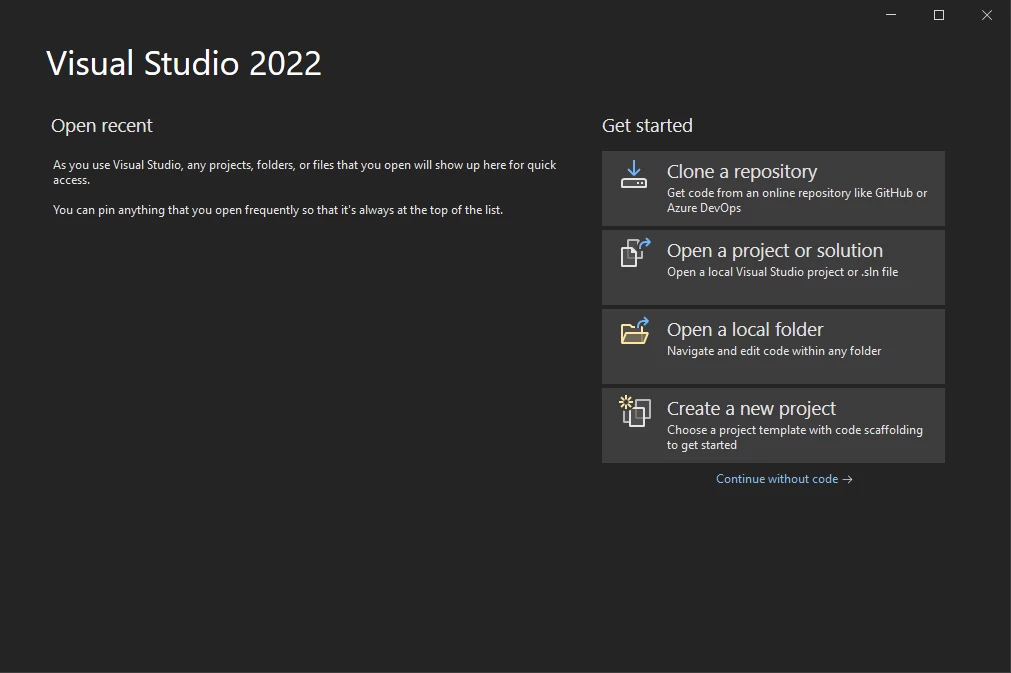
Otwórz program Visual Studio 2022 i kliknij opcję utworzenia nowego projektu
-
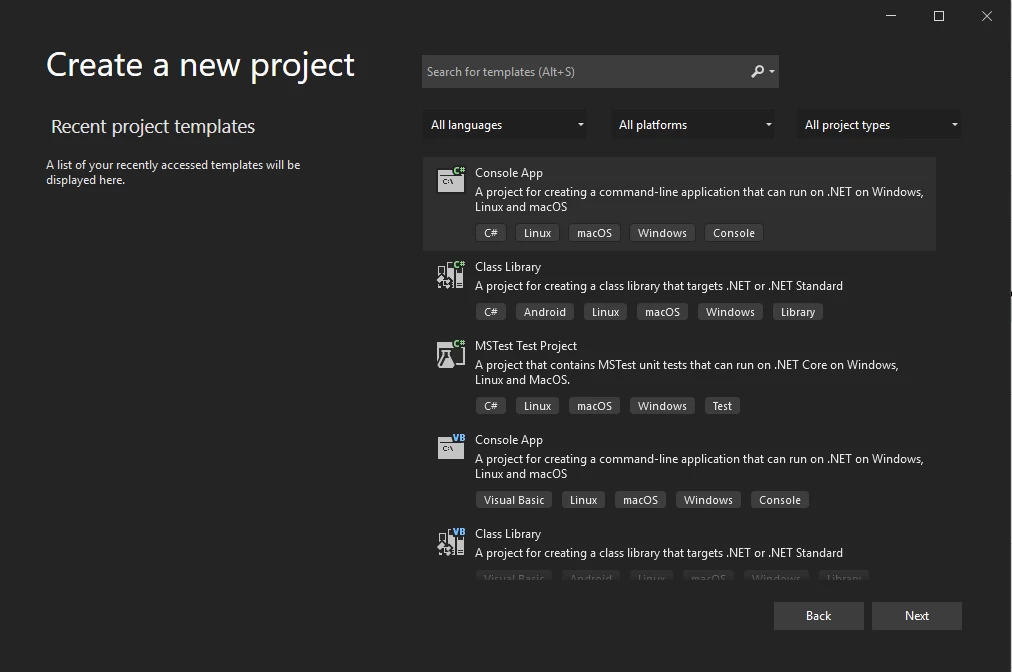
Wybierz aplikację konsolową C# i kliknij Dalej
-
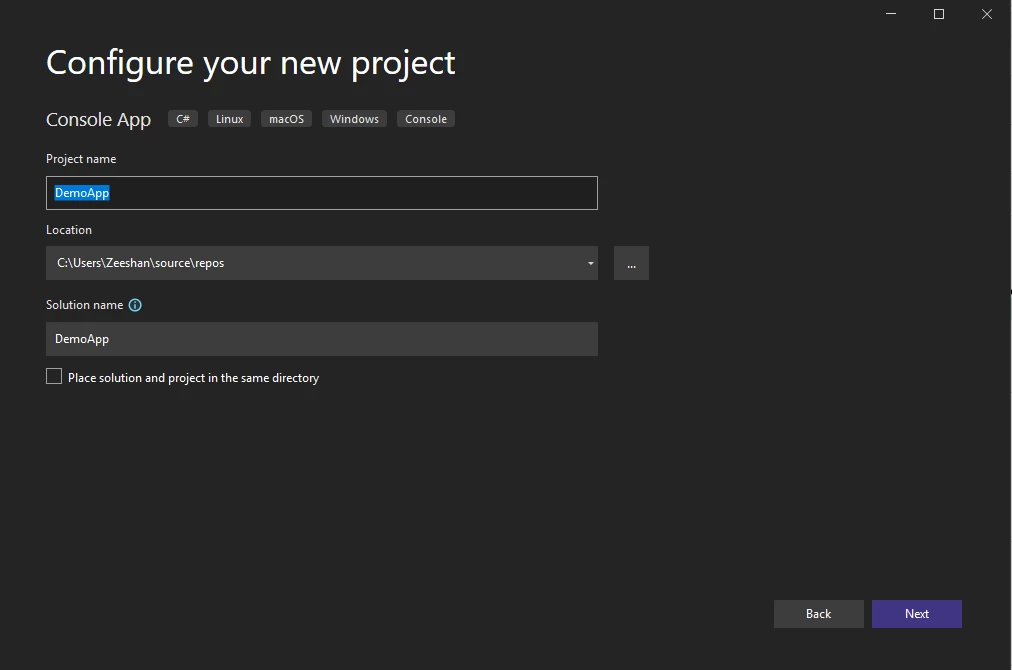
Wpisz nazwę projektu i kliknij Dalej
-
Wybierz wersję .NET Framework (używając najnowszej 6.0)
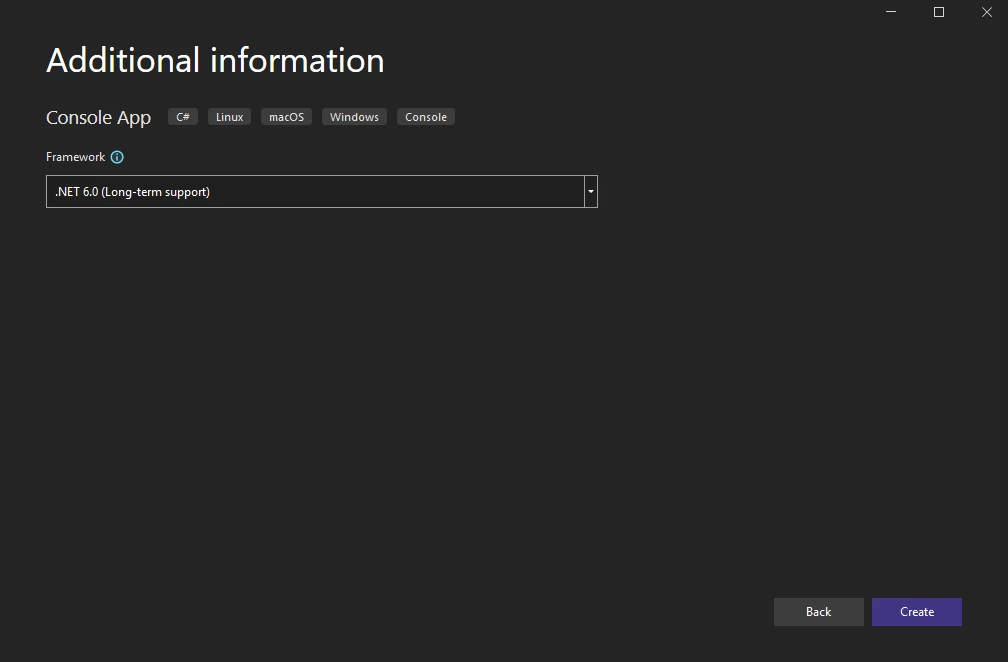
Projekt konsoli został utworzony i jest gotowy do testowania biblioteki. Obie biblioteki wymagają instalacji przed użyciem. Więcej szczegółów można znaleźć w przewodniku szybkiego startu. Dokumentacja ogólna zawiera kompletne informacje.
Jak zainstalować IronPDF?
Dostępnych jest wiele metod instalacji:
- Korzystanie z programu Visual Studio
- Pobierz pakiet NuGet bezpośrednio
- Pobierz bibliotekę IronPDF .DLL
Więcej szczegółów można znaleźć w przeglądzie instalacji. Biblioteka obsługuje instalator Windows do wdrażania w całym systemie. Opcje zaawansowane obejmują instalację NuGet i korzystanie z kluczy licencyjnych.
Jak zainstalować za pomocą Visual Studio?
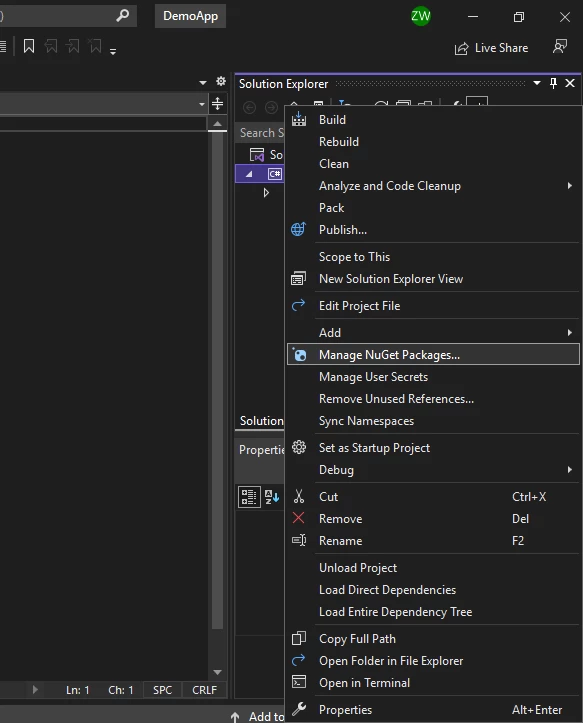
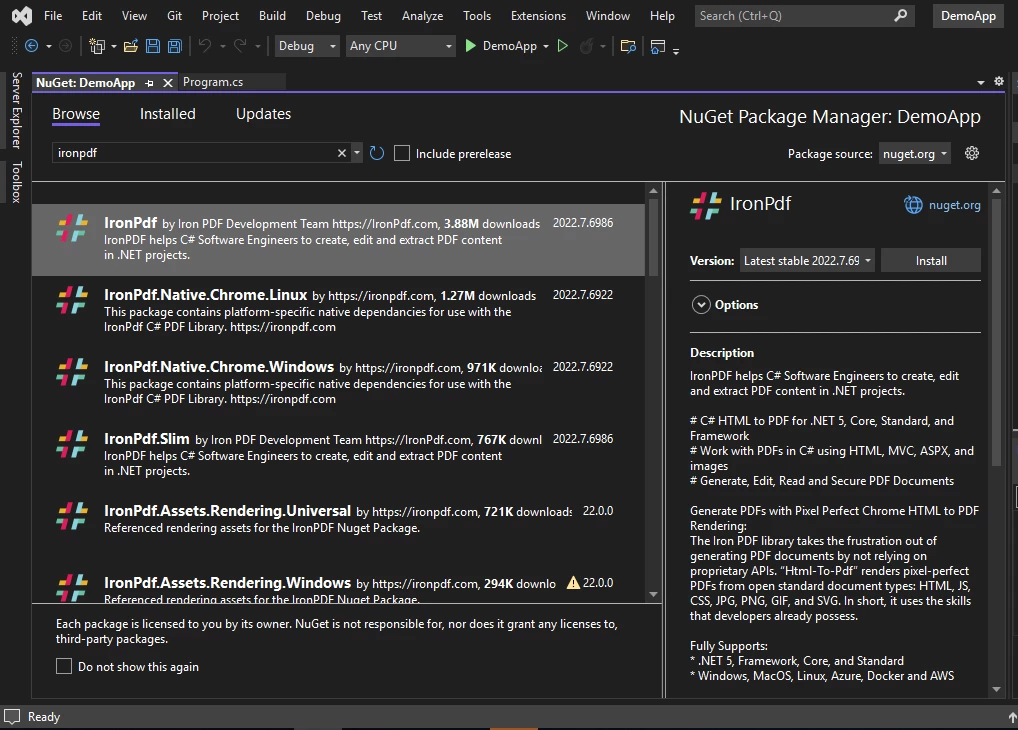
Visual Studio udostępnia menedżera pakietów NuGet do instalowania pakietów:
Wyszukaj pakiet IronPDF NuGet i zainstaluj go. Więcej szczegółów można znaleźć w instrukcji instalacji NuGet. Przewodniki dotyczące konkretnych platform obejmują integrację z systemem Android, programowanie w języku F# oraz wykorzystanie VB.NET. Aby rozwiązać problemy z wdrażaniem, zapoznaj się z przewodnikiem dotyczącym nieudanego wdrożenia pakietu NuGet.
Jak bezpośrednio pobrać pakiet NuGet?
Pobierz IronPDF ze strony NuGet:
- Odwiedź pakiet NuGet IronPDF
- Wybierz "Pobierz pakiet"
- Kliknij dwukrotnie pobrany pakiet
- Pakiet instaluje się automatycznie
- Odśwież Visual Studio
Jak pobrać i zainstalować bibliotekę DLL IronPDF?
Pobierz plik IronPDF .DLL bezpośrednio ze strony internetowej IronPDF. Kliknij Pobierz DLL IronPDF.
Odwołaj się do IronPDF w projekcie:
- Kliknij prawym przyciskiem myszy Solution w Solution Explorer
- Wybierz "Dodaj odwołanie"
- Wyszukaj bibliotekę IronPDF.dll
- Kliknij OK
Instalacja IronPDF została zakończona. Aby uzyskać informacje na temat dodatkowych opcji, w tym wdrażania w środowisku Docker i konfiguracji silnika zdalnego, zapoznaj się z przeglądem instalacji. W celu rozwiązania problemów zapoznaj się z krótkim przewodnikiem dotyczącym rozwiązywania problemów lub zapoznaj się z wydajnością wstępnego renderowania i optymalizacją procesów GPU. Przewodnik po folderze runtimes pomaga w zarządzaniu zależnościami.
Jak zainstalować ExpertPDF?
Istnieją dwie metody instalacji:
- Korzystanie z menedżera pakietów NuGet w Visual Studio
- Pobieranie zestawów (starsze wersje .NET)
Zainstaluj ExpertPDF za pomocą menedżera pakietów NuGet dla nowoczesnych frameworków .NET Framework. Rozważ użycie IronPDF zamiast ExpertPDF, aby uzyskać znacznie większą elastyczność dzięki zaawansowanym metodom instalacji i optymalizacji rozmiaru pakietu.
Jak zainstalować za pomocą menedżera pakietów NuGet w Visual Studio?
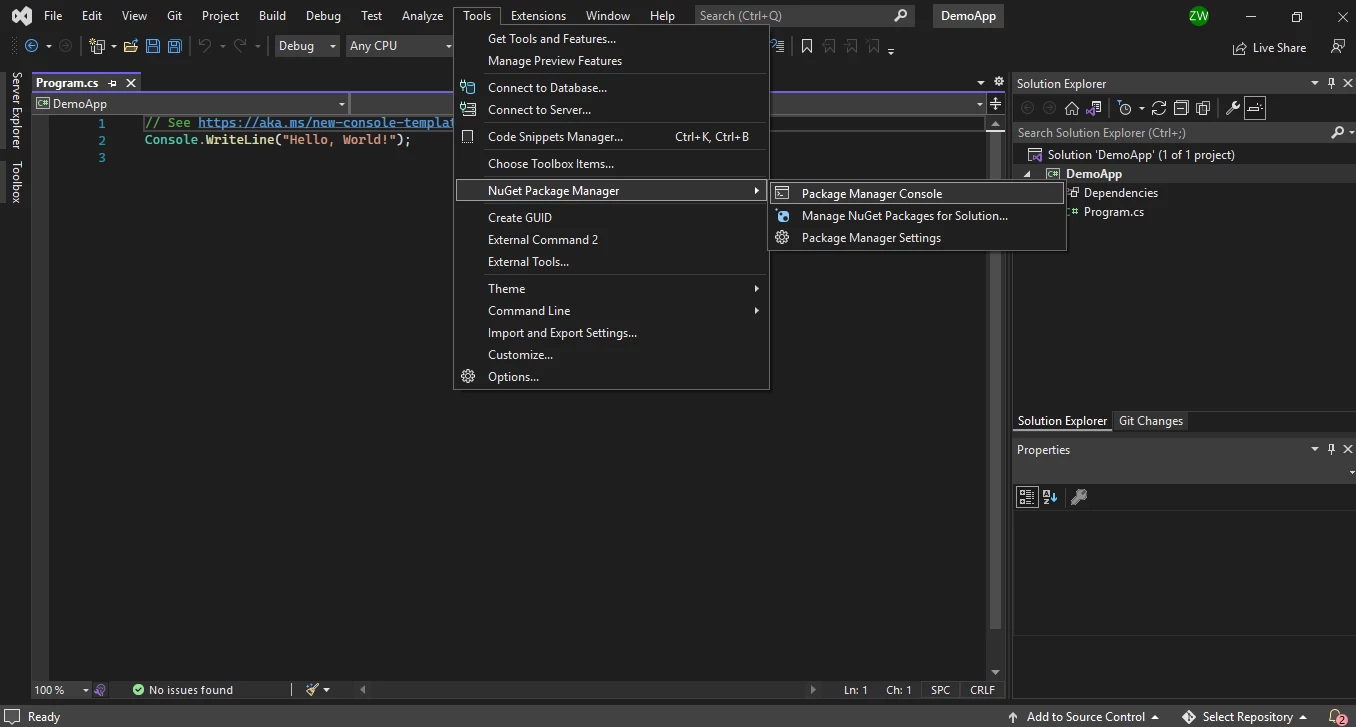
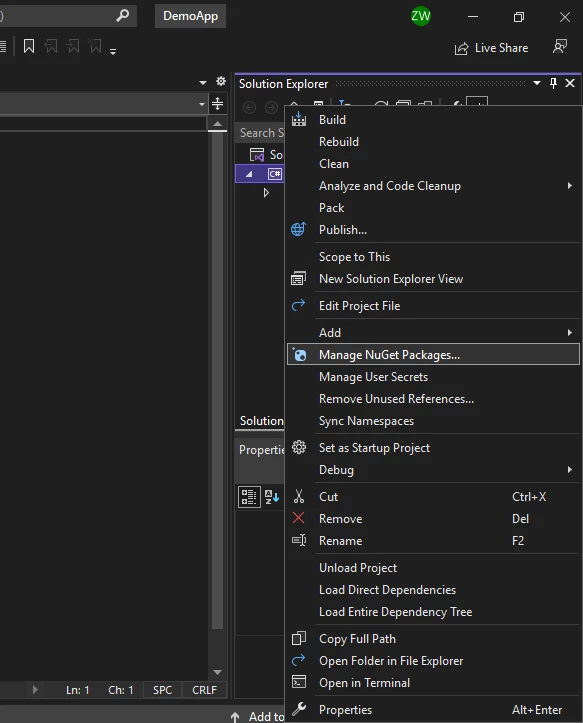
Dostęp do menedżera pakietów NuGet:
Znajdź pakiet ExpertPDF NuGet i zainstaluj go. Dla lepszej konfiguracji, rozważ przewodnik deklaracji użycia IronPDF.
Uwaga: IronPDF wspiera Windows, Linux, i macOS, oferując szersze pokrycie platformowe niż ExpertPDF, który nie dokumentuje wsparcia dla Linux ani macOS. W przypadku wdrożeń w chmurze IronPDF oferuje integrację z platformą Azure oraz obsługę AWS Lambda. IronPDF zapewnia kompleksowe wskazówki dotyczące optymalizacji wydajności i zarządzania pamięcią. W przypadku konkretnych platform zobacz obsługę Red Hat Enterprise Linux oraz AWS Lambda na Amazon Linux 2.
Jak utworzyć plik PDF z adresu URL?
Obie biblioteki konwertują HTML na PDF. Więcej szczegółów można znaleźć w przewodniku "URL to PDF". Złożone strony internetowe mogą wymagać niestandardowych opóźnień renderowania lub obsługi wykonywania kodu JavaScript. W przypadku witryn wymagających uwierzytelnienia zapoznaj się z przewodnikiem dotyczącym logowania do witryn i systemów TLS. IronPDF wyróżnia się perfekcyjną konwersją HTML do PDF z wykorzystaniem renderowania Chrome.
W jaki sposób IronPDF konwertuje adresy URL na pliki PDF?
IronPDF wydajnie renderuje HTML z adresów URL do formatu PDF. Biblioteka zapewnia zaawansowaną obsługę CSS, JavaScript, obrazów i formularzy. Wykorzystanie silnika renderującego Chrome zapewnia konwersję HTML do PDF z idealną dokładnością pikselową. W przypadku problemów z renderowaniem zapoznaj się z przewodnikiem po formatowaniu HTML zapewniającym idealną rozdzielczość. Zaawansowane opcje renderowania obejmują niestandardowe rozmiary papieru i konfigurację okna wyświetlania. Moduł nasłuchujący komunikatów JavaScript umożliwia dynamiczną obsługę treści.
Ten przykład kodu pokazuje, w jaki sposób IronPDF umożliwia programistom tworzenie plików PDF na podstawie adresów URL stron internetowych:
// Import the IronPdf library
using IronPdf;

// Initialize a new renderer
ChromePdfRenderer renderer = new ChromePdfRenderer();
// Render the specified URL as a PDF
var pdf = renderer.RenderUrlAsPdf("___PROTECTED_URL_190___");
// Save the rendered PDF to a file
pdf.SaveAs("url.pdf");
// Import the IronPdf library
using IronPdf;

// Initialize a new renderer
ChromePdfRenderer renderer = new ChromePdfRenderer();
// Render the specified URL as a PDF
var pdf = renderer.RenderUrlAsPdf("___PROTECTED_URL_190___");
// Save the rendered PDF to a file
pdf.SaveAs("url.pdf");
' Import the IronPdf library
Imports IronPdf
' Initialize a new renderer
Dim renderer As New ChromePdfRenderer()
' Render the specified URL as a PDF
Dim pdf = renderer.RenderUrlAsPdf("___PROTECTED_URL_190___")
' Save the rendered PDF to a file
pdf.SaveAs("url.pdf")
' Import the IronPdf library
Imports IronPdf

' Initialize a new renderer
Dim renderer As New ChromePdfRenderer()
' Render the specified URL as a PDF
Dim pdf = renderer.RenderUrlAsPdf("___PROTECTED_URL_190___")
' Save the rendered PDF to a file
pdf.SaveAs("url.pdf")
W przypadku adresów URL wymagających uwierzytelnienia zapoznaj się z przewodnikiem dotyczącym logowania do witryn i systemów TLS. Skonfiguruj pliki cookie i niestandardowe nagłówki HTTP dla uwierzytelnionych żądań. Witryny zabezpieczone mogą wymagać uwierzytelniania Kerberos. W celu debugowania należy skorzystać z przewodnika po debugowaniu w przeglądarce Chrome. Dodatkowe przykłady pokazują konwersję adresów URL do formatu PDF.
W jaki sposób ExpertPDF konwertuje adresy URL na pliki PDF?
ExpertPDF konwertuje URL za pomocą savePdfFromUrlToFile metody, zachowując formatowanie strony:
// Import the ExpertPdf.HtmlToPdf namespace
using ExpertPdf.HtmlToPdf;

// Initialize a new PdfConverter
PdfConverter pdfConverter = new PdfConverter();
// Use PdfConverter to save a webpage URL directly to a PDF file
pdfConverter.SavePdfFromUrlToFile("___PROTECTED_URL_191___", "output.pdf");
// Import the ExpertPdf.HtmlToPdf namespace
using ExpertPdf.HtmlToPdf;

// Initialize a new PdfConverter
PdfConverter pdfConverter = new PdfConverter();
// Use PdfConverter to save a webpage URL directly to a PDF file
pdfConverter.SavePdfFromUrlToFile("___PROTECTED_URL_191___", "output.pdf");
' Import the ExpertPdf.HtmlToPdf namespace
Imports ExpertPdf.HtmlToPdf
' Initialize a new PdfConverter
Dim pdfConverter As New PdfConverter()
' Use PdfConverter to save a webpage URL directly to a PDF file
pdfConverter.SavePdfFromUrlToFile("___PROTECTED_URL_191___", "output.pdf")
' Import the ExpertPdf.HtmlToPdf namespace
Imports ExpertPdf.HtmlToPdf

' Initialize a new PdfConverter
Dim pdfConverter As New PdfConverter()
' Use PdfConverter to save a webpage URL directly to a PDF file
pdfConverter.SavePdfFromUrlToFile("___PROTECTED_URL_191___", "output.pdf")
Za kulisami, IronPDF wykorzystuje swój silnik renderujący Chrome, aby zapewnić lepsze wsparcie HTML5 i CSS3.
Jak utworzyć plik PDF na podstawie ciągu znaków HTML?
Obie biblioteki tworzą pliki PDF na podstawie ciągów znaków HTML. Więcej szczegółów można znaleźć w przewodniku dotyczącym konwersji ciągów znaków HTML do formatu PDF. Należy używać CSS dla ekranu i PRINT oraz wykorzystać czcionki internetowe i czcionki ikon. IronPDF zapewnia doskonałą obsługę Bootstrap i Flexbox CSS. Przykład tworzenia pliku PDF przy użyciu HTML ilustruje praktyczne zastosowanie.
W jaki sposób IronPDF konwertuje ciąg znaków HTML na plik PDF?
Ten przykład kodu pokazuje, w jaki sposób IronPDF umożliwia programistom generowanie dokumentów PDF na podstawie ciągów znaków HTML:
// Import the IronPdf library
using IronPdf;

// Initialize a new renderer
ChromePdfRenderer renderer = new ChromePdfRenderer();
// Render a PDF from HTML string and save it
var pdfDoc1 = renderer.RenderHtmlAsPdf("<h1>Html with CSS and Images</h1>");
pdfDoc1.SaveAs("pixel-perfect.pdf");

// Render HTML with external assets and save it
var pdfDoc2 = renderer.RenderHtmlAsPdf("<img src='icons/iron.png'>", @"C:\site\assets\");
pdfDoc2.SaveAs("html-with-assets.pdf");
// Import the IronPdf library
using IronPdf;

// Initialize a new renderer
ChromePdfRenderer renderer = new ChromePdfRenderer();
// Render a PDF from HTML string and save it
var pdfDoc1 = renderer.RenderHtmlAsPdf("<h1>Html with CSS and Images</h1>");
pdfDoc1.SaveAs("pixel-perfect.pdf");

// Render HTML with external assets and save it
var pdfDoc2 = renderer.RenderHtmlAsPdf("<img src='icons/iron.png'>", @"C:\site\assets\");
pdfDoc2.SaveAs("html-with-assets.pdf");
' Import the IronPdf library
Imports IronPdf
' Initialize a new renderer
Private renderer As New ChromePdfRenderer()
' Render a PDF from HTML string and save it
Private pdfDoc1 = renderer.RenderHtmlAsPdf("<h1>Html with CSS and Images</h1>")
pdfDoc1.SaveAs("pixel-perfect.pdf")
' Render HTML with external assets and save it
Dim pdfDoc2 = renderer.RenderHtmlAsPdf("<img src='icons/iron.png'>", "C:\site\assets\")
pdfDoc2.SaveAs("html-with-assets.pdf")
' Import the IronPdf library
Imports IronPdf

' Initialize a new renderer
Private renderer As New ChromePdfRenderer()
' Render a PDF from HTML string and save it
Private pdfDoc1 = renderer.RenderHtmlAsPdf("<h1>Html with CSS and Images</h1>")
pdfDoc1.SaveAs("pixel-perfect.pdf")

' Render HTML with external assets and save it
Dim pdfDoc2 = renderer.RenderHtmlAsPdf("<img src='icons/iron.png'>", "C:\site\assets\")
pdfDoc2.SaveAs("html-with-assets.pdf")
IronPDF obsługuje adresy URL bazowe dla ścieżek względnych oraz DataURI do osadzania obrazów. W przypadku złożonego kodu HTML zapoznaj się z przewodnikiem dotyczącym konwersji plików HTML do formatu PDF. W przypadku konkretnych okienek wyświetlania należy zapoznać się z przewodnikiem po ustawieniach okienek wyświetlania i Zoomie. Biblioteka płynnie obsługuje języki międzynarodowe i kodowanie UTF-8. Zaawansowane funkcje obejmują ustawienia renderowania HTML oraz responsywną konwersję HTML do formatu PDF.
W jaki sposób ExpertPDF konwertuje ciąg znaków HTML na plik PDF?
Konwerter ExpertPDF HTML na PDF obsługuje konwersję ciągów znaków HTML:
// Import the ExpertPdf.HtmlToPdf namespace
using ExpertPdf.HtmlToPdf;

// Initialize a new PdfConverter
PdfConverter pdfConverter = new PdfConverter();
// Use PdfConverter to save an HTML string to a PDF file
pdfConverter.SavePdfFromHtmlStringToFile("<h1>PDF using Expert PDF</h1>", "html-to-pdf.pdf");
// Import the ExpertPdf.HtmlToPdf namespace
using ExpertPdf.HtmlToPdf;

// Initialize a new PdfConverter
PdfConverter pdfConverter = new PdfConverter();
// Use PdfConverter to save an HTML string to a PDF file
pdfConverter.SavePdfFromHtmlStringToFile("<h1>PDF using Expert PDF</h1>", "html-to-pdf.pdf");
' Import the ExpertPdf.HtmlToPdf namespace
Imports ExpertPdf.HtmlToPdf
' Initialize a new PdfConverter
Private pdfConverter As New PdfConverter()
' Use PdfConverter to save an HTML string to a PDF file
pdfConverter.SavePdfFromHtmlStringToFile("<h1>PDF using Expert PDF</h1>", "html-to-pdf.pdf")
' Import the ExpertPdf.HtmlToPdf namespace
Imports ExpertPdf.HtmlToPdf

' Initialize a new PdfConverter
Private pdfConverter As New PdfConverter()
' Use PdfConverter to save an HTML string to a PDF file
pdfConverter.SavePdfFromHtmlStringToFile("<h1>PDF using Expert PDF</h1>", "html-to-pdf.pdf")
Pierwszy argument określa ciąg znaków HTML, drugi określa nazwę pliku wyjściowego. Warto rozważyć wykorzystanie obsługi Unicode i UTF-8 przez IronPDF zamiast podstawowego renderowania HTML, aby uzyskać znacznie większą obsługę języków międzynarodowych.
Jak mogę wygenerować pliki PDF z dokumentacją techniczną?
Dokumentacja techniczna zyskuje dzięki uporządkowanemu układowi z przykładami kodu. Ta demonstracja Bootstrap 5 pokazuje możliwości IronPDF w zakresie renderowania dokumentacji z podświetleniem składni i alertami. Odwiedź przewodnik wsparcia CSS Bootstrap i Flexbox w celu uzyskania więcej informacji. IronPDF wspiera zarządzanie czcionkami oraz kerning czcionek dla profesjonalnej typografii. Dla lepszych wyników sprawdź przewodnik rozwiązywania problemów z czcionkami oraz wsparcie dla międzynarodowych języków.
using IronPdf;

var renderer = new ChromePdfRenderer();

string technicalDocs = @"
<!DOCTYPE html>
<html>
<head>
    <meta charset='utf-8'>
    <link href='___PROTECTED_URL_192___ rel='stylesheet'>
    <style>
        .code-block { background: #f8f9fa; border-left: 3px solid #0d6efd; padding: 15px; border-radius: 4px; }
        .api-method { font-family: 'Courier New', monospace; color: #0d6efd; }
        @media print { .card, .alert { page-break-inside: avoid; } }
    </style>
</head>
<body class='bg-light'>
    <div class='container py-4'>
        <div class='card shadow-sm mb-4'>
            <div class='card-header bg-dark text-white'>
                <h2 class='mb-0'>API Reference - HTML to PDF Conversion</h2>
            </div>
            <div class='card-body'>
                <h4>RenderHtmlAsPdf() Method</h4>
                <p class='lead'>Converts HTML content to PDF with full CSS3 and JavaScript support.</p>

                <div class='code-block mb-3'>
                    <code class='api-method'>PdfDocument RenderHtmlAsPdf(string htmlContent)</code>
                </div>

                <div class='row mt-4'>
                    <div class='col-md-6'>
                        <h5 class='text-primary'>Parameters</h5>
                        <table class='table table-sm table-bordered'>
                            <tr>
                                <td><code>htmlContent</code></td>
                                <td>String containing HTML to convert</td>
                            </tr>
                        </table>
                    </div>
                    <div class='col-md-6'>
                        <h5 class='text-success'>Returns</h5>
                        <table class='table table-sm table-bordered'>
                            <tr>
                                <td><code>PdfDocument</code></td>
                                <td>Generated PDF document object</td>
                            </tr>
                        </table>
                    </div>
                </div>
            </div>
        </div>

        <div class='row g-3 mb-4'>
            <div class='col-md-4'>
                <div class='alert alert-success mb-0'>
                    <h6 class='alert-heading'>✓ Supported Features</h6>
                    <ul class='mb-0 small'>
                        <li>HTML5 semantic tags</li>
                        <li>CSS3 with Flexbox/Grid</li>
                        <li>JavaScript execution</li>
                        <li>External stylesheets</li>
                    </ul>
                </div>
            </div>
            <div class='col-md-4'>
                <div class='alert alert-info mb-0'>
                    <h6 class='alert-heading'>ⓘ Rendering Engine</h6>
                    <ul class='mb-0 small'>
                        <li>Chrome V8 Engine</li>
                        <li>High-fidelity rendering</li>
                        <li>Fast HTML-to-PDF conversion</li>
                        <li>Async/await support</li>
                    </ul>
                </div>
            </div>
            <div class='col-md-4'>
                <div class='alert alert-warning mb-0'>
                    <h6 class='alert-heading'>ⓘ IronPDF Advantages</h6>
                    <ul class='mb-0 small'>
                        <li>Intuitive API design</li>
                        <li>Full CSS3 and JS support</li>
                        <li>Cross-platform deployment</li>
                        <li>Minimal configuration needed</li>
                    </ul>
                </div>
            </div>
        </div>

        <div class='card shadow-sm'>
            <div class='card-header bg-primary text-white'>
                <h5 class='mb-0'>Code Example Comparison</h5>
            </div>
            <div class='card-body'>
                <div class='row'>
                    <div class='col-md-6'>
                        <h6 class='text-primary'>IronPDF (Simple)</h6>
                        <div class='code-block'>
                            <pre class='mb-0'><code>var renderer = new ChromePdfRenderer();
var pdf = renderer.RenderHtmlAsPdf(html);
pdf.SaveAs("output.pdf");</code></pre>
                        </div>
                        <div class='badge bg-success mt-2'>3 Lines</div>
                    </div>
                    <div class='col-md-6'>
                        <h6 class='text-warning'>ExpertPDF (Complex)</h6>
                        <div class='code-block'>
                            <pre class='mb-0'><code>var converter = new HtmlToPdfConverter();
converter.PdfDocumentOptions.PdfPageSize = PdfPageSize.A4;
converter.NavigationTimeout = 60;
byte[] result = converter.GetPdfBytesFromHtmlString(html);
File.WriteAllBytes("output.pdf", result);</code></pre>
                        </div>
                        <div class='badge bg-warning text-dark mt-2'>5+ Lines</div>
                    </div>
                </div>
            </div>
            <div class='card-footer text-muted'>
                <small><strong>Comparison:</strong> IronPDF provides a more intuitive API with less configuration overhead for common use cases.</small>
            </div>
        </div>
    </div>
</body>
</html>";

var pdf = renderer.RenderHtmlAsPdf(technicalDocs);
pdf.SaveAs("technical-documentation.pdf");
using IronPdf;

var renderer = new ChromePdfRenderer();

string technicalDocs = @"
<!DOCTYPE html>
<html>
<head>
    <meta charset='utf-8'>
    <link href='___PROTECTED_URL_192___ rel='stylesheet'>
    <style>
        .code-block { background: #f8f9fa; border-left: 3px solid #0d6efd; padding: 15px; border-radius: 4px; }
        .api-method { font-family: 'Courier New', monospace; color: #0d6efd; }
        @media print { .card, .alert { page-break-inside: avoid; } }
    </style>
</head>
<body class='bg-light'>
    <div class='container py-4'>
        <div class='card shadow-sm mb-4'>
            <div class='card-header bg-dark text-white'>
                <h2 class='mb-0'>API Reference - HTML to PDF Conversion</h2>
            </div>
            <div class='card-body'>
                <h4>RenderHtmlAsPdf() Method</h4>
                <p class='lead'>Converts HTML content to PDF with full CSS3 and JavaScript support.</p>

                <div class='code-block mb-3'>
                    <code class='api-method'>PdfDocument RenderHtmlAsPdf(string htmlContent)</code>
                </div>

                <div class='row mt-4'>
                    <div class='col-md-6'>
                        <h5 class='text-primary'>Parameters</h5>
                        <table class='table table-sm table-bordered'>
                            <tr>
                                <td><code>htmlContent</code></td>
                                <td>String containing HTML to convert</td>
                            </tr>
                        </table>
                    </div>
                    <div class='col-md-6'>
                        <h5 class='text-success'>Returns</h5>
                        <table class='table table-sm table-bordered'>
                            <tr>
                                <td><code>PdfDocument</code></td>
                                <td>Generated PDF document object</td>
                            </tr>
                        </table>
                    </div>
                </div>
            </div>
        </div>

        <div class='row g-3 mb-4'>
            <div class='col-md-4'>
                <div class='alert alert-success mb-0'>
                    <h6 class='alert-heading'>✓ Supported Features</h6>
                    <ul class='mb-0 small'>
                        <li>HTML5 semantic tags</li>
                        <li>CSS3 with Flexbox/Grid</li>
                        <li>JavaScript execution</li>
                        <li>External stylesheets</li>
                    </ul>
                </div>
            </div>
            <div class='col-md-4'>
                <div class='alert alert-info mb-0'>
                    <h6 class='alert-heading'>ⓘ Rendering Engine</h6>
                    <ul class='mb-0 small'>
                        <li>Chrome V8 Engine</li>
                        <li>High-fidelity rendering</li>
                        <li>Fast HTML-to-PDF conversion</li>
                        <li>Async/await support</li>
                    </ul>
                </div>
            </div>
            <div class='col-md-4'>
                <div class='alert alert-warning mb-0'>
                    <h6 class='alert-heading'>ⓘ IronPDF Advantages</h6>
                    <ul class='mb-0 small'>
                        <li>Intuitive API design</li>
                        <li>Full CSS3 and JS support</li>
                        <li>Cross-platform deployment</li>
                        <li>Minimal configuration needed</li>
                    </ul>
                </div>
            </div>
        </div>

        <div class='card shadow-sm'>
            <div class='card-header bg-primary text-white'>
                <h5 class='mb-0'>Code Example Comparison</h5>
            </div>
            <div class='card-body'>
                <div class='row'>
                    <div class='col-md-6'>
                        <h6 class='text-primary'>IronPDF (Simple)</h6>
                        <div class='code-block'>
                            <pre class='mb-0'><code>var renderer = new ChromePdfRenderer();
var pdf = renderer.RenderHtmlAsPdf(html);
pdf.SaveAs("output.pdf");</code></pre>
                        </div>
                        <div class='badge bg-success mt-2'>3 Lines</div>
                    </div>
                    <div class='col-md-6'>
                        <h6 class='text-warning'>ExpertPDF (Complex)</h6>
                        <div class='code-block'>
                            <pre class='mb-0'><code>var converter = new HtmlToPdfConverter();
converter.PdfDocumentOptions.PdfPageSize = PdfPageSize.A4;
converter.NavigationTimeout = 60;
byte[] result = converter.GetPdfBytesFromHtmlString(html);
File.WriteAllBytes("output.pdf", result);</code></pre>
                        </div>
                        <div class='badge bg-warning text-dark mt-2'>5+ Lines</div>
                    </div>
                </div>
            </div>
            <div class='card-footer text-muted'>
                <small><strong>Comparison:</strong> IronPDF provides a more intuitive API with less configuration overhead for common use cases.</small>
            </div>
        </div>
    </div>
</body>
</html>";

var pdf = renderer.RenderHtmlAsPdf(technicalDocs);
pdf.SaveAs("technical-documentation.pdf");
Imports IronPdf
Dim renderer As New ChromePdfRenderer()
Dim technicalDocs As String = "
<!DOCTYPE html>
<html>
<head>
<meta charset='utf-8'>
<link href='___PROTECTED_URL_192___ rel='stylesheet'>
<style>
.code-block { background: #f8f9fa; border-left: 3px solid #0d6efd; padding: 15px; border-radius: 4px; }
.api-method { font-family: 'Courier New', monospace; color: #0d6efd; }
@media print { .card, .alert { page-break-inside: avoid; } }
</style>
</head>
<body class='bg-light'>
<div class='container py-4'>
<div class='card shadow-sm mb-4'>
<div class='card-header bg-dark text-white'>
<h2 class='mb-0'>API Reference - HTML to PDF Conversion</h2>
</div>
<div class='card-body'>
<h4>RenderHtmlAsPdf() Method</h4>
<p class='lead'>Converts HTML content to PDF with full CSS3 and JavaScript support.</p>
<div class='code-block mb-3'>
<code class='api-method'>PdfDocument RenderHtmlAsPdf(string htmlContent)</code>
</div>
<div class='row mt-4'>
<div class='col-md-6'>
<h5 class='text-primary'>Parameters</h5>
<table class='table table-sm table-bordered'>
<tr>
<td><code>htmlContent</code></td>
<td>String containing HTML to convert</td>
</tr>
</table>
</div>
<div class='col-md-6'>
<h5 class='text-success'>Returns</h5>
<table class='table table-sm table-bordered'>
<tr>
<td><code>PdfDocument</code></td>
<td>Generated PDF document object</td>
</tr>
</table>
</div>
</div>
</div>
</div>
<div class='row g-3 mb-4'>
<div class='col-md-4'>
<div class='alert alert-success mb-0'>
<h6 class='alert-heading'>✓ Supported Features</h6>
<ul class='mb-0 small'>
<li>HTML5 semantic tags</li>
<li>CSS3 with Flexbox/Grid</li>
<li>JavaScript execution</li>
<li>External stylesheets</li>
</ul>
</div>
</div>
<div class='col-md-4'>
<div class='alert alert-info mb-0'>
<h6 class='alert-heading'>ⓘ Rendering Engine</h6>
<ul class='mb-0 small'>
<li>Chrome V8 Engine</li>
<li>High-fidelity rendering</li>
<li>Fast HTML-to-PDF conversion</li>
<li>Async/await support</li>
</ul>
</div>
</div>
<div class='col-md-4'>
<div class='alert alert-warning mb-0'>
<h6 class='alert-heading'>ⓘ IronPDF Advantages</h6>
<ul class='mb-0 small'>
<li>Intuitive API design</li>
<li>Full CSS3 and JS support</li>
<li>Cross-platform deployment</li>
<li>Minimal configuration needed</li>
</ul>
</div>
</div>
</div>
<div class='card shadow-sm'>
<div class='card-header bg-primary text-white'>
<h5 class='mb-0'>Code Example Comparison</h5>
</div>
<div class='card-body'>
<div class='row'>
<div class='col-md-6'>
<h6 class='text-primary'>IronPDF (Simple)</h6>
<div class='code-block'>
<pre class='mb-0'><code>var renderer = new ChromePdfRenderer();
var pdf = renderer.RenderHtmlAsPdf(html);
pdf.SaveAs(""output.pdf"");</code></pre>
</div>
<div class='badge bg-success mt-2'>3 Lines</div>
</div>
<div class='col-md-6'>
<h6 class='text-warning'>ExpertPDF (Complex)</h6>
<div class='code-block'>
<pre class='mb-0'><code>var converter = new HtmlToPdfConverter();
converter.PdfDocumentOptions.PdfPageSize = PdfPageSize.A4;
converter.NavigationTimeout = 60;
byte[] result = converter.GetPdfBytesFromHtmlString(html);
File.WriteAllBytes(""output.pdf"", result);</code></pre>
</div>
<div class='badge bg-warning text-dark mt-2'>5+ Lines</div>
</div>
</div>
</div>
<div class='card-footer text-muted'>
<small><strong>Comparison:</strong> IronPDF provides a more intuitive API with less configuration overhead for common use cases.</small>
</div>
</div>
</div>
</body>
</html>"
Dim pdf = renderer.RenderHtmlAsPdf(technicalDocs)
pdf.SaveAs("technical-documentation.pdf")
Imports IronPdf

Dim renderer As New ChromePdfRenderer()

Dim technicalDocs As String = "
<!DOCTYPE html>
<html>
<head>
    <meta charset='utf-8'>
    <link href='___PROTECTED_URL_192___ rel='stylesheet'>
    <style>
        .code-block { background: #f8f9fa; border-left: 3px solid #0d6efd; padding: 15px; border-radius: 4px; }
        .api-method { font-family: 'Courier New', monospace; color: #0d6efd; }
        @media print { .card, .alert { page-break-inside: avoid; } }
    </style>
</head>
<body class='bg-light'>
    <div class='container py-4'>
        <div class='card shadow-sm mb-4'>
            <div class='card-header bg-dark text-white'>
                <h2 class='mb-0'>API Reference - HTML to PDF Conversion</h2>
            </div>
            <div class='card-body'>
                <h4>RenderHtmlAsPdf() Method</h4>
                <p class='lead'>Converts HTML content to PDF with full CSS3 and JavaScript support.</p>

                <div class='code-block mb-3'>
                    <code class='api-method'>PdfDocument RenderHtmlAsPdf(string htmlContent)</code>
                </div>

                <div class='row mt-4'>
                    <div class='col-md-6'>
                        <h5 class='text-primary'>Parameters</h5>
                        <table class='table table-sm table-bordered'>
                            <tr>
                                <td><code>htmlContent</code></td>
                                <td>String containing HTML to convert</td>
                            </tr>
                        </table>
                    </div>
                    <div class='col-md-6'>
                        <h5 class='text-success'>Returns</h5>
                        <table class='table table-sm table-bordered'>
                            <tr>
                                <td><code>PdfDocument</code></td>
                                <td>Generated PDF document object</td>
                            </tr>
                        </table>
                    </div>
                </div>
            </div>
        </div>

        <div class='row g-3 mb-4'>
            <div class='col-md-4'>
                <div class='alert alert-success mb-0'>
                    <h6 class='alert-heading'>✓ Supported Features</h6>
                    <ul class='mb-0 small'>
                        <li>HTML5 semantic tags</li>
                        <li>CSS3 with Flexbox/Grid</li>
                        <li>JavaScript execution</li>
                        <li>External stylesheets</li>
                    </ul>
                </div>
            </div>
            <div class='col-md-4'>
                <div class='alert alert-info mb-0'>
                    <h6 class='alert-heading'>ⓘ Rendering Engine</h6>
                    <ul class='mb-0 small'>
                        <li>Chrome V8 Engine</li>
                        <li>High-fidelity rendering</li>
                        <li>Fast HTML-to-PDF conversion</li>
                        <li>Async/await support</li>
                    </ul>
                </div>
            </div>
            <div class='col-md-4'>
                <div class='alert alert-warning mb-0'>
                    <h6 class='alert-heading'>ⓘ IronPDF Advantages</h6>
                    <ul class='mb-0 small'>
                        <li>Intuitive API design</li>
                        <li>Full CSS3 and JS support</li>
                        <li>Cross-platform deployment</li>
                        <li>Minimal configuration needed</li>
                    </ul>
                </div>
            </div>
        </div>

        <div class='card shadow-sm'>
            <div class='card-header bg-primary text-white'>
                <h5 class='mb-0'>Code Example Comparison</h5>
            </div>
            <div class='card-body'>
                <div class='row'>
                    <div class='col-md-6'>
                        <h6 class='text-primary'>IronPDF (Simple)</h6>
                        <div class='code-block'>
                            <pre class='mb-0'><code>var renderer = new ChromePdfRenderer();
var pdf = renderer.RenderHtmlAsPdf(html);
pdf.SaveAs(""output.pdf"");</code></pre>
                        </div>
                        <div class='badge bg-success mt-2'>3 Lines</div>
                    </div>
                    <div class='col-md-6'>
                        <h6 class='text-warning'>ExpertPDF (Complex)</h6>
                        <div class='code-block'>
                            <pre class='mb-0'><code>var converter = new HtmlToPdfConverter();
converter.PdfDocumentOptions.PdfPageSize = PdfPageSize.A4;
converter.NavigationTimeout = 60;
byte[] result = converter.GetPdfBytesFromHtmlString(html);
File.WriteAllBytes(""output.pdf"", result);</code></pre>
                        </div>
                        <div class='badge bg-warning text-dark mt-2'>5+ Lines</div>
                    </div>
                </div>
            </div>
            <div class='card-footer text-muted'>
                <small><strong>Comparison:</strong> IronPDF provides a more intuitive API with less configuration overhead for common use cases.</small>
            </div>
        </div>
    </div>
</body>
</html>"

Dim pdf = renderer.RenderHtmlAsPdf(technicalDocs)
pdf.SaveAs("technical-documentation.pdf")
Rezultat: Profesjonalna dokumentacja techniczna PDF z kartami Bootstrap 5, alertami, tabelami i blokami kodu. IronPDF dokładnie renderuje całą typografię, narzędzia odstępów i układy siatki, wykazując zaawansowane możliwości generowania dokumentacji.
Jak Utworzyć Raporty Finansowe ze Złożonymi Układami?
Raportowanie finansowe wymaga precyzyjnego formatowania tabel i obliczeń. Ten przykład pokazuje, jak IronPDF radzi sobie z renderowaniem złożonych układów finansowych z CSS Grid i dynamicznym JavaScript. Odwiedź przewodnik JavaScript w PDF, w tym wykonywanie niestandardowego JavaScript, w celu uzyskania więcej informacji. Dokumenty finansowe mogą wymagać kompresji PDF dla optymalizacji pliku i zarządzania metadanymi dla zgodności. Przewodnik renderowania wykresów w PDF pomaga w wizualizacji danych.
using IronPdf;

var renderer = new ChromePdfRenderer();
// Enable JavaScript for dynamic calculations
renderer.RenderingOptions.EnableJavaScript = true;
renderer.RenderingOptions.RenderDelay = 500; // Allow JS to execute

string financialReport = @"
<!DOCTYPE html>
<html>
<head>
    <meta charset='utf-8'>
    <style>
        @page { size: A4; margin: 20mm; }
        body { font-family: Arial, sans-serif; line-height: 1.6; }
        .header { text-align: center; margin-bottom: 30px; }
        .financial-grid { display: grid; grid-template-columns: 2fr 1fr 1fr; gap: 10px; margin-bottom: 20px; }
        .grid-header { background: #2c3e50; color: white; padding: 10px; font-weight: bold; }
        .grid-row { padding: 10px; border-bottom: 1px solid #ddd; }
        .grid-row:hover { background: #f9f9f9; }
        .amount { text-align: right; font-family: 'Courier New', monospace; }
        .positive { color: #27ae60; }
        .negative { color: #e74c3c; }
        .total-row { background: #ecf0f1; font-weight: bold; margin-top: 10px; }
        .footer-note { font-size: 0.8em; color: #666; margin-top: 30px; text-align: center; }
        @media print {
            .grid-row:hover { background: transparent; }
            .financial-grid { page-break-inside: avoid; }
        }
    </style>
</head>
<body>
    <div class='header'>
        <h1>Quarterly Financial Report</h1>
        <p>Q4 2023 - Consolidated Statement</p>
    </div>

    <div class='financial-grid'>
        <div class='grid-header'>Revenue Stream</div>
        <div class='grid-header amount'>Q3 2023</div>
        <div class='grid-header amount'>Q4 2023</div>

        <div class='grid-row'>Software Licenses</div>
        <div class='grid-row amount'>$2,150,000</div>
        <div class='grid-row amount positive'>$2,875,000</div>

        <div class='grid-row'>Support Services</div>
        <div class='grid-row amount'>$850,000</div>
        <div class='grid-row amount positive'>$975,000</div>

        <div class='grid-row'>Consulting</div>
        <div class='grid-row amount'>$425,000</div>
        <div class='grid-row amount negative'>$380,000</div>

        <div class='grid-row total-row'>Total Revenue</div>
        <div class='grid-row total-row amount'>$3,425,000</div>
        <div class='grid-row total-row amount positive' id='total'>$4,230,000</div>
    </div>

    <div class='financial-grid'>
        <div class='grid-header'>Operating Expenses</div>
        <div class='grid-header amount'>Q3 2023</div>
        <div class='grid-header amount'>Q4 2023</div>

        <div class='grid-row'>R&D</div>
        <div class='grid-row amount'>$1,200,000</div>
        <div class='grid-row amount'>$1,350,000</div>

        <div class='grid-row'>Sales & Marketing</div>
        <div class='grid-row amount'>$800,000</div>
        <div class='grid-row amount'>$950,000</div>

        <div class='grid-row'>General & Admin</div>
        <div class='grid-row amount'>$400,000</div>
        <div class='grid-row amount'>$425,000</div>

        <div class='grid-row total-row'>Total Expenses</div>
        <div class='grid-row total-row amount'>$2,400,000</div>
        <div class='grid-row total-row amount'>$2,725,000</div>
    </div>

    <script>
        // Calculate growth percentage
        const q3Total = 3425000;
        const q4Total = 4230000;
        const growth = ((q4Total - q3Total) / q3Total * 100).toFixed(1);

        // Add growth indicator
        const totalEl = document.getElementById('total');
        totalEl.innerHTML += ` <small>(+${growth}%)</small>`;
    </script>

    <div class='footer-note'>
        <p>This report was generated using IronPDF's advanced rendering engine.<br>
        All financial figures are in USD. Report generated on: <span id='date'></span></p>
    </div>

    <script>
        document.getElementById('date').textContent = new Date().toLocaleDateString();
    </script>
</body>
</html>";

var pdf = renderer.RenderHtmlAsPdf(financialReport);
pdf.SaveAs("financial-report.pdf");
using IronPdf;

var renderer = new ChromePdfRenderer();
// Enable JavaScript for dynamic calculations
renderer.RenderingOptions.EnableJavaScript = true;
renderer.RenderingOptions.RenderDelay = 500; // Allow JS to execute

string financialReport = @"
<!DOCTYPE html>
<html>
<head>
    <meta charset='utf-8'>
    <style>
        @page { size: A4; margin: 20mm; }
        body { font-family: Arial, sans-serif; line-height: 1.6; }
        .header { text-align: center; margin-bottom: 30px; }
        .financial-grid { display: grid; grid-template-columns: 2fr 1fr 1fr; gap: 10px; margin-bottom: 20px; }
        .grid-header { background: #2c3e50; color: white; padding: 10px; font-weight: bold; }
        .grid-row { padding: 10px; border-bottom: 1px solid #ddd; }
        .grid-row:hover { background: #f9f9f9; }
        .amount { text-align: right; font-family: 'Courier New', monospace; }
        .positive { color: #27ae60; }
        .negative { color: #e74c3c; }
        .total-row { background: #ecf0f1; font-weight: bold; margin-top: 10px; }
        .footer-note { font-size: 0.8em; color: #666; margin-top: 30px; text-align: center; }
        @media print {
            .grid-row:hover { background: transparent; }
            .financial-grid { page-break-inside: avoid; }
        }
    </style>
</head>
<body>
    <div class='header'>
        <h1>Quarterly Financial Report</h1>
        <p>Q4 2023 - Consolidated Statement</p>
    </div>

    <div class='financial-grid'>
        <div class='grid-header'>Revenue Stream</div>
        <div class='grid-header amount'>Q3 2023</div>
        <div class='grid-header amount'>Q4 2023</div>

        <div class='grid-row'>Software Licenses</div>
        <div class='grid-row amount'>$2,150,000</div>
        <div class='grid-row amount positive'>$2,875,000</div>

        <div class='grid-row'>Support Services</div>
        <div class='grid-row amount'>$850,000</div>
        <div class='grid-row amount positive'>$975,000</div>

        <div class='grid-row'>Consulting</div>
        <div class='grid-row amount'>$425,000</div>
        <div class='grid-row amount negative'>$380,000</div>

        <div class='grid-row total-row'>Total Revenue</div>
        <div class='grid-row total-row amount'>$3,425,000</div>
        <div class='grid-row total-row amount positive' id='total'>$4,230,000</div>
    </div>

    <div class='financial-grid'>
        <div class='grid-header'>Operating Expenses</div>
        <div class='grid-header amount'>Q3 2023</div>
        <div class='grid-header amount'>Q4 2023</div>

        <div class='grid-row'>R&D</div>
        <div class='grid-row amount'>$1,200,000</div>
        <div class='grid-row amount'>$1,350,000</div>

        <div class='grid-row'>Sales & Marketing</div>
        <div class='grid-row amount'>$800,000</div>
        <div class='grid-row amount'>$950,000</div>

        <div class='grid-row'>General & Admin</div>
        <div class='grid-row amount'>$400,000</div>
        <div class='grid-row amount'>$425,000</div>

        <div class='grid-row total-row'>Total Expenses</div>
        <div class='grid-row total-row amount'>$2,400,000</div>
        <div class='grid-row total-row amount'>$2,725,000</div>
    </div>

    <script>
        // Calculate growth percentage
        const q3Total = 3425000;
        const q4Total = 4230000;
        const growth = ((q4Total - q3Total) / q3Total * 100).toFixed(1);

        // Add growth indicator
        const totalEl = document.getElementById('total');
        totalEl.innerHTML += ` <small>(+${growth}%)</small>`;
    </script>

    <div class='footer-note'>
        <p>This report was generated using IronPDF's advanced rendering engine.<br>
        All financial figures are in USD. Report generated on: <span id='date'></span></p>
    </div>

    <script>
        document.getElementById('date').textContent = new Date().toLocaleDateString();
    </script>
</body>
</html>";

var pdf = renderer.RenderHtmlAsPdf(financialReport);
pdf.SaveAs("financial-report.pdf");
Imports IronPdf
Dim renderer = New ChromePdfRenderer()
' Enable JavaScript for dynamic calculations
renderer.RenderingOptions.EnableJavaScript = True
renderer.RenderingOptions.RenderDelay = 500 ' Allow JS to execute
Dim financialReport As String = "
<!DOCTYPE html>
<html>
<head>
<meta charset='utf-8'>
<style>
@page { size: A4; margin: 20mm; }
body { font-family: Arial, sans-serif; line-height: 1.6; }
.header { text-align: center; margin-bottom: 30px; }
.financial-grid { display: grid; grid-template-columns: 2fr 1fr 1fr; gap: 10px; margin-bottom: 20px; }
.grid-header { background: #2c3e50; color: white; padding: 10px; font-weight: bold; }
.grid-row { padding: 10px; border-bottom: 1px solid #ddd; }
.grid-row:hover { background: #f9f9f9; }
.amount { text-align: right; font-family: 'Courier New', monospace; }
.positive { color: #27ae60; }
.negative { color: #e74c3c; }
.total-row { background: #ecf0f1; font-weight: bold; margin-top: 10px; }
.footer-note { font-size: 0.8em; color: #666; margin-top: 30px; text-align: center; }
@media print {
.grid-row:hover { background: transparent; }
.financial-grid { page-break-inside: avoid; }
}
</style>
</head>
<body>
<div class='header'>
<h1>Quarterly Financial Report</h1>
<p>Q4 2023 - Consolidated Statement</p>
</div>
<div class='financial-grid'>
<div class='grid-header'>Revenue Stream</div>
<div class='grid-header amount'>Q3 2023</div>
<div class='grid-header amount'>Q4 2023</div>
<div class='grid-row'>Software Licenses</div>
<div class='grid-row amount'>$2,150,000</div>
<div class='grid-row amount positive'>$2,875,000</div>
<div class='grid-row'>Support Services</div>
<div class='grid-row amount'>$850,000</div>
<div class='grid-row amount positive'>$975,000</div>
<div class='grid-row'>Consulting</div>
<div class='grid-row amount'>$425,000</div>
<div class='grid-row amount negative'>$380,000</div>
<div class='grid-row total-row'>Total Revenue</div>
<div class='grid-row total-row amount'>$3,425,000</div>
<div class='grid-row total-row amount positive' id='total'>$4,230,000</div>
</div>
<div class='financial-grid'>
<div class='grid-header'>Operating Expenses</div>
<div class='grid-header amount'>Q3 2023</div>
<div class='grid-header amount'>Q4 2023</div>
<div class='grid-row'>R&D</div>
<div class='grid-row amount'>$1,200,000</div>
<div class='grid-row amount'>$1,350,000</div>
<div class='grid-row'>Sales & Marketing</div>
<div class='grid-row amount'>$800,000</div>
<div class='grid-row amount'>$950,000</div>
<div class='grid-row'>General & Admin</div>
<div class='grid-row amount'>$400,000</div>
<div class='grid-row amount'>$425,000</div>
<div class='grid-row total-row'>Total Expenses</div>
<div class='grid-row total-row amount'>$2,400,000</div>
<div class='grid-row total-row amount'>$2,725,000</div>
</div>
<script>
// Calculate growth percentage
const q3Total = 3425000;
const q4Total = 4230000;
const growth = ((q4Total - q3Total) / q3Total * 100).toFixed(1);
// Add growth indicator
const totalEl = document.getElementById('total');
totalEl.innerHTML += ` <small>(+${growth}%)</small>`;
</script>
<div class='footer-note'>
<p>This report was generated using IronPDF's advanced rendering engine.<br>
All financial figures are in USD. Report generated on: <span id='date'></span></p>
</div>
<script>
document.getElementById('date').textContent = new Date().toLocaleDateString();
</script>
</body>
</html>"
Dim pdf = renderer.RenderHtmlAsPdf(financialReport)
pdf.SaveAs("financial-report.pdf")
Imports IronPdf

Dim renderer = New ChromePdfRenderer()
' Enable JavaScript for dynamic calculations
renderer.RenderingOptions.EnableJavaScript = True
renderer.RenderingOptions.RenderDelay = 500 ' Allow JS to execute

Dim financialReport As String = "
<!DOCTYPE html>
<html>
<head>
    <meta charset='utf-8'>
    <style>
        @page { size: A4; margin: 20mm; }
        body { font-family: Arial, sans-serif; line-height: 1.6; }
        .header { text-align: center; margin-bottom: 30px; }
        .financial-grid { display: grid; grid-template-columns: 2fr 1fr 1fr; gap: 10px; margin-bottom: 20px; }
        .grid-header { background: #2c3e50; color: white; padding: 10px; font-weight: bold; }
        .grid-row { padding: 10px; border-bottom: 1px solid #ddd; }
        .grid-row:hover { background: #f9f9f9; }
        .amount { text-align: right; font-family: 'Courier New', monospace; }
        .positive { color: #27ae60; }
        .negative { color: #e74c3c; }
        .total-row { background: #ecf0f1; font-weight: bold; margin-top: 10px; }
        .footer-note { font-size: 0.8em; color: #666; margin-top: 30px; text-align: center; }
        @media print {
            .grid-row:hover { background: transparent; }
            .financial-grid { page-break-inside: avoid; }
        }
    </style>
</head>
<body>
    <div class='header'>
        <h1>Quarterly Financial Report</h1>
        <p>Q4 2023 - Consolidated Statement</p>
    </div>

    <div class='financial-grid'>
        <div class='grid-header'>Revenue Stream</div>
        <div class='grid-header amount'>Q3 2023</div>
        <div class='grid-header amount'>Q4 2023</div>

        <div class='grid-row'>Software Licenses</div>
        <div class='grid-row amount'>$2,150,000</div>
        <div class='grid-row amount positive'>$2,875,000</div>

        <div class='grid-row'>Support Services</div>
        <div class='grid-row amount'>$850,000</div>
        <div class='grid-row amount positive'>$975,000</div>

        <div class='grid-row'>Consulting</div>
        <div class='grid-row amount'>$425,000</div>
        <div class='grid-row amount negative'>$380,000</div>

        <div class='grid-row total-row'>Total Revenue</div>
        <div class='grid-row total-row amount'>$3,425,000</div>
        <div class='grid-row total-row amount positive' id='total'>$4,230,000</div>
    </div>

    <div class='financial-grid'>
        <div class='grid-header'>Operating Expenses</div>
        <div class='grid-header amount'>Q3 2023</div>
        <div class='grid-header amount'>Q4 2023</div>

        <div class='grid-row'>R&D</div>
        <div class='grid-row amount'>$1,200,000</div>
        <div class='grid-row amount'>$1,350,000</div>

        <div class='grid-row'>Sales & Marketing</div>
        <div class='grid-row amount'>$800,000</div>
        <div class='grid-row amount'>$950,000</div>

        <div class='grid-row'>General & Admin</div>
        <div class='grid-row amount'>$400,000</div>
        <div class='grid-row amount'>$425,000</div>

        <div class='grid-row total-row'>Total Expenses</div>
        <div class='grid-row total-row amount'>$2,400,000</div>
        <div class='grid-row total-row amount'>$2,725,000</div>
    </div>

    <script>
        // Calculate growth percentage
        const q3Total = 3425000;
        const q4Total = 4230000;
        const growth = ((q4Total - q3Total) / q3Total * 100).toFixed(1);

        // Add growth indicator
        const totalEl = document.getElementById('total');
        totalEl.innerHTML += ` <small>(+${growth}%)</small>`;
    </script>

    <div class='footer-note'>
        <p>This report was generated using IronPDF's advanced rendering engine.<br>
        All financial figures are in USD. Report generated on: <span id='date'></span></p>
    </div>

    <script>
        document.getElementById('date').textContent = new Date().toLocaleDateString();
    </script>
</body>
</html>"

Dim pdf = renderer.RenderHtmlAsPdf(financialReport)
pdf.SaveAs("financial-report.pdf")
Ten przykład kodu pokazuje, jak IronPDF pozwala deweloperom używać układów CSS Grid, wykonywania JavaScript oraz CSS specyficznego dla druku. Dodaj niestandardowe nagłówki i stopki do raportów, implementuj tła i pierwsze plany dla branding su, znaki wodne dla bezpieczeństwa oraz podpisy cyfrowe dla uwierzytelniania. Odwiedź przewodnik generowania raportów PDF w celu uzyskania dodatkowych informacji.
Jak Scalić Wiele Plików PDF w Jeden PDF?
Obie biblioteki scalają wiele plików PDF w pojedyncze dokumenty, konsolidując dane dla efektywnej transmisji. Odwiedź przewodnik łączenia lub dzielenia PDF w celu uzyskania więcej informacji. Dokumenty wielostronicowe mogą wymagać zarządzania stronami lub dzielenia wielostronicowych PDF. Dla wydajności przy dużych plikach, rozważ generowanie PDF asynchronicznie lub przetwarzanie równoległe. Przykład łączenia dwóch lub więcej PDF dostarcza praktycznej implementacji. Dla organizacji PDF, IronPDF oferuje pełne narzędzia.
W jaki sposób IronPDF łączy pliki PDF?
Ten przykład kodu pokazuje, jak IronPDF pozwala deweloperom renderować dwa PDF z ciągów HTML i je łączyć. Proste podejście oferuje dodatkowe opcje ustawień. Dla numerów stron i przerw między stronami w połączonych dokumentach, zobacz odpowiednie przewodniki. Również kopiuj strony między PDF dla szczegółowej kontroli. Dla formularzy, zobacz zarządzanie formularzami i dokumentację edycji formularzy. Przykład numerów stron i przerw między stronami pokazuje zintegrowaną implementację.
// Import the IronPdf library
using IronPdf;

// Define HTML strings to convert to PDF
var htmlA = @"<p> [PDF_A] </p>
        <p> [PDF_A] 1st Page </p>
        <div style='page-break-after: always;'></div>
        <p> [PDF_A] 2nd Page</p>";

var htmlB = @"<p> [PDF_B] </p>
        <p> [PDF_B] 1st Page </p>
        <div style='page-break-after: always;'></div>
        <p> [PDF_B] 2nd Page</p>";

// Initialize a new renderer
var renderer = new ChromePdfRenderer();

// Render HTML strings as PDFs
var pdfDocA = renderer.RenderHtmlAsPdf(htmlA);
var pdfDocB = renderer.RenderHtmlAsPdf(htmlB);

// Merge the PDF documents
var mergedPdf = PdfDocument.Merge(pdfDocA, pdfDocB);

// Save the merged PDF
mergedPdf.SaveAs("Merged.pdf");
// Import the IronPdf library
using IronPdf;

// Define HTML strings to convert to PDF
var htmlA = @"<p> [PDF_A] </p>
        <p> [PDF_A] 1st Page </p>
        <div style='page-break-after: always;'></div>
        <p> [PDF_A] 2nd Page</p>";

var htmlB = @"<p> [PDF_B] </p>
        <p> [PDF_B] 1st Page </p>
        <div style='page-break-after: always;'></div>
        <p> [PDF_B] 2nd Page</p>";

// Initialize a new renderer
var renderer = new ChromePdfRenderer();

// Render HTML strings as PDFs
var pdfDocA = renderer.RenderHtmlAsPdf(htmlA);
var pdfDocB = renderer.RenderHtmlAsPdf(htmlB);

// Merge the PDF documents
var mergedPdf = PdfDocument.Merge(pdfDocA, pdfDocB);

// Save the merged PDF
mergedPdf.SaveAs("Merged.pdf");
' Import the IronPdf library
Imports IronPdf
' Define HTML strings to convert to PDF
Private htmlA = "<p> [PDF_A] </p>
<p> [PDF_A] 1st Page </p>
<div style='page-break-after: always;'></div>
<p> [PDF_A] 2nd Page</p>"
Private htmlB = "<p> [PDF_B] </p>
<p> [PDF_B] 1st Page </p>
<div style='page-break-after: always;'></div>
<p> [PDF_B] 2nd Page</p>"
' Initialize a new renderer
Private renderer = New ChromePdfRenderer()
' Render HTML strings as PDFs
Private pdfDocA = renderer.RenderHtmlAsPdf(htmlA)
Private pdfDocB = renderer.RenderHtmlAsPdf(htmlB)
' Merge the PDF documents
Private mergedPdf = PdfDocument.Merge(pdfDocA, pdfDocB)
' Save the merged PDF
mergedPdf.SaveAs("Merged.pdf")
' Import the IronPdf library
Imports IronPdf

' Define HTML strings to convert to PDF
Private htmlA = "<p> [PDF_A] </p>
        <p> [PDF_A] 1st Page </p>
        <div style='page-break-after: always;'></div>
        <p> [PDF_A] 2nd Page</p>"

Private htmlB = "<p> [PDF_B] </p>
        <p> [PDF_B] 1st Page </p>
        <div style='page-break-after: always;'></div>
        <p> [PDF_B] 2nd Page</p>"

' Initialize a new renderer
Private renderer = New ChromePdfRenderer()

' Render HTML strings as PDFs
Private pdfDocA = renderer.RenderHtmlAsPdf(htmlA)
Private pdfDocB = renderer.RenderHtmlAsPdf(htmlB)

' Merge the PDF documents
Private mergedPdf = PdfDocument.Merge(pdfDocA, pdfDocB)

' Save the merged PDF
mergedPdf.SaveAs("Merged.pdf")
Metoda Merge akceptuje wiele dokumentów jako obiekty Enumerable. Zobacz Przykład Kodu IronPDF dla Łączenia PDF. Dla dodawania stron tytułowych lub tworzenia spisu treści, zobacz specjalistyczne przewodniki. Również stempluj nową treść lub dodaj załączniki. Przykład dzielenia PDF i ekstrakcji stron pokazuje operacje odwrotne.
Należy zauważyć, że scalone PDF zawierające edytowalne formularze mają nazwy pól formularza dopisane z numerami indeksów. Odwiedź przewodnik obsługi danych formularzy w celu uzyskania więcej informacji.
Jak ExpertPDF Scalę Pliki PDF?
ExpertPDF używa komponentu Merge PDF, który wymaga osobnej instalacji. Metoda AppendPDFFile dołącza pliki do obiektów PDFMerge:
// Import the ExpertPdf.MergePdf namespace
using ExpertPdf.MergePdf;

// Initialize a new PDFMerge object
PDFMerge pdfMerge = new PDFMerge();
// Append PDF files to the merge object
pdfMerge.AppendPDFFile("output.pdf");
pdfMerge.AppendPDFFile("html-to-pdf.pdf");
// Save the merged PDF to a file
pdfMerge.SaveMergedPDFToFile("merged.pdf");
// Import the ExpertPdf.MergePdf namespace
using ExpertPdf.MergePdf;

// Initialize a new PDFMerge object
PDFMerge pdfMerge = new PDFMerge();
// Append PDF files to the merge object
pdfMerge.AppendPDFFile("output.pdf");
pdfMerge.AppendPDFFile("html-to-pdf.pdf");
// Save the merged PDF to a file
pdfMerge.SaveMergedPDFToFile("merged.pdf");
' Import the ExpertPdf.MergePdf namespace
Imports ExpertPdf.MergePdf
' Initialize a new PDFMerge object
Private pdfMerge As New PDFMerge()
' Append PDF files to the merge object
pdfMerge.AppendPDFFile("output.pdf")
pdfMerge.AppendPDFFile("html-to-pdf.pdf")
' Save the merged PDF to a file
pdfMerge.SaveMergedPDFToFile("merged.pdf")
' Import the ExpertPdf.MergePdf namespace
Imports ExpertPdf.MergePdf

' Initialize a new PDFMerge object
Private pdfMerge As New PDFMerge()
' Append PDF files to the merge object
pdfMerge.AppendPDFFile("output.pdf")
pdfMerge.AppendPDFFile("html-to-pdf.pdf")
' Save the merged PDF to a file
pdfMerge.SaveMergedPDFToFile("merged.pdf")
Za kulisami, IronPDF używa bardziej wydajnych algorytmów scalania. Rozważ użycie asynchronicznego generowania PDF i generowania wielowątkowego IronPDF zamiast operacji synchronicznych dla znacznie lepszej wydajności.
Jak Mogę Zaimplementować Zaawansowane Scalanie PDF z Organizacją Dokumentu?
Aplikacje w przedsiębiorstwie wymagają zaawansowanych funkcji jak zakładki, organizacja stron i zachowanie metadanych przy scalaniu PDF. Ten przykład pokazuje zarządzanie zakładkami, obsługę metadanych i organizację dokumentu. Dla zgodności zaimplementuj historię rewizji, konwersję PDF/A i dostępność PDF/UA. Przykład konturów i zakładek dostarcza dodatkowych informacji na temat implementacji. Odwiedź przewodnik ustawiania i edycji metadanych oraz przewodnik rozwiązywania problemów z widocznością metadanych w celu uzyskania więcej informacji.
using IronPdf;
using System.Collections.Generic;
using System.Linq;

public class AdvancedPdfMerger
{
    public static void MergeDocumentsWithBookmarks()
    {
        var renderer = new ChromePdfRenderer();
        var documentsToMerge = new List<PdfDocument>();

        // Create chapter PDFs with proper structure
        string[] chapters = { "Introduction", "Technical Overview", "Implementation", "Conclusion" };

        foreach (var chapter in chapters)
        {
            string html = $@"
                <html>
                <head>
                    <style>
                        body {{font-family: Georgia, serif; margin: 40px;}}
                        h1 {{color: #2c3e50; border-bottom: 2px solid #3498db; padding-bottom: 10px;}}
                        .chapter-number {{color: #7f8c8d; font-size: 0.8em;}}
                    </style>
                </head>
                <body>
                    <h1><span class='chapter-number'>Chapter {Array.IndexOf(chapters, chapter) + 1}</span><br>{chapter}</h1>
                    <p>This is the content for the {chapter} chapter. In a real document, this would contain
                    extensive content, diagrams, and detailed explanations.</p>
                    <p>Lorem ipsum dolor sit amet, consectetur adipiscing elit. Sed do eiusmod tempor
                    incididunt ut labore et dolore magna aliqua.</p>
                </body>
                </html>";

            var pdf = renderer.RenderHtmlAsPdf(html);

            // Add metadata to each chapter
            pdf.MetaData.Title = $"Chapter: {chapter}";
            pdf.MetaData.Author = "Technical Documentation Team";
            pdf.MetaData.Subject = "Enterprise PDF Generation";

            documentsToMerge.Add(pdf);
        }

        // Create a table of contents
        string tocHtml = @"
            <html>
            <head>
                <style>
                    body { font-family: Georgia, serif; margin: 40px; }
                    h1 { text-align: center; color: #2c3e50; margin-bottom: 40px; }
                    .toc-entry { margin: 15px 0; font-size: 1.1em; }
                    .toc-entry a { text-decoration: none; color: #3498db; }
                    .page-number { float: right; color: #7f8c8d; }
                </style>
            </head>
            <body>
                <h1>Table of Contents</h1>";

        int pageNumber = 2; // Starting after TOC page
        foreach (var chapter in chapters)
        {
            tocHtml += $@"
                <div class='toc-entry'>
                    <a href='#'>Chapter {Array.IndexOf(chapters, chapter) + 1}: {chapter}</a>
                    <span class='page-number'>{pageNumber}</span>
                </div>";
            pageNumber += 2; // Assuming each chapter is 2 pages
        }

        tocHtml += @"
            </body>
            </html>";

        var tocPdf = renderer.RenderHtmlAsPdf(tocHtml);

        // Merge all documents with TOC first
        var allDocuments = new List<PdfDocument> { tocPdf };
        allDocuments.AddRange(documentsToMerge);

        var finalPdf = PdfDocument.Merge(allDocuments);

        // Add bookmarks for navigation
        finalPdf.BookMarks.AddBookMarkAtStart("Table of Contents", 0);
        int currentPage = 1; // After TOC
        foreach (var chapter in chapters)
        {
            finalPdf.BookMarks.AddBookMarkAtStart($"Chapter {Array.IndexOf(chapters, chapter) + 1}: {chapter}", currentPage);
            currentPage += 2;
        }

        // Set document properties
        finalPdf.MetaData.Title = "Complete Technical Documentation";
        finalPdf.MetaData.Keywords = "IronPDF, Documentation, Enterprise, .NET";
        finalPdf.MetaData.CreationDate = System.DateTime.Now;

        // Add page numbers to footer
        finalPdf.AddTextFooters("Page {page} of {total-pages}",
            new ChromePdfRenderer.ChromePdfRenderOptions()
            {
                MarginBottom = 20,
                MarginLeft = 50,
                MarginRight = 50
            });

        finalPdf.SaveAs("advanced-merged-document.pdf");
    }
}
using IronPdf;
using System.Collections.Generic;
using System.Linq;

public class AdvancedPdfMerger
{
    public static void MergeDocumentsWithBookmarks()
    {
        var renderer = new ChromePdfRenderer();
        var documentsToMerge = new List<PdfDocument>();

        // Create chapter PDFs with proper structure
        string[] chapters = { "Introduction", "Technical Overview", "Implementation", "Conclusion" };

        foreach (var chapter in chapters)
        {
            string html = $@"
                <html>
                <head>
                    <style>
                        body {{font-family: Georgia, serif; margin: 40px;}}
                        h1 {{color: #2c3e50; border-bottom: 2px solid #3498db; padding-bottom: 10px;}}
                        .chapter-number {{color: #7f8c8d; font-size: 0.8em;}}
                    </style>
                </head>
                <body>
                    <h1><span class='chapter-number'>Chapter {Array.IndexOf(chapters, chapter) + 1}</span><br>{chapter}</h1>
                    <p>This is the content for the {chapter} chapter. In a real document, this would contain
                    extensive content, diagrams, and detailed explanations.</p>
                    <p>Lorem ipsum dolor sit amet, consectetur adipiscing elit. Sed do eiusmod tempor
                    incididunt ut labore et dolore magna aliqua.</p>
                </body>
                </html>";

            var pdf = renderer.RenderHtmlAsPdf(html);

            // Add metadata to each chapter
            pdf.MetaData.Title = $"Chapter: {chapter}";
            pdf.MetaData.Author = "Technical Documentation Team";
            pdf.MetaData.Subject = "Enterprise PDF Generation";

            documentsToMerge.Add(pdf);
        }

        // Create a table of contents
        string tocHtml = @"
            <html>
            <head>
                <style>
                    body { font-family: Georgia, serif; margin: 40px; }
                    h1 { text-align: center; color: #2c3e50; margin-bottom: 40px; }
                    .toc-entry { margin: 15px 0; font-size: 1.1em; }
                    .toc-entry a { text-decoration: none; color: #3498db; }
                    .page-number { float: right; color: #7f8c8d; }
                </style>
            </head>
            <body>
                <h1>Table of Contents</h1>";

        int pageNumber = 2; // Starting after TOC page
        foreach (var chapter in chapters)
        {
            tocHtml += $@"
                <div class='toc-entry'>
                    <a href='#'>Chapter {Array.IndexOf(chapters, chapter) + 1}: {chapter}</a>
                    <span class='page-number'>{pageNumber}</span>
                </div>";
            pageNumber += 2; // Assuming each chapter is 2 pages
        }

        tocHtml += @"
            </body>
            </html>";

        var tocPdf = renderer.RenderHtmlAsPdf(tocHtml);

        // Merge all documents with TOC first
        var allDocuments = new List<PdfDocument> { tocPdf };
        allDocuments.AddRange(documentsToMerge);

        var finalPdf = PdfDocument.Merge(allDocuments);

        // Add bookmarks for navigation
        finalPdf.BookMarks.AddBookMarkAtStart("Table of Contents", 0);
        int currentPage = 1; // After TOC
        foreach (var chapter in chapters)
        {
            finalPdf.BookMarks.AddBookMarkAtStart($"Chapter {Array.IndexOf(chapters, chapter) + 1}: {chapter}", currentPage);
            currentPage += 2;
        }

        // Set document properties
        finalPdf.MetaData.Title = "Complete Technical Documentation";
        finalPdf.MetaData.Keywords = "IronPDF, Documentation, Enterprise, .NET";
        finalPdf.MetaData.CreationDate = System.DateTime.Now;

        // Add page numbers to footer
        finalPdf.AddTextFooters("Page {page} of {total-pages}",
            new ChromePdfRenderer.ChromePdfRenderOptions()
            {
                MarginBottom = 20,
                MarginLeft = 50,
                MarginRight = 50
            });

        finalPdf.SaveAs("advanced-merged-document.pdf");
    }
}
Imports IronPdf
Imports System.Collections.Generic
Imports System.Linq
Public Class AdvancedPdfMerger
Public Shared Sub MergeDocumentsWithBookmarks()
Dim renderer = New ChromePdfRenderer()
Dim documentsToMerge = New List(Of PdfDocument)()
' Create chapter PDFs with proper structure
Dim chapters As String() = {"Introduction", "Technical Overview", "Implementation", "Conclusion"}
For Each chapter In chapters
Dim html As String = $"
<html>
<head>
<style>
body {{font-family: Georgia, serif; margin: 40px;}}
h1 {{color: #2c3e50; border-bottom: 2px solid #3498db; padding-bottom: 10px;}}
.chapter-number {{color: #7f8c8d; font-size: 0.8em;}}
</style>
</head>
<body>
<h1><span class='chapter-number'>Chapter {Array.IndexOf(chapters, chapter) + 1}</span><br>{chapter}</h1>
<p>This is the content for the {chapter} chapter. In a real document, this would contain
extensive content, diagrams, and detailed explanations.</p>
<p>Lorem ipsum dolor sit amet, consectetur adipiscing elit. Sed do eiusmod tempor
incididunt ut labore et dolore magna aliqua.</p>
</body>
</html>"
Dim pdf = renderer.RenderHtmlAsPdf(html)
' Add metadata to each chapter
pdf.MetaData.Title = $"Chapter: {chapter}"
pdf.MetaData.Author = "Technical Documentation Team"
pdf.MetaData.Subject = "Enterprise PDF Generation"
documentsToMerge.Add(pdf)
Next
' Create a table of contents
Dim tocHtml As String = "
<html>
<head>
<style>
body { font-family: Georgia, serif; margin: 40px; }
h1 { text-align: center; color: #2c3e50; margin-bottom: 40px; }
.toc-entry { margin: 15px 0; font-size: 1.1em; }
.toc-entry a { text-decoration: none; color: #3498db; }
.page-number { float: right; color: #7f8c8d; }
</style>
</head>
<body>
<h1>Table of Contents</h1>"
Dim pageNumber As Integer = 2 ' Starting after TOC page
For Each chapter In chapters
tocHtml += $"
<div class='toc-entry'>
<a href='#'>Chapter {Array.IndexOf(chapters, chapter) + 1}: {chapter}</a>
<span class='page-number'>{pageNumber}</span>
</div>"
pageNumber += 2 ' Assuming each chapter is 2 pages
Next
tocHtml += "
</body>
</html>"
Dim tocPdf = renderer.RenderHtmlAsPdf(tocHtml)
' Merge all documents with TOC first
Dim allDocuments = New List(Of PdfDocument) From {tocPdf}
allDocuments.AddRange(documentsToMerge)
Dim finalPdf = PdfDocument.Merge(allDocuments)
' Add bookmarks for navigation
finalPdf.BookMarks.AddBookMarkAtStart("Table of Contents", 0)
Dim currentPage As Integer = 1 ' After TOC
For Each chapter In chapters
finalPdf.BookMarks.AddBookMarkAtStart($"Chapter {Array.IndexOf(chapters, chapter) + 1}: {chapter}", currentPage)
currentPage += 2
Next
' Set document properties
finalPdf.MetaData.Title = "Complete Technical Documentation"
finalPdf.MetaData.Keywords = "IronPDF, Documentation, Enterprise, .NET"
finalPdf.MetaData.CreationDate = System.DateTime.Now
' Add page numbers to footer
finalPdf.AddTextFooters("Page {page} of {total-pages}",
New ChromePdfRenderer.ChromePdfRenderOptions() With {
.MarginBottom = 20,
.MarginLeft = 50,
.MarginRight = 50
})
finalPdf.SaveAs("advanced-merged-document.pdf")
End Sub
End Class
Imports IronPdf
Imports System.Collections.Generic
Imports System.Linq

Public Class AdvancedPdfMerger
    Public Shared Sub MergeDocumentsWithBookmarks()
        Dim renderer = New ChromePdfRenderer()
        Dim documentsToMerge = New List(Of PdfDocument)()

        ' Create chapter PDFs with proper structure
        Dim chapters As String() = {"Introduction", "Technical Overview", "Implementation", "Conclusion"}

        For Each chapter In chapters
            Dim html As String = $"
                <html>
                <head>
                    <style>
                        body {{font-family: Georgia, serif; margin: 40px;}}
                        h1 {{color: #2c3e50; border-bottom: 2px solid #3498db; padding-bottom: 10px;}}
                        .chapter-number {{color: #7f8c8d; font-size: 0.8em;}}
                    </style>
                </head>
                <body>
                    <h1><span class='chapter-number'>Chapter {Array.IndexOf(chapters, chapter) + 1}</span><br>{chapter}</h1>
                    <p>This is the content for the {chapter} chapter. In a real document, this would contain
                    extensive content, diagrams, and detailed explanations.</p>
                    <p>Lorem ipsum dolor sit amet, consectetur adipiscing elit. Sed do eiusmod tempor
                    incididunt ut labore et dolore magna aliqua.</p>
                </body>
                </html>"

            Dim pdf = renderer.RenderHtmlAsPdf(html)

            ' Add metadata to each chapter
            pdf.MetaData.Title = $"Chapter: {chapter}"
            pdf.MetaData.Author = "Technical Documentation Team"
            pdf.MetaData.Subject = "Enterprise PDF Generation"

            documentsToMerge.Add(pdf)
        Next

        ' Create a table of contents
        Dim tocHtml As String = "
            <html>
            <head>
                <style>
                    body { font-family: Georgia, serif; margin: 40px; }
                    h1 { text-align: center; color: #2c3e50; margin-bottom: 40px; }
                    .toc-entry { margin: 15px 0; font-size: 1.1em; }
                    .toc-entry a { text-decoration: none; color: #3498db; }
                    .page-number { float: right; color: #7f8c8d; }
                </style>
            </head>
            <body>
                <h1>Table of Contents</h1>"

        Dim pageNumber As Integer = 2 ' Starting after TOC page
        For Each chapter In chapters
            tocHtml += $"
                <div class='toc-entry'>
                    <a href='#'>Chapter {Array.IndexOf(chapters, chapter) + 1}: {chapter}</a>
                    <span class='page-number'>{pageNumber}</span>
                </div>"
            pageNumber += 2 ' Assuming each chapter is 2 pages
        Next

        tocHtml += "
            </body>
            </html>"

        Dim tocPdf = renderer.RenderHtmlAsPdf(tocHtml)

        ' Merge all documents with TOC first
        Dim allDocuments = New List(Of PdfDocument) From {tocPdf}
        allDocuments.AddRange(documentsToMerge)

        Dim finalPdf = PdfDocument.Merge(allDocuments)

        ' Add bookmarks for navigation
        finalPdf.BookMarks.AddBookMarkAtStart("Table of Contents", 0)
        Dim currentPage As Integer = 1 ' After TOC
        For Each chapter In chapters
            finalPdf.BookMarks.AddBookMarkAtStart($"Chapter {Array.IndexOf(chapters, chapter) + 1}: {chapter}", currentPage)
            currentPage += 2
        Next

        ' Set document properties
        finalPdf.MetaData.Title = "Complete Technical Documentation"
        finalPdf.MetaData.Keywords = "IronPDF, Documentation, Enterprise, .NET"
        finalPdf.MetaData.CreationDate = System.DateTime.Now

        ' Add page numbers to footer
        finalPdf.AddTextFooters("Page {page} of {total-pages}",
            New ChromePdfRenderer.ChromePdfRenderOptions() With {
                .MarginBottom = 20,
                .MarginLeft = 50,
                .MarginRight = 50
            })

        finalPdf.SaveAs("advanced-merged-document.pdf")
    End Sub
End Class
Ta zaawansowana implementacja pokazuje zarządzanie zakładkami, obsługę metadanych oraz numerowanie stron. Odwiedź przewodnik organizowania PDF w celu uzyskania więcej informacji. Eksploruj techniki kompresji PDF po scaleniu. Dla bezpieczeństwa zaimplementuj ochronę hasłem oraz szyfrowanie. Przykład dodawania standardowych tekstowych nagłówków i stopek dostarcza opcji formatowania. Dla dodatkowych funkcji, eksploruj dodawanie numerów stron oraz dodawanie spisu treści przewodniki. Przykład hasła, bezpieczeństwa i metadanych pokazuje zintegrowaną implementację.
Jak Konwertować Obrazy na PDF?
IronPDF konwertuje różne obrazy na PDF, funkcjonalność niedostępna w ExpertPDF. Jednakże, ExpertPDF wyodrębnia obrazy z PDF i konwertuje PDF na obrazy, co IronPDF także oferuje. Odwiedź przewodnik obrazu na PDF w celu uzyskania więcej informacji. IronPDF wspiera rastryzację PDF na obrazy oraz wyodrębnianie tekstu i obrazów. Dla zaawansowanych scenariuszy, rysuj teksty i bitmapy lub rysuj linie i prostokąty. Przykład obrazów do PDF pokazuje praktyczną implementację. Dla jakości obrazu zobacz przykład konwersji PDF do obrazu bez utraty jakości w C#.
Tworzenie PDF z obrazów używa klasy ImageToPdfConverter. Obrazy się ładują z dowolnego folderu, z obsługą różnych formatów, w tym wielostronicowych plików TIFF. Również dodaj obrazy do istniejących PDF lub pracuj z grafiką SVG. Dla efektywności pamięci użyj rozmywania do obrazów używając MemoryStream. Przykład niestandardowego rozmiaru PDF pomaga w kontroli układu.
// Import the IronPdf namespace
using IronPdf;

// Specify the folder containing the image files
var imageFiles = System.IO.Directory.EnumerateFiles(@"C:\project\assets")
                  .Where(file => file.EndsWith(".jpg") || file.EndsWith(".jpeg"));

// Convert the images to a PDF document
var pdfDocument = ImageToPdfConverter.ImageToPdf(imageFiles);
// Save the PDF document
pdfDocument.SaveAs(@"C:\project\composite.pdf");
// Import the IronPdf namespace
using IronPdf;

// Specify the folder containing the image files
var imageFiles = System.IO.Directory.EnumerateFiles(@"C:\project\assets")
                  .Where(file => file.EndsWith(".jpg") || file.EndsWith(".jpeg"));

// Convert the images to a PDF document
var pdfDocument = ImageToPdfConverter.ImageToPdf(imageFiles);
// Save the PDF document
pdfDocument.SaveAs(@"C:\project\composite.pdf");
' Import the IronPdf namespace
Imports IronPdf
' Specify the folder containing the image files
Private imageFiles = System.IO.Directory.EnumerateFiles("C:\project\assets").Where(Function(file) file.EndsWith(".jpg") OrElse file.EndsWith(".jpeg"))
' Convert the images to a PDF document
Private pdfDocument = ImageToPdfConverter.ImageToPdf(imageFiles)
' Save the PDF document
pdfDocument.SaveAs("C:\project\composite.pdf")
' Import the IronPdf namespace
Imports IronPdf

' Specify the folder containing the image files
Private imageFiles = System.IO.Directory.EnumerateFiles("C:\project\assets").Where(Function(file) file.EndsWith(".jpg") OrElse file.EndsWith(".jpeg"))

' Convert the images to a PDF document
Private pdfDocument = ImageToPdfConverter.ImageToPdf(imageFiles)
' Save the PDF document
pdfDocument.SaveAs("C:\project\composite.pdf")
Oprócz konwertowania obrazów na PDF, IronPDF konwertuje zeskanowane dokumenty i dokumenty biznesowe na obrazy przy użyciu rastryzacji na obrazy. Biblioteka również wyodrębnia obrazy z różnych typów plików. Odwiedź przewodnik rastryzacji na obrazy przy użyciu MemoryStream w celu uzyskania więcej informacji o operacjach pamięciowych. Dla dużych obrazów, rozważ optymalizację rozmiaru pliku ImageToPDF. Przykład orientacji strony pionowej i poziomej pomaga w ustalaniu strony. Dla zaawansowanego zarządzania obrazami, zobacz przykład osadzania bitmap i obrazów.
Jak Mogę Utworzyć Zaawansowane Konwersje Obrazu na PDF z Kontrolą Układu?
Dla kontrolowanego umiejscowienia obrazu i profesjonalnych układów, ten przykład albumu fotograficznego pokazuje osadzanie obrazów i tworzenie układu. Dla przechowywania w chmurze, zobacz przewodnik azurowego przechowywania obrazów. Przykład ustawienia w odcieniach szarości pokazuje opcje przetwarzania obrazów:
using IronPdf;
using System.IO;

public class PhotoAlbumCreator
{
    public static void CreatePhotoAlbum(string imagesFolder, string outputPath)
    {
        var renderer = new ChromePdfRenderer();
        renderer.RenderingOptions.PaperSize = IronPdf.Rendering.PdfPaperSize.A4;
        renderer.RenderingOptions.MarginTop = 20;
        renderer.RenderingOptions.MarginBottom = 20;
        renderer.RenderingOptions.MarginLeft = 20;
        renderer.RenderingOptions.MarginRight = 20;

        string htmlContent = @"
            <!DOCTYPE html>
            <html>
            <head>
                <style>
                    body { font-family: Arial, sans-serif; }
                    .album-title { text-align: center; font-size: 2em; margin-bottom: 30px; color: #2c3e50; }
                    .photo-container { margin-bottom: 30px; text-align: center; page-break-inside: avoid; }
                    .photo { max-width: 100%; max-height: 500px; box-shadow: 0 4px 6px rgba(0,0,0,0.1); }
                    .caption { margin-top: 10px; font-style: italic; color: #666; }
                    .page-break { page-break-after: always; }
                </style>
            </head>
            <body>
                <h1 class='album-title'>My Photo Album</h1>";

        var imageFiles = Directory.GetFiles(imagesFolder, "*.*")
            .Where(file => new[] { ".jpg", ".jpeg", ".png", ".gif" }
            .Contains(Path.GetExtension(file).ToLower()))
            .ToList();

        for (int i = 0; i < imageFiles.Count; i++)
        {
            string base64Image = Convert.ToBase64String(File.ReadAllBytes(imageFiles[i]));
            string fileName = Path.GetFileNameWithoutExtension(imageFiles[i]);

            htmlContent += $@"
                <div class='photo-container'>
                    <img class='photo' src='data:image/jpeg;base64,{base64Image}' alt='{fileName}'>
                    <div class='caption'>Photo {i + 1}: {fileName}</div>
                </div>";

            // Add page break every 2 photos
            if ((i + 1) % 2 == 0 && i < imageFiles.Count - 1)
            {
                htmlContent += "<div class='page-break'></div>";
            }
        }

        htmlContent += @"
                <div style='text-align: center; margin-top: 40px; color: #999;'>
                    <small>Created with IronPDF - Total Photos: " + imageFiles.Count + @"</small>
                </div>
            </body>
            </html>";

        var pdf = renderer.RenderHtmlAsPdf(htmlContent);
        pdf.SaveAs(outputPath);
    }
}

// Usage
PhotoAlbumCreator.CreatePhotoAlbum(@"C:\MyPhotos", @"C:\MyPhotoAlbum.pdf");
using IronPdf;
using System.IO;

public class PhotoAlbumCreator
{
    public static void CreatePhotoAlbum(string imagesFolder, string outputPath)
    {
        var renderer = new ChromePdfRenderer();
        renderer.RenderingOptions.PaperSize = IronPdf.Rendering.PdfPaperSize.A4;
        renderer.RenderingOptions.MarginTop = 20;
        renderer.RenderingOptions.MarginBottom = 20;
        renderer.RenderingOptions.MarginLeft = 20;
        renderer.RenderingOptions.MarginRight = 20;

        string htmlContent = @"
            <!DOCTYPE html>
            <html>
            <head>
                <style>
                    body { font-family: Arial, sans-serif; }
                    .album-title { text-align: center; font-size: 2em; margin-bottom: 30px; color: #2c3e50; }
                    .photo-container { margin-bottom: 30px; text-align: center; page-break-inside: avoid; }
                    .photo { max-width: 100%; max-height: 500px; box-shadow: 0 4px 6px rgba(0,0,0,0.1); }
                    .caption { margin-top: 10px; font-style: italic; color: #666; }
                    .page-break { page-break-after: always; }
                </style>
            </head>
            <body>
                <h1 class='album-title'>My Photo Album</h1>";

        var imageFiles = Directory.GetFiles(imagesFolder, "*.*")
            .Where(file => new[] { ".jpg", ".jpeg", ".png", ".gif" }
            .Contains(Path.GetExtension(file).ToLower()))
            .ToList();

        for (int i = 0; i < imageFiles.Count; i++)
        {
            string base64Image = Convert.ToBase64String(File.ReadAllBytes(imageFiles[i]));
            string fileName = Path.GetFileNameWithoutExtension(imageFiles[i]);

            htmlContent += $@"
                <div class='photo-container'>
                    <img class='photo' src='data:image/jpeg;base64,{base64Image}' alt='{fileName}'>
                    <div class='caption'>Photo {i + 1}: {fileName}</div>
                </div>";

            // Add page break every 2 photos
            if ((i + 1) % 2 == 0 && i < imageFiles.Count - 1)
            {
                htmlContent += "<div class='page-break'></div>";
            }
        }

        htmlContent += @"
                <div style='text-align: center; margin-top: 40px; color: #999;'>
                    <small>Created with IronPDF - Total Photos: " + imageFiles.Count + @"</small>
                </div>
            </body>
            </html>";

        var pdf = renderer.RenderHtmlAsPdf(htmlContent);
        pdf.SaveAs(outputPath);
    }
}

// Usage
PhotoAlbumCreator.CreatePhotoAlbum(@"C:\MyPhotos", @"C:\MyPhotoAlbum.pdf");
Imports IronPdf
Imports System.IO
Imports System.Linq
Public Class PhotoAlbumCreator
Public Shared Sub CreatePhotoAlbum(imagesFolder As String, outputPath As String)
Dim renderer = New ChromePdfRenderer()
renderer.RenderingOptions.PaperSize = IronPdf.Rendering.PdfPaperSize.A4
renderer.RenderingOptions.MarginTop = 20
renderer.RenderingOptions.MarginBottom = 20
renderer.RenderingOptions.MarginLeft = 20
renderer.RenderingOptions.MarginRight = 20
Dim htmlContent As String = "
<!DOCTYPE html>
<html>
<head>
<style>
body { font-family: Arial, sans-serif; }
.album-title { text-align: center; font-size: 2em; margin-bottom: 30px; color: #2c3e50; }
.photo-container { margin-bottom: 30px; text-align: center; page-break-inside: avoid; }
.photo { max-width: 100%; max-height: 500px; box-shadow: 0 4px 6px rgba(0,0,0,0.1); }
.caption { margin-top: 10px; font-style: italic; color: #666; }
.page-break { page-break-after: always; }
</style>
</head>
<body>
<h1 class='album-title'>My Photo Album</h1>"
Dim imageFiles = Directory.GetFiles(imagesFolder, "*.*").Where(Function(file) {".jpg", ".jpeg", ".png", ".gif"}.Contains(Path.GetExtension(file).ToLower())).ToList()
For i As Integer = 0 To imageFiles.Count - 1
Dim base64Image As String = Convert.ToBase64String(File.ReadAllBytes(imageFiles(i)))
Dim fileName As String = Path.GetFileNameWithoutExtension(imageFiles(i))
htmlContent += $"
<div class='photo-container'>
<img class='photo' src='data:image/jpeg;base64,{base64Image}' alt='{fileName}'>
<div class='caption'>Photo {i + 1}: {fileName}</div>
</div>"
' Add page break every 2 photos
If (i + 1) Mod 2 = 0 AndAlso i < imageFiles.Count - 1 Then
htmlContent += "<div class='page-break'></div>"
End If
Next
htmlContent += "
<div style='text-align: center; margin-top: 40px; color: #999;'>
<small>Created with IronPDF - Total Photos: " & imageFiles.Count & "</small>
</div>
</body>
</html>"
Dim pdf = renderer.RenderHtmlAsPdf(htmlContent)
pdf.SaveAs(outputPath)
End Sub
End Class
' Usage
PhotoAlbumCreator.CreatePhotoAlbum("C:\MyPhotos", "C:\MyPhotoAlbum.pdf")
Imports IronPdf
Imports System.IO
Imports System.Linq

Public Class PhotoAlbumCreator
    Public Shared Sub CreatePhotoAlbum(imagesFolder As String, outputPath As String)
        Dim renderer = New ChromePdfRenderer()
        renderer.RenderingOptions.PaperSize = IronPdf.Rendering.PdfPaperSize.A4
        renderer.RenderingOptions.MarginTop = 20
        renderer.RenderingOptions.MarginBottom = 20
        renderer.RenderingOptions.MarginLeft = 20
        renderer.RenderingOptions.MarginRight = 20

        Dim htmlContent As String = "
            <!DOCTYPE html>
            <html>
            <head>
                <style>
                    body { font-family: Arial, sans-serif; }
                    .album-title { text-align: center; font-size: 2em; margin-bottom: 30px; color: #2c3e50; }
                    .photo-container { margin-bottom: 30px; text-align: center; page-break-inside: avoid; }
                    .photo { max-width: 100%; max-height: 500px; box-shadow: 0 4px 6px rgba(0,0,0,0.1); }
                    .caption { margin-top: 10px; font-style: italic; color: #666; }
                    .page-break { page-break-after: always; }
                </style>
            </head>
            <body>
                <h1 class='album-title'>My Photo Album</h1>"

        Dim imageFiles = Directory.GetFiles(imagesFolder, "*.*").Where(Function(file) {".jpg", ".jpeg", ".png", ".gif"}.Contains(Path.GetExtension(file).ToLower())).ToList()

        For i As Integer = 0 To imageFiles.Count - 1
            Dim base64Image As String = Convert.ToBase64String(File.ReadAllBytes(imageFiles(i)))
            Dim fileName As String = Path.GetFileNameWithoutExtension(imageFiles(i))

            htmlContent += $"
                <div class='photo-container'>
                    <img class='photo' src='data:image/jpeg;base64,{base64Image}' alt='{fileName}'>
                    <div class='caption'>Photo {i + 1}: {fileName}</div>
                </div>"

            ' Add page break every 2 photos
            If (i + 1) Mod 2 = 0 AndAlso i < imageFiles.Count - 1 Then
                htmlContent += "<div class='page-break'></div>"
            End If
        Next

        htmlContent += "
                <div style='text-align: center; margin-top: 40px; color: #999;'>
                    <small>Created with IronPDF - Total Photos: " & imageFiles.Count & "</small>
                </div>
            </body>
            </html>"

        Dim pdf = renderer.RenderHtmlAsPdf(htmlContent)
        pdf.SaveAs(outputPath)
    End Sub
End Class

' Usage
PhotoAlbumCreator.CreatePhotoAlbum("C:\MyPhotos", "C:\MyPhotoAlbum.pdf")
Ten przykład kodu pokazuje, jak IronPDF pozwala deweloperom implementować osadzanie obrazów z DataURIs, zarządzanie przerwami między stronami i tworzenie profesjonalnych układów. Dla obrazów w chmurze zobacz przewodnik azurowego przechowywania obrazów. Dla dużych plików rozważ optymalizację rozmiaru pliku ImageToPDF. Również skaluj obiekty PDF oraz przesuwaj obiekty PDF dla precyzyjnego pozycjonowania. Przykład eksportu PDF do pamięci pomaga w wydajnych pamięciowo strumieniach pracy. Odwiedź przewodnik wydajnego dodawania treści HTML dla przetwarzania wsadowego.
Jakie Są Opcje Licencjonowania i Cenowe?
IronPDF to komercyjna biblioteka PDF dla C# dostępna na stronie IronPDF. Darmowa dla prywatnego rozwoju, licencjonowana na potrzeby komercyjne. Dostępne są różne licencje dostępne dla pojedynczych projektów, deweloperów, agencji i korporacji. Wspiera redystrybucję SaaS i OEM. Zapoznaj się z przewodnikiem dotyczącym kluczy licencyjnych w celu uzyskania szczegółowych informacji na temat implementacji. Podczas wdrażania poprawnie zastosuj klucz licencyjny. Dla aplikacji webowych ustaw klucze licencyjne w Web.config. W przypadku problemów z połączeniem z serwerem licencyjnym, zapoznaj się z przewodnikiem dotyczącym rozwiązywania problemów. Przewodnik używania kluczy licencyjnych dostarcza kompletne informacje o implementacji.
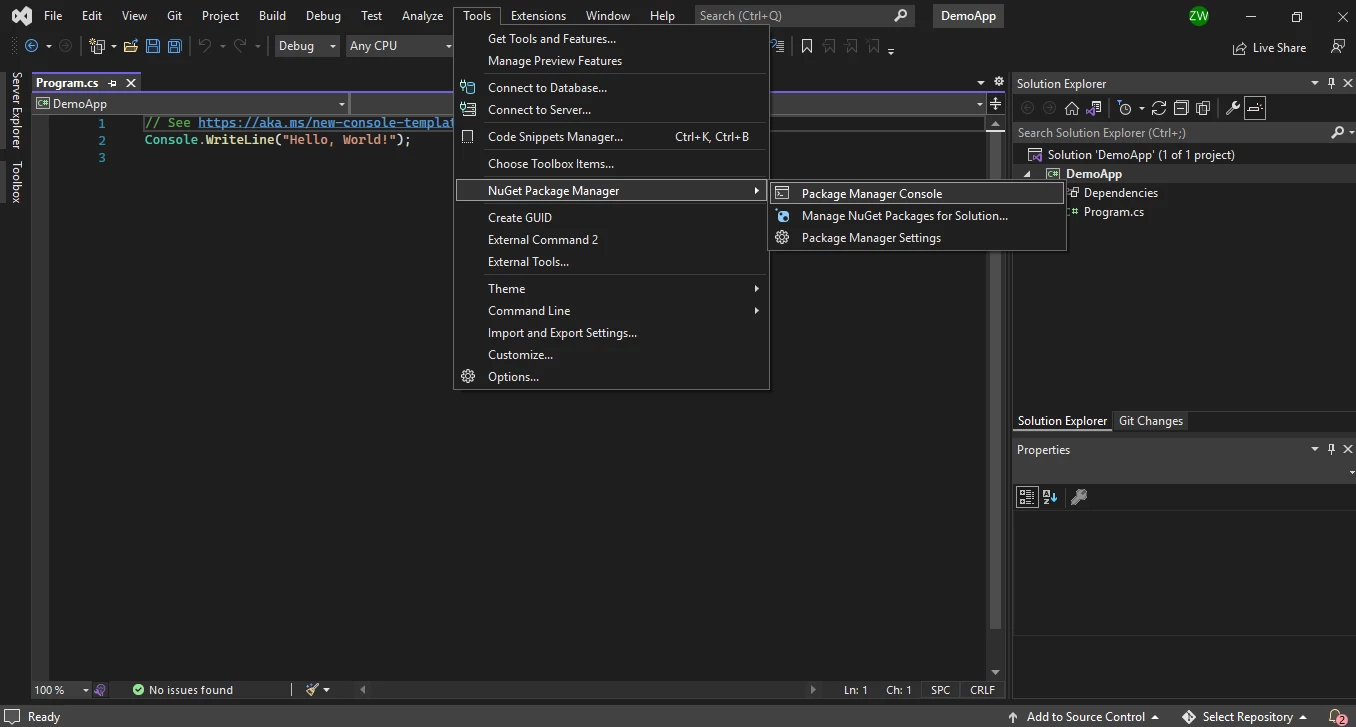
Wszystkie licencje obejmują 30-dniową gwarancję zwrotu pieniędzy, roczne wsparcie i aktualizacje produktu. Licencje wieczyste wymagają jednorazowego zakupu bez dodatkowych opłat. Pakiet Lite dla pojedynczego dewelopera/projektu zaczyna się od $999. W celu uzyskania wsparcia po pierwszym roku, zobacz rozszerzenia licencji. Aby uaktualnić w celu uzyskania dodatkowych funkcji lub wdrożenia, sprawdź uaktualnienia licencji. Dla wdrożeń IronPDF i IIS lub dodawania IronPDF do instalatorów oprogramowania, zobacz specjalistyczne przewodniki. Przewodnik dotyczący niezgodności ClickOnce pomaga w kwestiach wdrożeniowych.
ExpertPDF oferuje licencje na użytkownika lub na firmę. Try ExpertPDF free. Sprawdź poniżej cechy licencji. Rozważ użycie przezroczystych opcji licencjonowania IronPDF zamiast ExpertPDF, aby uzyskać większą wartość i pełne wsparcie.
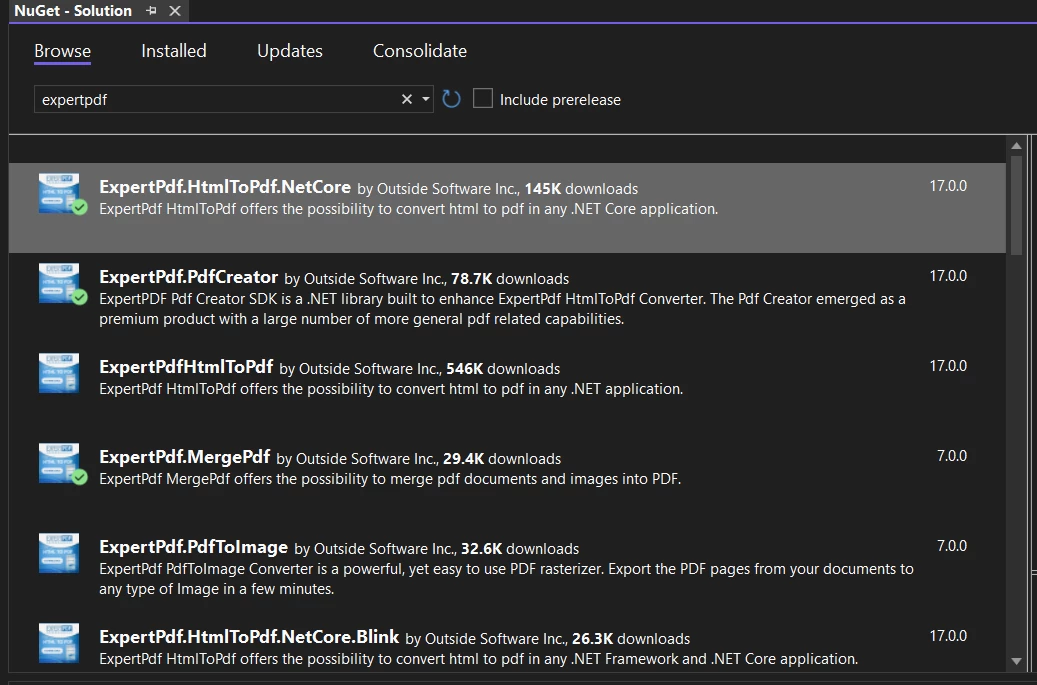
ExpertComponents Toolkit Total licencja developerska zaczyna się od $850, ExpertPDF Toolkit od $750. Zakup oddzielnych komponentów. Zobacz pełne ceny dla ExpertPDF (stan na kwiecień 2026). Dla wymagań przedsiębiorstw, licencjonowanie IronPDF oferuje lepszą wartość z kompletnymi zestawami funkcji.
Którą bibliotekę PDF wybrać?
IronPDF renderuje HTML do PDF lokalnie bez połączenia z internetem, symulując przeglądarki internetowe zgodne ze standardami. Renderowanie HTML generuje dokładny, wektorowy format wyjściowy odpowiedni do druku komercyjnego. Licencjonowane do użytku komercyjnego z przejrzystym cenowaniem. Dla wdrożeń przedsiębiorstw, IronPDF oferuje wsparcie dla Docker i zdalne możliwości silnika. Zobacz przewodniki dotyczące uruchamiania IronPDF jako zdalnego kontenera i opcji natywnych vs zdalnych silników. Biblioteka oferuje IronPdf.Slim dla zmniejszenia rozmiaru wdrożenia i wspiera optymalizację rozmiaru paczek. Przewodnik dotyczący wyjątków wdrażania IronPdf.Slim v2025.5.6 pomaga w kwestiach specyficznych dla wersji.
Biblioteka HTML-to-PDF Converter ExpertPDF konwertuje strony internetowe i HTML na PDF, generuje raporty z ASP.NET oraz podpisuje umowy elektronicznie. Darmowe do użycia z licencjonowanymi dodatkowymi funkcjami. W przeciwieństwie do pełnego wsparcia platformy IronPDF włącznie z wdrożeniem Androida, ExpertPDF ogranicza się do platform Windows. Za kulisami IronPDF używa zaawansowanych funkcji zabezpieczeń i regularnych aktualizacji produktu. Przegląd kamieni milowych pokazuje nieustanne doskonalenie, w tym kamień milowy renderowania Chrome, kamień milowy kompatybilności i kamień milowy stabilności i wydajności.
Podczas gdy obie biblioteki obsługują pliki PDF i konwertują z popularnych formatów, IronPDF oferuje przewagi nad ExpertPDF. IronPDF konwertuje z szerszego zakresu formatów, w tym XML, obrazy, AngularJS, Markdown i RTF, z niezawodnym generowaniem, formatowaniem i edytowaniem PDF. To zapewnia programistom efektywność dla pragmatycznego rozwoju. Biblioteka wyróżnia się w poprawie wydajności ze wsparciem dla asynchroniczności dla scenariuszy o wysokiej przepustowości. Dla przetwarzania równoległego, IronPDF wspiera równoległe generowanie PDF i generowanie wielowątkowe. Zapoznaj się z przewodnikiem rozwiązywania problemów wolnego początkowego renderowania dla szczegółów optymalizacji.
ExpertPDF wymaga oddzielnej instalacji komponentów, podczas gdy IronPDF integruje wszystkie funkcjonalności. To jest szczególnie użyteczne, gdy projekty wymagają pełnego zestawu funkcji PDF. Pakiety IronPDF oferują licencje wieczyste bez ponoszenia kosztów, podczas gdy ExpertPDF wymaga odnawiania. Dodatkowo IronPDF zapewnia kompletną dokumentację, dokumentację API i przykłady kodu do szybkiego startu. Sekcja demo pokazuje rzeczywiste implementacje. W celu rozwiązania problemów zapoznaj się z krótkim przewodnikiem dotyczącym rozwiązywania problemów lub zapoznaj się z wydajnością wstępnego renderowania i optymalizacją procesów GPU. Przewodnik uzyskiwania najlepszego wsparcia zapewnia efektywne rozwiązywanie problemów.
Dla wdrożeń produkcyjnych, IronPDF oferuje zaawansowane możliwości debugowania, niestandardowe logowanie i obszerne przewodniki dotyczące rozwiązywania problemów. Biblioteka wspiera zaawansowane funkcje: zgodność z PDF/A, dostępność PDF/UA, cyfrowe podpisy z HSM i sanityzacja do bezpiecznego przetwarzania. Dla bezpieczeństwa przedsiębiorstwa, IronPDF zapewnia szyfrowanie i deszyfrowanie, ochronę hasłem i kompletne funkcje bezpieczeństwa. Zaawansowane funkcje obejmują redagowanie tekstu, spłaszczanie PDF i zarządzanie wersjami PDF. Przewodnik konwersji PDF do base64 pomaga przy przesyłaniu danych.
W zakresie wsparcia i rozwoju, IronPDF oferuje wsparcie inżynieryjne z detalicznymi przewodnikami dotyczącymi składania zapytań o wsparcie. Aktualizacje produktu i kamienie milowe pokazują nieustanne doskonalenie. Dla developerów .NET MAUI, IronPDF dostarcza możliwości przeglądania PDF i konwersję XAML do PDF. Deweloperzy Blazora używają integracji Blazor Server i konwersji Razor do PDF. Biblioteka wspiera konwersję CSHTML do PDF dla aplikacji MVC i bezgłowe renderowanie CSHTML. Zapoznaj się z przewodnikiem Blazor Server / WebAssembly dla ograniczeń.
Dla specjalistycznych zastosowań, IronPDF wyróżnia się integracją OpenAI dla inteligentnego przetwarzania, renderowanie wykresów w PDF, konwersja CSHTML do PDF w aplikacjach MVC, i wspieranie międzynarodowych języków i UTF-8. Biblioteka obsługuje złożone scenariusze: spłaszczanie PDF, linearyzowanie dla szybkiego widoku sieciowego, i tworzenie formularzy PDF. Odkryj przekształcanie stron PDF, usuwanie obiektów PDF, i ustawianie niestandardowych ścieżek tymczasowych. Kompletny przegląd funkcji IronPDF pokazuje możliwości tworzenia PDF, konwersji PDF, edytowania PDF, organizowania PDF, i zabezpieczania PDF. Dodatkowe funkcje obejmują odczyt plików PDF w C#, wyszukiwanie i zamienianie tekstu, i usuwanie konkretnych stron PDF.
W przypadku rozważań dotyczących wdrożeń, zobacz debugowanie funkcji Azure na lokalnej maszynie, zarządzanie plikami dziennika Azure, obsługa plików dziennika AWS, i rozwiązania dla błędów 502 bad gateway. IronPDF zapewnia pełną obsługę błędów, w tym rozwiązania odmów dostępu do ścieżki, wdrażanie zależności Chrome, wdrażanie zależności PDFium, i rozwiązania błędów złej alokacji. Specyficzne wsparcie platform obejmuje przewodniki dotyczące Linuksa, macOS natywne wyjątki, i ograniczenia Windows Nano Server. Funkcje bezpieczeństwa obejmują status podatności Log4j i ochronę przed błędami segmentacji na AWS Lambda.
ExpertPDF jest zarejestrowanym znakiem towarowym swojego wlasciciela. Ta strona nie jest powiązana z, wspierana ani sponsorowana przez ExpertPDF. Wszystkie nazwy produktów, logo i marki są własnością ich odpowiednich właścicieli. Porównania mają charakter wyłącznie informacyjny i odzwierciedlają informacje dostępne publicznie w momencie pisania.