


How to Print PDF Files in ASP.NET with IronPDF

IronPDF enables reliable PDF printing in ASP.NET applications with server-side and client-side capabilities. It handles enterprise requirements including network printers, error handling, and compliance-ready document generation with full audit trails.
ASP.NET print PDF tasks often involve challenges specific to enterprise architectures. Whether generating documents for invoices, reports, or shipping labels, implementing reliable print functionality requires navigating server-client architecture complexities while maintaining security compliance. The IronPDF library provides professional features including digital signatures, watermarking, and PDF/A compliance for long-term archival.
This article walks through how to handle PDF printing tasks using IronPDF's .NET PDF library, covering both server-side automation and client-side printing workflows. The examples target .NET 10 with top-level statement style and are written in C#.
What Are the Key Challenges of PDF Printing in ASP.NET?
Traditional desktop applications can directly access the default printer, but ASP.NET Core applications face several hurdles when printing PDF documents. Server environments lack direct printer access due to IIS security restrictions, and attempting to spawn processes for file access throws permission errors. These constraints are particularly critical in regulated industries where audit trails and access controls must be maintained. Additionally, web server processes typically run under restricted service accounts that have no access to physical printer drivers, which makes process-based printing unreliable even when local testing passes.
// This fails in ASP.NET -- wrong approach
Process.Start(@"C:\Files\document.pdf"); // Works locally, crashes on server
// This fails in ASP.NET -- wrong approach
Process.Start(@"C:\Files\document.pdf"); // Works locally, crashes on serverThe code above illustrates a common mistake. Web applications must handle both server-side and client-side printing scenarios effectively while maintaining data residency requirements. IronPDF solves this by providing a fully managed .NET API that does not depend on external processes or printer drivers.
How Do You Install IronPDF in an ASP.NET Project?
IronPDF provides a complete .NET Core solution for generating PDF documents and printing them without external dependencies. The NuGet package installation is straightforward for both .NET Framework and .NET Core applications.
Install via the Package Manager Console:
Install-Package IronPdfInstall-Package IronPdfOr via the .NET CLI:
dotnet add package IronPdfdotnet add package IronPdfIronPDF works across operating systems including Windows Server, Linux distributions, and Docker containers, eliminating the compatibility issues that affect other libraries. On macOS, the library supports both Intel and Apple Silicon processors natively.
After installation, add a license key during startup to activate the full feature set:
IronPdf.License.LicenseKey = "YOUR-LICENSE-KEY";IronPdf.License.LicenseKey = "YOUR-LICENSE-KEY";IronPdf.License.LicenseKey = "YOUR-LICENSE-KEY"A free trial license is available to evaluate all features before purchasing.
How Do You Create and Print PDF Documents Server-Side?
The following example shows how to generate and print a PDF document from HTML markup inside an ASP.NET controller. The ChromePdfRenderer ensures pixel-perfect rendering with full CSS support. Using CssMediaType.Print activates print-specific stylesheets defined in your HTML, so the output matches exactly what a print preview would show in a browser:
using IronPdf;
using Microsoft.AspNetCore.Mvc;

var builder = WebApplication.CreateBuilder(args);
builder.Services.AddControllers();
var app = builder.Build();
app.MapControllers();
app.Run();

[ApiController]
[Route("[controller]")]
public class PdfController : ControllerBase
{
    [HttpGet("print")]
    public IActionResult PrintDocument()
    {
        var renderer = new ChromePdfRenderer();
        renderer.RenderingOptions.PrintHtmlBackgrounds = true;
        renderer.RenderingOptions.MarginBottom = 10;
        renderer.RenderingOptions.CssMediaType = PdfCssMediaType.Print;

        var pdf = renderer.RenderHtmlAsPdf("<h1>Invoice</h1><p>Total: $749.00</p>");

        // Print to default server printer
        pdf.Print();

        return Ok("Document sent to printer");
    }
}
using IronPdf;
using Microsoft.AspNetCore.Mvc;
var builder = WebApplication.CreateBuilder(args);
builder.Services.AddControllers();
var app = builder.Build();
app.MapControllers();
app.Run();
[ApiController]
[Route("[controller]")]
public class PdfController : ControllerBase
{
[HttpGet("print")]
public IActionResult PrintDocument()
{
var renderer = new ChromePdfRenderer();
renderer.RenderingOptions.PrintHtmlBackgrounds = true;
renderer.RenderingOptions.MarginBottom = 10;
renderer.RenderingOptions.CssMediaType = PdfCssMediaType.Print;
var pdf = renderer.RenderHtmlAsPdf("<h1>Invoice</h1><p>Total: $749.00</p>");
// Print to default server printer
pdf.Print();
return Ok("Document sent to printer");
}
}Imports IronPdf
Imports Microsoft.AspNetCore.Mvc
Dim builder = WebApplication.CreateBuilder(args)
builder.Services.AddControllers()
Dim app = builder.Build()
app.MapControllers()
app.Run()
<ApiController>
<Route("[controller]")>
Public Class PdfController
Inherits ControllerBase
<HttpGet("print")>
Public Function PrintDocument() As IActionResult
Dim renderer = New ChromePdfRenderer()
renderer.RenderingOptions.PrintHtmlBackgrounds = True
renderer.RenderingOptions.MarginBottom = 10
renderer.RenderingOptions.CssMediaType = PdfCssMediaType.Print
Dim pdf = renderer.RenderHtmlAsPdf("<h1>Invoice</h1><p>Total: $749.00</p>")
' Print to default server printer
pdf.Print()
Return Ok("Document sent to printer")
End Function
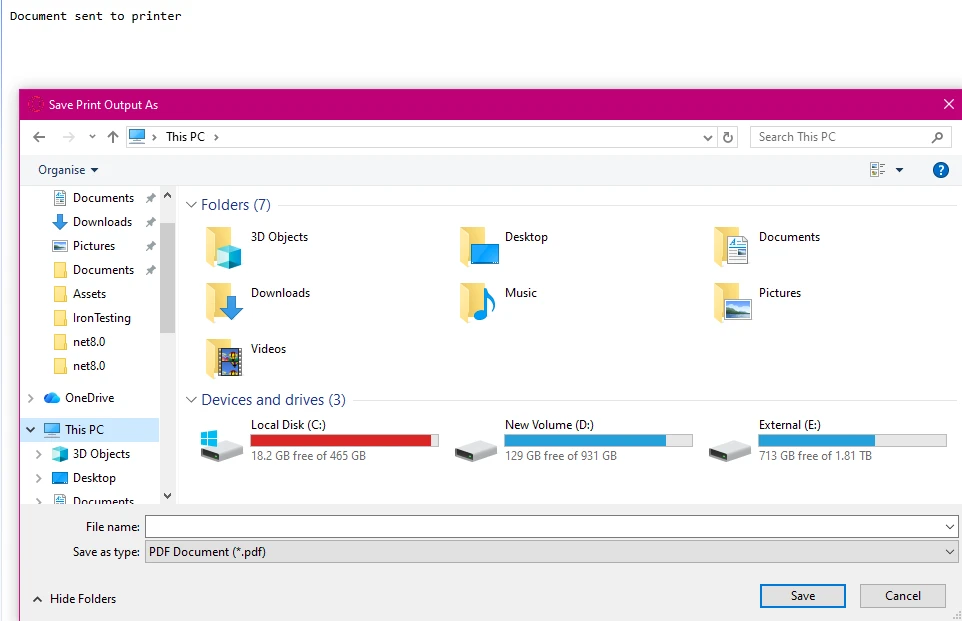
End ClassThis example sends the rendered PDF directly to the default server printer. The ChromePdfRenderer preserves CSS styling and font formatting. For JavaScript-heavy pages, add a render delay using RenderingOptions.WaitFor to let dynamic content finish loading before capture.
What Does the Server-Side Print Output Look Like?
How Do You Configure Network Printers in ASP.NET?
For enterprise environments requiring specific printer routing with compliance tracking, IronPDF offers complete print document management. The library supports various paper sizes and page orientations:
using IronPdf;
using System.Drawing.Printing;
using Microsoft.AspNetCore.Mvc;

[ApiController]
[Route("[controller]")]
public class NetworkPrintController : ControllerBase
{
    [HttpPost("print-network")]
    public IActionResult PrintToNetworkPrinter(string filePath)
    {
        try
        {
            var pdfDocument = PdfDocument.FromFile(filePath);
            var printDocument = pdfDocument.GetPrintDocument();

            // Specify network printer with failover support
            printDocument.PrinterSettings.PrinterName = @"\\server\printer";
            printDocument.PrinterSettings.Copies = 2;
            printDocument.DefaultPageSettings.PaperSize = new PaperSize("A4", 827, 1169);

            var printJobId = Guid.NewGuid().ToString();
            printDocument.Print();

            return Ok(new
            {
                success = true,
                jobId = printJobId,
                message = "Document sent to " + printDocument.PrinterSettings.PrinterName
            });
        }
        catch (Exception ex)
        {
            return StatusCode(500, new { error = "Print operation failed", details = ex.Message });
        }
    }
}
using IronPdf;
using System.Drawing.Printing;
using Microsoft.AspNetCore.Mvc;
[ApiController]
[Route("[controller]")]
public class NetworkPrintController : ControllerBase
{
[HttpPost("print-network")]
public IActionResult PrintToNetworkPrinter(string filePath)
{
try
{
var pdfDocument = PdfDocument.FromFile(filePath);
var printDocument = pdfDocument.GetPrintDocument();
// Specify network printer with failover support
printDocument.PrinterSettings.PrinterName = @"\\server\printer";
printDocument.PrinterSettings.Copies = 2;
printDocument.DefaultPageSettings.PaperSize = new PaperSize("A4", 827, 1169);
var printJobId = Guid.NewGuid().ToString();
printDocument.Print();
return Ok(new
{
success = true,
jobId = printJobId,
message = "Document sent to " + printDocument.PrinterSettings.PrinterName
});
}
catch (Exception ex)
{
return StatusCode(500, new { error = "Print operation failed", details = ex.Message });
}
}
}Imports IronPdf
Imports System.Drawing.Printing
Imports Microsoft.AspNetCore.Mvc
<ApiController>
<Route("[controller]")>
Public Class NetworkPrintController
Inherits ControllerBase
<HttpPost("print-network")>
Public Function PrintToNetworkPrinter(filePath As String) As IActionResult
Try
Dim pdfDocument = PdfDocument.FromFile(filePath)
Dim printDocument = pdfDocument.GetPrintDocument()
' Specify network printer with failover support
printDocument.PrinterSettings.PrinterName = "\\server\printer"
printDocument.PrinterSettings.Copies = 2
printDocument.DefaultPageSettings.PaperSize = New PaperSize("A4", 827, 1169)
Dim printJobId = Guid.NewGuid().ToString()
printDocument.Print()
Return Ok(New With {
.success = True,
.jobId = printJobId,
.message = "Document sent to " & printDocument.PrinterSettings.PrinterName
})
Catch ex As Exception
Return StatusCode(500, New With {.error = "Print operation failed", .details = ex.Message})
End Try
End Function
End ClassThis approach provides complete control over printer settings, including paper format and resolution. The implementation includes error handling and job tracking required for compliance frameworks. For high-volume printing, consider implementing asynchronous processing and memory optimization to keep server throughput high.
What Are the Security Considerations for Network Printing?
How Do You Verify Successful Print Jobs?
What Is the Best Client-Side Printing Strategy?
Since browsers restrict direct printer access for security reasons, implement client-side printing by serving the PDF file with appropriate security headers. IronPDF supports various compression options to speed up file delivery. This pattern is ideal when end users need to choose their own print destination from the browser print dialog:
using IronPdf;
using IronPdf.Rendering;
using Microsoft.AspNetCore.Mvc;
using System.Text;

[ApiController]
[Route("[controller]")]
public class ClientPrintController : ControllerBase
{
    [HttpGet("pdf")]
    public IActionResult GetRawPrintablePdf()
    {
        var renderer = new ChromePdfRenderer();
        renderer.RenderingOptions.EnableJavaScript = false;

        var pdf = renderer.RenderHtmlAsPdf(GetInvoiceHtml());

        pdf.SecuritySettings.AllowUserPrinting = true;
        pdf.SecuritySettings.AllowUserEditing = false;
        pdf.SecuritySettings.AllowUserCopyPasteContent = false;

        pdf.ApplyWatermark(
            "<h2 style='color:red;opacity:0.3'>CONFIDENTIAL</h2>",
            30,
            VerticalAlignment.Middle,
            HorizontalAlignment.Center);

        HttpContext.Response.Headers["Content-Disposition"] = "inline; filename=invoice.pdf";
        HttpContext.Response.Headers["X-Content-Type-Options"] = "nosniff";

        return File(pdf.BinaryData, "application/pdf");
    }

    [HttpGet("print-wrapper")]
    public IActionResult PrintUsingClientWrapper()
    {
        var printUrl = Url.Action(nameof(GetRawPrintablePdf));
        var html = new StringBuilder();
        html.AppendLine("<!DOCTYPE html><html lang=\"en\"><head><title>Print Document</title></head><body>");
        html.AppendLine($"<iframe src='{printUrl}' style='position:absolute;top:0;left:0;width:100%;height:100%;border:none;'></iframe>");
        html.AppendLine("<script>window.onload = function() { setTimeout(function() { window.print(); }, 100); };</script>");
        html.AppendLine("</body></html>");
        return Content(html.ToString(), "text/html");
    }

    private static string GetInvoiceHtml() => @"
        <html><head><style>
            body { font-family: Arial, sans-serif; }
            .header { font-weight: bold; color: #1e40af; }
            @media print { .no-print { display: none; } }
        </style></head>
        <body>
            <div class='header'>Invoice Summary</div>
            <p>Total Amount: <b>$749.00</b></p>
        </body></html>";
}
using IronPdf;
using IronPdf.Rendering;
using Microsoft.AspNetCore.Mvc;
using System.Text;
[ApiController]
[Route("[controller]")]
public class ClientPrintController : ControllerBase
{
[HttpGet("pdf")]
public IActionResult GetRawPrintablePdf()
{
var renderer = new ChromePdfRenderer();
renderer.RenderingOptions.EnableJavaScript = false;
var pdf = renderer.RenderHtmlAsPdf(GetInvoiceHtml());
pdf.SecuritySettings.AllowUserPrinting = true;
pdf.SecuritySettings.AllowUserEditing = false;
pdf.SecuritySettings.AllowUserCopyPasteContent = false;
pdf.ApplyWatermark(
"<h2 style='color:red;opacity:0.3'>CONFIDENTIAL</h2>",
30,
VerticalAlignment.Middle,
HorizontalAlignment.Center);
HttpContext.Response.Headers["Content-Disposition"] = "inline; filename=invoice.pdf";
HttpContext.Response.Headers["X-Content-Type-Options"] = "nosniff";
return File(pdf.BinaryData, "application/pdf");
}
[HttpGet("print-wrapper")]
public IActionResult PrintUsingClientWrapper()
{
var printUrl = Url.Action(nameof(GetRawPrintablePdf));
var html = new StringBuilder();
html.AppendLine("<!DOCTYPE html><html lang=\"en\"><head><title>Print Document</title></head><body>");
html.AppendLine($"<iframe src='{printUrl}' style='position:absolute;top:0;left:0;width:100%;height:100%;border:none;'></iframe>");
html.AppendLine("<script>window.onload = function() { setTimeout(function() { window.print(); }, 100); };</script>");
html.AppendLine("</body></html>");
return Content(html.ToString(), "text/html");
}
private static string GetInvoiceHtml() => @"
<html><head><style>
body { font-family: Arial, sans-serif; }
.header { font-weight: bold; color: #1e40af; }
@media print { .no-print { display: none; } }
</style></head>
<body>
<div class='header'>Invoice Summary</div>
<p>Total Amount: <b>$749.00</b></p>
</body></html>";
}Imports IronPdf
Imports IronPdf.Rendering
Imports Microsoft.AspNetCore.Mvc
Imports System.Text
<ApiController>
<Route("[controller]")>
Public Class ClientPrintController
Inherits ControllerBase
<HttpGet("pdf")>
Public Function GetRawPrintablePdf() As IActionResult
Dim renderer As New ChromePdfRenderer()
renderer.RenderingOptions.EnableJavaScript = False
Dim pdf = renderer.RenderHtmlAsPdf(GetInvoiceHtml())
pdf.SecuritySettings.AllowUserPrinting = True
pdf.SecuritySettings.AllowUserEditing = False
pdf.SecuritySettings.AllowUserCopyPasteContent = False
pdf.ApplyWatermark("<h2 style='color:red;opacity:0.3'>CONFIDENTIAL</h2>", 30, VerticalAlignment.Middle, HorizontalAlignment.Center)
HttpContext.Response.Headers("Content-Disposition") = "inline; filename=invoice.pdf"
HttpContext.Response.Headers("X-Content-Type-Options") = "nosniff"
Return File(pdf.BinaryData, "application/pdf")
End Function
<HttpGet("print-wrapper")>
Public Function PrintUsingClientWrapper() As IActionResult
Dim printUrl = Url.Action(NameOf(GetRawPrintablePdf))
Dim html As New StringBuilder()
html.AppendLine("<!DOCTYPE html><html lang=""en""><head><title>Print Document</title></head><body>")
html.AppendLine($"<iframe src='{printUrl}' style='position:absolute;top:0;left:0;width:100%;height:100%;border:none;'></iframe>")
html.AppendLine("<script>window.onload = function() { setTimeout(function() { window.print(); }, 100); };</script>")
html.AppendLine("</body></html>")
Return Content(html.ToString(), "text/html")
End Function
Private Shared Function GetInvoiceHtml() As String
Return "
<html><head><style>
body { font-family: Arial, sans-serif; }
.header { font-weight: bold; color: #1e40af; }
@media print { .no-print { display: none; } }
</style></head>
<body>
<div class='header'>Invoice Summary</div>
<p>Total Amount: <b>$749.00</b></p>
</body></html>"
End Function
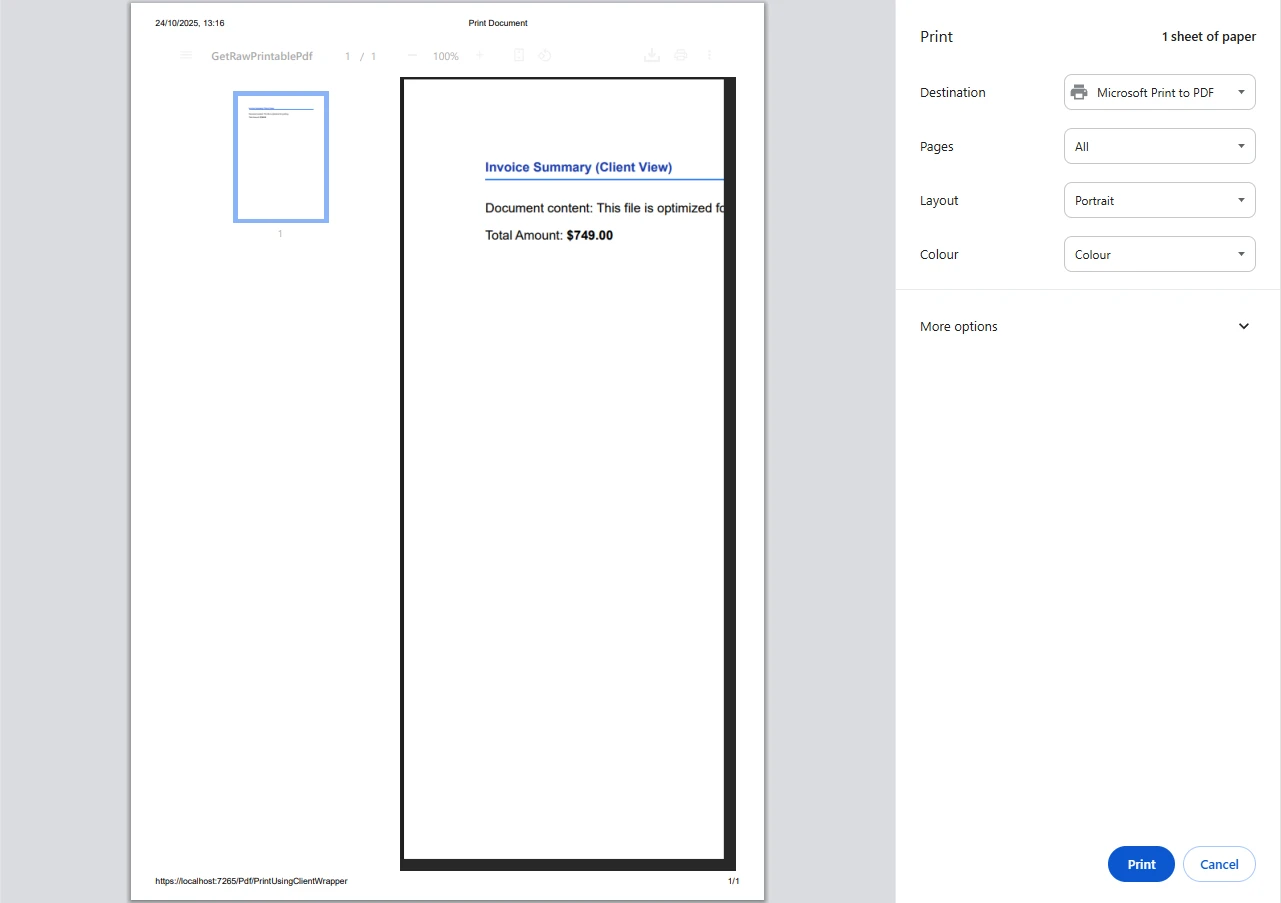
End ClassThe PDF opens in the browser where the user triggers printing through the standard print dialog. This approach maintains security through content security policies and watermarking while keeping server resources free from printer driver dependencies.
How Does Client-Side Printing Ensure Data Security?
How Do You Work with Multiple Input Sources?
IronPDF handles various input sources while maintaining data sovereignty -- important for developers building dynamic printing workflows in enterprise environments. The library supports HTML files, URLs, HTML strings, and Markdown content:
using IronPdf;
using Microsoft.AspNetCore.Mvc;

[ApiController]
[Route("[controller]")]
public class MultiSourcePrintController : ControllerBase
{
    [HttpPost("print-multi")]
    public async Task<IActionResult> PrintFromMultipleSources()
    {
        var renderer = new ChromePdfRenderer();
        renderer.RenderingOptions.EnableJavaScript = false;
        renderer.RenderingOptions.Timeout = 30;

        // From URL with authentication
        renderer.LoginCredentials = new ChromeHttpLoginCredentials
        {
            NetworkUsername = "serviceaccount",
            NetworkPassword = "securepassword"
        };
        var pdfFromUrl = await renderer.RenderUrlAsPdfAsync("https://reports.internal.example.com/report");

        // From HTML file template
        var pdfFromFile = renderer.RenderHtmlFileAsPdf(@"Templates\report.html");

        // From sanitized HTML string
        var pdfFromString = renderer.RenderHtmlAsPdf("<h2>Summary Report</h2><p>Generated on demand.</p>");

        pdfFromUrl.Print();

        return Ok(new
        {
            message = "PDF documents processed and printed.",
            sources = new[] { "URL", "File", "HTML string" },
            timestamp = DateTime.UtcNow
        });
    }
}
using IronPdf;
using Microsoft.AspNetCore.Mvc;
[ApiController]
[Route("[controller]")]
public class MultiSourcePrintController : ControllerBase
{
[HttpPost("print-multi")]
public async Task<IActionResult> PrintFromMultipleSources()
{
var renderer = new ChromePdfRenderer();
renderer.RenderingOptions.EnableJavaScript = false;
renderer.RenderingOptions.Timeout = 30;
// From URL with authentication
renderer.LoginCredentials = new ChromeHttpLoginCredentials
{
NetworkUsername = "serviceaccount",
NetworkPassword = "securepassword"
};
var pdfFromUrl = await renderer.RenderUrlAsPdfAsync("https://reports.internal.example.com/report");
// From HTML file template
var pdfFromFile = renderer.RenderHtmlFileAsPdf(@"Templates\report.html");
// From sanitized HTML string
var pdfFromString = renderer.RenderHtmlAsPdf("<h2>Summary Report</h2><p>Generated on demand.</p>");
pdfFromUrl.Print();
return Ok(new
{
message = "PDF documents processed and printed.",
sources = new[] { "URL", "File", "HTML string" },
timestamp = DateTime.UtcNow
});
}
}Imports IronPdf
Imports Microsoft.AspNetCore.Mvc
<ApiController>
<Route("[controller]")>
Public Class MultiSourcePrintController
Inherits ControllerBase
<HttpPost("print-multi")>
Public Async Function PrintFromMultipleSources() As Task(Of IActionResult)
Dim renderer As New ChromePdfRenderer()
renderer.RenderingOptions.EnableJavaScript = False
renderer.RenderingOptions.Timeout = 30
' From URL with authentication
renderer.LoginCredentials = New ChromeHttpLoginCredentials With {
.NetworkUsername = "serviceaccount",
.NetworkPassword = "securepassword"
}
Dim pdfFromUrl = Await renderer.RenderUrlAsPdfAsync("https://reports.internal.example.com/report")
' From HTML file template
Dim pdfFromFile = renderer.RenderHtmlFileAsPdf("Templates\report.html")
' From sanitized HTML string
Dim pdfFromString = renderer.RenderHtmlAsPdf("<h2>Summary Report</h2><p>Generated on demand.</p>")
pdfFromUrl.Print()
Return Ok(New With {
.message = "PDF documents processed and printed.",
.sources = New String() {"URL", "File", "HTML string"},
.timestamp = DateTime.UtcNow
})
End Function
End ClassEach method preserves document structure and graphics while maintaining print quality. The implementation includes authentication, input validation, and support for encryption. For additional input sources, IronPDF supports DOCX files, RTF documents, and image formats -- making it flexible enough to serve as a single PDF pipeline across an entire application.
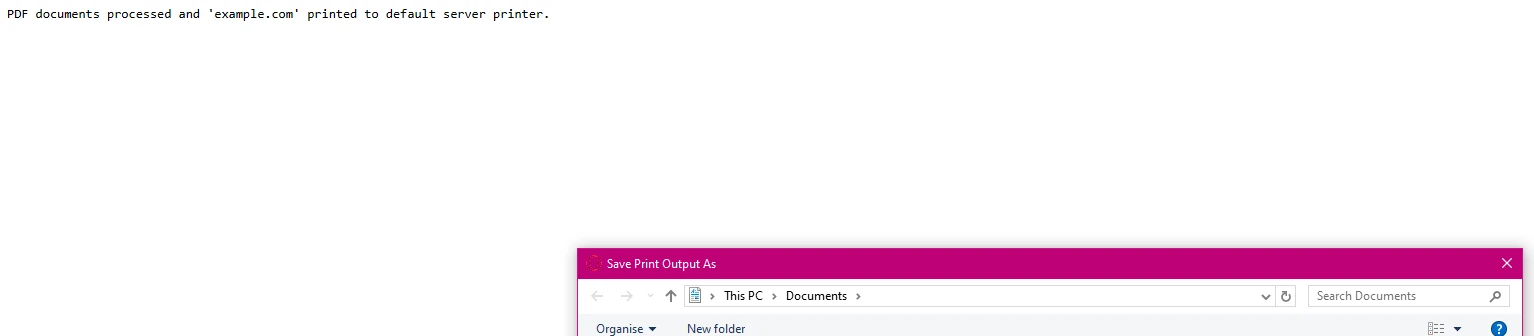
How Do You Implement Error Handling and Logging?
Reliable error handling is essential for production environments with compliance logging requirements. IronPDF provides native exception handling and a troubleshooting guide for diagnosing print failures. A correlation ID pattern makes it straightforward to match log entries to specific print requests when reviewing audit history:
using IronPdf;
using System.Drawing.Printing;
using Microsoft.AspNetCore.Mvc;

[ApiController]
[Route("[controller]")]
public class SafePrintController : ControllerBase
{
    [HttpPost("safe-print")]
    public IActionResult SafePrint(string documentId)
    {
        var correlationId = Guid.NewGuid().ToString();

        try
        {
            var pdf = PdfDocument.FromFile(GetSecureFilePath(documentId));

            var availablePrinters = PrinterSettings.InstalledPrinters.Cast<string>().ToList();
            var targetPrinter = availablePrinters.FirstOrDefault();

            if (string.IsNullOrEmpty(targetPrinter))
            {
                return BadRequest(new
                {
                    error = "No printer available",
                    correlationId
                });
            }

            var printDoc = pdf.GetPrintDocument();
            printDoc.PrinterSettings.PrinterName = targetPrinter;
            printDoc.Print();

            return Ok(new
            {
                message = $"Document {documentId} printed successfully",
                printer = targetPrinter,
                correlationId,
                timestamp = DateTime.UtcNow
            });
        }
        catch (UnauthorizedAccessException)
        {
            return StatusCode(403, new { error = "Access denied", correlationId });
        }
        catch (Exception ex)
        {
            return StatusCode(500, new
            {
                error = "Printing failed",
                correlationId,
                message = "Contact support with the correlation ID"
            });
        }
    }

    private static string GetSecureFilePath(string documentId) =>
        Path.Combine(AppContext.BaseDirectory, "documents", documentId + ".pdf");
}
using IronPdf;
using System.Drawing.Printing;
using Microsoft.AspNetCore.Mvc;
[ApiController]
[Route("[controller]")]
public class SafePrintController : ControllerBase
{
[HttpPost("safe-print")]
public IActionResult SafePrint(string documentId)
{
var correlationId = Guid.NewGuid().ToString();
try
{
var pdf = PdfDocument.FromFile(GetSecureFilePath(documentId));
var availablePrinters = PrinterSettings.InstalledPrinters.Cast<string>().ToList();
var targetPrinter = availablePrinters.FirstOrDefault();
if (string.IsNullOrEmpty(targetPrinter))
{
return BadRequest(new
{
error = "No printer available",
correlationId
});
}
var printDoc = pdf.GetPrintDocument();
printDoc.PrinterSettings.PrinterName = targetPrinter;
printDoc.Print();
return Ok(new
{
message = $"Document {documentId} printed successfully",
printer = targetPrinter,
correlationId,
timestamp = DateTime.UtcNow
});
}
catch (UnauthorizedAccessException)
{
return StatusCode(403, new { error = "Access denied", correlationId });
}
catch (Exception ex)
{
return StatusCode(500, new
{
error = "Printing failed",
correlationId,
message = "Contact support with the correlation ID"
});
}
}
private static string GetSecureFilePath(string documentId) =>
Path.Combine(AppContext.BaseDirectory, "documents", documentId + ".pdf");
}Imports IronPdf
Imports System.Drawing.Printing
Imports Microsoft.AspNetCore.Mvc
<ApiController>
<Route("[controller]")>
Public Class SafePrintController
Inherits ControllerBase
<HttpPost("safe-print")>
Public Function SafePrint(documentId As String) As IActionResult
Dim correlationId = Guid.NewGuid().ToString()
Try
Dim pdf = PdfDocument.FromFile(GetSecureFilePath(documentId))
Dim availablePrinters = PrinterSettings.InstalledPrinters.Cast(Of String)().ToList()
Dim targetPrinter = availablePrinters.FirstOrDefault()
If String.IsNullOrEmpty(targetPrinter) Then
Return BadRequest(New With {
.error = "No printer available",
.correlationId = correlationId
})
End If
Dim printDoc = pdf.GetPrintDocument()
printDoc.PrinterSettings.PrinterName = targetPrinter
printDoc.Print()
Return Ok(New With {
.message = $"Document {documentId} printed successfully",
.printer = targetPrinter,
.correlationId = correlationId,
.timestamp = DateTime.UtcNow
})
Catch ex As UnauthorizedAccessException
Return StatusCode(403, New With {.error = "Access denied", .correlationId = correlationId})
Catch ex As Exception
Return StatusCode(500, New With {
.error = "Printing failed",
.correlationId = correlationId,
.message = "Contact support with the correlation ID"
})
End Try
End Function
Private Shared Function GetSecureFilePath(documentId As String) As String
Return Path.Combine(AppContext.BaseDirectory, "documents", documentId & ".pdf")
End Function
End ClassThis ensures reliable printing even when system resources are unavailable. Correlation IDs let you track requests across distributed systems and link log entries to specific print jobs in audit trails. The structured error responses also allow the calling client to take appropriate action -- such as retrying with a fallback printer or notifying the user.
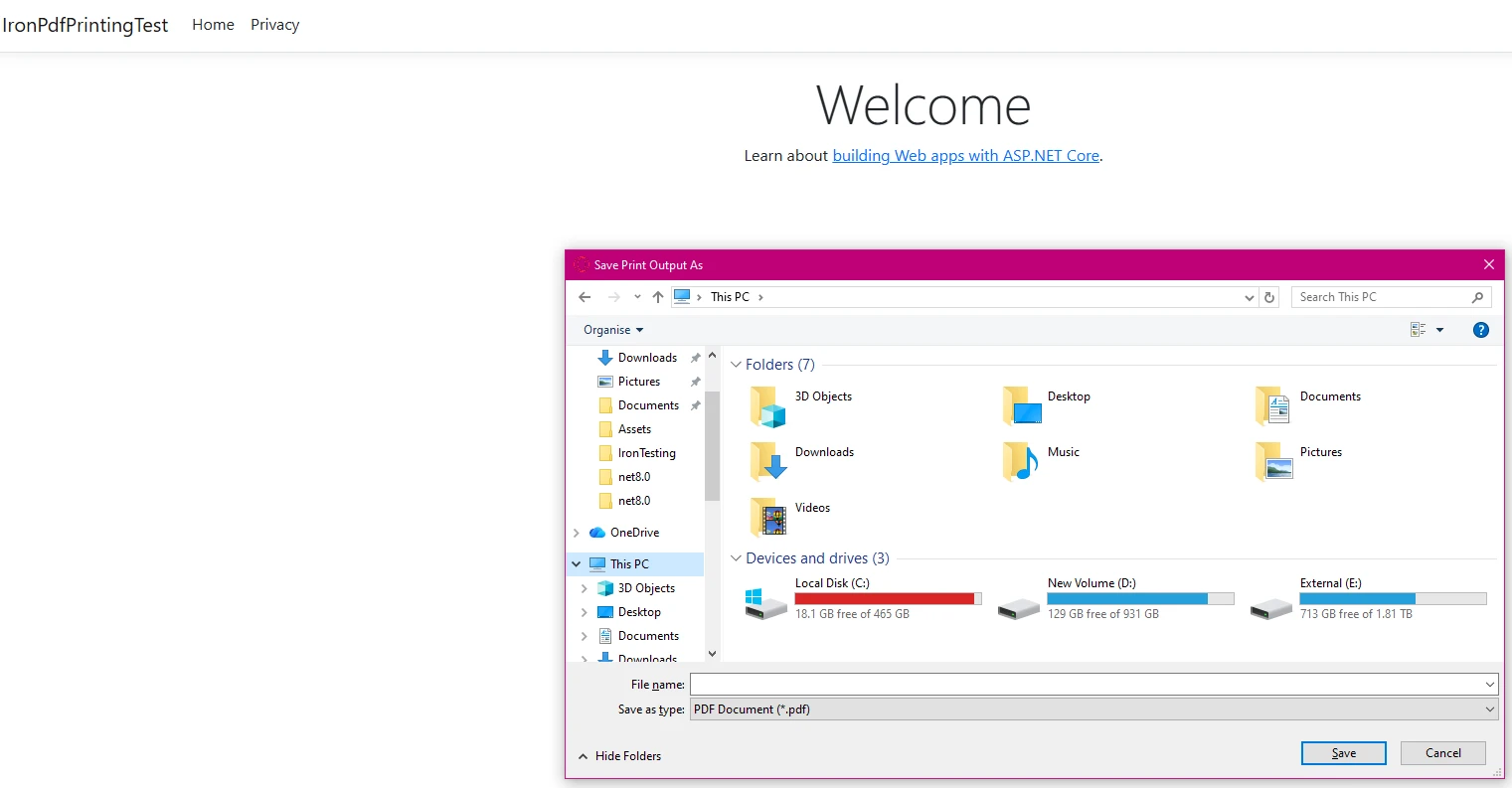
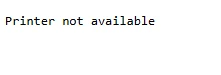
What Happens When Printers Are Unavailable?
If the printer specified in the code is not available, the code returns a structured error response:
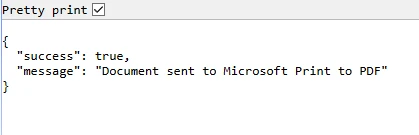
How Do You Monitor Successful Print Jobs?
A successful print job returns a confirmation message with the job details:

What Advanced Configuration Options Are Available?
IronPDF's rendering options support complex scenarios required by enterprise architectures. The library provides settings for performance optimization and memory management when generating high-fidelity documents. Setting DpiResolution to 300 produces print-quality output suitable for physical documents, while the CssMediaType.Print option activates any print-specific CSS rules in the source HTML:
using IronPdf;
using Microsoft.AspNetCore.Mvc;

[ApiController]
[Route("[controller]")]
public class AdvancedPrintController : ControllerBase
{
    [HttpGet("advanced")]
    public IActionResult ConfigureAdvancedPrinting()
    {
        var renderer = new ChromePdfRenderer();
        renderer.RenderingOptions.PaperSize = PdfPaperSize.A4;
        renderer.RenderingOptions.EnableJavaScript = false;
        renderer.RenderingOptions.RenderDelay = 500;
        renderer.RenderingOptions.Timeout = 60;
        renderer.RenderingOptions.CssMediaType = PdfCssMediaType.Print;
        renderer.RenderingOptions.PrintHtmlBackgrounds = true;
        renderer.RenderingOptions.DpiResolution = 300;

        var pdf = renderer.RenderHtmlAsPdf(GetEnterpriseHtml());

        pdf.SecuritySettings.AllowUserPrinting = true;
        pdf.SecuritySettings.AllowUserEditing = false;
        pdf.SecuritySettings.OwnerPassword = Guid.NewGuid().ToString();

        pdf.MetaData.Author = "Enterprise Document System";
        pdf.MetaData.Subject = "Compliance Document";
        pdf.MetaData.Keywords = "enterprise,secure,compliant";
        pdf.MetaData.CreationDate = DateTime.UtcNow;

        // Apply digital signature for document integrity
        // pdf.SignWithFile("/path/to/certificate.pfx", "certificatePassword");

        return File(pdf.BinaryData, "application/pdf");
    }

    private static string GetEnterpriseHtml() => @"
        <!DOCTYPE html><html><head>
        <style>@page { size: A4; margin: 1cm; } body { font-family: Arial, sans-serif; }</style>
        </head><body>
        <h1>Enterprise Document</h1>
        <p>CONFIDENTIAL -- INTERNAL USE ONLY</p>
        </body></html>";
}
using IronPdf;
using Microsoft.AspNetCore.Mvc;
[ApiController]
[Route("[controller]")]
public class AdvancedPrintController : ControllerBase
{
[HttpGet("advanced")]
public IActionResult ConfigureAdvancedPrinting()
{
var renderer = new ChromePdfRenderer();
renderer.RenderingOptions.PaperSize = PdfPaperSize.A4;
renderer.RenderingOptions.EnableJavaScript = false;
renderer.RenderingOptions.RenderDelay = 500;
renderer.RenderingOptions.Timeout = 60;
renderer.RenderingOptions.CssMediaType = PdfCssMediaType.Print;
renderer.RenderingOptions.PrintHtmlBackgrounds = true;
renderer.RenderingOptions.DpiResolution = 300;
var pdf = renderer.RenderHtmlAsPdf(GetEnterpriseHtml());
pdf.SecuritySettings.AllowUserPrinting = true;
pdf.SecuritySettings.AllowUserEditing = false;
pdf.SecuritySettings.OwnerPassword = Guid.NewGuid().ToString();
pdf.MetaData.Author = "Enterprise Document System";
pdf.MetaData.Subject = "Compliance Document";
pdf.MetaData.Keywords = "enterprise,secure,compliant";
pdf.MetaData.CreationDate = DateTime.UtcNow;
// Apply digital signature for document integrity
// pdf.SignWithFile("/path/to/certificate.pfx", "certificatePassword");
return File(pdf.BinaryData, "application/pdf");
}
private static string GetEnterpriseHtml() => @"
<!DOCTYPE html><html><head>
<style>@page { size: A4; margin: 1cm; } body { font-family: Arial, sans-serif; }</style>
</head><body>
<h1>Enterprise Document</h1>
<p>CONFIDENTIAL -- INTERNAL USE ONLY</p>
</body></html>";
}Imports IronPdf
Imports Microsoft.AspNetCore.Mvc
<ApiController>
<Route("[controller]")>
Public Class AdvancedPrintController
Inherits ControllerBase
<HttpGet("advanced")>
Public Function ConfigureAdvancedPrinting() As IActionResult
Dim renderer As New ChromePdfRenderer()
renderer.RenderingOptions.PaperSize = PdfPaperSize.A4
renderer.RenderingOptions.EnableJavaScript = False
renderer.RenderingOptions.RenderDelay = 500
renderer.RenderingOptions.Timeout = 60
renderer.RenderingOptions.CssMediaType = PdfCssMediaType.Print
renderer.RenderingOptions.PrintHtmlBackgrounds = True
renderer.RenderingOptions.DpiResolution = 300
Dim pdf = renderer.RenderHtmlAsPdf(GetEnterpriseHtml())
pdf.SecuritySettings.AllowUserPrinting = True
pdf.SecuritySettings.AllowUserEditing = False
pdf.SecuritySettings.OwnerPassword = Guid.NewGuid().ToString()
pdf.MetaData.Author = "Enterprise Document System"
pdf.MetaData.Subject = "Compliance Document"
pdf.MetaData.Keywords = "enterprise,secure,compliant"
pdf.MetaData.CreationDate = DateTime.UtcNow
' Apply digital signature for document integrity
' pdf.SignWithFile("/path/to/certificate.pfx", "certificatePassword")
Return File(pdf.BinaryData, "application/pdf")
End Function
Private Shared Function GetEnterpriseHtml() As String
Return "
<!DOCTYPE html><html><head>
<style>@page { size: A4; margin: 1cm; } body { font-family: Arial, sans-serif; }</style>
</head><body>
<h1>Enterprise Document</h1>
<p>CONFIDENTIAL -- INTERNAL USE ONLY</p>
</body></html>"
End Function
End ClassOnce generated with all security configurations applied, calling pdf.Print() sends the document to the printer. This approach ensures compliance with enterprise security standards while maintaining document integrity through digital signatures and encryption. For long-term archival, consider PDF/A compliance -- a standard specifically designed for documents that must remain readable and reproducible over decades.
How Do Server-Side and Client-Side Printing Compare?
Choosing between server-side and client-side printing depends on your use case. The table below summarizes the key trade-offs:
| Aspect | Server-Side Printing | Client-Side Printing |
|---|---|---|
| Printer access | Network and local printers on the server | User's locally connected printers |
| User interaction | None -- fully automated | Browser print dialog appears |
| Compliance logging | Full server-side audit trail | Client-side console log only |
| Security control | Server enforces all restrictions | Browser enforces content security policy |
| Best for | Batch jobs, invoices, regulated industries | On-demand user-triggered printing |
For regulated industries requiring documented audit trails, server-side printing is the preferred choice. Client-side printing suits scenarios where end users need control over the print destination.
Why Choose IronPDF for PDF Printing in ASP.NET?
IronPDF transforms ASP.NET PDF printing from a complex challenge into a straightforward implementation while maintaining enterprise security standards. Without requiring Adobe Reader or external dependencies, the library generates and prints PDF files with minimal code while ensuring compliance with SOC2, HIPAA, and industry-specific regulations.
The complete API supports various input formats, editing capabilities, security features, and organization tools for full PDF management. The library's extensive tutorials, code examples, and troubleshooting resources ensure smooth integration into existing infrastructure.
For printing requirements that go beyond PDF generation -- such as direct printing of images or Office files -- Iron Software also offers IronPrint, a dedicated .NET printing library. Unlike IronPDF, which focuses on generating and manipulating PDF content, IronPrint specializes in direct file printing without intermediate conversion. According to Microsoft's ASP.NET documentation, server-side print operations are subject to IIS application pool identity restrictions, making a library approach the correct architectural choice for any production deployment.
Get started for free today with the free trial and experience how IronPDF simplifies document processing in ASP.NET applications. With complete documentation, direct engineering support, and proven compliance certifications, production-ready PDF printing can be running in minutes. For additional reading, see Iron Software's guide on PDF document security and the W3C PDF accessibility specification.
Frequently Asked Questions
How can I print a PDF directly from an ASP.NET application?
You can print a PDF directly from an ASP.NET application using IronPDF by converting HTML files to PDF and then sending them to a printer. IronPDF simplifies this process with its built-in methods.
What are the benefits of using IronPDF for printing PDFs in ASP.NET?
IronPDF offers several benefits for printing PDFs in ASP.NET, including easy integration, high-quality rendering, and the ability to convert HTML content to PDF with precision.
Is it possible to customize the PDF before printing using IronPDF?
Yes, IronPDF allows you to customize PDFs before printing by adding headers, footers, and watermarks, as well as setting page sizes and margins.
Can IronPDF handle large PDF files for printing?
IronPDF is capable of handling large PDF files efficiently, ensuring that even complex documents are printed accurately and quickly from your ASP.NET application.
Does IronPDF support different printer settings for PDF printing?
IronPDF supports various printer settings, allowing you to specify paper size, orientation, and print quality to match your needs.
Is there a way to preview PDFs before printing in ASP.NET?
With IronPDF, you can generate and display a PDF preview within your ASP.NET application, allowing users to review the document before initiating the print command.
What formats can IronPDF convert to PDF for printing?
IronPDF can convert a wide range of formats to PDF for printing, including HTML, ASPX, and image files, making it versatile for various application needs.
How does IronPDF ensure the quality of printed PDF documents?
IronPDF uses advanced rendering technology to ensure that printed PDF documents maintain high fidelity to the original content, with sharp text and clear images.
Can IronPDF be used to print encrypted or password-protected PDFs?
Yes, IronPDF can handle encrypted or password-protected PDFs, allowing you to print them securely by providing the necessary credentials within your ASP.NET application.
How easy is it to integrate IronPDF into an existing ASP.NET application?
Integrating IronPDF into an existing ASP.NET application is straightforward due to its comprehensive documentation and support for various development environments.










 Get started for FREE
 Get started for FREE
 Book Free Live Demo





 No credit card or account creation required










