푸터 콘텐츠로 바로가기
IRONPDF 사용

How to Convert PDF to Image in .NET?

IronPDF offers a dependable .NET library solution for converting PDF documents to image files (PNG, JPG, TIFF, BMP) with precise control over quality settings, DPI, and page selection—ideal for containerized deployments requiring minimal dependencies.

Converting PDF documents to image files is a common need in modern .NET Framework and .NET Core applications. Whether you need to generate document thumbnails, extract images for web display, or convert PDF files for image processing workflows, having a reliable PDF library is essential. IronPDF provides a complete .NET library solution to convert PDF to image with effective rasterization capabilities, supporting multiple image formats and offering precise control over output quality and image DPI settings. The library's Chrome rendering engine ensures pixel-perfect conversions, while its cross-platform support enables smooth deployment across Windows, Linux, and macOS environments.

IronPDF C# PDF Library homepage banner highlighting key features: HTML to PDF conversion, PDF editing API, flexible deployment options, and free trial offer

Why Do Developers Need to Convert PDF to Image in .NET?

PDF to image conversion serves critical purposes in document processing workflows. Developers frequently need to convert PDF pages to create thumbnail previews for document management systems, extract images, generate image-based previews for websites where PDF content rendering isn't optimal without Adobe Reader, or process single PDF pages for OCR. Converting a PDF file to image files also enables easier sharing on platforms that don't support the PDF format and provides better compatibility with image processing components. Additionally, many compliance and archival systems require documents in specific image formats like TIFF for long-term storage, particularly for PDF/A compliance. In most cases, developers need a reliable .NET wrapper that works seamlessly across different environments, especially in containerized deployments where managing dependencies is crucial. The native vs remote engine architecture provides flexibility for various deployment scenarios.

What are the most common PDF to image use cases?

PDF to image conversion serves critical purposes in document processing workflows. Common use cases include:

Why is containerized deployment important for PDF conversion?

Many compliance and archival systems require documents in specific image formats like TIFF for long-term storage, particularly for PDF/A compliance. For PDF/A-3 and ZUGFeRD invoicing requirements, image conversion provides additional flexibility. You need a reliable .NET wrapper that works seamlessly across different environments, especially in containerized deployments where managing dependencies is crucial. The ability to run IronPDF as a remote container improves scalability for high-volume batch processing scenarios.

How to Install IronPDF NuGet Package in Your .NET Project?

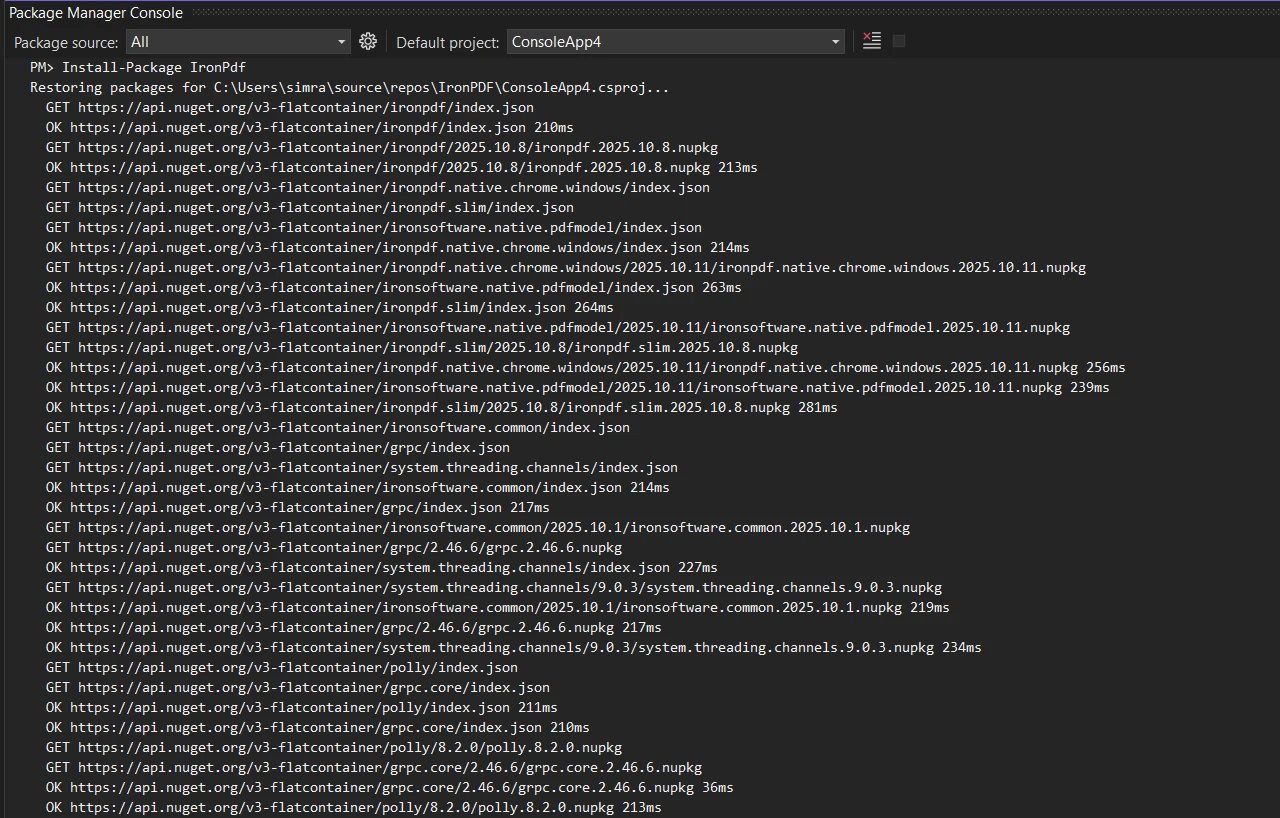
Getting started with IronPDF installation to convert PDF to an image is straightforward through NuGet Package Manager. Open your Visual Studio project in .NET Framework or .NET Core and access the Package Manager Console, then run this install command:

Install-Package IronPdf
SHELL

Visual Studio Package Manager Console showing the installation of IronPDF NuGet package with multiple dependency downloads in progress

Alternatively, download and install using the NuGet Package Manager UI by searching for "IronPDF" and clicking install. This free component works seamlessly with all .NET versions, including F# PDF library support and VB.NET PDF applications. For containerized deployments, you can also use the IronPDF Docker images or deploy as a remote container. For Windows-specific installations, the Windows Installer provides an alternative setup method. After installation, add the namespace to your code file:

using IronPdf;
using System;
using System.Drawing;
using IronPdf;
using System;
using System.Drawing;
$vbLabelText   $csharpLabel

What is the simplest way to convert PDF to images?

For the simplest PDF to image conversion scenario, you can convert an entire PDF document to high-quality PNG or JPG images with just two lines of code:

var pdf = PdfDocument.FromFile("invoice.pdf");
pdf.RasterizeToImageFiles(@"C:\images\folder\page_*.png");
var pdf = PdfDocument.FromFile("invoice.pdf");
pdf.RasterizeToImageFiles(@"C:\images\folder\page_*.png");
$vbLabelText   $csharpLabel

This code loads a single PDF file using the PdfDocument.FromFile method and converts all PDF pages to PNG image files. The RasterizeToImageFiles method automatically handles multiple pages in PDF documents, creating separate image files for each page with sequential numbering in the output folder. Note that the asterisk in the file path acts as a placeholder for automatic page numbering. For more advanced scenarios, you can add, copy & delete PDF pages before conversion or merge or split PDFs to control the output structure.

How do I implement async conversion for better performance?

For production deployments, consider using async methods for better performance, especially when implementing async & multithreading patterns:

// Async conversion for better performance in containerized environments
public async Task ConvertPdfToImagesAsync(string inputPath, string outputPattern)
{
    var pdf = await PdfDocument.FromFileAsync(inputPath);
    await pdf.RasterizeToImageFilesAsync(outputPattern);
}
// Async conversion for better performance in containerized environments
public async Task ConvertPdfToImagesAsync(string inputPath, string outputPattern)
{
    var pdf = await PdfDocument.FromFileAsync(inputPath);
    await pdf.RasterizeToImageFilesAsync(outputPattern);
}
$vbLabelText   $csharpLabel

This approach is particularly beneficial when deploying to Azure or deploying to AWS cloud environments where resource optimization is crucial. For improved performance, consider implementing custom logging to monitor conversion metrics.

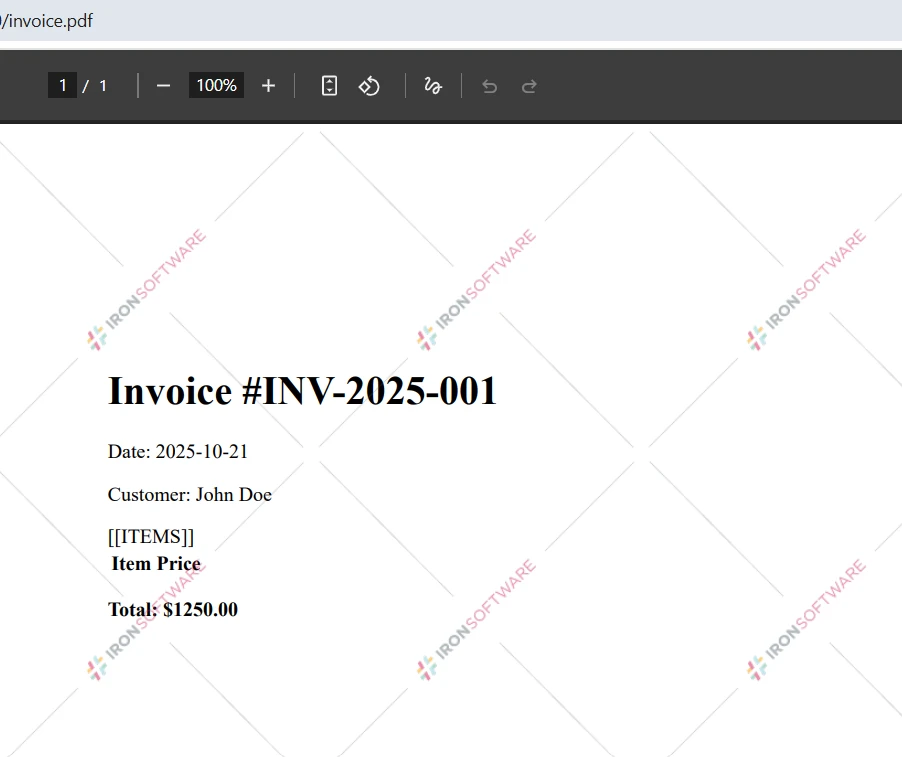
Input

PDF invoice document showing Invoice #INV-2025-001 for John Doe totaling $1250.00, displayed in a PDF viewer with Iron Software watermarks

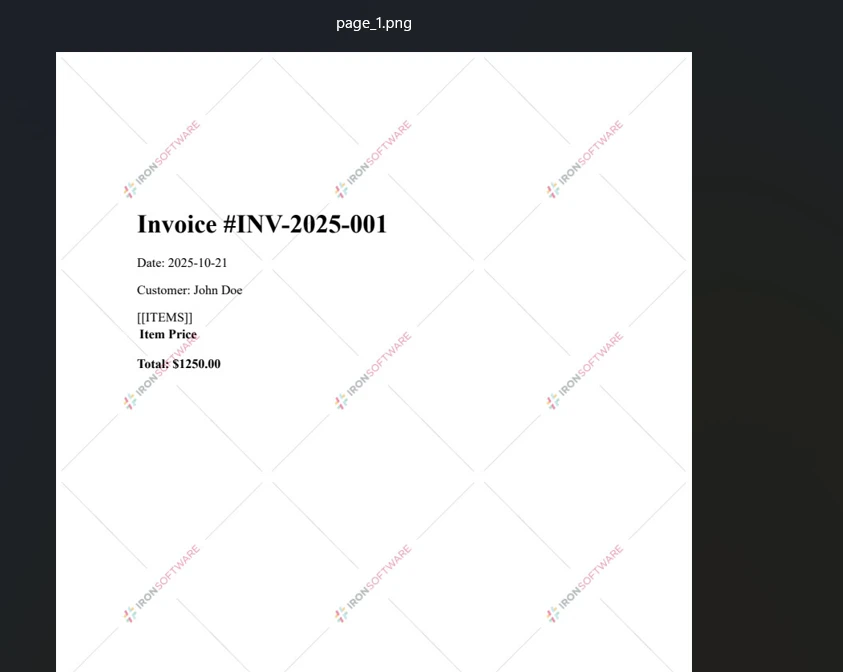
Output

Screenshot of a converted PDF invoice displayed as a PNG image with diagonal watermarks, showing invoice #INV-2025-001 dated 2025-10-21 for customer John Doe with a total of $1250.00

How to Convert Specific PDF Pages to Different Image Formats?

IronPDF excels at providing granular control over the PDF-to-image conversion process. You can convert PDF pages selectively, control quality settings, and choose from multiple output image formats to meet your exact requirements. Unlike basic Poppler tools or GPL programs, this .NET library offers complete control through its rendering options. The library supports custom paper size configurations and custom margins for precise output control.

How Do I Convert Selected Pages from PDF to JPG?

To convert specific PDF pages rather than the entire PDF document, use the page range parameter:

// Event handler example for Windows Forms application
private void ConvertButton_Click(object sender, EventArgs e)
{
    var pdf = PdfDocument.FromFile("report.pdf");
    var pageRange = Enumerable.Range(0, 5); // First 5 pages
    pdf.RasterizeToImageFiles(
        @"C:\output\page_*.jpg",
        pageRange,
        1920,   // Width in pixels
        1080,   // Height in pixels
        IronPdf.Imaging.ImageType.Jpeg,
        150     // Image DPI setting
    );
}
// Event handler example for Windows Forms application
private void ConvertButton_Click(object sender, EventArgs e)
{
    var pdf = PdfDocument.FromFile("report.pdf");
    var pageRange = Enumerable.Range(0, 5); // First 5 pages
    pdf.RasterizeToImageFiles(
        @"C:\output\page_*.jpg",
        pageRange,
        1920,   // Width in pixels
        1080,   // Height in pixels
        IronPdf.Imaging.ImageType.Jpeg,
        150     // Image DPI setting
    );
}
$vbLabelText   $csharpLabel

This sample converts the first five pages to JPEG format with specified dimensions. The method parameters give you complete control:

  • Define output path pattern for naming conventions
  • Select single or multiple pages
  • Set maximum width and height while maintaining aspect ratio
  • Choose image format (JPEG, PNG, TIFF, BMP)
  • Specify DPI resolution for print-quality output

The rasterization process preserves text clarity and graphics quality. For documents with backgrounds & foregrounds, conversion maintains all visual elements. You can also draw line & rectangle shapes or draw text & bitmap overlays before conversion.

How do I implement health checks for containerized environments?

For containerized environments, consider implementing health check endpoints, especially when creating PDFs in Blazor Servers:

// Health check endpoint for Kubernetes readiness probe
[HttpGet("/health/pdf-converter")]
public IActionResult HealthCheck()
{
    try
    {
        // Test basic PDF functionality
        var testPdf = new PdfDocument("<p>Health Check</p>");
        var imageBytes = testPdf.RasterizeToImageFiles(ImageType.Png);
        return Ok(new { status = "healthy", timestamp = DateTime.UtcNow });
    }
    catch (Exception ex)
    {
        return StatusCode(503, new { status = "unhealthy", error = ex.Message });
    }
}
// Health check endpoint for Kubernetes readiness probe
[HttpGet("/health/pdf-converter")]
public IActionResult HealthCheck()
{
    try
    {
        // Test basic PDF functionality
        var testPdf = new PdfDocument("<p>Health Check</p>");
        var imageBytes = testPdf.RasterizeToImageFiles(ImageType.Png);
        return Ok(new { status = "healthy", timestamp = DateTime.UtcNow });
    }
    catch (Exception ex)
    {
        return StatusCode(503, new { status = "unhealthy", error = ex.Message });
    }
}
$vbLabelText   $csharpLabel

This pattern is essential for Kubernetes deployment monitoring and ensures your PDF viewing in MAUI applications remain responsive.

When Should I Convert Website URLs to Images Instead of Direct PDFs?

IronPDF can render web pages to PDF and then convert to image files using the URL to PDF functionality:

var renderer = new ChromePdfRenderer();
var pdf = renderer.RenderUrlAsPdf("___PROTECTED_URL_52___");
pdf.RasterizeToImageFiles(@"C:\web\screenshot_*.png");
var renderer = new ChromePdfRenderer();
var pdf = renderer.RenderUrlAsPdf("___PROTECTED_URL_52___");
pdf.RasterizeToImageFiles(@"C:\web\screenshot_*.png");
$vbLabelText   $csharpLabel

This approach captures website content exactly as it appears in Chrome browser, then converts each page to PNG images. The ChromePdfRenderer ensures accurate rendering of modern web technologies including JavaScript, CSS3, and responsive layouts, making it perfect for creating website screenshots or archiving web content. The render method supports base URLs & asset encoding and cookies for authenticated content. For complex sites, use WaitFor to delay PDF render until all content loads.

What rendering options should I configure for production?

For production deployments, configure rendering delays and timeouts, especially when working with TLS website & system logins:

// Configure renderer for reliable containerized deployment
var renderer = new ChromePdfRenderer
{
    RenderingOptions = new ChromePdfRenderOptions
    {
        RenderDelay = 2000, // Wait 2 seconds for dynamic content
        Timeout = 30000,    // 30-second timeout for slow networks
        EnableJavaScript = true,
        ViewPortWidth = 1920,
        ViewPortHeight = 1080
    }
};

// Add custom HTTP headers for authentication if needed
renderer.RenderingOptions.CustomCssUrl = "___PROTECTED_URL_53___";
// Configure renderer for reliable containerized deployment
var renderer = new ChromePdfRenderer
{
    RenderingOptions = new ChromePdfRenderOptions
    {
        RenderDelay = 2000, // Wait 2 seconds for dynamic content
        Timeout = 30000,    // 30-second timeout for slow networks
        EnableJavaScript = true,
        ViewPortWidth = 1920,
        ViewPortHeight = 1080
    }
};

// Add custom HTTP headers for authentication if needed
renderer.RenderingOptions.CustomCssUrl = "___PROTECTED_URL_53___";
$vbLabelText   $csharpLabel

For improved security, implement HTTP request header authentication and manage PDF permissions passwords. The renderer supports fonts (web & icon) and can manage fonts for consistent rendering across platforms.

Input

IronPDF homepage displaying the C# PDF library interface with prominent call-to-action buttons for free NuGet download and licensing information

Output

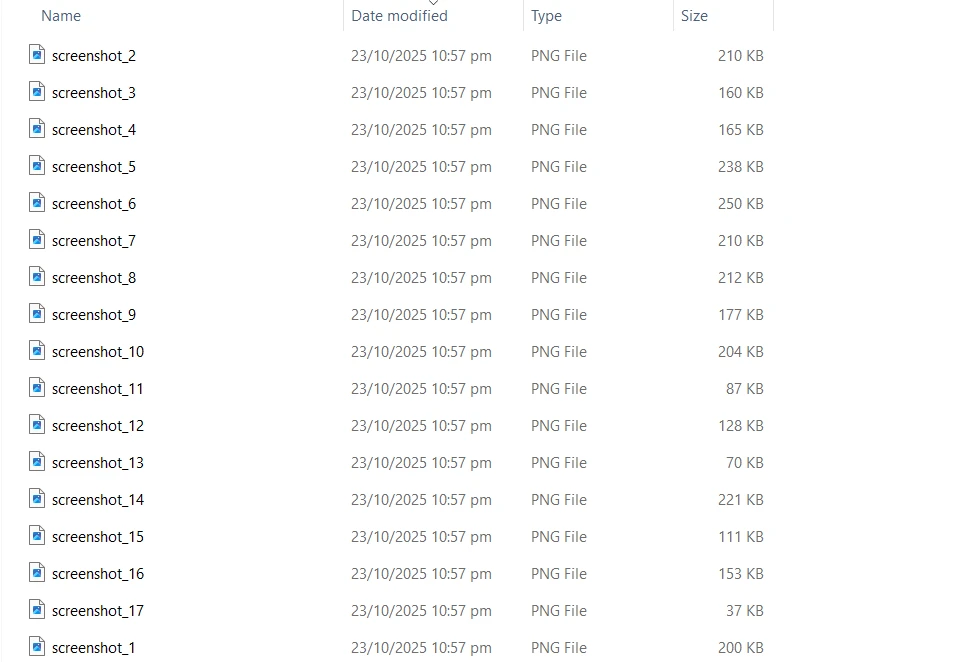
Windows File Explorer displaying 17 PNG screenshot files numbered 1-17, all created on the same date and time, showing the output of a batch PDF to image conversion process

Screenshot of IronPDF for .NET homepage displaying the C# PDF Library's main features and download options

What Image Formats and Quality Settings Are Available to Convert PDF?

IronPDF supports all major image formats with customizable quality settings for different use cases in .NET Framework and .NET Core applications. This open source-friendly library offers more options than basic Poppler utilities, with complete image management features. The library can embed images with DataURIs and supports embed images from Azure Blob Storage for cloud-native applications. For advanced scenarios, you can work with SVG graphics and implement stamp text & images functionality.

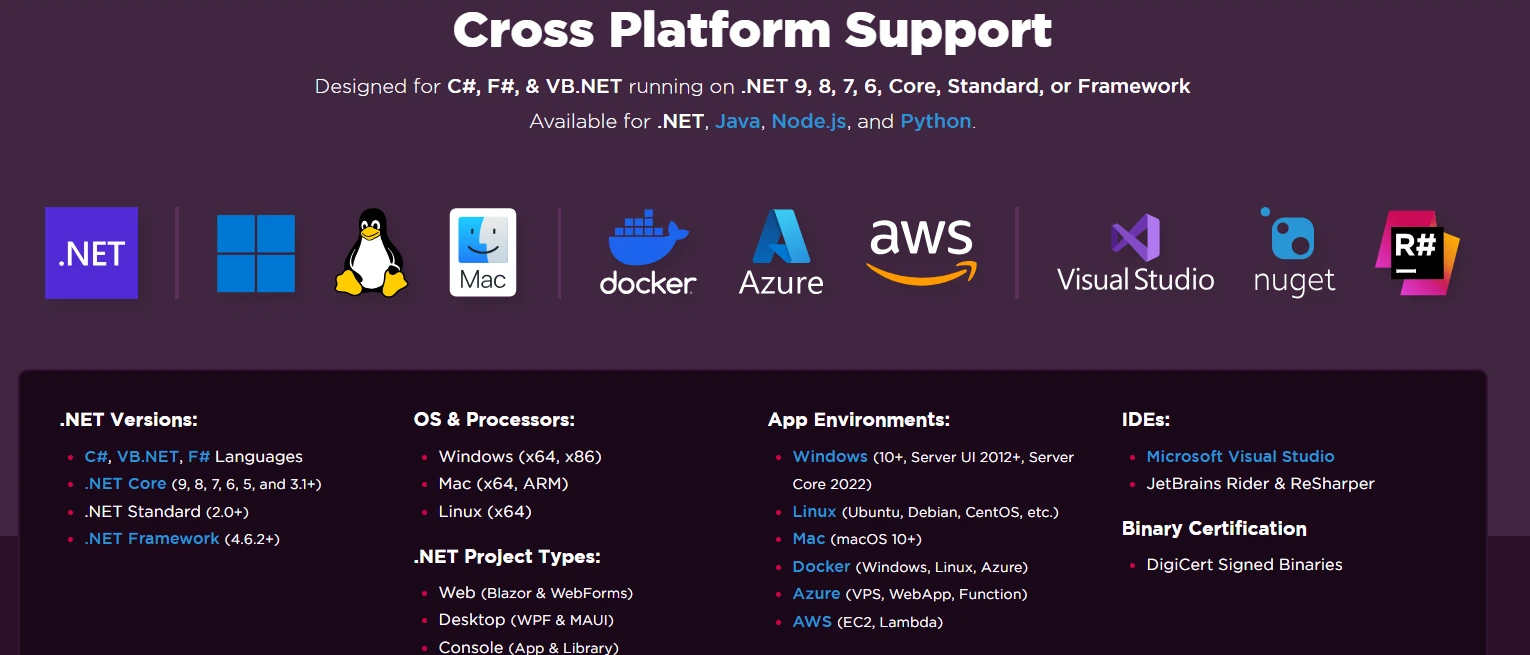
Cross-platform support diagram showing IronPDF's compatibility with .NET versions (Framework, Core, Standard), multiple operating systems (Windows, Linux, Mac), cloud platforms (Azure, AWS), and various development environments

Which image format should I choose for my use case?

PNG Format - Ideal for documents requiring transparency or lossless compression. Perfect for technical drawings, screenshots, and documents where text clarity is crucial. PNG ensures no quality loss during PDF rasterization and performs well for web display. The format suits watermarked documents and when you need to stamp new content onto images. PNG works excellently with grayscale conversions and maintains quality when implementing custom watermarks.

JPEG/JPG Format - Best for photographs and complex images where smaller file sizes are needed. The PDF to JPG converter supports quality adjustment for balancing file size versus image clarity. Implement compression strategies for optimal results:

// Improve JPEG conversion for web deployment
public void ConvertToOptimizedJpeg(string pdfPath, int quality = 85)
{
    var pdf = PdfDocument.FromFile(pdfPath);

    // Configure JPEG-specific settings
    var jpegEncoder = new JpegEncoder { Quality = quality };

    pdf.RasterizeToImageFiles(
        @"optimized_*.jpg",
        imageType: ImageType.Jpeg,
        dpi: 96  // Web-improve DPI
    );
}
// Improve JPEG conversion for web deployment
public void ConvertToOptimizedJpeg(string pdfPath, int quality = 85)
{
    var pdf = PdfDocument.FromFile(pdfPath);

    // Configure JPEG-specific settings
    var jpegEncoder = new JpegEncoder { Quality = quality };

    pdf.RasterizeToImageFiles(
        @"optimized_*.jpg",
        imageType: ImageType.Jpeg,
        dpi: 96  // Web-improve DPI
    );
}
$vbLabelText   $csharpLabel

For documents requiring linearize PDFs for fast web viewing, JPEG conversion provides efficient alternatives. The format works well with page numbers and page breaks for multi-page conversions.

How do I create multi-page TIFF files for archival?

TIFF Format - Excellent for archival purposes, supporting both single and multi-page TIFF documents. IronPDF's ability to create multi-page TIFF files from PDF pages is particularly valuable:

// Convert PDF to multi-page TIFF - all pages in single file
var pdf = PdfDocument.FromFile("multipage.pdf");
pdf.ToMultiPageTiffImage(@"C:\archive\document.tiff", null, null, 300);
// Process complete - single TIFF contains all pages
Console.WriteLine("PDF converted to multi-page TIFF");
// Convert PDF to multi-page TIFF - all pages in single file
var pdf = PdfDocument.FromFile("multipage.pdf");
pdf.ToMultiPageTiffImage(@"C:\archive\document.tiff", null, null, 300);
// Process complete - single TIFF contains all pages
Console.WriteLine("PDF converted to multi-page TIFF");
$vbLabelText   $csharpLabel

This creates a single TIFF file containing all PDF pages, maintaining document integrity while meeting archival standards. The 300 DPI setting ensures high-resolution output suitable for long-term storage and compliance. Multi-page TIFF is especially useful for:

  • Fax systems requiring single-file documents
  • Medical imaging archival
  • Legal document storage where pages must remain together

This feature distinguishes IronPDF from simpler conversion tools and supports PDF/UA format docs accessibility compliance and flatten PDFs for archival.

BMP Format - Provides uncompressed bitmap output when maximum quality without compression artifacts is required for System.Drawing workflows. Consider using custom paper sizes for specialized requirements. BMP format works well with print to a physical printer scenarios or when you need to transform PDF pages for precise positioning.

What DPI settings work best for different scenarios?

Resolution control through DPI settings allows optimization for different scenarios:

  • 72-96 DPI for web display and thumbnail generation
  • 150-200 DPI for general document viewing
  • 300+ DPI for print-quality output and OCR processing

The image DPI directly affects file size and quality. For export different PDF versions, appropriate DPI selection is crucial. When implementing fit to paper & zoom features, DPI settings determine output clarity. For containerized deployments, implement resource limits:

// Docker-improve conversion with memory management
public class PdfImageConverter : IDisposable
{
    private readonly ChromePdfRenderer _renderer;

    public PdfImageConverter()
    {
        _renderer = new ChromePdfRenderer
        {
            RenderingOptions = new ChromePdfRenderOptions
            {
                // Improve for container memory limits
                CreatePdfFormsFromHtml = false,
                EnableJavaScript = false,
                RenderDelay = 0
            }
        };
    }

    public async Task<byte[]> ConvertToImageBytesAsync(string pdfPath, int pageIndex = 0)
    {
        using var pdf = await PdfDocument.FromFileAsync(pdfPath);
        var images = await pdf.RasterizeToBitmapsAsync(new[] { pageIndex }, 150);

        using var ms = new MemoryStream();
        images[0].Save(ms, ImageFormat.Png);
        return ms.ToArray();
    }

    public void Dispose()
    {
        _renderer?.Dispose();
    }
}
// Docker-improve conversion with memory management
public class PdfImageConverter : IDisposable
{
    private readonly ChromePdfRenderer _renderer;

    public PdfImageConverter()
    {
        _renderer = new ChromePdfRenderer
        {
            RenderingOptions = new ChromePdfRenderOptions
            {
                // Improve for container memory limits
                CreatePdfFormsFromHtml = false,
                EnableJavaScript = false,
                RenderDelay = 0
            }
        };
    }

    public async Task<byte[]> ConvertToImageBytesAsync(string pdfPath, int pageIndex = 0)
    {
        using var pdf = await PdfDocument.FromFileAsync(pdfPath);
        var images = await pdf.RasterizeToBitmapsAsync(new[] { pageIndex }, 150);

        using var ms = new MemoryStream();
        images[0].Save(ms, ImageFormat.Png);
        return ms.ToArray();
    }

    public void Dispose()
    {
        _renderer?.Dispose();
    }
}
$vbLabelText   $csharpLabel

This implementation pattern is essential for load PDFs from memory scenarios and when you need to export PDFs to memory for efficient resource usage. The approach works smoothly with save & export PDF documents workflows.

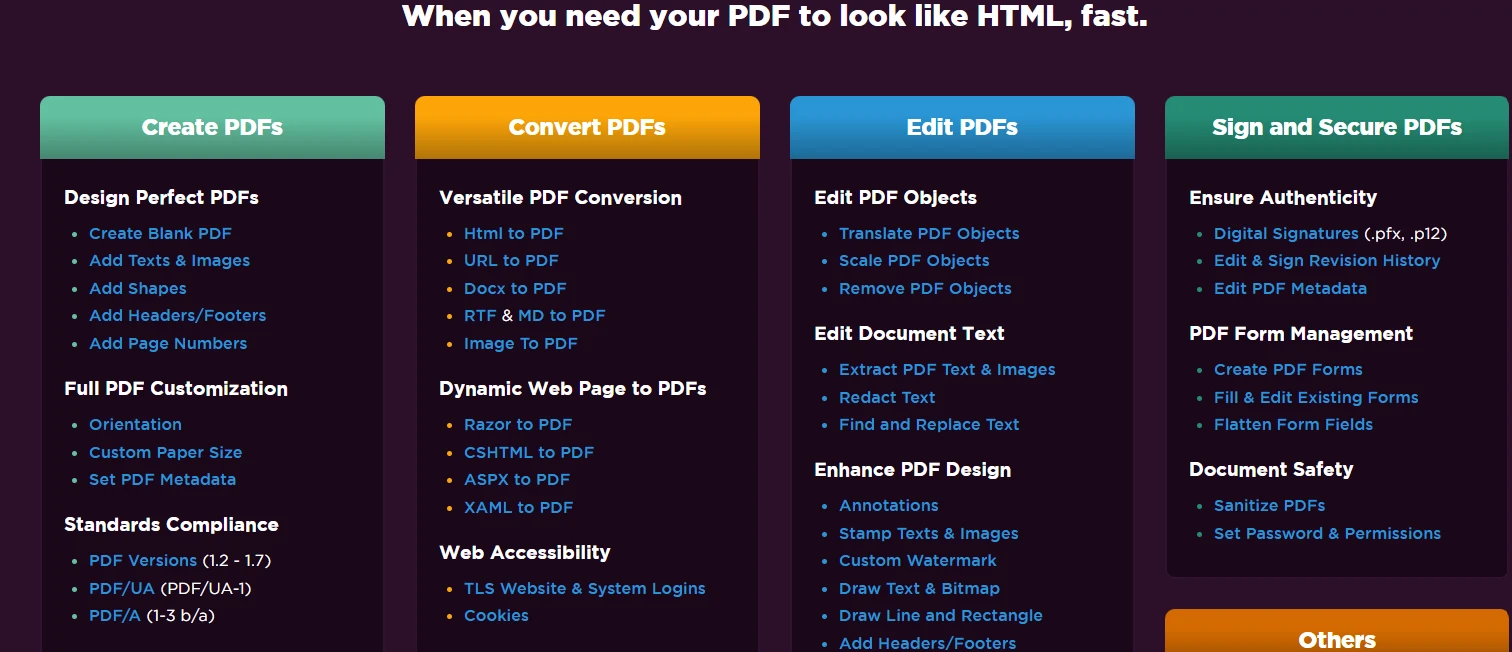
IronPDF feature overview displaying four main categories (Create, Convert, Edit, and Sign/Secure PDFs) with complete feature lists organized in a dark-themed interface

What Advanced Capabilities Does IronPDF Offer for PDF to Image Conversion?

IronPDF's image conversion features extend beyond basic PDF rasterization. The .NET library provides full cross-platform support, running smoothly on Windows, Linux, and macOS environments without requiring Adobe Reader. Container deployment is fully supported with Docker and Kubernetes, making it ideal for cloud-native .NET Core applications. For use on Android mobile platforms, special configurations apply. The library excels at generate PDF reports with image output options. For high-volume PDF file processing, async methods enable efficient batch conversion without blocking application threads. The library also handles complex PDF content, including form fields, annotations, and encrypted documents. Additional capabilities include add & edit annotations, fill & edit PDF forms, and create PDF forms before conversion. Unlike free Poppler tools, IronPDF provides commercial-grade reliability with professional support.

How can I implement production-ready batch processing?

For production deployments, implement monitoring and batch processing with OpenAI for PDF integration for intelligent document processing:

// Production-ready batch conversion service
public class BatchImageConversionService
{
    private readonly ILogger<BatchImageConversionService> _logger;
    private readonly SemaphoreSlim _semaphore;

    public BatchImageConversionService(ILogger<BatchImageConversionService> logger)
    {
        _logger = logger;
        _semaphore = new SemaphoreSlim(Environment.ProcessorCount);
    }

    public async Task<ConversionResult> ConvertBatchAsync(
        IEnumerable<string> pdfPaths, 
        ConversionOptions options)
    {
        var tasks = pdfPaths.Select(path => ConvertWithThrottlingAsync(path, options));
        var results = await Task.WhenAll(tasks);

        return new ConversionResult
        {
            TotalFiles = results.Length,
            SuccessCount = results.Count(r => r.Success),
            FailedFiles = results.Where(r => !r.Success).Select(r => r.FilePath)
        };
    }

    private async Task<FileConversionResult> ConvertWithThrottlingAsync(
        string pdfPath, 
        ConversionOptions options)
    {
        await _semaphore.WaitAsync();
        try
        {
            var stopwatch = Stopwatch.StartNew();
            var pdf = await PdfDocument.FromFileAsync(pdfPath);

            await pdf.RasterizeToImageFilesAsync(
                Path.Combine(options.OutputDirectory, $"{Path.GetFileNameWithoutExtension(pdfPath)}_*.{options.Format}"),
                imageType: options.Format,
                dpi: options.Dpi
            );

            _logger.LogInformation(
                "Converted {FileName} in {ElapsedMs}ms", 
                Path.GetFileName(pdfPath), 
                stopwatch.ElapsedMilliseconds
            );

            return new FileConversionResult { Success = true, FilePath = pdfPath };
        }
        catch (Exception ex)
        {
            _logger.LogError(ex, "Failed to convert {FileName}", Path.GetFileName(pdfPath));
            return new FileConversionResult { Success = false, FilePath = pdfPath, Error = ex.Message };
        }
        finally
        {
            _semaphore.Release();
        }
    }
}
// Production-ready batch conversion service
public class BatchImageConversionService
{
    private readonly ILogger<BatchImageConversionService> _logger;
    private readonly SemaphoreSlim _semaphore;

    public BatchImageConversionService(ILogger<BatchImageConversionService> logger)
    {
        _logger = logger;
        _semaphore = new SemaphoreSlim(Environment.ProcessorCount);
    }

    public async Task<ConversionResult> ConvertBatchAsync(
        IEnumerable<string> pdfPaths, 
        ConversionOptions options)
    {
        var tasks = pdfPaths.Select(path => ConvertWithThrottlingAsync(path, options));
        var results = await Task.WhenAll(tasks);

        return new ConversionResult
        {
            TotalFiles = results.Length,
            SuccessCount = results.Count(r => r.Success),
            FailedFiles = results.Where(r => !r.Success).Select(r => r.FilePath)
        };
    }

    private async Task<FileConversionResult> ConvertWithThrottlingAsync(
        string pdfPath, 
        ConversionOptions options)
    {
        await _semaphore.WaitAsync();
        try
        {
            var stopwatch = Stopwatch.StartNew();
            var pdf = await PdfDocument.FromFileAsync(pdfPath);

            await pdf.RasterizeToImageFilesAsync(
                Path.Combine(options.OutputDirectory, $"{Path.GetFileNameWithoutExtension(pdfPath)}_*.{options.Format}"),
                imageType: options.Format,
                dpi: options.Dpi
            );

            _logger.LogInformation(
                "Converted {FileName} in {ElapsedMs}ms", 
                Path.GetFileName(pdfPath), 
                stopwatch.ElapsedMilliseconds
            );

            return new FileConversionResult { Success = true, FilePath = pdfPath };
        }
        catch (Exception ex)
        {
            _logger.LogError(ex, "Failed to convert {FileName}", Path.GetFileName(pdfPath));
            return new FileConversionResult { Success = false, FilePath = pdfPath, Error = ex.Message };
        }
        finally
        {
            _semaphore.Release();
        }
    }
}
$vbLabelText   $csharpLabel

This service pattern supports parallel PDF generation and can be extended with edit & sign revision history tracking. For improved monitoring, implement set & edit metadata to track conversion details. The service can also integrate with add a table of contents generation and outlines & bookmarks management.

What performance optimizations are available?

The library's performance optimization features include automatic memory management for large documents, parallel processing support for batch operations, and efficient caching of rendering resources. For containerized deployments, consider using the IronPDF Engine as a separate microservice to isolate resource usage and improve scalability. When working with large documents, sanitize PDF content to remove unnecessary elements. For sensitive data, implement redact text & regions before conversion. The library supports render WebGL sites and can handle signing PDFs with digital certificates, even supporting signing PDFs with HSM for improved security.

Additional optimization techniques include:

For document preparation, you can replace text in PDF, convert XML to PDF, convert DOCX to PDF, convert MD to PDF, or convert RTF to PDF before image extraction.

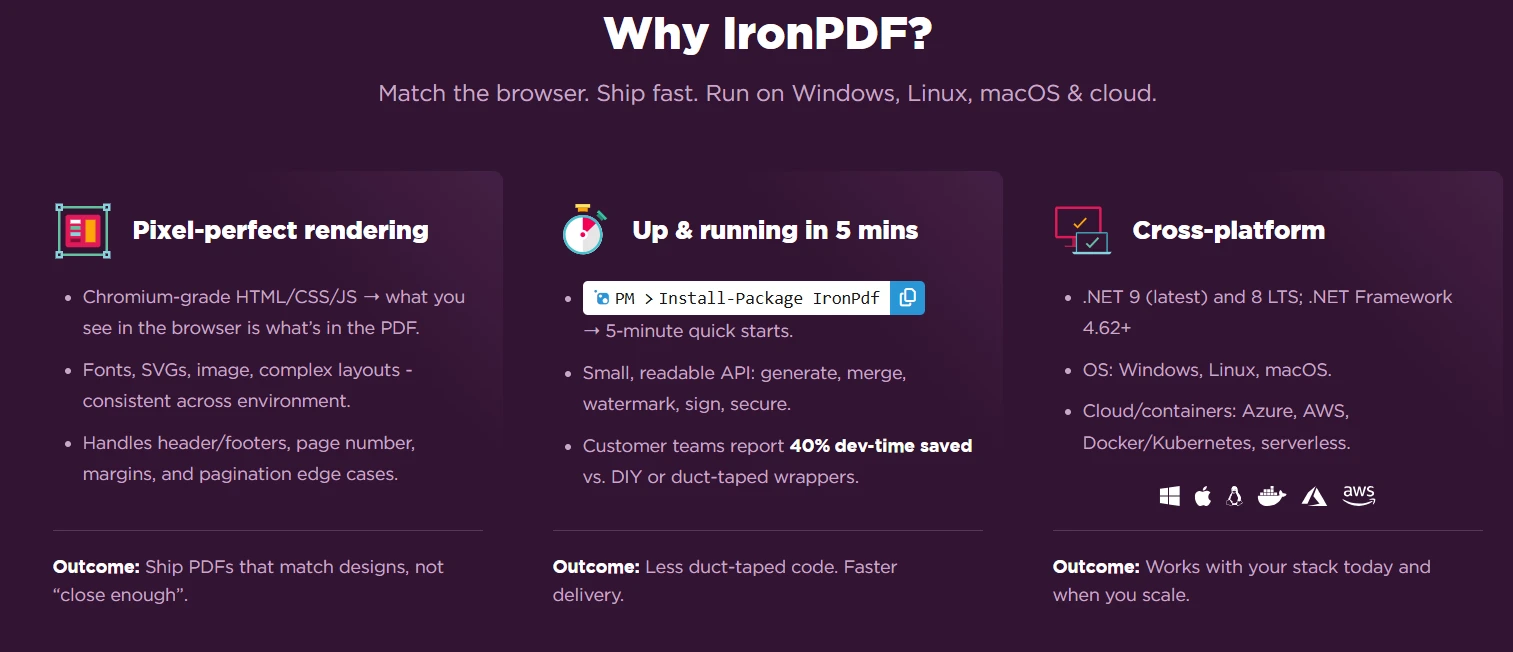
IronPDF feature comparison highlighting three main benefits: pixel-perfect rendering with Chromium-grade HTML/CSS/JS support, 5-minute installation setup, and cross-platform compatibility across Windows, Linux, macOS and cloud environments

What Are the Key Takeaways for Implementing PDF to Image Conversion?

IronPDF transforms PDF to image conversion from a complex task into a simple, reliable process for .NET developers. With support for multiple image formats, including multi-page TIFF, precise image DPI control, and cross-platform compatibility, it provides everything you need to convert PDF documents to image files in your workflows. The straightforward API means you can implement sophisticated PDF rasterization logic with minimal code while maintaining excellent output quality across PNG, JPEG, TIFF, and BMP formats. Whether you need to extract images from a single PDF page or convert entire documents, IronPDF performs reliably in most scenarios. The library supports advanced workflows like create new PDFs from scratch, add headers & footers, and even work with CSHTML to PDF (MVC Core), CSHTML to PDF (MVC Framework), CSHTML to PDF (Razor Pages), or CSHTML to PDF (Headlessly) for web application integration.

The library's container-friendly architecture and minimal system dependencies make it particularly suitable for DevOps workflows, supporting deployment to AWS, Azure, and on-premises infrastructure without complex configuration. For improved document processing, explore features like PDF from HTML string, PDF from HTML ZIP file, image to PDF conversion, and PDF from ASPX pages. The library also excels at document organization with add page numbers, orientation & rotation, and split multipage PDF capabilities. For compliance needs, implement export PDF/A format docs in C# or PDF to HTML conversion. Advanced features include add & remove attachments, debug HTML with Chrome, and access PDF DOM object for fine-grained control.

Experience IronPDF's effective PDF to image converter capabilities with a free trial. For production deployments, explore our flexible licensing options designed to fit projects of any scale. Visit our complete documentation to discover more PDF manipulation features, explore our demos, and review detailed API documentation. Download the complete sample code from the article and check our tutorials for step-by-step guides. For containerized deployments, check our Docker deployment guide and Kubernetes configuration examples. Read our complete quickstart guide and browse code examples for common scenarios. Learn about using license keys and explore extensions or upgrades for your existing license. Stay updated with our changelog and review milestones in our product development. If you encounter issues, consult our troubleshooting guides or engineering support resources. Explore our competitor comparisons including Apryse vs IronPDF, Aspose vs IronPDF, iText vs IronPDF, QuestPDF vs IronPDF, and Syncfusion vs IronPDF to see why developers choose IronPDF for their PDF conversion needs.

IronPDF licensing page displaying four perpetual license tiers (Lite, Plus, Professional, and Unlimited) with prices ranging from $749 to $5,999 and varying developer, location, and project limits

자주 묻는 질문

PDF를 .NET에서 이미지로 변환해야 하는 이유는 무엇인가요?

.NET에서 PDF를 이미지로 변환하는 것은 문서 썸네일 생성, 웹 표시용 이미지 추출 또는 이미지 처리 워크플로우에 통합하는 데 유용합니다.

PDF에서 변환할 때 IronPDF는 어떤 유형의 이미지 형식을 지원하나요?

IronPDF는 JPEG, PNG, BMP 등 여러 이미지 형식을 지원하므로 다양한 애플리케이션 요구 사항에 유연하게 대응할 수 있습니다.

IronPDF는 출력 이미지의 품질을 어떻게 제어할 수 있나요?

IronPDF는 개발자가 변환 프로세스 중에 이미지 DPI 및 품질 설정을 설정할 수 있어 출력 품질을 정밀하게 제어할 수 있습니다.

IronPDF는 .NET Framework 및 .NET Core와 모두 호환되나요?

예, IronPDF는 .NET Framework 및 .NET Core와 모두 호환되므로 다양한 프로젝트 요구 사항에 다용도로 사용할 수 있습니다.

IronPDF를 사용하여 PDF 파일에서 썸네일을 생성할 수 있나요?

물론 IronPDF는 PDF 페이지를 이미지 썸네일로 변환할 수 있으므로 문서의 미리보기 또는 시각적 표현을 만드는 데 유용합니다.

IronPDF는 PDF 페이지를 이미지로 일괄 변환하는 기능을 지원하나요?

예, IronPDF는 일괄 변환을 지원하므로 한 번의 작업으로 여러 PDF 페이지를 효율적으로 이미지로 변환할 수 있습니다.

IronPDF는 웹 디스플레이용 이미지 추출을 어떻게 처리하나요?

IronPDF는 개발자가 최적의 웹 디스플레이를 위해 적절한 형식과 해상도를 선택할 수 있도록 하여 웹용으로 적합한 이미지를 추출합니다.

IronPDF와 같은 신뢰할 수 있는 PDF 라이브러리를 사용하면 어떤 이점이 있나요?

IronPDF와 같은 신뢰할 수 있는 PDF 라이브러리를 사용하면 정확하고 효율적인 변환 프로세스를 보장하여 오류를 줄이고 애플리케이션 성능을 개선할 수 있습니다.

커티스 차우
기술 문서 작성자

커티스 차우는 칼턴 대학교에서 컴퓨터 과학 학사 학위를 취득했으며, Node.js, TypeScript, JavaScript, React를 전문으로 하는 프론트엔드 개발자입니다. 직관적이고 미적으로 뛰어난 사용자 인터페이스를 만드는 데 열정을 가진 그는 최신 프레임워크를 활용하고, 잘 구성되고 시각적으로 매력적인 매뉴얼을 제작하는 것을 즐깁니다.


커티스는 개발 분야 외에도 사물 인터넷(IoT)에 깊은 관심을 가지고 있으며, 하드웨어와 소프트웨어를 통합하는 혁신적인 방법을 연구합니다. 여가 시간에는 게임을 즐기거나 디스코드 봇을 만들면서 기술에 대한 애정과 창의성을 결합합니다.