


C# 批次PDF處理:大規模自動化 PDF合併、PDF分割與文件工作流程

使用IronPDF在C#中進行批量 PDF 處理, .NET開發人員可以大規模地自動化文件工作流程——從並行HTML 到 PDF 的轉換和批量合併/拆分,到具有內建錯誤處理、重試邏輯和檢查點的非同步 PDF 管道。 IronPDF 的線程安全 Chromium 引擎和基於 IDisposable 的記憶體管理使其成為專為高吞吐量 PDF 自動化而構建的,無論您是在本地運行、在Azure Functions 、 AWS Lambda還是Kubernetes中運行。
TL;DR:快速入門指南
本教程涵蓋了 C# 中的可擴展 PDF 自動化——從平行轉換和批量操作到雲端部署和彈性管道模式。
-適用對象:負責文件密集型工作流程的.NET開發人員和架構師-文件遷移專案、日常報告產生管道、合規性整改掃描或歸檔數位化工作,在這些工作中,順序處理是不可行的。
-你將建立:並行 HTML 到 PDF 轉換(使用 Parallel.ForEach)、批次合併和拆分操作、非同步管道(使用 SemaphoreSlim 進行並發控制)、錯誤處理(使用失敗時跳過和重試邏輯)、崩潰恢復的檢查點/恢復模式,以及 Azure Functions、AWS Lambda 和 Kubernetes 的雲端部署配置。
-運行環境: .NET 6+、. .NET Framework 4.6.2+、. .NET Standard 2.0。所有渲染均使用 IronPDF 內建的 Chromium 引擎——無需無頭瀏覽器依賴項或外部服務。
-何時使用此方法:當您需要處理的 PDF 數量超過順序執行允許的數量時—大規模文件遷移、具有嚴格時間視窗的排程批次作業或具有可變文件負載的多租戶平台。
-從技術角度來看,這很重要: IronPDF 的 ChromePdfRenderer 是線程安全的,並且每次渲染都是無狀態的,這意味著多個線程可以安全地共享一個渲染器實例。 結合 .NET 的任務並行庫和 IDisposable on PdfDocument,您可以獲得可預測的記憶體行為和 CPU 飽和度,而不會出現競爭條件或記憶體洩漏。
只需幾行程式碼,即可批量將整個目錄中的 HTML 檔案轉換為 PDF:
-
使用NuGet套件管理器安裝https://www.nuget.org/packages/IronPdf
PM > Install-Package IronPdf -
複製並運行這段程式碼。
using IronPdf; using System.IO; using System.Threading.Tasks; var renderer = new ChromePdfRenderer(); var htmlFiles = Directory.GetFiles("input/", "*.html"); Parallel.ForEach(htmlFiles, htmlFile => { var pdf = renderer.RenderHtmlFileAsPdf(htmlFile); pdf.SaveAs($"output/{Path.GetFileNameWithoutExtension(htmlFile)}.pdf"); }); -
部署到您的生產環境進行測試
今天就在您的專案中開始使用免費試用IronPDF

購買或註冊IronPDF的 30 天試用版後,請在應用程式開始時新增您的授權金鑰。
IronPdf.License.LicenseKey = "KEY";IronPdf.License.LicenseKey = "KEY";Imports IronPdf
IronPdf.License.LicenseKey = "KEY"立即開始在您的項目中使用 IronPDF 並免費試用。
 用 NuGet 安裝
目錄
-理解問題 當您需要處理數千個 PDF 文件時 -基礎 IronPDF批次架構 -安裝IronPDF -並發控制和線程安全 大規模記憶體管理 -進度報告和記錄 -核心營運 -常見批次操作 批量 HTML 轉 PDF 批量合併 PDF 批量拆分 PDF 批量壓縮 -大量格式轉換(PDF/A、PDF/UA) -彈性 建構彈性批處理管道 -錯誤處理和失敗時跳過 -針對瞬態故障的重試邏輯 -崩潰後恢復的檢查點 -處理前後的驗證 -表現 非同步和平行處理模式 -任務並行庫集成 -控制並發(SemaphoreSlim) -Async/Await 最佳實踐 -避免記憶體耗盡 -部署 -批次作業的雲端部署
- Azure Functions 與 Durable Functions
- AWS Lambda 與 Step Functions 的結合
- Kubernetes 作業排程 成本優化策略 綜合起來 -實際管道範例
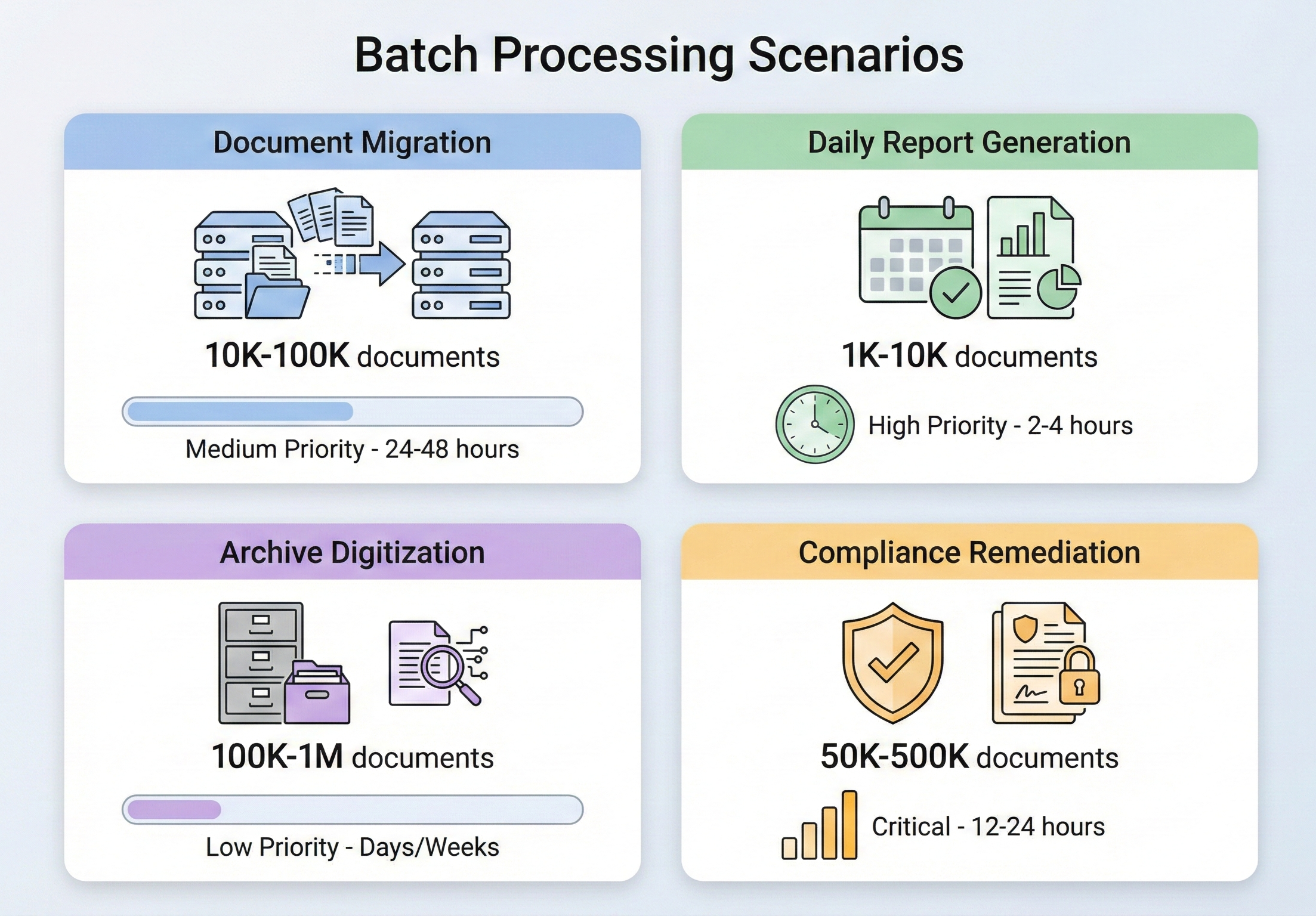
當您需要處理數千個 PDF 文件時
批次 PDF 處理不是一種特殊需求,而是企業文件管理的常規環節。 各行各業都會出現需要這樣做的情況,它們都有一個共同的特徵:一次只做一件事是不可行的。
文檔遷移項目是最常見的觸發因素之一。 當一個組織從一個文件管理系統遷移到另一個文件管理系統時,需要轉換、重新格式化或重新標記成千上萬(有時甚至數百萬)份文件。 當一家保險公司從舊式理賠系統移轉時,可能需要將 50 萬份基於 TIFF 格式的理賠文件轉換為可搜尋的 PDF 檔案。 律師事務所遷移到新的案件管理平台時,可能需要將分散的信函合併成統一的案件檔案。 這些都是一次性工作,但規模龐大,而且容不得半點差錯。
每日報告產生是同一問題的穩定狀態版本。 為成千上萬的客戶產生每日投資組合報告的金融機構、為每個出境貨櫃產生裝運清單的物流公司、跨數百個部門創建每日患者摘要的醫療保健系統——所有這些都會產生 PDF 輸出,其規模之大,如果採用順序處理,將會遠遠超出可接受的時間窗口。 當需要在早上 6 點前準備好 10,000 份報告,而數據要到午夜才能最終確定時,你不可能有 6 個小時來逐一渲染它們。
檔案數位化處於遷移和合規的交匯點。 政府機構、大學和擁有數十年紙本記錄的公司都面臨著將文件數位化並以符合標準的格式(通常是 PDF/A)存檔的強制性要求。 數量之龐大令人震驚——僅美國國家檔案館 (NARA) 就收到數百萬頁聯邦記錄用於永久保存——而且該過程必須足夠可靠,以免多年後發現缺失。
合規補救措施通常是最迫切的觸發因素。 當審計發現您的文件存檔不符合新實施的標準時—例如,您儲存的發票不符合電子發票法規的 PDF/A-3 標準,或您的醫療記錄缺少第 508 節要求的可存取性標記—您需要根據新標準處理您現有的整個存檔。 壓力很大,時間很緊,而數量取決於你的檔案中剛好包含多少內容。
在所有這些場景中,核心挑戰都是一樣的:如何可靠、有效率地處理大量 PDF 操作,並且在出現問題時不會耗盡記憶體或留下未完成的工作?
IronPDF批次架構
在深入了解具體操作之前,重要的是要了解IronPDF 的設計方式是如何處理並發工作負載的,以及在它之上建造批次管道時應該做出哪些架構決策。
安裝IronPDF
透過NuGet安裝IronPDF :
Install-Package IronPdfInstall-Package IronPdf或使用.NET CLI:
dotnet add package IronPdfdotnet add package IronPdfIronPDF支援.NET Framework 4.6.2+、. .NET Core、 .NET 5 至.NET 10 和.NET Standard 2.0。它可在 Windows、Linux、macOS 和 Docker 容器上執行,因此既適用於本機批次作業,也適用於雲端原生部署。
對於生產批次處理,請在應用程式啟動時,在任何 PDF 操作開始之前,請使用 License.LicenseKey 設定您的許可證金鑰。 這樣可以確保所有執行緒上的每次渲染調用都能存取完整的功能集,而不會出現每個檔案單獨添加浮水印的情況。
並發控制和線程安全
IronPDF 基於 Chromium 的渲染引擎是線程安全的。 您可以跨執行緒建立多個 ChromePdfRenderer 實例,或共用單一實例 — IronPDF會處理內部同步。 官方建議的批次處理方法是使用 .NET 內建的 Parallel.ForEach,它會自動將工作分配到所有可用的 CPU 核心上。
也就是說,"線程安全"並不意味著"使用無限線程"。每個並發的 PDF 渲染操作都會消耗記憶體(Chromium 引擎需要工作空間來進行 DOM 解析、CSS 佈局和圖像光柵化),在內存受限的系統上啟動過多的並行操作會降低性能或導致 OutOfMemoryException。 合適的並發等級取決於您的硬體:一台配備 64 GB 記憶體的 16 核心伺服器可以輕鬆處理 8-12 個並發渲染任務; 一台 4 核心 8 GB 記憶體的虛擬機器可能只能運作 2-4 個 CPU 核心。使用 ParallelOptions.MaxDegreeOfParallelism 控制此設定 — 將其設定為可用 CPU 核心數的一半左右作為起點,然後根據觀察到的記憶體壓力進行調整。
大規模記憶體管理
記憶體管理是批量 PDF 處理中最重要的問題。 每個 PdfDocument 物件都保存記憶體中 PDF 的完整二進位內容,如果不釋放這些對象,記憶體將隨著處理的檔案數量線性增長。
關鍵規則:一律使用 using 語句或在 PdfDocument 物件上明確呼叫Dispose()。 IronPDF 的 PdfDocument 實作了 IDisposable,而未能釋放記憶體是批次場景中記憶體問題最常見的原因。 處理循環的每次迭代都應該創建一個 PdfDocument,執行其工作,然後釋放它——除非有特殊原因並且有足夠的內存來處理,否則永遠不要在列表或集合中積累 PdfDocument 對象。
除了廢棄物處理之外,對於大量生產,還可以考慮以下記憶體管理策略:
分塊處理,而不是一次加載所有內容。 如果你需要處理 50,000 個文件,不要將它們全部枚舉到一個列表中然後遍歷——而是分批處理,每次處理 100 個或 500 個文件,讓垃圾回收器在處理完每一批文件後回收內存。
對於超大批量數據,強制在數據塊之間進行垃圾回收。 雖然通常應該讓 GC 自行管理,但批次處理是少數幾種情況之一,在區塊邊界之間調用 GC.Collect() 可以防止記憶體壓力累積。
使用 GC.GetTotalMemory() 或進程層級指標監控記憶體消耗。 如果記憶體使用率超過閾值(例如,可用 RAM 的 80%),則暫停處理,讓 GC 趕上進度。
進度報告和記錄
當批量作業需要數小時才能完成時,了解其進度不是可有可無的,而是必不可少的。 至少,您應該記錄每個文件的開始和完成情況,追蹤成功/失敗次數,並提供剩餘時間的估計值。 執行並行操作時,請使用 Interlocked.Increment 進行執行緒安全計數器,並定期(每 50 或 100 個檔案)記錄日誌,而不是在每個檔案上記錄日誌,以避免輸出過多。 使用 System.Diagnostics.Stopwatch 追蹤您的運行時間,並計算每秒運行的檔案數,以給出有意義的預計完成時間。
對於生產批次作業,可以考慮將進度寫入持久性儲存(資料庫、檔案或訊息佇列),以便監控儀表板可以顯示即時狀態,而無需直接連接到批次處理程序。
常見批次操作
架構基礎建置完畢後,讓我們來看看最常見的批次作業及其IronPDF實作。
批量 HTML 轉 PDF
HTML 轉 PDF 是最常見的大量操作。 無論您是使用範本產生發票、將 HTML 文件庫轉換為 PDF,還是從 Web 應用程式渲染動態報告,模式都是一樣的:遍歷您的輸入,渲染每個輸入,然後儲存輸出。
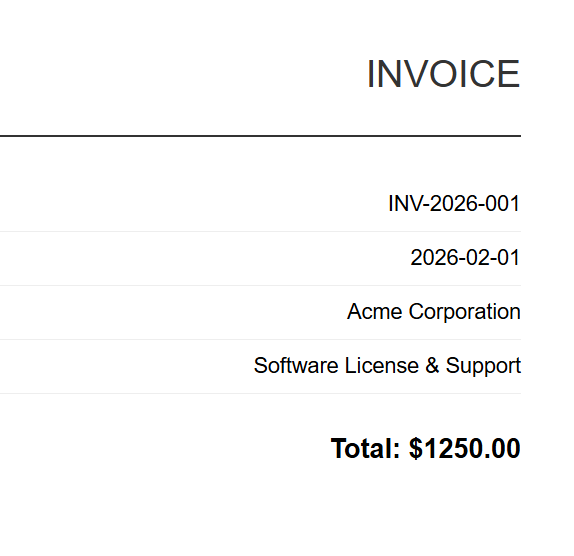
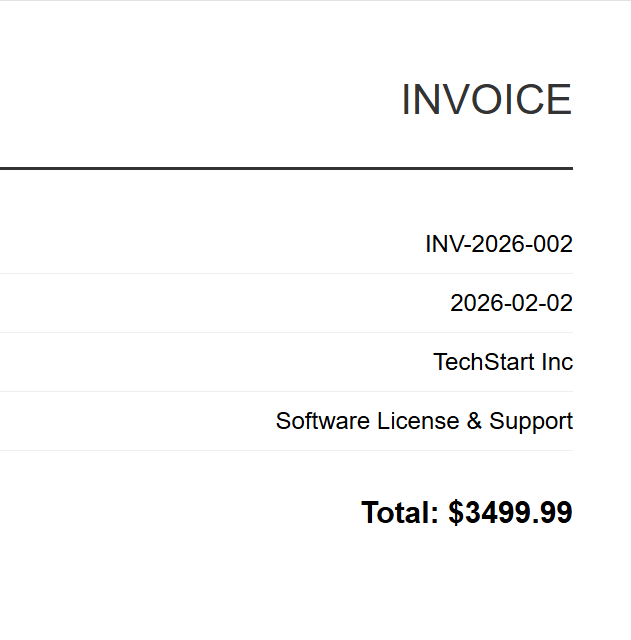
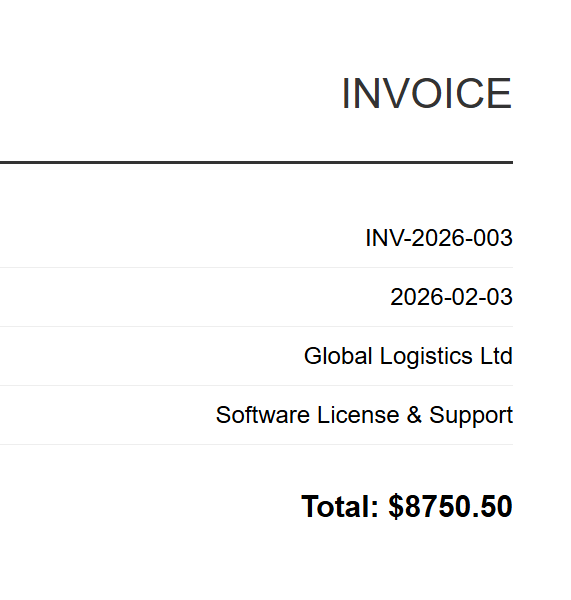
輸入(5 個 HTML 檔案)
INV-2026-001
INV-2026-002
INV-2026-003
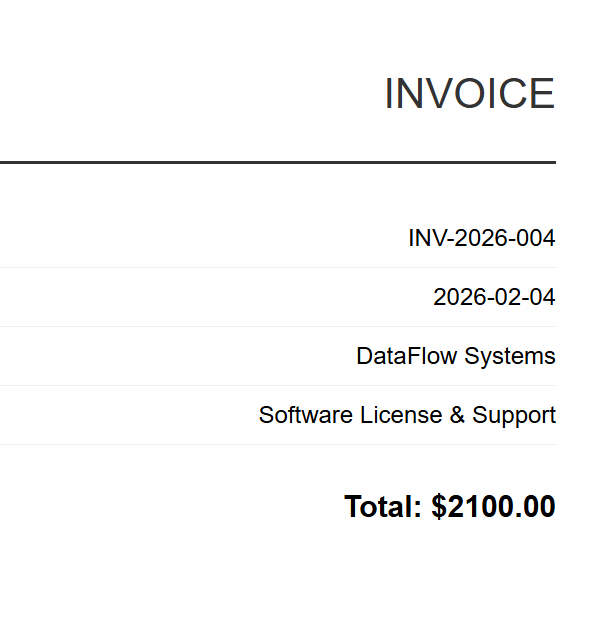
INV-2026-004
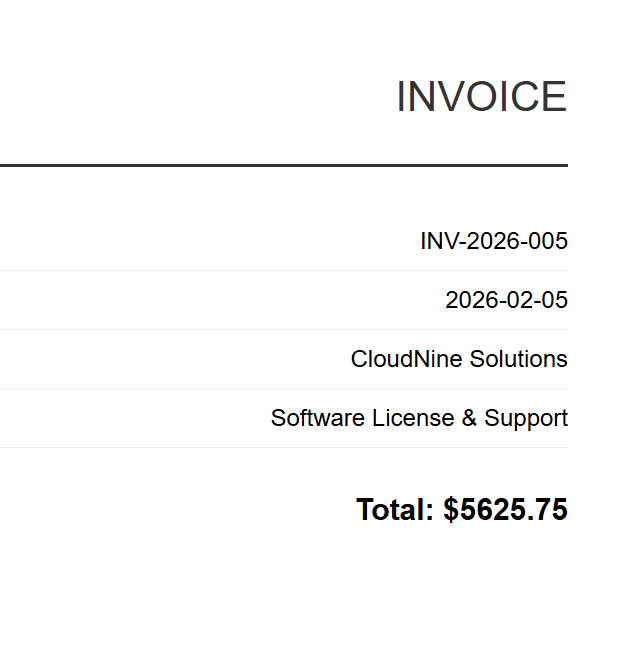
INV-2026-005
此實作使用 ChromePdfRenderer 和 Parallel.ForEach 並發處理所有 HTML 文件,透過 MaxDegreeOfParallelism 控制並行性,以平衡吞吐量和記憶體消耗。 每個檔案都使用 RenderHtmlFileAsPdf 進行渲染,並儲存到輸出目錄,透過線程安全的 Interlocked 計數器進行進度追蹤。
:path=/static-assets/pdf/content-code-examples/tutorials/batch-pdf-processing-csharp/batch-processing-html-to-pdf.csusing IronPdf;
using System;
using System.IO;
using System.Threading.Tasks;
using System.Threading;
// Configure paths
string inputFolder = "input/";
string outputFolder = "output/";
Directory.CreateDirectory(outputFolder);
string[] htmlFiles = Directory.GetFiles(inputFolder, "*.html");
Console.WriteLine($"Found {htmlFiles.Length} HTML files to convert");
// Create renderer instance (thread-safe, can be shared)
var renderer = new ChromePdfRenderer();
// Track progress
int processed = 0;
int failed = 0;
// Process in parallel with controlled concurrency
var options = new ParallelOptions
{
MaxDegreeOfParallelism = Environment.ProcessorCount / 2
};
Parallel.ForEach(htmlFiles, options, htmlFile =>
{
try
{
string fileName = Path.GetFileNameWithoutExtension(htmlFile);
string outputPath = Path.Combine(outputFolder, $"{fileName}.pdf");
using var pdf = renderer.RenderHtmlFileAsPdf(htmlFile);
pdf.SaveAs(outputPath);
Interlocked.Increment(ref processed);
Console.WriteLine($"[OK] {fileName}.pdf");
}
catch (Exception ex)
{
Interlocked.Increment(ref failed);
Console.WriteLine($"[ERROR] {Path.GetFileName(htmlFile)}: {ex.Message}");
}
});
Console.WriteLine($"\nComplete: {processed} succeeded, {failed} failed");Imports IronPdf
Imports System
Imports System.IO
Imports System.Threading.Tasks
Imports System.Threading
' Configure paths
Dim inputFolder As String = "input/"
Dim outputFolder As String = "output/"
Directory.CreateDirectory(outputFolder)
Dim htmlFiles As String() = Directory.GetFiles(inputFolder, "*.html")
Console.WriteLine($"Found {htmlFiles.Length} HTML files to convert")
' Create renderer instance (thread-safe, can be shared)
Dim renderer As New ChromePdfRenderer()
' Track progress
Dim processed As Integer = 0
Dim failed As Integer = 0
' Process in parallel with controlled concurrency
Dim options As New ParallelOptions With {
.MaxDegreeOfParallelism = Environment.ProcessorCount \ 2
}
Parallel.ForEach(htmlFiles, options, Sub(htmlFile)
Try
Dim fileName As String = Path.GetFileNameWithoutExtension(htmlFile)
Dim outputPath As String = Path.Combine(outputFolder, $"{fileName}.pdf")
Using pdf = renderer.RenderHtmlFileAsPdf(htmlFile)
pdf.SaveAs(outputPath)
End Using
Interlocked.Increment(processed)
Console.WriteLine($"[OK] {fileName}.pdf")
Catch ex As Exception
Interlocked.Increment(failed)
Console.WriteLine($"[ERROR] {Path.GetFileName(htmlFile)}: {ex.Message}")
End Try
End Sub)
Console.WriteLine($"\nComplete: {processed} succeeded, {failed} failed")輸出
每張HTML發票都會產生對應的PDF檔案。 上圖顯示的是 INV-2026-001.pdf——5 個批次輸出之一。
對於基於模板的生成(例如,發票、報告),通常需要在渲染之前將資料合併到 HTML 模板中。 這個方法很簡單:載入一次 HTML 模板,使用 string.Replace 注入每筆記錄的資料(客戶名稱、總計、日期),然後將填入好的 HTML 傳遞給並行循環中的 RenderHtmlAsPdf。 IronPDF也提供了 RenderHtmlAsPdfAsync,用於您希望使用 async/await 而不是 Parallel.ForEach 的情況——我們將在後面的章節中詳細介紹非同步模式。
批量 PDF 合併
將多個 PDF 文件合併成組合文件在法律(合併案件檔案文件)、金融(將月度報表合併成季度報告)和出版工作流程中很常見。
:path=/static-assets/pdf/content-code-examples/tutorials/batch-pdf-processing-csharp/batch-processing-merge.csusing IronPdf;
using System;
using System.IO;
using System.Linq;
using System.Collections.Generic;
string inputFolder = "documents/";
string outputFolder = "merged/";
Directory.CreateDirectory(outputFolder);
// Group PDFs by prefix (e.g., "invoice-2026-01-*.pdf" -> one merged file)
var pdfFiles = Directory.GetFiles(inputFolder, "*.pdf");
var groups = pdfFiles
.GroupBy(f => Path.GetFileName(f).Split('-').Take(3).Aggregate((a, b) => $"{a}-{b}"))
.Where(g => g.Count() > 1);
Console.WriteLine($"Found {groups.Count()} groups to merge");
foreach (var group in groups)
{
string groupName = group.Key;
var filesToMerge = group.OrderBy(f => f).ToList();
Console.WriteLine($"Merging {filesToMerge.Count} files into {groupName}.pdf");
try
{
// Load all PDFs for this group
var pdfDocs = new List<PdfDocument>();
foreach (string filePath in filesToMerge)
{
pdfDocs.Add(PdfDocument.FromFile(filePath));
}
// Merge all documents
using var merged = PdfDocument.Merge(pdfDocs);
merged.SaveAs(Path.Combine(outputFolder, $"{groupName}-merged.pdf"));
// Dispose source documents
foreach (var doc in pdfDocs)
{
doc.Dispose();
}
Console.WriteLine($" [OK] Created {groupName}-merged.pdf ({merged.PageCount} pages)");
}
catch (Exception ex)
{
Console.WriteLine($" [ERROR] {groupName}: {ex.Message}");
}
}
Console.WriteLine("\nMerge complete");Imports IronPdf
Imports System
Imports System.IO
Imports System.Linq
Imports System.Collections.Generic
Module Program
Sub Main()
Dim inputFolder As String = "documents/"
Dim outputFolder As String = "merged/"
Directory.CreateDirectory(outputFolder)
' Group PDFs by prefix (e.g., "invoice-2026-01-*.pdf" -> one merged file)
Dim pdfFiles = Directory.GetFiles(inputFolder, "*.pdf")
Dim groups = pdfFiles _
.GroupBy(Function(f) Path.GetFileName(f).Split("-"c).Take(3).Aggregate(Function(a, b) $"{a}-{b}")) _
.Where(Function(g) g.Count() > 1)
Console.WriteLine($"Found {groups.Count()} groups to merge")
For Each group In groups
Dim groupName As String = group.Key
Dim filesToMerge = group.OrderBy(Function(f) f).ToList()
Console.WriteLine($"Merging {filesToMerge.Count} files into {groupName}.pdf")
Try
' Load all PDFs for this group
Dim pdfDocs As New List(Of PdfDocument)()
For Each filePath As String In filesToMerge
pdfDocs.Add(PdfDocument.FromFile(filePath))
Next
' Merge all documents
Using merged = PdfDocument.Merge(pdfDocs)
merged.SaveAs(Path.Combine(outputFolder, $"{groupName}-merged.pdf"))
End Using
' Dispose source documents
For Each doc In pdfDocs
doc.Dispose()
Next
Console.WriteLine($" [OK] Created {groupName}-merged.pdf ({merged.PageCount} pages)")
Catch ex As Exception
Console.WriteLine($" [ERROR] {groupName}: {ex.Message}")
End Try
Next
Console.WriteLine(vbCrLf & "Merge complete")
End Sub
End Module合併大量文件時,請注意記憶體:PdfDocument.Merge 方法會將所有來源文件同時載入記憶體。 如果您要合併數百個大型 PDF 文件,請考慮分階段合併—將 10-20 個文件一組合併成中間文檔,然後再合併這些中間文檔。
批量拆分 PDF
將多頁 PDF 檔案拆分成單一頁面(或頁面範圍)是合併的反向過程。 在郵件處理中,需要將一批掃描的文件分割成單獨的記錄;在列印工作流程中,需要將複合文件拆分成多個部分。
輸入
下面的程式碼示範如何使用 CopyPage 在並行循環中提取單一頁面,並為每個頁面建立單獨的 PDF 檔案。 另一個 SplitByRange 輔助函數展示如何提取頁面範圍而不是單一頁面,這對於將大型文件分成較小的部分非常有用。
:path=/static-assets/pdf/content-code-examples/tutorials/batch-pdf-processing-csharp/batch-processing-split.csusing IronPdf;
using System;
using System.IO;
using System.Threading.Tasks;
string inputFolder = "multipage/";
string outputFolder = "split/";
Directory.CreateDirectory(outputFolder);
string[] pdfFiles = Directory.GetFiles(inputFolder, "*.pdf");
Console.WriteLine($"Found {pdfFiles.Length} PDFs to split");
var options = new ParallelOptions
{
MaxDegreeOfParallelism = Environment.ProcessorCount / 2
};
Parallel.ForEach(pdfFiles, options, pdfFile =>
{
string baseName = Path.GetFileNameWithoutExtension(pdfFile);
try
{
using var pdf = PdfDocument.FromFile(pdfFile);
int pageCount = pdf.PageCount;
Console.WriteLine($"Splitting {baseName}.pdf ({pageCount} pages)");
// Extract each page as a separate PDF
for (int i = 0; i < pageCount; i++)
{
using var singlePage = pdf.CopyPage(i);
string outputPath = Path.Combine(outputFolder, $"{baseName}-page-{i + 1:D3}.pdf");
singlePage.SaveAs(outputPath);
}
Console.WriteLine($" [OK] Created {pageCount} files from {baseName}.pdf");
}
catch (Exception ex)
{
Console.WriteLine($" [ERROR] {baseName}: {ex.Message}");
}
});
// Alternative: Extract page ranges instead of individual pages
void SplitByRange(string inputFile, string outputFolder, int pagesPerChunk)
{
using var pdf = PdfDocument.FromFile(inputFile);
string baseName = Path.GetFileNameWithoutExtension(inputFile);
int totalPages = pdf.PageCount;
int chunkNumber = 1;
for (int startPage = 0; startPage < totalPages; startPage += pagesPerChunk)
{
int endPage = Math.Min(startPage + pagesPerChunk - 1, totalPages - 1);
using var chunk = pdf.CopyPages(startPage, endPage);
chunk.SaveAs(Path.Combine(outputFolder, $"{baseName}-chunk-{chunkNumber:D3}.pdf"));
chunkNumber++;
}
}
Console.WriteLine("\nSplit complete");Imports IronPdf
Imports System
Imports System.IO
Imports System.Threading.Tasks
Module Program
Sub Main()
Dim inputFolder As String = "multipage/"
Dim outputFolder As String = "split/"
Directory.CreateDirectory(outputFolder)
Dim pdfFiles As String() = Directory.GetFiles(inputFolder, "*.pdf")
Console.WriteLine($"Found {pdfFiles.Length} PDFs to split")
Dim options As New ParallelOptions With {
.MaxDegreeOfParallelism = Environment.ProcessorCount \ 2
}
Parallel.ForEach(pdfFiles, options, Sub(pdfFile)
Dim baseName As String = Path.GetFileNameWithoutExtension(pdfFile)
Try
Using pdf = PdfDocument.FromFile(pdfFile)
Dim pageCount As Integer = pdf.PageCount
Console.WriteLine($"Splitting {baseName}.pdf ({pageCount} pages)")
' Extract each page as a separate PDF
For i As Integer = 0 To pageCount - 1
Using singlePage = pdf.CopyPage(i)
Dim outputPath As String = Path.Combine(outputFolder, $"{baseName}-page-{i + 1:D3}.pdf")
singlePage.SaveAs(outputPath)
End Using
Next
Console.WriteLine($" [OK] Created {pageCount} files from {baseName}.pdf")
End Using
Catch ex As Exception
Console.WriteLine($" [ERROR] {baseName}: {ex.Message}")
End Try
End Sub)
' Alternative: Extract page ranges instead of individual pages
Sub SplitByRange(inputFile As String, outputFolder As String, pagesPerChunk As Integer)
Using pdf = PdfDocument.FromFile(inputFile)
Dim baseName As String = Path.GetFileNameWithoutExtension(inputFile)
Dim totalPages As Integer = pdf.PageCount
Dim chunkNumber As Integer = 1
For startPage As Integer = 0 To totalPages - 1 Step pagesPerChunk
Dim endPage As Integer = Math.Min(startPage + pagesPerChunk - 1, totalPages - 1)
Using chunk = pdf.CopyPages(startPage, endPage)
chunk.SaveAs(Path.Combine(outputFolder, $"{baseName}-chunk-{chunkNumber:D3}.pdf"))
chunkNumber += 1
End Using
Next
End Using
End Sub
Console.WriteLine(vbCrLf & "Split complete")
End Sub
End Module輸出
第 2 頁已擷取為獨立 PDF 檔案 (annual-report-page-2.pdf)
IronPDF 的 CopyPage 和 CopyPages 方法建立包含指定頁面的新 PdfDocument 物件。 儲存後,請務必刪除來源文件和每個提取的頁面文件。
批量壓縮
當儲存成本很重要,或者當您需要透過頻寬受限的連線傳輸 PDF 檔案時,批次壓縮可以顯著減少您的存檔佔用空間。 IronPDF提供兩種壓縮方法:CompressImages 用於降低影像品質/大小,以及 CompressStructTree 用於刪除結構元資料。 較新的 CompressAndSaveAs API(在 2025.12 版本中引入)透過結合多種優化技術提供更優越的壓縮效能。
:path=/static-assets/pdf/content-code-examples/tutorials/batch-pdf-processing-csharp/batch-processing-compression.csusing IronPdf;
using System;
using System.IO;
using System.Threading.Tasks;
using System.Threading;
string inputFolder = "originals/";
string outputFolder = "compressed/";
Directory.CreateDirectory(outputFolder);
string[] pdfFiles = Directory.GetFiles(inputFolder, "*.pdf");
Console.WriteLine($"Found {pdfFiles.Length} PDFs to compress");
long totalOriginalSize = 0;
long totalCompressedSize = 0;
int processed = 0;
var options = new ParallelOptions
{
MaxDegreeOfParallelism = Environment.ProcessorCount / 2
};
Parallel.ForEach(pdfFiles, options, pdfFile =>
{
string fileName = Path.GetFileName(pdfFile);
string outputPath = Path.Combine(outputFolder, fileName);
try
{
long originalSize = new FileInfo(pdfFile).Length;
Interlocked.Add(ref totalOriginalSize, originalSize);
using var pdf = PdfDocument.FromFile(pdfFile);
// Apply compression with JPEG quality setting (0-100, lower = more compression)
pdf.CompressAndSaveAs(outputPath, 60);
long compressedSize = new FileInfo(outputPath).Length;
Interlocked.Add(ref totalCompressedSize, compressedSize);
Interlocked.Increment(ref processed);
double reduction = (1 - (double)compressedSize / originalSize) * 100;
Console.WriteLine($"[OK] {fileName}: {originalSize / 1024}KB → {compressedSize / 1024}KB ({reduction:F1}% reduction)");
}
catch (Exception ex)
{
Console.WriteLine($"[ERROR] {fileName}: {ex.Message}");
}
});
double totalReduction = (1 - (double)totalCompressedSize / totalOriginalSize) * 100;
Console.WriteLine($"\nCompression complete:");
Console.WriteLine($" Files processed: {processed}");
Console.WriteLine($" Total original: {totalOriginalSize / 1024 / 1024}MB");
Console.WriteLine($" Total compressed: {totalCompressedSize / 1024 / 1024}MB");
Console.WriteLine($" Overall reduction: {totalReduction:F1}%");Imports IronPdf
Imports System
Imports System.IO
Imports System.Threading.Tasks
Imports System.Threading
Module Program
Sub Main()
Dim inputFolder As String = "originals/"
Dim outputFolder As String = "compressed/"
Directory.CreateDirectory(outputFolder)
Dim pdfFiles As String() = Directory.GetFiles(inputFolder, "*.pdf")
Console.WriteLine($"Found {pdfFiles.Length} PDFs to compress")
Dim totalOriginalSize As Long = 0
Dim totalCompressedSize As Long = 0
Dim processed As Integer = 0
Dim options As New ParallelOptions With {
.MaxDegreeOfParallelism = Environment.ProcessorCount \ 2
}
Parallel.ForEach(pdfFiles, options, Sub(pdfFile)
Dim fileName As String = Path.GetFileName(pdfFile)
Dim outputPath As String = Path.Combine(outputFolder, fileName)
Try
Dim originalSize As Long = New FileInfo(pdfFile).Length
Interlocked.Add(totalOriginalSize, originalSize)
Using pdf = PdfDocument.FromFile(pdfFile)
' Apply compression with JPEG quality setting (0-100, lower = more compression)
pdf.CompressAndSaveAs(outputPath, 60)
End Using
Dim compressedSize As Long = New FileInfo(outputPath).Length
Interlocked.Add(totalCompressedSize, compressedSize)
Interlocked.Increment(processed)
Dim reduction As Double = (1 - CDbl(compressedSize) / originalSize) * 100
Console.WriteLine($"[OK] {fileName}: {originalSize \ 1024}KB → {compressedSize \ 1024}KB ({reduction:F1}% reduction)")
Catch ex As Exception
Console.WriteLine($"[ERROR] {fileName}: {ex.Message}")
End Try
End Sub)
Dim totalReduction As Double = (1 - CDbl(totalCompressedSize) / totalOriginalSize) * 100
Console.WriteLine(vbCrLf & "Compression complete:")
Console.WriteLine($" Files processed: {processed}")
Console.WriteLine($" Total original: {totalOriginalSize \ 1024 \ 1024}MB")
Console.WriteLine($" Total compressed: {totalCompressedSize \ 1024 \ 1024}MB")
Console.WriteLine($" Overall reduction: {totalReduction:F1}%")
End Sub
End Module關於壓縮,需要記住以下幾點:JPEG 品質設定低於 60 時,大多數影像都會出現可見的瑕疵。 ShrinkImage 選項在某些配置下可能會導致失真——在運行完整批次之前,請使用代表性樣本進行測試。 刪除結構樹(CompressStructTree)會影響壓縮 PDF 中的文字選擇和搜索,因此只有在不需要這些功能時才使用它。
大量格式轉換(PDF/A、PDF/UA)
將現有存檔轉換為符合標準的格式(長期存檔的 PDF/A 或可存取的 PDF/UA)是最有價值的大量操作之一。 IronPDF支援所有 PDF/A 版本(包括 2025.11 版本新增的 PDF/A-4)和 PDF/UA 相容性(包括 2025.12 版本新增的 PDF/UA-2)。
輸入
此範例使用 PdfDocument.FromFile 載入每個 PDF,然後使用 SaveAsPdfA 和 PdfAVersions.PdfA3b 參數將其轉換為 PDF/A-3b。 另一種 ConvertToPdfUA 函數示範了使用 SaveAsPdfUA 進行輔助功能合規性轉換,儘管 PDF/UA 需要具有正確結構標記的來源文件。
:path=/static-assets/pdf/content-code-examples/tutorials/batch-pdf-processing-csharp/batch-processing-format-conversion.csusing IronPdf;
using System;
using System.IO;
using System.Threading.Tasks;
using System.Threading;
string inputFolder = "originals/";
string outputFolder = "pdfa-archive/";
Directory.CreateDirectory(outputFolder);
string[] pdfFiles = Directory.GetFiles(inputFolder, "*.pdf");
Console.WriteLine($"Found {pdfFiles.Length} PDFs to convert to PDF/A-3b");
int converted = 0;
int failed = 0;
var options = new ParallelOptions
{
MaxDegreeOfParallelism = Environment.ProcessorCount / 2
};
Parallel.ForEach(pdfFiles, options, pdfFile =>
{
string fileName = Path.GetFileName(pdfFile);
string outputPath = Path.Combine(outputFolder, fileName);
try
{
using var pdf = PdfDocument.FromFile(pdfFile);
// Convert to PDF/A-3b for long-term archival
pdf.SaveAsPdfA(outputPath, PdfAVersions.PdfA3b);
Interlocked.Increment(ref converted);
Console.WriteLine($"[OK] {fileName} → PDF/A-3b");
}
catch (Exception ex)
{
Interlocked.Increment(ref failed);
Console.WriteLine($"[ERROR] {fileName}: {ex.Message}");
}
});
Console.WriteLine($"\nConversion complete: {converted} succeeded, {failed} failed");
// Alternative: Convert to PDF/UA for accessibility compliance
void ConvertToPdfUA(string inputFolder, string outputFolder)
{
Directory.CreateDirectory(outputFolder);
string[] files = Directory.GetFiles(inputFolder, "*.pdf");
Parallel.ForEach(files, pdfFile =>
{
string fileName = Path.GetFileName(pdfFile);
try
{
using var pdf = PdfDocument.FromFile(pdfFile);
// PDF/UA requires proper tagging - ensure source is well-structured
pdf.SaveAsPdfUA(Path.Combine(outputFolder, fileName));
Console.WriteLine($"[OK] {fileName} → PDF/UA");
}
catch (Exception ex)
{
Console.WriteLine($"[ERROR] {fileName}: {ex.Message}");
}
});
}Imports IronPdf
Imports System
Imports System.IO
Imports System.Threading.Tasks
Imports System.Threading
Module Program
Sub Main()
Dim inputFolder As String = "originals/"
Dim outputFolder As String = "pdfa-archive/"
Directory.CreateDirectory(outputFolder)
Dim pdfFiles As String() = Directory.GetFiles(inputFolder, "*.pdf")
Console.WriteLine($"Found {pdfFiles.Length} PDFs to convert to PDF/A-3b")
Dim converted As Integer = 0
Dim failed As Integer = 0
Dim options As New ParallelOptions With {
.MaxDegreeOfParallelism = Environment.ProcessorCount \ 2
}
Parallel.ForEach(pdfFiles, options, Sub(pdfFile)
Dim fileName As String = Path.GetFileName(pdfFile)
Dim outputPath As String = Path.Combine(outputFolder, fileName)
Try
Using pdf = PdfDocument.FromFile(pdfFile)
' Convert to PDF/A-3b for long-term archival
pdf.SaveAsPdfA(outputPath, PdfAVersions.PdfA3b)
Interlocked.Increment(converted)
Console.WriteLine($"[OK] {fileName} → PDF/A-3b")
End Using
Catch ex As Exception
Interlocked.Increment(failed)
Console.WriteLine($"[ERROR] {fileName}: {ex.Message}")
End Try
End Sub)
Console.WriteLine($"{vbCrLf}Conversion complete: {converted} succeeded, {failed} failed")
End Sub
' Alternative: Convert to PDF/UA for accessibility compliance
Sub ConvertToPdfUA(inputFolder As String, outputFolder As String)
Directory.CreateDirectory(outputFolder)
Dim files As String() = Directory.GetFiles(inputFolder, "*.pdf")
Parallel.ForEach(files, Sub(pdfFile)
Dim fileName As String = Path.GetFileName(pdfFile)
Try
Using pdf = PdfDocument.FromFile(pdfFile)
' PDF/UA requires proper tagging - ensure source is well-structured
pdf.SaveAsPdfUA(Path.Combine(outputFolder, fileName))
Console.WriteLine($"[OK] {fileName} → PDF/UA")
End Using
Catch ex As Exception
Console.WriteLine($"[ERROR] {fileName}: {ex.Message}")
End Try
End Sub)
End Sub
End Module輸出

輸出的 PDF 檔案在外觀上與原始文件完全相同,但現在包含 PDF/A-3b 合規元數據,可用於歸檔系統。
格式轉換對於合規性整改計畫尤其重要,因為組織會發現其現有檔案不符合監管標準。 批次處理模式很簡單,但驗證步驟至關重要——在認為每個轉換後的文件都已完成之前,請務必驗證該文件是否確實通過了合規性檢查。 我們將在下面的彈性部分詳細介紹驗證。
建構彈性批處理管道
一個批次管道,如果處理 100 個文件時運行完美,但在處理 50,000 個文件中的第 4,327 個文件時崩潰,那麼這個管道就毫無用處。 韌性——即優雅地處理錯誤、重試暫時性故障以及在崩潰後恢復的能力——是生產級流水線與原型之間的區別。
錯誤處理和失敗時跳過
最基本的彈性模式是失敗時跳過:如果單一文件處理失敗,則記錄錯誤並繼續處理下一個文件,而不是中止整個批次。 這聽起來很明顯,但當你使用 Parallel.ForEach 時,卻很容易被忽略——任何並行任務中未處理的異常都會傳播為 AggregateException 並終止循環。
以下範例示範了失敗時跳過和重試邏輯的結合——將每個文件包裝在 try-catch 中以實現優雅的錯誤處理,並使用內部重試循環對諸如 IOException 和 OutOfMemoryException 之類的瞬態異常使用指數退避:
:path=/static-assets/pdf/content-code-examples/tutorials/batch-pdf-processing-csharp/batch-processing-error-handling-retry.csusing IronPdf;
using System;
using System.IO;
using System.Threading.Tasks;
using System.Threading;
using System.Collections.Concurrent;
string inputFolder = "input/";
string outputFolder = "output/";
string errorLogPath = "error-log.txt";
Directory.CreateDirectory(outputFolder);
string[] htmlFiles = Directory.GetFiles(inputFolder, "*.html");
var renderer = new ChromePdfRenderer();
var errorLog = new ConcurrentBag<string>();
int processed = 0;
int failed = 0;
int retried = 0;
const int maxRetries = 3;
var options = new ParallelOptions
{
MaxDegreeOfParallelism = Environment.ProcessorCount / 2
};
Parallel.ForEach(htmlFiles, options, htmlFile =>
{
string fileName = Path.GetFileNameWithoutExtension(htmlFile);
string outputPath = Path.Combine(outputFolder, $"{fileName}.pdf");
int attempt = 0;
bool success = false;
while (attempt < maxRetries && !success)
{
attempt++;
try
{
using var pdf = renderer.RenderHtmlFileAsPdf(htmlFile);
pdf.SaveAs(outputPath);
success = true;
Interlocked.Increment(ref processed);
if (attempt > 1)
{
Interlocked.Increment(ref retried);
Console.WriteLine($"[OK] {fileName}.pdf (succeeded on attempt {attempt})");
}
else
{
Console.WriteLine($"[OK] {fileName}.pdf");
}
}
catch (Exception ex) when (IsTransientException(ex) && attempt < maxRetries)
{
// Transient error - wait and retry with exponential backoff
int delayMs = (int)Math.Pow(2, attempt) * 500;
Console.WriteLine($"[RETRY] {fileName}: {ex.Message} (attempt {attempt}, waiting {delayMs}ms)");
Thread.Sleep(delayMs);
}
catch (Exception ex)
{
// Non-transient error or max retries exceeded
Interlocked.Increment(ref failed);
string errorMessage = $"{DateTime.Now:yyyy-MM-dd HH:mm:ss} | {fileName} | {ex.GetType().Name} | {ex.Message}";
errorLog.Add(errorMessage);
Console.WriteLine($"[ERROR] {fileName}: {ex.Message}");
}
}
});
// Write error log
if (errorLog.Count > 0)
{
File.WriteAllLines(errorLogPath, errorLog);
}
Console.WriteLine($"\nBatch complete:");
Console.WriteLine($" Processed: {processed}");
Console.WriteLine($" Failed: {failed}");
Console.WriteLine($" Retried: {retried}");
if (failed > 0)
{
Console.WriteLine($" Error log: {errorLogPath}");
}
// Helper to identify transient exceptions worth retrying
bool IsTransientException(Exception ex)
{
return ex is IOException ||
ex is OutOfMemoryException ||
ex.Message.Contains("timeout", StringComparison.OrdinalIgnoreCase) ||
ex.Message.Contains("locked", StringComparison.OrdinalIgnoreCase);
}Imports IronPdf
Imports System
Imports System.IO
Imports System.Threading
Imports System.Collections.Concurrent
Module Program
Sub Main()
Dim inputFolder As String = "input/"
Dim outputFolder As String = "output/"
Dim errorLogPath As String = "error-log.txt"
Directory.CreateDirectory(outputFolder)
Dim htmlFiles As String() = Directory.GetFiles(inputFolder, "*.html")
Dim renderer As New ChromePdfRenderer()
Dim errorLog As New ConcurrentBag(Of String)()
Dim processed As Integer = 0
Dim failed As Integer = 0
Dim retried As Integer = 0
Const maxRetries As Integer = 3
Dim options As New ParallelOptions With {
.MaxDegreeOfParallelism = Environment.ProcessorCount \ 2
}
Parallel.ForEach(htmlFiles, options, Sub(htmlFile)
Dim fileName As String = Path.GetFileNameWithoutExtension(htmlFile)
Dim outputPath As String = Path.Combine(outputFolder, $"{fileName}.pdf")
Dim attempt As Integer = 0
Dim success As Boolean = False
While attempt < maxRetries AndAlso Not success
attempt += 1
Try
Using pdf = renderer.RenderHtmlFileAsPdf(htmlFile)
pdf.SaveAs(outputPath)
success = True
Interlocked.Increment(processed)
If attempt > 1 Then
Interlocked.Increment(retried)
Console.WriteLine($"[OK] {fileName}.pdf (succeeded on attempt {attempt})")
Else
Console.WriteLine($"[OK] {fileName}.pdf")
End If
End Using
Catch ex As Exception When IsTransientException(ex) AndAlso attempt < maxRetries
' Transient error - wait and retry with exponential backoff
Dim delayMs As Integer = CInt(Math.Pow(2, attempt)) * 500
Console.WriteLine($"[RETRY] {fileName}: {ex.Message} (attempt {attempt}, waiting {delayMs}ms)")
Thread.Sleep(delayMs)
Catch ex As Exception
' Non-transient error or max retries exceeded
Interlocked.Increment(failed)
Dim errorMessage As String = $"{DateTime.Now:yyyy-MM-dd HH:mm:ss} | {fileName} | {ex.GetType().Name} | {ex.Message}"
errorLog.Add(errorMessage)
Console.WriteLine($"[ERROR] {fileName}: {ex.Message}")
End Try
End While
End Sub)
' Write error log
If errorLog.Count > 0 Then
File.WriteAllLines(errorLogPath, errorLog)
End If
Console.WriteLine($"{vbCrLf}Batch complete:")
Console.WriteLine($" Processed: {processed}")
Console.WriteLine($" Failed: {failed}")
Console.WriteLine($" Retried: {retried}")
If failed > 0 Then
Console.WriteLine($" Error log: {errorLogPath}")
End If
End Sub
' Helper to identify transient exceptions worth retrying
Function IsTransientException(ex As Exception) As Boolean
Return TypeOf ex Is IOException OrElse
TypeOf ex Is OutOfMemoryException OrElse
ex.Message.Contains("timeout", StringComparison.OrdinalIgnoreCase) OrElse
ex.Message.Contains("locked", StringComparison.OrdinalIgnoreCase)
End Function
End Module批次完成後,查看錯誤日誌,以了解哪些檔案失敗以及失敗的原因。 常見故障原因包括來源檔案損壞、受密碼保護的 PDF、來源內容中不支援的功能以及處理非常大的文件時記憶體不足。
針對瞬態故障的重試邏輯
有些失敗是暫時的──只要再試一次就會成功。 這些包括檔案系統爭用(另一個進程鎖定了檔案)、臨時記憶體壓力(垃圾回收器尚未跟上)以及在 HTML 內容中載入外部資源時的網路逾時。 上面的程式碼範例使用指數退避來處理這些問題——從較短的延遲開始,每次重試嘗試都會延遲加倍,最多試次數(通常為 3 次)。
關鍵在於區分可重試的失敗和不可重試的失敗。 如果出現 IOException(檔案已鎖定)或 OutOfMemoryException(臨時壓力),則值得重試。 ArgumentException(無效輸入)或持續的渲染錯誤不是-重試不會有幫助,只會浪費時間和資源。
崩潰後恢復的檢查點
當一個批次作業在幾個小時內處理 50,000 個文件時,在處理第 35,000 個文件時崩潰不應該意味著要從頭開始。 檢查點機制(記錄哪些檔案已成功處理)可讓您從上次中斷的地方繼續操作。
:path=/static-assets/pdf/content-code-examples/tutorials/batch-pdf-processing-csharp/batch-processing-checkpointing.csusing IronPdf;
using System;
using System.IO;
using System.Linq;
using System.Threading.Tasks;
using System.Threading;
using System.Collections.Generic;
string inputFolder = "input/";
string outputFolder = "output/";
string checkpointPath = "checkpoint.txt";
string errorLogPath = "errors.txt";
Directory.CreateDirectory(outputFolder);
// Load checkpoint - files already processed successfully
var completedFiles = new HashSet<string>();
if (File.Exists(checkpointPath))
{
completedFiles = new HashSet<string>(File.ReadAllLines(checkpointPath));
Console.WriteLine($"Resuming from checkpoint: {completedFiles.Count} files already processed");
}
// Get files to process (excluding already completed)
string[] allFiles = Directory.GetFiles(inputFolder, "*.html");
string[] filesToProcess = allFiles
.Where(f => !completedFiles.Contains(Path.GetFileName(f)))
.ToArray();
Console.WriteLine($"Files to process: {filesToProcess.Length} (skipping {completedFiles.Count} already done)");
var renderer = new ChromePdfRenderer();
var checkpointLock = new object();
int processed = 0;
int failed = 0;
var options = new ParallelOptions
{
MaxDegreeOfParallelism = Environment.ProcessorCount / 2
};
Parallel.ForEach(filesToProcess, options, htmlFile =>
{
string fileName = Path.GetFileName(htmlFile);
string baseName = Path.GetFileNameWithoutExtension(htmlFile);
string outputPath = Path.Combine(outputFolder, $"{baseName}.pdf");
try
{
using var pdf = renderer.RenderHtmlFileAsPdf(htmlFile);
pdf.SaveAs(outputPath);
// Record success in checkpoint (thread-safe)
lock (checkpointLock)
{
File.AppendAllText(checkpointPath, fileName + Environment.NewLine);
}
Interlocked.Increment(ref processed);
Console.WriteLine($"[OK] {baseName}.pdf");
}
catch (Exception ex)
{
Interlocked.Increment(ref failed);
// Log error for review
lock (checkpointLock)
{
File.AppendAllText(errorLogPath,
$"{DateTime.Now:yyyy-MM-dd HH:mm:ss} | {fileName} | {ex.Message}{Environment.NewLine}");
}
Console.WriteLine($"[ERROR] {fileName}: {ex.Message}");
}
});
Console.WriteLine($"\nBatch complete:");
Console.WriteLine($" Newly processed: {processed}");
Console.WriteLine($" Failed: {failed}");
Console.WriteLine($" Total completed: {completedFiles.Count + processed}");
Console.WriteLine($" Checkpoint saved to: {checkpointPath}");Imports IronPdf
Imports System
Imports System.IO
Imports System.Linq
Imports System.Threading.Tasks
Imports System.Threading
Imports System.Collections.Generic
Module Program
Sub Main()
Dim inputFolder As String = "input/"
Dim outputFolder As String = "output/"
Dim checkpointPath As String = "checkpoint.txt"
Dim errorLogPath As String = "errors.txt"
Directory.CreateDirectory(outputFolder)
' Load checkpoint - files already processed successfully
Dim completedFiles As New HashSet(Of String)()
If File.Exists(checkpointPath) Then
completedFiles = New HashSet(Of String)(File.ReadAllLines(checkpointPath))
Console.WriteLine($"Resuming from checkpoint: {completedFiles.Count} files already processed")
End If
' Get files to process (excluding already completed)
Dim allFiles As String() = Directory.GetFiles(inputFolder, "*.html")
Dim filesToProcess As String() = allFiles _
.Where(Function(f) Not completedFiles.Contains(Path.GetFileName(f))) _
.ToArray()
Console.WriteLine($"Files to process: {filesToProcess.Length} (skipping {completedFiles.Count} already done)")
Dim renderer As New ChromePdfRenderer()
Dim checkpointLock As New Object()
Dim processed As Integer = 0
Dim failed As Integer = 0
Dim options As New ParallelOptions With {
.MaxDegreeOfParallelism = Environment.ProcessorCount \ 2
}
Parallel.ForEach(filesToProcess, options, Sub(htmlFile)
Dim fileName As String = Path.GetFileName(htmlFile)
Dim baseName As String = Path.GetFileNameWithoutExtension(htmlFile)
Dim outputPath As String = Path.Combine(outputFolder, $"{baseName}.pdf")
Try
Using pdf = renderer.RenderHtmlFileAsPdf(htmlFile)
pdf.SaveAs(outputPath)
End Using
' Record success in checkpoint (thread-safe)
SyncLock checkpointLock
File.AppendAllText(checkpointPath, fileName & Environment.NewLine)
End SyncLock
Interlocked.Increment(processed)
Console.WriteLine($"[OK] {baseName}.pdf")
Catch ex As Exception
Interlocked.Increment(failed)
' Log error for review
SyncLock checkpointLock
File.AppendAllText(errorLogPath,
$"{DateTime.Now:yyyy-MM-dd HH:mm:ss} | {fileName} | {ex.Message}{Environment.NewLine}")
End SyncLock
Console.WriteLine($"[ERROR] {fileName}: {ex.Message}")
End Try
End Sub)
Console.WriteLine(vbCrLf & "Batch complete:")
Console.WriteLine($" Newly processed: {processed}")
Console.WriteLine($" Failed: {failed}")
Console.WriteLine($" Total completed: {completedFiles.Count + processed}")
Console.WriteLine($" Checkpoint saved to: {checkpointPath}")
End Sub
End Module檢查點文件作為已完成工作的持久記錄。 當管道啟動時,它會讀取檢查點檔案並跳過任何已經成功處理的檔案。 文件處理完成後,其路徑會被追加到檢查點檔中。這種方法簡單易行,基於文件,且不需要任何外部依賴。
對於更複雜的場景,可以考慮使用資料庫表或分散式快取(如 Redis)作為檢查點存儲,尤其是在多個工作進程在不同的機器上並行處理文件的情況下。
處理前後的驗證
驗證是建構穩健流程的關鍵環節。預處理驗證可在問題輸入浪費處理時間之前將其捕獲;後處理驗證則確保輸出符合品質和合規性要求。
輸入
此實作使用 PreValidate 和 PostValidate 輔助函數包裝處理循環。 預先驗證會在處理前檢查檔案大小、內容類型和基本 HTML 結構。 驗證後檢查輸出的 PDF 檔案是否具有有效的頁數和合理的檔案大小,將已驗證的檔案移至單獨的資料夾,而將未通過驗證的檔案路由到拒絕資料夾以進行人工審核。
:path=/static-assets/pdf/content-code-examples/tutorials/batch-pdf-processing-csharp/batch-processing-validation.csusing IronPdf;
using System;
using System.IO;
using System.Threading.Tasks;
using System.Threading;
using System.Collections.Concurrent;
string inputFolder = "input/";
string outputFolder = "output/";
string validatedFolder = "validated/";
string rejectedFolder = "rejected/";
Directory.CreateDirectory(outputFolder);
Directory.CreateDirectory(validatedFolder);
Directory.CreateDirectory(rejectedFolder);
string[] inputFiles = Directory.GetFiles(inputFolder, "*.html");
var renderer = new ChromePdfRenderer();
int preValidationFailed = 0;
int processingFailed = 0;
int postValidationFailed = 0;
int succeeded = 0;
var options = new ParallelOptions
{
MaxDegreeOfParallelism = Environment.ProcessorCount / 2
};
Parallel.ForEach(inputFiles, options, inputFile =>
{
string fileName = Path.GetFileNameWithoutExtension(inputFile);
string outputPath = Path.Combine(outputFolder, $"{fileName}.pdf");
// Pre-validation: Check input file
if (!PreValidate(inputFile))
{
Interlocked.Increment(ref preValidationFailed);
Console.WriteLine($"[SKIP] {fileName}: Failed pre-validation");
return;
}
try
{
// Process
using var pdf = renderer.RenderHtmlFileAsPdf(inputFile);
pdf.SaveAs(outputPath);
// Post-validation: Check output file
if (PostValidate(outputPath))
{
// Move to validated folder
string validatedPath = Path.Combine(validatedFolder, $"{fileName}.pdf");
File.Move(outputPath, validatedPath, overwrite: true);
Interlocked.Increment(ref succeeded);
Console.WriteLine($"[OK] {fileName}.pdf (validated)");
}
else
{
// Move to rejected folder for manual review
string rejectedPath = Path.Combine(rejectedFolder, $"{fileName}.pdf");
File.Move(outputPath, rejectedPath, overwrite: true);
Interlocked.Increment(ref postValidationFailed);
Console.WriteLine($"[REJECT] {fileName}.pdf: Failed post-validation");
}
}
catch (Exception ex)
{
Interlocked.Increment(ref processingFailed);
Console.WriteLine($"[ERROR] {fileName}: {ex.Message}");
}
});
Console.WriteLine($"\nValidation summary:");
Console.WriteLine($" Succeeded: {succeeded}");
Console.WriteLine($" Pre-validation failed: {preValidationFailed}");
Console.WriteLine($" Processing failed: {processingFailed}");
Console.WriteLine($" Post-validation failed: {postValidationFailed}");
// Pre-validation: Quick checks on input file
bool PreValidate(string filePath)
{
try
{
var fileInfo = new FileInfo(filePath);
// Check file exists and is readable
if (!fileInfo.Exists) return false;
// Check file is not empty
if (fileInfo.Length == 0) return false;
// Check file is not too large (e.g., 50MB limit)
if (fileInfo.Length > 50 * 1024 * 1024) return false;
// Quick content check - must be valid HTML
string content = File.ReadAllText(filePath);
if (string.IsNullOrWhiteSpace(content)) return false;
if (!content.Contains("<html", StringComparison.OrdinalIgnoreCase) &&
!content.Contains("<!DOCTYPE", StringComparison.OrdinalIgnoreCase))
{
return false;
}
return true;
}
catch
{
return false;
}
}
// Post-validation: Verify output PDF meets requirements
bool PostValidate(string pdfPath)
{
try
{
using var pdf = PdfDocument.FromFile(pdfPath);
// Check PDF has at least one page
if (pdf.PageCount < 1) return false;
// Check file size is reasonable (not just header, not corrupted)
var fileInfo = new FileInfo(pdfPath);
if (fileInfo.Length < 1024) return false;
return true;
}
catch
{
return false;
}
}Imports IronPdf
Imports System
Imports System.IO
Imports System.Threading.Tasks
Imports System.Threading
Imports System.Collections.Concurrent
Module Program
Sub Main()
Dim inputFolder As String = "input/"
Dim outputFolder As String = "output/"
Dim validatedFolder As String = "validated/"
Dim rejectedFolder As String = "rejected/"
Directory.CreateDirectory(outputFolder)
Directory.CreateDirectory(validatedFolder)
Directory.CreateDirectory(rejectedFolder)
Dim inputFiles As String() = Directory.GetFiles(inputFolder, "*.html")
Dim renderer As New ChromePdfRenderer()
Dim preValidationFailed As Integer = 0
Dim processingFailed As Integer = 0
Dim postValidationFailed As Integer = 0
Dim succeeded As Integer = 0
Dim options As New ParallelOptions With {
.MaxDegreeOfParallelism = Environment.ProcessorCount \ 2
}
Parallel.ForEach(inputFiles, options, Sub(inputFile)
Dim fileName As String = Path.GetFileNameWithoutExtension(inputFile)
Dim outputPath As String = Path.Combine(outputFolder, $"{fileName}.pdf")
' Pre-validation: Check input file
If Not PreValidate(inputFile) Then
Interlocked.Increment(preValidationFailed)
Console.WriteLine($"[SKIP] {fileName}: Failed pre-validation")
Return
End If
Try
' Process
Using pdf = renderer.RenderHtmlFileAsPdf(inputFile)
pdf.SaveAs(outputPath)
' Post-validation: Check output file
If PostValidate(outputPath) Then
' Move to validated folder
Dim validatedPath As String = Path.Combine(validatedFolder, $"{fileName}.pdf")
File.Move(outputPath, validatedPath, overwrite:=True)
Interlocked.Increment(succeeded)
Console.WriteLine($"[OK] {fileName}.pdf (validated)")
Else
' Move to rejected folder for manual review
Dim rejectedPath As String = Path.Combine(rejectedFolder, $"{fileName}.pdf")
File.Move(outputPath, rejectedPath, overwrite:=True)
Interlocked.Increment(postValidationFailed)
Console.WriteLine($"[REJECT] {fileName}.pdf: Failed post-validation")
End If
End Using
Catch ex As Exception
Interlocked.Increment(processingFailed)
Console.WriteLine($"[ERROR] {fileName}: {ex.Message}")
End Try
End Sub)
Console.WriteLine(vbCrLf & "Validation summary:")
Console.WriteLine($" Succeeded: {succeeded}")
Console.WriteLine($" Pre-validation failed: {preValidationFailed}")
Console.WriteLine($" Processing failed: {processingFailed}")
Console.WriteLine($" Post-validation failed: {postValidationFailed}")
End Sub
' Pre-validation: Quick checks on input file
Function PreValidate(filePath As String) As Boolean
Try
Dim fileInfo As New FileInfo(filePath)
' Check file exists and is readable
If Not fileInfo.Exists Then Return False
' Check file is not empty
If fileInfo.Length = 0 Then Return False
' Check file is not too large (e.g., 50MB limit)
If fileInfo.Length > 50 * 1024 * 1024 Then Return False
' Quick content check - must be valid HTML
Dim content As String = File.ReadAllText(filePath)
If String.IsNullOrWhiteSpace(content) Then Return False
If Not content.Contains("<html", StringComparison.OrdinalIgnoreCase) AndAlso
Not content.Contains("<!DOCTYPE", StringComparison.OrdinalIgnoreCase) Then
Return False
End If
Return True
Catch
Return False
End Try
End Function
' Post-validation: Verify output PDF meets requirements
Function PostValidate(pdfPath As String) As Boolean
Try
Using pdf = PdfDocument.FromFile(pdfPath)
' Check PDF has at least one page
If pdf.PageCount < 1 Then Return False
' Check file size is reasonable (not just header, not corrupted)
Dim fileInfo As New FileInfo(pdfPath)
If fileInfo.Length < 1024 Then Return False
Return True
End Using
Catch
Return False
End Try
End Function
End Module輸出
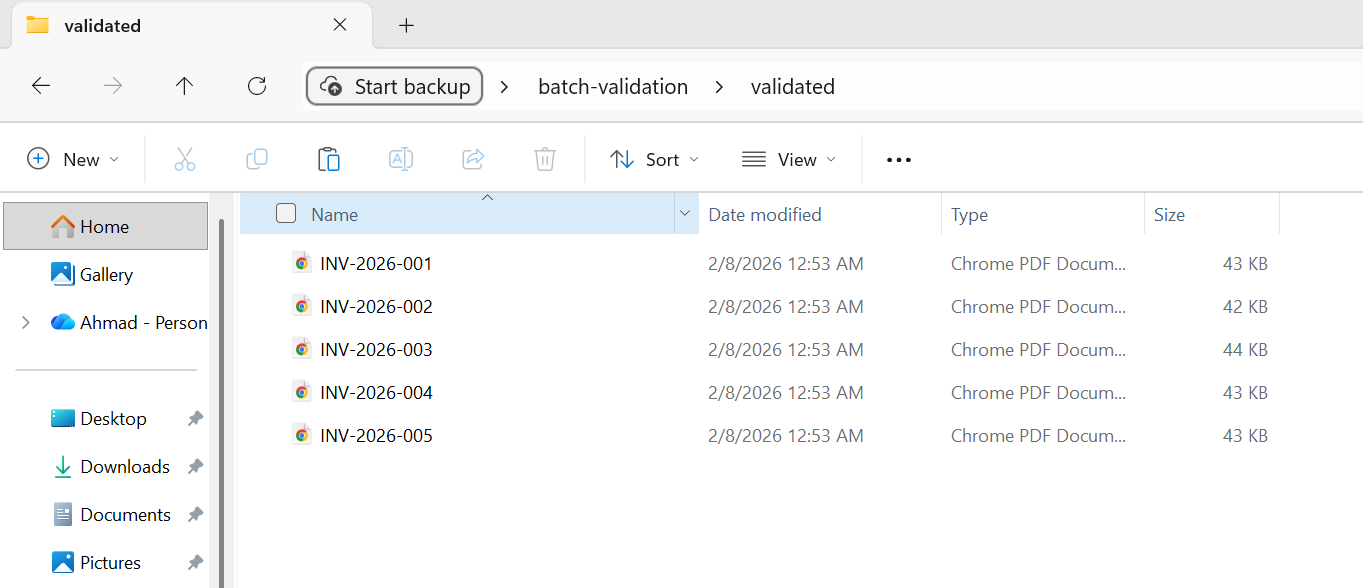
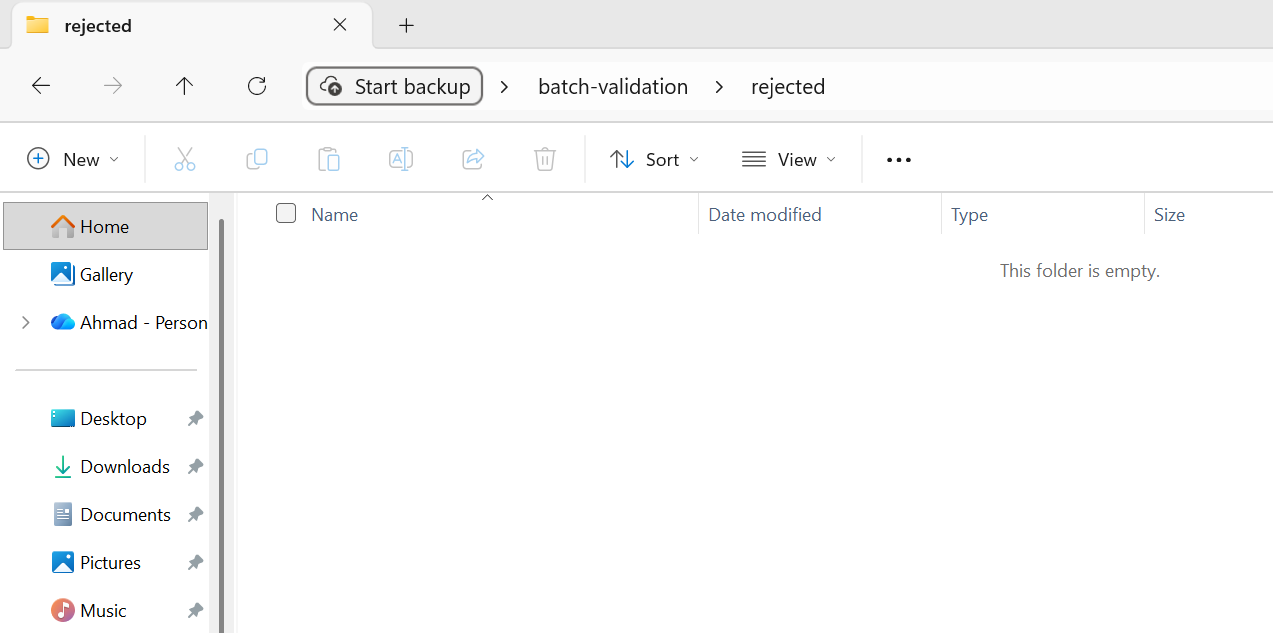
全部 5 個檔案均經過驗證並移至已驗證資料夾。
預處理驗證應該很快——你只是檢查明顯損壞的輸入,而不是進行完整的處理。 後處理驗證可以更徹底,特別是對於合規性轉換,輸出必須符合特定標準(PDF/A、PDF/UA)。 任何未通過後處理驗證的文件都應該標記為需要人工審核,而不是默默接受。
非同步和平行處理模式
IronPDF同時支援 Parallel.ForEach(基於執行緒的平行)和 async/await(非同步 I/O)。 了解何時使用每種方法以及如何有效地將它們結合起來,是最大限度地提高吞吐量的關鍵。
任務並行庫集成
Parallel.ForEach 是 CPU 密集型批次作業最簡單、最有效的方法。 IronPDF 的渲染引擎是 CPU 密集的(HTML 解析、CSS 佈局、影像光柵化),並且 Parallel.ForEach 會自動將這些工作分配到所有可用的核心上。
:path=/static-assets/pdf/content-code-examples/tutorials/batch-pdf-processing-csharp/batch-processing-tpl.csusing IronPdf;
using System;
using System.IO;
using System.Threading.Tasks;
using System.Threading;
using System.Diagnostics;
string inputFolder = "input/";
string outputFolder = "output/";
Directory.CreateDirectory(outputFolder);
string[] htmlFiles = Directory.GetFiles(inputFolder, "*.html");
var renderer = new ChromePdfRenderer();
Console.WriteLine($"Processing {htmlFiles.Length} files with {Environment.ProcessorCount} CPU cores");
int processed = 0;
var stopwatch = Stopwatch.StartNew();
// Configure parallelism based on system resources
// Rule of thumb: ProcessorCount / 2 for memory-intensive operations
var options = new ParallelOptions
{
MaxDegreeOfParallelism = Math.Max(1, Environment.ProcessorCount / 2)
};
Console.WriteLine($"Max parallelism: {options.MaxDegreeOfParallelism}");
// Use Parallel.ForEach for CPU-bound batch operations
Parallel.ForEach(htmlFiles, options, htmlFile =>
{
string fileName = Path.GetFileNameWithoutExtension(htmlFile);
string outputPath = Path.Combine(outputFolder, $"{fileName}.pdf");
try
{
// Render HTML to PDF
using var pdf = renderer.RenderHtmlFileAsPdf(htmlFile);
pdf.SaveAs(outputPath);
int current = Interlocked.Increment(ref processed);
// Progress reporting every 10 files
if (current % 10 == 0)
{
double elapsed = stopwatch.Elapsed.TotalSeconds;
double rate = current / elapsed;
double remaining = (htmlFiles.Length - current) / rate;
Console.WriteLine($"Progress: {current}/{htmlFiles.Length} ({rate:F1} files/sec, ~{remaining:F0}s remaining)");
}
}
catch (Exception ex)
{
Console.WriteLine($"[ERROR] {fileName}: {ex.Message}");
}
});
stopwatch.Stop();
double totalRate = processed / stopwatch.Elapsed.TotalSeconds;
Console.WriteLine($"\nComplete:");
Console.WriteLine($" Files processed: {processed}/{htmlFiles.Length}");
Console.WriteLine($" Total time: {stopwatch.Elapsed.TotalSeconds:F1}s");
Console.WriteLine($" Average rate: {totalRate:F1} files/sec");
Console.WriteLine($" Time per file: {stopwatch.Elapsed.TotalMilliseconds / processed:F0}ms");
// Memory monitoring helper (call between chunks for large batches)
void CheckMemoryPressure()
{
const long memoryThreshold = 4L * 1024 * 1024 * 1024; // 4 GB
long currentMemory = GC.GetTotalMemory(forceFullCollection: false);
if (currentMemory > memoryThreshold)
{
Console.WriteLine($"Memory pressure detected ({currentMemory / 1024 / 1024}MB), forcing GC...");
GC.Collect();
GC.WaitForPendingFinalizers();
GC.Collect();
}
}Imports IronPdf
Imports System
Imports System.IO
Imports System.Threading.Tasks
Imports System.Threading
Imports System.Diagnostics
Module Program
Sub Main()
Dim inputFolder As String = "input/"
Dim outputFolder As String = "output/"
Directory.CreateDirectory(outputFolder)
Dim htmlFiles As String() = Directory.GetFiles(inputFolder, "*.html")
Dim renderer As New ChromePdfRenderer()
Console.WriteLine($"Processing {htmlFiles.Length} files with {Environment.ProcessorCount} CPU cores")
Dim processed As Integer = 0
Dim stopwatch As Stopwatch = Stopwatch.StartNew()
' Configure parallelism based on system resources
' Rule of thumb: ProcessorCount / 2 for memory-intensive operations
Dim options As New ParallelOptions With {
.MaxDegreeOfParallelism = Math.Max(1, Environment.ProcessorCount \ 2)
}
Console.WriteLine($"Max parallelism: {options.MaxDegreeOfParallelism}")
' Use Parallel.ForEach for CPU-bound batch operations
Parallel.ForEach(htmlFiles, options, Sub(htmlFile)
Dim fileName As String = Path.GetFileNameWithoutExtension(htmlFile)
Dim outputPath As String = Path.Combine(outputFolder, $"{fileName}.pdf")
Try
' Render HTML to PDF
Using pdf = renderer.RenderHtmlFileAsPdf(htmlFile)
pdf.SaveAs(outputPath)
End Using
Dim current As Integer = Interlocked.Increment(processed)
' Progress reporting every 10 files
If current Mod 10 = 0 Then
Dim elapsed As Double = stopwatch.Elapsed.TotalSeconds
Dim rate As Double = current / elapsed
Dim remaining As Double = (htmlFiles.Length - current) / rate
Console.WriteLine($"Progress: {current}/{htmlFiles.Length} ({rate:F1} files/sec, ~{remaining:F0}s remaining)")
End If
Catch ex As Exception
Console.WriteLine($"[ERROR] {fileName}: {ex.Message}")
End Try
End Sub)
stopwatch.Stop()
Dim totalRate As Double = processed / stopwatch.Elapsed.TotalSeconds
Console.WriteLine(vbCrLf & "Complete:")
Console.WriteLine($" Files processed: {processed}/{htmlFiles.Length}")
Console.WriteLine($" Total time: {stopwatch.Elapsed.TotalSeconds:F1}s")
Console.WriteLine($" Average rate: {totalRate:F1} files/sec")
Console.WriteLine($" Time per file: {stopwatch.Elapsed.TotalMilliseconds / processed:F0}ms")
' Memory monitoring helper (call between chunks for large batches)
CheckMemoryPressure()
End Sub
Sub CheckMemoryPressure()
Const memoryThreshold As Long = 4L * 1024 * 1024 * 1024 ' 4 GB
Dim currentMemory As Long = GC.GetTotalMemory(forceFullCollection:=False)
If currentMemory > memoryThreshold Then
Console.WriteLine($"Memory pressure detected ({currentMemory \ 1024 \ 1024}MB), forcing GC...")
GC.Collect()
GC.WaitForPendingFinalizers()
GC.Collect()
End If
End Sub
End ModuleMaxDegreeOfParallelism 選項至關重要。 如果沒有設置,TPL 會嘗試使用所有可用核心,如果每次渲染都佔用大量資源,則可能會導致記憶體不足。請根據系統可用記憶體除以每次渲染的典型記憶體消耗量(通常複雜 HTML 的並發渲染每次消耗 100-300 MB)來設定此值。
控制並發(SemaphoreSlim)
當您需要比 Parallel.ForEach 提供的更精細的並發控制時(例如,將非同步 I/O 與 CPU 密集型渲染混合時),SemaphoreSlim 可以明確控制同時運行的操作數量。 這個模式很簡單:創建一個具有所需並發限制(例如,4 個並發渲染)的 SemaphoreSlim,在每次渲染之前調用 WaitAsync,然後在 finally 塊之後調用 Release。 然後啟動所有任務,使用 Task.WhenAll。
當您的管道同時包含 I/O 密集型步驟(從 blob 儲存讀取檔案、將結果寫入資料庫)和 CPU 密集型步驟(渲染 PDF)時,這種模式尤其有用。 信號量限制了 CPU 密集型渲染並發,同時允許 I/O 密集型步驟繼續進行而不會受到限制。
非同步/等待最佳實踐
IronPDF提供了其渲染方法的非同步變體,包括 RenderUrlAsPdfAsync 和 RenderHtmlFileAsPdfAsync。 這些非常適合 Web 應用程式(阻塞請求執行緒是不可接受的)以及將 PDF 渲染與非同步 I/O 操作混合的管道。
以下是一些重要的非同步批次最佳實踐:
不要使用 Task.Run 來包裝同步的IronPDF方法-請改用原生的非同步變體。 將同步方法包裝在 Task.Run 中會浪費執行緒池執行緒並增加開銷,而沒有任何好處。
不要在非同步任務中使用 .Result 或 .Wait() — 這會阻塞呼叫線程,並可能導致 UI 或ASP.NET上下文中的死鎖。 始終使用 await。
將 Task.WhenAll 呼叫批次處理,而不是一次性等待所有任務。 如果你有 10,000 個任務,並且同時對它們呼叫 Task.WhenAll,你將啟動 10,000 個並發操作。 請改用 .Chunk(10) 或類似方法,按組處理它們,並依序等待每一組處理完畢。
避免記憶體耗盡
記憶體耗盡是批次 PDF 處理中最常見的故障模式。 防禦性方法是在每次渲染之前使用 GC.GetTotalMemory() 監控記憶體使用情況,並在消耗超過閾值(例如 4 GB 或可用 RAM 的 80%)時觸發回收。 先呼叫 GC.Collect(),再呼叫 GC.WaitForPendingFinalizers(),然後呼叫第二個 GC.Collect(),以便在繼續之前盡可能回收記憶體。 這會增加一個短暫的停頓,但可以防止出現 OutOfMemoryException 錯誤導致整個批次在第 30,000 個文件處崩潰的災難性後果。
將此與 TPL 部分的 MaxDegreeOfParallelism 節流和內存管理部分的 using 處置模式結合起來,你就擁有了針對內存問題的三層防禦:限制並發、積極處置和使用安全閥進行監控。
批次作業的雲端部署
現代批量處理越來越多地在雲端運行,您可以擴展運算資源以匹配工作負載需求,並且只需為使用的資源付費。 IronPDF可在所有主流雲端平台上運作—以下是如何為每個平台建立批次管道。
Azure Functions 與 Durable Functions
Azure Durable Functions 為扇出/扇入模式提供了內建的編排功能,使其非常適合批次 PDF 處理。 協調器功能將工作分配到多個活動功能實例中,每個實例處理一部分文件。 您的編排器在一個扇出循環中呼叫 CallActivityAsync,每個活動函數實例化一個 ChromePdfRenderer,處理其檔案區塊,然後編排器收集結果。
Azure Functions 的關鍵注意事項:預設消耗計畫每次函數呼叫有 5 分鐘逾時時間,且記憶體有限。 對於大量處理,請使用高級版或專用版套餐,這些套餐支援更長的超時時間和更大的記憶體。 IronPDF需要完整的.NET執行時間環境(未精簡),因此請確保您的函數套用已配置為.NET 8+,並具有對應的執行時間識別碼。
AWS Lambda 與 Step Functions
AWS Step Functions 提供的編排功能與 Azure Durable Functions 類似。 狀態機中的每一步都會呼叫一個 Lambda 函數來處理一部分檔案。 您的 Lambda 處理程序接收一批 S3 物件鍵,將每個 PDF 載入 PdfDocument.FromFile,套用您的處理管道(壓縮、格式轉換等),並將結果寫回輸出 S3 儲存桶。
AWS Lambda 的最大執行時間為 15 分鐘,儲存空間有限(預設為 512 MB,可配置為高達 10 GB)。 對於大型批次作業,使用 Step Functions 將工作負載分塊,並在單獨的 Lambda 呼叫中處理每個區塊。 將中間結果儲存在 S3 中,而不是本機儲存中。
Kubernetes 作業排程
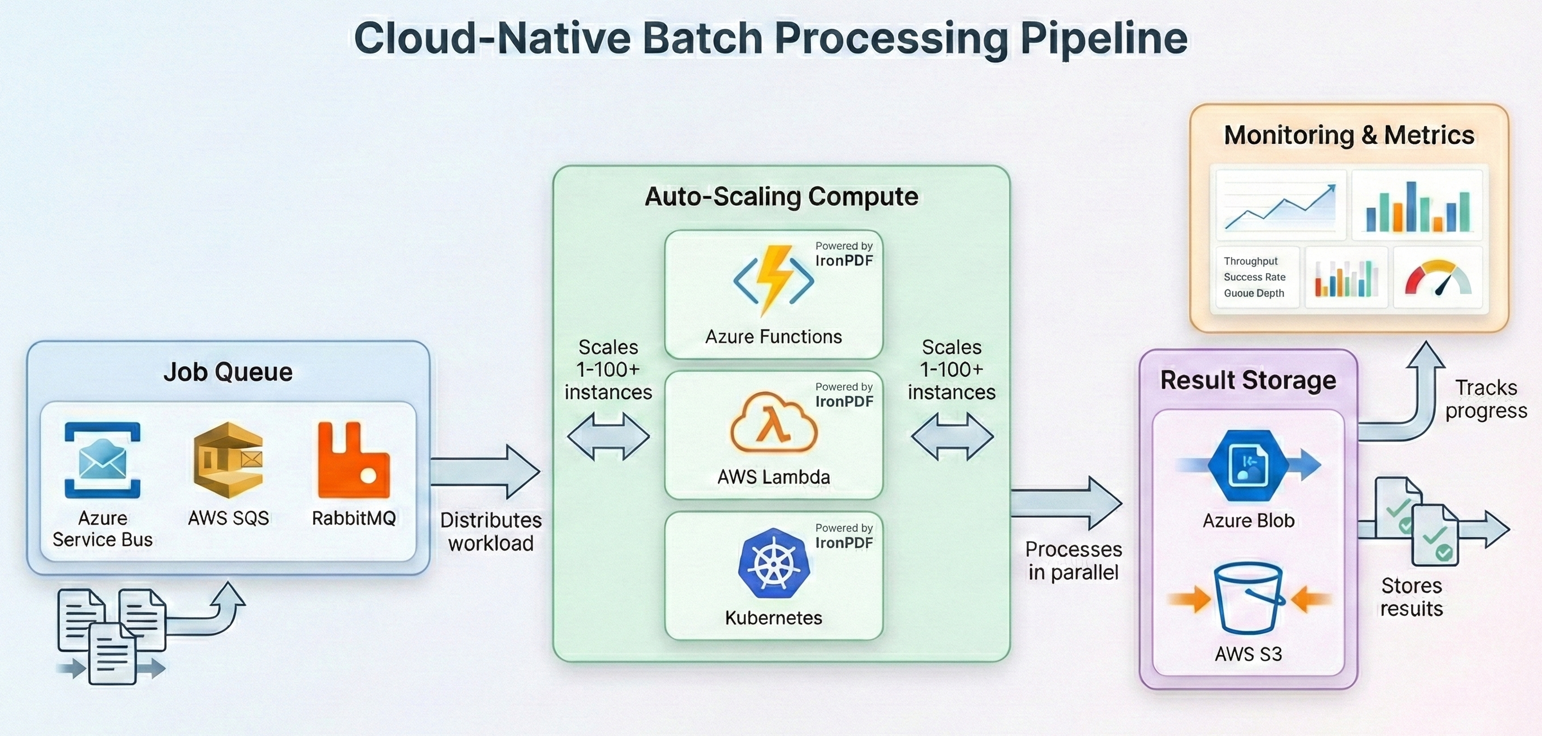
對於執行自己的 Kubernetes 叢集的組織而言,批次 PDF 處理與 Kubernetes 作業和 Cron 作業非常契合。 每個 pod 運行一個批次工作進程,該進程從佇列(Azure 服務總線、RabbitMQ 或 SQS)中提取文件,使用IronPDF處理它們,並將結果寫入物件儲存。 工作循環遵循前面章節中介紹的相同模式:從佇列中取出訊息,使用 ChromePdfRenderer.RenderHtmlAsPdf() 或 PdfDocument.FromFile() 處理文檔,上傳結果,並確認訊息。 將處理過程包裝在同一個 try-catch 中,並使用彈性模式中的重試邏輯,然後使用 SemaphoreSlim 來控制每個 pod 的並發性。
IronPDF提供官方 Docker 支持,並可在 Linux 容器上運行。 使用 IronPdf NuGet包,以及適用於容器作業系統的相應本機運行時包(例如,對於基於 Linux 的鏡像,使用 IronPdf.Linux)。 對於 Kubernetes,定義與 IronPDF 記憶體要求相符的資源請求和限制(通常每個 pod 為 512 MB 至 2 GB,取決於並發性)。 Horizontal Pod Autoscaler 可根據佇列深度擴展工作流程,且檢查點模式可確保在 Pod 被驅逐時不會遺失任何工作。
成本優化策略
如果資源分配不合理,雲端批量處理的成本可能會很高。 以下是一些影響最大的策略:
合理配置計算資源。 PDF渲染是 CPU 和記憶體密集型任務,而非 GPU 密集型任務。請使用計算最佳化型實例(Azure 上的 C 系列實例,AWS 上的 C 類型實例),而不是通用型或記憶體最佳化型實例。 你會獲得更好的單次渲染性價比。
對於可以容忍中斷的大量工作負載,請使用競價型/搶佔型執行個體。 大量 PDF 處理本質上是可恢復的(得益於檢查點機制),因此非常適合現貨定價,現貨定價通常比按需定價提供 60-90% 的折扣。
若時間允許,請在非尖峰時段處理。 許多雲端服務供應商在夜間和週末提供更低的價格或更高的可用資源。
儘早壓縮,一次儲存。將壓縮作為處理流程的一部分,而不是單獨執行一個步驟。從一開始就儲存壓縮後的 PDF 文件,可以降低整個存檔生命週期內的持續儲存成本。
對儲存進行分層。經常存取的已處理 PDF 文件應放在熱存儲中; 很少存取的歸檔 PDF 檔案應移至冷儲存層或歸檔層(Azure 冷儲存/歸檔,AWS S3 Glacier)。 僅此一項就能降低儲存成本 50% 至 80%。
真實管道案例
讓我們用一個完整的、生產級的批次管道將所有內容連結起來,以演示完整的工作流程:攝取 → 驗證 → 處理 → 歸檔 → 報告。
本範例處理 HTML 發票範本目錄,將其渲染為 PDF,壓縮輸出,轉換為 PDF/A-3b 格式以符合存檔要求,驗證結果,並在最後產生摘要報告。
使用上面批量轉換範例中的相同的 5 個 HTML 發票…
:path=/static-assets/pdf/content-code-examples/tutorials/batch-pdf-processing-csharp/batch-processing-full-pipeline.csusing IronPdf;
using System;
using System.Collections.Generic;
using System.IO;
using System.Linq;
using System.Threading.Tasks;
using System.Threading;
using System.Collections.Concurrent;
using System.Diagnostics;
using System.Text.Json;
// Configuration
var config = new PipelineConfig
{
InputFolder = "input/",
OutputFolder = "output/",
ArchiveFolder = "archive/",
ErrorFolder = "errors/",
CheckpointPath = "pipeline-checkpoint.json",
ReportPath = "pipeline-report.json",
MaxConcurrency = Math.Max(1, Environment.ProcessorCount / 2),
MaxRetries = 3,
JpegQuality = 70
};
// Initialize folders
Directory.CreateDirectory(config.OutputFolder);
Directory.CreateDirectory(config.ArchiveFolder);
Directory.CreateDirectory(config.ErrorFolder);
// Load checkpoint for resume capability
var checkpoint = LoadCheckpoint(config.CheckpointPath);
var results = new ConcurrentBag<ProcessingResult>();
var stopwatch = Stopwatch.StartNew();
// Get files to process
string[] allFiles = Directory.GetFiles(config.InputFolder, "*.html");
string[] filesToProcess = allFiles
.Where(f => !checkpoint.CompletedFiles.Contains(Path.GetFileName(f)))
.ToArray();
Console.WriteLine($"Pipeline starting:");
Console.WriteLine($" Total files: {allFiles.Length}");
Console.WriteLine($" Already processed: {checkpoint.CompletedFiles.Count}");
Console.WriteLine($" To process: {filesToProcess.Length}");
Console.WriteLine($" Concurrency: {config.MaxConcurrency}");
var renderer = new ChromePdfRenderer();
var checkpointLock = new object();
var options = new ParallelOptions
{
MaxDegreeOfParallelism = config.MaxConcurrency
};
Parallel.ForEach(filesToProcess, options, inputFile =>
{
var result = new ProcessingResult
{
FileName = Path.GetFileName(inputFile),
StartTime = DateTime.UtcNow
};
try
{
// Stage: Pre-validation
if (!ValidateInput(inputFile))
{
result.Status = "PreValidationFailed";
result.Error = "Input file failed validation";
results.Add(result);
return;
}
string baseName = Path.GetFileNameWithoutExtension(inputFile);
string tempPath = Path.Combine(config.OutputFolder, $"{baseName}.pdf");
string archivePath = Path.Combine(config.ArchiveFolder, $"{baseName}.pdf");
// Stage: Process with retry
PdfDocument pdf = null;
int attempt = 0;
bool success = false;
while (attempt < config.MaxRetries && !success)
{
attempt++;
try
{
pdf = renderer.RenderHtmlFileAsPdf(inputFile);
success = true;
}
catch (Exception ex) when (IsTransient(ex) && attempt < config.MaxRetries)
{
Thread.Sleep((int)Math.Pow(2, attempt) * 500);
}
}
if (!success || pdf == null)
{
result.Status = "ProcessingFailed";
result.Error = "Max retries exceeded";
results.Add(result);
return;
}
using (pdf)
{
// Stage: Compress and convert to PDF/A-3b for archival
pdf.SaveAsPdfA(tempPath, PdfAVersions.PdfA3b);
}
// Stage: Post-validation
if (!ValidateOutput(tempPath))
{
File.Move(tempPath, Path.Combine(config.ErrorFolder, $"{baseName}.pdf"), overwrite: true);
result.Status = "PostValidationFailed";
result.Error = "Output file failed validation";
results.Add(result);
return;
}
// Stage: Archive
File.Move(tempPath, archivePath, overwrite: true);
// Update checkpoint
lock (checkpointLock)
{
checkpoint.CompletedFiles.Add(result.FileName);
SaveCheckpoint(config.CheckpointPath, checkpoint);
}
result.Status = "Success";
result.OutputSize = new FileInfo(archivePath).Length;
result.EndTime = DateTime.UtcNow;
results.Add(result);
Console.WriteLine($"[OK] {baseName}.pdf ({result.OutputSize / 1024}KB)");
}
catch (Exception ex)
{
result.Status = "Error";
result.Error = ex.Message;
result.EndTime = DateTime.UtcNow;
results.Add(result);
Console.WriteLine($"[ERROR] {result.FileName}: {ex.Message}");
}
});
stopwatch.Stop();
// Generate report
var report = new PipelineReport
{
TotalFiles = allFiles.Length,
ProcessedThisRun = results.Count,
Succeeded = results.Count(r => r.Status == "Success"),
PreValidationFailed = results.Count(r => r.Status == "PreValidationFailed"),
ProcessingFailed = results.Count(r => r.Status == "ProcessingFailed"),
PostValidationFailed = results.Count(r => r.Status == "PostValidationFailed"),
Errors = results.Count(r => r.Status == "Error"),
TotalDuration = stopwatch.Elapsed,
AverageFileTime = results.Any() ? TimeSpan.FromMilliseconds(stopwatch.Elapsed.TotalMilliseconds / results.Count) : TimeSpan.Zero
};
string reportJson = JsonSerializer.Serialize(report, new JsonSerializerOptions { WriteIndented = true });
File.WriteAllText(config.ReportPath, reportJson);
Console.WriteLine($"\n=== Pipeline Complete ===");
Console.WriteLine($"Succeeded: {report.Succeeded}");
Console.WriteLine($"Failed: {report.PreValidationFailed + report.ProcessingFailed + report.PostValidationFailed + report.Errors}");
Console.WriteLine($"Duration: {report.TotalDuration.TotalMinutes:F1} minutes");
Console.WriteLine($"Report: {config.ReportPath}");
// Helper methods
bool ValidateInput(string path)
{
try
{
var info = new FileInfo(path);
if (!info.Exists || info.Length == 0 || info.Length > 50 * 1024 * 1024) return false;
string content = File.ReadAllText(path);
return content.Contains("<html", StringComparison.OrdinalIgnoreCase) ||
content.Contains("<!DOCTYPE", StringComparison.OrdinalIgnoreCase);
}
catch { return false; }
}
bool ValidateOutput(string path)
{
try
{
using var pdf = PdfDocument.FromFile(path);
return pdf.PageCount > 0 && new FileInfo(path).Length > 1024;
}
catch { return false; }
}
bool IsTransient(Exception ex) =>
ex is IOException || ex is OutOfMemoryException ||
ex.Message.Contains("timeout", StringComparison.OrdinalIgnoreCase);
Checkpoint LoadCheckpoint(string path)
{
if (File.Exists(path))
{
string json = File.ReadAllText(path);
return JsonSerializer.Deserialize<Checkpoint>(json) ?? new Checkpoint();
}
return new Checkpoint();
}
void SaveCheckpoint(string path, Checkpoint cp) =>
File.WriteAllText(path, JsonSerializer.Serialize(cp));
ata classes
s PipelineConfig
public string InputFolder { get; set; } = "";
public string OutputFolder { get; set; } = "";
public string ArchiveFolder { get; set; } = "";
public string ErrorFolder { get; set; } = "";
public string CheckpointPath { get; set; } = "";
public string ReportPath { get; set; } = "";
public int MaxConcurrency { get; set; }
public int MaxRetries { get; set; }
public int JpegQuality { get; set; }
s Checkpoint
public HashSet<string> CompletedFiles { get; set; } = new();
s ProcessingResult
public string FileName { get; set; } = "";
public string Status { get; set; } = "";
public string Error { get; set; } = "";
public long OutputSize { get; set; }
public DateTime StartTime { get; set; }
public DateTime EndTime { get; set; }
s PipelineReport
public int TotalFiles { get; set; }
public int ProcessedThisRun { get; set; }
public int Succeeded { get; set; }
public int PreValidationFailed { get; set; }
public int ProcessingFailed { get; set; }
public int PostValidationFailed { get; set; }
public int Errors { get; set; }
public TimeSpan TotalDuration { get; set; }
public TimeSpan AverageFileTime { get; set; }Imports IronPdf
Imports System
Imports System.Collections.Generic
Imports System.IO
Imports System.Linq
Imports System.Threading.Tasks
Imports System.Threading
Imports System.Collections.Concurrent
Imports System.Diagnostics
Imports System.Text.Json
' Configuration
Dim config As New PipelineConfig With {
.InputFolder = "input/",
.OutputFolder = "output/",
.ArchiveFolder = "archive/",
.ErrorFolder = "errors/",
.CheckpointPath = "pipeline-checkpoint.json",
.ReportPath = "pipeline-report.json",
.MaxConcurrency = Math.Max(1, Environment.ProcessorCount \ 2),
.MaxRetries = 3,
.JpegQuality = 70
}
' Initialize folders
Directory.CreateDirectory(config.OutputFolder)
Directory.CreateDirectory(config.ArchiveFolder)
Directory.CreateDirectory(config.ErrorFolder)
' Load checkpoint for resume capability
Dim checkpoint As Checkpoint = LoadCheckpoint(config.CheckpointPath)
Dim results As New ConcurrentBag(Of ProcessingResult)()
Dim stopwatch As Stopwatch = Stopwatch.StartNew()
' Get files to process
Dim allFiles As String() = Directory.GetFiles(config.InputFolder, "*.html")
Dim filesToProcess As String() = allFiles.
Where(Function(f) Not checkpoint.CompletedFiles.Contains(Path.GetFileName(f))).
ToArray()
Console.WriteLine("Pipeline starting:")
Console.WriteLine($" Total files: {allFiles.Length}")
Console.WriteLine($" Already processed: {checkpoint.CompletedFiles.Count}")
Console.WriteLine($" To process: {filesToProcess.Length}")
Console.WriteLine($" Concurrency: {config.MaxConcurrency}")
Dim renderer As New ChromePdfRenderer()
Dim checkpointLock As New Object()
Dim options As New ParallelOptions With {
.MaxDegreeOfParallelism = config.MaxConcurrency
}
Parallel.ForEach(filesToProcess, options, Sub(inputFile)
Dim result As New ProcessingResult With {
.FileName = Path.GetFileName(inputFile),
.StartTime = DateTime.UtcNow
}
Try
' Stage: Pre-validation
If Not ValidateInput(inputFile) Then
result.Status = "PreValidationFailed"
result.Error = "Input file failed validation"
results.Add(result)
Return
End If
Dim baseName As String = Path.GetFileNameWithoutExtension(inputFile)
Dim tempPath As String = Path.Combine(config.OutputFolder, $"{baseName}.pdf")
Dim archivePath As String = Path.Combine(config.ArchiveFolder, $"{baseName}.pdf")
' Stage: Process with retry
Dim pdf As PdfDocument = Nothing
Dim attempt As Integer = 0
Dim success As Boolean = False
While attempt < config.MaxRetries AndAlso Not success
attempt += 1
Try
pdf = renderer.RenderHtmlFileAsPdf(inputFile)
success = True
Catch ex As Exception When IsTransient(ex) AndAlso attempt < config.MaxRetries
Thread.Sleep(CInt(Math.Pow(2, attempt)) * 500)
End Try
End While
If Not success OrElse pdf Is Nothing Then
result.Status = "ProcessingFailed"
result.Error = "Max retries exceeded"
results.Add(result)
Return
End If
Using pdf
' Stage: Compress and convert to PDF/A-3b for archival
pdf.SaveAsPdfA(tempPath, PdfAVersions.PdfA3b)
End Using
' Stage: Post-validation
If Not ValidateOutput(tempPath) Then
File.Move(tempPath, Path.Combine(config.ErrorFolder, $"{baseName}.pdf"), overwrite:=True)
result.Status = "PostValidationFailed"
result.Error = "Output file failed validation"
results.Add(result)
Return
End If
' Stage: Archive
File.Move(tempPath, archivePath, overwrite:=True)
' Update checkpoint
SyncLock checkpointLock
checkpoint.CompletedFiles.Add(result.FileName)
SaveCheckpoint(config.CheckpointPath, checkpoint)
End SyncLock
result.Status = "Success"
result.OutputSize = New FileInfo(archivePath).Length
result.EndTime = DateTime.UtcNow
results.Add(result)
Console.WriteLine($"[OK] {baseName}.pdf ({result.OutputSize \ 1024}KB)")
Catch ex As Exception
result.Status = "Error"
result.Error = ex.Message
result.EndTime = DateTime.UtcNow
results.Add(result)
Console.WriteLine($"[ERROR] {result.FileName}: {ex.Message}")
End Try
End Sub)
stopwatch.Stop()
' Generate report
Dim report As New PipelineReport With {
.TotalFiles = allFiles.Length,
.ProcessedThisRun = results.Count,
.Succeeded = results.Count(Function(r) r.Status = "Success"),
.PreValidationFailed = results.Count(Function(r) r.Status = "PreValidationFailed"),
.ProcessingFailed = results.Count(Function(r) r.Status = "ProcessingFailed"),
.PostValidationFailed = results.Count(Function(r) r.Status = "PostValidationFailed"),
.Errors = results.Count(Function(r) r.Status = "Error"),
.TotalDuration = stopwatch.Elapsed,
.AverageFileTime = If(results.Any(), TimeSpan.FromMilliseconds(stopwatch.Elapsed.TotalMilliseconds / results.Count), TimeSpan.Zero)
}
Dim reportJson As String = JsonSerializer.Serialize(report, New JsonSerializerOptions With {.WriteIndented = True})
File.WriteAllText(config.ReportPath, reportJson)
Console.WriteLine(vbCrLf & "=== Pipeline Complete ===")
Console.WriteLine($"Succeeded: {report.Succeeded}")
Console.WriteLine($"Failed: {report.PreValidationFailed + report.ProcessingFailed + report.PostValidationFailed + report.Errors}")
Console.WriteLine($"Duration: {report.TotalDuration.TotalMinutes:F1} minutes")
Console.WriteLine($"Report: {config.ReportPath}")
' Helper methods
Function ValidateInput(path As String) As Boolean
Try
Dim info As New FileInfo(path)
If Not info.Exists OrElse info.Length = 0 OrElse info.Length > 50 * 1024 * 1024 Then Return False
Dim content As String = File.ReadAllText(path)
Return content.Contains("<html", StringComparison.OrdinalIgnoreCase) OrElse
content.Contains("<!DOCTYPE", StringComparison.OrdinalIgnoreCase)
Catch
Return False
End Try
End Function
Function ValidateOutput(path As String) As Boolean
Try
Using pdf = PdfDocument.FromFile(path)
Return pdf.PageCount > 0 AndAlso New FileInfo(path).Length > 1024
End Using
Catch
Return False
End Try
End Function
Function IsTransient(ex As Exception) As Boolean
Return TypeOf ex Is IOException OrElse TypeOf ex Is OutOfMemoryException OrElse
ex.Message.Contains("timeout", StringComparison.OrdinalIgnoreCase)
End Function
Function LoadCheckpoint(path As String) As Checkpoint
If File.Exists(path) Then
Dim json As String = File.ReadAllText(path)
Return JsonSerializer.Deserialize(Of Checkpoint)(json) OrElse New Checkpoint()
End If
Return New Checkpoint()
End Function
Sub SaveCheckpoint(path As String, cp As Checkpoint)
File.WriteAllText(path, JsonSerializer.Serialize(cp))
End Sub
' Data classes
Class PipelineConfig
Public Property InputFolder As String = ""
Public Property OutputFolder As String = ""
Public Property ArchiveFolder As String = ""
Public Property ErrorFolder As String = ""
Public Property CheckpointPath As String = ""
Public Property ReportPath As String = ""
Public Property MaxConcurrency As Integer
Public Property MaxRetries As Integer
Public Property JpegQuality As Integer
End Class
Class Checkpoint
Public Property CompletedFiles As HashSet(Of String) = New HashSet(Of String)()
End Class
Class ProcessingResult
Public Property FileName As String = ""
Public Property Status As String = ""
Public Property Error As String = ""
Public Property OutputSize As Long
Public Property StartTime As DateTime
Public Property EndTime As DateTime
End Class
Class PipelineReport
Public Property TotalFiles As Integer
Public Property ProcessedThisRun As Integer
Public Property Succeeded As Integer
Public Property PreValidationFailed As Integer
Public Property ProcessingFailed As Integer
Public Property PostValidationFailed As Integer
Public Property Errors As Integer
Public Property TotalDuration As TimeSpan
Public Property AverageFileTime As TimeSpan
End Class輸出
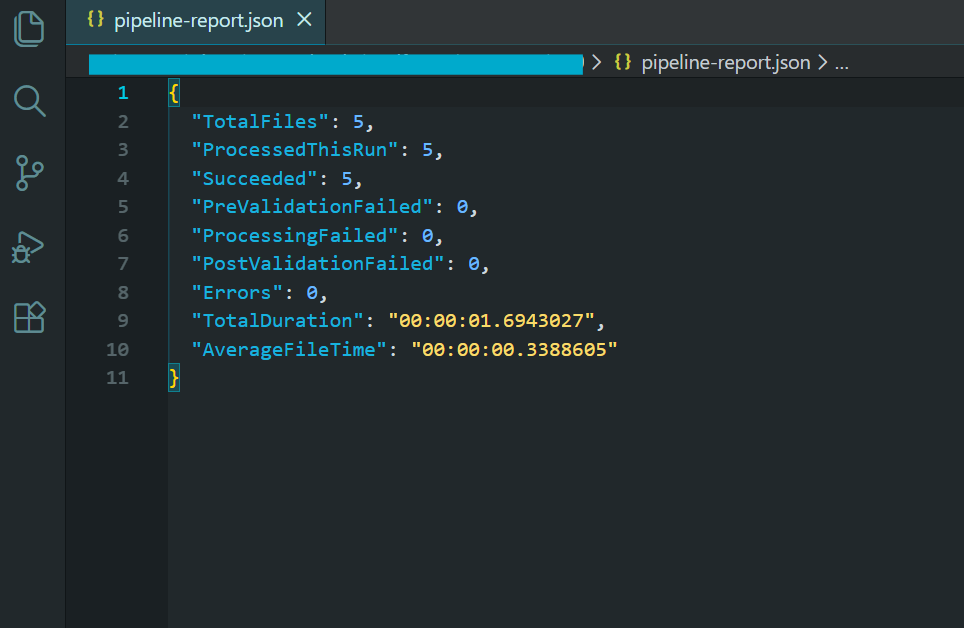
流水線報告顯示批量處理結果。
該管道包含了我們在本教程中介紹的所有模式:具有受控並發性的並行處理、具有失敗時跳過的逐文件錯誤處理、瞬態錯誤的重試邏輯、用於崩潰後恢復的檢查點、預處理和後處理驗證、具有顯式釋放的內存管理以及具有最終摘要報告的全面日誌記錄。
此管道的輸出是一個包含壓縮的、符合 PDF/A-3b 標準的歸檔檔案的目錄、一個用於復原功能的檢查點檔案、一個用於記錄無法處理的檔案的錯誤日誌,以及一個包含處理統計資訊的摘要報告。 這是任何嚴肅的批量 PDF 處理工作負載所需的模式。
後續步驟
大規模批次PDF處理不僅僅是在循環中調用渲染方法。它需要圍繞並發性、記憶體管理、錯誤處理和部署進行周密的架構設計,以及合適的函式庫來實現這一切。 IronPDF提供線程安全的渲染引擎、非同步 API 介面、壓縮工具和格式轉換功能,這些功能構成了任何.NET批量 PDF 管道的基礎。
無論您是建立一個每晚產生數千個 PDF 的報表產生器,還是將舊文件存檔遷移到符合 PDF/A 標準,亦或是建立一個雲端原生處理服務,本教學中的模式都能為您提供一個經過驗證的框架來建構。 透過控制並發性進行平行處理,可以維持較高的吞吐量。 當單一文件出現問題時,跳過失敗和重試邏輯可確保管道繼續運作。 檢查點機制可確保您永遠不會失去進度。 雲端部署模式可讓您擴展運算能力以符合您的工作負載。
準備開始建造了嗎? 下載IronPDF並免費試用-同一個函式庫可以處理從單一檔案渲染到數十萬個檔案批次管道的一切操作。 如果您對特定用例的擴展、部署或架構有任何疑問,請聯絡我們的工程支援團隊—我們已經協助團隊建立了各種規模的批次管道,我們很樂意協助您正確完成這項工作。
常見問題解答
C# 中的批次 PDF 處理是什麼?
C# 中的批次 PDF 處理是指使用 C# 程式語言同時自動處理大量 PDF 文件。這種方法非常適合大規模自動化文件工作流程。
IronPDF 如何協助進行大量 PDF 處理?
IronPDF 提供強大的工具和函式庫,可簡化 C# 中的大量 PDF 處理。它支援並行處理,能夠有效率地同時處理數千個 PDF 文件。
使用 IronPDF 進行平行處理有哪些好處?
IronPDF 的平行處理功能可實現更快、更有效率的 PDF 批次處理。這種方法能夠最大限度地利用資源,並顯著縮短處理時間。
IronPDF 能否部署在雲端平台上進行大量處理?
是的,IronPDF 可以部署在 Azure Functions、AWS Lambda 和 Kubernetes 等雲端平台上,從而實現可擴展且靈活的批次 PDF 處理。
IronPDF在大量PDF處理過程中如何處理錯誤?
IronPDF 包含錯誤處理和重試邏輯功能,可確保大量 PDF 處理過程中的可靠性。這些功能有助於管理和糾正錯誤,無需人工幹預。
在 IronPDF 的 PDF 處理中,重試邏輯的功能是什麼?
IronPDF 中的重試邏輯確保臨時問題不會中斷批次處理工作流程。如果發生錯誤,IronPDF 可以自動嘗試重新處理失敗的文件。
為什麼 C# 是批量處理 PDF 的合適語言?
C# 是一種功能強大的程式語言,擁有豐富的程式庫和框架,使其成為批量 PDF 處理的理想選擇。它與 IronPDF 無縫集成,可實現高效的文件自動化。
IronPDF 如何確保 PDF 文件在處理過程中的安全性?
IronPDF 透過提供加密和密碼保護功能,支援安全地處理 PDF 文檔,確保處理後的文檔保持機密性和安全性。
大量PDF處理在企業中有哪些應用情境?
企業利用大量 PDF 處理功能來完成諸如大量產生發票、文件數位化和大規模報告分發等任務。 IronPDF 透過自動化和簡化文件工作流程,為這些應用情境提供了便利。
IronPDF 能否處理不同的 PDF 格式和版本?
是的,IronPDF 旨在處理各種 PDF 格式和版本,確保批次處理任務的相容性和靈活性。

還在捲動嗎?
想要快速證明? PM > Install-Package IronPdf
執行範例 觀看您的 HTML 變成 PDF。






 免費開始使用
 免費開始使用
 預約免費現場演示





 無需信用卡或創建帳戶










