



Updated September 2, 2026
HTML to PDF in C#: Benchmarking 7 .NET Libraries (2026)
Compare 7 C# HTML to PDF libraries on .NET 10 for cold start, throughput, memory and rendering accuracy. Only 3 rendered the test invoice correctly.
Read More

IronPDF offers simpler image addition with fewer lines of code and a perpetual license, while iText provides more granular control but requires more code and has complex licensing under AGPL for commercial use.
When working with PDF files in a .NET environment, adding images to documents is a common requirement for many applications. Whether you're generating invoices with company logos, creating reports with embedded charts, or producing custom documents with watermarks, the ability to embed images into PDFs is essential. Two popular PDF libraries in C# are IronPDF and iText. This article compares both libraries on their ability to add images to PDFs, considering ease of use, performance, licensing models, and advanced features like image compression and format support.
IronPDF: IronPDF simplifies adding images to PDFs with built-in support for both local and remote images from URLs. Its API provides control over position, width, and scaling. The library supports JPEG, PNG, GIF, SVG, and WebGL content. The stamping functionality provides methods for watermarking, letterheads, and overlaying images. The Chrome rendering engine ensures accurate rendering of complex graphics and responsive images.
iText: iText offers image embedding through its lower-level API. It provides a flexible interface handling JPG and PNG formats. However, you need more code for customization, especially when positioning images precisely or implementing transparency and rotation. The library requires manual handling of coordinate systems and scaling calculations. You often need to implement your own viewport controls for responsive sizing.
IronPDF: IronPDF handles large PDFs and images efficiently through improved memory management. Performance excels when generating or modifying PDFs with embedded graphics, suitable for server applications and Azure deployments. The library supports async operations and multithreading for batch processing. Performance optimization features include intelligent caching and parallel PDF generation.
iText: iText can be slower with large files or complex image operations. Memory usage becomes a concern when processing multiple images simultaneously or working with high-resolution images. However, it remains suitable for most applications when properly configured. The library lacks built-in compression optimization for batch operations.
IronPDF: IronPDF offers a perpetual license with transparent pricing through one-time purchase. This avoids recurring subscription costs. The library includes free trial options and complete technical support. License key management is straightforward with multiple configuration options.
iText: iText uses AGPL for open-source use, requiring source code release. Commercial licenses avoid this requirement. The licensing complexity can challenge commercial applications. Understanding license upgrades and extensions requires careful planning.
Install IronPDF in your C# or Visual Basic project via NuGet. The library supports multiple installation methods including Windows Installer and Docker deployment:
Once installed, you can start adding images using IronPDF's API reference. The library works seamlessly across Windows, Linux, and macOS platforms.
Adding images to PDFs with IronPDF requires minimal code using the stamping API.
using IronPdf;
using IronPdf.Editing;

class Program
{
    public static void Main(string[] args)
    {
        // Create a renderer to convert HTML to PDF
        ChromePdfRenderer renderer = new ChromePdfRenderer();

        // Render a basic PDF with some HTML content
        PdfDocument pdf = renderer.RenderHtmlAsPdf("<h1>Hello World</h1>");

        // Create an ImageStamper with the image URL
        ImageStamper stamper = new ImageStamper(new Uri("https://ironpdf.com/img/svgs/iron-pdf-logo.svg"));

        // Configure image position and size
        stamper.HorizontalAlignment = HorizontalAlignment.Center;
        stamper.VerticalAlignment = VerticalAlignment.Middle;
        stamper.Width = 200;  // Width in pixels
        stamper.Height = 100; // Height in pixels

        // Apply the stamp (image) to the PDF document
        pdf.ApplyStamp(stamper);

        // Save the modified PDF to a file
        pdf.SaveAs("output.pdf");
    }
}
IronPDF excels at adding watermarks and background images to existing PDFs. The library supports multiple stamping operations and custom positioning:
using IronPdf;
using IronPdf.Editing;

// Load an existing PDF
PdfDocument pdf = PdfDocument.FromFile("invoice.pdf");

// Create a watermark with transparency
ImageStamper watermark = new ImageStamper("watermark.png")
{
    Opacity = 30,  // 30% opacity for subtle watermarking
    Rotation = -45, // Diagonal watermark
    HorizontalAlignment = HorizontalAlignment.Center,
    VerticalAlignment = VerticalAlignment.Middle
};

// Apply watermark to all pages
pdf.ApplyStamp(watermark);

// Add a header logo
ImageStamper logo = new ImageStamper("company-logo.png")
{
    HorizontalOffset = Length.Millimeters(10),
    VerticalOffset = Length.Millimeters(10),
    Width = 150,
    Height = 50
};

pdf.ApplyStamp(logo, PageSelection.FirstPage);
pdf.SaveAs("watermarked-invoice.pdf");Imports IronPdf
Imports IronPdf.Editing
' Load an existing PDF
Dim pdf As PdfDocument = PdfDocument.FromFile("invoice.pdf")
' Create a watermark with transparency
Dim watermark As New ImageStamper("watermark.png") With {
.Opacity = 30, ' 30% opacity for subtle watermarking
.Rotation = -45, ' Diagonal watermark
.HorizontalAlignment = HorizontalAlignment.Center,
.VerticalAlignment = VerticalAlignment.Middle
}
' Apply watermark to all pages
pdf.ApplyStamp(watermark)
' Add a header logo
Dim logo As New ImageStamper("company-logo.png") With {
.HorizontalOffset = Length.Millimeters(10),
.VerticalOffset = Length.Millimeters(10),
.Width = 150,
.Height = 50
}
pdf.ApplyStamp(logo, PageSelection.FirstPage)
pdf.SaveAs("watermarked-invoice.pdf")You can also create complex layouts with multiple images:
// Add images from Base64 strings
string base64Image = Convert.ToBase64String(File.ReadAllBytes("signature.png"));
HtmlStamper signatureStamp = new HtmlStamper($"<img src='data:image/png;base64,{base64Image}'/>");
signatureStamp.HorizontalAlignment = HorizontalAlignment.Right;
signatureStamp.VerticalAlignment = VerticalAlignment.Bottom;
pdf.ApplyStamp(signatureStamp);Imports System
Imports System.IO
' Add images from Base64 strings
Dim base64Image As String = Convert.ToBase64String(File.ReadAllBytes("signature.png"))
Dim signatureStamp As New HtmlStamper($"<img src='data:image/png;base64,{base64Image}'/>")
signatureStamp.HorizontalAlignment = HorizontalAlignment.Right
signatureStamp.VerticalAlignment = VerticalAlignment.Bottom
pdf.ApplyStamp(signatureStamp)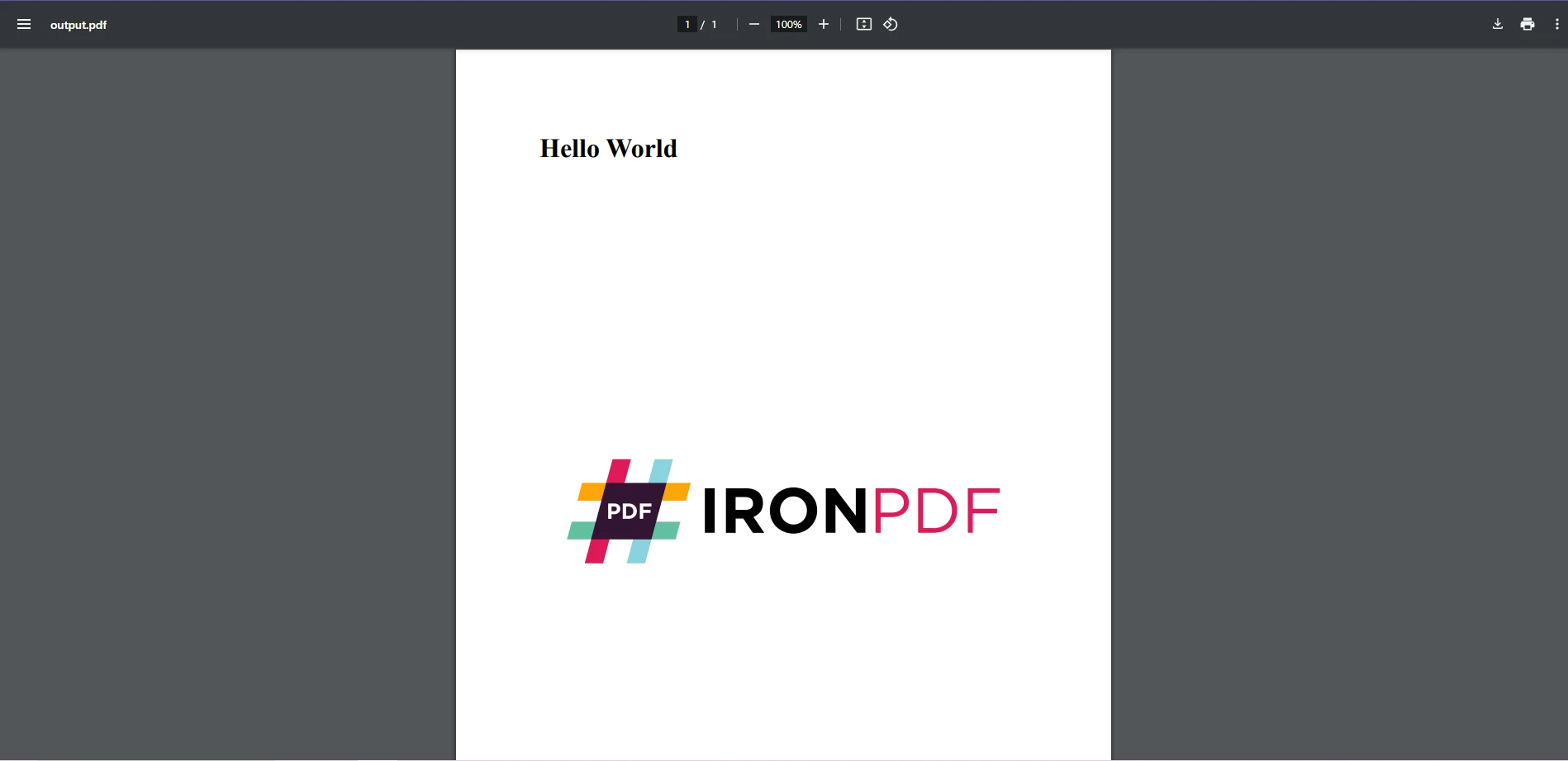
This example uses the ChromePdfRenderer class to render a new PDF from an HTML string. Using IronPDF's image stamping tool, you create an image from the provided URL and apply it to the PDF. This demonstrates adding images to your PDF page with minimal code. The rendering options provide full control over output quality.
IronPDF provides extensive customization for image placement. You specify page location by setting alignment and offset through the stamping tool's positioning feature. The library supports both absolute positioning with coordinates and relative positioning using alignment options. Advanced features include custom paper sizes and margin control for precise layouts.
Install iText via NuGet. Unlike IronPDF's complete platform support, iText has limited deployment options:
Once configured, proceed to add images using iText's document manipulation features. The library requires additional configuration for font management and UTF-8 support.
Here's how to insert an image using iText:
using iText.Kernel.Pdf;
using iText.Layout;
using iText.Layout.Element;
using iText.IO.Image;

class Program
{
    public static void Main(string[] args)
    {
        // Initialize PDF writer
        var pdfWriter = new PdfWriter("output.pdf");

        // Initialize PDF document
        var pdfDocument = new iText.Kernel.Pdf.PdfDocument(pdfWriter);

        // Initialize document
        var document = new Document(pdfDocument);

        // Create ImageData from image file
        ImageData imageData = ImageDataFactory.Create("iText.png");

        // Create an Image instance
        Image image = new Image(imageData);

        // Set fixed position for the image in the PDF
        image.SetFixedPosition(50, 100);  // x, y coordinates

        // Scale image to fit within specified dimensions
        image.ScaleToFit(200, 200);  // Width, Height

        // Add image to document
        document.Add(image);

        // Close the document
        document.Close();
    }
}Imports iText.Kernel.Pdf
Imports iText.Layout
Imports iText.Layout.Element
Imports iText.IO.Image
Module Program
Sub Main(args As String())
' Initialize PDF writer
Dim pdfWriter = New PdfWriter("output.pdf")
' Initialize PDF document
Dim pdfDocument = New iText.Kernel.Pdf.PdfDocument(pdfWriter)
' Initialize document
Dim document = New Document(pdfDocument)
' Create ImageData from image file
Dim imageData As ImageData = ImageDataFactory.Create("iText.png")
' Create an Image instance
Dim image As New Image(imageData)
' Set fixed position for the image in the PDF
image.SetFixedPosition(50, 100) ' x, y coordinates
' Scale image to fit within specified dimensions
image.ScaleToFit(200, 200) ' Width, Height
' Add image to document
document.Add(image)
' Close the document
document.Close()
End Sub
End ModuleFor complex scenarios like creating product catalogs or photo albums, you manage layout manually. IronPDF's table of contents feature and bookmark support can organize multi-page documents:
using iText.Kernel.Pdf;
using iText.Layout;
using iText.Layout.Element;
using iText.IO.Image;
using iText.Layout.Properties;

// Create a grid of images
var pdfWriter = new PdfWriter("catalog.pdf");
var pdfDocument = new PdfDocument(pdfWriter);
var document = new Document(pdfDocument);

// Add images in a grid layout
float xPosition = 50;
float yPosition = 750;
int imagesPerRow = 3;
int currentImage = 0;

string[] imageFiles = { "product1.jpg", "product2.jpg", "product3.jpg",
                       "product4.jpg", "product5.jpg", "product6.jpg" };

foreach (string imagePath in imageFiles)
{
    ImageData imageData = ImageDataFactory.Create(imagePath);
    Image image = new Image(imageData);

    // Calculate position
    int column = currentImage % imagesPerRow;
    int row = currentImage / imagesPerRow;

    float x = xPosition + (column * 180);
    float y = yPosition - (row * 250);

    image.SetFixedPosition(x, y);
    image.ScaleToFit(150, 200);

    document.Add(image);
    currentImage++;
}

document.Close();Imports iText.Kernel.Pdf
Imports iText.Layout
Imports iText.Layout.Element
Imports iText.IO.Image
Imports iText.Layout.Properties
' Create a grid of images
Dim pdfWriter As New PdfWriter("catalog.pdf")
Dim pdfDocument As New PdfDocument(pdfWriter)
Dim document As New Document(pdfDocument)
' Add images in a grid layout
Dim xPosition As Single = 50
Dim yPosition As Single = 750
Dim imagesPerRow As Integer = 3
Dim currentImage As Integer = 0
Dim imageFiles As String() = {"product1.jpg", "product2.jpg", "product3.jpg",
"product4.jpg", "product5.jpg", "product6.jpg"}
For Each imagePath As String In imageFiles
Dim imageData As ImageData = ImageDataFactory.Create(imagePath)
Dim image As New Image(imageData)
' Calculate position
Dim column As Integer = currentImage Mod imagesPerRow
Dim row As Integer = currentImage \ imagesPerRow
Dim x As Single = xPosition + (column * 180)
Dim y As Single = yPosition - (row * 250)
image.SetFixedPosition(x, y)
image.ScaleToFit(150, 200)
document.Add(image)
currentImage += 1
Next
document.Close()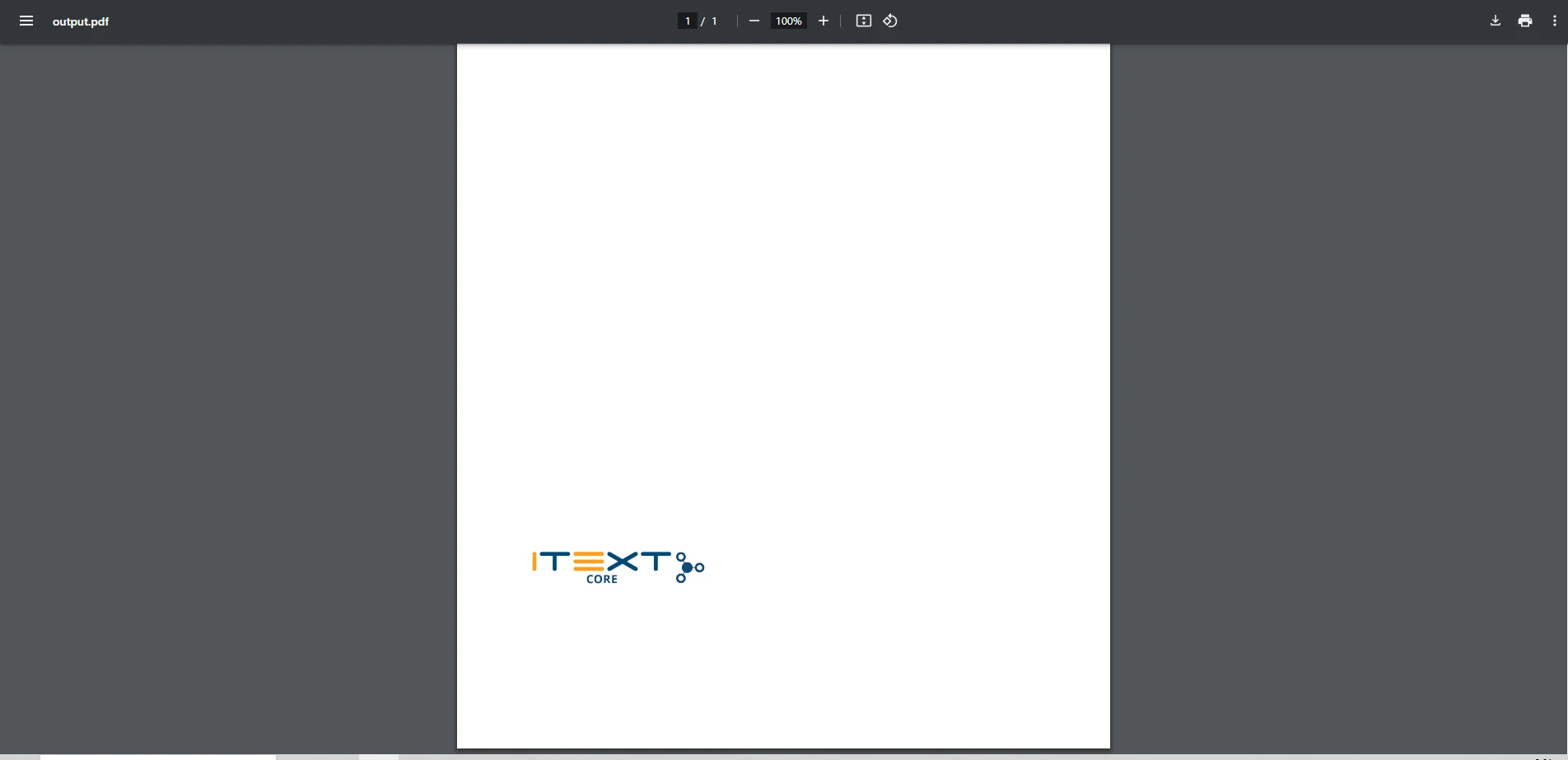
The image is added at coordinates (50, 100) and scaled to fit within 200x200 pixels. The PdfWriter creates the output file, enabling PDF writer functionality for handling images. For better organization, consider using page numbers and headers/footers.
iText provides control over positioning and size through manual coordinate calculations. You scale images while maintaining aspect ratio or stretch to specific dimensions. The SetFixedPosition method offers precise placement control, and you can manipulate alignment and rotation. However, it lacks IronPDF's viewport controls and responsive sizing options.
Both libraries handle image addition to PDFs with notable differences:
IronPDF supports complete image formats:
iText supports standard formats:
IronPDF provides built-in compression options balancing file size and quality. The library offers sanitization features and flattening capabilities:
// Configure compression when rendering
var renderer = new ChromePdfRenderer();
renderer.RenderingOptions.JpegQuality = 85; // 0-100 quality scale

// Compress existing PDFs with images
PdfDocument pdf = PdfDocument.FromFile("large-images.pdf");
pdf.CompressImages(60); // Compress to 60% quality
pdf.SaveAs("compressed.pdf");

// Additional optimization options
renderer.RenderingOptions.GrayScale = true; // Convert to grayscale
renderer.RenderingOptions.DPI = 150; // Reduce DPI for web viewingImports IronPdf
' Configure compression when rendering
Dim renderer As New ChromePdfRenderer()
renderer.RenderingOptions.JpegQuality = 85 ' 0-100 quality scale
' Compress existing PDFs with images
Dim pdf As PdfDocument = PdfDocument.FromFile("large-images.pdf")
pdf.CompressImages(60) ' Compress to 60% quality
pdf.SaveAs("compressed.pdf")
' Additional optimization options
renderer.RenderingOptions.GrayScale = True ' Convert to grayscale
renderer.RenderingOptions.DPI = 150 ' Reduce DPI for web viewingiText requires manual compression handling through image data manipulation, increasing implementation complexity for quality controls. You must implement your own grayscale conversion and DPI adjustments.
IronPDF provides reliable image extraction capabilities:
// Extract all images from a PDF
PdfDocument pdf = PdfDocument.FromFile("document.pdf");
var images = pdf.ExtractAllImages();

foreach (var image in images)
{
    // Save extracted images
    image.SaveAs($"extracted_image_{images.IndexOf(image)}.png");
}

// Extract images from specific pages
var pageImages = pdf.ExtractImagesFromPage(0); // First pageImports System
' Extract all images from a PDF
Dim pdf As PdfDocument = PdfDocument.FromFile("document.pdf")
Dim images = pdf.ExtractAllImages()
For Each image In images
' Save extracted images
image.SaveAs($"extracted_image_{images.IndexOf(image)}.png")
Next
' Extract images from specific pages
Dim pageImages = pdf.ExtractImagesFromPage(0) ' First page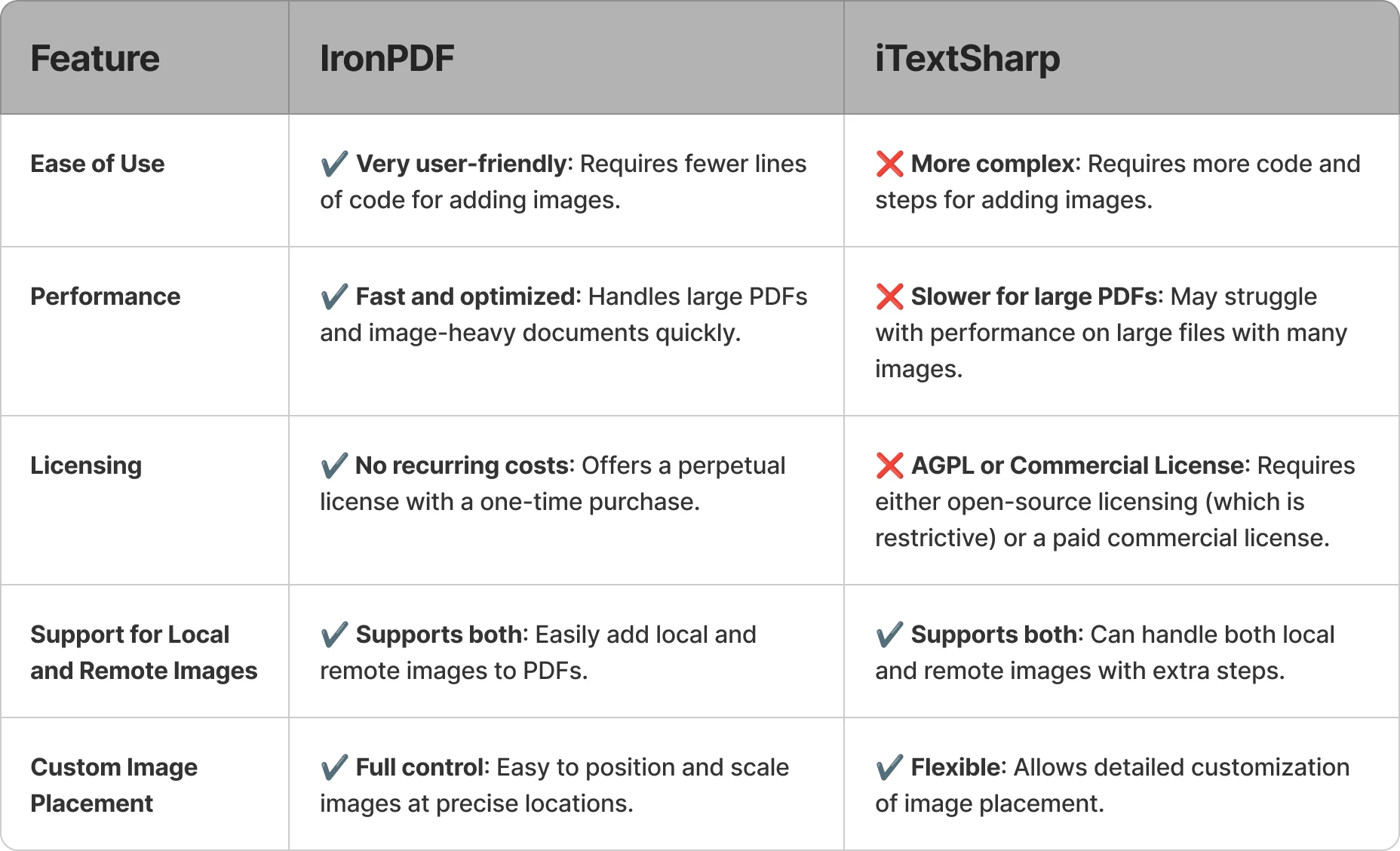
Both IronPDF and iText provide effective tools for adding images to PDFs in C#, each with distinct advantages. IronPDF excels with ease of use, performance, and licensing flexibility, making it ideal for handling complex PDFs and images with minimal code. It offers better scalability for large PDFs and provides one-time purchase licensing, avoiding recurring costs or complicated open-source restrictions.
The library's support for modern formats like SVG and WebP, combined with built-in compression capabilities and intuitive positioning APIs, suits enterprise applications requiring high-quality document generation. IronPDF's Chrome rendering engine ensures pixel-perfect output across all platforms.
iText suits open-source projects, though requiring more code for equivalent results and potentially facing performance issues with larger PDFs. Its lower-level API provides granular control but increases development complexity. The library lacks modern features like responsive CSS support and JavaScript rendering.
For enterprise applications, IronPDF's advantages include Docker support, AWS Lambda compatibility, and Azure Functions integration. The library also provides PDF/A compliance and PDF/UA accessibility for regulatory requirements.
Ready to simplify your PDF image handling? IronPDF delivers efficient image addition to PDFs with minimal code. Try IronPDF and experience simplified image integration in your C# projects. The implementation handles the complexity for you, saving time and improving your PDF generation workflow. Explore the complete feature set and join thousands of developers who've simplified their PDF operations.

Curtis Chau holds a Bachelor’s degree in Computer Science (Carleton University) and specializes in front-end development with expertise in Node.js, TypeScript, JavaScript, and React. Passionate about crafting intuitive and aesthetically pleasing user interfaces, Curtis enjoys working with modern frameworks and creating well-structured, visually appealing manuals.

IronPDF is a part of IRONSUITE
10 .NET API products for your office documents











When you need your PDF to look like HTML, fast.


