



Jak dodać spis treści w języku C

IronPDF pozwala dodac spis tresci do dokumentow PDF w C# poprzez ustawienie wlasciwosci TableOfContents, ktora automatycznie generuje hiperlinkowana nawigacje z naglowkow HTML (h1-h6) z opcjonalnymi numerami stron.
Szybki start: Dodawanie spisu treści do pliku PDF w języku C#
-
Install IronPDF with NuGet Package Manager
PM > Install-Package IronPdf -
Skopiuj i uruchom ten fragment kodu.
new ChromePdfRenderer { RenderingOptions = { CreateOutlineMaps = true, OutlineMapsFormat = TableOfContentsTypes.WithPageNumbers, FirstPageNumber = 1 } } .RenderHtmlFileAsPdf("myDocument.html") .SaveAs("withToc.pdf"); -
Wdrożenie do testowania w środowisku produkcyjnym
Rozpocznij używanie IronPDF w swoim projekcie już dziś z darmową wersją próbną

Minimalny proces (5 kroków)
- Pobierz bibliotekę C# do dodawania spisu treści
- Przygotuj kod HTML do konwersji do formatu PDF
- Ustaw właściwość TableOfContents, aby włączyć spis treści
- Wybierz, czy chcesz wyświetlać numery stron, czy nie
- Zoptymalizuj rozmieszczenie spisu treści
Czym jest spis treści w pliku PDF?
Spis treści (TOC) to mapa, która pomaga czytelnikom poruszać się po treści dokumentu PDF. Zazwyczaj pojawia się na początku i zawiera listę głównych sekcji lub rozdziałów pliku PDF wraz z numerami stron, na których zaczyna się każda sekcja. Dzięki temu czytelnicy mogą szybko znaleźć i przejść do konkretnych części dokumentu, co ułatwia im dostęp do potrzebnych informacji.
IronPDF oferuje funkcję tworzenia spisu treści z hiperłączami do elementów "h1", "h2", "h3", "h4", "h5" i "h6". Domyślny styl tego spisu treści nie będzie kolidował z innymi stylami w treści HTML. Podczas tworzenia nowych plików PDF za pomocą IronPDF funkcja spisu treści automatycznie skanuje nagłówki HTML i tworzy hierarchiczną strukturę nawigacyjną, która odzwierciedla organizację dokumentu.
Wygenerowany spis treści zawiera klikalne linki, które pozwalają czytelnikom przejść bezpośrednio do dowolnej sekcji, co sprawia, że jest on szczególnie przydatny w przypadku długich dokumentów, raportów i dokumentacji technicznej. Implementacja spisu treści przez IronPDF zachowuje strukturę semantyczną kodu HTML, zapewniając jednocześnie profesjonalne możliwości nawigacji w plikach PDF.
Jak dodać spis treści do pliku PDF?
Uzyc wlasciwosci TableOfContents, aby umozliwic tworzenie spisu tresci w wyjsciowym dokumencie PDF. Ta wlasciwosc moze byc przypisana jednej z trzech TableOfContentsTypes, ktore sa opisane ponizej:
- Brak: Nie tworzyć spisu treści
- Podstawowe: Utwórz spis treści bez numerów stron
- WithPageNumbers: Utwórz spis treści Z numerami stron
Ta funkcja wykorzystuje JavaScript do tworzenia spisu treści; Dlatego silnik musi mieć włączoną obsługę JavaScript. Podczas konwersji plików HTML do formatu PDF silnik JavaScript IronPDF przetwarza tagi nagłówkowe i generuje odpowiednią strukturę nawigacyjną. Aby lepiej zrozumieć tę funkcję, pobierz poniższy przykładowy plik HTML:
Jakiego kodu potrzebuję, aby wygenerować spis treści?
:path=/static-assets/pdf/content-code-examples/how-to/table-of-contents.csusing IronPdf;
// Instantiate Renderer
ChromePdfRenderer renderer = new ChromePdfRenderer();
// Configure render options
renderer.RenderingOptions = new ChromePdfRenderOptions
{
// Enable table of content feature
TableOfContents = TableOfContentsTypes.WithPageNumbers,
};
PdfDocument pdf = renderer.RenderHtmlFileAsPdf("tableOfContent.html");
pdf.SaveAs("tableOfContents.pdf");Imports IronPdf
' Instantiate Renderer
Private renderer As New ChromePdfRenderer()
' Configure render options
renderer.RenderingOptions = New ChromePdfRenderOptions With {.TableOfContents = TableOfContentsTypes.WithPageNumbers}
Dim pdf As PdfDocument = renderer.RenderHtmlFileAsPdf("tableOfContent.html")
pdf.SaveAs("tableOfContents.pdf")W bardziej zaawansowanych scenariuszach można połączyć spis treści z innymi opcjami renderowania, aby tworzyć kompleksowe dokumenty PDF:
using IronPdf;

// Create renderer with multiple options
ChromePdfRenderer renderer = new ChromePdfRenderer();
renderer.RenderingOptions = new ChromePdfRenderOptions
{
    // Enable table of contents with page numbers
    TableOfContents = TableOfContentsTypes.WithPageNumbers,

    // Add margins for better formatting
    MarginTop = 40,
    MarginBottom = 40,

    // Enable JavaScript for dynamic content
    EnableJavaScript = true,

    // Set paper orientation
    PaperOrientation = PdfPaperOrientation.Portrait,

    // Add first page number offset
    FirstPageNumber = 1
};

 // Convert HTML with multiple header levels
string htmlContent = @"
<h1>Introduction</h1>
<p>Welcome to our comprehensive guide...</p>

<h2>Chapter 1: Getting Started</h2>
<p>Let's begin with the basics...</p>

<h3>1.1 Prerequisites</h3>
<p>Before we start, ensure you have...</p>

<h2>Chapter 2: Advanced Topics</h2>
<p>Now let's explore more complex features...</p>
";

PdfDocument pdf = renderer.RenderHtmlAsPdf(htmlContent);
pdf.SaveAs("document-with-toc.pdf");
using IronPdf;
// Create renderer with multiple options
ChromePdfRenderer renderer = new ChromePdfRenderer();
renderer.RenderingOptions = new ChromePdfRenderOptions
{
// Enable table of contents with page numbers
TableOfContents = TableOfContentsTypes.WithPageNumbers,
// Add margins for better formatting
MarginTop = 40,
MarginBottom = 40,
// Enable JavaScript for dynamic content
EnableJavaScript = true,
// Set paper orientation
PaperOrientation = PdfPaperOrientation.Portrait,
// Add first page number offset
FirstPageNumber = 1
};
// Convert HTML with multiple header levels
string htmlContent = @"
<h1>Introduction</h1>
<p>Welcome to our comprehensive guide...</p>
<h2>Chapter 1: Getting Started</h2>
<p>Let's begin with the basics...</p>
<h3>1.1 Prerequisites</h3>
<p>Before we start, ensure you have...</p>
<h2>Chapter 2: Advanced Topics</h2>
<p>Now let's explore more complex features...</p>
";
PdfDocument pdf = renderer.RenderHtmlAsPdf(htmlContent);
pdf.SaveAs("document-with-toc.pdf");Imports IronPdf
' Create renderer with multiple options
Dim renderer As New ChromePdfRenderer()
renderer.RenderingOptions = New ChromePdfRenderOptions With {
' Enable table of contents with page numbers
.TableOfContents = TableOfContentsTypes.WithPageNumbers,
' Add margins for better formatting
.MarginTop = 40,
.MarginBottom = 40,
' Enable JavaScript for dynamic content
.EnableJavaScript = True,
' Set paper orientation
.PaperOrientation = PdfPaperOrientation.Portrait,
' Add first page number offset
.FirstPageNumber = 1
}
' Convert HTML with multiple header levels
Dim htmlContent As String = "
<h1>Introduction</h1>
<p>Welcome to our comprehensive guide...</p>
<h2>Chapter 1: Getting Started</h2>
<p>Let's begin with the basics...</p>
<h3>1.1 Prerequisites</h3>
<p>Before we start, ensure you have...</p>
<h2>Chapter 2: Advanced Topics</h2>
<p>Now let's explore more complex features...</p>
"
Dim pdf As PdfDocument = renderer.RenderHtmlAsPdf(htmlContent)
pdf.SaveAs("document-with-toc.pdf")Jak wygląda wygenerowany plik PDF?
Spis treści zostanie utworzony z hiperłączami do każdego z elementów "h1", "h2", "h3", "h4", "h5" i "h6". Zachowana jest hierarchiczna struktura nagłówków, a podnagłówki są odpowiednio wcięte pod sekcjami nadrzędnymi. Możesz również dodać numery stron do pliku PDF, aby ułatwić nawigację obok spisu treści.
Uzywajac metody Merge na dokumencie, zlamiesz hiperlinki spisu tresci.
W przypadku pracy z połączonymi lub podzielonymi plikami PDF należy wygenerować spis treści po zakończeniu montażu dokumentu, aby zapewnić dokładne odniesienia do stron i działające hiperłącza.
Gdzie w pliku PDF umieścić spis treści?
- Upewnij sie, ze dokument HTML ma poprawne znaczniki naglowkow (od
h1doh6). - Opcjonalnie wstaw element div w miejscu, w którym ma pojawić się spis treści. Jeśli poniższy element div nie zostanie podany, IronPDF wstawi spis treści na początku.
<div id="ironpdf-toc"></div><div id="ironpdf-toc"></div>- W opcjach renderowania wybierz renderowanie spisu treści z numerami stron lub bez nich.
W przypadku dokumentów o złożonym układzie należy połączyć spis treści z nagłówkami i stopkami, aby stworzyć profesjonalną strukturę dokumentu. Oto przykład prawidłowej struktury HTML zapewniającej optymalne generowanie spisu treści:
<!DOCTYPE html>
<html>
<head>
    <title>My Document</title>
</head>
<body>

    <div id="ironpdf-toc"></div>

    <div style="page-break-after: always;"></div>

    <h1>Executive Summary</h1>
    <p>This document provides...</p>

    <h2>Market Analysis</h2>
    <h3>Current Trends</h3>
    <p>The market shows...</p>

    <h3>Future Projections</h3>
    <p>We anticipate...</p>

    <h2>Recommendations</h2>
    <p>Based on our analysis...</p>
</body>
</html>
<!DOCTYPE html>
<html>
<head>
<title>My Document</title>
</head>
<body>
<div id="ironpdf-toc"></div>
<div style="page-break-after: always;"></div>
<h1>Executive Summary</h1>
<p>This document provides...</p>
<h2>Market Analysis</h2>
<h3>Current Trends</h3>
<p>The market shows...</p>
<h3>Future Projections</h3>
<p>We anticipate...</p>
<h2>Recommendations</h2>
<p>Based on our analysis...</p>
</body>
</html>Jak sformatować spis treści?
Spis treści można stylizować za pomocą CSS, kierując się różnymi selektorami CSS, które definiują styl spisu treści. Podczas zarządzania czcionkami w pliku PDF spis treści domyślnie dziedziczy ustawienia czcionek dokumentu, ale można go dostosować niezależnie.
Dodatkowo, modyfikacje stylizacji moga byc wykonane za pomoca wlasciwosci CustomCssUrl. Zacznij od pobrania pliku CSS zawierającego oryginalne style dla poniższego spisu treści.
Obecnie nie zaleca sie nadpisywania wlasciwosci page-break-before i page-break-after przy stylizacji spisu tresci, poniewaz to zlamie obliczenia numerow stron. Obecna implementacja zakłada, że spis treści znajduje się na stronach oddzielonych od pozostałej treści dokumentu.)}]
:path=/static-assets/pdf/content-code-examples/how-to/table-of-contents-overwrite-styling.csusing IronPdf;
using System.IO;
// Instantiate Renderer
ChromePdfRenderer renderer = new ChromePdfRenderer();
// Configure render options
renderer.RenderingOptions = new ChromePdfRenderOptions
{
// Enable table of content feature
TableOfContents = TableOfContentsTypes.WithPageNumbers,
CustomCssUrl = "./custom.css"
};
// Read HTML text from file
string html = File.ReadAllText("tableOfContent.html");
PdfDocument pdf = renderer.RenderHtmlAsPdf(html);
pdf.SaveAs("tableOfContents.pdf");Imports IronPdf
Imports System.IO
' Instantiate Renderer
Private renderer As New ChromePdfRenderer()
' Configure render options
renderer.RenderingOptions = New ChromePdfRenderOptions With {
.TableOfContents = TableOfContentsTypes.WithPageNumbers,
.CustomCssUrl = "./custom.css"
}
' Read HTML text from file
Dim html As String = File.ReadAllText("tableOfContent.html")
Dim pdf As PdfDocument = renderer.RenderHtmlAsPdf(html)
pdf.SaveAs("tableOfContents.pdf")W przypadku korzystania z niestandardowych rozmiarów papieru może być konieczne dostosowanie stylizacji spisu treści, aby uwzględnić różne wymiary stron i zapewnić prawidłowy przebieg tekstu oraz paginację.
Jak sformatować różne poziomy nagłówków?
Użyj selektora "#ironpdf-toc ul li.h1", aby zastosować inne style do nagłówka H1 w spisie treści. Zastąp "h1" przez "h2" aż do "h6", aby zmienić styl każdego z nagłówków.
 #ironpdf-toc ul li.h1 {
    font-style: italic;
    font-weight: bold;
 }
Jak zmienić rodzinę czcionek?
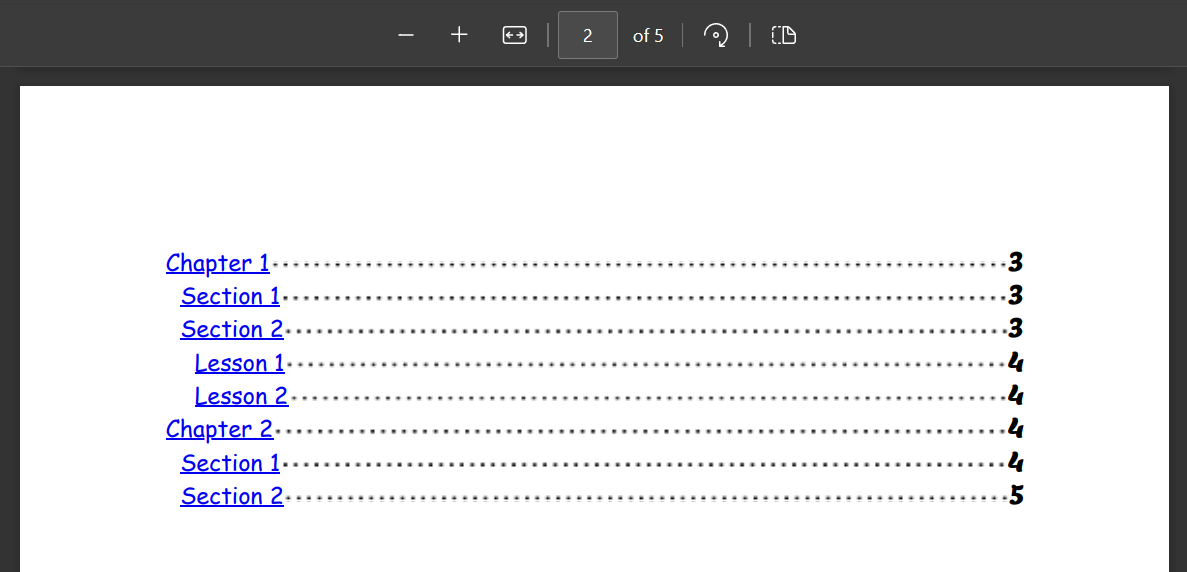
Za pomoca selektorow '#ironpdf-toc li .title' i '#ironpdf-toc li .page' mozliwe jest nadpisanie rodziny czcionek spisu tresci. W tym celu należy użyć czcionki kursywnej w tytule oraz atrybutu @font-face, aby zastosować niestandardową czcionkę "Lemon" zaprojektowaną przez Eduardo Tunni.
 #ironpdf-toc li .title {
    order: 1;
    font-family: cursive;
 }

 @font-face {
    font-family: 'lemon';
    src: url('Lemon-Regular.ttf')
 }

 #ironpdf-toc li .page {
    order: 3;
    font-family: 'lemon', sans-serif;
 }
Jak kontrolować wcięcia?
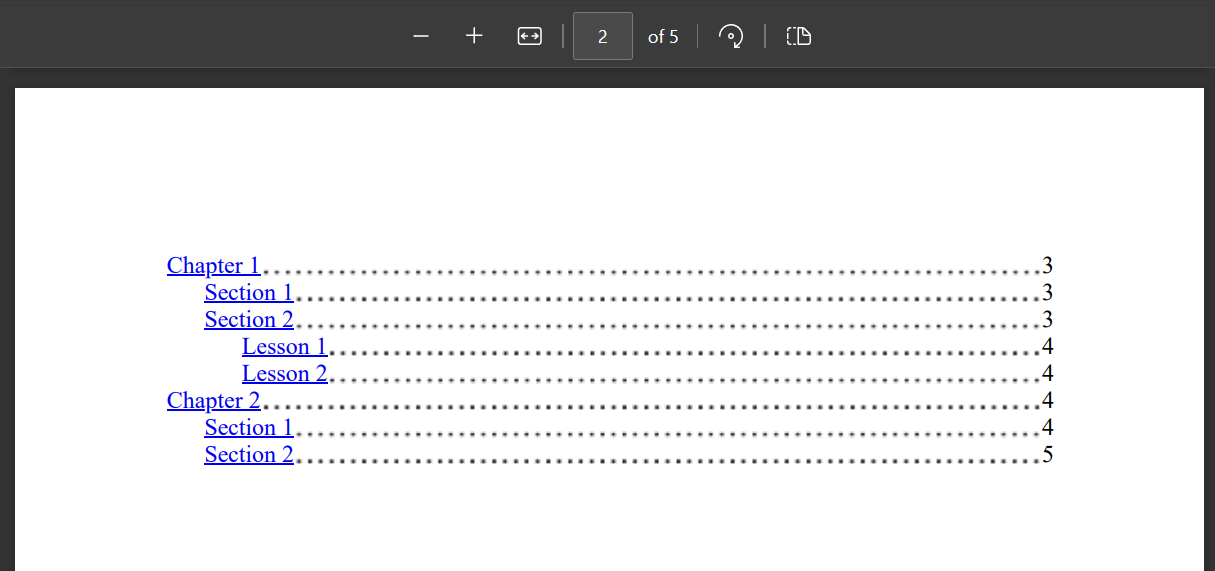
Wciecie moze byc kontrolowane za pomoca selektora :root. Ta wartość określa wielkość wcięcia dla każdego poziomu nagłówka (h1, h2, ...) w spisie treści. W razie potrzeby można ją zwiększyć lub nie stosować wcięcia, ustawiając wartość na 0.
:root {
    --indent-length: 25px;
}
Jak usunąć lub dostosować linie kropkowane?
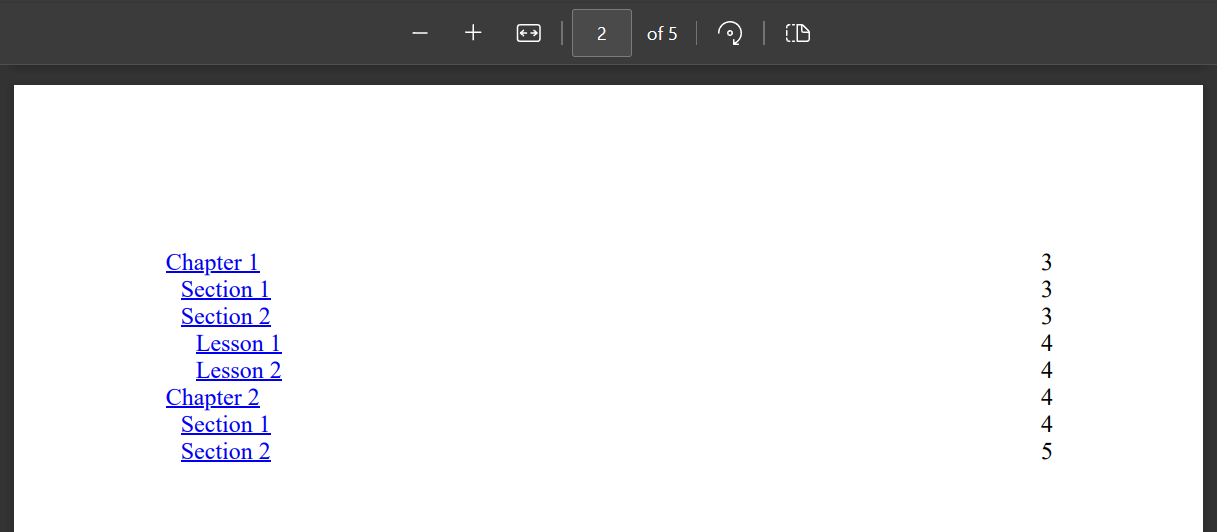
Aby usunac kropkowane linie miedzy tytulem naglowka a numerem strony, zmodyfikuj background-image selektora ::after. W oryginalnym stylu drugim parametrem jest "currentcolor 1px". Zmień to na "transparent 1px", aby usunąć kropki. Ważne jest również określenie innych atrybutów, ponieważ w tym selektorze nowy styl całkowicie zastąpi stary, a nie tylko go uzupełni.
 #ironpdf-toc li::after {
    background-image: radial-gradient(circle, transparent 1px, transparent 1.5px);
    background-position: bottom;
    background-size: 1ex 4.5px;
    background-repeat: space no-repeat;
    content: "";
    flex-grow: 1;
    height: 1em;
    order: 2;
 }
Aby uzyskać bardziej zaawansowane opcje stylizacji, utwórz niestandardowe linie przewodnie przy użyciu różnych wzorów:
/* Dashed line leader */
#ironpdf-toc li::after {
    background-image: linear-gradient(to right, currentcolor 50%, transparent 50%);
    background-size: 8px 1px;
    background-repeat: repeat-x;
    background-position: bottom;
}

/* Solid line leader */
#ironpdf-toc li::after {
    border-bottom: 1px solid currentcolor;
    background: none;
}
Gotowy, aby sprawdzić, co jeszcze możesz zrobić? Sprawdź naszą stronę z samouczkami tutaj: Konwersja PDF-ów
Często Zadawane Pytania
How do I add a table of contents to my PDF document?
You can add a table of contents to your PDF using IronPDF by setting the TableOfContents property on the ChromePdfRenderer. Simply set RenderingOptions.TableOfContents to either TableOfContentsTypes.Basic for a TOC without page numbers, or TableOfContentsTypes.WithPageNumbers to include page numbers. IronPDF will automatically generate the TOC from your HTML headers (h1-h6 tags).
What HTML elements are used to generate the table of contents?
IronPDF automatically creates the table of contents by scanning and using the h1, h2, h3, h4, h5, and h6 header elements in your HTML. These headers form a hierarchical navigation structure that mirrors your document's organization, with each header becoming a clickable hyperlink in the generated PDF's table of contents.
Can I include page numbers in the table of contents?
Yes, IronPDF offers two table of contents options: TableOfContentsTypes.Basic creates a TOC without page numbers, while TableOfContentsTypes.WithPageNumbers includes page numbers for each section. You can choose the option that best suits your document's needs when setting the RenderingOptions.
Does the table of contents feature require JavaScript?
Yes, IronPDF uses JavaScript to build the table of contents, so the rendering engine must have JavaScript enabled. This is typically enabled by default, but if you've disabled JavaScript in your rendering options, you'll need to enable it for the table of contents feature to work properly.
How do I set up the table of contents with page numbers in one line of code?
You can generate a PDF with a table of contents including page numbers using this single line: new ChromePdfRenderer { RenderingOptions = { TableOfContents = TableOfContentsTypes.WithPageNumbers, FirstPageNumber = 1 } }.RenderHtmlFileAsPdf("myDocument.html").SaveAs("withToc.pdf"); This creates a fully functional TOC with hyperlinked navigation and page numbers.
Will the table of contents styling conflict with my existing HTML styles?
No, IronPDF's default table of contents styling is designed not to conflict with other styles in your HTML content. The generated TOC maintains its own separate styling that ensures proper display while preserving the appearance of your existing document content.


Wciąż przewijasz?
Czy chcesz szybko dowodu? PM > Install-Package IronPdf
Uruchom przykład i zobacz, jak Twój kod HTML zamienia się w plik PDF.

















 Rozpocznij za DARMO
 Rozpocznij za DARMO
 Zarezerwuj darmowe Demo na żywo





 Nie wymaga karty kredytowej ani tworzenia konta










