


How to Build an ASP.NET Core PDF Viewer with IronPDF

Displaying PDF documents directly in a web browser is a common requirement for modern ASP.NET Core applications. Whether you are generating invoices, reports, or contracts, users expect a smooth PDF viewing experience without downloading files or installing third-party plugins like Adobe Acrobat Reader. IronPDF makes this straightforward by providing server-side PDF generation and streaming through a Chrome-based rendering engine -- no external viewer dependencies required.
This tutorial walks you through how to display, save, and print PDF files in ASP.NET Core using IronPDF. You will also learn how the library handles container and cloud deployments, making it a reliable choice for production DevOps pipelines.
How Do Browsers Display PDF Files Inline?
Modern browsers include built-in PDF viewers that activate when receiving a response with the application/pdf MIME type. When your ASP.NET Core controller returns a PDF with the correct Content-Type header, the browser renders it inline automatically -- no plugin installation needed. According to the MDN Web Docs, correct MIME type configuration is essential for controlling how browsers handle file responses.
IronPDF generates PDFs server-side using its ChromePdfRenderer class, which embeds a full Chromium engine. This means documents render with complete CSS, JavaScript, web fonts, and digital signature support -- the same rendering pipeline that powers Google Chrome. The result is pixel-perfect output that browsers display inline without any client-side viewer library.
For containerized environments, this architecture is particularly valuable. The renderer runs entirely in-process, without spawning external headless browser processes or relying on remote services. Resource cleanup happens automatically, preventing memory leaks in long-running ASP.NET Core services. You can review IronPDF's full feature set to understand the complete rendering capabilities available.
Why Does Server-Side Rendering Produce Consistent Results?
Server-side rendering eliminates browser variability from the PDF generation process. When PDFs are generated client-side, output quality depends on the end user's browser version, operating system, and installed fonts. With IronPDF, the same Chromium engine runs on every server -- whether Windows, Linux, or a Docker container -- guaranteeing identical output for compliance documents, invoices, and signed contracts.
What Does the Chrome Engine Provide Over Simple HTML-to-PDF Converters?
Simple HTML-to-PDF converters often skip JavaScript execution, ignore CSS media queries, or produce poor typography. IronPDF's Chrome engine waits for JavaScript to complete, respects @media print styles, handles SVG graphics, and supports UTF-8 character encoding for international content. This fidelity matters when displaying documents that users will also print or archive.
How Do You Install IronPDF in an ASP.NET Core Project?
Creating a new ASP.NET Core project takes one command. Open a terminal and run:
dotnet new mvc -n PdfViewerApp
cd PdfViewerApp
dotnet new mvc -n PdfViewerApp
cd PdfViewerAppNext, install the IronPDF NuGet package. You can use either the Package Manager Console or the .NET CLI:
Install-Package IronPdf
dotnet add package IronPdf
Install-Package IronPdf
dotnet add package IronPdfThat installs everything needed -- the Chrome engine, PDF processing libraries, and all platform-specific dependencies. IronPDF supports .NET 6, 7, 8, 9, and 10 with no additional framework configuration. The IronPDF documentation covers advanced installation options including slim packages for size-constrained deployments such as AWS Lambda.

Which Package Variant Should You Choose?
For standard deployments, use IronPdf. For environments with strict size limits -- such as AWS Lambda or edge functions -- the IronPdf.Slim package reduces the initial download footprint. Both variants expose the same API, so no code changes are required when switching.
What Are Common Installation Issues in Container Environments?
Linux containers sometimes require additional system libraries for graphics operations. A minimal Dockerfile setup includes:
apt-get update && apt-get install -y libgdiplus libc6-dev libx11-devapt-get update && apt-get install -y libgdiplus libc6-dev libx11-devWindows containers typically work without extra dependencies. For troubleshooting, enable IronPDF's built-in logging to capture rendering errors before they surface as HTTP 500 responses.
How Do You Display a PDF Inline in the Browser?
Returning a PDF for inline browser viewing requires three things: generate the PDF, set the application/pdf MIME type, and omit the filename parameter from the File() result. Here is a complete controller action:
using IronPdf;
using Microsoft.AspNetCore.Mvc;

var builder = WebApplication.CreateBuilder(args);
builder.Services.AddControllersWithViews();
var app = builder.Build();
app.MapControllerRoute(name: "default", pattern: "{controller=Home}/{action=Index}/{id?}");
app.Run();

// PdfController.cs
public class PdfController : Controller
{
    public IActionResult ViewPdf()
    {
        var renderer = new ChromePdfRenderer();
        renderer.RenderingOptions.PrintHtmlBackgrounds = true;
        renderer.RenderingOptions.CreatePdfFormsFromHtml = true;
        renderer.RenderingOptions.EnableJavaScript = true;
        renderer.RenderingOptions.RenderDelay = 100;

        var html = @"
            <html>
            <head>
                <style>
                    body { font-family: Arial, sans-serif; padding: 20px; }
                    h1 { color: #2c3e50; }
                    .content { line-height: 1.6; }
                </style>
            </head>
            <body>
                <h1>Invoice #12345</h1>
                <div class='content'>
                    <p>Date: " + DateTime.Now.ToString("yyyy-MM-dd") + @"</p>
                    <p>Thank you for your business!</p>
                </div>
            </body>
            </html>";

        var pdf = renderer.RenderHtmlAsPdf(html);

        // Omitting the filename tells the browser to display inline
        return File(pdf.BinaryData, "application/pdf");
    }
}
using IronPdf;
using Microsoft.AspNetCore.Mvc;
var builder = WebApplication.CreateBuilder(args);
builder.Services.AddControllersWithViews();
var app = builder.Build();
app.MapControllerRoute(name: "default", pattern: "{controller=Home}/{action=Index}/{id?}");
app.Run();
// PdfController.cs
public class PdfController : Controller
{
public IActionResult ViewPdf()
{
var renderer = new ChromePdfRenderer();
renderer.RenderingOptions.PrintHtmlBackgrounds = true;
renderer.RenderingOptions.CreatePdfFormsFromHtml = true;
renderer.RenderingOptions.EnableJavaScript = true;
renderer.RenderingOptions.RenderDelay = 100;
var html = @"
<html>
<head>
<style>
body { font-family: Arial, sans-serif; padding: 20px; }
h1 { color: #2c3e50; }
.content { line-height: 1.6; }
</style>
</head>
<body>
<h1>Invoice #12345</h1>
<div class='content'>
<p>Date: " + DateTime.Now.ToString("yyyy-MM-dd") + @"</p>
<p>Thank you for your business!</p>
</div>
</body>
</html>";
var pdf = renderer.RenderHtmlAsPdf(html);
// Omitting the filename tells the browser to display inline
return File(pdf.BinaryData, "application/pdf");
}
}Imports IronPdf
Imports Microsoft.AspNetCore.Mvc
Dim builder = WebApplication.CreateBuilder(args)
builder.Services.AddControllersWithViews()
Dim app = builder.Build()
app.MapControllerRoute(name:="default", pattern:="{controller=Home}/{action=Index}/{id?}")
app.Run()
' PdfController.vb
Public Class PdfController
Inherits Controller
Public Function ViewPdf() As IActionResult
Dim renderer = New ChromePdfRenderer()
renderer.RenderingOptions.PrintHtmlBackgrounds = True
renderer.RenderingOptions.CreatePdfFormsFromHtml = True
renderer.RenderingOptions.EnableJavaScript = True
renderer.RenderingOptions.RenderDelay = 100
Dim html = "
<html>
<head>
<style>
body { font-family: Arial, sans-serif; padding: 20px; }
h1 { color: #2c3e50; }
.content { line-height: 1.6; }
</style>
</head>
<body>
<h1>Invoice #12345</h1>
<div class='content'>
<p>Date: " & DateTime.Now.ToString("yyyy-MM-dd") & "</p>
<p>Thank you for your business!</p>
</div>
</body>
</html>"
Dim pdf = renderer.RenderHtmlAsPdf(html)
' Omitting the filename tells the browser to display inline
Return File(pdf.BinaryData, "application/pdf")
End Function
End ClassThe key is the File() call: returning application/pdf without a filename sets Content-Disposition: inline, which triggers the browser's built-in PDF viewer. Adding a filename switches to Content-Disposition: attachment, which triggers a download. For more HTML conversion patterns, see the HTML string to PDF guide.
For high-traffic applications, use the async rendering method to avoid blocking threads:
public async Task<IActionResult> ViewPdfAsync()
{
    var renderer = new ChromePdfRenderer();
    renderer.RenderingOptions.Timeout = 60;

    var html = await GetHtmlContentAsync();
    var pdf = await renderer.RenderHtmlAsPdfAsync(html);

    return File(pdf.BinaryData, "application/pdf");
}
public async Task<IActionResult> ViewPdfAsync()
{
var renderer = new ChromePdfRenderer();
renderer.RenderingOptions.Timeout = 60;
var html = await GetHtmlContentAsync();
var pdf = await renderer.RenderHtmlAsPdfAsync(html);
return File(pdf.BinaryData, "application/pdf");
}Imports System.Threading.Tasks
Public Async Function ViewPdfAsync() As Task(Of IActionResult)
Dim renderer = New ChromePdfRenderer()
renderer.RenderingOptions.Timeout = 60
Dim html = Await GetHtmlContentAsync()
Dim pdf = Await renderer.RenderHtmlAsPdfAsync(html)
Return File(pdf.BinaryData, "application/pdf")
End Function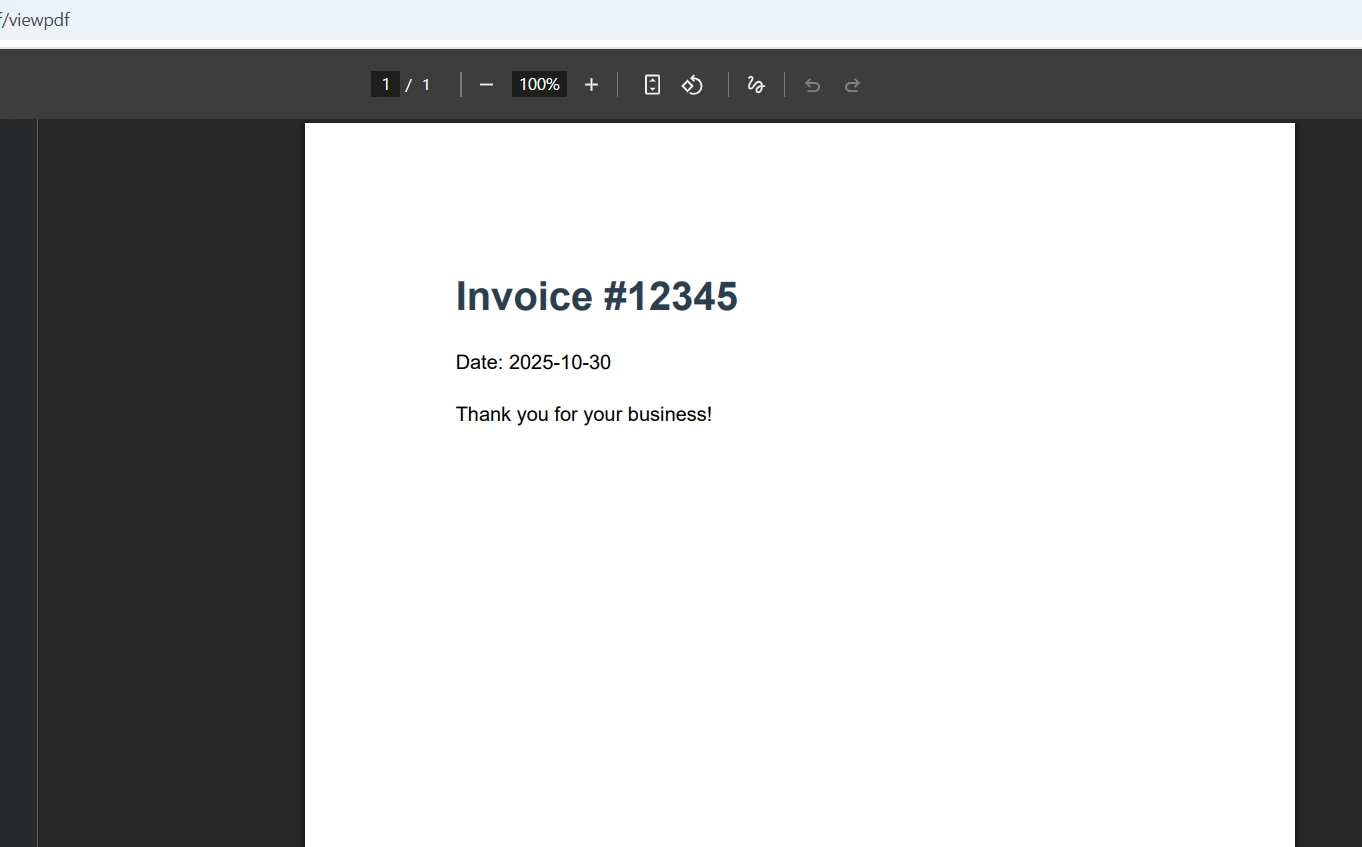
When Should You Use Async PDF Generation?
Async generation is important for any endpoint that receives concurrent requests. Synchronous generation blocks ASP.NET Core thread pool threads, reducing the number of simultaneous requests your application can handle. Switch to async methods early -- the API surface is identical, so migration is straightforward.
What Other HTML Sources Can You Render?
Beyond HTML strings, IronPDF renders from URLs, HTML files on disk, and Razor views. Calling renderer.RenderUrlAsPdf("https://example.com/report") captures a live URL, while renderer.RenderHtmlFileAsPdf("wwwroot/templates/invoice.html") reads from the local file system. This flexibility means you can reuse existing Razor templates as PDF templates without maintaining separate HTML files. The NuGet Gallery listing for IronPdf shows the current package version and release notes.
How Do You Enable PDF File Downloads in ASP.NET Core?
Triggering a file download instead of inline display is a single-parameter change. Adding a filename to the File() result sets the Content-Disposition header to attachment:
public IActionResult DownloadPdf()
{
    var renderer = new ChromePdfRenderer();
    renderer.RenderingOptions.ImageQuality = 85;

    var html = @"<h1>Quarterly Report</h1>
                 <p>Revenue this quarter exceeded projections by 12%.</p>";
    var pdf = renderer.RenderHtmlAsPdf(html, @"wwwroot/images");

    // Compress images to reduce download size
    pdf.CompressImages(30);

    // The filename parameter triggers download instead of inline view
    return File(pdf.BinaryData, "application/pdf", "quarterly-report-2026.pdf");
}
public IActionResult DownloadPdf()
{
var renderer = new ChromePdfRenderer();
renderer.RenderingOptions.ImageQuality = 85;
var html = @"<h1>Quarterly Report</h1>
<p>Revenue this quarter exceeded projections by 12%.</p>";
var pdf = renderer.RenderHtmlAsPdf(html, @"wwwroot/images");
// Compress images to reduce download size
pdf.CompressImages(30);
// The filename parameter triggers download instead of inline view
return File(pdf.BinaryData, "application/pdf", "quarterly-report-2026.pdf");
}Public Function DownloadPdf() As IActionResult
Dim renderer = New ChromePdfRenderer()
renderer.RenderingOptions.ImageQuality = 85
Dim html As String = "<h1>Quarterly Report</h1>
<p>Revenue this quarter exceeded projections by 12%.</p>"
Dim pdf = renderer.RenderHtmlAsPdf(html, "wwwroot/images")
' Compress images to reduce download size
pdf.CompressImages(30)
' The filename parameter triggers download instead of inline view
Return File(pdf.BinaryData, "application/pdf", "quarterly-report-2026.pdf")
End FunctionFor large documents served to many users, streaming reduces peak memory consumption:
public IActionResult StreamPdf()
{
    var renderer = new ChromePdfRenderer();
    var html = "<h1>Large Report</h1><p>Content spanning many pages.</p>";
    var pdf = renderer.RenderHtmlAsPdf(html);

    var stream = pdf.Stream;
    stream.Position = 0;

    // Stream directly without buffering the full byte array
    return File(stream, "application/pdf", "report.pdf");
}
public IActionResult StreamPdf()
{
var renderer = new ChromePdfRenderer();
var html = "<h1>Large Report</h1><p>Content spanning many pages.</p>";
var pdf = renderer.RenderHtmlAsPdf(html);
var stream = pdf.Stream;
stream.Position = 0;
// Stream directly without buffering the full byte array
return File(stream, "application/pdf", "report.pdf");
}Imports IronPdf
Public Function StreamPdf() As IActionResult
Dim renderer As New ChromePdfRenderer()
Dim html As String = "<h1>Large Report</h1><p>Content spanning many pages.</p>"
Dim pdf = renderer.RenderHtmlAsPdf(html)
Dim stream = pdf.Stream
stream.Position = 0
' Stream directly without buffering the full byte array
Return File(stream, "application/pdf", "report.pdf")
End FunctionStreaming sends PDF data progressively, which reduces peak memory usage significantly when serving large files to concurrent users. For additional export patterns, see the guide on merging and splitting PDFs and extracting text from PDFs.

What Compression Settings Work Best for Different Document Types?
Text-heavy PDFs compress well at 70-80% image quality with minimal visual impact. Image-rich documents such as marketing brochures need 85-95% quality to preserve clarity. Financial reports with charts should stay at 85% or above to maintain graph readability. Test compression levels against representative documents before deploying to production.
How Do You Generate Print-Ready PDFs in ASP.NET Core?
Print-ready PDFs require specific page configuration: print CSS media type, defined margins, and explicit paper size. IronPDF exposes all of these through RenderingOptions:
public IActionResult PrintablePdf()
{
    var renderer = new ChromePdfRenderer();
    renderer.RenderingOptions.CssMediaType = PdfCssMediaType.Print;
    renderer.RenderingOptions.PaperOrientation = PdfPaperOrientation.Portrait;
    renderer.RenderingOptions.PaperSize = PdfPaperSize.A4;
    renderer.RenderingOptions.MarginTop = 25;
    renderer.RenderingOptions.MarginBottom = 25;
    renderer.RenderingOptions.MarginLeft = 25;
    renderer.RenderingOptions.MarginRight = 25;

    // Add headers and footers for professional print output
    renderer.RenderingOptions.TextHeader = new TextHeaderFooter
    {
        CenterText = "Confidential Document",
        DrawDividerLine = true
    };
    renderer.RenderingOptions.TextFooter = new TextHeaderFooter
    {
        CenterText = "Page {page} of {total-pages}",
        FontSize = 10
    };

    var html = @"
        <style>
            @media print {
                .no-print { display: none; }
                .page-break { page-break-after: always; }
            }
        </style>
        <h1>Print-Ready Document</h1>
        <p>This document is formatted for A4 printing with standard margins.</p>
        <div class='page-break'></div>
        <h2>Page 2</h2>
        <p>Content continues on the second page.</p>";

    var pdf = renderer.RenderHtmlAsPdf(html);
    return File(pdf.BinaryData, "application/pdf");
}
public IActionResult PrintablePdf()
{
var renderer = new ChromePdfRenderer();
renderer.RenderingOptions.CssMediaType = PdfCssMediaType.Print;
renderer.RenderingOptions.PaperOrientation = PdfPaperOrientation.Portrait;
renderer.RenderingOptions.PaperSize = PdfPaperSize.A4;
renderer.RenderingOptions.MarginTop = 25;
renderer.RenderingOptions.MarginBottom = 25;
renderer.RenderingOptions.MarginLeft = 25;
renderer.RenderingOptions.MarginRight = 25;
// Add headers and footers for professional print output
renderer.RenderingOptions.TextHeader = new TextHeaderFooter
{
CenterText = "Confidential Document",
DrawDividerLine = true
};
renderer.RenderingOptions.TextFooter = new TextHeaderFooter
{
CenterText = "Page {page} of {total-pages}",
FontSize = 10
};
var html = @"
<style>
@media print {
.no-print { display: none; }
.page-break { page-break-after: always; }
}
</style>
<h1>Print-Ready Document</h1>
<p>This document is formatted for A4 printing with standard margins.</p>
<div class='page-break'></div>
<h2>Page 2</h2>
<p>Content continues on the second page.</p>";
var pdf = renderer.RenderHtmlAsPdf(html);
return File(pdf.BinaryData, "application/pdf");
}Imports System.Web.Mvc
Public Function PrintablePdf() As ActionResult
Dim renderer = New ChromePdfRenderer()
renderer.RenderingOptions.CssMediaType = PdfCssMediaType.Print
renderer.RenderingOptions.PaperOrientation = PdfPaperOrientation.Portrait
renderer.RenderingOptions.PaperSize = PdfPaperSize.A4
renderer.RenderingOptions.MarginTop = 25
renderer.RenderingOptions.MarginBottom = 25
renderer.RenderingOptions.MarginLeft = 25
renderer.RenderingOptions.MarginRight = 25
' Add headers and footers for professional print output
renderer.RenderingOptions.TextHeader = New TextHeaderFooter With {
.CenterText = "Confidential Document",
.DrawDividerLine = True
}
renderer.RenderingOptions.TextFooter = New TextHeaderFooter With {
.CenterText = "Page {page} of {total-pages}",
.FontSize = 10
}
Dim html = "
<style>
@media print {
.no-print { display: none; }
.page-break { page-break-after: always; }
}
</style>
<h1>Print-Ready Document</h1>
<p>This document is formatted for A4 printing with standard margins.</p>
<div class='page-break'></div>
<h2>Page 2</h2>
<p>Content continues on the second page.</p>"
Dim pdf = renderer.RenderHtmlAsPdf(html)
Return File(pdf.BinaryData, "application/pdf")
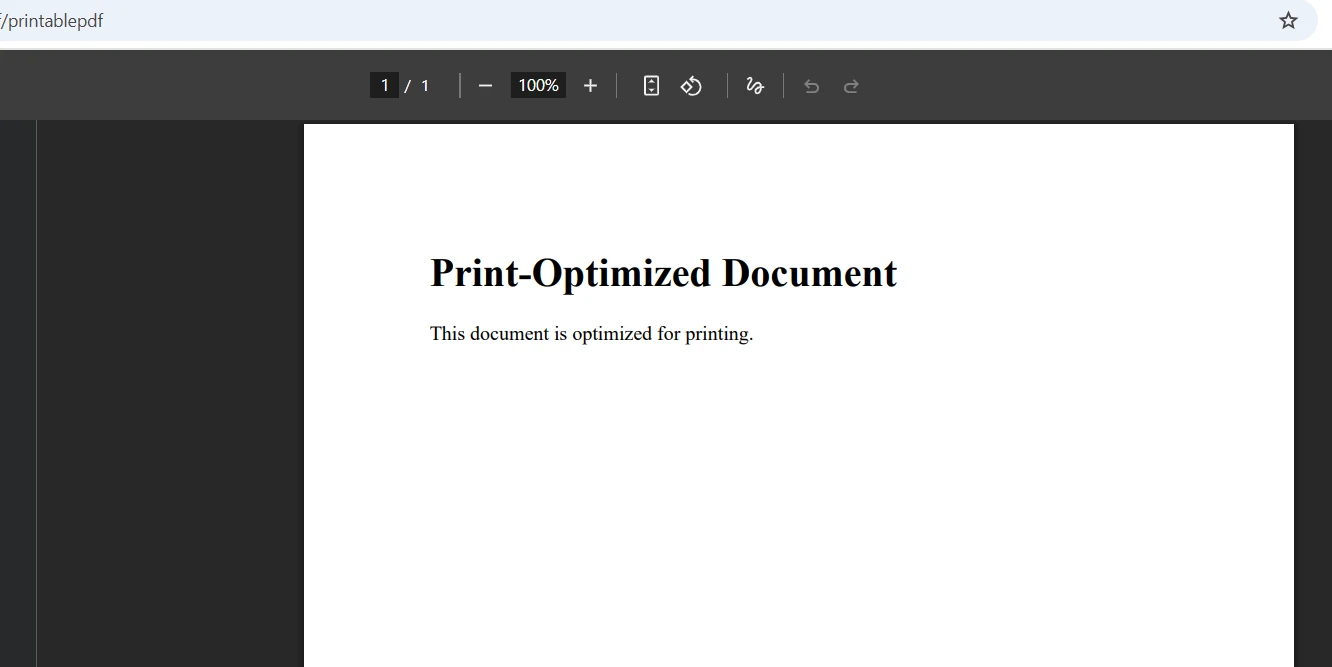
End FunctionSetting CssMediaType.Print activates @media print CSS rules before rendering. This hides navigation bars, sidebars, and other screen-only elements. Users can then print the PDF from the browser's built-in viewer using standard keyboard shortcuts, with full control over printer selection and copy count. For advanced header and footer patterns, see the headers and footers guide.
You can also add watermarks to printed documents, sign them digitally before delivery, or protect them with password and permissions settings. These features integrate directly through the PdfDocument API without requiring a separate processing step.
What Page Configuration Ensures Cross-Printer Compatibility?
Standard A4 or Letter sizes with 20-25mm margins work reliably across all printer models. Avoid custom paper sizes unless the deployment targets a known printer fleet. Use CSS page-break-before and page-break-after properties instead of proprietary page break methods. The W3C CSS Paged Media specification defines these properties in detail. These standard CSS properties work consistently across the Chrome rendering engine and physical printers.
How Do You Deploy an ASP.NET Core PDF Viewer to Docker?
IronPDF runs on Linux and Windows containers without code changes. The base images used in the Dockerfile below come from Microsoft's official .NET container images, which are maintained with regular security patches. The Docker configuration below installs the required system libraries and produces a multi-stage build for minimal image size:
FROM mcr.microsoft.com/dotnet/aspnet:10.0 AS base
WORKDIR /app

RUN apt-get update && apt-get install -y \
    libgdiplus \
    libc6-dev \
    libx11-dev \
    && rm -rf /var/lib/apt/lists/*

FROM mcr.microsoft.com/dotnet/sdk:10.0 AS build
WORKDIR /src
COPY ["PdfViewerApp.csproj", "./"]
RUN dotnet restore "PdfViewerApp.csproj"
COPY . .
RUN dotnet build "PdfViewerApp.csproj" -c Release -o /app/build

FROM build AS publish
RUN dotnet publish "PdfViewerApp.csproj" -c Release -o /app/publish

FROM base AS final
WORKDIR /app
COPY --from=publish /app/publish .
ENTRYPOINT ["dotnet", "PdfViewerApp.dll"]
For Kubernetes deployments, add a health check endpoint that validates PDF generation end-to-end:
builder.Services.AddHealthChecks()
    .AddCheck("pdf_generation", () =>
    {
        try
        {
            var renderer = new ChromePdfRenderer();
            var pdf = renderer.RenderHtmlAsPdf("<p>Health check</p>");
            return pdf.PageCount > 0
                ? HealthCheckResult.Healthy()
                : HealthCheckResult.Unhealthy("PDF generation returned empty document");
        }
        catch (Exception ex)
        {
            return HealthCheckResult.Unhealthy(ex.Message);
        }
    });
builder.Services.AddHealthChecks()
.AddCheck("pdf_generation", () =>
{
try
{
var renderer = new ChromePdfRenderer();
var pdf = renderer.RenderHtmlAsPdf("<p>Health check</p>");
return pdf.PageCount > 0
? HealthCheckResult.Healthy()
: HealthCheckResult.Unhealthy("PDF generation returned empty document");
}
catch (Exception ex)
{
return HealthCheckResult.Unhealthy(ex.Message);
}
});Imports System
Imports Microsoft.Extensions.DependencyInjection
Imports Microsoft.Extensions.Diagnostics.HealthChecks
builder.Services.AddHealthChecks().AddCheck("pdf_generation", Function()
Try
Dim renderer As New ChromePdfRenderer()
Dim pdf = renderer.RenderHtmlAsPdf("<p>Health check</p>")
Return If(pdf.PageCount > 0, HealthCheckResult.Healthy(), HealthCheckResult.Unhealthy("PDF generation returned empty document"))
Catch ex As Exception
Return HealthCheckResult.Unhealthy(ex.Message)
End Try
End Function)This health check allows Kubernetes to detect and replace unhealthy pods before users encounter errors. It also integrates with standard ASP.NET Core health monitoring middleware. The IronPDF trial license includes full functionality for Docker testing without restrictions.
What Are the Deployment Advantages of an In-Process Renderer?
The table below compares IronPDF's in-process approach against headless browser server setups commonly used for server-side PDF generation:
| Factor | IronPDF (In-Process) | Headless Browser Server |
|---|---|---|
| Deployment complexity | NuGet package only | Separate process or service |
| Network latency | None (in-process) | HTTP round-trip per request |
| Container footprint | Single container | Two containers minimum |
| Health monitoring | Standard ASP.NET Core middleware | Separate service health check |
| Rendering consistency | Chrome engine, locked version | Varies by browser version |
How Do You Add Advanced PDF Features to the Viewer?
IronPDF goes well beyond basic viewing and downloading. The same library that renders HTML to PDF also provides PDF form handling, custom watermarks, digital signatures, and PDF-to-image conversion -- all without additional packages.
For document management workflows, you can convert uploaded files to PDF, extract text for indexing, annotate documents, and deliver them back to users -- all within a single ASP.NET Core controller. The IronPDF features page provides a complete capability overview with code samples for each feature area.
Key capabilities worth noting for viewer applications:
- Text extraction -- index PDF content for search or compliance archiving
- Merge and split -- combine multiple documents or extract specific pages
- Watermarking -- stamp documents with confidentiality notices or branding before display
- Digital signatures -- sign generated PDFs before streaming to the browser
- Headers and footers -- add page numbers, document titles, and divider lines
How Do You Handle PDF Security and Access Control?
For applications displaying sensitive documents, combine IronPDF's password and permission features with ASP.NET Core's authorization middleware. Set the controller action to require authentication, then stream the PDF -- the document never touches the file system or an unauthenticated endpoint.
For audit trail requirements, digitally sign PDFs before streaming. The signature records the signing timestamp and validates document integrity, which is important for financial and legal documents displayed through a browser viewer.
What Licensing Options Are Available?
IronPDF licensing starts with a free trial that includes full functionality -- suitable for development, staging, and proof-of-concept work in Docker and Kubernetes environments. Production licenses cover a range of deployment scenarios from single-developer to unlimited server deployments.
The IronPDF documentation provides detailed API references, migration guides for upgrading between .NET versions, and platform-specific setup instructions for Windows, Linux, macOS, AWS, and Azure.

Building a PDF viewer into ASP.NET Core takes minutes with IronPDF. The Chrome-based rendering engine handles the complexity of HTML-to-PDF conversion, the ASP.NET Core File() result handles inline vs. download behavior, and the same package covers printing, watermarking, digital signatures, and container deployments. Start with the free trial and add advanced document features as requirements grow.
Frequently Asked Questions
How can IronPDF help display PDFs in ASP.NET Core applications?
IronPDF simplifies the process by using a powerful Chrome-based rendering engine to display PDF files directly in web browsers without requiring downloads or additional plugins.
What are the benefits of using a PDF viewer in ASP.NET Core?
Using a PDF viewer like IronPDF in ASP.NET Core enhances user experience by allowing seamless viewing, saving, and printing of PDFs within the browser, eliminating the need for external applications like Adobe Acrobat Reader.
Is it necessary to install Adobe Acrobat Reader to view PDFs with IronPDF?
No, IronPDF enables viewing PDFs directly in the browser, eliminating the need for Adobe Acrobat Reader or any other plugins.
What types of documents can be displayed using IronPDF in an ASP.NET Core application?
IronPDF can be used to display various types of documents such as invoices, reports, and contracts seamlessly in ASP.NET Core applications.
Does IronPDF support printing of PDF documents in ASP.NET Core?
Yes, IronPDF supports the printing of PDF documents directly from the web application, providing a complete PDF management solution.
Can IronPDF render complex PDF layouts accurately in ASP.NET Core?
IronPDF uses a Chrome-based rendering engine to accurately render complex PDF layouts, ensuring high-quality display without fidelity loss.
Do I need to download PDF files to view them using IronPDF in ASP.NET Core?
No, IronPDF allows users to view PDF files directly in the web browser without the need to download them.
How does IronPDF improve the PDF viewing experience in web applications?
IronPDF improves the PDF viewing experience by offering seamless integration with ASP.NET Core, allowing users to view, save, and print PDFs directly in the browser.










 Get started for FREE
 Get started for FREE
 Book Free Live Demo





 No credit card or account creation required










