using IronPdf;

// Disable local disk access or cross-origin requests
Installation.EnableWebSecurity = true;

// Instantiate Renderer
var renderer = new ChromePdfRenderer();

// Create a PDF from a HTML string using C#
var pdf = renderer.RenderHtmlAsPdf("<h1>Hello World</h1>");

// Export to a file or Stream
pdf.SaveAs("output.pdf");

// Advanced Example with HTML Assets
// Load external html assets: Images, CSS and JavaScript.
// An optional BasePath 'C:\site\assets\' is set as the file location to load assets from
var myAdvancedPdf = renderer.RenderHtmlAsPdf("<img src='icons/iron.png'>", @"C:\site\assets\");
myAdvancedPdf.SaveAs("html-with-assets.pdf");
using IronPdf;// Disable local disk access or cross-origin requestsInstallation.EnableWebSecurity = true;// Instantiate Renderervar renderer = new ChromePdfRenderer();// Create a PDF from a HTML string using C#var pdf = renderer.RenderHtmlAsPdf("<h1>Hello World</h1>");// Export to a file or Streampdf.SaveAs("output.pdf");// Advanced Example with HTML Assets// Load external html assets: Images, CSS and JavaScript.// An optional BasePath 'C:\site\assets\' is set as the file location to load assets fromvar myAdvancedPdf = renderer.RenderHtmlAsPdf("<img src='icons/iron.png'>", @"C:\site\assets\");myAdvancedPdf.SaveAs("html-with-assets.pdf");
IronPDF enables seamless HTML to PDF conversion in ASP.NET Core using a Chrome-based rendering engine that preserves formatting, CSS, and JavaScript - essential for generating invoices, reports, and downloadable documents in modern web applications.
Converting dynamic HTML to PDF documents is a fundamental requirement in modern ASP.NET applications. Whether you're generating invoices, creating reports, or producing downloadable files, transforming HTML content into professional PDFs is essential for delivering polished user experiences.
IronPDF simplifies this conversion process by providing a robust, Chrome-based rendering engine that preserves your HTML formatting, CSS styling, and JavaScript functionality perfectly in the resulting documents. This tutorial walks you through effective methods for converting HTML to PDF in ASP.NET Core applications using the IronPDF library.
Why Do Developers Need HTML to PDF Conversion?
ASP.NET Core applications often generate dynamic HTML content that users need to download, share, or archive as PDFs. Converting HTML to PDF provides several key advantages over simply saving web pages or taking screenshots.
PDFs maintain consistent formatting across all devices and platforms, ensuring your invoices look identical whether viewed on Windows, Mac, or mobile devices. They're ideal for documents requiring digital signatures, security settings, or professional printing. Server-side conversion eliminates the need for users to have specific software installed and provides better control over the final output.
Common use cases include generating financial reports from dashboard data, creating downloadable invoices from order information, producing tickets and passes with QR codes, and converting form submissions into permanent records. By handling conversion on the server, you ensure consistent results regardless of the user's browser or device capabilities. The PDF/A archival format ensures long-term document preservation, while PDF compression reduces file sizes for efficient storage and transmission.
Getting started with IronPDF in your ASP.NET Core project is straightforward. The library supports .NET Core 2.0 and above, along with .NET 5, 6, 7, and 8, making it compatible with all modern ASP.NET Core applications. For containerized environments, IronPDF provides official Docker support. The installation overview covers all deployment scenarios.
What's the Quickest Installation Method?
The quickest way to add IronPDF to your project is through the NuGet Package Manager in Visual Studio. Right-click on your project in Solution Explorer, select "Manage NuGet Packages," and search for IronPDF. Click Install on the latest version to add it to your project. For detailed installation instructions, see the IronPDF installation guide. Alternative methods include using the Windows Installer or advanced NuGet configuration.
PM > Install-Package IronPdf
Install-Package IronPdf
For containerized deployments, use the IronPDF.Slim package which reduces initial deployment size:
Once installed, add the IronPDF namespace to any C# file where you'll be working with PDF generation:
using IronPdf;
using IronPdf;
ImportsIronPdf
Imports IronPdf
This import statement gives you access to all IronPDF functionality, including the ChromePdfRenderer class for HTML conversion and various configuration options for customizing your output. The API reference provides comprehensive documentation for all available classes and methods.
What Configuration Options Should I Set?
For most ASP.NET Core applications, IronPDF works immediately after installation without additional configuration. However, you can set global options in your Program.cs or Startup.cs file:
' Optional: Configure IronPDF settings
Installation.TempFolderPath = "C:\Temp\IronPdf\"
Installation.LinuxAndDockerDependenciesAutoConfig = True

' Configure license key for production
IronPdf.License.LicenseKey = "YOUR-LICENSE-KEY"
These configuration options help optimize IronPDF for your specific hosting environment, whether running on Windows, Linux, or in Docker containers. Ensure script and application files don't share the same directory to prevent conflicts. The license key guide explains proper licensing configuration, while troubleshooting deployment issues helps resolve common problems.
For production deployments, consider adding health check endpoints to monitor PDF generation services:
// Add health checks for monitoringservices.AddHealthChecks() .AddCheck("pdf-service", () => { try { var renderer = new ChromePdfRenderer(); var test = renderer.RenderHtmlAsPdf("<p>Health Check</p>"); returnHealthCheckResult.Healthy(); } catch (Exception ex) { returnHealthCheckResult.Unhealthy(ex.Message); } });
// Add health checks for monitoring
services.AddHealthChecks()
    .AddCheck("pdf-service", () =>
    {
        try
        {
            var renderer = new ChromePdfRenderer();
            var test = renderer.RenderHtmlAsPdf("<p>Health Check</p>");
            return HealthCheckResult.Healthy();
        }
        catch (Exception ex)
        {
            return HealthCheckResult.Unhealthy(ex.Message);
        }
    });
' Add health checks for monitoringservices.AddHealthChecks() _ .AddCheck("pdf-service", Function() Try Dim renderer = New ChromePdfRenderer() Dim test = renderer.RenderHtmlAsPdf("<p>Health Check</p>") ReturnHealthCheckResult.Healthy()Catch ex AsException ReturnHealthCheckResult.Unhealthy(ex.Message)EndTry End Function)
' Add health checks for monitoring
services.AddHealthChecks() _
    .AddCheck("pdf-service", Function()
        Try
            Dim renderer = New ChromePdfRenderer()
            Dim test = renderer.RenderHtmlAsPdf("<p>Health Check</p>")
            Return HealthCheckResult.Healthy()
        Catch ex As Exception
            Return HealthCheckResult.Unhealthy(ex.Message)
        End Try
    End Function)
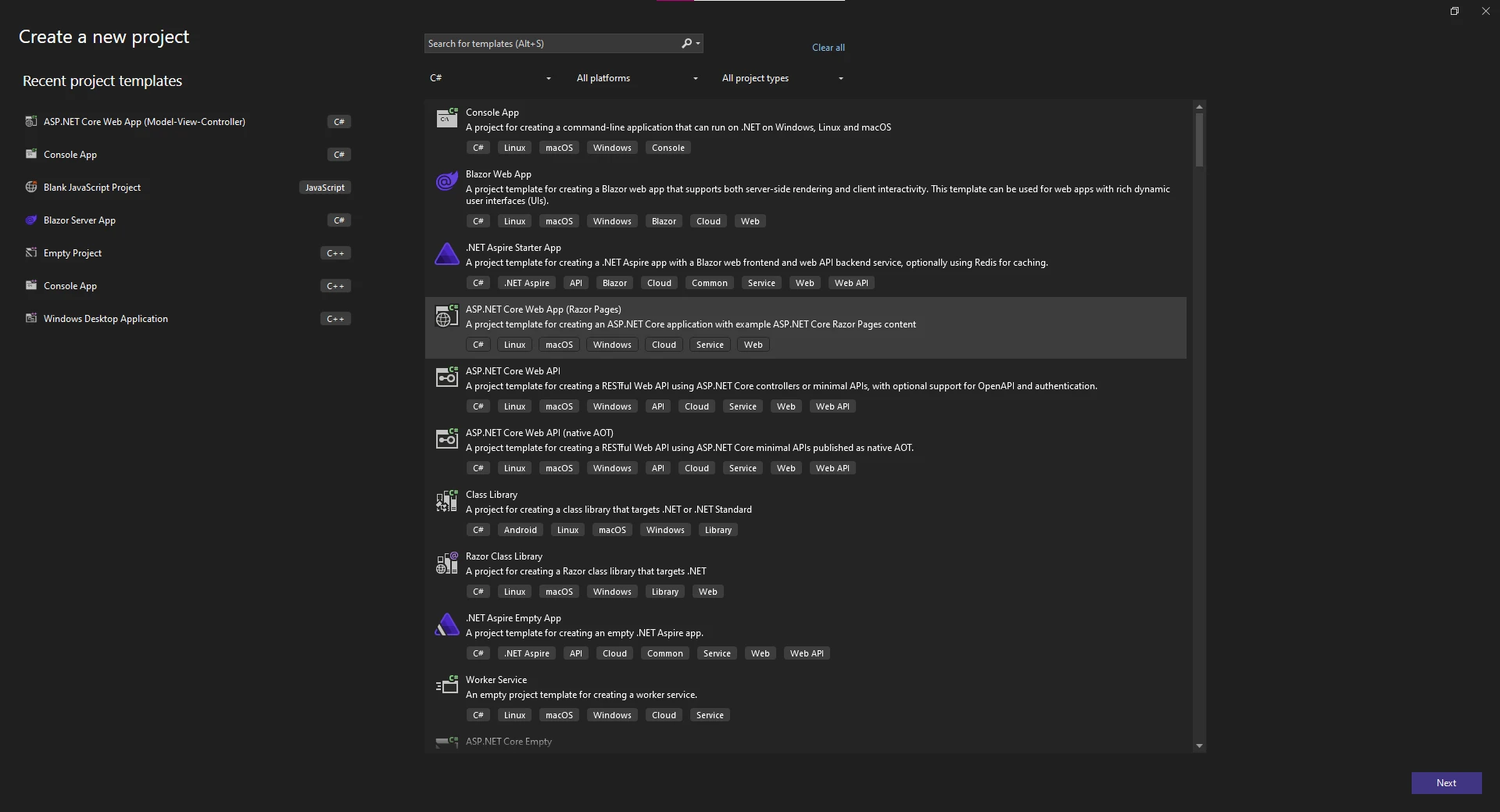
Launch Visual Studio and select the ASP.NET project type that best suits your needs. For today's example, I will be creating an ASP.NET Core Web App (Model-view Controller).
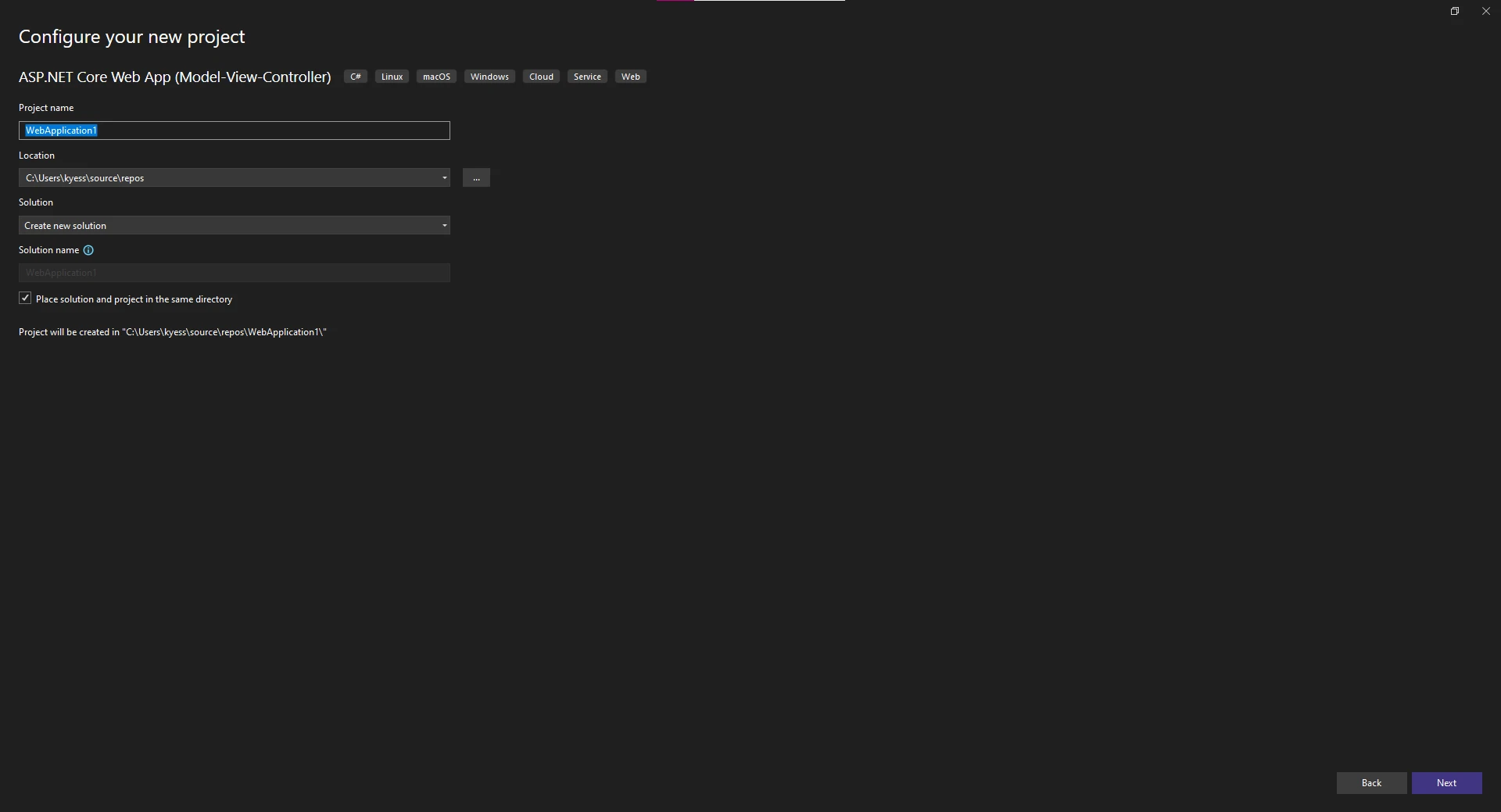
Then, enter the name for your project and choose the location to house the project.
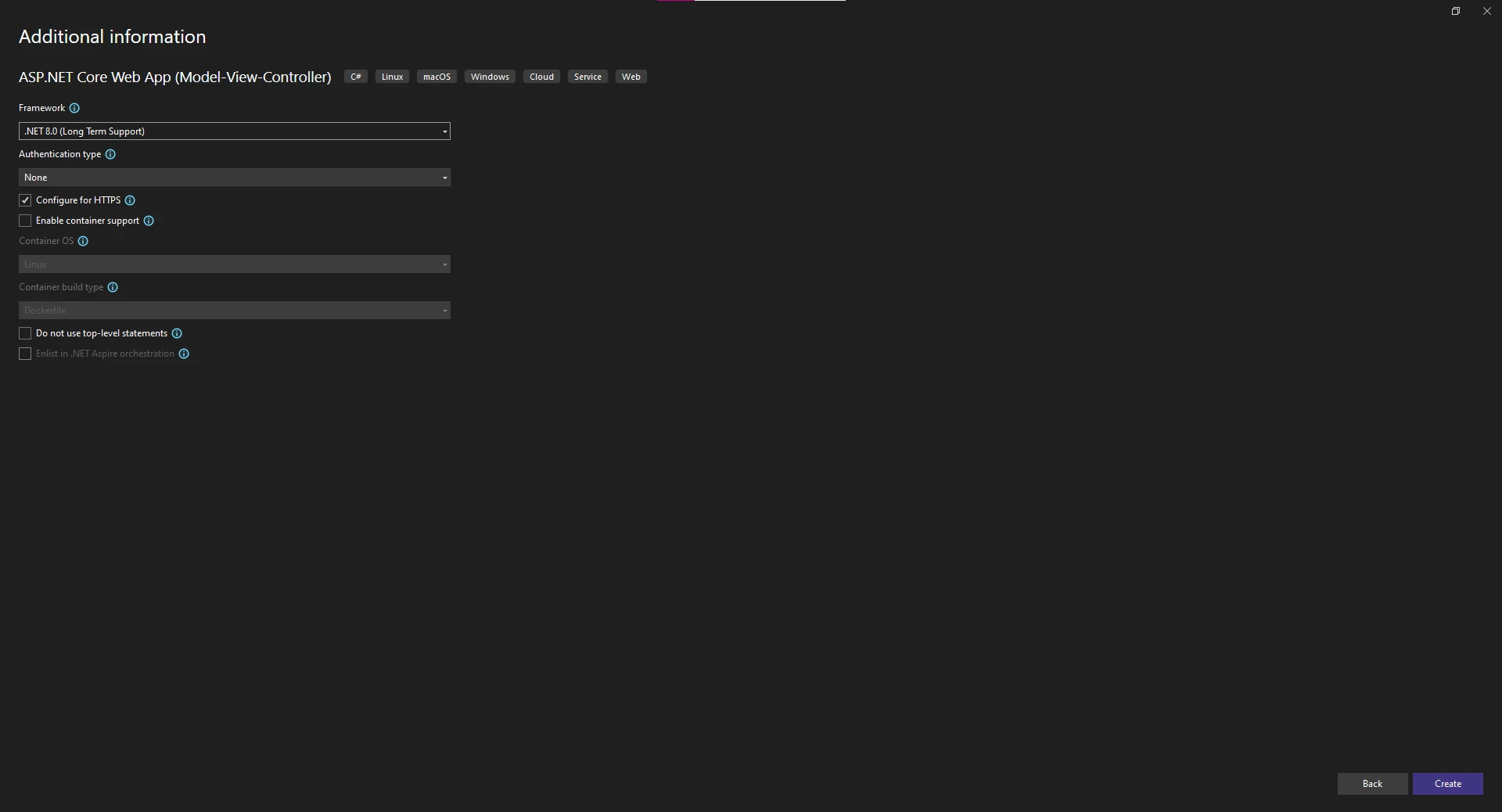
Finally, choose your .NET Framework for the project, and change any additional settings for the project such as the authentication type, or enabling container support and docker.
Create a Controller
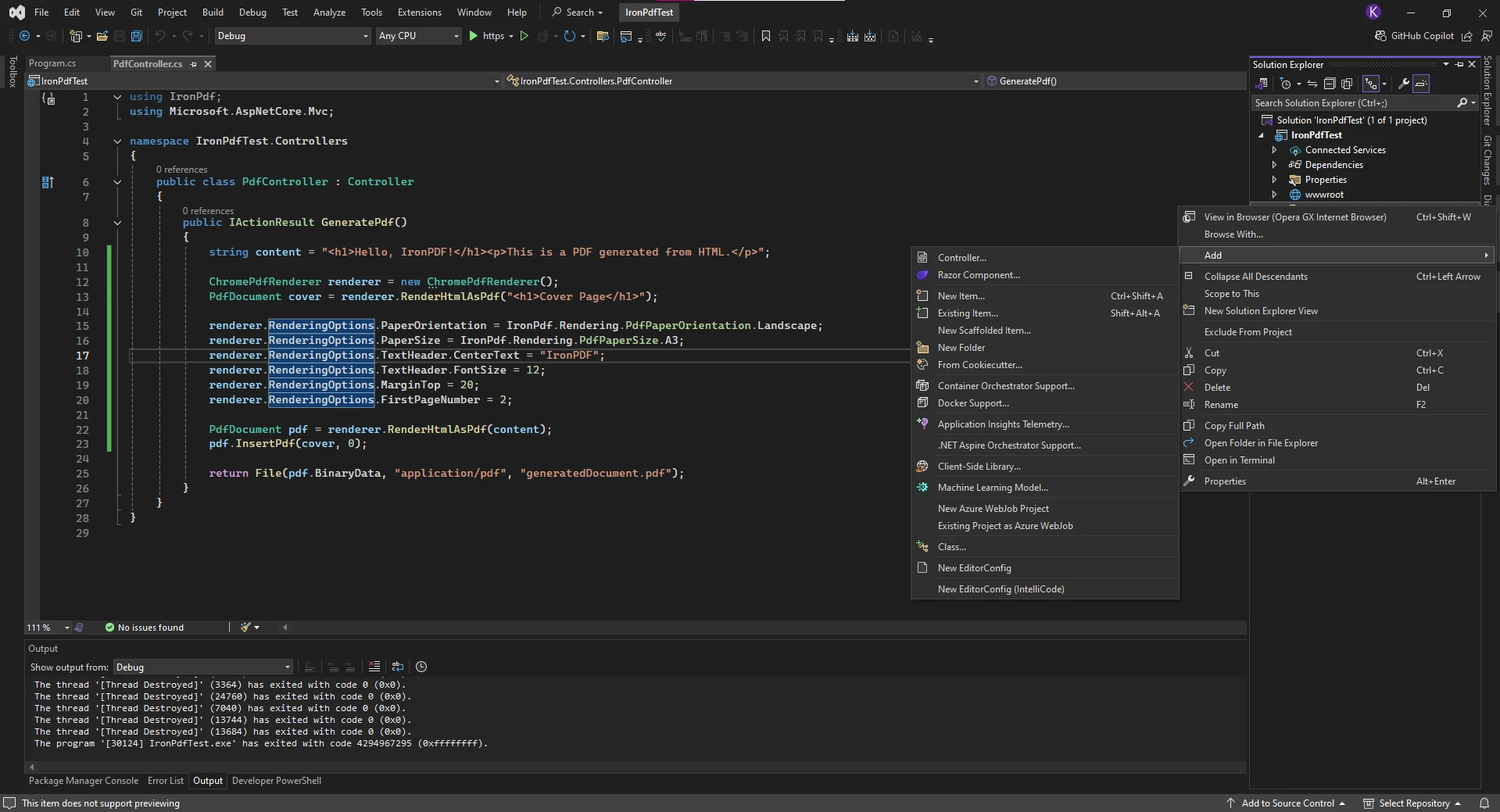
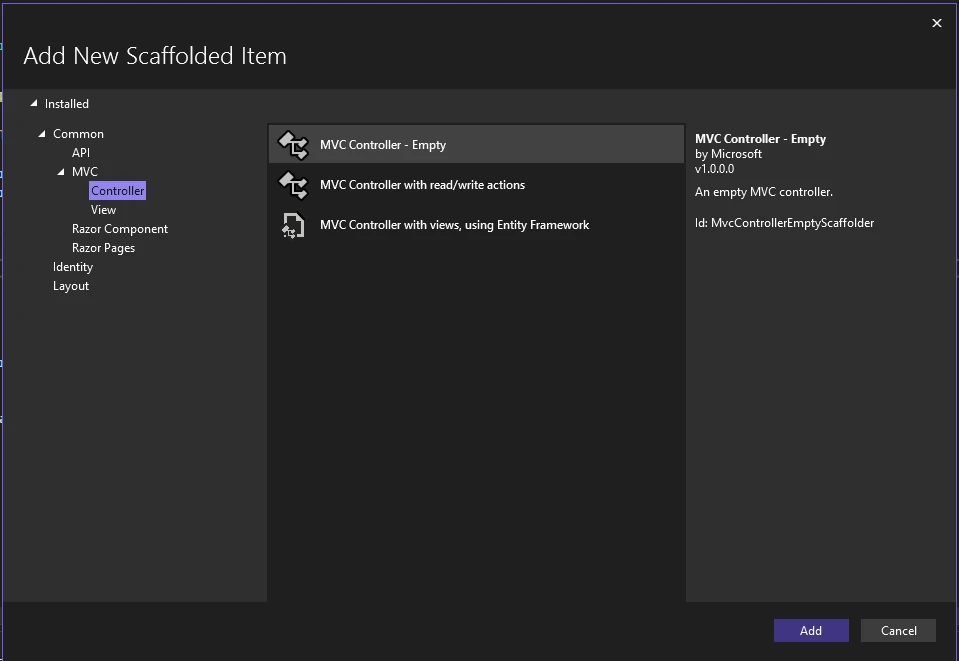
To create a new controller to house our HTML to PDF code within, first right-click on the "Controllers" folder in the solution explorer and choose "Add -> Controller".
This will prompt a new window to open, where you can choose what form of controller you want to add to the project. We have picked an empty MVC Controller.
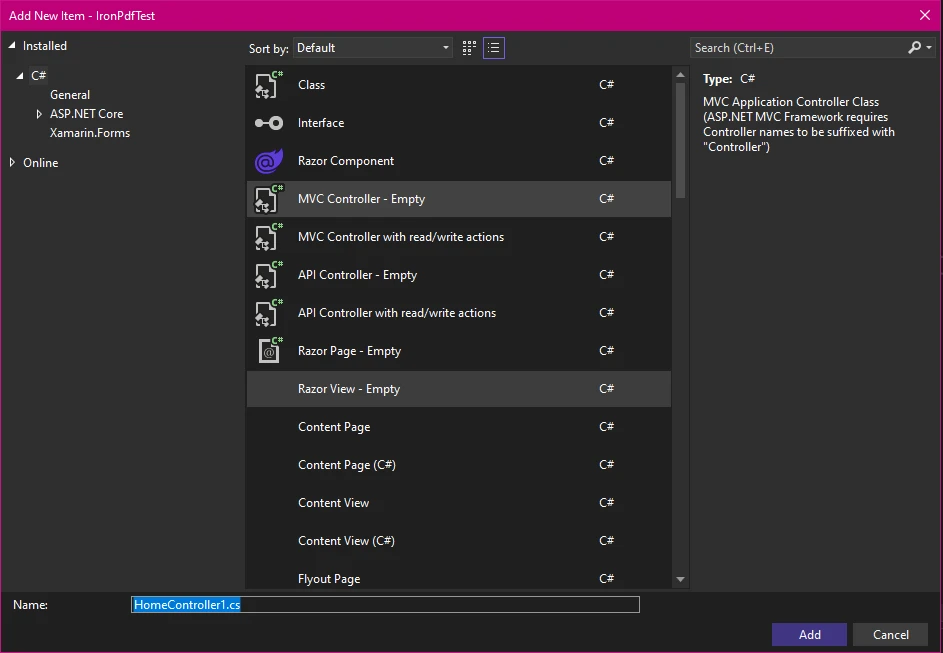
Finally, we give the new Controller a name and click "Add" to add it to our project.
How Do I Convert HTML Strings to PDF?
The most fundamental operation in IronPDF is converting HTML strings directly to PDF documents. This approach works perfectly when building HTML content dynamically in your ASP.NET application or working with templates. The comprehensive tutorial covers advanced scenarios.
// Create a PDF converter instancevar renderer = new ChromePdfRenderer();// Convert HTML string to PDF documentvar pdf = renderer.RenderHtmlAsPdf("<h1>Sales Report</h1><p>Generated on: " + DateTime.Now + "</p>");// Save the resultant PDF document to a filepdf.SaveAs("report.pdf");
// Create a PDF converter instance
var renderer = new ChromePdfRenderer();
// Convert HTML string to PDF document
var pdf = renderer.RenderHtmlAsPdf("<h1>Sales Report</h1><p>Generated on: " + DateTime.Now + "</p>");
// Save the resultant PDF document to a file
pdf.SaveAs("report.pdf");
' Create a PDF converter instanceDim renderer = New ChromePdfRenderer()' Convert HTML string to PDF documentDim pdf = renderer.RenderHtmlAsPdf("<h1>Sales Report</h1><p>Generated on: " & DateTime.Now & "</p>")' Save the resultant PDF document to a filepdf.SaveAs("report.pdf")
' Create a PDF converter instance
Dim renderer = New ChromePdfRenderer()
' Convert HTML string to PDF document
Dim pdf = renderer.RenderHtmlAsPdf("<h1>Sales Report</h1><p>Generated on: " & DateTime.Now & "</p>")
' Save the resultant PDF document to a file
pdf.SaveAs("report.pdf")
This code creates a new ChromePdfRenderer instance, which uses the Chromium engine to render your HTML content. The RenderHtmlAsPdf method accepts any valid HTML string and returns a PdfDocument object. You can then save this document to disk or stream it directly to users as a byte array. Learn more about the ChromePdfRenderer class and its capabilities. The create PDFs guide offers additional creation methods.
For production environments with high concurrency, implement proper resource management:
// Implement using statement for proper disposalusing (var renderer = new ChromePdfRenderer()){ // Configure for optimal performance renderer.RenderingOptions.CreatePdfFormsFromHtml = false; renderer.RenderingOptions.CssMediaType = IronPdf.Rendering.PdfCssMediaType.Print; renderer.RenderingOptions.PrintHtmlBackgrounds = true; var pdf = renderer.RenderHtmlAsPdf(htmlContent); // Use memory stream for better resource management using (var ms = new MemoryStream()) { pdf.SaveAs(ms); return ms.ToArray(); }}
// Implement using statement for proper disposal
using (var renderer = new ChromePdfRenderer())
{
    // Configure for optimal performance
    renderer.RenderingOptions.CreatePdfFormsFromHtml = false;
    renderer.RenderingOptions.CssMediaType = IronPdf.Rendering.PdfCssMediaType.Print;
    renderer.RenderingOptions.PrintHtmlBackgrounds = true;

    var pdf = renderer.RenderHtmlAsPdf(htmlContent);

    // Use memory stream for better resource management
    using (var ms = new MemoryStream())
    {
        pdf.SaveAs(ms);
        return ms.ToArray();
    }
}
' Implement using statement for proper disposalUsing renderer As New ChromePdfRenderer() ' Configure for optimal performance renderer.RenderingOptions.CreatePdfFormsFromHtml = False renderer.RenderingOptions.CssMediaType = IronPdf.Rendering.PdfCssMediaType.Print renderer.RenderingOptions.PrintHtmlBackgrounds = True Dim pdf = renderer.RenderHtmlAsPdf(htmlContent) ' Use memory stream for better resource managementUsing ms As New MemoryStream() pdf.SaveAs(ms) Return ms.ToArray()EndUsingEndUsing
' Implement using statement for proper disposal
Using renderer As New ChromePdfRenderer()
    ' Configure for optimal performance
    renderer.RenderingOptions.CreatePdfFormsFromHtml = False
    renderer.RenderingOptions.CssMediaType = IronPdf.Rendering.PdfCssMediaType.Print
    renderer.RenderingOptions.PrintHtmlBackgrounds = True

    Dim pdf = renderer.RenderHtmlAsPdf(htmlContent)

    ' Use memory stream for better resource management
    Using ms As New MemoryStream()
        pdf.SaveAs(ms)
        Return ms.ToArray()
    End Using
End Using
The memory stream guide explains efficient in-memory PDF handling. For async operations, use the asynchronous rendering methods to improve throughput.
How Do CSS and Images Get Handled?
IronPDF fully supports CSS styling and can embed images from various sources. The converter handles all elements with complete fidelity, including various tags and image URLs. SVG graphics support ensures vector images render perfectly.
var html = @" <style> body { font-family: Arial, sans-serif; margin: 40px; } h1 { color: #2c3e50; border-bottom: 2px solid #3498db; } .highlight { background-color: #f1c40f; padding: 5px; } </style> <h1>Monthly Report</h1> <p>This HTML document includes <span class='highlight'>highlighted text</span> and styling.</p> <img src='data:image/png;base64,iVBORw0KGgoAAAANS...' alt='Logo' />";var renderer = new ChromePdfRenderer();var pdf = renderer.RenderHtmlAsPdf(html);
var html = @"
    <style>
        body { font-family: Arial, sans-serif; margin: 40px; }
        h1 { color: #2c3e50; border-bottom: 2px solid #3498db; }
        .highlight { background-color: #f1c40f; padding: 5px; }
    </style>
    <h1>Monthly Report</h1>
    <p>This HTML document includes <span class='highlight'>highlighted text</span> and styling.</p>
    <img src='data:image/png;base64,iVBORw0KGgoAAAANS...' alt='Logo' />";
var renderer = new ChromePdfRenderer();
var pdf = renderer.RenderHtmlAsPdf(html);
Dim html AsString = " <style> body { font-family: Arial, sans-serif; margin: 40px; } h1 { color: #2c3e50; border-bottom: 2px solid #3498db; } .highlight { background-color: #f1c40f; padding: 5px; } </style> <h1>Monthly Report</h1> <p>This HTML document includes <span class='highlight'>highlighted text</span> and styling.</p> <img src='data:image/png;base64,iVBORw0KGgoAAAANS...' alt='Logo' />"Dim renderer As New ChromePdfRenderer()Dim pdf = renderer.RenderHtmlAsPdf(html)
Dim html As String = "
    <style>
        body { font-family: Arial, sans-serif; margin: 40px; }
        h1 { color: #2c3e50; border-bottom: 2px solid #3498db; }
        .highlight { background-color: #f1c40f; padding: 5px; }
    </style>
    <h1>Monthly Report</h1>
    <p>This HTML document includes <span class='highlight'>highlighted text</span> and styling.</p>
    <img src='data:image/png;base64,iVBORw0KGgoAAAANS...' alt='Logo' />"
Dim renderer As New ChromePdfRenderer()
Dim pdf = renderer.RenderHtmlAsPdf(html)
The renderer processes inline styles, CSS files, and even base64-encoded images. This ensures your pages maintain the exact appearance of your HTML content, including modern CSS3 features like flexbox and grid layouts. The conversion preserves all tags and styling without generating blank pages. Web fonts and icon fonts are fully supported, including Google Fonts.
For containerized environments, ensure external resources are accessible or embedded:
// Configure base URL for resource loadingrenderer.RenderingOptions.BaseUrl = new Uri("https://www.example.com");// Or embed resources using data URIs for self-contained PDFsvar htmlWithEmbeddedResources = @" <style> @font-face { font-family: 'CustomFont'; src: url(data:font/woff2;base64,...) format('woff2'); } </style>";
// Configure base URL for resource loading
renderer.RenderingOptions.BaseUrl = new Uri("https://www.example.com");

// Or embed resources using data URIs for self-contained PDFs
var htmlWithEmbeddedResources = @"
    <style>
        @font-face {
            font-family: 'CustomFont';
            src: url(data:font/woff2;base64,...) format('woff2');
        }
    </style>";
' Configure base URL for resource loadingrenderer.RenderingOptions.BaseUrl = New Uri("https://www.example.com")' Or embed resources using data URIs for self-contained PDFsDim htmlWithEmbeddedResources AsString = " <style> @font-face { font-family: 'CustomFont'; src: url(data:font/woff2;base64,...) format('woff2'); } </style>"
' Configure base URL for resource loading
renderer.RenderingOptions.BaseUrl = New Uri("https://www.example.com")

' Or embed resources using data URIs for self-contained PDFs
Dim htmlWithEmbeddedResources As String = "
    <style>
        @font-face {
            font-family: 'CustomFont';
            src: url(data:font/woff2;base64,...) format('woff2');
        }
    </style>"
Converting entire ASP.NET Core views to PDF is common, especially for generating reports based on existing templates. IronPDF provides several approaches for this scenario, whether working with single or multiple pages. The CSHTML to PDF tutorials cover framework-specific implementations.
How Do I Convert MVC Views?
In your ASP.NET Core controller, render a view to HTML and then convert it to PDF using IronPDF's powerful rendering capabilities:
[HttpGet]public async Task<IActionResult> DownloadPdf(){ var invoiceModel = new InvoiceModel {InvoiceNumber = 12345,Date = DateTime.Now,CustomerName = "Acme Corporation",Items = new List<InvoiceItem> { new InvoiceItem { Description = "Service", Quantity = 1, Price = 100.0 } },Total = 100.0 }; // Render the view to HTML string var htmlContent = awaitRenderViewToString("Invoice", invoiceModel); // Convert HTML to PDF var renderer = new ChromePdfRenderer(); var pdf = renderer.RenderHtmlAsPdf(htmlContent); // Return PDF to browser var contentType = "application/pdf"; var fileName = $"invoice_{DateTime.Now:yyyyMMdd}.pdf"; returnFile(pdf.BinaryData, contentType, fileName);}private async Task<string> RenderViewToString(string viewName, object model){ViewData.Model = model; using (var writer = new StringWriter()) { var viewResult = viewEngine.FindView(ControllerContext, viewName, false); var viewContext = new ViewContext(ControllerContext, viewResult.View,ViewData,TempData, writer, new HtmlHelperOptions() ); await viewResult.View.RenderAsync(viewContext); return writer.GetStringBuilder().ToString(); }}
[HttpGet]
public async Task<IActionResult> DownloadPdf()
{
    var invoiceModel = new InvoiceModel
    {
        InvoiceNumber = 12345,
        Date = DateTime.Now,
        CustomerName = "Acme Corporation",
        Items = new List<InvoiceItem>
        {
            new InvoiceItem { Description = "Service", Quantity = 1, Price = 100.0 }
        },
        Total = 100.0
    };
    // Render the view to HTML string
    var htmlContent = await RenderViewToString("Invoice", invoiceModel);
    // Convert HTML to PDF
    var renderer = new ChromePdfRenderer();
    var pdf = renderer.RenderHtmlAsPdf(htmlContent);
    // Return PDF to browser
    var contentType = "application/pdf";
    var fileName = $"invoice_{DateTime.Now:yyyyMMdd}.pdf";
    return File(pdf.BinaryData, contentType, fileName);
}
private async Task<string> RenderViewToString(string viewName, object model)
{
    ViewData.Model = model;
    using (var writer = new StringWriter())
    {
        var viewResult = viewEngine.FindView(ControllerContext, viewName, false);
        var viewContext = new ViewContext(
            ControllerContext,
            viewResult.View,
            ViewData,
            TempData,
            writer,
            new HtmlHelperOptions()
        );
        await viewResult.View.RenderAsync(viewContext);
        return writer.GetStringBuilder().ToString();
    }
}
ImportsSystemImportsSystem.Collections.GenericImportsSystem.IOImportsSystem.Threading.TasksImportsMicrosoft.AspNetCore.Mvc<HttpGet>PublicAsync Function DownloadPdf() AsTask(OfIActionResult) Dim invoiceModel = New InvoiceModelWith { .InvoiceNumber = 12345, .Date = DateTime.Now, .CustomerName = "Acme Corporation", .Items = New List(OfInvoiceItem) From { New InvoiceItemWith {.Description = "Service", .Quantity = 1, .Price = 100.0} }, .Total = 100.0 } ' Render the view to HTML string Dim htmlContent = AwaitRenderViewToString("Invoice", invoiceModel) ' Convert HTML to PDF Dim renderer = New ChromePdfRenderer() Dim pdf = renderer.RenderHtmlAsPdf(htmlContent) ' Return PDF to browser Dim contentType = "application/pdf" Dim fileName = $"invoice_{DateTime.Now:yyyyMMdd}.pdf" ReturnFile(pdf.BinaryData, contentType, fileName)End FunctionPrivateAsync Function RenderViewToString(viewName AsString, model AsObject) AsTask(OfString)ViewData.Model = modelUsing writer = New StringWriter() Dim viewResult = viewEngine.FindView(ControllerContext, viewName, False) Dim viewContext = New ViewContext(ControllerContext, viewResult.View,ViewData,TempData, writer, New HtmlHelperOptions() )Await viewResult.View.RenderAsync(viewContext) Return writer.GetStringBuilder().ToString()EndUsingEnd Function
Imports System
Imports System.Collections.Generic
Imports System.IO
Imports System.Threading.Tasks
Imports Microsoft.AspNetCore.Mvc

<HttpGet>
Public Async Function DownloadPdf() As Task(Of IActionResult)
    Dim invoiceModel = New InvoiceModel With {
        .InvoiceNumber = 12345,
        .Date = DateTime.Now,
        .CustomerName = "Acme Corporation",
        .Items = New List(Of InvoiceItem) From {
            New InvoiceItem With {.Description = "Service", .Quantity = 1, .Price = 100.0}
        },
        .Total = 100.0
    }
    ' Render the view to HTML string
    Dim htmlContent = Await RenderViewToString("Invoice", invoiceModel)
    ' Convert HTML to PDF
    Dim renderer = New ChromePdfRenderer()
    Dim pdf = renderer.RenderHtmlAsPdf(htmlContent)
    ' Return PDF to browser
    Dim contentType = "application/pdf"
    Dim fileName = $"invoice_{DateTime.Now:yyyyMMdd}.pdf"
    Return File(pdf.BinaryData, contentType, fileName)
End Function

Private Async Function RenderViewToString(viewName As String, model As Object) As Task(Of String)
    ViewData.Model = model
    Using writer = New StringWriter()
        Dim viewResult = viewEngine.FindView(ControllerContext, viewName, False)
        Dim viewContext = New ViewContext(
            ControllerContext,
            viewResult.View,
            ViewData,
            TempData,
            writer,
            New HtmlHelperOptions()
        )
        Await viewResult.View.RenderAsync(viewContext)
        Return writer.GetStringBuilder().ToString()
    End Using
End Function
This approach renders your Razor view to an HTML string first, then converts it to PDF. The PDF returns as a file download to the user's browser with an appropriate filename. This works seamlessly with both ASPX files and modern Razor views. For Razor Pages, use the dedicated rendering methods. The MVC Framework guide covers older ASP.NET versions.
For production deployments, implement caching to reduce server load:
private readonly IMemoryCache _cache;[HttpGet]public async Task<IActionResult> DownloadCachedPdf(int invoiceId){ var cacheKey = $"invoice_pdf_{invoiceId}"; if (!_cache.TryGetValue(cacheKey, out byte[] pdfBytes)) { // Generate PDF if not cached var htmlContent = awaitRenderViewToString("Invoice", model); var renderer = new ChromePdfRenderer(); var pdf = renderer.RenderHtmlAsPdf(htmlContent); pdfBytes = pdf.BinaryData; // Cache for 1 hour _cache.Set(cacheKey, pdfBytes, TimeSpan.FromHours(1)); } returnFile(pdfBytes, "application/pdf", $"invoice_{invoiceId}.pdf");}
private readonly IMemoryCache _cache;

[HttpGet]
public async Task<IActionResult> DownloadCachedPdf(int invoiceId)
{
    var cacheKey = $"invoice_pdf_{invoiceId}";

    if (!_cache.TryGetValue(cacheKey, out byte[] pdfBytes))
    {
        // Generate PDF if not cached
        var htmlContent = await RenderViewToString("Invoice", model);
        var renderer = new ChromePdfRenderer();
        var pdf = renderer.RenderHtmlAsPdf(htmlContent);
        pdfBytes = pdf.BinaryData;

        // Cache for 1 hour
        _cache.Set(cacheKey, pdfBytes, TimeSpan.FromHours(1));
    }

    return File(pdfBytes, "application/pdf", $"invoice_{invoiceId}.pdf");
}
PrivateReadOnly _cache AsIMemoryCache<HttpGet>PublicAsync Function DownloadCachedPdf(invoiceId AsInteger) AsTask(OfIActionResult) Dim cacheKey = $"invoice_pdf_{invoiceId}" Dim pdfBytes AsByte() = Nothing IfNot _cache.TryGetValue(cacheKey, pdfBytes) Then ' Generate PDF if not cached Dim htmlContent = AwaitRenderViewToString("Invoice", model) Dim renderer = New ChromePdfRenderer() Dim pdf = renderer.RenderHtmlAsPdf(htmlContent) pdfBytes = pdf.BinaryData ' Cache for 1 hour _cache.Set(cacheKey, pdfBytes, TimeSpan.FromHours(1)) End If ReturnFile(pdfBytes, "application/pdf", $"invoice_{invoiceId}.pdf")End Function
Private ReadOnly _cache As IMemoryCache

<HttpGet>
Public Async Function DownloadCachedPdf(invoiceId As Integer) As Task(Of IActionResult)
    Dim cacheKey = $"invoice_pdf_{invoiceId}"

    Dim pdfBytes As Byte() = Nothing
    If Not _cache.TryGetValue(cacheKey, pdfBytes) Then
        ' Generate PDF if not cached
        Dim htmlContent = Await RenderViewToString("Invoice", model)
        Dim renderer = New ChromePdfRenderer()
        Dim pdf = renderer.RenderHtmlAsPdf(htmlContent)
        pdfBytes = pdf.BinaryData

        ' Cache for 1 hour
        _cache.Set(cacheKey, pdfBytes, TimeSpan.FromHours(1))
    End If

    Return File(pdfBytes, "application/pdf", $"invoice_{invoiceId}.pdf")
End Function
The headless rendering guide shows how to generate PDFs without a GUI context, ideal for background services.
Can I Convert External URLs?
For existing web pages, use IronPDF to transform any URL directly into PDFs. Simply provide an HTTP or HTTPS address:
[HttpGet]public IActionResultGeneratePdfFromUrl(){ var renderer = new ChromePdfRenderer(); // Convert a specified URL to PDF document var pdf = renderer.RenderUrlAsPdf("https://ironpdf.com/"); // Stream the PDF file to the browser returnFile(pdf.BinaryData, "application/pdf", "invoice.pdf");}
[HttpGet]
public IActionResult GeneratePdfFromUrl()
{
    var renderer = new ChromePdfRenderer();
    // Convert a specified URL to PDF document
    var pdf = renderer.RenderUrlAsPdf("https://ironpdf.com/");
    // Stream the PDF file to the browser
    return File(pdf.BinaryData, "application/pdf", "invoice.pdf");
}
<HttpGet>Public Function GeneratePdfFromUrl() AsIActionResult Dim renderer = New ChromePdfRenderer() ' Convert a specified URL to PDF document Dim pdf = renderer.RenderUrlAsPdf("https://ironpdf.com/") ' Stream the PDF file to the browser ReturnFile(pdf.BinaryData, "application/pdf", "invoice.pdf")End Function
<HttpGet>
Public Function GeneratePdfFromUrl() As IActionResult
    Dim renderer = New ChromePdfRenderer()
    ' Convert a specified URL to PDF document
    Dim pdf = renderer.RenderUrlAsPdf("https://ironpdf.com/")
    ' Stream the PDF file to the browser
    Return File(pdf.BinaryData, "application/pdf", "invoice.pdf")
End Function
This method works well when you already have well-formatted web pages and want to offer them as downloadable PDFs. The library handles all external resources, including stylesheets, scripts, and images, ensuring complete rendering. The converter returns an appropriate HTTP status code if it encounters an invalid URL. For JavaScript-heavy pages, configure appropriate render delays.
For containerized environments, configure network settings appropriately:
// Configure for Docker/Kubernetes environmentsrenderer.RenderingOptions.Timeout = 60000; // 60 second timeoutrenderer.RenderingOptions.EnableJavaScript = true;renderer.RenderingOptions.WaitFor = new WaitFor(){RenderDelay = 500, // Wait 500ms after page loadNetworkIdle = IronPdf.Engines.Chrome.NetworkIdle.NetworkIdle2};
// Configure for Docker/Kubernetes environments
renderer.RenderingOptions.Timeout = 60000; // 60 second timeout
renderer.RenderingOptions.EnableJavaScript = true;
renderer.RenderingOptions.WaitFor = new WaitFor()
{
    RenderDelay = 500, // Wait 500ms after page load
    NetworkIdle = IronPdf.Engines.Chrome.NetworkIdle.NetworkIdle2
};
' Configure for Docker/Kubernetes environmentsrenderer.RenderingOptions.Timeout = 60000 ' 60 second timeoutrenderer.RenderingOptions.EnableJavaScript = Truerenderer.RenderingOptions.WaitFor = New WaitFor() With { .RenderDelay = 500, ' Wait 500ms after page load .NetworkIdle = IronPdf.Engines.Chrome.NetworkIdle.NetworkIdle2}
' Configure for Docker/Kubernetes environments
renderer.RenderingOptions.Timeout = 60000 ' 60 second timeout
renderer.RenderingOptions.EnableJavaScript = True
renderer.RenderingOptions.WaitFor = New WaitFor() With {
    .RenderDelay = 500, ' Wait 500ms after page load
    .NetworkIdle = IronPdf.Engines.Chrome.NetworkIdle.NetworkIdle2
}
When converting authenticated pages with .NET forms authentication or other security mechanisms, pass cookies or headers to maintain the user session. This prevents redirection to login screens during conversion:
var renderer = new ChromePdfRenderer();// Set cookies for authenticated requests with user database credentialsrenderer.RenderingOptions.CustomCookies.Add("auth_token", Request.Cookies["auth_token"]);// Convert protected web pages to PDFvar pdf = renderer.RenderUrlAsPdf("https://localhost:5001/secure/report");
var renderer = new ChromePdfRenderer();
// Set cookies for authenticated requests with user database credentials
renderer.RenderingOptions.CustomCookies.Add("auth_token", Request.Cookies["auth_token"]);
// Convert protected web pages to PDF
var pdf = renderer.RenderUrlAsPdf("https://localhost:5001/secure/report");
Dim renderer As New ChromePdfRenderer()' Set cookies for authenticated requests with user database credentialsrenderer.RenderingOptions.CustomCookies.Add("auth_token", Request.Cookies("auth_token"))' Convert protected web pages to PDFDim pdf = renderer.RenderUrlAsPdf("https://localhost:5001/secure/report")
Dim renderer As New ChromePdfRenderer()
' Set cookies for authenticated requests with user database credentials
renderer.RenderingOptions.CustomCookies.Add("auth_token", Request.Cookies("auth_token"))
' Convert protected web pages to PDF
Dim pdf = renderer.RenderUrlAsPdf("https://localhost:5001/secure/report")
This ensures protected content can be converted to PDFs while maintaining security. The conversion process respects your application's basic authentication and forms authentication, preventing unauthorized access to sensitive documents. You can also pass username and password arguments when needed for basic authentication scenarios. The cookie management guide explains advanced cookie handling. For Kerberos authentication, configure appropriate credentials.
For microservices architectures, consider service-to-service authentication:
// Add service authentication headersrenderer.RenderingOptions.ExtraHttpHeaders.Add("X-Service-Token", GetServiceToken());renderer.RenderingOptions.ExtraHttpHeaders.Add("X-Request-ID", Activity.Current?.Id);// Configure for internal service meshrenderer.RenderingOptions.BaseUrl = new Uri("https://www.example.com");
// Add service authentication headers
renderer.RenderingOptions.ExtraHttpHeaders.Add("X-Service-Token", GetServiceToken());
renderer.RenderingOptions.ExtraHttpHeaders.Add("X-Request-ID", Activity.Current?.Id);

// Configure for internal service mesh
renderer.RenderingOptions.BaseUrl = new Uri("https://www.example.com");
' Add service authentication headersrenderer.RenderingOptions.ExtraHttpHeaders.Add("X-Service-Token", GetServiceToken())renderer.RenderingOptions.ExtraHttpHeaders.Add("X-Request-ID", Activity.Current?.Id)' Configure for internal service meshrenderer.RenderingOptions.BaseUrl = New Uri("https://www.example.com")
' Add service authentication headers
renderer.RenderingOptions.ExtraHttpHeaders.Add("X-Service-Token", GetServiceToken())
renderer.RenderingOptions.ExtraHttpHeaders.Add("X-Request-ID", Activity.Current?.Id)

' Configure for internal service mesh
renderer.RenderingOptions.BaseUrl = New Uri("https://www.example.com")
How Do You Handle Form Data and POST Requests?
Processing form data before PDF generation is a common pattern in ASP.NET applications -- order confirmations, delivery slips, and receipts all follow this model. The approach is to bind the posted form data to a model, build an HTML string from that model, and then render the string as a PDF:
[HttpPost]public IActionResultProcessFormToPdf(OrderModel model){ var renderer = new ChromePdfRenderer(); string html = $@" <h2>Order Confirmation</h2> <p>Customer: {model.CustomerName}</p> <p>Order Date: {model.OrderDate:yyyy-MM-dd}</p> <ul> {string.Join("", model.Items.Select(i => $"<li>{i.Name} -- ${i.Price}</li>"))} </ul> <p><strong>Total: ${model.Total}</strong></p>"; var pdf = renderer.RenderHtmlAsPdf(html); string fileName = $"order-{model.OrderId}.pdf"; returnFile(pdf.BinaryData, "application/pdf", fileName);}
[HttpPost]
public IActionResult ProcessFormToPdf(OrderModel model)
{
    var renderer = new ChromePdfRenderer();
    string html = $@"
        <h2>Order Confirmation</h2>
        <p>Customer: {model.CustomerName}</p>
        <p>Order Date: {model.OrderDate:yyyy-MM-dd}</p>
        <ul>
            {string.Join("", model.Items.Select(i => $"<li>{i.Name} -- ${i.Price}</li>"))}
        </ul>
        <p><strong>Total: ${model.Total}</strong></p>";
    var pdf = renderer.RenderHtmlAsPdf(html);
    string fileName = $"order-{model.OrderId}.pdf";
    return File(pdf.BinaryData, "application/pdf", fileName);
}
ImportsSystemImportsSystem.LinqImportsMicrosoft.AspNetCore.Mvc<HttpPost>Public Function ProcessFormToPdf(model AsOrderModel) AsIActionResult Dim renderer = New ChromePdfRenderer() Dim html AsString = $" <h2>Order Confirmation</h2> <p>Customer: {model.CustomerName}</p> <p>Order Date: {model.OrderDate:yyyy-MM-dd}</p> <ul> {String.Join("", model.Items.Select(Function(i) $"<li>{i.Name} -- ${i.Price}</li>"))} </ul> <p><strong>Total: ${model.Total}</strong></p>" Dim pdf = renderer.RenderHtmlAsPdf(html) Dim fileName AsString = $"order-{model.OrderId}.pdf" ReturnFile(pdf.BinaryData, "application/pdf", fileName)End Function
Imports System
Imports System.Linq
Imports Microsoft.AspNetCore.Mvc

<HttpPost>
Public Function ProcessFormToPdf(model As OrderModel) As IActionResult
    Dim renderer = New ChromePdfRenderer()
    Dim html As String = $"
        <h2>Order Confirmation</h2>
        <p>Customer: {model.CustomerName}</p>
        <p>Order Date: {model.OrderDate:yyyy-MM-dd}</p>
        <ul>
            {String.Join("", model.Items.Select(Function(i) $"<li>{i.Name} -- ${i.Price}</li>"))}
        </ul>
        <p><strong>Total: ${model.Total}</strong></p>"
    Dim pdf = renderer.RenderHtmlAsPdf(html)
    Dim fileName As String = $"order-{model.OrderId}.pdf"
    Return File(pdf.BinaryData, "application/pdf", fileName)
End Function
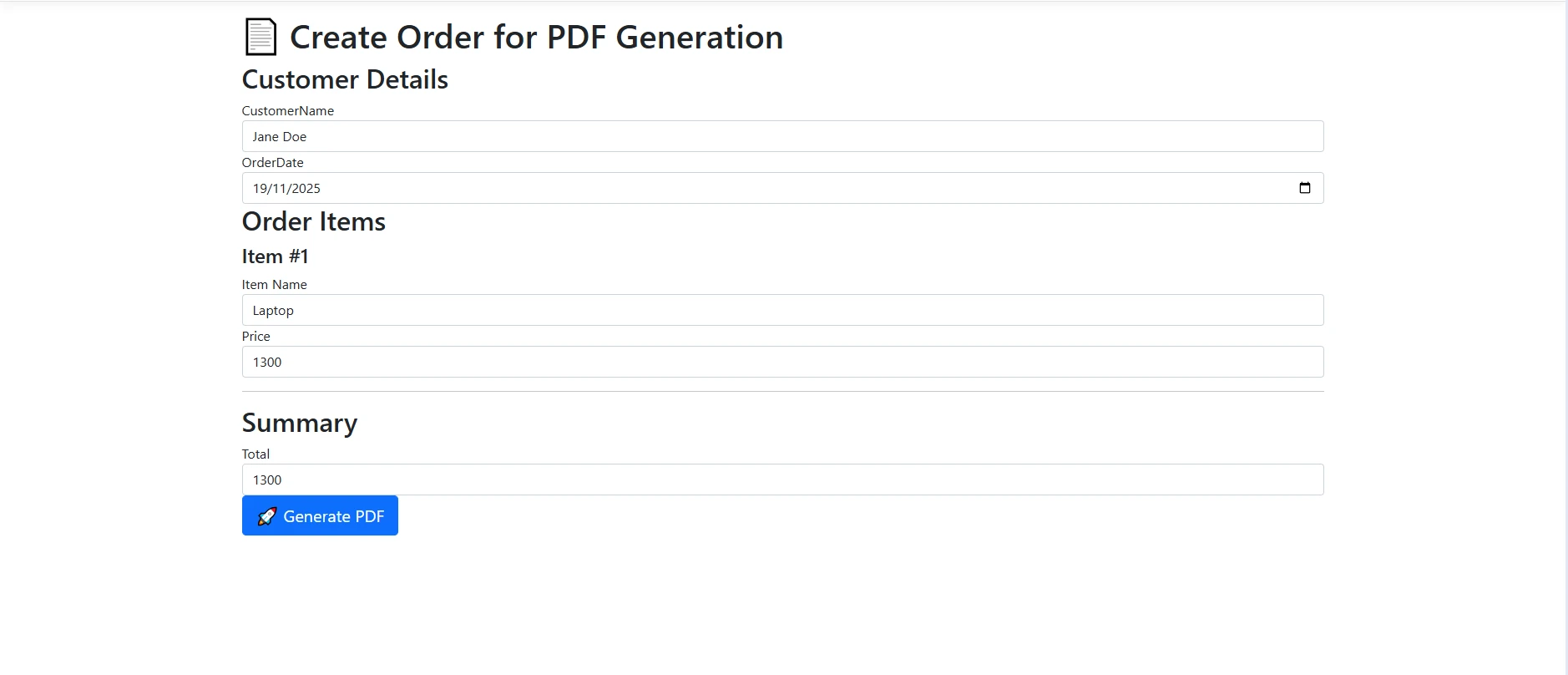
What Does the Form Interface Look Like?
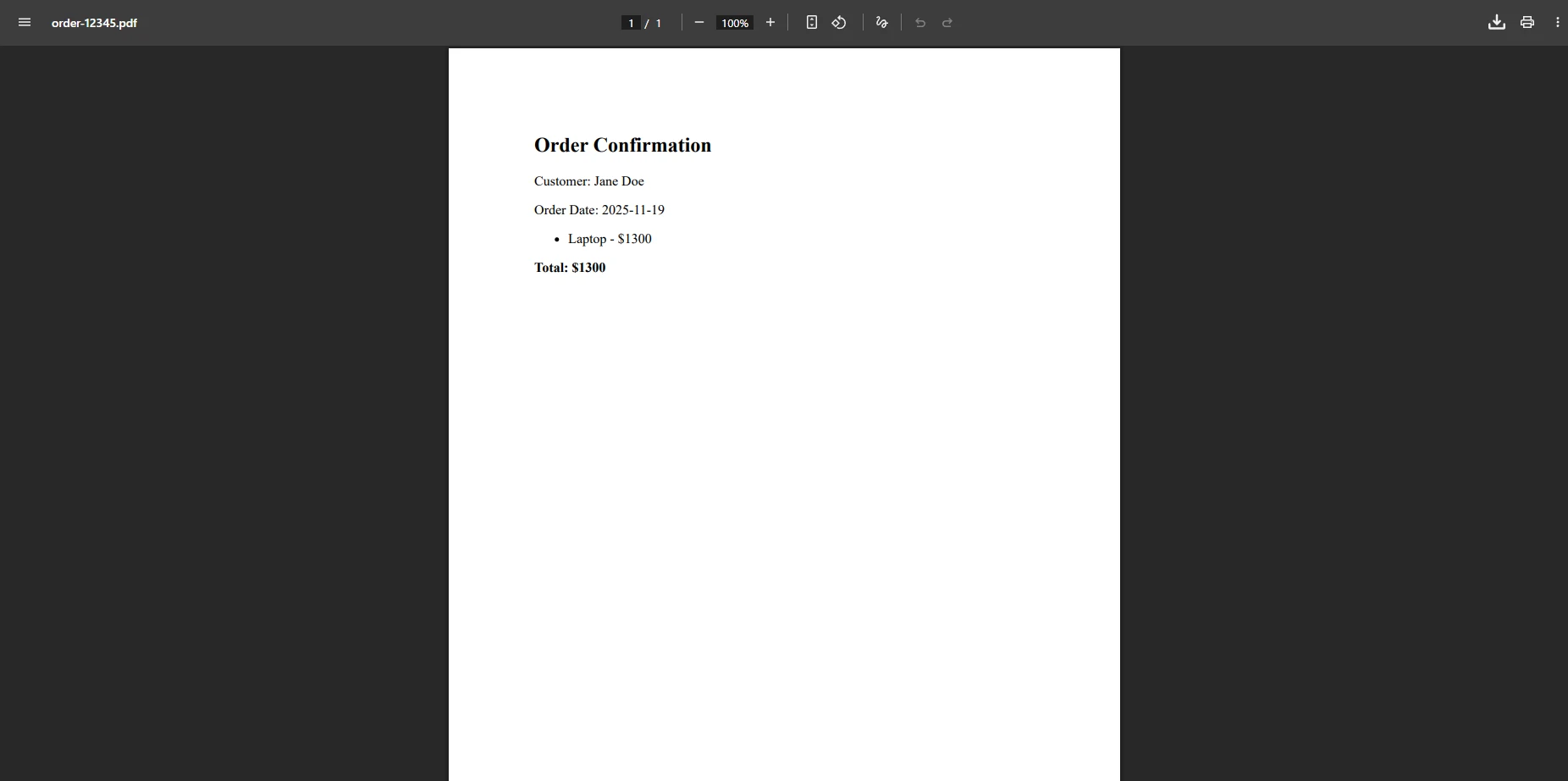
How Does Form Data Appear in the Generated PDF?
For more advanced document scenarios, you can integrate PDF forms or edit existing PDF templates with pre-filled fields. The library also supports digital signatures for legal documents and contracts, letting you add cryptographically verifiable signatures to any generated document.
One important consideration when embedding user data into HTML strings is sanitization. Always escape user-supplied strings before inserting them into HTML to prevent injection issues. A simple System.Web.HttpUtility.HtmlEncode(model.CustomerName) call on each field keeps the template safe before passing it to the renderer.
How Can I Customize PDF Output?
IronPDF offers extensive customization options to control how your documents are generated from HTML. These settings help you create professional PDFs that meet specific requirements for page layout and formatting. The rendering settings examples demonstrate practical implementations.
How Do I Control Page Layout?
var renderer = new ChromePdfRenderer();// Set default page size for PDF pagesrenderer.RenderingOptions.PaperSize = PdfPaperSize.A4;renderer.RenderingOptions.PaperOrientation = PdfPaperOrientation.Portrait;// Control page width and margins for the resultant PDF documentrenderer.RenderingOptions.MarginTop = 25;renderer.RenderingOptions.MarginBottom = 25;renderer.RenderingOptions.MarginLeft = 20;renderer.RenderingOptions.MarginRight = 20;
var renderer = new ChromePdfRenderer();
// Set default page size for PDF pages
renderer.RenderingOptions.PaperSize = PdfPaperSize.A4;
renderer.RenderingOptions.PaperOrientation = PdfPaperOrientation.Portrait;
// Control page width and margins for the resultant PDF document
renderer.RenderingOptions.MarginTop = 25;
renderer.RenderingOptions.MarginBottom = 25;
renderer.RenderingOptions.MarginLeft = 20;
renderer.RenderingOptions.MarginRight = 20;
Dim renderer As New ChromePdfRenderer()' Set default page size for PDF pagesrenderer.RenderingOptions.PaperSize = PdfPaperSize.A4renderer.RenderingOptions.PaperOrientation = PdfPaperOrientation.Portrait' Control page width and margins for the resultant PDF documentrenderer.RenderingOptions.MarginTop = 25renderer.RenderingOptions.MarginBottom = 25renderer.RenderingOptions.MarginLeft = 20renderer.RenderingOptions.MarginRight = 20
Dim renderer As New ChromePdfRenderer()
' Set default page size for PDF pages
renderer.RenderingOptions.PaperSize = PdfPaperSize.A4
renderer.RenderingOptions.PaperOrientation = PdfPaperOrientation.Portrait
' Control page width and margins for the resultant PDF document
renderer.RenderingOptions.MarginTop = 25
renderer.RenderingOptions.MarginBottom = 25
renderer.RenderingOptions.MarginLeft = 20
renderer.RenderingOptions.MarginRight = 20
These settings control the physical layout of your pages. You can choose from standard paper sizes or define custom dimensions, set portrait or landscape orientation, and adjust margins to match your design requirements. The graphics template system ensures consistent styling across all pages. For page breaks, use CSS properties to control content flow.
ImportsSystemrenderer.RenderingOptions.HtmlHeader = New HtmlHeaderFooter() With { .HtmlFragment = "<div style='text-align: center'>Company Report</div>", .MaxHeight = 20}renderer.RenderingOptions.HtmlFooter = New HtmlHeaderFooter() With { .HtmlFragment = "<div style='text-align: center'>Page {page} of {total-pages}</div>", .MaxHeight = 20}
Imports System

renderer.RenderingOptions.HtmlHeader = New HtmlHeaderFooter() With {
    .HtmlFragment = "<div style='text-align: center'>Company Report</div>",
    .MaxHeight = 20
}
renderer.RenderingOptions.HtmlFooter = New HtmlHeaderFooter() With {
    .HtmlFragment = "<div style='text-align: center'>Page {page} of {total-pages}</div>",
    .MaxHeight = 20
}
Headers and footers support HTML formatting with special placeholders for page numbers, dates, and other dynamic content across all pages. The following code demonstrates adding professional headers to your generated documents. The HTML headers guide shows advanced formatting options. For text-only headers, use the simpler API methods.
For advanced header/footer configurations with dynamic content:
How Do You Add Professional Formatting, Headers, and Watermarks?
How Do You Configure Headers, Footers, and Watermarks?
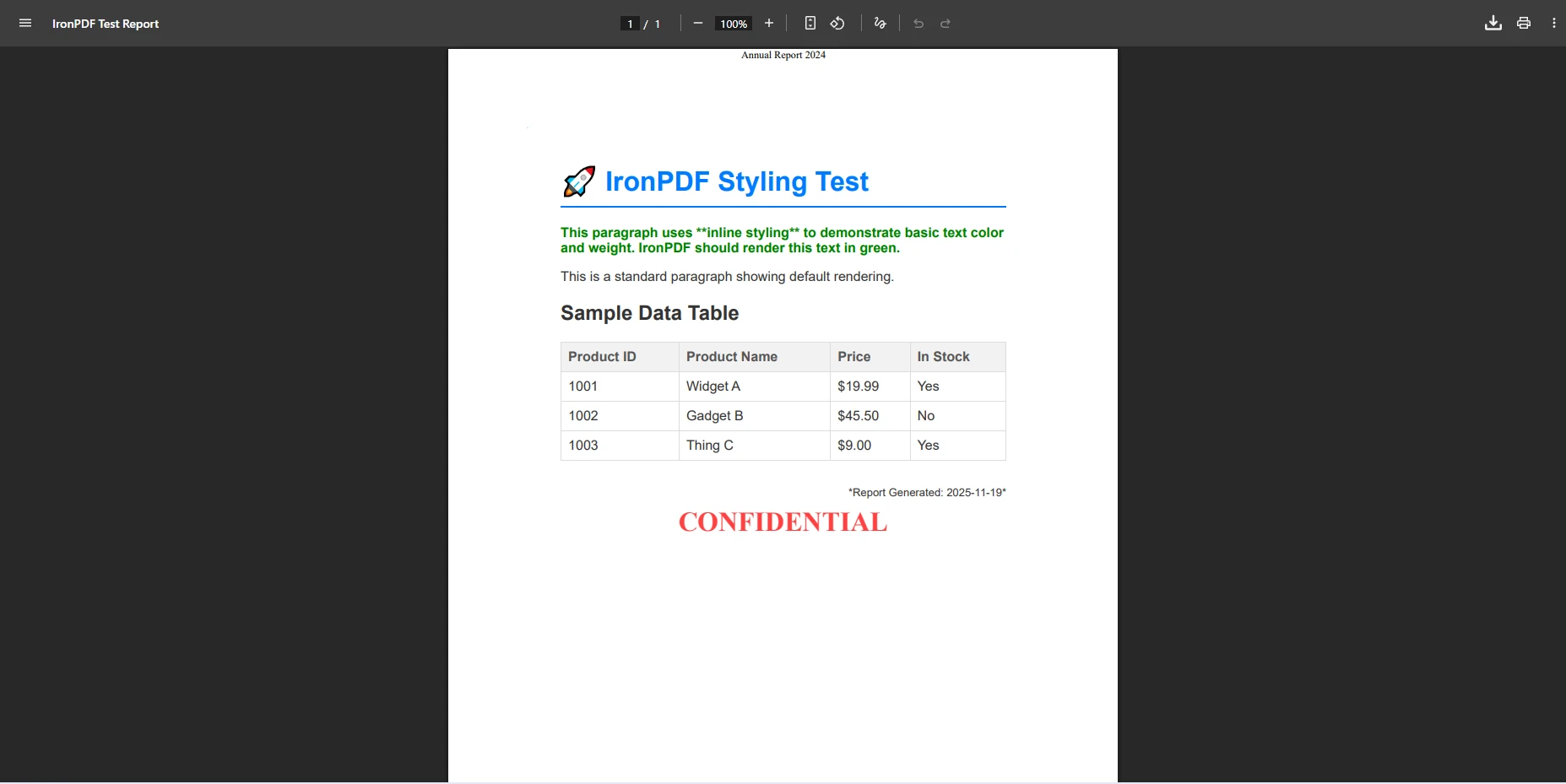
Professional PDF documents often require headers and footers on every page, along with watermarks for draft or confidential documents. IronPDF handles both through properties on the RenderingOptions object and the ApplyWatermark method on the resulting PdfDocument:
var renderer = new ChromePdfRenderer();renderer.RenderingOptions.HtmlHeader = new HtmlHeaderFooter{MaxHeight = 25,HtmlFragment = "<div style='text-align:center'>Annual Report 2024</div>"};renderer.RenderingOptions.HtmlFooter = new HtmlHeaderFooter{MaxHeight = 20,HtmlFragment = "<div style='text-align:center'>Page {page} of {total-pages}</div>"};var pdf = renderer.RenderHtmlAsPdf(htmlContent);pdf.ApplyWatermark("<h2 style='color:red;opacity:0.3'>CONFIDENTIAL</h2>", 30, VerticalAlignment.Middle, HorizontalAlignment.Center);pdf.SaveAs("report-with-watermark.pdf");
var renderer = new ChromePdfRenderer();
renderer.RenderingOptions.HtmlHeader = new HtmlHeaderFooter
{
    MaxHeight = 25,
    HtmlFragment = "<div style='text-align:center'>Annual Report 2024</div>"
};
renderer.RenderingOptions.HtmlFooter = new HtmlHeaderFooter
{
    MaxHeight = 20,
    HtmlFragment = "<div style='text-align:center'>Page {page} of {total-pages}</div>"
};
var pdf = renderer.RenderHtmlAsPdf(htmlContent);
pdf.ApplyWatermark("<h2 style='color:red;opacity:0.3'>CONFIDENTIAL</h2>",
    30, VerticalAlignment.Middle, HorizontalAlignment.Center);
pdf.SaveAs("report-with-watermark.pdf");
ImportsIronPdfDim renderer As New ChromePdfRenderer()renderer.RenderingOptions.HtmlHeader = New HtmlHeaderFooterWith { .MaxHeight = 25, .HtmlFragment = "<div style='text-align:center'>Annual Report 2024</div>"}renderer.RenderingOptions.HtmlFooter = New HtmlHeaderFooterWith { .MaxHeight = 20, .HtmlFragment = "<div style='text-align:center'>Page {page} of {total-pages}</div>"}Dim pdf = renderer.RenderHtmlAsPdf(htmlContent)pdf.ApplyWatermark("<h2 style='color:red;opacity:0.3'>CONFIDENTIAL</h2>", 30, VerticalAlignment.Middle, HorizontalAlignment.Center)pdf.SaveAs("report-with-watermark.pdf")
Imports IronPdf

Dim renderer As New ChromePdfRenderer()
renderer.RenderingOptions.HtmlHeader = New HtmlHeaderFooter With {
    .MaxHeight = 25,
    .HtmlFragment = "<div style='text-align:center'>Annual Report 2024</div>"
}
renderer.RenderingOptions.HtmlFooter = New HtmlHeaderFooter With {
    .MaxHeight = 20,
    .HtmlFragment = "<div style='text-align:center'>Page {page} of {total-pages}</div>"
}
Dim pdf = renderer.RenderHtmlAsPdf(htmlContent)
pdf.ApplyWatermark("<h2 style='color:red;opacity:0.3'>CONFIDENTIAL</h2>", 30, VerticalAlignment.Middle, HorizontalAlignment.Center)
pdf.SaveAs("report-with-watermark.pdf")
How Do You Use CSS Print Media for PDF Layout Control?
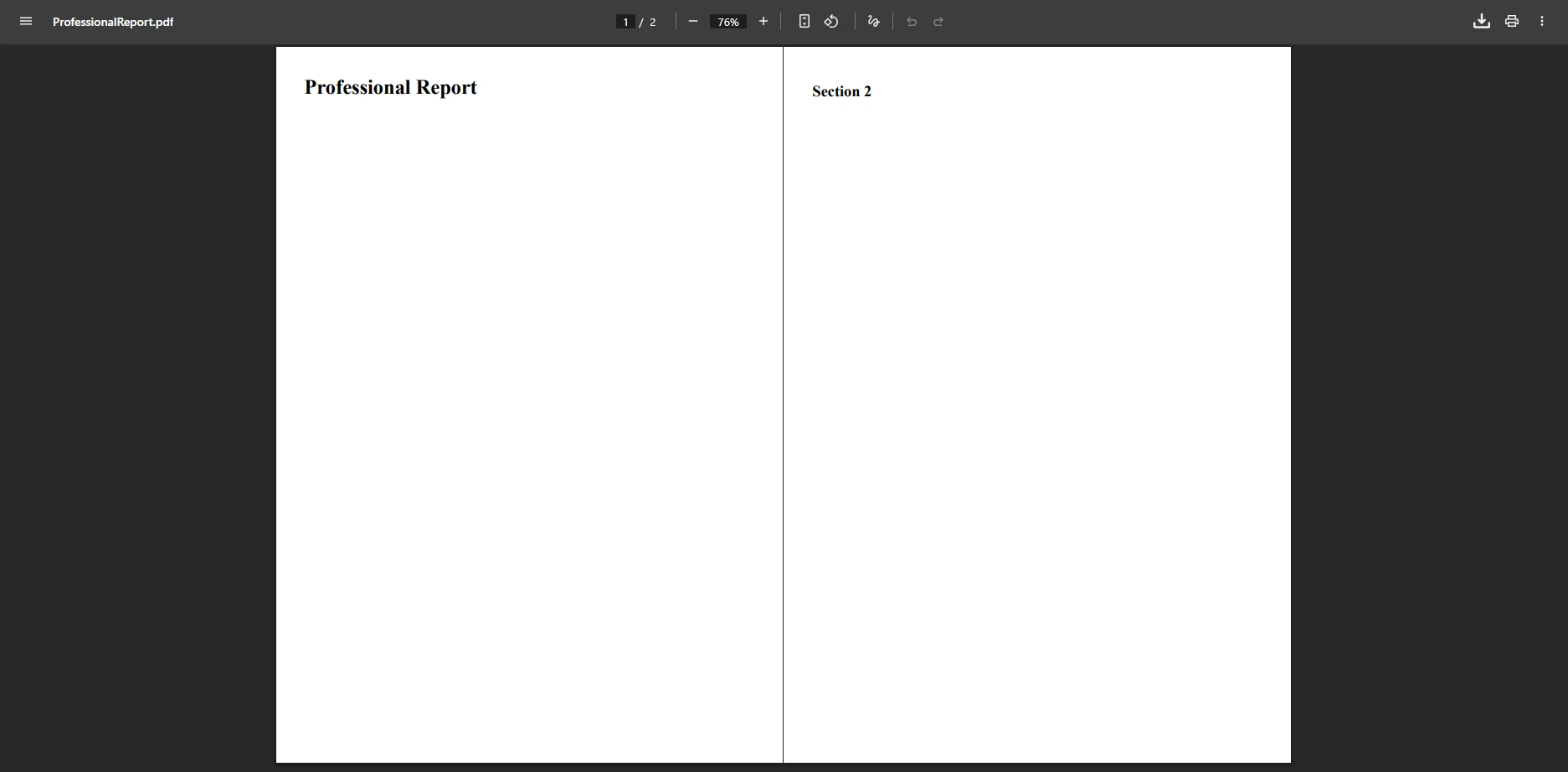
To ensure your PDF output matches expectations, use CSS @media print rules and the PdfCssMediaType.Print setting. IronPDF fully supports page break control and custom paper sizes:
Imports IronPdf

Dim renderer As New ChromePdfRenderer()
renderer.RenderingOptions.CssMediaType = PdfCssMediaType.Print
renderer.RenderingOptions.ViewPortWidth = 1024
renderer.RenderingOptions.MarginTop = 10
renderer.RenderingOptions.MarginBottom = 10
renderer.RenderingOptions.MarginLeft = 10
renderer.RenderingOptions.MarginRight = 10

Dim html As String = "
    <style>
        @media print {
            .no-print { display: none; }
            body { font-size: 12pt; }
            .page-break { page-break-after: always; }
        }
        @page {
            size: A4;
            margin: 1cm;
        }
    </style>
    <div class='content'>
        <h1>Professional Report</h1>
        <div class='page-break'></div>
        <h2>Section 2</h2>
    </div>"

Dim pdf = renderer.RenderHtmlAsPdf(html)
Using print CSS ensures your PDF documents maintain professional formatting while hiding unnecessary web elements like navigation menus or interactive buttons. Setting CssMediaType = PdfCssMediaType.Print tells the renderer to apply your @media print rules rather than the screen styles, which typically removes background decorations and adjusts typography for print output. You can also configure custom margins per page and control page orientation and rotation for wide-format or rotated reports.
The W3C CSS Paged Media specification defines how properties like @page, page-break-before, and widows should behave in paged output. IronPDF's Chrome engine follows this specification closely, so styles written to the CSS standard translate accurately into the PDF without manual adjustments.
What About Converting ASPX Files and Dynamic JavaScript Content?
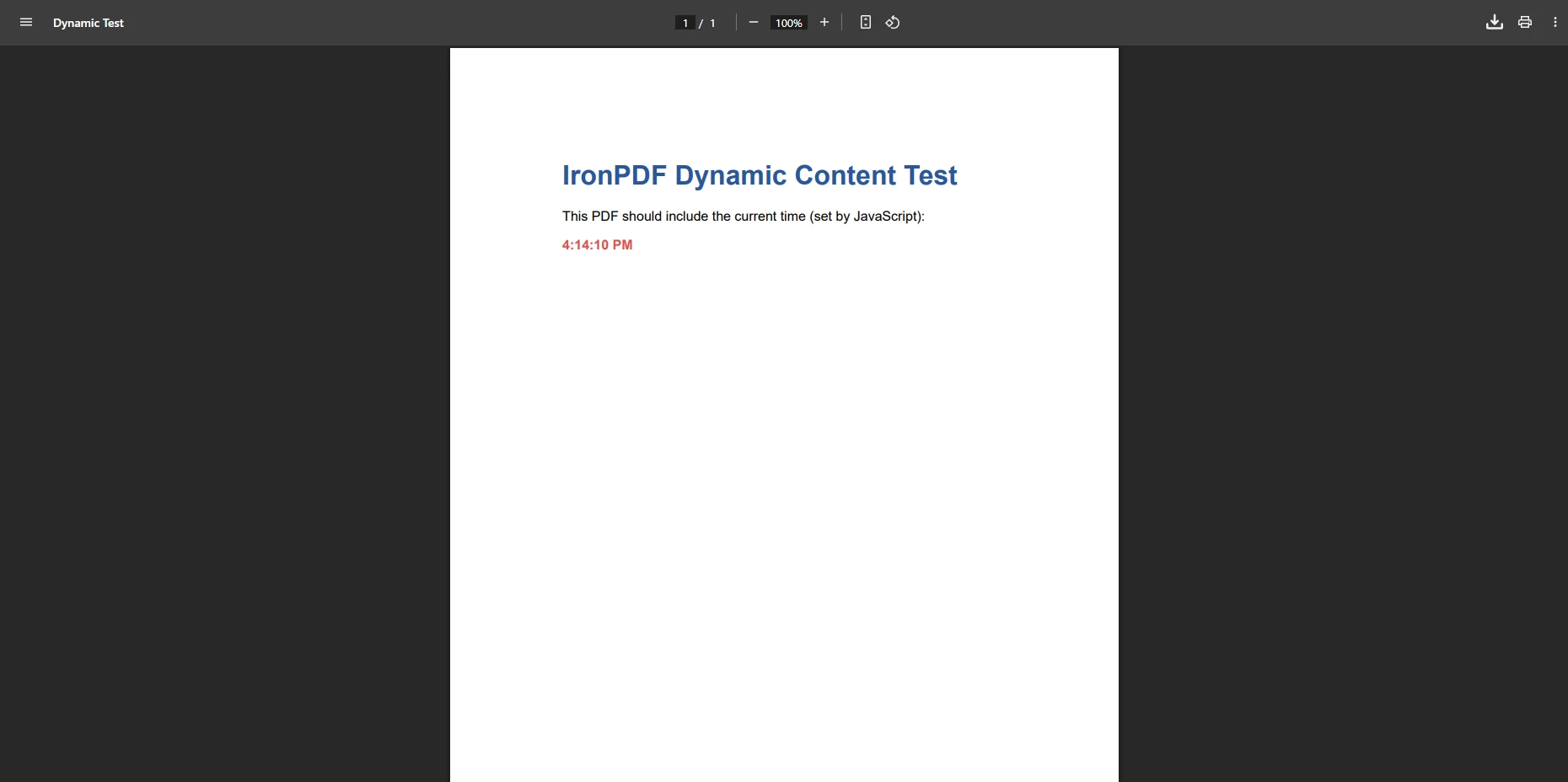
For legacy ASPX page conversion or documents that depend on JavaScript to populate content at runtime, IronPDF handles the rendering process reliably. You can configure a render delay to let JavaScript finish executing before the page is captured:
public IActionResultConvertDynamicContent(){ var renderer = new ChromePdfRenderer(); // Enable JavaScript so dynamic content renders correctly renderer.RenderingOptions.EnableJavaScript = true; // Wait 1 second after page load for JavaScript to complete renderer.RenderingOptions.WaitFor.RenderDelay(1000); // Generate your dynamic HTML string string dynamicHtml = GenerateDynamicHtml(); var pdf = renderer.RenderHtmlAsPdf(dynamicHtml); returnFile(pdf.BinaryData, "application/pdf", "dynamic.pdf");}
public IActionResult ConvertDynamicContent()
{
    var renderer = new ChromePdfRenderer();
    // Enable JavaScript so dynamic content renders correctly
    renderer.RenderingOptions.EnableJavaScript = true;
    // Wait 1 second after page load for JavaScript to complete
    renderer.RenderingOptions.WaitFor.RenderDelay(1000);
    // Generate your dynamic HTML string
    string dynamicHtml = GenerateDynamicHtml();
    var pdf = renderer.RenderHtmlAsPdf(dynamicHtml);
    return File(pdf.BinaryData, "application/pdf", "dynamic.pdf");
}
ImportsIronPdfPublic Function ConvertDynamicContent() AsIActionResult Dim renderer As New ChromePdfRenderer() ' Enable JavaScript so dynamic content renders correctly renderer.RenderingOptions.EnableJavaScript = True ' Wait 1 second after page load for JavaScript to complete renderer.RenderingOptions.WaitFor.RenderDelay(1000) ' Generate your dynamic HTML string Dim dynamicHtml AsString = GenerateDynamicHtml() Dim pdf = renderer.RenderHtmlAsPdf(dynamicHtml) ReturnFile(pdf.BinaryData, "application/pdf", "dynamic.pdf")End Function
Imports IronPdf

Public Function ConvertDynamicContent() As IActionResult
    Dim renderer As New ChromePdfRenderer()
    ' Enable JavaScript so dynamic content renders correctly
    renderer.RenderingOptions.EnableJavaScript = True
    ' Wait 1 second after page load for JavaScript to complete
    renderer.RenderingOptions.WaitFor.RenderDelay(1000)
    ' Generate your dynamic HTML string
    Dim dynamicHtml As String = GenerateDynamicHtml()
    Dim pdf = renderer.RenderHtmlAsPdf(dynamicHtml)
    Return File(pdf.BinaryData, "application/pdf", "dynamic.pdf")
End Function
What Does Dynamic Content Look Like When Converted?
A common pain point in HTML to PDF conversion is unwanted page breaks that split headings from their content or cut table rows mid-row. IronPDF addresses this through configurable page break control using standard CSS page-break-before and page-break-inside rules alongside IronPDF's WaitFor API. The library also supports async PDF generation for improved throughput in high-traffic scenarios.
For advanced JavaScript applications -- such as charts rendered by D3.js or React components -- you can inject and execute custom JavaScript before the render snapshot is taken, ensuring the chart or component has fully mounted before the PDF is generated.
What Are Docker Deployment Best Practices?
Deploying IronPDF in containerized environments requires specific considerations for optimal performance and reliability. Here's a production-ready Dockerfile example:
What Are the Best Practices for Production Deployment?
To ensure optimal performance and quality when converting HTML to PDF, follow these proven practices. Consider implementing asynchronous processing for better resource utilization in high-traffic scenarios. The parallel processing guide demonstrates concurrent PDF generation techniques.
Always test your HTML rendering in a browser first to verify styling and layout before generating PDFs. Use absolute URLs for external resources when possible, as relative paths can cause issues during conversion. For complex JavaScript-heavy pages, add render delays to ensure complete loading. Consider implementing caching for frequently generated documents to reduce server load. For more ASP.NET Core best practices, refer to Microsoft's official documentation. The pixel-perfect rendering guide ensures optimal output quality.
When deploying to production, configure appropriate temp folder paths and ensure your hosting environment has necessary dependencies installed, especially for Linux deployments. Avoid placing script and conversion logic in the same directory to prevent conflicts. Check our troubleshooting guide for common deployment scenarios. Always validate that input is not a URL when you intend to process direct HTML content to avoid unexpected behavior. The initial render optimization guide addresses common performance bottlenecks.
For high-performance scenarios, implement connection pooling and resource management:
public class PdfGeneratorService : IDisposable{ private readonly SemaphoreSlim _semaphore; private readonly ILogger<PdfGeneratorService> _logger; publicPdfGeneratorService(ILogger<PdfGeneratorService> logger) { _logger = logger; // Limit concurrent PDF generations _semaphore = new SemaphoreSlim(Environment.ProcessorCount * 2); } public async Task<byte[]> GeneratePdfAsync(string html) { await _semaphore.WaitAsync(); try { using (var renderer = new ChromePdfRenderer()) { var pdf = awaitTask.Run(() => renderer.RenderHtmlAsPdf(html)); return pdf.BinaryData; } } finally { _semaphore.Release(); } } public voidDispose() { _semaphore?.Dispose(); }}
public class PdfGeneratorService : IDisposable
{
    private readonly SemaphoreSlim _semaphore;
    private readonly ILogger<PdfGeneratorService> _logger;

    public PdfGeneratorService(ILogger<PdfGeneratorService> logger)
    {
        _logger = logger;
        // Limit concurrent PDF generations
        _semaphore = new SemaphoreSlim(Environment.ProcessorCount * 2);
    }

    public async Task<byte[]> GeneratePdfAsync(string html)
    {
        await _semaphore.WaitAsync();
        try
        {
            using (var renderer = new ChromePdfRenderer())
            {
                var pdf = await Task.Run(() => renderer.RenderHtmlAsPdf(html));
                return pdf.BinaryData;
            }
        }
        finally
        {
            _semaphore.Release();
        }
    }

    public void Dispose()
    {
        _semaphore?.Dispose();
    }
}
Public Class PdfGeneratorServiceImplementsIDisposable PrivateReadOnly _semaphore AsSemaphoreSlim PrivateReadOnly _logger AsILogger(OfPdfGeneratorService) Public Sub New(logger AsILogger(OfPdfGeneratorService)) _logger = logger ' Limit concurrent PDF generations _semaphore = New SemaphoreSlim(Environment.ProcessorCount * 2) End Sub PublicAsync Function GeneratePdfAsync(html AsString) AsTask(OfByte())Await _semaphore.WaitAsync()TryUsing renderer = New ChromePdfRenderer() Dim pdf = AwaitTask.Run(Function() renderer.RenderHtmlAsPdf(html)) Return pdf.BinaryDataEndUsingFinally _semaphore.Release()EndTry End Function Public Sub Dispose() ImplementsIDisposable.Dispose _semaphore?.Dispose() End SubEnd Class
Public Class PdfGeneratorService
    Implements IDisposable

    Private ReadOnly _semaphore As SemaphoreSlim
    Private ReadOnly _logger As ILogger(Of PdfGeneratorService)

    Public Sub New(logger As ILogger(Of PdfGeneratorService))
        _logger = logger
        ' Limit concurrent PDF generations
        _semaphore = New SemaphoreSlim(Environment.ProcessorCount * 2)
    End Sub

    Public Async Function GeneratePdfAsync(html As String) As Task(Of Byte())
        Await _semaphore.WaitAsync()
        Try
            Using renderer = New ChromePdfRenderer()
                Dim pdf = Await Task.Run(Function() renderer.RenderHtmlAsPdf(html))
                Return pdf.BinaryData
            End Using
        Finally
            _semaphore.Release()
        End Try
    End Function

    Public Sub Dispose() Implements IDisposable.Dispose
        _semaphore?.Dispose()
    End Sub
End Class
Converting HTML to PDF in ASP.NET Core applications becomes straightforward with IronPDF. The library's Chrome-based rendering ensures accurate conversion while providing extensive customization options for professional document generation.
Whether working with HTML strings, URLs, or full web pages, IronPDF preserves exact formatting, CSS styling, and JavaScript behavior. This .NET-based tool handles the entire conversion process efficiently. The library's Docker support and performance optimization features make it ideal for modern containerized deployments and microservices architectures.
Curtis Chau holds a Bachelor’s degree in Computer Science (Carleton University) and specializes in front-end development with expertise in Node.js, TypeScript, JavaScript, and React. Passionate about crafting intuitive and aesthetically pleasing user interfaces, Curtis enjoys working with modern frameworks and creating well-structured, visually appealing manuals.