



Parser PDF w języku C

Analizuj pliki PDF w C#, używając metody ExtractAllText z IronPDF, aby wyodrębnić tekst z całych dokumentów lub konkretnych stron. Takie podejście zapewnia proste i wydajne wyodrębnianie tekstu z plików PDF dla aplikacji .NET za pomocą zaledwie kilku wierszy kodu.
IronPDF ułatwia parsowanie plików PDF w aplikacjach napisanych w języku C#. Ten samouczek pokazuje, jak używać IronPDF, kompleksowej biblioteki C# do generowania i edycji plików PDF, aby analizować pliki PDF w zaledwie kilku krokach.
Szybki start: Efektywne parsowanie plików PDF za pomocą IronPDF
Rozpocznij analizowanie plików PDF w języku C# przy użyciu IronPDF przy minimalnym nakładzie kodu. Ten przykład pokazuje, jak wyodrębnić cały tekst z pliku PDF, zachowując jego oryginalne formatowanie. Metoda ExtractAllText z IronPDF umożliwia płynną integrację analizy PDF w aplikacjach .NET. Wykonaj poniższe kroki, aby w prosty sposób skonfigurować i uruchomić program.
-
Install IronPDF with NuGet Package Manager
PM > Install-Package IronPdf -
Skopiuj i uruchom ten fragment kodu.
var text = IronPdf.FromFile("sample.pdf").ExtractAllText(); -
Wdrożenie do testowania w środowisku produkcyjnym
Rozpocznij używanie IronPDF w swoim projekcie już dziś z darmową wersją próbną

Minimalny proces (5 kroków)
- Pobierz bibliotekę parsera PDF dla języka C#
- Zainstaluj w swoim Visual Studio
- Użyj metody
ExtractAllText,aby wyodrębnić każdy wiersz tekstu - Wyodrębnij cały tekst z pojedynczej strony za pomocą metody
ExtractTextFromPage - Wyświetl przeanalizowaną zawartość pliku PDF
Jak analizować pliki PDF w języku C#?
Analiza plików PDF jest prosta dzięki IronPDF. Kod poniżej używa metody ExtractAllText do wyodrębnienia każdej linii tekstu z całego dokumentu PDF. Porównanie pokazuje wyodrębnioną treść pliku PDF wraz z jej wynikiem. Biblioteka obsługuje również wyodrębnianie tekstu i obrazów z określonych sekcji dokumentów PDF.
:path=/static-assets/pdf/content-code-examples/how-to/csharp-parse-pdf-parse-pdf.csusing IronPdf;
// Select the desired PDF File
PdfDocument pdf = PdfDocument.FromFile("sample.pdf");
// Extract all text from an pdf
string allText = pdf.ExtractAllText();
// Extract all text from page 1
string page1Text = pdf.ExtractTextFromPage(0);Imports IronPdf
' Select the desired PDF File
Private pdf As PdfDocument = PdfDocument.FromFile("sample.pdf")
' Extract all text from an pdf
Private allText As String = pdf.ExtractAllText()
' Extract all text from page 1
Private page1Text As String = pdf.ExtractTextFromPage(0)IronPDF ułatwia analizę plików PDF w różnych sytuacjach. Niezależnie od tego, czy chodzi o konwersję HTML do PDF, wyodrębnianie treści z istniejących dokumentów, czy wdrażanie zaawansowanych funkcji PDF, biblioteka zapewnia kompleksowe wsparcie.
IronPDF oferuje płynną integrację z aplikacjami Windows i obsługuje wdrażanie na platformach Linux i macOS. Biblioteka obsługuje również wdrażanie w Azure dla rozwiązań opartych na chmurze.
Zaawansowane przykłady ekstrakcji tekstu
Oto dodatkowe sposoby analizowania treści plików PDF przy użyciu IronPDF:
using IronPdf;

// Parse PDF from URL
var pdfFromUrl = PdfDocument.FromUrl("https://example.com/document.pdf");
string urlPdfText = pdfFromUrl.ExtractAllText();

// Parse password-protected PDFs
var protectedPdf = PdfDocument.FromFile("protected.pdf", "password123");
string protectedText = protectedPdf.ExtractAllText();

// Extract text from specific page range
var largePdf = PdfDocument.FromFile("large-document.pdf");
for (int i = 5; i < 10; i++)
{
    string pageText = largePdf.ExtractTextFromPage(i);
    Console.WriteLine($"Page {i + 1}: {pageText.Substring(0, 100)}...");
}
using IronPdf;
// Parse PDF from URL
var pdfFromUrl = PdfDocument.FromUrl("https://example.com/document.pdf");
string urlPdfText = pdfFromUrl.ExtractAllText();
// Parse password-protected PDFs
var protectedPdf = PdfDocument.FromFile("protected.pdf", "password123");
string protectedText = protectedPdf.ExtractAllText();
// Extract text from specific page range
var largePdf = PdfDocument.FromFile("large-document.pdf");
for (int i = 5; i < 10; i++)
{
string pageText = largePdf.ExtractTextFromPage(i);
Console.WriteLine($"Page {i + 1}: {pageText.Substring(0, 100)}...");
}Imports IronPdf
' Parse PDF from URL
Dim pdfFromUrl = PdfDocument.FromUrl("https://example.com/document.pdf")
Dim urlPdfText As String = pdfFromUrl.ExtractAllText()
' Parse password-protected PDFs
Dim protectedPdf = PdfDocument.FromFile("protected.pdf", "password123")
Dim protectedText As String = protectedPdf.ExtractAllText()
' Extract text from specific page range
Dim largePdf = PdfDocument.FromFile("large-document.pdf")
For i As Integer = 5 To 9
Dim pageText As String = largePdf.ExtractTextFromPage(i)
Console.WriteLine($"Page {i + 1}: {pageText.Substring(0, 100)}...")
NextTe przykłady pokazują elastyczność IronPDF w obsłudze różnych źródeł PDF i scenariuszy. W przypadku złożonych potrzeb związanych z parsowaniem warto zapoznać się z dostępem do obiektów PDF DOM, aby pracować z treścią ustrukturyzowaną.
Obsługa różnych typów plików PDF
IronPDF doskonale radzi sobie z analizowaniem różnych typów plików PDF:
using IronPdf;
using System.Text.RegularExpressions;

// Parse scanned PDFs with OCR (requires IronOcr)
var scannedPdf = PdfDocument.FromFile("scanned-document.pdf");
string ocrText = scannedPdf.ExtractAllText();

// Parse PDFs with forms
var formPdf = PdfDocument.FromFile("form.pdf");
string formText = formPdf.ExtractAllText();

// Extract and filter specific content
string invoiceText = pdf.ExtractAllText();
var invoiceNumber = Regex.Match(invoiceText, @"Invoice #: (\d+)").Groups[1].Value;
var totalAmount = Regex.Match(invoiceText, @"Total: \$([0-9,]+\.\d{2})").Groups[1].Value;
using IronPdf;
using System.Text.RegularExpressions;
// Parse scanned PDFs with OCR (requires IronOcr)
var scannedPdf = PdfDocument.FromFile("scanned-document.pdf");
string ocrText = scannedPdf.ExtractAllText();
// Parse PDFs with forms
var formPdf = PdfDocument.FromFile("form.pdf");
string formText = formPdf.ExtractAllText();
// Extract and filter specific content
string invoiceText = pdf.ExtractAllText();
var invoiceNumber = Regex.Match(invoiceText, @"Invoice #: (\d+)").Groups[1].Value;
var totalAmount = Regex.Match(invoiceText, @"Total: \$([0-9,]+\.\d{2})").Groups[1].Value;Imports IronPdf
Imports System.Text.RegularExpressions
' Parse scanned PDFs with OCR (requires IronOcr)
Dim scannedPdf = PdfDocument.FromFile("scanned-document.pdf")
Dim ocrText As String = scannedPdf.ExtractAllText()
' Parse PDFs with forms
Dim formPdf = PdfDocument.FromFile("form.pdf")
Dim formText As String = formPdf.ExtractAllText()
' Extract and filter specific content
Dim invoiceText As String = pdf.ExtractAllText()
Dim invoiceNumber = Regex.Match(invoiceText, "Invoice #: (\d+)").Groups(1).Value
Dim totalAmount = Regex.Match(invoiceText, "Total: \$([0-9,]+\.\d{2})").Groups(1).ValueJak wyświetlić przeanalizowaną zawartość pliku PDF?
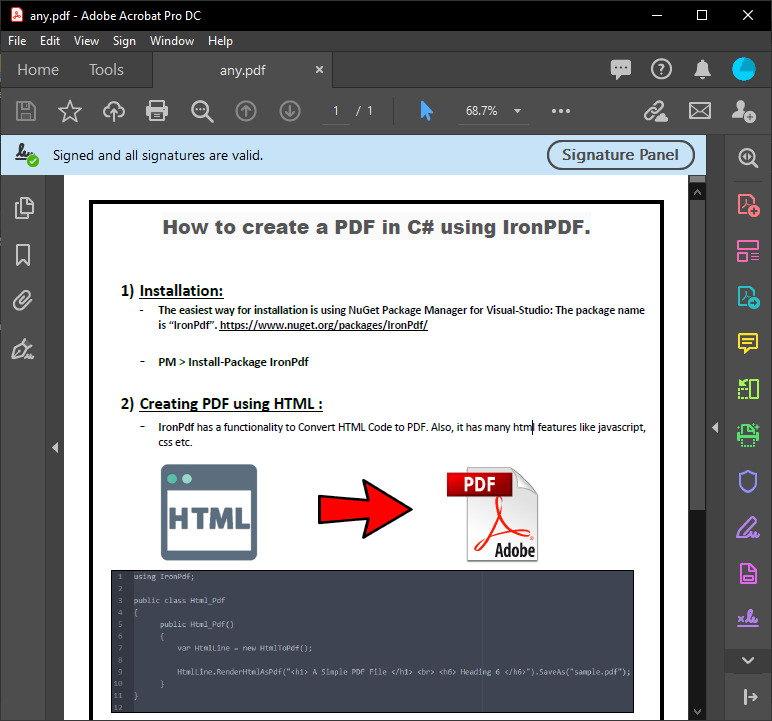
Formularz C# wyświetla przeanalizowaną zawartość pliku PDF wynikającą z wykonania powyższego kodu. Ten wynik zawiera dokładny tekst z pliku PDF na potrzeby przetwarzania dokumentów.
~ PDF ~
~ Formularz C# ~
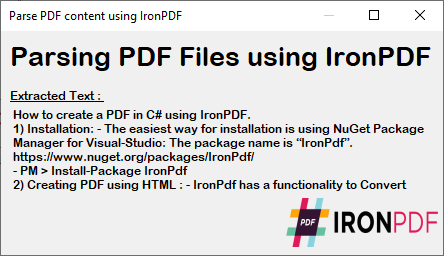
Wyodrębniony tekst zachowuje oryginalne formatowanie i strukturę pliku PDF, dzięki czemu idealnie nadaje się do przetwarzania danych, analizy treści lub zadań związanych z migracją. Przetwórz ten tekst dalej, wyszukując i zastępując określone treści lub eksportując go do innych formatów.
Wdrażanie analizy plików PDF w aplikacjach
Funkcje parsowania IronPDF można zintegrować z różnymi typami aplikacji:
// ASP.NET Core example
public IActionResult ParseUploadedPdf(IFormFile pdfFile)
{
    using var stream = pdfFile.OpenReadStream();
    var pdf = PdfDocument.FromStream(stream);

    var extractedText = pdf.ExtractAllText();

    // Process or store the extracted text
    return Json(new {
        success = true,
        textLength = extractedText.Length,
        preview = extractedText.Substring(0, Math.Min(500, extractedText.Length))
    });
}

// Console application example
static void BatchParsePdfs(string folderPath)
{
    var pdfFiles = Directory.GetFiles(folderPath, "*.pdf");

    foreach (var file in pdfFiles)
    {
        var pdf = PdfDocument.FromFile(file);
        var text = pdf.ExtractAllText();

        // Save extracted text
        var textFile = Path.ChangeExtension(file, ".txt");
        File.WriteAllText(textFile, text);

        Console.WriteLine($"Parsed: {Path.GetFileName(file)} - {text.Length} characters");
    }
}
// ASP.NET Core example
public IActionResult ParseUploadedPdf(IFormFile pdfFile)
{
using var stream = pdfFile.OpenReadStream();
var pdf = PdfDocument.FromStream(stream);
var extractedText = pdf.ExtractAllText();
// Process or store the extracted text
return Json(new {
success = true,
textLength = extractedText.Length,
preview = extractedText.Substring(0, Math.Min(500, extractedText.Length))
});
}
// Console application example
static void BatchParsePdfs(string folderPath)
{
var pdfFiles = Directory.GetFiles(folderPath, "*.pdf");
foreach (var file in pdfFiles)
{
var pdf = PdfDocument.FromFile(file);
var text = pdf.ExtractAllText();
// Save extracted text
var textFile = Path.ChangeExtension(file, ".txt");
File.WriteAllText(textFile, text);
Console.WriteLine($"Parsed: {Path.GetFileName(file)} - {text.Length} characters");
}
}Imports Microsoft.AspNetCore.Mvc
Imports System.IO
' ASP.NET Core example
Public Function ParseUploadedPdf(pdfFile As IFormFile) As IActionResult
Using stream = pdfFile.OpenReadStream()
Dim pdf = PdfDocument.FromStream(stream)
Dim extractedText = pdf.ExtractAllText()
' Process or store the extracted text
Return Json(New With {
.success = True,
.textLength = extractedText.Length,
.preview = extractedText.Substring(0, Math.Min(500, extractedText.Length))
})
End Using
End Function
' Console application example
Private Shared Sub BatchParsePdfs(folderPath As String)
Dim pdfFiles = Directory.GetFiles(folderPath, "*.pdf")
For Each file In pdfFiles
Dim pdf = PdfDocument.FromFile(file)
Dim text = pdf.ExtractAllText()
' Save extracted text
Dim textFile = Path.ChangeExtension(file, ".txt")
File.WriteAllText(textFile, text)
Console.WriteLine($"Parsed: {Path.GetFileName(file)} - {text.Length} characters")
Next
End SubTe przykłady pokazują wykorzystanie parsowania plików PDF w aplikacjach internetowych oraz w scenariuszach przetwarzania wsadowego. W przypadku zaawansowanych implementacji warto zapoznać się z technikami asynchronicznymi i wielowątkowymi, aby poprawić wydajność podczas przetwarzania wielu plików PDF.
Gotowy, aby sprawdzić, co jeszcze możesz zrobić? Zapoznaj się z naszą stroną z samouczkami tutaj: Edytuj pliki PDF
Często Zadawane Pytania
How do I extract all text from a PDF file in C#?
You can extract all text from a PDF file using IronPDF's ExtractAllText method. Simply load your PDF with IronPdf.FromFile("sample.pdf") and call ExtractAllText() to retrieve all text content while maintaining the original formatting.
What's the simplest way to parse a PDF in .NET?
The simplest way is using IronPDF with just one line of code: var text = IronPdf.FromFile("sample.pdf").ExtractAllText(). This method extracts every line of text from the entire PDF document with minimal setup required.
Can I extract text from a specific page of a PDF?
Yes, IronPDF provides the ExtractTextFromPage method to extract text from individual pages. This allows you to target specific sections of your PDF document rather than extracting all content at once.
How do I parse password-protected PDFs in C#?
IronPDF supports parsing password-protected PDFs. Use PdfDocument.FromFile("protected.pdf", "password123") to load the protected document, then call ExtractAllText() to extract the text content.
Can I parse PDFs from URLs instead of local files?
Yes, IronPDF can parse PDFs directly from URLs using PdfDocument.FromUrl("https://example.com/document.pdf"). After loading the PDF from the URL, use ExtractAllText() to extract the text content.
What platforms does the PDF parser support?
IronPDF supports PDF parsing across multiple platforms including Windows applications, Linux, macOS, and Azure cloud deployments, providing comprehensive cross-platform compatibility for your .NET applications.
Does the PDF parser maintain text formatting during extraction?
Yes, IronPDF's ExtractAllText method maintains the original formatting of the PDF content during extraction, ensuring that the parsed text retains its structure and layout from the source document.
Can I extract both text and images from PDFs?
IronPDF supports extracting both text and images from PDF documents. Beyond the ExtractAllText method for text extraction, the library provides additional functionality for extracting images from specific sections of PDF documents.


Wciąż przewijasz?
Czy chcesz szybko dowodu? PM > Install-Package IronPdf
Uruchom przykład i zobacz, jak Twój kod HTML zamienia się w plik PDF.








 Rozpocznij za DARMO
 Rozpocznij za DARMO
 Zarezerwuj darmowe Demo na żywo





 Nie wymaga karty kredytowej ani tworzenia konta










