using IronPdf;

// Disable local disk access or cross-origin requests
Installation.EnableWebSecurity = true;

// Instantiate Renderer
var renderer = new ChromePdfRenderer();

// Create a PDF from a HTML string using C#
var pdf = renderer.RenderHtmlAsPdf("<h1>Hello World</h1>");

// Export to a file or Stream
pdf.SaveAs("output.pdf");

// Advanced Example with HTML Assets
// Load external html assets: Images, CSS and JavaScript.
// An optional BasePath 'C:\site\assets\' is set as the file location to load assets from
var myAdvancedPdf = renderer.RenderHtmlAsPdf("<img src='icons/iron.png'>", @"C:\site\assets\");
myAdvancedPdf.SaveAs("html-with-assets.pdf");
using IronPdf;// Disable local disk access or cross-origin requestsInstallation.EnableWebSecurity = true;// Instantiate Renderervar renderer = new ChromePdfRenderer();// Create a PDF from a HTML string using C#var pdf = renderer.RenderHtmlAsPdf("<h1>Hello World</h1>");// Export to a file or Streampdf.SaveAs("output.pdf");// Advanced Example with HTML Assets// Load external html assets: Images, CSS and JavaScript.// An optional BasePath 'C:\site\assets\' is set as the file location to load assets fromvar myAdvancedPdf = renderer.RenderHtmlAsPdf("<img src='icons/iron.png'>", @"C:\site\assets\");myAdvancedPdf.SaveAs("html-with-assets.pdf");
IronPDF creates PDF files in .NET Core applications through HTML-to-PDF conversion using its Chrome rendering engine, supporting CSS3, JavaScript, images, and complex layouts with simple C# code.
Creating PDF documents programmatically is a common requirement in modern web applications. Whether you're building invoices, reports, or any document-based system, knowing how to create PDF files efficiently in ASP.NET Core is essential. This tutorial explores the best methods for creating PDF files in .NET Core using IronPDF -- a capable library that simplifies PDF generation. For complete technical details, refer to the official documentation.
IronPDF enables .NET Core developers to create PDF files using simple HTML and CSS, eliminating complex manual PDF drawing operations through its intuitive API and rendering engine. The library supports various deployment environments including Windows, Linux, macOS, and cloud platforms like Azure and AWS Lambda. The library's Chrome rendering engine ensures accurate pixel-perfect HTML to PDF conversion with full support for CSS screen and print media types.
How Do You Get Started with PDF Generation in .NET Core?
IronPDF is a complete .NET Core PDF library that transforms complex PDF creation into straightforward operations. Unlike traditional approaches that require drawing elements manually, IronPDF uses HTML markup and CSS to generate PDF files that match your exact design requirements. The library uses a Chrome rendering engine under the hood, ensuring pixel-perfect HTML to PDF conversion. This approach makes it ideal for creating new PDFs as well as converting existing content to PDF format.
When evaluating PDF generation solutions for .NET Core, developers often compare multiple options. IronPDF stands out from competitors like iText, Aspose, and Syncfusion for several reasons:
Superior rendering quality: Chrome-based engine ensures precise HTML/CSS fidelity
Simpler API: Create PDFs with HTML knowledge instead of complex PDF primitives
Cross-platform support: Native binaries for Windows, Linux, macOS, and cloud platforms
Complete features: From basic creation to advanced manipulation and security
How Do You Install IronPDF?
To begin creating PDFs in your .NET Core project, install the IronPDF NuGet package. Use the Package Manager Console:
PM > Install-Package IronPdf
Install-Package IronPdf
Or the .NET CLI:
> dotnet add package IronPdf
dotnet add package IronPdf
This installation provides immediate access to PDF generation capabilities for your web applications. For more advanced installation scenarios, check out the NuGet packages documentation or explore Docker deployment options.
How Do You Create Your First PDF Document?
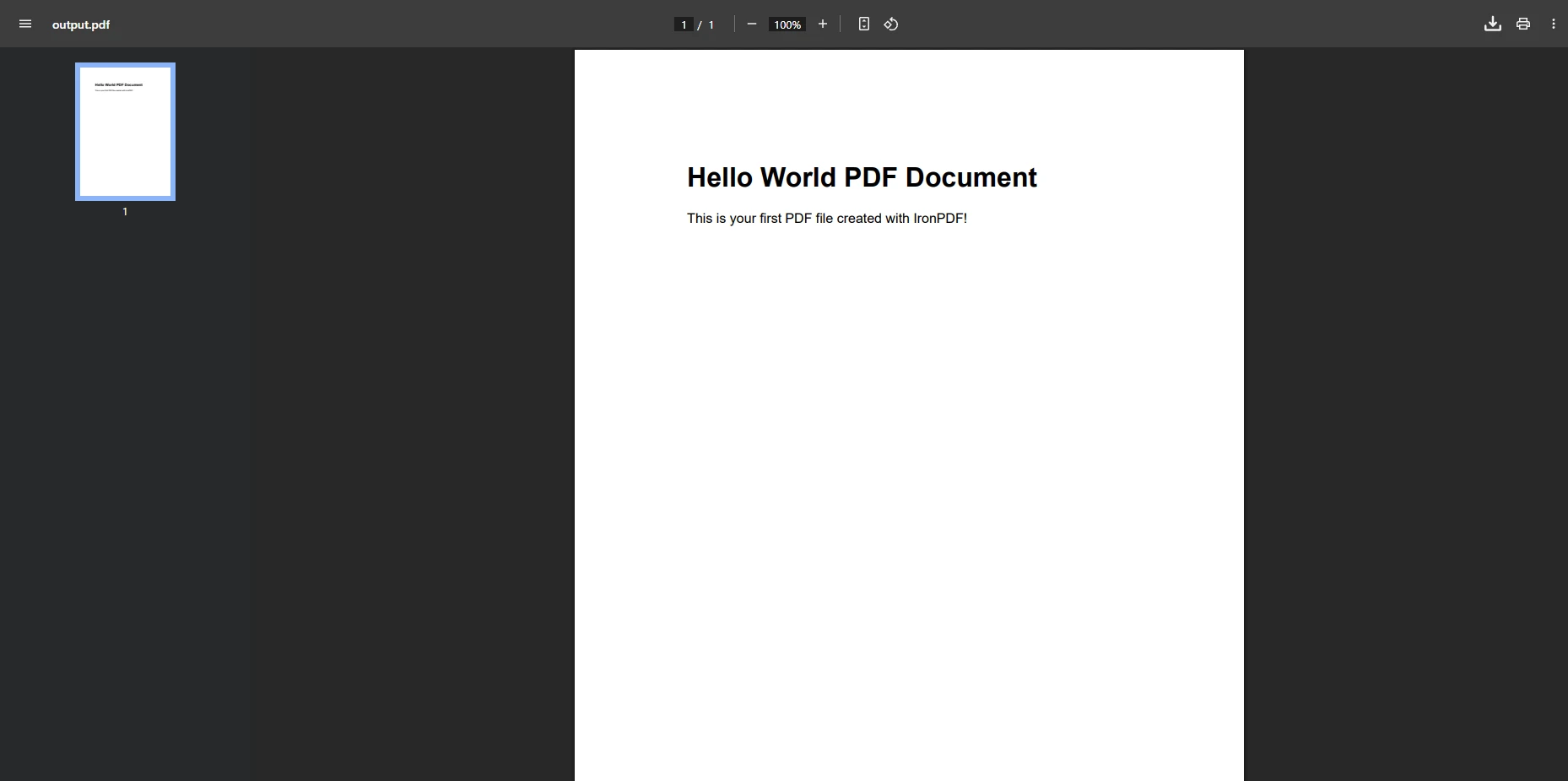
The following example demonstrates generating PDFs with formatted content using IronPDF's HTML string to PDF conversion capabilities. This method is perfect for creating PDFs from dynamic content or when you need to export HTML as PDF documents:
using IronPdf;// Create a new ChromePdfRenderervar renderer = new ChromePdfRenderer();// Define HTML content with stylingvar html = @" <html> <body style='font-family: Arial; margin: 40px;'> <h1>Hello World PDF Document</h1> <p>This is your first PDF file created with IronPDF!</p> </body> </html>";// Generate PDF from HTMLvar pdf = renderer.RenderHtmlAsPdf(html);// Save the PDF documentpdf.SaveAs("output.pdf");
using IronPdf;

// Create a new ChromePdfRenderer
var renderer = new ChromePdfRenderer();

// Define HTML content with styling
var html = @"
    <html>
        <body style='font-family: Arial; margin: 40px;'>
            <h1>Hello World PDF Document</h1>
            <p>This is your first PDF file created with IronPDF!</p>
        </body>
    </html>";

// Generate PDF from HTML
var pdf = renderer.RenderHtmlAsPdf(html);

// Save the PDF document
pdf.SaveAs("output.pdf");
ImportsIronPdf' Create a new ChromePdfRendererDim renderer As New ChromePdfRenderer()' Define HTML content with stylingDim html AsString = " <html> <body style='font-family: Arial; margin: 40px;'> <h1>Hello World PDF Document</h1> <p>This is your first PDF file created with IronPDF!</p> </body> </html>"' Generate PDF from HTMLDim pdf = renderer.RenderHtmlAsPdf(html)' Save the PDF documentpdf.SaveAs("output.pdf")
Imports IronPdf

' Create a new ChromePdfRenderer
Dim renderer As New ChromePdfRenderer()

' Define HTML content with styling
Dim html As String = "
    <html>
        <body style='font-family: Arial; margin: 40px;'>
            <h1>Hello World PDF Document</h1>
            <p>This is your first PDF file created with IronPDF!</p>
        </body>
    </html>"

' Generate PDF from HTML
Dim pdf = renderer.RenderHtmlAsPdf(html)

' Save the PDF document
pdf.SaveAs("output.pdf")
This code creates a new PDF document by rendering HTML content. The ChromePdfRenderer handles the conversion, ensuring your PDF documents maintain consistent formatting. You can also save PDFs to memory streams for web applications that return the file inline rather than writing to disk.
Understanding the core components helps you use IronPDF effectively:
ChromePdfRenderer: The main rendering engine that converts HTML to PDF
PdfDocument: Represents the PDF document for manipulation
RenderingOptions: Controls layout, margins, headers, and other settings
SecuritySettings: Manages passwords, permissions, and encryption
Using HTML for PDF creation offers significant advantages over traditional PDF APIs. Developers can use existing HTML/CSS skills, CSS frameworks apply naturally, JavaScript renders before conversion, and media queries adapt to PDF dimensions. Updates to PDF content require nothing more than changing an HTML template.
The rendered PDF demonstrates IronPDF's ability to convert HTML with CSS styling into a professional PDF document.
How Do You Convert HTML to PDF with Advanced Layouts?
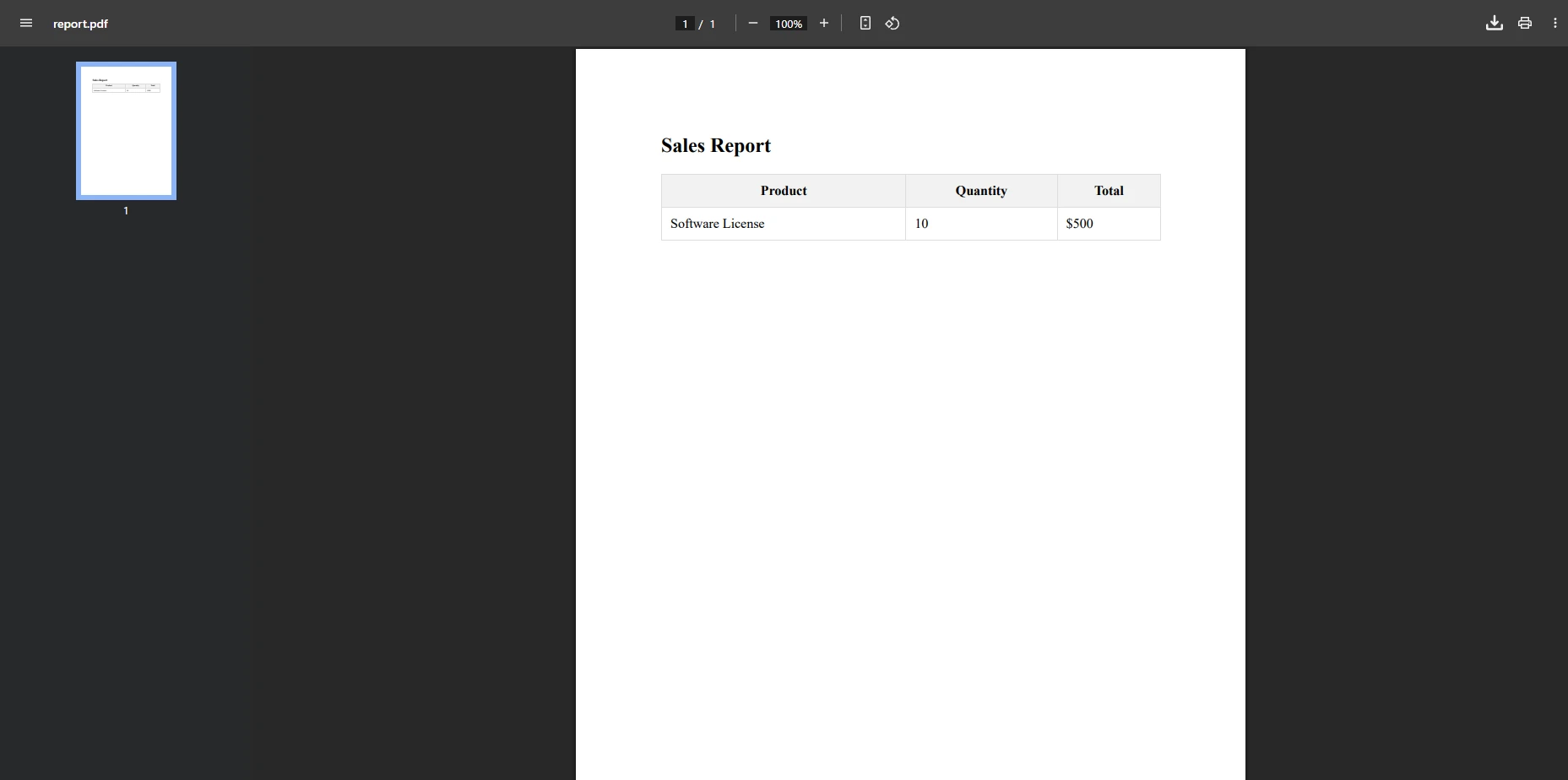
IronPDF excels at converting complex web pages and HTML content into professional PDF files. The HTML to PDF conversion feature supports modern CSS3, JavaScript, and responsive designs. The library handles web fonts, Bootstrap and Flexbox layouts, and even JavaScript frameworks. The following code shows how to create a PDF document with tables, images, and styled elements -- along with fine-grained layout control:
using IronPdf;var renderer = new ChromePdfRenderer();// Configure rendering optionsrenderer.RenderingOptions.MarginTop = 25;renderer.RenderingOptions.MarginBottom = 25;// Enable JavaScript for dynamic contentrenderer.RenderingOptions.EnableJavaScript = true;renderer.RenderingOptions.WaitFor.RenderDelay(1000);// Set viewport and CSS media typerenderer.RenderingOptions.ViewPortWidth = 1024;renderer.RenderingOptions.CssMediaType = IronPdf.Rendering.PdfCssMediaType.Print;var html = @" <html> <head> <style> table { width: 100%; border-collapse: collapse; } th, td { padding: 10px; border: 1px solid #ddd; } th { background-color: #f2f2f2; } </style> </head> <body> <h2>Sales Report</h2> <table> <tr><th>Product</th><th>Quantity</th><th>Total</th></tr> <tr><td>Software License</td><td>10</td><td>$500</td></tr> </table> </body> </html>";var pdf = renderer.RenderHtmlAsPdf(html);pdf.SaveAs("report.pdf");
using IronPdf;

var renderer = new ChromePdfRenderer();

// Configure rendering options
renderer.RenderingOptions.MarginTop = 25;
renderer.RenderingOptions.MarginBottom = 25;

// Enable JavaScript for dynamic content
renderer.RenderingOptions.EnableJavaScript = true;
renderer.RenderingOptions.WaitFor.RenderDelay(1000);

// Set viewport and CSS media type
renderer.RenderingOptions.ViewPortWidth = 1024;
renderer.RenderingOptions.CssMediaType = IronPdf.Rendering.PdfCssMediaType.Print;

var html = @"
    <html>
    <head>
        <style>
            table { width: 100%; border-collapse: collapse; }
            th, td { padding: 10px; border: 1px solid #ddd; }
            th { background-color: #f2f2f2; }
        </style>
    </head>
    <body>
        <h2>Sales Report</h2>
        <table>
            <tr><th>Product</th><th>Quantity</th><th>Total</th></tr>
            <tr><td>Software License</td><td>10</td><td>$500</td></tr>
        </table>
    </body>
    </html>";

var pdf = renderer.RenderHtmlAsPdf(html);
pdf.SaveAs("report.pdf");
Imports IronPdf

Dim renderer = New ChromePdfRenderer()

' Configure rendering options
renderer.RenderingOptions.MarginTop = 25
renderer.RenderingOptions.MarginBottom = 25

' Enable JavaScript for dynamic content
renderer.RenderingOptions.EnableJavaScript = True
renderer.RenderingOptions.WaitFor.RenderDelay(1000)

' Set viewport and CSS media type
renderer.RenderingOptions.ViewPortWidth = 1024
renderer.RenderingOptions.CssMediaType = IronPdf.Rendering.PdfCssMediaType.Print

Dim html As String = "
    <html>
    <head>
        <style>
            table { width: 100%; border-collapse: collapse; }
            th, td { padding: 10px; border: 1px solid #ddd; }
            th { background-color: #f2f2f2; }
        </style>
    </head>
    <body>
        <h2>Sales Report</h2>
        <table>
            <tr><th>Product</th><th>Quantity</th><th>Total</th></tr>
            <tr><td>Software License</td><td>10</td><td>$500</td></tr>
        </table>
    </body>
    </html>"

Dim pdf = renderer.RenderHtmlAsPdf(html)
pdf.SaveAs("report.pdf")
IronPDF's Chrome engine supports extensive CSS capabilities: Flexbox, CSS Grid, floats, positioning, CSS3 transforms, transitions, animations, web fonts, variable fonts, print-specific media queries, and pseudo-element selectors. You can also set custom margins and paper sizes, and manage fonts for international language support.
Advanced table formatting demonstrates IronPDF's CSS rendering capabilities for professional business documents.
How Do You Integrate PDF Generation in ASP.NET Core?
Integrating PDF generation in ASP.NET Core MVC is straightforward. IronPDF integrates with ASP.NET Core MVC, Razor Pages, and Blazor Server applications. Here's a complete implementation showing a controller action and a minimal API endpoint working side by side:
using Microsoft.AspNetCore.Mvc;using IronPdf;// --- MVC Controller approach ---var builder = WebApplication.CreateBuilder(args);builder.Services.AddControllersWithViews();var app = builder.Build();// Minimal API endpointapp.MapGet("/api/pdf/{id}", async (int id) =>{ var renderer = new ChromePdfRenderer(); var html = $"<h1>Invoice #{id}</h1><p>Thank you for your purchase!</p>"; var pdf = renderer.RenderHtmlAsPdf(html); returnResults.File(pdf.BinaryData, "application/pdf", $"invoice-{id}.pdf");});app.Run();// --- MVC Controller ---public class DocumentController : Controller{ public IActionResultGeneratePdf() { var renderer = new ChromePdfRenderer(); var html = "<h1>Invoice</h1><p>Thank you for your purchase!</p>"; var pdf = renderer.RenderHtmlAsPdf(html); returnFile(pdf.BinaryData, "application/pdf", "document.pdf"); }}
using Microsoft.AspNetCore.Mvc;
using IronPdf;

// --- MVC Controller approach ---
var builder = WebApplication.CreateBuilder(args);
builder.Services.AddControllersWithViews();
var app = builder.Build();

// Minimal API endpoint
app.MapGet("/api/pdf/{id}", async (int id) =>
{
    var renderer = new ChromePdfRenderer();
    var html = $"<h1>Invoice #{id}</h1><p>Thank you for your purchase!</p>";
    var pdf = renderer.RenderHtmlAsPdf(html);
    return Results.File(pdf.BinaryData, "application/pdf", $"invoice-{id}.pdf");
});

app.Run();

// --- MVC Controller ---
public class DocumentController : Controller
{
    public IActionResult GeneratePdf()
    {
        var renderer = new ChromePdfRenderer();
        var html = "<h1>Invoice</h1><p>Thank you for your purchase!</p>";
        var pdf = renderer.RenderHtmlAsPdf(html);
        return File(pdf.BinaryData, "application/pdf", "document.pdf");
    }
}
ImportsMicrosoft.AspNetCore.MvcImportsIronPdf' --- MVC Controller approach ---Dim builder = WebApplication.CreateBuilder(args)builder.Services.AddControllersWithViews()Dim app = builder.Build()' Minimal API endpointapp.MapGet("/api/pdf/{id}", Async Function(id AsInteger) Dim renderer = New ChromePdfRenderer() Dim html = $"<h1>Invoice #{id}</h1><p>Thank you for your purchase!</p>" Dim pdf = renderer.RenderHtmlAsPdf(html) ReturnResults.File(pdf.BinaryData, "application/pdf", $"invoice-{id}.pdf") End Function)app.Run()' --- MVC Controller ---Public Class DocumentControllerInheritsController Public Function GeneratePdf() AsIActionResult Dim renderer = New ChromePdfRenderer() Dim html = "<h1>Invoice</h1><p>Thank you for your purchase!</p>" Dim pdf = renderer.RenderHtmlAsPdf(html) ReturnFile(pdf.BinaryData, "application/pdf", "document.pdf") End FunctionEnd Class
Imports Microsoft.AspNetCore.Mvc
Imports IronPdf

' --- MVC Controller approach ---
Dim builder = WebApplication.CreateBuilder(args)
builder.Services.AddControllersWithViews()
Dim app = builder.Build()

' Minimal API endpoint
app.MapGet("/api/pdf/{id}", Async Function(id As Integer)
                                  Dim renderer = New ChromePdfRenderer()
                                  Dim html = $"<h1>Invoice #{id}</h1><p>Thank you for your purchase!</p>"
                                  Dim pdf = renderer.RenderHtmlAsPdf(html)
                                  Return Results.File(pdf.BinaryData, "application/pdf", $"invoice-{id}.pdf")
                              End Function)

app.Run()

' --- MVC Controller ---
Public Class DocumentController
    Inherits Controller

    Public Function GeneratePdf() As IActionResult
        Dim renderer = New ChromePdfRenderer()
        Dim html = "<h1>Invoice</h1><p>Thank you for your purchase!</p>"
        Dim pdf = renderer.RenderHtmlAsPdf(html)
        Return File(pdf.BinaryData, "application/pdf", "document.pdf")
    End Function
End Class
The controller method generates a PDF document and returns it as a downloadable file, perfect for server-side processing. For more complex scenarios, consider using URL to PDF conversion to render live web pages directly to PDF.
Enterprise applications require reliable PDF generation that fits their existing infrastructure. IronPDF handles thousands of concurrent PDF requests, generates sensitive documents server-side, works with dependency injection and middleware, and deploys to Azure App Service or AWS. Follow these guidelines for production-ready PDF generation: use dependency injection by registering IronPDF services in your startup code, implement caching for frequently generated PDFs, handle errors gracefully with fallback options, and secure sensitive data using PDF passwords and permissions.
Controller-generated PDF demonstrates smooth integration with ASP.NET Core web applications.
How Do You Add Headers, Footers, and Merge Documents?
using IronPdf;var renderer = new ChromePdfRenderer();// Add text header and footerrenderer.RenderingOptions.TextHeader = new TextHeaderFooter{CenterText = "Company Report",DrawDividerLine = true};renderer.RenderingOptions.TextFooter = new TextHeaderFooter{CenterText = "Page {page} of {total-pages}",DrawDividerLine = true};// Add HTML-based branded headerrenderer.RenderingOptions.HtmlHeader = new HtmlHeaderFooter{HtmlFragment = "<div style='text-align: center'><img src='logo.png' /></div>",Height = 30};renderer.RenderingOptions.MarginTop = 50;renderer.RenderingOptions.MarginBottom = 50;var html = "<h1>Annual Report</h1><p>Content goes here...</p>";var mainPdf = renderer.RenderHtmlAsPdf(html);// Merge multiple PDFsvar coverPdf = renderer.RenderHtmlAsPdf("<p>Cover Page</p>");var merged = PdfDocument.Merge(coverPdf, mainPdf);// Apply securitymerged.SecuritySettings.SetPassword("user-password");merged.SecuritySettings.AllowUserPrinting = true;merged.SecuritySettings.AllowUserCopyPasteContent = false;merged.SaveAs("report-with-header.pdf");
using IronPdf;

var renderer = new ChromePdfRenderer();

// Add text header and footer
renderer.RenderingOptions.TextHeader = new TextHeaderFooter
{
    CenterText = "Company Report",
    DrawDividerLine = true
};
renderer.RenderingOptions.TextFooter = new TextHeaderFooter
{
    CenterText = "Page {page} of {total-pages}",
    DrawDividerLine = true
};

// Add HTML-based branded header
renderer.RenderingOptions.HtmlHeader = new HtmlHeaderFooter
{
    HtmlFragment = "<div style='text-align: center'><img src='logo.png' /></div>",
    Height = 30
};

renderer.RenderingOptions.MarginTop = 50;
renderer.RenderingOptions.MarginBottom = 50;

var html = "<h1>Annual Report</h1><p>Content goes here...</p>";
var mainPdf = renderer.RenderHtmlAsPdf(html);

// Merge multiple PDFs
var coverPdf = renderer.RenderHtmlAsPdf("<p>Cover Page</p>");
var merged = PdfDocument.Merge(coverPdf, mainPdf);

// Apply security
merged.SecuritySettings.SetPassword("user-password");
merged.SecuritySettings.AllowUserPrinting = true;
merged.SecuritySettings.AllowUserCopyPasteContent = false;

merged.SaveAs("report-with-header.pdf");
ImportsIronPdfDim renderer As New ChromePdfRenderer()' Add text header and footerrenderer.RenderingOptions.TextHeader = New TextHeaderFooterWith { .CenterText = "Company Report", .DrawDividerLine = True}renderer.RenderingOptions.TextFooter = New TextHeaderFooterWith { .CenterText = "Page {page} of {total-pages}", .DrawDividerLine = True}' Add HTML-based branded headerrenderer.RenderingOptions.HtmlHeader = New HtmlHeaderFooterWith { .HtmlFragment = "<div style='text-align: center'><img src='logo.png' /></div>", .Height = 30}renderer.RenderingOptions.MarginTop = 50renderer.RenderingOptions.MarginBottom = 50Dim html AsString = "<h1>Annual Report</h1><p>Content goes here...</p>"Dim mainPdf AsPdfDocument = renderer.RenderHtmlAsPdf(html)' Merge multiple PDFsDim coverPdf AsPdfDocument = renderer.RenderHtmlAsPdf("<p>Cover Page</p>")Dim merged AsPdfDocument = PdfDocument.Merge(coverPdf, mainPdf)' Apply securitymerged.SecuritySettings.SetPassword("user-password")merged.SecuritySettings.AllowUserPrinting = Truemerged.SecuritySettings.AllowUserCopyPasteContent = Falsemerged.SaveAs("report-with-header.pdf")
Imports IronPdf

Dim renderer As New ChromePdfRenderer()

' Add text header and footer
renderer.RenderingOptions.TextHeader = New TextHeaderFooter With {
    .CenterText = "Company Report",
    .DrawDividerLine = True
}
renderer.RenderingOptions.TextFooter = New TextHeaderFooter With {
    .CenterText = "Page {page} of {total-pages}",
    .DrawDividerLine = True
}

' Add HTML-based branded header
renderer.RenderingOptions.HtmlHeader = New HtmlHeaderFooter With {
    .HtmlFragment = "<div style='text-align: center'><img src='logo.png' /></div>",
    .Height = 30
}

renderer.RenderingOptions.MarginTop = 50
renderer.RenderingOptions.MarginBottom = 50

Dim html As String = "<h1>Annual Report</h1><p>Content goes here...</p>"
Dim mainPdf As PdfDocument = renderer.RenderHtmlAsPdf(html)

' Merge multiple PDFs
Dim coverPdf As PdfDocument = renderer.RenderHtmlAsPdf("<p>Cover Page</p>")
Dim merged As PdfDocument = PdfDocument.Merge(coverPdf, mainPdf)

' Apply security
merged.SecuritySettings.SetPassword("user-password")
merged.SecuritySettings.AllowUserPrinting = True
merged.SecuritySettings.AllowUserCopyPasteContent = False

merged.SaveAs("report-with-header.pdf")
These examples demonstrate adding professional touches and combining multiple files into a single document. Key enhancement features for professional PDFs include: headers/footers for brand consistency, page numbers for multi-page navigation, watermarks for security and draft identification, bookmarks for long documents, and automatic table of contents generation. You can also explore page orientation and rotation, PDF compression, or PDF/A compliant documents for long-term archival.
Professional headers and footers improve document presentation and navigation.
How Do You Create Interactive PDF Forms?
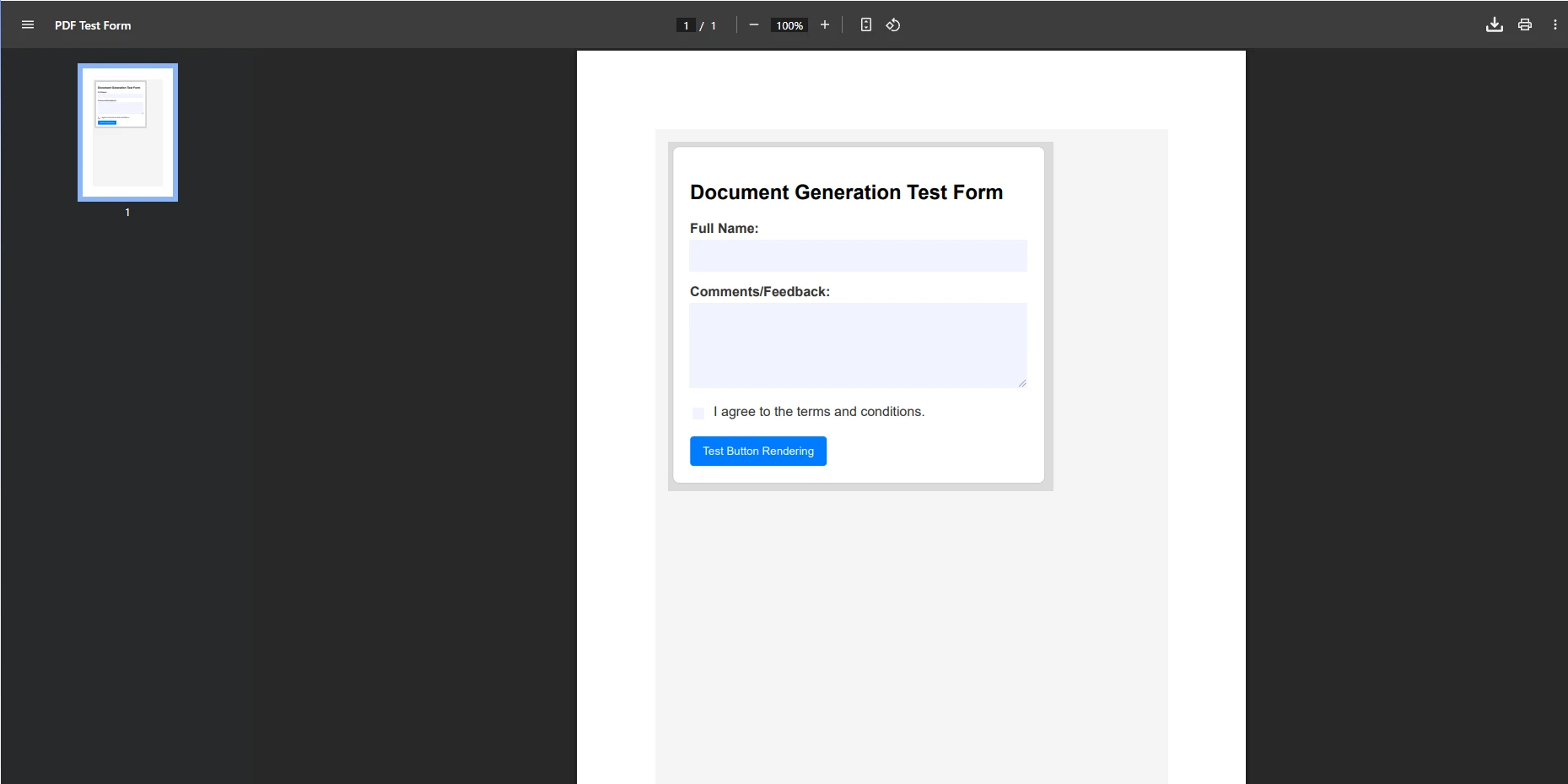
IronPDF can create interactive PDF forms with various input fields -- text boxes, checkboxes, radio buttons, and dropdown lists. You can also fill and edit existing PDF forms programmatically. The library supports form data extraction and can flatten forms to make them non-editable:
using IronPdf;using System.IO;// Create a form from HTMLvar html = @"<!DOCTYPE html><html><head> <style> body { font-family: Arial, sans-serif; margin: 20px; } .form-container { width: 400px; padding: 20px; border: 1px solid #ccc; border-radius: 8px; } .form-group { margin-bottom: 15px; } label { display: block; margin-bottom: 5px; font-weight: bold; color: #333; } input[type='text'], textarea { width: 100%; padding: 10px; border: 1px solid #ddd; border-radius: 4px; box-sizing: border-box; } textarea { height: 100px; resize: vertical; } </style></head><body> <div class='form-container'> <h2>Document Generation Test Form</h2> <form> <div class='form-group'> <label for='fullName'>Full Name:</label> <input type='text' id='fullName' name='fullName'> </div> <div class='form-group'> <label for='comments'>Comments/Feedback:</label> <textarea id='comments' name='comments' placeholder='Type your feedback here...'></textarea> </div> <div class='form-group'> <input type='checkbox' id='agree' name='agree'> <label for='agree'>I agree to the terms and conditions.</label> </div> <button style='padding: 10px 15px; background-color: #007bff; color: white; border: none; border-radius: 4px; cursor: pointer;'> Submit </button> </form> </div></body></html>";var renderer = new ChromePdfRenderer();renderer.RenderingOptions.CreatePdfFormsFromHtml = true;var pdf = renderer.RenderHtmlAsPdf(html);pdf.SaveAs("form.pdf");// Read back and process form datavar loadedPdf = new PdfDocument("form.pdf");var fullName = loadedPdf.Form.FindFormField("fullName").Value;Console.WriteLine($"Full Name: {fullName}");// Flatten form to prevent further editingloadedPdf.Form.Flatten();loadedPdf.SaveAs("processed-form.pdf");
using IronPdf;
using System.IO;

// Create a form from HTML
var html = @"
<!DOCTYPE html>
<html>
<head>
    <style>
        body { font-family: Arial, sans-serif; margin: 20px; }
        .form-container { width: 400px; padding: 20px; border: 1px solid #ccc; border-radius: 8px; }
        .form-group { margin-bottom: 15px; }
        label { display: block; margin-bottom: 5px; font-weight: bold; color: #333; }
        input[type='text'], textarea { width: 100%; padding: 10px; border: 1px solid #ddd; border-radius: 4px; box-sizing: border-box; }
        textarea { height: 100px; resize: vertical; }
    </style>
</head>
<body>
    <div class='form-container'>
        <h2>Document Generation Test Form</h2>
        <form>
            <div class='form-group'>
                <label for='fullName'>Full Name:</label>
                <input type='text' id='fullName' name='fullName'>
            </div>
            <div class='form-group'>
                <label for='comments'>Comments/Feedback:</label>
                <textarea id='comments' name='comments' placeholder='Type your feedback here...'></textarea>
            </div>
            <div class='form-group'>
                <input type='checkbox' id='agree' name='agree'>
                <label for='agree'>I agree to the terms and conditions.</label>
            </div>
            <button style='padding: 10px 15px; background-color: #007bff; color: white; border: none; border-radius: 4px; cursor: pointer;'>
                Submit
            </button>
        </form>
    </div>
</body>
</html>";

var renderer = new ChromePdfRenderer();
renderer.RenderingOptions.CreatePdfFormsFromHtml = true;
var pdf = renderer.RenderHtmlAsPdf(html);
pdf.SaveAs("form.pdf");

// Read back and process form data
var loadedPdf = new PdfDocument("form.pdf");
var fullName = loadedPdf.Form.FindFormField("fullName").Value;
Console.WriteLine($"Full Name: {fullName}");

// Flatten form to prevent further editing
loadedPdf.Form.Flatten();
loadedPdf.SaveAs("processed-form.pdf");
ImportsIronPdfImportsSystem.IO' Create a form from HTMLDim html AsString = "<!DOCTYPE html><html><head> <style> body { font-family: Arial, sans-serif; margin: 20px; } .form-container { width: 400px; padding: 20px; border: 1px solid #ccc; border-radius: 8px; } .form-group { margin-bottom: 15px; } label { display: block; margin-bottom: 5px; font-weight: bold; color: #333; } input[type='text'], textarea { width: 100%; padding: 10px; border: 1px solid #ddd; border-radius: 4px; box-sizing: border-box; } textarea { height: 100px; resize: vertical; } </style></head><body> <div class='form-container'> <h2>Document Generation Test Form</h2> <form> <div class='form-group'> <label for='fullName'>Full Name:</label> <input type='text' id='fullName' name='fullName'> </div> <div class='form-group'> <label for='comments'>Comments/Feedback:</label> <textarea id='comments' name='comments' placeholder='Type your feedback here...'></textarea> </div> <div class='form-group'> <input type='checkbox' id='agree' name='agree'> <label for='agree'>I agree to the terms and conditions.</label> </div> <button style='padding: 10px 15px; background-color: #007bff; color: white; border: none; border-radius: 4px; cursor: pointer;'> Submit </button> </form> </div></body></html>"Dim renderer As New ChromePdfRenderer()renderer.RenderingOptions.CreatePdfFormsFromHtml = TrueDim pdf AsPdfDocument = renderer.RenderHtmlAsPdf(html)pdf.SaveAs("form.pdf")' Read back and process form dataDim loadedPdf As New PdfDocument("form.pdf")Dim fullName AsString = loadedPdf.Form.FindFormField("fullName").ValueConsole.WriteLine($"Full Name: {fullName}")' Flatten form to prevent further editingloadedPdf.Form.Flatten()loadedPdf.SaveAs("processed-form.pdf")
Imports IronPdf
Imports System.IO

' Create a form from HTML
Dim html As String = "
<!DOCTYPE html>
<html>
<head>
    <style>
        body { font-family: Arial, sans-serif; margin: 20px; }
        .form-container { width: 400px; padding: 20px; border: 1px solid #ccc; border-radius: 8px; }
        .form-group { margin-bottom: 15px; }
        label { display: block; margin-bottom: 5px; font-weight: bold; color: #333; }
        input[type='text'], textarea { width: 100%; padding: 10px; border: 1px solid #ddd; border-radius: 4px; box-sizing: border-box; }
        textarea { height: 100px; resize: vertical; }
    </style>
</head>
<body>
    <div class='form-container'>
        <h2>Document Generation Test Form</h2>
        <form>
            <div class='form-group'>
                <label for='fullName'>Full Name:</label>
                <input type='text' id='fullName' name='fullName'>
            </div>
            <div class='form-group'>
                <label for='comments'>Comments/Feedback:</label>
                <textarea id='comments' name='comments' placeholder='Type your feedback here...'></textarea>
            </div>
            <div class='form-group'>
                <input type='checkbox' id='agree' name='agree'>
                <label for='agree'>I agree to the terms and conditions.</label>
            </div>
            <button style='padding: 10px 15px; background-color: #007bff; color: white; border: none; border-radius: 4px; cursor: pointer;'>
                Submit
            </button>
        </form>
    </div>
</body>
</html>"

Dim renderer As New ChromePdfRenderer()
renderer.RenderingOptions.CreatePdfFormsFromHtml = True
Dim pdf As PdfDocument = renderer.RenderHtmlAsPdf(html)
pdf.SaveAs("form.pdf")

' Read back and process form data
Dim loadedPdf As New PdfDocument("form.pdf")
Dim fullName As String = loadedPdf.Form.FindFormField("fullName").Value
Console.WriteLine($"Full Name: {fullName}")

' Flatten form to prevent further editing
loadedPdf.Form.Flatten()
loadedPdf.SaveAs("processed-form.pdf")
This creates an interactive PDF with form fields that users can fill out, perfect for applications requiring user input. Interactive PDFs serve critical business needs: gathering information without web forms, offline capability for users without internet access, legal compliance through signed forms, and familiar PDF interfaces that reduce training time.
Secure form handling requires careful attention. Always validate and sanitize all form data, restrict form field editing with access controls, log all form submissions for audit trails, protect sensitive form data with encryption, and verify form authenticity using digital signatures.
Interactive forms enable data collection directly within PDF documents.
How Do You Handle Performance and Error Handling in Production?
When generating PDF files in production, implement proper error handling and consider performance optimization. IronPDF provides async and multithreading support for high-volume scenarios. You should also implement custom logging for debugging and monitoring. Creating renderer instances has overhead, so reusing them efficiently is essential. The following example combines production error handling with renderer reuse:
using IronPdf;using Microsoft.Extensions.Logging;// Register a reusable renderer as a singleton in your DI containervar renderer = new ChromePdfRenderer();renderer.RenderingOptions.MarginTop = 25;renderer.RenderingOptions.MarginBottom = 25;renderer.RenderingOptions.EnableJavaScript = true;renderer.RenderingOptions.WaitFor.RenderDelay(500);// Resilient generation with retry and exponential backoffasync Task<byte[]> GenerateWithRetry(string html, ILogger logger, int maxRetries = 3){ for (int attempt = 1; attempt <= maxRetries; attempt++) { try { renderer.RenderingOptions.Timeout = 60; var pdf = awaitTask.Run(() => renderer.RenderHtmlAsPdf(html)); pdf.SecuritySettings.MakePdfDocumentReadOnly(); pdf.SecuritySettings.SetPassword("userPassword123"); logger.LogInformation("PDF generated successfully on attempt {Attempt}", attempt); return pdf.BinaryData; } catch (Exception ex) when (attempt < maxRetries) { logger.LogWarning(ex, "PDF generation failed, attempt {Attempt} of {MaxRetries}", attempt, maxRetries); awaitTask.Delay(TimeSpan.FromSeconds(Math.Pow(2, attempt))); } } throw new InvalidOperationException("Failed to generate PDF after retries");}
using IronPdf;
using Microsoft.Extensions.Logging;

// Register a reusable renderer as a singleton in your DI container
var renderer = new ChromePdfRenderer();
renderer.RenderingOptions.MarginTop = 25;
renderer.RenderingOptions.MarginBottom = 25;
renderer.RenderingOptions.EnableJavaScript = true;
renderer.RenderingOptions.WaitFor.RenderDelay(500);

// Resilient generation with retry and exponential backoff
async Task<byte[]> GenerateWithRetry(string html, ILogger logger, int maxRetries = 3)
{
    for (int attempt = 1; attempt <= maxRetries; attempt++)
    {
        try
        {
            renderer.RenderingOptions.Timeout = 60;
            var pdf = await Task.Run(() => renderer.RenderHtmlAsPdf(html));
            pdf.SecuritySettings.MakePdfDocumentReadOnly();
            pdf.SecuritySettings.SetPassword("userPassword123");
            logger.LogInformation("PDF generated successfully on attempt {Attempt}", attempt);
            return pdf.BinaryData;
        }
        catch (Exception ex) when (attempt < maxRetries)
        {
            logger.LogWarning(ex, "PDF generation failed, attempt {Attempt} of {MaxRetries}", attempt, maxRetries);
            await Task.Delay(TimeSpan.FromSeconds(Math.Pow(2, attempt)));
        }
    }
    throw new InvalidOperationException("Failed to generate PDF after retries");
}
ImportsIronPdfImportsMicrosoft.Extensions.LoggingImportsSystem.Threading.Tasks' Register a reusable renderer as a singleton in your DI containerDim renderer As New ChromePdfRenderer()renderer.RenderingOptions.MarginTop = 25renderer.RenderingOptions.MarginBottom = 25renderer.RenderingOptions.EnableJavaScript = Truerenderer.RenderingOptions.WaitFor.RenderDelay(500)' Resilient generation with retry and exponential backoffAsync Function GenerateWithRetry(html AsString, logger AsILogger, Optional maxRetries AsInteger = 3) AsTask(OfByte()) For attempt AsInteger = 1 To maxRetriesTry renderer.RenderingOptions.Timeout = 60 Dim pdf = AwaitTask.Run(Function() renderer.RenderHtmlAsPdf(html)) pdf.SecuritySettings.MakePdfDocumentReadOnly() pdf.SecuritySettings.SetPassword("userPassword123") logger.LogInformation("PDF generated successfully on attempt {Attempt}", attempt) Return pdf.BinaryDataCatch ex AsExceptionWhen attempt < maxRetries logger.LogWarning(ex, "PDF generation failed, attempt {Attempt} of {MaxRetries}", attempt, maxRetries)AwaitTask.Delay(TimeSpan.FromSeconds(Math.Pow(2, attempt)))EndTry NextThrow New InvalidOperationException("Failed to generate PDF after retries")End Function
Imports IronPdf
Imports Microsoft.Extensions.Logging
Imports System.Threading.Tasks

' Register a reusable renderer as a singleton in your DI container
Dim renderer As New ChromePdfRenderer()
renderer.RenderingOptions.MarginTop = 25
renderer.RenderingOptions.MarginBottom = 25
renderer.RenderingOptions.EnableJavaScript = True
renderer.RenderingOptions.WaitFor.RenderDelay(500)

' Resilient generation with retry and exponential backoff
Async Function GenerateWithRetry(html As String, logger As ILogger, Optional maxRetries As Integer = 3) As Task(Of Byte())
    For attempt As Integer = 1 To maxRetries
        Try
            renderer.RenderingOptions.Timeout = 60
            Dim pdf = Await Task.Run(Function() renderer.RenderHtmlAsPdf(html))
            pdf.SecuritySettings.MakePdfDocumentReadOnly()
            pdf.SecuritySettings.SetPassword("userPassword123")
            logger.LogInformation("PDF generated successfully on attempt {Attempt}", attempt)
            Return pdf.BinaryData
        Catch ex As Exception When attempt < maxRetries
            logger.LogWarning(ex, "PDF generation failed, attempt {Attempt} of {MaxRetries}", attempt, maxRetries)
            Await Task.Delay(TimeSpan.FromSeconds(Math.Pow(2, attempt)))
        End Try
    Next
    Throw New InvalidOperationException("Failed to generate PDF after retries")
End Function
Always validate input data and handle exceptions gracefully to ensure reliable PDF generation. Consider implementing PDF permissions and passwords for sensitive documents to control printing, copying, and editing rights.
What Monitoring Metrics Should You Track?
Monitor these key metrics for production PDF generation:
Key production metrics for monitoring IronPDF performance
Metric
Purpose
Alert Threshold
Generation Time
Performance tracking
> 10 seconds
Memory Usage
Resource optimization
> 500 MB per request
Error Rate
Reliability monitoring
> 5% failure rate
Queue Length
Capacity planning
> 100 pending
File Size
Storage optimization
> 50 MB average
How Do You Deploy and Troubleshoot PDF Generation Across Platforms?
IronPDF supports various deployment scenarios across different platforms. You can deploy to Azure Functions, AWS Lambda, or traditional IIS servers. The library also supports Linux deployments and can run in Docker containers for microservice architectures. Different deployment approaches offer distinct benefits: Docker containers provide consistency, Kubernetes enables horizontal scaling, serverless functions deliver elastic scaling, and the IronPdfEngine service provides process isolation.
What Platform-Specific Requirements Should You Know?
Each platform has unique considerations when deploying .NET PDF generation:
Platform-specific deployment requirements and solutions for IronPDF
Platform
Key Requirement
Solution
Linux
Missing fonts
Install font packages via apt/yum
Docker
File permissions
Run as non-root user
Azure App Service
Temp directory
Configure writable path
AWS Lambda
Cold starts
Use provisioned concurrency
macOS
Code signing
Allow unsigned libraries in settings
Rendering issues often stem from missing CSS or JS assets, timing problems for dynamic content, missing server fonts, or CSS incompatibilities. Effective debugging starts with enabling detailed logging via renderer.LoggingMode = IronPdf.Logging.LoggingModes.All, saving intermediate HTML for inspection, and testing with JavaScript disabled to isolate rendering issues. Memory management is also crucial: always dispose PdfDocument objects, process large jobs in chunks, and set appropriate container memory limits.
For cloud deployments, review the Azure deployment guide and AWS Lambda configuration documentation. According to the Microsoft .NET documentation, .NET 10 introduces additional performance improvements that complement IronPDF's own optimizations. For PDF specification details, the PDF Association's technical resources provide useful context for understanding PDF/A compliance requirements. Additionally, Google's Chromium project documentation covers the rendering behaviors that underlie IronPDF's HTML-to-PDF engine.
What Are the Next Steps for Your PDF Generation Process?
IronPDF transforms the complex task of creating PDF files in .NET Core into a simple, manageable process. From basic document creation to advanced features like forms, images, and page management, this library provides tools for generating PDF documents programmatically. By converting HTML to PDF, you can quickly load data and produce finished files. The library's support for various PDF standards, accessibility features, and complete documentation makes it suitable for enterprise applications.
Why Is IronPDF the Right Choice for .NET Projects?
IronPDF stands out as a strong choice for .NET PDF generation:
Enterprise-ready: Battle-tested in production environments
Cross-platform: True portability across operating systems
Active development: Regular updates with new features
Format versatility: Supports DOCX to PDF, RTF to PDF, image to PDF, and many more conversions
Rich manipulation: Extract text and images, rasterize PDFs to images, redact content, and access the PDF DOM
How Do You Get Started Today?
Take these steps to begin your PDF generation process:
Install IronPDF: Add via NuGet to your .NET 10 project
Try basic examples: Start with simple HTML to PDF conversion
Tune performance: Implement caching, async, and renderer reuse
Deploy to production: Choose the appropriate hosting strategy
Whether you're building simple reports or complex multi-page documents, IronPDF's intuitive API and capable rendering engine make it a practical choice for .NET developers. Start creating professional PDF files in your ASP.NET Core applications today with IronPDF's free trial. Ready to add PDF generation capabilities to your application? Get started with IronPDF and experience how straightforward creating PDFs can be. For additional learning resources, explore the complete tutorials, code examples, and feature documentation.
Curtis Chau holds a Bachelor’s degree in Computer Science (Carleton University) and specializes in front-end development with expertise in Node.js, TypeScript, JavaScript, and React. Passionate about crafting intuitive and aesthetically pleasing user interfaces, Curtis enjoys working with modern frameworks and creating well-structured, visually appealing manuals.