


C#中的PDF安全性:加密、权限和保护

IronPDF 为 C# 开发人员提供了企业级工具,用于 加密 PDF、应用 密码保护、并执行权限控制--从AES-128和AES-256加密到细粒度访问限制和数字签名--在.NET应用程序中完全支持HIPAA和PCI-DSS合规性。.NET应用程序的合规性。 无论您是要保护财务报告、法律合同还是医疗记录的安全,IronPDF 的PDF 安全设置**都能直接集成到您的工作流程中,而无需外部依赖。
TL;DR:快速入门指南
本教程涵盖 IronPDF 在 C# 中的每一层 PDF 安全性--加密、密码、权限和合规级保护。
- 适用对象:构建处理敏感文档应用程序的 .NET 开发人员,如金融系统、医疗保健平台、法律工具,或任何必须保护 PDF 免受未经授权的访问、复制或修改的应用程序。
- 您将构建的内容:采用 AES-128/AES-256 加密技术的用户和所有者密码保护、细粒度权限控制(打印、复制、编辑、注释)、加密文件的解密和批处理,以及适用于合规环境的文档消毒模式。
- 运行环境:任何 .NET 环境 - .NET 10、.NET 8 LTS、.NET Framework 4.6.2+ 和 .NET Standard 2.0。所有操作均在本地运行; 无需外部服务或可执行文件。
- 何时使用这种方法:当文档包含必须在静态和传输过程中加以保护的敏感数据时--HIPAA 监管的健康记录、PCI-DSS 财务报表、GDPR 涵盖的个人数据,或不得转发或打印的内部文档。
- 在技术上为何重要:PDF "安全性 "依赖于可视化覆盖层或未加密的文件,其内容容易被轻易提取。 IronPdf 在文件结构层面进行加密--受密码保护的文档在没有正确凭证的情况下无法打开、复制或修改。
只需几行代码即可确保 PDF 的安全:
-
使用 NuGet 包管理器安装 https://www.nuget.org/packages/IronPdf
PM > Install-Package IronPdf -
复制并运行这段代码。
using IronPdf; var pdf = PdfDocument.FromFile("sensitive-document.pdf"); pdf.SecuritySettings.OwnerPassword = "admin-secure-key"; pdf.SecuritySettings.UserPassword = "user-access-key"; pdf.SecuritySettings.AllowUserPrinting = IronPdf.Security.PdfPrintSecurity.NoPrinting; pdf.SecuritySettings.AllowUserCopyPasteContent = false; pdf.SaveAs("secured-document.pdf"); -
部署到您的生产环境中进行测试
通过免费试用立即在您的项目中开始使用IronPDF

购买或注册 IronPDF 30 天试用版后,请在应用程序的开头添加许可证密钥。
IronPdf.License.LicenseKey = "KEY";IronPdf.License.LicenseKey = "KEY";Imports IronPdf
IronPdf.License.LicenseKey = "KEY" 使用 NuGet 安装
目录
- PDF 安全层详解
- 密码保护基础
- 粒状权限控制
- 打开和解密受保护的 PDF 文件
- 军事和机密文件安全
- 应避免的安全反模式
PDF 安全层解释
了解 PDF 安全的分层方法对于实施有效的文档保护至关重要。 PDF 安全性在多个层面上运行,每个层面提供不同类型的保护,并在您的整体安全策略中发挥不同的作用。
了解加密标准
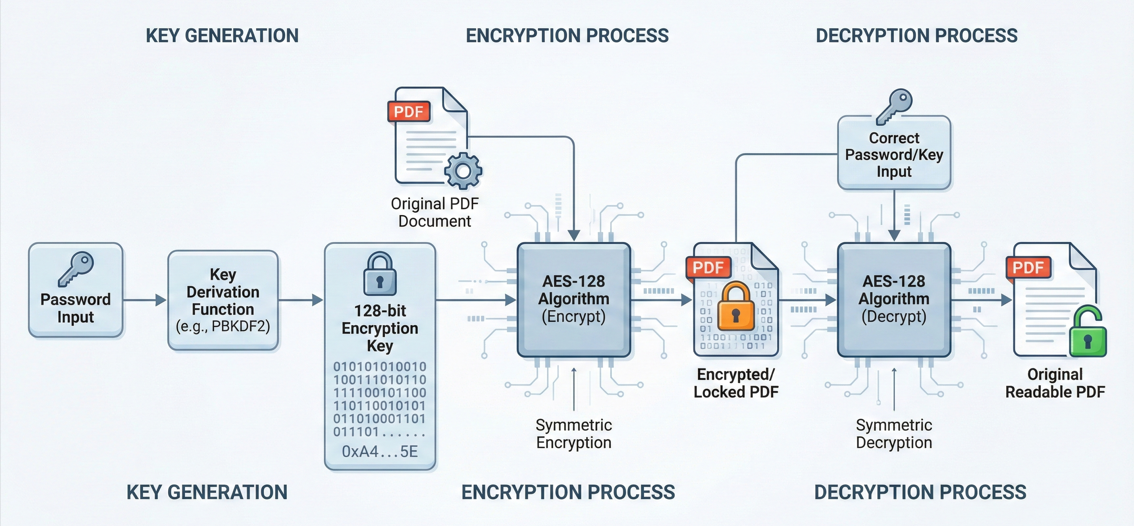
IronPDF 采用企业级 128 位加密技术保护您的敏感文件。 加密是 PDF 安全性的支柱,可将文档内容转换为只有授权用户才能访问的不可读数据。
AES-128 加密
AES-128 长期以来一直是 PDF 保护的行业标准。 它为财务文件、合同和内部记录等商业文档提供了强大的安全性,使用的 128 位密钥在计算上无法通过暴力破解。
128 位加密标准与 Adobe Acrobat 7 及更高版本兼容,确保不同 PDF 阅读器之间的广泛兼容性,同时保持强大的安全性。 对于大多数企业应用而言,AES-128 在安全强度和处理性能之间实现了极佳的平衡。
AES-256 加密
IronPDF 支持 128 位和 256 位 AES 加密,可灵活满足不同的安全要求。 AES-256 采用 256 位密钥,比 AES-128 的保护强度高出数倍。它被政府机构用于机密文件,满足处理敏感信息的要求。
使用 AES-256 的主要代价是略微增加的处理开销和兼容性考虑--它需要 Adobe Acrobat X 或更高版本才能获得适当的支持。 不过,对于处理高度敏感数据的应用程序,如受 HIPAA 限制的医疗记录、需要符合 PCI-DSS 的金融交易或有分类要求的政府文件,额外的安全系数是值得的,因为对性能的影响微乎其微。
用户密码与所有者密码
打开和查看 PDF 文档需要用户密码(或打开密码),而所有者密码(或权限密码)则控制用户可以在文档上执行的操作。 这种双密码系统可为不同的文档工作流程提供灵活的安全控制。
用户密码是访问文档的主要障碍。 设置完成后,任何试图打开 PDF 的人都必须提供此密码。 这是您与授权读者共享的密码,他们应该能够查看文档内容。 将其视为 "阅读权限 "证书。
所有者密码的作用完全不同。 所有者密码用于启用和禁用所有其他安全设置。 该密码可以控制谁可以修改文档的安全设置、更改权限或完全删除保护。 即使用户可以使用自己的用户密码打开文档,但如果没有所有者的密码,他们就无法更改文档的安全设置或覆盖权限限制。
这种分离允许复杂的访问控制场景。 例如,您可能会分发一份带有用户密码的合同,以便各方都能阅读,但只有文档创建者(持有所有者密码)才能修改安全设置或创建具有不同限制的版本。
:path=/static-assets/pdf/content-code-examples/tutorials/encrypt-pdf-csharp/encrypt-pdf-csharp-pdf-security-user-owner-passwords--1.csusing IronPdf;
var pdf = PdfDocument.FromFile("input.pdf");
// User password required to open/view the PDF
pdf.SecuritySettings.UserPassword = "view-access-2024";
// Owner password required to modify security settings
pdf.SecuritySettings.OwnerPassword = "admin-master-key";
// Disable printing for users without owner password
pdf.SecuritySettings.AllowUserPrinting = IronPdf.Security.PdfPrintSecurity.NoPrint;
// Disable copy/paste of content
pdf.SecuritySettings.AllowUserCopyPasteContent = false;
pdf.SaveAs("output-secured.pdf");Imports IronPdf
Dim pdf = PdfDocument.FromFile("input.pdf")
' User password required to open/view the PDF
pdf.SecuritySettings.UserPassword = "view-access-2024"
' Owner password required to modify security settings
pdf.SecuritySettings.OwnerPassword = "admin-master-key"
' Disable printing for users without owner password
pdf.SecuritySettings.AllowUserPrinting = IronPdf.Security.PdfPrintSecurity.NoPrint
' Disable copy/paste of content
pdf.SecuritySettings.AllowUserCopyPasteContent = False
pdf.SaveAs("output-secured.pdf")权限限制框架
除了密码保护,PDF 安全性还包括一个全面的权限系统,该系统准确定义了用户打开文档后可以做的事情。 权限标志决定是否允许打印、复制内容、编辑、注释和输入表格数据。
权限框架独立于用户密码运行。 您可以设置用户密码,然后指定该用户可以执行的操作。 另外,您也可以在没有用户密码的情况下打开文档,但仍然会限制某些操作,不过这种配置提供的安全性有限,因为没有密码保护,限制更容易被规避。
权限控制包括
- 打印限制:控制用户是否可以打印,如果可以,打印质量如何
- 内容提取:防止从文档中复制文本和图像
- 文档修改:限制编辑实际文档内容
- 注释和评论:控制用户是否可以添加注释或评论
- 表单字段操作:确定用户是否可以填写表单字段
- 文档组装:控制插入、删除或旋转等页面操作
通过这些细粒度的控制,您可以根据具体的使用情况来定制文档的安全性,确保用户拥有所需的访问权限,不多也不少。
密码保护基础
使用 IronPDF 在您的 C# 应用程序中实施密码保护是简单明了的,但了解其中的细微差别可确保您正确有效地应用安全性。
安装 IronPDF
在实施 PDF 安全功能之前,您需要在 .NET 项目中安装 IronPDF。 该库支持 .NET Framework、.NET Core 和 .NET 5+,因此几乎与所有现代 .NET 应用程序兼容。
您可以通过 NuGet 软件包管理器控制台安装 IronPdf:
Install-Package IronPdf或使用.NET CLI:
dotnet 添加 IronPdf 包安装完成后,请在代码中添加必要的 using 语句:
using IronPdf;
using IronPdf.Security;
using IronPdf;
using IronPdf.Security;Imports IronPdf
Imports IronPdf.Security设置用户密码(打开时需要)
您可以设置 UserPassword 属性,使其要求输入密码才能打开文件。这代表了 PDF 安全性的最基本级别——确保只有拥有密码的人才能查看文档内容。
:path=/static-assets/pdf/content-code-examples/tutorials/encrypt-pdf-csharp/encrypt-pdf-csharp-pdf-security-set-user-password--2.csusing IronPdf;
var pdf = PdfDocument.FromFile("input.pdf");
// Set user password - anyone opening this PDF must provide this password
pdf.SecuritySettings.UserPassword = "Secure#Password2024!";
pdf.SaveAs("output-protected.pdf");Imports IronPdf
Dim pdf = PdfDocument.FromFile("input.pdf")
' Set user password - anyone opening this PDF must provide this password
pdf.SecuritySettings.UserPassword = "Secure#Password2024!"
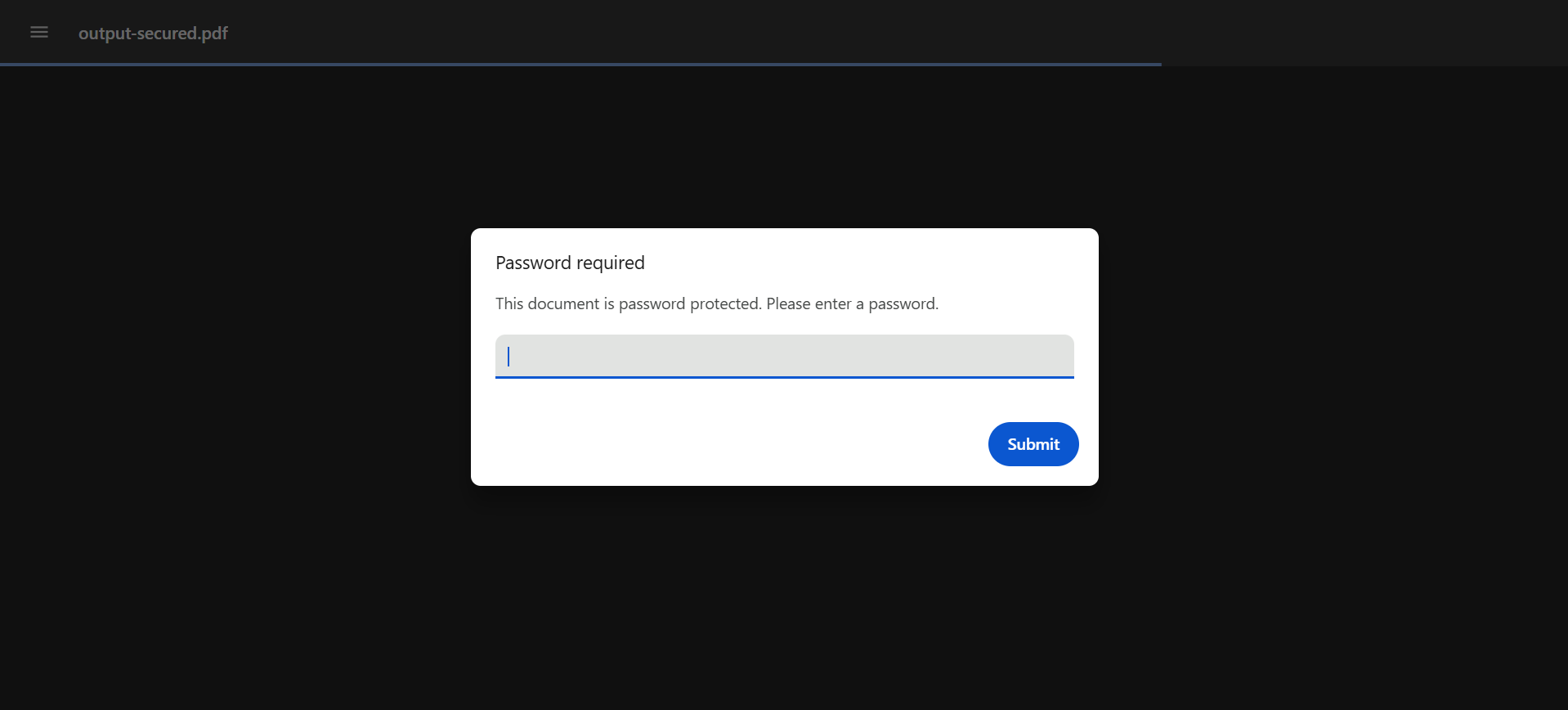
pdf.SaveAs("output-protected.pdf")设置用户密码后,IronPDF 支持 128 位加密以保护文档内容。 当任何人试图打开文件时,PDF 阅读器都会提示输入该密码,如果没有正确的密码,文件将一直处于加密状态,无法阅读。
用户密码的最佳实践:
- 使用由大写字母、小写字母、数字和特殊字符组成的强密码
- 避免使用常见词汇或容易猜到的模式
- 考虑使用密码生成实用程序以获得最大安全性
- 使用成熟的密码管理系统安全地存储密码
- 切勿在生产源代码或配置文件中嵌入密码
输出示例(打开受密码保护的 PDF)
设置所有者密码(需要编辑)
所有者密码可对文档进行更高级别的控制。 要限制 @@--CODE-347--CODE-348--CODE-349--CODE-349、@@--CODE-350 和 @@--CODE-351,必须将 @@--CODE-346--CODE-346 设置为非空字符串值。
:path=/static-assets/pdf/content-code-examples/tutorials/encrypt-pdf-csharp/encrypt-pdf-csharp-pdf-security-set-owner-password--3.csusing IronPdf;
using IronPdf.Security;
var pdf = PdfDocument.FromFile("sample-pdf.pdf");
// Owner password enables restrictions without requiring password to open
pdf.SecuritySettings.OwnerPassword = "admin-control-2024";
// Prevent printing without owner password
pdf.SecuritySettings.AllowUserPrinting = PdfPrintSecurity.NoPrint;
// Disable copy/paste functionality
pdf.SecuritySettings.AllowUserCopyPasteContent = false;
// Prevent any editing without owner password
pdf.SecuritySettings.AllowUserEdits = PdfEditSecurity.NoEdit;
pdf.SaveAs("output-owner-protected.pdf");Imports IronPdf
Imports IronPdf.Security
Dim pdf = PdfDocument.FromFile("sample-pdf.pdf")
' Owner password enables restrictions without requiring password to open
pdf.SecuritySettings.OwnerPassword = "admin-control-2024"
' Prevent printing without owner password
pdf.SecuritySettings.AllowUserPrinting = PdfPrintSecurity.NoPrint
' Disable copy/paste functionality
pdf.SecuritySettings.AllowUserCopyPasteContent = False
' Prevent any editing without owner password
pdf.SecuritySettings.AllowUserEdits = PdfEditSecurity.NoEdit
pdf.SaveAs("output-owner-protected.pdf")输出示例
上面的代码段创建了一个任何人都可以打开的文档(没有用户密码),但它仍然会受到权限限制。 要修改安全设置或删除限制,您必须知道所有者密码。 这种方法在公共文档中很常见,因为您希望控制文档的使用方式,但不一定需要限制查看。
加密强度选项
IronPDF 支持 128 位加密,可为文档提供安全保护,当您在 PDF 文档上设置密码或权限时,加密功能会自动应用。 加密是透明的--您无需明确配置加密算法或模式,因为 IronPDF 会在您应用安全设置时自动处理。
IronPDF 使用的 128 位加密技术可提供强大的保护,适合商业、法律和大多数政府应用。 加密应用于内容层面,即对实际文本、图像和文档结构进行加密,而不仅仅是访问控制。
粒状权限控制
PDF 安全性最强大的方面之一是能够设置细粒度的权限,准确控制用户对文档的操作。 IronPDF 提供广泛的权限控制,远远超出简单的读/写访问权限。
管理打印权限
IronPDF 允许您控制打印权限,帮助您管理谁可以打印 PDF 文档。 对于包含机密信息、受版权保护的材料或受监管限制的数据的文件,打印限制尤为重要。
如果打印权限受到限制,则必须设置 OwnerPassword 才能使安全措施生效。 这样可以确保在没有适当授权的情况下,不能轻易删除权限限制。 以下部分展示了所有可用的打印权限级别。
高质量与低质量打印设置
IronPDF 提供复杂的打印权限控制,而不仅仅是简单的允许/拒绝。 PdfPrintSecurity 枚举提供了三个级别的打印控制:
:path=/static-assets/pdf/content-code-examples/tutorials/encrypt-pdf-csharp/encrypt-pdf-csharp-pdf-security-print-quality--4.csusing IronPdf;
using IronPdf.Security;
// Allow low-resolution printing only (150 DPI)
var pdf1 = PdfDocument.FromFile("input.pdf");
pdf1.SecuritySettings.OwnerPassword = "admin-key-2024";
pdf1.SecuritySettings.AllowUserPrinting = PdfPrintSecurity.PrintLowQuality;
pdf1.SaveAs("output-low-res-print.pdf");
// Disable printing completely
var pdf2 = PdfDocument.FromFile("input.pdf");
pdf2.SecuritySettings.OwnerPassword = "secret-admin-key";
pdf2.SecuritySettings.AllowUserPrinting = PdfPrintSecurity.NoPrint;
pdf2.SaveAs("output-no-print.pdf");
// Allow full high-quality printing
var pdf3 = PdfDocument.FromFile("input.pdf");
pdf3.SecuritySettings.OwnerPassword = "owner-key";
pdf3.SecuritySettings.AllowUserPrinting = PdfPrintSecurity.FullPrintRights;
pdf3.SaveAs("output-full-print.pdf");Imports IronPdf
Imports IronPdf.Security
' Allow low-resolution printing only (150 DPI)
Dim pdf1 = PdfDocument.FromFile("input.pdf")
pdf1.SecuritySettings.OwnerPassword = "admin-key-2024"
pdf1.SecuritySettings.AllowUserPrinting = PdfPrintSecurity.PrintLowQuality
pdf1.SaveAs("output-low-res-print.pdf")
' Disable printing completely
Dim pdf2 = PdfDocument.FromFile("input.pdf")
pdf2.SecuritySettings.OwnerPassword = "secret-admin-key"
pdf2.SecuritySettings.AllowUserPrinting = PdfPrintSecurity.NoPrint
pdf2.SaveAs("output-no-print.pdf")
' Allow full high-quality printing
Dim pdf3 = PdfDocument.FromFile("input.pdf")
pdf3.SecuritySettings.OwnerPassword = "owner-key"
pdf3.SecuritySettings.AllowUserPrinting = PdfPrintSecurity.FullPrintRights
pdf3.SaveAs("output-full-print.pdf")NoPrinting :完全禁用 PDF 阅读器中的打印功能。 这是最严格的选项,适用于绝对不能打印的文件,如数字专用许可证或应只保留电子形式的高度机密信息。
LowResolutionPrinting :允许打印,但将输出质量限制为低分辨率(通常为 150 DPI)。 如果您希望打印参考副本,但又希望避免高质量的复制,则此选项对文档非常有价值。 常见的使用情况包括受版权保护的材料、预览副本或文件草稿。
FullPrintRights :允许无限制的高分辨率打印。 这将为用户提供与未受保护文档相同的打印质量。
控制复制/粘贴操作
防止内容复制(禁用文本和图像选择)是保护知识产权、机密数据和受版权保护材料的重要安全功能。
:path=/static-assets/pdf/content-code-examples/tutorials/encrypt-pdf-csharp/encrypt-pdf-csharp-pdf-security-copy-paste--5.csusing IronPdf;
var pdf = PdfDocument.FromFile("input.pdf");
// Owner password required for copy/paste restrictions
pdf.SecuritySettings.OwnerPassword = "content-protection-key";
// Prevent users from selecting and copying text or images
pdf.SecuritySettings.AllowUserCopyPasteContent = false;
pdf.SaveAs("output-no-copy.pdf");Imports IronPdf
Dim pdf = PdfDocument.FromFile("input.pdf")
' Owner password required for copy/paste restrictions
pdf.SecuritySettings.OwnerPassword = "content-protection-key"
' Prevent users from selecting and copying text or images
pdf.SecuritySettings.AllowUserCopyPasteContent = False
pdf.SaveAs("output-no-copy.pdf")当复制/粘贴功能被禁用时,用户无法从 PDF 中选择和复制文本或图像。 这样可以防止轻易提取内容用于未经授权的使用、剽窃或数据盗窃。 不过,重要的是要明白,这是 PDF 阅读器的强制执行,拥有专业工具的攻击者可能仍然能够提取内容,这就是为什么加密和密码保护是重要的补充措施。
如果将 AllowUserCopyPasteContent 设置为 false,则还必须设置 OwnerPassword 才能使安全措施生效,从而确保这些限制不能轻易绕过。
限制文档编辑
文档编辑限制可防止用户修改 PDF 的实际内容。 禁用编辑功能可确保文档的完整性,避免未经授权的更改。
:path=/static-assets/pdf/content-code-examples/tutorials/encrypt-pdf-csharp/encrypt-pdf-csharp-pdf-security-editing-restrictions--6.csusing IronPdf;
using IronPdf.Security;
// Prevent any content modifications
var pdf1 = PdfDocument.FromFile("input.pdf");
pdf1.SecuritySettings.OwnerPassword = "contract-admin-2024";
pdf1.SecuritySettings.AllowUserEdits = PdfEditSecurity.NoEdit;
pdf1.SaveAs("output-locked.pdf");
// Allow page organization only (rotate, reorder, delete pages)
var pdf2 = PdfDocument.FromFile("input.pdf");
pdf2.SecuritySettings.OwnerPassword = "form-admin-key";
pdf2.SecuritySettings.AllowUserEdits = PdfEditSecurity.EditPages;
pdf2.SaveAs("output-edit-pages.pdf");
// Allow all editing operations
var pdf3 = PdfDocument.FromFile("input.pdf");
pdf3.SecuritySettings.OwnerPassword = "draft-admin";
pdf3.SecuritySettings.AllowUserEdits = PdfEditSecurity.EditAll;
pdf3.SaveAs("output-editable.pdf");Imports IronPdf
Imports IronPdf.Security
' Prevent any content modifications
Dim pdf1 = PdfDocument.FromFile("input.pdf")
pdf1.SecuritySettings.OwnerPassword = "contract-admin-2024"
pdf1.SecuritySettings.AllowUserEdits = PdfEditSecurity.NoEdit
pdf1.SaveAs("output-locked.pdf")
' Allow page organization only (rotate, reorder, delete pages)
Dim pdf2 = PdfDocument.FromFile("input.pdf")
pdf2.SecuritySettings.OwnerPassword = "form-admin-key"
pdf2.SecuritySettings.AllowUserEdits = PdfEditSecurity.EditPages
pdf2.SaveAs("output-edit-pages.pdf")
' Allow all editing operations
Dim pdf3 = PdfDocument.FromFile("input.pdf")
pdf3.SecuritySettings.OwnerPassword = "draft-admin"
pdf3.SecuritySettings.AllowUserEdits = PdfEditSecurity.EditAll
pdf3.SaveAs("output-editable.pdf")PdfEditSecurity 枚举提供了对允许的编辑类型的精细控制:
NoEdit :完全阻止对文档内容的任何修改。 这是最严格的设置,可确保文件不被以任何方式修改。
AddOrModifyTextAnnotations :允许用户添加文本注释和评论,但阻止直接修改文档内容。 这对于需要反馈但又希望保留原始文档的审阅工作流程非常有用。
FillInFormsAndSignatures : 允许填写表单字段和添加签名,同时阻止其他编辑。 这是需要填写但无需修改的 PDF 表单的标准设置。
DocumentAssemblyAndTextAnnotations : 允许文档组装操作(如页面插入或删除)以及文本注释。
AllEditRights :允许所有编辑操作,不受任何限制。
管理注释和评论
AllowUserAnnotations 控制用户是否可以对 PDF 进行注释。 注释控制在法律、合规和协作文档工作流中尤为重要。
:path=/static-assets/pdf/content-code-examples/tutorials/encrypt-pdf-csharp/encrypt-pdf-csharp-pdf-security-annotations--7.csusing IronPdf;
var pdf = PdfDocument.FromFile("input.pdf");
// Owner password required for annotation restrictions
pdf.SecuritySettings.OwnerPassword = "legal-admin-2024";
// Prevent adding comments, highlights, or other markup
pdf.SecuritySettings.AllowUserAnnotations = false;
pdf.SaveAs("output-no-annotations.pdf");Imports IronPdf
Dim pdf = PdfDocument.FromFile("input.pdf")
' Owner password required for annotation restrictions
pdf.SecuritySettings.OwnerPassword = "legal-admin-2024"
' Prevent adding comments, highlights, or other markup
pdf.SecuritySettings.AllowUserAnnotations = False
pdf.SaveAs("output-no-annotations.pdf")禁用注释可以防止用户在文档中添加注释、突出显示、标记或任何其他注释。 这将确保文档保持原汁原味,并防止未经授权的注释或评论造成混淆。
禁用注释的常见用例包括
- 法律合同的最终版本
- 公司官方文档
- 法规提交
- 不应标记的已发布报告
- 经认证或公证的文件
反之,在限制编辑的同时启用注释,对于需要反馈但又想保持基础文档完整性的审阅过程非常有价值。
如需更详细地解释上述代码片段并探索其他安全功能,请参阅我们的综合操作指南。
打开和解密受保护的 PDF 文件
以编程方式处理受保护的 PDF 需要了解如何在代码中正确提供凭证和处理加密文档。
以编程方式提供密码
使用 PdfDocument.FromFile 加载 PDF 文件时,您可以将打开加密 PDF 的密码作为第二个参数传递。 这样,您的应用程序就可以处理受保护的文档,而无需用户干预。
:path=/static-assets/pdf/content-code-examples/tutorials/encrypt-pdf-csharp/encrypt-pdf-csharp-pdf-security-open-encrypted--8.csusing IronPdf;
// Open password-protected PDF
var password = "user-access-2024";
var pdf = PdfDocument.FromFile("protected.pdf", password);
// Work with the decrypted document
var text = pdf.ExtractAllText();
// Modify and save
pdf.SaveAs("output-processed.pdf");
// Note: For production, use secure password storage (environment variables, key vaults)Imports IronPdf
' Open password-protected PDF
Dim password As String = "user-access-2024"
Dim pdf As PdfDocument = PdfDocument.FromFile("protected.pdf", password)
' Work with the decrypted document
Dim text As String = pdf.ExtractAllText()
' Modify and save
pdf.SaveAs("output-processed.pdf")
' Note: For production, use secure password storage (environment variables, key vaults)这种方法对于需要以编程方式处理受保护 PDF 的自动化工作流程至关重要。 常见情况包括
- 自动文档处理管道
- 预定报告生成
- 批量转换操作
- 与文档管理系统整合
- 自动存档流程
重要的安全考虑因素:
- 切勿在源代码中硬编码密码
- 使用安全配置管理(Azure Key Vault、AWS Secrets Manager 等)
- 对密码存储实施适当的访问控制
- 使用环境变量或安全配置文件
- 考虑对高度敏感的应用程序使用基于证书的安全性
删除安全限制
要移除密码和加密,请使用 RemovePasswordsAndEncryption 方法。 当您需要从文件中剥离安全性时,这种功能至关重要,但它需要适当的授权以防止未经授权的访问。
:path=/static-assets/pdf/content-code-examples/tutorials/encrypt-pdf-csharp/encrypt-pdf-csharp-pdf-security-remove-restrictions--9.csusing IronPdf;
var pdf = PdfDocument.FromFile("protected.pdf", "owner-password-2024");
pdf.SecuritySettings.RemovePasswordsAndEncryption();
pdf.SaveAs("output-unprotected.pdf");Imports IronPdf
Dim pdf = PdfDocument.FromFile("protected.pdf", "owner-password-2024")
pdf.SecuritySettings.RemovePasswordsAndEncryption()
pdf.SaveAs("output-unprotected.pdf")移除 PDF 文档的所有用户和所有者密码安全也会禁用内容加密。 翻译后的文档将完全不受保护,可以打开、查看、编辑和打印,不受任何限制。
何时删除安全性:
- 为无法处理加密 PDF 的存档系统准备文件
- 迁移到不同的安全机制
- 创建以前受保护文件的公开发行版本
- 解决与旧版 PDF 阅读器的兼容性问题
- 准备与需要未加密输入的系统集成的文件
批量处理加密文件
在处理多个受保护的 PDF 时,您可以实施批处理,以高效处理整个加密文档目录。
:path=/static-assets/pdf/content-code-examples/tutorials/encrypt-pdf-csharp/encrypt-pdf-csharp-pdf-security-batch-processing--10.csusing IronPdf;
using System;
using System.IO;
string inputDir = "./input";
string outputDir = "./output";
Directory.CreateDirectory(outputDir);
var pdfFiles = Directory.GetFiles(inputDir, "*.pdf");
string password = "batch-process-2024";
foreach (var pdfPath in pdfFiles)
{
try
{
PdfDocument pdf;
try
{
pdf = PdfDocument.FromFile(pdfPath, password);
}
catch
{
pdf = PdfDocument.FromFile(pdfPath);
}
var text = pdf.ExtractAllText();
pdf.SecuritySettings.RemovePasswordsAndEncryption();
string fileName = Path.GetFileName(pdfPath);
string outputPath = Path.Combine(outputDir, fileName);
pdf.SaveAs(outputPath);
}
catch (Exception ex)
{
// Handle errors as needed
}
}Imports IronPdf
Imports System
Imports System.IO
Dim inputDir As String = "./input"
Dim outputDir As String = "./output"
Directory.CreateDirectory(outputDir)
Dim pdfFiles = Directory.GetFiles(inputDir, "*.pdf")
Dim password As String = "batch-process-2024"
For Each pdfPath In pdfFiles
Try
Dim pdf As PdfDocument
Try
pdf = PdfDocument.FromFile(pdfPath, password)
Catch
pdf = PdfDocument.FromFile(pdfPath)
End Try
Dim text = pdf.ExtractAllText()
pdf.SecuritySettings.RemovePasswordsAndEncryption()
Dim fileName As String = Path.GetFileName(pdfPath)
Dim outputPath As String = Path.Combine(outputDir, fileName)
pdf.SaveAs(outputPath)
Catch ex As Exception
' Handle errors as needed
End Try
Next这种模式对于需要以下内容的企业场景非常有价值:
- 处理整个文档库
- 在文档集中应用一致的安全策略
- 将加密文档迁移至新的安全标准
- 从受保护文档中进行批量分析或内容提取
- 实施自动合规工作流程
对于批量处理,请考虑实施:
- 正确处理无效密码或损坏文件的错误
- 用于审计跟踪的安全操作日志
- 长期运行的进度报告
- 并行处理,提高大型文档集的性能
- 安全清理临时解密文件
军事和机密文件安全
对于处理机密信息、政府文件或需要军事级别安全性的数据的组织而言,PDF 保护远远超出了基本的密码保护,而是扩展到了全面的安全框架。
超越密码保护
虽然密码保护和加密构成了 PDF 安全的基础,但真正安全的文档处理需要一种分层方法,以解决多种攻击向量和合规性要求。
多因素身份验证集成:对于机密文件,仅有密码保护是不够的。 考虑实施 PDF 访问需要密码和其他验证因素(如智能卡凭证、硬件安全令牌或生物识别验证)的系统。
硬件安全模块 (HSM):对于基于 HSM 的解决方案,私钥不能导出。 而不是由 USB 密钥上的固件进行签名。 这可确保加密密钥永远不会离开安全的硬件环境,为机密文件的数字签名提供最高级别的密钥保护。
静态和传输过程中的加密:机密文件不仅在存储时需要保护,在传输过程中也需要保护。 为任何受保护 PDF 的网络传输实施传输层安全 (TLS),并确保存储系统使用经 FIPS 140-2 验证的加密模块进行全盘加密。
用于解密的文档消毒
对机密文件进行消毒处理可删除足够的信息,从而将机密级别从较高降至较低。 这一过程对于处理最终需要公开发布的机密材料的政府机构和承包商来说至关重要。
Important:请务必完全删除敏感内容,而不是在视觉上对其进行模糊处理--请参阅安全反模式部分中的视觉模糊,了解这一点的原因。
正确的消毒要求以编程方式清除所有元数据字段、自定义属性和隐藏内容。 PDF 文档通常会保留以前的版本、注释以及可能包含机密信息的嵌入数据。 请参阅下面的元数据泄露部分,了解实施细节和完整的消毒核对表。
对于解密工作流程,实施多步骤流程:
1.确定需要编辑的机密内容 2.删除(而不是模糊)分类文本和图像 3.删除所有元数据和隐藏内容 4.删除嵌入文件和脚本 5.通过自动和人工审核验证消毒效果 6.应用适当的降级分类标记 7.保持解密操作的审计跟踪
审计跟踪和访问日志
对于机密文件而言,全面的审计跟踪不仅是最佳实践,而且往往是强制性的,如针对国家安全信息的第 13526 号行政命令。
:path=/static-assets/pdf/content-code-examples/tutorials/encrypt-pdf-csharp/encrypt-pdf-csharp-pdf-security-audit-logging--11.csusing IronPdf;
using System;
using System.IO;
using System.Text.Json;
var handler = new SecureDocumentHandler();
handler.OpenClassifiedDocument(
"classified.pdf",
"classified-password",
"john.doe@agency.gov",
"192.168.1.100"
);
handler.LogPrintOperation(
"classified.pdf",
"john.doe@agency.gov",
"192.168.1.100"
);
ic class PdfAuditLog
public DateTime Timestamp { get; set; }
public string Username { get; set; }
public string Operation { get; set; }
public string DocumentPath { get; set; }
public string IpAddress { get; set; }
public bool Success { get; set; }
public string Details { get; set; }
ic class SecureDocumentHandler
private readonly string auditLogPath = "./logs/audit.log";
public void OpenClassifiedDocument(string documentPath, string password, string username, string ipAddress)
{
var auditEntry = new PdfAuditLog
{
Timestamp = DateTime.UtcNow,
Username = username,
Operation = "OPEN",
DocumentPath = documentPath,
IpAddress = ipAddress,
Success = false,
Details = ""
};
try
{
var pdf = PdfDocument.FromFile(documentPath, password);
auditEntry.Success = true;
auditEntry.Details = "Document opened successfully";
LogAuditEntry(auditEntry);
}
catch (Exception ex)
{
auditEntry.Success = false;
auditEntry.Details = $"Failed: {ex.Message}";
LogAuditEntry(auditEntry);
throw;
}
}
public void LogPrintOperation(string documentPath, string username, string ipAddress)
{
var auditEntry = new PdfAuditLog
{
Timestamp = DateTime.UtcNow,
Username = username,
Operation = "PRINT",
DocumentPath = documentPath,
IpAddress = ipAddress,
Success = true,
Details = "Document printed"
};
LogAuditEntry(auditEntry);
}
private void LogAuditEntry(PdfAuditLog entry)
{
Directory.CreateDirectory(Path.GetDirectoryName(auditLogPath));
string jsonEntry = JsonSerializer.Serialize(entry);
File.AppendAllText(auditLogPath, jsonEntry + Environment.NewLine);
}Imports IronPdf
Imports System
Imports System.IO
Imports System.Text.Json
Module Program
Sub Main()
Dim handler As New SecureDocumentHandler()
handler.OpenClassifiedDocument(
"classified.pdf",
"classified-password",
"john.doe@agency.gov",
"192.168.1.100"
)
handler.LogPrintOperation(
"classified.pdf",
"john.doe@agency.gov",
"192.168.1.100"
)
End Sub
End Module
Public Class PdfAuditLog
Public Property Timestamp As DateTime
Public Property Username As String
Public Property Operation As String
Public Property DocumentPath As String
Public Property IpAddress As String
Public Property Success As Boolean
Public Property Details As String
End Class
Public Class SecureDocumentHandler
Private ReadOnly auditLogPath As String = "./logs/audit.log"
Public Sub OpenClassifiedDocument(documentPath As String, password As String, username As String, ipAddress As String)
Dim auditEntry As New PdfAuditLog With {
.Timestamp = DateTime.UtcNow,
.Username = username,
.Operation = "OPEN",
.DocumentPath = documentPath,
.IpAddress = ipAddress,
.Success = False,
.Details = ""
}
Try
Dim pdf = PdfDocument.FromFile(documentPath, password)
auditEntry.Success = True
auditEntry.Details = "Document opened successfully"
LogAuditEntry(auditEntry)
Catch ex As Exception
auditEntry.Success = False
auditEntry.Details = $"Failed: {ex.Message}"
LogAuditEntry(auditEntry)
Throw
End Try
End Sub
Public Sub LogPrintOperation(documentPath As String, username As String, ipAddress As String)
Dim auditEntry As New PdfAuditLog With {
.Timestamp = DateTime.UtcNow,
.Username = username,
.Operation = "PRINT",
.DocumentPath = documentPath,
.IpAddress = ipAddress,
.Success = True,
.Details = "Document printed"
}
LogAuditEntry(auditEntry)
End Sub
Private Sub LogAuditEntry(entry As PdfAuditLog)
Directory.CreateDirectory(Path.GetDirectoryName(auditLogPath))
Dim jsonEntry As String = JsonSerializer.Serialize(entry)
File.AppendAllText(auditLogPath, jsonEntry & Environment.NewLine)
End Sub
End Class基本审核要素:
- 访问事件:记录每次文档打开、查看、打印和关闭操作
- 用户身份验证:记录访问文档的每个人的认证身份
- Timestamp:使用同步时钟保持精确的时间记录
- 操作类型: 区分查看、打印、编辑和其他操作
- Outcome:记录业务的成功或失败
- 来源信息:捕获 IP 地址、机器标识符和位置数据(如果有的话
审计日志保护:审计日志本身具有敏感性,必须加以保护:
- 将日志与其跟踪的文档分开存储
- 对审计数据进行加密
- 实施仅附加日志存储以防止篡改
- 使用加密签名确保日志完整性
- 定期备份到安全的异地位置
- 定义符合法规要求的保留期
将加密与数字签名相结合
数字签名为 PDF 文档提供身份验证和完整性。 通过使用 IronPdf,您可以确保您的文档是由经过验证的来源签署的,并且在签署后没有被修改过。
对于机密文件,将加密与数字签名相结合,既能保证保密性,又能保证真实性:
:path=/static-assets/pdf/content-code-examples/tutorials/encrypt-pdf-csharp/encrypt-pdf-csharp-pdf-security-digital-signatures--12.csusing IronPdf;
using IronPdf.Signing;
using System.Security.Cryptography.X509Certificates;
var pdf = PdfDocument.FromFile("input.pdf");
// Apply encryption
pdf.SecuritySettings.UserPassword = "view-classified-2024";
pdf.SecuritySettings.OwnerPassword = "admin-classified-2024";
// Digital signature requires external certificate file (certificate.pfx)
// In production: use certificates from trusted Certificate Authorities and secure hardware (HSM)
var certificate = new X509Certificate2("certificate.pfx", "cert-password");
var signature = new PdfSignature(certificate)
{
SigningContact = "security@agency.gov",
SigningReason = "Document Certification",
SigningLocation = "Washington DC, USA"
};
pdf.Sign(signature);
pdf.SaveAs("output-signed-encrypted.pdf");Imports IronPdf
Imports IronPdf.Signing
Imports System.Security.Cryptography.X509Certificates
Dim pdf = PdfDocument.FromFile("input.pdf")
' Apply encryption
pdf.SecuritySettings.UserPassword = "view-classified-2024"
pdf.SecuritySettings.OwnerPassword = "admin-classified-2024"
' Digital signature requires external certificate file (certificate.pfx)
' In production: use certificates from trusted Certificate Authorities and secure hardware (HSM)
Dim certificate As New X509Certificate2("certificate.pfx", "cert-password")
Dim signature As New PdfSignature(certificate) With {
.SigningContact = "security@agency.gov",
.SigningReason = "Document Certification",
.SigningLocation = "Washington DC, USA"
}
pdf.Sign(signature)
pdf.SaveAs("output-signed-encrypted.pdf")机密文件的数字签名组件:
证书链验证:证书的允许用途列在证书的 ASN.1 编码扩展属性中。 对于机密文件,应确保证书由经批准的证书颁发机构颁发,并包含适当的扩展密钥使用属性。
时间戳授权:任何时间戳都应包含时间戳服务授权(TSA)证书。 这可以提供文件签署时间的加密证明,对于满足法律和合规要求至关重要。
长期验证 (LTV):对于需要在未来数年内进行验证的文档(常见于机密材料),实施 LTV 签名,将所有验证信息包含在文档本身中,确保即使证书颁发机构不再可访问,也能进行签名验证。
不可抵赖性: 数字签名具有不可抵赖性--签名者无法否认已签署文件。 这对于保密文件来说至关重要,因为保密文件的责任和归属是最重要的。
有关使用 IronPdf 实施数字签名的更多详细指导,请参阅我们详细的签名教程。
应避免的安全反模式
了解什么在 PDF 安全性中不起作用与了解什么起作用同样重要。 这些反模式代表了常见的错误,它们会造成虚假的安全感,同时使文档变得脆弱。
轻松绕过 "安全 "方法
许多看似提供安全保障的方法,其实只要具备基本知识或免费工具,就能轻易破解。
基于 JavaScript 的保护: 它毫无用处,因为您必须依赖用户在查看应用程序时启用 JS。用户可以在浏览器中修改 JS,阻止或停止代码执行。 切勿依赖 JavaScript 来执行安全措施,因为它的运行完全受用户控制。
密码隐蔽性:使用弱密码、可预测模式或依赖隐蔽性而非强度无法提供真正的保护。 常见错误包括
- 使用文档标题或日期作为密码
- 连续数字或重复字符
- 默认密码,如 "password "或 "12345"。
- 通过不安全渠道共享密码
- 在 PDF 属性或元数据中存储密码
视觉遮蔽:在敏感文本上添加图像层来遮蔽敏感文本,而不移除底层文本,这并不安全。 原文保留在 PDF 结构中,可以使用基本的 PDF 工具或简单的复制粘贴操作提取。
专有 "加密":某些系统声称使用专有加密算法。 这违反了 Kerckhoffs 的原则--安全应该依靠密钥保密,而不是算法保密。 始终使用成熟的、经过同行评审的加密标准,如 AES。
PDF 中的 JavaScript 漏洞
尽管 Adobe 努力限制恶意 JavaScript 的影响,但它仍然是复杂的攻击者可以用来破坏数据、用户及其设备的载体。
JavaScript 的威胁状况:
CVE-2024-4367 允许攻击者在打开恶意 PDF 文件时执行任意 JavaScript 代码。 这个影响 PDF.js(被数百万网站和 Firefox 使用)的漏洞展示了如何利用 PDF JavaScript 来远程执行代码。
PDF 中常见的 JavaScript 攻击向量:
代码执行:具有弱控制功能的恶意宏和嵌入式脚本允许嵌入式代码在打开状态下运行,安装恶意软件或进行未经授权的访问。 PDF 中的 JavaScript 在某些情况下可以访问本地文件系统、进行网络连接并执行任意代码。
数据外渗:敏感数据可能在您不知情的情况下泄露给黑客,例如表单数据、登录凭证和本地文件。 JavaScript 可以读取表单字段、访问文档内容并将数据传输到远程服务器。
跨站脚本 (XSS):在嵌入 PDF.js 而未采取适当安全措施的环境中,该漏洞可能导致跨站脚本 (XSS) 攻击、数据泄露、未经授权的操作,甚至完全接管帐户。
缓解策略:
:path=/static-assets/pdf/content-code-examples/tutorials/encrypt-pdf-csharp/encrypt-pdf-csharp-pdf-security-javascript-mitigation--13.csusing IronPdf;
using IronPdf.Rendering;
var pdf = PdfDocument.FromFile("input.pdf");
// Prevent JavaScript injection by disabling editing
pdf.SecuritySettings.OwnerPassword = "admin-secure-2024";
pdf.SecuritySettings.AllowUserEdits = IronPdf.Security.PdfEditSecurity.NoEdit;
pdf.SaveAs("output-hardened.pdf");Imports IronPdf
Imports IronPdf.Rendering
Dim pdf = PdfDocument.FromFile("input.pdf")
' Prevent JavaScript injection by disabling editing
pdf.SecuritySettings.OwnerPassword = "admin-secure-2024"
pdf.SecuritySettings.AllowUserEdits = IronPdf.Security.PdfEditSecurity.NoEdit
pdf.SaveAs("output-hardened.pdf")附加保护措施:
- 在网络应用程序中显示 PDF 时实施内容安全策略 (CSP) 标头
- 禁用 PDF 中的 JavaScript。 许多漏洞利用了 JavaScript 的漏洞
- 使用具有沙箱功能的 PDF 阅读器来隔离 PDF 的执行
- 不断更新 PDF 软件,修补已知漏洞
- 实施网络级过滤,阻止来自 PDF JavaScript 的连接
- 执行和更新基于网络的 URL 过滤器,以限制企业资产连接到潜在的恶意或未经批准的网站
"安全 "文档中的元数据泄露
PDF 元数据在页面上并不可见,但仍能透露出很多信息。 作者姓名、软件版本、日期和内部注释均位于幕后,可在数秒内调出。
常见的元数据安全风险:
个人身份信息 (PII):外部查看者可以调出作者姓名、内部项目代码或文档主题,了解您的团队如何工作以及谁参与其中。 即使是有强大密码保护的文档,如果没有经过适当的消毒处理,也可能会泄露敏感的元数据。
软件版本披露:元数据通常包括软件和版本详细信息。 攻击者可以利用这一点来猜测您的环境并寻找已知的漏洞。 这些信息为攻击者提供了有针对性攻击的路线图。
编辑历史和版本信息:某些工作流会将编辑详情添加到元数据或相关字段中。 在法律、人力资源或公关方面,这些额外的历史可能会引起您意想不到的问题。 以前的版本、注释和变更跟踪数据可能会透露本应保密的信息。
法规遵从问题:如果公开的 PDF 公开了个人数据、旧的草稿标签或内部评论,则可能违反 GDPR、CCPA 或其他隐私法规。
正确的元数据净化:
:path=/static-assets/pdf/content-code-examples/tutorials/encrypt-pdf-csharp/encrypt-pdf-csharp-pdf-security-metadata-sanitization--14.csusing IronPdf;
using System;
using System.Linq;
var pdf = PdfDocument.FromFile("input.pdf");
// Remove all standard metadata
pdf.MetaData.Author = "";
pdf.MetaData.Title = "";
pdf.MetaData.Subject = "";
pdf.MetaData.Keywords = "";
pdf.MetaData.Creator = "";
pdf.MetaData.Producer = "";
// Apply neutral metadata
pdf.MetaData.Title = "Document";
pdf.MetaData.Subject = "General Information";
pdf.MetaData.Producer = "PDF Generator";
pdf.SaveAs("output-sanitized.pdf");Imports IronPdf
Imports System
Imports System.Linq
Dim pdf = PdfDocument.FromFile("input.pdf")
' Remove all standard metadata
pdf.MetaData.Author = ""
pdf.MetaData.Title = ""
pdf.MetaData.Subject = ""
pdf.MetaData.Keywords = ""
pdf.MetaData.Creator = ""
pdf.MetaData.Producer = ""
' Apply neutral metadata
pdf.MetaData.Title = "Document"
pdf.MetaData.Subject = "General Information"
pdf.MetaData.Producer = "PDF Generator"
pdf.SaveAs("output-sanitized.pdf")输出示例(删除标准元数据和添加中立元数据)
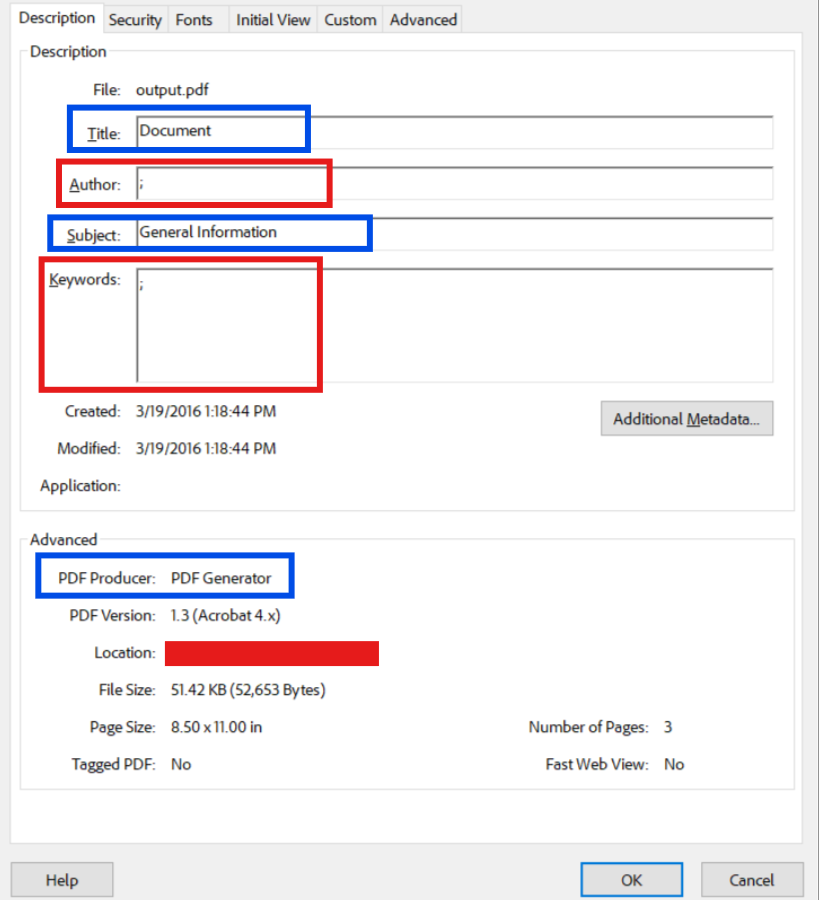
完整的 PDF 净化清单:
- ✅ 删除作者和创建者信息。
- ✅ 标题、主题和关键词字段清晰。
- ✅ 删除创建和修改日期。
- ✅ 删除应用程序和 PDF 制作者信息。
- ✅ 清除自定义元数据属性。
- ✅ 删除嵌入式缩略图。
- ✅ 剥离文档大纲和显示结构的书签。
- ✅ 删除文件附件。
- ✅ 清晰的表单字段数据和计算。
- ✅ 删除 JavaScript 代码。
- ✅ 如果需要替换,请删除数字签名信息。
- ✅ 如果删除安全性,则清除加密字典。
要全面处理元数据,请考虑以下做法:
- 为外部文档建立标准化元数据政策
- 在文档工作流程中实施自动元数据净化
- 在出版和法律审核工作流程中添加元数据检查
- 对员工进行元数据风险和正确处理方面的培训
- 为公共文件使用一致、中立的元数据
- 对已发布的文档进行定期审核
有关元数据和安全设置的其他信息,请参阅我们的安全和元数据指南。
下一步
从基本的密码保护到军事级别的机密文件处理,IronPDF可为您提供所需的工具,以实现适合您要求的强大安全性。 权限和密码指南为访问控制提供了更深入的 API 覆盖范围,而 数字签名教程则展示了如何将加密与加密签名相结合以实现不可抵赖性。 对于需要在分发前移除敏感数据的工作流程,IronPDF 编辑教程涵盖了永久性内容移除、元数据剥离和文档消毒。
使用 IronPDF 实现 PDF 安全性的主要启示:
- 对敏感文件使用强大的加密技术和复杂的密码
- 通过细粒度权限控制实现最小权限原则
- 结合多个安全层(加密、密码、权限、签名)
- 在对外发布前对文件进行适当的消毒处理
- 避免提供虚假安全性的常见反模式
- 为机密文件和合规敏感文件维护审计跟踪
- 随着威胁的发展,定期审查和更新安全实践
作为更广泛的文档工作流程的一部分,安全性效果最佳。 将加密与IronPDF/A归档配对使用以确保长期合规性,使用安全和元数据指南在外部分发之前对文档进行消毒,并使用批处理技术在大型文档集中应用加密模式。 请记住,安全不是一次性实施,而是一个持续评估、改进和警惕的过程。
如果您对 IronPDF 的安全功能有任何疑问,或希望获得更多功能,请联系我们的工程支持团队--我们致力于帮助您实现应用程序所需的强大 PDF 安全性。
常见问题解答
在 C# 中使用 IronPDF 进行 PDF 加密有哪些好处?
IronPDF 提供强大的 PDF 加密功能,允许开发人员使用 AES-128 加密保护文档,设置用户和所有者密码,控制细粒度权限,从而有效保护敏感信息。
如何使用 IronPDF 的 C# 对 PDF 进行加密?
要使用 IronPDF 的 C# 对 PDF 进行加密,您可以使用该库指定 AES-128 等加密设置,设置用户和所有者密码,并为文档定义权限以限制访问和操作。
使用 IronPDF 可以在 PDF 中控制哪些类型的权限?
使用 IronPDF,您可以控制打印、复制、编辑和注释文档等各种权限,提供细粒度的安全控制,以满足特定的安全要求。
IronPDF 能否处理 PDF 安全性的批处理?
是的,IronPDF 能够进行批处理,允许您在 .NET 应用程序中高效地对多个 PDF 文档应用安全设置,从而节省时间并确保各文档具有一致的安全性。
是否可以使用 IronPDF 去除 PDF 中的加密?
如果您拥有必要的权限或密码,IronPDF 允许您修改或删除 PDF 中的加密,为管理文档安全提供了灵活性。
IronPDF 支持哪些加密标准?
IronPDF 支持 AES-128 加密标准,这是一种强大且广泛使用的方法,可确保 PDF 文档的安全,防止未经授权的访问。
IronPDF 如何确保保护 .NET 应用程序中的敏感文档?
IronPDF for .NET 通过提供全面的加密选项、密码保护和详细的权限设置,确保对敏感文档的保护,使开发人员能够在 .NET 应用程序中实现安全的文档处理。

还在滚动吗?
想快速获得证据? PM > Install-Package IronPdf
运行示例看着你的HTML代码变成PDF文件。






 免费开始
免费开始 免费开始
免费开始 预定免费现场演示





 无需信用卡或创建账户










