
How to Convert RTF to PDF in IronPDF C#

IronPDF converts RTF documents to PDF in C# using the RenderRtfStringAsPdf and RenderRtfFileAsPdf methods on ChromePdfRenderer, accepting either an RTF string or a file path and returning a PdfDocument you can save, secure, or merge.
RTF (Rich Text Format) is a document format Microsoft introduced in 1987. It stores text alongside formatting commands such as fonts, styles, colors, and bullet lists as plain text, which is why it travels well between editors. Turning RTF into PDF gives you a fixed-layout file that looks the same on any device, can be password-protected, and is ready to print or archive.
Render a Rich Text Format file to PDF in a single call. Point RenderRtfFileAsPdf at the RTF path, then save the returned document.
-
1Install IronPDF with NuGet Package Manager
-
2Copy and run this code snippet.
new IronPdf.ChromePdfRenderer() .RenderRtfFileAsPdf("input.rtf") .SaveAs("output.pdf");C# -
3Deploy to test on your live environment
Start using IronPDF in your project today with a free trial
Minimal Workflow (5 steps)
- Download the C# library for converting RTF to PDF
- Prepare the RTF file or string you wish to convert
- Use the
RenderRtfStringAsPdfmethod to convert from an RTF string - Use the
RenderRtfFileAsPdfmethod to convert from an RTF file - Review the generated PDF document
How Do I Convert an RTF String to PDF?
Use the RenderRtfStringAsPdf method to turn an RTF string into a PDF document. String input suits content you build at runtime: RTF pulled from a database column, returned by an API, or assembled in code, with no temporary file to write or clean up. The method returns a PdfDocument, so you can keep working on the result, applying headers and footers, merging pages, or adding annotations and bookmarks.
using IronPdf;

// Instantiate Renderer
ChromePdfRenderer renderer = new ChromePdfRenderer();

// RTF string
string rtf = @"{\rtf1\ansi\deff0{\fonttbl{\f0 Arial;}}{\colortbl;\red0\green0\blue0;}\cf0This is some \b bold \b0 and \i italic \i0 text.}";

// Render from RTF string
PdfDocument pdf = renderer.RenderRtfStringAsPdf(rtf);

// Save the PDF
pdf.SaveAs("pdfFromRtfString.pdf");Imports IronPdf
' Instantiate Renderer
Private renderer As New ChromePdfRenderer()
' RTF string
Private rtf As String = "{\rtf1\ansi\deff0{\fonttbl{\f0 Arial;}}{\colortbl;\red0\green0\blue0;}\cf0This is some \b bold \b0 and \i italic \i0 text.}"
' Render from RTF string
Private pdf As PdfDocument = renderer.RenderRtfStringAsPdf(rtf)
' Save the PDF
pdf.SaveAs("pdfFromRtfString.pdf")Output
How Can I Apply Additional Formatting Options?
The same RenderingOptions you use for HTML rendering apply here. Set the paper orientation, margins, and page size on the renderer before you call RenderRtfStringAsPdf:
using IronPdf;
using IronPdf.Rendering;

// Create renderer with custom options
ChromePdfRenderer renderer = new ChromePdfRenderer();
renderer.RenderingOptions.PaperOrientation = PdfPaperOrientation.Landscape;
renderer.RenderingOptions.MarginTop = 50;
renderer.RenderingOptions.MarginBottom = 50;
renderer.RenderingOptions.MarginLeft = 25;
renderer.RenderingOptions.MarginRight = 25;

// RTF string with formatting
string rtf = @"{\rtf1\ansi\deff0{\fonttbl{\f0 Times New Roman;}{\f1 Arial;}}
{\colortbl;\red255\green0\blue0;\red0\green0\blue255;}
\f0\fs24 This is a heading\line
\f1\fs20\cf1 This text is red\line
\cf2 This text is blue\line
\b Bold text\b0 and \i italic text\i0}";

// Convert with custom options
PdfDocument pdf = renderer.RenderRtfStringAsPdf(rtf);
pdf.SaveAs("formattedRtfToPdf.pdf");Imports IronPdf
Imports IronPdf.Rendering
' Create renderer with custom options
Dim renderer As New ChromePdfRenderer()
renderer.RenderingOptions.PaperOrientation = PdfPaperOrientation.Landscape
renderer.RenderingOptions.MarginTop = 50
renderer.RenderingOptions.MarginBottom = 50
renderer.RenderingOptions.MarginLeft = 25
renderer.RenderingOptions.MarginRight = 25
' RTF string with formatting
Dim rtf As String = "{\rtf1\ansi\deff0{\fonttbl{\f0 Times New Roman;}{\f1 Arial;}}" & _
"{\colortbl;\red255\green0\blue0;\red0\green0\blue255;}" & _
"\f0\fs24 This is a heading\line" & _
"\f1\fs20\cf1 This text is red\line" & _
"\cf2 This text is blue\line" & _
"\b Bold text\b0 and \i italic text\i0}"
' Convert with custom options
Dim pdf As PdfDocument = renderer.RenderRtfStringAsPdf(rtf)
pdf.SaveAs("formattedRtfToPdf.pdf")For finer control over page geometry, see the guides on custom margins and custom paper sizes.
Output
How Do I Convert an RTF File to PDF?
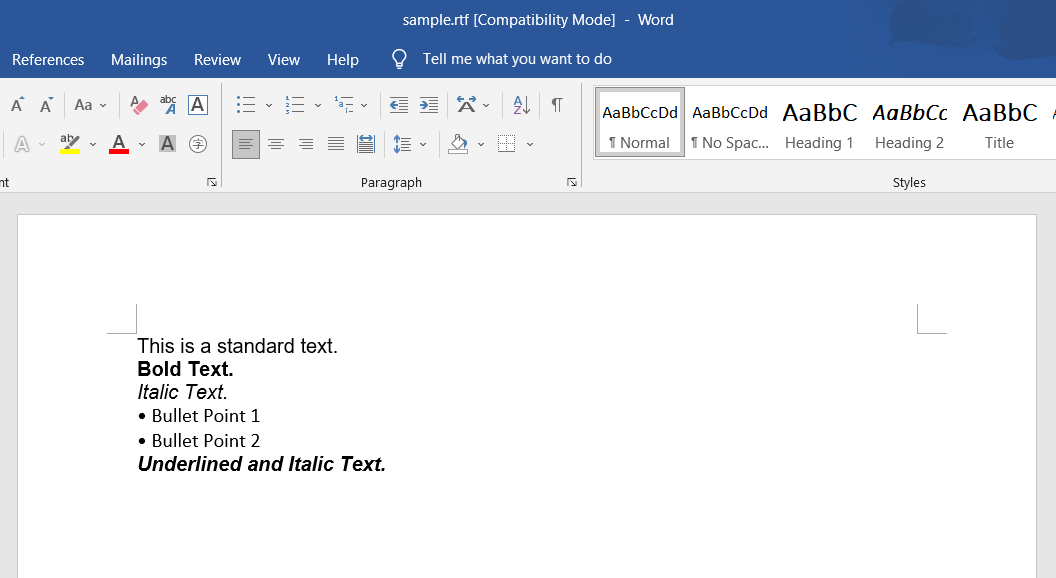
Pass the path of your document to RenderRtfFileAsPdf. The method accepts both absolute and relative paths. Download a sample RTF file to follow along: sample.rtf. The example below renders that file to PDF.
Input
What Code Do I Need to Convert RTF Files?
using IronPdf;

// Instantiate Renderer
ChromePdfRenderer renderer = new ChromePdfRenderer();

// Render from RTF file
PdfDocument pdf = renderer.RenderRtfFileAsPdf("sample.rtf");

// Save the PDF
pdf.SaveAs("pdfFromRtfFile.pdf");Imports IronPdf
' Instantiate Renderer
Private renderer As New ChromePdfRenderer()
' Render from RTF file
Private pdf As PdfDocument = renderer.RenderRtfFileAsPdf("sample.rtf")
' Save the PDF
pdf.SaveAs("pdfFromRtfFile.pdf")To convert a folder of documents, reuse one renderer and loop over the files:
using IronPdf;
using System.IO;

// Create renderer once for efficiency
ChromePdfRenderer renderer = new ChromePdfRenderer();

// Get all RTF files in directory
string[] rtfFiles = Directory.GetFiles(@"C:\RTFDocuments", "*.rtf");

foreach (string rtfFile in rtfFiles)
{
    // Convert each RTF file to PDF
    PdfDocument pdf = renderer.RenderRtfFileAsPdf(rtfFile);

    // Save with same name but PDF extension
    string pdfPath = Path.ChangeExtension(rtfFile, ".pdf");
    pdf.SaveAs(pdfPath);
}Imports IronPdf
Imports System.IO
' Create renderer once for efficiency
Dim renderer As New ChromePdfRenderer()
' Get all RTF files in directory
Dim rtfFiles As String() = Directory.GetFiles("C:\RTFDocuments", "*.rtf")
For Each rtfFile As String In rtfFiles
' Convert each RTF file to PDF
Dim pdf As PdfDocument = renderer.RenderRtfFileAsPdf(rtfFile)
' Save with same name but PDF extension
Dim pdfPath As String = Path.ChangeExtension(rtfFile, ".pdf")
pdf.SaveAs(pdfPath)
NextOutput
What Are Common Issues When Converting RTF Files?
A few situations need attention when rendering RTF files:
- Fonts: A font named in the RTF must be installed on the machine doing the conversion, which matters most on headless servers and containers. The font management guide covers registering fonts at runtime.
- Large documents: Render long files off the request thread with the async API so the application stays responsive.
- International characters: Documents with non-Latin scripts depend on correct encoding in the source RTF and an installed font that covers those glyphs.
- Advanced markup: Nested tables and embedded objects may not reproduce exactly. Compare the output against the source when a document relies on them.
How Can I Add Security to the Converted PDF?
After rendering, lock the document down through SecuritySettings, setting an owner password, a user password, and copy and print permissions:
using IronPdf;
using IronPdf.Security;

// Convert RTF to PDF
ChromePdfRenderer renderer = new ChromePdfRenderer();
PdfDocument pdf = renderer.RenderRtfFileAsPdf("confidential.rtf");

// Apply security settings
pdf.SecuritySettings.MakePdfDocumentReadOnly("owner_password");
pdf.SecuritySettings.UserPassword = "user_password";
pdf.SecuritySettings.AllowUserCopyPasteContent = false;
pdf.SecuritySettings.AllowUserPrinting = PdfPrintSecurity.NoPrint;

// Save secured PDF
pdf.SaveAs("secured_document.pdf");The PDF permissions and passwords guide covers the full set of restriction options.

My favorite library of this kind is IronPDF. It allows for fast and efficient manipulation of PDF files. It also has many valuable features, like exporting to PDF/A format and digitally signing PDF documents.

IronOCR means we can save $40,000 annually from manual processing, while enhancing productivity and freeing up resources for high-impact tasks. I would highly recommend it.

The IronSuite play a crucial role in our operations. These are tools that increase efficiencies across the business including creating floor plans and improving inventory management.

How Do I Combine Multiple RTF Files into One PDF?
Render each RTF file to its own PdfDocument, then call PdfDocument.Merge to join them. This builds a single deliverable from several source documents, such as chapters of a report:
using IronPdf;
using System.Collections.Generic;

// Create renderer
ChromePdfRenderer renderer = new ChromePdfRenderer();

// Convert multiple RTF files
List<PdfDocument> pdfs = new List<PdfDocument>();
pdfs.Add(renderer.RenderRtfFileAsPdf("chapter1.rtf"));
pdfs.Add(renderer.RenderRtfFileAsPdf("chapter2.rtf"));
pdfs.Add(renderer.RenderRtfFileAsPdf("chapter3.rtf"));

// Merge PDFs
PdfDocument mergedPdf = PdfDocument.Merge(pdfs);

// Add page numbers across the merged document
mergedPdf.AddTextFooters(new TextHeaderFooter
{
    CenterText = "Page {page} of {total-pages}",
    FontSize = 12
});

// Save combined document
mergedPdf.SaveAs("combined_document.pdf");

// Clean up individual PDFs
foreach (var pdf in pdfs)
{
    pdf.Dispose();
}The footer placeholders {page} and {total-pages} number the pages across the merged result.
How Do I Return a Converted PDF From a Web Endpoint?
In ASP.NET, render the RTF inside the action and return the document's bytes as a file result. Read the BinaryData property of the PdfDocument and hand it to File:
[HttpGet]
public IActionResult ConvertRtfToPdf(string rtfContent)
{
    ChromePdfRenderer renderer = new ChromePdfRenderer();
    PdfDocument pdf = renderer.RenderRtfStringAsPdf(rtfContent);
    return File(pdf.BinaryData, "application/pdf", "converted_document.pdf");
}Conclusion
IronPDF converts RTF to PDF from both strings and files through RenderRtfStringAsPdf and RenderRtfFileAsPdf, and the resulting PdfDocument plugs into the rest of the library for layout, security, and merging. From here, pair RTF conversion with the custom margins and headers and footers shown above, or move on to the full list of PDF conversions.
Frequently Asked Questions
What is the primary method to convert RTF files to PDF using IronPDF?
The primary methods to convert RTF files to PDF in IronPDF are `RenderRtfStringAsPdf` and `RenderRtfFileAsPdf`. These allow conversion from either an RTF string or a file path to a `PdfDocument`.
Can IronPDF convert RTF strings directly to PDF?
Yes, IronPDF can convert RTF strings directly to PDF using the `RenderRtfStringAsPdf` method, which allows runtime-generated content to be converted without creating temporary files.
How can I apply additional formatting to PDFs converted from RTF in IronPDF?
You can apply additional formatting using `RenderingOptions`, such as setting paper orientation, margins, and page size before calling the conversion methods like `RenderRtfStringAsPdf`.
Are there any issues when converting complex RTF documents to PDF?
Some complex RTF documents with advanced markup features like nested tables and embedded objects may not convert perfectly. It's recommended to review the output when these features are used.
How do I apply security settings to a PDF converted from an RTF file?
After converting an RTF to PDF, you can apply security settings using `SecuritySettings` in IronPDF, such as setting owner and user passwords, and restricting printing and copy-paste actions.
Can IronPDF merge multiple RTF files into a single PDF?
Yes, IronPDF can merge multiple RTF files into a single PDF by first converting each to a `PdfDocument`, then using the `PdfDocument.Merge` method.
How can I return a converted PDF from a web endpoint using IronPDF?
In ASP.NET, you can convert RTF to PDF and return it from a web endpoint by reading the `PdfDocument`'s `BinaryData` and returning it in the `File` result of an action.
What should I do if my RTF file uses fonts not installed on my conversion machine?
Ensure that the required fonts are installed on the machine performing the conversion or use IronPDF's guides to register fonts at runtime when converting RTF to PDF.
How does IronPDF handle international characters in RTF conversion?
International characters in RTF documents require proper encoding in the source and a suitable font that supports the required glyphs during the conversion process.
Is there a way to convert all RTF files in a directory to PDFs in IronPDF?
Yes, by using a loop to iterate over all RTF files in a directory, you can convert each file to a PDF with IronPDF, ensuring you manage a single `ChromePdfRenderer` instance for efficiency.

Curtis Chau holds a Bachelor’s degree in Computer Science (Carleton University) and specializes in front-end development with expertise in Node.js, TypeScript, JavaScript, and React. Passionate about crafting intuitive and aesthetically pleasing user interfaces, Curtis enjoys working with modern frameworks and creating well-structured, visually appealing manuals.













