
Using C# to Create UTF-8 / Unicode PDFs with International Languages

IronPDF fully supports UTF-8 encoding and Unicode characters in PDFs, allowing developers to render international languages like Chinese, Japanese, Arabic, and Thai by setting InputEncoding to UTF8 and ensuring proper charset declaration in HTML meta tags.
IronPDF supports UTF-8 Encoding in PDFs because it complies with the Chrome standard. Any character that can be rendered properly within a Chrome browser will be supported by IronPDF. You can be assured that foreign languages will have their characters rendered properly. In this How-To, we will step through how you can render UTF-8 in a PDF.
IronPDF's Chrome rendering engine provides complete support for Unicode characters, enabling creation of multilingual documents. Whether developing applications for international markets or handling multiple character sets within a single document, IronPDF ensures consistent and accurate rendering across all platforms. This capability extends to complex scripts, right-to-left languages, and special symbols.
Quickstart: Generate UTF-8 Encoded PDFs with IronPDFThis example shows how to generate a PDF with UTF-8 encoding using IronPDF. By setting the InputEncoding to UTF-8 and using the RenderHtmlAsPdf method, developers can ensure that international characters display correctly. The process requires only a few lines of code.
-
1Install IronPDF with NuGet Package Manager
-
2Copy and run this code snippet.
// Initialize the Chrome PDF renderer var renderer = new IronPdf.ChromePdfRenderer(); // Set the input encoding to UTF-8 to support international characters renderer.RenderingOptions.InputEncoding = System.Text.Encoding.UTF8; // Render HTML containing Japanese text to PDF // Note: Always include meta charset='utf-8' in your HTML var pdf = renderer.RenderHtmlAsPdf("<html><head><meta charset='utf-8'></head><body>こんにちは世界</body></html>"); // Save the PDF with UTF-8 content pdf.SaveAs("utf8-example.pdf");' Initialize the Chrome PDF renderer Dim renderer As New IronPdf.ChromePdfRenderer() ' Set the input encoding to UTF-8 to support international characters renderer.RenderingOptions.InputEncoding = System.Text.Encoding.UTF8 ' Render HTML containing Japanese text to PDF ' Note: Always include meta charset='utf-8' in your HTML Dim pdf = renderer.RenderHtmlAsPdf("<html><head><meta charset='utf-8'></head><body>こんにちは世界</body></html>") ' Save the PDF with UTF-8 content pdf.SaveAs("utf8-example.pdf")' Initialize the Chrome PDF renderer Dim renderer As New IronPdf.ChromePdfRenderer() ' Set the input encoding to UTF-8 to support international characters renderer.RenderingOptions.InputEncoding = System.Text.Encoding.UTF8 ' Render HTML containing Japanese text to PDF ' Note: Always include meta charset='utf-8' in your HTML Dim pdf = renderer.RenderHtmlAsPdf("<html><head><meta charset='utf-8'></head><body>こんにちは世界</body></html>") ' Save the PDF with UTF-8 content pdf.SaveAs("utf8-example.pdf") -
3Deploy to test on your live environment
Start using IronPDF in your project today with a free trial
Minimal Workflow (5 steps)
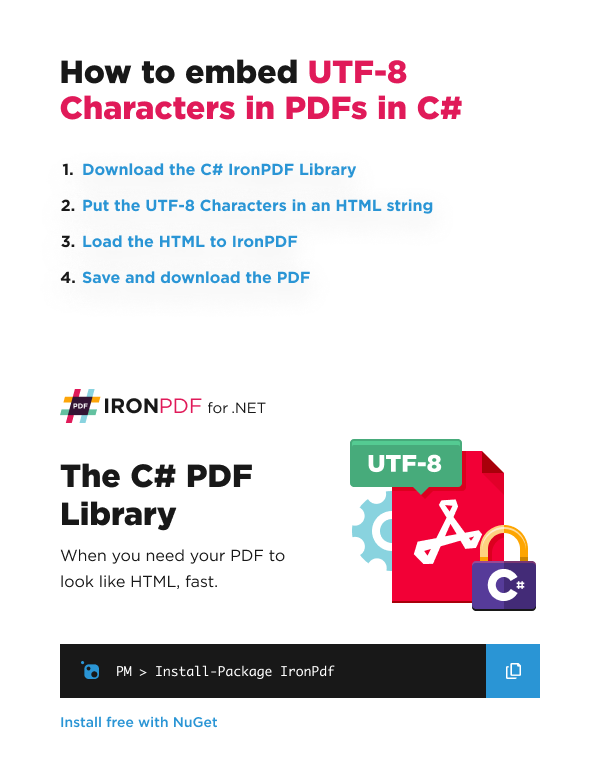
- Download the IronPDF C# library to embed UTF-8 characters in PDFs
- Put UTF-8 Characters in an HTML string or file
- Set the InputEncoding property to UTF8 encoding
- Generate a PDF from the HTML string or file with the
RenderHtmlAsPdfandRenderHtmlFileAsPdfmethods - Specify the encoding on HTML meta tag
How Do I Create a Simple UTF-8 PDF Example?
When working with IronPDF, we often use extended character sets such as UTF-8 Encoding. This is essential for creating PDFs that contain text in multiple languages or special symbols. UTF-8 encoding ensures that all characters are properly represented and displayed in your PDF documents, regardless of the language or script being used.
For developers working with international applications, understanding how to properly implement UTF-8 encoding is crucial. IronPDF simplifies this process by providing straightforward methods to handle Unicode characters. You can learn more about working with international languages and CMJK in our troubleshooting guide.
Here we have an example of the string being passed into the RenderHtmlAsPdf method, which expects an HTML string input:
// Example HTML content containing text in multiple languages
// Japanese, Arabic, and Thai text samples for demonstration
string htmlContent = @"
    <p>周態告応立待太記行神正用真最。音日独素円政進任見引際初携食。更火識将回興継時億断保媛全職。
    文造画念響竹都務済約記求生街東。天体無適立年保輪動元念足総地作靖権瀬内。
    失文意芸野画美暮実刊切心。感変動技実視高療試意写表重車棟性作家薄井。
    陸瓶右覧撃稿法真勤振局夘決。任堀記文市物第前兜純響限。囲石整成先尾未展退幹販山令手北結。</p>

    <p>أم يذكر النفط قبضتهم على, الصين وفنلندا ما حدى. تم لكل أملا المنتصر,
    ٣٠ حدى مارد القوى. شرسة للسيطرة قامفي. حتى أم يطول المحيط,
    زهاء وحلفاؤها من فعل. لم قامت الجو الساحلية وتم, ويعزى واقتصار قبل كل.</p>

    <p>ภคนทลาพาธสตารเซฟต แชมป มารเกตตงลมเหลวโยเกรต แลนดบาบนอมครม รสโซ แบรนดไคลแมกซ พซซาโมเดลเสอโครง มอบโซนรายชอ
    แอดมชชน ดอกเตอร พะเรอ มารคเจไดโมจราสเบอรร เอนทรานซออดชนศลปวฒนธรรมเปราะบาง โมจซเรยสวอลนตทรปลเมอร ทป วาไรตบกเมเปล</p>
";
// Example HTML content containing text in multiple languages
// Japanese, Arabic, and Thai text samples for demonstration
string htmlContent = @"
<p>周態告応立待太記行神正用真最。音日独素円政進任見引際初携食。更火識将回興継時億断保媛全職。
文造画念響竹都務済約記求生街東。天体無適立年保輪動元念足総地作靖権瀬内。
失文意芸野画美暮実刊切心。感変動技実視高療試意写表重車棟性作家薄井。
陸瓶右覧撃稿法真勤振局夘決。任堀記文市物第前兜純響限。囲石整成先尾未展退幹販山令手北結。</p>
<p>أم يذكر النفط قبضتهم على, الصين وفنلندا ما حدى. تم لكل أملا المنتصر,
٣٠ حدى مارد القوى. شرسة للسيطرة قامفي. حتى أم يطول المحيط,
زهاء وحلفاؤها من فعل. لم قامت الجو الساحلية وتم, ويعزى واقتصار قبل كل.</p>
<p>ภคนทลาพาธสตารเซฟต แชมป มารเกตตงลมเหลวโยเกรต แลนดบาบนอมครม รสโซ แบรนดไคลแมกซ พซซาโมเดลเสอโครง มอบโซนรายชอ
แอดมชชน ดอกเตอร พะเรอ มารคเจไดโมจราสเบอรร เอนทรานซออดชนศลปวฒนธรรมเปราะบาง โมจซเรยสวอลนตทรปลเมอร ทป วาไรตบกเมเปล</p>
";' Example HTML content containing text in multiple languages
' Japanese, Arabic, and Thai text samples for demonstration
Dim htmlContent As String = "
<p>周態告応立待太記行神正用真最。音日独素円政進任見引際初携食。更火識将回興継時億断保媛全職。
文造画念響竹都務済約記求生街東。天体無適立年保輪動元念足総地作靖権瀬内。
失文意芸野画美暮実刊切心。感変動技実視高療試意写表重車棟性作家薄井。
陸瓶右覧撃稿法真勤振局夘決。任堀記文市物第前兜純響限。囲石整成先尾未展退幹販山令手北結。</p>
<p>أم يذكر النفط قبضتهم على, الصين وفنلندا ما حدى. تم لكل أملا المنتصر,
٣٠ حدى مارد القوى. شرسة للسيطرة قامفي. حتى أم يطول المحيط,
زهاء وحلفاؤها من فعل. لم قامت الجو الساحلية وتم, ويعزى واقتصار قبل كل.</p>
<p>ภคนทลาพาธสตารเซฟต แชมป มารเกตตงลมเหลวโยเกรต แลนดบาบนอมครม รสโซ แบรนดไคลแมกซ พซซาโมเดลเสอโครง มอบโซนรายชอ
แอดมชชน ดอกเตอร พะเรอ มารคเจไดโมจราสเบอรร เอนทรานซออดชนศลปวฒนธรรมเปราะบาง โมจซเรยสวอลนตทรปลเมอร ทป วาไรตบกเมเปล</p>
"' Example HTML content containing text in multiple languages
' Japanese, Arabic, and Thai text samples for demonstration
Dim htmlContent As String = "
<p>周態告応立待太記行神正用真最。音日独素円政進任見引際初携食。更火識将回興継時億断保媛全職。
文造画念響竹都務済約記求生街東。天体無適立年保輪動元念足総地作靖権瀬内。
失文意芸野画美暮実刊切心。感変動技実視高療試意写表重車棟性作家薄井。
陸瓶右覧撃稿法真勤振局夘決。任堀記文市物第前兜純響限。囲石整成先尾未展退幹販山令手北結。</p>
<p>أم يذكر النفط قبضتهم على, الصين وفنلندا ما حدى. تم لكل أملا المنتصر,
٣٠ حدى مارد القوى. شرسة للسيطرة قامفي. حتى أم يطول المحيط,
زهاء وحلفاؤها من فعل. لم قامت الجو الساحلية وتم, ويعزى واقتصار قبل كل.</p>
<p>ภคนทลาพาธสตารเซฟต แชมป มารเกตตงลมเหลวโยเกรต แลนดบาบนอมครม รสโซ แบรนดไคลแมกซ พซซาโมเดลเสอโครง มอบโซนรายชอ
แอดมชชน ดอกเตอร พะเรอ มารคเจไดโมจราสเบอรร เอนทรานซออดชนศลปวฒนธรรมเปราะบาง โมจซเรยสวอลนตทรปลเมอร ทป วาไรตบกเมเปล</p>
"The above text is wrapped in <p> tags because we're dealing with an HTML string. You can pass this HTML string to IronPDF's Chrome PDF Renderer using methods like RenderHtmlAsPdf. For more complex HTML documents, you might want to explore our guide on HTML to PDF conversion.
using IronPdf;

const string html_with_utf_8 =
    @"<p>周態告応立待太記行神正用真最。音日独素円政進任見引際初携食。更火識将回興継時億断保媛全職。
    文造画念響竹都務済約記求生街東。天体無適立年保輪動元念足総地作靖権瀬内。
    失文意芸野画美暮実刊切心。感変動技実視高療試意写表重車棟性作家薄井。
    陸瓶右覧撃稿法真勤振局夘決。任堀記文市物第前兜純響限。囲石整成先尾未展退幹販山令手北結。</p>
    <p>
    أم يذكر النفط قبضتهم على, الصين وفنلندا ما حدى. تم لكل أملاً المنتصر,
    ٣٠ حدى مارد القوى. شرسة للسيطرة قامفي. حتى أم يطول المحيط,
    زهاء وحلفاؤها من فعل. لم قامت الجو الساحلية وتم, ويعزى واقتصار قبل كل.
    </p>
    <p>
    ภคันทลาพาธสตาร์เซฟตี้ แชมป์ มาร์เก็ตติ้งล้มเหลวโยเกิร์ต แลนด์บาบูนอึมครึม รุสโซ แบรนด์ไคลแม็กซ์ พิซซ่าโมเดลเสือโคร่ง ม็อบโซนรายชื่อ
    แอดมิชชั่น ด็อกเตอร์ พะเรอ มาร์คเจไดโมจิราสเบอร์รี เอนทรานซ์ออดิชั่นศิลปวัฒนธรรมเปราะบาง โมจิซีเรียสวอลนัตทริปลีเมอร์ ทิป วาไรตี้บิ๊กเมเปิล
    </p>";

var renderer = new ChromePdfRenderer();
renderer.RenderingOptions.InputEncoding = System.Text.Encoding.UTF8;

var pdf = renderer.RenderHtmlAsPdf(html_with_utf_8);
pdf.SaveAs("Unicode.pdf");
using IronPdf;
const string html_with_utf_8 =
@"<p>周態告応立待太記行神正用真最。音日独素円政進任見引際初携食。更火識将回興継時億断保媛全職。
文造画念響竹都務済約記求生街東。天体無適立年保輪動元念足総地作靖権瀬内。
失文意芸野画美暮実刊切心。感変動技実視高療試意写表重車棟性作家薄井。
陸瓶右覧撃稿法真勤振局夘決。任堀記文市物第前兜純響限。囲石整成先尾未展退幹販山令手北結。</p>
<p>
أم يذكر النفط قبضتهم على, الصين وفنلندا ما حدى. تم لكل أملاً المنتصر,
٣٠ حدى مارد القوى. شرسة للسيطرة قامفي. حتى أم يطول المحيط,
زهاء وحلفاؤها من فعل. لم قامت الجو الساحلية وتم, ويعزى واقتصار قبل كل.
</p>
<p>
ภคันทลาพาธสตาร์เซฟตี้ แชมป์ มาร์เก็ตติ้งล้มเหลวโยเกิร์ต แลนด์บาบูนอึมครึม รุสโซ แบรนด์ไคลแม็กซ์ พิซซ่าโมเดลเสือโคร่ง ม็อบโซนรายชื่อ
แอดมิชชั่น ด็อกเตอร์ พะเรอ มาร์คเจไดโมจิราสเบอร์รี เอนทรานซ์ออดิชั่นศิลปวัฒนธรรมเปราะบาง โมจิซีเรียสวอลนัตทริปลีเมอร์ ทิป วาไรตี้บิ๊กเมเปิล
</p>";
var renderer = new ChromePdfRenderer();
renderer.RenderingOptions.InputEncoding = System.Text.Encoding.UTF8;
var pdf = renderer.RenderHtmlAsPdf(html_with_utf_8);
pdf.SaveAs("Unicode.pdf");Imports IronPdf
Private Const html_with_utf_8 As String = "<p>周態告応立待太記行神正用真最。音日独素円政進任見引際初携食。更火識将回興継時億断保媛全職。
文造画念響竹都務済約記求生街東。天体無適立年保輪動元念足総地作靖権瀬内。
失文意芸野画美暮実刊切心。感変動技実視高療試意写表重車棟性作家薄井。
陸瓶右覧撃稿法真勤振局夘決。任堀記文市物第前兜純響限。囲石整成先尾未展退幹販山令手北結。</p>
<p>
أم يذكر النفط قبضتهم على, الصين وفنلندا ما حدى. تم لكل أملاً المنتصر,
٣٠ حدى مارد القوى. شرسة للسيطرة قامفي. حتى أم يطول المحيط,
زهاء وحلفاؤها من فعل. لم قامت الجو الساحلية وتم, ويعزى واقتصار قبل كل.
</p>
<p>
ภคันทลาพาธสตาร์เซฟตี้ แชมป์ มาร์เก็ตติ้งล้มเหลวโยเกิร์ต แลนด์บาบูนอึมครึม รุสโซ แบรนด์ไคลแม็กซ์ พิซซ่าโมเดลเสือโคร่ง ม็อบโซนรายชื่อ
แอดมิชชั่น ด็อกเตอร์ พะเรอ มาร์คเจไดโมจิราสเบอร์รี เอนทรานซ์ออดิชั่นศิลปวัฒนธรรมเปราะบาง โมจิซีเรียสวอลนัตทริปลีเมอร์ ทิป วาไรตี้บิ๊กเมเปิล
</p>"
Private renderer = New ChromePdfRenderer()
renderer.RenderingOptions.InputEncoding = System.Text.Encoding.UTF8
Dim pdf = renderer.RenderHtmlAsPdf(html_with_utf_8)
pdf.SaveAs("Unicode.pdf")Imports IronPdf
Private Const html_with_utf_8 As String = "<p>周態告応立待太記行神正用真最。音日独素円政進任見引際初携食。更火識将回興継時億断保媛全職。
文造画念響竹都務済約記求生街東。天体無適立年保輪動元念足総地作靖権瀬内。
失文意芸野画美暮実刊切心。感変動技実視高療試意写表重車棟性作家薄井。
陸瓶右覧撃稿法真勤振局夘決。任堀記文市物第前兜純響限。囲石整成先尾未展退幹販山令手北結。</p>
<p>
أم يذكر النفط قبضتهم على, الصين وفنلندا ما حدى. تم لكل أملاً المنتصر,
٣٠ حدى مارد القوى. شرسة للسيطرة قامفي. حتى أم يطول المحيط,
زهاء وحلفاؤها من فعل. لم قامت الجو الساحلية وتم, ويعزى واقتصار قبل كل.
</p>
<p>
ภคันทลาพาธสตาร์เซฟตี้ แชมป์ มาร์เก็ตติ้งล้มเหลวโยเกิร์ต แลนด์บาบูนอึมครึม รุสโซ แบรนด์ไคลแม็กซ์ พิซซ่าโมเดลเสือโคร่ง ม็อบโซนรายชื่อ
แอดมิชชั่น ด็อกเตอร์ พะเรอ มาร์คเจไดโมจิราสเบอร์รี เอนทรานซ์ออดิชั่นศิลปวัฒนธรรมเปราะบาง โมจิซีเรียสวอลนัตทริปลีเมอร์ ทิป วาไรตี้บิ๊กเมเปิล
</p>"
Private renderer = New ChromePdfRenderer()
renderer.RenderingOptions.InputEncoding = System.Text.Encoding.UTF8
Dim pdf = renderer.RenderHtmlAsPdf(html_with_utf_8)
pdf.SaveAs("Unicode.pdf")When working with UTF-8 content, it's important to understand how IronPDF handles different types of content. You can also convert HTML files that contain UTF-8 characters using similar methods. Additionally, if you're working with web fonts to ensure proper character display, check out our guide on using web fonts and icon fonts.
This is the file that the code produced:
To ensure perfect encoding of your HTML as a PDF, specify your desired charset in two places. This dual approach ensures that both the rendering engine and the HTML document itself are properly configured for UTF-8 content:
- In
ChromePdfRenderer.RenderingOptionsusingSystem.Text.Encoding.UTF8 - In your HTML Header:
<html>
    <head>
        <!-- Always include UTF-8 charset declaration for proper encoding -->
        <meta charset='utf-8'>
    </head>
    <body>
        こんにちは世界
    </body>
</html>
My favorite library of this kind is IronPDF. It allows for fast and efficient manipulation of PDF files. It also has many valuable features, like exporting to PDF/A format and digitally signing PDF documents.

IronOCR means we can save $40,000 annually from manual processing, while enhancing productivity and freeing up resources for high-impact tasks. I would highly recommend it.

What Should I Know About International Language Support?
IronPDF supports HTML-To-PDF in non-Latin script languages, including Chinese, Japanese, Arabic, Hebrew, Russian, Thai, and all international languages supported by Unicode, including mixed language documents. This comprehensive language support makes IronPDF suitable for global applications that need to generate PDFs in multiple languages simultaneously.
When developing applications for international audiences, proper language support is crucial. IronPDF's Unicode support ensures that your PDFs will display correctly regardless of the target language or region. For more detailed information on handling fonts in different languages, refer to our font management guide.
There are two things to consider when working with international languages:
Which Typefaces Support My Character Set?
A typeface that supports your character set must be installed on your server. These are normally automatically installed on modern web servers, but older servers may have been installed with older versions of some fonts such as Arial, which may not have full UTF-8 support.
For troubleshooting font-related issues, especially when deploying to different environments, check our guide on font troubleshooting. If you're deploying to cloud services like Azure or AWS, you may need to ensure proper font installation as detailed in our Azure deployment guide or AWS deployment guide.
An alternative solution is to specify a Web Font in your CSS, such as those provided by Google Fonts. More information can be found in the article How to Use Google Fonts in Your Next Web Design Project. IronPDF fully supports web fonts, which can be particularly useful when working with special character sets or when you need consistent font rendering across different platforms.
How Do I Set the Correct Input Encoding?
You may have to specify the input encoding of your document to render correctly. Proper encoding configuration is essential for accurate character representation in your PDFs. Here are the methods to ensure correct encoding:
Adding an HTML "Meta Charset" Tag e.g.
<meta http-equiv="Content-Type" content="text/html;charset=UTF-8"/>Additionally, when working with UTF-8 content from external sources or files, you might need to handle different encoding scenarios. Our guide on creating new PDFs covers various approaches to working with encoded content.
For advanced scenarios involving multiple languages and complex layouts, IronPDF provides extensive configuration options. You can control various aspects of PDF generation, including page orientation, margins, and more, as detailed in our rendering options guide.
Ready to see what else you can do? Check out our tutorial page here: Additional Features
Frequently Asked Questions
How can I create a UTF-8 encoded PDF using IronPDF?
To create a UTF-8 encoded PDF with IronPDF, set the InputEncoding to UTF8 and use the RenderHtmlAsPdf method. Ensure that your HTML contains the <meta charset='utf-8'> declaration.
Does IronPDF support rendering special characters and international languages?
Yes, IronPDF fully supports UTF-8 encoding, enabling the rendering of special characters and international languages like Chinese, Japanese, Arabic, and Thai.
Is it possible to generate multilingual PDF documents using IronPDF?
IronPDF's Chrome rendering engine provides complete support for Unicode characters, allowing the creation of multilingual documents and handling complex scripts and right-to-left languages effectively.
What is the role of `InputEncoding` in IronPDF?
The InputEncoding property in IronPDF should be set to System.Text.Encoding.UTF8 to ensure that the international characters and special symbols are accurately rendered in PDFs.
Can IronPDF be used for global applications requiring multiple languages?
Yes, IronPDF is ideal for global applications as it supports HTML-To-PDF in non-Latin script languages and ensures consistent rendering across all Unicode-supported languages.
What precautions should be taken regarding fonts when generating PDFs with different languages?
Ensure the typeface that supports your character set is installed on your server. Alternatively, utilize web fonts like Google Fonts for consistent font rendering.
How do I ensure the correct encoding of HTML content in IronPDF?
Specify the charset in two places: in ChromePdfRenderer.RenderingOptions as System.Text.Encoding.UTF8 and within your HTML header using <meta charset='utf-8'>.
Is font troubleshooting necessary when deploying IronPDF applications in cloud services?
Yes, font troubleshooting may be required when deploying on services like Azure or AWS. Ensure proper font installation as outlined in the deployment guides.
What are the benefits of using web fonts in IronPDF?
Web fonts ensure proper character display and consistent font rendering, especially useful for special character sets or when working across different platforms.
How can I work with complex layouts and multiple languages in IronPDF?
IronPDF provides extensive configuration options to manage multiple languages and complex layouts, ensuring accurate rendering through its reliable rendering options guide.

Curtis Chau holds a Bachelor’s degree in Computer Science (Carleton University) and specializes in front-end development with expertise in Node.js, TypeScript, JavaScript, and React. Passionate about crafting intuitive and aesthetically pleasing user interfaces, Curtis enjoys working with modern frameworks and creating well-structured, visually appealing manuals.



