


How to Export PDF/UA Format Documents in IronPDF C#

IronPDF exports PDFs to the PDF/UA accessibility standard in C# using the SaveAsPdfUA method on a PdfDocument, or RenderHtmlAsPdfUA to build an accessible PDF straight from HTML. The library writes both PDF/UA-1 (ISO 14289-1) and PDF/UA-2 (ISO 14289-2:2024), tagging the document so screen readers and other assistive technologies can read it.
PDF/UA defines how a PDF carries its structure: a tagged content tree, alternative text for images, a declared reading order, and a document language. Files that meet the standard satisfy the accessibility requirements set by Section 508 of the Rehabilitation Act, which is why government bodies, schools, and regulated industries rely on it.
Quickstart: Generate PDF/UA Compliant Documents
Load an existing PDF and convert it to the PDF/UA standard in one call. You can install IronPDF from NuGet to follow along.
-
Install IronPDF with NuGet Package Manager
-
Copy and run this code snippet.
IronPdf.PdfDocument.FromFile("input.pdf").SaveAsPdfUA("output_pdfua.pdf"); -
Deploy to test on your live environment
Start using IronPDF in your project today with a free trial

Minimal Workflow (5 steps)
- Download the IronPDF C# Library for PDF/UA Compliance
- Import an existing PDF document to be converted
- Edit the PDF document as required
- Export a PDF/UA Document using the
SaveAsPdfUAmethod - Validate the document's conformance with the veraPDF Conformance Checker software
How Do I Export PDF/UA Documents?
Use the SaveAsPdfUA method to write a loaded PDF as a PDF/UA file. Pass the optional NaturalLanguage argument to declare the document's language, which assistive technology uses to pick the correct pronunciation. IronPDF writes PDF/UA-1 by default and PDF/UA-2 when you request it.
During export, IronPDF builds the tagged structure tree that PDF/UA requires, carries over the alternative text already attached to images, and sets the reading order from the source content. Source documents that arrive with proper headings, image alt text, and a logical layout convert cleanly. For documents that need structure added first, set the document metadata and title before you call the export.
Input
What Code Do I Need to Export PDF/UA?
The example below converts an existing PDF to PDF/UA-1, the case you hit when legacy documents need to meet accessibility rules. The conversion keeps the page content while adding the tags, language declaration, and structure the standard expects.
:path=/static-assets/pdf/content-code-examples/how-to/pdfua-fromfile.csusing IronPdf;
// Open PDF File
PdfDocument pdf = PdfDocument.FromFile("wikipedia.pdf");
// Export as PDF/UA. Pass the document's natural language so assistive
// technologies announce the correct pronunciation.
pdf.SaveAsPdfUA("pdf-ua-wikipedia.pdf", NaturalLanguage: NaturalLanguages.English);
Imports IronPdf

' Open PDF File
Dim pdf As PdfDocument = PdfDocument.FromFile("wikipedia.pdf")

' Export as PDF/UA. Pass the document's natural language so assistive
' technologies announce the correct pronunciation.
pdf.SaveAsPdfUA("pdf-ua-wikipedia.pdf", NaturalLanguage:=NaturalLanguages.English)Output
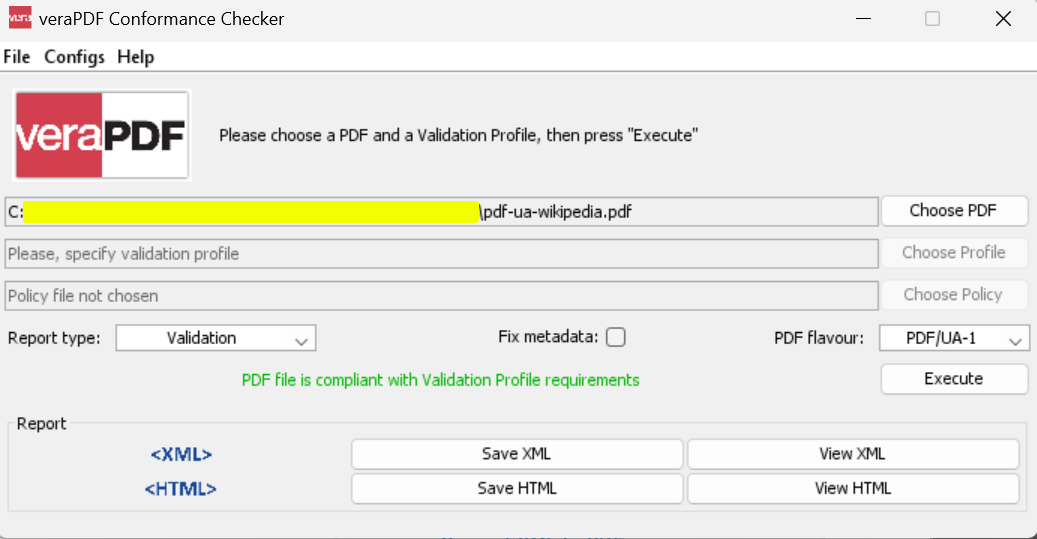
The exported file passes the veraPDF Conformance Checker for PDF/UA-1:
What's the Difference Between PDF/UA-1 and PDF/UA-2?
PDF/UA-1 (ISO 14289-1) is the original universal accessibility standard for PDF, released in 2012. It sets the baseline for accessible files: tagged content, support for assistive technology, and a defined reading order.
PDF/UA-2 (ISO 14289-2:2024) is the current version. It adds handling for modern PDF features such as form fields, annotations, multimedia, and nested document structures, and aligns with the PDF 2.0 specification while keeping the accessibility guarantees of the earlier version.
To target PDF/UA-2, pass the version to the SaveAsPdfUA method:
:path=/static-assets/pdf/content-code-examples/how-to/pdfua-pdfua2.csusing IronPdf;
// Load existing PDF
var pdf = PdfDocument.FromFile("input.pdf");
// Export as PDF/UA-2 format
pdf.SaveAsPdfUA("output_pdfua2.pdf", PdfUAVersions.PdfUA2);
Imports IronPdf

' Load existing PDF
Dim pdf = PdfDocument.FromFile("input.pdf")

' Export as PDF/UA-2 format
pdf.SaveAsPdfUA("output_pdfua2.pdf", PdfUAVersions.PdfUA2)How Do I Convert to PDF/UA-2 In Memory?
When you need to apply more changes before writing the file, call ConvertToPdfUA() to transform the document in memory, then run the rest of your operations and save at the end:
:path=/static-assets/pdf/content-code-examples/how-to/pdfua-convert-ua2.csusing IronPdf;
// Open PDF File
PdfDocument pdf = PdfDocument.FromFile("input.pdf");
// Convert to PDF/UA-2 in memory
pdf.ConvertToPdfUA(PdfUAVersions.PdfUA2);
// Perform additional modifications if needed
// ...
// Save the converted document
pdf.SaveAs("output-ua2.pdf");
Imports IronPdf

' Open PDF File
Dim pdf As PdfDocument = PdfDocument.FromFile("input.pdf")

' Convert to PDF/UA-2 in memory
pdf.ConvertToPdfUA(PdfUAVersions.PdfUA2)

' Perform additional modifications if needed
' ...

' Save the converted document
pdf.SaveAs("output-ua2.pdf")ConvertToPdfUA() runs before SaveAs(). SaveAsPdfUA() performs the conversion for you in a single call.How Do I Render HTML Directly to PDF/UA?
Call RenderHtmlAsPdfUA to turn HTML into a PDF/UA document in one step, which suits new documents and dynamic content coming out of a web application. The method takes a NaturalLanguages value so the output carries the correct language tag.
Write the HTML with accessibility in mind: use semantic elements, keep a clean heading hierarchy, add alt text to every image, and let the content flow in reading order. PDF/UA also requires a document title, so set MetaData.Title before saving. The same approach drives our wider guide to creating Section 508 compliant PDFs.
What Code Renders HTML to PDF/UA?
This example builds a PDF/UA file from semantic HTML. The headings and paragraphs map to structure tags, and the metadata title gives the document the identification PDF/UA requires.
:path=/static-assets/pdf/content-code-examples/how-to/pdfua-render-html-to-pdfua.csusing IronPdf;
ChromePdfRenderer renderer = new ChromePdfRenderer();
// Render semantic HTML straight to PDF/UA. Pass the natural language so
// screen readers announce the correct pronunciation.
var pdf = renderer.RenderHtmlAsPdfUA(@"
<!DOCTYPE html>
<html lang=""en"">
<head>
<title>Document</title>
</head>
<body>
<h1>Heading 1</h1>
<h2>Heading 2</h2>
<p>Paragraph text</p>
</body>
</html>", NaturalLanguages.English);
// PDF/UA requires a document Title in the metadata
pdf.MetaData.Title = "Accessible Report";
pdf.SaveAs("html-string-ua-ironpdf.pdf");
Imports IronPdf

Dim renderer As New ChromePdfRenderer()

' Render semantic HTML straight to PDF/UA. Pass the natural language so
' screen readers announce the correct pronunciation.
Dim pdf = renderer.RenderHtmlAsPdfUA("
    <!DOCTYPE html>
    <html lang=""en"">
    <head>
        <title>Document</title>
    </head>
    <body>
        <h1>Heading 1</h1>
        <h2>Heading 2</h2>
        <p>Paragraph text</p>
    </body>
    </html>", NaturalLanguages.English)

' PDF/UA requires a document Title in the metadata
pdf.MetaData.Title = "Accessible Report"

pdf.SaveAs("html-string-ua-ironpdf.pdf")Output
How Do I Verify PDF/UA Compliance?
Validate the output with the veraPDF Conformance Checker, a free open-source tool that tests against both PDF/UA-1 and PDF/UA-2 and reports any structural gap. Run it after each export while you are building an accessibility workflow, since a missing title or untagged image is easier to catch at validation time than in production.

My favorite library of this kind is IronPDF. It allows for fast and efficient manipulation of PDF files. It also has many valuable features, like exporting to PDF/A format and digitally signing PDF documents.

IronOCR means we can save $40,000 annually from manual processing, while enhancing productivity and freeing up resources for high-impact tasks. I would highly recommend it.

The IronSuite play a crucial role in our operations. These are tools that increase efficiencies across the business including creating floor plans and improving inventory management.

What Are the Benefits of PDF/UA?
PDF/UA compliance pays off beyond satisfying a regulation:
- Accessibility: Screen readers and assistive technology read the tagged structure correctly for users with visual impairments.
- Mobile reading: Text reflow keeps documents readable on small screens without horizontal scrolling.
- Searchability: A defined structure improves indexing and in-document search.
- Longevity: Tagged documents keep their accessibility features across platforms and software updates.
- Legal compliance: The format meets Section 508 and similar government requirements for accessible documents.
For teams building interactive documents, pairing PDF/UA export with accessible PDF forms gives every field a label that assistive technology can announce.
How Can I Integrate PDF/UA Into My Workflow?
Start by getting structure into the source. When a legacy file lacks it, add metadata and a document title before conversion so the export has the language and identification PDF/UA needs.
For high-volume pipelines, run PDF/UA export alongside other IronPDF operations such as merging or splitting PDFs to assemble accessible documents at scale. The standard composes with these steps, so a merged report can stay PDF/UA compliant end to end. IronPDF produces the same tagged output across Windows, Linux, and Azure, so the compliance you validate locally holds wherever you deploy.
Conclusion
You now have three routes to an accessible PDF in IronPDF: convert an existing file with SaveAsPdfUA, transform it in memory with ConvertToPdfUA, or render HTML straight to the standard with RenderHtmlAsPdfUA, each able to write PDF/UA-1 or PDF/UA-2 with a declared language and document title. From here, carry the same accessibility approach into Section 508 compliant PDFs across the rest of your document workflow.
Frequently Asked Questions
What is PDF/UA and why is it important?
PDF/UA is an accessibility standard for PDF documents that ensures compatibility with assistive technologies like screen readers. IronPDF supports PDF/UA export to help you meet Section 508 compliance requirements and make documents accessible to users with disabilities.
How do I convert an existing PDF to PDF/UA format?
With IronPDF, you can convert existing PDFs to PDF/UA format using the SaveAsPdfUA method. Simply load your PDF using PdfDocument.FromFile() and then call SaveAsPdfUA() to export it as an accessible PDF/UA document.
What are the benefits of PDF/UA compliance?
PDF/UA compliance through IronPDF provides accurate screen reader support, text reflow on small screens, improved searchability and indexing, long-term accessibility across platforms, and legal compliance with Section 508, making documents accessible to all users.
Can I specify the language for my PDF/UA document?
Yes, IronPDF allows you to populate the naturalLanguages parameter when using the SaveAsPdfUA method to specify the natural language of your PDF document, which is important for proper screen reader functionality.
What version of PDF/UA does the library generate?
By default, IronPDF generates PDF/UA-1 (ISO 14289-1), the widely adopted standard for accessible PDF documents. You can also target PDF/UA-2 (ISO 14289-2:2024) by passing the version parameter to the SaveAsPdfUA method.
How can I validate my PDF/UA document?
After exporting your PDF/UA document with IronPDF, you can validate its conformance using the veraPDF Conformance Checker software to ensure it meets all accessibility requirements.


Still Scrolling?
Want proof fast? PM > Install-Package IronPdf
run a sample watch your HTML become a PDF.








 Get started for FREE
 Get started for FREE
 Book Free Live Demo





 No credit card or account creation required










