
IronPDF Blazor Server Tutorial: Render HTML to PDF in C#

IronPDF enables HTML-to-PDF conversion in Blazor Server applications using C# with minimal setup, supporting .NET 8 and .NET 10 and providing PDF generation capabilities directly from your Blazor components.
Quickstart: Render PDFs in Blazor ServerGet started with IronPDF in your Blazor Server applications. This example demonstrates how to render HTML content to a PDF. Transform your Blazor components into PDFs with a few lines of code.
-
1Install IronPDF with NuGet Package Manager
-
2Copy and run this code snippet.
IronPdf.ChromePdfRenderer.StaticRenderHtmlAsPdf(htmlContent).SaveAs(outputPath);IronPdf.ChromePdfRenderer.StaticRenderHtmlAsPdf(htmlContent).SaveAs(outputPath)IronPdf.ChromePdfRenderer.StaticRenderHtmlAsPdf(htmlContent).SaveAs(outputPath) -
3Deploy to test on your live environment
Start using IronPDF in your project today with a free trial
Minimal Workflow (5 steps)
- Install the HTML-to-PDF Library for Blazor Applications
- Create a new Blazor Project in Visual Studio.
- Convert the web pages by URL into PDF documents
- Render the web pages into the client's web browser
- View PDF documents from HTML strings
How Do I Create a New Blazor Server Project?
Create a new project and select the type Blazor Server App. Visual Studio provides a template for building server-side Blazor applications that can use .NET for PDF generation. The Blazor Server hosting model executes your application logic on the server, making it suitable for PDF generation scenarios that require server-side processing.
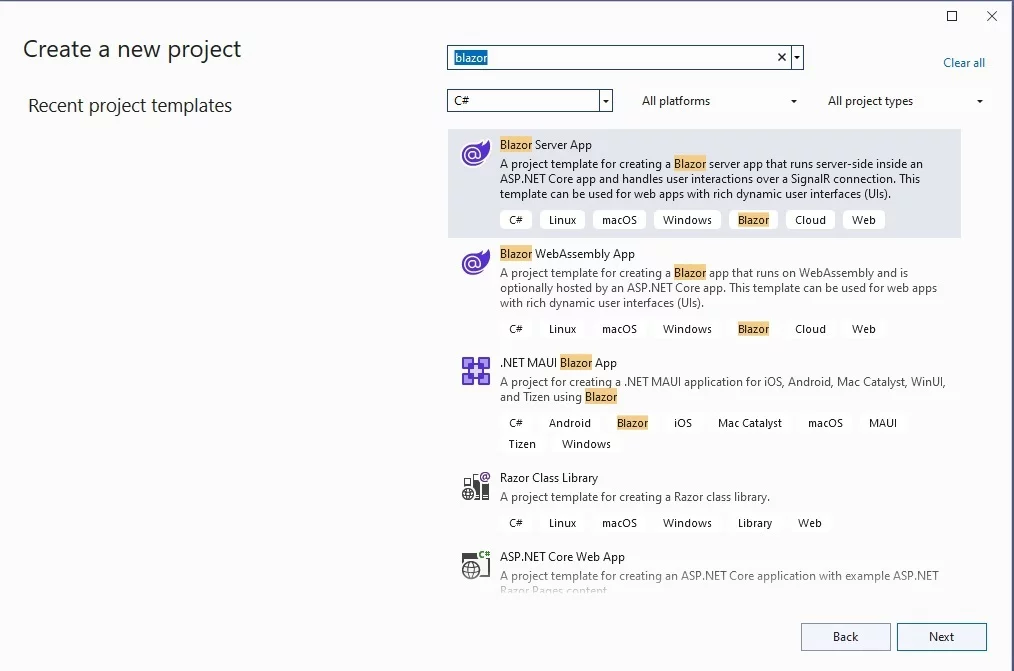
What Are the Prerequisites for Blazor Server Apps?
Before creating a Blazor Server application with IronPDF, ensure you have Visual Studio 2022 or later installed with the ASP.NET and web development workload. You need the .NET 8 SDK or higher. Blazor Server apps require a constant connection to the server, making them suitable for scenarios where you need to generate PDFs from complex HTML content or when working with sensitive data that should remain on the server.
Which .NET Version Should I Use?
For compatibility and performance with IronPDF in Blazor Server applications, use .NET 8 or .NET 10. IronPDF is compatible with .NET Core 3.1, .NET 5, .NET 6, .NET 7, .NET 8, and .NET 10. The latest LTS versions are .NET 8 and .NET 10, providing stability and long-term support. When deploying to Azure, ensure your Azure App Service plan supports your chosen .NET version.
How Do I Configure the Project Settings?
When configuring your Blazor Server project, select "Configure for HTTPS" to ensure secure communication between client and server. Leave "Enable Docker" unchecked unless you plan to run IronPDF in Docker. For authentication, choose "None" initially - you can add authentication later if needed. The project name should follow C# naming conventions and avoid spaces or special characters.
How Do I Install IronPDF into My Blazor Project?
After creating the project, follow these steps to install the IronPDF library from NuGet within Visual Studio. IronPDF provides an API for creating PDFs from HTML strings, URLs, and existing PDF documents.
- In the Solution Explorer window in Visual Studio, right-click
Referencesand chooseManage NuGet Packages. - Select Browse and search for
IronPdf. - Select the latest version of the package, check the checkbox for your project, and click install.
Alternatively, you can use the .NET CLI to install it:
For projects targeting specific platforms, you might need platform-specific packages. For example, if deploying to Linux, review the Linux installation guide.
Why Choose NuGet Package Manager Over CLI?
The NuGet Package Manager GUI in Visual Studio provides a visual interface that makes it easier to browse package versions, view dependencies, and manage multiple projects simultaneously. It helps developers new to IronPDF explore available packages and their descriptions. The CLI approach is faster for experienced developers and better suited for automated build pipelines or when working with Docker containers.
What Version of IronPDF Should I Install?
Install the latest stable version of IronPDF for access to new features, performance improvements, and security updates. Check the changelog for details about recent updates. If you're working with an existing project, ensure version compatibility with your other dependencies. For production environments, test thoroughly before upgrading major versions.
How Do I Verify the Installation Was Successful?
After installation, verify IronPDF is correctly installed by checking the "Packages" folder in Solution Explorer. You should see "IronPDF" listed among your project dependencies. Add using IronPdf; to a C# file - IntelliSense should recognize the namespace. You can also run a simple test by creating a basic PDF from HTML to confirm everything works correctly.

My favorite library of this kind is IronPDF. It allows for fast and efficient manipulation of PDF files. It also has many valuable features, like exporting to PDF/A format and digitally signing PDF documents.

IronOCR means we can save $40,000 annually from manual processing, while enhancing productivity and freeing up resources for high-impact tasks. I would highly recommend it.

How Do I Add a New Razor Component for PDF Generation?
Once IronPDF is installed in your Blazor project, add a new Razor Component. For this tutorial, name it IronPdfComponent. This component will handle user input and generate PDFs dynamically based on HTML content. The component architecture in Blazor makes it easy to create reusable PDF generation functionality that can be shared across your application.
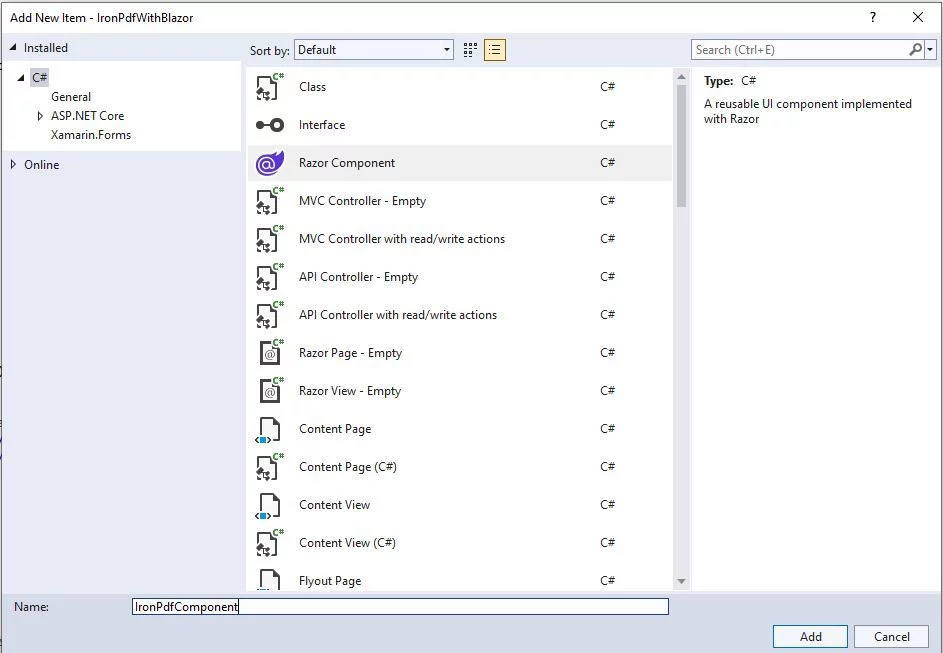
After that, update the code as follows:
@page "/IronPdf"
@inject IJSRuntime JS

<h3>IronPdfComponent</h3>

<EditForm Model="@_InputMsgModel" id="inputText">
  <div>
    <InputTextArea @bind-Value="@_InputMsgModel.HTML" rows="20" />
  </div>
  <div>
    <button type="button" @onclick="@SubmitHTML">Render HTML</button>
  </div>
</EditForm>@code {
// Model to bind user input
private InputHTMLModel _InputMsgModel = new InputHTMLModel();
private async Task SubmitHTML()
{
// Set your IronPDF license key
IronPdf.License.LicenseKey = "IRONPDF-MYLICENSE-KEY-1EF01";
// Create a renderer to convert HTML to PDF
var render = new IronPdf.ChromePdfRenderer();
// Configure rendering options for better output
render.RenderingOptions.PaperSize = IronPdf.Rendering.PdfPaperSize.A4;
render.RenderingOptions.MarginTop = 40;
render.RenderingOptions.MarginBottom = 40;
// Render the HTML input into a PDF document
var doc = render.RenderHtmlAsPdf(_InputMsgModel.HTML);
var fileName = "iron.pdf";
// Create a stream reference for the PDF content
using var streamRef = new DotNetStreamReference(stream: doc.Stream);
// Invoke JavaScript function to download the PDF in the browser
await JS.InvokeVoidAsync("SubmitHTML", fileName, streamRef);
}
public class InputHTMLModel
{
public string HTML { get; set; } = @"<h1>Welcome to IronPDF</h1>
<p>This is a sample PDF generated from HTML content in Blazor Server.</p>
<ul>
<li>Easy to use API</li>
<li>High-quality rendering</li>
<li>Full HTML5 and CSS3 support</li>
</ul>";
}
}@code {
// Model to bind user input
private InputHTMLModel _InputMsgModel = new InputHTMLModel();
private async Task SubmitHTML()
{
// Set your IronPDF license key
IronPdf.License.LicenseKey = "IRONPDF-MYLICENSE-KEY-1EF01";
// Create a renderer to convert HTML to PDF
var render = new IronPdf.ChromePdfRenderer();
// Configure rendering options for better output
render.RenderingOptions.PaperSize = IronPdf.Rendering.PdfPaperSize.A4;
render.RenderingOptions.MarginTop = 40;
render.RenderingOptions.MarginBottom = 40;
// Render the HTML input into a PDF document
var doc = render.RenderHtmlAsPdf(_InputMsgModel.HTML);
var fileName = "iron.pdf";
// Create a stream reference for the PDF content
using var streamRef = new DotNetStreamReference(stream: doc.Stream);
// Invoke JavaScript function to download the PDF in the browser
await JS.InvokeVoidAsync("SubmitHTML", fileName, streamRef);
}
public class InputHTMLModel
{
public string HTML { get; set; } = @"<h1>Welcome to IronPDF</h1>
<p>This is a sample PDF generated from HTML content in Blazor Server.</p>
<ul>
<li>Easy to use API</li>
<li>High-quality rendering</li>
<li>Full HTML5 and CSS3 support</li>
</ul>";
}
}Imports System.Threading.Tasks
Imports Microsoft.JSInterop
Imports IronPdf
@Code
' Model to bind user input
Private _InputMsgModel As New InputHTMLModel()
Private Async Function SubmitHTML() As Task
' Set your IronPDF license key
IronPdf.License.LicenseKey = "IRONPDF-MYLICENSE-KEY-1EF01"
' Create a renderer to convert HTML to PDF
Dim render = New IronPdf.ChromePdfRenderer()
' Configure rendering options for better output
render.RenderingOptions.PaperSize = IronPdf.Rendering.PdfPaperSize.A4
render.RenderingOptions.MarginTop = 40
render.RenderingOptions.MarginBottom = 40
' Render the HTML input into a PDF document
Dim doc = render.RenderHtmlAsPdf(_InputMsgModel.HTML)
Dim fileName = "iron.pdf"
' Create a stream reference for the PDF content
Using streamRef = New DotNetStreamReference(stream:=doc.Stream)
' Invoke JavaScript function to download the PDF in the browser
Await JS.InvokeVoidAsync("SubmitHTML", fileName, streamRef)
End Using
End Function
Public Class InputHTMLModel
Public Property HTML As String = "<h1>Welcome to IronPDF</h1>
<p>This is a sample PDF generated from HTML content in Blazor Server.</p>
<ul>
<li>Easy to use API</li>
<li>High-quality rendering</li>
<li>Full HTML5 and CSS3 support</li>
</ul>"
End ClassImports System.Threading.Tasks
Imports Microsoft.JSInterop
Imports IronPdf
@Code
' Model to bind user input
Private _InputMsgModel As New InputHTMLModel()
Private Async Function SubmitHTML() As Task
' Set your IronPDF license key
IronPdf.License.LicenseKey = "IRONPDF-MYLICENSE-KEY-1EF01"
' Create a renderer to convert HTML to PDF
Dim render = New IronPdf.ChromePdfRenderer()
' Configure rendering options for better output
render.RenderingOptions.PaperSize = IronPdf.Rendering.PdfPaperSize.A4
render.RenderingOptions.MarginTop = 40
render.RenderingOptions.MarginBottom = 40
' Render the HTML input into a PDF document
Dim doc = render.RenderHtmlAsPdf(_InputMsgModel.HTML)
Dim fileName = "iron.pdf"
' Create a stream reference for the PDF content
Using streamRef = New DotNetStreamReference(stream:=doc.Stream)
' Invoke JavaScript function to download the PDF in the browser
Await JS.InvokeVoidAsync("SubmitHTML", fileName, streamRef)
End Using
End Function
Public Class InputHTMLModel
Public Property HTML As String = "<h1>Welcome to IronPDF</h1>
<p>This is a sample PDF generated from HTML content in Blazor Server.</p>
<ul>
<li>Easy to use API</li>
<li>High-quality rendering</li>
<li>Full HTML5 and CSS3 support</li>
</ul>"
End ClassThis component uses the ChromePdfRenderer class for PDF generation. You can customize the rendering with various options like custom paper sizes, margins, and headers/footers.
Add this JavaScript code to _layout.cshtml to allow downloading of the PDF rendered by IronPDF in the Blazor Application:
<script>
    // JavaScript function to download PDFs generated by IronPdf
    window.SubmitHTML = async (fileName, contentStreamReference) => {
        // Get the PDF content as an ArrayBuffer
        const arrayBuffer = await contentStreamReference.arrayBuffer();

        // Create a Blob from the ArrayBuffer
        const blob = new Blob([arrayBuffer]);

        // Create an object URL for the Blob
        const url = URL.createObjectURL(blob);

        // Create an anchor element to initiate the download
        const anchorElement = document.createElement("a");
        anchorElement.href = url;
        anchorElement.download = fileName ?? "download.pdf";

        // Programmatically click the anchor to start the download
        anchorElement.click();

        // Clean up by removing the anchor and revoking the object URL
        anchorElement.remove();
        URL.revokeObjectURL(url);
    };
</script>Edit the NavMenu.razor file in the Shared folder to include a navigation tab to our new Razor component. Add the following code:
<div class="nav-item px-3">
    <NavLink class="nav-link" href="IronPdf">
        <span class="oi oi-list-rich" aria-hidden="true"></span> IronPdf
    </NavLink>
</div>Once this has all been applied, you can run your solution and you should see this:
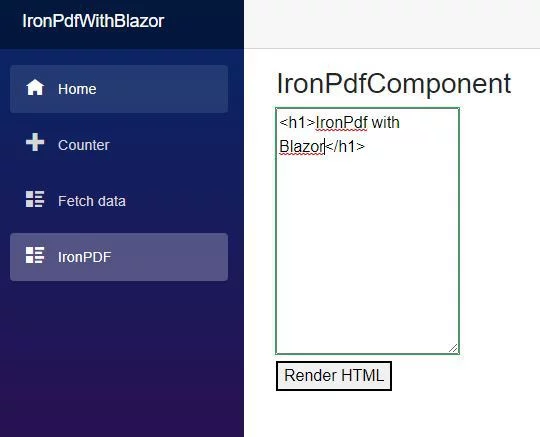
Why Use JavaScript for PDF Downloads in Blazor?
Blazor Server operates on a SignalR connection where all C# code executes on the server. JavaScript interop is required to trigger browser-specific actions like file downloads. The DotNetStreamReference class transfers binary data from server to client without loading the entire PDF into memory at once. This approach is more efficient than base64 encoding and works well for large PDFs. For alternative approaches, consider exporting PDFs to memory streams.
What Are Common Issues When Implementing PDF Downloads?
Common challenges include handling large files that may timeout the SignalR connection, managing concurrent PDF generation requests, and ensuring proper disposal of resources. To avoid memory leaks, always dispose of PDF documents and MemoryStreams properly. Consider implementing async PDF generation for better performance. If you encounter rendering issues, check the rendering options documentation for configuration tips.
How Do I Handle Large PDF Files?
For large PDFs, consider implementing progress indicators and chunked downloads. You can optimize PDF size using compression techniques. Set appropriate timeouts in your Blazor Server configuration:
services.AddServerSideBlazor()
    .AddHubOptions(options =>
    {
        options.MaximumReceiveMessageSize = 10 * 1024 * 1024; // 10MB
        options.ClientTimeoutInterval = TimeSpan.FromSeconds(60);
    });
services.AddServerSideBlazor()
.AddHubOptions(options =>
{
options.MaximumReceiveMessageSize = 10 * 1024 * 1024; // 10MB
options.ClientTimeoutInterval = TimeSpan.FromSeconds(60);
});netnetFor very large documents, consider saving to server storage first and providing a download link instead of streaming directly.
When Should I Use Stream References vs Direct Downloads?
Use DotNetStreamReference for PDFs under 50MB that need immediate download. For larger files or when you need to save PDFs to disk, consider generating the PDF on the server and providing a download link. Direct downloads work well for reports and invoices, while batch processing or merging multiple PDFs might benefit from server-side storage. Consider your application's memory constraints and user experience requirements when choosing an approach.
Frequently Asked Questions
What is IronPDF and how does it integrate with Blazor Server applications?
IronPDF is a powerful library that facilitates HTML-to-PDF conversion within Blazor Server applications. It integrates through C#, enabling developers to render HTML content into PDFs directly from Blazor components, supporting .NET 8 and .NET 10.
How do I install IronPDF into my Blazor project?
You can install IronPDF in your Blazor project via the NuGet Package Manager in Visual Studio. Simply right-click 'References', choose 'Manage NuGet Packages', search for 'IronPdf', select the latest version, and install it for your project.
What are the prerequisites for developing Blazor Server applications with IronPDF?
To develop Blazor Server applications with IronPDF, you need Visual Studio 2022 or later with the ASP.NET workload installed, and you must use the .NET 8 SDK or higher. Blazor Server relies on a constant server connection, which is ideal for scenarios involving PDF generation with sensitive data.
How do I create a new Blazor Server project to use with IronPDF?
To create a new Blazor Server project, open Visual Studio and select the Blazor Server App template. This sets up a server-side Blazor application that can utilize .NET for PDF generation tasks, making it suitable for server-placement scenarios.
Which .NET version is recommended for use with IronPDF in Blazor Server applications?
For optimal performance and compatibility, it is recommended to use .NET 8 or .NET 10 with IronPDF in Blazor Server applications. These versions offer long-term support and ensure stability, especially when integrating with Azure services.
How do I add a PDF generation component to my Blazor Server project?
After installing IronPDF, you can add a new Razor Component, such as IronPdfComponent, to handle user input and dynamically generate PDFs from HTML content. This component leverages IronPDF's ChromePdfRenderer class for high-quality PDF generation.
Why is JavaScript necessary for PDF downloads in Blazor applications using IronPDF?
In Blazor Server, C# code executes on the server, requiring JavaScript interop to handle client-side functionalities like file downloads. The DotNetStreamReference class facilitates efficient PDF transmission from server to client, avoiding large memory usage.
What should I consider when handling large PDFs using IronPDF in Blazor applications?
When managing large PDFs, utilize progress indicators and chunked downloads. Optimize PDF size through compression and configure appropriate server settings to manage the maximum message size and timeouts, ensuring efficient handling of large documents.

Curtis Chau holds a Bachelor’s degree in Computer Science (Carleton University) and specializes in front-end development with expertise in Node.js, TypeScript, JavaScript, and React. Passionate about crafting intuitive and aesthetically pleasing user interfaces, Curtis enjoys working with modern frameworks and creating well-structured, visually appealing manuals.



