
Extract Embedded Text and Images from PDFs in C#

Extract both text content and images from PDF documents in C# with simple method calls. Retrieve embedded content for editing, analysis, or repurposing in other applications.
Text and image extraction retrieves textual content and graphical elements from PDF documents. Access and repurpose content for editing, searching, converting text to other formats, or saving images for reuse. Whether you need to parse PDFs in C# for data analysis, convert content to searchable formats, or extract visual elements for archiving, IronPDF provides comprehensive extraction tools.
Extract text and images using IronPDF. Save extracted images to disk or convert them to another format before embedding in new documents. This flexibility supports workflows requiring content transformation, such as converting PDFs to HTML or repurposing extracted images.
as-heading:2(Quickstart: Extract Text and Images with IronPDF)
Extract text and images from PDFs in just a few lines of code. This quickstart demonstrates how to retrieve embedded content from PDF documents for content repurposing and analysis. Extract text for editing or save images for further use with IronPDF's streamlined solution.
:title=Extract PDF Content in Seconds
var pdf = new IronPdf.PdfDocument("sample.pdf");
string text = pdf.ExtractAllText();
var images = pdf.ExtractAllImages();
Minimal Workflow (5 steps)
- Download the
IronPdfC# Library - Prepare the PDF document for text and image extraction
- Use the
ExtractAllTextmethod to extract text - Use the
ExtractAllImagesmethod to extract images - Specify the particular pages from which to extract text and images
How Do I Extract Text from PDFs?
Extract text from both newly rendered and existing PDF documents. Use the ExtractAllText method to extract embedded text from the document. The method returns a string containing all text in the PDF. Pages are separated by four consecutive newline characters. This example uses a sample PDF rendered from the Wikipedia website.
When working with PDFs containing international languages and UTF-8 characters, IronPDF maintains proper encoding and character representation. This ensures correct display of non-Latin scripts and special characters.
Input
A sample invoice PDF.
:path=/static-assets/pdf/content-code-examples/how-to/extract-text-and-images-extract-text.csOutput
Running ExtractAllText returns the page text in reading order:
Invoice INV-2026-0042
Billed to: Northwind Traders
Date: 2026-02-14
Consulting $3,200.00
Support $800.00
Total: $4,000.00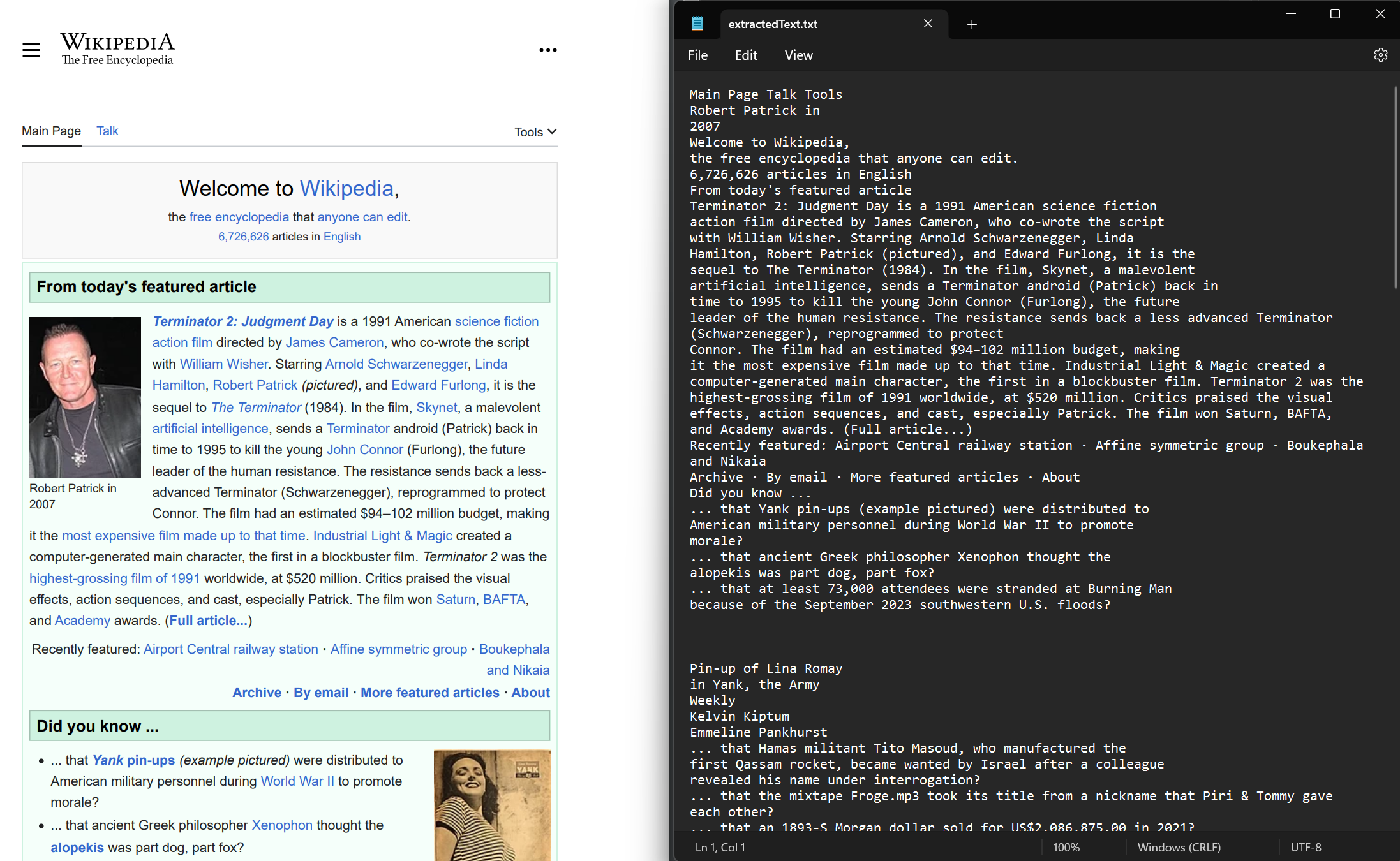
How Can I Extract Text with Precise Coordinates?
Retrieve the coordinates of text lines and characters within each PDF page. Select a page from the PDF and access the Lines and Characters properties. The coordinates include Top, Right, Bottom, and Left values representing text position. This feature preserves spatial layout and enables text position analysis.
For developers who need to read PDF files in C# with positional awareness, coordinate extraction provides data for maintaining document structure and implementing advanced text analysis.
:path=/static-assets/pdf/content-code-examples/how-to/extract-text-and-images-extract-text-by-line-character.cs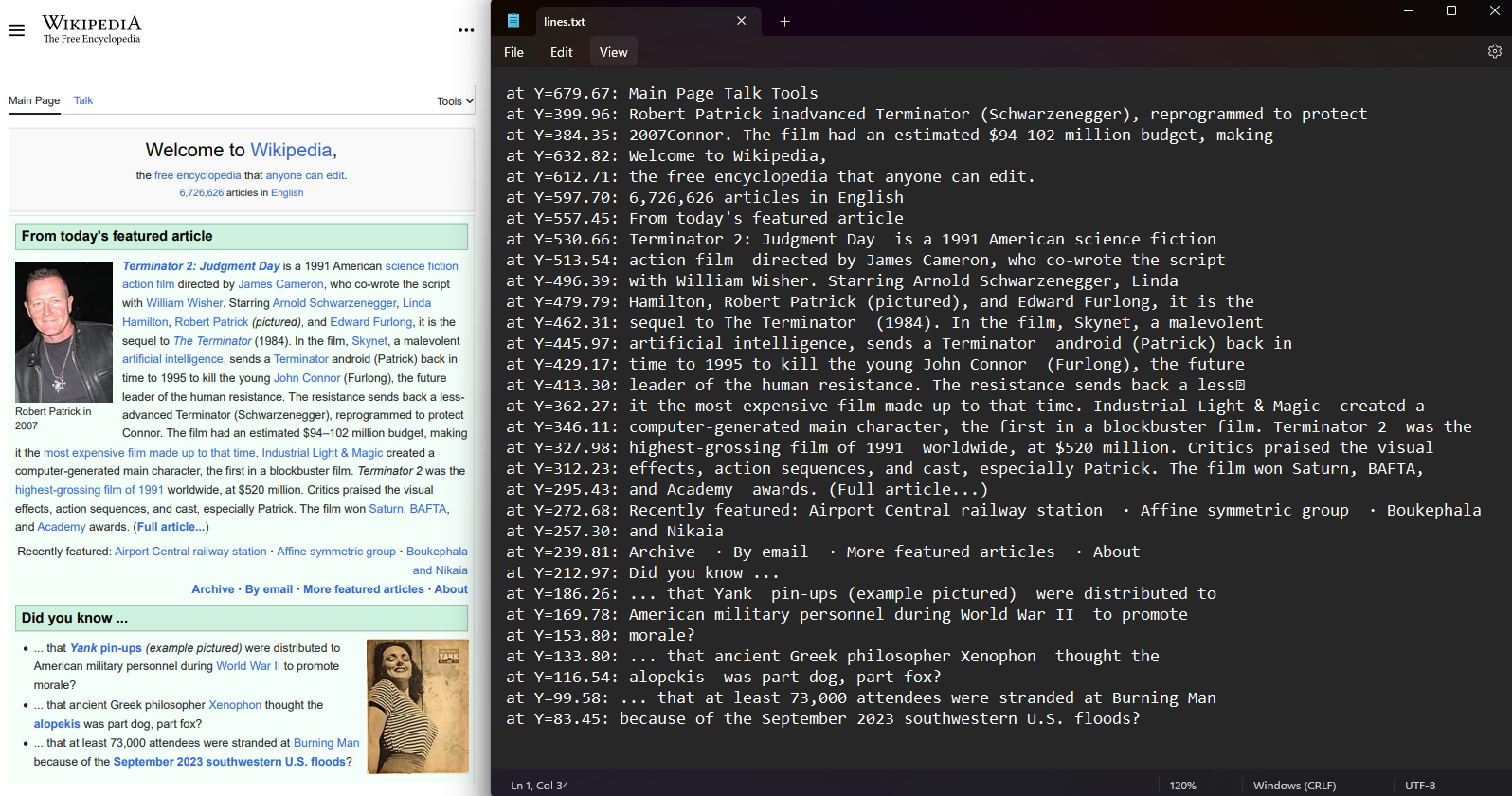
How Do I Extract Images from PDFs?
Use the ExtractAllImages method to extract all embedded images from the document. The method returns images as a list of List of AnyBitmap objects. Using the same document, we extracted images and exported them to the 'images' folder. This functionality supports image archiving, content migration, and rasterizing PDF pages to images for further processing.
Extracted images maintain original quality and can be saved in various formats including PNG, JPEG, and BMP. For cloud storage workflows, integrate this functionality with Azure Blob Storage for image management.
:path=/static-assets/pdf/content-code-examples/how-to/extract-text-and-images-extract-image.cs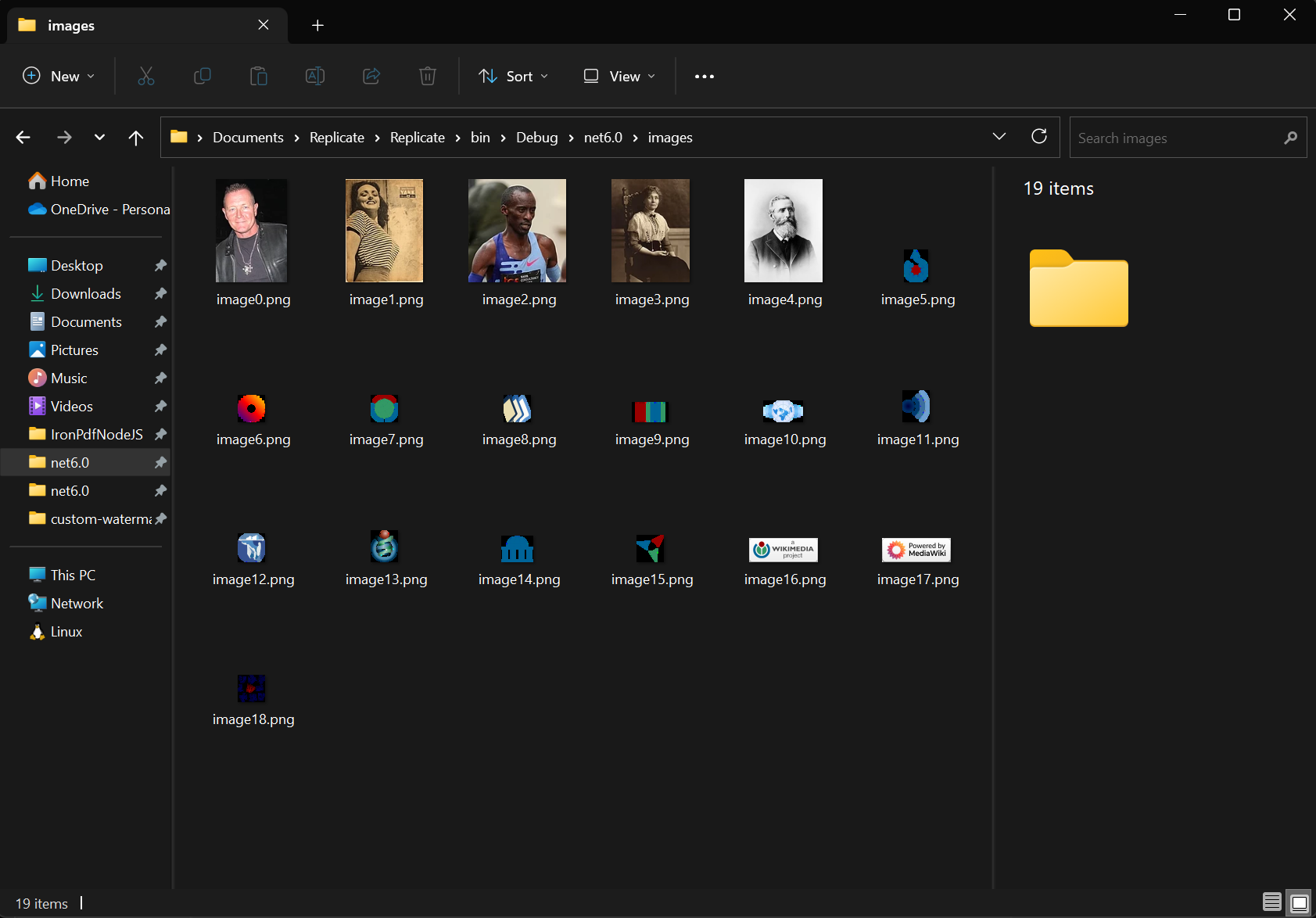
What Are the Different Methods for Image Extraction?
Beyond the ExtractAllImages method, use ExtractAllBitmaps and ExtractAllRawImages methods to extract image information. While ExtractAllBitmaps returns a List of AnyBitmap, ExtractAllRawImages extracts all images and returns them as raw byte[] (byte[]).
The ExtractAllRawImages method works well when processing image data in memory or integrating with systems requiring byte array inputs. For scenarios involving exporting PDFs to memory streams, the raw byte array format provides optimal flexibility.
How Do I Extract Content from Specific PDF Pages?
Extract text and images from single or multiple specified pages. Use ExtractTextFromPage and ExtractTextFromPages methods for text extraction from one or multiple pages. For images, use ExtractImagesFromPage and ExtractImagesFromPages methods.
This granular control helps when working with large documents where only specific sections contain relevant content. It also supports features to split PDFs and extract individual pages for separate processing.
Input
A three-page sample PDF, each page holding distinct text.
:path=/static-assets/pdf/content-code-examples/how-to/extract-text-and-images-extract-text-single-multiple.csOutput
ExtractTextFromPage(0) returns the text of page 1:
Page 1 - Executive Summary
Revenue rose 12 percent this quarter.
ExtractTextFromPages(new[] { 0, 2 }) returns pages 1 and 3 combined:
Page 1 - Executive Summary
Revenue rose 12 percent this quarter.

Page 3 - Appendix
Regional breakdown and footnotes.
When Should I Extract from Specific Pages Instead of All Pages?
Extract from specific pages when:
- Working with large PDFs containing relevant data in certain sections
- Implementing workflows that handle pages independently
- Building applications requiring incremental content display or processing
- Optimizing memory usage by processing only required pages
- Creating page-specific search or indexing functionality
What Performance Considerations Should I Know About?
Consider these performance factors when extracting PDF content:
- Memory Usage: Extract pages individually from large documents to minimize memory consumption
- Processing Time: Use parallel processing for multi-page extractions when appropriate
- File Size: Larger PDFs with high-resolution images require more processing time
- Storage: Plan adequate disk space for extracting numerous high-resolution images
- Threading: IronPDF supports multi-threaded operations for improved performance on multi-core systems
For optimal performance with in-memory PDFs, use memory stream operations to reduce disk I/O overhead.
How Do I Extract Text from a Specific Layer (OCG)?
Layered PDFs such as CAD drawings and map exports group their content into named layers, known as Optional Content Groups. When you only want the text from one of them (the disclaimer in a "Title Block" layer, or every label on a "Road - Major" layer), call ExtractTextFromLayer with the layer name or id. Pass several names to ExtractTextFromLayers to concatenate them in a single call. To reach the layer objects themselves, GetTextObjectsByLayer returns the TextObjects for a given layer.
:path=/static-assets/pdf/content-code-examples/how-to/extract-text-and-images-layer.cs[[i:(Layer names are case-sensitive, so "Title Block" and "title block" name different layers. Unknown names, bad ids, and empty inputs return an empty string instead of throwing, and a PDF with no layers simply yields no text. To browse the full layer tree first, see accessing PDF DOM objects.)]]
Frequently Asked Questions
How do I extract text from PDF documents in C#?
Use IronPDF's ExtractAllText method to extract embedded text from PDF documents. The method returns a string containing all text in the PDF, with pages separated by four consecutive newline characters. IronPDF maintains proper encoding for international languages and UTF-8 characters.
Can I extract images from PDF files programmatically?
Yes, IronPDF provides the ExtractAllImages method to retrieve graphical elements from PDF documents. You can save extracted images to disk or convert them to other formats before embedding them in new documents.
What are the main use cases for PDF content extraction?
IronPDF's extraction tools support various workflows including parsing PDFs for data analysis, converting content to searchable formats, extracting visual elements for archiving, and repurposing content for editing or transformation into other formats like HTML.
How many lines of code does it take to extract PDF content?
With IronPDF, you can extract text and images in just a few lines of code. Simply load your PDF document and call ExtractAllText() for text extraction or ExtractAllImages() for image extraction.
Can I extract content from specific pages instead of the entire document?
Yes, IronPDF allows you to specify particular pages from which to extract text and images, giving you precise control over which content to retrieve from your PDF documents.
How do I extract text from a single PDF layer?
For layered PDFs (Optional Content Groups), call PdfDocument.ExtractTextFromLayer with a layer name or id to get just that layer's text, or ExtractTextFromLayers to concatenate several layers in one call. Use GetTextObjectsByLayer to reach the individual TextObjects. Layer names are case-sensitive, and unknown names or a PDF without layers return an empty string rather than throwing.

Curtis Chau holds a Bachelor’s degree in Computer Science (Carleton University) and specializes in front-end development with expertise in Node.js, TypeScript, JavaScript, and React. Passionate about crafting intuitive and aesthetically pleasing user interfaces, Curtis enjoys working with modern frameworks and creating well-structured, visually appealing manuals.














