
How to Sign PDFs with Azure Key Vault or a Cloud HSM in C#

ExternalSigner lets IronPDF sign PDFs with a key that stays inside Azure Key Vault or a cloud HSM. A service that issues invoices or contracts can sign every document without ever holding the private key. IronPDF sends only the document hash to the signing service and embeds the signature that comes back.
Wrap your vault key in a provider, pass the provider to an ExternalSigner, and sign with SignAndSave. The KeyVaultSignatureProvider class is defined in the RSA section below.
This feature requires IronPDF version 2026.11.1 or later.
-
1Install IronPDF with NuGet Package Manager
-
2Copy and run this code snippet.
var provider = new KeyVaultSignatureProvider(new Uri("https://<your-vault>.vault.azure.net/"), "pdf-signing-rsa", new DefaultAzureCredential()); using var signer = new ExternalSigner(provider); var pdf = new ChromePdfRenderer().RenderHtmlAsPdf("<h1>Contract</h1>"); pdf.SignAndSave("contract-signed.pdf", signer);C# -
3Deploy to test on your live environment
Start using IronPDF in your project today with a free trial
Minimal Workflow (5 steps)
- Download IronPDF from NuGet
- Implement
IExternalSignatureProviderfor your signing service - Create an
ExternalSignerwith the provider - Sign with
SignAndSaveorSignToBytes - Verify the signed PDF
How Does Signing with an External Service Work?
IronPDF never sees the private key. It reaches your signing service through a small class you write, called a provider:
- IronPDF computes the document hash.
- It passes the hash to your provider, which asks the signing service to sign it.
- IronPDF checks the returned signature against the certificate, then embeds it in the PDF with the certificate and any chain the provider supplies.
The provider implements IExternalSignatureProvider, which has three members:
SigningCertificate: the certificate for the signing key, as anX509Certificate2. Only the public certificate is needed; the private key is never required.CertificateChain: optional intermediate certificates to embed, as anIEnumerable<X509Certificate2>. It may be null or empty.SignHash: signs the hash with the key behind the certificate and returns the signature bytes.
IronPDF calls SignHash once per signature, on the calling thread, and the call may block. In a web application, the request waits while the service replies.
The ExternalSigner constructor takes the provider and two optional arguments: the hash algorithm, a SignatureHashAlgorithms value that defaults to SHA256, and a signature field name, which is generated when it is null.
The signer derives from the HSM signer base, so it works with the same SignAndSave and SignToBytes calls as any IHsmSigner. Three properties it inherits, LibraryPath, UserPin and TokenLabel, do not apply to it.
How Do I Sign a PDF with an RSA Key in Azure Key Vault?
Consider a purchasing system that signs each purchase order before it goes to a supplier. The signing certificate sits in Key Vault with a non-exportable key. Before you start, you need:
- Three Azure packages:
Azure.Identity,Azure.Security.KeyVault.CertificatesandAzure.Security.KeyVault.Keys - A certificate in the vault: the sample reads it by name,
pdf-signing-rsa - An identity with access: the one that
DefaultAzureCredentialsigns in with needs permission to read the certificate and to sign with its key
The sample below defines the provider and signs a purchase order with it.
using IronPdf;
using IronPdf.Signing;
using IronSoftware.Pdfium.Signing;
using Azure.Core;
using Azure.Identity;
using Azure.Security.KeyVault.Certificates;
using Azure.Security.KeyVault.Keys.Cryptography;
using System;
using System.Collections.Generic;
using System.Security.Cryptography.X509Certificates;

// Connect to the vault certificate that holds the RSA key
var provider = new KeyVaultSignatureProvider(
    new Uri("https://<your-vault>.vault.azure.net/"),
    "pdf-signing-rsa",
    new DefaultAzureCredential());

// Create the signer from the provider
using var signer = new ExternalSigner(provider);

// Render the document to sign
var renderer = new ChromePdfRenderer();
using PdfDocument pdf = renderer.RenderHtmlAsPdf("<h1>Purchase Order 1042</h1>");

// Sign the PDF with the vault key and save it
pdf.SignAndSave("purchase-order-signed.pdf", signer);

// A provider that signs hashes with a certificate's key in Azure Key Vault
public class KeyVaultSignatureProvider : IExternalSignatureProvider
{
    private readonly CryptographyClient _cryptoClient;
    private readonly bool _isEc;

    public KeyVaultSignatureProvider(Uri vaultUri, string certificateName, TokenCredential credential)
    {
        // Read the public certificate from the vault
        var certificateClient = new CertificateClient(vaultUri, credential);
        KeyVaultCertificateWithPolicy certificate = certificateClient.GetCertificate(certificateName).Value;
        SigningCertificate = new X509Certificate2(certificate.Cer);

        // Point the crypto client at the key and detect an EC key
        _cryptoClient = new CryptographyClient(certificate.KeyId, credential);
        _isEc = SigningCertificate.GetECDsaPublicKey() != null;
    }

    public X509Certificate2 SigningCertificate { get; }

    public IEnumerable<X509Certificate2> CertificateChain => null;

    public byte[] SignHash(byte[] hash, SignatureHashAlgorithms hashAlgorithm)
    {
        // Pick the vault algorithm from the key type and hash
        SignatureAlgorithm algorithm = (hashAlgorithm, _isEc) switch
        {
            (SignatureHashAlgorithms.SHA384, false) => SignatureAlgorithm.RS384,
            (SignatureHashAlgorithms.SHA512, false) => SignatureAlgorithm.RS512,
            (_, false) => SignatureAlgorithm.RS256,
            (SignatureHashAlgorithms.SHA384, true) => SignatureAlgorithm.ES384,
            (SignatureHashAlgorithms.SHA512, true) => SignatureAlgorithm.ES512,
            (_, true) => SignatureAlgorithm.ES256
        };

        // Sign the hash with the key in the vault
        return _cryptoClient.Sign(algorithm, hash).Signature;
    }
}The provider does three things:
- Its constructor reads the public certificate from the vault with
CertificateClient. - It points a
CryptographyClientat the certificate's key. SignHashpicks the vault algorithm that matches the key type and hash, then asks the vault to sign.
To check the signed output, see Verify PDF Signatures.
How Do I Sign with an ECDSA Key?
With an ECDSA key, the hash has to match the curve. Azure Key Vault needs SHA-384 for P-384 keys and SHA-512 for P-521 keys, and so do other services that tie the hash to the key size. The default, SHA256, matches a P-256 key. For the larger curves, pass the matching algorithm to the ExternalSigner constructor.
| Key | Hash algorithm to pass | Azure Key Vault algorithm |
|---|---|---|
| RSA | SHA256, SHA384 or SHA512 | RS256, RS384 or RS512 |
| ECDSA P-256 | SHA256 | ES256 |
| ECDSA P-384 | SHA384 | ES384 |
| ECDSA P-521 | SHA512 | ES512 |
The provider from the RSA sample detects the EC key from the certificate, so creating the signer with SHA384 selects ES384. Here it signs a delivery note with a P-384 key:
// Sign with SHA384 to match a P-384 key
var provider = new KeyVaultSignatureProvider(new Uri("https://<your-vault>.vault.azure.net/"), "pdf-signing-p384", new DefaultAzureCredential());
using var signer = new ExternalSigner(provider, SignatureHashAlgorithms.SHA384);
pdf.SignAndSave("delivery-note-signed.pdf", signer);SignHash returns a complete RSASSA-PKCS1-v1_5 signature: the provider applies the DigestInfo encoding, as Azure Key Vault RS256 does. For ECDSA keys, it may return the signature as raw r||s or DER; IronPDF accepts either.How Do I Add a Trusted Timestamp?
A trusted timestamp records when the document was signed, independently of the signing machine's clock. Set TimeStampUrl on the signer before you sign, and the signature carries an RFC 3161 trusted timestamp.
// Timestamp the signature with an RFC 3161 server
using var signer = new ExternalSigner(provider);
signer.TimeStampUrl = "https://freetsa.org/tsr";
pdf.SignAndSave("contract-timestamped.pdf", signer);For errors from the timestamp server, see what causes a TimestampException in the HSM guide.

My favorite library of this kind is IronPDF. It allows for fast and efficient manipulation of PDF files. It also has many valuable features, like exporting to PDF/A format and digitally signing PDF documents.

IronOCR means we can save $40,000 annually from manual processing, while enhancing productivity and freeing up resources for high-impact tasks. I would highly recommend it.

How Do I Return the Signed PDF from a Web API?
A web API that serves signed invoices does not need the file on disk. Call SignToBytes instead of SignAndSave to get the signed PDF as a byte array, for example to return it from a web API or upload it to storage. It works with a PKCS#11 signer or an ExternalSigner.
// Sign in memory and return the PDF from an ASP.NET Core endpoint
app.MapGet("/invoices/{id}/signed", (string id) =>
{
    using var signer = new ExternalSigner(provider);
    using PdfDocument pdf = new ChromePdfRenderer().RenderHtmlAsPdf($"<h1>Invoice {id}</h1>");
    byte[] signedPdf = pdf.SignToBytes(signer);
    return Results.File(signedPdf, "application/pdf", $"invoice-{id}-signed.pdf");
});SignToBytes does not change the PdfDocument instance. The returned bytes are the only signed copy, and each call signs the document again.
PdfDocument can invalidate the signature. The same holds for a file written by SignAndSave.Can I Add a Signature to a PDF That Is Already Signed?
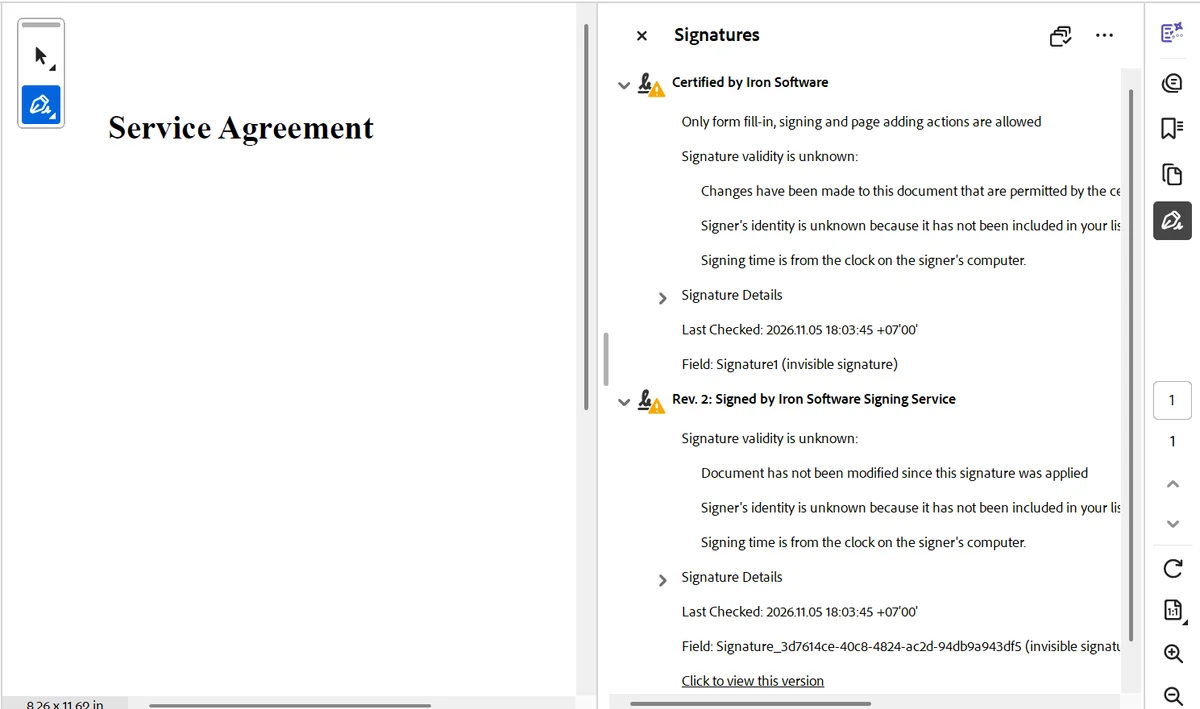
Yes. Consider a contract that the company certifies first and a signing service countersigns later. An HSM or external signature added to an already signed PDF goes in as an extra revision, and the earlier signatures stay valid.
To keep the first signature valid after later ones, apply the first with AdditionalSignaturesAndFormFillingAllowed or higher. Both signing methods default to NoChangesAllowed, so pass the permission as the last argument when you apply the first signature.
For several parties signing one document, see the signing guide.
In Adobe Acrobat, both signatures are listed. The first allows later signing, so it reports the second as a permitted change; the second reports no changes since it was applied. The signer shows as unknown because the example certificates are self-signed.
Does External Signing Work with IronPdfEngine and Docker?
Yes. HSM and external signing work in local mode and in IronPdfEngine and Docker mode. The engine or Docker image must be the same version as the library; an older image fails.
In engine mode, documents up to about 4 MB can be signed. Over that, signing throws an InvalidOperationException with this message:
The document is too large to sign in engine mode. The response exceeds the maximum message size.To fix it, sign in local mode, or sign a smaller document.
Which Exceptions Can Signing Throw?
IronPDF checks each signature against the certificate before it embeds it in the PDF. Exceptions are thrown at three stages.
When the signer is created, IronPDF validates the certificate and the settings:
NotSupportedException: the hash algorithm is notSHA256,SHA384orSHA512, or the key type is not RSA or ECDSAArgumentException: the certificate is expired or not yet valid
When SignAndSave or SignToBytes is called, IronPDF validates the call. Null and empty arguments are rejected before any call to the signing service:
ArgumentNullException:destinationPathorhsmSigneris nullArgumentException:destinationPathis empty or whitespaceNotSupportedException:SignToBytesis called while a signature added withSignis still pending
The remaining exceptions occur while the document is being signed:
InvalidOperationException: the signature does not match the certificate, the provider returns an empty signature, or the document is over about 4 MB in engine mode- The provider's own exception, unchanged: an error occurs inside the provider, such as the service being unavailable

Curtis Chau holds a Bachelor’s degree in Computer Science (Carleton University) and specializes in front-end development with expertise in Node.js, TypeScript, JavaScript, and React. Passionate about crafting intuitive and aesthetically pleasing user interfaces, Curtis enjoys working with modern frameworks and creating well-structured, visually appealing manuals.

