



How to Flatten PDFs in IronPDF C#

IronPDF flattens PDF documents in C# with the Flatten() method, converting interactive form fields into static content so the document can no longer be modified.
PDF documents often include interactive forms with fillable widgets such as radio buttons, checkboxes, text boxes, and lists. To make these documents non-editable for security or archival purposes, you flatten the PDF file. This applies when working with PDF forms in business applications, legal documents, or any scenario requiring a permanent record.
Quickstart: Flatten Your PDF in a Few Lines
Flatten PDF documents using IronPDF to remove all interactivity and create permanent, non-editable content. This C# snippet loads an existing PDF, removes all fillable widgets, and saves the secured document.
-
Install IronPDF with NuGet Package Manager
-
Copy and run this code snippet.
var pdf = IronPdf.PdfDocument.FromFile("input.pdf"); pdf.Flatten(); pdf.SaveAs("flattened.pdf"); -
Deploy to test on your live environment
Start using IronPDF in your project today with a free trial

Minimal Workflow (5 steps)
- Install IronPDF from NuGet Package Manager
- Load existing PDF or create new from HTML
- Call the
Flattenmethod - Save the flattened PDF document
- Verify form fields are removed
How Do I Flatten a PDF Document in C#?
Once IronPDF is installed, you can flatten PDF files with a single method call. The process works on existing PDF documents and on PDFs you render from HTML files before flattening.
The code example below uses the PdfDocument class to load an existing PDF. For dynamic PDF generation, render the form with the ChromePdfRenderer class before flattening.
To flatten a PDF file, call the Flatten method. This removes all interactive widgets including radio buttons, checkboxes, and text fields, making the document non-editable.
Input
:path=/static-assets/pdf/content-code-examples/how-to/pdf-image-flatten-csharp-flatten-pdf.csusing IronPdf;
// Select the desired PDF File
PdfDocument pdf = PdfDocument.FromFile("before.pdf");
// Flatten the pdf
pdf.Flatten();
// Save as a new file
pdf.SaveAs("after_flatten.pdf");Imports IronPdf
' Select the desired PDF File
Private pdf As PdfDocument = PdfDocument.FromFile("before.pdf")
' Flatten the pdf
pdf.Flatten()
' Save as a new file
pdf.SaveAs("after_flatten.pdf")Output
For complex scenarios, flatten specific pages or set form data before flattening. Pass a list of zero-based page indexes to flatten only those pages:
:path=/static-assets/pdf/content-code-examples/how-to/pdf-image-flatten-csharp-3.csusing IronPdf;
// Load a PDF with fillable forms
PdfDocument pdf = PdfDocument.FromFile("form-document.pdf");
// Optionally, pre-fill form fields by name before flattening
pdf.Form.FindFormField("name").Value = "John Doe";
pdf.Form.FindFormField("email").Value = "john@example.com";
// Flatten only pages 1-3, passing their zero-based indexes
pdf.Flatten(new[] { 0, 1, 2 });
// Save the result
pdf.SaveAs("flattened-form.pdf");
Imports IronPdf

' Load a PDF with fillable forms
Dim pdf As PdfDocument = PdfDocument.FromFile("form-document.pdf")

' Optionally, pre-fill form fields by name before flattening
pdf.Form.FindFormField("name").Value = "John Doe"
pdf.Form.FindFormField("email").Value = "john@example.com"

' Flatten only pages 1-3, passing their zero-based indexes
pdf.Flatten(New Integer() {0, 1, 2})

' Save the result
pdf.SaveAs("flattened-form.pdf")How Can I Verify the PDF Is Flattened?
The output below shows the before and after states. The first PDF contains editable form fields. After the flatten method runs, the document becomes non-editable. This code works in any .NET project, including Blazor apps.
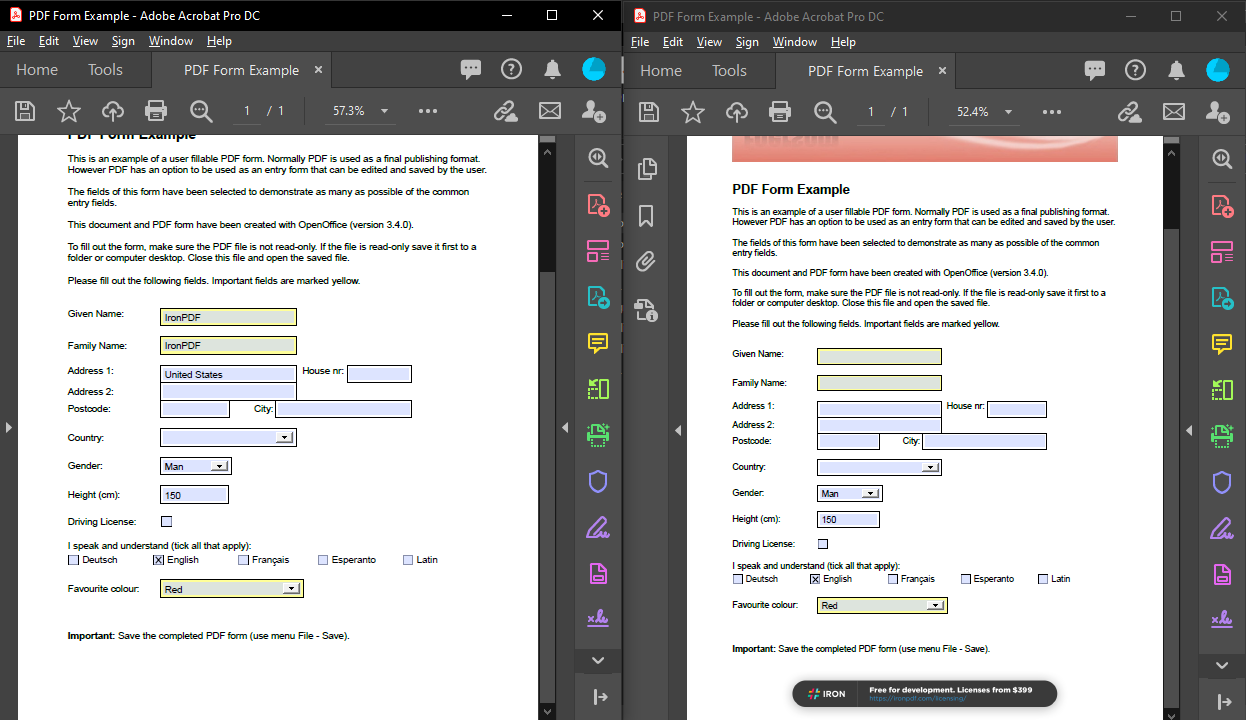
Flatten method.To verify successful flattening, check the form field count:
:path=/static-assets/pdf/content-code-examples/how-to/pdf-image-flatten-csharp-4.csusing IronPdf;
// Load the flattened PDF
PdfDocument flattenedPdf = PdfDocument.FromFile("flattened.pdf");
// FormFieldCollection exposes Count directly on the Form property
if (flattenedPdf.Form.Count == 0)
{
Console.WriteLine("PDF has been successfully flattened - no interactive fields remain.");
}
else
{
Console.WriteLine($"Warning: {flattenedPdf.Form.Count} form fields still exist.");
}
Imports IronPdf

' Load the flattened PDF
Dim flattenedPdf As PdfDocument = PdfDocument.FromFile("flattened.pdf")

' FormFieldCollection exposes Count directly on the Form property
If flattenedPdf.Form.Count = 0 Then
    Console.WriteLine("PDF has been successfully flattened - no interactive fields remain.")
Else
    Console.WriteLine($"Warning: {flattenedPdf.Form.Count} form fields still exist.")
End If
My favorite library of this kind is IronPDF. It allows for fast and efficient manipulation of PDF files. It also has many valuable features, like exporting to PDF/A format and digitally signing PDF documents.

IronOCR means we can save $40,000 annually from manual processing, while enhancing productivity and freeing up resources for high-impact tasks. I would highly recommend it.

The IronSuite play a crucial role in our operations. These are tools that increase efficiencies across the business including creating floor plans and improving inventory management.

What Happens to Form Fields After Flattening?
When you flatten a PDF document, every interactive form element becomes part of the page content. Form fields turn into static text and graphics:
- Text fields become regular text on the page
- Checkboxes and radio buttons become static images showing their selected state
- Dropdown menus display only the selected value as plain text
- Digital signatures are preserved visually but lose cryptographic validation
This process is irreversible. Keep a copy of the original interactive PDF if you need future editing capabilities. Flattening keeps text and vector content selectable, unlike rasterizing pages to images, which converts each page into a flat picture. For documents requiring both security and editability, use PDF permissions and passwords instead of flattening.
When Should I Flatten My PDF Documents?
Common cases for flattening:
-
Legal Document Archival: Flatten contracts and agreements after signing to prevent content alteration and maintain legal integrity.
-
Report Distribution: Flatten financial reports and data sheets with calculated fields before distribution to prevent tampering.
-
Form Submission Processing: Create permanent records by flattening PDFs after users complete online forms.
-
Printing Optimization: Flattened PDFs print more reliably since printers don't process interactive elements.
- File Size Reduction: Flattening can reduce file size by removing form field data structures, which pairs well with PDF compression.
Here's a batch processing example for archiving multiple completed forms:
using IronPdf;
using System.IO;

public class BatchPdfFlattener
{
    public static void FlattenAllPdfsInDirectory(string sourceDir, string outputDir)
    {
        // Ensure output directory exists
        Directory.CreateDirectory(outputDir);

        // Get all PDF files in source directory
        string[] pdfFiles = Directory.GetFiles(sourceDir, "*.pdf");

        foreach (string pdfFile in pdfFiles)
        {
            try
            {
                // Load the PDF
                PdfDocument pdf = PdfDocument.FromFile(pdfFile);

                // Flatten the document
                pdf.Flatten();

                // Save to output directory with "_flattened" suffix
                string fileName = Path.GetFileNameWithoutExtension(pdfFile);
                string outputPath = Path.Combine(outputDir, $"{fileName}_flattened.pdf");
                pdf.SaveAs(outputPath);

                Console.WriteLine($"Flattened: {fileName}");
            }
            catch (Exception ex)
            {
                Console.WriteLine($"Error processing {pdfFile}: {ex.Message}");
            }
        }
    }
}
using IronPdf;
using System.IO;
public class BatchPdfFlattener
{
public static void FlattenAllPdfsInDirectory(string sourceDir, string outputDir)
{
// Ensure output directory exists
Directory.CreateDirectory(outputDir);
// Get all PDF files in source directory
string[] pdfFiles = Directory.GetFiles(sourceDir, "*.pdf");
foreach (string pdfFile in pdfFiles)
{
try
{
// Load the PDF
PdfDocument pdf = PdfDocument.FromFile(pdfFile);
// Flatten the document
pdf.Flatten();
// Save to output directory with "_flattened" suffix
string fileName = Path.GetFileNameWithoutExtension(pdfFile);
string outputPath = Path.Combine(outputDir, $"{fileName}_flattened.pdf");
pdf.SaveAs(outputPath);
Console.WriteLine($"Flattened: {fileName}");
}
catch (Exception ex)
{
Console.WriteLine($"Error processing {pdfFile}: {ex.Message}");
}
}
}
}Imports IronPdf
Imports System.IO
Public Class BatchPdfFlattener
Public Shared Sub FlattenAllPdfsInDirectory(sourceDir As String, outputDir As String)
' Ensure output directory exists
Directory.CreateDirectory(outputDir)
' Get all PDF files in source directory
Dim pdfFiles As String() = Directory.GetFiles(sourceDir, "*.pdf")
For Each pdfFile As String In pdfFiles
Try
' Load the PDF
Dim pdf As PdfDocument = PdfDocument.FromFile(pdfFile)
' Flatten the document
pdf.Flatten()
' Save to output directory with "_flattened" suffix
Dim fileName As String = Path.GetFileNameWithoutExtension(pdfFile)
Dim outputPath As String = Path.Combine(outputDir, $"{fileName}_flattened.pdf")
pdf.SaveAs(outputPath)
Console.WriteLine($"Flattened: {fileName}")
Catch ex As Exception
Console.WriteLine($"Error processing {pdfFile}: {ex.Message}")
End Try
Next
End Sub
End ClassConclusion
Flattening converts a PDF's interactive form fields into static page content with a single Flatten() call, locking the document against further edits. Keep an unflattened copy if you might need to change the data later, since the operation cannot be undone.
If you need to populate fields first, set the form values before flattening; to assemble locked documents, merge or split them afterward.
Library Quick Access

Read More Documentation
Read the Documentation for more on how to flatten PDFs, edit and manipulate them, and more.
Visit IronPDF DocumentationReady to see what else you can do? Check out our tutorial page here: Additional Features
Frequently Asked Questions
What does flattening a PDF mean?
Flattening a PDF converts all interactive form fields like checkboxes, text boxes, and radio buttons into static, non-editable content. IronPDF provides this functionality to ensure document integrity and prevent further modifications.
How do I flatten a PDF in C#?
With IronPDF, flatten a PDF in three statements: var pdf = IronPdf.PdfDocument.FromFile("input.pdf"); then pdf.Flatten(); then pdf.SaveAs("flattened.pdf"). This loads the PDF, removes all interactive elements, and saves the secured document.
Can I flatten specific pages instead of the entire document?
Yes, pass a list of zero-based page indexes to the Flatten method. For example, pdf.Flatten(new[] { 0, 1, 2 }) flattens only pages 0, 1, and 2 while leaving the remaining pages interactive.
What types of form fields can be flattened?
IronPDF can flatten all interactive widgets including radio buttons, checkboxes, text fields, dropdown lists, and any other fillable form elements, converting them to permanent static content.
Can I fill form fields before flattening the PDF?
Yes, IronPDF allows you to pre-fill form fields before flattening. You can set values like pdf.Form.FindFormField("name").Value = "John Doe" before calling the Flatten method to create a completed, non-editable document.
What rendering engine does the PDF flattening process use?
IronPDF uses a Chrome rendering engine to ensure accurate rendering of complex forms before flattening, maintaining the visual integrity of your documents throughout the process.
Why would I need to flatten a PDF document?
Flattening PDFs with IronPDF is essential for security, archival purposes, legal documents, or any scenario requiring permanent document preservation where you need to prevent further modifications to form data.


Still Scrolling?
Want proof fast? PM > Install-Package IronPdf
run a sample watch your HTML become a PDF.








 Get started for FREE
 Get started for FREE
 Book Free Live Demo
















