# How to Create PDF Forms in C#
Create interactive PDF forms in C# using IronPDF's comprehensive API that supports text inputs, checkboxes, radio buttons, comboboxes, image forms, and digital signatures with just a few lines of code.
*as-heading:2(Quickstart: Build Your First PDF Form with IronPDF)*
Get started fast with IronPDF to create interactive, fillable PDF forms. This guide shows you how to dynamically generate a PDF with form fields using simple C# code. By leveraging IronPDF's reliable API, you can create text inputs, checkboxes, and more to enhance user interaction with minimal effort. Follow along to see how easy it is to define form elements and save your document.
```cs
:title=Build your PDF form in one line!
new IronPdf.ChromePdfRenderer { RenderingOptions = { CreatePdfFormsFromHtml = true } }
    .RenderHtmlAsPdf("<html><body><form>First name: <input type='text' name='firstname' value=''>Last name: <input type='text' name='lastname' value=''></form></body></html>")
    .SaveAs("editableForm.pdf");
```
<div class="alert alert-info iron-variant-1" role="alert">
Reduce yearly PDF security and compliance costs. <a href="https://ironsoftware.com/enterprise/securedoc/">IronSecureDoc</a> provides digital signing, redaction, encryption, and protection solutions for a one-time payment. <a href="https://ironsoftware.com/enterprise/securedoc/docs/">View IronSecureDoc Documentation</a>
</div>
<div class="hsg-featured-snippet">
<h3>Minimal Workflow (5 steps)</h3>
<ol>
<li><a class="js-modal-open" data-modal-id="trial-license-after-download" href="https://www.nuget.org/packages/IronPdf/">Download IronPDF C# Library</a></li>
<li>Use input and textarea tags in HTML to generate forms</li>
<li>Set type to "checkbox" and use select tag for checkboxes and comboboxes</li>
<li>Change type to "radio" for radio buttons</li>
<li>Check the generated PDF output</li>
</ol>
</div>
## How Do I Create PDF Forms with IronPDF?
IronPDF creates PDF documents with embedded form fields of various types. By adding dynamic form elements to static PDF documents, you enhance flexibility and interactivity. The library supports all form elements needed for modern PDF applications, from simple text inputs to complex signature fields. Before creating forms, ensure you've [installed IronPDF](https://ironpdf.com/get-started/installation-overview/) and configured your development environment.
## How Can I Add Text Areas and Input Forms?
### How Do I Render Forms From HTML?
Create text area and input forms to capture user input within PDF documents. Text areas provide space for larger text amounts, while input forms allow specific value entries. IronPDF's [HTML to PDF conversion](https://ironpdf.com/tutorials/html-to-pdf/) engine supports HTML form elements, simplifying complex form creation.
```csharp
using IronPdf;

// Input and Text Area forms HTML
string FormHtml = @"
<html>
    <body>
        <h2>Editable PDF Form</h2>
        <form>
            First name: <br> <input type='text' name='firstname' value=''> <br>
            Last name: <br> <input type='text' name='lastname' value=''> <br>
            Address: <br> <textarea name='address' rows='4' cols='50'></textarea>
        </form>
    </body>
</html>
";

// Instantiate Renderer
ChromePdfRenderer Renderer = new ChromePdfRenderer();
Renderer.RenderingOptions.CreatePdfFormsFromHtml = true;

Renderer.RenderHtmlAsPdf(FormHtml).SaveAs("textAreaAndInputForm.pdf");
```
### Output PDF Document
<iframe loading="lazy" src="/static-assets/pdf/how-to/create-forms/textAreaAndInputForm.pdf#zoom=100" width="100%" height="400px">
</iframe>
### How Do I Add Text Forms Programmatically?
Add text form fields through code without HTML. First, instantiate a `TextFormField` object with required parameters. Then use the `Add()` method of the `Form` property to add the form. This approach works well when you need to [edit existing PDFs](https://ironpdf.com/tutorials/csharp-edit-pdf-complete-tutorial/) or add forms to documents not created with HTML.
```csharp
using IronPdf;
using IronSoftware.Forms;
// Instantiate ChromePdfRenderer
ChromePdfRenderer renderer = new ChromePdfRenderer();
PdfDocument pdf = renderer.RenderHtmlAsPdf("<h2>Editable PDF Form</h2>");
// Configure required parameters
string name = "firstname";
string value = "first name";
uint pageIndex = 0;
double x = 100;
double y = 700;
double width = 50;
double height = 15;
// Create text form field
var textForm = new TextFormField(name, value, pageIndex, x, y, width, height);
// Add form
pdf.Form.Add(textForm);
pdf.SaveAs("addTextForm.pdf");
```
### Output PDF Document
<iframe loading="lazy" src="/static-assets/pdf/how-to/create-forms/addTextForm.pdf#zoom=100" width="100%" height="300px">
</iframe>
Add labels to form fields by drawing text with the `DrawText` method. Learn more about [How to Draw Text and Bitmap on PDFs](/how-to/draw-text-and-bitmap/). Explore [custom fonts](https://ironpdf.com/how-to/manage-fonts/) to enhance form appearance.
<hr />
## How Do I Create Checkbox and Combobox Forms?
### How Do I Render Checkboxes and Comboboxes From HTML?
Create checkbox and combobox forms by rendering HTML strings, files, or web URLs containing these elements. Set the `RenderingOptions.CreatePdfFormsFromHtml` property to true to enable form creation from HTML. For complex scenarios, [convert ASPX pages](https://ironpdf.com/how-to/aspx-to-pdf/) containing server-side form controls.
Combobox forms provide dropdown selections. Users choose from available options, providing input within PDF documents.
```csharp
using IronPdf;
// Input and Text Area forms HTML
string FormHtml = @"
<html>
<body>
<h2>Editable PDF Form</h2>
<h2>Task Completed</h2>
<label>
<input type='checkbox' id='taskCompleted' name='taskCompleted'> Mark task as completed
</label>
<h2>Select Priority</h2>
<label for='priority'>Choose priority level:</label>
<select id='priority' name='priority'>
<option value='high'>High</option>
<option value='medium'>Medium</option>
<option value='low'>Low</option>
</select>
</body>
</html>
";
// Instantiate Renderer
ChromePdfRenderer Renderer = new ChromePdfRenderer();
Renderer.RenderingOptions.CreatePdfFormsFromHtml = true;
Renderer.RenderHtmlAsPdf(FormHtml).SaveAs("checkboxAndComboboxForm.pdf");
```
### Output PDF Document
<iframe loading="lazy" src="/static-assets/pdf/how-to/create-forms/checkboxAndComboboxForm.pdf#zoom=100" width="100%" height="400px">
</iframe>
### How Do I Add Checkboxes and Comboboxes Programmatically?
#### How Do I Create a Checkbox Form Field?
To add checkboxes, instantiate a `CheckboxFormField` object with required parameters. The `value` parameter determines check state: "no" for unchecked, "yes" for checked. Use the `Add()` method of the `Form` property to add the form.
```csharp
using IronPdf;
using IronSoftware.Forms;
// Instantiate ChromePdfRenderer
ChromePdfRenderer renderer = new ChromePdfRenderer();
PdfDocument pdf = renderer.RenderHtmlAsPdf("<h2>Checkbox Form Field</h2>");
// Configure required parameters
string name = "checkbox";
string value = "no";
uint pageIndex = 0;
double x = 100;
double y = 700;
double width = 15;
double height = 15;
// Create checkbox form field
var checkboxForm = new CheckboxFormField(name, value, pageIndex, x, y, width, height);
// Add form
pdf.Form.Add(checkboxForm);
pdf.SaveAs("addCheckboxForm.pdf");
```
### Output PDF Document
<iframe loading="lazy" src="/static-assets/pdf/how-to/create-forms/addCheckboxForm.pdf#zoom=100" width="100%" height="300px">
</iframe>
#### How Do I Create a Combobox Form Field?
To add comboboxes, instantiate a `ComboboxFormField` object with required parameters. The `value` parameter determines the selected choice. Use the `Add()` method of the `Form` property to add the form. When working with form data, [extract text and images](https://ironpdf.com/how-to/extract-text-and-images/) from existing PDFs to populate comboboxes dynamically.
```csharp
using IronPdf;
using IronSoftware.Forms;
using System.Collections.Generic;
// Instantiate ChromePdfRenderer
ChromePdfRenderer renderer = new ChromePdfRenderer();
PdfDocument pdf = renderer.RenderHtmlAsPdf("<h2>Combobox Form Field</h2>");
// Configure required parameters
string name = "combobox";
string value = "Car";
uint pageIndex = 0;
double x = 100;
double y = 700;
double width = 60;
double height = 15;
var choices = new List<string>() { "Car", "Bike", "Airplane" };
// Create combobox form field
var comboboxForm = new ComboboxFormField(name, value, pageIndex, x, y, width, height, choices);
// Add form
pdf.Form.Add(comboboxForm);
pdf.SaveAs("addComboboxForm.pdf");
```
### Output PDF Document
<iframe loading="lazy" src="/static-assets/pdf/how-to/create-forms/addComboboxForm.pdf#zoom=100" width="100%" height="300px">
</iframe>
<hr />
## How Do I Create Radio Button Forms?
### How Do I Render Radio Buttons From HTML?
Radio buttons in the same group are contained within one form object. Retrieve the field using the `FindFormField()` method with its name. The `Value` property contains the selected choice value, or 'None' if unselected. This mirrors HTML radio button behavior.
```csharp
using IronPdf;
// Radio buttons HTML
string FormHtml = @"
<html>
<body>
<h2>Editable PDF Form</h2>
Choose your preferred travel type: <br>
<input type='radio' name='traveltype' value='Bike'>
Bike <br>
<input type='radio' name='traveltype' value='Car'>
Car <br>
<input type='radio' name='traveltype' value='Airplane'>
Airplane
</body>
</html>
";
// Instantiate Renderer
ChromePdfRenderer Renderer = new ChromePdfRenderer();
Renderer.RenderingOptions.CreatePdfFormsFromHtml = true;
Renderer.RenderHtmlAsPdf(FormHtml).SaveAs("radioButtomForm.pdf");
```
### Output PDF Document
<iframe loading="lazy" src="/static-assets/pdf/how-to/create-forms/radioButtomForm.pdf#zoom=110" width="100%" height="400px">
</iframe>
### How Do I Add Radio Forms Programmatically?
Add radio button form fields through code. Instantiate a `RadioFormField` object with required parameters. Use the `Add()` method of the `Form` property to add the form. This approach helps when [merging PDFs](https://ironpdf.com/how-to/merge-or-split-pdfs/) and adding consistent form fields across documents.
```csharp
using IronPdf;
using IronSoftware.Forms;
// Instantiate ChromePdfRenderer
ChromePdfRenderer renderer = new ChromePdfRenderer();
PdfDocument pdf = renderer.RenderHtmlAsPdf("<h2>Editable PDF Form</h2>");
// Configure required parameters
string name = "choice";
string value = "yes";
uint pageIndex = 0;
double x = 100;
double y = 700;
double width = 15;
double height = 15;
// Create the first radio form
var yesRadioform = new RadioFormField(name, value, pageIndex, x, y, width, height);
value = "no";
x = 200;
// Create the second radio form
var noRadioform = new RadioFormField(name, value, pageIndex, x, y, width, height);
pdf.Form.Add(yesRadioform);
pdf.Form.Add(noRadioform);
pdf.SaveAs("addRadioForm.pdf");
```
### Output PDF Document
<iframe loading="lazy" src="/static-assets/pdf/how-to/create-forms/addRadioForm.pdf#zoom=100" width="100%" height="300px">
</iframe>
Use the `DrawText` method to add labels for radio buttons. Learn more about [How to Draw Text and Bitmap on PDFs](/how-to/draw-text-and-bitmap/).
<hr />
## How Do I Add Image Forms to PDFs?
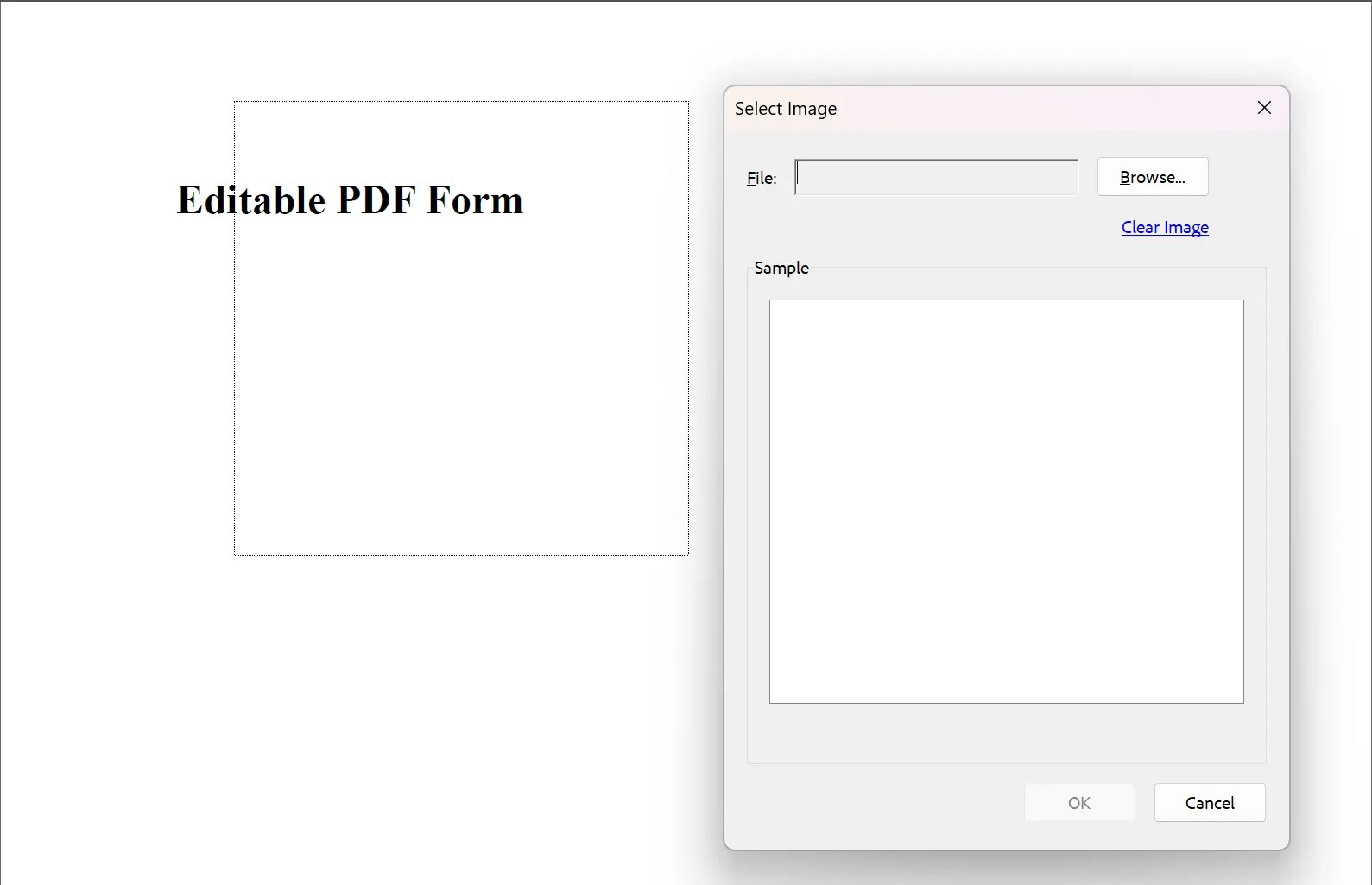
Add image form fields through code only. Instantiate an `ImageFormField` object with required parameters. Use the `Add()` method of the `Form` property to add the form. Image forms work well for photo identification or signature capture functionality.
```csharp
using IronPdf;
using IronSoftware.Forms;
// Instantiate ChromePdfRenderer
ChromePdfRenderer renderer = new ChromePdfRenderer();
PdfDocument pdf = renderer.RenderHtmlAsPdf("<h2>Editable PDF Form</h2>");
// Configure required parameters
string name = "image1";
uint pageIndex = 0;
double x = 100;
double y = 600;
double width = 200;
double height = 200;
// Create the image form
ImageFormField imageForm = new ImageFormField(name, pageIndex, x, y, width, height);
pdf.Form.Add(imageForm);
pdf.SaveAs("addImageForm.pdf");
```
### Output PDF Document
Output PDF file: [View Image Form PDF](/static-assets/pdf/how-to/create-forms/addImageForm.pdf). Browsers do not support image forms; open in Adobe Acrobat to test this feature.
<div class="content-img-align-center">
<div class="center-image-wrapper" style="width=50%">
<img src="/static-assets/pdf/how-to/create-forms/image-form.webp" alt="PDF form editor showing Select Image dialog with file browser, preview area, and OK/Cancel buttons" class="img-responsive add-shadow" />
</div>
</div>
<hr />
## How Do I Create Unsigned Signature Forms?
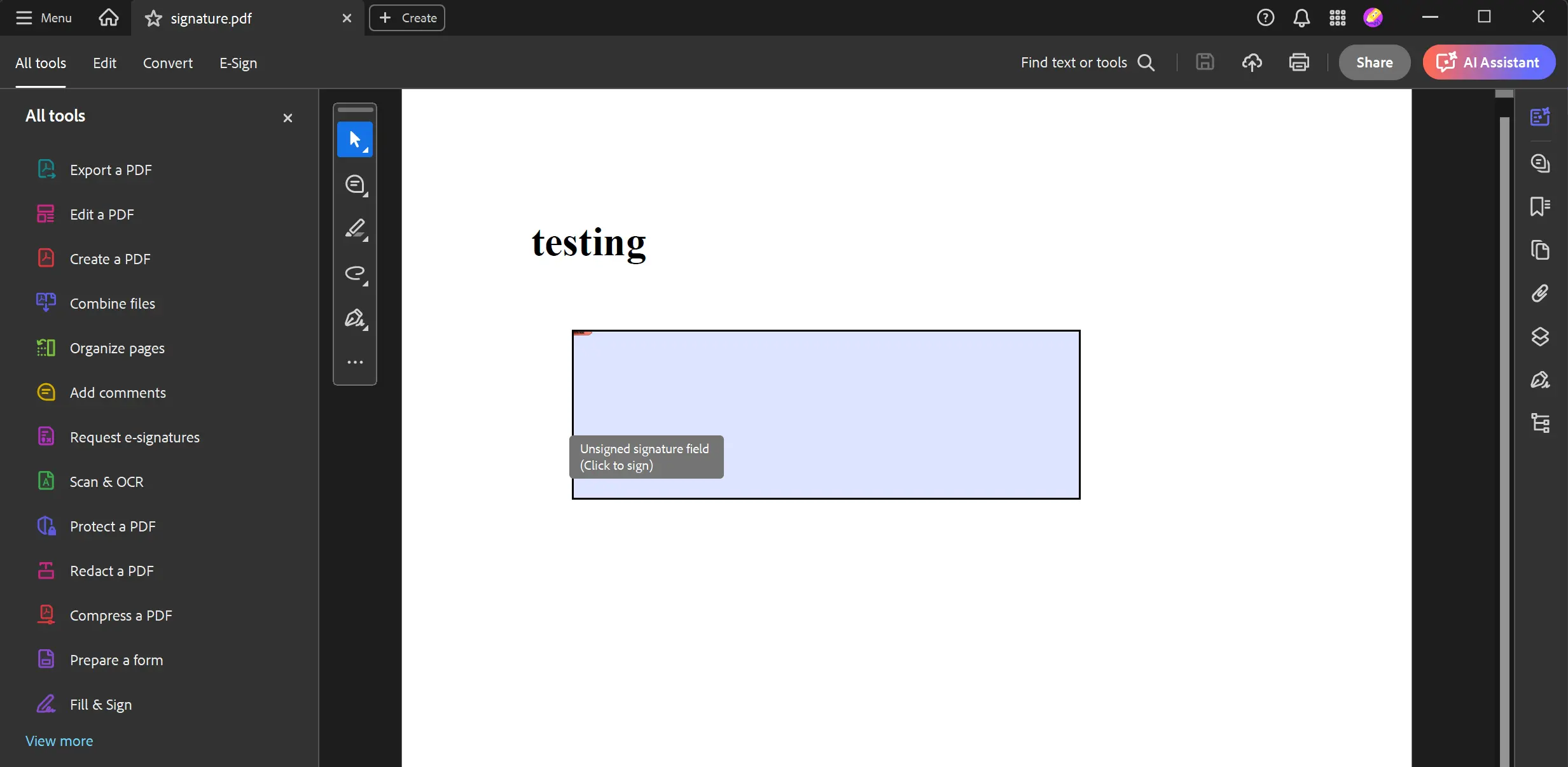
Insert an unsigned or empty signature field by creating a signature object. Create a `SignatureFormField` object and add it using the `Add()` method of the `Form` property. Export the PDF with the empty signature field. This enables [digital signatures](https://ironpdf.com/how-to/signing/) that can be filled later with actual signature data.
```csharp
using IronPdf;
using IronSoftware.Forms;
ChromePdfRenderer renderer = new ChromePdfRenderer();
PdfDocument pdf = renderer.RenderHtmlAsPdf("<h1>testing</h1>");
// Configure required parameters
string name = "cert";
uint pageIndex = 0;
double x = 100;
double y = 600;
double width = 300;
double height = 100;
// Create signature
SignatureFormField signature = new SignatureFormField(name, pageIndex, x, y, width, height);
// Add signature
pdf.Form.Add(signature);
pdf.SaveAs("signature.pdf");
```
### Output PDF Document
Output PDF file: [signature.pdf](/static-assets/pdf/how-to/create-forms/signature.pdf). Browsers do not support signature forms; open in Adobe Acrobat to test this feature. For enhanced security, explore [signing PDFs with HSM](https://ironpdf.com/how-to/signing-pdf-with-hsm/).
<div class="content-img-align-center">
<div class="center-image-wrapper" style="width=50%">
<img src="/static-assets/pdf/how-to/create-forms/unsigned-signature.webp" alt="Adobe Acrobat showing unsigned signature field in PDF document with editing tools sidebar" class="img-responsive add-shadow" />
</div>
</div>
`TextFormField`
`Add`
`Form`
`DrawText`
`CreatePdfFormsFromHtml`
`CheckboxFormField`
`Add`
`Form`
`ComboboxFormField`
`Add`
`Form`
`FindFormField`
`Value`
`RadioFormField`
`Add`
`Form`
`DrawText`
`ImageFormField`
`Add`
`Form`
`Form`
`Add`
Learn to fill and edit PDF forms programmatically: "[How to Fill and Edit PDF Forms](/how-to/edit-forms/)". For comprehensive form security, see our guide on [PDF permissions and passwords](https://ironpdf.com/how-to/pdf-permissions-passwords/).
Ready to explore more? Check our tutorial: [Sign and Secure PDFs](https://ironpdf.com/tutorials/csharp-pdf-security-complete-tutorial/)
Create interactive PDF forms in C# using IronPDF's comprehensive API that supports text inputs, checkboxes, radio buttons, comboboxes, image forms, and digital signatures with just a few lines of code.
Quickstart: Build Your First PDF Form with IronPDF
Get started fast with IronPDF to create interactive, fillable PDF forms. This guide shows you how to dynamically generate a PDF with form fields using simple C# code. By leveraging IronPDF's reliable API, you can create text inputs, checkboxes, and more to enhance user interaction with minimal effort. Follow along to see how easy it is to define form elements and save your document.
Start using IronPDF in your project today with a free trial
Reduce yearly PDF security and compliance costs. IronSecureDoc provides digital signing, redaction, encryption, and protection solutions for a one-time payment. View IronSecureDoc Documentation
Use input and textarea tags in HTML to generate forms
Set type to "checkbox" and use select tag for checkboxes and comboboxes
Change type to "radio" for radio buttons
Check the generated PDF output
How Do I Create PDF Forms with IronPDF?
IronPDF creates PDF documents with embedded form fields of various types. By adding dynamic form elements to static PDF documents, you enhance flexibility and interactivity. The library supports all form elements needed for modern PDF applications, from simple text inputs to complex signature fields. Before creating forms, ensure you've installed IronPDF and configured your development environment.
How Can I Add Text Areas and Input Forms?
How Do I Render Forms From HTML?
Create text area and input forms to capture user input within PDF documents. Text areas provide space for larger text amounts, while input forms allow specific value entries. IronPDF's HTML to PDF conversion engine supports HTML form elements, simplifying complex form creation.
using IronPdf;// Input and Text Area forms HTMLstringFormHtml = @"<html> <body> <h2>Editable PDF Form</h2> <form> First name: <br> <input type='text' name='firstname' value=''> <br> Last name: <br> <input type='text' name='lastname' value=''> <br> Address: <br> <textarea name='address' rows='4' cols='50'></textarea> </form> </body></html>";// Instantiate RendererChromePdfRendererRenderer = new ChromePdfRenderer();Renderer.RenderingOptions.CreatePdfFormsFromHtml = true;Renderer.RenderHtmlAsPdf(FormHtml).SaveAs("textAreaAndInputForm.pdf");
using IronPdf;

// Input and Text Area forms HTML
string FormHtml = @"
<html>
    <body>
        <h2>Editable PDF Form</h2>
        <form>
            First name: <br> <input type='text' name='firstname' value=''> <br>
            Last name: <br> <input type='text' name='lastname' value=''> <br>
            Address: <br> <textarea name='address' rows='4' cols='50'></textarea>
        </form>
    </body>
</html>
";

// Instantiate Renderer
ChromePdfRenderer Renderer = new ChromePdfRenderer();
Renderer.RenderingOptions.CreatePdfFormsFromHtml = true;

Renderer.RenderHtmlAsPdf(FormHtml).SaveAs("textAreaAndInputForm.pdf");
ImportsIronPdf' Input and Text Area forms HTMLPrivateFormHtmlAsString = "<html> <body> <h2>Editable PDF Form</h2> <form> First name: <br> <input type='text' name='firstname' value=''> <br> Last name: <br> <input type='text' name='lastname' value=''> <br> Address: <br> <textarea name='address' rows='4' cols='50'></textarea> </form> </body></html>"' Instantiate RendererPrivateRendererAs New ChromePdfRenderer()Renderer.RenderingOptions.CreatePdfFormsFromHtml = TrueRenderer.RenderHtmlAsPdf(FormHtml).SaveAs("textAreaAndInputForm.pdf")
Imports IronPdf

' Input and Text Area forms HTML
Private FormHtml As String = "
<html>
    <body>
        <h2>Editable PDF Form</h2>
        <form>
            First name: <br> <input type='text' name='firstname' value=''> <br>
            Last name: <br> <input type='text' name='lastname' value=''> <br>
            Address: <br> <textarea name='address' rows='4' cols='50'></textarea>
        </form>
    </body>
</html>
"

' Instantiate Renderer
Private Renderer As New ChromePdfRenderer()
Renderer.RenderingOptions.CreatePdfFormsFromHtml = True

Renderer.RenderHtmlAsPdf(FormHtml).SaveAs("textAreaAndInputForm.pdf")
Output PDF Document
How Do I Add Text Forms Programmatically?
Add text form fields through code without HTML. First, instantiate a TextFormField object with required parameters. Then use the Add() method of the Form property to add the form. This approach works well when you need to edit existing PDFs or add forms to documents not created with HTML.
using IronPdf;using IronSoftware.Forms;// Instantiate ChromePdfRendererChromePdfRenderer renderer = new ChromePdfRenderer();PdfDocument pdf = renderer.RenderHtmlAsPdf("<h2>Editable PDF Form</h2>");// Configure required parametersstring name = "firstname";string value = "first name";uint pageIndex = 0;double x = 100;double y = 700;double width = 50;double height = 15;// Create text form fieldvar textForm = new TextFormField(name, value, pageIndex, x, y, width, height);// Add formpdf.Form.Add(textForm);pdf.SaveAs("addTextForm.pdf");
using IronPdf;
using IronSoftware.Forms;

// Instantiate ChromePdfRenderer
ChromePdfRenderer renderer = new ChromePdfRenderer();

PdfDocument pdf = renderer.RenderHtmlAsPdf("<h2>Editable PDF Form</h2>");

// Configure required parameters
string name = "firstname";
string value = "first name";
uint pageIndex = 0;
double x = 100;
double y = 700;
double width = 50;
double height = 15;

// Create text form field
var textForm = new TextFormField(name, value, pageIndex, x, y, width, height);

// Add form
pdf.Form.Add(textForm);

pdf.SaveAs("addTextForm.pdf");
ImportsIronPdfImportsIronSoftware.Forms' Instantiate ChromePdfRendererPrivate renderer As New ChromePdfRenderer()Private pdf AsPdfDocument = renderer.RenderHtmlAsPdf("<h2>Editable PDF Form</h2>")' Configure required parametersPrivate name AsString = "firstname"Private value AsString = "first name"Private pageIndex AsUInteger = 0Private x AsDouble = 100Private y AsDouble = 700Private width AsDouble = 50Private height AsDouble = 15' Create text form fieldPrivate textForm = New TextFormField(name, value, pageIndex, x, y, width, height)' Add formpdf.Form.Add(textForm)pdf.SaveAs("addTextForm.pdf")
Imports IronPdf
Imports IronSoftware.Forms

' Instantiate ChromePdfRenderer
Private renderer As New ChromePdfRenderer()

Private pdf As PdfDocument = renderer.RenderHtmlAsPdf("<h2>Editable PDF Form</h2>")

' Configure required parameters
Private name As String = "firstname"
Private value As String = "first name"
Private pageIndex As UInteger = 0
Private x As Double = 100
Private y As Double = 700
Private width As Double = 50
Private height As Double = 15

' Create text form field
Private textForm = New TextFormField(name, value, pageIndex, x, y, width, height)

' Add form
pdf.Form.Add(textForm)

pdf.SaveAs("addTextForm.pdf")
How Do I Render Checkboxes and Comboboxes From HTML?
Create checkbox and combobox forms by rendering HTML strings, files, or web URLs containing these elements. Set the RenderingOptions.CreatePdfFormsFromHtml property to true to enable form creation from HTML. For complex scenarios, convert ASPX pages containing server-side form controls.
Combobox forms provide dropdown selections. Users choose from available options, providing input within PDF documents.
using IronPdf;// Input and Text Area forms HTMLstringFormHtml = @"<html> <body> <h2>Editable PDF Form</h2> <h2>Task Completed</h2> <label> <input type='checkbox' id='taskCompleted' name='taskCompleted'> Mark task as completed </label> <h2>Select Priority</h2> <label for='priority'>Choose priority level:</label> <select id='priority' name='priority'> <option value='high'>High</option> <option value='medium'>Medium</option> <option value='low'>Low</option> </select> </body></html>";// Instantiate RendererChromePdfRendererRenderer = new ChromePdfRenderer();Renderer.RenderingOptions.CreatePdfFormsFromHtml = true;Renderer.RenderHtmlAsPdf(FormHtml).SaveAs("checkboxAndComboboxForm.pdf");
using IronPdf;

// Input and Text Area forms HTML
string FormHtml = @"
<html>
    <body>
        <h2>Editable PDF Form</h2>
        <h2>Task Completed</h2>
        <label>
            <input type='checkbox' id='taskCompleted' name='taskCompleted'> Mark task as completed
        </label>

        <h2>Select Priority</h2>
        <label for='priority'>Choose priority level:</label>
        <select id='priority' name='priority'>
            <option value='high'>High</option>
            <option value='medium'>Medium</option>
            <option value='low'>Low</option>
        </select>
    </body>
</html>
";

// Instantiate Renderer
ChromePdfRenderer Renderer = new ChromePdfRenderer();
Renderer.RenderingOptions.CreatePdfFormsFromHtml = true;

Renderer.RenderHtmlAsPdf(FormHtml).SaveAs("checkboxAndComboboxForm.pdf");
ImportsIronPdf' Input and Text Area forms HTMLPrivateFormHtmlAsString = "<html> <body> <h2>Editable PDF Form</h2> <h2>Task Completed</h2> <label> <input type='checkbox' id='taskCompleted' name='taskCompleted'> Mark task as completed </label> <h2>Select Priority</h2> <label for='priority'>Choose priority level:</label> <select id='priority' name='priority'> <option value='high'>High</option> <option value='medium'>Medium</option> <option value='low'>Low</option> </select> </body></html>"' Instantiate RendererPrivateRendererAs New ChromePdfRenderer()Renderer.RenderingOptions.CreatePdfFormsFromHtml = TrueRenderer.RenderHtmlAsPdf(FormHtml).SaveAs("checkboxAndComboboxForm.pdf")
Imports IronPdf

' Input and Text Area forms HTML
Private FormHtml As String = "
<html>
    <body>
        <h2>Editable PDF Form</h2>
        <h2>Task Completed</h2>
        <label>
            <input type='checkbox' id='taskCompleted' name='taskCompleted'> Mark task as completed
        </label>

        <h2>Select Priority</h2>
        <label for='priority'>Choose priority level:</label>
        <select id='priority' name='priority'>
            <option value='high'>High</option>
            <option value='medium'>Medium</option>
            <option value='low'>Low</option>
        </select>
    </body>
</html>
"

' Instantiate Renderer
Private Renderer As New ChromePdfRenderer()
Renderer.RenderingOptions.CreatePdfFormsFromHtml = True

Renderer.RenderHtmlAsPdf(FormHtml).SaveAs("checkboxAndComboboxForm.pdf")
Output PDF Document
How Do I Add Checkboxes and Comboboxes Programmatically?
How Do I Create a Checkbox Form Field?
To add checkboxes, instantiate a CheckboxFormField object with required parameters. The value parameter determines check state: "no" for unchecked, "yes" for checked. Use the Add() method of the Form property to add the form.
using IronPdf;using IronSoftware.Forms;// Instantiate ChromePdfRendererChromePdfRenderer renderer = new ChromePdfRenderer();PdfDocument pdf = renderer.RenderHtmlAsPdf("<h2>Checkbox Form Field</h2>");// Configure required parametersstring name = "checkbox";string value = "no";uint pageIndex = 0;double x = 100;double y = 700;double width = 15;double height = 15;// Create checkbox form fieldvar checkboxForm = new CheckboxFormField(name, value, pageIndex, x, y, width, height);// Add formpdf.Form.Add(checkboxForm);pdf.SaveAs("addCheckboxForm.pdf");
using IronPdf;
using IronSoftware.Forms;

// Instantiate ChromePdfRenderer
ChromePdfRenderer renderer = new ChromePdfRenderer();

PdfDocument pdf = renderer.RenderHtmlAsPdf("<h2>Checkbox Form Field</h2>");

// Configure required parameters
string name = "checkbox";
string value = "no";
uint pageIndex = 0;
double x = 100;
double y = 700;
double width = 15;
double height = 15;

// Create checkbox form field
var checkboxForm = new CheckboxFormField(name, value, pageIndex, x, y, width, height);

// Add form
pdf.Form.Add(checkboxForm);

pdf.SaveAs("addCheckboxForm.pdf");
ImportsIronPdfImportsIronSoftware.Forms' Instantiate ChromePdfRendererPrivate renderer As New ChromePdfRenderer()Private pdf AsPdfDocument = renderer.RenderHtmlAsPdf("<h2>Checkbox Form Field</h2>")' Configure required parametersPrivate name AsString = "checkbox"Private value AsString = "no"Private pageIndex AsUInteger = 0Private x AsDouble = 100Private y AsDouble = 700Private width AsDouble = 15Private height AsDouble = 15' Create checkbox form fieldPrivate checkboxForm = New CheckboxFormField(name, value, pageIndex, x, y, width, height)' Add formpdf.Form.Add(checkboxForm)pdf.SaveAs("addCheckboxForm.pdf")
Imports IronPdf
Imports IronSoftware.Forms

' Instantiate ChromePdfRenderer
Private renderer As New ChromePdfRenderer()

Private pdf As PdfDocument = renderer.RenderHtmlAsPdf("<h2>Checkbox Form Field</h2>")

' Configure required parameters
Private name As String = "checkbox"
Private value As String = "no"
Private pageIndex As UInteger = 0
Private x As Double = 100
Private y As Double = 700
Private width As Double = 15
Private height As Double = 15

' Create checkbox form field
Private checkboxForm = New CheckboxFormField(name, value, pageIndex, x, y, width, height)

' Add form
pdf.Form.Add(checkboxForm)

pdf.SaveAs("addCheckboxForm.pdf")
Output PDF Document
How Do I Create a Combobox Form Field?
To add comboboxes, instantiate a ComboboxFormField object with required parameters. The value parameter determines the selected choice. Use the Add() method of the Form property to add the form. When working with form data, extract text and images from existing PDFs to populate comboboxes dynamically.
using IronPdf;using IronSoftware.Forms;using System.Collections.Generic;// Instantiate ChromePdfRendererChromePdfRenderer renderer = new ChromePdfRenderer();PdfDocument pdf = renderer.RenderHtmlAsPdf("<h2>Combobox Form Field</h2>");// Configure required parametersstring name = "combobox";string value = "Car";uint pageIndex = 0;double x = 100;double y = 700;double width = 60;double height = 15;var choices = new List<string>() { "Car", "Bike", "Airplane" };// Create combobox form fieldvar comboboxForm = new ComboboxFormField(name, value, pageIndex, x, y, width, height, choices);// Add formpdf.Form.Add(comboboxForm);pdf.SaveAs("addComboboxForm.pdf");
using IronPdf;
using IronSoftware.Forms;
using System.Collections.Generic;

// Instantiate ChromePdfRenderer
ChromePdfRenderer renderer = new ChromePdfRenderer();

PdfDocument pdf = renderer.RenderHtmlAsPdf("<h2>Combobox Form Field</h2>");

// Configure required parameters
string name = "combobox";
string value = "Car";
uint pageIndex = 0;
double x = 100;
double y = 700;
double width = 60;
double height = 15;
var choices = new List<string>() { "Car", "Bike", "Airplane" };

// Create combobox form field
var comboboxForm = new ComboboxFormField(name, value, pageIndex, x, y, width, height, choices);

// Add form
pdf.Form.Add(comboboxForm);

pdf.SaveAs("addComboboxForm.pdf");
ImportsIronPdfImportsIronSoftware.FormsImportsSystem.Collections.Generic' Instantiate ChromePdfRendererPrivate renderer As New ChromePdfRenderer()Private pdf AsPdfDocument = renderer.RenderHtmlAsPdf("<h2>Combobox Form Field</h2>")' Configure required parametersPrivate name AsString = "combobox"Private value AsString = "Car"Private pageIndex AsUInteger = 0Private x AsDouble = 100Private y AsDouble = 700Private width AsDouble = 60Private height AsDouble = 15Private choices = New List(OfString)() From {"Car", "Bike", "Airplane"}' Create combobox form fieldPrivate comboboxForm = New ComboboxFormField(name, value, pageIndex, x, y, width, height, choices)' Add formpdf.Form.Add(comboboxForm)pdf.SaveAs("addComboboxForm.pdf")
Imports IronPdf
Imports IronSoftware.Forms
Imports System.Collections.Generic

' Instantiate ChromePdfRenderer
Private renderer As New ChromePdfRenderer()

Private pdf As PdfDocument = renderer.RenderHtmlAsPdf("<h2>Combobox Form Field</h2>")

' Configure required parameters
Private name As String = "combobox"
Private value As String = "Car"
Private pageIndex As UInteger = 0
Private x As Double = 100
Private y As Double = 700
Private width As Double = 60
Private height As Double = 15
Private choices = New List(Of String)() From {"Car", "Bike", "Airplane"}

' Create combobox form field
Private comboboxForm = New ComboboxFormField(name, value, pageIndex, x, y, width, height, choices)

' Add form
pdf.Form.Add(comboboxForm)

pdf.SaveAs("addComboboxForm.pdf")
Output PDF Document
My favorite library of this kind is IronPDF. It allows for fast and efficient manipulation of PDF files. It also has many valuable features, like exporting to PDF/A format and digitally signing PDF documents.
IronOCR means we can save $40,000 annually from manual processing, while enhancing productivity and freeing up resources for high-impact tasks. I would highly recommend it.
Radio buttons in the same group are contained within one form object. Retrieve the field using the FindFormField() method with its name. The Value property contains the selected choice value, or 'None' if unselected. This mirrors HTML radio button behavior.
using IronPdf;// Radio buttons HTMLstringFormHtml = @"<html> <body> <h2>Editable PDF Form</h2> Choose your preferred travel type: <br> <input type='radio' name='traveltype' value='Bike'> Bike <br> <input type='radio' name='traveltype' value='Car'> Car <br> <input type='radio' name='traveltype' value='Airplane'> Airplane </body></html>";// Instantiate RendererChromePdfRendererRenderer = new ChromePdfRenderer();Renderer.RenderingOptions.CreatePdfFormsFromHtml = true;Renderer.RenderHtmlAsPdf(FormHtml).SaveAs("radioButtomForm.pdf");
using IronPdf;

// Radio buttons HTML
string FormHtml = @"
<html>
    <body>
        <h2>Editable PDF Form</h2>
        Choose your preferred travel type: <br>
        <input type='radio' name='traveltype' value='Bike'>
        Bike <br>
        <input type='radio' name='traveltype' value='Car'>
        Car <br>
        <input type='radio' name='traveltype' value='Airplane'>
        Airplane
    </body>
</html>
";

// Instantiate Renderer
ChromePdfRenderer Renderer = new ChromePdfRenderer();
Renderer.RenderingOptions.CreatePdfFormsFromHtml = true;

Renderer.RenderHtmlAsPdf(FormHtml).SaveAs("radioButtomForm.pdf");
ImportsIronPdf' Radio buttons HTMLPrivateFormHtmlAsString = "<html> <body> <h2>Editable PDF Form</h2> Choose your preferred travel type: <br> <input type='radio' name='traveltype' value='Bike'> Bike <br> <input type='radio' name='traveltype' value='Car'> Car <br> <input type='radio' name='traveltype' value='Airplane'> Airplane </body></html>"' Instantiate RendererPrivateRendererAs New ChromePdfRenderer()Renderer.RenderingOptions.CreatePdfFormsFromHtml = TrueRenderer.RenderHtmlAsPdf(FormHtml).SaveAs("radioButtomForm.pdf")
Imports IronPdf

' Radio buttons HTML
Private FormHtml As String = "
<html>
    <body>
        <h2>Editable PDF Form</h2>
        Choose your preferred travel type: <br>
        <input type='radio' name='traveltype' value='Bike'>
        Bike <br>
        <input type='radio' name='traveltype' value='Car'>
        Car <br>
        <input type='radio' name='traveltype' value='Airplane'>
        Airplane
    </body>
</html>
"

' Instantiate Renderer
Private Renderer As New ChromePdfRenderer()
Renderer.RenderingOptions.CreatePdfFormsFromHtml = True

Renderer.RenderHtmlAsPdf(FormHtml).SaveAs("radioButtomForm.pdf")
Output PDF Document
How Do I Add Radio Forms Programmatically?
Add radio button form fields through code. Instantiate a RadioFormField object with required parameters. Use the Add() method of the Form property to add the form. This approach helps when merging PDFs and adding consistent form fields across documents.
using IronPdf;using IronSoftware.Forms;// Instantiate ChromePdfRendererChromePdfRenderer renderer = new ChromePdfRenderer();PdfDocument pdf = renderer.RenderHtmlAsPdf("<h2>Editable PDF Form</h2>");// Configure required parametersstring name = "choice";string value = "yes";uint pageIndex = 0;double x = 100;double y = 700;double width = 15;double height = 15;// Create the first radio formvar yesRadioform = new RadioFormField(name, value, pageIndex, x, y, width, height);value = "no";x = 200;// Create the second radio formvar noRadioform = new RadioFormField(name, value, pageIndex, x, y, width, height);pdf.Form.Add(yesRadioform);pdf.Form.Add(noRadioform);pdf.SaveAs("addRadioForm.pdf");
using IronPdf;
using IronSoftware.Forms;

// Instantiate ChromePdfRenderer
ChromePdfRenderer renderer = new ChromePdfRenderer();

PdfDocument pdf = renderer.RenderHtmlAsPdf("<h2>Editable PDF Form</h2>");

// Configure required parameters
string name = "choice";
string value = "yes";
uint pageIndex = 0;
double x = 100;
double y = 700;
double width = 15;
double height = 15;

// Create the first radio form
var yesRadioform = new RadioFormField(name, value, pageIndex, x, y, width, height);

value = "no";
x = 200;

// Create the second radio form
var noRadioform = new RadioFormField(name, value, pageIndex, x, y, width, height);

pdf.Form.Add(yesRadioform);
pdf.Form.Add(noRadioform);

pdf.SaveAs("addRadioForm.pdf");
ImportsIronPdfImportsIronSoftware.Forms' Instantiate ChromePdfRendererPrivate renderer As New ChromePdfRenderer()Private pdf AsPdfDocument = renderer.RenderHtmlAsPdf("<h2>Editable PDF Form</h2>")' Configure required parametersPrivate name AsString = "choice"Private value AsString = "yes"Private pageIndex AsUInteger = 0Private x AsDouble = 100Private y AsDouble = 700Private width AsDouble = 15Private height AsDouble = 15' Create the first radio formPrivate yesRadioform = New RadioFormField(name, value, pageIndex, x, y, width, height)value = "no"x = 200' Create the second radio formDim noRadioform = New RadioFormField(name, value, pageIndex, x, y, width, height)pdf.Form.Add(yesRadioform)pdf.Form.Add(noRadioform)pdf.SaveAs("addRadioForm.pdf")
Imports IronPdf
Imports IronSoftware.Forms

' Instantiate ChromePdfRenderer
Private renderer As New ChromePdfRenderer()

Private pdf As PdfDocument = renderer.RenderHtmlAsPdf("<h2>Editable PDF Form</h2>")

' Configure required parameters
Private name As String = "choice"
Private value As String = "yes"
Private pageIndex As UInteger = 0
Private x As Double = 100
Private y As Double = 700
Private width As Double = 15
Private height As Double = 15

' Create the first radio form
Private yesRadioform = New RadioFormField(name, value, pageIndex, x, y, width, height)

value = "no"
x = 200

' Create the second radio form
Dim noRadioform = New RadioFormField(name, value, pageIndex, x, y, width, height)

pdf.Form.Add(yesRadioform)
pdf.Form.Add(noRadioform)

pdf.SaveAs("addRadioForm.pdf")
Add image form fields through code only. Instantiate an ImageFormField object with required parameters. Use the Add() method of the Form property to add the form. Image forms work well for photo identification or signature capture functionality.
using IronPdf;using IronSoftware.Forms;// Instantiate ChromePdfRendererChromePdfRenderer renderer = new ChromePdfRenderer();PdfDocument pdf = renderer.RenderHtmlAsPdf("<h2>Editable PDF Form</h2>");// Configure required parametersstring name = "image1";uint pageIndex = 0;double x = 100;double y = 600;double width = 200;double height = 200;// Create the image formImageFormField imageForm = new ImageFormField(name, pageIndex, x, y, width, height);pdf.Form.Add(imageForm);pdf.SaveAs("addImageForm.pdf");
using IronPdf;
using IronSoftware.Forms;

// Instantiate ChromePdfRenderer
ChromePdfRenderer renderer = new ChromePdfRenderer();

PdfDocument pdf = renderer.RenderHtmlAsPdf("<h2>Editable PDF Form</h2>");

// Configure required parameters
string name = "image1";
uint pageIndex = 0;
double x = 100;
double y = 600;
double width = 200;
double height = 200;

// Create the image form
ImageFormField imageForm = new ImageFormField(name, pageIndex, x, y, width, height);

pdf.Form.Add(imageForm);

pdf.SaveAs("addImageForm.pdf");
ImportsIronPdfImportsIronSoftware.Forms' Instantiate ChromePdfRendererPrivate renderer As New ChromePdfRenderer()Private pdf AsPdfDocument = renderer.RenderHtmlAsPdf("<h2>Editable PDF Form</h2>")' Configure required parametersPrivate name AsString = "image1"Private pageIndex AsUInteger = 0Private x AsDouble = 100Private y AsDouble = 600Private width AsDouble = 200Private height AsDouble = 200' Create the image formPrivate imageForm As New ImageFormField(name, pageIndex, x, y, width, height)pdf.Form.Add(imageForm)pdf.SaveAs("addImageForm.pdf")
Imports IronPdf
Imports IronSoftware.Forms

' Instantiate ChromePdfRenderer
Private renderer As New ChromePdfRenderer()

Private pdf As PdfDocument = renderer.RenderHtmlAsPdf("<h2>Editable PDF Form</h2>")

' Configure required parameters
Private name As String = "image1"
Private pageIndex As UInteger = 0
Private x As Double = 100
Private y As Double = 600
Private width As Double = 200
Private height As Double = 200

' Create the image form
Private imageForm As New ImageFormField(name, pageIndex, x, y, width, height)

pdf.Form.Add(imageForm)

pdf.SaveAs("addImageForm.pdf")
Output PDF Document
Output PDF file: View Image Form PDF. Browsers do not support image forms; open in Adobe Acrobat to test this feature.
How Do I Create Unsigned Signature Forms?
Insert an unsigned or empty signature field by creating a signature object. Create a SignatureFormField object and add it using the Add() method of the Form property. Export the PDF with the empty signature field. This enables digital signatures that can be filled later with actual signature data.
using IronPdf;using IronSoftware.Forms;ChromePdfRenderer renderer = new ChromePdfRenderer();PdfDocument pdf = renderer.RenderHtmlAsPdf("<h1>testing</h1>");// Configure required parametersstring name = "cert";uint pageIndex = 0;double x = 100;double y = 600;double width = 300;double height = 100;// Create signatureSignatureFormField signature = new SignatureFormField(name, pageIndex, x, y, width, height);// Add signaturepdf.Form.Add(signature);pdf.SaveAs("signature.pdf");
using IronPdf;
using IronSoftware.Forms;

ChromePdfRenderer renderer = new ChromePdfRenderer();
PdfDocument pdf = renderer.RenderHtmlAsPdf("<h1>testing</h1>");

// Configure required parameters
string name = "cert";
uint pageIndex = 0;
double x = 100;
double y = 600;
double width = 300;
double height = 100;

// Create signature
SignatureFormField signature = new SignatureFormField(name, pageIndex, x, y, width, height);

// Add signature
pdf.Form.Add(signature);

pdf.SaveAs("signature.pdf");
ImportsIronPdfImportsIronSoftware.FormsPrivate renderer As New ChromePdfRenderer()Private pdf AsPdfDocument = renderer.RenderHtmlAsPdf("<h1>testing</h1>")' Configure required parametersPrivate name AsString = "cert"Private pageIndex AsUInteger = 0Private x AsDouble = 100Private y AsDouble = 600Private width AsDouble = 300Private height AsDouble = 100' Create signaturePrivate signature As New SignatureFormField(name, pageIndex, x, y, width, height)' Add signaturepdf.Form.Add(signature)pdf.SaveAs("signature.pdf")
Imports IronPdf
Imports IronSoftware.Forms

Private renderer As New ChromePdfRenderer()
Private pdf As PdfDocument = renderer.RenderHtmlAsPdf("<h1>testing</h1>")

' Configure required parameters
Private name As String = "cert"
Private pageIndex As UInteger = 0
Private x As Double = 100
Private y As Double = 600
Private width As Double = 300
Private height As Double = 100

' Create signature
Private signature As New SignatureFormField(name, pageIndex, x, y, width, height)

' Add signature
pdf.Form.Add(signature)

pdf.SaveAs("signature.pdf")
Output PDF Document
Output PDF file: signature.pdf. Browsers do not support signature forms; open in Adobe Acrobat to test this feature. For enhanced security, explore signing PDFs with HSM.
How can I create fillable PDF forms in C# using IronPDF?
You can create fillable PDF forms in C# using IronPDF's API, which allows you to add text inputs, checkboxes, radio buttons, comboboxes, image forms, and digital signatures to your PDFs. By providing an HTML form and setting the `RenderingOptions.CreatePdfFormsFromHtml` option to true, you can generate interactive forms quickly.
What types of form fields can I add to PDFs with IronPDF?
IronPDF supports various form fields, including text inputs, checkboxes, radio buttons, comboboxes, image forms, and signature fields. These elements enhance the interactivity and user input capabilities of PDF documents.
Can I design PDF forms programmatically without HTML using IronPDF?
Yes, IronPDF allows you to design PDF forms programmatically by instantiating form field objects like `TextFormField`, `CheckboxFormField`, and `RadioFormField` and adding them to a PDF using the `Add()` method of the `Form` property.
How do I convert HTML with form fields into a fillable PDF using IronPDF?
To convert HTML with form fields into a fillable PDF, use IronPDF’s `RenderHtmlAsPdf` method. Ensure that the `RenderingOptions.CreatePdfFormsFromHtml` is set to true to enable form creation from HTML content.
How can I add a digital signature field to my PDF form using IronPDF?
You can add a digital signature field to your PDF by creating a `SignatureFormField` object and adding it to the document using the `Add()` method. The resulting PDF can be signed later with actual signature data.
Is it possible to integrate images as form fields in PDFs with IronPDF?
Yes, IronPDF allows you to integrate images as form fields by using the `ImageFormField` object. This feature is useful for photo identification or signature captures.
How do I manage checkbox and combobox forms in PDFs with IronPDF?
Checkbox and combobox forms can be created from HTML or programmatically using IronPDF. For checkboxes, instantiate a `CheckboxFormField`, and for comboboxes, use the `ComboboxFormField` object, then add these forms using the `Add()` method.
What options does IronPDF offer for enhancing the security and compliance of PDF forms?
IronPDF supports features such as digital signing, redaction, encryption, and protection to enhance the security and compliance of PDF forms, reducing yearly costs associated with PDF handling.
Can I dynamically populate form fields like comboboxes in PDFs with IronPDF?
Yes, IronPDF allows you to dynamically populate form fields such as comboboxes by using methods to extract data and set `ComboboxFormField` choices programmatically or through HTML rendering.
How can I ensure compatibility of interactive PDF forms across different PDF readers?
When using IronPDF to create interactive forms, it's advised to test features like signature and image fields in Adobe Acrobat, as some browsers may not support all interactive elements. IronPDF's comprehensive features ensure broad compatibility.
Curtis Chau holds a Bachelor’s degree in Computer Science (Carleton University) and specializes in front-end development with expertise in Node.js, TypeScript, JavaScript, and React. Passionate about crafting intuitive and aesthetically pleasing user interfaces, Curtis enjoys working with modern frameworks and creating well-structured, visually appealing manuals.