A Developer's Guide to Digitally Signing PDFs with C#

This guide shows how to digitally sign PDFs in C# with IronPDF, covering certificate-based digital signatures, visual signatures and interactive signature fields.
"Signing" a PDF can mean different things. A digital signature applies a security certificate to the file, which makes later changes detectable. A visual signature stamps a handwritten signature image onto a page. An interactive signature field leaves an empty box in which a recipient signs with their own digital ID. The IronPDF for .NET library handles all three, starting from an X509Certificate2 digital signature and ending with signature fields and signature verification.
The following example signs an existing PDF with a .pfx certificate in a single line of code.
-
1Install IronPDF with NuGet Package Manager
-
2Copy and run this code snippet.
IronPdf.PdfDocument.FromFile("input.pdf").SignWithFile("certificate.pfx", "password").SaveAs("signed.pdf");IronPdf.PdfDocument.FromFile("input.pdf").SignWithFile("certificate.pfx", "password").SaveAs("signed.pdf")IronPdf.PdfDocument.FromFile("input.pdf").SignWithFile("certificate.pfx", "password").SaveAs("signed.pdf") -
3Deploy to test on your live environment
Start using IronPDF in your project today with a free trial
Minimal Workflow (5 steps)
- Install the IronPDF library for .NET.
- Apply a digital signature using an
X509Certificate2object. - Add a visual image to represent the digital signature.
- Stamp a graphical or handwritten signature onto a PDF file.
- Add an interactive signature form field for electronic signing.
How Do I Apply a Digital Signature to a PDF with a Certificate?
A digital signature made with a certificate file (such as .pfx or .p12) identifies the signer and lets any reader detect changes made to the document after it was signed.
IronPDF offers three signing methods. The PdfSignature class holds the certificate and the metadata recorded with the signature.
| Signing Method | Description |
|---|---|
Sign | Signs a PDF with a PdfSignature object that you create and configure. |
SignWithFile | Signs a PDF using a digital signature certificate file (.pfx or .p12) located on disk. |
SignWithStore | Signs a PDF with a digital signature from your computer's certificate store, identified by its thumbprint ID. |
Using an X509Certificate2 Object
For the most control, create an X509Certificate2 object from the certificate file and pass it to PdfSignature. Load the certificate with X509KeyStorageFlags.Exportable, because signing exports the private key and fails without that flag. More examples of digital signatures are available in the code examples section.
using IronPdf;
using IronPdf.Signing;
using System.Security.Cryptography.X509Certificates;

// Create a new PDF from an HTML string for demonstration.
var renderer = new ChromePdfRenderer();
var pdf = renderer.RenderHtmlAsPdf("<h1>Signed Document</h1><p>This document has been digitally signed.</p>");

// Load the certificate from a .pfx file with its password.
// The X509KeyStorageFlags.Exportable flag is crucial for allowing the private key to be used in the signing process.
var cert = new X509Certificate2("IronSoftware.pfx", "123456", X509KeyStorageFlags.Exportable);

// Create a PdfSignature object using the loaded certificate.
var signature = new PdfSignature(cert);

// Apply the signature to the PDF document.
pdf.Sign(signature);

// Save the securely signed PDF document.
pdf.SaveAs("Signed.pdf");
using IronPdf;
using IronPdf.Signing;
using System.Security.Cryptography.X509Certificates;
// Create a new PDF from an HTML string for demonstration.
var renderer = new ChromePdfRenderer();
var pdf = renderer.RenderHtmlAsPdf("<h1>Signed Document</h1><p>This document has been digitally signed.</p>");
// Load the certificate from a .pfx file with its password.
// The X509KeyStorageFlags.Exportable flag is crucial for allowing the private key to be used in the signing process.
var cert = new X509Certificate2("IronSoftware.pfx", "123456", X509KeyStorageFlags.Exportable);
// Create a PdfSignature object using the loaded certificate.
var signature = new PdfSignature(cert);
// Apply the signature to the PDF document.
pdf.Sign(signature);
// Save the securely signed PDF document.
pdf.SaveAs("Signed.pdf");Imports IronPdf
Imports IronPdf.Signing
Imports System.Security.Cryptography.X509Certificates
' Create a new PDF from an HTML string for demonstration.
Private renderer = New ChromePdfRenderer()
Private pdf = renderer.RenderHtmlAsPdf("<h1>Signed Document</h1><p>This document has been digitally signed.</p>")
' Load the certificate from a .pfx file with its password.
' The X509KeyStorageFlags.Exportable flag is crucial for allowing the private key to be used in the signing process.
Private cert = New X509Certificate2("IronSoftware.pfx", "123456", X509KeyStorageFlags.Exportable)
' Create a PdfSignature object using the loaded certificate.
Private signature = New PdfSignature(cert)
' Apply the signature to the PDF document.
pdf.Sign(signature)
' Save the securely signed PDF document.
pdf.SaveAs("Signed.pdf")Imports IronPdf
Imports IronPdf.Signing
Imports System.Security.Cryptography.X509Certificates
' Create a new PDF from an HTML string for demonstration.
Private renderer = New ChromePdfRenderer()
Private pdf = renderer.RenderHtmlAsPdf("<h1>Signed Document</h1><p>This document has been digitally signed.</p>")
' Load the certificate from a .pfx file with its password.
' The X509KeyStorageFlags.Exportable flag is crucial for allowing the private key to be used in the signing process.
Private cert = New X509Certificate2("IronSoftware.pfx", "123456", X509KeyStorageFlags.Exportable)
' Create a PdfSignature object using the loaded certificate.
Private signature = New PdfSignature(cert)
' Apply the signature to the PDF document.
pdf.Sign(signature)
' Save the securely signed PDF document.
pdf.SaveAs("Signed.pdf")The code above first generates a simple PDF. It then loads a .pfx certificate file into a certificate object. This object, which represents the digital identity, is passed to the signature constructor. Finally, the Sign method applies this signature to the document before saving it. For more information on the certificate class, refer to the official Microsoft documentation.
IronPDF signs with both RSA and ECDSA certificates. For an ECDSA certificate, pass the .pfx file path or its bytes to the signature constructor instead of a certificate object. When an ECDSA key is loaded into a certificate object on Windows, it cannot be exported in the form that signing requires, and signing throws a CryptographicException.
Adding Granular Details to a Digital Signature
A digital signature can carry metadata besides the certificate, namely the signing location, reason and contact information, plus a secure timestamp from a trusted authority. These details give verifiers a fuller audit trail. Document-level properties are covered separately in the guide to setting and editing metadata.
The following example adds this metadata, a SHA-256 signature digest and a timestamp from the DigiCert timestamp server to an existing PDF.
using IronPdf;
using IronPdf.Signing;
using IronSoftware.Drawing;
using System;

// Load an existing PDF document to be signed.
var pdf = PdfDocument.FromFile("invoice.pdf");

// Create a PdfSignature object directly from the certificate file and password.
var signature = new PdfSignature("IronSoftware.pfx", "123456");

// Add detailed metadata to the signature for a comprehensive audit trail.
// These properties enhance the signature's credibility and provide context
signature.SignatureDate = DateTime.Now;
signature.SigningContact = "legal@ironsoftware.com";
signature.SigningLocation = "Chicago, USA";
signature.SigningReason = "Contractual Agreement";

// Choose the hash algorithm for the signature digest.
// SHA-256 is the default, and SHA-384 and SHA-512 are also available
signature.SignatureHashAlgorithm = SignatureHashAlgorithms.SHA256;

// Add a secure timestamp from a trusted Time Stamp Authority (TSA).
// This provides cryptographic proof of the signing time.
signature.TimeStampUrl = "http://timestamp.digicert.com";
signature.TimestampHashAlgorithm = TimestampHashAlgorithms.SHA256;

// Apply a visual appearance to the signature. (More on this in the next section)
signature.SignatureImage = new PdfSignatureImage("assets/visual-signature.png", 0, new Rectangle(350, 750, 200, 100));

// Sign the PDF document with the configured signature object.
pdf.Sign(signature);

// Save the final, signed PDF document.
pdf.SaveAs("DetailedSignature.pdf");Two independent settings control the hashing.
PdfSignature Property | What It Hashes | Values |
|---|---|---|
SignatureHashAlgorithm | The PKCS#7/CMS digest of the signature itself | SHA256, SHA384, SHA512, SHA1 |
TimestampHashAlgorithm | The RFC 3161 message imprint sent to the timestamp authority named in TimeStampUrl | SHA256, SHA512, SHA1 |
SHA-256 is the default for both the signature digest and the timestamp imprint. Avoid SHA-1 for new signatures. It is cryptographically weak, and the DigiCert timestamp server used in the example rejects SHA-1 imprint requests. Setting both properties explicitly, as the example does, records the choice in code where a reviewer can see it.
The timestamp URL takes the TSA endpoint as a string. The URL and the timestamp hash setting are also available when signing with an HSM, so a document signed on a hardware token can carry a trusted timestamp too.
A viewer such as Adobe Acrobat reports the validity of a signature as unknown when the signing certificate is not in its list of trusted certificates. Once the certificate is added to that list, the signature shows as valid with a green check mark.
How Can I Add a Visual Representation to a Digital Signature?
A digital signature is stored in the file structure and is not visible on the page by itself. To show it, attach an image to the PdfSignature object, such as a company logo or a handwritten signature.
The image can come from a file or a stream and is placed at a set position on any page. Supported image formats include PNG, JPEG, GIF, BMP, TIFF and WebP. The approach resembles the way you stamp text and images on PDF documents.
using IronPdf.Signing;
using IronSoftware.Drawing;

// This example demonstrates various ways to add a visual image to a PDF signature.

// Create a PdfSignature object.
var signature = new PdfSignature("IronSoftware.pfx", "123456");

// Define the position and size for the signature image on the first page (index 0).
// Rectangle parameters: x position, y position, width, height
var signatureRectangle = new Rectangle(350, 750, 200, 100);

// Option 1: Set the SignatureImage property directly.
// This is the most straightforward approach
signature.SignatureImage = new PdfSignatureImage("assets/visual-signature.png", 0, signatureRectangle);

// Option 2: Use the LoadSignatureImageFromFile method.
// This method provides the same functionality with a different syntax
signature.LoadSignatureImageFromFile("assets/visual-signature.png", 0, signatureRectangle);

// Option 3: Load an image from a stream. This is useful for images generated in memory.
// Perfect for scenarios where images are retrieved from databases or web services
AnyBitmap image = AnyBitmap.FromFile("assets/visual-signature.png");
using (var imageStream = image.ToStream())
{
    signature.LoadSignatureImageFromStream(imageStream, 0, signatureRectangle);
}

// After configuring the signature image, apply it to a PDF.
var pdf = PdfDocument.FromFile("invoice.pdf");
pdf.Sign(signature);
pdf.SaveAs("VisualSignature.pdf");
using IronPdf.Signing;
using IronSoftware.Drawing;
// This example demonstrates various ways to add a visual image to a PDF signature.
// Create a PdfSignature object.
var signature = new PdfSignature("IronSoftware.pfx", "123456");
// Define the position and size for the signature image on the first page (index 0).
// Rectangle parameters: x position, y position, width, height
var signatureRectangle = new Rectangle(350, 750, 200, 100);
// Option 1: Set the SignatureImage property directly.
// This is the most straightforward approach
signature.SignatureImage = new PdfSignatureImage("assets/visual-signature.png", 0, signatureRectangle);
// Option 2: Use the LoadSignatureImageFromFile method.
// This method provides the same functionality with a different syntax
signature.LoadSignatureImageFromFile("assets/visual-signature.png", 0, signatureRectangle);
// Option 3: Load an image from a stream. This is useful for images generated in memory.
// Perfect for scenarios where images are retrieved from databases or web services
AnyBitmap image = AnyBitmap.FromFile("assets/visual-signature.png");
using (var imageStream = image.ToStream())
{
signature.LoadSignatureImageFromStream(imageStream, 0, signatureRectangle);
}
// After configuring the signature image, apply it to a PDF.
var pdf = PdfDocument.FromFile("invoice.pdf");
pdf.Sign(signature);
pdf.SaveAs("VisualSignature.pdf");Imports IronPdf.Signing
Imports IronSoftware.Drawing
' This example demonstrates various ways to add a visual image to a PDF signature.
' Create a PdfSignature object.
Dim signature As New PdfSignature("IronSoftware.pfx", "123456")
' Define the position and size for the signature image on the first page (index 0).
' Rectangle parameters: x position, y position, width, height
Dim signatureRectangle As New Rectangle(350, 750, 200, 100)
' Option 1: Set the SignatureImage property directly.
' This is the most straightforward approach
signature.SignatureImage = New PdfSignatureImage("assets/visual-signature.png", 0, signatureRectangle)
' Option 2: Use the LoadSignatureImageFromFile method.
' This method provides the same functionality with a different syntax
signature.LoadSignatureImageFromFile("assets/visual-signature.png", 0, signatureRectangle)
' Option 3: Load an image from a stream. This is useful for images generated in memory.
' Perfect for scenarios where images are retrieved from databases or web services
Dim image As AnyBitmap = AnyBitmap.FromFile("assets/visual-signature.png")
Using imageStream = image.ToStream()
signature.LoadSignatureImageFromStream(imageStream, 0, signatureRectangle)
End Using
' After configuring the signature image, apply it to a PDF.
Dim pdf As PdfDocument = PdfDocument.FromFile("invoice.pdf")
pdf.Sign(signature)
pdf.SaveAs("VisualSignature.pdf")Imports IronPdf.Signing
Imports IronSoftware.Drawing
' This example demonstrates various ways to add a visual image to a PDF signature.
' Create a PdfSignature object.
Dim signature As New PdfSignature("IronSoftware.pfx", "123456")
' Define the position and size for the signature image on the first page (index 0).
' Rectangle parameters: x position, y position, width, height
Dim signatureRectangle As New Rectangle(350, 750, 200, 100)
' Option 1: Set the SignatureImage property directly.
' This is the most straightforward approach
signature.SignatureImage = New PdfSignatureImage("assets/visual-signature.png", 0, signatureRectangle)
' Option 2: Use the LoadSignatureImageFromFile method.
' This method provides the same functionality with a different syntax
signature.LoadSignatureImageFromFile("assets/visual-signature.png", 0, signatureRectangle)
' Option 3: Load an image from a stream. This is useful for images generated in memory.
' Perfect for scenarios where images are retrieved from databases or web services
Dim image As AnyBitmap = AnyBitmap.FromFile("assets/visual-signature.png")
Using imageStream = image.ToStream()
signature.LoadSignatureImageFromStream(imageStream, 0, signatureRectangle)
End Using
' After configuring the signature image, apply it to a PDF.
Dim pdf As PdfDocument = PdfDocument.FromFile("invoice.pdf")
pdf.Sign(signature)
pdf.SaveAs("VisualSignature.pdf")This code shows three equivalent ways to attach the image, from a file path, through LoadSignatureImageFromFile and from a stream. The image is drawn onto the page during signing, so the visible mark and the cryptographic signature are applied together.
How Do I Sign an Existing Named Signature Field?
A supplied form can arrive with its signature blocks already placed and named, such as a government
form with one block for the preparer and another for the approver. Set
SignatureFieldName to the name of one of those fields and IronPDF fills it where it sits, keeping
the position and appearance the form author defined, instead of appending a new field.
using IronPdf;
using IronPdf.Signing;

// A form that already contains named signature blocks
PdfDocument pdf = PdfDocument.FromFile("dd-form-200.pdf");

PdfSignature signature = new PdfSignature("cert.pfx", "password")
{
    // Name of an existing, unsigned signature field
    SignatureFieldName = "ApproverSignature"
};

// Fills that field where the form author placed it
pdf.Sign(signature);
pdf.SaveAs("signed.pdf");Use the Name of the signature form field as the document exposes it. Leave the field name
unset, empty, or whitespace and signing behaves exactly as it always has, appending a new field.
Signing throws if no unsigned field with that name exists, or if every field with that name has already been signed. The error message names the field, so a typo is easy to spot.
When signing appends a new field instead, IronPDF names it Signature1, Signature2 and so on,
skipping names the document already uses, so a form that ships an unsigned placeholder called
Signature1 keeps that placeholder intact and the appended signature takes Signature2.
SignaturePermissions has no effect when a named field is filled. Filling a pre-placed field always
produces a plain approval signature with no certification permissions attached, so a permission value
passed alongside the field name is inert rather than wrong. Certification permissions apply only when
signing appends a new field, and ISO 32000 requires the certification signature to be the first
signed field in the document.
Deployments running IronPdfEngine or Docker need an engine build that includes this feature. An older engine does not recognise the field name and silently falls back to appending a new field, leaving the named block blank, so match the engine version to the library version.
SignatureImage. Applying an image repositions the field, which would move the block the form author placed, so the combination throws NotSupportedException. Sign the named field without an image, or leave the field name unset to append a new field you can position freely.How Can I Control Document Permissions After Signing?
When you sign a document, you can specify which changes, if any, remain permitted afterward. For example, you can lock the document completely or allow only form filling and further signatures. IronPDF sets these permissions through the SignaturePermissions enumeration, passed as the second argument to Sign. When it is omitted, signing applies NoChangesAllowed. For password-based restrictions, see the guide on setting PDF passwords and permissions.
These values are the standard PDF DocMDP certification permissions defined by ISO 32000 and written into the signature itself. Each one describes what a later party may do to the document without invalidating this signature, and a conforming reader treats any other change as invalidating it.
SignaturePermissions Member | DocMDP level | What a later party may do |
|---|---|---|
NoChangesAllowed | 1 | Nothing. The document is effectively locked. |
AdditionalSignaturesAndFormFillingAllowed | 2 | Add another signature and fill form fields. |
AdditionalSignaturesFormFillingAndAnnotationsAllowed | 3 | Add another signature, fill form fields, and create or modify annotations. |
VerifyPdfSignatures validates each signature's byte range, not its permission level, so check permission restrictions in a conforming reader such as Adobe Acrobat.How Many Signatures Can One Save Carry?
One. A PdfDocument accepts a single new signature per save, and adding a second to the same open
document throws NotSupportedException at the point the second signature is added, whether or not
the save is incremental.
This is a property of how PDF signing works rather than a policy choice. A signature covers the file up to its own placeholder, so a second signature added to the same revision alters bytes the first one already signed. Only the last signature could ever verify. Earlier versions allowed the pattern and produced exactly that result, a document in which the earlier signatures were silently invalid. Signing now refuses instead.
So pdf.Sign(a).Sign(b).SaveAs(...) no longer works, and neither does calling the signing method twice on the
same object.
How Do Several Parties Sign the Same Document?
Multi-party signing is supported. The rule is one signature per revision, not one signature per document. In the following code, each party signs their own incremental revision.
using IronPdf.Signing;

PdfDocument.FromFile("form.pdf")
    .Sign(signatureA, SignaturePermissions.AdditionalSignaturesAndFormFillingAllowed)
    .SaveAs("step1.pdf");
PdfDocument.FromFile("step1.pdf").Sign(signatureB).SaveAsRevision("step2.pdf");The revision history then holds two revisions with one signature each, and both verify.
AdditionalSignaturesAndFormFillingAllowed on the first signature is what permits the second
party's revision without invalidating the first.
This works because of incremental saving, in which each save appends a new revision and leaves the earlier bytes in place. The second party's save commits that signature as a new revision, so the first signature still covers the bytes it signed, and a document can pass through several stages of approval. Adobe Acrobat can compare the version that a signature covers with the current version, which shows what changed after that signature was applied. The guide to managing PDF revision history covers incremental saves in detail.
SaveAsRevision("step2.pdf") writes the revision straight to disk. Called with no path, it returns the revision in memory for a later SaveAs.How Can I Manage and Verify Signatures Across Revisions?
A PDF document can carry signatures across several revisions. IronPDF provides the following methods for working with that history.
- Roll Back to a Previous Revision. The
GetRevisionmethod returns the document as it stood at an earlier revision, as a separate document without the changes and signatures added after it.RevisionCountreports how many revisions the file holds. - Verify All Signatures. The
VerifyPdfSignaturesmethod checks all signatures across all revisions of the document. It returns true only if every signature is valid, and false if any signature is invalid or the document carries no signatures. The staticPdfDocument.VerifyPdfSignaturesInFilemethod runs the same check on a file path without loading the full document. - Detect Incremental Tampering. The
detectIncrementalTamperingargument adds a revision-level tampering check. It is off by default because it adds processing time. - Remove Signatures. The
RemoveSignaturesmethod strips all digital signatures from every revision of the document, creating a clean, unsigned version.
The tampering check is available on GetVerifiedSignatures as well as on the verification method above. It detects shadow attacks, in which a later incremental update silently redefines objects that an earlier signature covered. The extra processing time is most noticeable on large or heavily revised documents, and the IronPDF API reference recommends the check for multi-signature workflows in legal and government contexts.
// Load a PDF with a complex signature history.
var pdf = PdfDocument.FromFile("multi_signed_report.pdf");

// Verify all signatures across all revisions.
// This ensures document integrity throughout its entire history
bool allSignaturesValid = pdf.VerifyPdfSignatures(detectIncrementalTampering: true);
Console.WriteLine($"All signatures are valid: {allSignaturesValid}");

// Roll back to the first revision (index 0).
// Useful for reviewing the original document state
if (pdf.RevisionCount > 1)
{
    PdfDocument firstRevision = pdf.GetRevision(0);
    firstRevision.SaveAs("report_first_revision.pdf");
}

// Create a completely unsigned version of the document.
// This removes all digital signatures while preserving content
pdf.RemoveSignatures();
pdf.SaveAs("report_unsigned.pdf");
My favorite library of this kind is IronPDF. It allows for fast and efficient manipulation of PDF files. It also has many valuable features, like exporting to PDF/A format and digitally signing PDF documents.

IronOCR means we can save $40,000 annually from manual processing, while enhancing productivity and freeing up resources for high-impact tasks. I would highly recommend it.

How Do I Stamp a Handwritten Signature onto a PDF?
Some documents need a visible signature without the cryptographic security of a digital signature, such as a scanned handwritten signature placed on an invoice. This is called stamping, and IronPDF does it with the HtmlStamper class and the ApplyStamp method. For more stamping and watermarking options, see the custom watermarks guide.
The example starts from a sample invoice PDF and a PNG image of a handwritten signature.
The original invoice PDF before stamping a signature.
The following image is the signature to apply.
 A sample handwritten signature image.
The following code places this image in an HTML stamper and stamps it onto the bottom-right corner of every page.
using IronPdf;
using IronPdf.Editing;

// Load the existing PDF document.
var pdf = PdfDocument.FromFile("invoice.pdf");

// Create an HtmlStamper containing our signature image.
// HtmlStamper allows us to position HTML content precisely on the page
var signatureStamp = new HtmlStamper("<img src='assets/signature.png'/>")
{
    // Configure the stamp's position and appearance.
    VerticalAlignment = VerticalAlignment.Bottom,
    HorizontalAlignment = HorizontalAlignment.Right,
    HorizontalOffset = new Length(-10, MeasurementUnit.Pixel),  // Add some space from the edge.
    VerticalOffset = new Length(-10, MeasurementUnit.Pixel),
    Opacity = 90  // Make it slightly transparent for a more authentic look.
};

// Apply the stamp to all pages of the PDF.
// You can also specify specific page numbers if needed
pdf.ApplyStamp(signatureStamp);

// Save the modified PDF document.
pdf.SaveAs("official_invoice.pdf");
using IronPdf;
using IronPdf.Editing;
// Load the existing PDF document.
var pdf = PdfDocument.FromFile("invoice.pdf");
// Create an HtmlStamper containing our signature image.
// HtmlStamper allows us to position HTML content precisely on the page
var signatureStamp = new HtmlStamper("<img src='assets/signature.png'/>")
{
// Configure the stamp's position and appearance.
VerticalAlignment = VerticalAlignment.Bottom,
HorizontalAlignment = HorizontalAlignment.Right,
HorizontalOffset = new Length(-10, MeasurementUnit.Pixel), // Add some space from the edge.
VerticalOffset = new Length(-10, MeasurementUnit.Pixel),
Opacity = 90 // Make it slightly transparent for a more authentic look.
};
// Apply the stamp to all pages of the PDF.
// You can also specify specific page numbers if needed
pdf.ApplyStamp(signatureStamp);
// Save the modified PDF document.
pdf.SaveAs("official_invoice.pdf");Imports IronPdf
Imports IronPdf.Editing
' Load the existing PDF document.
Dim pdf = PdfDocument.FromFile("invoice.pdf")
' Create an HtmlStamper containing our signature image.
' HtmlStamper allows us to position HTML content precisely on the page
Dim signatureStamp = New HtmlStamper("<img src='assets/signature.png'/>") With {
' Configure the stamp's position and appearance.
.VerticalAlignment = VerticalAlignment.Bottom,
.HorizontalAlignment = HorizontalAlignment.Right,
.HorizontalOffset = New Length(-10, MeasurementUnit.Pixel), ' Add some space from the edge.
.VerticalOffset = New Length(-10, MeasurementUnit.Pixel),
.Opacity = 90 ' Make it slightly transparent for a more authentic look.
}
' Apply the stamp to all pages of the PDF.
' You can also specify specific page numbers if needed
pdf.ApplyStamp(signatureStamp)
' Save the modified PDF document.
pdf.SaveAs("official_invoice.pdf")Imports IronPdf
Imports IronPdf.Editing
' Load the existing PDF document.
Dim pdf = PdfDocument.FromFile("invoice.pdf")
' Create an HtmlStamper containing our signature image.
' HtmlStamper allows us to position HTML content precisely on the page
Dim signatureStamp = New HtmlStamper("<img src='assets/signature.png'/>") With {
' Configure the stamp's position and appearance.
.VerticalAlignment = VerticalAlignment.Bottom,
.HorizontalAlignment = HorizontalAlignment.Right,
.HorizontalOffset = New Length(-10, MeasurementUnit.Pixel), ' Add some space from the edge.
.VerticalOffset = New Length(-10, MeasurementUnit.Pixel),
.Opacity = 90 ' Make it slightly transparent for a more authentic look.
}
' Apply the stamp to all pages of the PDF.
' You can also specify specific page numbers if needed
pdf.ApplyStamp(signatureStamp)
' Save the modified PDF document.
pdf.SaveAs("official_invoice.pdf")What Does the Stamped PDF Result Look Like?
After running the code, the signature image appears on the document, creating a visually signed invoice.
The final PDF with the handwritten signature image stamped in the bottom-right corner.
How Can I Add an Interactive Signature Field to a PDF?
When a recipient will sign in a PDF viewer such as Adobe Acrobat, add an interactive signature form field. This creates an empty, clickable area in which the recipient applies their own digital signature. For a complete guide on PDF forms, see the creating PDF forms tutorial.
Create a SignatureFormField with a name, a page index, a position and a size, then add it to the PDF's form collection. Separate fields suit documents that require several signatures or signatures from external parties.
using IronSoftware.Forms;

// Create a new PDF to add the signature field to.
var renderer = new ChromePdfRenderer();
var pdf = renderer.RenderHtmlAsPdf("<h1>Please Sign Below</h1>");

// Define the properties for the signature form field.
string fieldName = "ClientSignature";  // Unique identifier for the field
uint pageIndex = 0;  // Add to the first page (zero-indexed)

// Create the SignatureFormField object.
// This creates an interactive field that users can click to sign
var signatureField = new SignatureFormField(fieldName, pageIndex, 50, 200, 300, 100);  // Position: (x, y), Size: (width, height)

// Add the signature field to the PDF's form.
pdf.Form.Add(signatureField);

// Save the PDF with the new interactive signature field.
pdf.SaveAs("interactive_signature.pdf");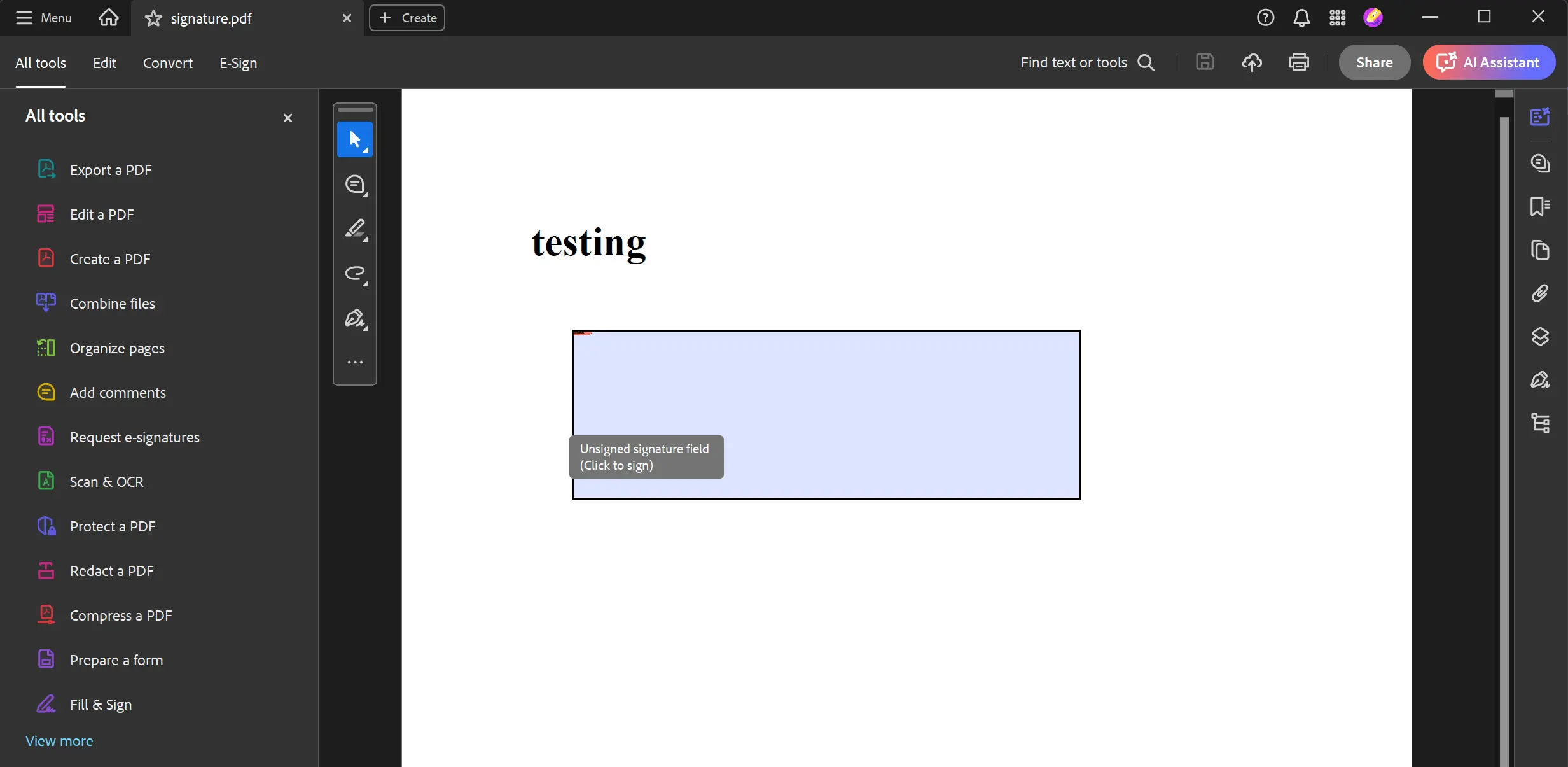 An unsigned, interactive signature field added programmatically to a PDF document.
How Do I Retrieve the Signer Name from Verified Signatures?
To obtain the name of the signer, read the SignerName property of the VerifiedSignature class, as the following code shows.
using IronPdf;
using System;

// Import the Signed PDF report
var pdf = PdfDocument.FromFile("multi_signed_report.pdf");

// Using GetVerifiedSignatures() obtain a list of `VerifiedSignature` objects from the PDF
pdf.GetVerifiedSignatures().ForEach(signature =>
{
    // Print out the SignerName of each `VerifiedSignature` object
    Console.WriteLine($"SignatureName: {signature.SignerName}");
});
using IronPdf;
using System;
// Import the Signed PDF report
var pdf = PdfDocument.FromFile("multi_signed_report.pdf");
// Using GetVerifiedSignatures() obtain a list of `VerifiedSignature` objects from the PDF
pdf.GetVerifiedSignatures().ForEach(signature =>
{
// Print out the SignerName of each `VerifiedSignature` object
Console.WriteLine($"SignatureName: {signature.SignerName}");
});Imports IronPdf
Imports System
' Import the Signed PDF report
Dim pdf = PdfDocument.FromFile("multi_signed_report.pdf")
' Using GetVerifiedSignatures() obtain a list of `VerifiedSignature` objects from the PDF
pdf.GetVerifiedSignatures().ForEach(Sub(signature)
' Print out the SignerName of each `VerifiedSignature` object
Console.WriteLine($"SignatureName: {signature.SignerName}")
End Sub)Imports IronPdf
Imports System
' Import the Signed PDF report
Dim pdf = PdfDocument.FromFile("multi_signed_report.pdf")
' Using GetVerifiedSignatures() obtain a list of `VerifiedSignature` objects from the PDF
pdf.GetVerifiedSignatures().ForEach(Sub(signature)
' Print out the SignerName of each `VerifiedSignature` object
Console.WriteLine($"SignatureName: {signature.SignerName}")
End Sub)After importing the signed PDF file, the code calls the GetVerifiedSignatures() method to retrieve a list of verified signatures and prints the signer name for each one.
The signer name is read from the name stored in the signature dictionary and falls back to the CN field of the certificate's Subject Distinguished Name (SubjectDN). It is an empty string when neither source provides a value.
Each verified signature also exposes Valid and Status for the verification result, SignerCertificate for the full X.509 details of the signing certificate (subject and issuer DN, serial number, validity period and SHA-256 thumbprint), and CertificateChain for the chain from the signer to the root. The guide to reading signer certificates from verified PDF signatures covers national ID extraction, certificate pinning and chain walking in detail.
What Are the Next Steps for PDF Signing with IronPDF?
This guide covered certificate-based digital signatures with metadata and timestamps, signature permissions, multi-party signing across revisions, signature verification, stamped handwritten signatures and interactive signature fields.
To try these examples in your own projects, download the IronPDF library for .NET and get a free trial license. Related guides cover adding annotations and working with form fields, and the Sign and Secure PDFs tutorial brings signing, passwords and permissions together. IronPDF is also part of Iron Suite, which bundles ten Iron Software .NET libraries under one license key, sold as a one-time purchase.
Frequently Asked Questions
How can I digitally sign a PDF using IronPDF with a certificate?
Load the certificate into an X509Certificate2 object with the Exportable storage flag, pass it to a new PdfSignature, and call Sign on the PdfDocument before saving. SignWithFile does the same in one call from a .pfx or .p12 path, and SignWithStore signs with a certificate from the certificate store identified by its thumbprint.
What are the steps to add a visual image as a digital signature in IronPDF?
Create a PdfSignature with your certificate and assign a PdfSignatureImage to its SignatureImage property, giving the page index and a rectangle for position and size. LoadSignatureImageFromFile and LoadSignatureImageFromStream do the same from a file path or a stream. PNG, JPEG, GIF, BMP, TIFF and WebP images are supported, and the image is drawn onto the page when the document is signed.
Can I add an interactive signature field to a PDF in IronPDF?
Yes. Create a SignatureFormField with a name, a page index, a position and a size, then add it to the document with pdf.Form.Add. The saved PDF contains an empty, clickable signature field that a recipient can sign in a viewer such as Adobe Acrobat.
What methods does IronPDF offer to verify all signatures in a PDF document?
VerifyPdfSignatures checks every signature across every revision and returns true only when all of them are valid. PdfDocument.VerifyPdfSignaturesInFile runs the same check on a file path. For details on each signature, GetVerifiedSignatures returns one VerifiedSignature per signature. Setting the detectIncrementalTampering argument of either method to true adds a revision-level analysis that detects objects redefined after an earlier signature was applied.
How can I manage document permissions after signing a PDF with IronPDF?
Pass a SignaturePermissions value as the second argument to Sign. NoChangesAllowed locks the document and is the default, AdditionalSignaturesAndFormFillingAllowed permits further signatures and form filling, and AdditionalSignaturesFormFillingAndAnnotationsAllowed also permits annotations. These values are the DocMDP levels 1, 2 and 3 defined by ISO 32000, which conforming PDF readers enforce.
Which hash algorithms does IronPDF use for signatures and timestamps?
SignatureHashAlgorithm sets the signature digest and accepts SHA-256, SHA-384, SHA-512 or SHA-1. TimestampHashAlgorithm sets the RFC 3161 imprint sent to the timestamp authority in TimeStampUrl and accepts SHA-256, SHA-512 or SHA-1. Both default to SHA-256. SHA-1 is cryptographically weak and should not be used for new signatures, and some timestamp authorities, including DigiCert, reject it.
What feature does IronPDF provide for adding handwritten-looking signatures to PDFs?
Use the HtmlStamper class with an image tag that points to the signature image, set its alignment and offsets, and apply it with ApplyStamp. The result is a visually signed PDF without the cryptographic protection of a digital signature. To combine a visible image with a digital signature, use the SignatureImage property of PdfSignature instead.
How can I retrieve the signer's name from a verified signature in a PDF using IronPDF?
Call GetVerifiedSignatures, which returns a list of VerifiedSignature objects, and read the SignerName property of each one. The signer name comes from the name stored in the signature dictionary, with the CN field of the certificate subject as a fallback. SignerCertificate and CertificateChain provide the full certificate details and the chain to the root.
Is it possible to roll back to a previous revision of a signed PDF document in IronPDF?
Yes. GetRevision returns a signed PDF as it stood at an earlier revision, as a separate PdfDocument without the changes and signatures added after it, and RevisionCount reports how many revisions exist. This is useful for reviewing an earlier document state in a workflow with several stages of approval.
What steps should I take to get started with PDF signing using IronPDF?
Install the IronPdf package from NuGet and start with the one-line SignWithFile example on this page. A free trial license is available for testing digital and visual signatures, signature fields and signature verification in your own projects. The IronPDF code examples and the Sign and Secure PDFs tutorial cover the same features in more depth.
How do I sign into an existing named signature field in a PDF?
Set the SignatureFieldName property on PdfSignature to the Name of an existing, unsigned signature form field. IronPDF fills that field where the form author placed it instead of appending a new one, which is what forms with multiple named signature blocks require. Signing throws if no unsigned field with that name exists, and the error message names the field. SignatureFieldName cannot be combined with SignatureImage, because applying an image repositions the field.
Why does signing a PDF twice throw a NotSupportedException?
A PdfDocument carries one new signature per save. A second signature added to the same revision would alter bytes the first one already signed, so only the last signature would verify. Earlier versions allowed this and produced documents with silently invalid signatures, and current versions throw instead. To have several parties sign, sign and save, then reopen the file and add the next signature with SaveAsRevision, following the one-signature-per-save pattern.
What is the difference between SignaturePermissions and the one-signature-per-save rule?
They are separate ideas. SignaturePermissions is a standard PDF certification permission defined by ISO 32000. It is written into the signed document and governs what a later party may change without invalidating the signature. The one-signature-per-save rule governs how many Sign() calls can be batched before a single save. A permission that allows additional signatures does not allow two signatures in one save.
Does SignaturePermissions apply when signing a named field?
No. Filling a pre-placed field always produces a plain approval signature with no certification permissions attached, so a permission value passed alongside SignatureFieldName has no effect. To certify a document with permissions, apply the first signature without a field name so that signing appends a new field.

Jacob Mellor is Chief Technology Officer at Iron Software and a visionary engineer pioneering C# PDF technology. As the original developer behind Iron Software's core codebase, he has shaped the company's product architecture since its inception, transforming it alongside CEO Cameron Rimington into a 50+ person company serving NASA, Tesla, and global government agencies.