
Stamp Text & Image on PDFs using C# and IronPDF

IronPDF stamps text, images, HTML content, and barcodes onto existing PDF documents in C# using TextStamper, ImageStamper, HTMLStamper, and BarcodeStamper classes with precise positioning control.
Stamping overlays additional content onto existing PDF documents. Stamps add information, labels, watermarks, or annotations to PDFs. Use stamps for adding headers and footers or creating custom watermarks with IronPDF's comprehensive stamping capabilities.
IronPDF provides four stampers: TextStamper, ImageStamper, HTMLStamper, and BarcodeStamper. HTMLStamper utilizes all HTML features with CSS styling, similar to converting HTML strings to PDF.
Use IronPDF's TextStamper class to add text annotations, watermarks, or labels to PDF documents. The example below demonstrates stamping text onto a PDF using the ApplyStamp method.
-
1Install IronPDF with NuGet Package Manager
-
2Copy and run this code snippet.
var pdf = new IronPdf.PdfDocument("input.pdf"); var stamper = new IronPdf.Editing.TextStamper() { Text = "Confidential", FontSize = 50, Opacity = 50, VerticalAlignment = IronPdf.Editing.VerticalAlignment.Middle, HorizontalAlignment = IronPdf.Editing.HorizontalAlignment.Center }; pdf.ApplyStamp(stamper); pdf.SaveAs("stamped.pdf");C# -
3Deploy to test on your live environment
Start using IronPDF in your project today with a free trial
Minimal Workflow (5 steps)
- Download the C# library to stamp text and image
- Create and configure the desired stamper class
- Use the
ApplyStampmethod to apply the stamp to the PDF - Apply multiple stamps using the
ApplyMultipleStampsmethod - Specify particular pages to apply the stamps to
How Do I Stamp Text on PDFs?
Create a TextStamper object containing all display configurations. Pass the TextStamper object to the ApplyStamp method. The Text property sets the displayed text. Configure font family, font styling, and stamp location.
TextStamper provides extensive customization options similar to managing fonts in PDF documents. Use system fonts or Google Fonts by setting UseGoogleFont to true.
using IronPdf;
using IronPdf.Editing;

ChromePdfRenderer renderer = new ChromePdfRenderer();

PdfDocument pdf = renderer.RenderHtmlAsPdf("<h1>Example HTML Document!</h1>");

// Create text stamper
TextStamper textStamper = new TextStamper()
{
    Text = "Text Stamper!",
    FontFamily = "Bungee Spice",
    UseGoogleFont = true,
    FontSize = 30,
    IsBold = true,
    IsItalic = true,
    VerticalAlignment = VerticalAlignment.Top,
};

// Stamp the text stamper
pdf.ApplyStamp(textStamper);

pdf.SaveAs("stampText.pdf");Imports IronPdf
Imports IronPdf.Editing
Private renderer As New ChromePdfRenderer()
Private pdf As PdfDocument = renderer.RenderHtmlAsPdf("<h1>Example HTML Document!</h1>")
' Create text stamper
Private textStamper As New TextStamper() With {
.Text = "Text Stamper!",
.FontFamily = "Bungee Spice",
.UseGoogleFont = True,
.FontSize = 30,
.IsBold = True,
.IsItalic = True,
.VerticalAlignment = VerticalAlignment.Top
}
' Stamp the text stamper
pdf.ApplyStamp(textStamper)
pdf.SaveAs("stampText.pdf")What Does the Output PDF Look Like?
How Can I Create Multi-Line Text Stamps?
Use the <br> tag for multi-line text in TextStamper. For example, "line 1
line 2" produces "line 1" on the first line and "line 2" on the second line. This creates address stamps or multi-line watermarks.
How Do I Stamp Images on PDFs?
Create an ImageStamper object and use the ApplyStamp method to apply images to documents. The method's second parameter accepts a page index for stamping single or multiple pages. The example below stamps the image on page 1 of the PDF.
For complex image operations, explore adding images to PDFs or working with base64 encoded images.
using IronPdf;
using IronPdf.Editing;
using System;

ChromePdfRenderer renderer = new ChromePdfRenderer();

PdfDocument pdf = renderer.RenderHtmlAsPdf("<h1>Example HTML Document!</h1>");

// Create image stamper
ImageStamper imageStamper = new ImageStamper(new Uri("https://ironpdf.com/img/svgs/iron-pdf-logo.svg"))
{
    VerticalAlignment = VerticalAlignment.Top,
};

// Stamp the image stamper
pdf.ApplyStamp(imageStamper, 0);

pdf.SaveAs("stampImage.pdf");Imports IronPdf
Imports IronPdf.Editing
Imports System
Private renderer As New ChromePdfRenderer()
Private pdf As PdfDocument = renderer.RenderHtmlAsPdf("<h1>Example HTML Document!</h1>")
' Create image stamper
Private imageStamper As New ImageStamper(New Uri("https://ironpdf.com/img/svgs/iron-pdf-logo.svg")) With {.VerticalAlignment = VerticalAlignment.Top}
' Stamp the image stamper
pdf.ApplyStamp(imageStamper, 0)
pdf.SaveAs("stampImage.pdf")What Does the Image Stamp Output Look Like?
Which Image Formats Are Supported?
ImageStamper supports PNG, JPEG, GIF, and SVG through URI references or file paths. Ensure proper network connectivity for remote images. For Azure environments, consider using images from Azure Blob Storage.
How Can I Apply Multiple Stamps?
Use ApplyMultipleStamps to apply multiple stamps by passing an array of stampers. This method efficiently processes several stamps in a single operation.
using IronPdf;
using IronPdf.Editing;

ChromePdfRenderer renderer = new ChromePdfRenderer();

PdfDocument pdf = renderer.RenderHtmlAsPdf("<h1>Example HTML Document!</h1>");

// Create two text stampers
TextStamper stamper1 = new TextStamper()
{
    Text = "Text stamp 1",
    VerticalAlignment = VerticalAlignment.Top,
    HorizontalAlignment = HorizontalAlignment.Left,
};

TextStamper stamper2 = new TextStamper()
{
    Text = "Text stamp 2",
    VerticalAlignment = VerticalAlignment.Top,
    HorizontalAlignment = HorizontalAlignment.Right,
};

Stamper[] stampersToApply = { stamper1, stamper2 };

// Apply multiple stamps
pdf.ApplyMultipleStamps(stampersToApply);

pdf.SaveAs("multipleStamps.pdf");Imports IronPdf
Imports IronPdf.Editing
Private renderer As New ChromePdfRenderer()
Private pdf As PdfDocument = renderer.RenderHtmlAsPdf("<h1>Example HTML Document!</h1>")
' Create two text stampers
Private stamper1 As New TextStamper() With {
.Text = "Text stamp 1",
.VerticalAlignment = VerticalAlignment.Top,
.HorizontalAlignment = HorizontalAlignment.Left
}
Private stamper2 As New TextStamper() With {
.Text = "Text stamp 2",
.VerticalAlignment = VerticalAlignment.Top,
.HorizontalAlignment = HorizontalAlignment.Right
}
Private stampersToApply() As Stamper = { stamper1, stamper2 }
' Apply multiple stamps
pdf.ApplyMultipleStamps(stampersToApply)
pdf.SaveAs("multipleStamps.pdf")What Happens When Stamps Overlap?
Can I Mix Different Stamp Types?
ApplyMultipleStamps accepts arrays containing any stamper types. Combine TextStamper, ImageStamper, HTMLStamper, and BarcodeStamper in one operation. Create complex document layouts with headers, footers, watermarks, and identification codes simultaneously.
How Do I Control Stamp Location?
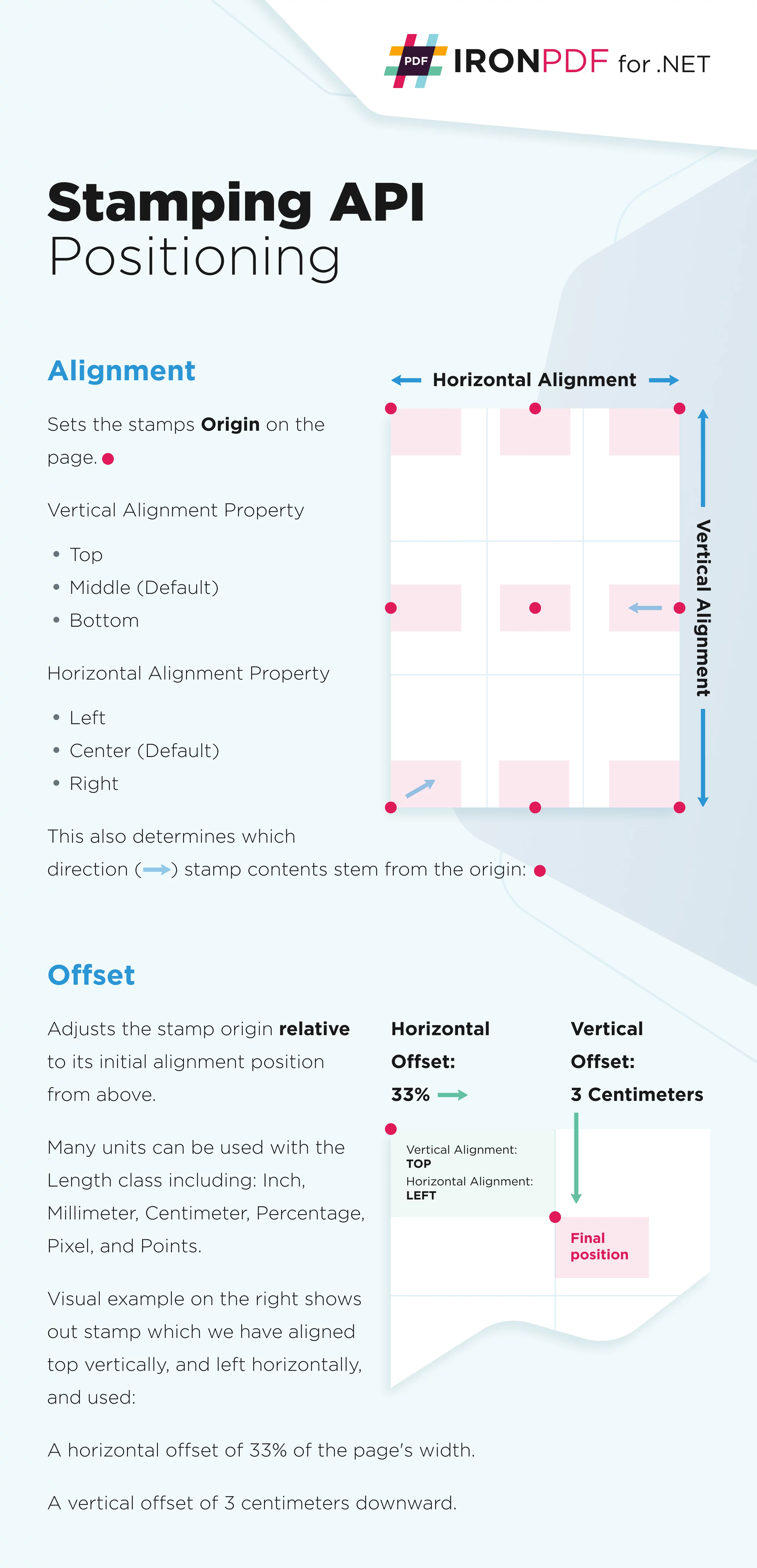
Define stamp placement using a 3x3 grid with three horizontal columns and three vertical rows. Choose horizontal alignment: left, center, right. Choose vertical alignment: top, middle, bottom. Adjust horizontal and vertical offsets for precise positioning. See the image below for visual representation.
What Are the Key Positioning Properties?
HorizontalAlignment: Horizontal alignment relative to the page. Default:HorizontalAlignment.Center.VerticalAlignment: Vertical alignment relative to the page. Default:VerticalAlignment.Middle.HorizontalOffset: Horizontal offset. Default: 0, unit:MeasurementUnit.Percentage. Positive values offset right, negative values offset left.VerticalOffset: Vertical offset. Default: 0, unit:MeasurementUnit.Percentage. Positive values offset down, negative values offset up.
How Do I Set Precise Offsets?
Specify HorizontalOffset and VerticalOffset using the Length class. Default measurement unit is percentage. Available units include inches, millimeters, centimeters, pixels, and points. This enables precise positioning like setting custom margins in PDF documents.
Code
using IronPdf.Editing;
using System;

// Create text stamper
ImageStamper imageStamper = new ImageStamper(new Uri("https://ironpdf.com/img/svgs/iron-pdf-logo.svg"))
{
    HorizontalAlignment = HorizontalAlignment.Center,
    VerticalAlignment = VerticalAlignment.Top,

    // Specify offsets
    HorizontalOffset = new Length(10),
    VerticalOffset = new Length(10),
};Imports IronPdf.Editing
Imports System
' Create text stamper
Private imageStamper As New ImageStamper(New Uri("https://ironpdf.com/img/svgs/iron-pdf-logo.svg")) With {
.HorizontalAlignment = HorizontalAlignment.Center,
.VerticalAlignment = VerticalAlignment.Top,
.HorizontalOffset = New Length(10),
.VerticalOffset = New Length(10)
}
My favorite library of this kind is IronPDF. It allows for fast and efficient manipulation of PDF files. It also has many valuable features, like exporting to PDF/A format and digitally signing PDF documents.

IronOCR means we can save $40,000 annually from manual processing, while enhancing productivity and freeing up resources for high-impact tasks. I would highly recommend it.

The IronSuite play a crucial role in our operations. These are tools that increase efficiencies across the business including creating floor plans and improving inventory management.

How Do I Stamp HTML Content?
Use the HtmlStamper class to stamp text and images. HtmlStamper renders HTML designs with CSS styling, then stamps them onto PDF documents. The HtmlBaseUrl property specifies the base URL for HTML string assets like CSS and image files. This uses the same rendering engine as converting HTML to PDF.
Code
using IronPdf;
using IronPdf.Editing;

ChromePdfRenderer renderer = new ChromePdfRenderer();

PdfDocument pdf = renderer.RenderHtmlAsPdf("<h1>Example HTML Document!</h1>");

// Create HTML stamper
HtmlStamper htmlStamper = new HtmlStamper()
{
    Html = @"<img src='https://ironpdf.com/img/svgs/iron-pdf-logo.svg'>
    <h1>Iron Software</h1>",
    VerticalAlignment = VerticalAlignment.Top,
};

// Stamp the HTML stamper
pdf.ApplyStamp(htmlStamper);

pdf.SaveAs("stampHtml.pdf");Imports IronPdf
Imports IronPdf.Editing
Private renderer As New ChromePdfRenderer()
Private pdf As PdfDocument = renderer.RenderHtmlAsPdf("<h1>Example HTML Document!</h1>")
' Create HTML stamper
Private htmlStamper As New HtmlStamper() With {
.Html = "<img src='https://ironpdf.com/img/svgs/iron-pdf-logo.svg'>
<h1>Iron Software</h1>",
.VerticalAlignment = VerticalAlignment.Top
}
' Stamp the HTML stamper
pdf.ApplyStamp(htmlStamper)
pdf.SaveAs("stampHtml.pdf")What Are the Essential HTML Stamper Properties?
Html: HTML fragment to stamp onto your PDF. External references to JavaScript, CSS, and images are relative toHtmlBaseUrl.HtmlBaseUrl: Base URL for external CSS, JavaScript, and image file references.CssMediaType: Enables Media="screen" CSS styles. SettingAllowScreenCss=falserenders stamps using CSS media="print". Default:PdfCssMediaType.Screen.
Why Use HTML Stamper Over Text Stamper?
HTMLStamper provides full HTML and CSS support for complex layouts, multiple fonts, colors, and embedded images in one stamp. Ideal for rich content watermarks or headers. Maintains consistent branding and works with responsive CSS designs.
How Do I Stamp Barcodes?
The BarcodeStamper class stamps barcodes directly on existing PDF documents. Supports QRCode, Code128, and Code39 barcode types.
Code
using IronPdf;
using IronPdf.Editing;

ChromePdfRenderer renderer = new ChromePdfRenderer();

PdfDocument pdf = renderer.RenderHtmlAsPdf("<h1>Example HTML Document!</h1>");

// Create barcode stamper
BarcodeStamper barcodeStamper = new BarcodeStamper("IronPdf!!", BarcodeEncoding.Code39)
{
    VerticalAlignment = VerticalAlignment.Top,
};

// Stamp the barcode stamper
pdf.ApplyStamp(barcodeStamper);

pdf.SaveAs("stampBarcode.pdf");Imports IronPdf
Imports IronPdf.Editing
Private renderer As New ChromePdfRenderer()
Private pdf As PdfDocument = renderer.RenderHtmlAsPdf("<h1>Example HTML Document!</h1>")
' Create barcode stamper
Private barcodeStamper As New BarcodeStamper("IronPdf!!", BarcodeEncoding.Code39) With {.VerticalAlignment = VerticalAlignment.Top}
' Stamp the barcode stamper
pdf.ApplyStamp(barcodeStamper)
pdf.SaveAs("stampBarcode.pdf")What Configuration Options Are Available for Barcodes?
Value: String value of the barcode.BarcodeType: Encoding type supporting QRCode, Code128, and Code39. Default: QRCode.Width: Rendered barcode width in pixels. Default: 250px.Height: Rendered barcode height in pixels. Default: 250px.
When Should I Use Each Barcode Type?
QRCode handles URLs and large data sets (up to 4,296 alphanumeric characters). Code128 suits alphanumeric data with high-density requirements. Code39 works for simple numeric or uppercase letter combinations. Consider scanning equipment compatibility when selecting barcode types.
What Additional Stamper Options Are Available?
These properties provide fine control over stamp appearance and behavior, similar to creating custom watermarks.
How Do I Control Stamp Appearance?
Opacity: Controls transparency. 0 is invisible, 100 is opaque.Rotation: Rotates stamp clockwise from 0 to 360 degrees.MaxWidth: Maximum width of output stamp.MaxHeight: Maximum height of output stamp.MinWidth: Minimum width of output stamp.MinHeight: Minimum height of output stamp.Hyperlink: Adds on-click hyperlink to stamped elements. Note: HTML links (a tags) aren't preserved by stamping.Scale: Applies percentage scale to stamps. Default: 100 (no effect).IsStampBehindContent: Places stamp behind content. Stamp may be invisible if content is opaque.WaitFor: Waits for events or time. See using WaitFor to delay PDF render.Timeout: Render timeout in seconds. Default: 60.
Which Properties Are Most Commonly Used?
Opacity and IsStampBehindContent create watermarks. Scale and Rotation adjust visual positioning and sizing. Example:
// Create a semi-transparent watermark behind content
TextStamper watermark = new TextStamper()
{
    Text = "CONFIDENTIAL",
    FontSize = 60,
    FontColorCode = "#CCCCCC",
    Opacity = 25,
    Rotation = -45,
    IsStampBehindContent = true,
    VerticalAlignment = VerticalAlignment.Middle,
    HorizontalAlignment = HorizontalAlignment.Center
};' Create a semi-transparent watermark behind content
Dim watermark As New TextStamper() With {
.Text = "CONFIDENTIAL",
.FontSize = 60,
.FontColorCode = "#CCCCCC",
.Opacity = 25,
.Rotation = -45,
.IsStampBehindContent = True,
.VerticalAlignment = VerticalAlignment.Middle,
.HorizontalAlignment = HorizontalAlignment.Center
}Summary
IronPDF's stamping functionality adds text, images, HTML content, and barcodes to existing PDF documents. Four specialized stamper classes with extensive customization options create professional documents with watermarks, headers, footers, and annotations. The positioning system with various measurement units and alignment options ensures pixel-perfect placement. Use simple text stamps or complex HTML layouts with CSS styling. IronPDF's stamping API delivers flexibility and control for enterprise-grade PDF manipulation.
Frequently Asked Questions
What is the purpose of stamping text and images on PDFs?
Stamping overlays additional content onto existing PDF documents to add information, labels, watermarks, or annotations. IronPDF allows for precise positioning control when stamping text, images, HTML content, and barcodes.
How can I stamp text on a PDF using IronPDF?
You can use IronPDF's `TextStamper` class to add text annotations, watermarks, or labels. Configure the `TextStamper` object with the desired text, font size, and alignment, then apply it using the `ApplyStamp` method.
What image formats are supported for stamping on PDFs with IronPDF?
The `ImageStamper` class in IronPDF supports PNG, JPEG, GIF, and SVG image formats. You can provide these images through URI references or file paths.
Can I apply multiple stamps at once on a PDF?
Yes, IronPDF allows you to apply multiple stamps using the `ApplyMultipleStamps` method. You can combine different stamper types like `TextStamper`, `ImageStamper`, `HTMLStamper`, and `BarcodeStamper` in one operation.
How do I control the position of a stamp on a PDF document?
IronPDF uses a 3x3 grid system for positioning stamps. You can specify horizontal and vertical alignments, and use offsets to fine-tune the placement to achieve pixel-perfect positioning.
What are the key differences between using `HTMLStamper` and `TextStamper`?
The `HTMLStamper` class supports full HTML and CSS features, allowing for complex layouts and embedded images, while `TextStamper` is ideal for simpler text annotations. HTML stamping is useful for creating rich content watermarks or headers.
How can I create a semi-transparent watermark with IronPDF?
You can create a semi-transparent watermark using the `Opacity` property in the stamper classes of IronPDF. For example, set `Opacity` to 25 to apply a lightly transparent watermark on the PDF document.
What barcode types can I stamp on PDFs using IronPDF?
IronPDF's `BarcodeStamper` class supports QRCode, Code128, and Code39 barcode types. Each type is suitable for different encoding requirements and can be customized for size and positioning.
Is it possible to add hyperlinks to stamped elements in IronPDF?
Yes, IronPDF allows you to add hyperlinks to stamped elements through the `Hyperlink` property. However, note that HTML links (a tags) aren't preserved by stamping.
Can I use Google Fonts when stamping text on a PDF document?
Yes, IronPDF allows you to use Google Fonts with the `TextStamper`. Set the `UseGoogleFont` property to true and specify the desired font family to use Google Fonts in your text stamps.

Curtis Chau holds a Bachelor’s degree in Computer Science (Carleton University) and specializes in front-end development with expertise in Node.js, TypeScript, JavaScript, and React. Passionate about crafting intuitive and aesthetically pleasing user interfaces, Curtis enjoys working with modern frameworks and creating well-structured, visually appealing manuals.













